
LOGO Enterprise Communication Yeastar Technology Co Ltd www


- Slides: 92
LOGO Enterprise Communication Yeastar Technology Co. , Ltd. www. yeastar. com
Yeastar – IP PBX Embedded Hybrid IP-PBX
My. PBX Technical Training 1 Introduction 2 Basic settings 3 Advanced settings 4 Solution
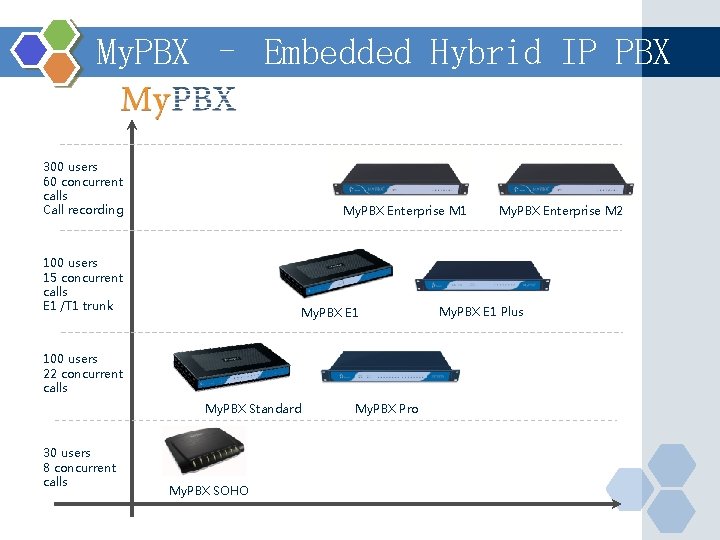
My. PBX – Embedded Hybrid IP PBX 300 users 60 concurrent calls Call recording My. PBX Enterprise M 1 100 users 15 concurrent calls E 1 /T 1 trunk My. PBX E 1 100 users 22 concurrent calls My. PBX Standard 30 users 8 concurrent calls My. PBX SOHO My. PBX Pro My. PBX Enterprise M 2 My. PBX E 1 Plus
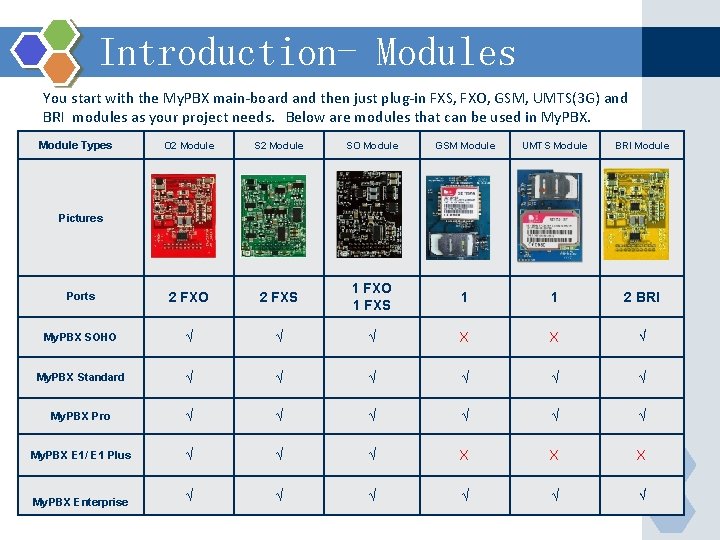
Introduction- Modules You start with the My. PBX main-board and then just plug-in FXS, FXO, GSM, UMTS(3 G) and BRI modules as your project needs. Below are modules that can be used in My. PBX. Module Types O 2 Module SO Module GSM Module UMTS Module BRI Module Ports 2 FXO 2 FXS 1 FXO 1 FXS 1 1 2 BRI My. PBX SOHO √ √ √ X X √ My. PBX Standard √ √ √ My. PBX Pro √ √ √ My. PBX E 1/ E 1 Plus √ √ √ X X X My. PBX Enterprise √ √ √ Pictures
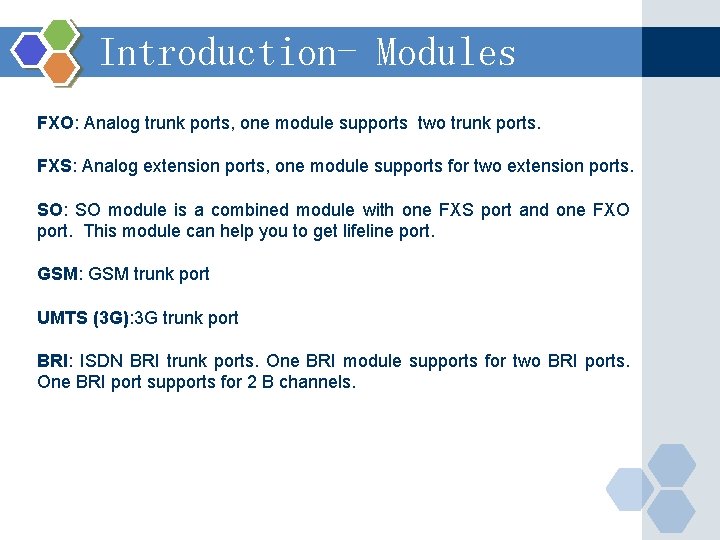
Introduction- Modules FXO: Analog trunk ports, one module supports two trunk ports. FXS: Analog extension ports, one module supports for two extension ports. SO: SO module is a combined module with one FXS port and one FXO port. This module can help you to get lifeline port. GSM: GSM trunk port UMTS (3 G): 3 G trunk port BRI: ISDN BRI trunk ports. One BRI module supports for two BRI ports. One BRI port supports for 2 B channels.
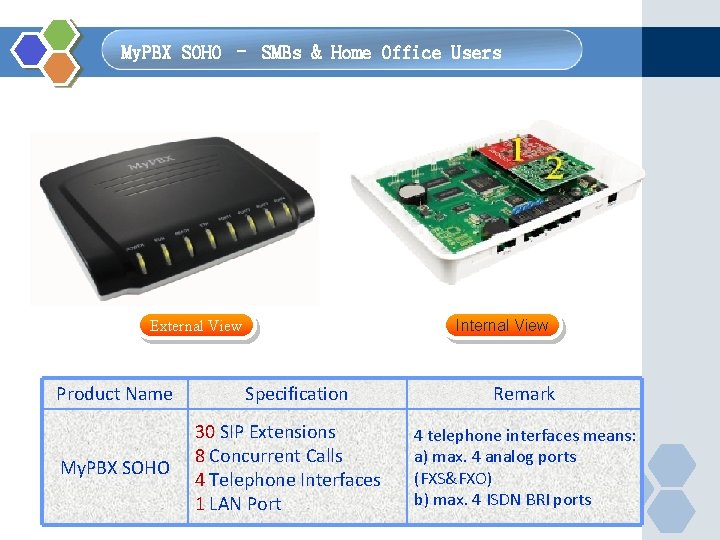
My. PBX SOHO – SMBs & Home Office Users Internal View External View Product Name My. PBX SOHO Specification 30 SIP Extensions 8 Concurrent Calls 4 Telephone Interfaces 1 LAN Port Remark 4 telephone interfaces means: a) max. 4 analog ports (FXS&FXO) b) max. 4 ISDN BRI ports
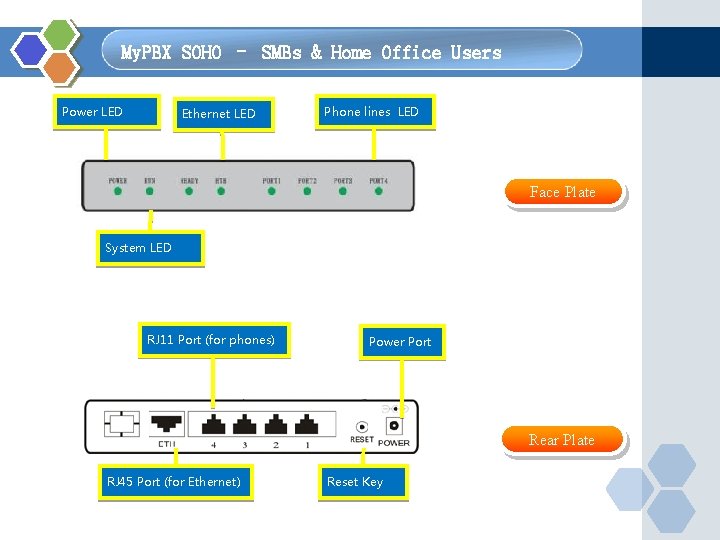
My. PBX SOHO – SMBs & Home Office Users Power LED Ethernet LED Phone lines LED Face Plate System LED RJ 11 Port (for phones) Power Port Rear Plate RJ 45 Port (for Ethernet) Reset Key
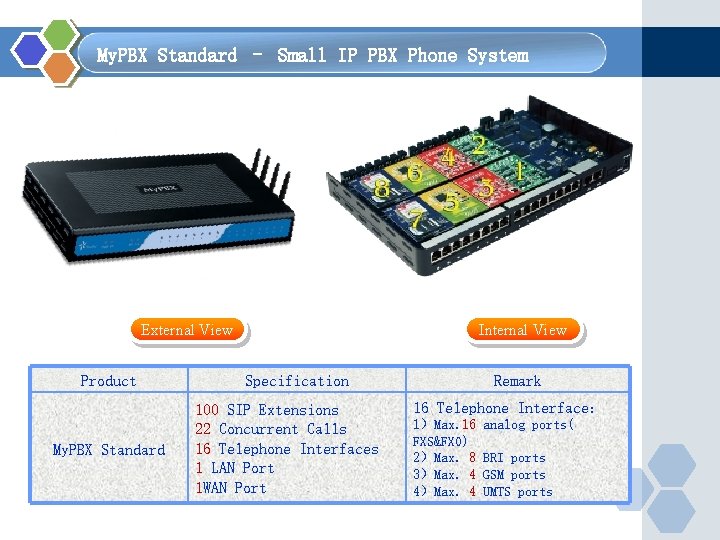
My. PBX Standard – Small IP PBX Phone System External View Product My. PBX Standard Internal View Specification 100 SIP Extensions 22 Concurrent Calls 16 Telephone Interfaces 1 LAN Port 1 WAN Port Remark 16 Telephone Interface: 1)Max. 16 FXS&FXO) 2)Max. 8 3)Max. 4 4)Max. 4 analog ports( BRI ports GSM ports UMTS ports
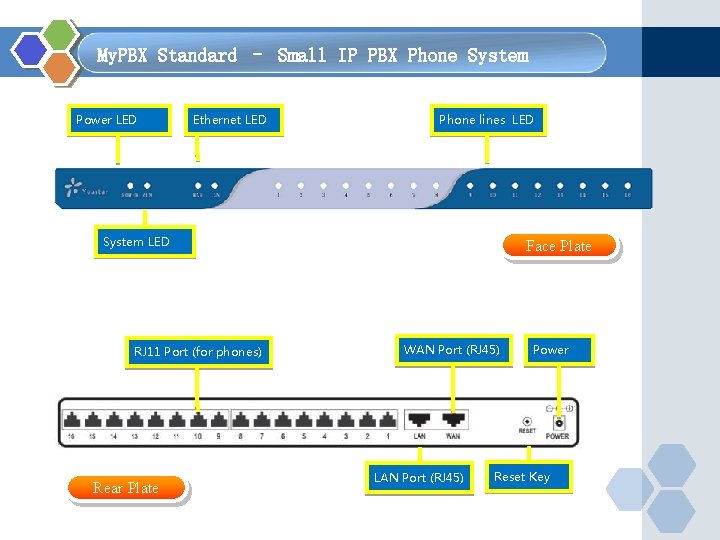
My. PBX Standard – Small IP PBX Phone System Power LED Ethernet LED Phone lines LED System LED RJ 11 Port (for phones) Rear Plate Face Plate WAN Port (RJ 45) LAN Port (RJ 45) Power Reset Key
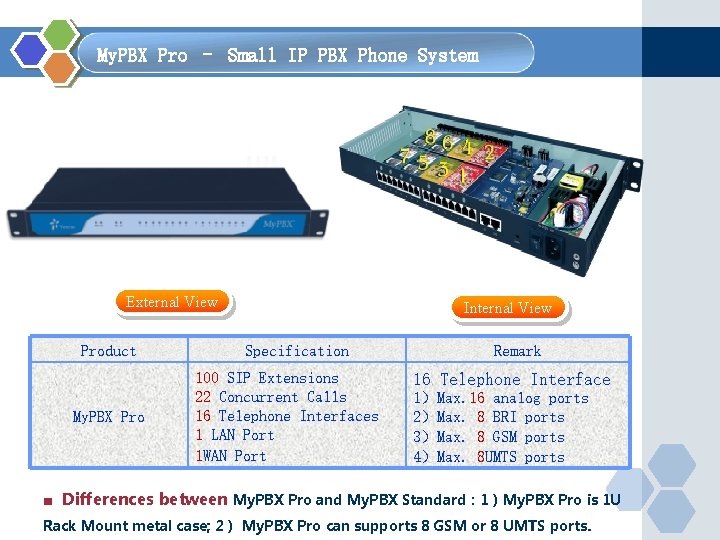
My. PBX Pro – Small IP PBX Phone System External View Product My. PBX Pro Internal View Specification 100 SIP Extensions 22 Concurrent Calls 16 Telephone Interfaces 1 LAN Port 1 WAN Port Remark 16 Telephone Interface 1)Max. 16 analog ports 2)Max. 8 BRI ports 3)Max. 8 GSM ports 4)Max. 8 UMTS ports ■ Differences between My. PBX Pro and My. PBX Standard: 1)My. PBX Pro is 1 U Rack Mount metal case; 2) My. PBX Pro can supports 8 GSM or 8 UMTS ports.
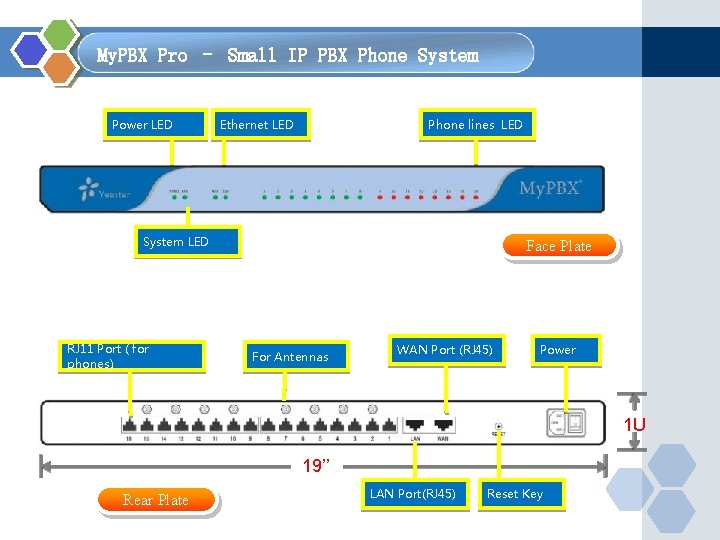
My. PBX Pro – Small IP PBX Phone System Power LED Ethernet LED Phone lines LED System LED RJ 11 Port ( for phones) Face Plate For Antennas WAN Port (RJ 45) Power 1 U 19’’ Rear Plate LAN Port(RJ 45) Reset Key
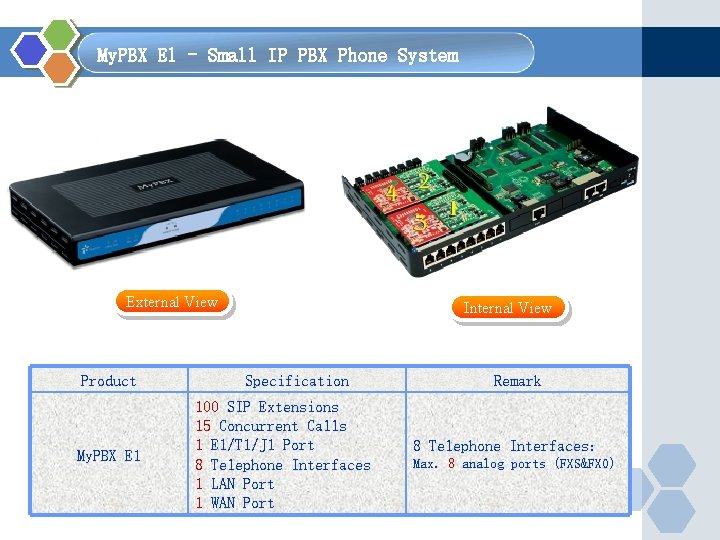
My. PBX E 1 - Small IP PBX Phone System External View Product My. PBX E 1 Internal View Specification 100 SIP Extensions 15 Concurrent Calls 1 E 1/T 1/J 1 Port 8 Telephone Interfaces 1 LAN Port 1 WAN Port Remark 8 Telephone Interfaces: Max. 8 analog ports (FXS&FXO)
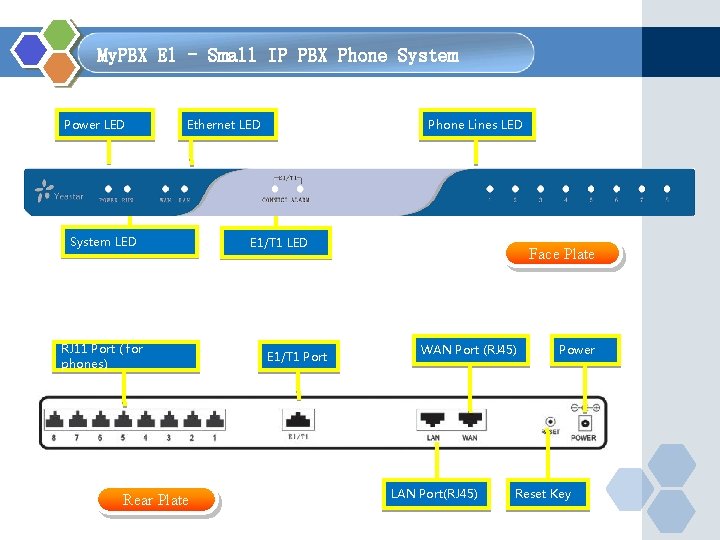
My. PBX E 1 - Small IP PBX Phone System Power LED Ethernet LED System LED RJ 11 Port ( for phones) Rear Plate Phone Lines LED E 1/T 1 Port Face Plate WAN Port (RJ 45) LAN Port(RJ 45) Power Reset Key
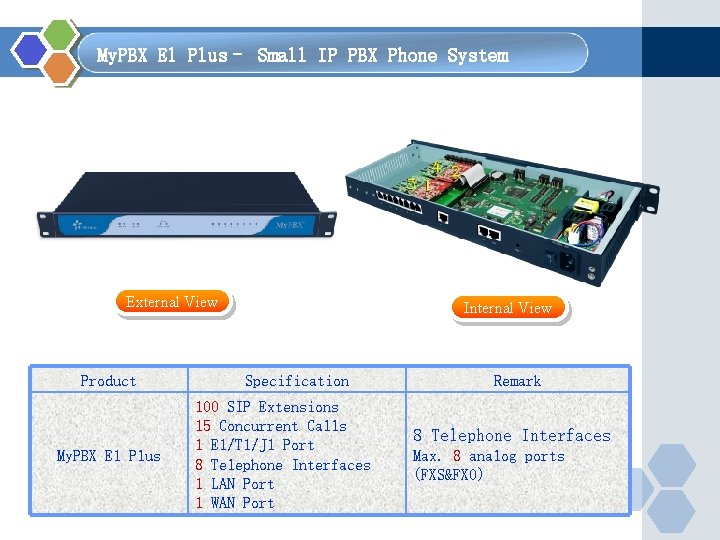
My. PBX E 1 Plus– Small IP PBX Phone System External View Product My. PBX E 1 Plus Internal View Specification 100 SIP Extensions 15 Concurrent Calls 1 E 1/T 1/J 1 Port 8 Telephone Interfaces 1 LAN Port 1 WAN Port Remark 8 Telephone Interfaces Max. 8 analog ports (FXS&FXO)
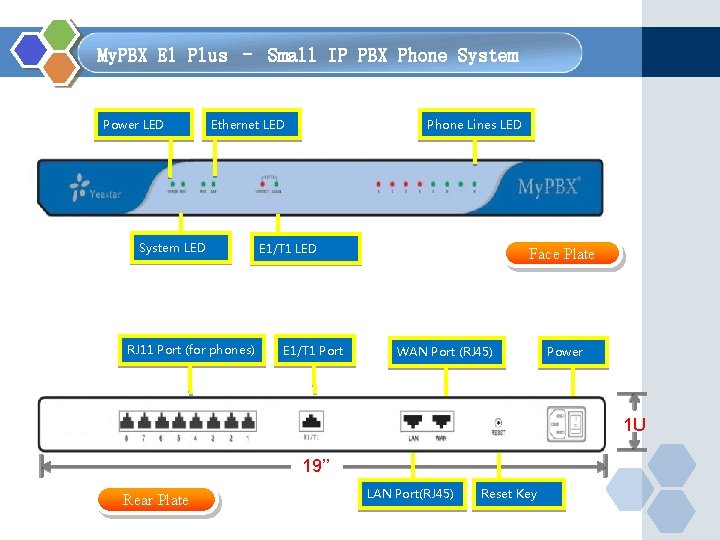
My. PBX E 1 Plus – Small IP PBX Phone System Power LED Ethernet LED System LED RJ 11 Port (for phones) Phone Lines LED E 1/T 1 Port Face Plate WAN Port (RJ 45) Power 1 U 19’’ Rear Plate LAN Port(RJ 45) Reset Key
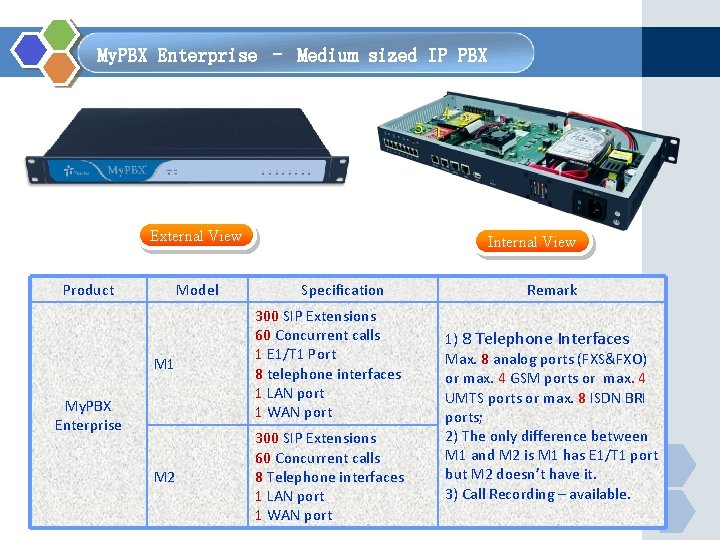
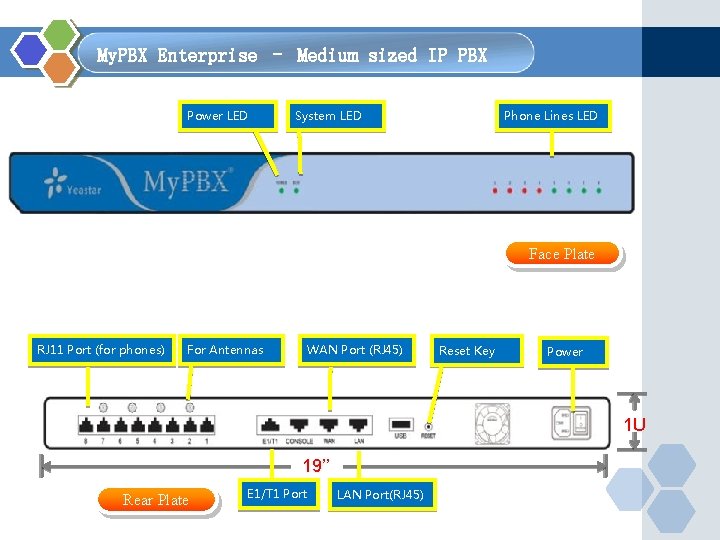
My. PBX Enterprise – Medium sized IP PBX External View Product Model Internal View Specification M 1 300 SIP Extensions 60 Concurrent calls 1 E 1/T 1 Port 8 telephone interfaces 1 LAN port 1 WAN port M 2 300 SIP Extensions 60 Concurrent calls 8 Telephone interfaces 1 LAN port 1 WAN port My. PBX Enterprise Remark 1) 8 Telephone Interfaces Max. 8 analog ports (FXS&FXO) or max. 4 GSM ports or max. 4 UMTS ports or max. 8 ISDN BRI ports; 2) The only difference between M 1 and M 2 is M 1 has E 1/T 1 port but M 2 doesn’t have it. 3) Call Recording – available.
My. PBX Enterprise – Medium sized IP PBX Power LED System LED Phone Lines LED Face Plate RJ 11 Port (for phones) For Antennas WAN Port (RJ 45) Reset Key Power 1 U 19’’ Rear Plate E 1/T 1 Port LAN Port(RJ 45)
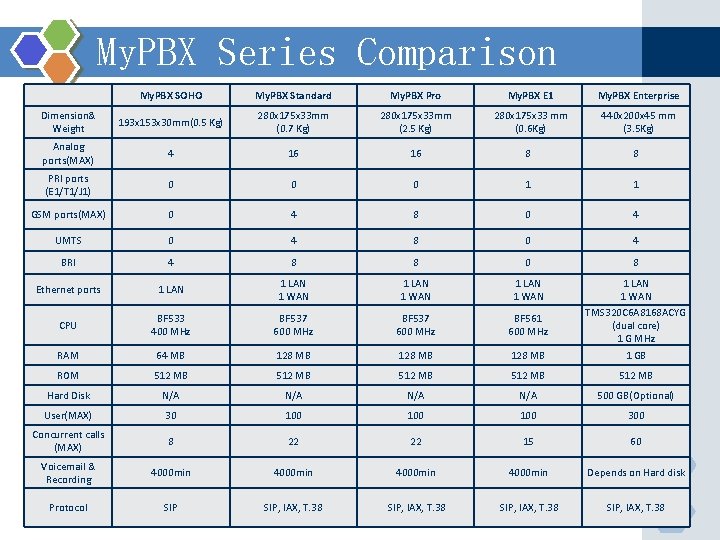
My. PBX Series Comparison My. PBX SOHO My. PBX Standard My. PBX Pro My. PBX E 1 My. PBX Enterprise Dimension& Weight 193 x 153 x 30 mm(0. 5 Kg) 280 x 175 x 33 mm (0. 7 Kg) 280 x 175 x 33 mm (2. 5 Kg) 280 x 175 x 33 mm (0. 6 Kg) 440 x 200 x 45 mm (3. 5 Kg) Analog ports(MAX) 4 16 16 8 8 PRI ports (E 1/T 1/J 1) 0 0 0 1 1 GSM ports(MAX) 0 4 8 0 4 UMTS 0 4 8 0 4 BRI 4 8 8 0 8 Ethernet ports 1 LAN 1 WAN CPU BF 533 400 MHz BF 537 600 MHz BF 561 600 MHz 1 LAN 1 WAN TMS 320 C 6 A 8168 ACYG (dual core) 1 G MHz RAM 64 MB 128 MB 1 GB ROM 512 MB 512 MB Hard Disk N/A N/A 500 GB(Optional) User(MAX) 30 100 100 300 Concurrent calls (MAX) 8 22 22 15 60 Voicemail & Recording 4000 min Depends on Hard disk Protocol SIP, IAX, T. 38
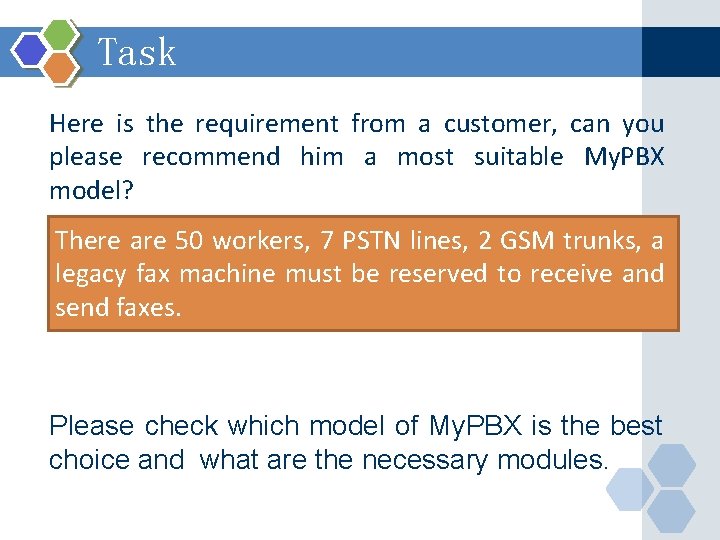
Task Here is the requirement from a customer, can you please recommend him a most suitable My. PBX model? There are 50 workers, 7 PSTN lines, 2 GSM trunks, a legacy fax machine must be reserved to receive and send faxes. Please check which model of My. PBX is the best choice and what are the necessary modules.
My. PBX Technical Training 1 Introduction 2 Basic settings 3 Advanced settings 4 Solution
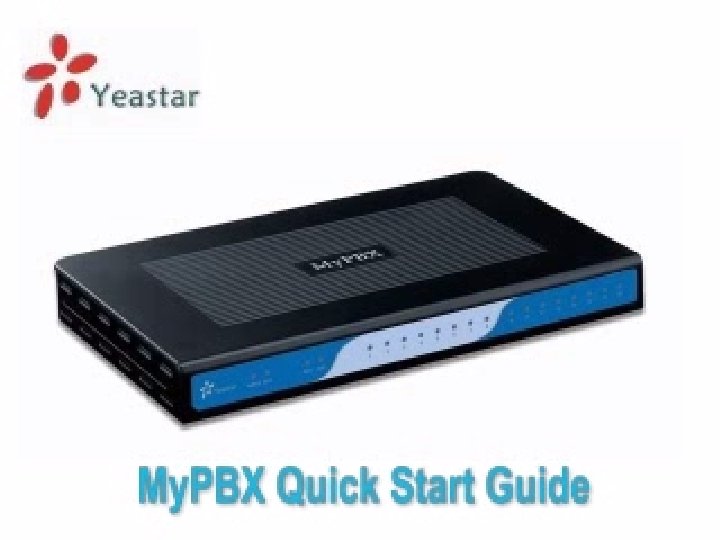
My. PBX quick start guide
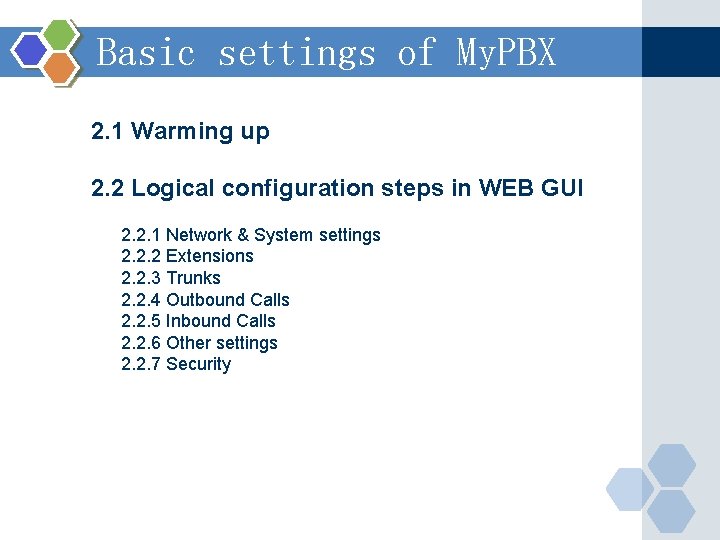
Basic settings of My. PBX 2. 1 Warming up 2. 2 Logical configuration steps in WEB GUI 2. 2. 1 Network & System settings 2. 2. 2 Extensions 2. 2. 3 Trunks 2. 2. 4 Outbound Calls 2. 2. 5 Inbound Calls 2. 2. 6 Other settings 2. 2. 7 Security
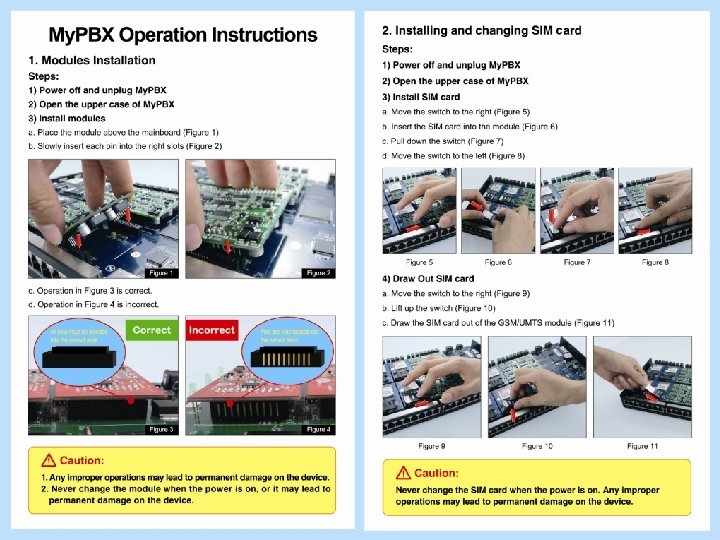
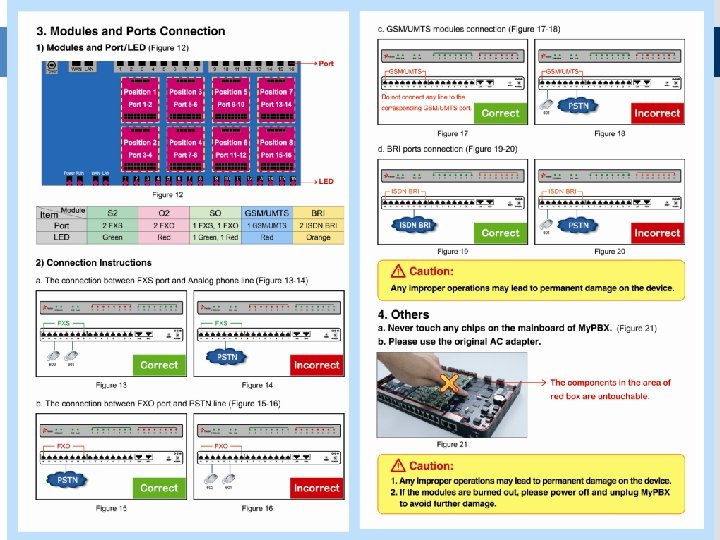
Basic settings – Warming up 2. 1 Warming up – Part 1 u Unpack your My. PBX – don’t power on u Unscrew the case of the My. PBX and insert the module cards according to your requirements Attention: Please ensure that the pins are aligned and the module is inserted correctly. Please check the ‘My. PBX Operation Instructions’ on the next page.
Introduction– Operation Instructions
Introduction– Operation Instructions
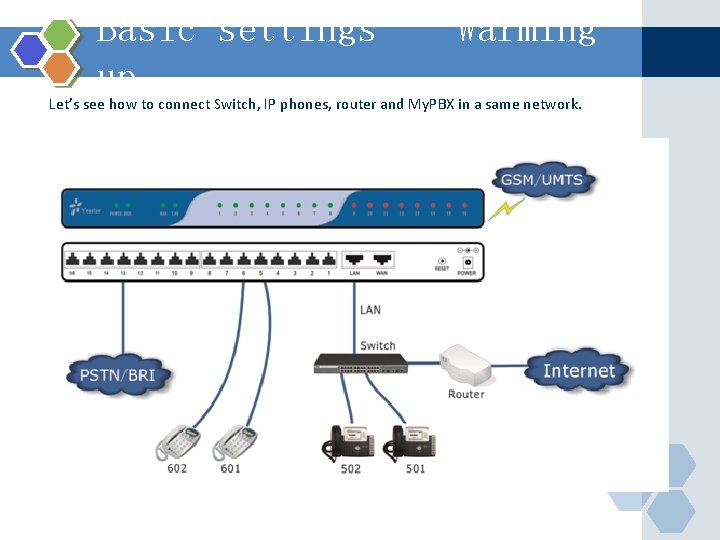
Basic settings – Warming up Let’s see how to connect Switch, IP phones, router and My. PBX in a same network.
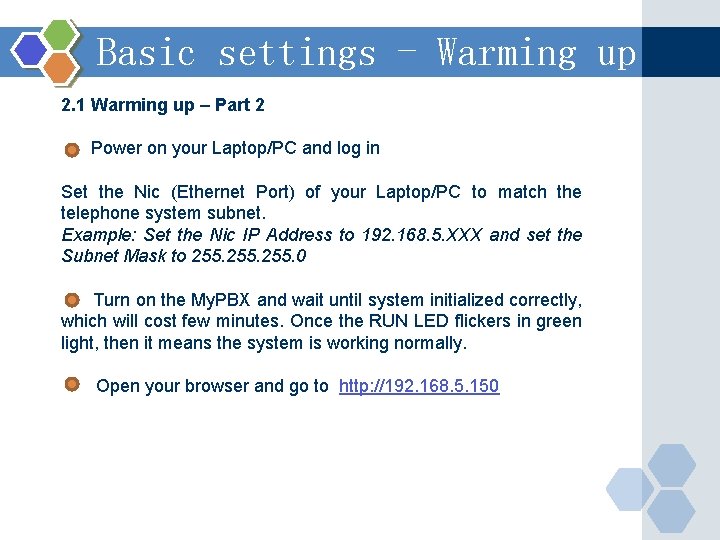
Basic settings - Warming up 2. 1 Warming up – Part 2 Power on your Laptop/PC and log in Set the Nic (Ethernet Port) of your Laptop/PC to match the telephone system subnet. Example: Set the Nic IP Address to 192. 168. 5. XXX and set the Subnet Mask to 255. 0 Turn on the My. PBX and wait until system initialized correctly, which will cost few minutes. Once the RUN LED flickers in green light, then it means the system is working normally. Open your browser and go to http: //192. 168. 5. 150
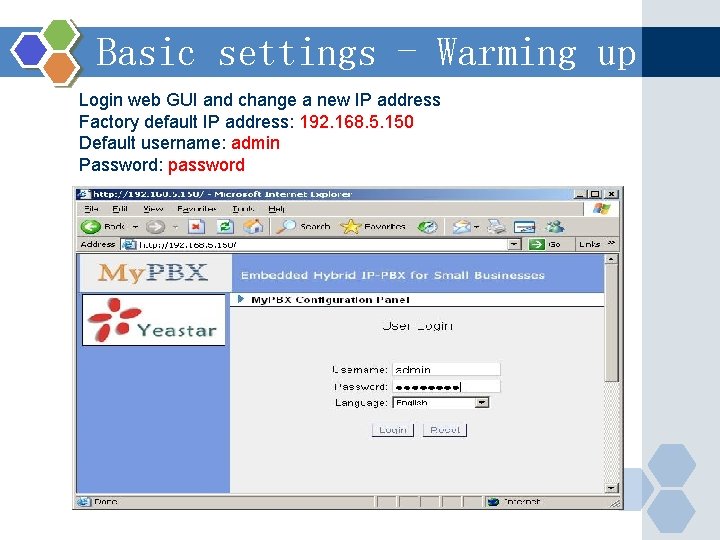
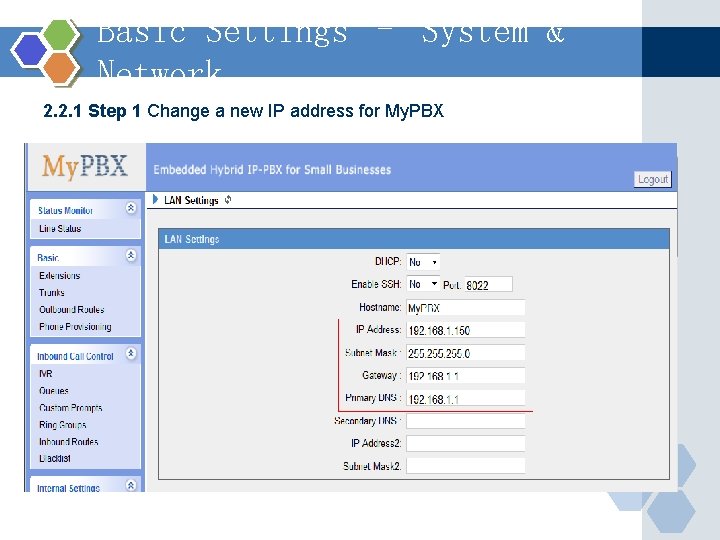
Basic settings - Warming up Login web GUI and change a new IP address Factory default IP address: 192. 168. 5. 150 Default username: admin Password: password
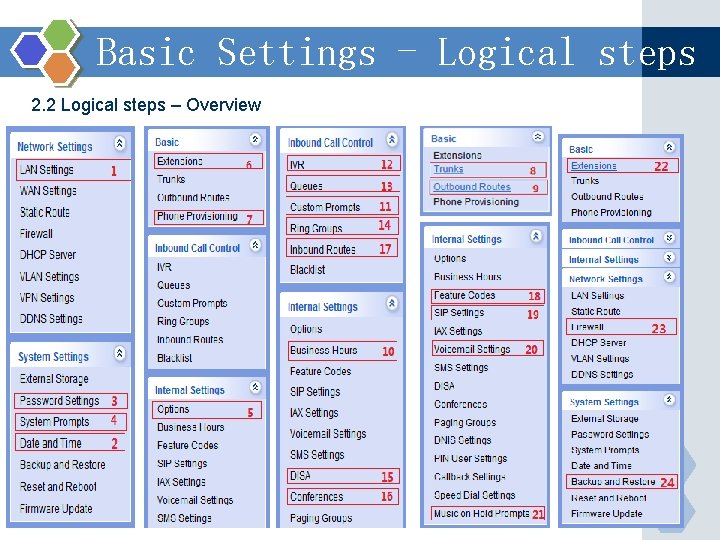
Basic Settings - Logical steps 2. 2 Logical steps – Overview
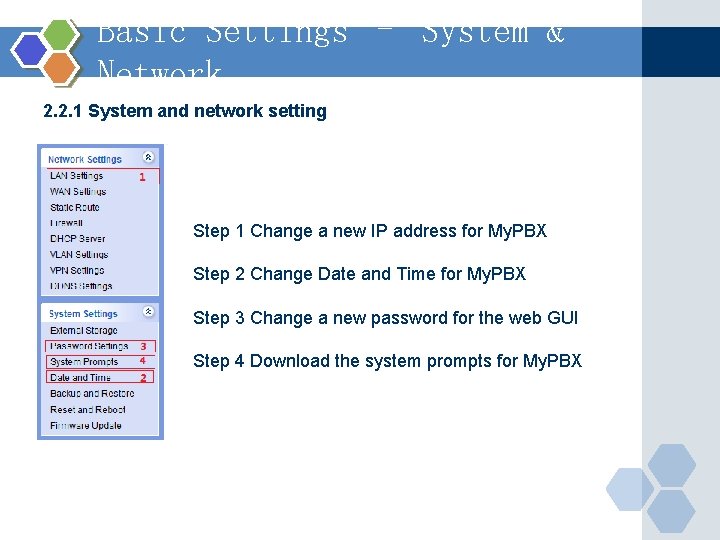
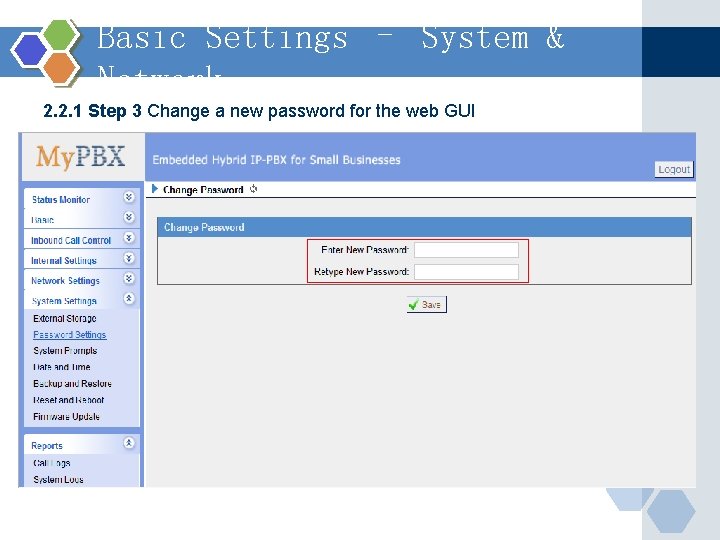
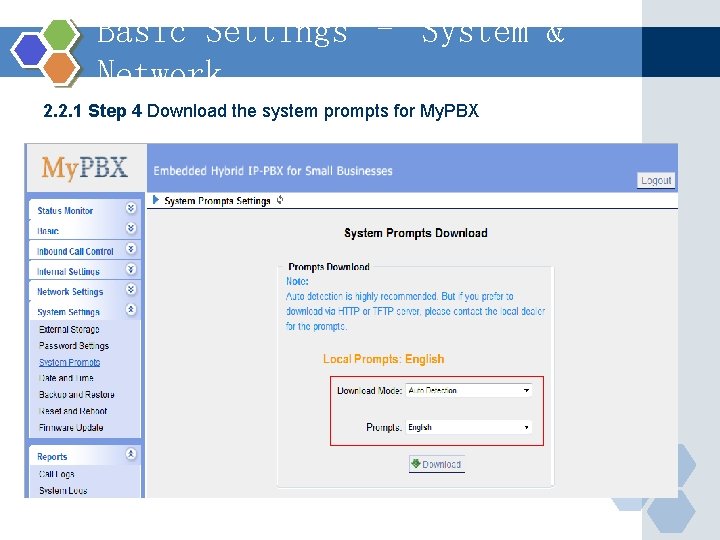
Basic Settings – System & Network 2. 2. 1 System and network setting Step 1 Change a new IP address for My. PBX Step 2 Change Date and Time for My. PBX Step 3 Change a new password for the web GUI Step 4 Download the system prompts for My. PBX
Basic Settings – System & Network 2. 2. 1 Step 1 Change a new IP address for My. PBX
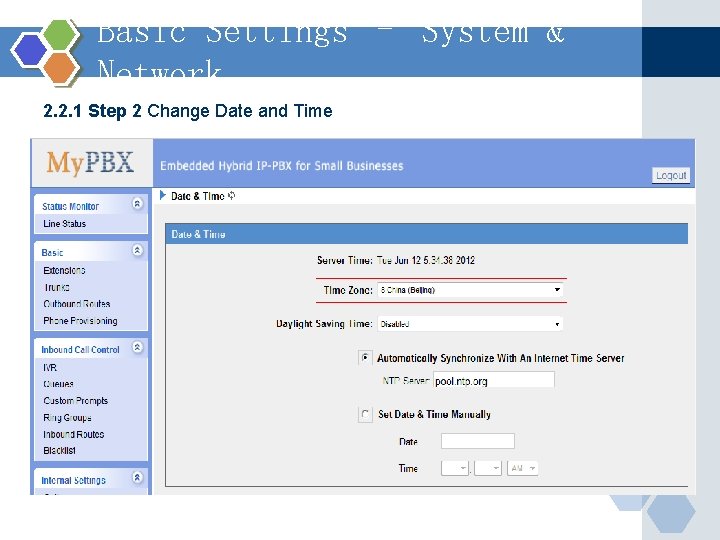
Basic Settings – System & Network 2. 2. 1 Step 2 Change Date and Time
Basic Settings – System & Network 2. 2. 1 Step 3 Change a new password for the web GUI
Basic Settings – System & Network 2. 2. 1 Step 4 Download the system prompts for My. PBX
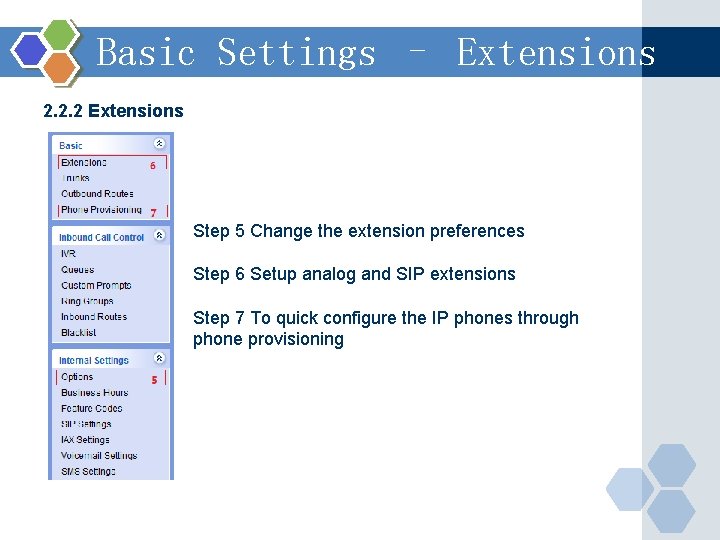
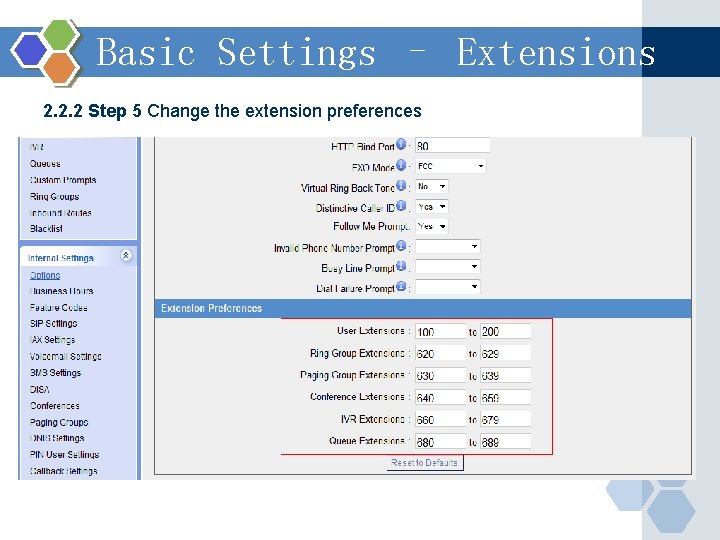
Basic Settings – Extensions 2. 2. 2 Extensions Step 5 Change the extension preferences Step 6 Setup analog and SIP extensions Step 7 To quick configure the IP phones through phone provisioning
Basic Settings – Extensions 2. 2. 2 Step 5 Change the extension preferences
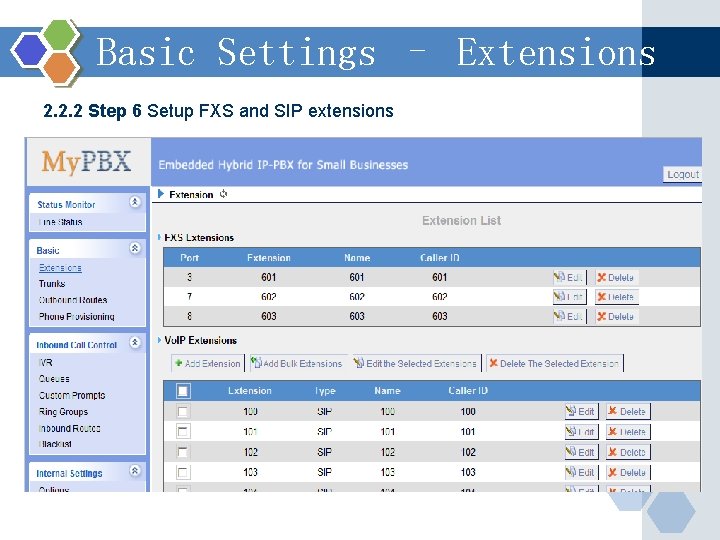
Basic Settings – Extensions 2. 2. 2 Step 6 Setup FXS and SIP extensions
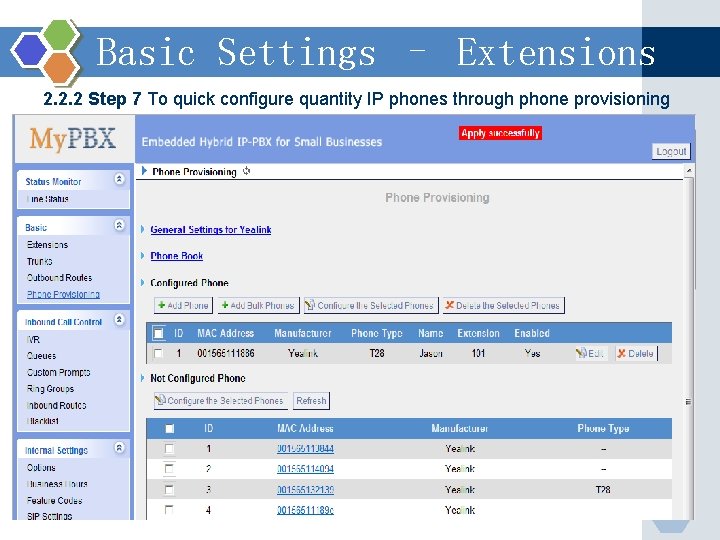
Basic Settings – Extensions 2. 2. 2 Step 7 To quick configure quantity IP phones through phone provisioning
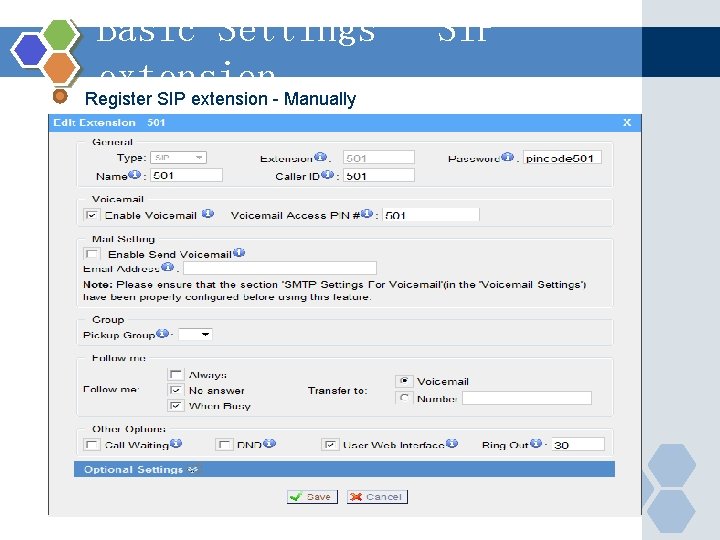
Basic Settings - SIP extension Register SIP extension - Manually
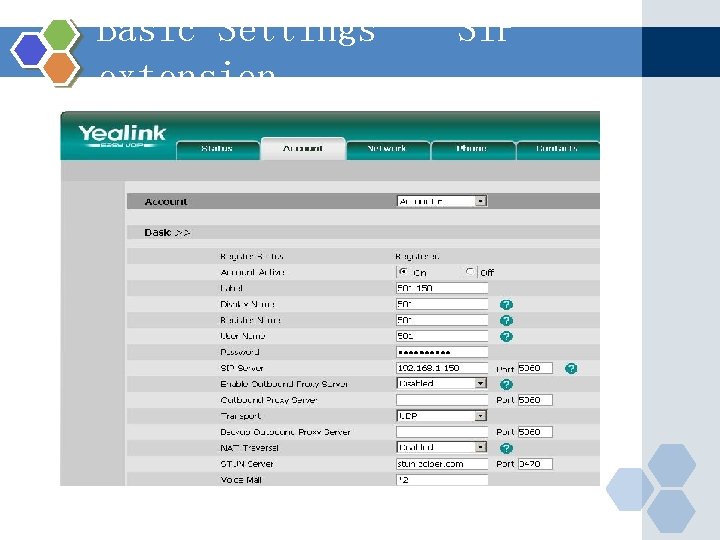
Basic Settings – SIP extension
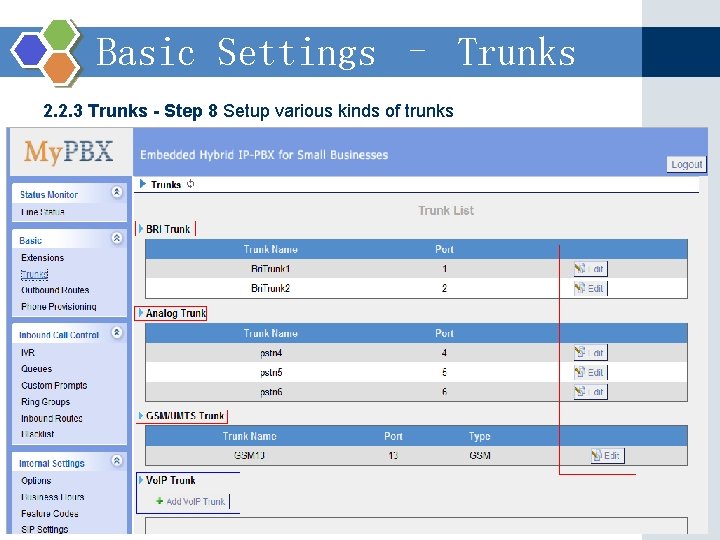
Basic Settings – Trunks 2. 2. 3 Trunks - Step 8 Setup various kinds of trunks
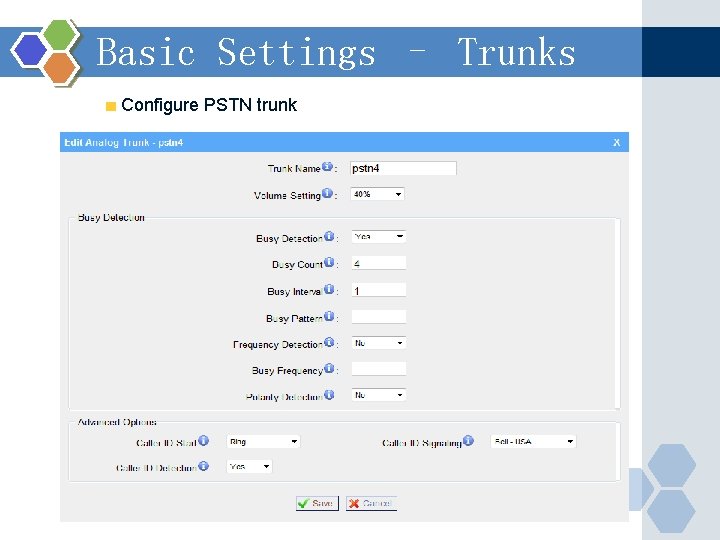
Basic Settings – Trunks Configure PSTN trunk
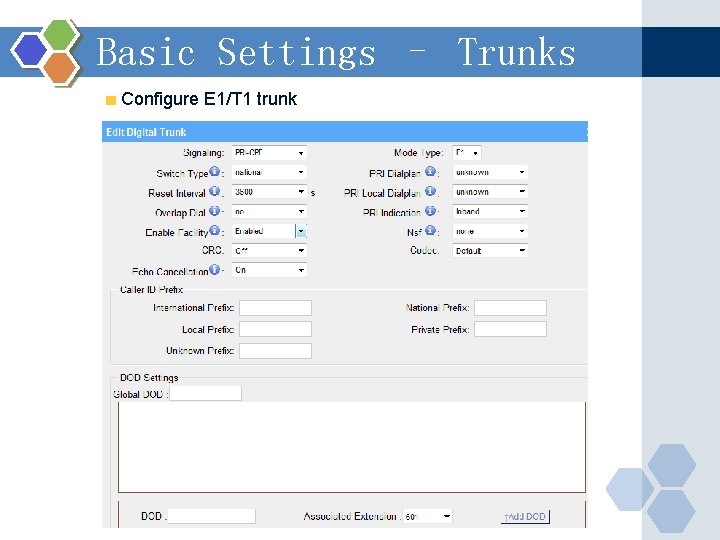
Basic Settings – Trunks Configure E 1/T 1 trunk
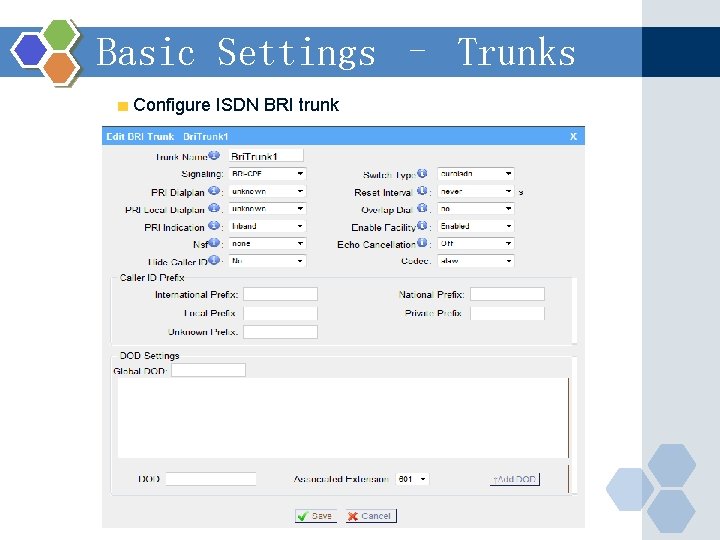
Basic Settings – Trunks Configure ISDN BRI trunk
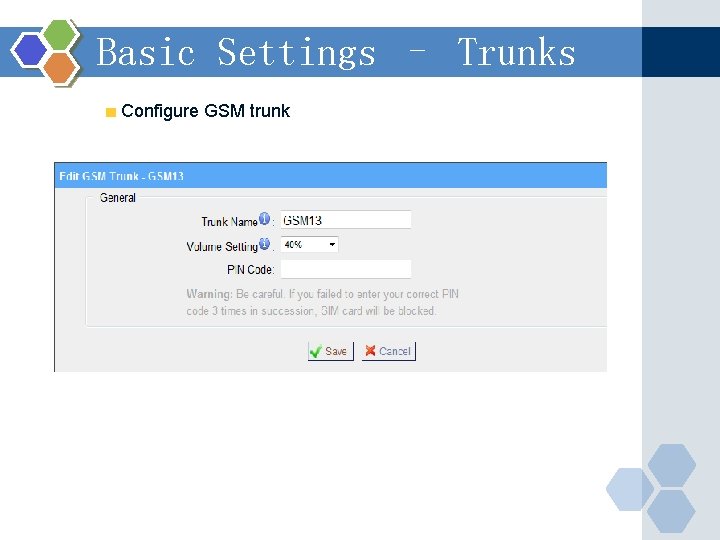
Basic Settings – Trunks Configure GSM trunk
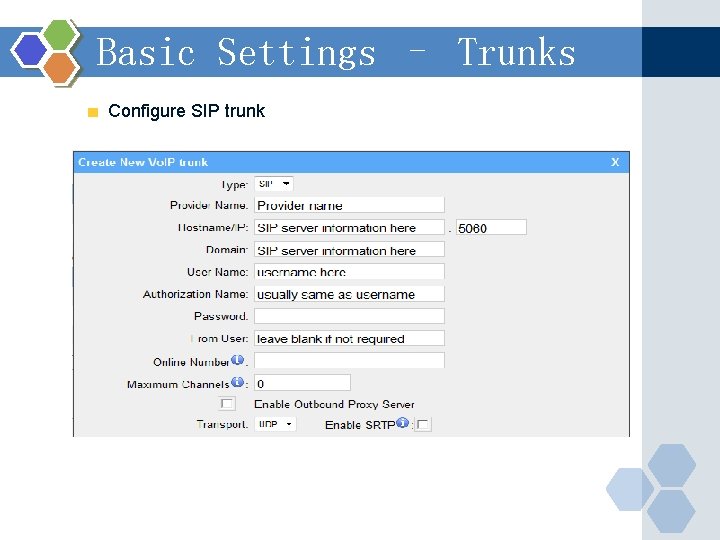
Basic Settings – Trunks Configure SIP trunk
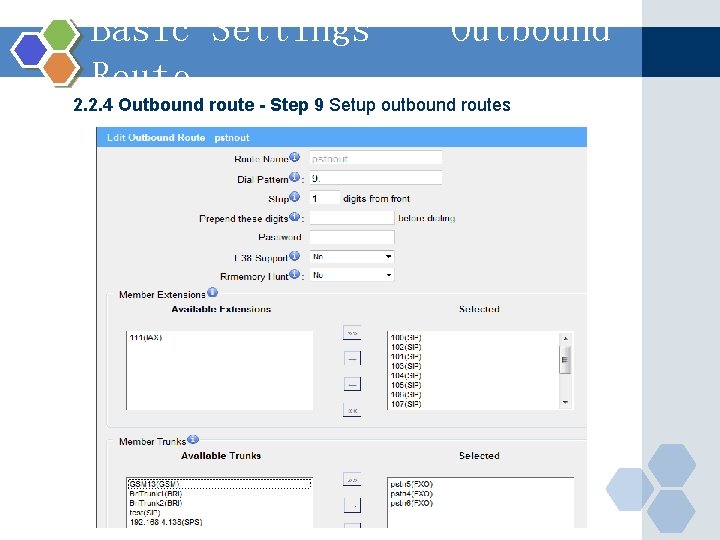
Basic Settings – Outbound Route 2. 2. 4 Outbound route - Step 9 Setup outbound routes
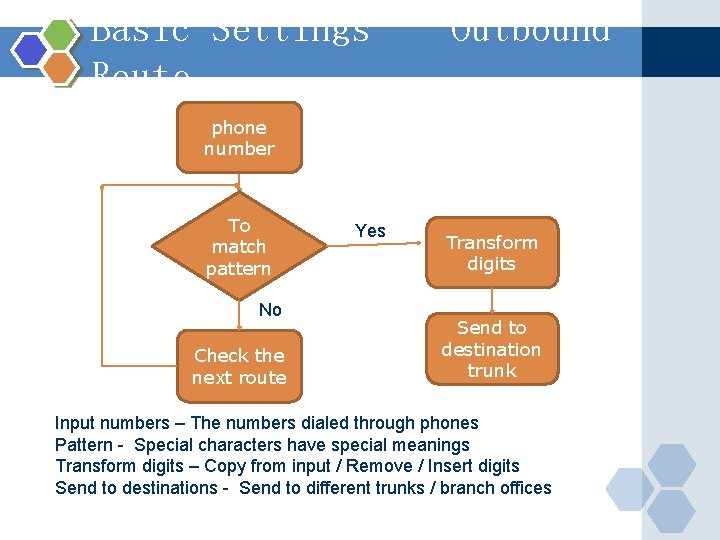
Basic Settings – Outbound Route phone number To match pattern No Check the next route Yes Transform digits Send to destination trunk Input numbers – The numbers dialed through phones Pattern - Special characters have special meanings Transform digits – Copy from input / Remove / Insert digits Send to destinations - Send to different trunks / branch offices
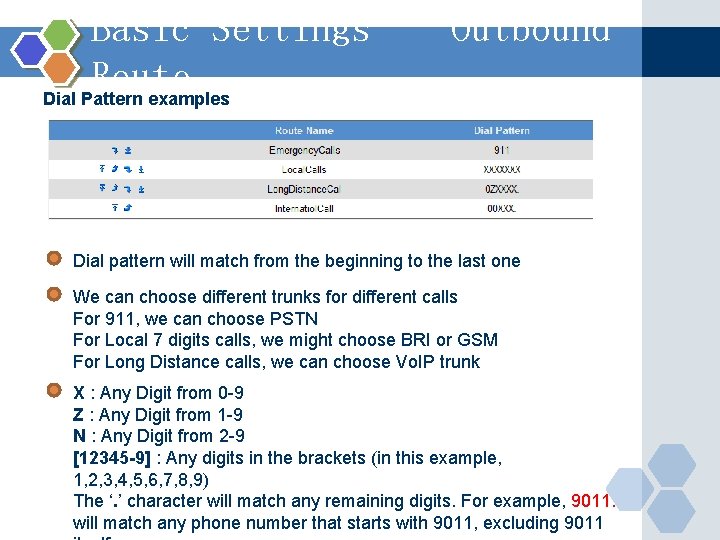
Basic Settings – Outbound Route Dial Pattern examples Dial pattern will match from the beginning to the last one We can choose different trunks for different calls For 911, we can choose PSTN For Local 7 digits calls, we might choose BRI or GSM For Long Distance calls, we can choose Vo. IP trunk X : Any Digit from 0 -9 Z : Any Digit from 1 -9 N : Any Digit from 2 -9 [12345 -9] : Any digits in the brackets (in this example, 1, 2, 3, 4, 5, 6, 7, 8, 9) The ‘. ’ character will match any remaining digits. For example, 9011. will match any phone number that starts with 9011, excluding 9011
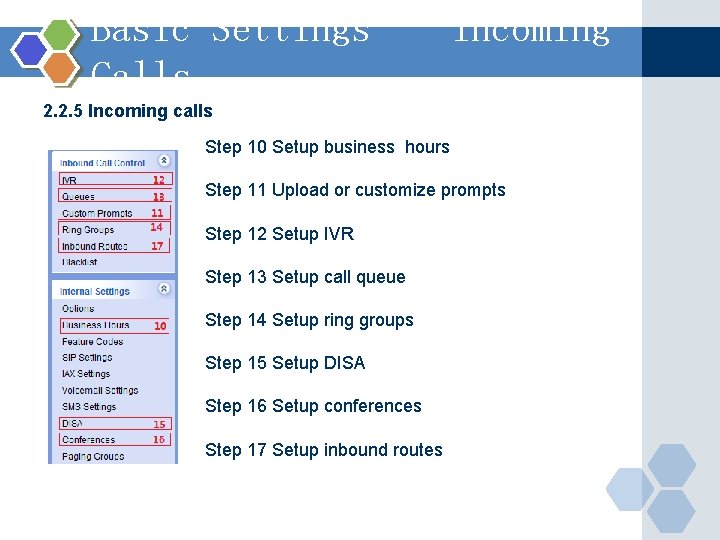
Basic Settings – Incoming Calls 2. 2. 5 Incoming calls Step 10 Setup business hours Step 11 Upload or customize prompts Step 12 Setup IVR Step 13 Setup call queue Step 14 Setup ring groups Step 15 Setup DISA Step 16 Setup conferences Step 17 Setup inbound routes
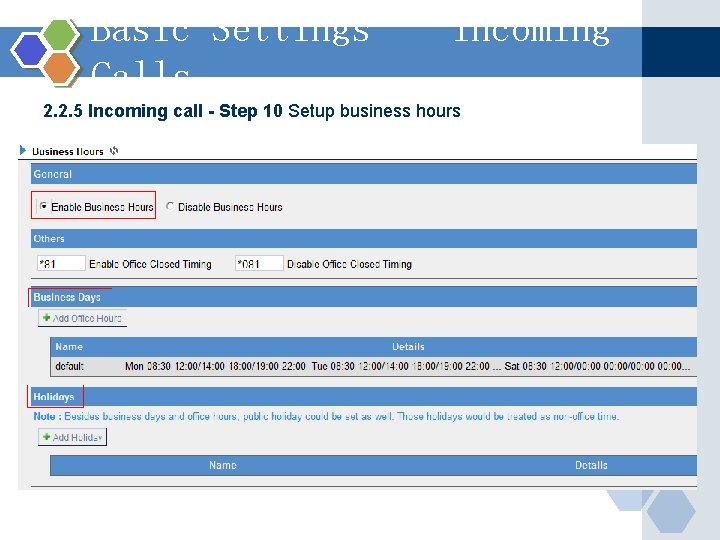
Basic Settings – Incoming Calls 2. 2. 5 Incoming call - Step 10 Setup business hours
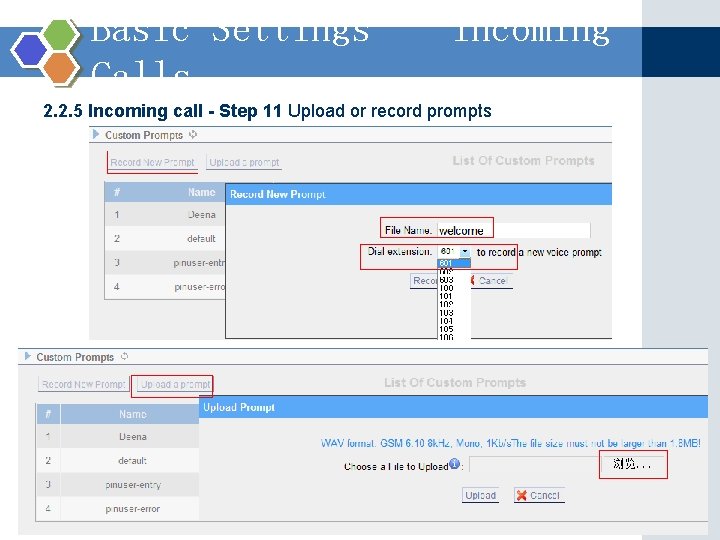
Basic Settings – Incoming Calls 2. 2. 5 Incoming call - Step 11 Upload or record prompts
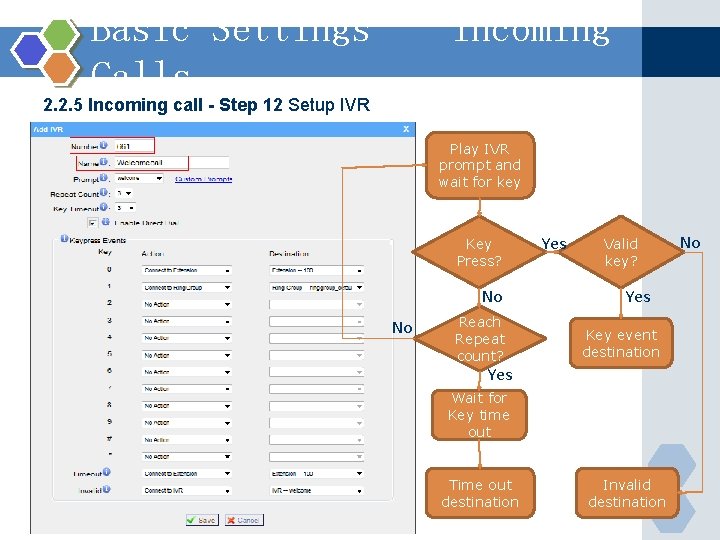
Basic Settings – Incoming Calls 2. 2. 5 Incoming call - Step 12 Setup IVR Play IVR prompt and wait for key Key Press? No No Reach Repeat count? Yes Valid key? Yes Key event destination Yes Wait for Key time out Time out destination Invalid destination No
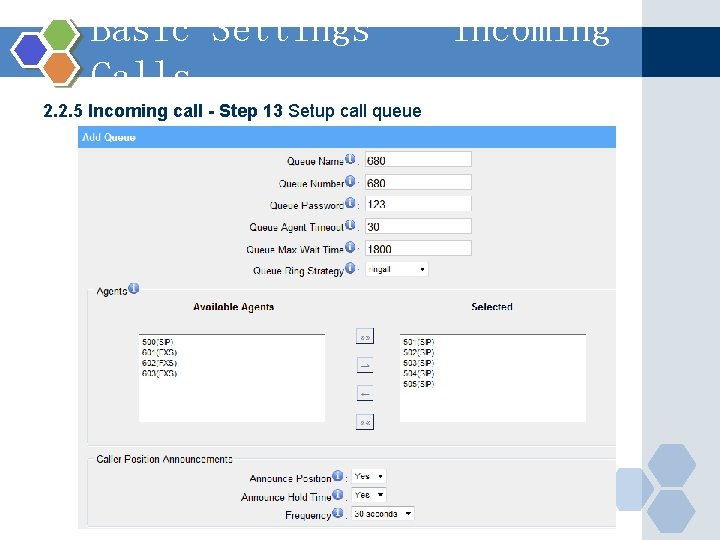
Basic Settings – Incoming Calls 2. 2. 5 Incoming call - Step 13 Setup call queue
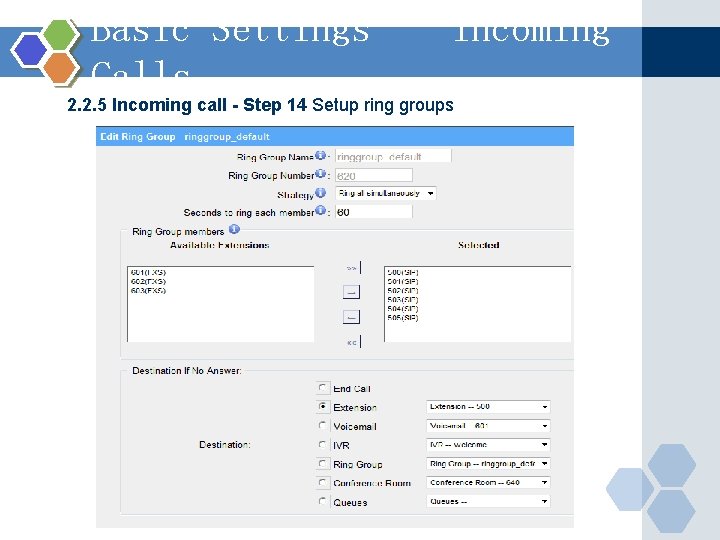
Basic Settings – Incoming Calls 2. 2. 5 Incoming call - Step 14 Setup ring groups
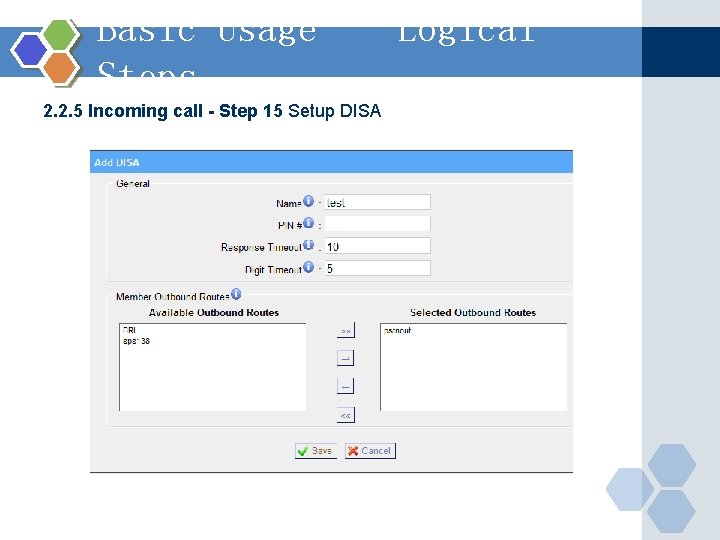
Basic Usage – Logical Steps 2. 2. 5 Incoming call - Step 15 Setup DISA
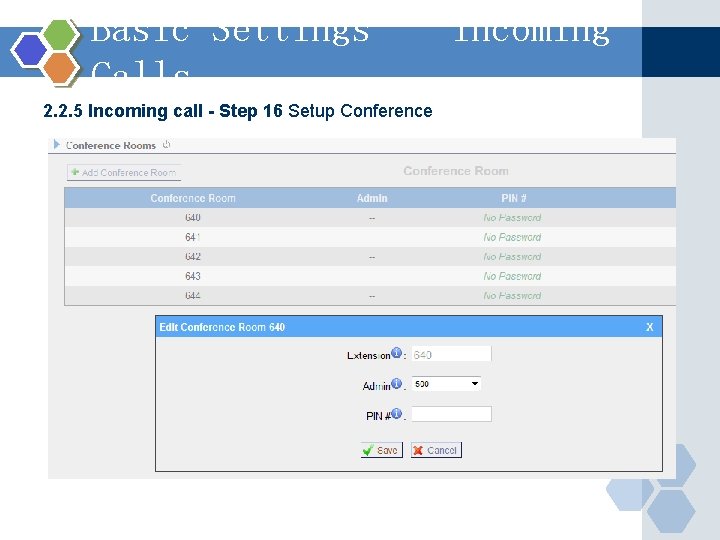
Basic Settings – Incoming Calls 2. 2. 5 Incoming call - Step 16 Setup Conference
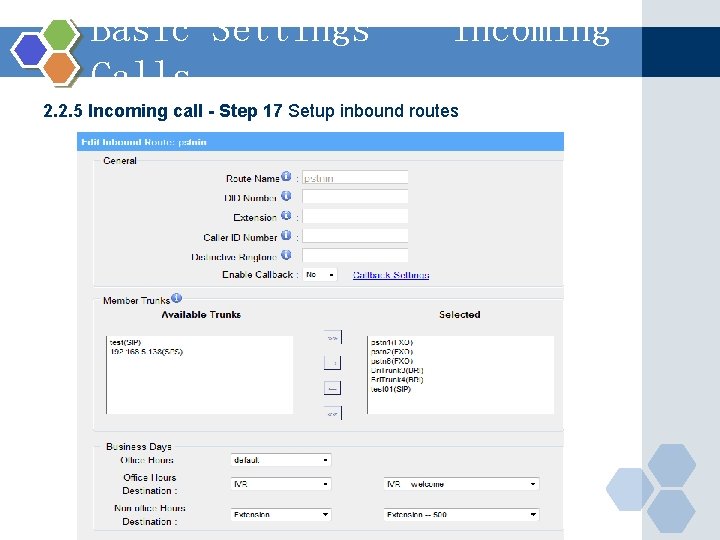
Basic Settings – Incoming Calls 2. 2. 5 Incoming call - Step 17 Setup inbound routes
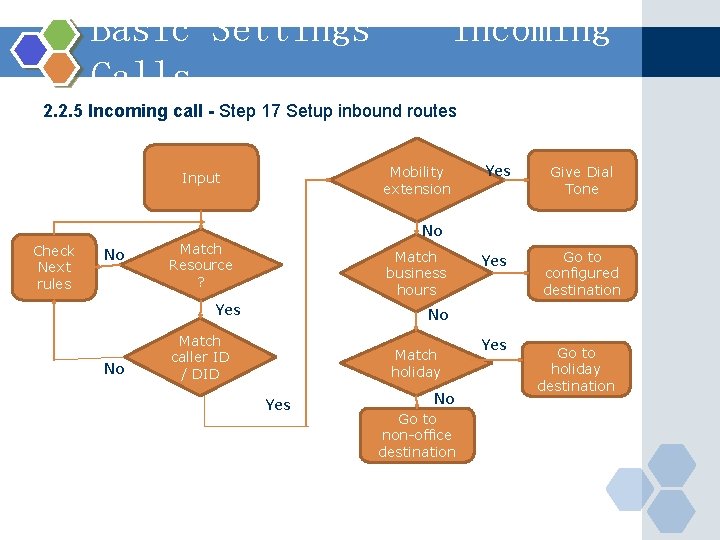
Basic Settings – Incoming Calls 2. 2. 5 Incoming call - Step 17 Setup inbound routes Mobility extension Input Check Next rules No Give Dial Tone Yes Go to configured destination No Match Resource ? Match business hours Yes No Match caller ID / DID Match holiday Yes No Go to non-office destination Yes Go to holiday destination
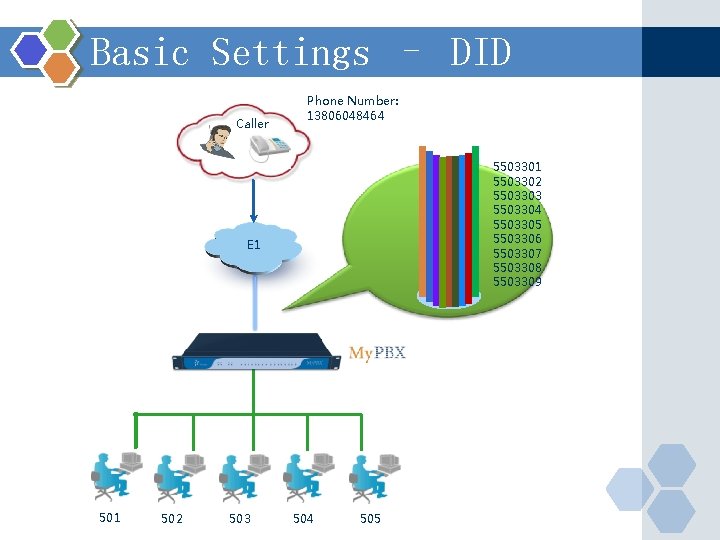
Basic Settings – DID Caller Phone Number: 13806048464 5503301 5503302 5503303 5503304 5503305 5503306 5503307 5503308 5503309 E 1 502 503 504 505
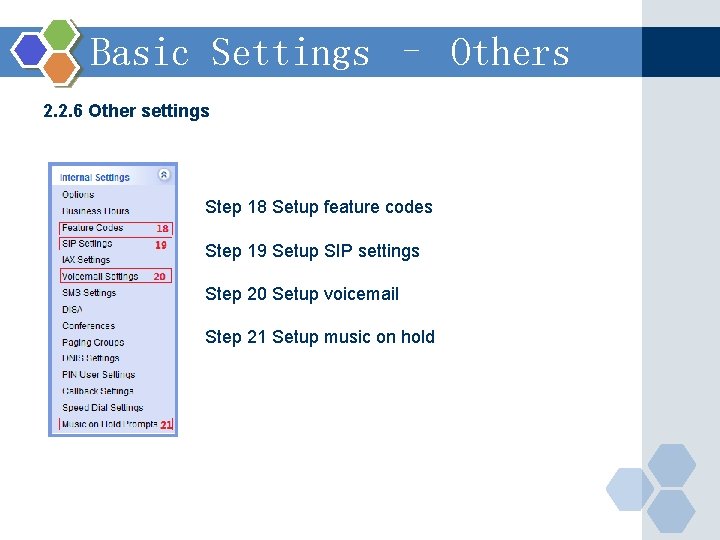
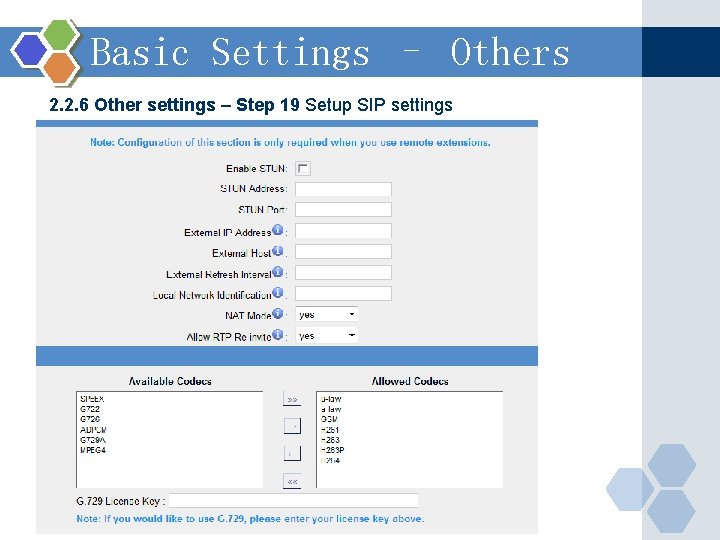
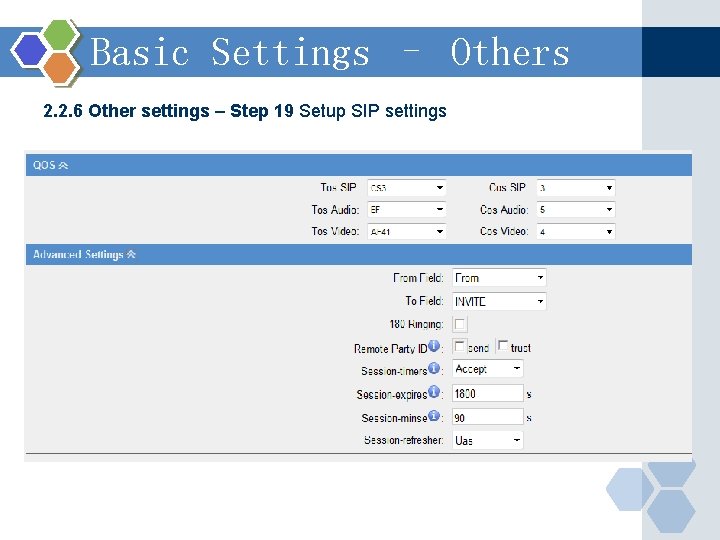
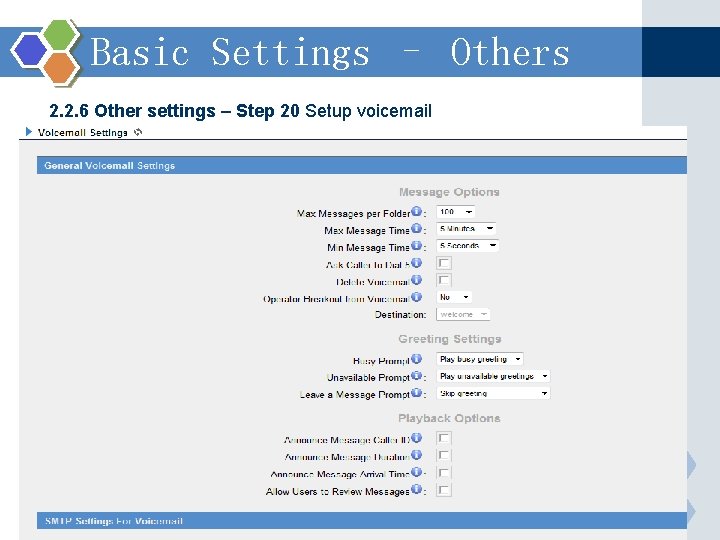
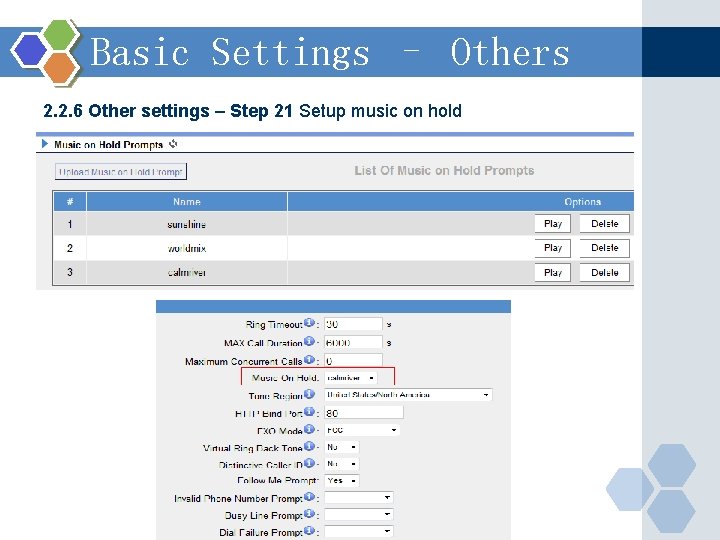
Basic Settings – Others 2. 2. 6 Other settings Step 18 Setup feature codes Step 19 Setup SIP settings Step 20 Setup voicemail Step 21 Setup music on hold
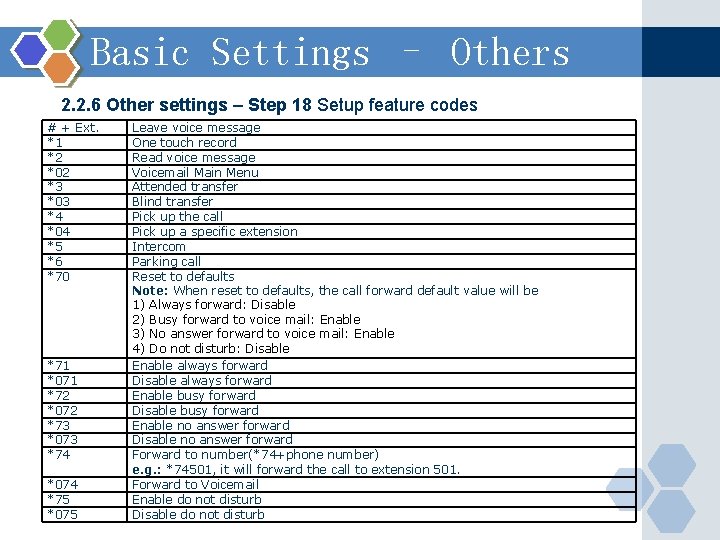
Basic Settings – Others 2. 2. 6 Other settings – Step 18 Setup feature codes # + Ext. *1 *2 *02 *3 *03 *4 *04 *5 *6 *70 *71 *071 *72 *072 *73 *073 *74 *074 *75 *075 Leave voice message One touch record Read voice message Voicemail Main Menu Attended transfer Blind transfer Pick up the call Pick up a specific extension Intercom Parking call Reset to defaults Note: When reset to defaults, the call forward default value will be 1) Always forward: Disable 2) Busy forward to voice mail: Enable 3) No answer forward to voice mail: Enable 4) Do not disturb: Disable Enable always forward Disable always forward Enable busy forward Disable busy forward Enable no answer forward Disable no answer forward Forward to number(*74+phone number) e. g. : *74501, it will forward the call to extension 501. Forward to Voicemail Enable do not disturb Disable do not disturb
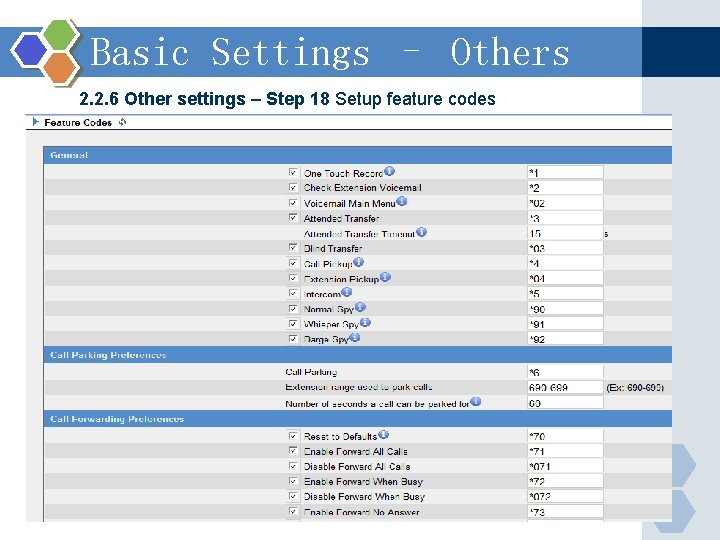
Basic Settings – Others 2. 2. 6 Other settings – Step 18 Setup feature codes
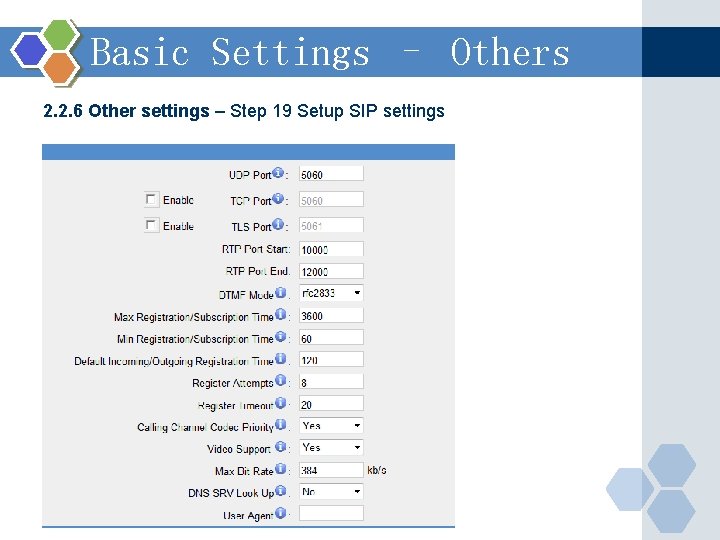
Basic Settings – Others 2. 2. 6 Other settings – Step 19 Setup SIP settings
Basic Settings – Others 2. 2. 6 Other settings – Step 19 Setup SIP settings
Basic Settings – Others 2. 2. 6 Other settings – Step 19 Setup SIP settings
Basic Settings – Others 2. 2. 6 Other settings – Step 20 Setup voicemail
Basic Settings – Others 2. 2. 6 Other settings – Step 21 Setup music on hold
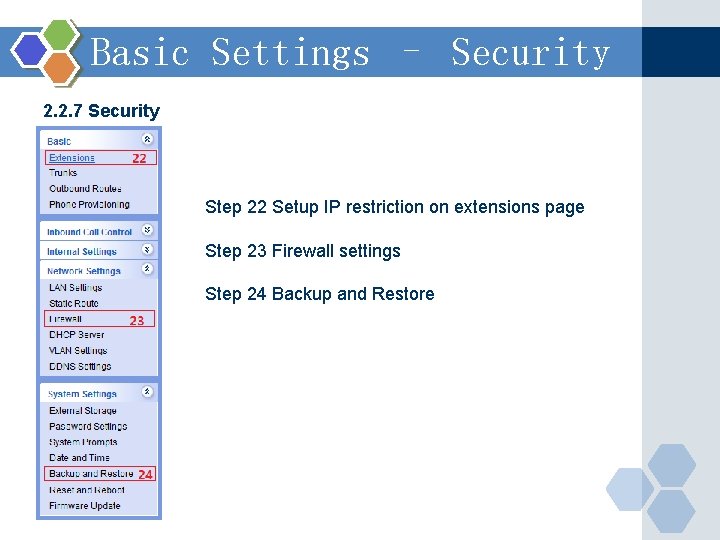
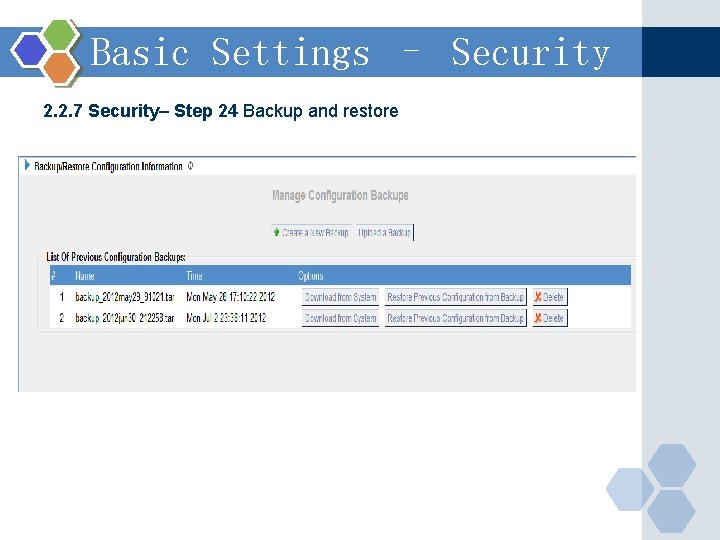
Basic Settings – Security 2. 2. 7 Security Step 22 Setup IP restriction on extensions page Step 23 Firewall settings Step 24 Backup and Restore
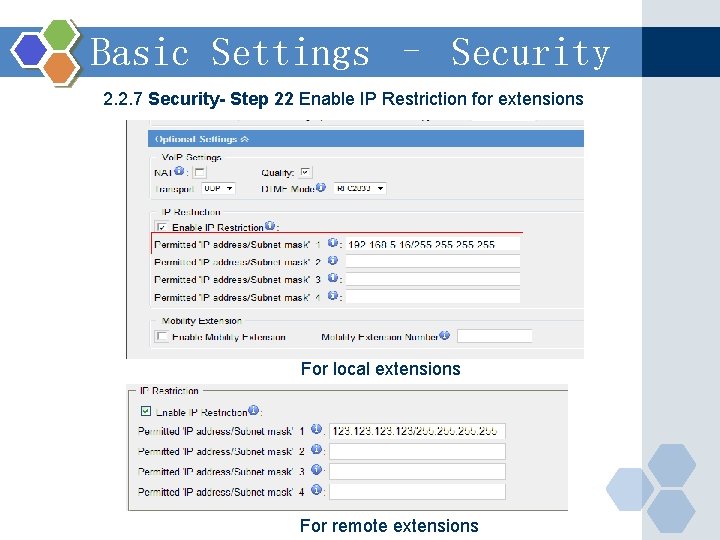
Basic Settings – Security 2. 2. 7 Security- Step 22 Enable IP Restriction for extensions For local extensions For remote extensions
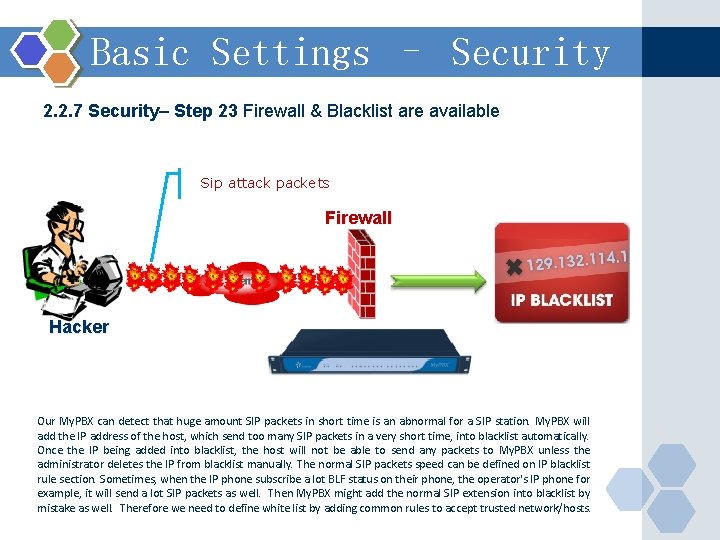
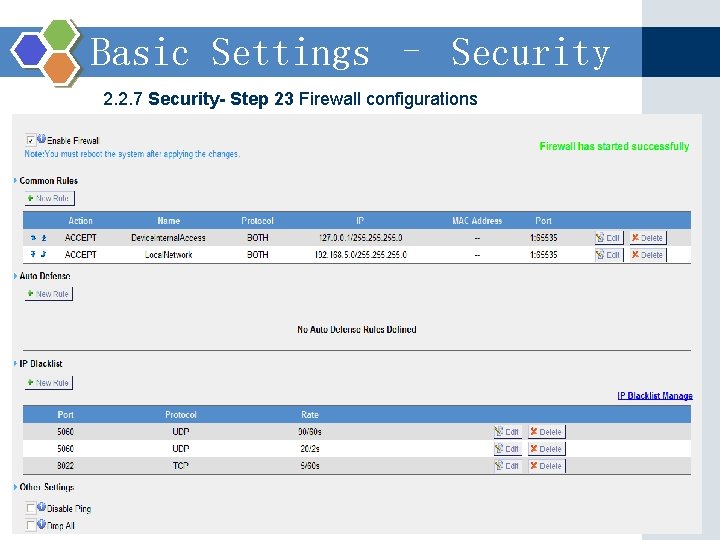
Basic Settings – Security 2. 2. 7 Security– Step 23 Firewall & Blacklist are available Sip attack packets Firewall Hacker Our My. PBX can detect that huge amount SIP packets in short time is an abnormal for a SIP station. My. PBX will add the IP address of the host, which send too many SIP packets in a very short time, into blacklist automatically. Once the IP being added into blacklist, the host will not be able to send any packets to My. PBX unless the administrator deletes the IP from blacklist manually. The normal SIP packets speed can be defined on IP blacklist rule section. Sometimes, when the IP phone subscribe a lot BLF status on their phone, the operator's IP phone for example, it will send a lot SIP packets as well. Then My. PBX might add the normal SIP extension into blacklist by mistake as well. Therefore we need to define white list by adding common rules to accept trusted network/hosts.
Basic Settings – Security 2. 2. 7 Security- Step 23 Firewall configurations
Basic Settings – Security 2. 2. 7 Security– Step 24 Backup and restore
General Limitations General limitations General Limitations of My. PBX
My. PBX Technical Training 1 Introduction 2 Basic settings 3 Advanced settings 4 Solution
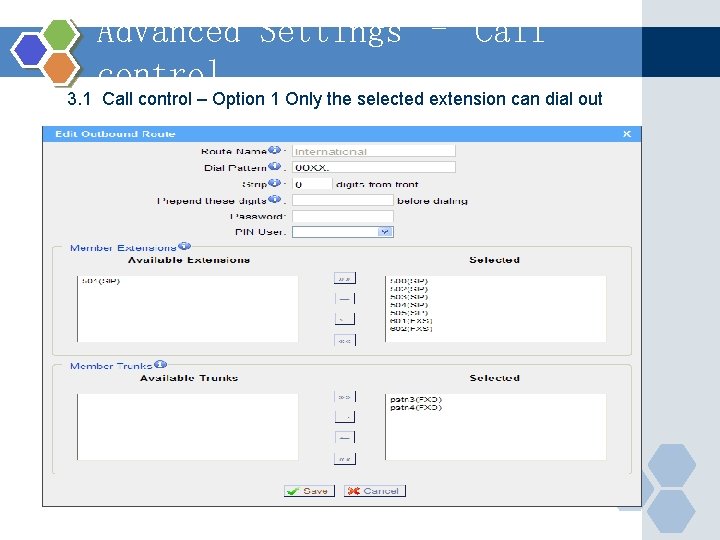
Advanced Settings – Call control 3. 1 Call control – Option 1 Only the selected extension can dial out
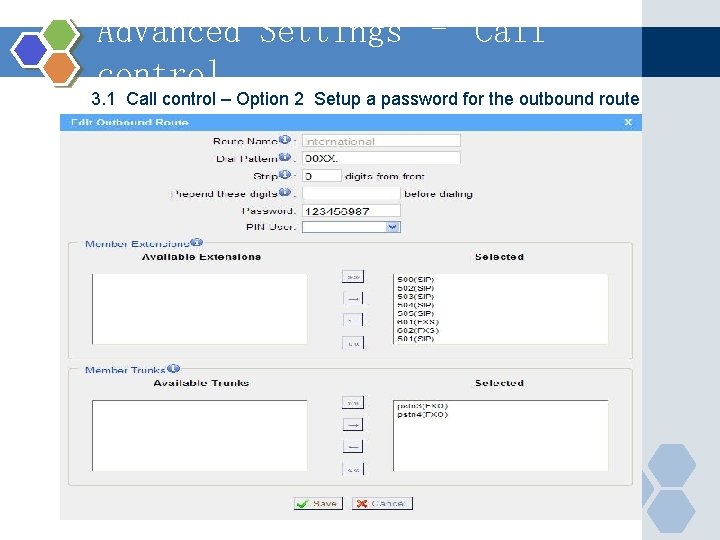
Advanced Settings – Call control 3. 1 Call control – Option 2 Setup a password for the outbound route
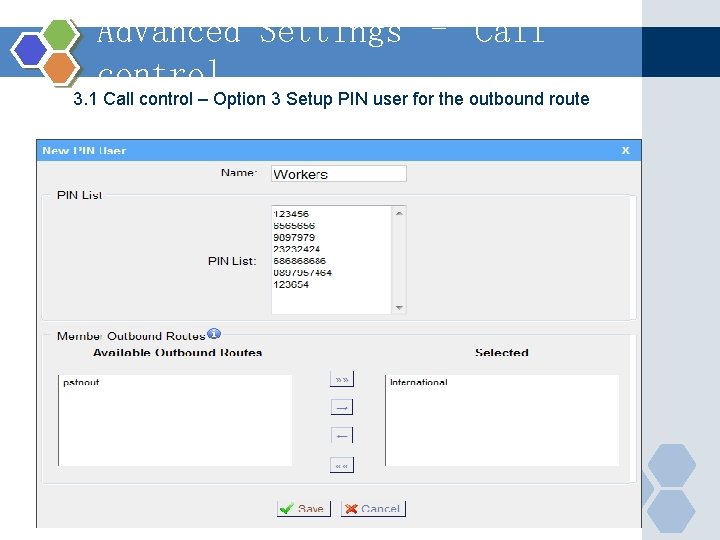
Advanced Settings – Call control 3. 1 Call control – Option 3 Setup PIN user for the outbound route
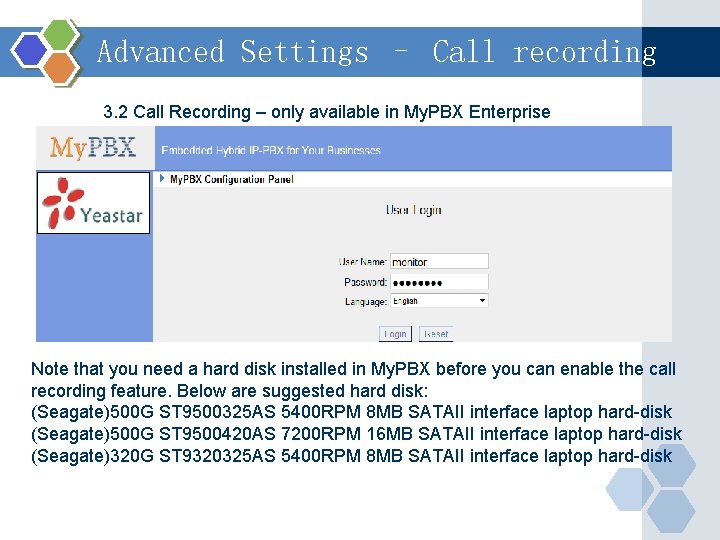
Advanced Settings – Call recording 3. 2 Call Recording – only available in My. PBX Enterprise Note that you need a hard disk installed in My. PBX before you can enable the call recording feature. Below are suggested hard disk: (Seagate)500 G ST 9500325 AS 5400 RPM 8 MB SATAII interface laptop hard-disk (Seagate)500 G ST 9500420 AS 7200 RPM 16 MB SATAII interface laptop hard-disk (Seagate)320 G ST 9320325 AS 5400 RPM 8 MB SATAII interface laptop hard-disk
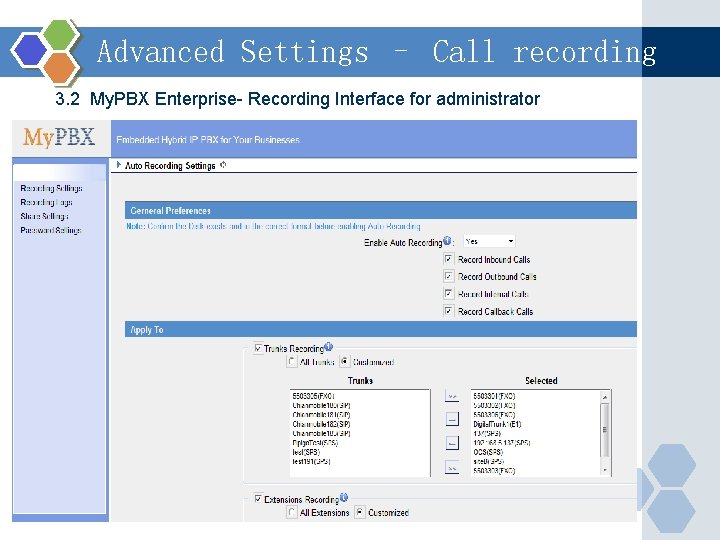
Advanced Settings – Call recording 3. 2 My. PBX Enterprise- Recording Interface for administrator
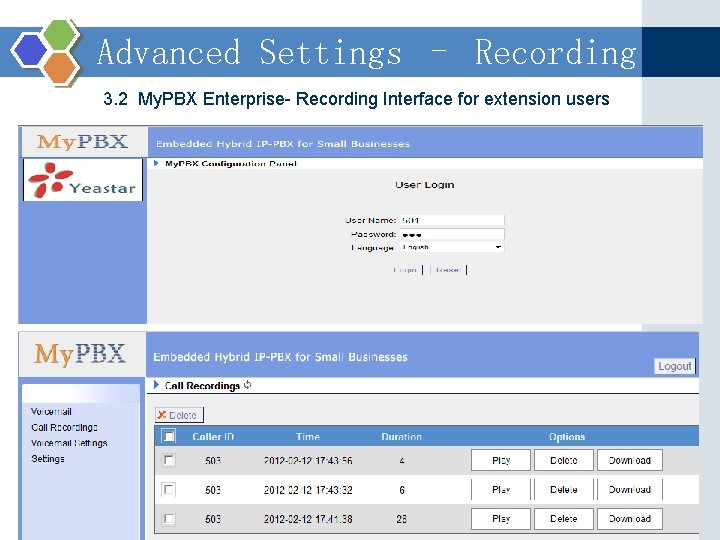
Advanced Settings – Recording 3. 2 My. PBX Enterprise- Recording Interface for extension users
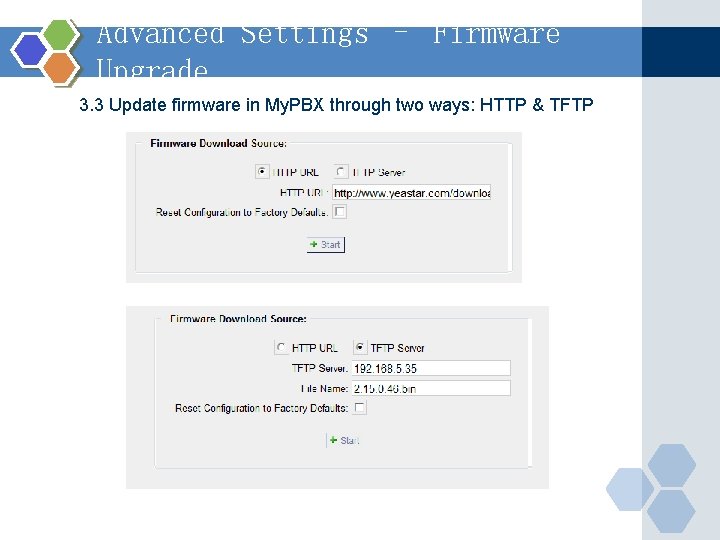
Advanced Settings – Firmware Upgrade 3. 3 Update firmware in My. PBX through two ways: HTTP & TFTP
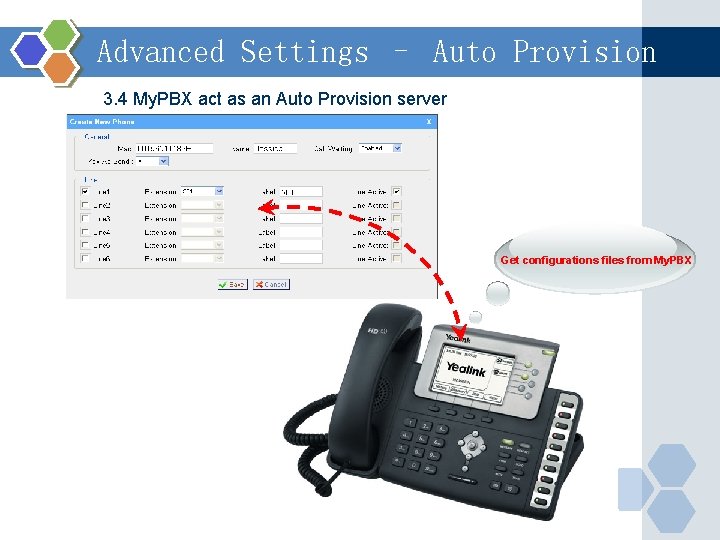
Advanced Settings – Auto Provision 3. 4 My. PBX act as an Auto Provision server Get configurations files from My. PBX
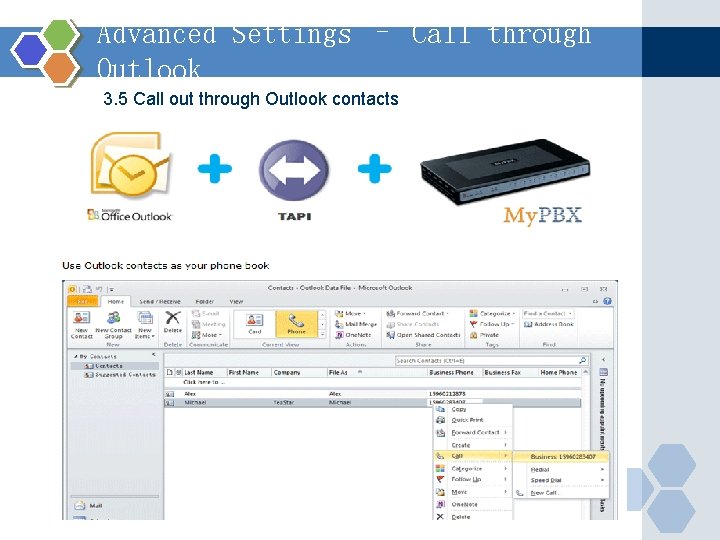
Advanced Settings – Call through Outlook 3. 5 Call out through Outlook contacts
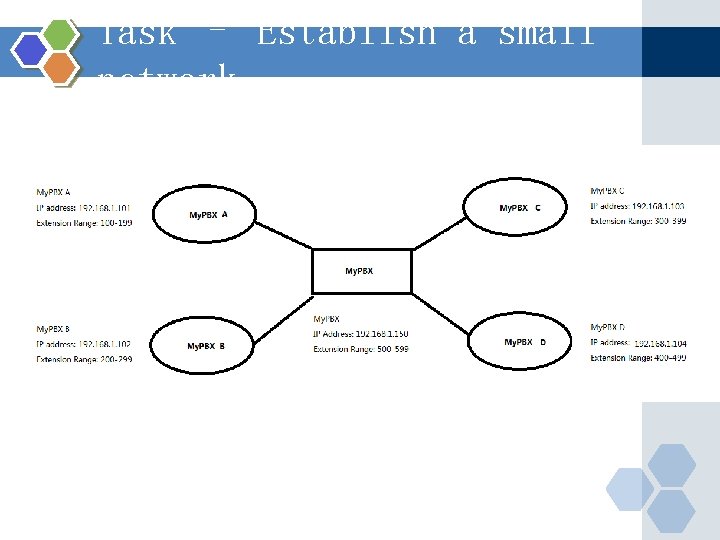
Task – Establish a small network
My. PBX Technical Training 1 Introduction 2 Basic settings 3 Advanced settings 4 Solution
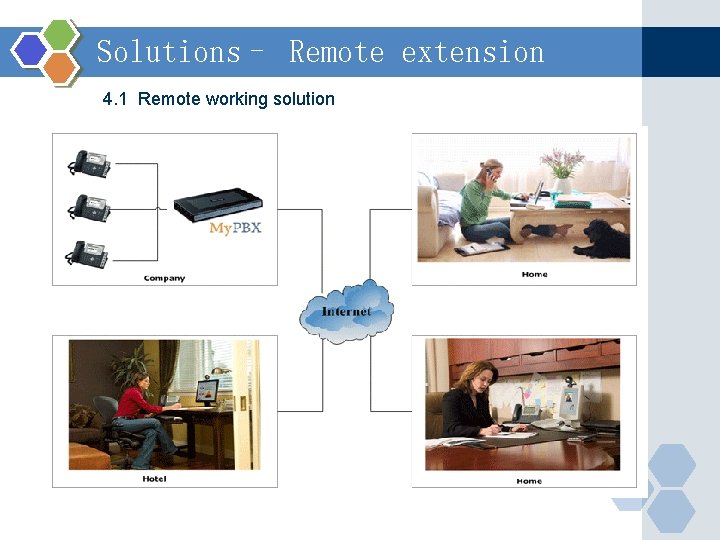
Solutions– Remote extension 4. 1 Remote working solution
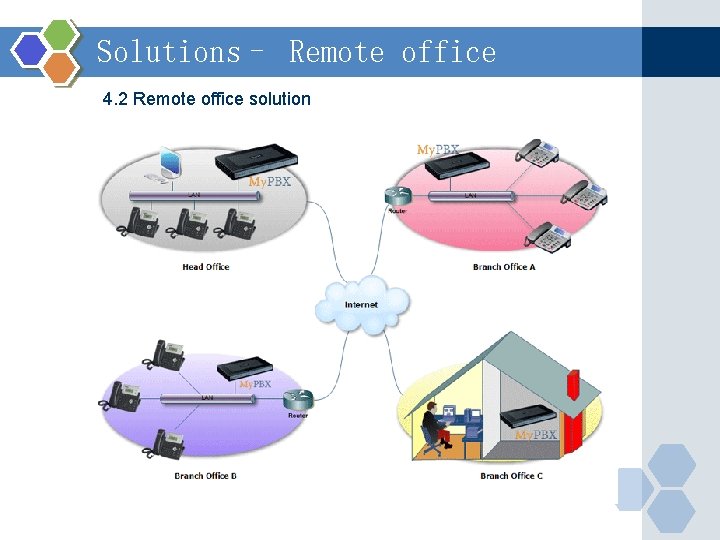
Solutions– Remote office 4. 2 Remote office solution
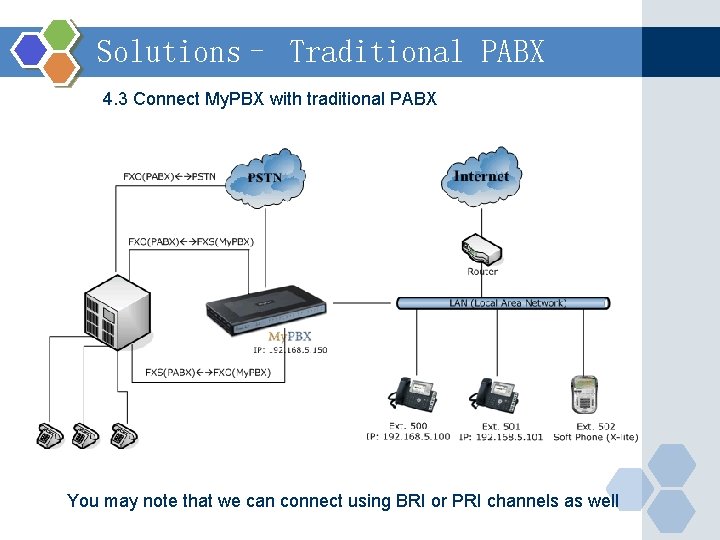
Solutions– Traditional PABX 4. 3 Connect My. PBX with traditional PABX You may note that we can connect using BRI or PRI channels as well
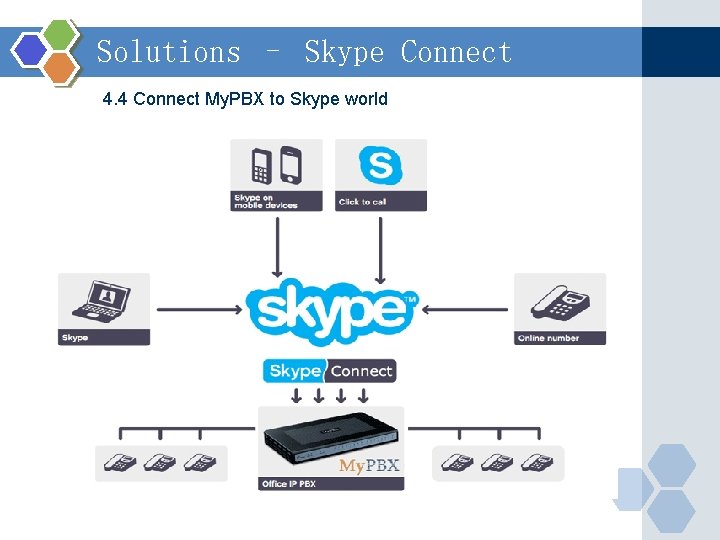
Solutions – Skype Connect 4. 4 Connect My. PBX to Skype world