
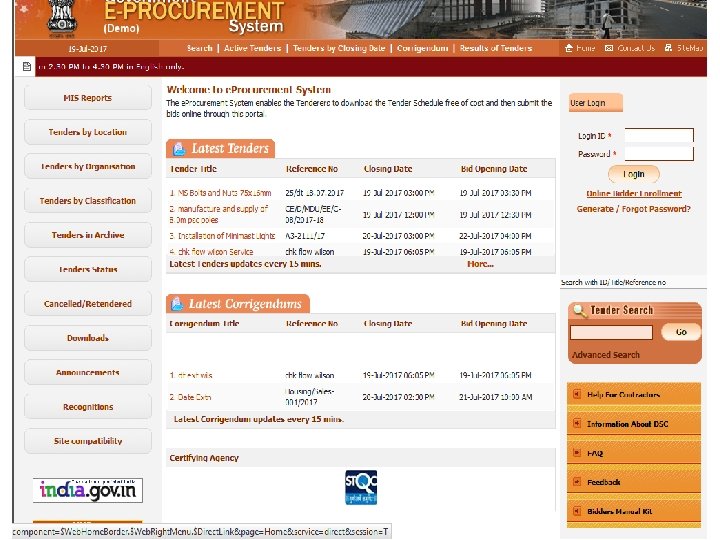
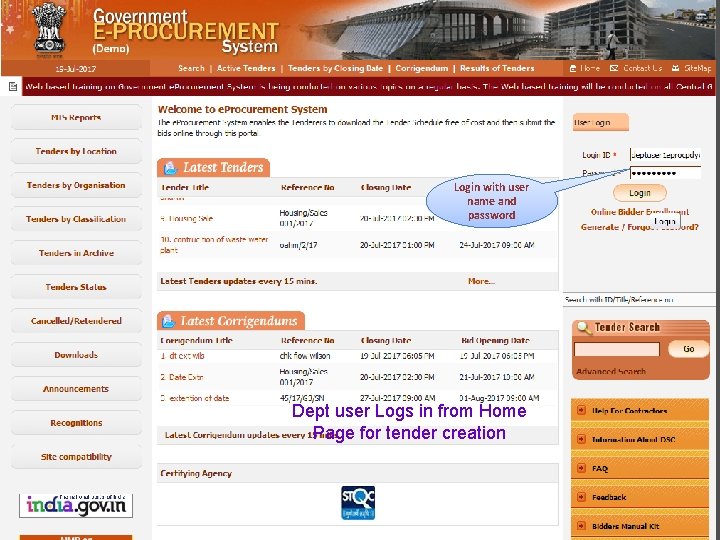
Login with user name and password Dept user
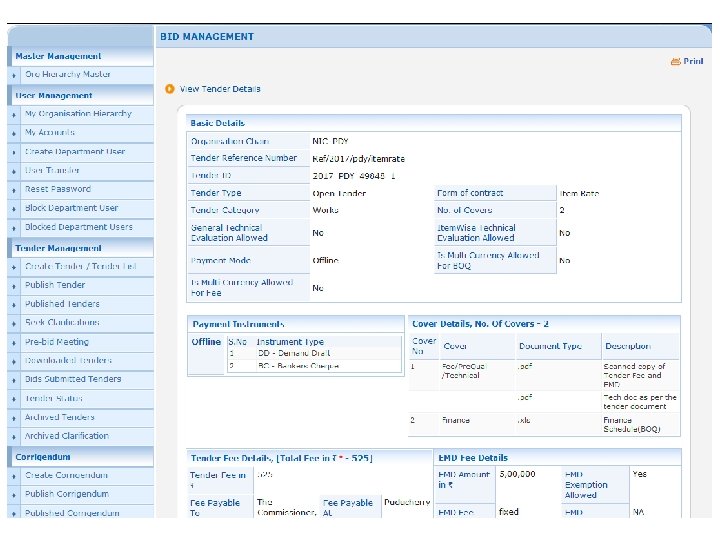
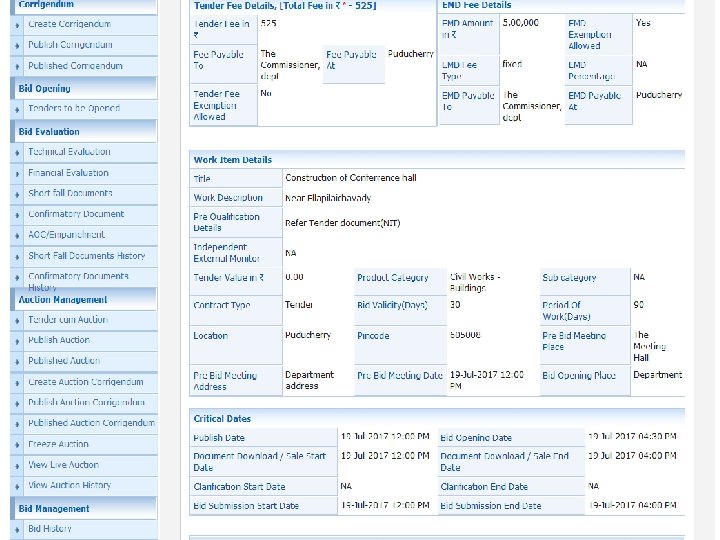
- Slides: 94
Login with user name and password Dept user Logs in from Home Page for tender creation
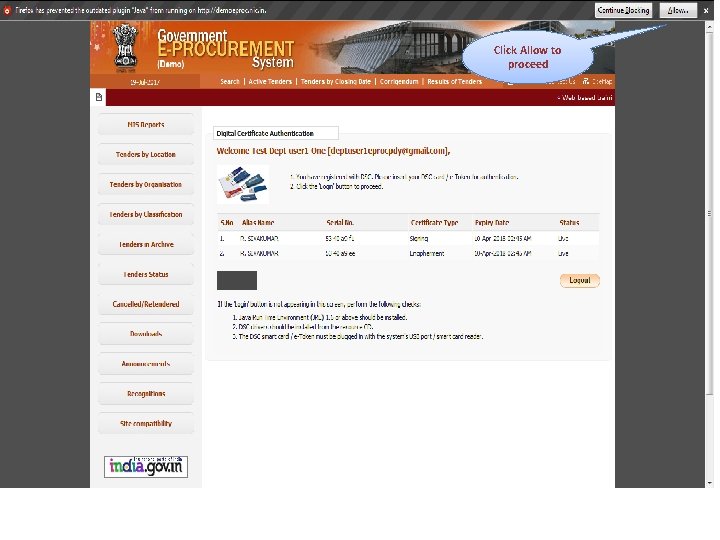
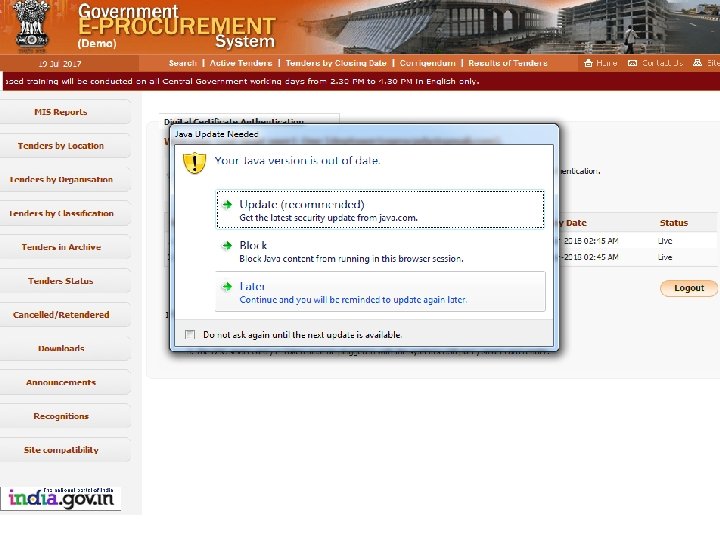
Click Allow to proceed
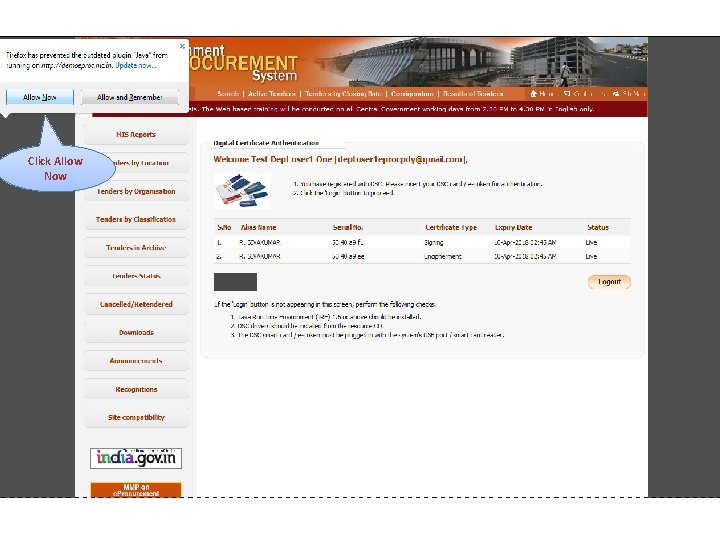
Click Allow Now
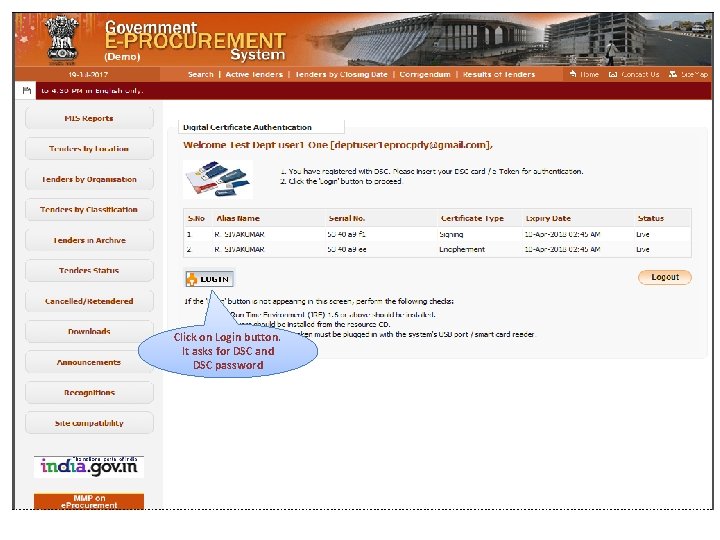
Click on Login button. It asks for DSC and DSC password
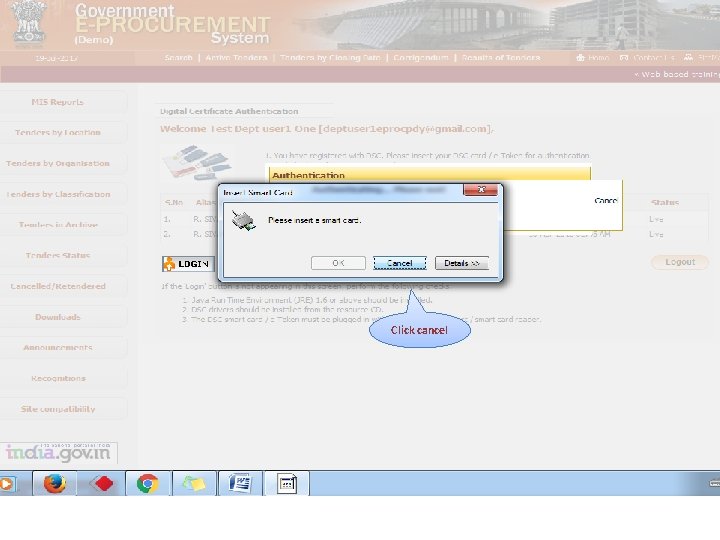
Click cancel
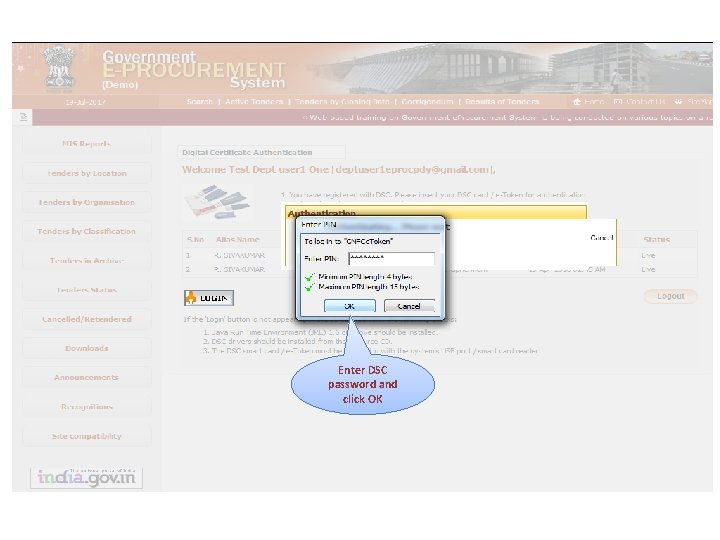
Enter DSC password and click OK
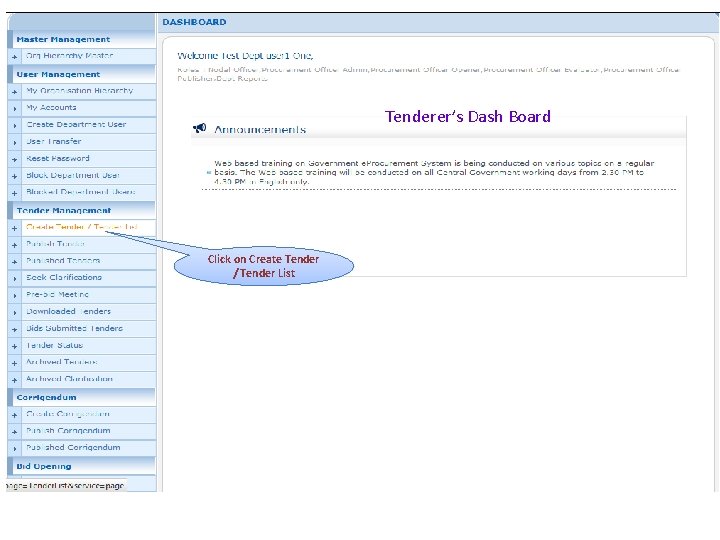
Tenderer’s Dash Board Click on Create Tender / Tender List
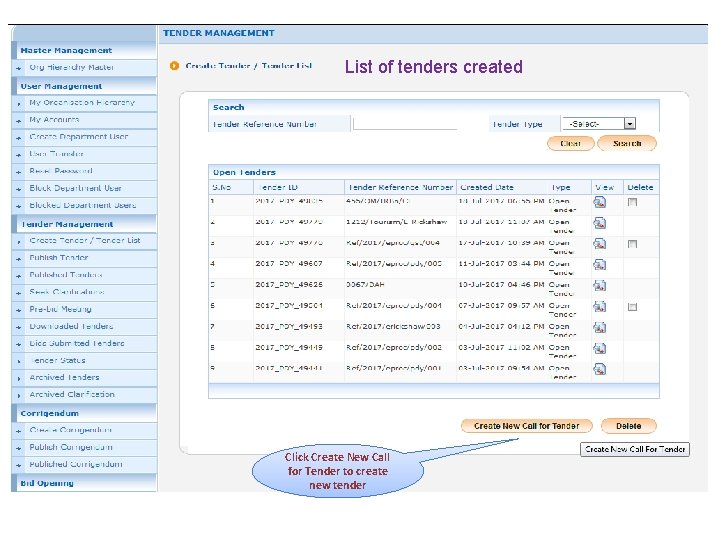
List of tenders created List of Tenders Click Create New Call for Tender to create new tender
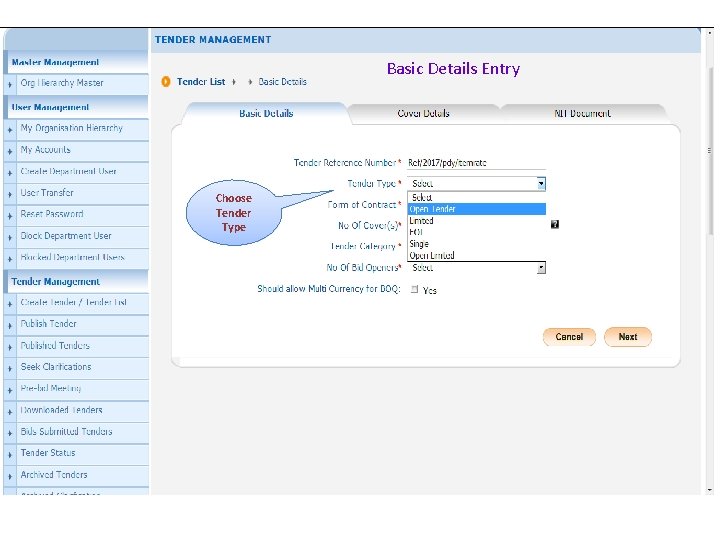
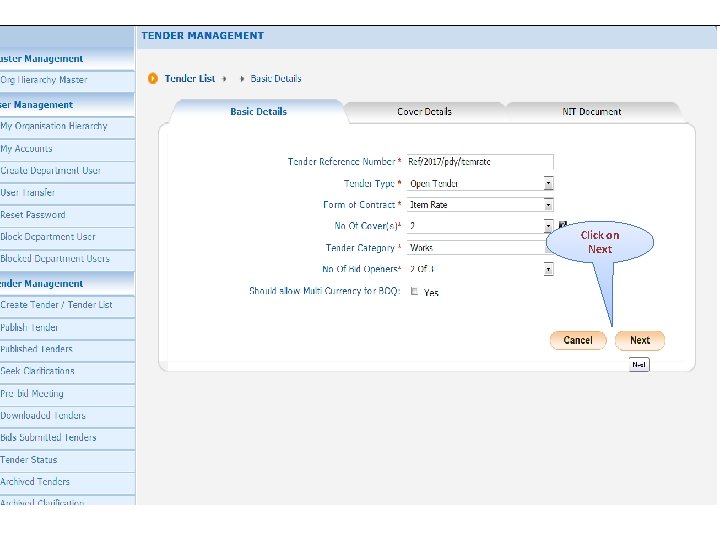
Basic Details Entry Choose Tender Type
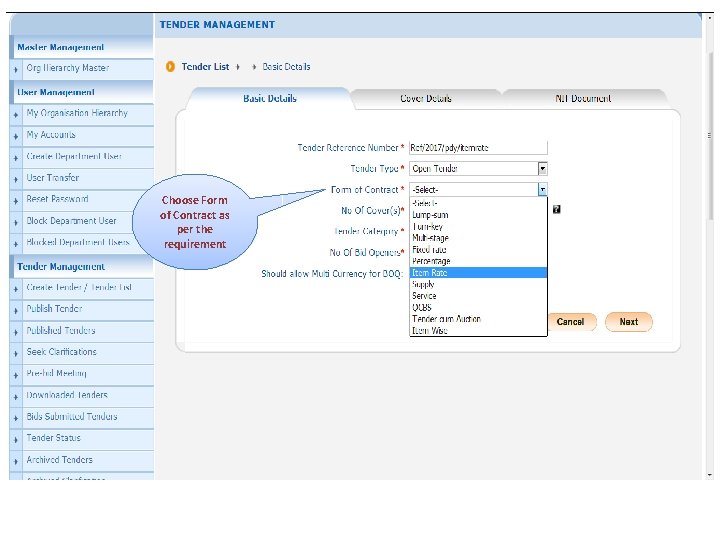
Choose Form of Contract as per the requirement
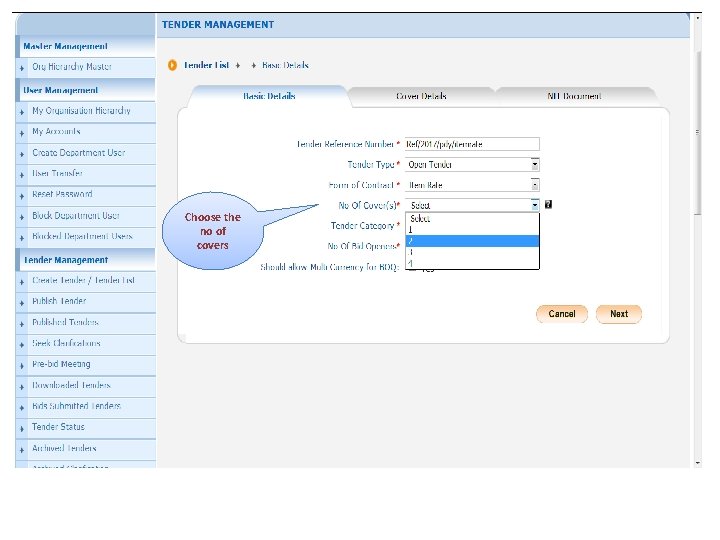
Choose the no of covers
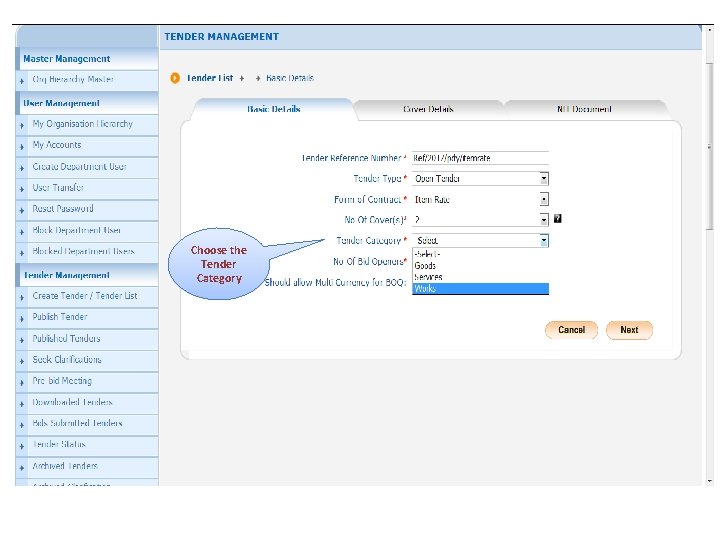
Choose the Tender Category
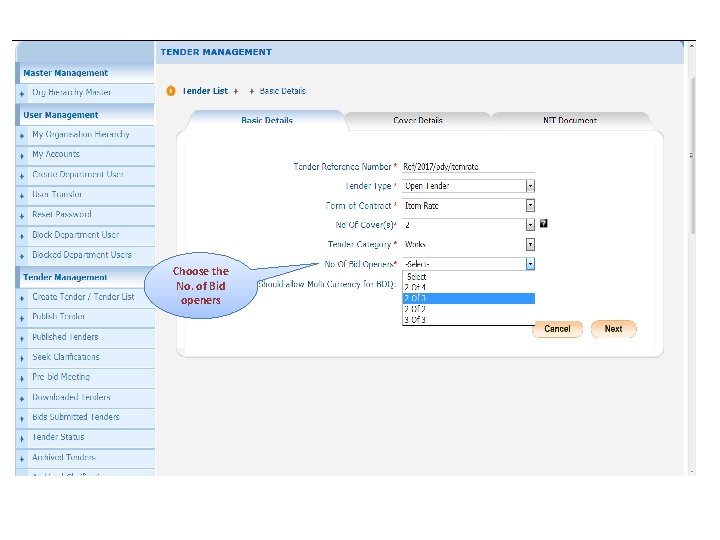
Choose the No. of Bid openers
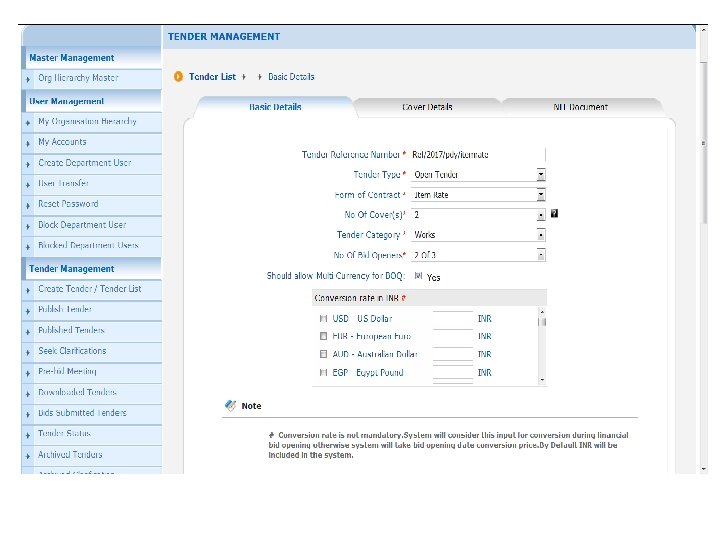
Click on Next
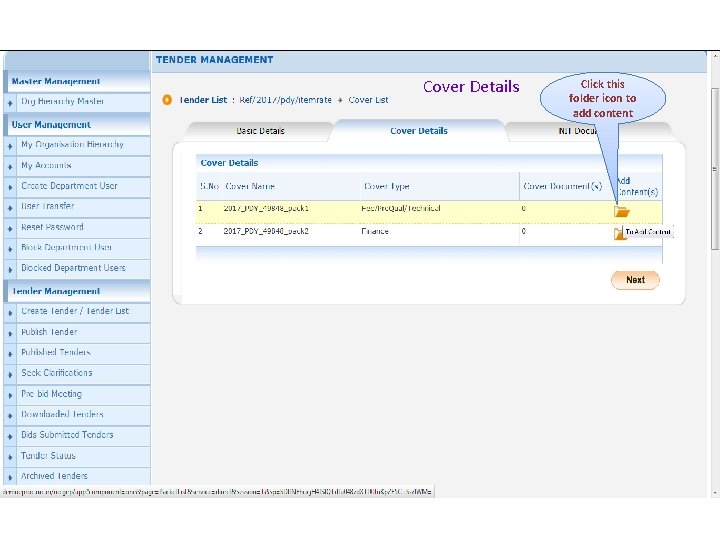
Cover Details Click this folder icon to add content
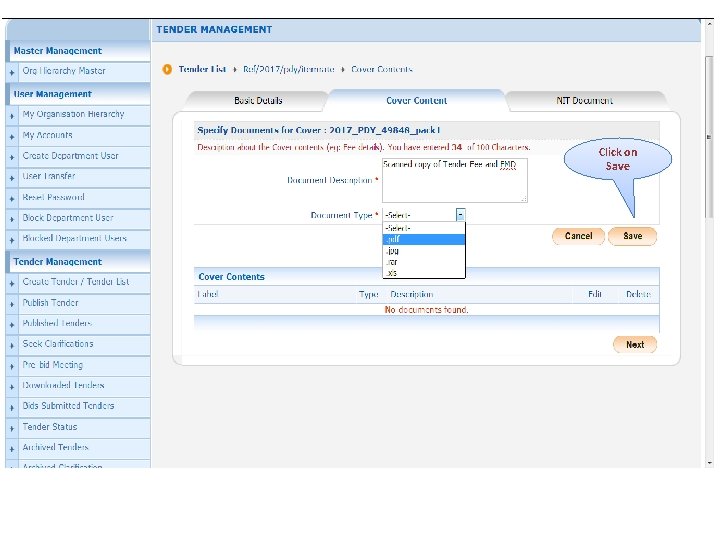
Click on Save
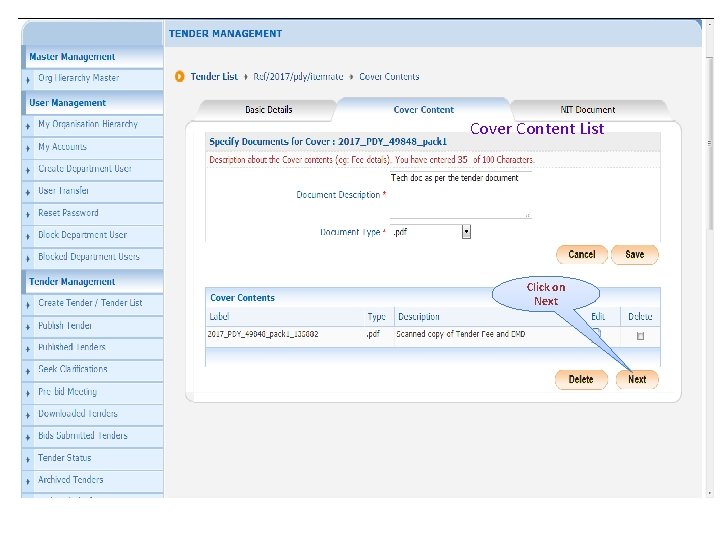
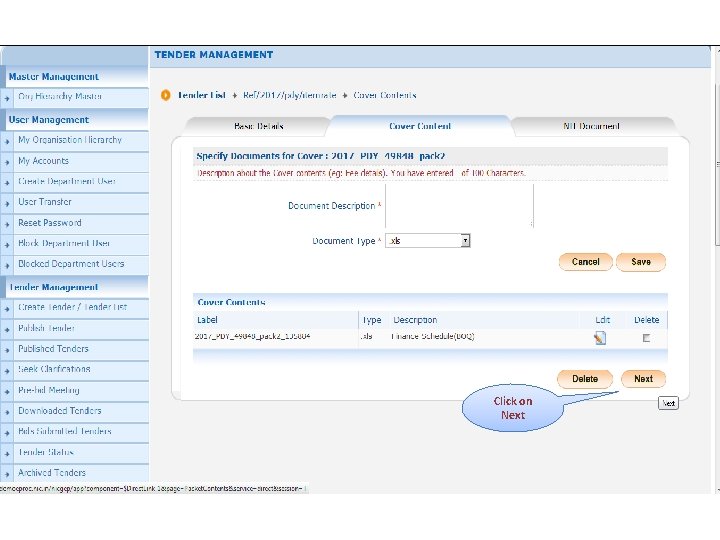
Cover Content List Click on Next
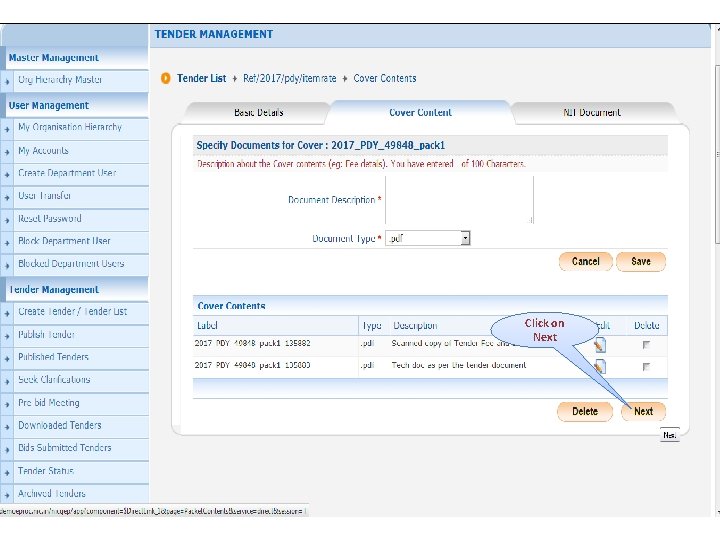
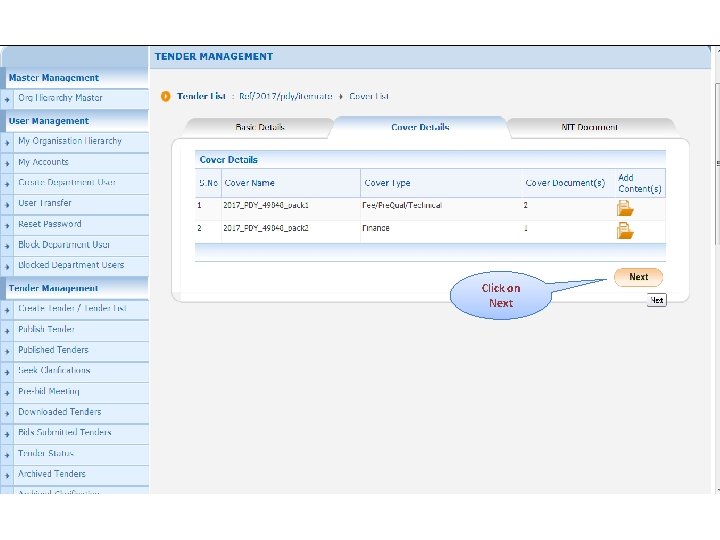
Click on Next
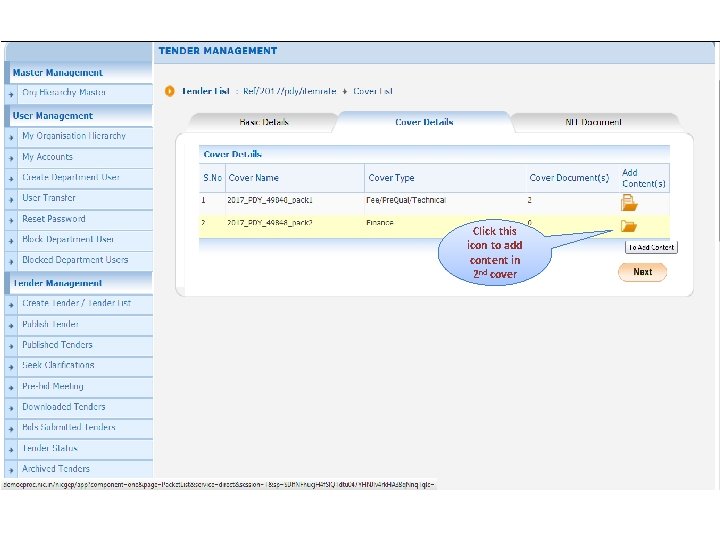
Click this icon to add content in 2 nd cover
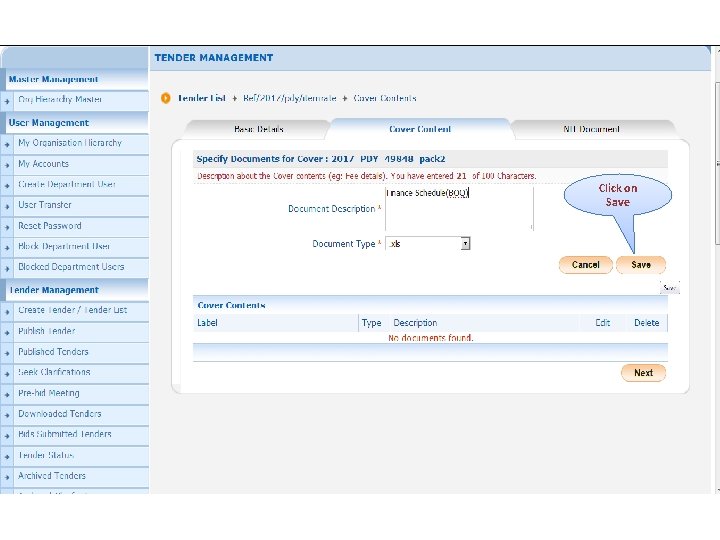
Click on Save
Click on Next
Click on Next
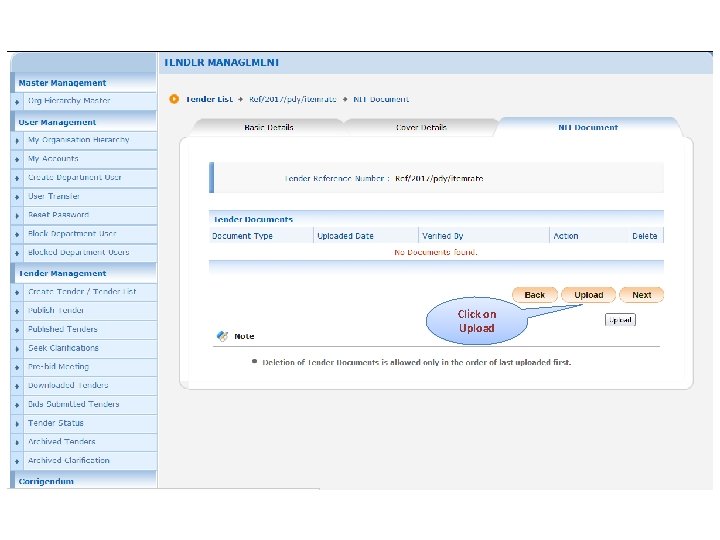
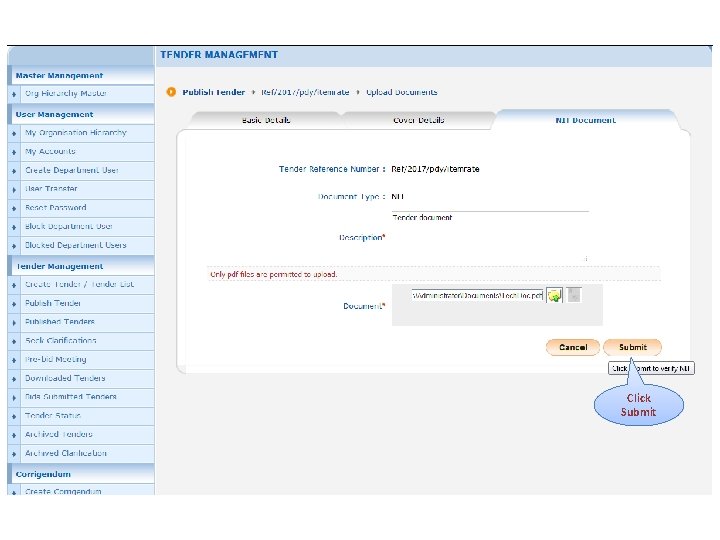
Click on Upload
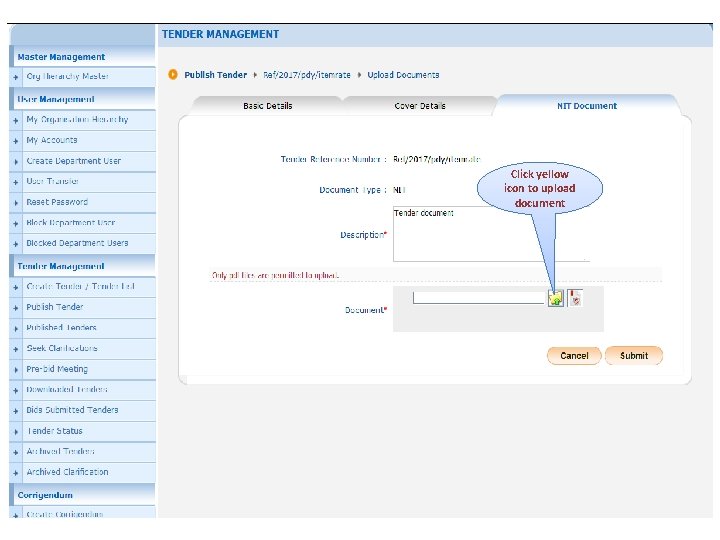
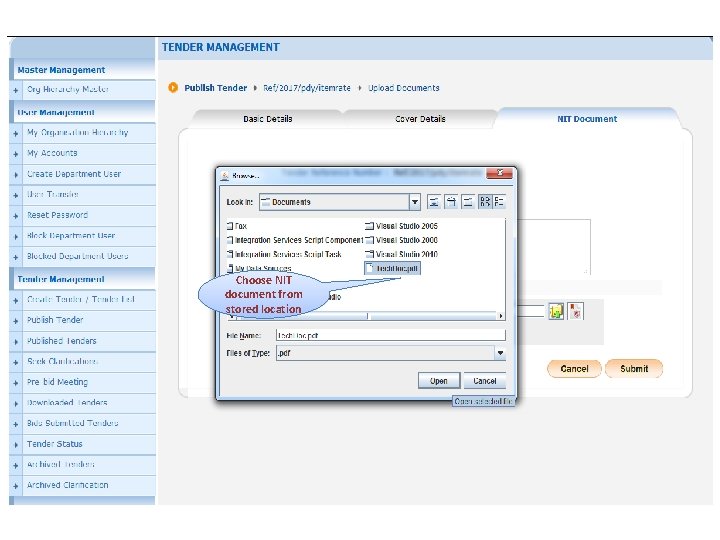
Click yellow icon to upload document
Choose NIT document from stored location
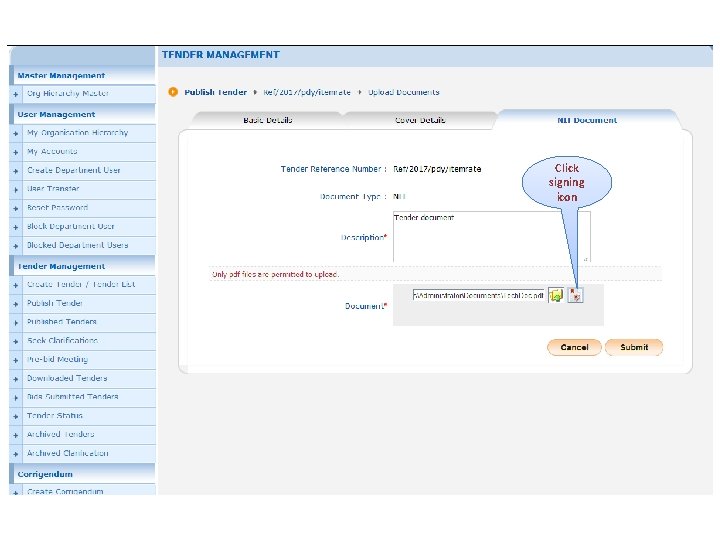
Click signing icon
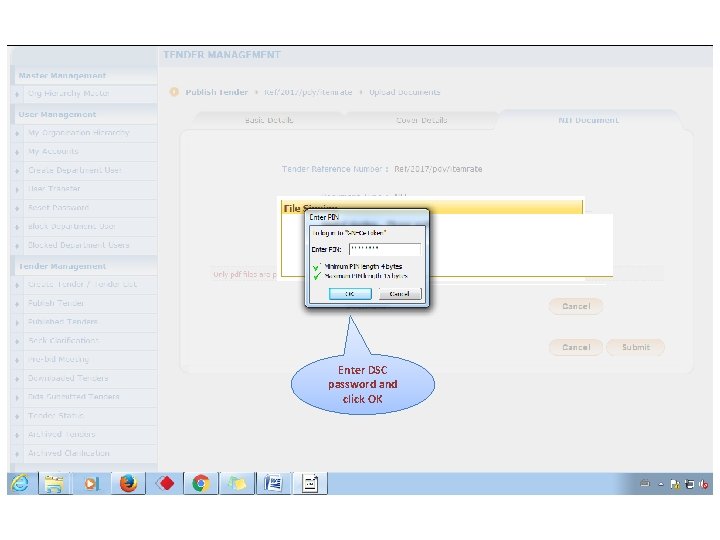
Enter DSC password and click OK
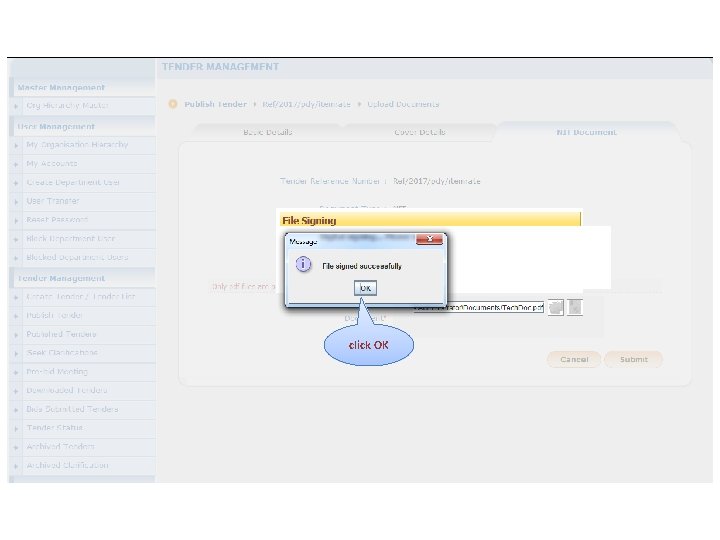
click OK
Click Submit
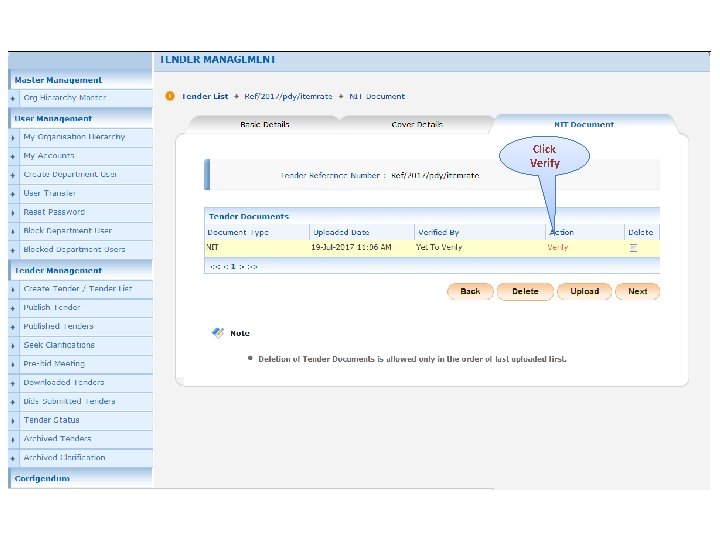
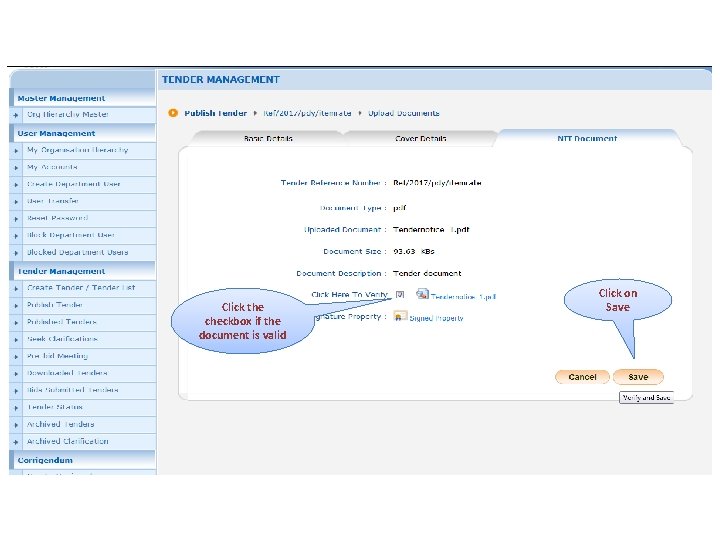
Click Verify
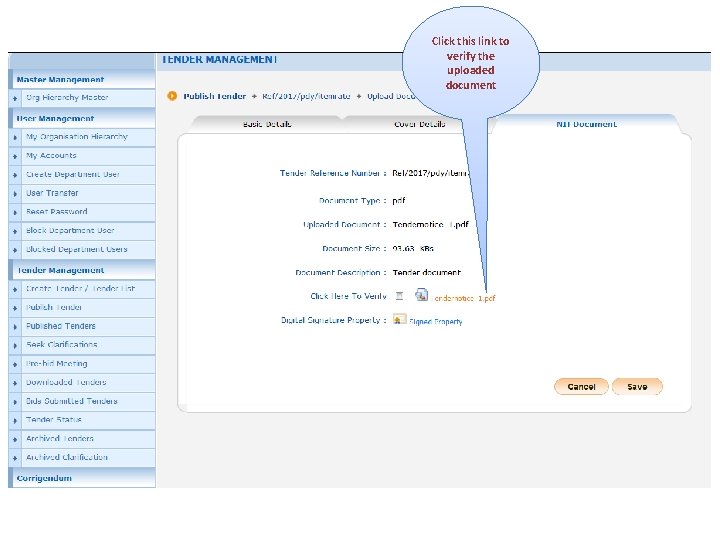
Click this link to verify the uploaded document
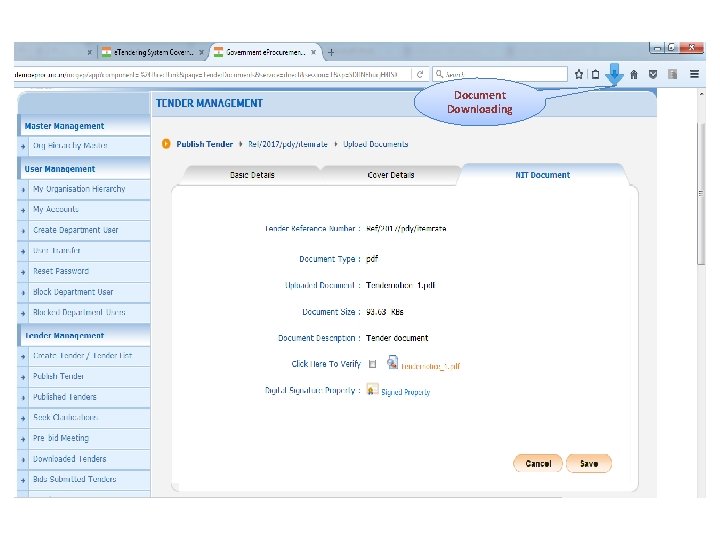
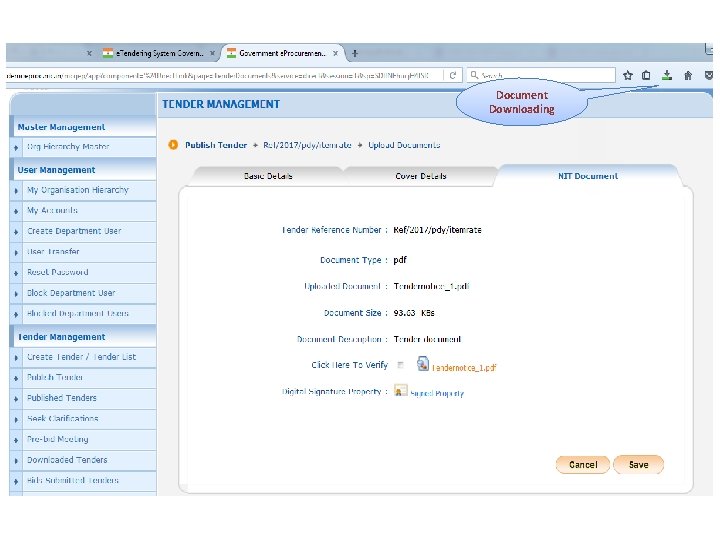
Document Downloading
Document Downloading
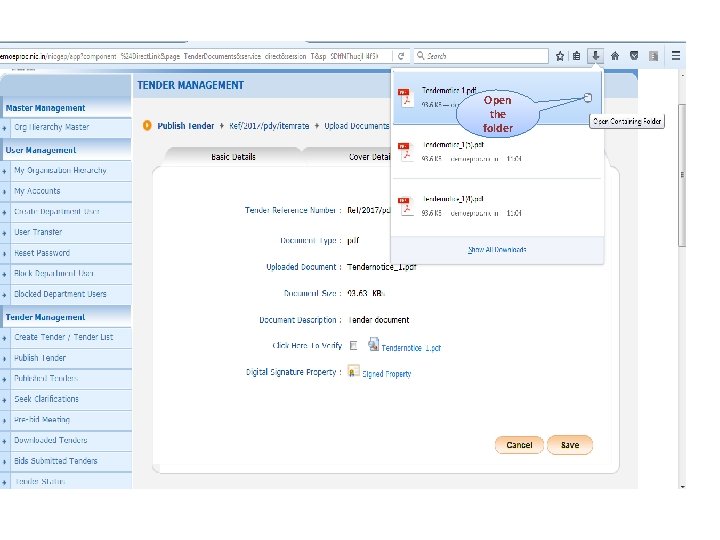
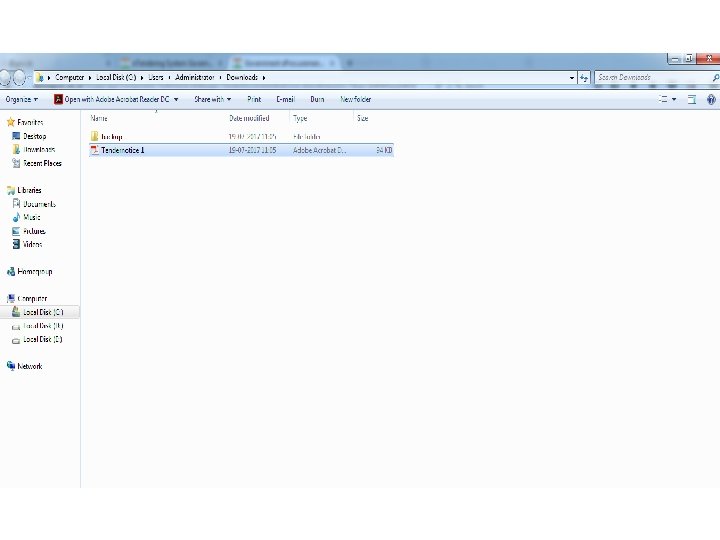
Open the folder
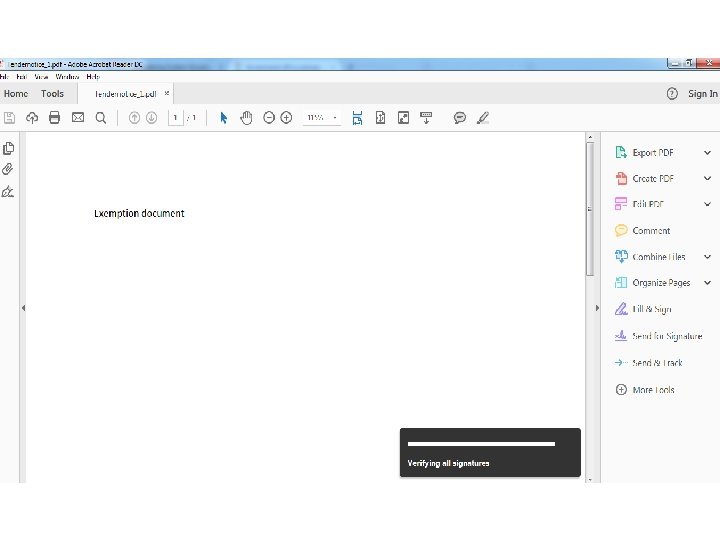
Click the checkbox if the document is valid Click on Save
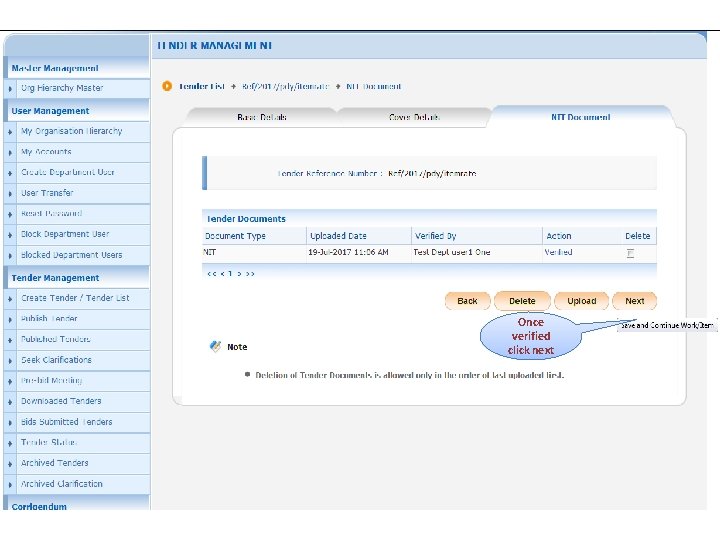
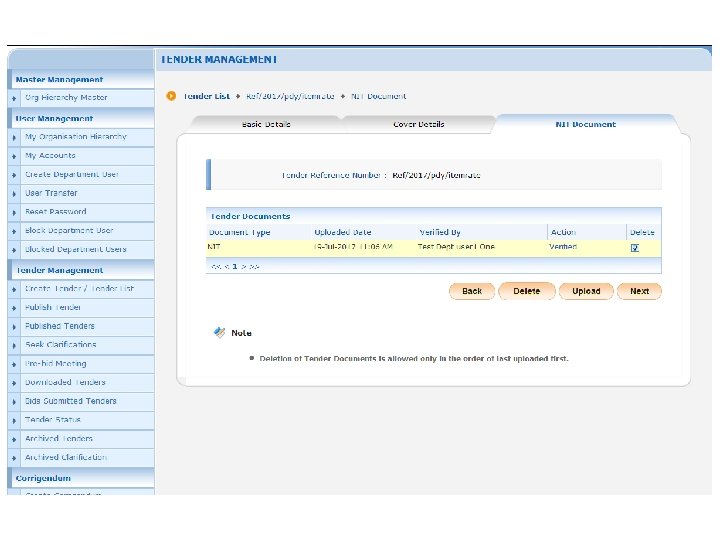
Once verified click next
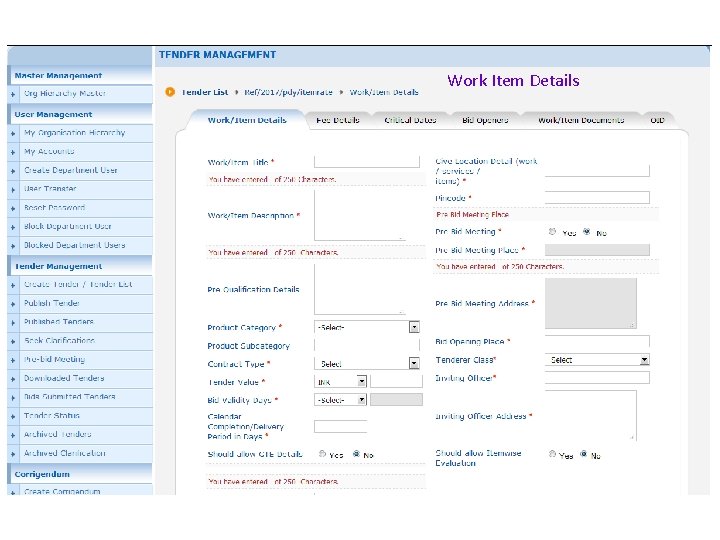
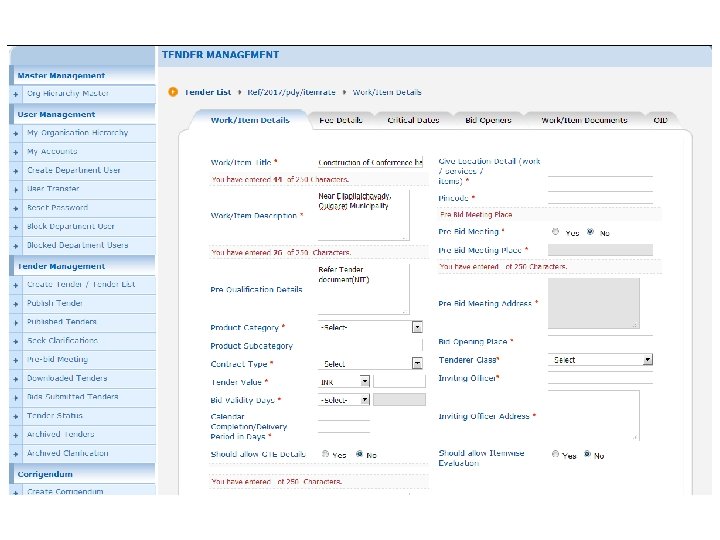
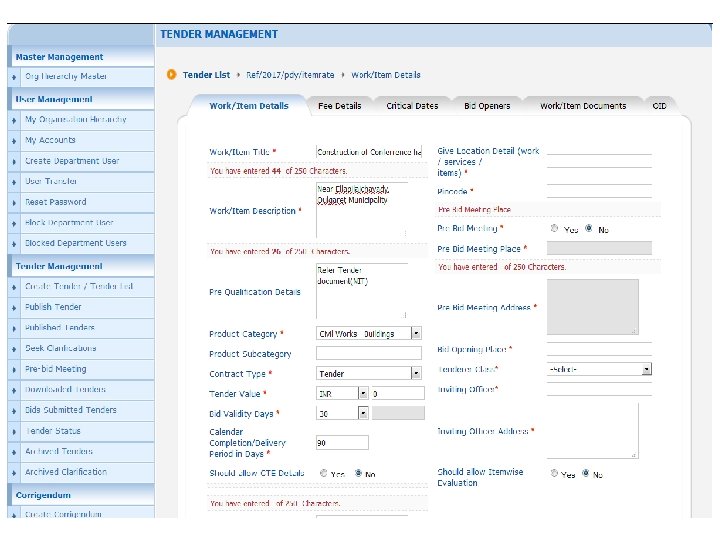
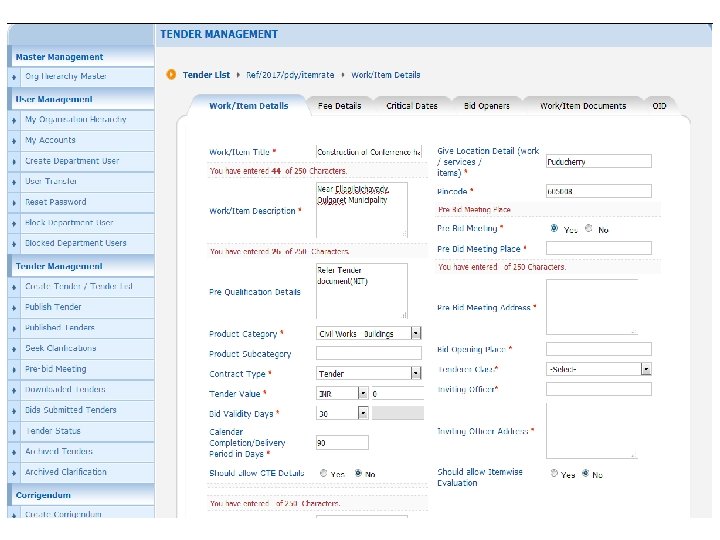
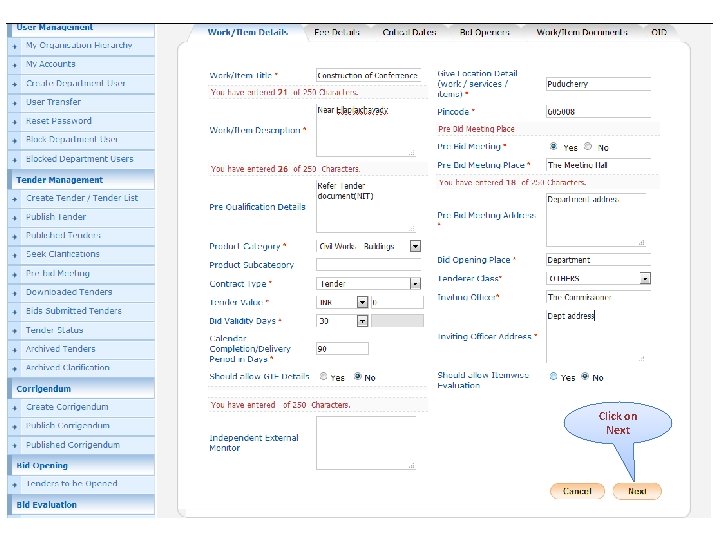
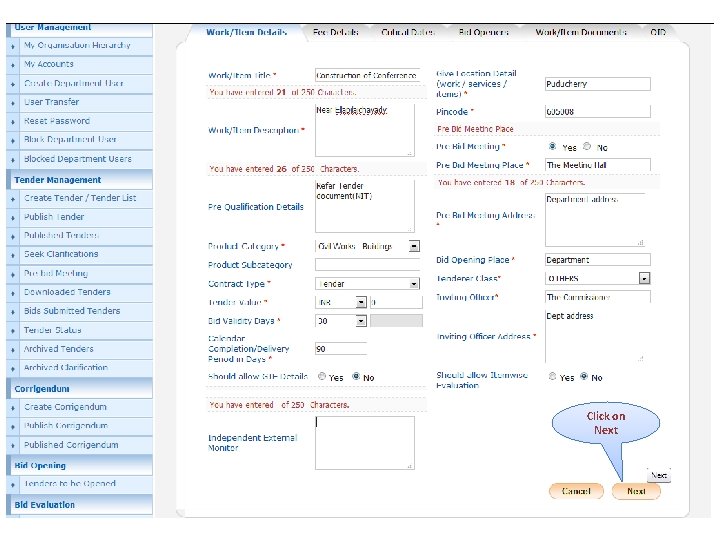
Work Item Details
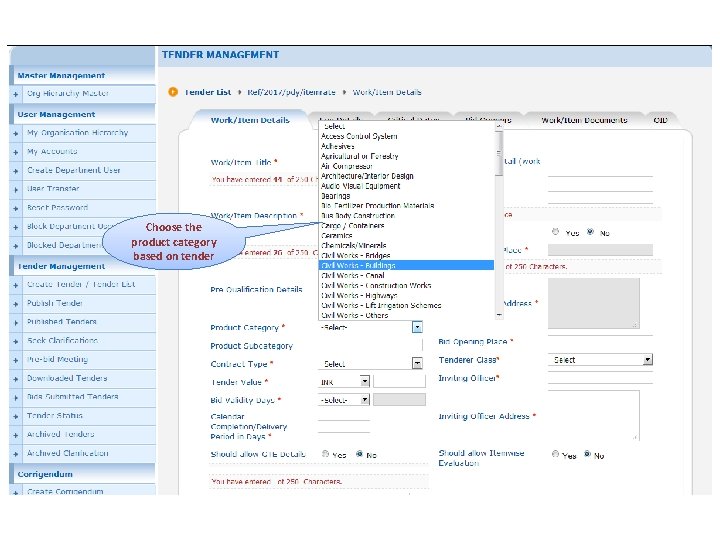
Choose the product category based on tender
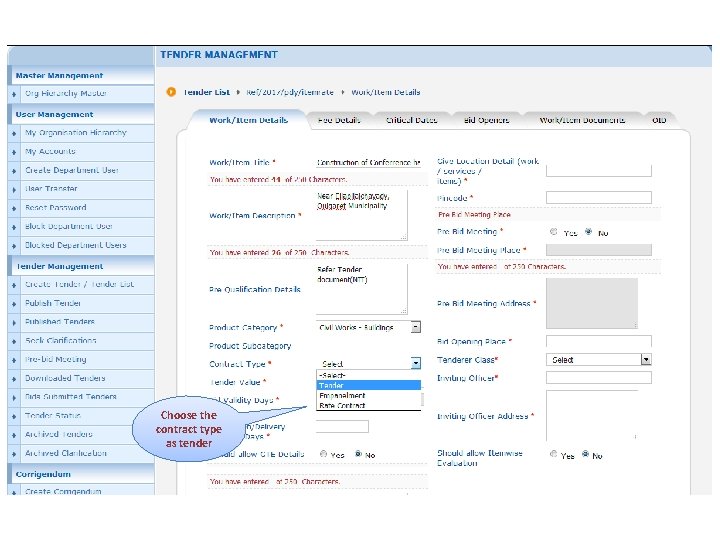
Choose the contract type as tender
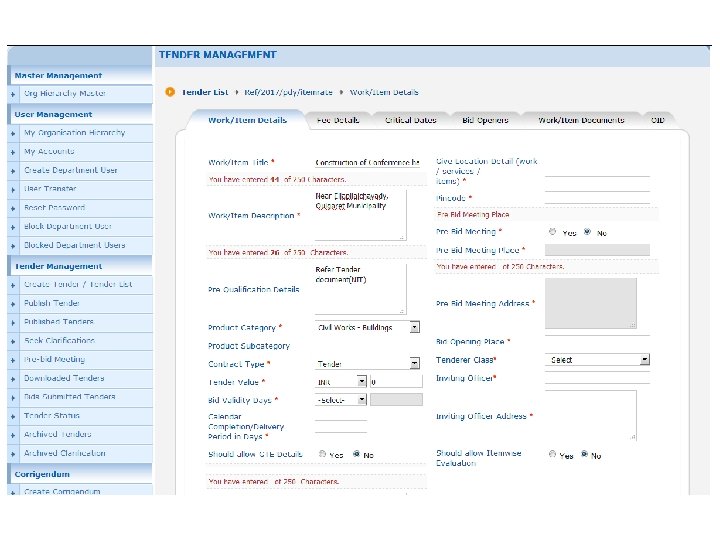
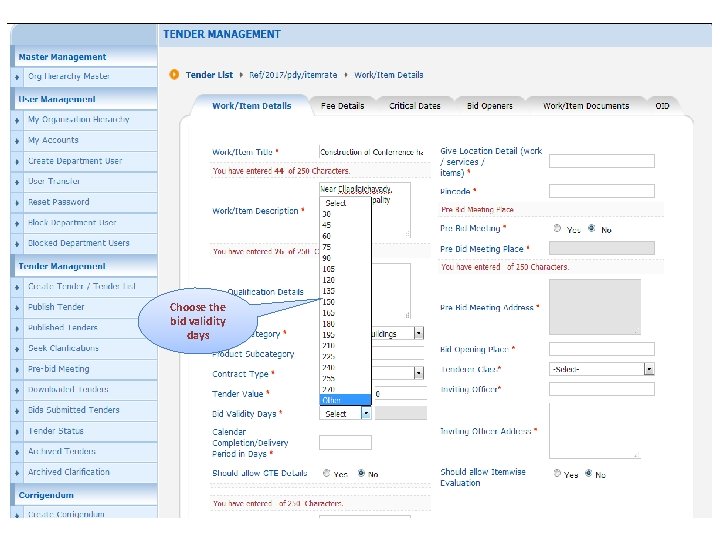
Choose the bid validity days
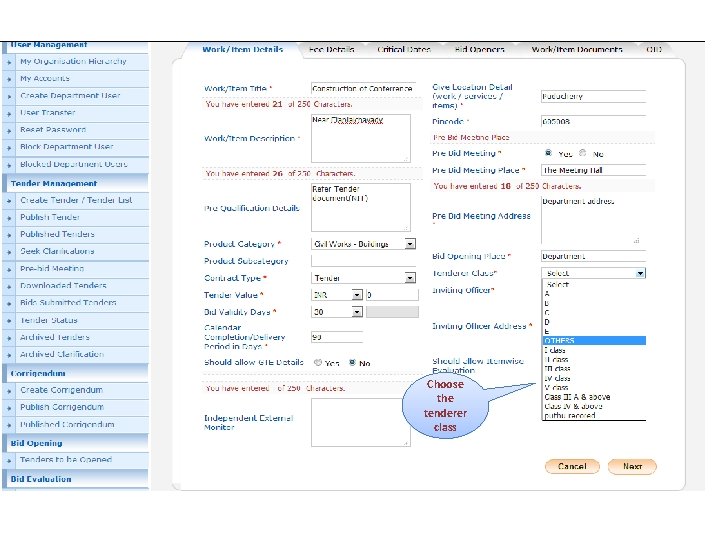
Choose the tenderer class
Click on Next
Click on Next
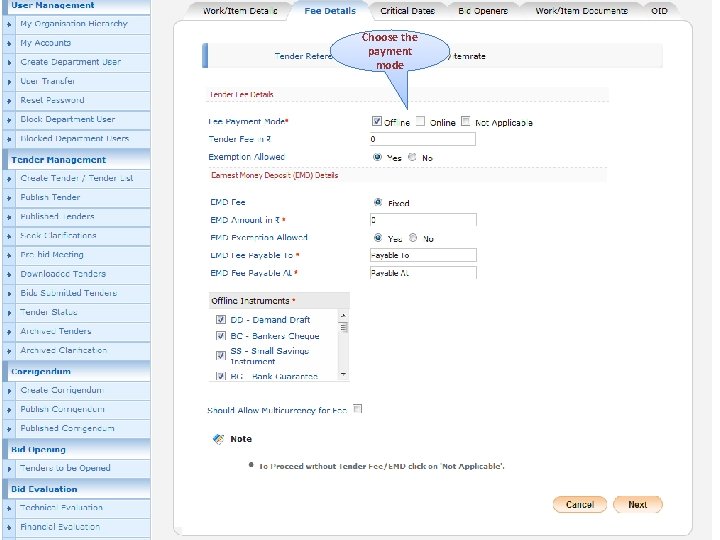
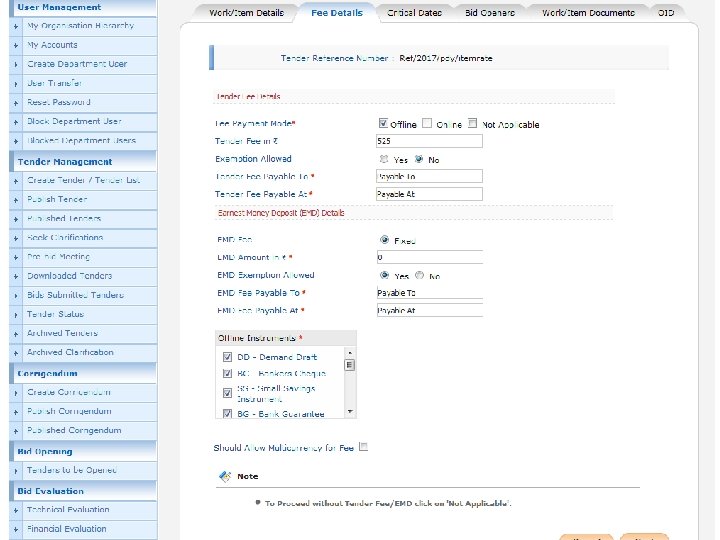
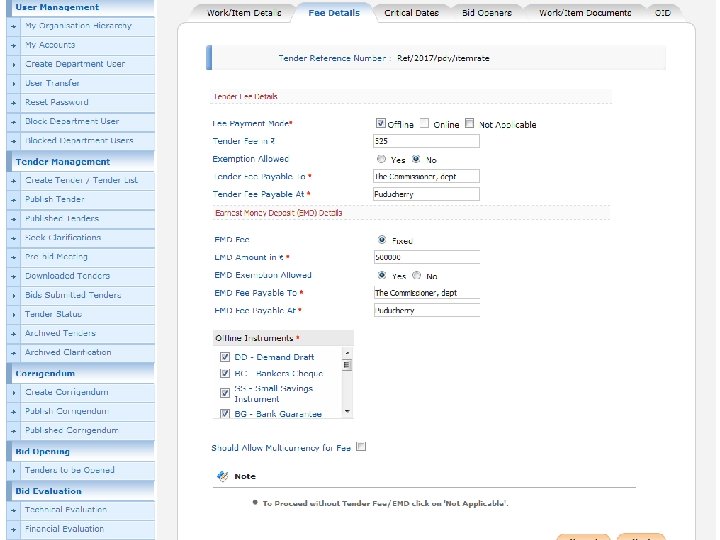
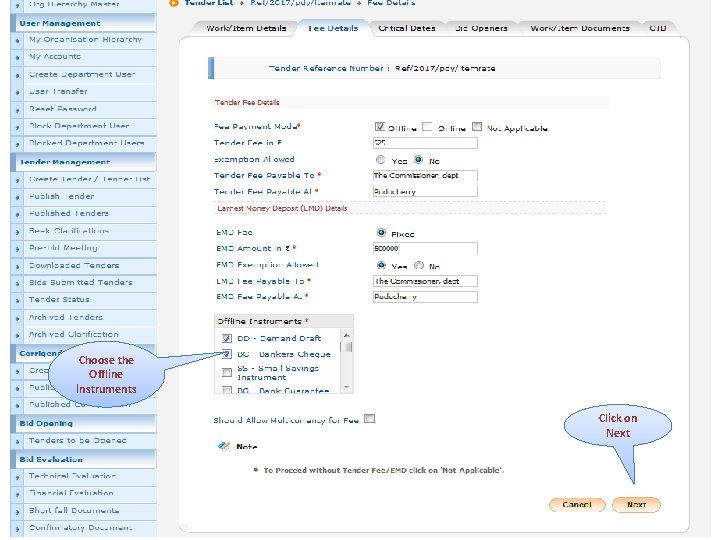
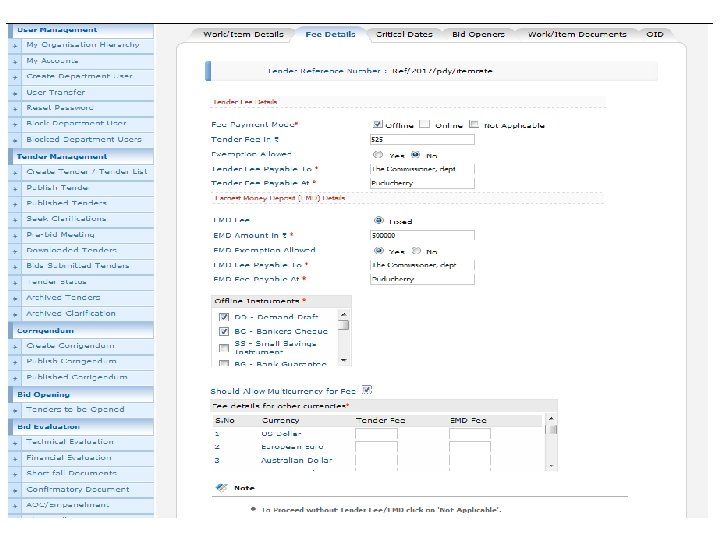
Choose the payment mode
Choose the Offline instruments Click on Next
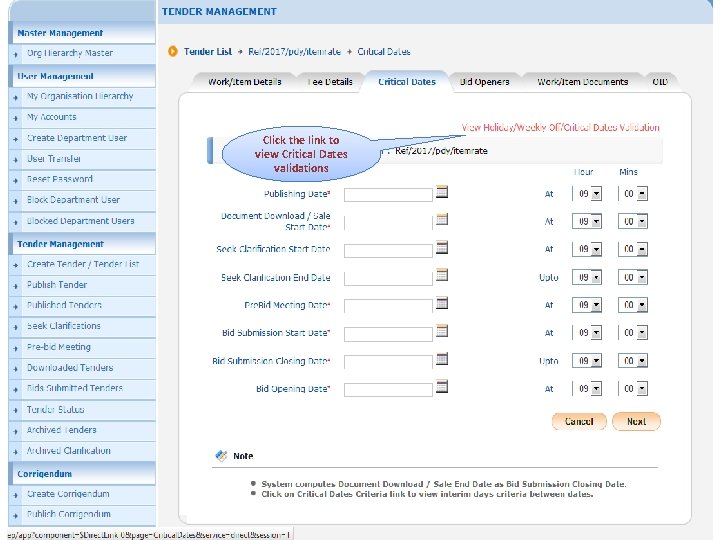
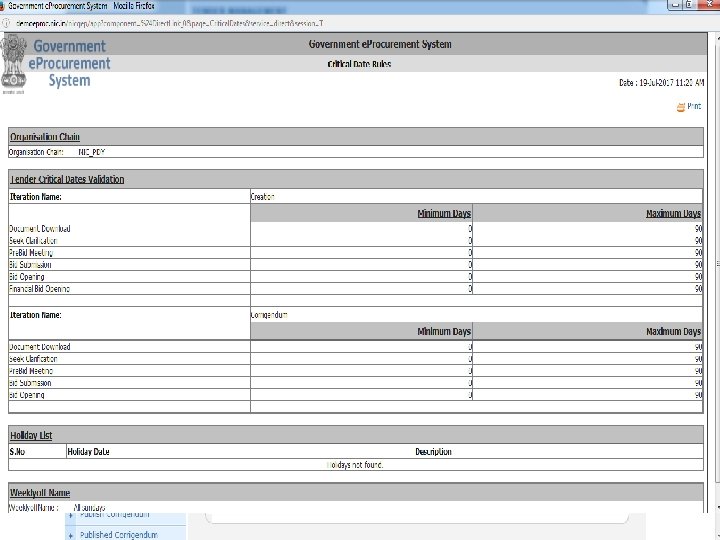
Click the link to view Critical Dates validations
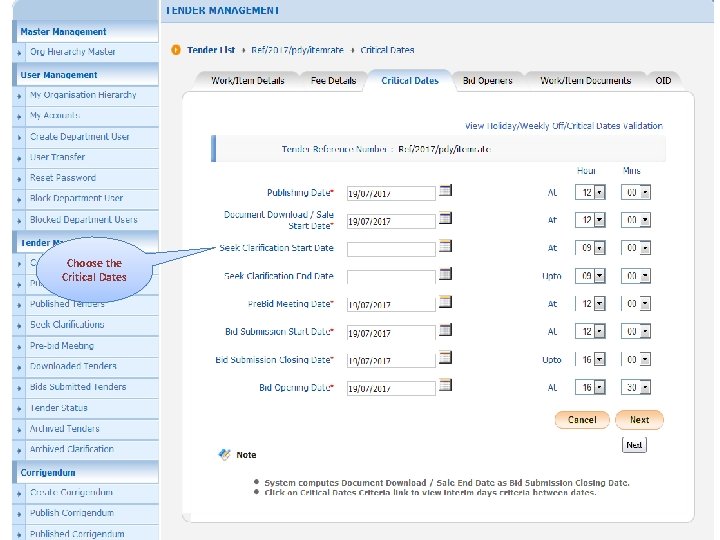
Choose the Critical Dates
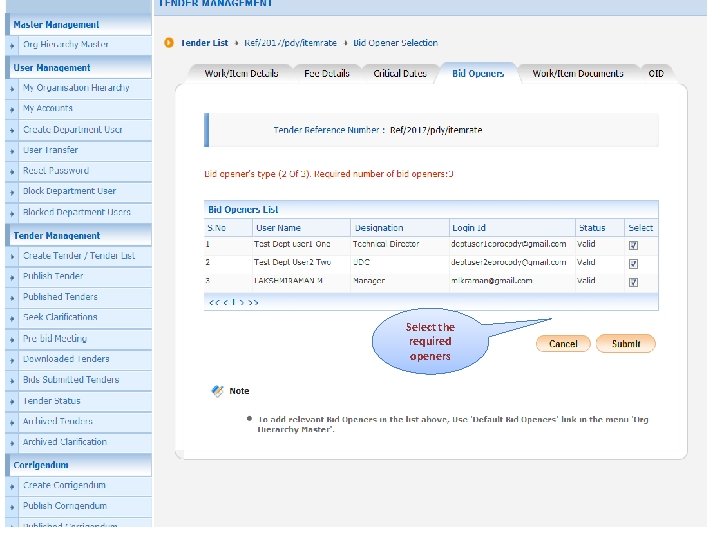
Select the required openers
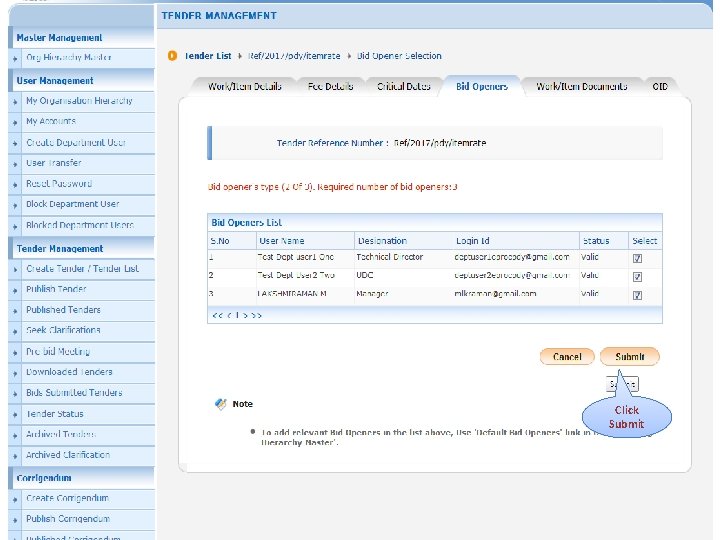
Click Submit
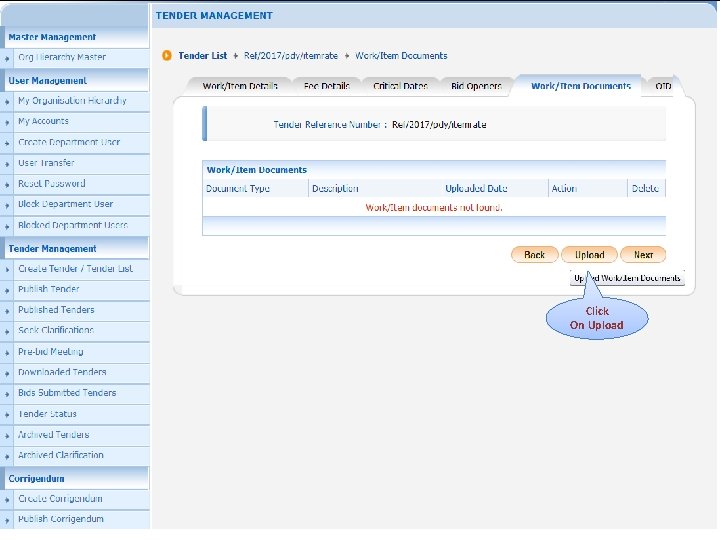
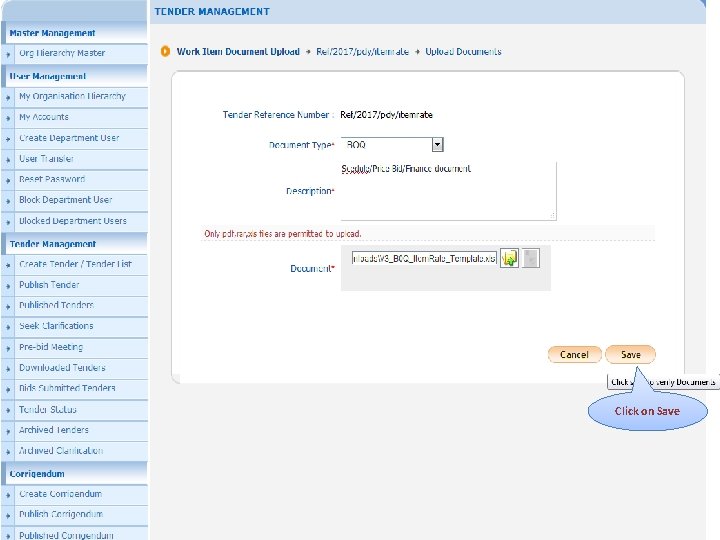
Click On Upload
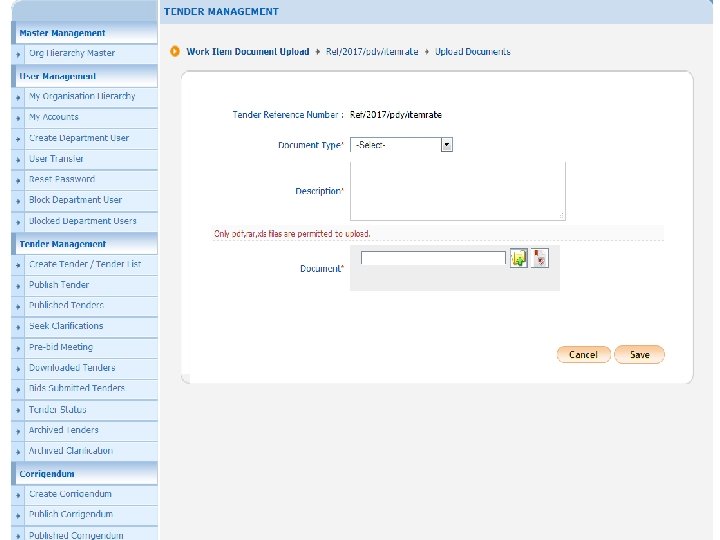
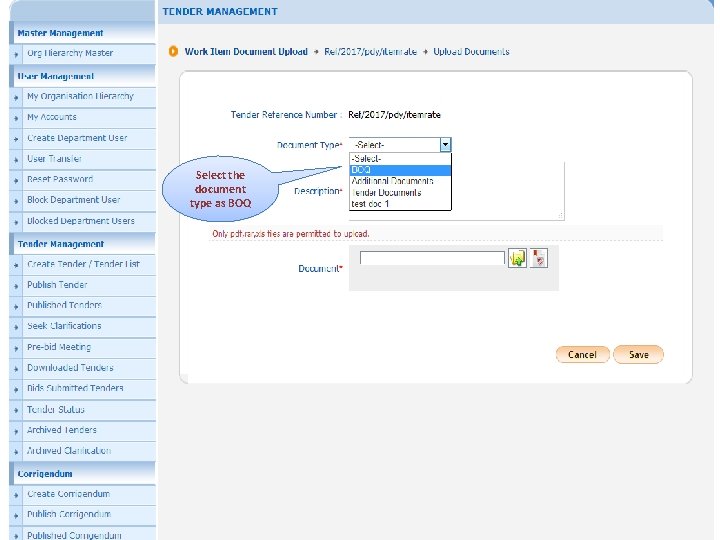
Select the document type as BOQ
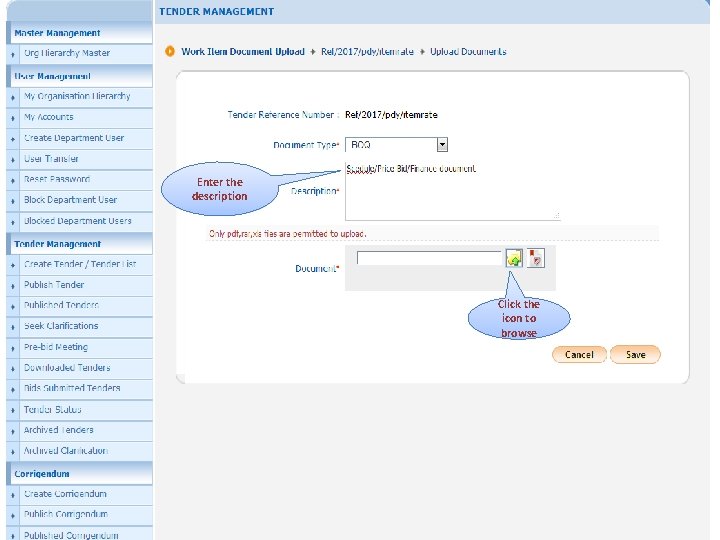
Enter the description Click the icon to browse
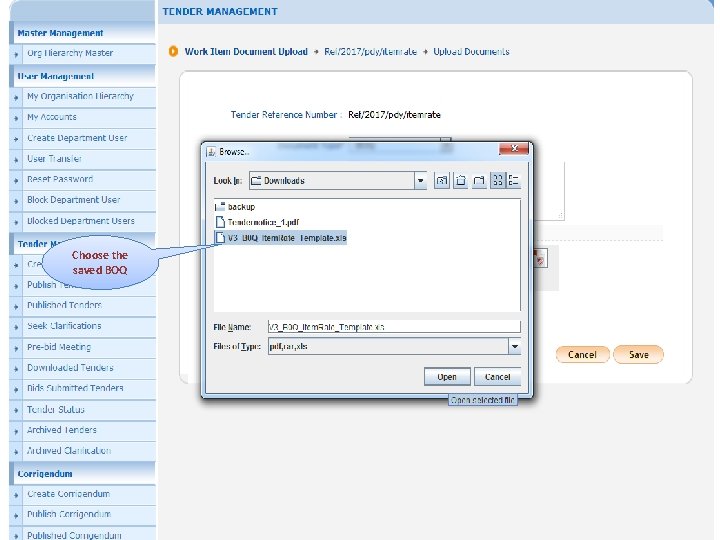
Choose the saved BOQ
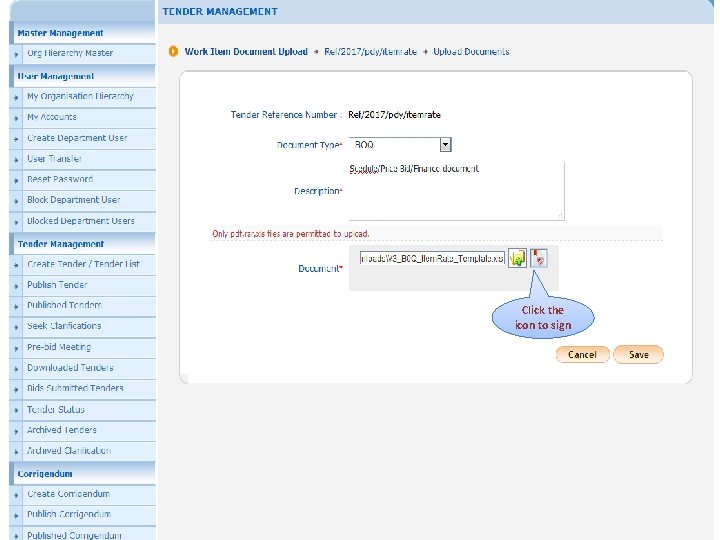
Click the icon to sign
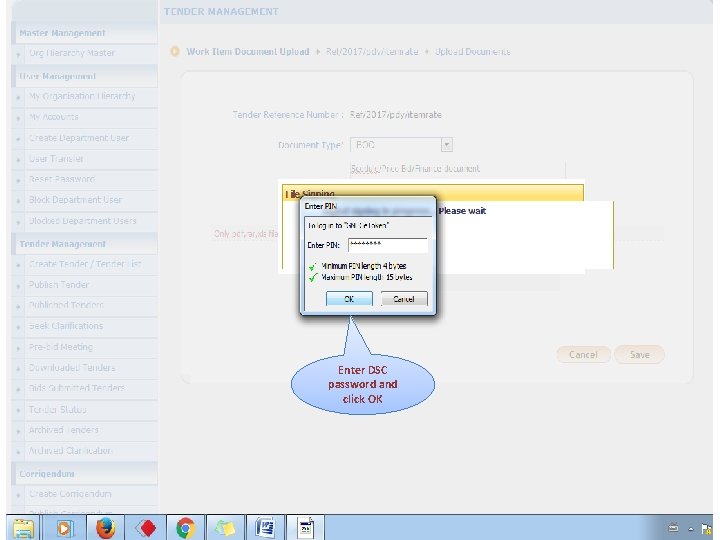
Enter DSC password and click OK
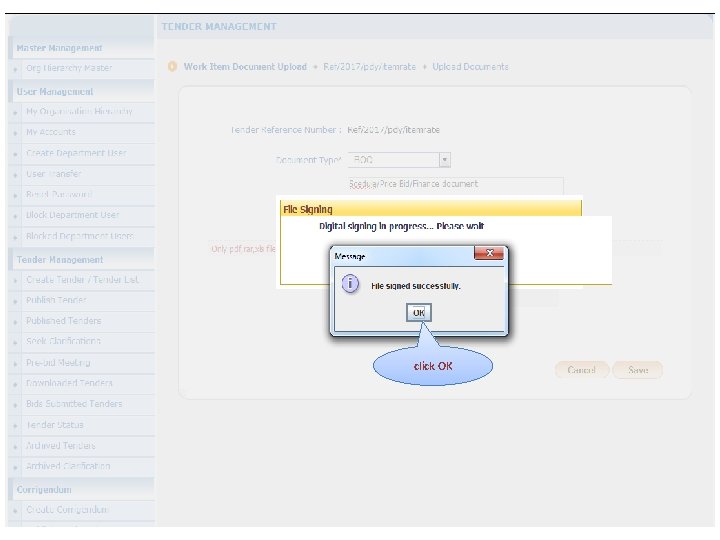
click OK
Click on Save
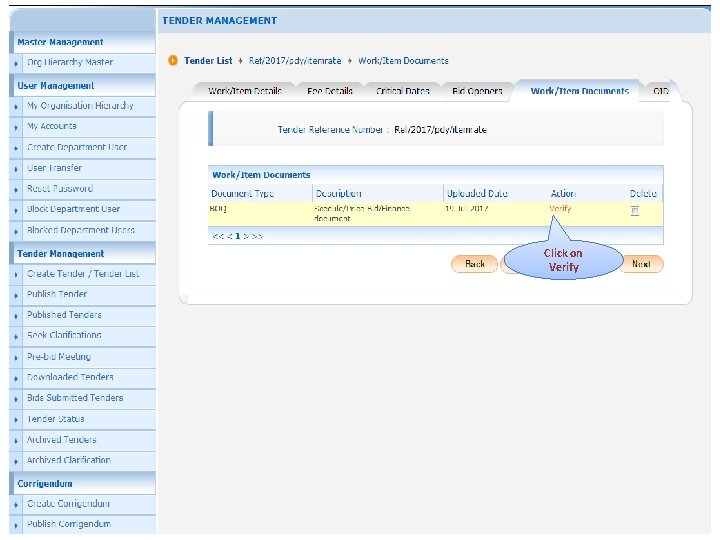
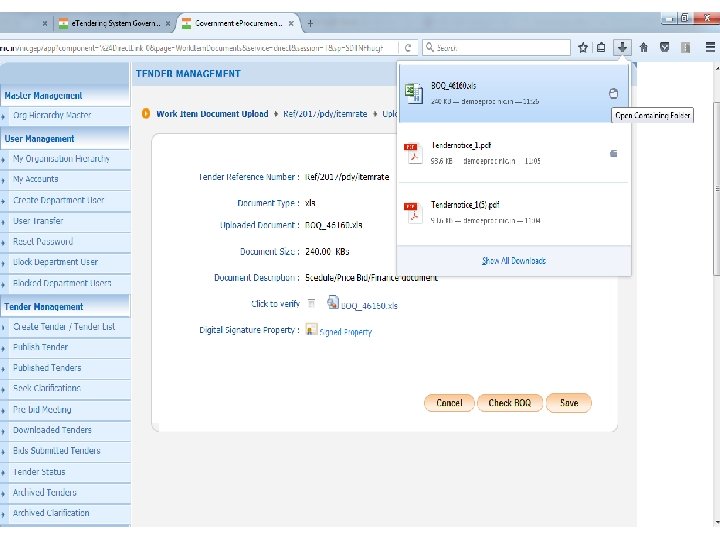
Click on Verify
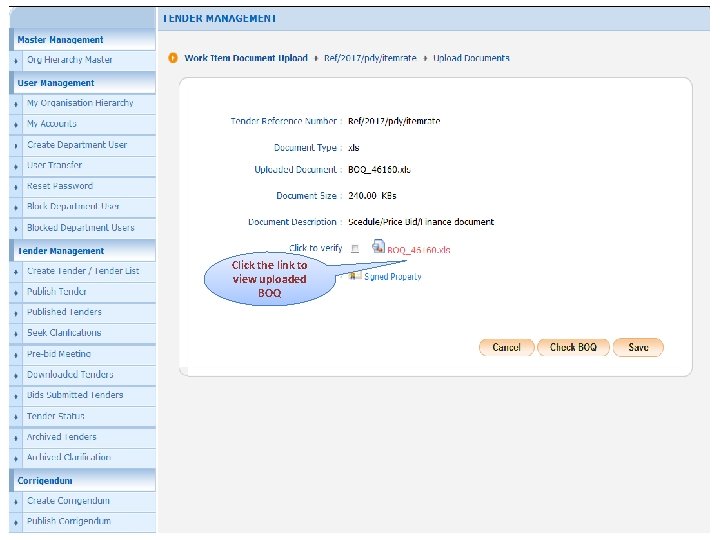
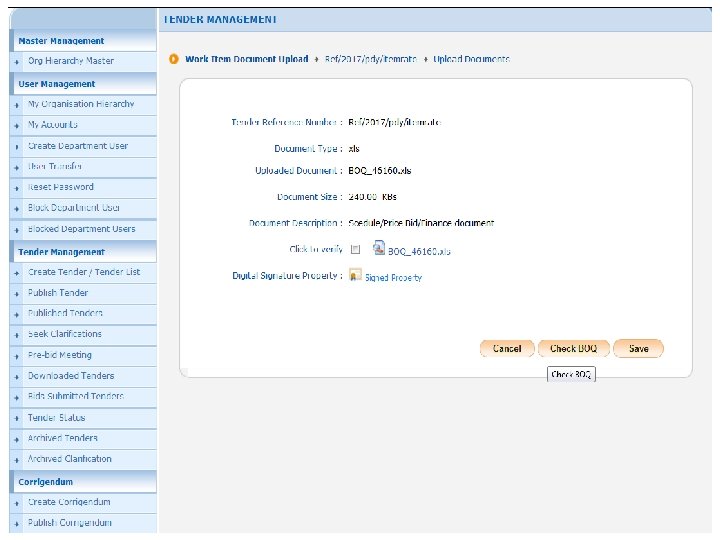
Click the link to view uploaded BOQ
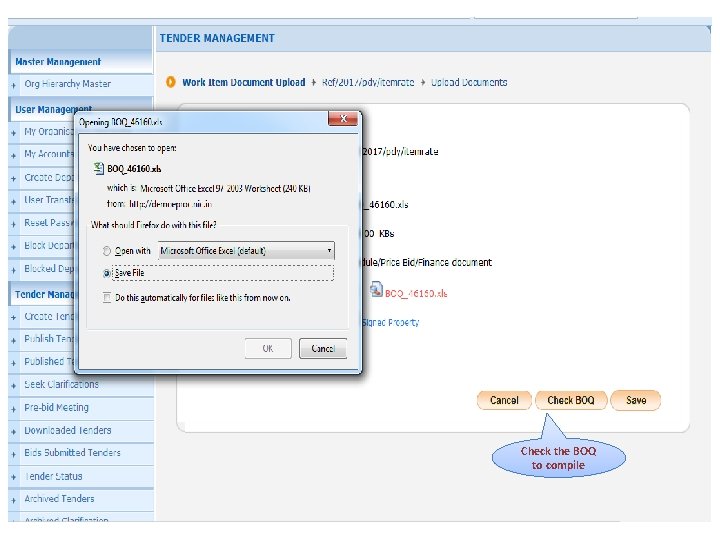
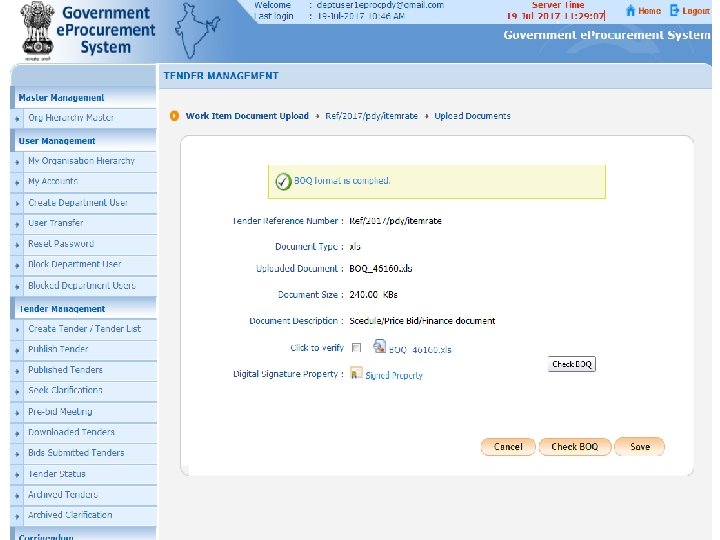
Check the BOQ to compile
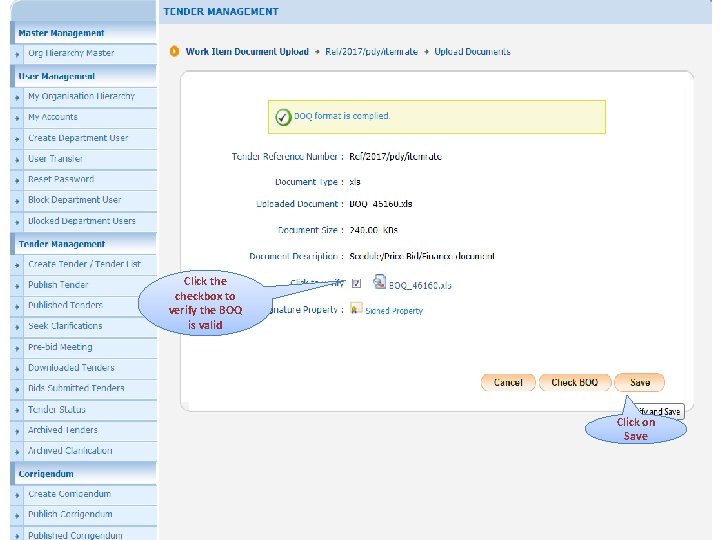
Click the checkbox to verify the BOQ is valid Click on Save
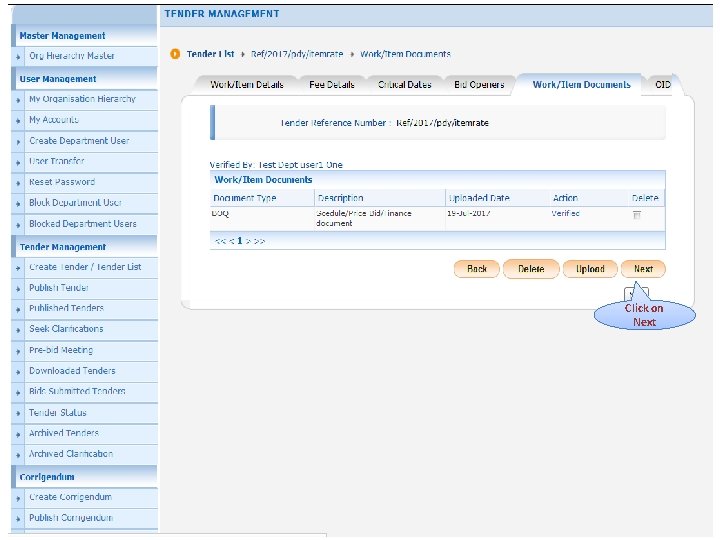
Click on Next
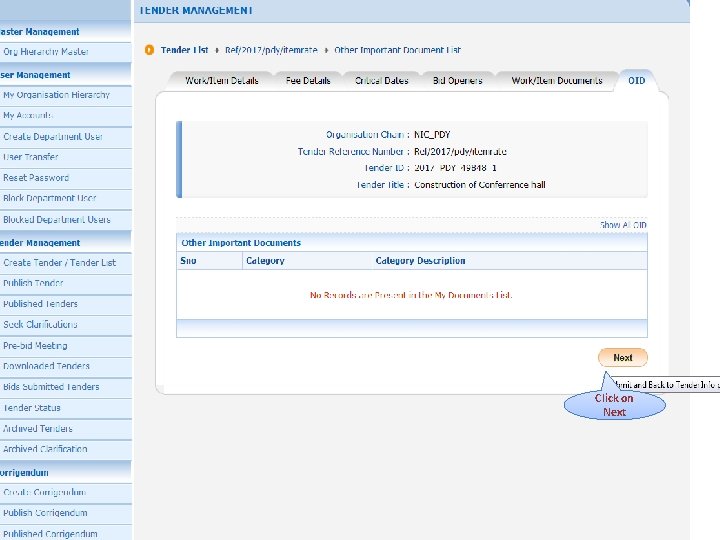
Click on Next
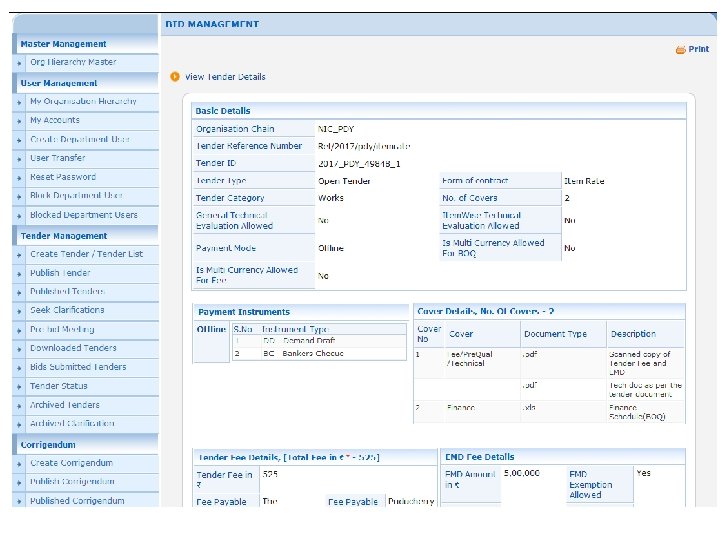
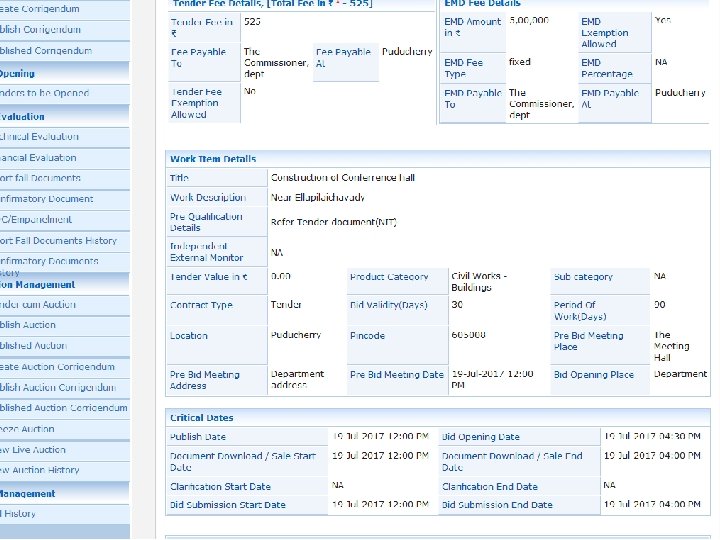
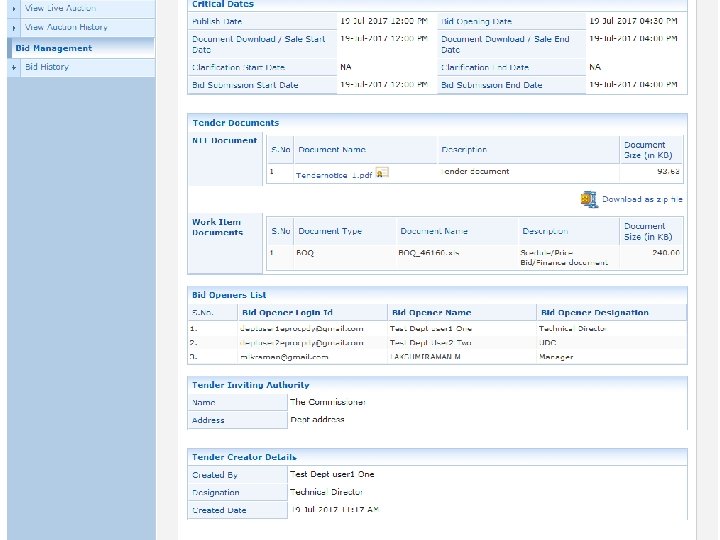
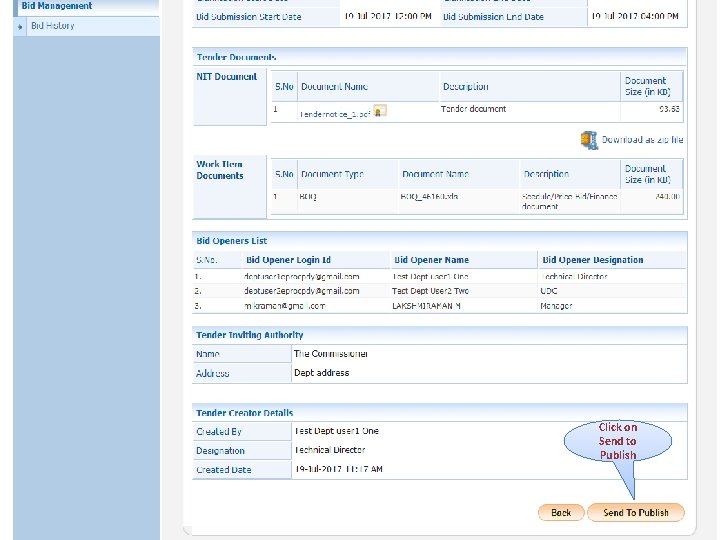
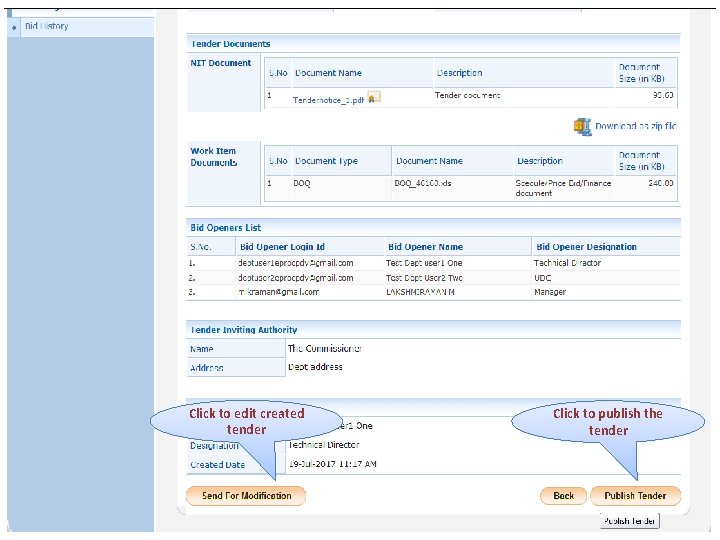
Click on Send to Publish
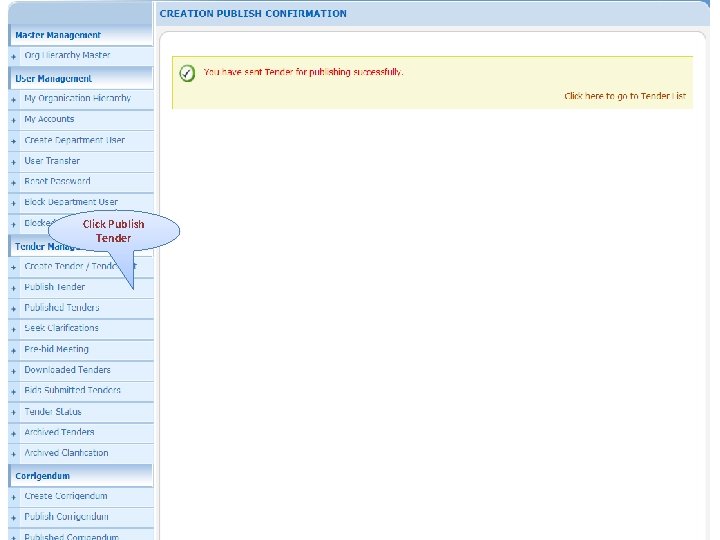
Click Publish Tender
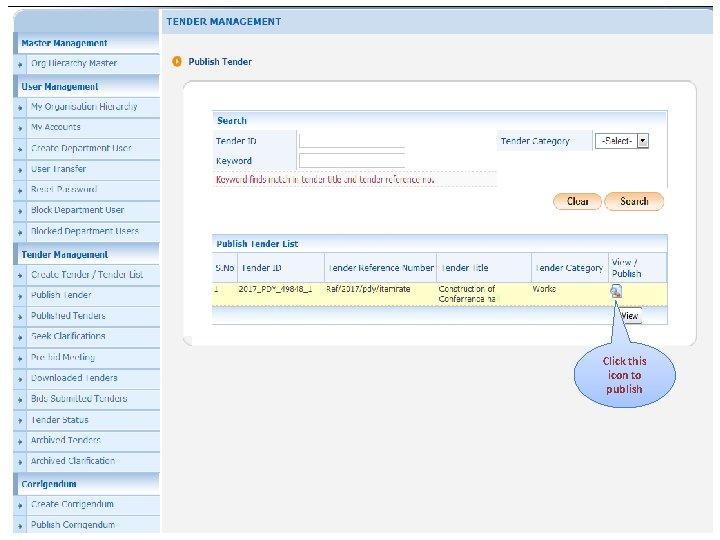
Click this icon to publish
Click to edit created tender Click to publish the tender
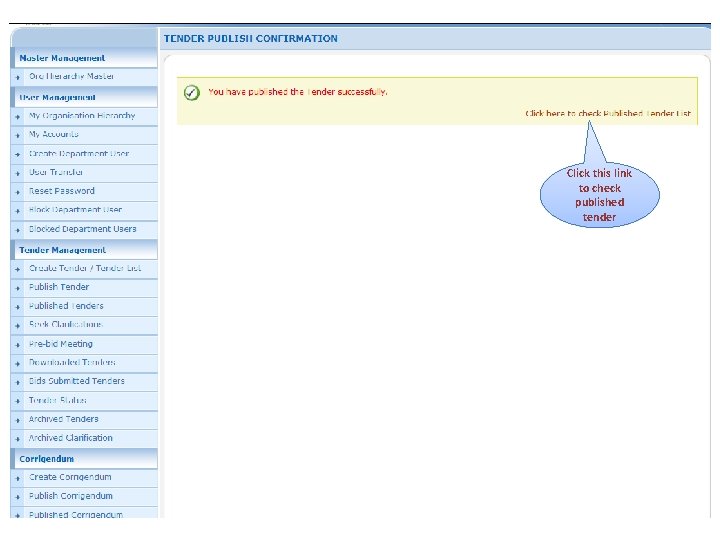
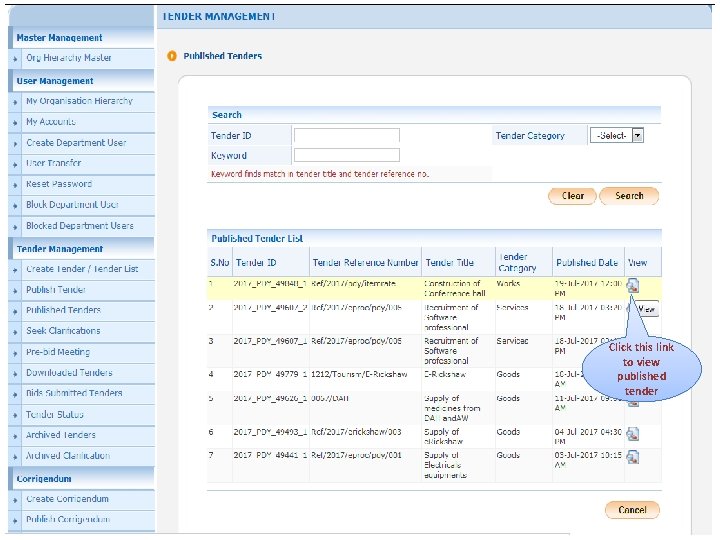
Click this link to check published tender
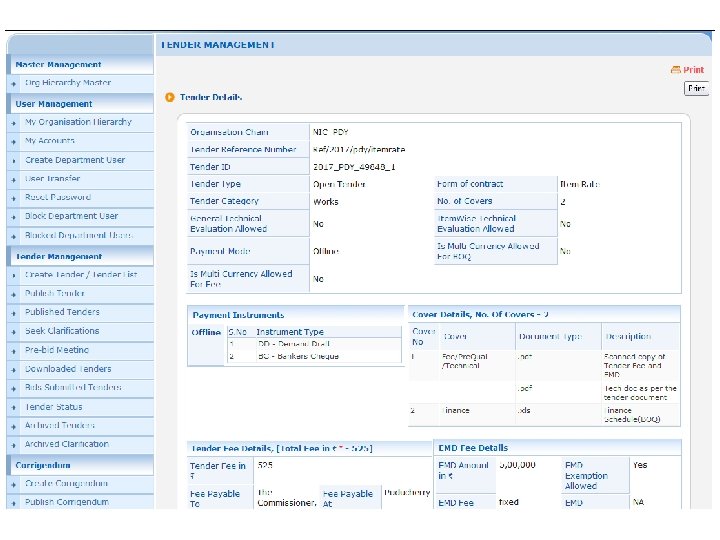
Click this link to view published tender