
Logic Gates Part I Basic Logic Gates Logic
Logic Gates Part – I : Basic Logic Gates Logic gates are the building blocks of digital circuits. Combinations of logic gates form circuits. The electronic gate is a circuit that is able to operate on a number of binary inputs in order to perform a particular logical function. AND, OR and NOT are the basic logic gates Course Name: Digital Logic Design Author(s) : Phani Swathi Chitta Mentor: Aruna Adil, Prof. C. Amarnath Level(UG/PG): UG *The contents in this ppt are licensed under Creative Commons Attribution-Non. Commercial-Share. Alike 2. 5 India license

Learning Objectives After interacting with this Learning Object, the learner will be able to: • Explain operations and applications of basic logic gates
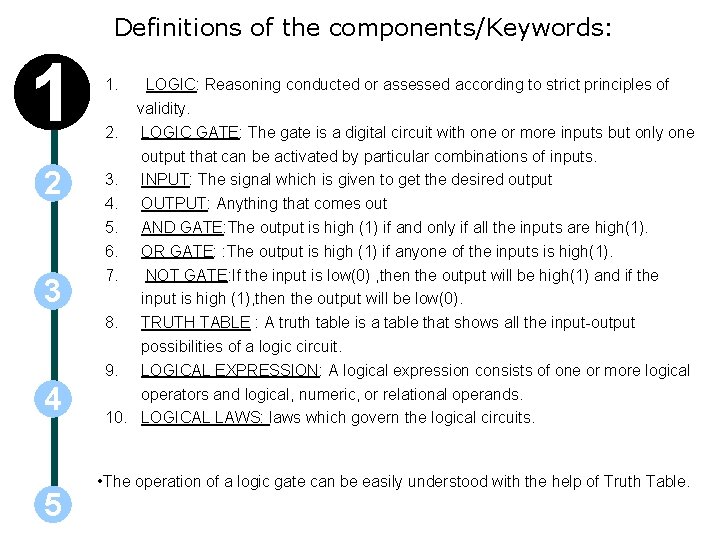
Definitions of the components/Keywords: 1 2 3 4 5 1. LOGIC: Reasoning conducted or assessed according to strict principles of validity. 2. LOGIC GATE: The gate is a digital circuit with one or more inputs but only one output that can be activated by particular combinations of inputs. 3. INPUT: The signal which is given to get the desired output 4. OUTPUT: Anything that comes out 5. AND GATE: The output is high (1) if and only if all the inputs are high(1). 6. OR GATE: : The output is high (1) if anyone of the inputs is high(1). 7. NOT GATE: If the input is low(0) , then the output will be high(1) and if the input is high (1), then the output will be low(0). 8. TRUTH TABLE : A truth table is a table that shows all the input-output possibilities of a logic circuit. 9. LOGICAL EXPRESSION: A logical expression consists of one or more logical operators and logical, numeric, or relational operands. 10. LOGICAL LAWS: laws which govern the logical circuits. • The operation of a logic gate can be easily understood with the help of Truth Table.
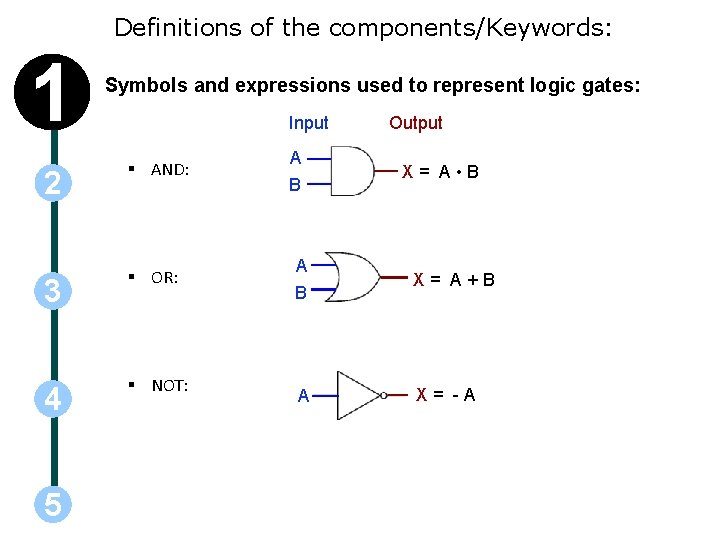
Definitions of the components/Keywords: 1 Symbols and expressions used to represent logic gates: Input 2 § AND: 3 § OR: 4 § NOT: 5 A B Output X= A • B A B X= A+B A X= -A
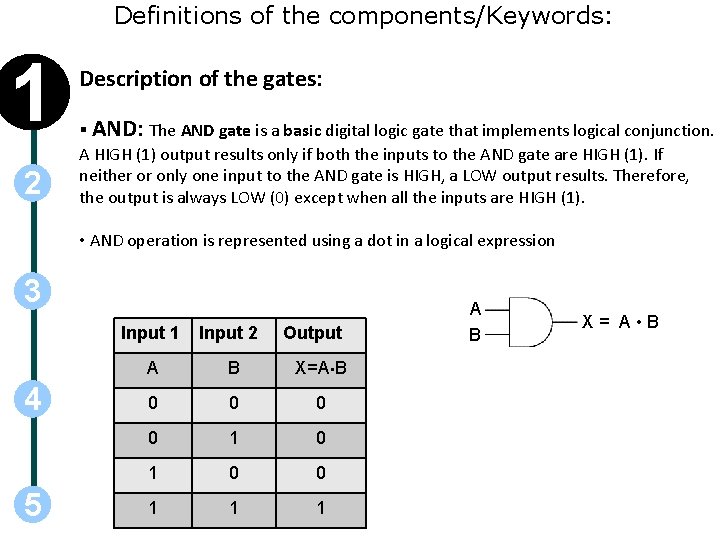
Definitions of the components/Keywords: 1 2 Description of the gates: § AND: The AND gate is a basic digital logic gate that implements logical conjunction. A HIGH (1) output results only if both the inputs to the AND gate are HIGH (1). If neither or only one input to the AND gate is HIGH, a LOW output results. Therefore, the output is always LOW (0) except when all the inputs are HIGH (1). • AND operation is represented using a dot in a logical expression 3 4 5 Input 1 Input 2 Output A B X=A • B 0 0 1 1 1 A B X= A • B
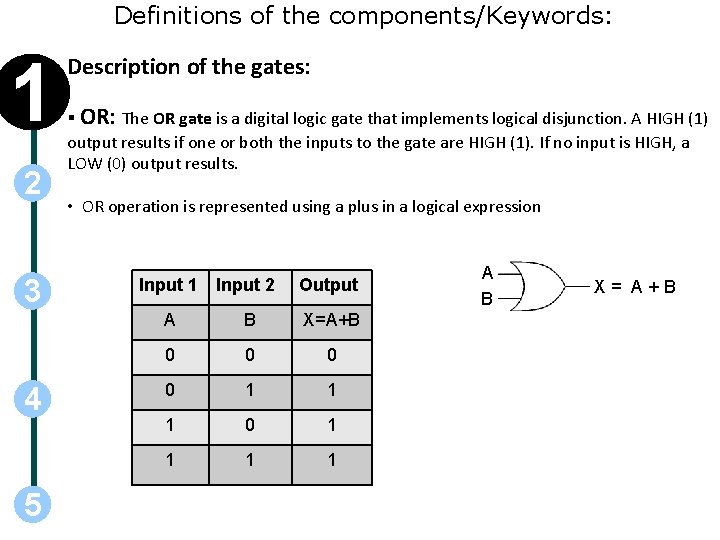
Definitions of the components/Keywords: 1 2 3 4 5 Description of the gates: § OR: The OR gate is a digital logic gate that implements logical disjunction. A HIGH (1) output results if one or both the inputs to the gate are HIGH (1). If no input is HIGH, a LOW (0) output results. • OR operation is represented using a plus in a logical expression Input 1 Input 2 Output A B X=A+B 0 0 1 1 1 0 1 1 A B X= A+B
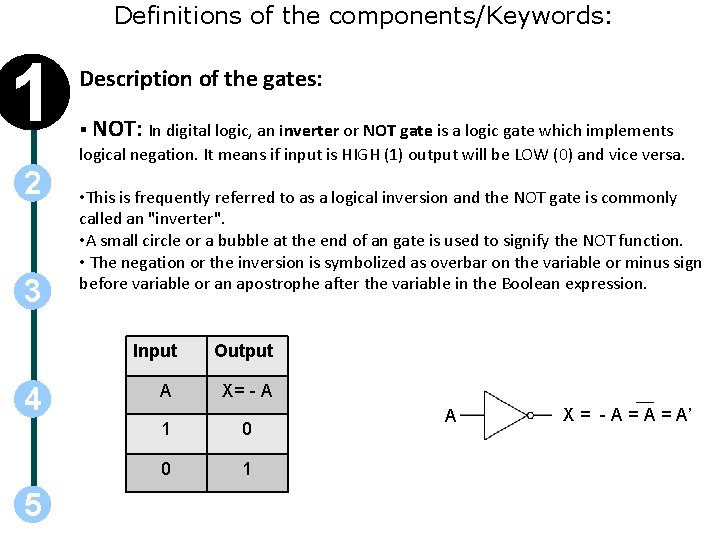
Definitions of the components/Keywords: 1 2 3 4 5 Description of the gates: § NOT: In digital logic, an inverter or NOT gate is a logic gate which implements logical negation. It means if input is HIGH (1) output will be LOW (0) and vice versa. • This is frequently referred to as a logical inversion and the NOT gate is commonly called an "inverter". • A small circle or a bubble at the end of an gate is used to signify the NOT function. • The negation or the inversion is symbolized as overbar on the variable or minus sign before variable or an apostrophe after the variable in the Boolean expression. Input Output A X= - A 1 0 0 1 A X = - A = A’
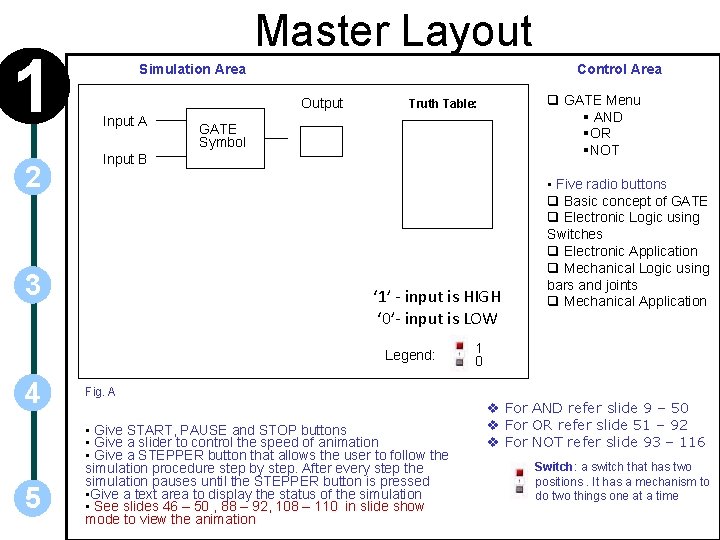
1 2 Master Layout Simulation Area Control Area Output Input A GATE Symbol Input B 3 ‘ 1’ - input is HIGH ‘ 0’- input is LOW Legend: 4 5 q GATE Menu § AND §OR §NOT Truth Table: • Five radio buttons q Basic concept of GATE q Electronic Logic using Switches q Electronic Application q Mechanical Logic using bars and joints q Mechanical Application 1 0 Fig. A • Give START, PAUSE and STOP buttons • Give a slider to control the speed of animation • Give a STEPPER button that allows the user to follow the simulation procedure step by step. After every step the simulation pauses until the STEPPER button is pressed • Give a text area to display the status of the simulation • See slides 46 – 50 , 88 – 92, 108 – 110 in slide show mode to view the animation v For AND refer slide 9 – 50 v For OR refer slide 51 – 92 v For NOT refer slide 93 – 116 Switch: a switch that has two positions. It has a mechanism to do two things one at a time
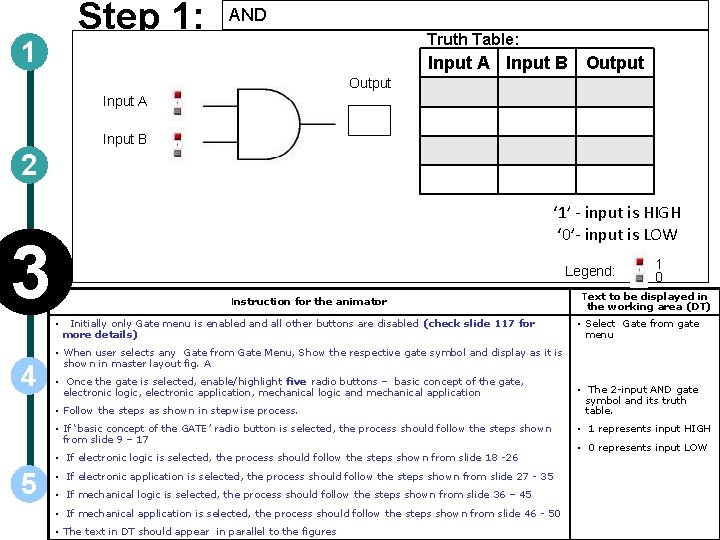
Step 1: 1 AND Truth Table: Input A Input B Output Input A Input B 2 ‘ 1’ - input is HIGH ‘ 0’- input is LOW 3 Legend: Instruction for the animator • 4 Initially only Gate menu is enabled and all other buttons are disabled (check slide 117 for more details) Text to be displayed in the working area (DT) • Select Gate from gate menu • When user selects any Gate from Gate Menu, Show the respective gate symbol and display as it is shown in master layout fig. A • Once the gate is selected, enable/highlight five radio buttons – basic concept of the gate, electronic logic, electronic application, mechanical logic and mechanical application • Follow the steps as shown in stepwise process. • If ‘basic concept of the GATE’ radio button is selected, the process should follow the steps shown from slide 9 – 17 • If electronic logic is selected, the process should follow the steps shown from slide 18 -26 5 1 0 • If electronic application is selected, the process should follow the steps shown from slide 27 - 35 • If mechanical logic is selected, the process should follow the steps shown from slide 36 – 45 • If mechanical application is selected, the process should follow the steps shown from slide 46 - 50 • The text in DT should appear in parallel to the figures • The 2 -input AND gate symbol and its truth table. • 1 represents input HIGH • 0 represents input LOW
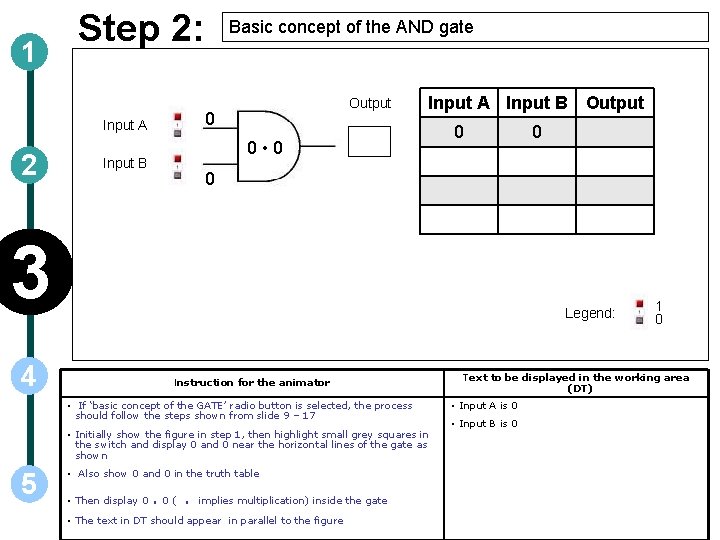
1 Step 2: Output 0 Input A 2 Basic concept of the AND gate Input A Input B Output 0 • 0 Input B 0 0 3 Legend: 4 Instruction for the animator • If ‘basic concept of the GATE’ radio button is selected, the process should follow the steps shown from slide 9 – 17 • Initially show the figure in step 1, then highlight small grey squares in the switch and display 0 and 0 near the horizontal lines of the gate as shown 5 0 • Also show 0 and 0 in the truth table • Then display 0 . 0(. implies multiplication) inside the gate • The text in DT should appear in parallel to the figure 1 0 Text to be displayed in the working area (DT) • Input A is 0 • Input B is 0
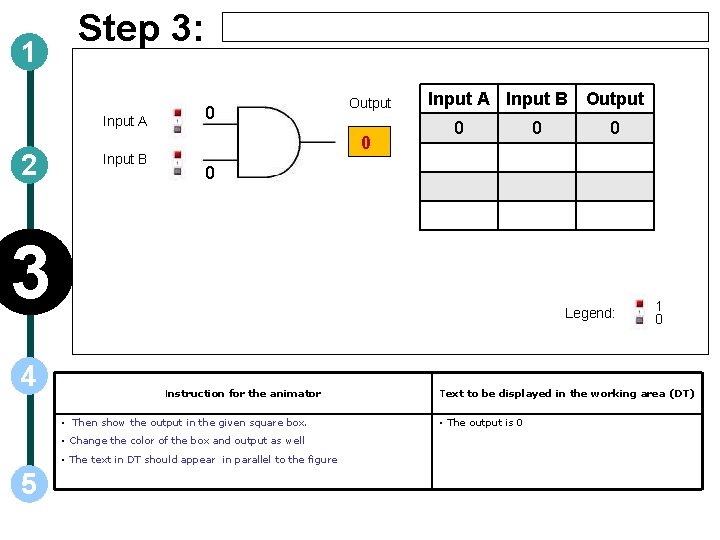
1 Step 3: Input A 2 Input B 0 Output 0 Input A Input B Output 0 Legend: Instruction for the animator • Then show the output in the given square box. • Change the color of the box and output as well • The text in DT should appear in parallel to the figure 5 0 0 3 4 0 1 0 Text to be displayed in the working area (DT) • The output is 0
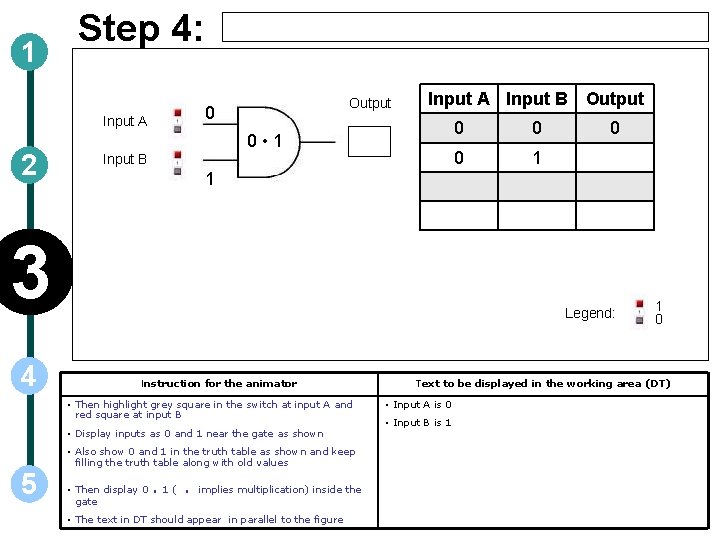
1 Step 4: Input A 2 Output 0 Input A Input B Output 0 • 1 Input B 0 1 0 Legend: Instruction for the animator • Then highlight grey square in the switch at input A and red square at input B • Display inputs as 0 and 1 near the gate as shown • Also show 0 and 1 in the truth table as shown and keep filling the truth table along with old values 5 0 1 3 4 0 • Then display 0 gate . 1(. implies multiplication) inside the • The text in DT should appear in parallel to the figure 1 0 Text to be displayed in the working area (DT) • Input A is 0 • Input B is 1
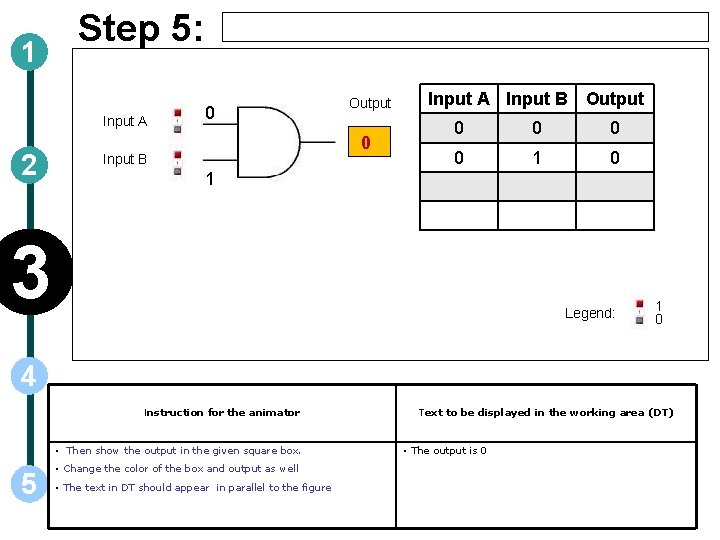
1 Step 5: Input A 2 0 Output 0 Input B Input A Input B Output 0 0 1 0 1 3 Legend: 1 0 4 Instruction for the animator • Then show the output in the given square box. 5 • Change the color of the box and output as well • The text in DT should appear in parallel to the figure Text to be displayed in the working area (DT) • The output is 0
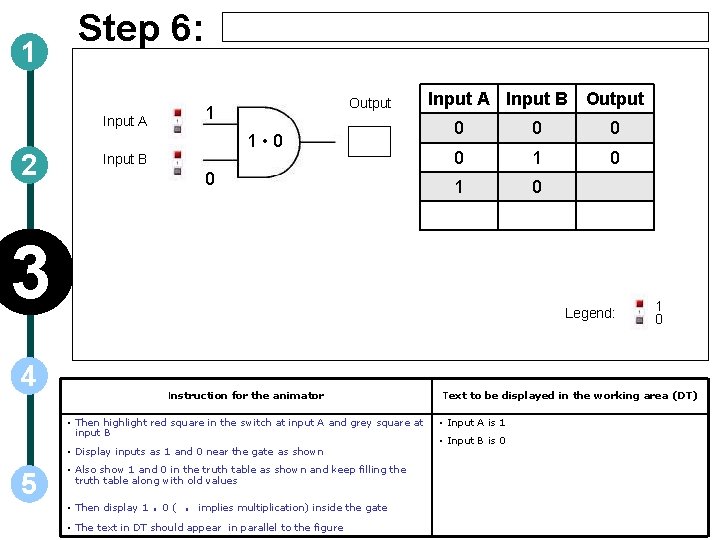
1 Step 6: Input A 2 Output 1 1 • 0 Input B 0 Input A Input B Output 0 0 1 0 3 Legend: 4 Instruction for the animator • Then highlight red square in the switch at input A and grey square at input B • Display inputs as 1 and 0 near the gate as shown 5 • Also show 1 and 0 in the truth table as shown and keep filling the truth table along with old values • Then display 1 . 0(. implies multiplication) inside the gate • The text in DT should appear in parallel to the figure 1 0 Text to be displayed in the working area (DT) • Input A is 1 • Input B is 0
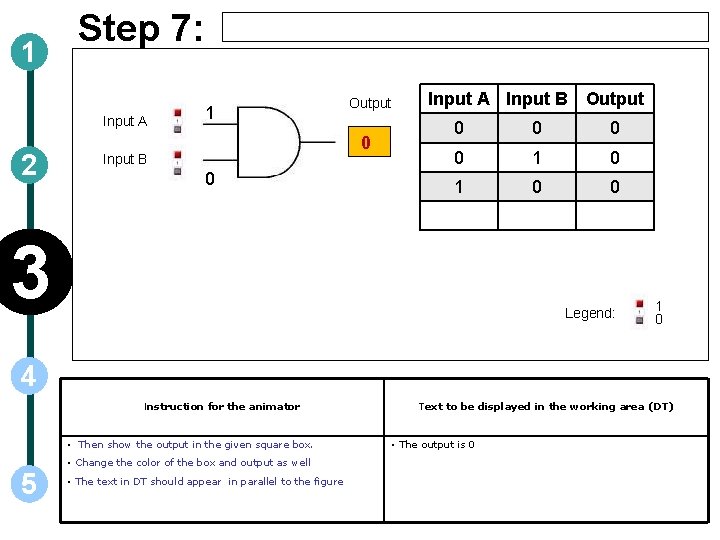
1 Step 7: Input A 2 1 Output 0 Input B 0 Input A Input B Output 0 0 1 0 0 3 Legend: 1 0 4 Instruction for the animator • Then show the output in the given square box. 5 • Change the color of the box and output as well • The text in DT should appear in parallel to the figure Text to be displayed in the working area (DT) • The output is 0
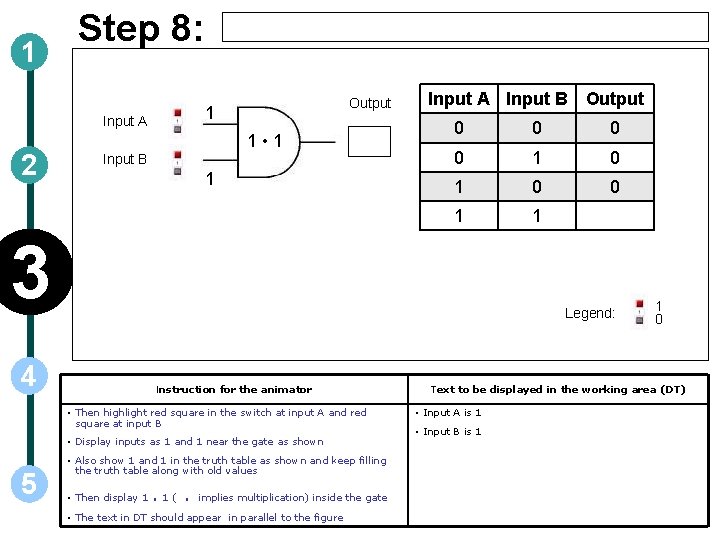
1 Step 8: Input A 2 Output 1 1 • 1 Input B 1 Input A Input B Output 0 0 1 1 3 Legend: 4 Instruction for the animator • Then highlight red square in the switch at input A and red square at input B • Display inputs as 1 and 1 near the gate as shown 5 • Also show 1 and 1 in the truth table as shown and keep filling the truth table along with old values • Then display 1 . 1(. implies multiplication) inside the gate • The text in DT should appear in parallel to the figure 1 0 Text to be displayed in the working area (DT) • Input A is 1 • Input B is 1
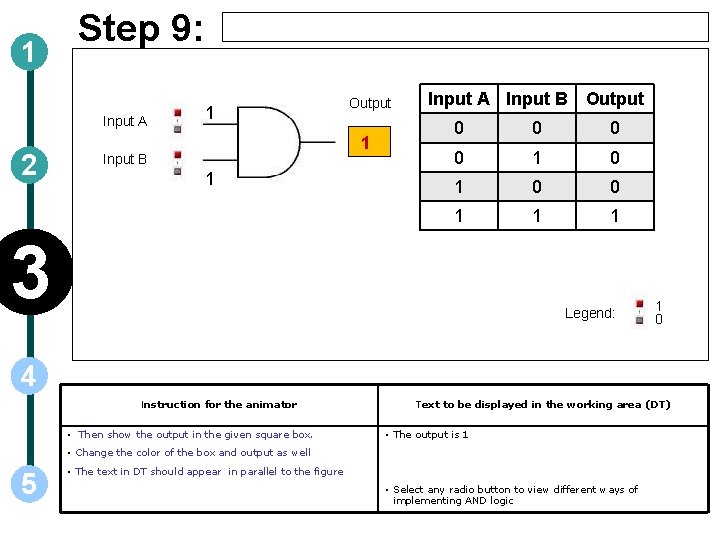
1 Step 9: Input A 2 1 Output 1 Input B 1 Input A Input B Output 0 0 1 1 1 3 Legend: 1 0 4 Instruction for the animator • Then show the output in the given square box. Text to be displayed in the working area (DT) • The output is 1 • Change the color of the box and output as well 5 • The text in DT should appear in parallel to the figure • Select any radio button to view different ways of implementing AND logic
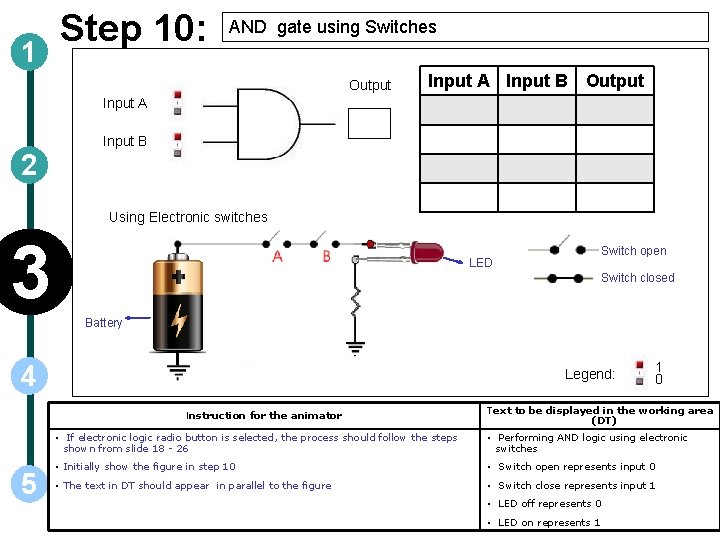
1 Step 10: AND gate using Switches Output Input A Input B 2 Using Electronic switches 3 Switch open LED Switch closed Battery 4 Legend: Instruction for the animator 5 1 0 Text to be displayed in the working area (DT) • If electronic logic radio button is selected, the process should follow the steps shown from slide 18 - 26 • Performing AND logic using electronic switches • Initially show the figure in step 10 • Switch open represents input 0 • The text in DT should appear in parallel to the figure • Switch close represents input 1 • LED off represents 0 • LED on represents 1
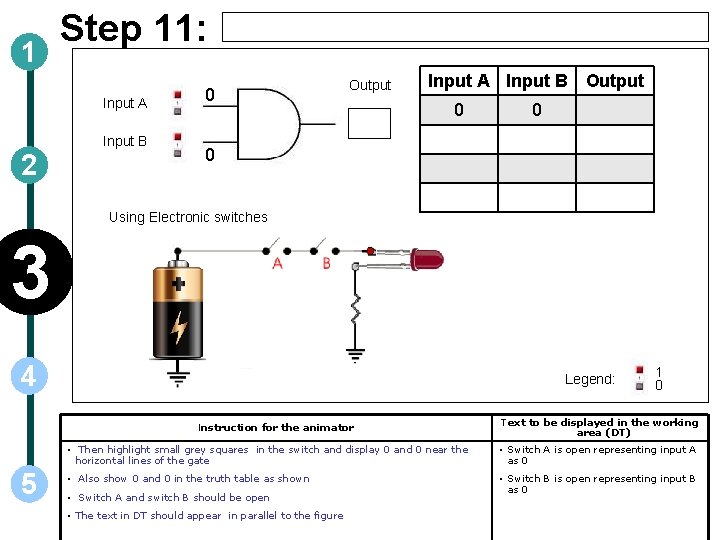
1 Step 11: Input A Input B 2 0 Output Input A Input B Output 0 0 0 Using Electronic switches 3 4 Legend: Instruction for the animator 5 1 0 Text to be displayed in the working area (DT) • Then highlight small grey squares in the switch and display 0 and 0 near the horizontal lines of the gate • Switch A is open representing input A as 0 • Also show 0 and 0 in the truth table as shown • Switch B is open representing input B as 0 • Switch A and switch B should be open • The text in DT should appear in parallel to the figure
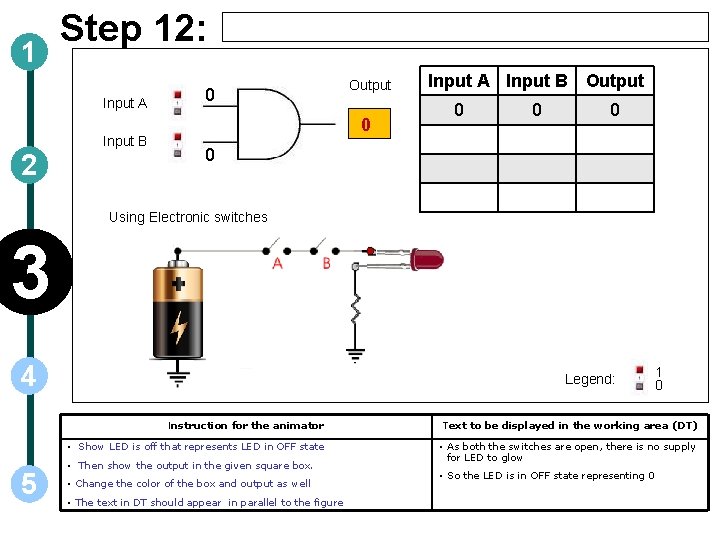
1 Step 12: Input A Input B 2 0 Output 0 Input A Input B Output 0 0 Using Electronic switches 3 4 5 Legend: 1 0 Instruction for the animator Text to be displayed in the working area (DT) • Show LED is off that represents LED in OFF state • As both the switches are open, there is no supply for LED to glow • Then show the output in the given square box. • Change the color of the box and output as well • The text in DT should appear in parallel to the figure • So the LED is in OFF state representing 0
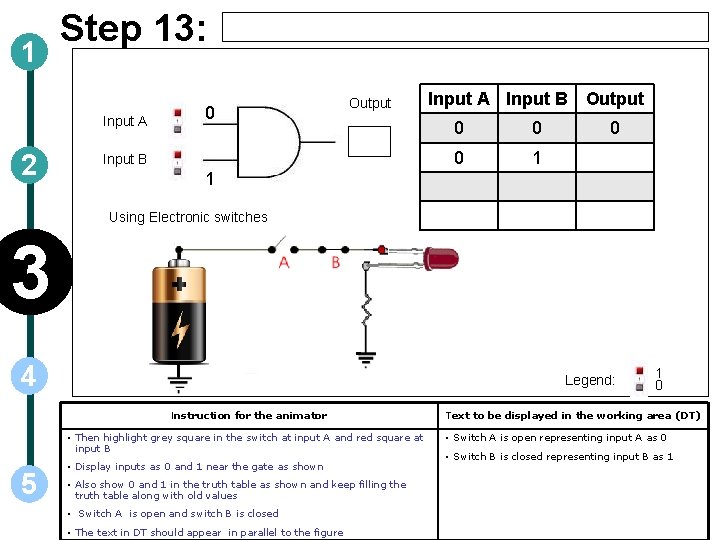
1 Step 13: Input A 2 0 Output Input B Input A Input B Output 0 0 0 1 Using Electronic switches 3 4 Legend: Instruction for the animator • Then highlight grey square in the switch at input A and red square at input B 5 • Display inputs as 0 and 1 near the gate as shown • Also show 0 and 1 in the truth table as shown and keep filling the truth table along with old values • Switch A is open and switch B is closed • The text in DT should appear in parallel to the figure 1 0 Text to be displayed in the working area (DT) • Switch A is open representing input A as 0 • Switch B is closed representing input B as 1
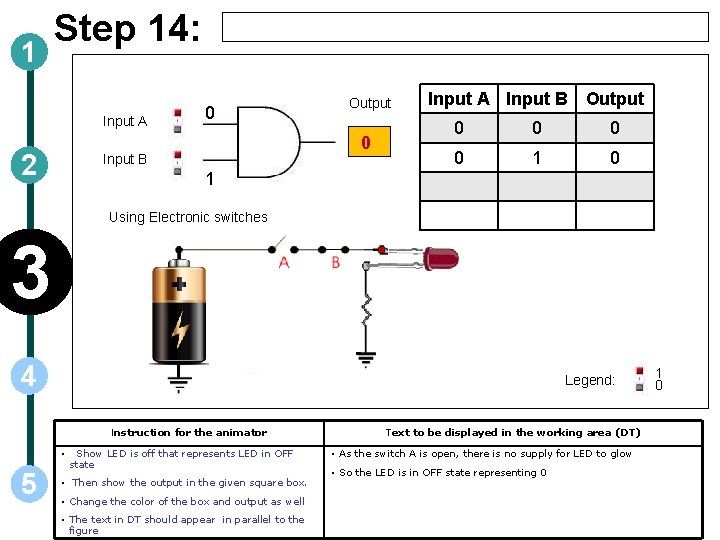
1 Step 14: Input A 2 0 Output 0 Input B Input A Input B Output 0 0 1 0 1 Using Electronic switches 3 4 Legend: Instruction for the animator • 5 Show LED is off that represents LED in OFF state • Then show the output in the given square box. • Change the color of the box and output as well • The text in DT should appear in parallel to the figure Text to be displayed in the working area (DT) • As the switch A is open, there is no supply for LED to glow • So the LED is in OFF state representing 0 1 0
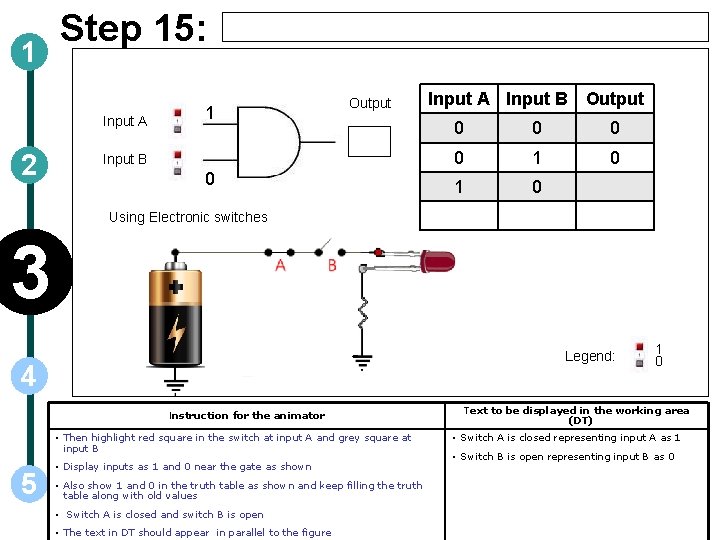
1 Step 15: Input A 2 1 Output Input B 0 Input A Input B Output 0 0 1 0 Using Electronic switches 3 Legend: 4 Instruction for the animator • Then highlight red square in the switch at input A and grey square at input B 5 • Display inputs as 1 and 0 near the gate as shown • Also show 1 and 0 in the truth table as shown and keep filling the truth table along with old values • Switch A is closed and switch B is open • The text in DT should appear in parallel to the figure 1 0 Text to be displayed in the working area (DT) • Switch A is closed representing input A as 1 • Switch B is open representing input B as 0
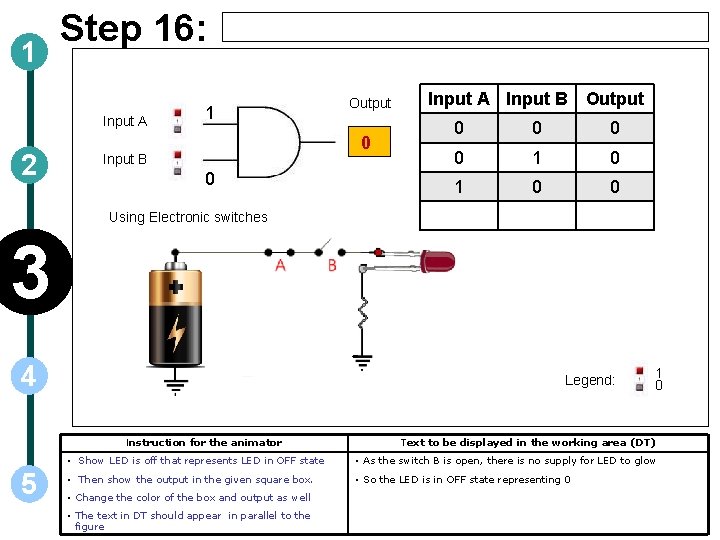
1 Step 16: Input A 2 1 Output 0 Input B 0 Input A Input B Output 0 0 1 0 0 Using Electronic switches 3 4 Legend: Instruction for the animator 5 1 0 Text to be displayed in the working area (DT) • Show LED is off that represents LED in OFF state • As the switch B is open, there is no supply for LED to glow • Then show the output in the given square box. • So the LED is in OFF state representing 0 • Change the color of the box and output as well • The text in DT should appear in parallel to the figure
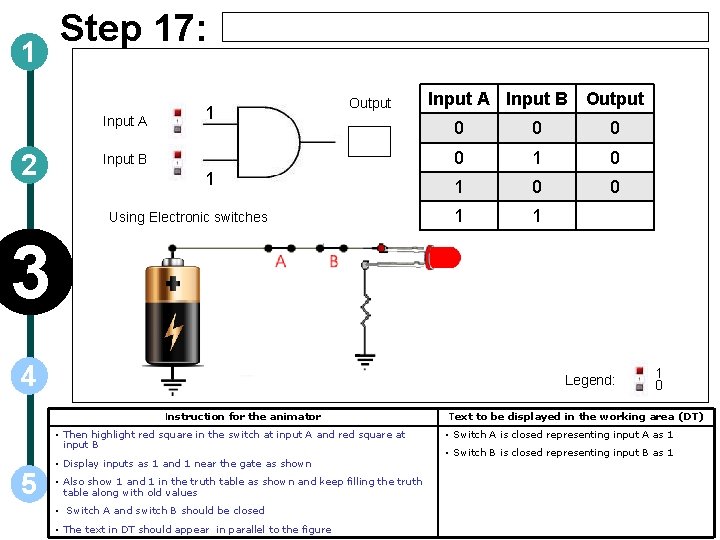
1 Step 17: Input A 2 1 Output Input B 1 Using Electronic switches Input A Input B Output 0 0 1 1 3 4 Legend: Instruction for the animator • Then highlight red square in the switch at input A and red square at input B 5 • Display inputs as 1 and 1 near the gate as shown • Also show 1 and 1 in the truth table as shown and keep filling the truth table along with old values • Switch A and switch B should be closed • The text in DT should appear in parallel to the figure 1 0 Text to be displayed in the working area (DT) • Switch A is closed representing input A as 1 • Switch B is closed representing input B as 1
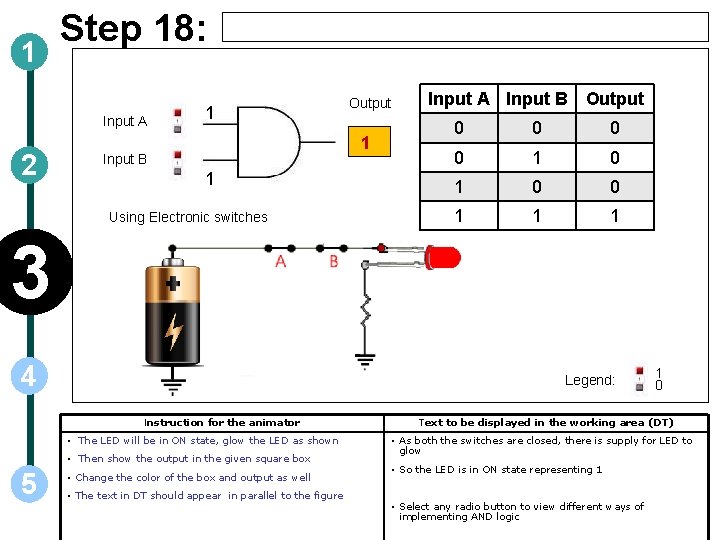
1 Step 18: Input A 2 1 Output 1 Input B 1 Using Electronic switches Input A Input B Output 0 0 1 1 1 3 4 Legend: Instruction for the animator • The LED will be in ON state, glow the LED as shown • Then show the output in the given square box 5 • Change the color of the box and output as well • The text in DT should appear in parallel to the figure 1 0 Text to be displayed in the working area (DT) • As both the switches are closed, there is supply for LED to glow • So the LED is in ON state representing 1 • Select any radio button to view different ways of implementing AND logic
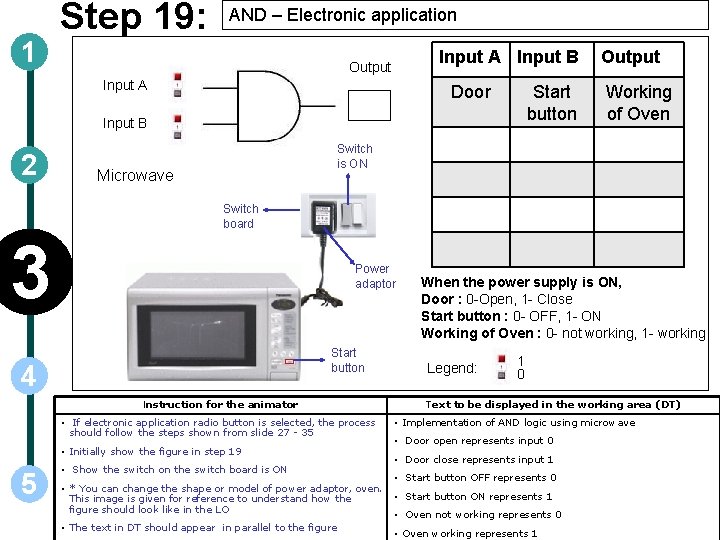
1 Step 19: AND – Electronic application Input A Input B Output Input A Door Start button Input B 2 Output Working of Oven Switch is ON Microwave Switch board 3 Power adaptor Start button 4 Legend: Instruction for the animator • If electronic application radio button is selected, the process should follow the steps shown from slide 27 - 35 • Initially show the figure in step 19 5 • Show the switch on the switch board is ON When the power supply is ON, Door : 0 -Open, 1 - Close Start button : 0 - OFF, 1 - ON Working of Oven : 0 - not working, 1 - working 1 0 Text to be displayed in the working area (DT) • Implementation of AND logic using microwave • Door open represents input 0 • Door close represents input 1 • • * You can change the shape or model of power adaptor, oven. • This image is given for reference to understand how the figure should look like in the LO • • The text in DT should appear in parallel to the figure • Start button OFF represents 0 Start button ON represents 1 Oven not working represents 0 Oven working represents 1

1 Step 20: Input A Input B 2 0 Output 0 Input A Door Input B Output Start button Working of Oven 0 (open) 0 (OFF) 3 4 Legend: Instruction for the animator • Then highlight small grey squares in the switch and display 0 and 0 near the horizontal lines of the gate 5 • Also show 0 and 0 in the truth table as shown • Show that door of Oven is open and start button is in OFF state • The text in DT should appear in parallel to the figure 1 0 Text to be displayed in the working area (DT) • Door is open representing input A as 0 • Start button is OFF representing input B as 0
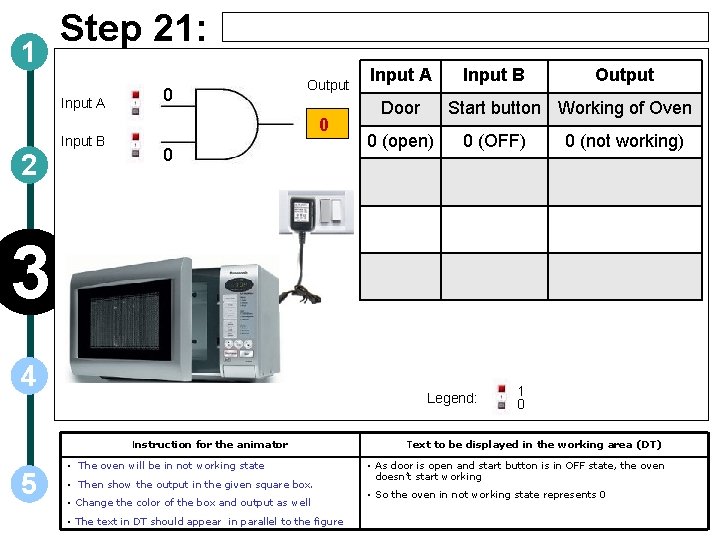
1 Step 21: Input A Input B 2 0 Output 0 0 Input A Door Input B Output Start button Working of Oven 0 (open) 0 (OFF) 0 (not working) 3 4 Legend: Instruction for the animator 5 • The oven will be in not working state • Then show the output in the given square box. • Change the color of the box and output as well • The text in DT should appear in parallel to the figure 1 0 Text to be displayed in the working area (DT) • As door is open and start button is in OFF state, the oven doesn’t start working • So the oven in not working state represents 0
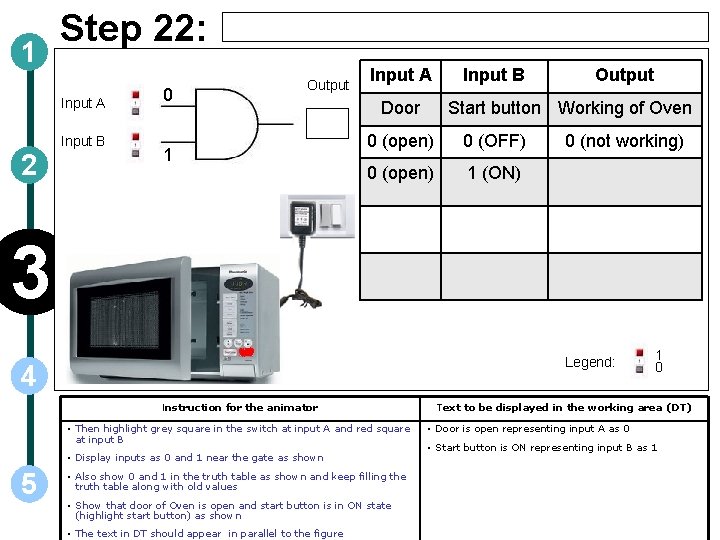
1 Step 22: Input A Input B 2 0 Output 1 Input A Door Input B Output Start button Working of Oven 0 (open) 0 (OFF) 0 (open) 1 (ON) 0 (not working) 3 Legend: 4 Instruction for the animator • Then highlight grey square in the switch at input A and red square at input B • Display inputs as 0 and 1 near the gate as shown 5 • Also show 0 and 1 in the truth table as shown and keep filling the truth table along with old values • Show that door of Oven is open and start button is in ON state (highlight start button) as shown • The text in DT should appear in parallel to the figure 1 0 Text to be displayed in the working area (DT) • Door is open representing input A as 0 • Start button is ON representing input B as 1
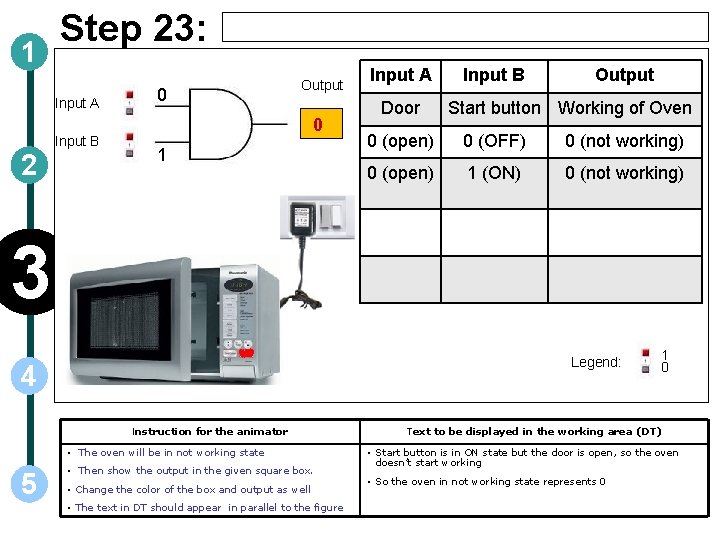
1 Step 23: Input A Input B 2 0 Output 0 1 Input A Door Input B Output Start button Working of Oven 0 (open) 0 (OFF) 0 (not working) 0 (open) 1 (ON) 0 (not working) 3 Legend: 4 Instruction for the animator • The oven will be in not working state 5 • Then show the output in the given square box. • Change the color of the box and output as well • The text in DT should appear in parallel to the figure 1 0 Text to be displayed in the working area (DT) • Start button is in ON state but the door is open, so the oven doesn’t start working • So the oven in not working state represents 0
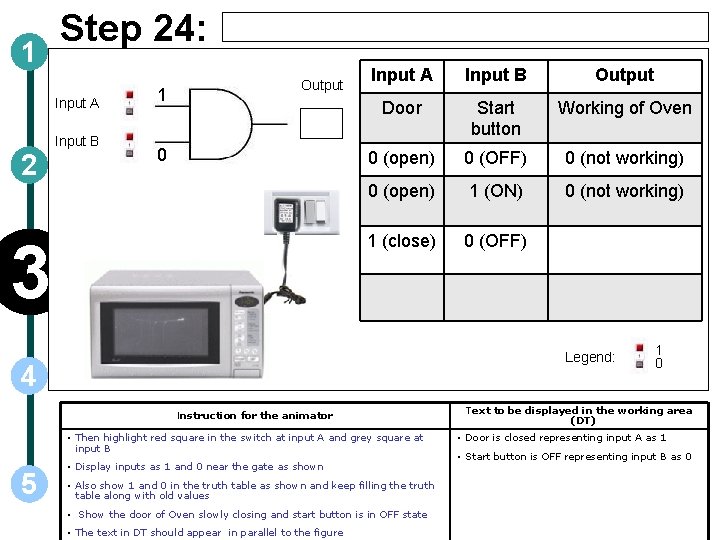
1 Step 24: Input A Input B 2 1 Output 0 3 Input A Input B Output Door Start button Working of Oven 0 (open) 0 (OFF) 0 (not working) 0 (open) 1 (ON) 0 (not working) 1 (close) 0 (OFF) Legend: 4 Instruction for the animator • Then highlight red square in the switch at input A and grey square at input B 5 • Display inputs as 1 and 0 near the gate as shown • Also show 1 and 0 in the truth table as shown and keep filling the truth table along with old values • Show the door of Oven slowly closing and start button is in OFF state • The text in DT should appear in parallel to the figure 1 0 Text to be displayed in the working area (DT) • Door is closed representing input A as 1 • Start button is OFF representing input B as 0

1 Step 25: Input A Input B 2 1 Output 0 0 3 4 Input B Output Door Start button Working of Oven 0 (open) 0 (OFF) 0 (not working) 0 (open) 1 (ON) 0 (not working) 1 (close) 0 (OFF) 0 (not working) Legend: Instruction for the animator 5 Input A • The oven will be in not working state • Then show the output in the given square box. • Change the color of the box and output as well • The text in DT should appear in parallel to the figure 1 0 Text to be displayed in the working area (DT) • Door is closed but the start button is in OFF state, so the oven doesn’t start working • So the oven in not working state represents 0
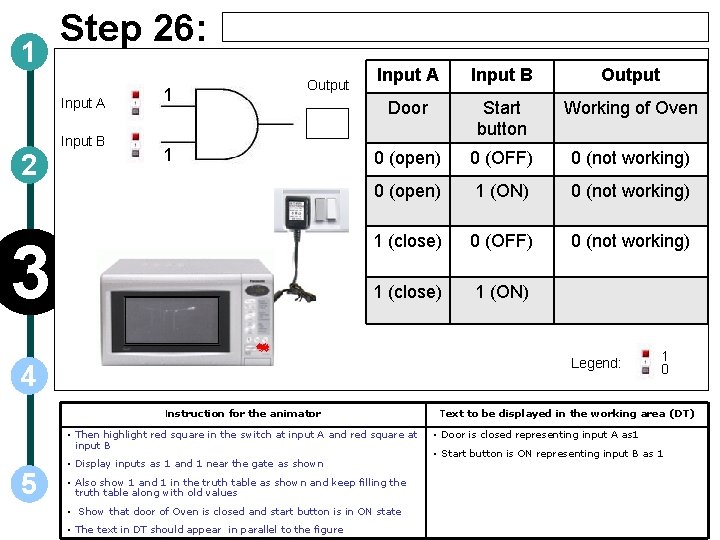
1 Step 26: Input A Input B 2 1 Output 1 3 Input A Input B Output Door Start button Working of Oven 0 (open) 0 (OFF) 0 (not working) 0 (open) 1 (ON) 0 (not working) 1 (close) 0 (OFF) 0 (not working) 1 (close) 1 (ON) Legend: 4 Instruction for the animator • Then highlight red square in the switch at input A and red square at input B 5 • Display inputs as 1 and 1 near the gate as shown • Also show 1 and 1 in the truth table as shown and keep filling the truth table along with old values • Show that door of Oven is closed and start button is in ON state • The text in DT should appear in parallel to the figure 1 0 Text to be displayed in the working area (DT) • Door is closed representing input A as 1 • Start button is ON representing input B as 1
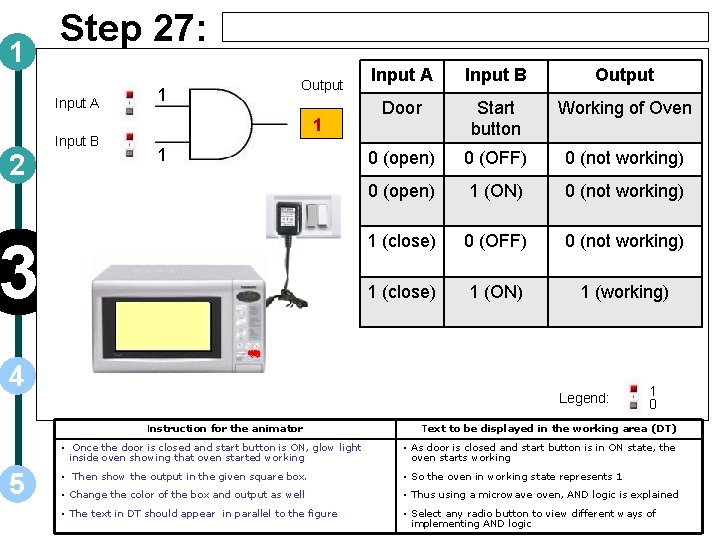
1 Step 27: Input A Input B 2 1 Output 1 1 3 4 Input B Output Door Start button Working of Oven 0 (open) 0 (OFF) 0 (not working) 0 (open) 1 (ON) 0 (not working) 1 (close) 0 (OFF) 0 (not working) 1 (close) 1 (ON) 1 (working) Legend: Instruction for the animator 5 Input A 1 0 Text to be displayed in the working area (DT) • Once the door is closed and start button is ON, glow light inside oven showing that oven started working • As door is closed and start button is in ON state, the oven starts working • Then show the output in the given square box. • So the oven in working state represents 1 • Change the color of the box and output as well • Thus using a microwave oven, AND logic is explained • The text in DT should appear in parallel to the figure • Select any radio button to view different ways of implementing AND logic

1 Step 28: AND gate - Mechanical Logic using bars and joints Input A Input B Output Input A 2 3 4 Input B Refer slide 37(next slide) for figure ** For every combination, initially figure in slide 27 must be shown. Then depending upon the inputs corresponding legs must be moved and the movement must be shown Instruction for the animator 5 Legend: 1 0 Text to be displayed in the working area (DT) • If mechanical logic radio button is selected, the process should follow the steps shown from slide 36 - 45 • Implementation of AND in mechanical logic using bars and joints • Initially show the figure in step 28 • Position of green joint tells us what the binary input at B is • The text in DT should appear in parallel to the figure • Inputs are decided by the positions of red and green joints • Position of red joint tells us what the binary input at A is • Output is decided by the position of yellow joint
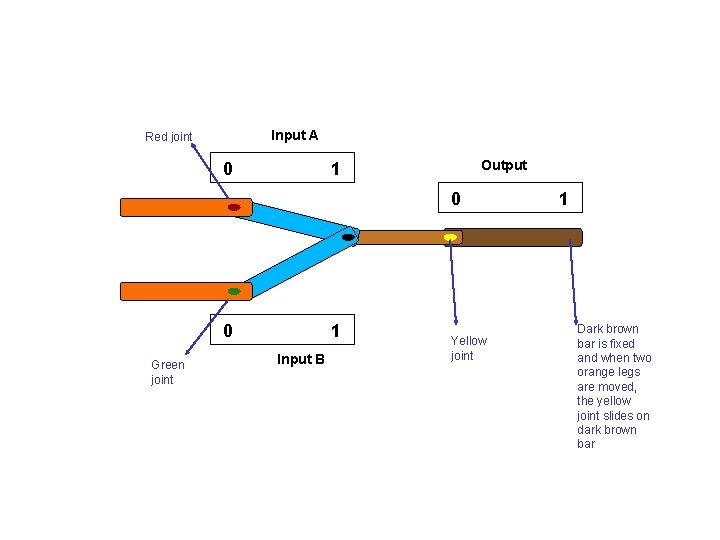
Input A Red joint 0 Output 1 0 0 Green joint 1 Input B Yellow joint 1 Dark brown bar is fixed and when two orange legs are moved, the yellow joint slides on dark brown bar
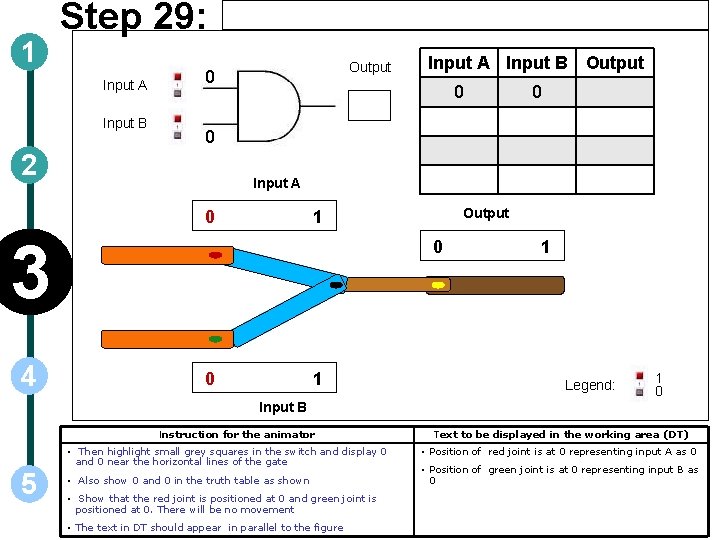
1 Step 29: Input A Input B Output 0 0 2 Input A 0 Output 1 3 4 Input A Input B Output 0 0 1 1 Legend: 1 0 Input B Instruction for the animator • Then highlight small grey squares in the switch and display 0 and 0 near the horizontal lines of the gate 5 • Also show 0 and 0 in the truth table as shown • Show that the red joint is positioned at 0 and green joint is positioned at 0. There will be no movement • The text in DT should appear in parallel to the figure Text to be displayed in the working area (DT) • Position of red joint is at 0 representing input A as 0 • Position of green joint is at 0 representing input B as 0
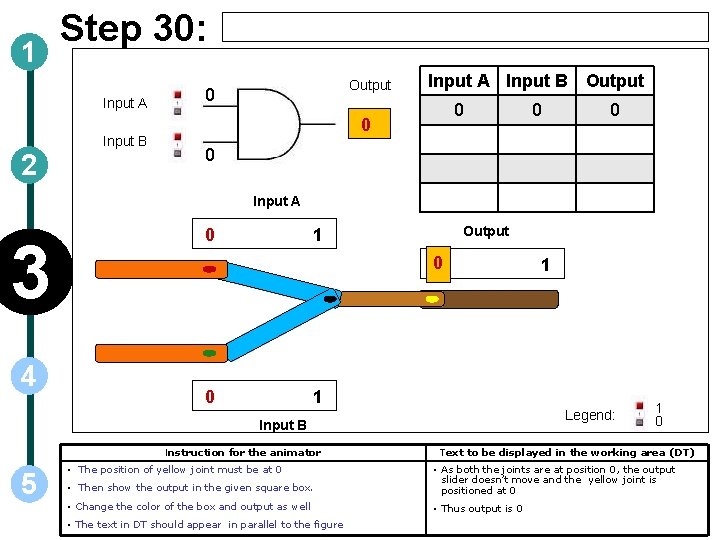
1 Step 30: Input A Input B 2 Output 0 Input A Input B Output 0 0 0 Input A 3 4 0 Output 1 0 0 1 Legend: Input B Instruction for the animator 5 1 • The position of yellow joint must be at 0 1 0 Text to be displayed in the working area (DT) • Then show the output in the given square box. • As both the joints are at position 0, the output slider doesn’t move and the yellow joint is positioned at 0 • Change the color of the box and output as well • Thus output is 0 • The text in DT should appear in parallel to the figure
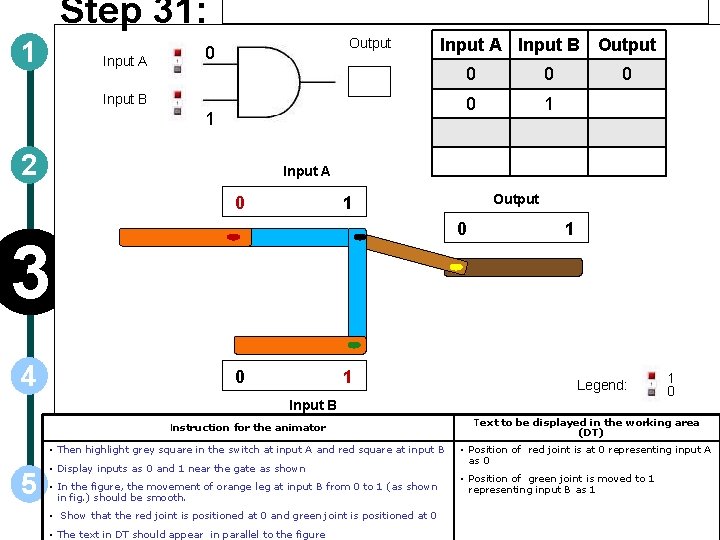
Step 31: 1 Input A Output 0 Input A Input B Output Input B 1 2 0 0 1 0 Input A 0 Output 1 0 3 4 0 0 1 1 Legend: Input B Instruction for the animator • Then highlight grey square in the switch at input A and red square at input B 5 • Display inputs as 0 and 1 near the gate as shown • In the figure, the movement of orange leg at input B from 0 to 1 (as shown in fig. ) should be smooth. • Show that the red joint is positioned at 0 and green joint is positioned at 0 • The text in DT should appear in parallel to the figure 1 0 Text to be displayed in the working area (DT) • Position of red joint is at 0 representing input A as 0 • Position of green joint is moved to 1 representing input B as 1
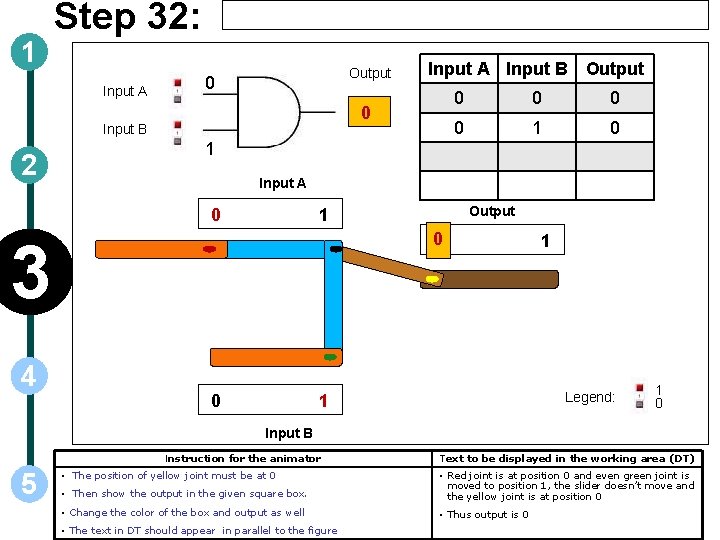
1 Step 32: Input A Output 0 0 Input B 2 0 0 1 0 1 Input A 0 Output 1 0 3 4 Input A Input B Output 0 1 Legend: 1 1 0 Input B Instruction for the animator 5 • The position of yellow joint must be at 0 Text to be displayed in the working area (DT) • Then show the output in the given square box. • Red joint is at position 0 and even green joint is moved to position 1, the slider doesn’t move and the yellow joint is at position 0 • Change the color of the box and output as well • Thus output is 0 • The text in DT should appear in parallel to the figure
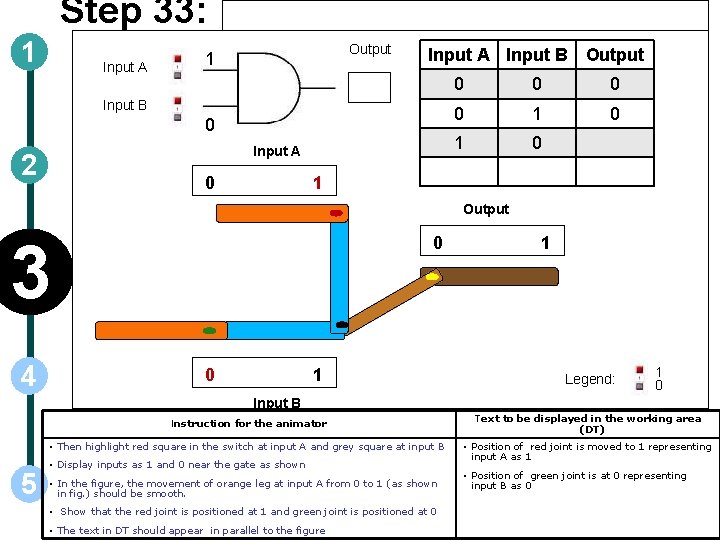
Step 33: 1 Input A Output 1 Input A Input B Output Input B 0 Input A 2 0 0 0 1 0 1 Output 3 4 0 0 1 1 Legend: 1 0 Input B Instruction for the animator • Then highlight red square in the switch at input A and grey square at input B 5 • Display inputs as 1 and 0 near the gate as shown • In the figure, the movement of orange leg at input A from 0 to 1 (as shown in fig. ) should be smooth. • Show that the red joint is positioned at 1 and green joint is positioned at 0 • The text in DT should appear in parallel to the figure Text to be displayed in the working area (DT) • Position of red joint is moved to 1 representing input A as 1 • Position of green joint is at 0 representing input B as 0
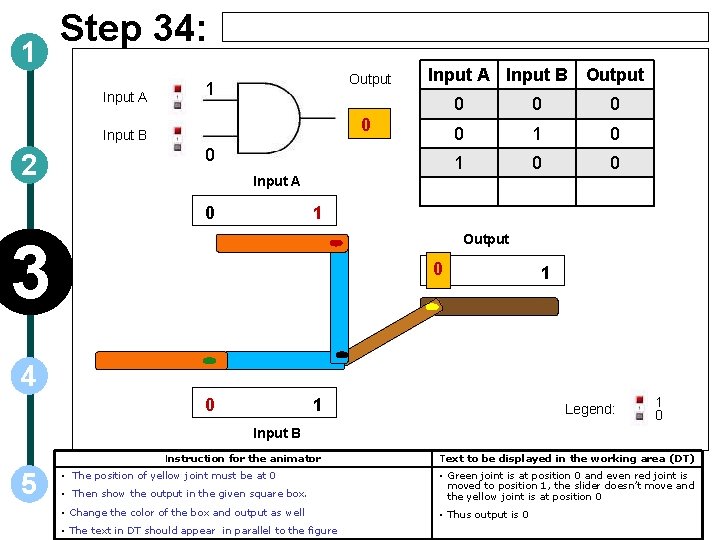
1 Step 34: Input A Output 1 0 Input B 2 Input A Input B Output 0 0 0 1 0 0 Input A 0 1 Output 3 0 1 4 0 1 Legend: 1 0 Input B Instruction for the animator 5 • The position of yellow joint must be at 0 Text to be displayed in the working area (DT) • Then show the output in the given square box. • Green joint is at position 0 and even red joint is moved to position 1, the slider doesn’t move and the yellow joint is at position 0 • Change the color of the box and output as well • Thus output is 0 • The text in DT should appear in parallel to the figure
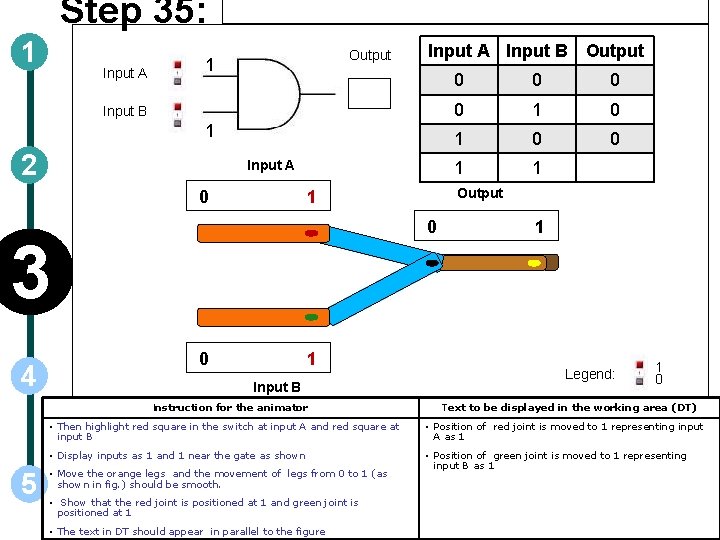
Step 35: 1 Input A Output 1 Input A Input B Output Input B 1 2 Input A 0 0 4 0 1 Input B Instruction for the animator 5 0 0 0 1 1 Output 1 3 0 1 Legend: 1 0 Text to be displayed in the working area (DT) • Then highlight red square in the switch at input A and red square at input B • Position of red joint is moved to 1 representing input A as 1 • Display inputs as 1 and 1 near the gate as shown • Position of green joint is moved to 1 representing input B as 1 • Move the orange legs and the movement of legs from 0 to 1 (as shown in fig. ) should be smooth. • Show that the red joint is positioned at 1 and green joint is positioned at 1 • The text in DT should appear in parallel to the figure
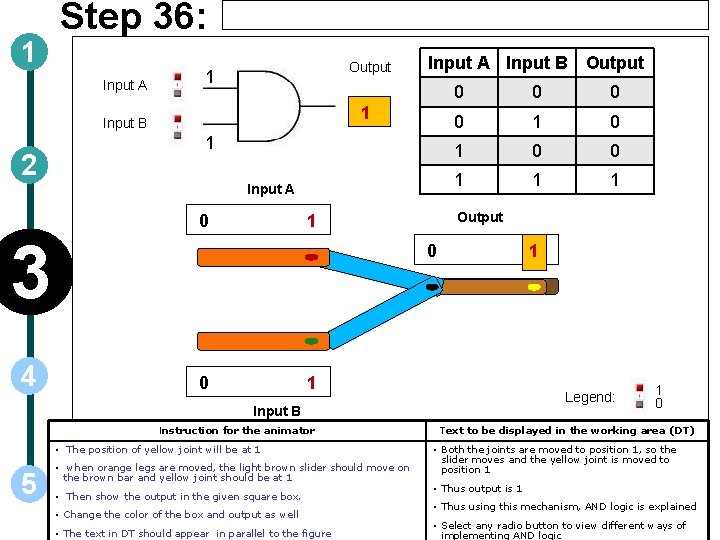
1 Step 36: Input A Output 1 1 Input B 2 1 Input A 0 0 0 1 1 1 Output 1 3 4 Input A Input B Output 0 0 1 1 Legend: Input B Instruction for the animator • The position of yellow joint will be at 1 5 • when orange legs are moved, the light brown slider should move on the brown bar and yellow joint should be at 1 • Then show the output in the given square box. • Change the color of the box and output as well • The text in DT should appear in parallel to the figure 1 0 Text to be displayed in the working area (DT) • Both the joints are moved to position 1, so the slider moves and the yellow joint is moved to position 1 • Thus output is 1 • Thus using this mechanism, AND logic is explained • Select any radio button to view different ways of implementing AND logic
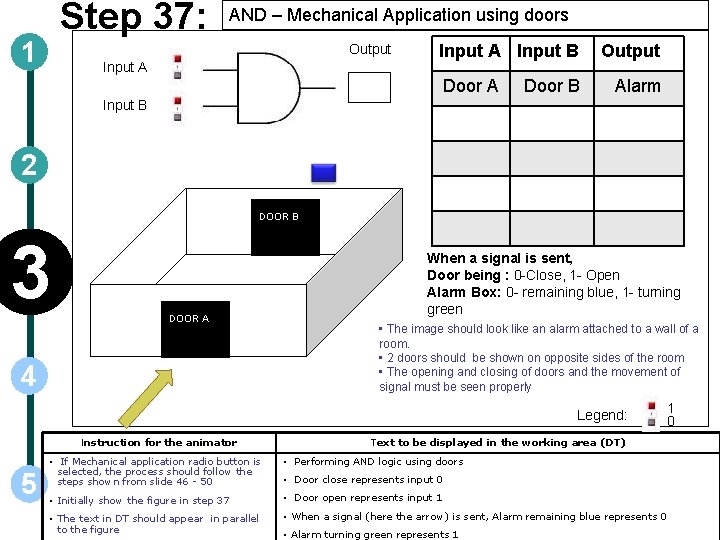
Step 37: 1 AND – Mechanical Application using doors Output Input A Input B Door A Door B Output Alarm Input B 2 DOOR B 3 DOOR A 4 When a signal is sent, Door being : 0 -Close, 1 - Open Alarm Box: 0 - remaining blue, 1 - turning green • The image should look like an alarm attached to a wall of a room. • 2 doors should be shown on opposite sides of the room • The opening and closing of doors and the movement of signal must be seen properly Legend: Instruction for the animator 5 Text to be displayed in the working area (DT) • If Mechanical application radio button is selected, the process should follow the steps shown from slide 46 - 50 • Performing AND logic using doors • Initially show the figure in step 37 • Door open represents input 1 • The text in DT should appear in parallel to the figure • When a signal (here the arrow) is sent, Alarm remaining blue represents 0 • Door close represents input 0 • Alarm turning green represents 1 1 0
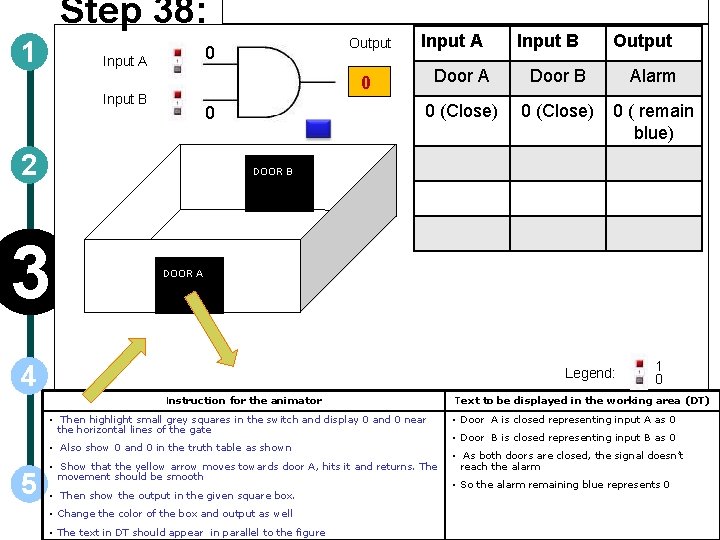
Step 38: 1 Output 0 Input A 0 2 Door B Alarm 0 (Close) 0 ( remain blue) DOOR B 3 DOOR A 4 Legend: Instruction for the animator • Then highlight small grey squares in the switch and display 0 and 0 near the horizontal lines of the gate • Also show 0 and 0 in the truth table as shown 5 Output Door A 0 Input B • Show that the yellow arrow moves towards door A, hits it and returns. The movement should be smooth • Then show the output in the given square box. • Change the color of the box and output as well • The text in DT should appear in parallel to the figure 1 0 Text to be displayed in the working area (DT) • Door A is closed representing input A as 0 • Door B is closed representing input B as 0 • As both doors are closed, the signal doesn’t reach the alarm • So the alarm remaining blue represents 0

Step 39: 1 Input A Input B Output 0 0 1 2 DOOR B 3 Input B Output Door A Door B Alarm 0 (Close) 0 ( remain blue) 0 (Close) 1 (Open) 0 ( remain blue) DOOR A Legend: 4 Instruction for the animator • Then highlight grey square in the switch at input A and red square at input B • Display inputs as 0 and 1 near the gate as shown 5 Input A • Show that the yellow arrow moves towards door A, hits it and returns. The movement should be smooth • Then show the output in the given square box. • Change the color of the box and output as well • The text in DT should appear in parallel to the figure 1 0 Text to be displayed in the working area (DT) • Door A is closed representing input A as 0 • Door B is open representing input B as 1 • Here door B is open but door A is closed, so the signal doesn’t reach the alarm • So the alarm remaining blue represents 0

Step 40: 1 1 Input A 0 Input B 0 2 3 Output Input B Output Door A Door B Alarm 0 (Close) 0 ( remain blue) 0 (Close) 1 (Open) 0 ( remain blue) 1 (Open) 0 (Close) 0 ( remain blue) DOOR B DOOR A Legend: 4 Instruction for the animator • Then highlight red square in the switch at input A and grey square at input B • Display inputs as 1 and 0 near the gate as shown 5 1 0 Text to be displayed in the working area (DT) • Door A is open representing input A as 1 • Door B is closed representing input B as 0 • Show that the yellow arrow moves towards door A then passes through it • As door A is open the signal passes through A and reaches door B. • Then it moves towards door B, hits it and returns. The movement should be smooth • But as door B is closed, the signal doesn’t reach the alarm • Then show the output in the given square box. • So the alarm remaining blue represents 0 • Change the color of the box and output as well • The text in DT should appear in parallel to the figure
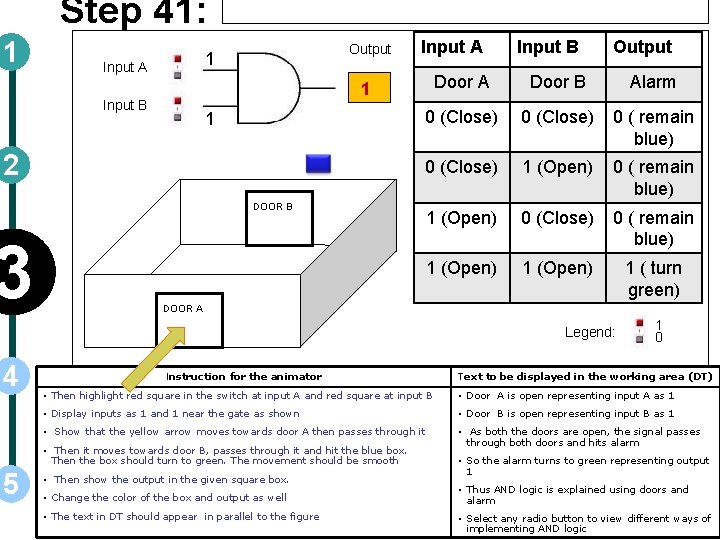
Step 41: 1 Output 1 Input A 1 2 DOOR B 3 Output Door A Door B Alarm 0 (Close) 0 ( remain blue) 0 (Close) 1 (Open) 0 ( remain blue) 1 (Open) 0 (Close) 0 ( remain blue) 1 (Open) 1 ( turn green) 1 Input B DOOR A Legend: 4 Instruction for the animator Text to be displayed in the working area (DT) • Then highlight red square in the switch at input A and red square at input B • Door A is open representing input A as 1 • Display inputs as 1 and 1 near the gate as shown • Door B is open representing input B as 1 • Show that the yellow arrow moves towards door A then passes through it • As both the doors are open, the signal passes through both doors and hits alarm • Then it moves towards door B, passes through it and hit the blue box. Then the box should turn to green. The movement should be smooth 5 1 0 • Then show the output in the given square box. • Change the color of the box and output as well • The text in DT should appear in parallel to the figure • So the alarm turns to green representing output 1 • Thus AND logic is explained using doors and alarm • Select any radio button to view different ways of implementing AND logic
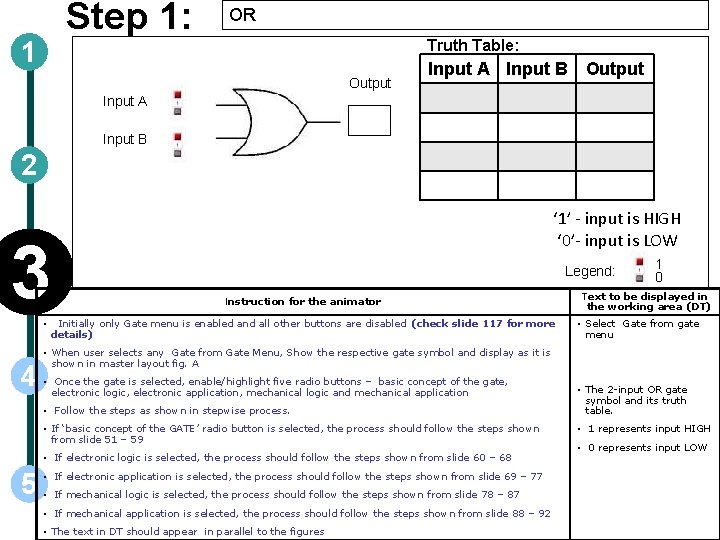
Step 1: 1 OR Truth Table: Output Input A Input B 2 3 • 4 ‘ 1’ - input is HIGH ‘ 0’- input is LOW Legend: Instruction for the animator Initially only Gate menu is enabled and all other buttons are disabled (check slide 117 for more details) Text to be displayed in the working area (DT) • Select Gate from gate menu • When user selects any Gate from Gate Menu, Show the respective gate symbol and display as it is shown in master layout fig. A • Once the gate is selected, enable/highlight five radio buttons – basic concept of the gate, electronic logic, electronic application, mechanical logic and mechanical application • Follow the steps as shown in stepwise process. • If ‘basic concept of the GATE’ radio button is selected, the process should follow the steps shown from slide 51 – 59 • If electronic logic is selected, the process should follow the steps shown from slide 60 – 68 5 1 0 • If electronic application is selected, the process should follow the steps shown from slide 69 – 77 • If mechanical logic is selected, the process should follow the steps shown from slide 78 – 87 • If mechanical application is selected, the process should follow the steps shown from slide 88 – 92 • The text in DT should appear in parallel to the figures • The 2 -input OR gate symbol and its truth table. • 1 represents input HIGH • 0 represents input LOW
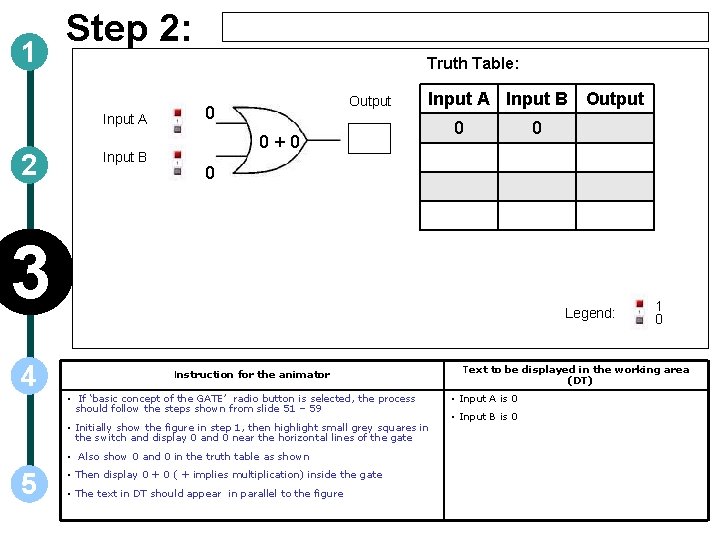
1 Step 2: Truth Table: Input A 2 Input B Output 0 Input A Input B Output 0+0 0 0 3 4 Legend: Instruction for the animator • If ‘basic concept of the GATE’ radio button is selected, the process should follow the steps shown from slide 51 – 59 • Initially show the figure in step 1, then highlight small grey squares in the switch and display 0 and 0 near the horizontal lines of the gate • Also show 0 and 0 in the truth table as shown 5 0 • Then display 0 + 0 ( + implies multiplication) inside the gate • The text in DT should appear in parallel to the figure 1 0 Text to be displayed in the working area (DT) • Input A is 0 • Input B is 0
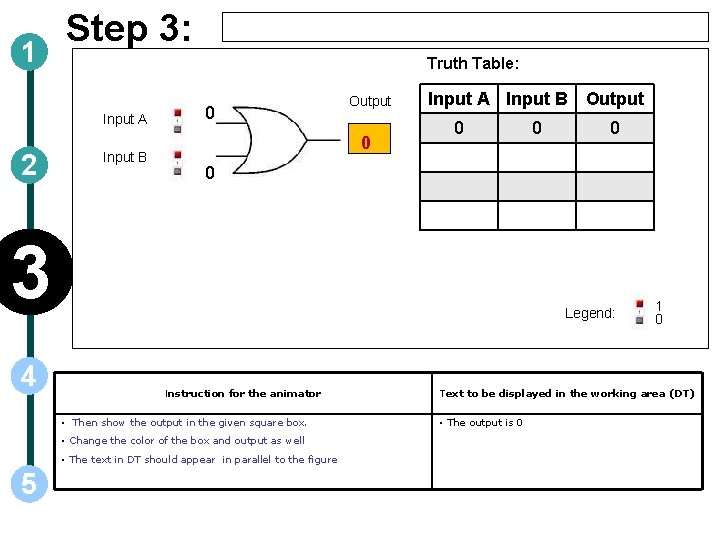
1 Step 3: Truth Table: Input A 2 Input B 0 Output 0 Input A Input B Output 0 Legend: Instruction for the animator • Then show the output in the given square box. • Change the color of the box and output as well • The text in DT should appear in parallel to the figure 5 0 0 3 4 0 1 0 Text to be displayed in the working area (DT) • The output is 0
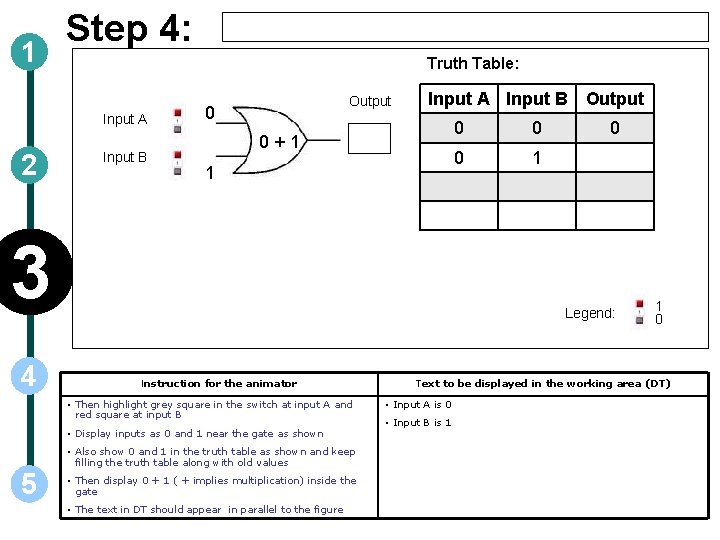
1 Step 4: Truth Table: Input A 2 Input B Output 0 Input A Input B Output 0+1 1 3 4 0 0 1 0 Legend: Instruction for the animator • Then highlight grey square in the switch at input A and red square at input B • Display inputs as 0 and 1 near the gate as shown • Also show 0 and 1 in the truth table as shown and keep filling the truth table along with old values 5 0 • Then display 0 + 1 ( + implies multiplication) inside the gate • The text in DT should appear in parallel to the figure 1 0 Text to be displayed in the working area (DT) • Input A is 0 • Input B is 1
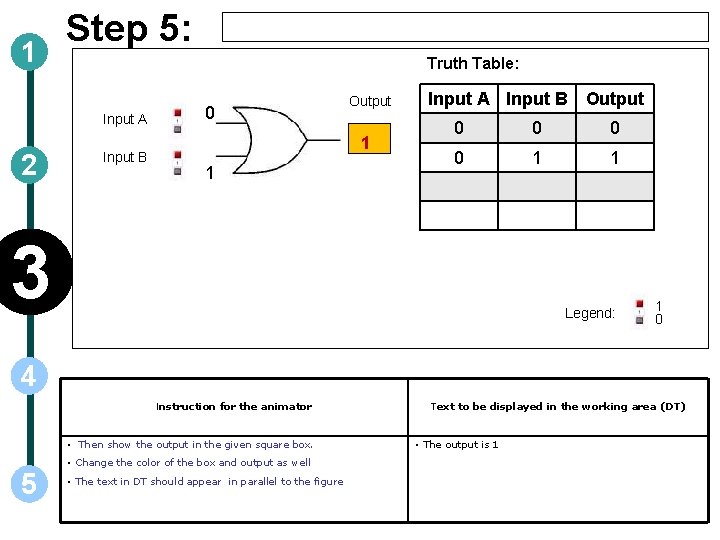
1 Step 5: Truth Table: Input A 2 Input B 0 Output 1 1 Input A Input B Output 0 0 1 1 3 Legend: 1 0 4 Instruction for the animator • Then show the output in the given square box. 5 • Change the color of the box and output as well • The text in DT should appear in parallel to the figure Text to be displayed in the working area (DT) • The output is 1
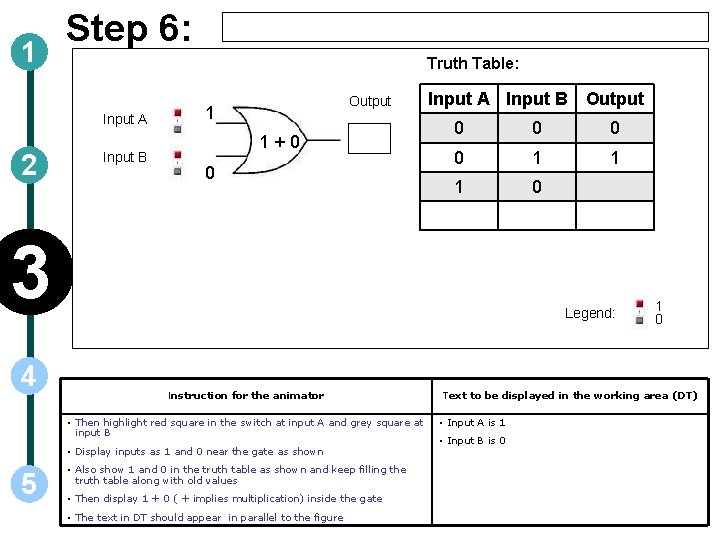
1 Step 6: Truth Table: Input A 2 Input B Output 1 1+0 0 Input A Input B Output 0 0 1 1 1 0 3 4 Legend: Instruction for the animator • Then highlight red square in the switch at input A and grey square at input B • Display inputs as 1 and 0 near the gate as shown 5 • Also show 1 and 0 in the truth table as shown and keep filling the truth table along with old values • Then display 1 + 0 ( + implies multiplication) inside the gate • The text in DT should appear in parallel to the figure 1 0 Text to be displayed in the working area (DT) • Input A is 1 • Input B is 0
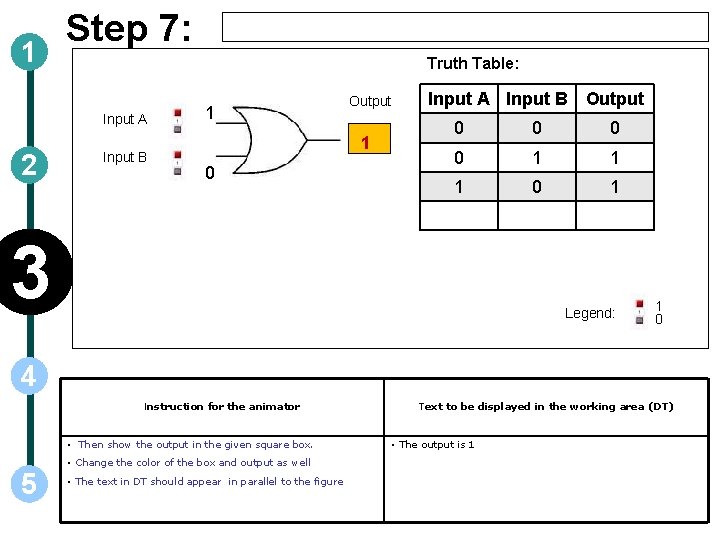
1 Step 7: Truth Table: Input A 2 Input B 1 Output 1 0 Input A Input B Output 0 0 1 1 1 0 1 3 Legend: 1 0 4 Instruction for the animator • Then show the output in the given square box. 5 • Change the color of the box and output as well • The text in DT should appear in parallel to the figure Text to be displayed in the working area (DT) • The output is 1
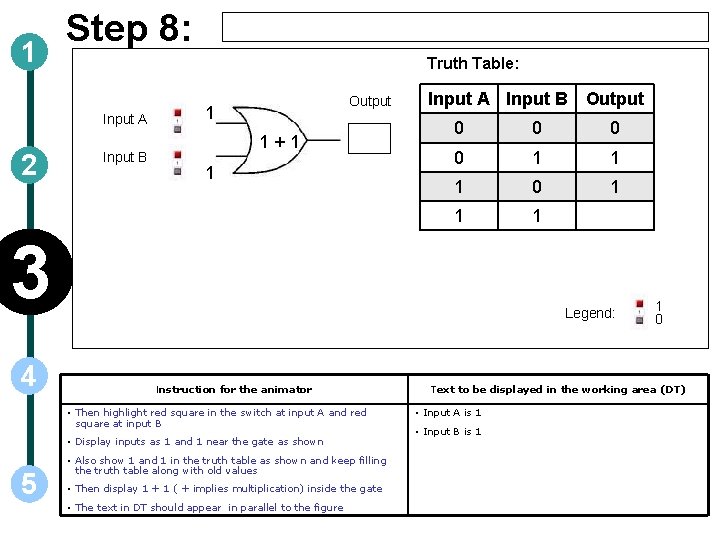
1 Step 8: Truth Table: Input A 2 Input B Output 1 1+1 1 Input A Input B Output 0 0 1 1 1 3 4 Legend: Instruction for the animator • Then highlight red square in the switch at input A and red square at input B • Display inputs as 1 and 1 near the gate as shown 5 • Also show 1 and 1 in the truth table as shown and keep filling the truth table along with old values • Then display 1 + 1 ( + implies multiplication) inside the gate • The text in DT should appear in parallel to the figure 1 0 Text to be displayed in the working area (DT) • Input A is 1 • Input B is 1
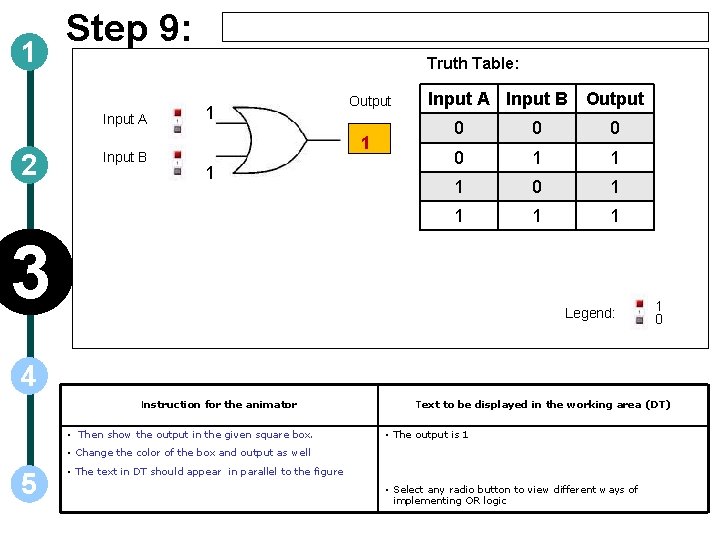
1 Step 9: Truth Table: Input A 2 Input B 1 Output 1 1 Input A Input B Output 0 0 1 1 1 0 1 1 3 Legend: 1 0 4 Instruction for the animator • Then show the output in the given square box. Text to be displayed in the working area (DT) • The output is 1 • Change the color of the box and output as well 5 • The text in DT should appear in parallel to the figure • Select any radio button to view different ways of implementing OR logic
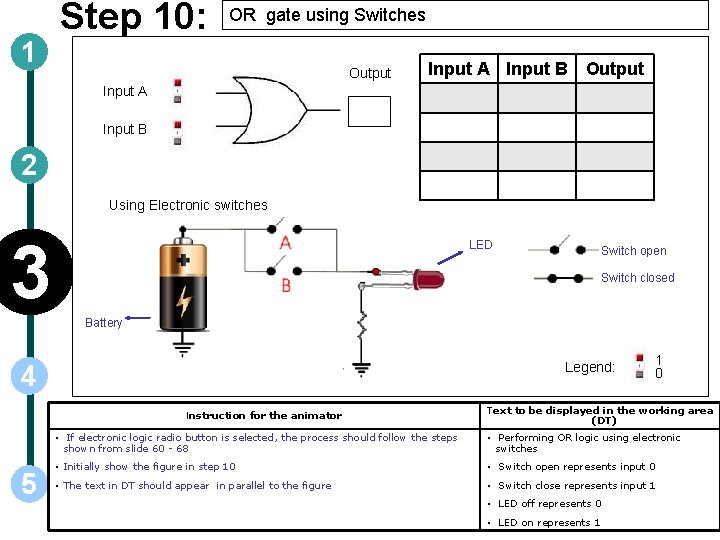
1 Step 10: OR gate using Switches Output Input A Input B 2 Using Electronic switches 3 LED Switch open Switch closed Battery Legend: 4 Instruction for the animator 5 1 0 Text to be displayed in the working area (DT) • If electronic logic radio button is selected, the process should follow the steps shown from slide 60 - 68 • Performing OR logic using electronic switches • Initially show the figure in step 10 • Switch open represents input 0 • The text in DT should appear in parallel to the figure • Switch close represents input 1 • LED off represents 0 • LED on represents 1
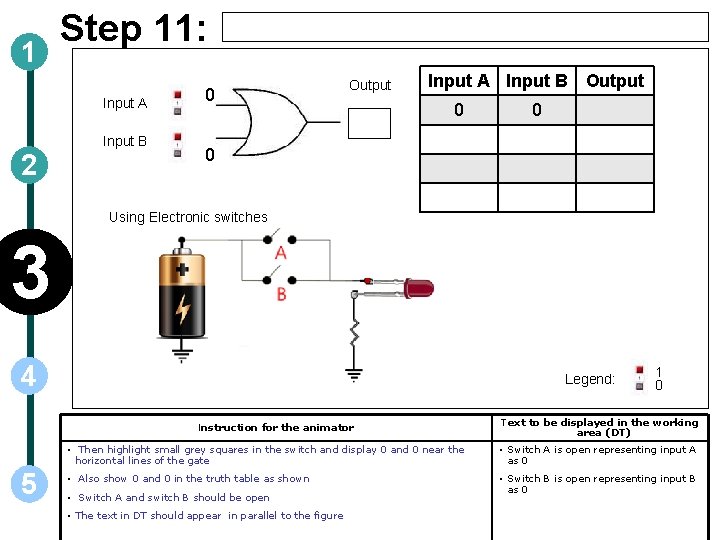
1 Step 11: Input A Input B 2 0 Output Input A Input B Output 0 0 0 Using Electronic switches 3 4 Legend: Instruction for the animator 5 1 0 Text to be displayed in the working area (DT) • Then highlight small grey squares in the switch and display 0 and 0 near the horizontal lines of the gate • Switch A is open representing input A as 0 • Also show 0 and 0 in the truth table as shown • Switch B is open representing input B as 0 • Switch A and switch B should be open • The text in DT should appear in parallel to the figure
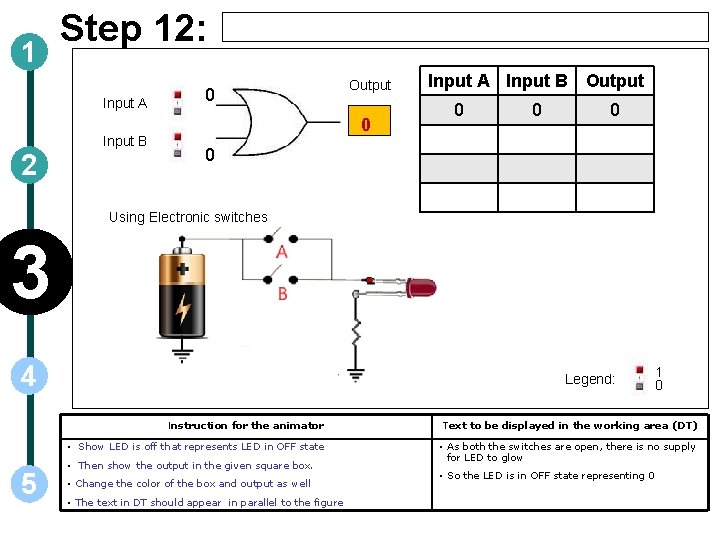
1 Step 12: Input A Input B 2 0 Output 0 Input A Input B Output 0 0 Using Electronic switches 3 4 5 Legend: 1 0 Instruction for the animator Text to be displayed in the working area (DT) • Show LED is off that represents LED in OFF state • As both the switches are open, there is no supply for LED to glow • Then show the output in the given square box. • Change the color of the box and output as well • The text in DT should appear in parallel to the figure • So the LED is in OFF state representing 0
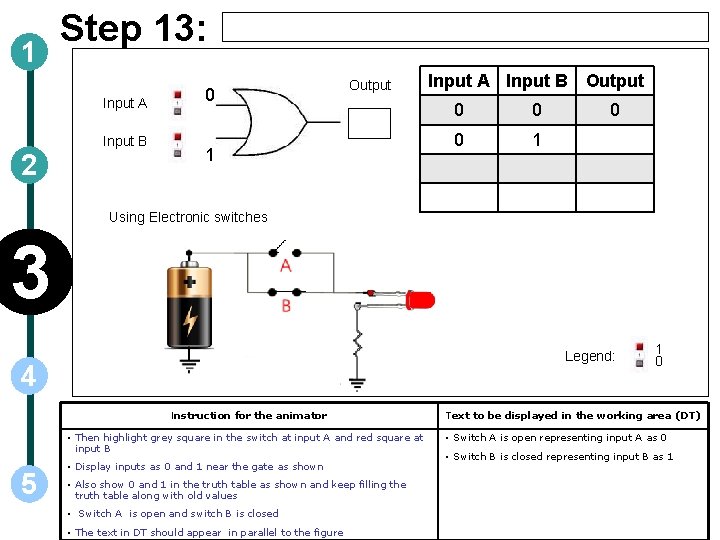
1 Step 13: Input A Input B 2 0 Output 1 Input A Input B Output 0 0 0 1 0 Using Electronic switches 3 Legend: 4 Instruction for the animator • Then highlight grey square in the switch at input A and red square at input B 5 • Display inputs as 0 and 1 near the gate as shown • Also show 0 and 1 in the truth table as shown and keep filling the truth table along with old values • Switch A is open and switch B is closed • The text in DT should appear in parallel to the figure 1 0 Text to be displayed in the working area (DT) • Switch A is open representing input A as 0 • Switch B is closed representing input B as 1
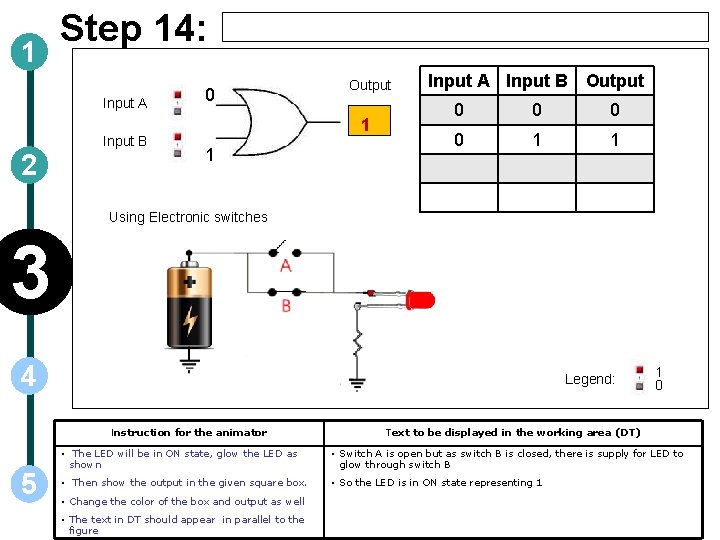
1 Step 14: Input A Input B 2 0 Output 1 1 Input A Input B Output 0 0 1 1 Using Electronic switches 3 4 Legend: Instruction for the animator 5 1 0 Text to be displayed in the working area (DT) • The LED will be in ON state, glow the LED as shown • Switch A is open but as switch B is closed, there is supply for LED to glow through switch B • Then show the output in the given square box. • So the LED is in ON state representing 1 • Change the color of the box and output as well • The text in DT should appear in parallel to the figure
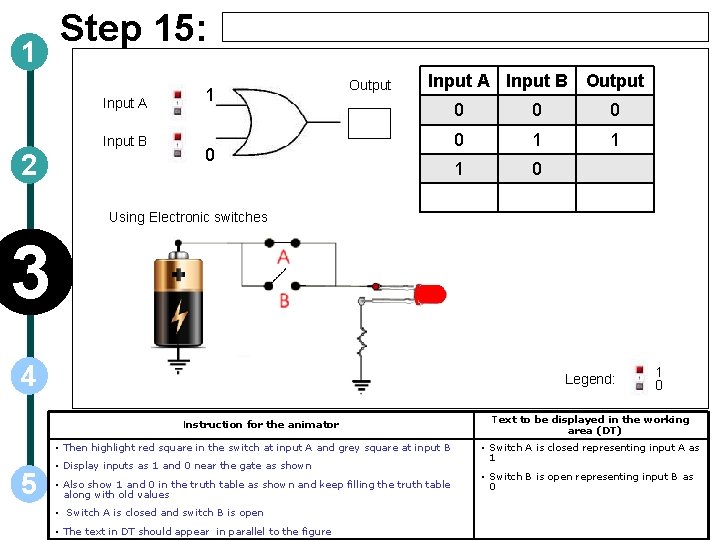
1 Step 15: Input A Input B 2 1 Output Input A Input B Output 0 0 0 1 1 1 0 Using Electronic switches 3 4 Legend: Instruction for the animator • Then highlight red square in the switch at input A and grey square at input B 5 • Display inputs as 1 and 0 near the gate as shown • Also show 1 and 0 in the truth table as shown and keep filling the truth table along with old values • Switch A is closed and switch B is open • The text in DT should appear in parallel to the figure 1 0 Text to be displayed in the working area (DT) • Switch A is closed representing input A as 1 • Switch B is open representing input B as 0
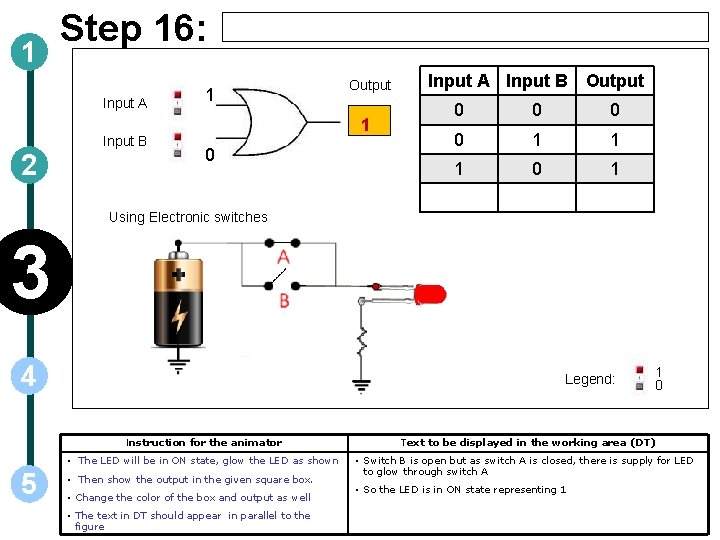
1 Step 16: Input A Input B 2 1 Output 1 0 Input A Input B Output 0 0 1 1 1 0 1 Using Electronic switches 3 4 Legend: Instruction for the animator • The LED will be in ON state, glow the LED as shown 5 • Then show the output in the given square box. • Change the color of the box and output as well • The text in DT should appear in parallel to the figure 1 0 Text to be displayed in the working area (DT) • Switch B is open but as switch A is closed, there is supply for LED to glow through switch A • So the LED is in ON state representing 1
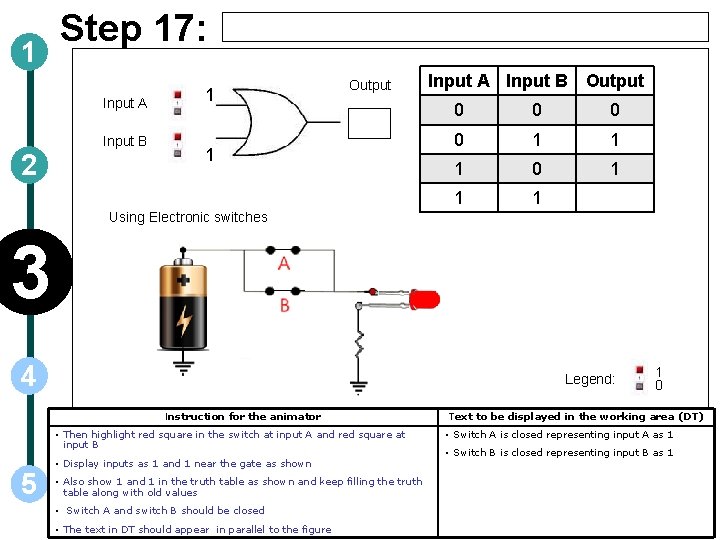
1 Step 17: Input A Input B 2 1 Output 1 Input A Input B Output 0 0 1 1 1 Using Electronic switches 3 4 Legend: Instruction for the animator • Then highlight red square in the switch at input A and red square at input B 5 • Display inputs as 1 and 1 near the gate as shown • Also show 1 and 1 in the truth table as shown and keep filling the truth table along with old values • Switch A and switch B should be closed • The text in DT should appear in parallel to the figure 1 0 Text to be displayed in the working area (DT) • Switch A is closed representing input A as 1 • Switch B is closed representing input B as 1
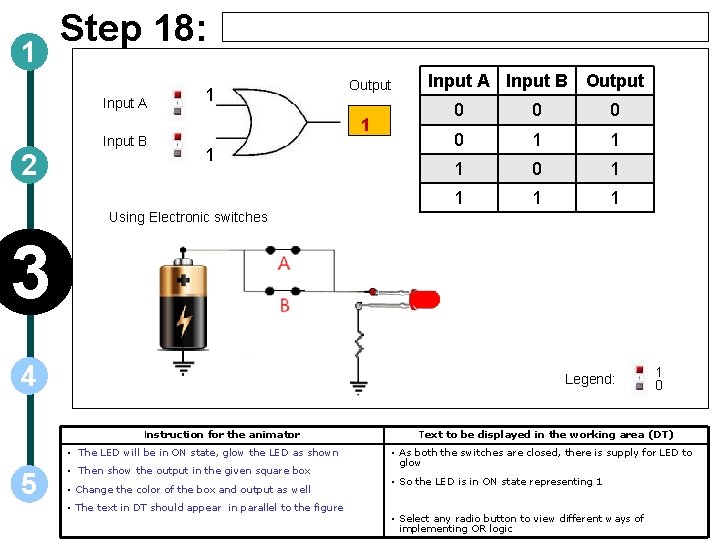
1 Step 18: Input A Input B 2 1 Output 1 1 Input A Input B Output 0 0 1 1 1 0 1 1 Using Electronic switches 3 4 Legend: Instruction for the animator • The LED will be in ON state, glow the LED as shown 5 • Then show the output in the given square box • Change the color of the box and output as well • The text in DT should appear in parallel to the figure 1 0 Text to be displayed in the working area (DT) • As both the switches are closed, there is supply for LED to glow • So the LED is in ON state representing 1 • Select any radio button to view different ways of implementing OR logic
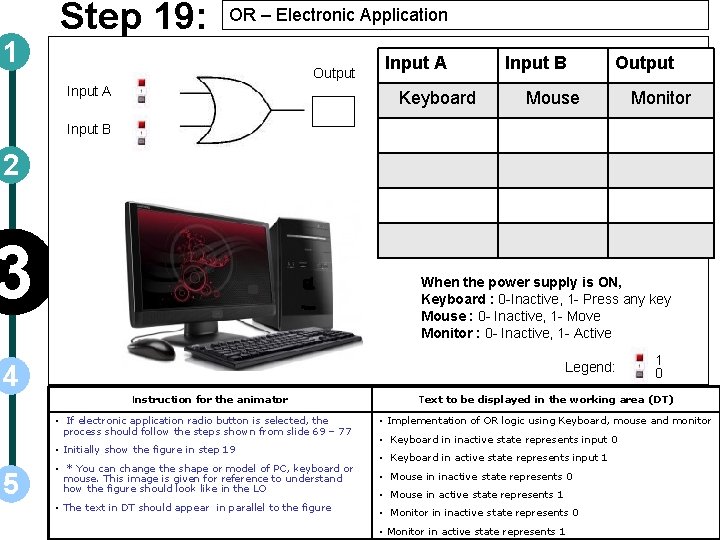
1 Step 19: OR – Electronic Application Output Input A Keyboard Input B Output Mouse Monitor Input B 2 3 When the power supply is ON, Keyboard : 0 -Inactive, 1 - Press any key Mouse : 0 - Inactive, 1 - Move Monitor : 0 - Inactive, 1 - Active Legend: 4 Instruction for the animator • If electronic application radio button is selected, the process should follow the steps shown from slide 69 – 77 • Initially show the figure in step 19 5 • * You can change the shape or model of PC, keyboard or mouse. This image is given for reference to understand how the figure should look like in the LO • The text in DT should appear in parallel to the figure 1 0 Text to be displayed in the working area (DT) • Implementation of OR logic using Keyboard, mouse and monitor • Keyboard in inactive state represents input 0 • Keyboard in active state represents input 1 • Mouse in inactive state represents 0 • Mouse in active state represents 1 • Monitor in inactive state represents 0 • Monitor in active state represents 1
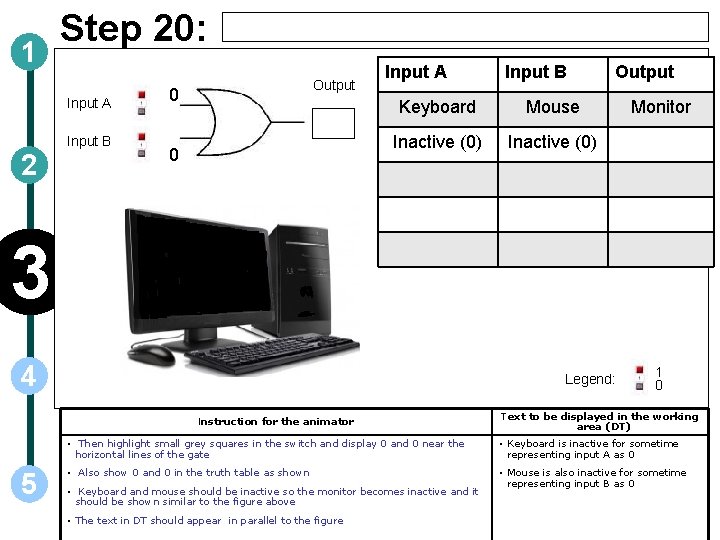
1 Step 20: Input A Input B 2 Output 0 0 Input A Input B Keyboard Mouse Inactive (0) Output Monitor 3 4 Legend: Instruction for the animator 5 1 0 Text to be displayed in the working area (DT) • Then highlight small grey squares in the switch and display 0 and 0 near the horizontal lines of the gate • Keyboard is inactive for sometime representing input A as 0 • Also show 0 and 0 in the truth table as shown • Mouse is also inactive for sometime representing input B as 0 • Keyboard and mouse should be inactive so the monitor becomes inactive and it should be shown similar to the figure above • The text in DT should appear in parallel to the figure
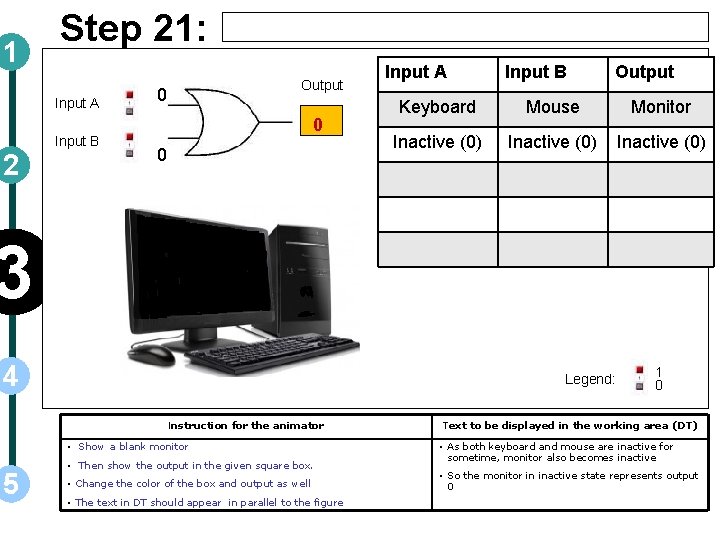
1 Step 21: Input A Input B 2 Output 0 0 0 Input A Input B Output Keyboard Mouse Monitor Inactive (0) 3 4 Legend: Instruction for the animator • Show a blank monitor 5 • Then show the output in the given square box. • Change the color of the box and output as well • The text in DT should appear in parallel to the figure 1 0 Text to be displayed in the working area (DT) • As both keyboard and mouse are inactive for sometime, monitor also becomes inactive • So the monitor in inactive state represents output 0
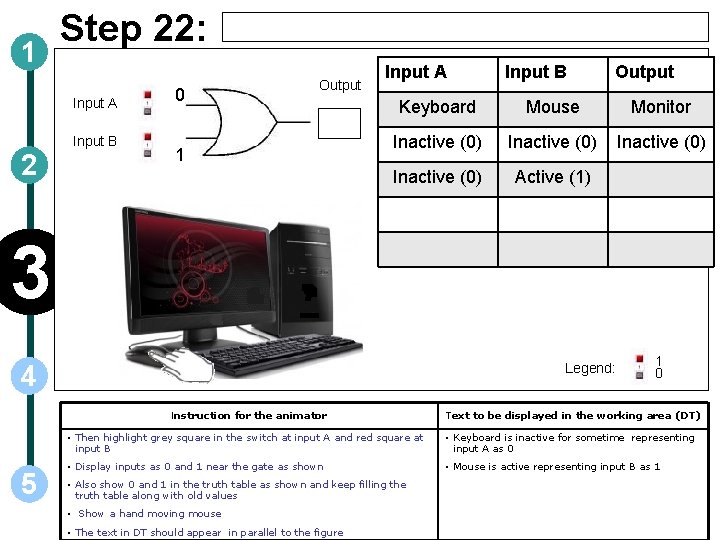
1 Step 22: Input A Input B 2 0 Output 1 Input A Input B Output Keyboard Mouse Monitor Inactive (0) Active (1) 3 Legend: 4 Instruction for the animator 5 1 0 Text to be displayed in the working area (DT) • Then highlight grey square in the switch at input A and red square at input B • Keyboard is inactive for sometime representing input A as 0 • Display inputs as 0 and 1 near the gate as shown • Mouse is active representing input B as 1 • Also show 0 and 1 in the truth table as shown and keep filling the truth table along with old values • Show a hand moving mouse • The text in DT should appear in parallel to the figure
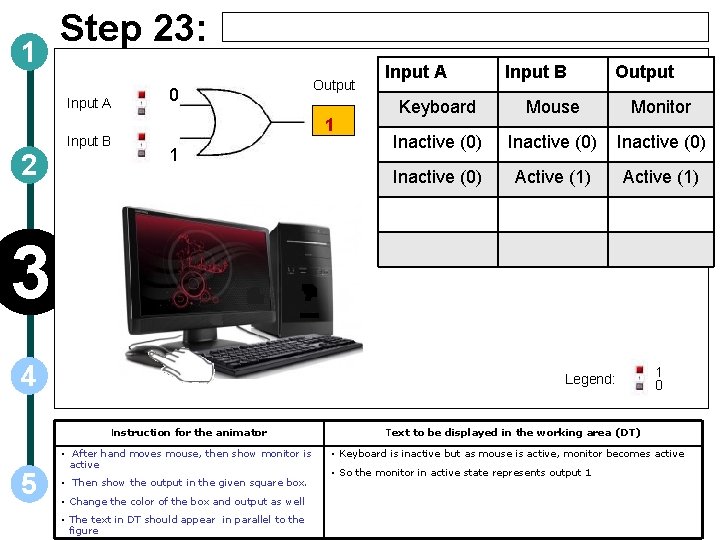
1 Step 23: Input A Input B 2 0 Output 1 1 Input A Input B Output Keyboard Mouse Monitor Inactive (0) Active (1) 3 4 Legend: Instruction for the animator 5 • After hand moves mouse, then show monitor is active • Then show the output in the given square box. • Change the color of the box and output as well • The text in DT should appear in parallel to the figure 1 0 Text to be displayed in the working area (DT) • Keyboard is inactive but as mouse is active, monitor becomes active • So the monitor in active state represents output 1

1 Step 24: Input A Input B 2 1 Output 0 Input A Input B Output Keyboard Mouse Monitor Inactive (0) Active (1) Inactive (0) 3 Legend: 4 Instruction for the animator • Then highlight red square in the switch at input A and grey square at input B 5 • Display inputs as 1 and 0 near the gate as shown • Also show 1 and 0 in the truth table as shown and keep filling the truth table along with old values • Show a hand pressing any key on the keyboard • The text in DT should appear in parallel to the figure 1 0 Text to be displayed in the working area (DT) • Keyboard is active representing input A as 1 • Mouse is inactive for sometime representing input B as 0
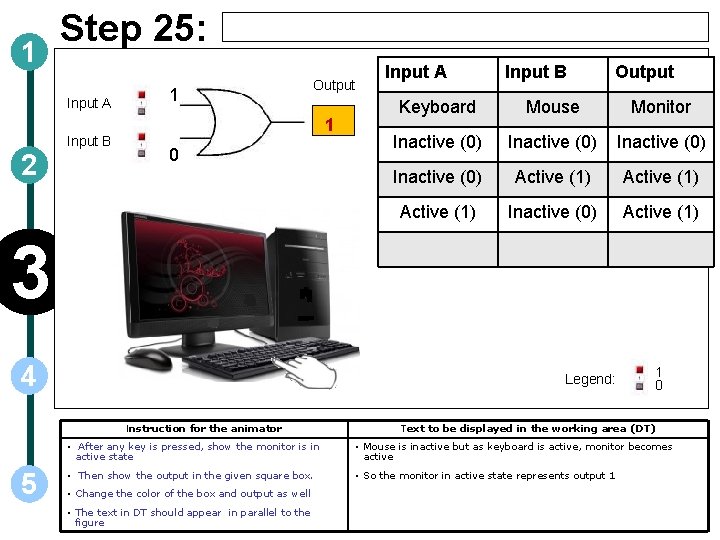
1 Step 25: Input A Input B 2 1 Output 1 0 Input A Input B Output Keyboard Mouse Monitor Inactive (0) Active (1) Inactive (0) Active (1) 3 4 Legend: Instruction for the animator 5 1 0 Text to be displayed in the working area (DT) • After any key is pressed, show the monitor is in active state • Mouse is inactive but as keyboard is active, monitor becomes active • Then show the output in the given square box. • So the monitor in active state represents output 1 • Change the color of the box and output as well • The text in DT should appear in parallel to the figure
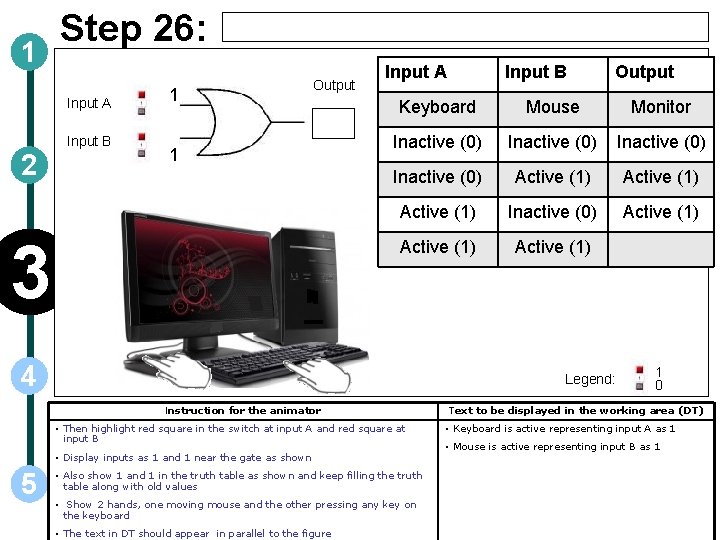
1 Step 26: Input A Input B 2 1 Output 1 3 Input A Output Keyboard Mouse Monitor Inactive (0) Active (1) Inactive (0) Active (1) 4 Legend: Instruction for the animator • Then highlight red square in the switch at input A and red square at input B • Display inputs as 1 and 1 near the gate as shown 5 Input B • Also show 1 and 1 in the truth table as shown and keep filling the truth table along with old values • Show 2 hands, one moving mouse and the other pressing any key on the keyboard • The text in DT should appear in parallel to the figure 1 0 Text to be displayed in the working area (DT) • Keyboard is active representing input A as 1 • Mouse is active representing input B as 1
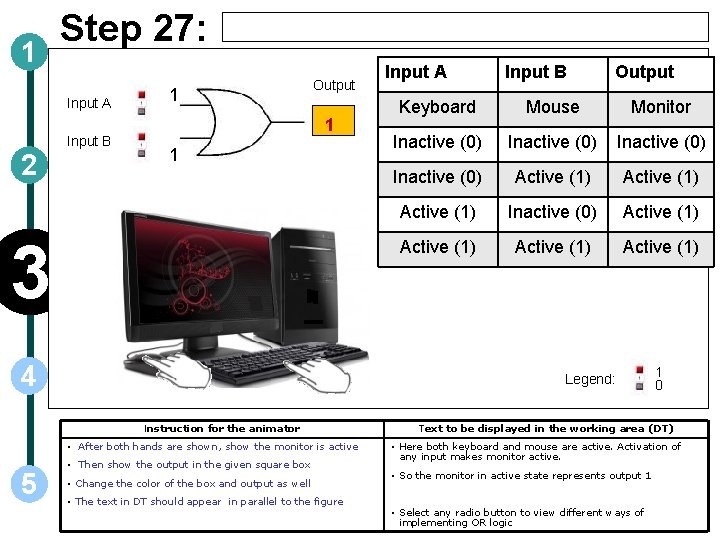
1 Step 27: Input A Input B 2 1 Output 1 1 3 4 Input B Output Keyboard Mouse Monitor Inactive (0) Active (1) Inactive (0) Active (1) Legend: Instruction for the animator • After both hands are shown, show the monitor is active 5 Input A • Then show the output in the given square box • Change the color of the box and output as well • The text in DT should appear in parallel to the figure 1 0 Text to be displayed in the working area (DT) • Here both keyboard and mouse are active. Activation of any input makes monitor active. • So the monitor in active state represents output 1 • Select any radio button to view different ways of implementing OR logic
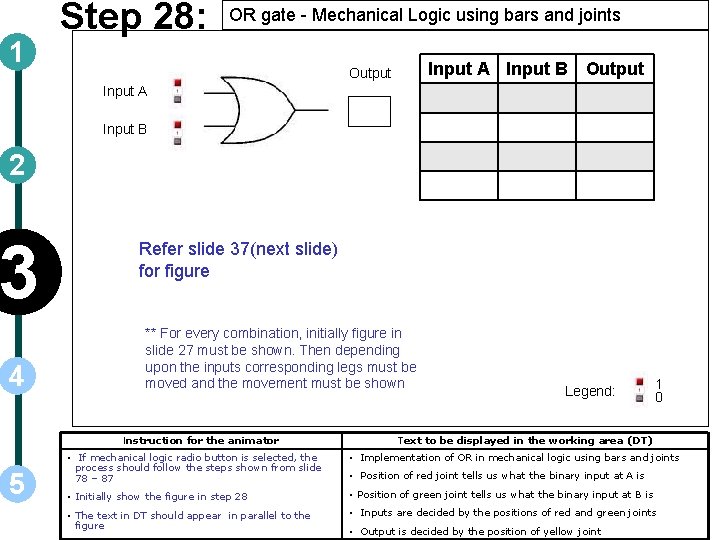
1 Step 28: OR gate - Mechanical Logic using bars and joints Input A Input B Output Input A Input B 2 3 4 Refer slide 37(next slide) for figure ** For every combination, initially figure in slide 27 must be shown. Then depending upon the inputs corresponding legs must be moved and the movement must be shown Instruction for the animator 5 Legend: 1 0 Text to be displayed in the working area (DT) • If mechanical logic radio button is selected, the process should follow the steps shown from slide 78 – 87 • Implementation of OR in mechanical logic using bars and joints • Initially show the figure in step 28 • Position of green joint tells us what the binary input at B is • The text in DT should appear in parallel to the figure • Inputs are decided by the positions of red and green joints • Position of red joint tells us what the binary input at A is • Output is decided by the position of yellow joint
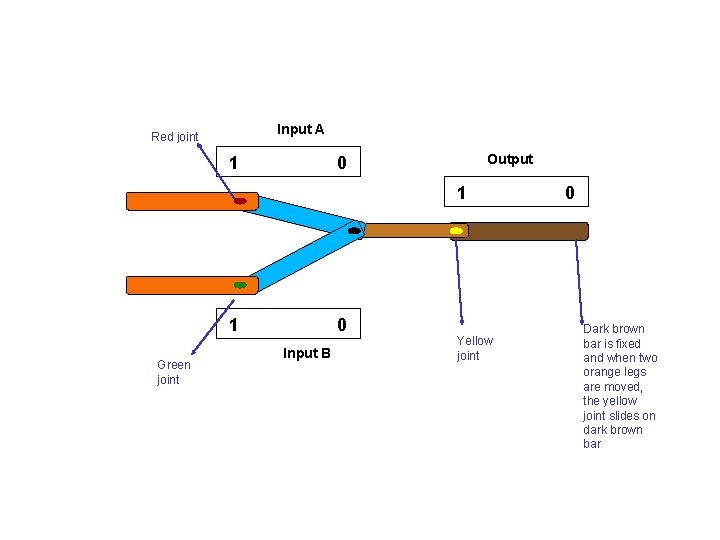
Input A Red joint 1 Output 0 1 1 Green joint 0 Input B Yellow joint 0 Dark brown bar is fixed and when two orange legs are moved, the yellow joint slides on dark brown bar

Step 29: 1 0 Input A Input B 0 Input A 1 Output 0 1 3 1 0 Input B Instruction for the animator 5 0 0 2 4 Input A Input B Output 0 Legend: 1 0 Text to be displayed in the working area (DT) • Then highlight small grey squares in the switch and display 0 and 0 near the horizontal lines of the gate • Position of red joint is at 0 representing input A as 0 • Also show 0 and 0 in the truth table as shown • Position of green joint is at 0 representing input B as 0 • Move the orange legs and the movement of legs from 1 to 0 (as shown in fig. ) should be smooth. • Show that the red joint is positioned at 0 and green joint is positioned at 0 • The text in DT should appear in parallel to the figure
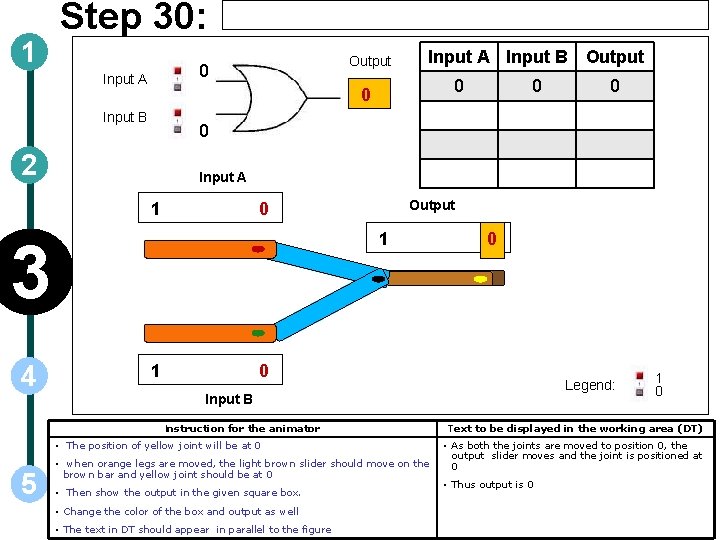
1 Step 30: Output 0 Input A 0 0 Input B 0 Input A 1 Output 0 1 3 1 0 0 Legend: Input B Instruction for the animator • The position of yellow joint will be at 0 5 0 0 2 4 Input A Input B Output • when orange legs are moved, the light brown slider should move on the brown bar and yellow joint should be at 0 • Then show the output in the given square box. • Change the color of the box and output as well • The text in DT should appear in parallel to the figure 1 0 Text to be displayed in the working area (DT) • As both the joints are moved to position 0, the output slider moves and the joint is positioned at 0 • Thus output is 0

Step 31: 1 Input A Input B Output 0 Input A Input B Output 1 0 0 0 1 0 Input A 2 1 0 Output 3 4 1 1 0 0 Legend: 1 0 Input B Instruction for the animator • Then highlight grey square in the switch at input A and red square at input B 5 • Display inputs as 0 and 1 near the gate as shown • In the figure, the movement of orange leg at input A from 1 to 0 (as shown in fig. ) should be smooth. • Show that the red joint is positioned at 0 and green joint is positioned at 0 • The text in DT should appear in parallel to the figure Text to be displayed in the working area (DT) • Position of red joint is moved to 0 representing input A as 0 • Position of green joint is at 1 representing input B as 1
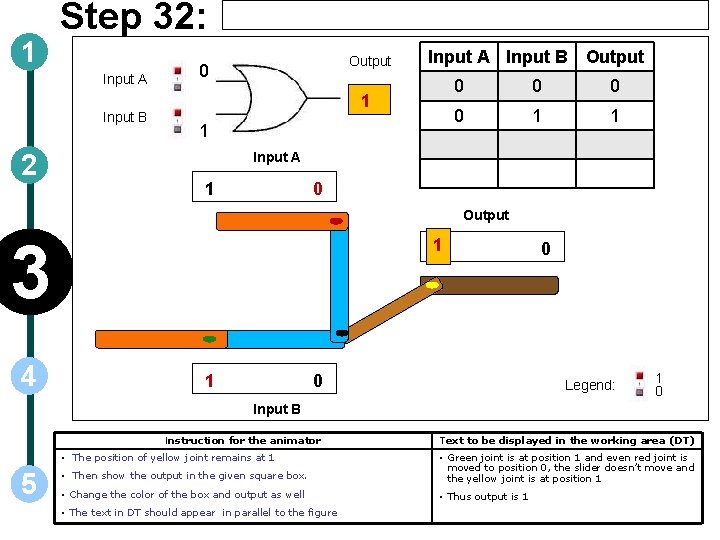
1 Step 32: Input A Input B 2 Output 0 Input A Input B Output 1 1 0 0 1 1 Input A 1 0 Output 3 4 1 1 0 0 Legend: 1 0 Input B Instruction for the animator • The position of yellow joint remains at 1 5 Text to be displayed in the working area (DT) • Then show the output in the given square box. • Green joint is at position 1 and even red joint is moved to position 0, the slider doesn’t move and the yellow joint is at position 1 • Change the color of the box and output as well • Thus output is 1 • The text in DT should appear in parallel to the figure
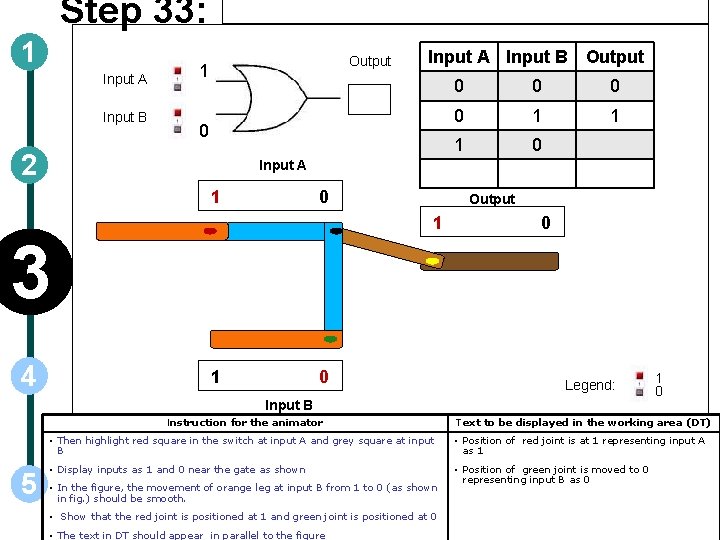
Step 33: 1 Input A Input B Output 1 0 2 0 0 1 1 1 0 Input A 1 0 Output 1 3 4 Input A Input B Output 1 0 0 Legend: Input B Instruction for the animator 5 1 0 Text to be displayed in the working area (DT) • Then highlight red square in the switch at input A and grey square at input B • Position of red joint is at 1 representing input A as 1 • Display inputs as 1 and 0 near the gate as shown • Position of green joint is moved to 0 representing input B as 0 • In the figure, the movement of orange leg at input B from 1 to 0 (as shown in fig. ) should be smooth. • Show that the red joint is positioned at 1 and green joint is positioned at 0 • The text in DT should appear in parallel to the figure
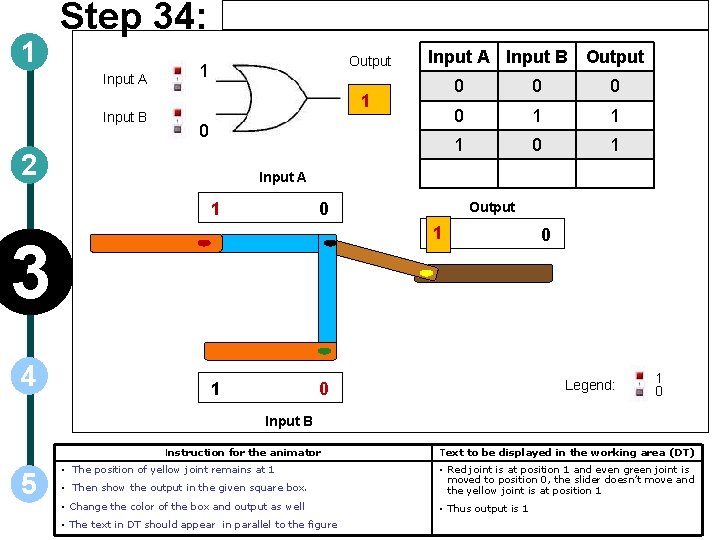
1 Step 34: Input A Input B Output 1 1 0 2 0 0 1 1 1 0 1 Input A 1 0 Output 1 3 4 Input A Input B Output 1 0 Legend: 0 1 0 Input B Instruction for the animator 5 • The position of yellow joint remains at 1 Text to be displayed in the working area (DT) • Then show the output in the given square box. • Red joint is at position 1 and even green joint is moved to position 0, the slider doesn’t move and the yellow joint is at position 1 • Change the color of the box and output as well • Thus output is 1 • The text in DT should appear in parallel to the figure
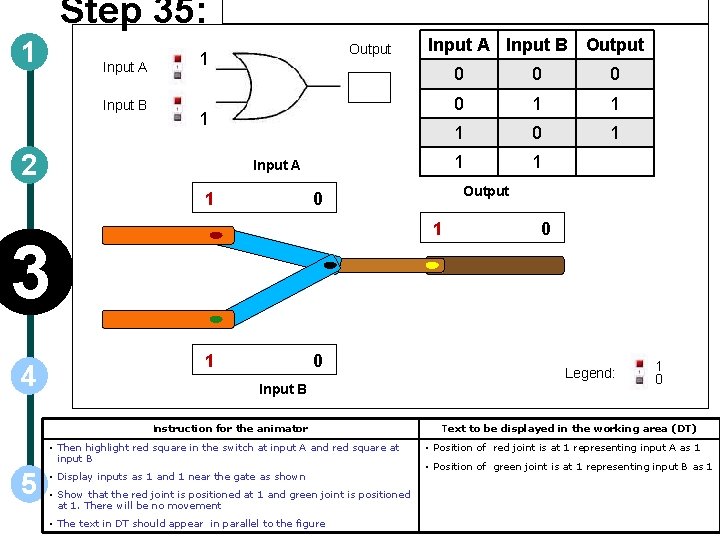
Step 35: 1 Input A Input B Output 1 1 2 Input A 1 1 1 0 Input B Instruction for the animator • Then highlight red square in the switch at input A and red square at input B 5 • Display inputs as 1 and 1 near the gate as shown • Show that the red joint is positioned at 1 and green joint is positioned at 1. There will be no movement • The text in DT should appear in parallel to the figure 0 0 1 1 1 Output 0 3 4 Input A Input B Output 0 Legend: 1 0 Text to be displayed in the working area (DT) • Position of red joint is at 1 representing input A as 1 • Position of green joint is at 1 representing input B as 1

1 Step 36: Input A Input B Output 1 1 2 0 0 1 1 1 0 1 1 Input A 3 4 1 Output 0 1 1 0 Legend: 0 1 0 Input B Instruction for the animator • The position of yellow joint remains at 1 5 • Then show the output in the given square box. • Change the color of the box and output as well • The text in DT should appear in parallel to the figure Text to be displayed in the working area (DT) • Both the joints are positioned at 1, the output slider doesn’t move and the yellow joint is positioned at 1 • Thus output is 1 • Thus using this mechanism, OR logic is explained • Select any radio button to view different ways of implementing OR logic
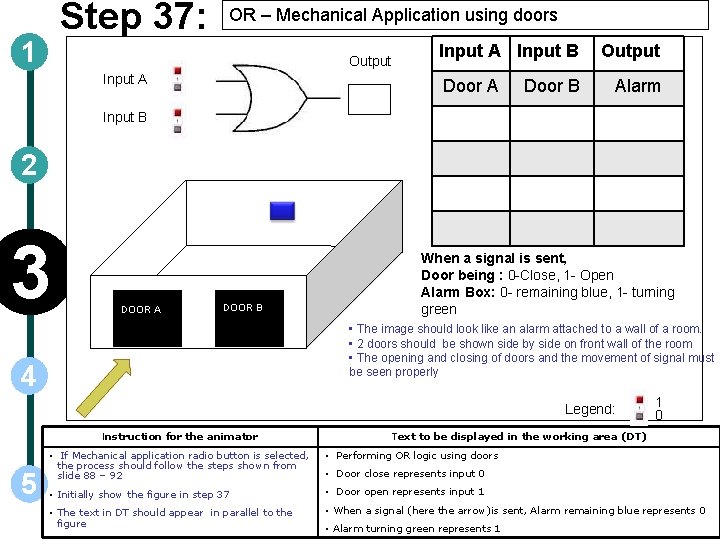
Step 37: 1 OR – Mechanical Application using doors Output Input A Input B Door A Door B Output Alarm Input B 2 3 DOOR A DOOR B When a signal is sent, Door being : 0 -Close, 1 - Open Alarm Box: 0 - remaining blue, 1 - turning green • The image should look like an alarm attached to a wall of a room. • 2 doors should be shown side by side on front wall of the room • The opening and closing of doors and the movement of signal must be seen properly 4 Legend: Instruction for the animator 5 1 0 Text to be displayed in the working area (DT) • If Mechanical application radio button is selected, the process should follow the steps shown from slide 88 – 92 • Performing OR logic using doors • Initially show the figure in step 37 • Door open represents input 1 • The text in DT should appear in parallel to the figure • When a signal (here the arrow)is sent, Alarm remaining blue represents 0 • Door close represents input 0 • Alarm turning green represents 1

Step 38: 1 Input A Input B Output 0 Input A 0 0 3 Door B Alarm 0 (Close) 0 ( remain blue) DOOR B Legend: 4 Instruction for the animator • Then highlight small grey squares in the switch and display 0 and 0 near the horizontal lines of the gate • Also show 0 and 0 in the truth table as shown 5 Output Door A 2 DOOR A Input B • Show that the yellow arrow moves towards door A, hits it and returns. The movement should be smooth • Then show the output in the given square box. • Change the color of the box and output as well • The text in DT should appear in parallel to the figure 1 0 Text to be displayed in the working area (DT) • Door A is closed representing input A as 0 • Door B is closed representing input B as 0 • As both doors are closed, the signal doesn’t reach the alarm • So the alarm remaining blue represents 0

Step 39: 1 Input A Input B Output 0 1 1 2 3 DOOR A Input B Output Door A Door B Alarm 0 (Close) 0 ( remain blue) 0 (Close) 1 (Open) 1 ( turn green) DOOR B Legend: 4 Instruction for the animator • Then highlight grey square in the switch at input A and red square at input B • Display inputs as 0 and 1 near the gate as shown 5 Input A • Show that the yellow arrow moves towards blue box through door B, hits blue box and it turns green. The movement should be smooth • Then show the output in the given square box. • Change the color of the box and output as well • The text in DT should appear in parallel to the figure 1 0 Text to be displayed in the working area (DT) • Door A is closed representing input A as 0 • Door B is open representing input B as 1 • Here door B is open, so the signal reaches the alarm and hits it • So the alarm turning green represents 1
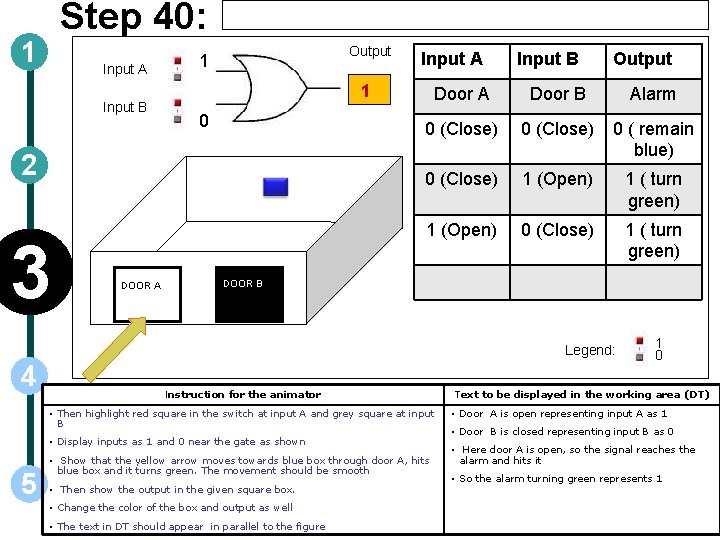
Step 40: 1 Input A Input B Output 1 1 0 2 3 DOOR A Input B Output Door A Door B Alarm 0 (Close) 0 ( remain blue) 0 (Close) 1 (Open) 1 ( turn green) 1 (Open) 0 (Close) 1 ( turn green) DOOR B Legend: 4 Instruction for the animator • Then highlight red square in the switch at input A and grey square at input B • Display inputs as 1 and 0 near the gate as shown 5 • Show that the yellow arrow moves towards blue box through door A, hits blue box and it turns green. The movement should be smooth • Then show the output in the given square box. • Change the color of the box and output as well • The text in DT should appear in parallel to the figure 1 0 Text to be displayed in the working area (DT) • Door A is open representing input A as 1 • Door B is closed representing input B as 0 • Here door A is open, so the signal reaches the alarm and hits it • So the alarm turning green represents 1

Step 41: 1 Input A Input B Output 1 1 1 2 3 DOOR A Input A DOOR B Input B Output Door A Door B Alarm 0 (Close) 0 ( remain blue) 0 (Close) 1 (Open) 1 ( turn green) 1 (Open) 0 (Close) 1 ( turn green) 1 (Open) 1 ( turn green) Legend: 4 Instruction for the animator Text to be displayed in the working area (DT) • Then highlight red square in the switch at input A and red square at input B • Door A is open representing input A as 1 • Display inputs as 1 and 1 near the gate as shown • Door B is open representing input B as 1 • Show that the yellow arrow moves towards door A then passes through it • As both the doors are open, the signal can pass through any door and hits alarm • Then it hits the blue box. Then the box should turn to green. The movement should be smooth 5 1 0 • Then show the output in the given square box. • Change the color of the box and output as well • The text in DT should appear in parallel to the figure • So the alarm turns to green representing output 1 • Thus OR logic is explained using doors and alarm • Select any radio button to view different ways of implementing OR logic
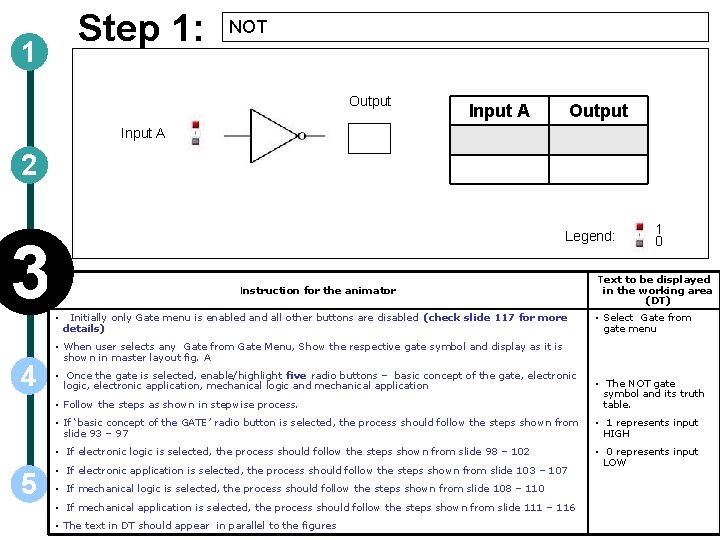
Step 1: 1 NOT Output Input A 2 3 4 5 Legend: Instruction for the animator • Initially only Gate menu is enabled and all other buttons are disabled (check slide 117 for more details) 1 0 Text to be displayed in the working area (DT) • Select Gate from gate menu • When user selects any Gate from Gate Menu, Show the respective gate symbol and display as it is shown in master layout fig. A • Once the gate is selected, enable/highlight five radio buttons – basic concept of the gate, electronic logic, electronic application, mechanical logic and mechanical application • Follow the steps as shown in stepwise process. • The NOT gate symbol and its truth table. • If ‘basic concept of the GATE’ radio button is selected, the process should follow the steps shown from slide 93 – 97 • 1 represents input HIGH • If electronic logic is selected, the process should follow the steps shown from slide 98 – 102 • 0 represents input LOW • If electronic application is selected, the process should follow the steps shown from slide 103 – 107 • If mechanical logic is selected, the process should follow the steps shown from slide 108 – 110 • If mechanical application is selected, the process should follow the steps shown from slide 111 – 116 • The text in DT should appear in parallel to the figures
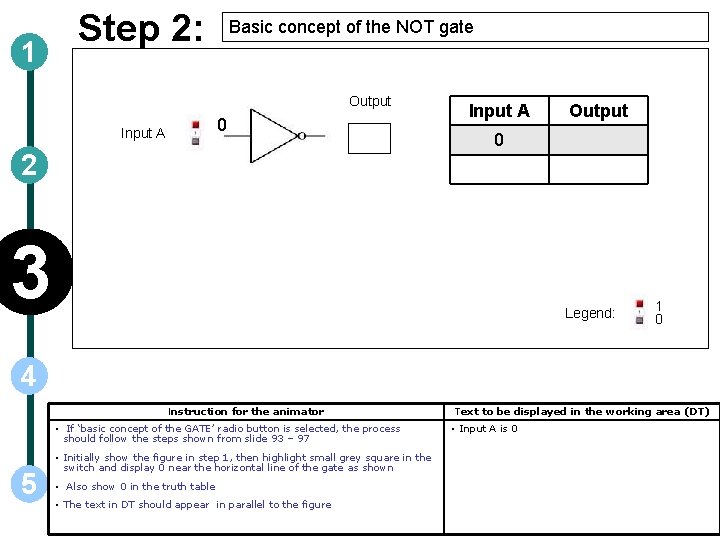
1 Step 2: Basic concept of the NOT gate Output 0 Input A 2 Input A Output 0 3 Legend: 1 0 4 Instruction for the animator • If ‘basic concept of the GATE’ radio button is selected, the process should follow the steps shown from slide 93 – 97 5 • Initially show the figure in step 1, then highlight small grey square in the switch and display 0 near the horizontal line of the gate as shown • Also show 0 in the truth table • The text in DT should appear in parallel to the figure Text to be displayed in the working area (DT) • Input A is 0
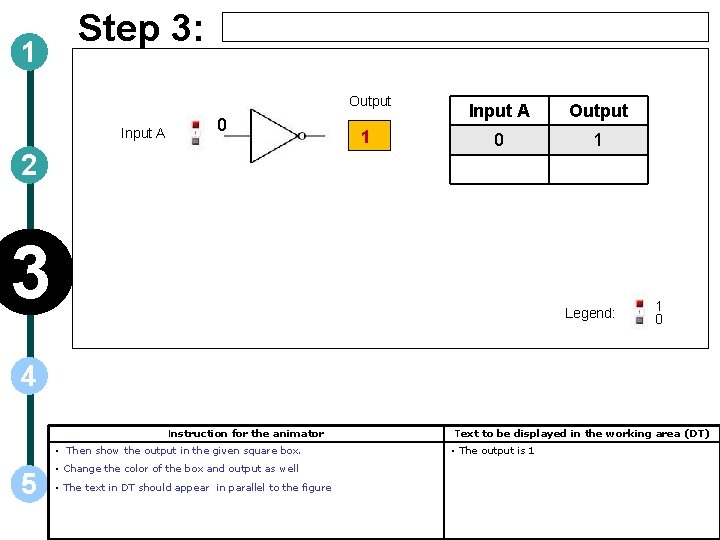
1 Step 3: Output Input A 0 2 1 Input A Output 0 1 3 Legend: 1 0 4 Instruction for the animator • Then show the output in the given square box. 5 • Change the color of the box and output as well • The text in DT should appear in parallel to the figure Text to be displayed in the working area (DT) • The output is 1
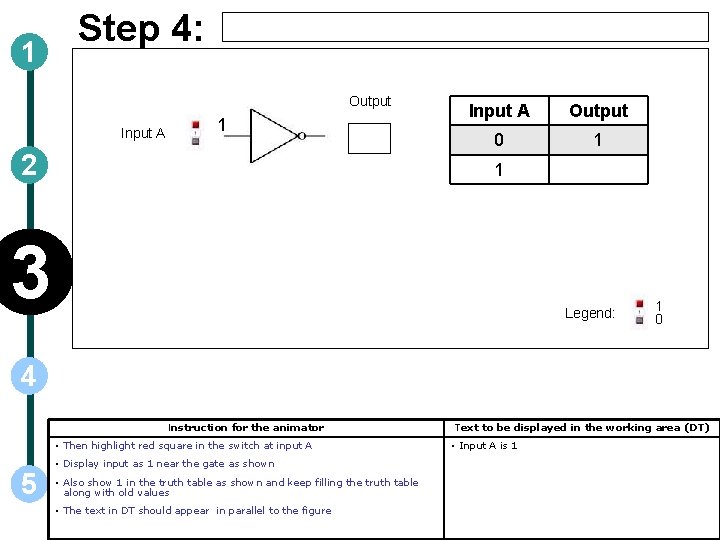
1 Step 4: Output Input A 1 2 Input A Output 0 1 1 3 Legend: 1 0 4 Instruction for the animator • Then highlight red square in the switch at input A 5 • Display input as 1 near the gate as shown • Also show 1 in the truth table as shown and keep filling the truth table along with old values • The text in DT should appear in parallel to the figure Text to be displayed in the working area (DT) • Input A is 1
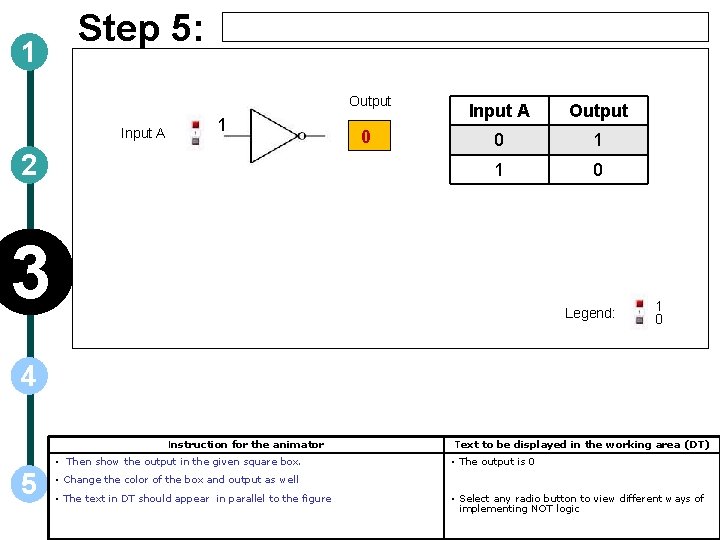
1 Step 5: Output Input A 1 2 0 Input A Output 0 1 1 0 3 Legend: 1 0 4 Instruction for the animator • Then show the output in the given square box. 5 Text to be displayed in the working area (DT) • The output is 0 • Change the color of the box and output as well • The text in DT should appear in parallel to the figure • Select any radio button to view different ways of implementing NOT logic
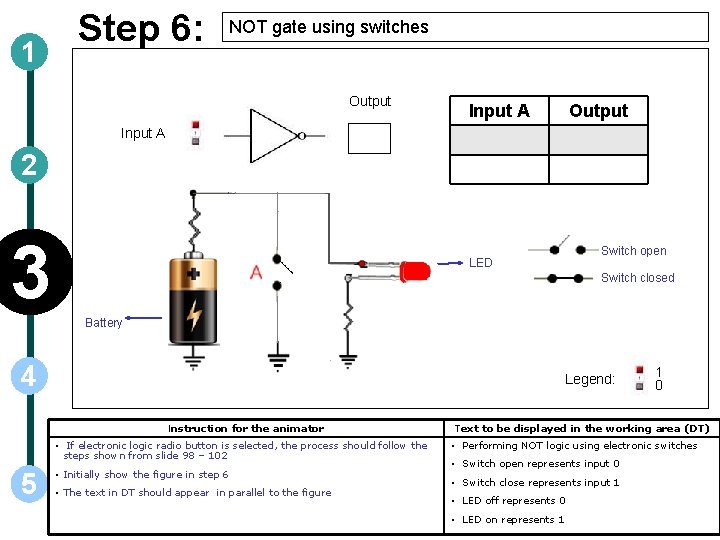
1 Step 6: NOT gate using switches Output Input A 2 3 LED Switch open Switch closed Battery 4 Legend: Instruction for the animator • If electronic logic radio button is selected, the process should follow the steps shown from slide 98 – 102 5 • Initially show the figure in step 6 • The text in DT should appear in parallel to the figure 1 0 Text to be displayed in the working area (DT) • Performing NOT logic using electronic switches • Switch open represents input 0 • Switch close represents input 1 • LED off represents 0 • LED on represents 1
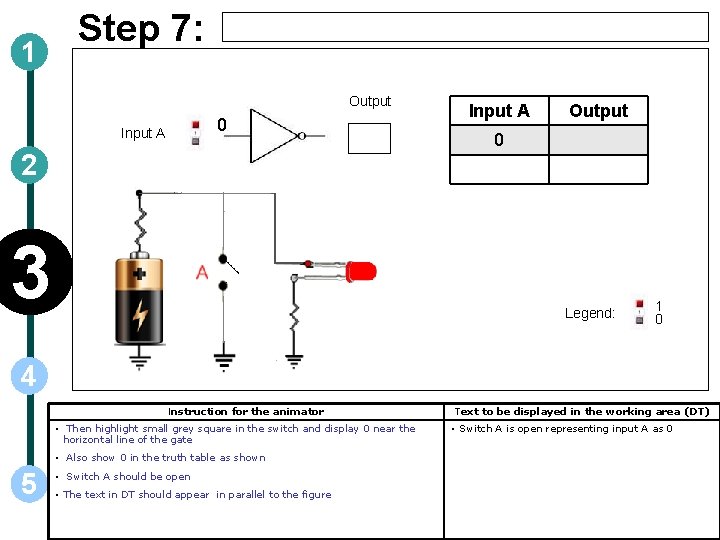
1 Step 7: Output 0 Input A 2 3 Input A Output 0 Legend: 1 0 4 Instruction for the animator • Then highlight small grey square in the switch and display 0 near the horizontal line of the gate • Also show 0 in the truth table as shown 5 • Switch A should be open • The text in DT should appear in parallel to the figure Text to be displayed in the working area (DT) • Switch A is open representing input A as 0
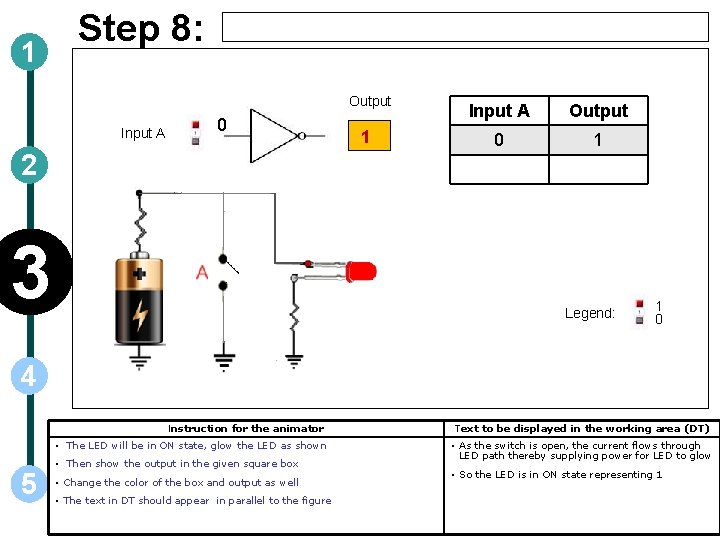
1 Step 8: Output Input A 0 2 3 1 Input A Output 0 1 Legend: 1 0 4 5 Instruction for the animator Text to be displayed in the working area (DT) • The LED will be in ON state, glow the LED as shown • As the switch is open, the current flows through LED path thereby supplying power for LED to glow • Then show the output in the given square box • Change the color of the box and output as well • The text in DT should appear in parallel to the figure • So the LED is in ON state representing 1
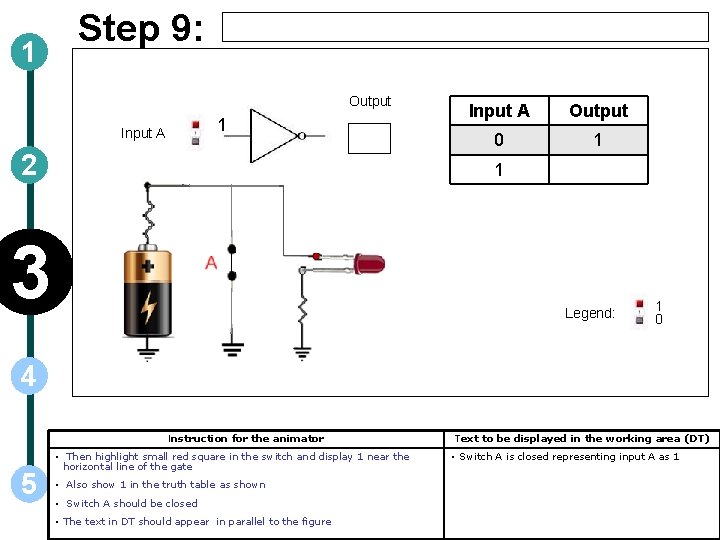
1 Step 9: Output 1 Input A 2 Input A Output 0 1 1 3 Legend: 1 0 4 Instruction for the animator 5 • Then highlight small red square in the switch and display 1 near the horizontal line of the gate • Also show 1 in the truth table as shown • Switch A should be closed • The text in DT should appear in parallel to the figure Text to be displayed in the working area (DT) • Switch A is closed representing input A as 1
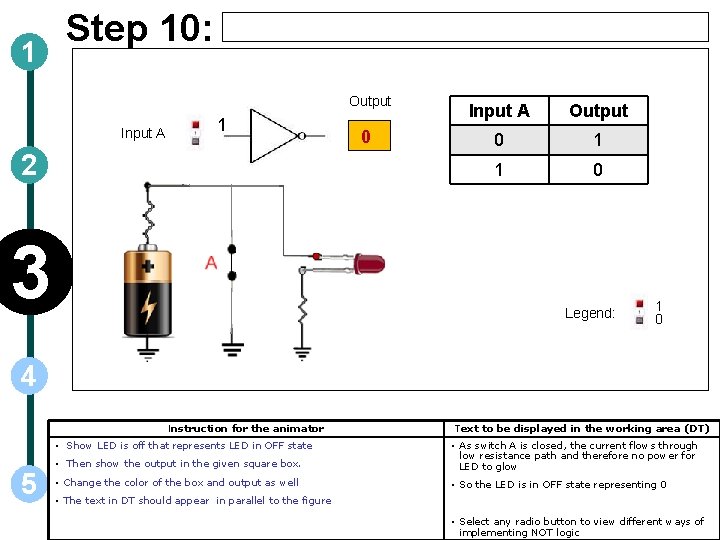
1 Step 10: Output Input A 1 2 3 0 Input A Output 0 1 1 0 Legend: 1 0 4 Instruction for the animator • Show LED is off that represents LED in OFF state 5 Text to be displayed in the working area (DT) • Then show the output in the given square box. • As switch A is closed, the current flows through low resistance path and therefore no power for LED to glow • Change the color of the box and output as well • So the LED is in OFF state representing 0 • The text in DT should appear in parallel to the figure • Select any radio button to view different ways of implementing NOT logic
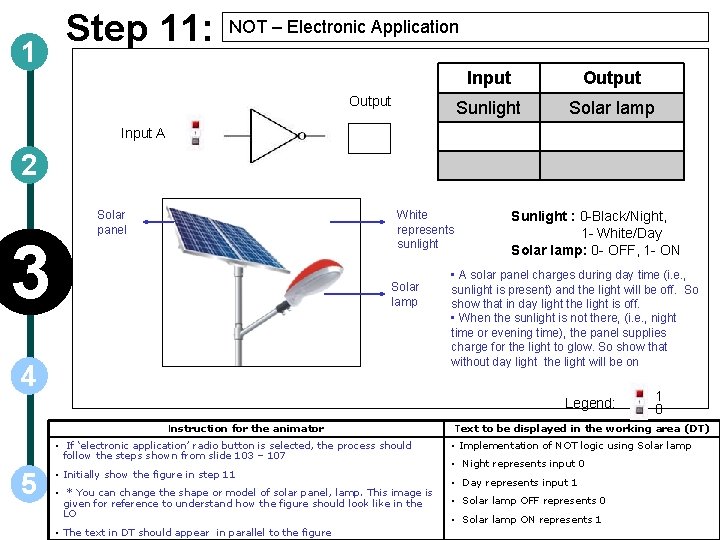
1 Step 11: NOT – Electronic Application Output Input Output Sunlight Solar lamp Input A 2 3 Solar panel White represents sunlight Solar lamp 4 Sunlight : 0 -Black/Night, 1 - White/Day Solar lamp: 0 - OFF, 1 - ON • A solar panel charges during day time (i. e. , sunlight is present) and the light will be off. So show that in day light the light is off. • When the sunlight is not there, (i. e. , night time or evening time), the panel supplies charge for the light to glow. So show that without day light the light will be on Legend: Instruction for the animator • If ‘electronic application’ radio button is selected, the process should follow the steps shown from slide 103 – 107 5 • Initially show the figure in step 11 • * You can change the shape or model of solar panel, lamp. This image is given for reference to understand how the figure should look like in the LO • The text in DT should appear in parallel to the figure 1 0 Text to be displayed in the working area (DT) • Implementation of NOT logic using Solar lamp • Night represents input 0 • Day represents input 1 • Solar lamp OFF represents 0 • Solar lamp ON represents 1
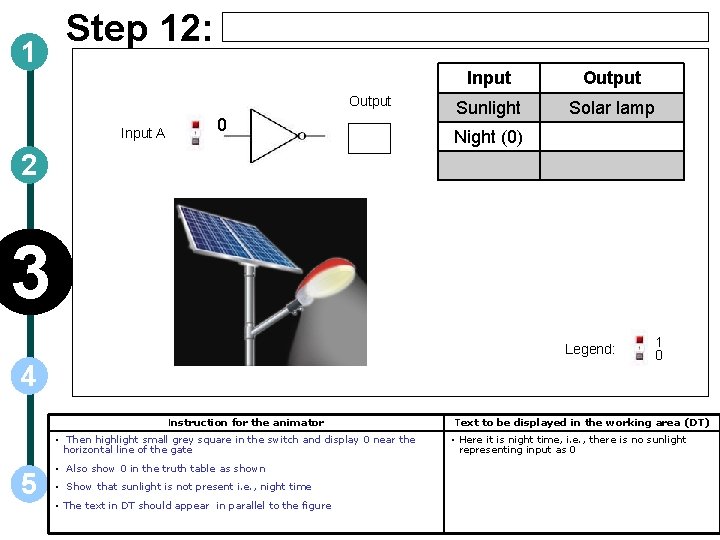
1 Step 12: Output Input A 0 Input Output Sunlight Solar lamp Night (0) 2 3 Legend: 4 Instruction for the animator • Then highlight small grey square in the switch and display 0 near the horizontal line of the gate 5 • Also show 0 in the truth table as shown • Show that sunlight is not present i. e. , night time • The text in DT should appear in parallel to the figure 1 0 Text to be displayed in the working area (DT) • Here it is night time, i. e. , there is no sunlight representing input as 0
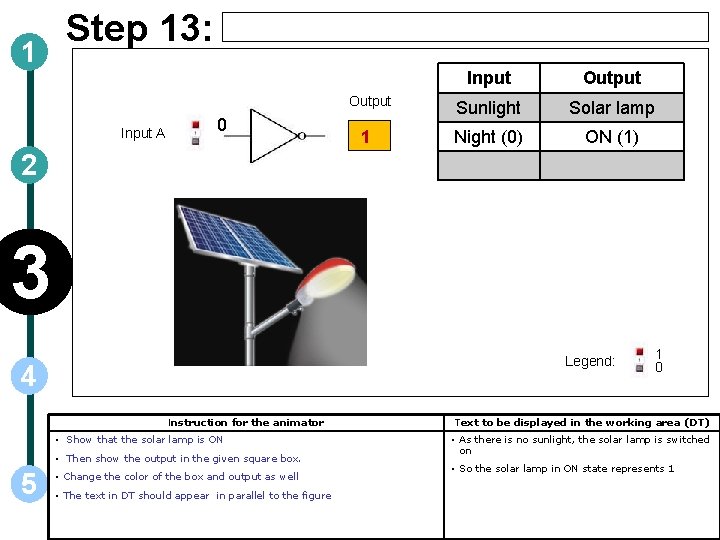
1 Step 13: Input A 0 Input Output Sunlight Solar lamp 1 Night (0) ON (1) 2 3 Legend: 4 Instruction for the animator • Show that the solar lamp is ON • Then show the output in the given square box. 5 • Change the color of the box and output as well • The text in DT should appear in parallel to the figure 1 0 Text to be displayed in the working area (DT) • As there is no sunlight, the solar lamp is switched on • So the solar lamp in ON state represents 1
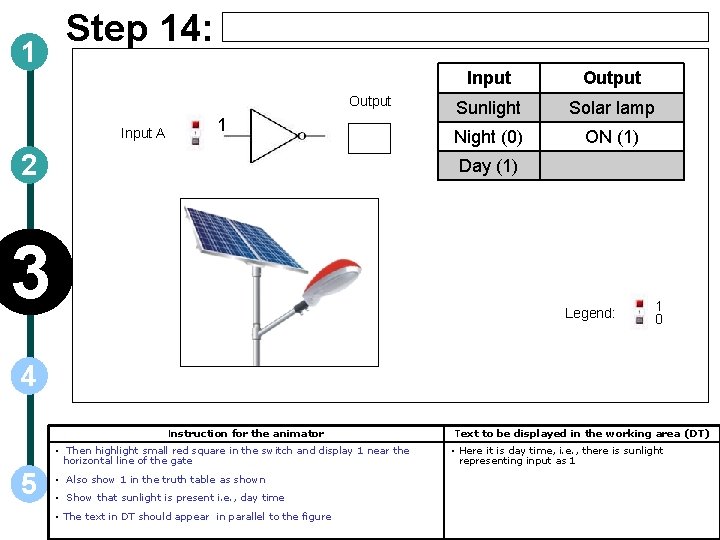
1 Step 14: Output Input A 1 2 Input Output Sunlight Solar lamp Night (0) ON (1) Day (1) 3 Legend: 1 0 4 Instruction for the animator • Then highlight small red square in the switch and display 1 near the horizontal line of the gate 5 • Also show 1 in the truth table as shown • Show that sunlight is present i. e. , day time • The text in DT should appear in parallel to the figure Text to be displayed in the working area (DT) • Here it is day time, i. e. , there is sunlight representing input as 1
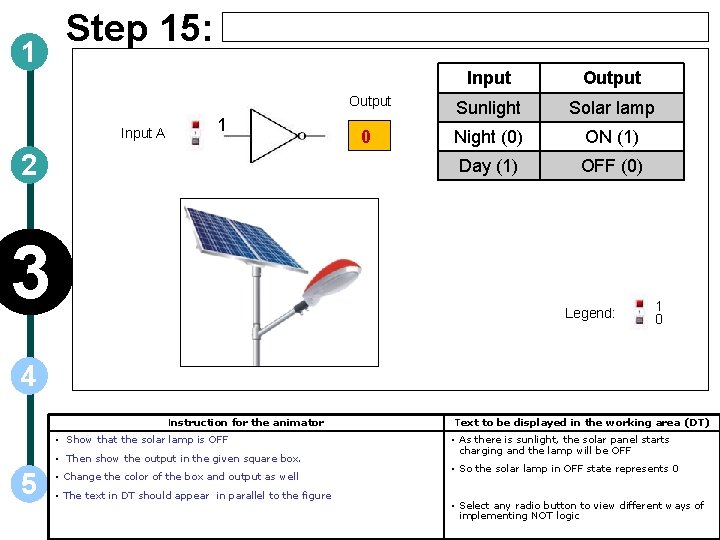
1 Step 15: Input A 1 2 3 Input Output Sunlight Solar lamp 0 Night (0) ON (1) Day (1) OFF (0) Legend: 1 0 4 Instruction for the animator • Show that the solar lamp is OFF • Then show the output in the given square box. 5 • Change the color of the box and output as well • The text in DT should appear in parallel to the figure Text to be displayed in the working area (DT) • As there is sunlight, the solar panel starts charging and the lamp will be OFF • So the solar lamp in OFF state represents 0 • Select any radio button to view different ways of implementing NOT logic
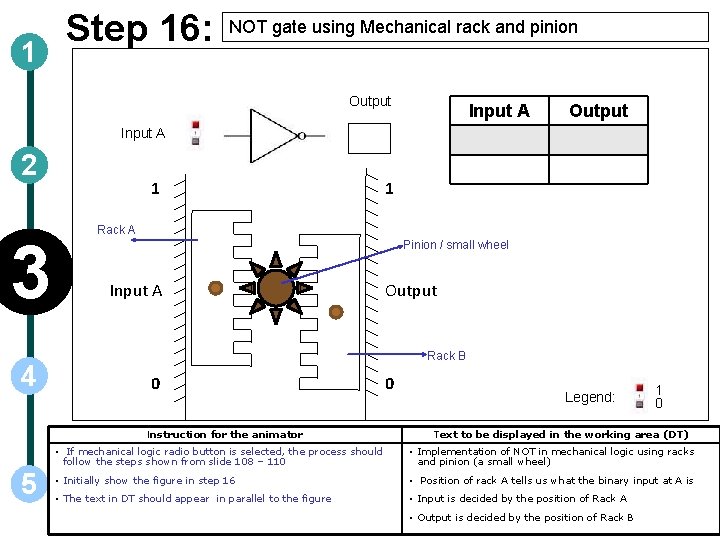
1 Step 16: NOT gate using Mechanical rack and pinion Output Input A 2 3 4 1 Rack A Pinion / small wheel Input A Output Rack B 0 Instruction for the animator 5 1 0 Legend: 1 0 Text to be displayed in the working area (DT) • If mechanical logic radio button is selected, the process should follow the steps shown from slide 108 – 110 • Implementation of NOT in mechanical logic using racks and pinion (a small wheel) • Initially show the figure in step 16 • Position of rack A tells us what the binary input at A is • The text in DT should appear in parallel to the figure • Input is decided by the position of Rack A • Output is decided by the position of Rack B
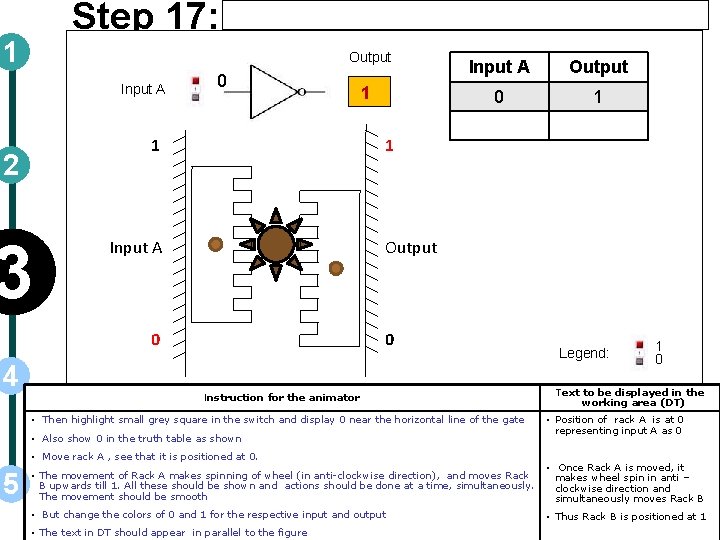
Step 17: 1 Output Input A 0 1 2 3 Output 0 1 1 Input A Output 0 4 1 Input A 0 Instruction for the animator • Then highlight small grey square in the switch and display 0 near the horizontal line of the gate • Also show 0 in the truth table as shown • Move rack A , see that it is positioned at 0. 5 Legend: 1 0 Text to be displayed in the working area (DT) • Position of rack A is at 0 representing input A as 0 • The movement of Rack A makes spinning of wheel (in anti-clockwise direction), and moves Rack B upwards till 1. All these should be shown and actions should be done at a time, simultaneously. The movement should be smooth • Once Rack A is moved, it makes wheel spin in anti – clockwise direction and simultaneously moves Rack B • But change the colors of 0 and 1 for the respective input and output • Thus Rack B is positioned at 1 • The text in DT should appear in parallel to the figure
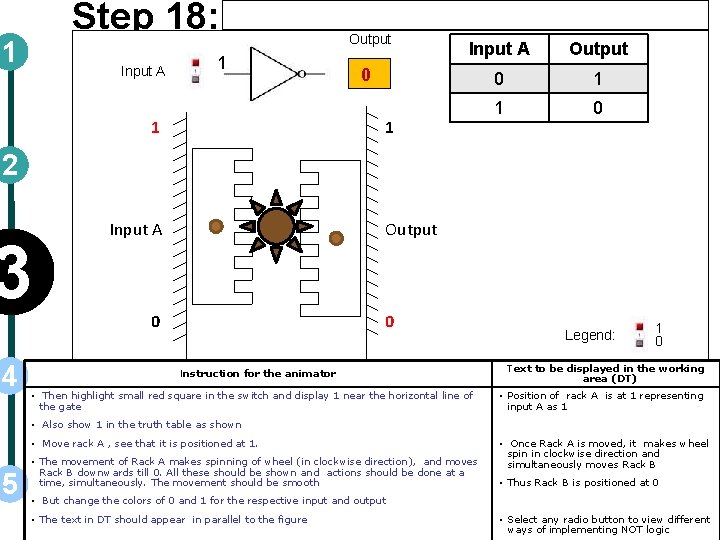
Step 18: 1 Input A 1 1 Output Input A Output 0 1 1 0 0 1 2 3 4 Input A Output 0 0 Instruction for the animator • Then highlight small red square in the switch and display 1 near the horizontal line of the gate Legend: 1 0 Text to be displayed in the working area (DT) • Position of rack A is at 1 representing input A as 1 • Also show 1 in the truth table as shown • Move rack A , see that it is positioned at 1. 5 • The movement of Rack A makes spinning of wheel (in clockwise direction), and moves Rack B downwards till 0. All these should be shown and actions should be done at a time, simultaneously. The movement should be smooth • Once Rack A is moved, it makes wheel spin in clockwise direction and simultaneously moves Rack B • Thus Rack B is positioned at 0 • But change the colors of 0 and 1 for the respective input and output • The text in DT should appear in parallel to the figure • Select any radio button to view different ways of implementing NOT logic
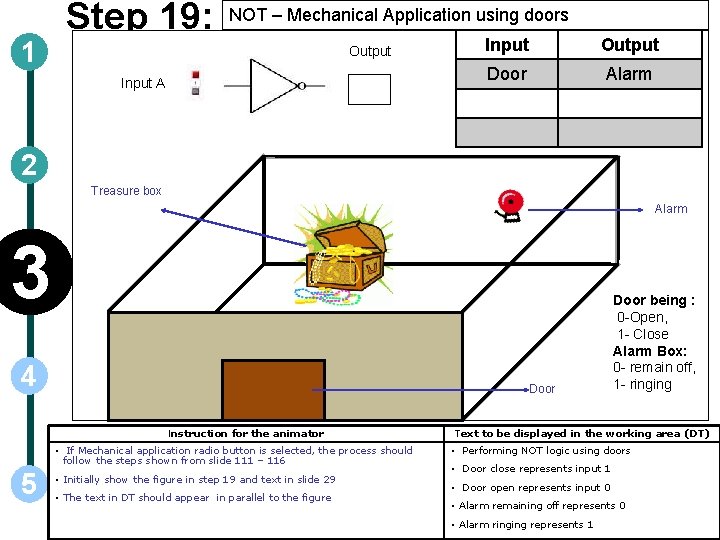
1 Step 19: NOT – Mechanical Application using doors Output Input A Input Output Door Alarm 2 Treasure box Alarm 3 4 Door Instruction for the animator • If Mechanical application radio button is selected, the process should follow the steps shown from slide 111 – 116 5 • Initially show the figure in step 19 and text in slide 29 • The text in DT should appear in parallel to the figure Door being : 0 -Open, 1 - Close Alarm Box: 0 - remain off, 1 - ringing Text to be displayed in the working area (DT) • Performing NOT logic using doors • Door close represents input 1 • Door open represents input 0 • Alarm remaining off represents 0 • Alarm ringing represents 1
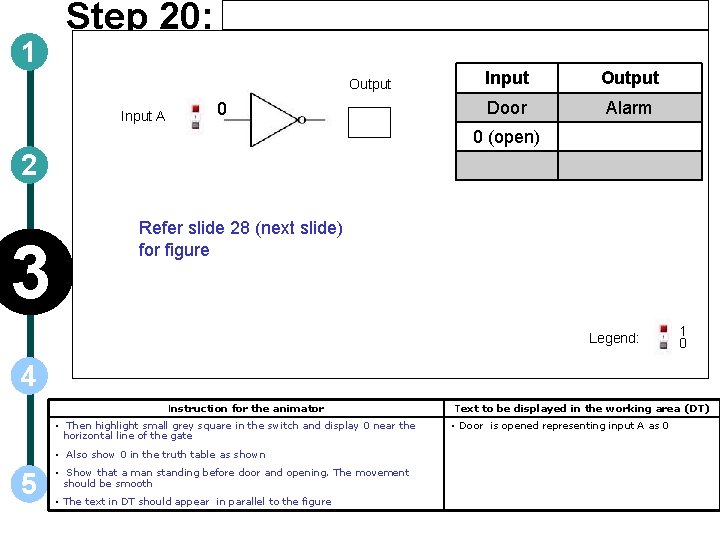
1 Step 20: Output Input A 0 Input Output Door Alarm 0 (open) 2 3 Refer slide 28 (next slide) for figure Legend: 1 0 4 Instruction for the animator • Then highlight small grey square in the switch and display 0 near the horizontal line of the gate • Also show 0 in the truth table as shown 5 • Show that a man standing before door and opening. The movement should be smooth • The text in DT should appear in parallel to the figure Text to be displayed in the working area (DT) • Door is opened representing input A as 0
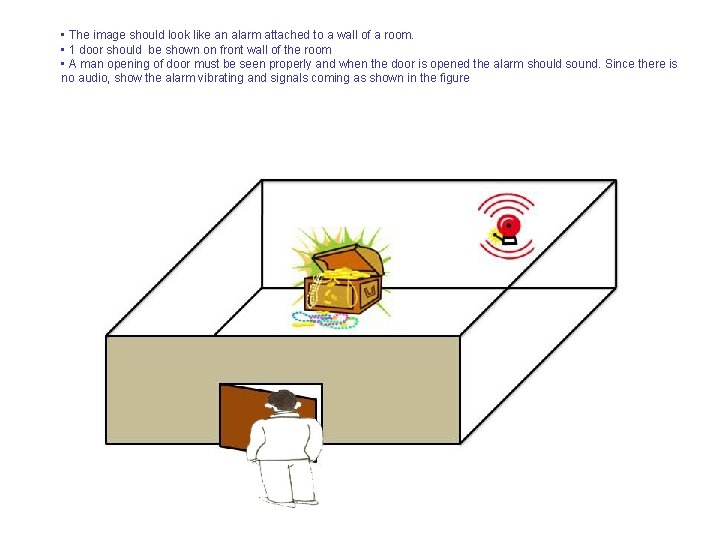
• The image should look like an alarm attached to a wall of a room. • 1 door should be shown on front wall of the room • A man opening of door must be seen properly and when the door is opened the alarm should sound. Since there is no audio, show the alarm vibrating and signals coming as shown in the figure
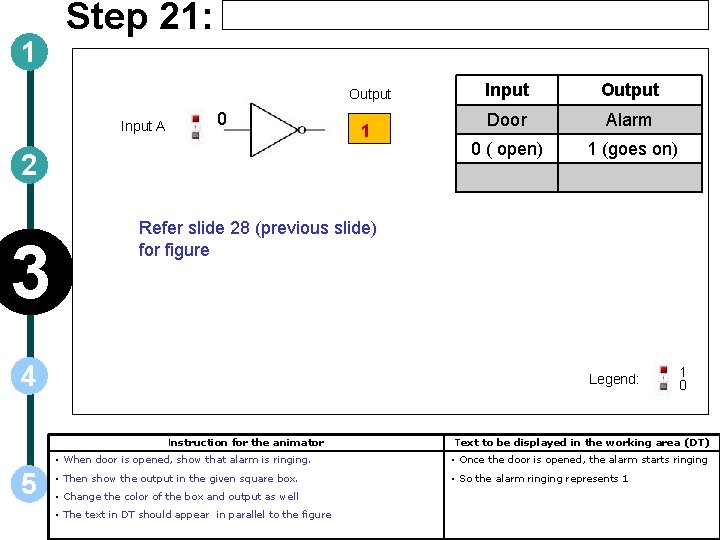
1 Step 21: Output Input A 0 1 2 3 Output Door Alarm 0 ( open) 1 (goes on) Refer slide 28 (previous slide) for figure 4 Legend: Instruction for the animator 5 Input 1 0 Text to be displayed in the working area (DT) • When door is opened, show that alarm is ringing. • Once the door is opened, the alarm starts ringing • Then show the output in the given square box. • So the alarm ringing represents 1 • Change the color of the box and output as well • The text in DT should appear in parallel to the figure
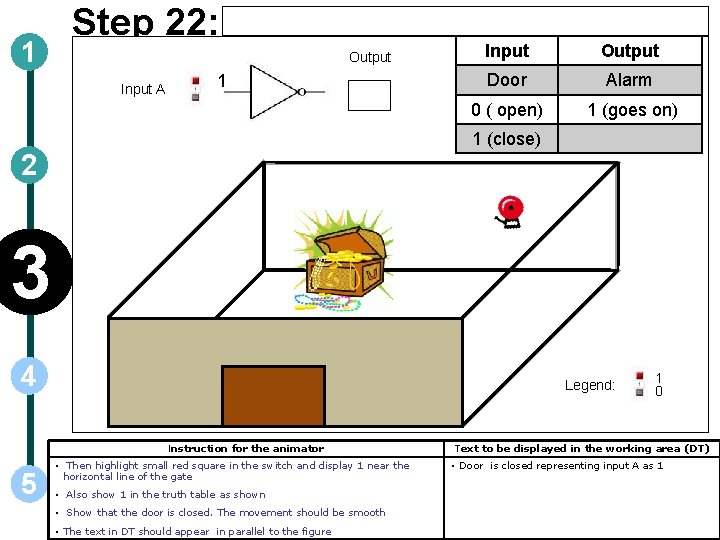
1 Step 22: Output Input A 1 Input Output Door Alarm 0 ( open) 1 (goes on) 1 (close) 2 3 4 Legend: Instruction for the animator 5 • Then highlight small red square in the switch and display 1 near the horizontal line of the gate • Also show 1 in the truth table as shown • Show that the door is closed. The movement should be smooth • The text in DT should appear in parallel to the figure 1 0 Text to be displayed in the working area (DT) • Door is closed representing input A as 1
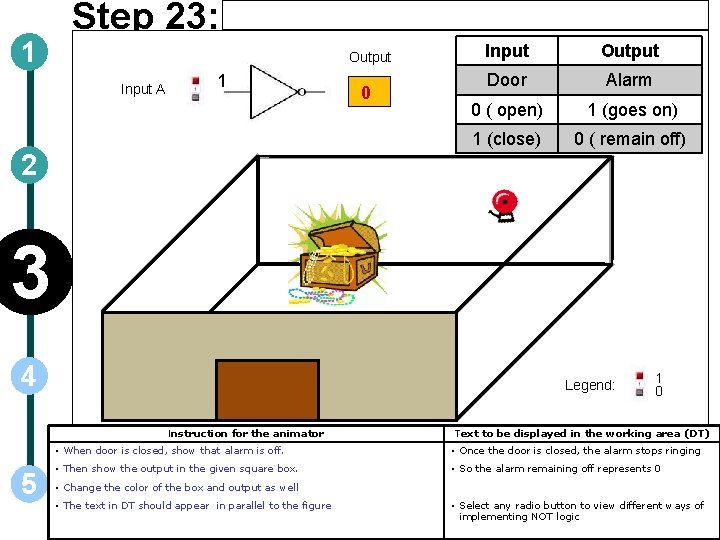
1 Step 23: Output Input A 1 0 Input Output Door Alarm 0 ( open) 1 (goes on) 1 (close) 0 ( remain off) 2 3 4 Legend: Instruction for the animator 5 1 0 Text to be displayed in the working area (DT) • When door is closed, show that alarm is off. • Once the door is closed, the alarm stops ringing • Then show the output in the given square box. • So the alarm remaining off represents 0 • Change the color of the box and output as well • The text in DT should appear in parallel to the figure • Select any radio button to view different ways of implementing NOT logic
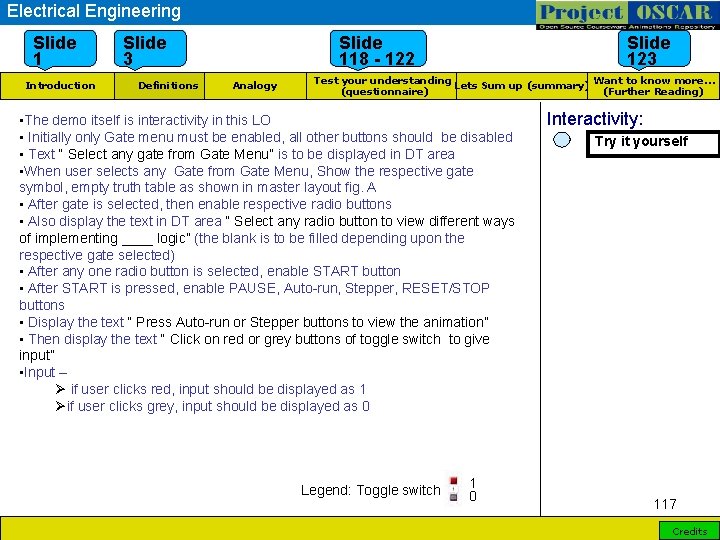
Electrical Engineering Slide 1 Introduction Slide 3 Definitions Slide 118 - 122 Analogy Slide 123 Want to know more… Test your understanding Lets Sum up (summary) (Further Reading) (questionnaire) • The demo itself is interactivity in this LO • Initially only Gate menu must be enabled, all other buttons should be disabled • Text “ Select any gate from Gate Menu” is to be displayed in DT area • When user selects any Gate from Gate Menu, Show the respective gate symbol, empty truth table as shown in master layout fig. A • After gate is selected, then enable respective radio buttons • Also display the text in DT area “ Select any radio button to view different ways of implementing ____ logic” (the blank is to be filled depending upon the respective gate selected) • After any one radio button is selected, enable START button • After START is pressed, enable PAUSE, Auto-run, Stepper, RESET/STOP buttons • Display the text “ Press Auto-run or Stepper buttons to view the animation” • Then display the text “ Click on red or grey buttons of toggle switch to give input” • Input – Ø if user clicks red, input should be displayed as 1 Øif user clicks grey, input should be displayed as 0 Legend: Toggle switch 1 0 Interactivity: Try it yourself 117 Credits
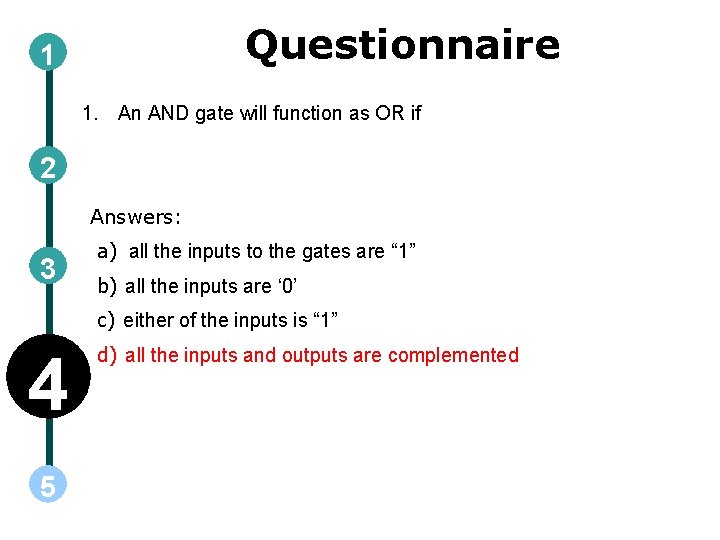
Questionnaire 1 1. An AND gate will function as OR if 2 Answers: 3 a) all the inputs to the gates are “ 1” b) all the inputs are ‘ 0’ c) either of the inputs is “ 1” 4 5 d) all the inputs and outputs are complemented
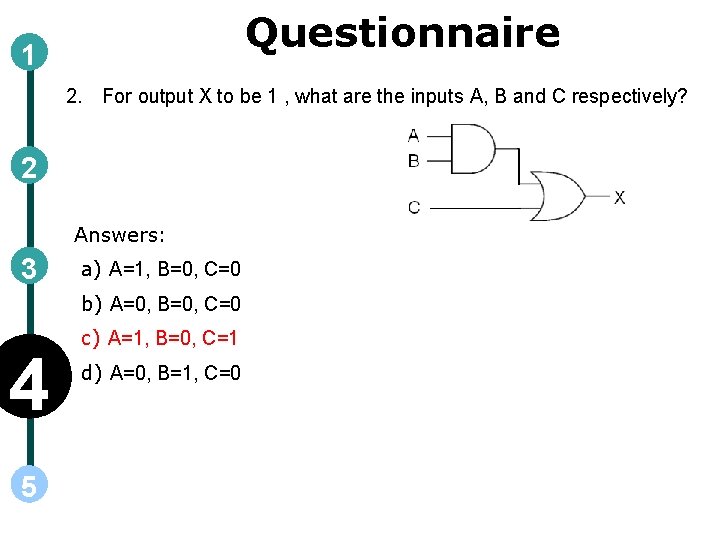
Questionnaire 1 2. For output X to be 1 , what are the inputs A, B and C respectively? 2 Answers: 3 a) A=1, B=0, C=0 b) A=0, B=0, C=0 4 5 c) A=1, B=0, C=1 d) A=0, B=1, C=0
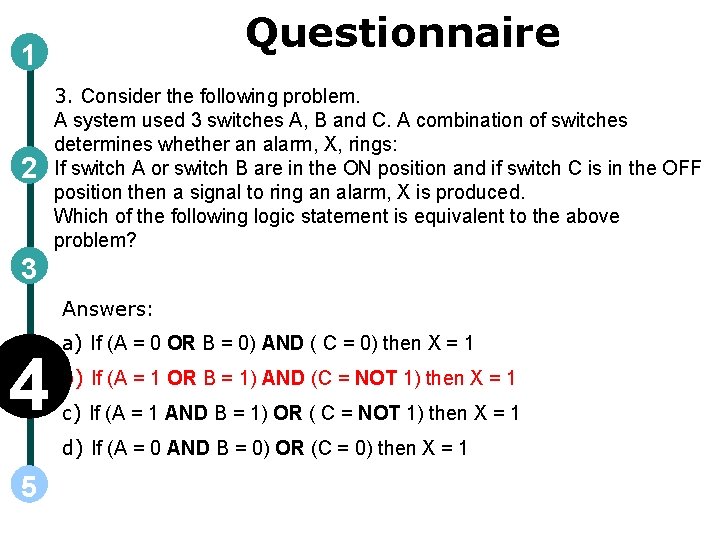
Questionnaire 1 2 3. Consider the following problem. A system used 3 switches A, B and C. A combination of switches determines whether an alarm, X, rings: If switch A or switch B are in the ON position and if switch C is in the OFF position then a signal to ring an alarm, X is produced. Which of the following logic statement is equivalent to the above problem? 3 Answers: 4 a) If (A = 0 OR B = 0) AND ( C = 0) then X = 1 b) If (A = 1 OR B = 1) AND (C = NOT 1) then X = 1 c) If (A = 1 AND B = 1) OR ( C = NOT 1) then X = 1 d) If (A = 0 AND B = 0) OR (C = 0) then X = 1 5
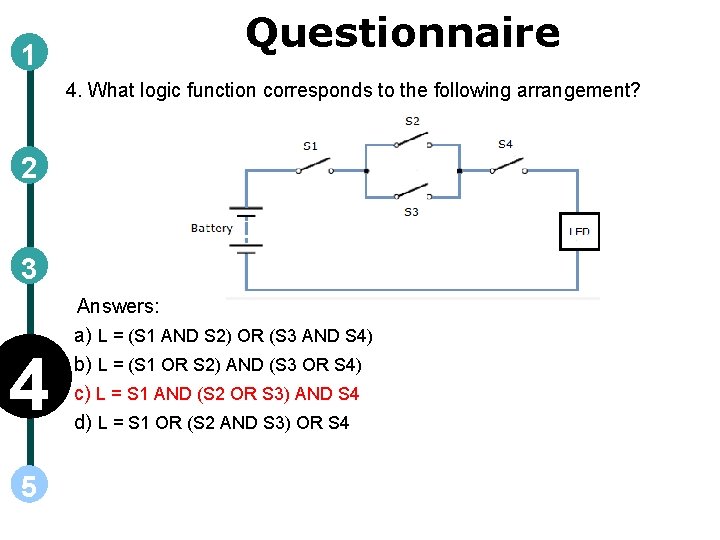
1 Questionnaire 4. What logic function corresponds to the following arrangement? 2 3 4 5 Answers: a) L = (S 1 AND S 2) OR (S 3 AND S 4) b) L = (S 1 OR S 2) AND (S 3 OR S 4) c) L = S 1 AND (S 2 OR S 3) AND S 4 d) L = S 1 OR (S 2 AND S 3) OR S 4
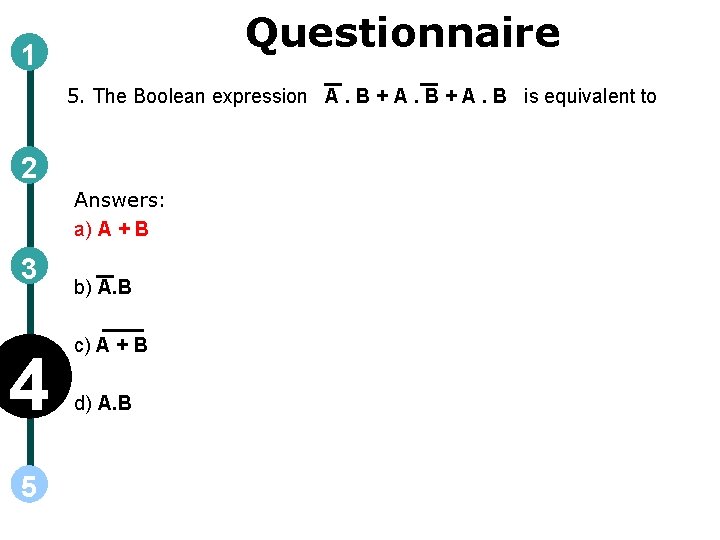
Questionnaire 1 5. The Boolean expression A. B + A. B is equivalent to 2 Answers: a) A + B 3 4 5 b) A. B c) A + B d) A. B
Links for further reading Reference websites: http: //en. wikipedia. org/wiki/Logic_gate http: //www. wisc-online. com/Objects/View. Object. aspx? ID=dig 1302 http: //www. mekanizmalar. com/logic_gates. html http: //www. williamson-labs. com/480_logic. htm http: //isweb. redwoods. cc. ca. us/instruct/calderwoodd/diglogic/ http: //www. w 3 professors. com/Pages/Courses/DCLD/Digital-Circuits-and-Logic. Designs. html http: //homepages. inf. ed. ac. uk/rbf/HIPR 2/arthops. htm Books: Digital Systems: Principles and Applications by Ronald-J. -Tocci
- Slides: 123