
Locating Editing Using Diagrams in Your Science Lesson


- Slides: 40
Locating, Editing, & Using Diagrams in Your Science Lesson Gary Carlin, CFN 603 gcarlin@schools. nyc. gov 917 -714 -7448
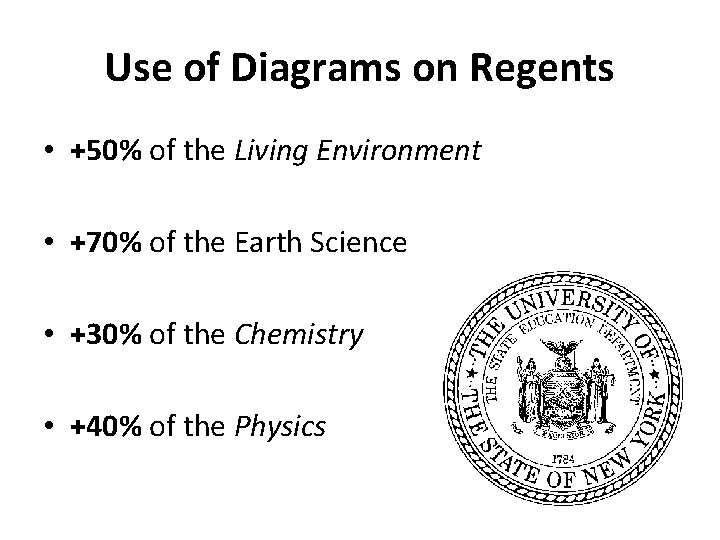
Use of Diagrams on Regents • +50% of the Living Environment • +70% of the Earth Science • +30% of the Chemistry • +40% of the Physics
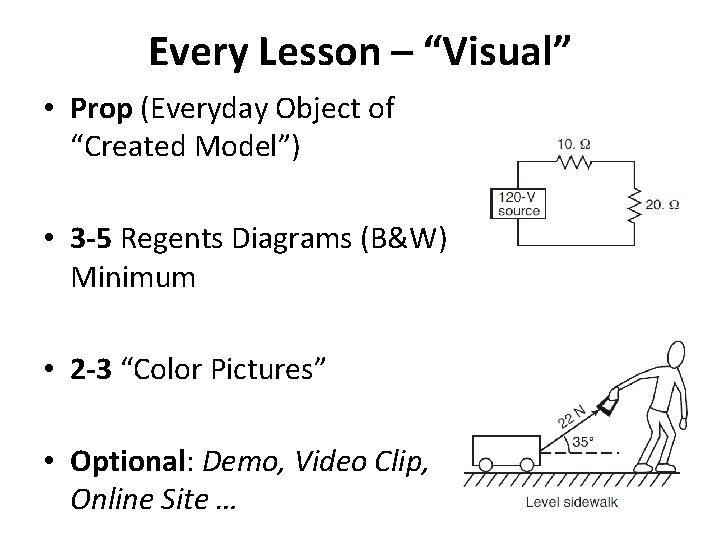
Every Lesson – “Visual” • Prop (Everyday Object of “Created Model”) • 3 -5 Regents Diagrams (B&W) Minimum • 2 -3 “Color Pictures” • Optional: Demo, Video Clip, Online Site …
B&W Regents Diagrams • From previous Regents Examinations • Must Identify “Type of Diagram” • Type of Diagram determines the Processing • Processing: specific series of STEPS
Color Pictures/Diagrams • Color Pictures come after B&W • Tell a “Story” • Fill-in Details and Provide Greater Depth • Make Real World Connections (Modeling)
Finding Your B&W Diagrams • WWW. NYSED. GOV • Click “Index A-Z” select Click on “[R]” • Click on “Regents Examinations and Tests” • Click on “Regents and RCTs” • Click on “Past Regents Examinations” (gray box) • Select: “Chemistry, ES, LE, or Physics”
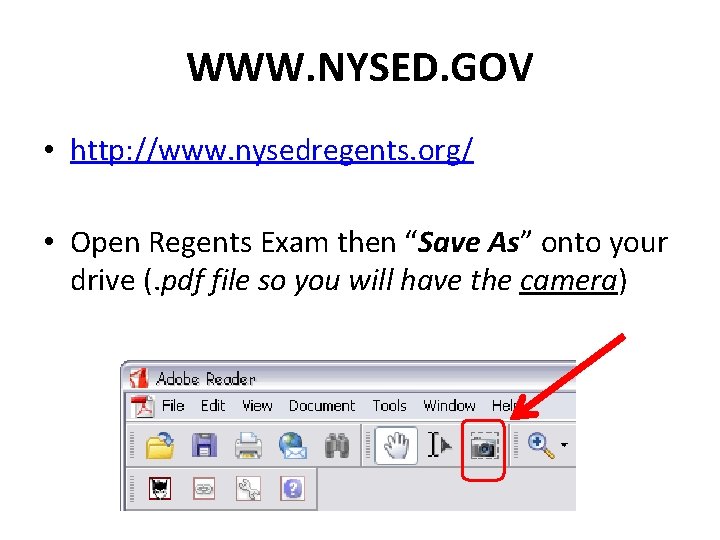
WWW. NYSED. GOV • http: //www. nysedregents. org/ • Open Regents Exam then “Save As” onto your drive (. pdf file so you will have the camera)
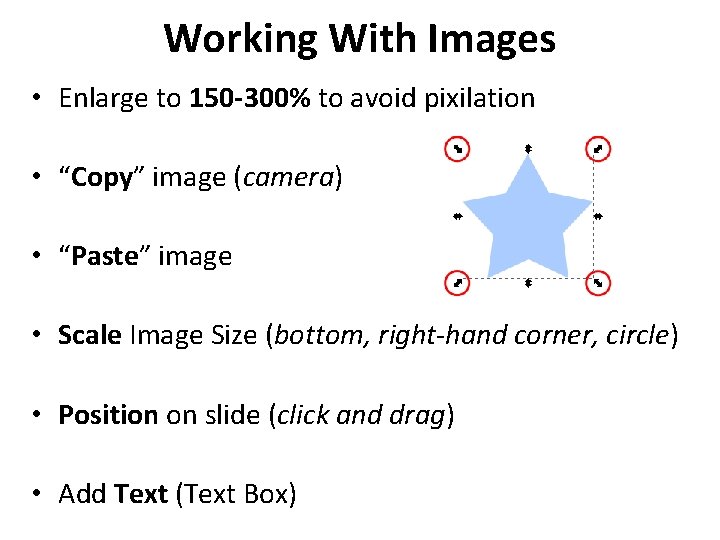
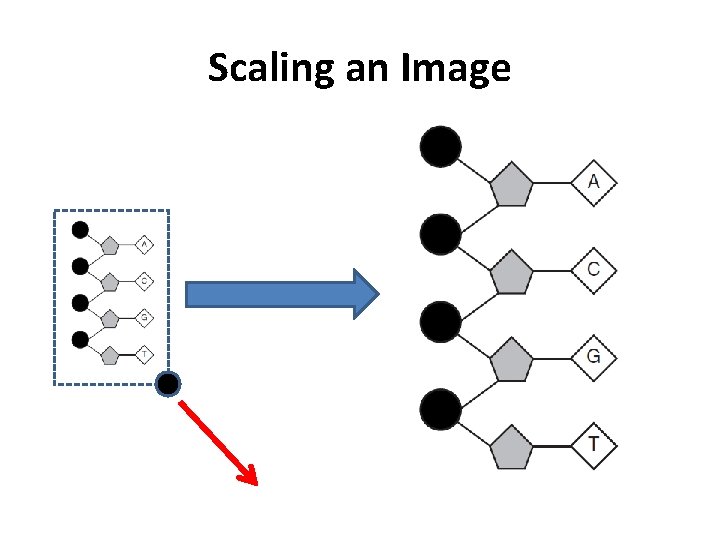
Working With Images • Enlarge to 150 -300% to avoid pixilation • “Copy” image (camera) • “Paste” image • Scale Image Size (bottom, right-hand corner, circle) • Position on slide (click and drag) • Add Text (Text Box)
Scaling an Image
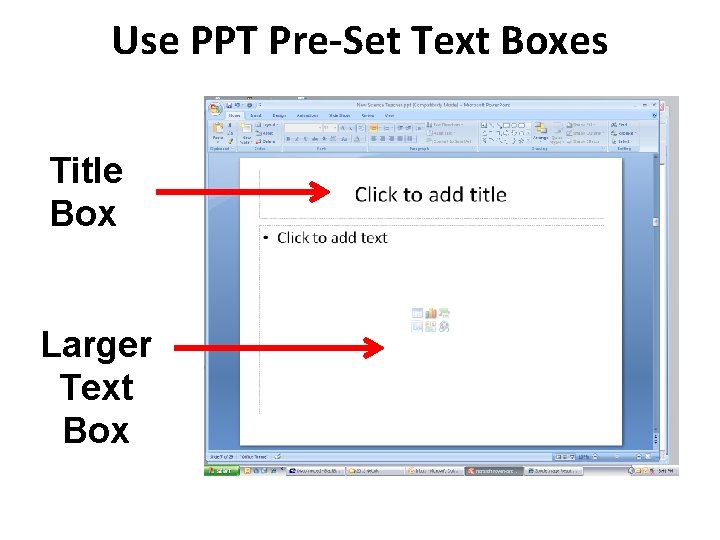
Use PPT Pre-Set Text Boxes Title Box Larger Text Box
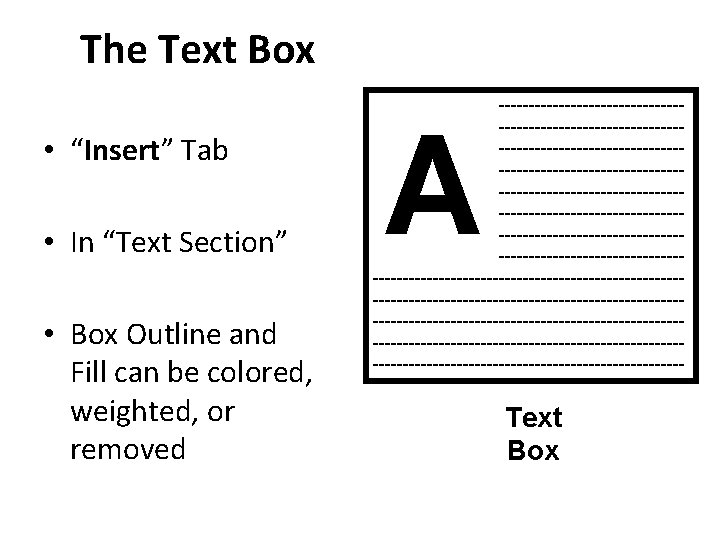
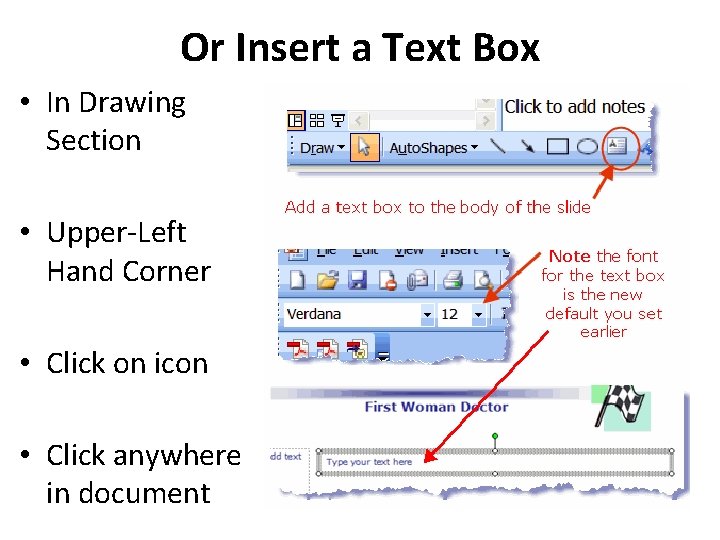
Or Insert a Text Box • In Drawing Section • Upper-Left Hand Corner • Click on icon • Click anywhere in document
Add Arrows/Shapes
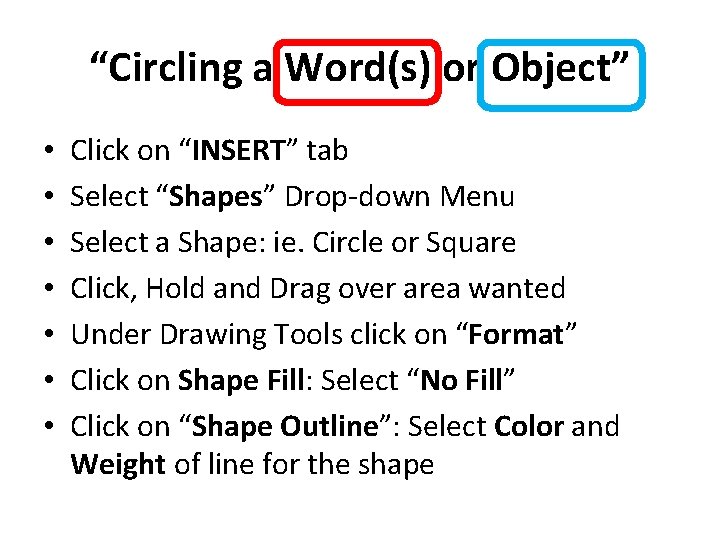
“Circling a Word(s) or Object” • • Click on “INSERT” tab Select “Shapes” Drop-down Menu Select a Shape: ie. Circle or Square Click, Hold and Drag over area wanted Under Drawing Tools click on “Format” Click on Shape Fill: Select “No Fill” Click on “Shape Outline”: Select Color and Weight of line for the shape
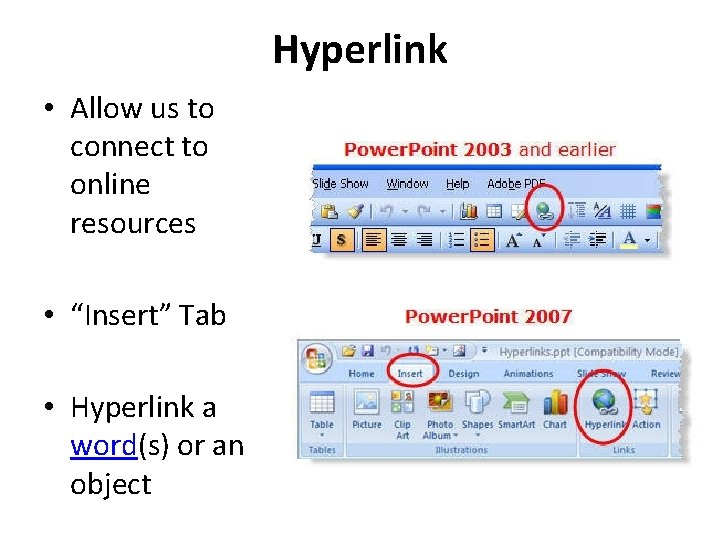
Hyperlink • Allow us to connect to online resources • “Insert” Tab • Hyperlink a word(s) or an object
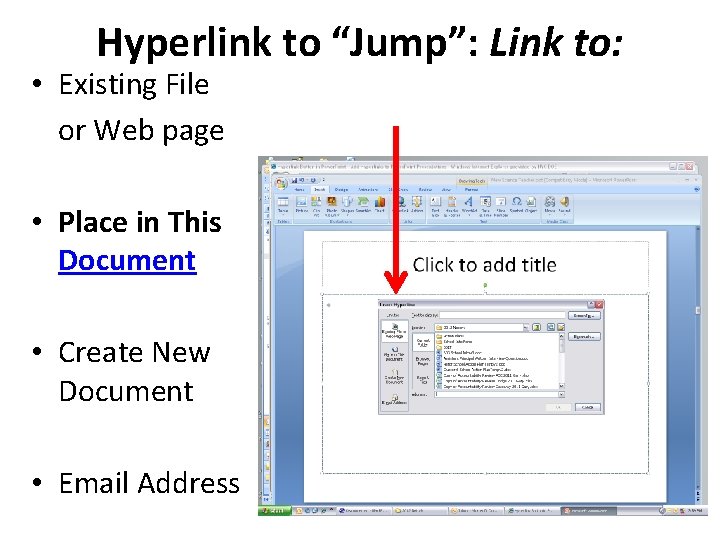
Hyperlink to “Jump”: Link to: • Existing File or Web page • Place in This Document • Create New Document • Email Address
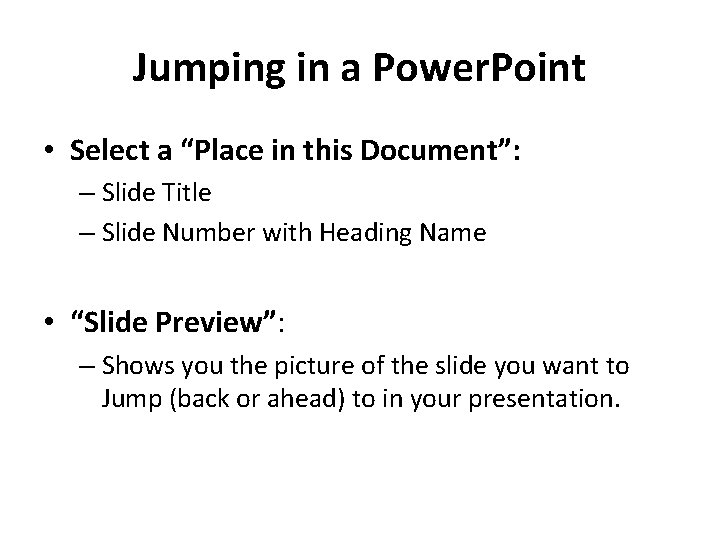
Jumping in a Power. Point • Select a “Place in this Document”: – Slide Title – Slide Number with Heading Name • “Slide Preview”: – Shows you the picture of the slide you want to Jump (back or ahead) to in your presentation.
Diagram Progression • Simple to Complex --- “Up the Ladder” • Allows for easy entry – Start with diagrams that all students to discuss “General, Nonscientific” Observations/Inferences. • Develop consistent Science and non-content vocabulary (description, process, explanation)
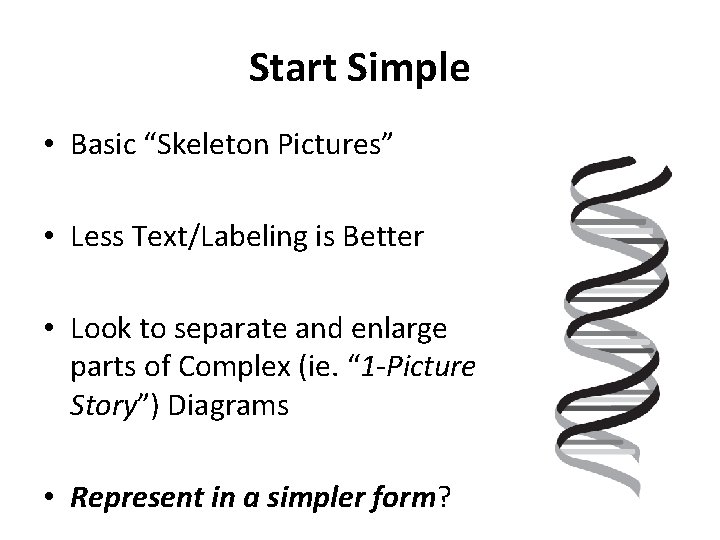
Start Simple • Basic “Skeleton Pictures” • Less Text/Labeling is Better • Look to separate and enlarge parts of Complex (ie. “ 1 -Picture Story”) Diagrams • Represent in a simpler form?
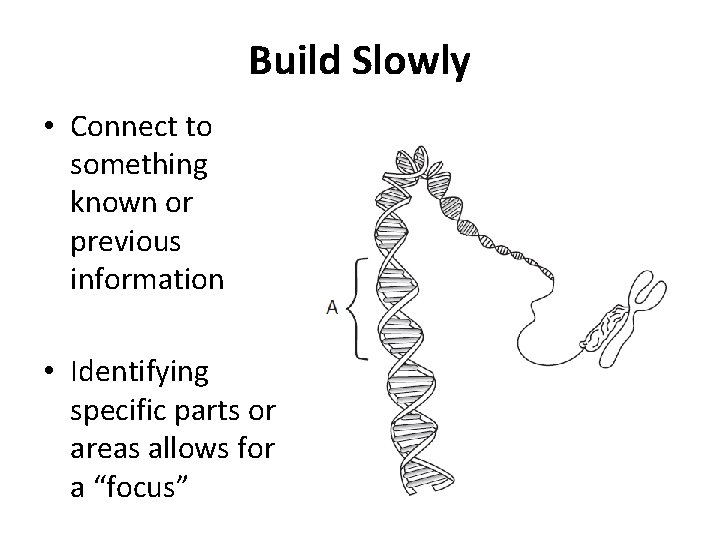
Build Slowly • Connect to something known or previous information • Identifying specific parts or areas allows for a “focus”
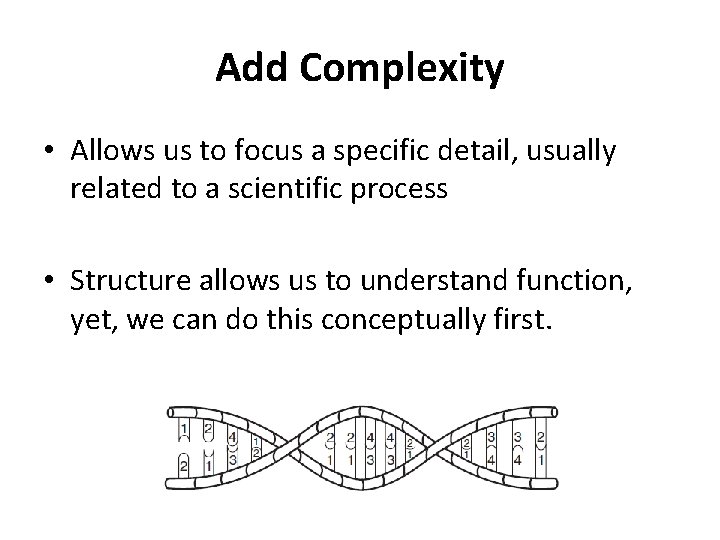
Add Complexity • Allows us to focus a specific detail, usually related to a scientific process • Structure allows us to understand function, yet, we can do this conceptually first.
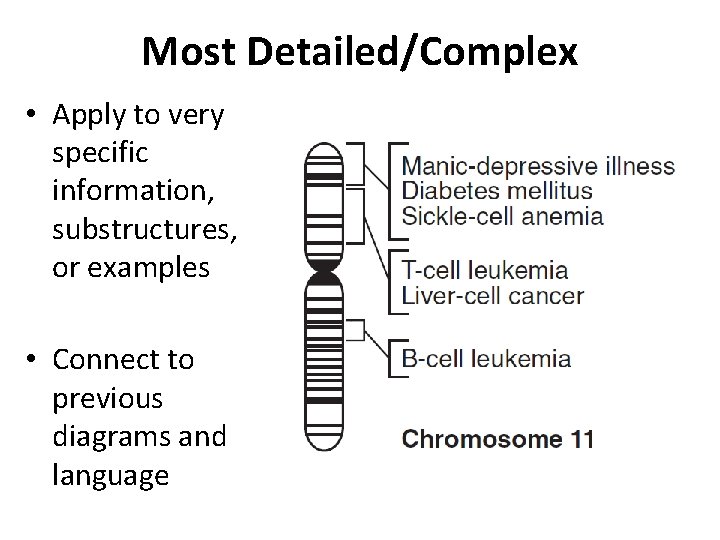
Most Detailed/Complex • Apply to very specific information, substructures, or examples • Connect to previous diagrams and language
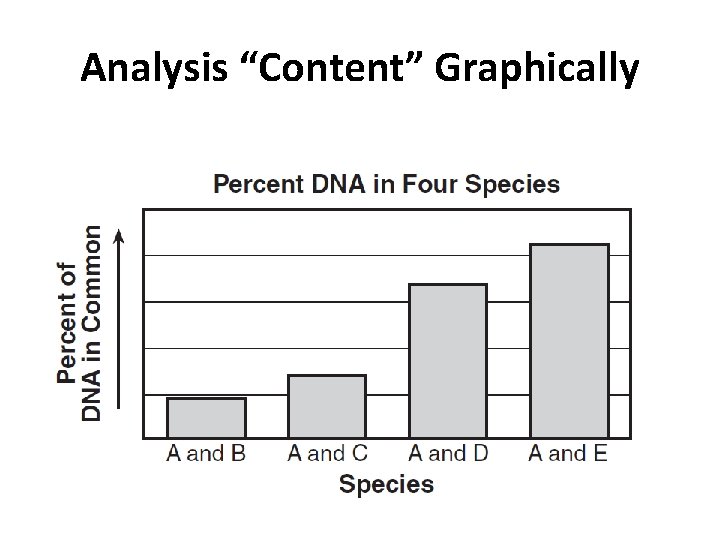
Analysis “Content” Graphically
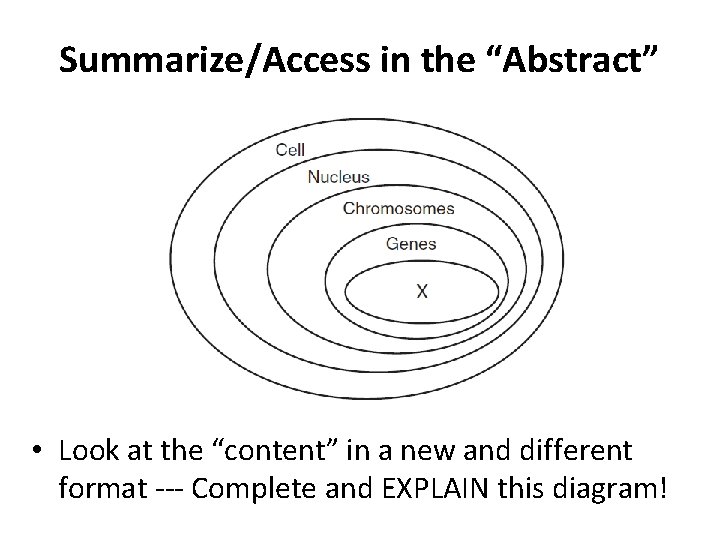
Summarize/Access in the “Abstract” • Look at the “content” in a new and different format --- Complete and EXPLAIN this diagram!
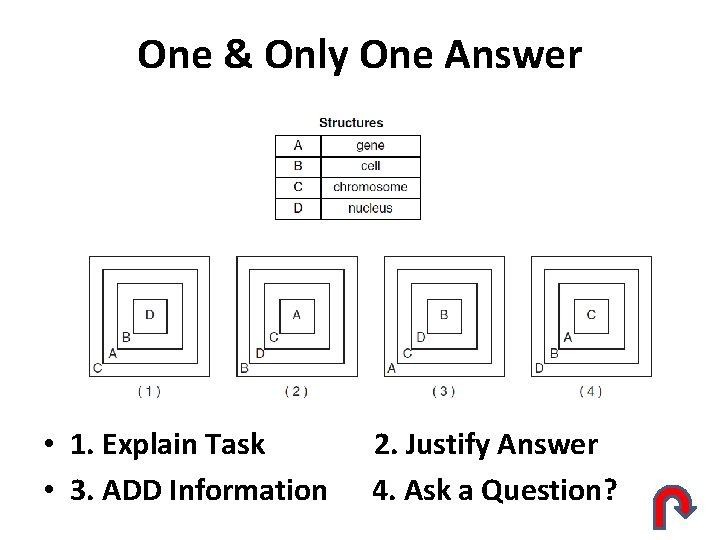
One & Only One Answer • 1. Explain Task • 3. ADD Information 2. Justify Answer 4. Ask a Question?
Test Page for “JUMPING” • Hopefully we “JUMPED” here!!! • If not I’m turning RED with Embarrassment • Now I want to Jump BACK!!!
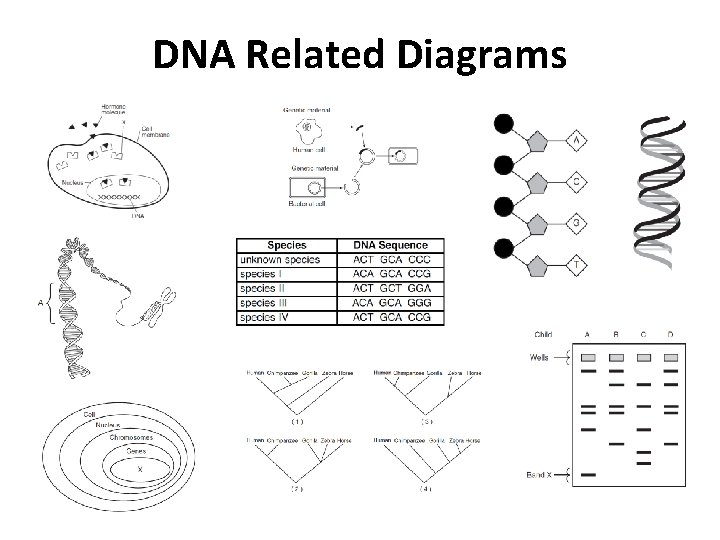
DNA Related Diagrams
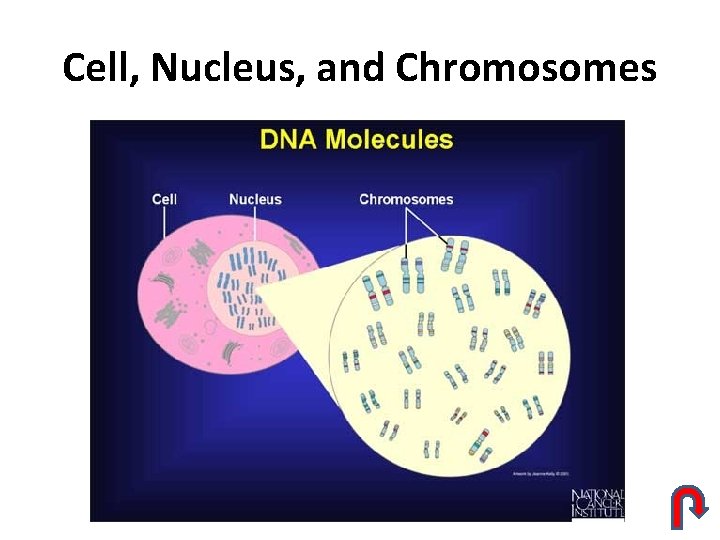
Cell, Nucleus, and Chromosomes
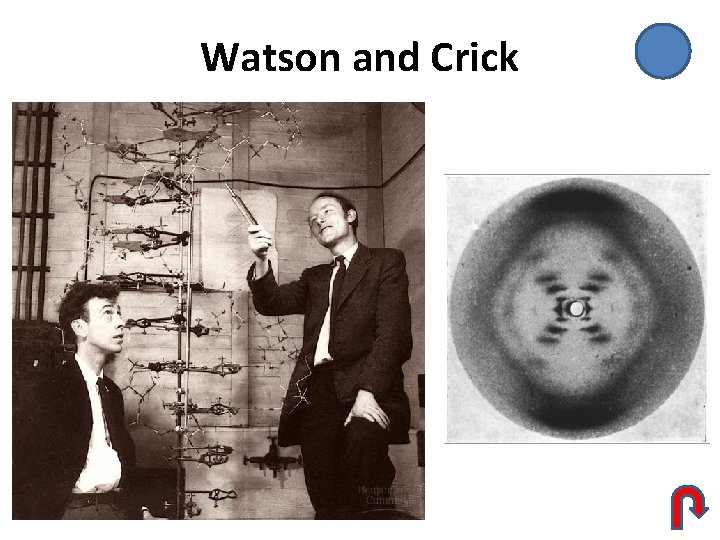
Watson and Crick
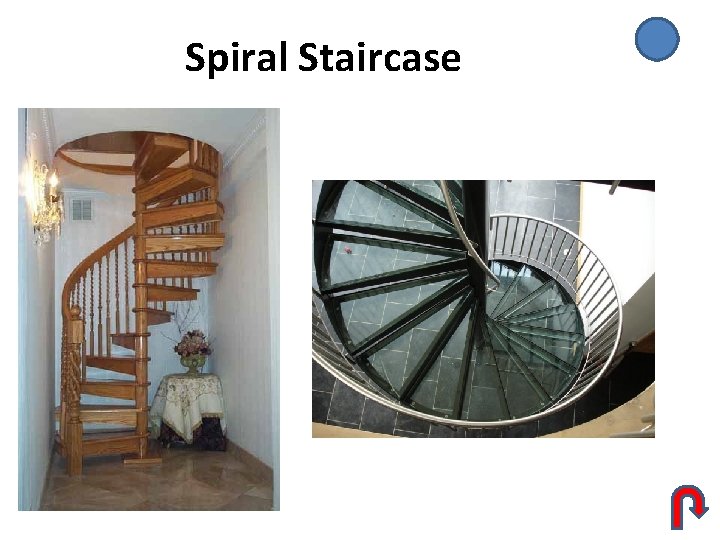
Spiral Staircase
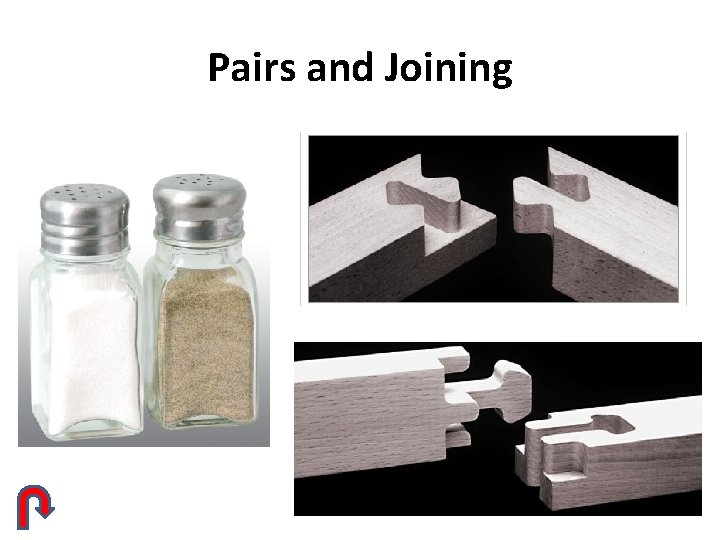
Pairs and Joining
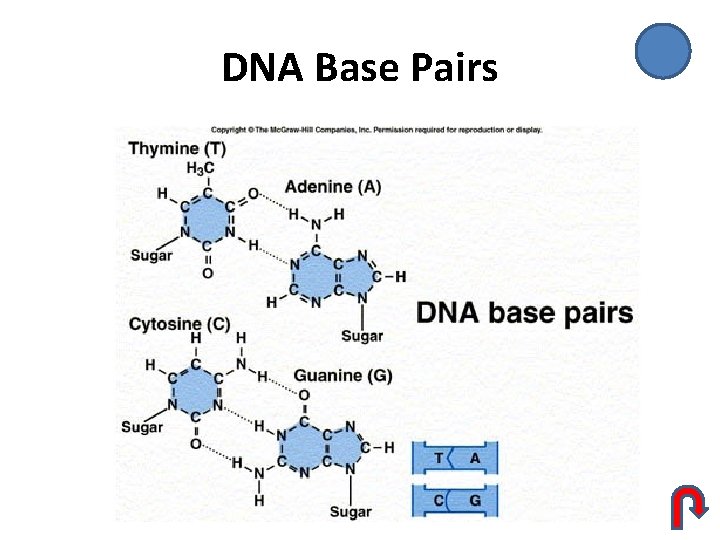
DNA Base Pairs
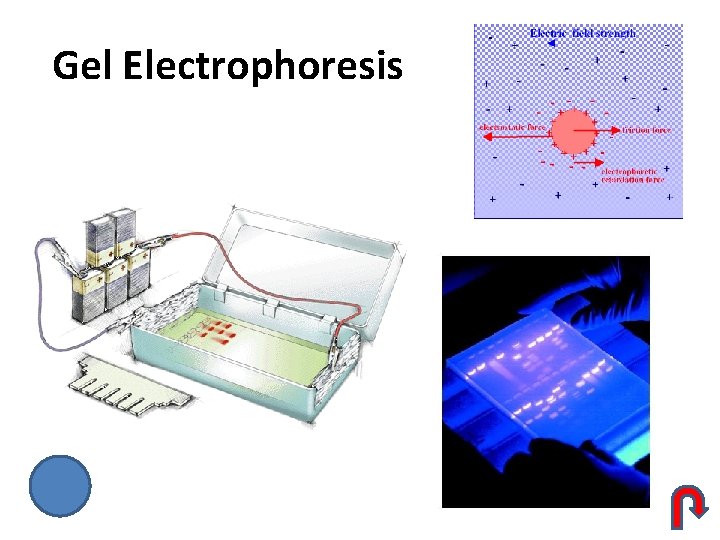
Gel Electrophoresis
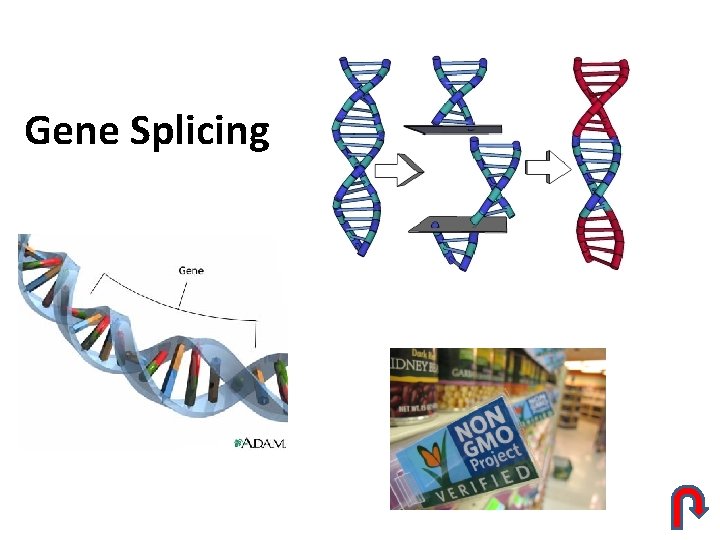
Gene Splicing
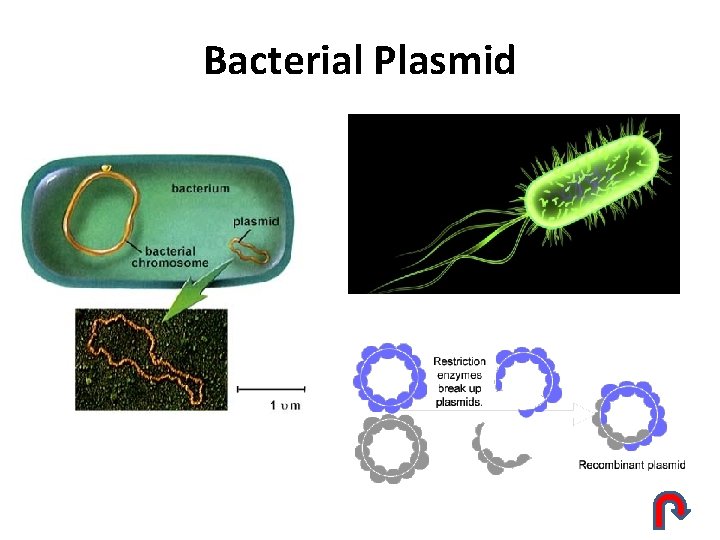
Bacterial Plasmid
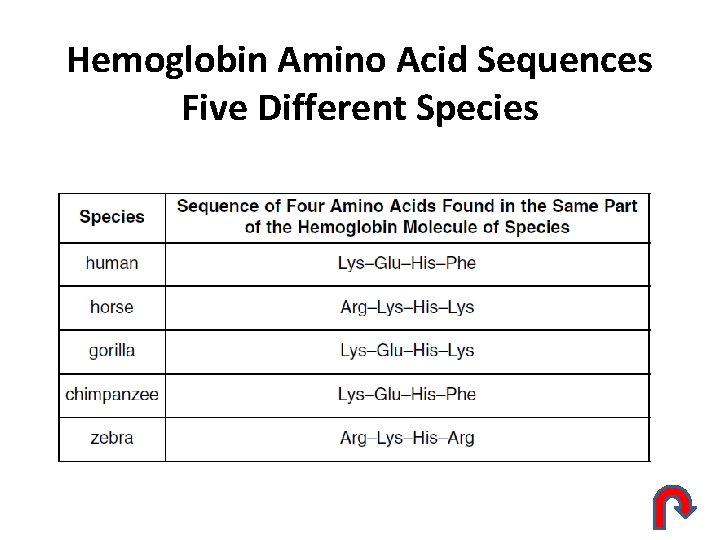
Hemoglobin Amino Acid Sequences Five Different Species
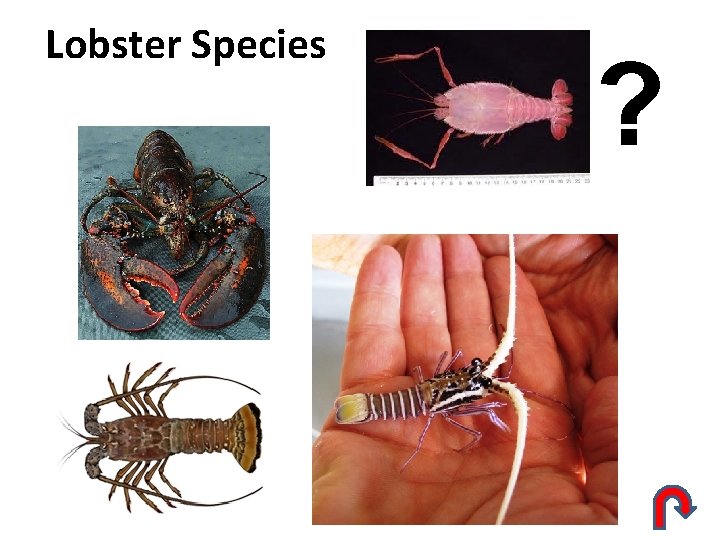
Lobster Species ?
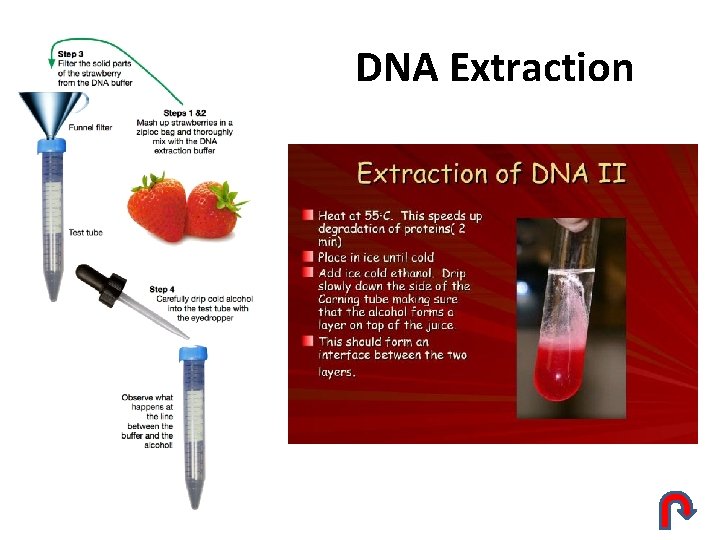
DNA Extraction
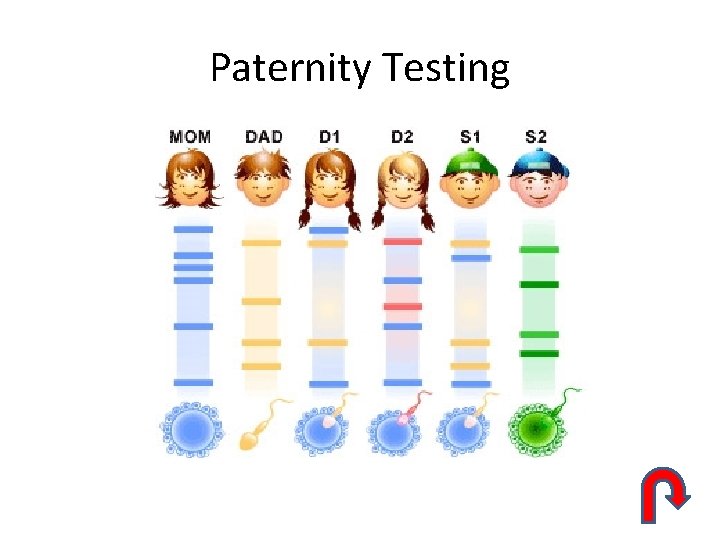
Paternity Testing
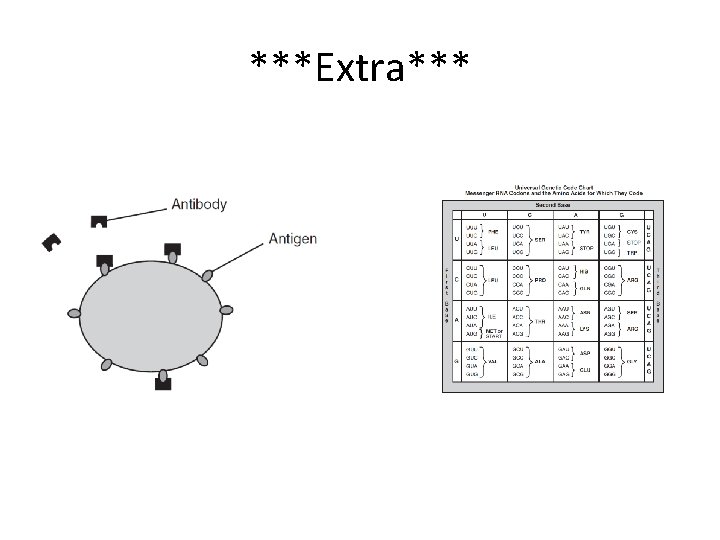
***Extra***