
Loading Transaction Interface Data Concept Loading Transaction Interface

- Slides: 27
Loading Transaction Interface Data Concept
Loading Transaction Interface Data
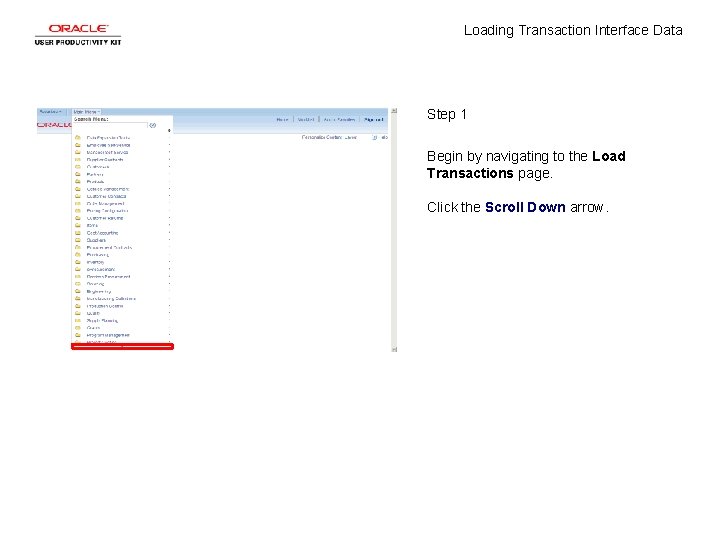
Loading Transaction Interface Data Step 1 Begin by navigating to the Load Transactions page. Click the Scroll Down arrow.
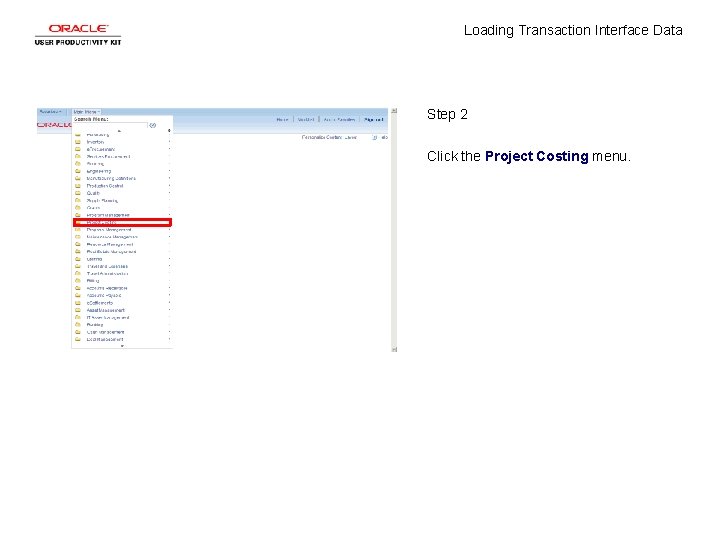
Loading Transaction Interface Data Step 2 Click the Project Costing menu.
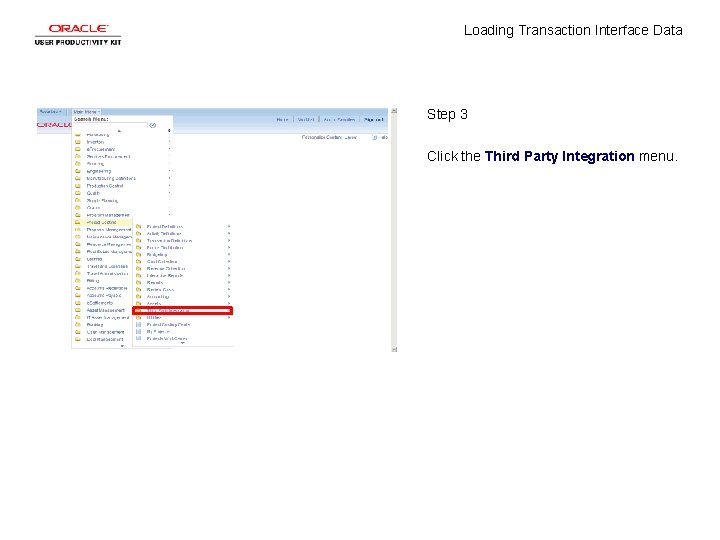
Loading Transaction Interface Data Step 3 Click the Third Party Integration menu.
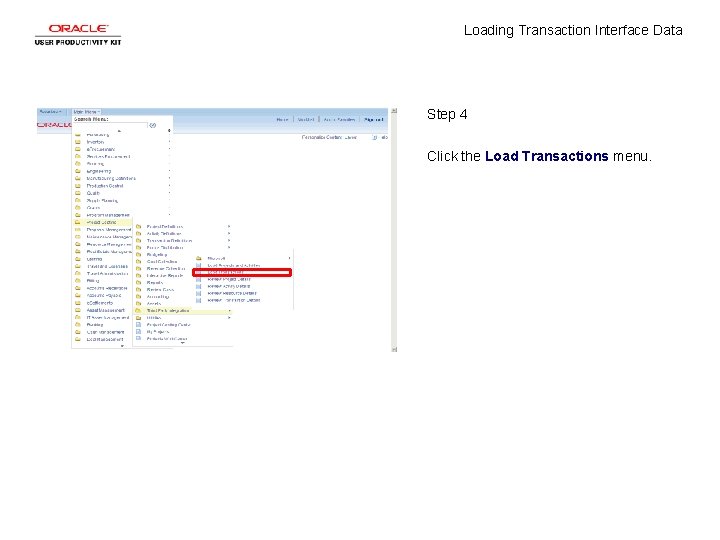
Loading Transaction Interface Data Step 4 Click the Load Transactions menu.
Loading Transaction Interface Data Step 5 You can run this process by searching for an existing Run Control ID or you can add a new value. Creating a Run Control ID that is relevant to the process may help you remember it for future use. Click the Add a New Value tab.
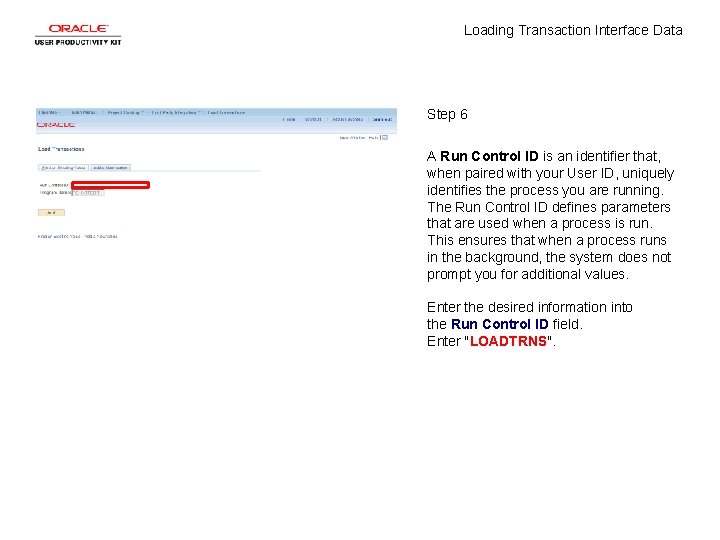
Loading Transaction Interface Data Step 6 A Run Control ID is an identifier that, when paired with your User ID, uniquely identifies the process you are running. The Run Control ID defines parameters that are used when a process is run. This ensures that when a process runs in the background, the system does not prompt you for additional values. Enter the desired information into the Run Control ID field. Enter "LOADTRNS".
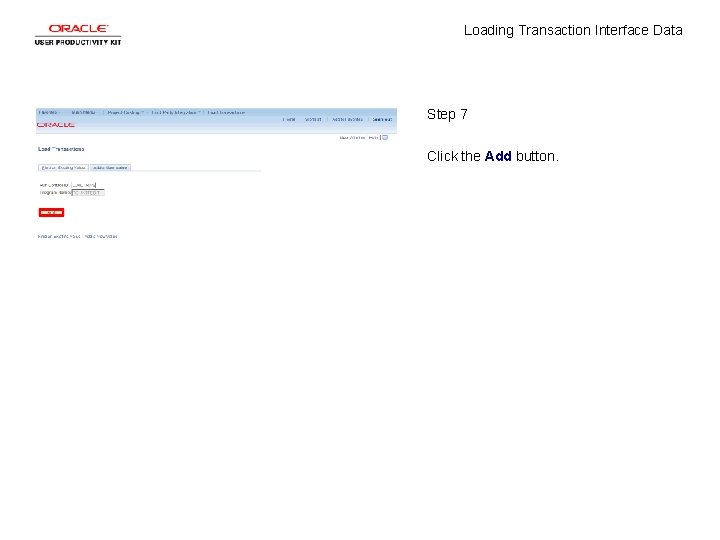
Loading Transaction Interface Data Step 7 Click the Add button.
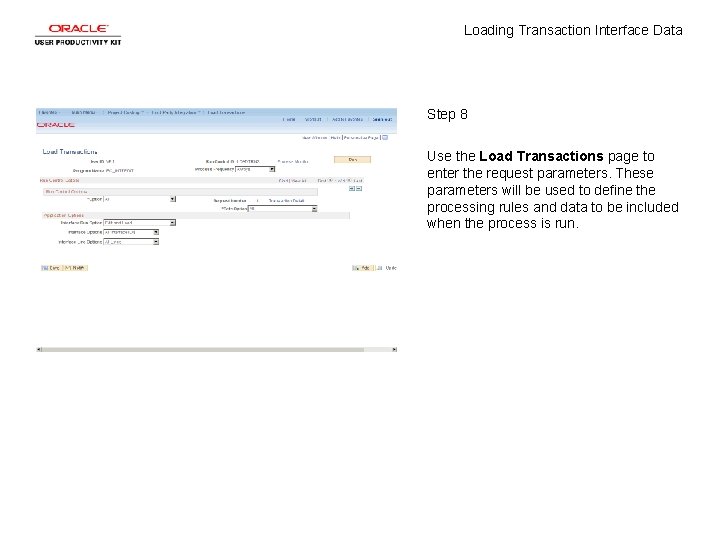
Loading Transaction Interface Data Step 8 Use the Load Transactions page to enter the request parameters. These parameters will be used to define the processing rules and data to be included when the process is run.
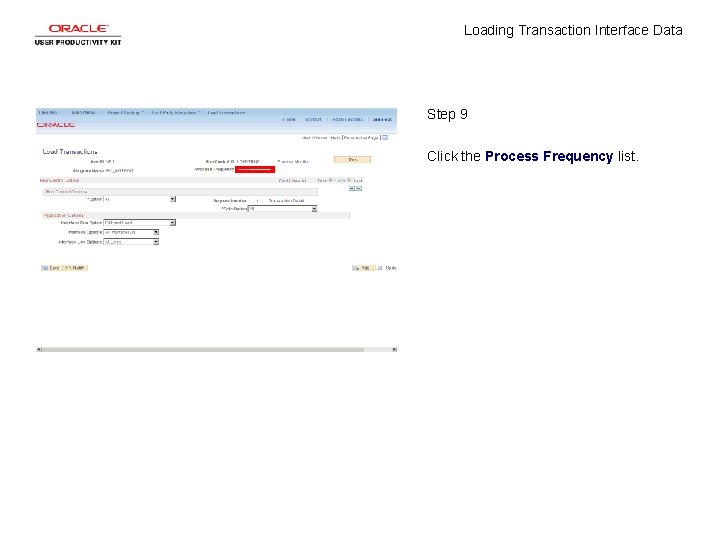
Loading Transaction Interface Data Step 9 Click the Process Frequency list.
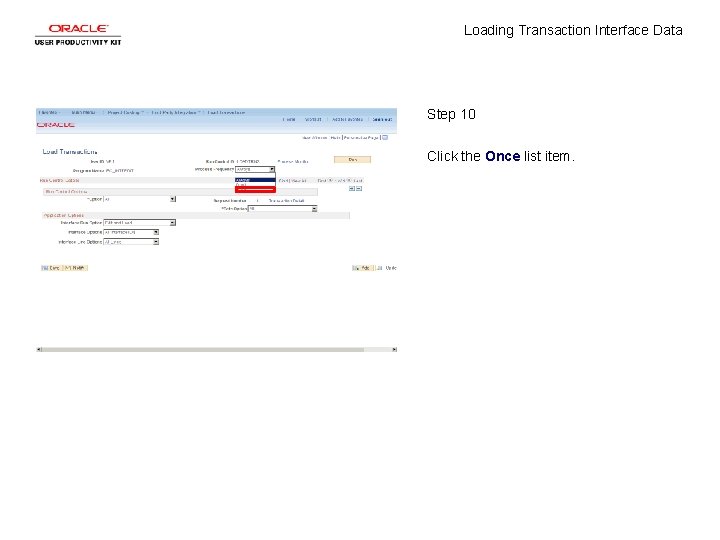
Loading Transaction Interface Data Step 10 Click the Once list item.
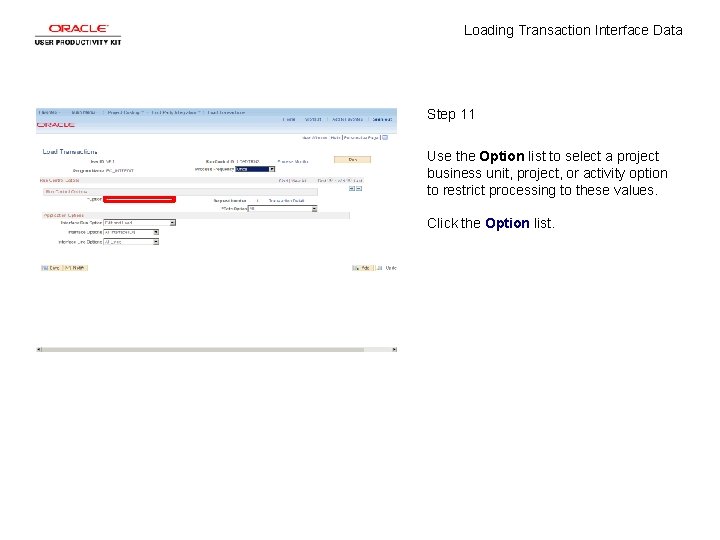
Loading Transaction Interface Data Step 11 Use the Option list to select a project business unit, project, or activity option to restrict processing to these values. Click the Option list.
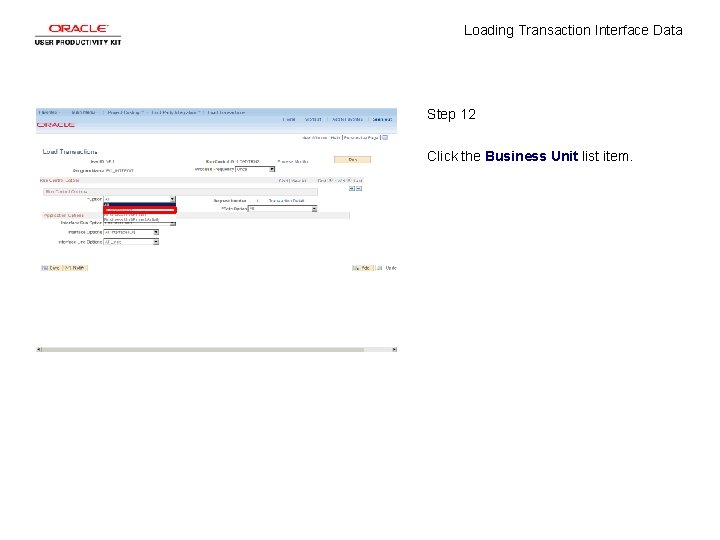
Loading Transaction Interface Data Step 12 Click the Business Unit list item.
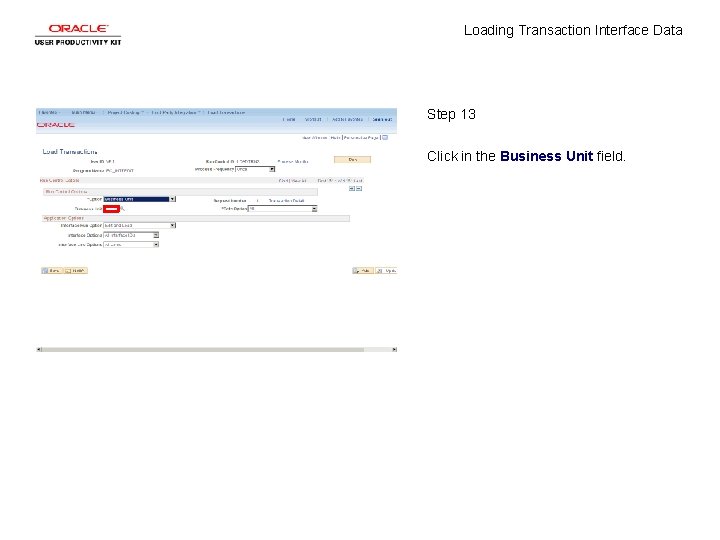
Loading Transaction Interface Data Step 13 Click in the Business Unit field.
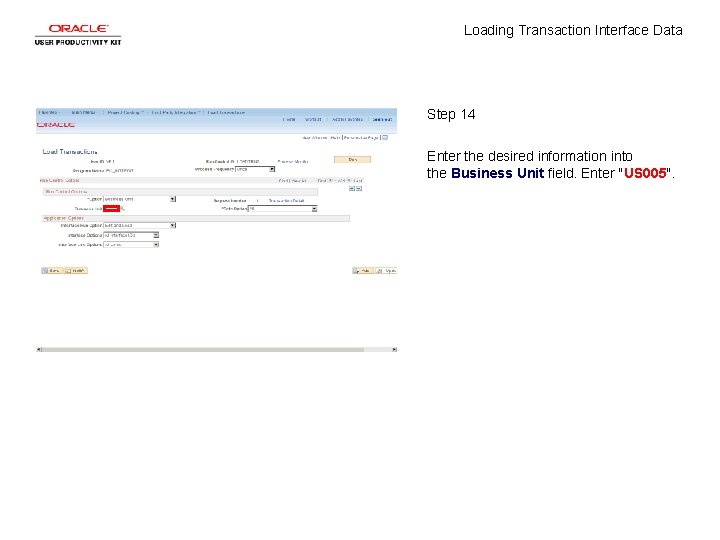
Loading Transaction Interface Data Step 14 Enter the desired information into the Business Unit field. Enter "US 005".
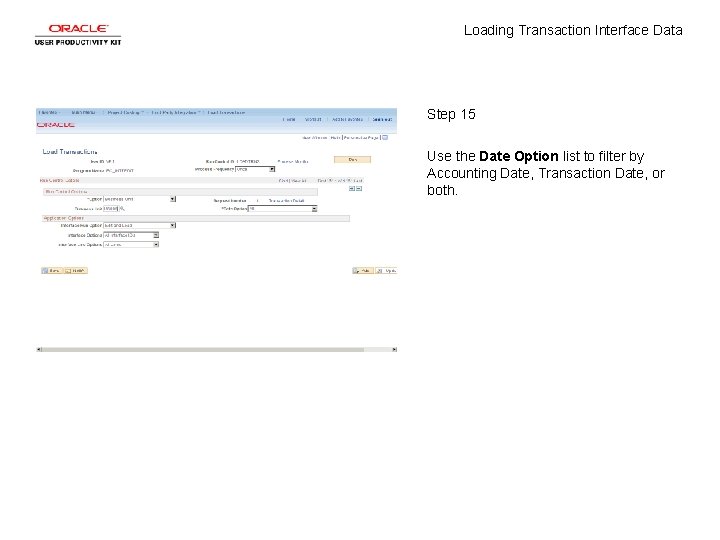
Loading Transaction Interface Data Step 15 Use the Date Option list to filter by Accounting Date, Transaction Date, or both.
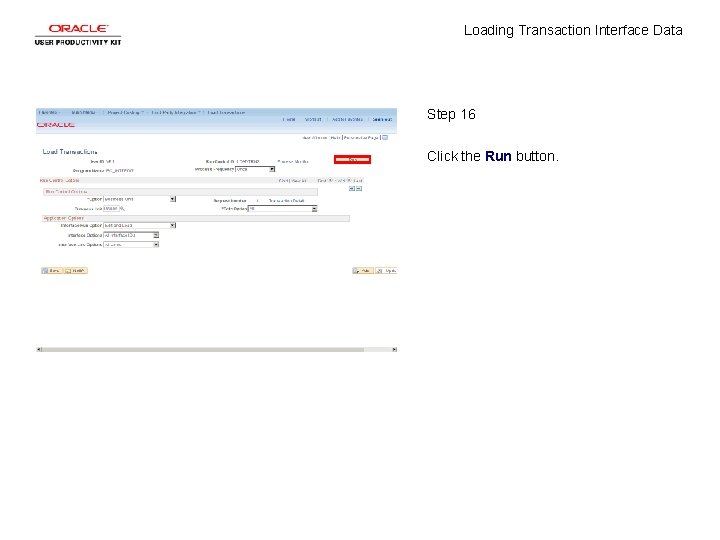
Loading Transaction Interface Data Step 16 Click the Run button.
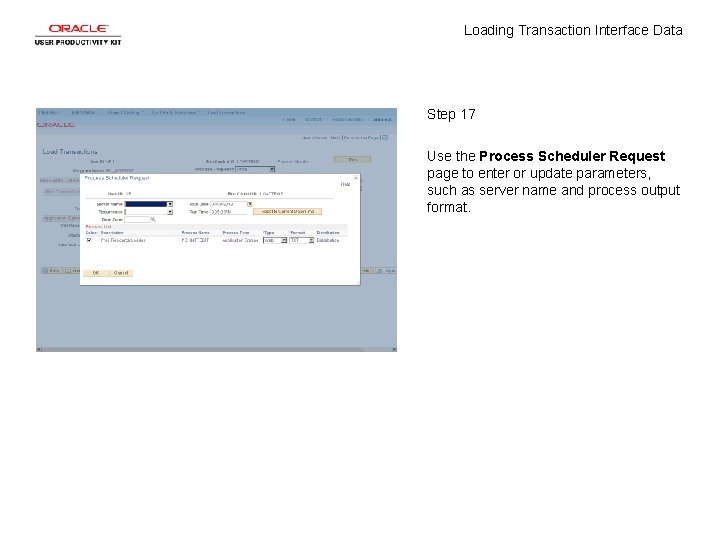
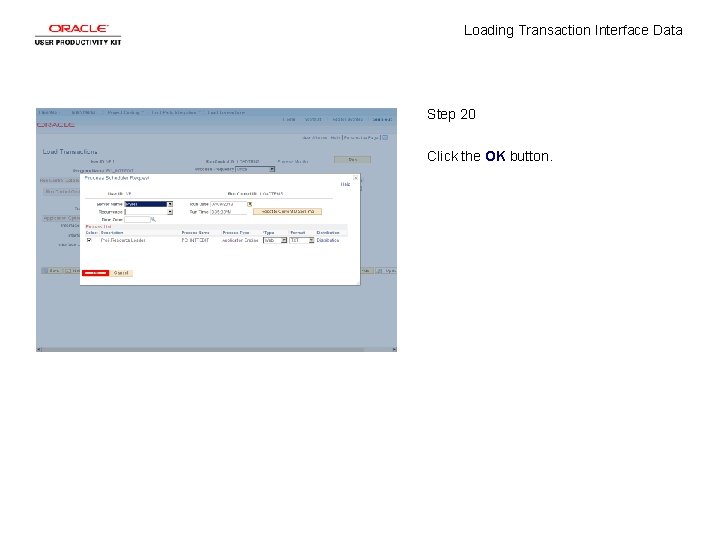
Loading Transaction Interface Data Step 17 Use the Process Scheduler Request page to enter or update parameters, such as server name and process output format.
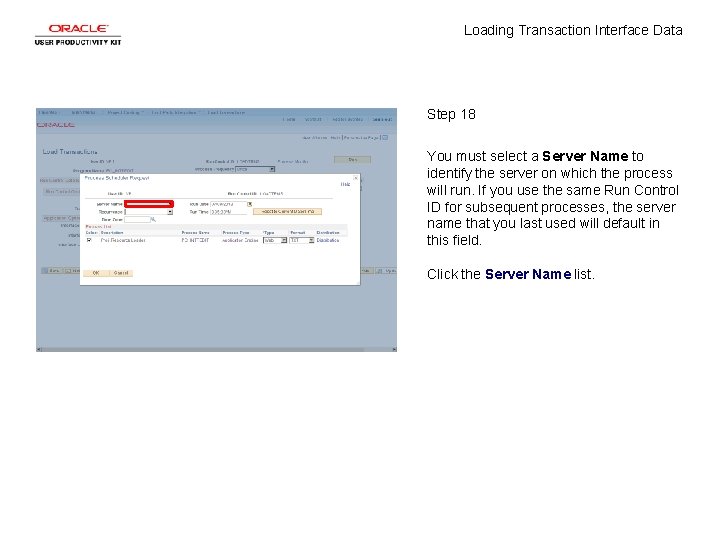
Loading Transaction Interface Data Step 18 You must select a Server Name to identify the server on which the process will run. If you use the same Run Control ID for subsequent processes, the server name that you last used will default in this field. Click the Server Name list.
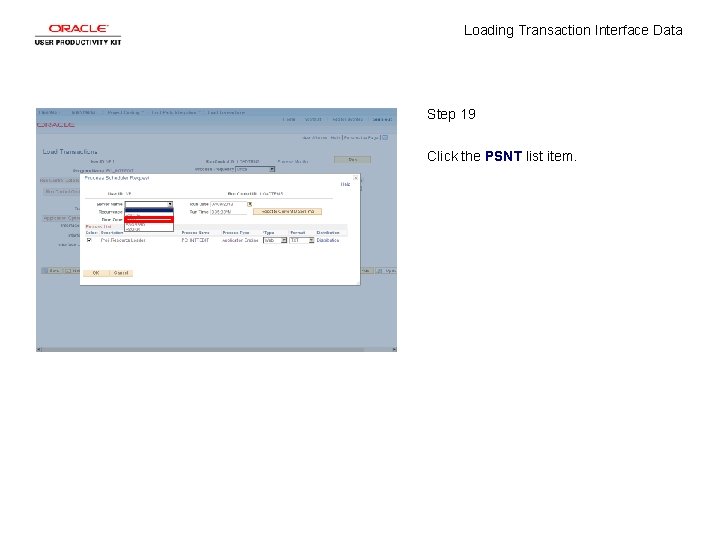
Loading Transaction Interface Data Step 19 Click the PSNT list item.
Loading Transaction Interface Data Step 20 Click the OK button.
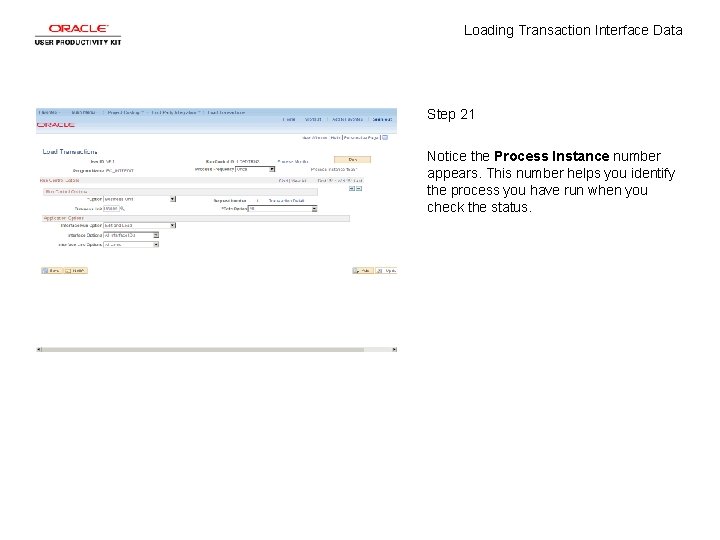
Loading Transaction Interface Data Step 21 Notice the Process Instance number appears. This number helps you identify the process you have run when you check the status.
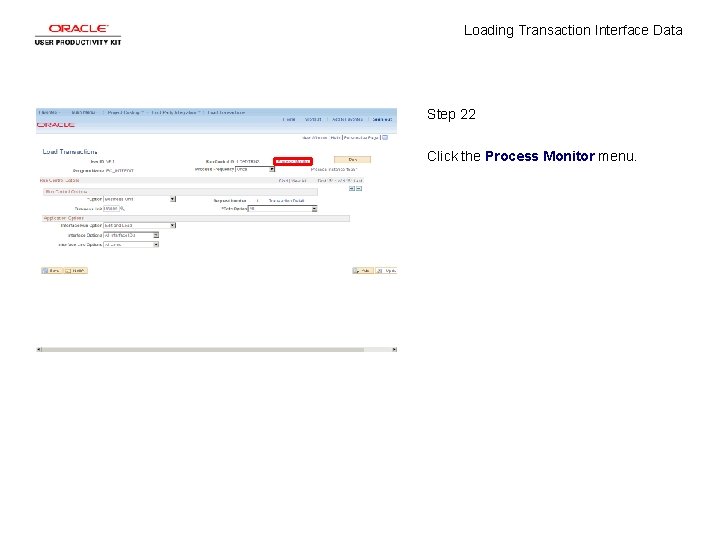
Loading Transaction Interface Data Step 22 Click the Process Monitor menu.
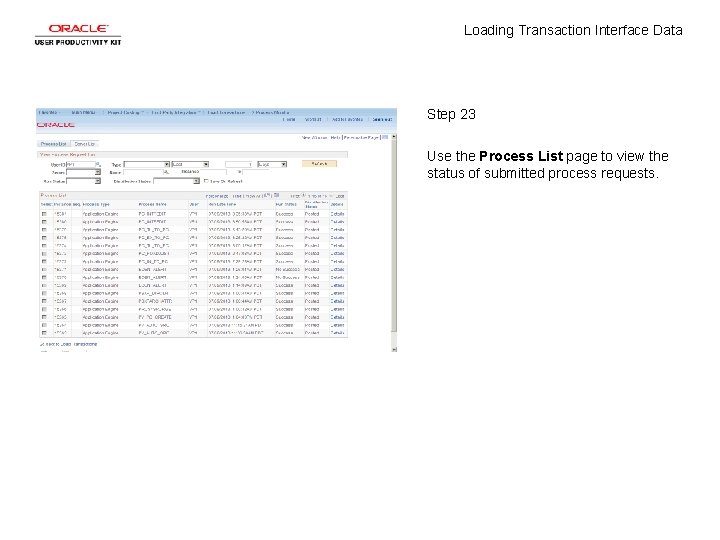
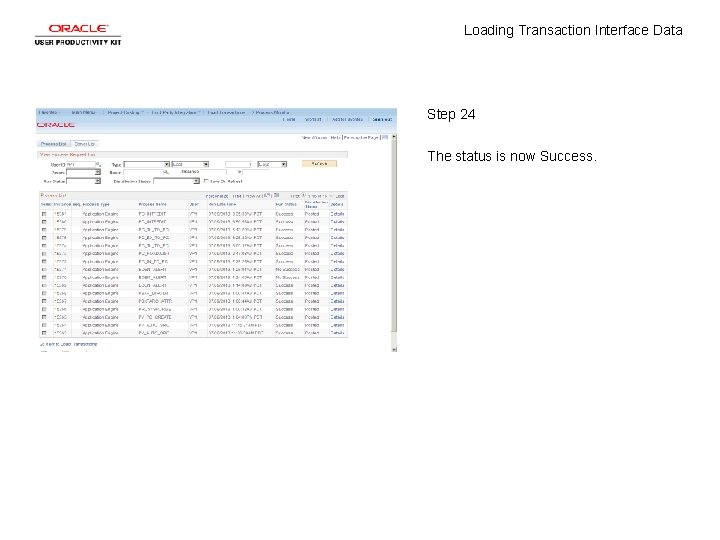
Loading Transaction Interface Data Step 23 Use the Process List page to view the status of submitted process requests.
Loading Transaction Interface Data Step 24 The status is now Success.
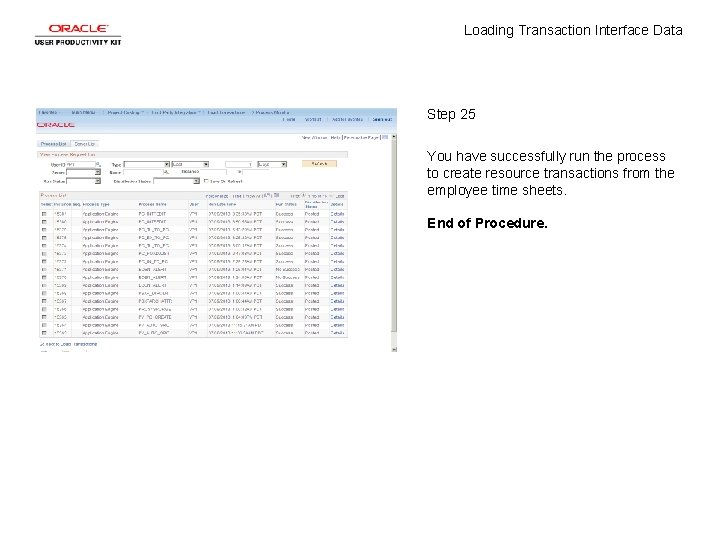
Loading Transaction Interface Data Step 25 You have successfully run the process to create resource transactions from the employee time sheets. End of Procedure.