
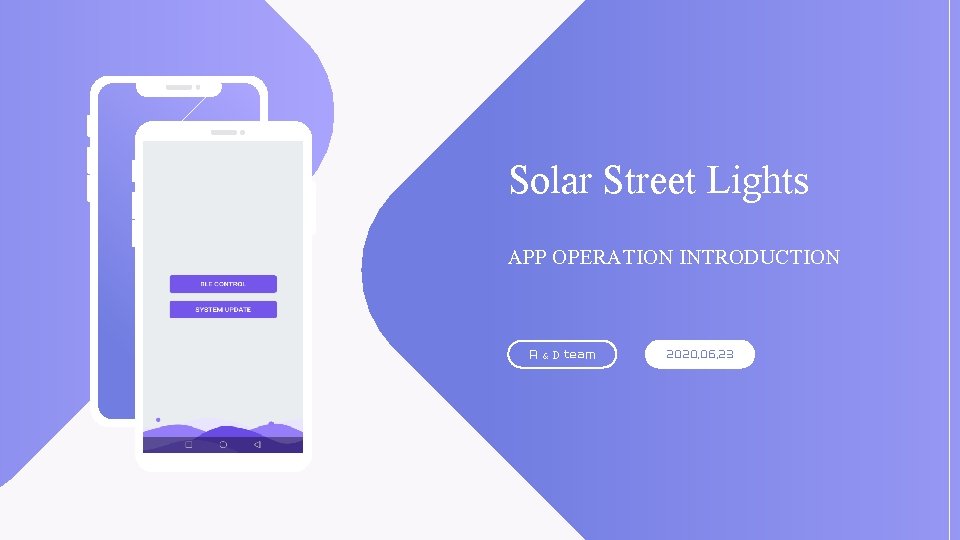
LO GO Solar Street Lights APP OPERATION INTRODUCTION
- Slides: 30
LO GO Solar Street Lights APP OPERATION INTRODUCTION 请输入公司名称 The company name R & D team 2020. 06. 23
CATALOG 01 02 03 APP APP Overview Product Function New Function
PART ONE APP Overview
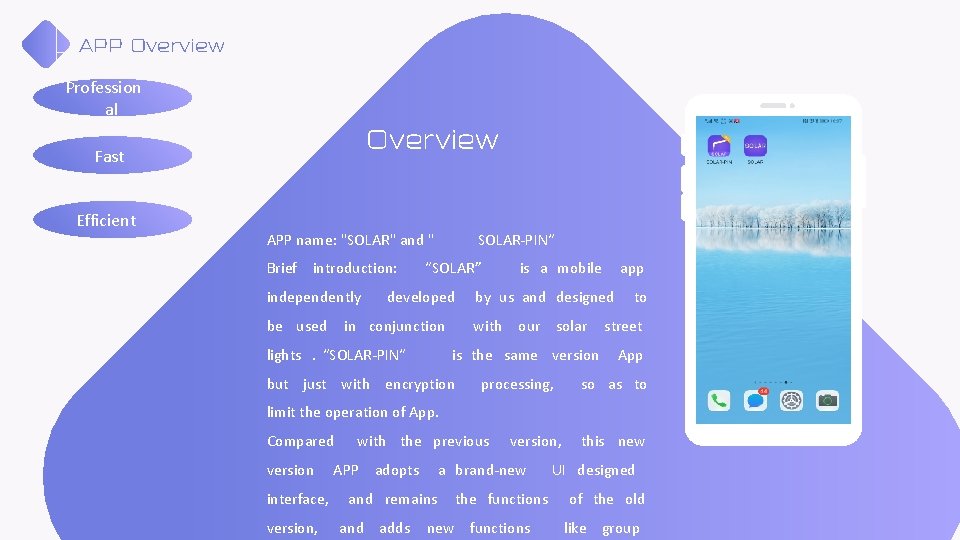
APP Overview Profession al Overview Fast Efficient APP name: "SOLAR" and " Brief introduction: independently be used SOLAR-PIN“ “SOLAR” developed in conjunction lights. “SOLAR-PIN“ is a mobile by us and designed with our solar is the same version but just with encryption app processing, to street App so as to limit the operation of App. Compared version interface, version, with the previous APP adopts a brand-new and remains and adds version, the functions new functions this new UI designed of the old like group
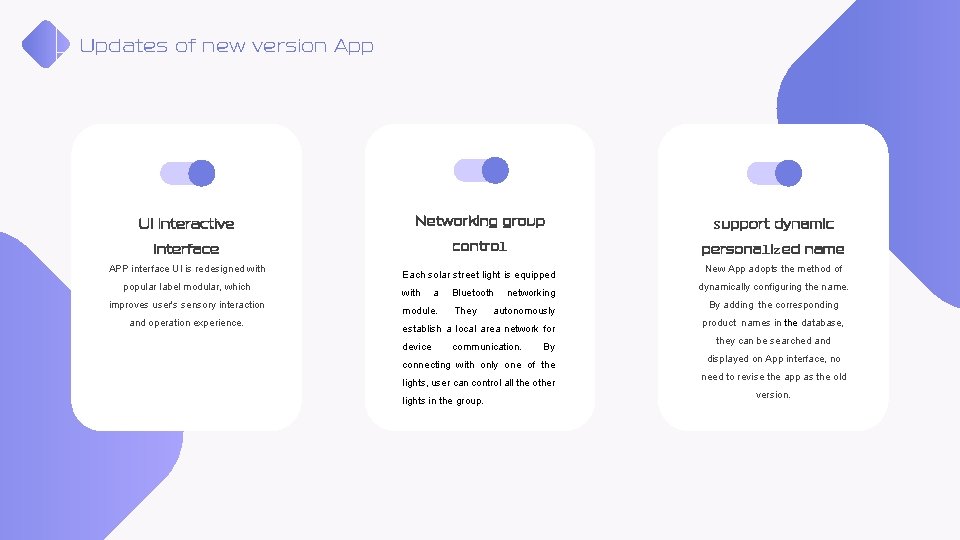
Updates of new version App UI interactive Networking group Support dynamic interface control personalized name APP interface UI is redesigned with popular label modular, which improves user's sensory interaction and operation experience. Each solar street light is equipped with a module. Bluetooth They networking autonomously establish a local area network for device communication. By connecting with only one of the lights, user can control all the other lights in the group. New App adopts the method of dynamically configuring the name. By adding the corresponding product names in the database, they can be searched and displayed on App interface, no need to revise the app as the old version.
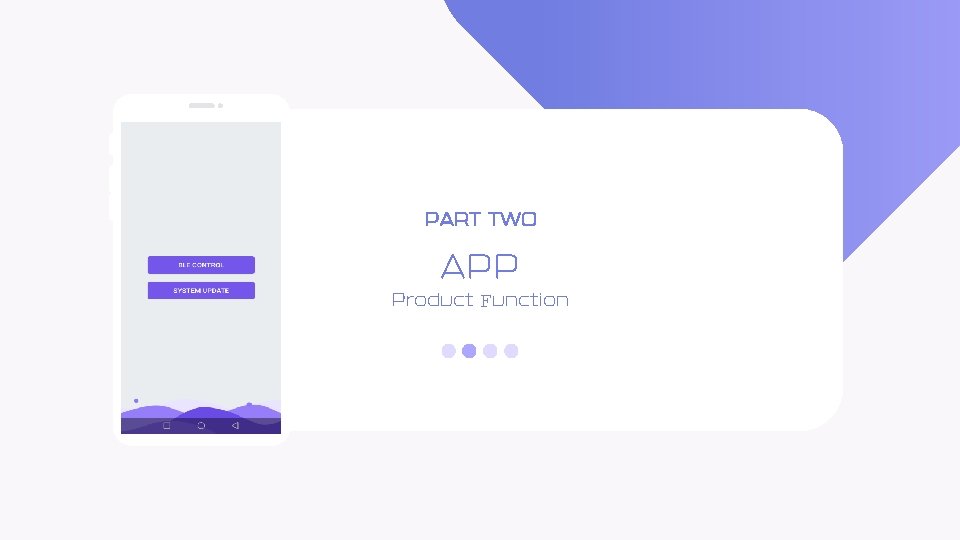
PART TWO APP Product Function
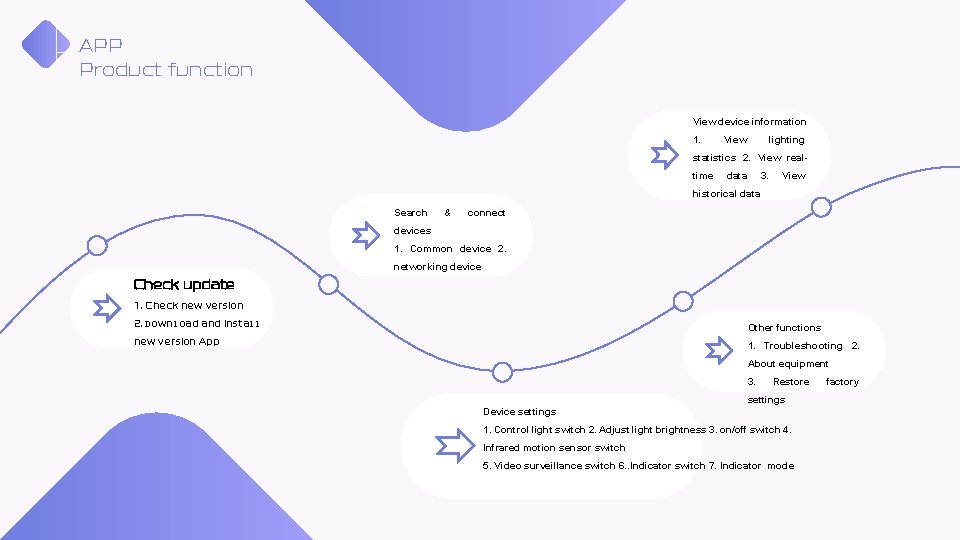
APP Product function View device information 1. View lighting statistics 2. View realtime data 3. View historical data Search & connect devices 1. Common device 2. networking device Check update 1. Check new version 2. Download and install Other functions new version App 1. Troubleshooting 2. About equipment 3. Restore settings Device settings 1. Control light switch 2. Adjust light brightness 3. on/off switch 4. Infrared motion sensor switch 5. Video surveillance switch 6. . Indicator switch 7. Indicator mode factory
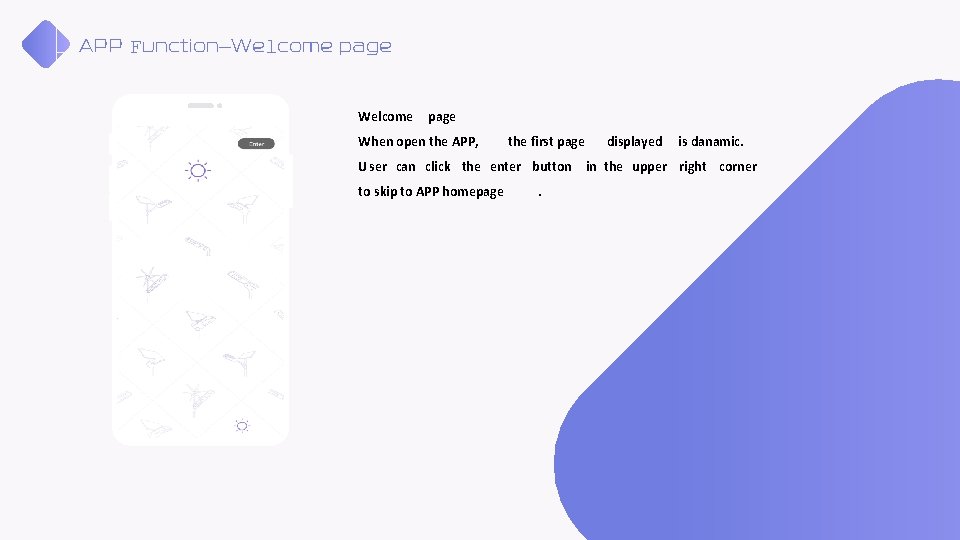
APP Function—Welcome page When open the APP, the first page displayed is danamic. U ser can click the enter button in the upper right corner to skip to APP homepage .
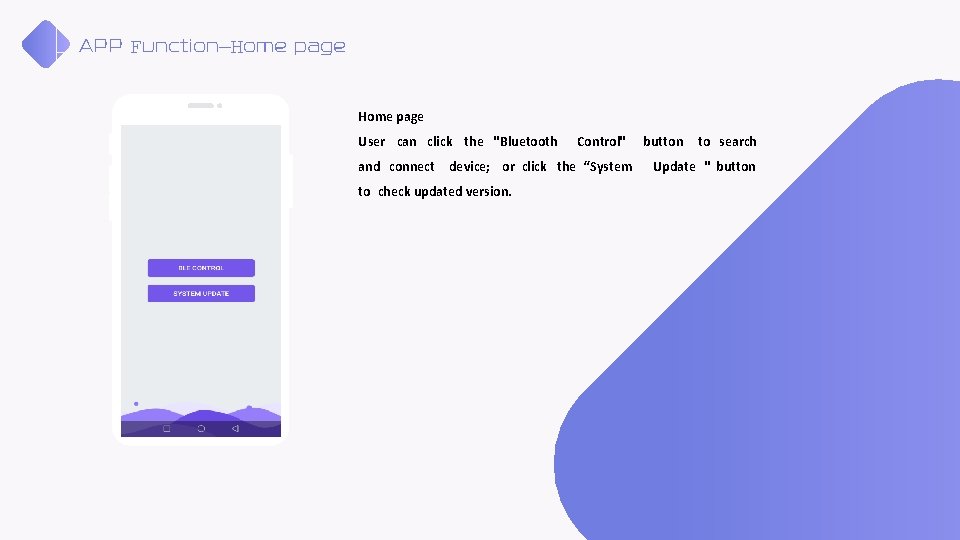
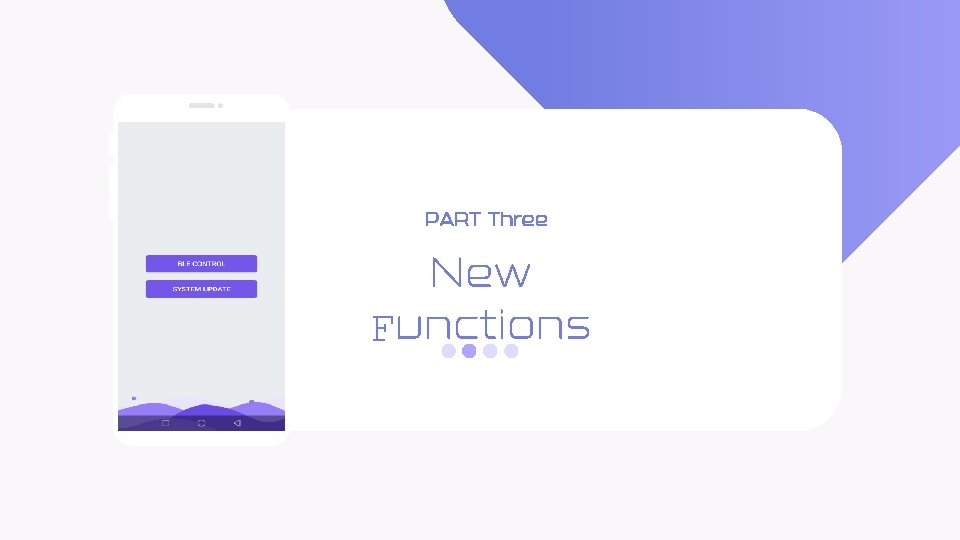
APP Function—Home page User can click the "Bluetooth Control" and connect device; or click the “System to check updated version. button to search Update " button
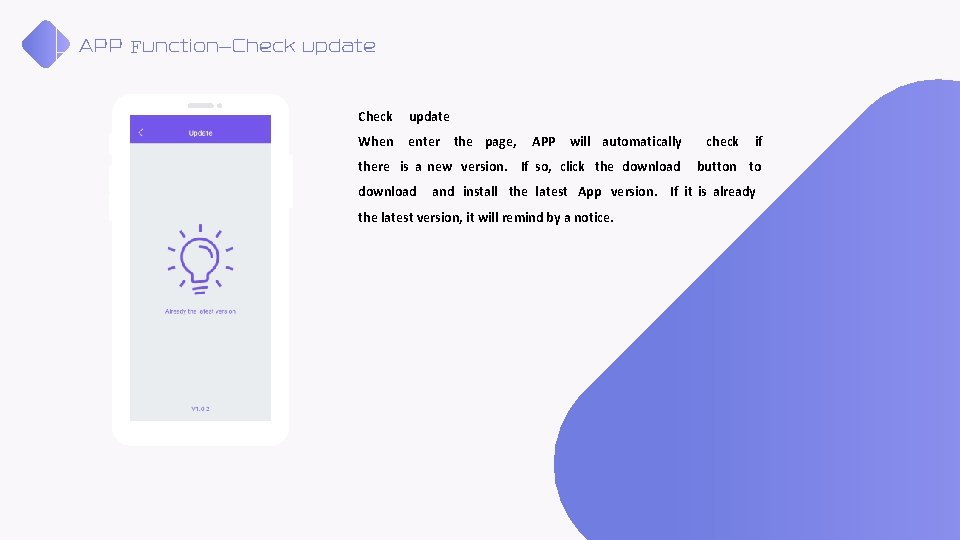
APP Function—Check update When enter the page, APP will automatically there is a new version. If so, click the download check if button to and install the latest App version. If it is already the latest version, it will remind by a notice.
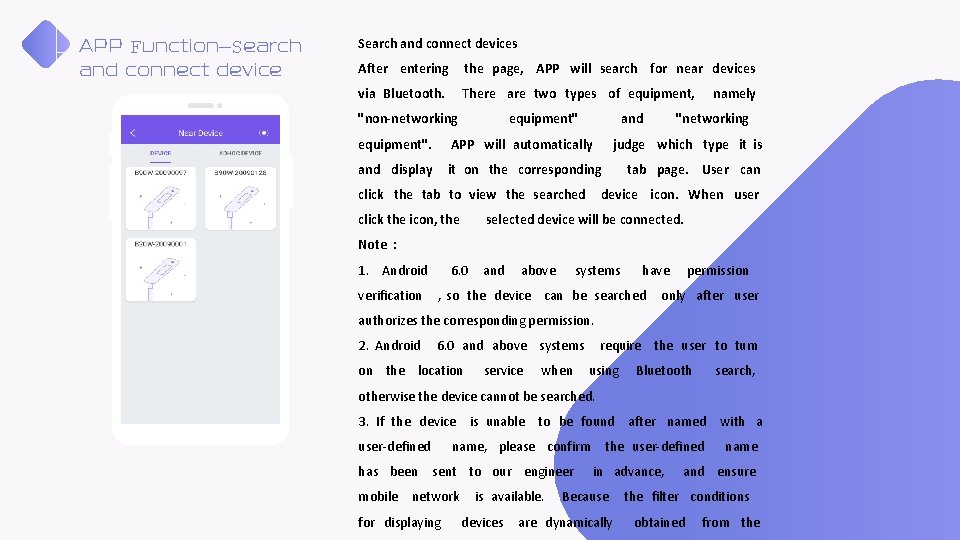
APP Function—Search and connect devices After entering the page, APP will search for near devices via Bluetooth. There are two types of equipment, "non-networking equipment" and equipment". APP will automatically and display it on the corresponding "networking judge which type it is click the tab to view the searched click the icon, the namely tab page. User can device icon. When user selected device will be connected. Note : 1. Android verification 6. 0 and above systems have , so the device can be searched permission only after user authorizes the corresponding permission. 2. Android 6. 0 and above systems on the location service when require the user to turn using Bluetooth search, otherwise the device cannot be searched. 3. If the device is unable to be found after named with a user-defined name, please confirm has been sent to our engineer mobile network for displaying is available. devices the user-defined in advance, Because are dynamically name and ensure the filter conditions obtained from the
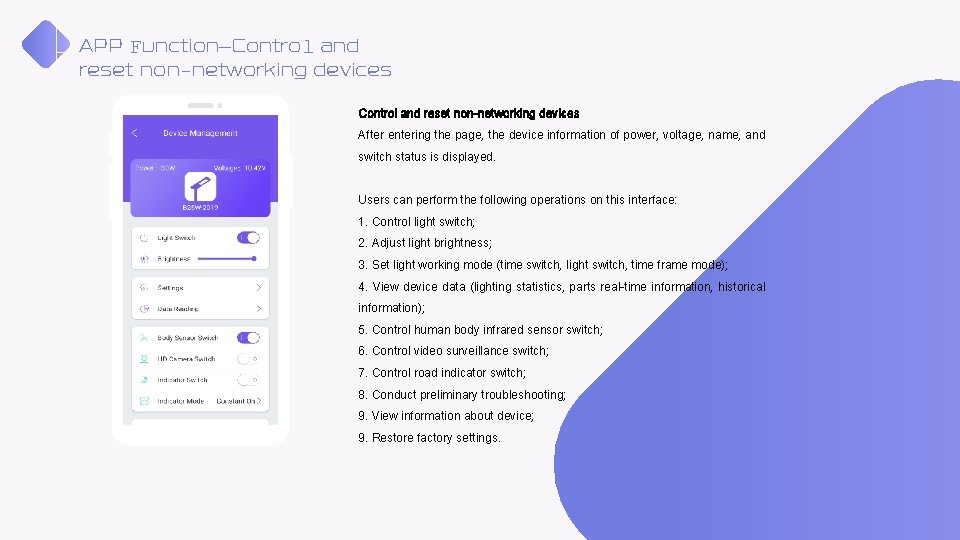
APP Function—Control and reset non-networking devices After entering the page, the device information of power, voltage, name, and switch status is displayed. Users can perform the following operations on this interface: 1. Control light switch; 2. Adjust light brightness; 3. Set light working mode (time switch, light switch, time frame mode); 4. View device data (lighting statistics, parts real-time information, historical information); 5. Control human body infrared sensor switch; 6. Control video surveillance switch; 7. Control road indicator switch; 8. Conduct preliminary troubleshooting; 9. View information about device; 9. Restore factory settings.
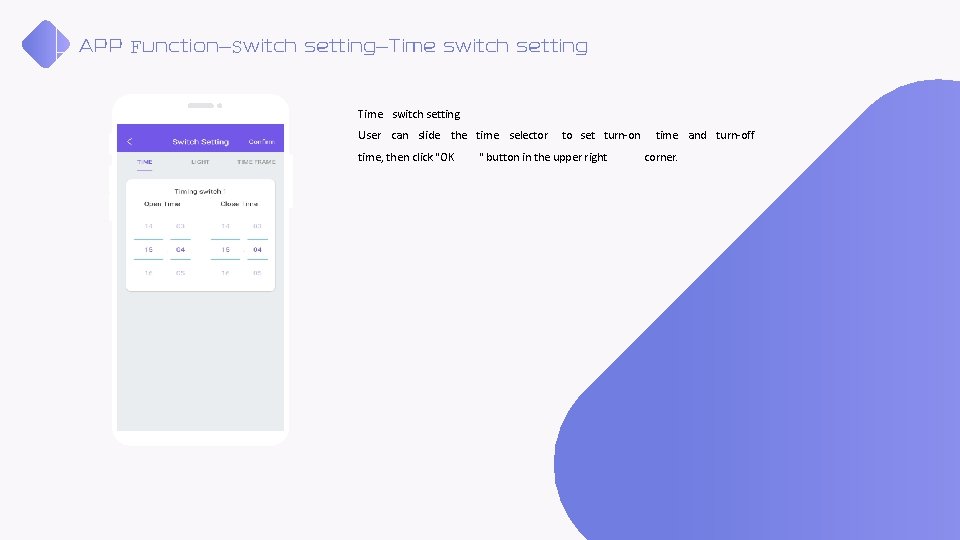
APP Function—Switch setting—Time switch setting User can slide the time selector time, then click "OK to set turn-on " button in the upper right time and turn-off corner.
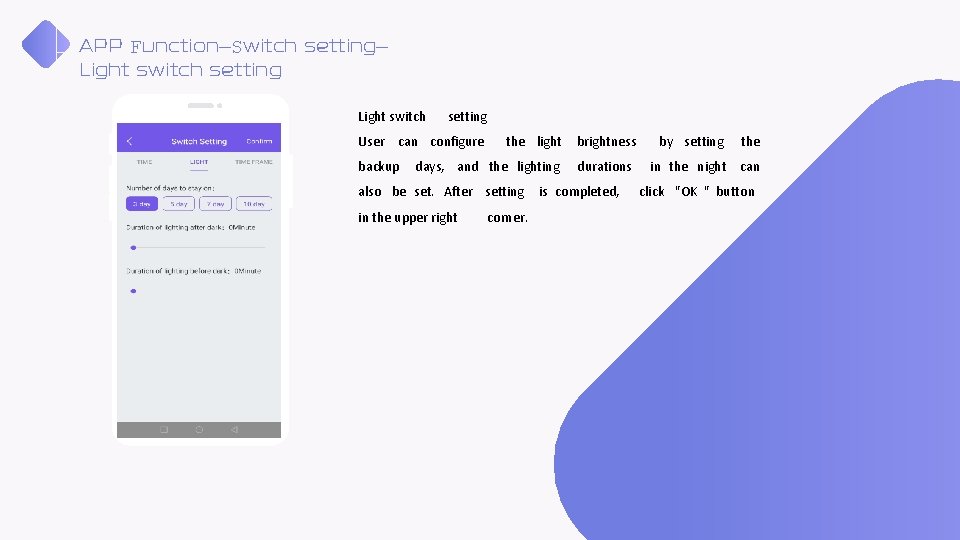
APP Function—Switch setting— Light switch setting User can configure backup the light days, and the lighting also be set. After setting in the upper right corner. brightness durations is completed, by setting the in the night can click "OK " button
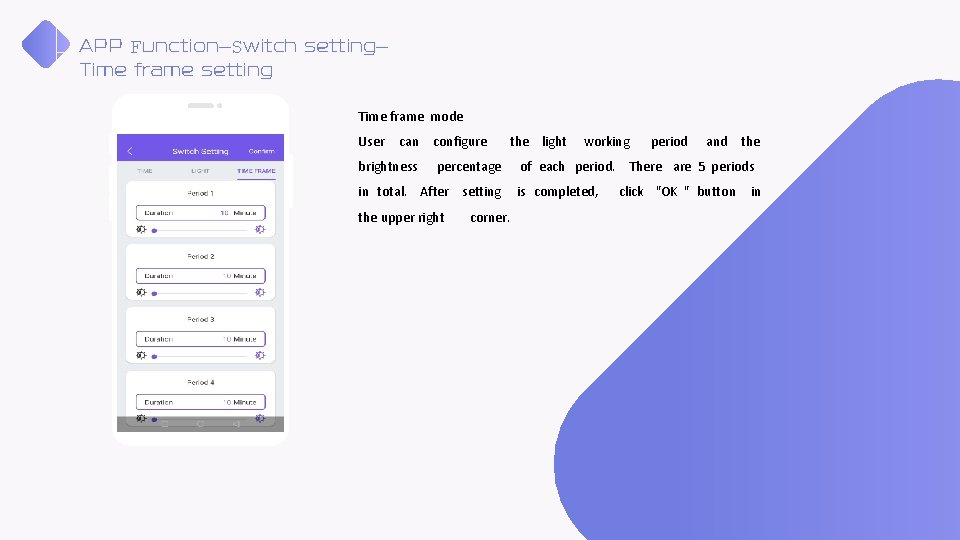
APP Function—Switch setting— Time frame setting Time frame mode User can configure brightness the light percentage in total. After setting the upper right corner. working period and the of each period. There are 5 periods is completed, click "OK " button in
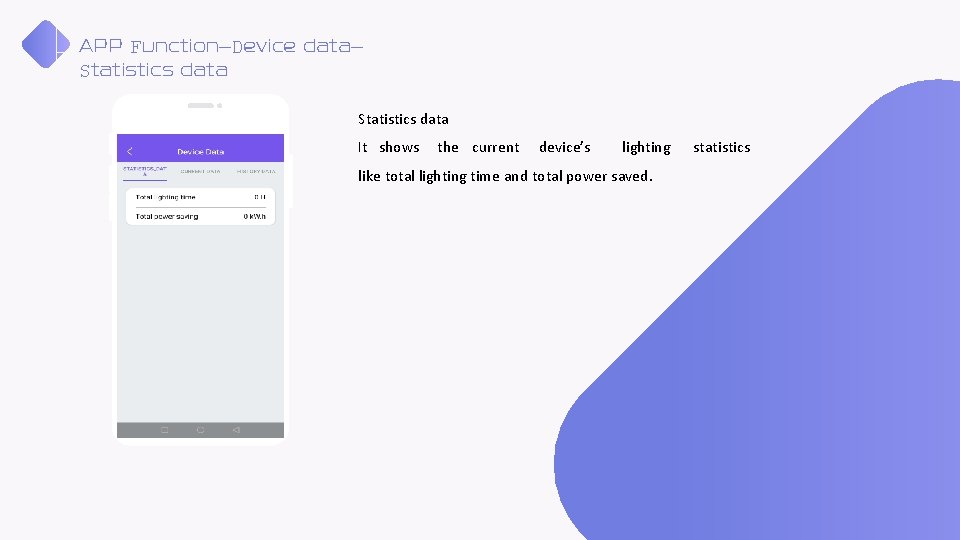
APP Function—Device data— Statistics data It shows the current device’s lighting like total lighting time and total power saved. statistics
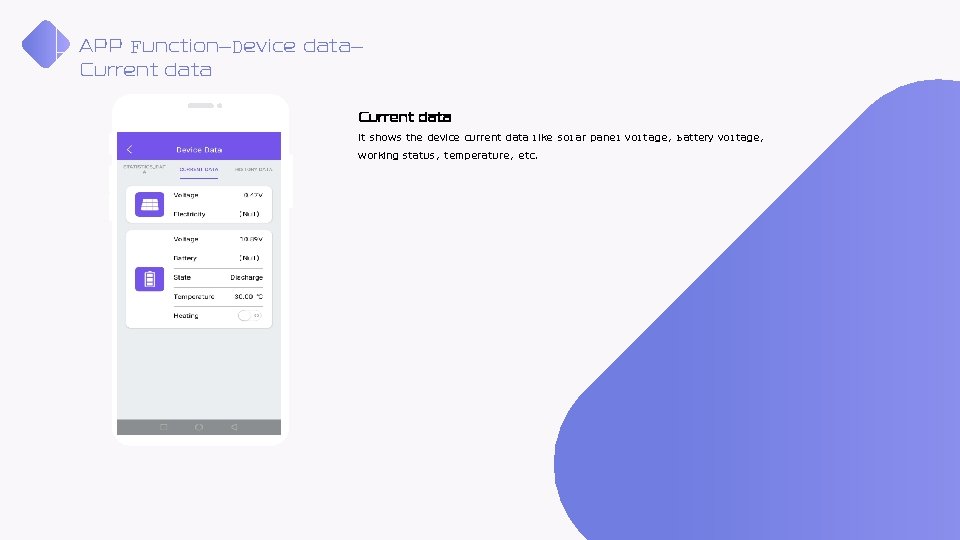
APP Function—Device data— Current data It shows the device current data like solar panel voltage, battery voltage, working status, temperature, etc.
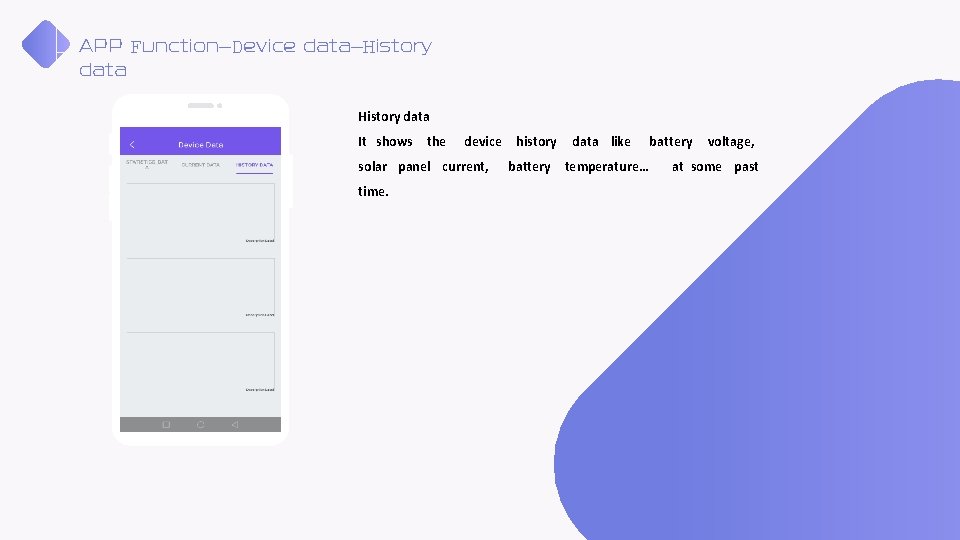
APP Function—Device data—History data It shows the device solar panel current, time. history data like battery temperature… battery voltage, at some past
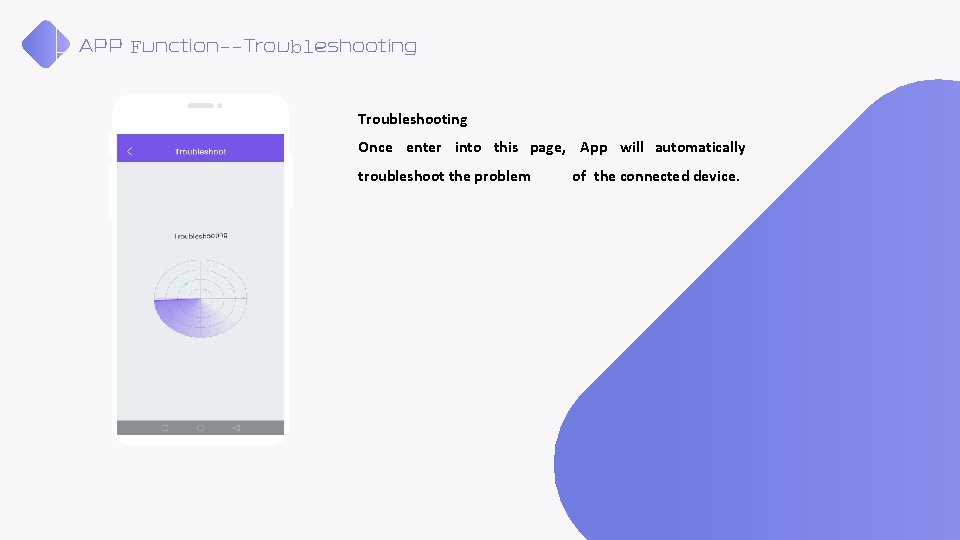
APP Function--Troubleshooting Once enter into this page, App will automatically troubleshoot the problem of the connected device.
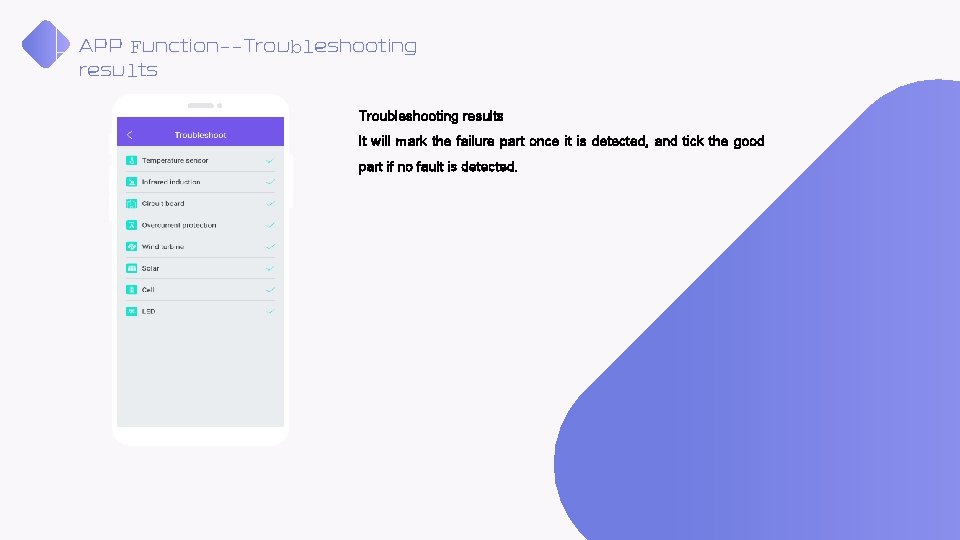
APP Function--Troubleshooting results It will mark the failure part once it is detected, and tick the good part if no fault is detected.
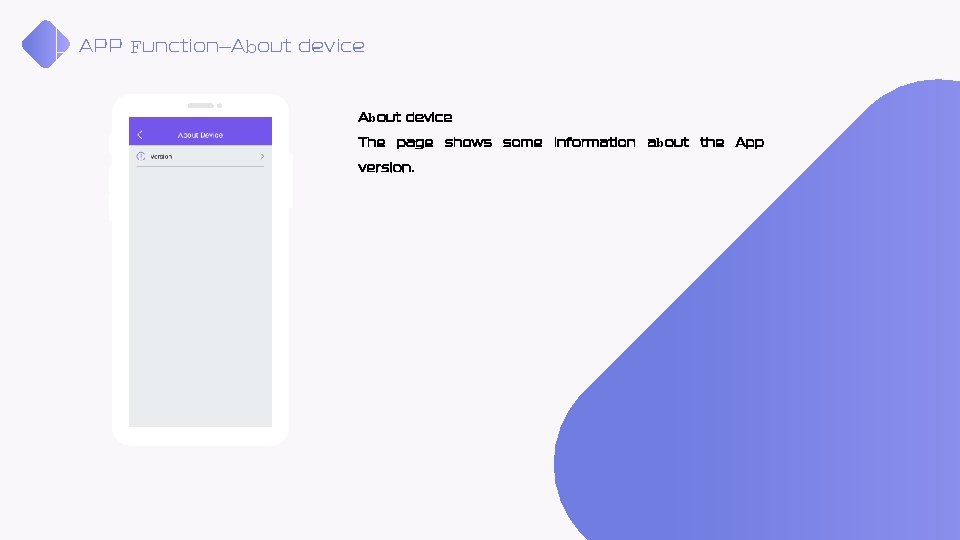
APP Function—About device The page shows some information about the App version.
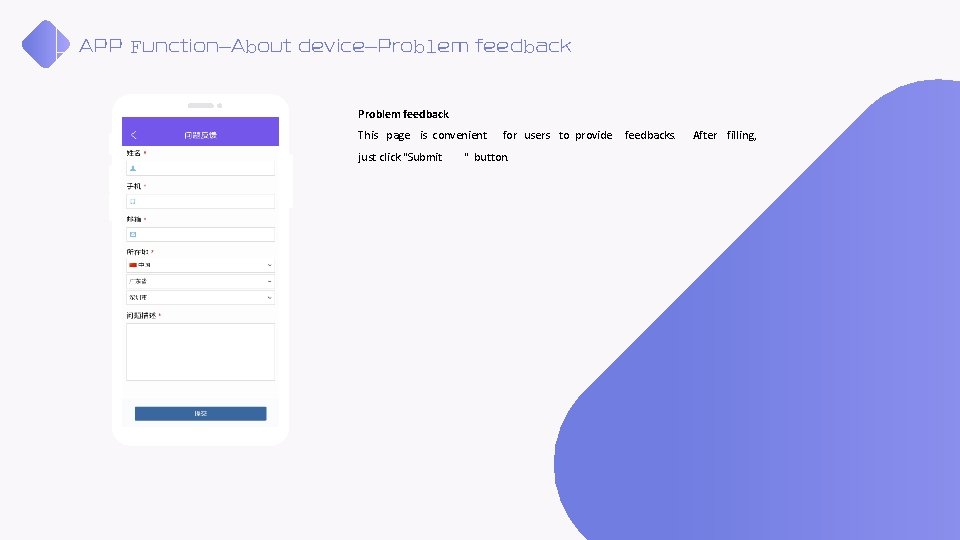
APP Function—About device—Problem feedback This page is convenient just click "Submit for users to provide " button. feedbacks. After filling,
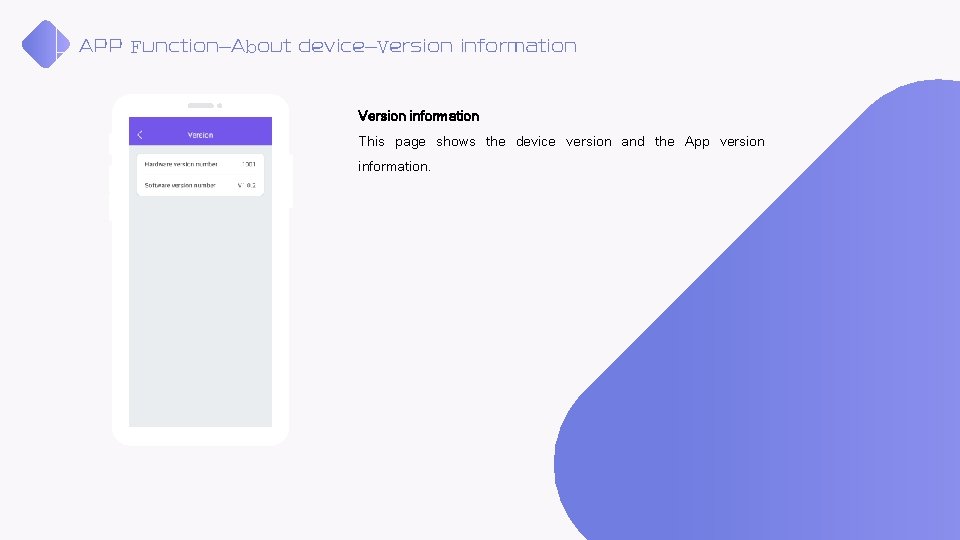
APP Function—About device—Version information This page shows the device version and the App version information.
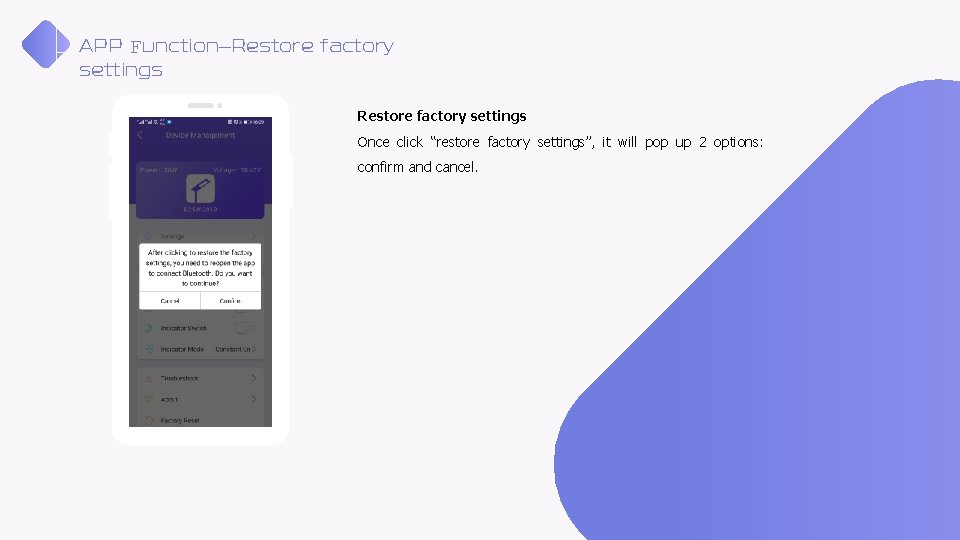
APP Function—Restore factory settings Once click “restore factory settings”, it will pop up 2 options: confirm and cancel.
PART Three New Functions
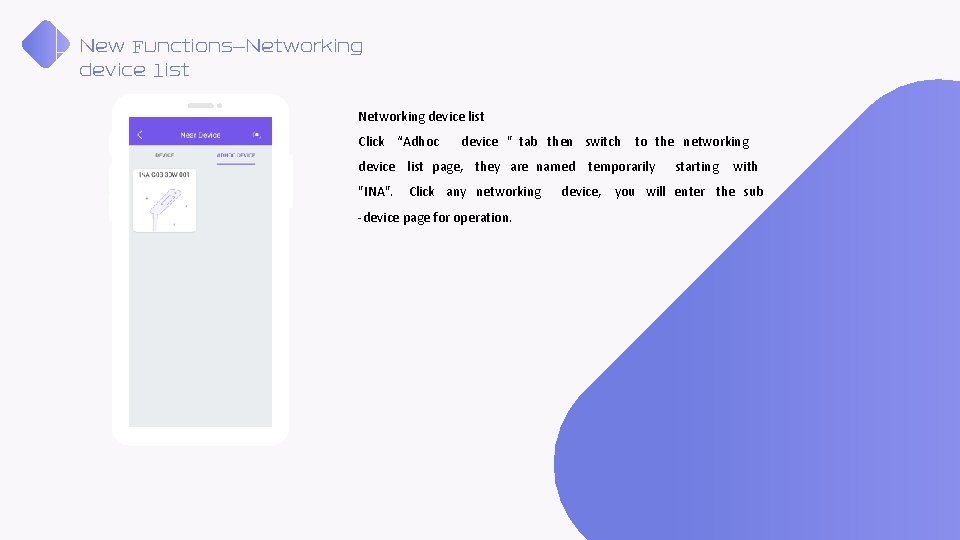
New Functions—Networking device list Click “Adhoc device " tab then switch to the networking device list page, they are named temporarily "INA". Click any networking -device page for operation. starting with device, you will enter the sub
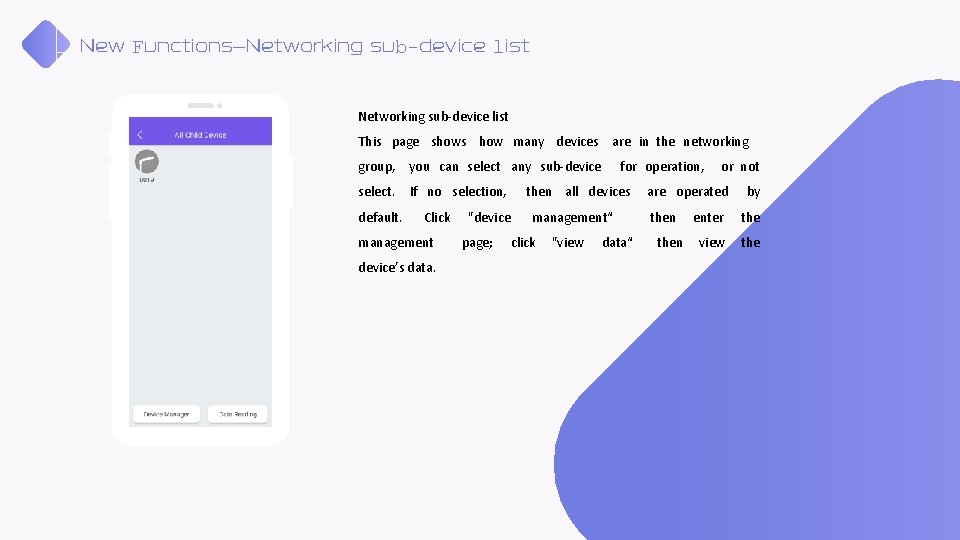
New Functions—Networking sub-device list This page shows how many devices are in the networking group, you can select any sub-device select. default. If no selection, Click management device’s data. "device page; for operation, then all devices management“ click "view data“ or not are operated then by enter the view the
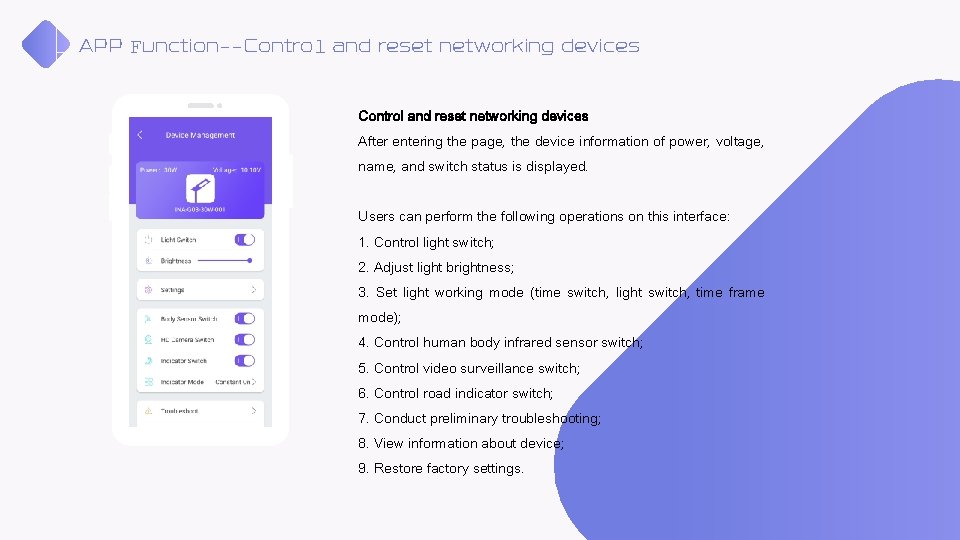
APP Function--Control and reset networking devices After entering the page, the device information of power, voltage, name, and switch status is displayed. Users can perform the following operations on this interface: 1. Control light switch; 2. Adjust light brightness; 3. Set light working mode (time switch, light switch, time frame mode); 4. Control human body infrared sensor switch; 5. Control video surveillance switch; 6. Control road indicator switch; 7. Conduct preliminary troubleshooting; 8. View information about device; 9. Restore factory settings.
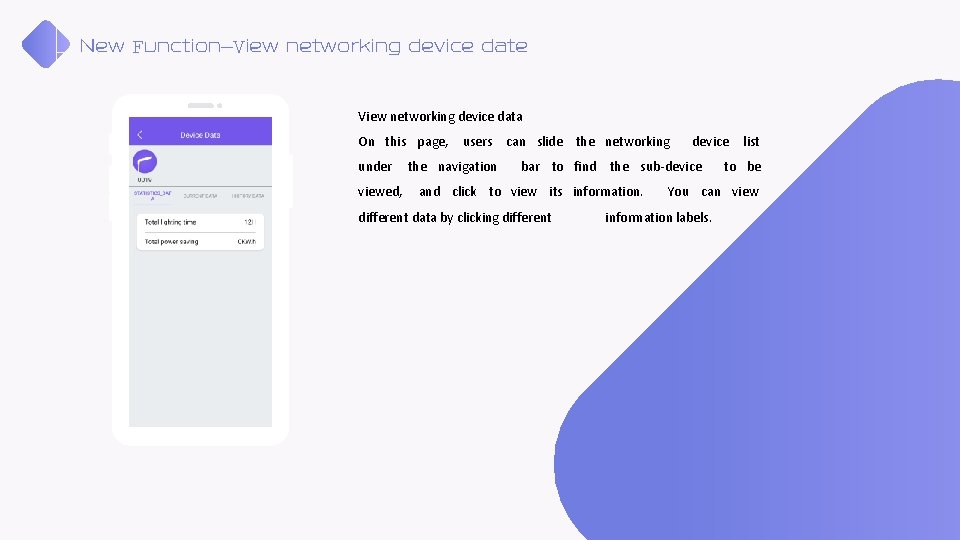
New Function—View networking device date View networking device data On this page, under viewed, users can slide the networking the navigation device bar to find the sub-device and click to view its information. different data by clicking different list to be You can view information labels.
LO GO 请输入公司名称 The company name Thanks for watching