
LMS 2000 Installation Operations Training Introduction Course Objectives
LMS 2000 Installation & Operations Training
Introduction • Course Objectives – Training to install and operate the LMS 2000 system (NMS) • Introduction – Expectations
Training Outline • • Two days LMS and NMS Overview Data flow from Internet to subscriber Installation NMS functionality Device configuration process LMS Operations and Maintenance Future Developments
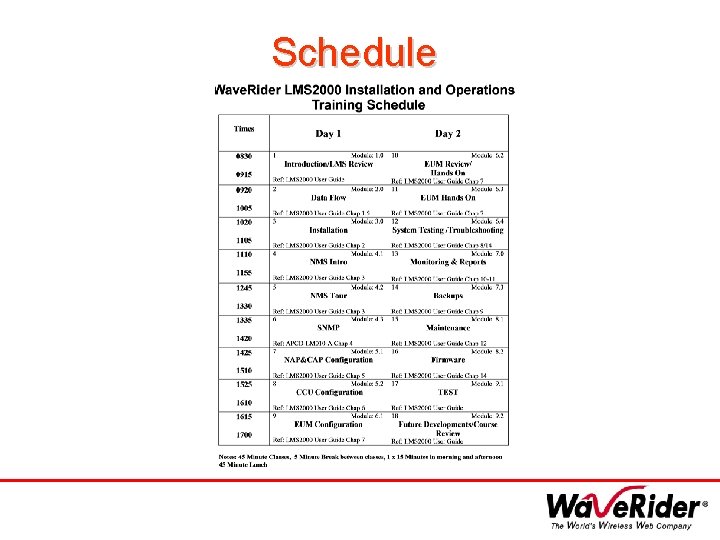
Schedule
Reference Material • Several sources of information are available to help you improve your knowledge and understanding of the LMS 2000 system. – CD-ROM and binder containing • Course handouts • Slide show – LMS 2000 User Guide – LMS 2000 System Description – EUM Quick Reference Guide – LMS 2000 EUM Configuration Utility
LMS 2000 User Guide • The LMS 2000 User Guide contains detailed instructions for installing and maintaining your LMS 2000 System. • The User Guide also includes the following sections: – – Troubleshooting tips Device configuration defaults LMS 2000 specifications Acronym definitions and a glossary
LMS 2000 System Description • Refer to the System Description to gain a better understanding of the following aspects of the LMS 2000. – – – network components system features topology equipment applications
EUM Quick Reference Guide • The EUM Quick Reference Guide steps you through the simple process of configuring an EUM for deployment on the LMS 2000 network.
SAFETY • • Common sense Grounding and electrical Regulatory notices Racks weigh +155 lbs Reference: APCD-LM 010 -A
Safety Considerations • Before you install and operate any component in the LMS 2000 system, be sure to read and understand the following: – The corresponding instructions in the LMS 2000 User Guide, EUM Quick Reference Guide, and LMS 2000 EUM Configuration Utility – All warnings and cautions contained in the above manuals – Regulatory notices for the LMS 2000 system
Safety Considerations–cont. • The racks that hold the LMS equipment weigh more than 155 pounds each. Please take extra care when moving a rack to a new location.
LMS Overview
LMS 2000 Components • • • NAP–Network Access Point CAP–Communications Access Point CCU–CAP Channel Unit EUM–End User Modem NMS–Network Management System Reference: APCD-LM 010 -A Chapter 1
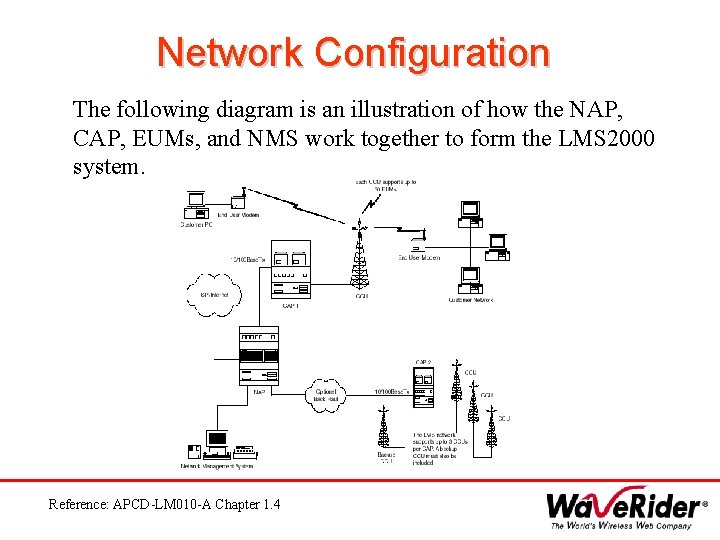
Network Configuration The following diagram is an illustration of how the NAP, CAP, EUMs, and NMS work together to form the LMS 2000 system. Reference: APCD-LM 010 -A Chapter 1. 4
The NAP • The NAP acts as the gateway between the Wave. Rider wireless network and the Internet. All data coming from or going to the Internet must pass through the NAP to enter or leave the LMS network. Within this role, the NAP performs a number of key functions, including: – – Network communications Timekeeping and synchronization Bandwidth management End-user registration
The Cap • The CAP is a ‘Last Mile’, two-way connection between the Internet and the EUMs. In one direction, the CAP receives and collects data from multiple EUMs and translates the information into a single data stream, which is then routed to the Internet through the NAP. • In the opposite direction, the CAP receives data that passes through the NAP from the Internet, and it then distributes that data to the EUMs. The CAP does this by translating a single data stream into multiple radio signals. • To provide a range of services to a subscriber base that covers a broad geographical area, you must deploy multiple CAPs.
The CCU • The CAP Channel Unit (CCU) is the access point for data entering the CAP from the EUMs. • Each CCU can receive radio signals from up to 30 EUMs. • The LMS 2000 CAP supports up to three CCUs operating simultaneously. • Each CCU operates on one of 11 available channels (North America), which are selected during system commissioning. • Each CCU requires an antenna. The Standard CCU has one outdoor antenna, and a maximally equipped CAP supports three CCU antennas.
The EUM • The EUM provides the end user with a wireless connection to the LMS network and the Internet at a data rate of up to 7 Mbps. • The EUM performs two basic functions: – receives data from the CAP through a radio link, and then provides that data to a personal computer or LAN through an Ethernet connection – receives data from a personal computer or LAN through an Ethernet connection, and then sends that data to the CAP through a radio link
The NMS • A centralized Network Management System (NMS) provides a single location for configuring, controlling, monitoring, and maintaining the LMS 2000 system components. • You can communicate with each component through the NMS graphical user interface, which, in turn, interfaces with each device in the LMS network using various protocols, including SNMP, Telnet, and FTP.
Other Components in the LMS System
The RFSM • RFSM is a radio frequency switching matrix that resides within the CAP. • An NMS polling engine uses the RFSM to monitor the health of the CCUs. If a CCU fails, the NMS software tells the RFSM to switch to a backup CCU that will use the configuration of the CCU that failed. • With the RFSM, you also have the ability to remotely switch CCU antennas and configurations using the NMS software. RFSM Symbols–Front Plane RFSM Symbols–Back Plane
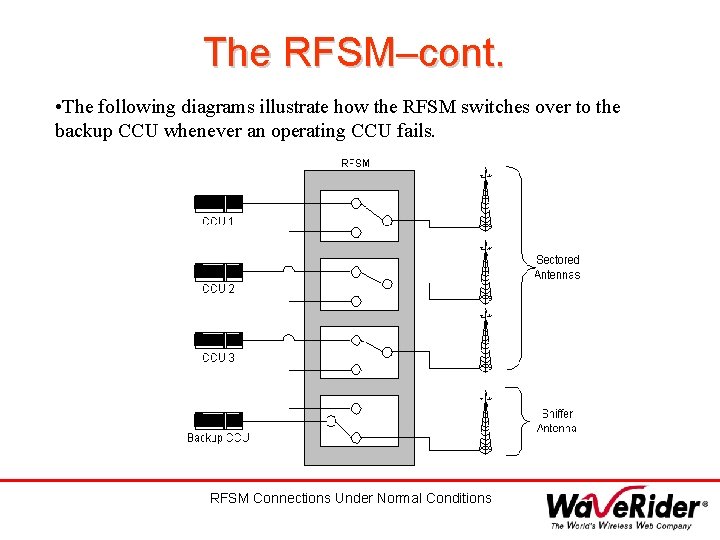
The RFSM–cont. • The following diagrams illustrate how the RFSM switches over to the backup CCU whenever an operating CCU fails. RFSM Connections Under Normal Conditions
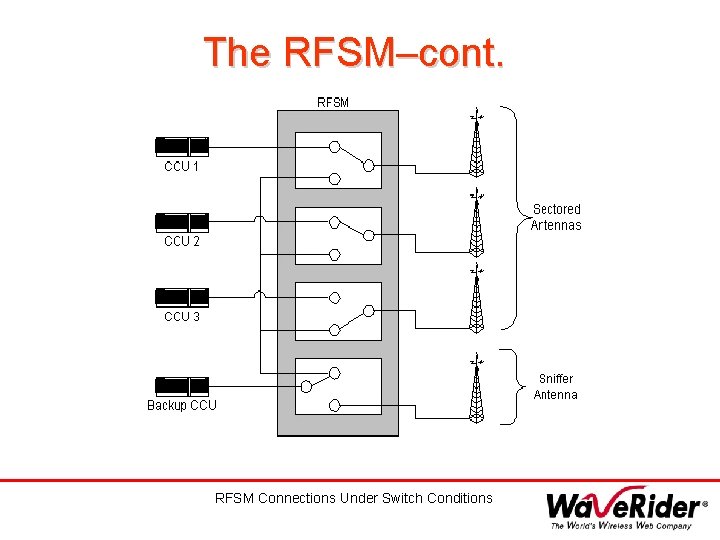
The RFSM–cont. RFSM Connections Under Switch Conditions
Advanced Bandwidth Manager • The Advanced Bandwidth Manager (ABWM) seamlessly integrates bandwidth allocation, prioritization, metering, and usage charting in an existing IP network. • You can complete a number of tasks using the ABWM: – Dynamically allocate, manage, prioritize, and control your bandwidth for up to 20, 000 user groups. – Use data collected by the controller for real-time charting. – Perform SNMP management functions. – Import and export large amounts of subscriber information and usage data. – Easily create classes of service and traffic policies.
Advanced Bandwidth Manager – con’t • The ABWM also includes a number of features to help you manage the bandwidth on your network: – The ABWM prevents usage abuse by alerting you to unusual or sudden surges in bandwidth consumption. – Server-based software centralizes the management of multiple distributed controllers. – Password-protected access prevents unauthorized manipulation of critical functions within the ABWM. – Redundant configurations maintain uninterrupted traffic flow, even if a controller fails. – The ABWM manages bandwidth usage between IP ports, non-IP ports, and TCP ports. • You can monitor and control all of these features and functions through a GUI that resides on the NMS Workstation.
Back Haul Equipment • The best choice of back haul equipment for your network depends on a number of conditions: – Expected traffic load – Available back haul infrastructure – Distance between the CAP and the NAP • Because the back haul can be configured in many different ways, provisioning a back haul interface for the LMS 2000 requires application engineering. For information on Wave. Rider back haul equipment, contact your Wave. Rider Sales Representative.
Data Flow Reference: APCD-LM 010 -A Chapter 1. 5
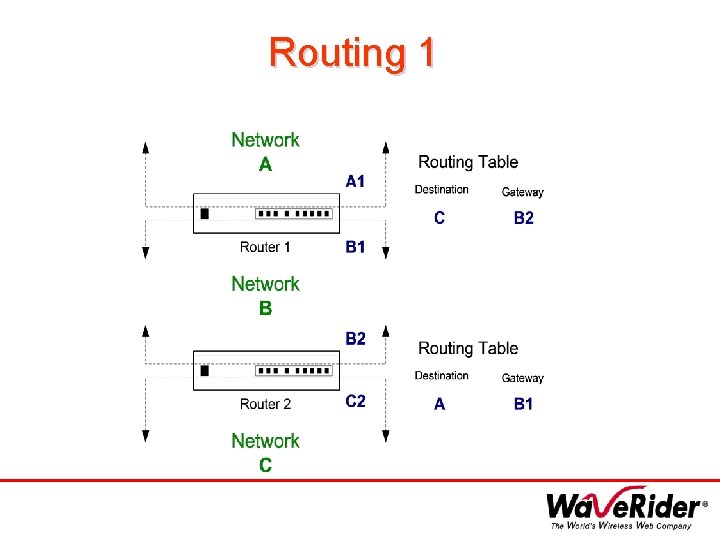
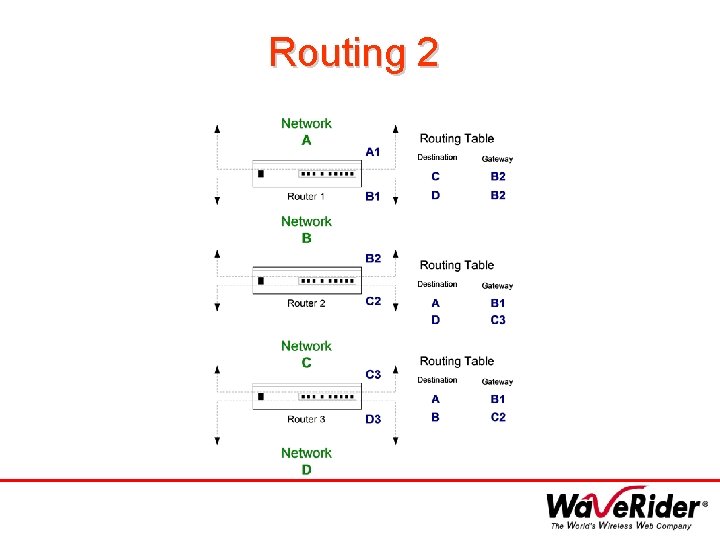
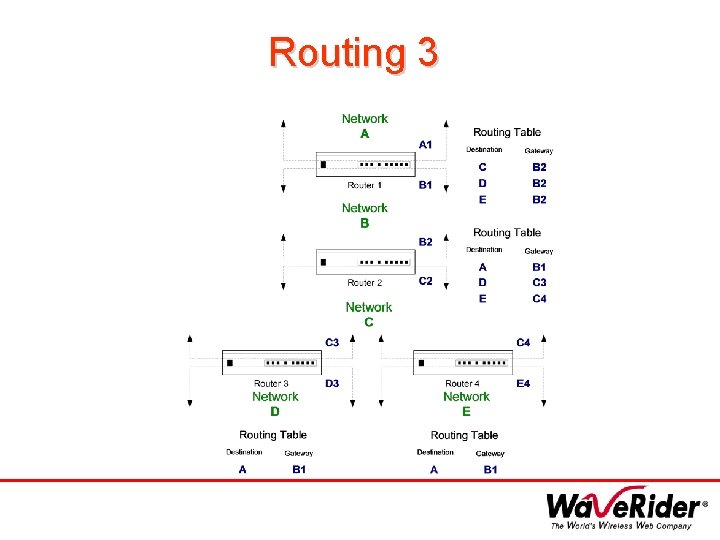
Data Flow • Routers control the transfer of information in the LMS 2000 network by directing data flow between two or more connections. These routers exist at three points in the LMS system (the NAP, CAP, and EUM). • The NAP router directs data travelling between the Internet Point of Presence for the WISP and the CCUs in the CAP. • The CCUs, contained in the CAP, are actually routers. The CCU routes all data travelling from the EUMs to the NAP router, and it routes all data travelling from the NAP router to the EUMs. • The EUM is a router that connects end users to the LMS network. Reference: APCD-LM 010 -A Chapter 1. 5
Data Flow–cont. • Each router contains two or more IP addresses. These IP addresses are the connection points to different components in the LMS system. • A routing table resides on each CCU. These tables contain a range of information regarding routes within the network, such as the IP addresses of network nodes and the number of routers a packet must traverse to reach a specific node.
Routing 1
Routing 2
Routing 3
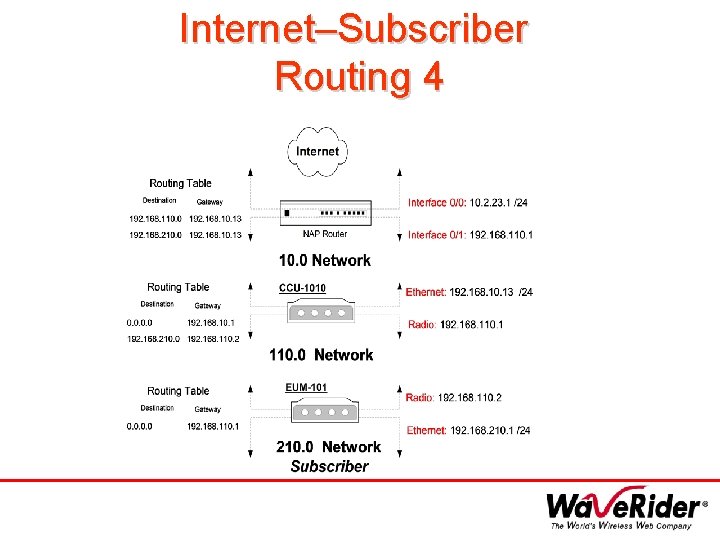
Internet–Subscriber Routing 4
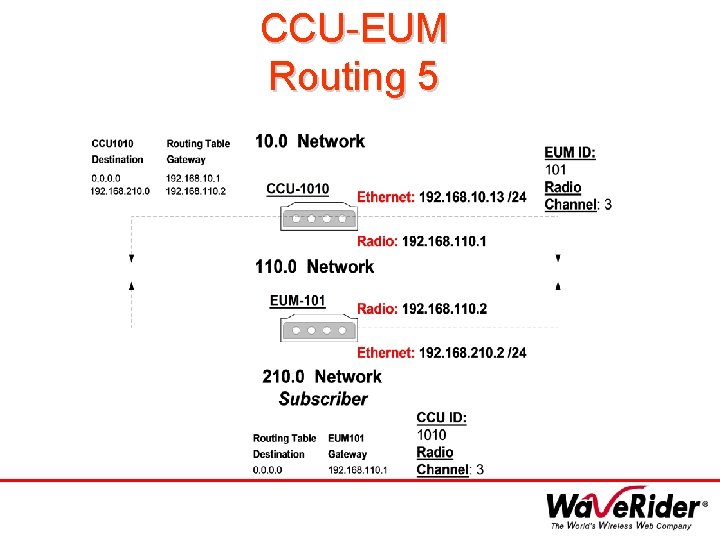
CCU-EUM Routing 5
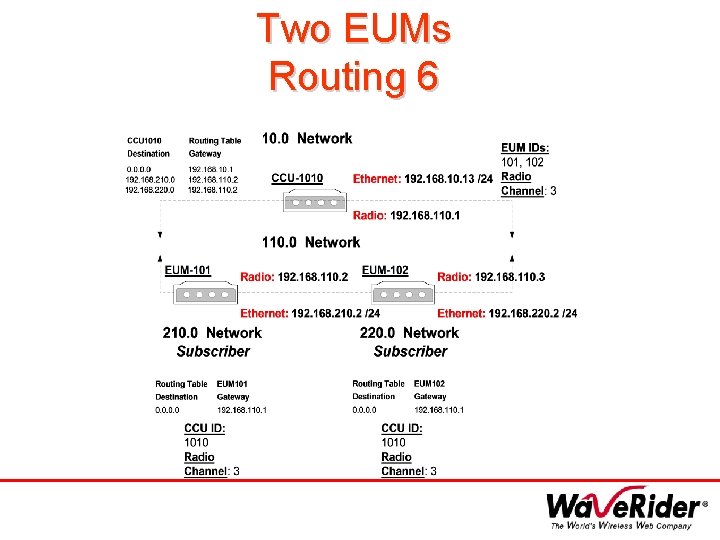
Two EUMs Routing 6
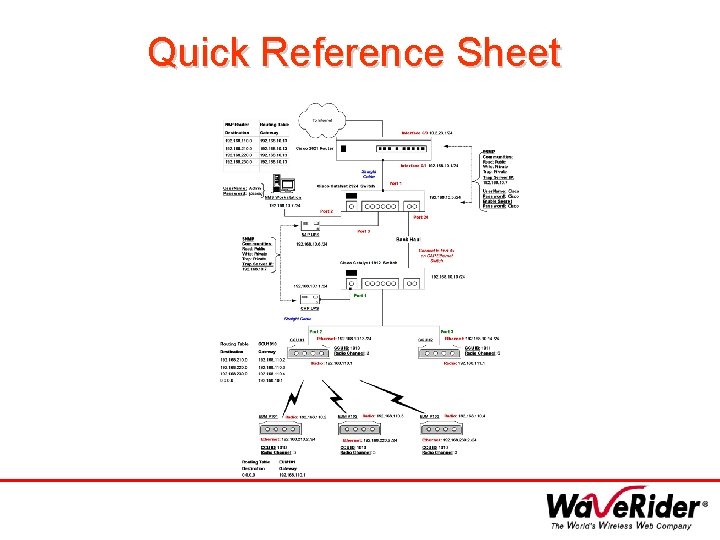
Quick Reference Sheet
Factory Defaults • Refer to Appendix A of the User Guide for the default IP addresses of the various components and ports in the LMS network: – – – NAP CCU EUM NMS Reference: APCD-LM 010 -A Appendix A
NMS Overview
Functions of the NMS Software • Register the EUMs • Enable or disable EUM access to the network • Update the device configurations (such as the router, the switch, or the UPS) • Display the equipment database • Monitor system operations and alarms • Monitor system usage • Update configurations for CCUs and EUMs from a remote location • Set up, administer, or remove accounts and subscribers • Set up and administer service levels • Generate equipment reports, user reports, account reports, and error reports
NMS Workstation Components • Hardware • PC, including mirrored hard drives and 4 mm tape drive • APC UPS • Software • Microsoft Windows NT 4. 0 (with Service Pack 6 a) • Wave. Rider LMS Network Management System (NMS software) • Microsoft SQL Server • Vircom VOP RADIUS • Castle Rock SNMPc Server– Enterprise Edition • APC Power. Chute PLUS • VERITAS Backup Exec
SNMPc Server • The Castlerock SNMPc Server performs the following tasks within the NMS: • identifies the physical configuration of the network • provides a visual map of the system • frequently polls the system to discover new devices on the network • monitors operations and system errors, then creates a visual record and system logs
SNMPc Server–cont. • The SNMPc Server also features “trap” functionality. • Most events within the LMS 2000 occur in a synchronous manner in which systems poll each other at regular intervals for status and information updates. • A trap is a mechanism for identifying asynchronous events. When an asynchronous event occurs in the LMS 2000, the SNMPc Server displays the event indicator in real-time.
SNMPc Server–cont. • The SNMPc Server monitors a number of asynchronous events: • system operations and alarms • system usage • failures of CAP channel units • lost communication to a CAP • power failure at the CAP • test alarms generated by the NMS • EUM activity • www. castlerock. com
Microsoft SQL Server • The SQL Server database contains a wide variety of information relating to the network configuration, usage history, equipment, and subscribers. – – – – – lists equipment records for the entire network lists the assigned equipment and the equipment still in stock lists bandwidth and access levels available to the end user provides account records provides log reports of database activity displays the CCU and EUM communication links lists the frequency channel of operation for each EUM and CCU acts as a single point of access to the EUM subscriber information provides class of service
Vircom VOP RADIUS • Authenticates the EUMs for access to the network • Queries the SQL Server database to verify the user’s access rights when an EUM subscriber comes online. • An EUM cannot transmit or receive information through the network until authentication has taken place.
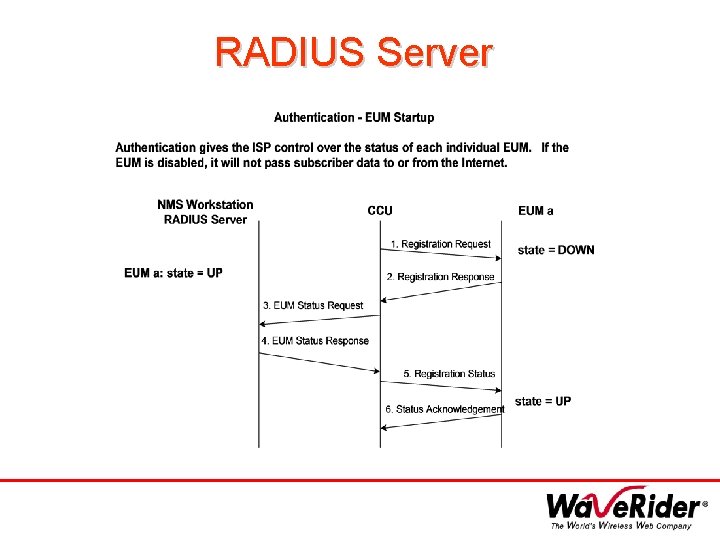
RADIUS Server
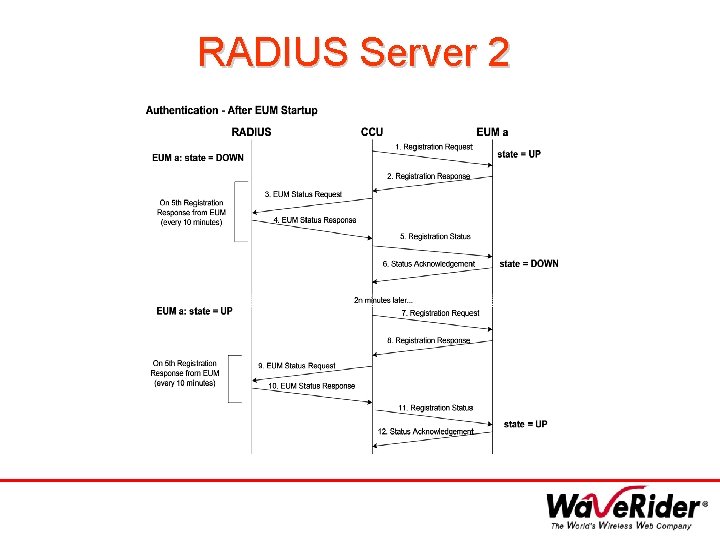
RADIUS Server 2
NMS–Special Features
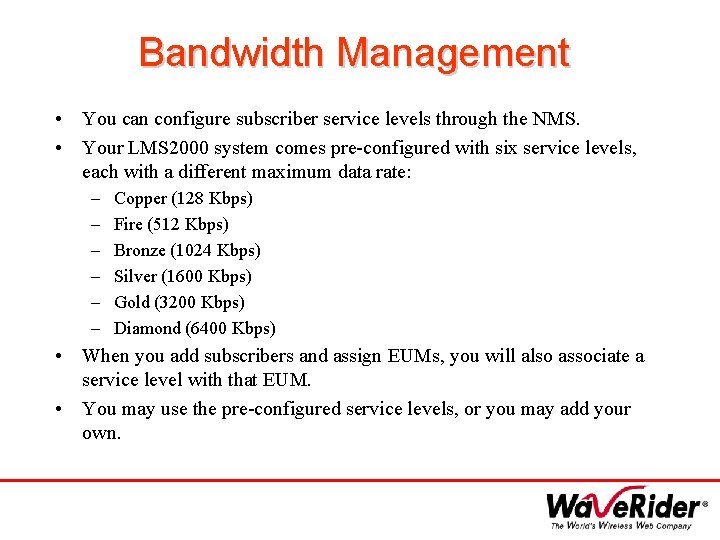
Bandwidth Management • You can configure subscriber service levels through the NMS. • Your LMS 2000 system comes pre-configured with six service levels, each with a different maximum data rate: – – – Copper (128 Kbps) Fire (512 Kbps) Bronze (1024 Kbps) Silver (1600 Kbps) Gold (3200 Kbps) Diamond (6400 Kbps) • When you add subscribers and assign EUMs, you will also associate a service level with that EUM. • You may use the pre-configured service levels, or you may add your own.
Running Reports • The NMS software includes the following reports: – – – Accounts Report CCU/EUM Firmware Report Network IP Report Service Level Report SNMPc Trend Reports
Accounts Report • The Accounts report contains information about the EUMs, the subscribers they are associated with, their service level, and their activity state (enabled or disabled). • This report generates a separate report page for each account. - Field information included in the Accounts report
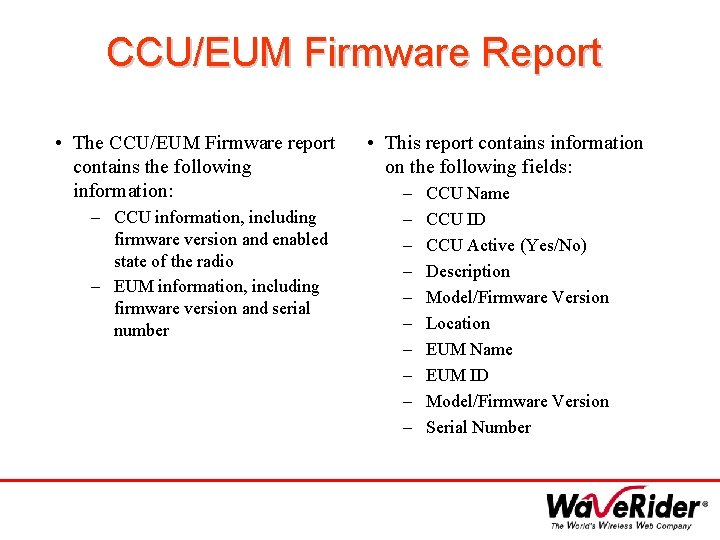
CCU/EUM Firmware Report • The CCU/EUM Firmware report contains the following information: – CCU information, including firmware version and enabled state of the radio – EUM information, including firmware version and serial number • This report contains information on the following fields: – – – – – CCU Name CCU ID CCU Active (Yes/No) Description Model/Firmware Version Location EUM Name EUM ID Model/Firmware Version Serial Number
Service Level Report • The Service Level report contains the following information: – EUMs sorted by service level and account – Account contact information – Active/Inactive EUMs - Field information included in the Service Level report
Network IP Address Report • The Network IP report lists IP addresses for all equipment, sorted in hierarchical order from NAP to CAP to EUM. - Field information included in the Network IP Address report
SNMPc Trend Report • The SNMPc Trend reports are available in hourly, daily, weekly, and monthly increments. • These reports consume system resources, so Wave. Rider recommends that you record hourly and daily reports only for troubleshooting. • SNMPc Trend reports assigned to each new device allow the system to recover individual device statistics and display them in graphical format through a web-based report. Use this report in forecasting trends and monitoring system activity.
Monitoring Performance • Your system operations activities should include monitoring the performance of the network devices to determine whether they are operating efficiently. • The NMS Workstation includes the following tools that you can use to monitor device performance: – – – – – Network Interface Statistics IP Statistics Radio Packet Error Rate Received Signal Strength Indicator (RSSI) RADIUS Server Error Log RADIUS Server User Log RADIUS Server Statistics SNMPc Server Device Management Details SNMPc Server Event Logs
Monitoring Performance • To verify a wireless connection between two devices, or to verify the re-establishment of a wireless connection, use the Ping test. Refer to the User Guide for more information.
LMS 2000 Installation Reference: APCD-LM 010 -A Chapter 2
Pre-Install • Site preparation – antenna/cable install • Lightning protection – power – grounding • After unpacking check for damage • NAP/CAP shipped wired and pre-configured with defaults – Cables and tools Reference: APCD-LM 010 -A Chapter 2
Installation Procedure The basic procedure for setting up the LMS 2000 system is as follows: 1. 2. 3. 4. 5. 6. 7. 8. 9. Set up the CAP. Set up the back haul for the CAP to NAP link. Set up the NAP. Set up the NMS Workstation. Configure the SNMPc Server. Initialize and configure the NMS software. Verify that the CAP to NAP link is operational. Configure the CCUs. Configure and deploy the EUMs on your network. Reference: APCD-LM 010 -A Chapter 2
NAP and CAP Install–cont. • Wave. Rider recommends that you set up the NAP and CAP using the factory-configured default settings. After the network is operational, you can change the network addresses to suit your needs.
CAP Components • Install the CAP first. The CAP should include the following factory configured components. – – Cabinet with power bar and fans Exide 5119 Uninterruptible Power Supply (UPS) Cisco Catalyst 1912 Switch CAP Channel Units (CCUs) complete with cables, bulkhead lightning arrestor, power cords, antennas, and cables – Radio Frequency Switching Matrix (RFSM) (Optional)
NAP Components • Install the NAP after installing the CAP. The NAP consists of the following factory configured components: – – – Cabinet with power bar and fans Cisco Catalyst 2924 Switch Cisco 2621 Router Exide 5119 Uninterruptible Power Supply (UPS) NMS Workstation that includes a monitor, keyboard, mouse, internal backup tape unit, printer, and cables – APC Back-UPS PRO 650 (NMS Workstation UPS)
NAP and CAP Install • UPS – – Battery reconnect Turn on UPS power switch Three LED's indicating battery charge. Three is fully charged. Computer symbol (router/switch)LED green • Verify rack/device cooling fans working • Verify switch POST results • Connect backhaul Reference: APCD-LM 010 -A Chapter 2
CCU Hardware Verification • • Main power light ON CCU should beep once after powered up Network Interface Card link light ON CCU cooling fan ON Reference: APCD-LM 010 -A
NMS Set Up • Set up NMS Workstation – PC plus UPS • Connect to NAP switch (port 2) • Ping CAP switch from NMS workstation Reference: APCD-LM 010 -A Chapter 3. 1
NMS Tour • Checklist of features and icons Reference: APCD-LM 010 -A Chapter 3
NMS Tree • • Philosophy Associations Linking NMS Tree – – – System Inventory Devices Accounts Subscribers Service Levels Reference: APCD-LM 010 -A Chapter 3. 1
SNMPc Server Configuration • Configure SNMPc Server – Password, adding/discovering devices – Add SNMP Communities – Network Map • Remember to update the SNMPc Reference: APCD-LM 010 -A Chapter 4. 2
Device and System Configuration Reference: APCD-LM 010 -A Chapter 5 & 6
Component Configuration • Out of the box defaults • Configuration procedure – Make changes then • Apply • Connect • Update • Disconnect • Link to
CAP Configuration • Verify Switch/UPS defaults • Configuration Process – Apply, connect, update, disconnect – Link to Reference: APCD-LM 010 -A Chapter 5. 2
NAP Configuration • Confirm/change – Router/switch/UPS IP’s and Destination Netmask • Device • Trap server • Configuration Process – Create CCU in inventory as required – Apply, connect, update, disconnect – Link to Reference: APCD-LM 010 -A Chapter 5. 1
CCU Configuration • 2 or 4 CCUs in a CAP • Default configuration – Radio/Ethernet IP Addresses – SNMP/RADIUS – Routing • Password Reference: APCD-LM 010 -A Chapter 6
EUM Configuration • Determine deployment details • Add and edit EUM properties in database – Enable Radio • Update EUM device properties • Link to: – CCU – Subscriber – Service Level • Deploy Reference: APCD-LM 010 -A Chapter 6
EUM Configuration 2 • Connect to NAP/CAP switch • Confirm/Change – – Radio/Ethernet Parameters IP Routing SNMP Subscriber • Update device configuration • Change Ethernet IP address from default to subscriber Reference: APCD-LM 010 -A Chapter 7
EUM Configuration 3 • Save configuration to file • Create association with CCU • Add EUM to CCU Configuration (IP Route, EUM ID and IP) • Add EUM route to NAP Router • ENABLE RADIO • Now ready for deployment Reference: APCD-LM 010 -A Chapter 7
Deploy EUM • Install/mount EUM in destination location • Attach antenna or 50 Ohm terminator • RADIO ENABLED Reference: APCD-LM 010 -A Chapter 7. 11
Configuring the RFSM • Configuring the RFSM – Each CAP can contain a single RFSM. If you purchased a CAP with an RFSM unit included, the RFSM record in the NMS will contain pre-configured defaults. • Configuring CCU Connections to the RFSM – Each CCU in the CAP, including the backup CCU, must be assigned to an RFSM antenna port. The CCU connects to the EUMs through this port.
Configuring the RFSM • Verifying the Polling Engine is Running • Each RFSM uses a polling engine, which runs in the background and monitors CCU status. These polling engines start automatically when you start the NMS, but you should verify that they are running. • You can restart a polling engine from the RFSM Service Manager.
Configuring the Bandwidth Manager • Setting up advanced bandwidth management in the NMS involves the following procedures: 1. Installing a Bandwidth Manager into a NAP. 2. Adding a Bandwidth Manager record to the NMS. • Note: Complete the above two procedures if your NAP does not feature a pre-installed ABWM controller. 3. Configuring a controller • Configuring redundancy • Configuring bandwidth controls 4. Configuring bandwidth sets • Setting priorities • Configuring a bandwidth set 5. Establishing schedules 6. Setting a Traffic Policy
Device and System Testing • Test connectivity – NAP/Internet – NAP/CAP – NAP/EUM • EUM tests – – Continuous Transmit (Tx) Continuous Receive (Rx) Transmit/Receive Loopback Ping • The first three tests report on the radio packet error rate (PER) ratio. • The ping test verifies that a radio link exists between two devices. Reference: APCD-LM 010 -A Chapter 8
Don’t Forget • Linking • Accounts – Subscribers • • • Service levels Inventory Apply Connect Update Security (passwords)
Install Review • • Follow installation instructions If you’re not sure call Wave. Rider support: (416) 502 -3161 SNMPc setup Configure steps – – Apply Connect Update Link to • Don’t forget security/change the passwords
Install Quiz • Add/Configure CCU 2 with EUM 201. EUM Ethernet IP 249. 140. 250 • Enable an Account, Service Level Nickel 800 KBPS, Subscriber (your company)
Operations Reference: APCD-LM 010 -A
Customer Management • Accounts management – Entering/Disabling/Enabling an Account • Subscriber management – Adding/Disabling/Enabling/and Removing an EUM from a subscriber – Deleting a subscriber • Service levels – Defining, Linking, Deleting Reference: APCD-LM 010 -A
Monitoring • • Forewarning Preventative maintenance Use SNMPc Alerts/Statistics for – – – NAP router CAP/NAP switch CCU/EUM UPS Backhaul Reference: APCD-LM 010 -A Chapter 10
Operational Statistics • • • Diagnostics Tab / Radio PER Statistics Tab Received Signal Strength Indicator (RSSI) CCU/EUM Version Network IP SNMPc Trends Reference: APCD-LM 010 -A Chapter 10
Reports • • • Accounts Service Level CCU/EUM Version Network IP SNMPc Trends Reference: APCD-LM 010 -A Chapter 10
Logs • RADIUS Server • Microsoft NT Server event log and statistics Reference: APCD-LM 010 -A Chapter 103 &10. 4
Backups • Veritas Backup Exec 8. 0 • Think about your backup plan • Optional – SQL module permits live database backup Reference: APCD-LM 010 -A Chapter 9
LMS Maintenance Reference: APCD-LM 010 -A Chapter 12
Maintenance • General maintenance – environment – cleaning – cooling fans (racks, devices) • Power outages – Confirm UPS battery health • Hardware (cables) Reference: APCD-LM 010 -A Chapter 12
NMS Maintenance • • • PC Microsoft Windows NT NT event log (size) Web reports cleanup (size) Log files (size) SQL database (auto-scheduled) Reference: APCD-LM 010 -A Chapter 12
Power Outages • • EUM auto-recovery NAP auto-recovery CAP and CCUs auto-recovery NMS will require intervention Reference: APCD-LM 010 -A Chapter 12. 2
Firmware Updates • Update the EUMs first, then the CCUs • Configuration through – FTP – Telnet • Synchronize configuration with NMS database • Reboot will be required when: – updating firmware using FTP – updating LMS or third party software – Reboot will be required via Telnet Reference: APCD-LM 010 -A Chapter 14
Troubleshooting • • Install problems Connectivity problems–refer to the LMS 2000 User Guide Use SNMPc to troubleshoot. Check your cables – Ethernet – RF Reference: APCD-LM 010 -A Chapter 15
Operations and Maintenance Review • Customer management • System management – Beware–report and log size! – Trends and statistics – Backups • Maintenance – Power outages – Auto-recovery Reference: APCD-LM 010 -A Chapters 10, 11, 12
Operations Quiz • Conduct a scheduled tape backup of SNMPc 5. 0backup. Restore to C: temp • Add CAP 2 and CCU 1. Update SNMPc • Change subscriber for EUM 102 – Change • Service level • Subscriber • Account • Ethernet IP

Future Developments
Future Developments • DHCP Relay • Improved Receive Sensitivity (CCU/EUM)
Q 4 Developments • Q 4 Feature Releases – – – Higher CCU/EUM Output Power Polling MAC Advanced Billing Support Usage (data transferred) Data Rate Time-of-Day

Course Review ?
- Slides: 104