
Living with the Lab Using Your Arduino Breadboard

Living with the Lab Using Your Arduino, Breadboard and Multimeter Work in teams of two! EAS 199 A Fall 2011
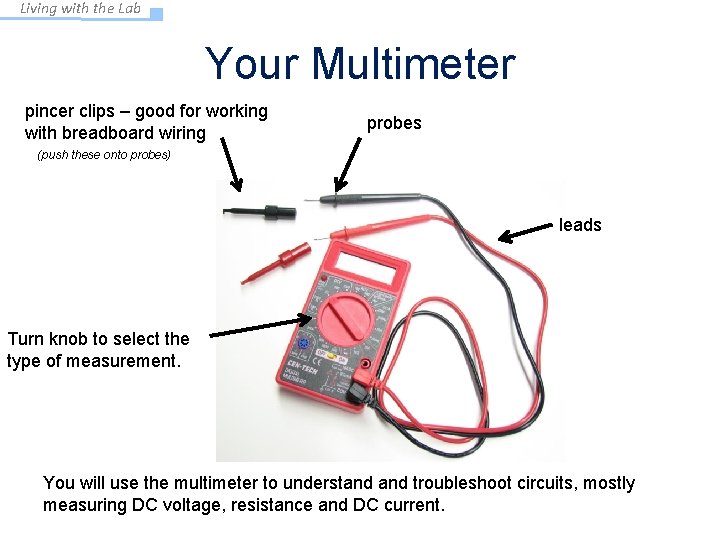
Living with the Lab Your Multimeter pincer clips – good for working with breadboard wiring probes (push these onto probes) leads Turn knob to select the type of measurement. You will use the multimeter to understand troubleshoot circuits, mostly measuring DC voltage, resistance and DC current.
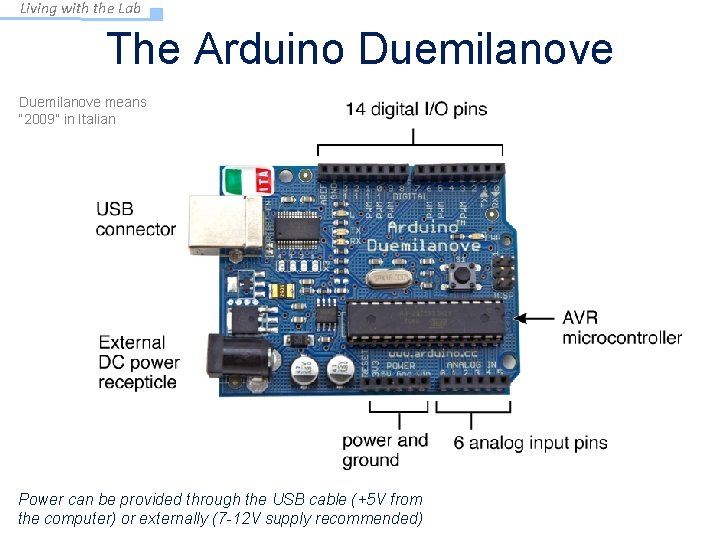
Living with the Lab The Arduino Duemilanove means “ 2009” in Italian Power can be provided through the USB cable (+5 V from the computer) or externally (7 -12 V supply recommended)
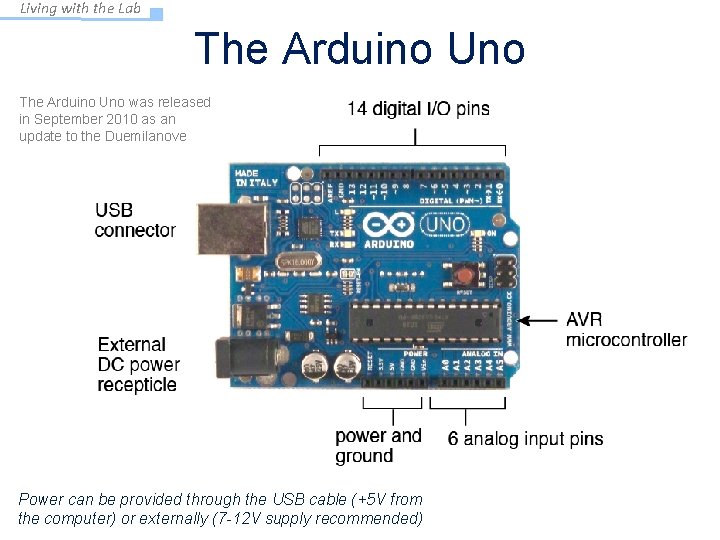
Living with the Lab The Arduino Uno was released in September 2010 as an update to the Duemilanove Power can be provided through the USB cable (+5 V from the computer) or externally (7 -12 V supply recommended)
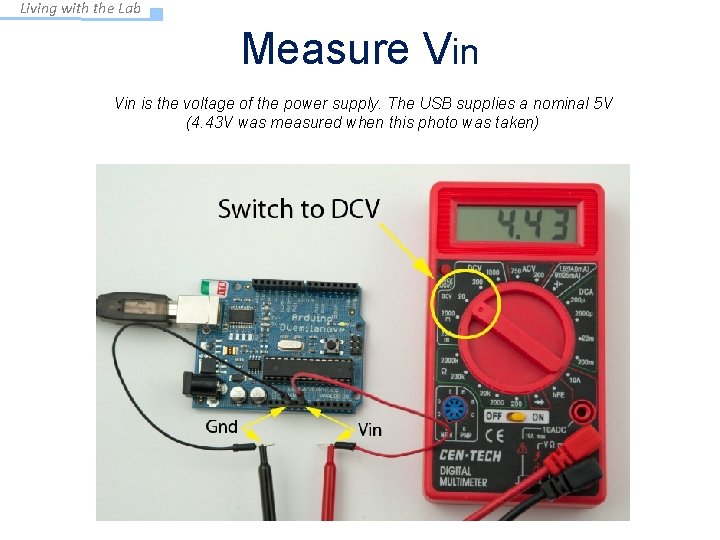
Living with the Lab Measure Vin is the voltage of the power supply. The USB supplies a nominal 5 V (4. 43 V was measured when this photo was taken)
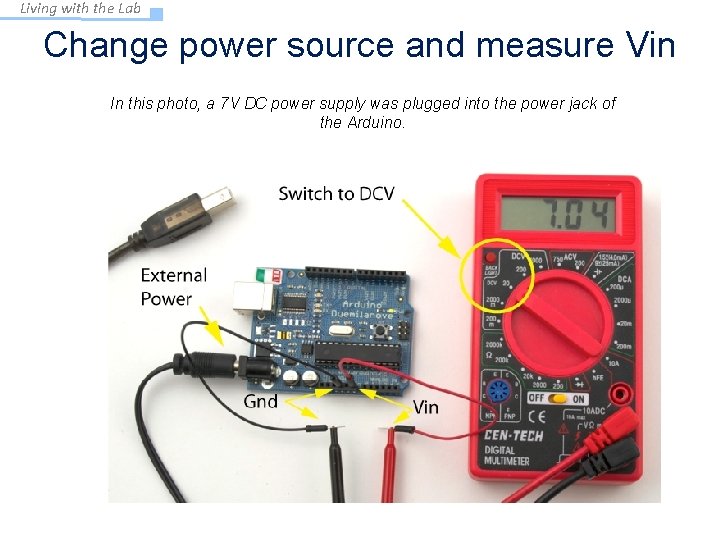
Living with the Lab Change power source and measure Vin In this photo, a 7 V DC power supply was plugged into the power jack of the Arduino.
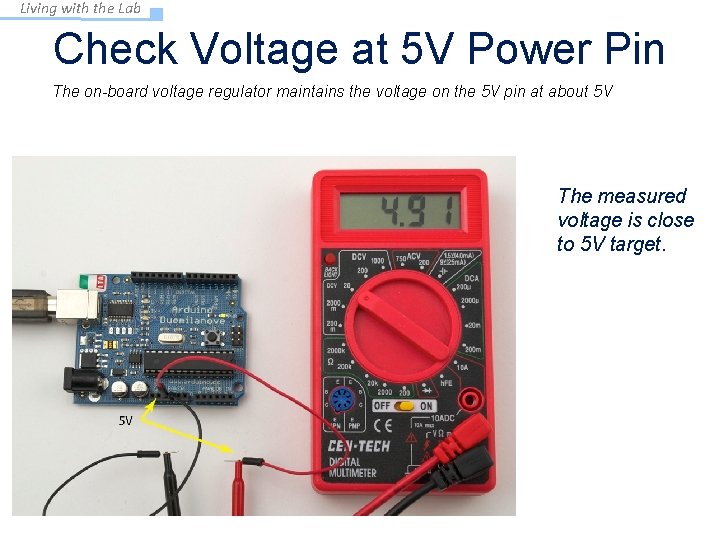
Living with the Lab Check Voltage at 5 V Power Pin The on-board voltage regulator maintains the voltage on the 5 V pin at about 5 V The measured voltage is close to 5 V target.
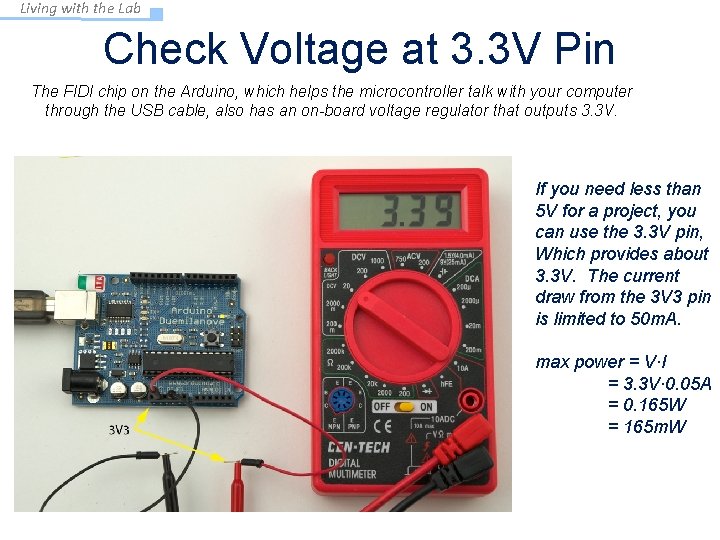
Living with the Lab Check Voltage at 3. 3 V Pin The FIDI chip on the Arduino, which helps the microcontroller talk with your computer through the USB cable, also has an on-board voltage regulator that outputs 3. 3 V. If you need less than 5 V for a project, you can use the 3. 3 V pin, Which provides about 3. 3 V. The current draw from the 3 V 3 pin is limited to 50 m. A. max power = V∙I = 3. 3 V∙ 0. 05 A = 0. 165 W = 165 m. W
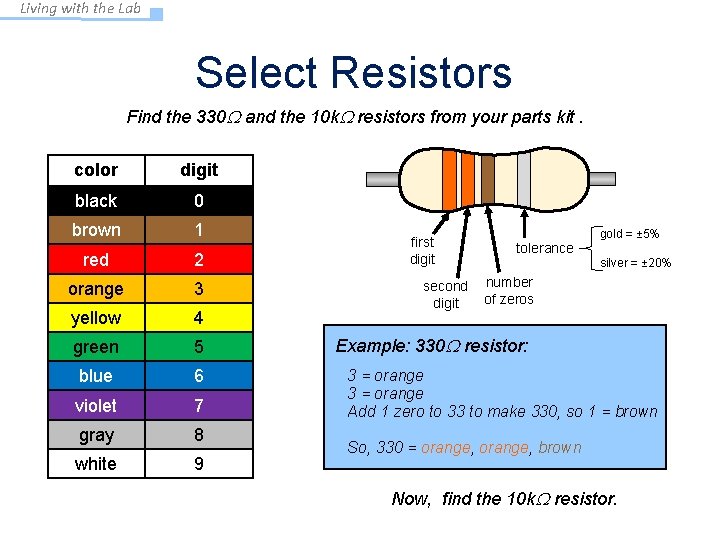
Living with the Lab Select Resistors Find the 330 W and the 10 k. W resistors from your parts kit. color digit black 0 brown 1 red 2 orange 3 yellow 4 green 5 blue 6 violet 7 gray 8 white 9 first digit second digit tolerance gold = ± 5% silver = ± 20% number of zeros Example: 330 W resistor: 3 = orange Add 1 zero to 33 to make 330, so 1 = brown So, 330 = orange, brown Now, find the 10 k. W resistor.
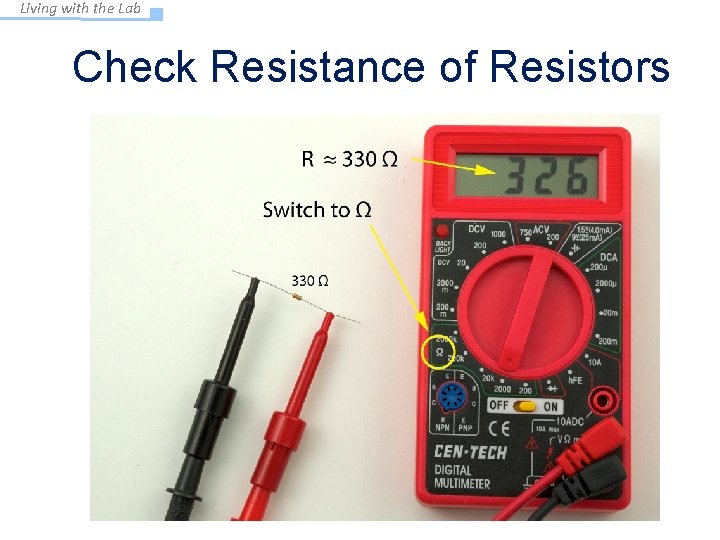
Living with the Lab Check Resistance of Resistors
Living with the Lab Building a circuit on a breadboard
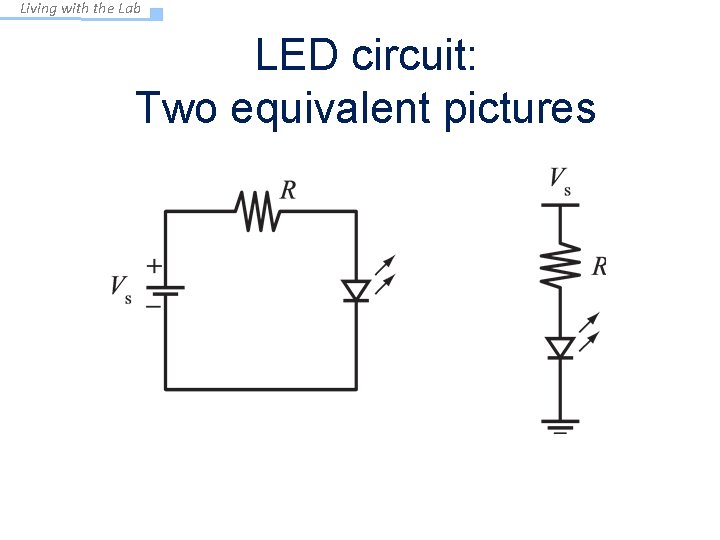
Living with the Lab LED circuit: Two equivalent pictures
Living with the Lab Building an LED Circuit Supplies: • 2 two jumper wires – colors don’t matter, but red is usually used for positive, and black is used for negative • LED • 330 Ω and 10 kΩ resistors • Arduino • Breadboard • USB cable from your computer)
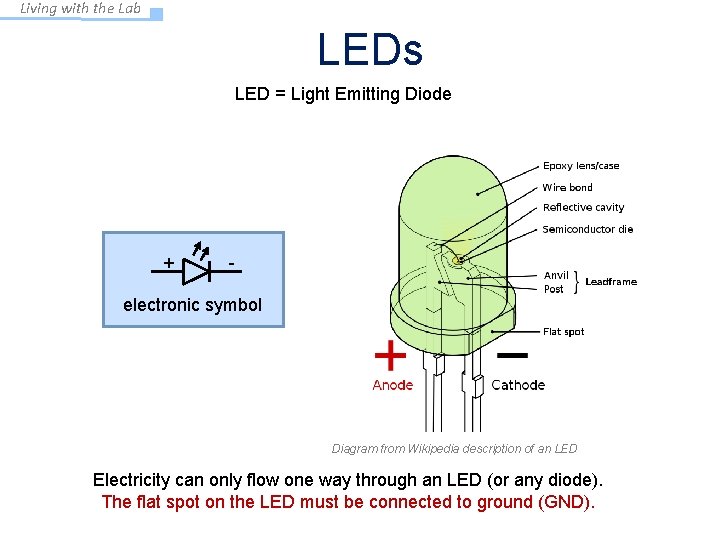
Living with the Lab LEDs LED = Light Emitting Diode + - electronic symbol Diagram from Wikipedia description of an LED Electricity can only flow one way through an LED (or any diode). The flat spot on the LED must be connected to ground (GND).
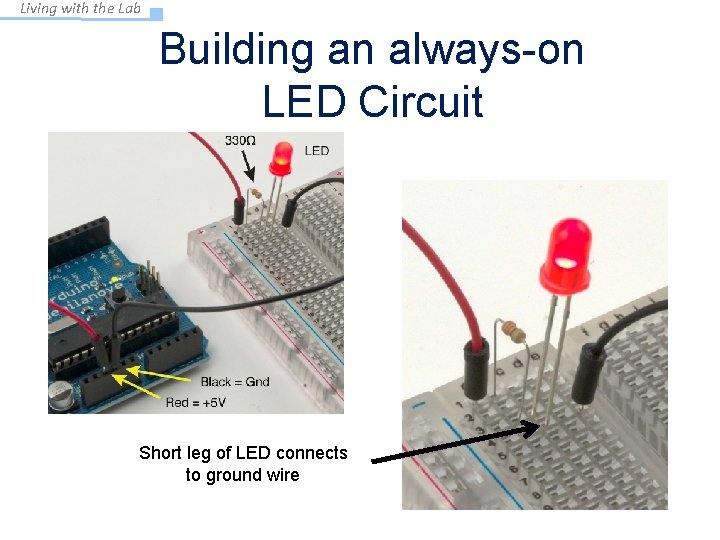
Living with the Lab Building an always-on LED Circuit Short leg of LED connects to ground wire

Living with the Lab Breadboard LED circuit
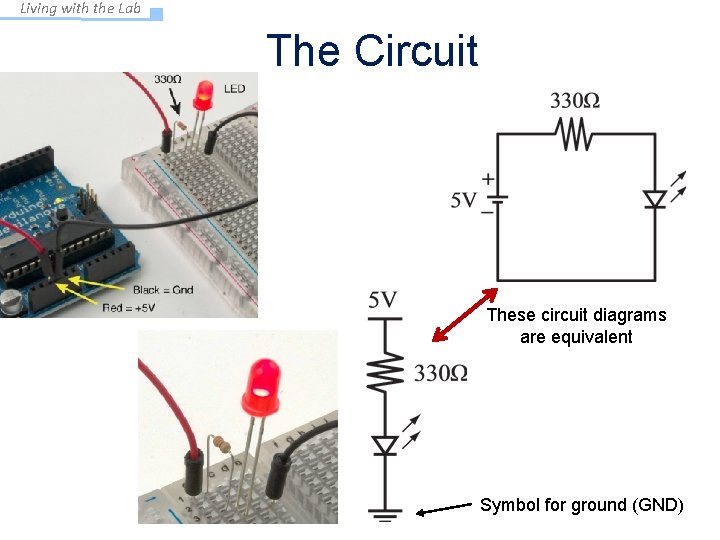
Living with the Lab The Circuit These circuit diagrams are equivalent Symbol for ground (GND)
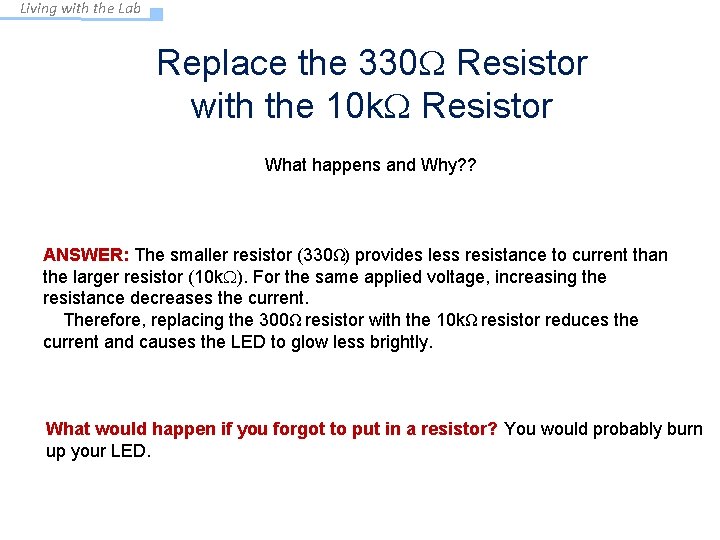
Living with the Lab Replace the 330 W Resistor with the 10 k. W Resistor What happens and Why? ? ANSWER: The smaller resistor (330Ω) provides less resistance to current than the larger resistor (10 k. W). For the same applied voltage, increasing the resistance decreases the current. Therefore, replacing the 300Ω resistor with the 10 kΩ resistor reduces the current and causes the LED to glow less brightly. What would happen if you forgot to put in a resistor? You would probably burn up your LED.
Living with the Lab Arduino program to blink an LED • Build the circuit on the breadboard – A slight modification to always-on LED circuit • Write your first Arduino program • Use the digital (on/off) output to turn LED on and off
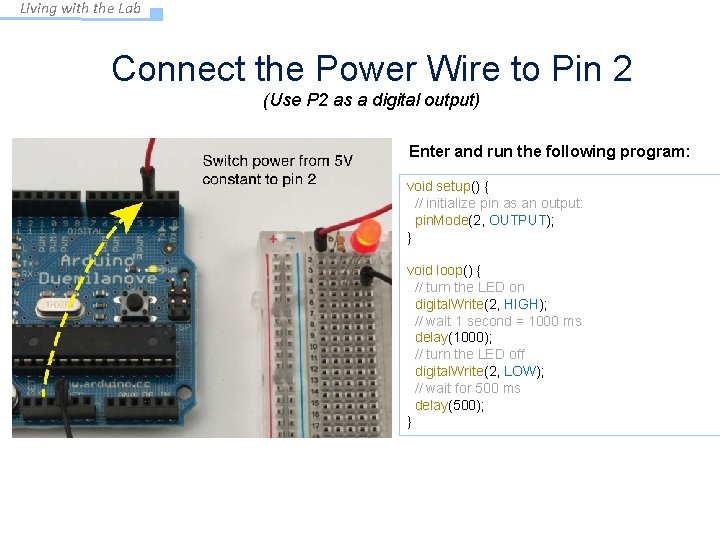
Living with the Lab Connect the Power Wire to Pin 2 (Use P 2 as a digital output) Enter and run the following program: void setup() { // initialize pin as an output: pin. Mode(2, OUTPUT); } void loop() { // turn the LED on digital. Write(2, HIGH); // wait 1 second = 1000 ms delay(1000); // turn the LED off digital. Write(2, LOW); // wait for 500 ms delay(500); }

Living with the Lab How the Program Works void setup() { initialize pin 2 as an output void loop() { digital. Write(2, HIGH); delay(1000); digital. Write(2, LOW); delay(500); } set pin 2 to HIGH (5 V) wait 1000 ms set pin 2 to LOW (0 V) wait 500 ms 1000 ms voltage (V) infinite loop pin. Mode(2, OUTPUT); } 500 ms 5 V 0 V time (ms) HIGH = 5 V and LOW = 0 V (Always!!!!)
Living with the Lab Now Experiment on Your Own! (1) Try changing the time to 1. 5 seconds on and 1 second off (2) Connect the resistor to digital pin 5 and change the program to match (3) Blink out SOS in Morse code (dot-dot-dash-dash-dot-dot) a. three short pulses (0. 25 seconds each) followed by. . . b. three long pulses (0. 75 second each) followed by. . . c. three short pulses (0. 25 seconds each) followed by. . . d. a brief pause (1 second) e. repeat a through d using an infinite loop Show your instructor when you have completed exercise (3)
Living with the Lab Find the each command in the reference section of arduino. cc (discuss each command with others at your table) void setup() { // initialize the digital pin as an output: pin. Mode(2, OUTPUT); } void loop() { digital. Write(2, HIGH); // set the LED on delay(1000); // wait for a second digital. Write(2, LOW); // set the LED off delay(500); // wait for 500 ms }
- Slides: 23