
LIVE TRACE LIVE COLOR Adobe Illustrator Overview What
LIVE TRACE & LIVE COLOR Adobe Illustrator
Overview • What is Live Trace? • Live Trace – Working with Line Drawings • Live Trace Graphic - Practice • What is Live Color? • Live Color a Drawing - Practice
What is Live Trace? • Process where Illustrator will take a raster graphic and convert it into a vector graphic • Can anyone remind me the difference between Raster and Vector? • Live trace works with any bitmap graphic: • This includes line drawings that are scanned in and you want to color in using the Illustrator program • Full color photographs you would like to edit/manipulate in Illustrator • Or just turn into a vector graphic • Caution: When working with photographs and converting them into a vector graphic via Live Trace: • Illustrator will try and turn each portion of the color graphic into a vector shape, this means paths and anchors • This can and will increase your file size, and also stress your computer • Less is more in this process!!
Live Trace – Working with Line Drawings • Some general tips when working with a line drawing (like a logo) that would be scanned in, placed and then live traced to be worked with: • Best if there are no open paths and the line drawing is dark (I like to go over mine with a black marker) • This process is assuming it’s just too much for the pen tool to handle • Overall, this process is nice because Illustrator will try and do the heavy lifting for you • When scanning in an image: • Do a pre-crop – Do not leave the white space of the 8. 5 x 11 scan around the logo/image • Do not include color in your sketch! • color in illustrator
LIVE TRACE A GRAPHIC Practice in Illustrator
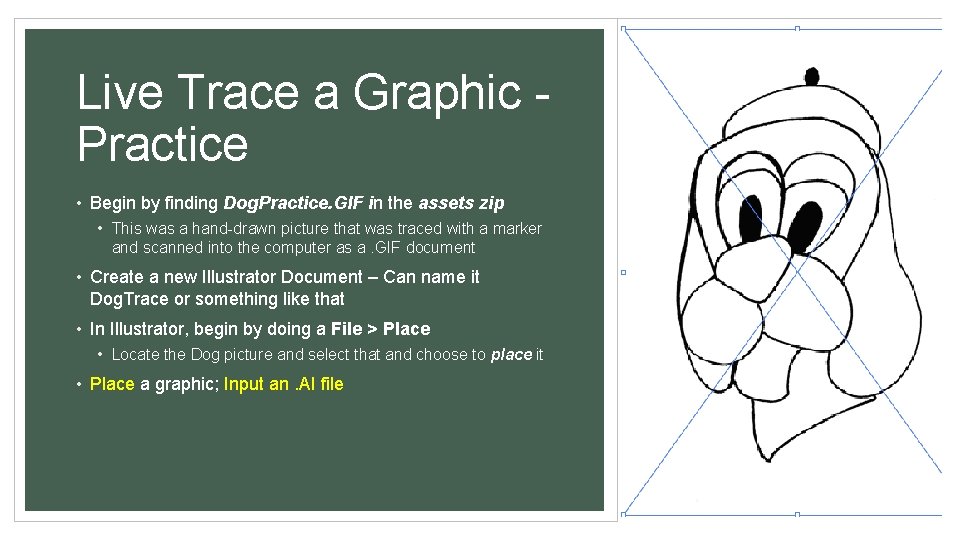
Live Trace a Graphic Practice • Begin by finding Dog. Practice. GIF in the assets zip • This was a hand-drawn picture that was traced with a marker and scanned into the computer as a. GIF document • Create a new Illustrator Document – Can name it Dog. Trace or something like that • In Illustrator, begin by doing a File > Place • Locate the Dog picture and select that and choose to place it • Place a graphic; Input an. AI file
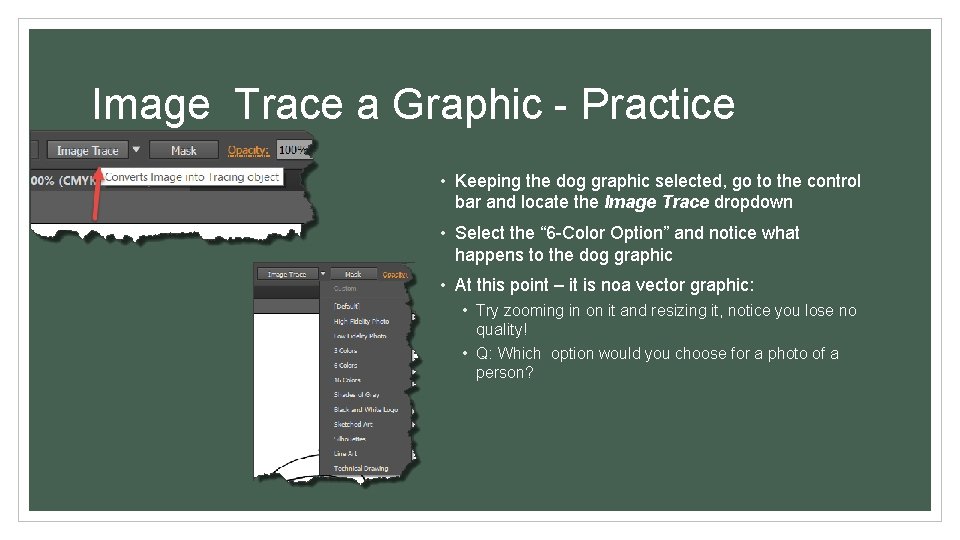
Image Trace a Graphic - Practice • Keeping the dog graphic selected, go to the control bar and locate the Image Trace dropdown • Select the “ 6 -Color Option” and notice what happens to the dog graphic • At this point – it is noa vector graphic: • Try zooming in on it and resizing it, notice you lose no quality! • Q: Which option would you choose for a photo of a person?
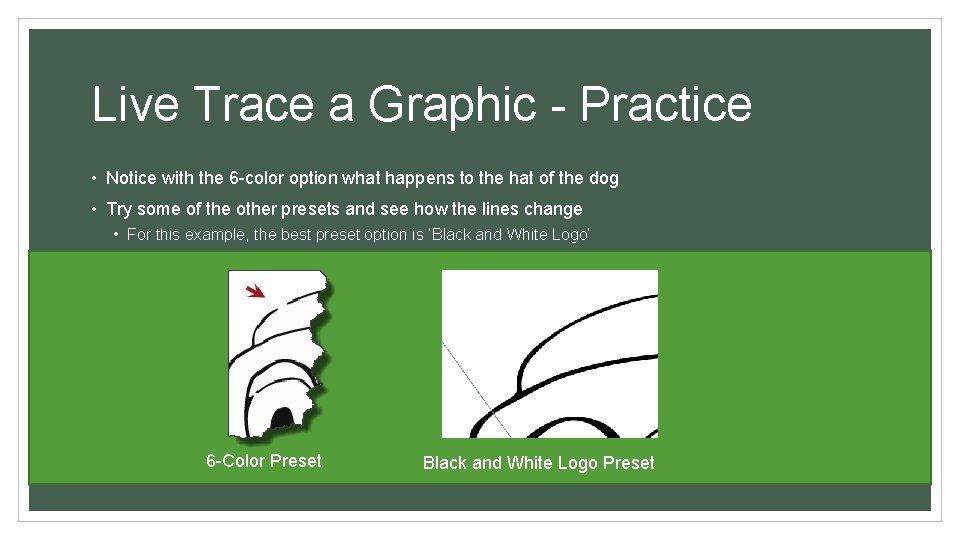
Live Trace a Graphic - Practice • Notice with the 6 -color option what happens to the hat of the dog • Try some of the other presets and see how the lines change • For this example, the best preset option is ‘Black and White Logo’ 6 -Color Preset Black and White Logo Preset
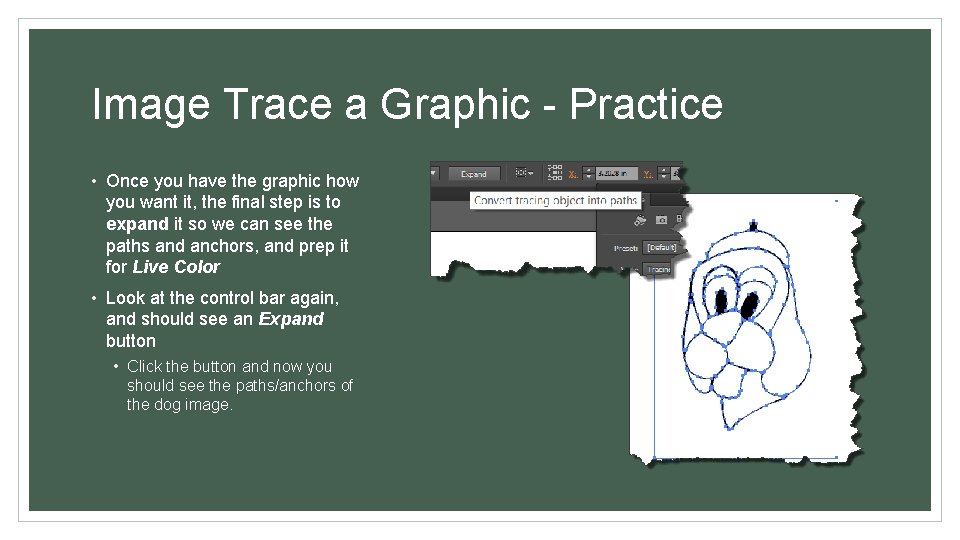
Image Trace a Graphic - Practice • Once you have the graphic how you want it, the final step is to expand it so we can see the paths and anchors, and prep it for Live Color • Look at the control bar again, and should see an Expand button • Click the button and now you should see the paths/anchors of the dog image.
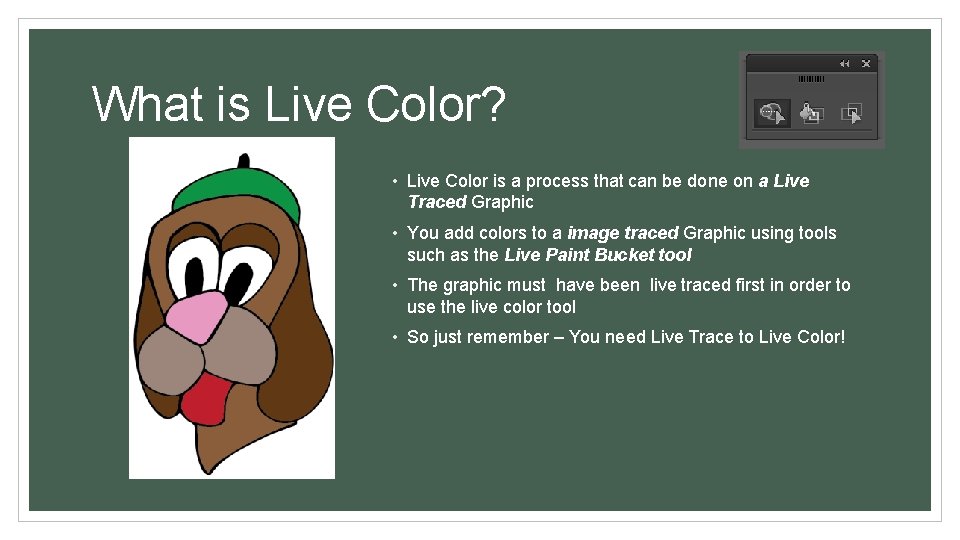
What is Live Color? • Live Color is a process that can be done on a Live Traced Graphic • You add colors to a image traced Graphic using tools such as the Live Paint Bucket tool • The graphic must have been live traced first in order to use the live color tool • So just remember – You need Live Trace to Live Color!

LIVE COLOR PRACTICE Coloring in our Dog Sketch!
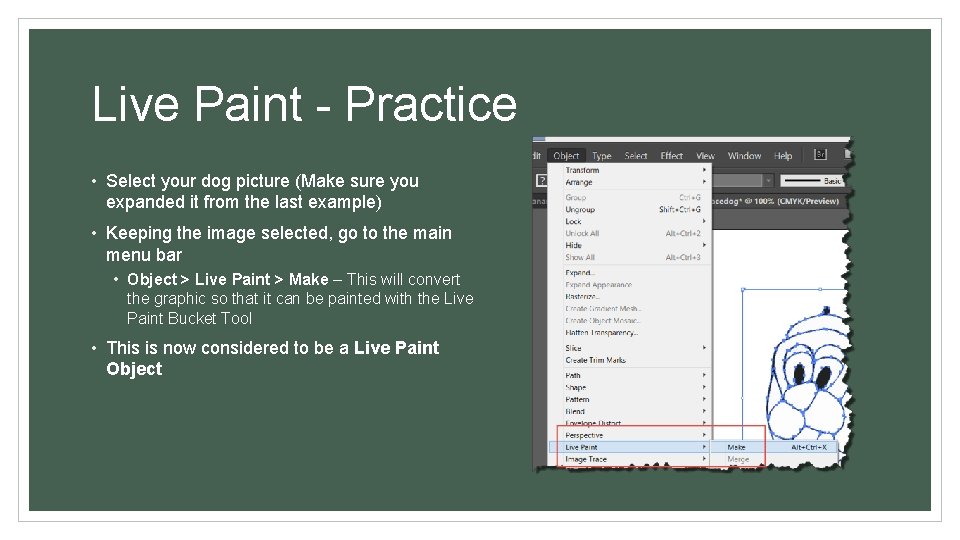
Live Paint - Practice • Select your dog picture (Make sure you expanded it from the last example) • Keeping the image selected, go to the main menu bar • Object > Live Paint > Make – This will convert the graphic so that it can be painted with the Live Paint Bucket Tool • This is now considered to be a Live Paint Object
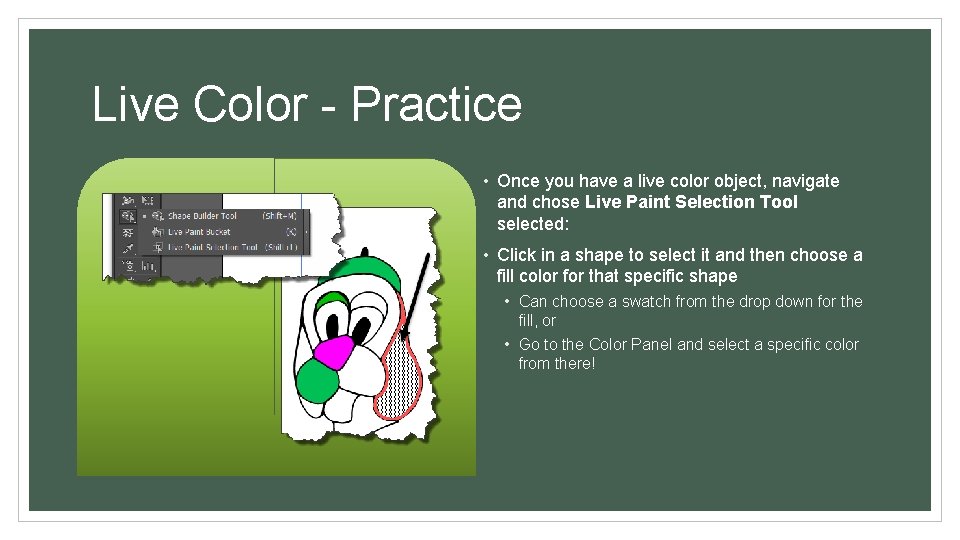
Live Color - Practice • Once you have a live color object, navigate and chose Live Paint Selection Tool selected: • Click in a shape to select it and then choose a fill color for that specific shape • Can choose a swatch from the drop down for the fill, or • Go to the Color Panel and select a specific color from there!
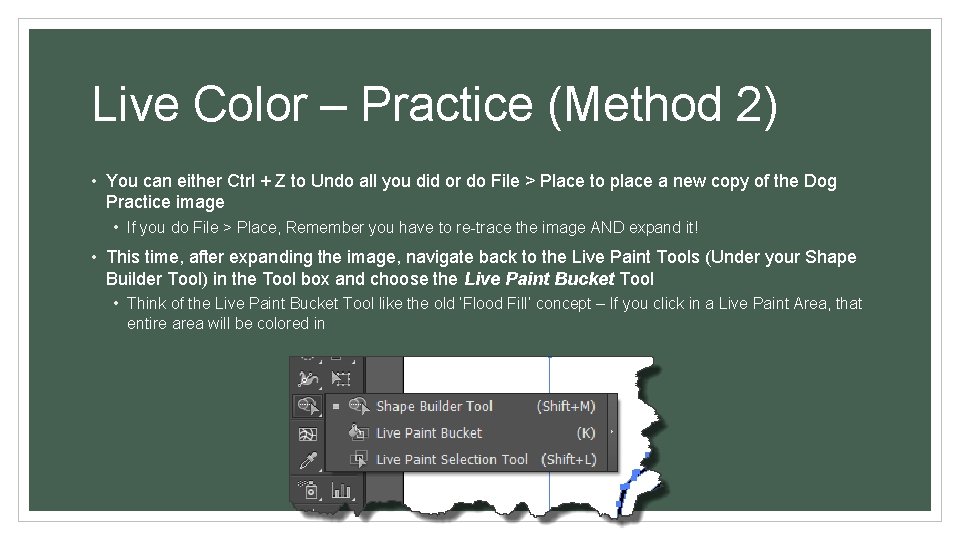
Live Color – Practice (Method 2) • You can either Ctrl + Z to Undo all you did or do File > Place to place a new copy of the Dog Practice image • If you do File > Place, Remember you have to re-trace the image AND expand it! • This time, after expanding the image, navigate back to the Live Paint Tools (Under your Shape Builder Tool) in the Tool box and choose the Live Paint Bucket Tool • Think of the Live Paint Bucket Tool like the old ‘Flood Fill’ concept – If you click in a Live Paint Area, that entire area will be colored in
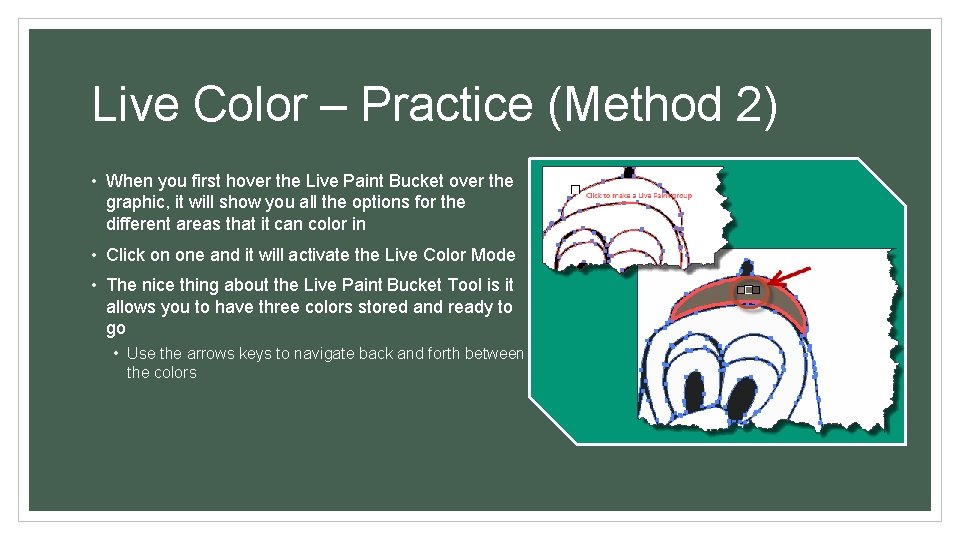
Live Color – Practice (Method 2) • When you first hover the Live Paint Bucket over the graphic, it will show you all the options for the different areas that it can color in • Click on one and it will activate the Live Color Mode • The nice thing about the Live Paint Bucket Tool is it allows you to have three colors stored and ready to go • Use the arrows keys to navigate back and forth between the colors
- Slides: 15