
Live Demo Channel Sales e Commerce SOP TPM

- Slides: 25
Live Demo – Channel Sales e. Commerce SOP TPM : Vivian 1_Chang
Data key-in @ e-Commerce: Easy 2 steps!! Step 1. Receive the template with S/N & Mac Address from merchandiser Step 2. Key in the mac address and serial number in e. Commerce Note! Each demo unit (Mac Address & S/No. ) should match each demo store
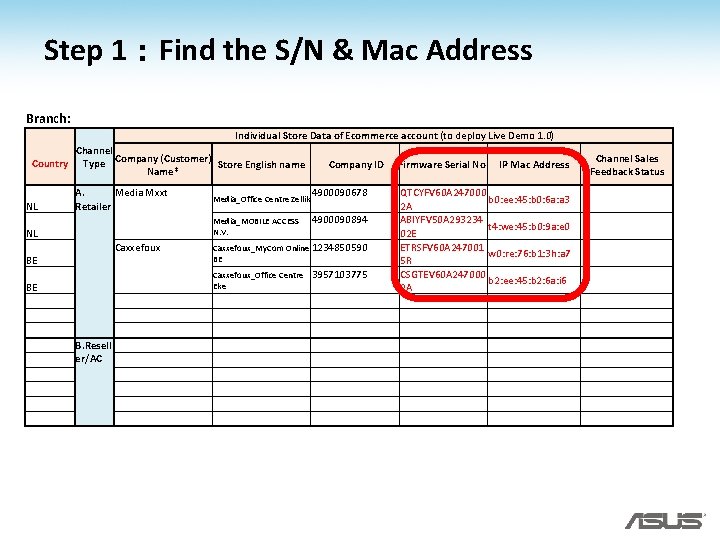
Step 1:Find the S/N & Mac Address Branch: Individual Store Data of Ecommerce account (to deploy Live Demo 1. 0) Country NL Channel Company (Customer) Type Store English name Name* A. Media Mxxt Retailer Media_MOBILE ACCESS N. V. NL BE BE Media_Office Centre Zellik Caxxefoux B. Resell er/AC Company ID 4900090678 4900090894 Caxxefoux_My. Com Online 1234850590 BE Caxxefoux_Office Centre Eke 3957103775 Firmware Serial No. IP Mac Address QTCYFV 60 A 247000 b 0: ee: 45: b 0: 6 a: a 3 2 A ABIYFV 50 A 293234 t 4: we: 45: b 0: 9 a: e 0 02 E ETRSFV 60 A 247001 w 0: re: 76: b 1: 3 h: a 7 5 R CSGTEV 60 A 247000 b 2: ee: 45: b 2: 6 a: i 6 2 A Channel Sales Feedback Status
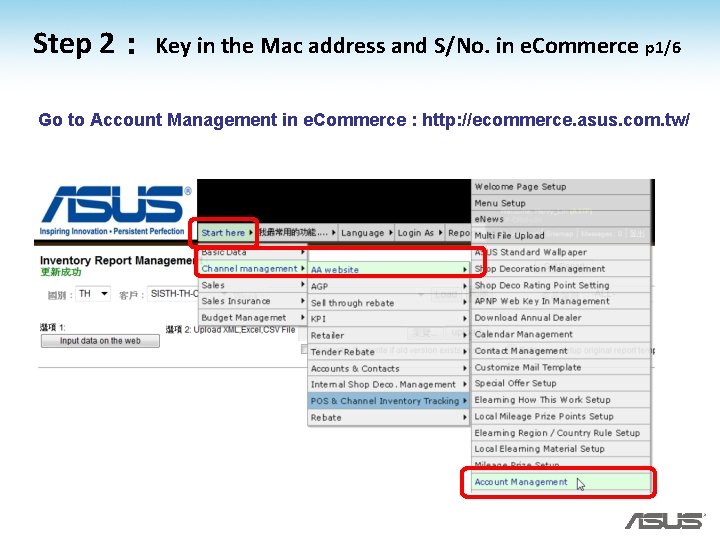
Step 2: Key in the Mac address and S/No. in e. Commerce p 1/6 Go to Account Management in e. Commerce : http: //ecommerce. asus. com. tw/
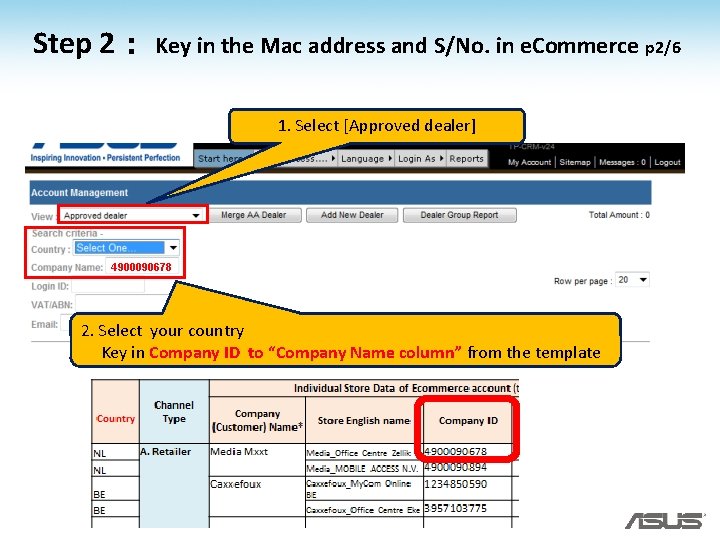
Step 2: Key in the Mac address and S/No. in e. Commerce p 2/6 1. Select [Approved dealer] 4900090678 2. Select your country Key in Company ID to “Company Name column” from the template
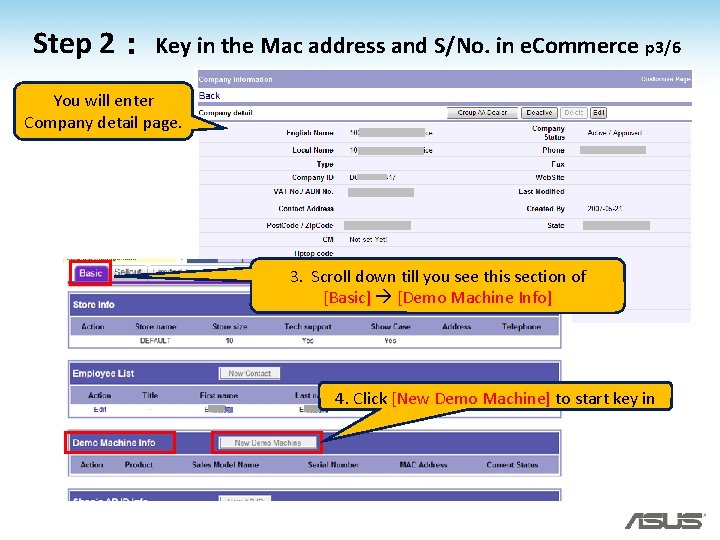
Step 2: Key in the Mac address and S/No. in e. Commerce p 3/6 You will enter Company detail page. 3. Scroll down till you see this section of [Basic] [Demo Machine Info] 4. Click [New Demo Machine] to start key in
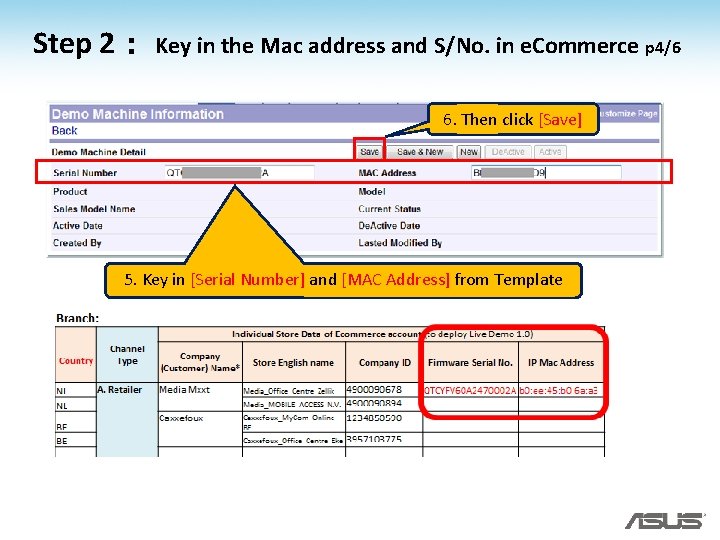
Step 2: Key in the Mac address and S/No. in e. Commerce p 4/6 6. Then click [Save] 5. Key in [Serial Number] and [MAC Address] from Template
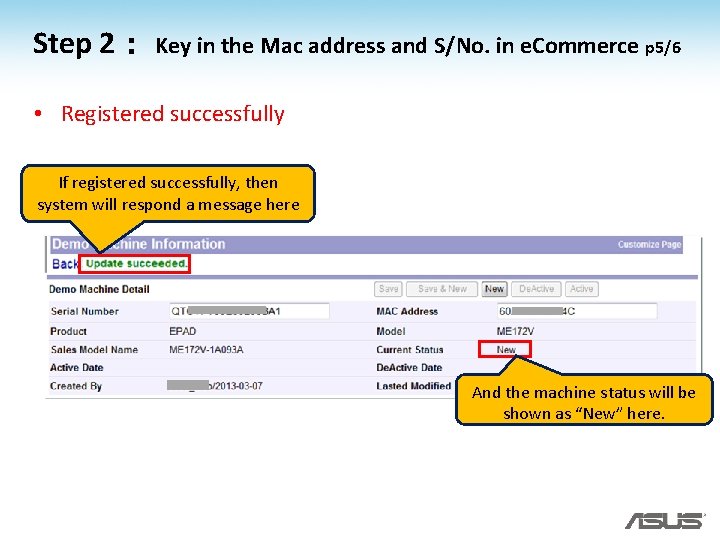
Step 2: Key in the Mac address and S/No. in e. Commerce p 5/6 • Registered successfully If registered successfully, then system will respond a message here And the machine status will be shown as “New” here.
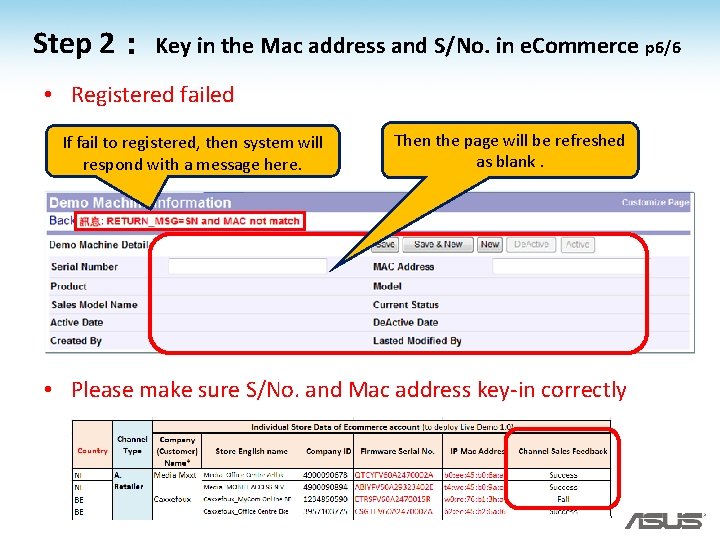
Step 2: Key in the Mac address and S/No. in e. Commerce p 6/6 • Registered failed If fail to registered, then system will respond with a message here. Then the page will be refreshed as blank. • Please make sure S/No. and Mac address key-in correctly
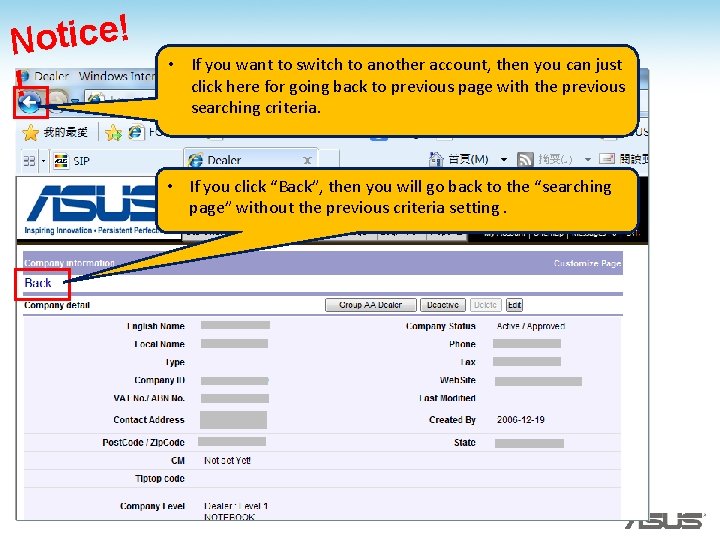
Notice! ! • If you want to switch to another account, then you can just click here for going back to previous page with the previous searching criteria. • If you click “Back”, then you will go back to the “searching page” without the previous criteria setting.
Appendix • How to find store ecommerce account? • The meaning of the “Current Status” field in Ecommerce Account Management. • What to do if you registered a machine in wrong shop’s account?
How to find store ecommerce account?
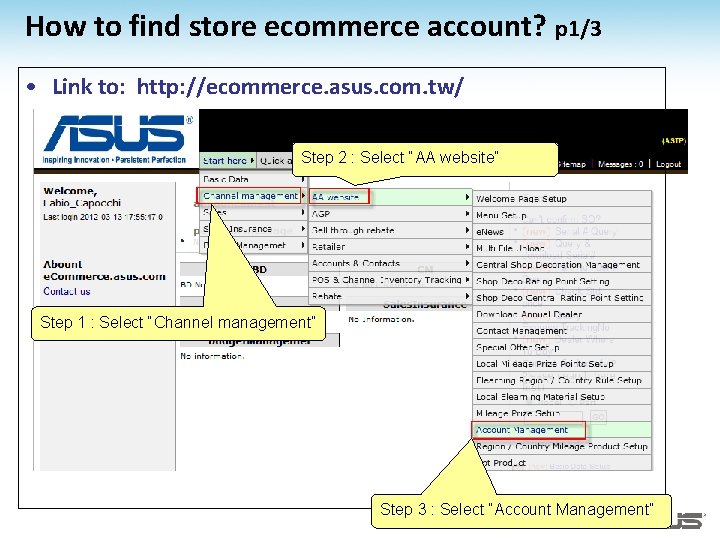
How to find store ecommerce account? p 1/3 • Link to: http: //ecommerce. asus. com. tw/ Step 2 : Select “AA website” Step 1 : Select “Channel management” Step 3 : Select “Account Management”
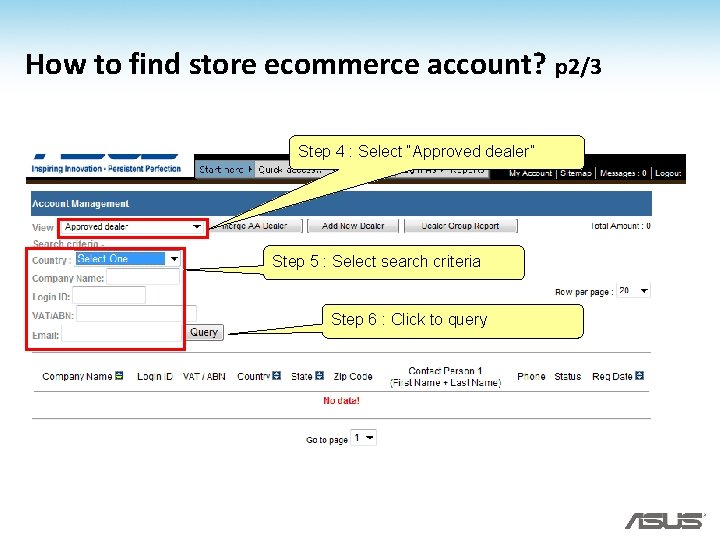
How to find store ecommerce account? p 2/3 Step 4 : Select “Approved dealer” Step 5 : Select search criteria Step 6 : Click to query
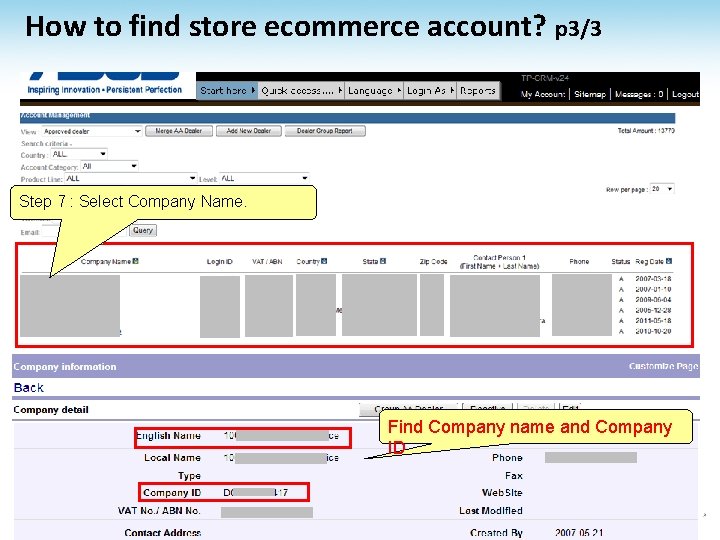
How to find store ecommerce account? p 3/3 Step 7 : Select Company Name. Find Company name and Company ID
How to Deactive a machine from being a “Demo machine”?
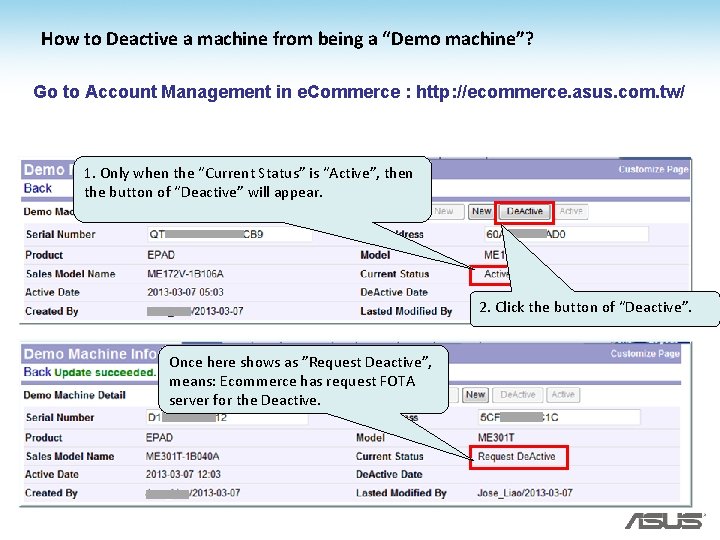
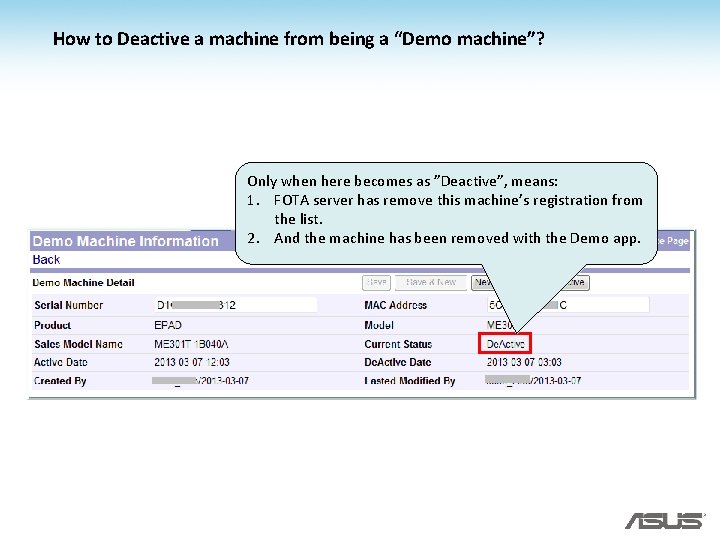
How to Deactive a machine from being a “Demo machine”? Go to Account Management in e. Commerce : http: //ecommerce. asus. com. tw/ 1. Only when the “Current Status” is “Active”, then the button of “Deactive” will appear. 2. Click the button of “Deactive”. Once here shows as ”Request Deactive”, means: Ecommerce has request FOTA server for the Deactive.
How to Deactive a machine from being a “Demo machine”? Only when here becomes as ”Deactive”, means: 1. FOTA server has remove this machine’s registration from the list. 2. And the machine has been removed with the Demo app.
The meaning of the “Current Status” field in Ecommerce Account Management.
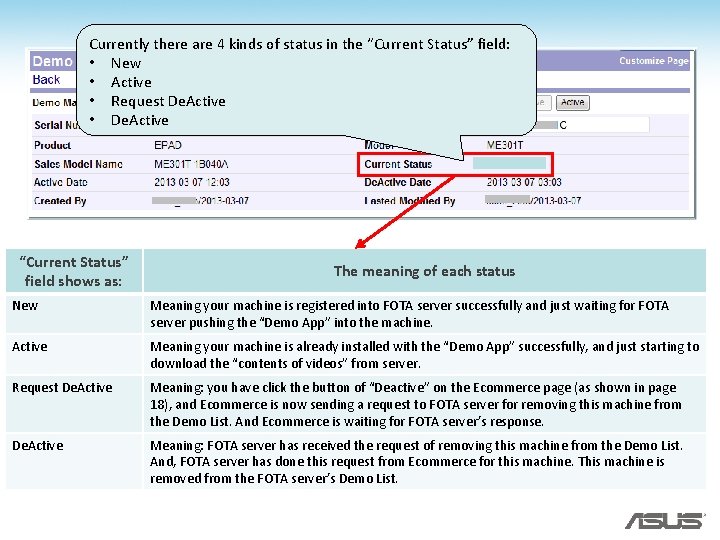
Currently there are 4 kinds of status in the “Current Status” field: • New • Active • Request De. Active • De. Active “Current Status” field shows as: The meaning of each status New Meaning your machine is registered into FOTA server successfully and just waiting for FOTA server pushing the “Demo App” into the machine. Active Meaning your machine is already installed with the “Demo App” successfully, and just starting to download the “contents of videos” from server. Request De. Active Meaning: you have click the button of “Deactive” on the Ecommerce page (as shown in page 18), and Ecommerce is now sending a request to FOTA server for removing this machine from the Demo List. And Ecommerce is waiting for FOTA server’s response. De. Active Meaning: FOTA server has received the request of removing this machine from the Demo List. And, FOTA server has done this request from Ecommerce for this machine. This machine is removed from the FOTA server’s Demo List.
What to do if you registered a machine in wrong shop’s account?
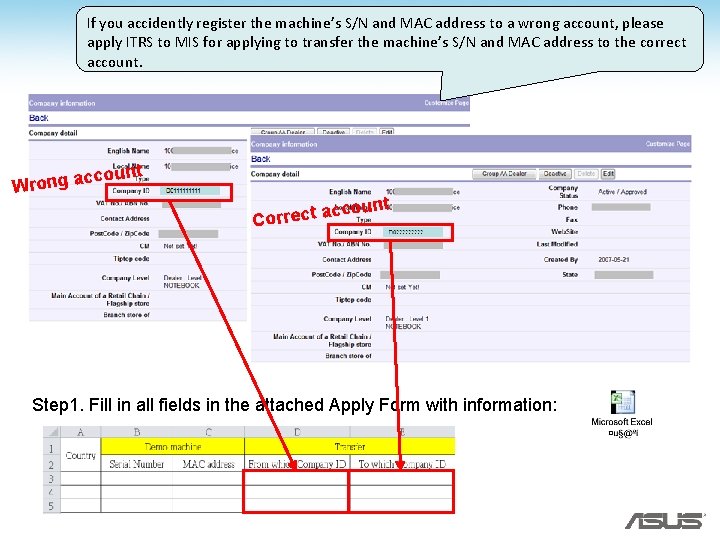
If you accidently register the machine’s S/N and MAC address to a wrong account, please apply ITRS to MIS for applying to transfer the machine’s S/N and MAC address to the correct account. unt cco Wrong a count c a t c e r r Co Step 1. Fill in all fields in the attached Apply Form with information:
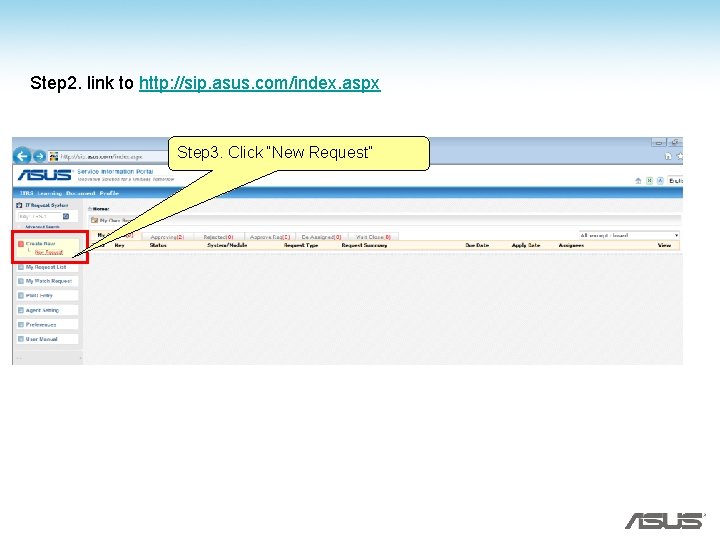
Step 2. link to http: //sip. asus. com/index. aspx Step 3. Click “New Request”
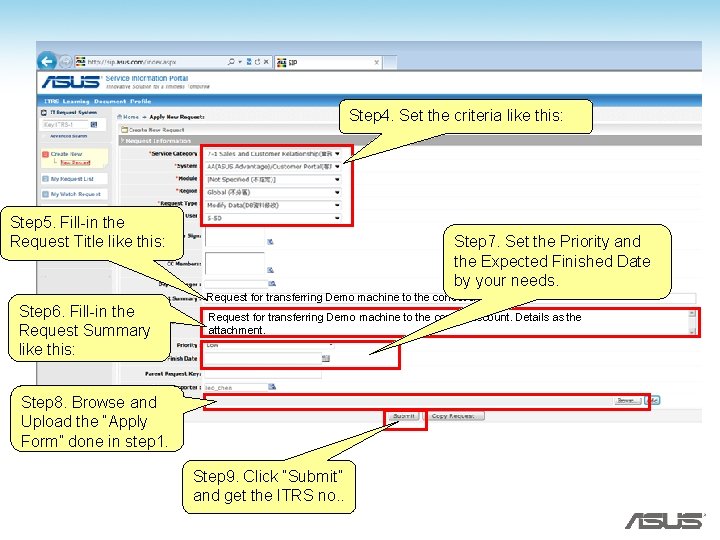
Step 4. Set the criteria like this: Step 5. Fill-in the Request Title like this: Step 6. Fill-in the Request Summary like this: Step 7. Set the Priority and the Expected Finished Date by your needs. Request for transferring Demo machine to the correct account. Details as the attachment. Step 8. Browse and Upload the “Apply Form” done in step 1. Step 9. Click “Submit” and get the ITRS no. .
• Thank you