
Lists Images Tables and Links Kanida Sinmai ksinmaihotmail

Lists, Images, Tables and Links Kanida Sinmai ksinmai@hotmail. com http: //mis. csit. sci. tsu. ac. th/kanida
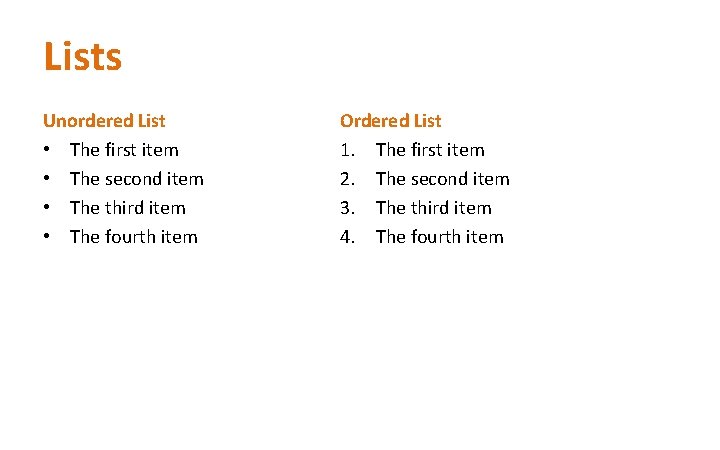
Lists Unordered List • The first item • The second item • The third item • The fourth item Ordered List 1. The first item 2. The second item 3. The third item 4. The fourth item
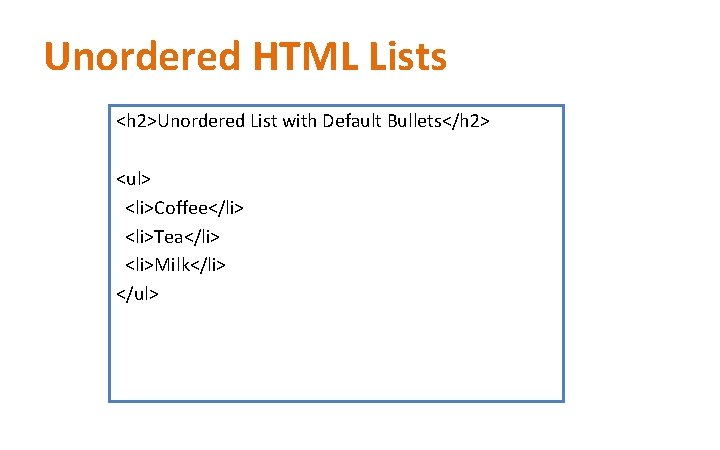
Unordered HTML Lists <h 2>Unordered List with Default Bullets</h 2> <ul> <li>Coffee</li> <li>Tea</li> <li>Milk</li> </ul>
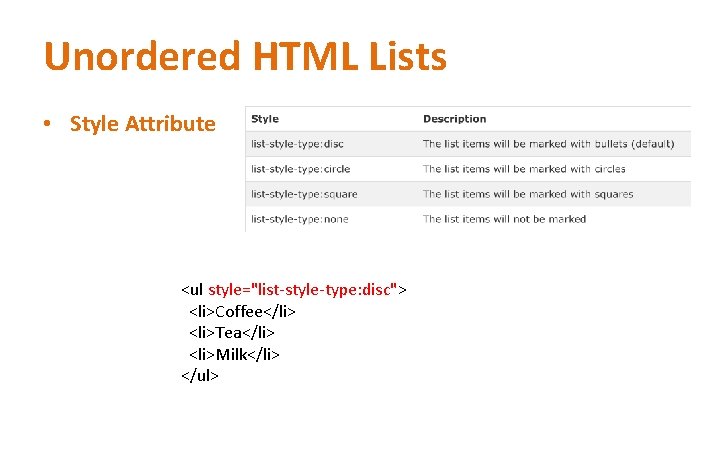
Unordered HTML Lists • Style Attribute <ul style="list-style-type: disc"> <li>Coffee</li> <li>Tea</li> <li>Milk</li> </ul>
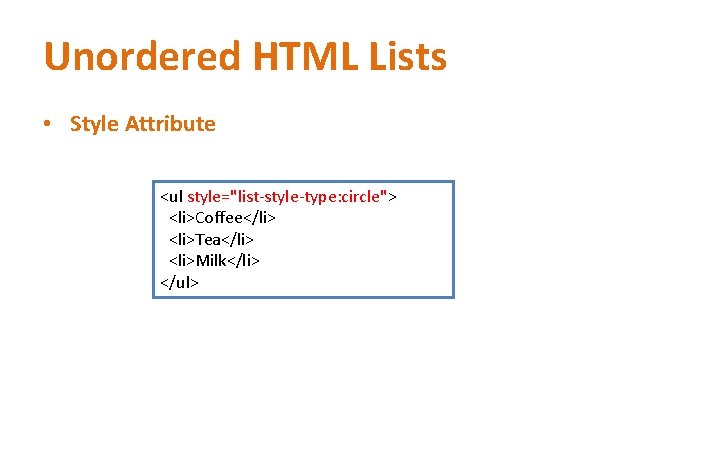
Unordered HTML Lists • Style Attribute <ul style="list-style-type: circle"> <li>Coffee</li> <li>Tea</li> <li>Milk</li> </ul>
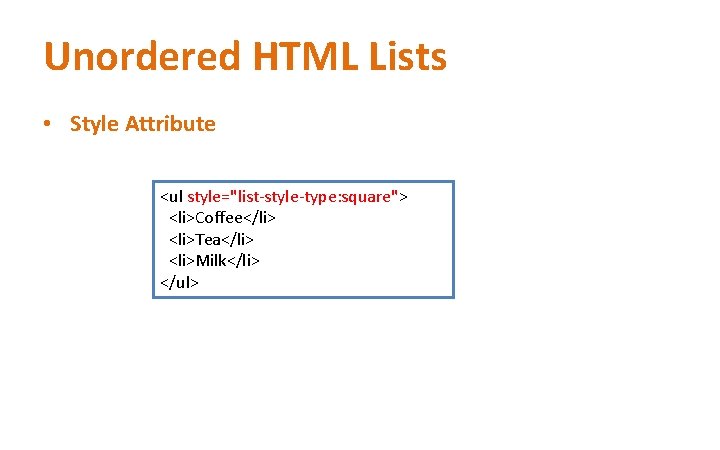
Unordered HTML Lists • Style Attribute <ul style="list-style-type: square"> <li>Coffee</li> <li>Tea</li> <li>Milk</li> </ul>
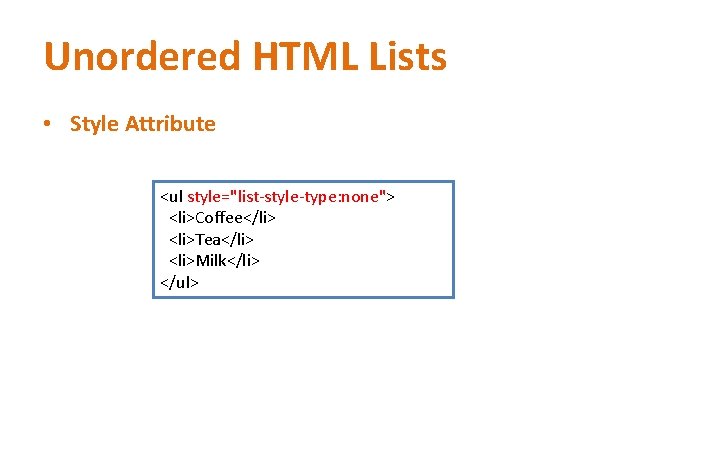
Unordered HTML Lists • Style Attribute <ul style="list-style-type: none"> <li>Coffee</li> <li>Tea</li> <li>Milk</li> </ul>
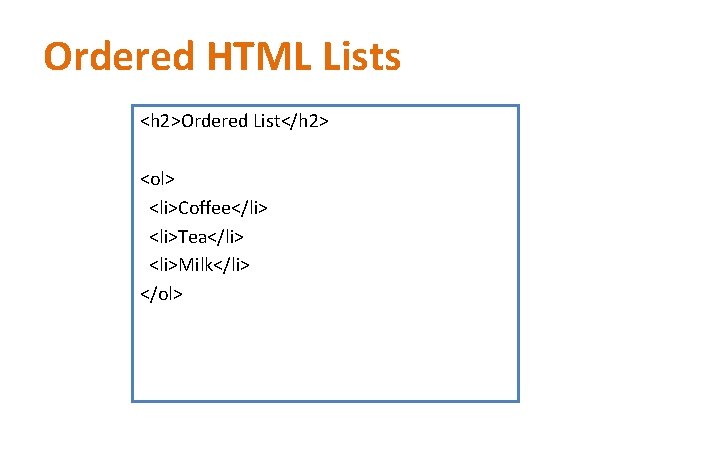
Ordered HTML Lists <h 2>Ordered List</h 2> <ol> <li>Coffee</li> <li>Tea</li> <li>Milk</li> </ol>
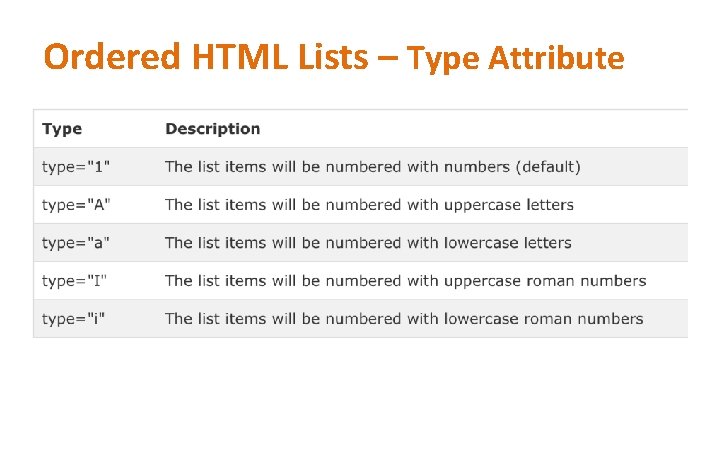
Ordered HTML Lists – Type Attribute
Ordered HTML Lists – Type 1 <ol type="1"> <li>Coffee</li> <li>Tea</li> <li>Milk</li> </ol>
Ordered HTML Lists – Type A <ol type="A"> <li>Coffee</li> <li>Tea</li> <li>Milk</li> </ol>
Ordered HTML Lists – Type a <ol type="a"> <li>Coffee</li> <li>Tea</li> <li>Milk</li> </ol>
Ordered HTML Lists – Type I <ol type="I"> <li>Coffee</li> <li>Tea</li> <li>Milk</li> </ol>
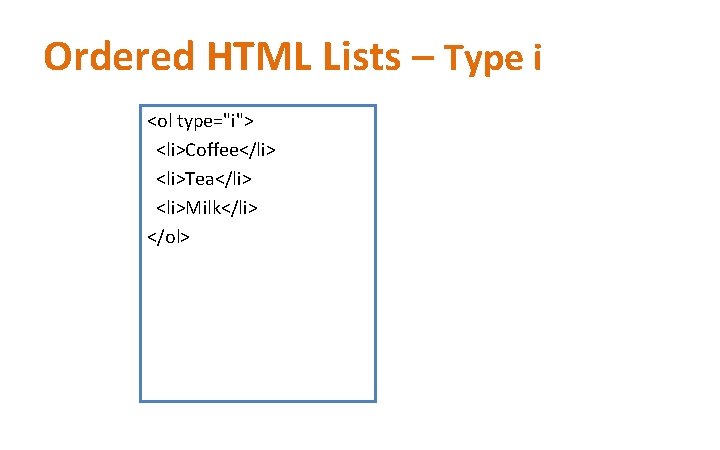
Ordered HTML Lists – Type i <ol type="i"> <li>Coffee</li> <li>Tea</li> <li>Milk</li> </ol>
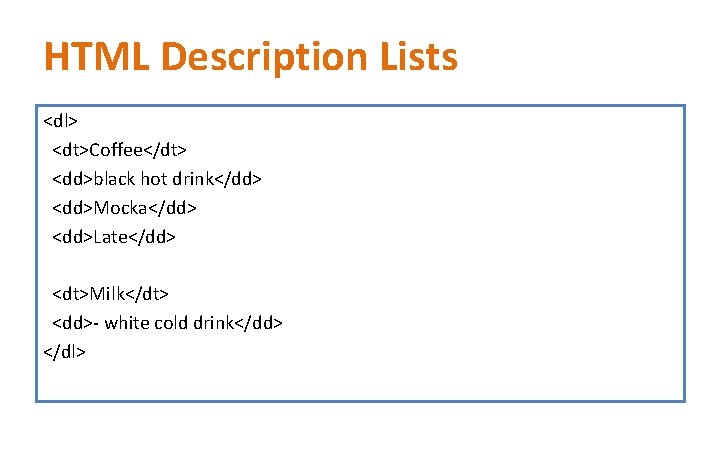
HTML Description Lists <dl> <dt>Coffee</dt> <dd>black hot drink</dd> <dd>Mocka</dd> <dd>Late</dd> <dt>Milk</dt> <dd>- white cold drink</dd> </dl>
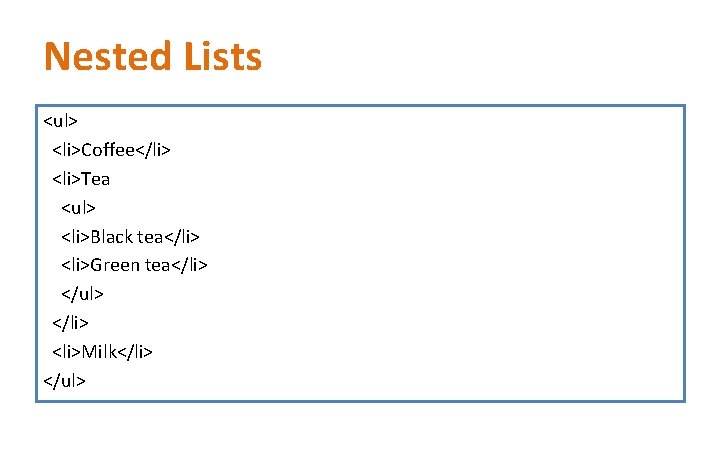
Nested Lists <ul> <li>Coffee</li> <li>Tea <ul> <li>Black tea</li> <li>Green tea</li> </ul> </li> <li>Milk</li> </ul>
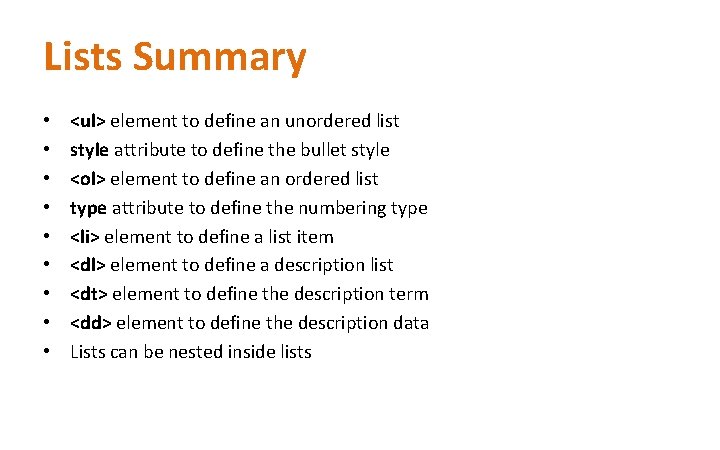
Lists Summary • • • <ul> element to define an unordered list style attribute to define the bullet style <ol> element to define an ordered list type attribute to define the numbering type <li> element to define a list item <dl> element to define a description list <dt> element to define the description term <dd> element to define the description data Lists can be nested inside lists
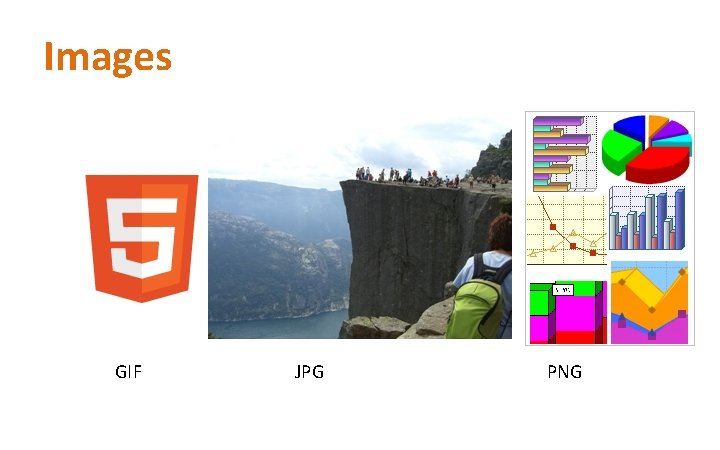
Images GIF JPG PNG
GIF Graphic Interchange Format • Maximum number of 256 colors • Can be Animated • Transparency : allow one color • Interlaced : low resolution to higher – from blur, low-detail to successive layer

JPG JPEG (Joint Photographic Expert Group) • Unlimited colors • Compression : more compress, more degrade image 0% compression 80% compression
PNG (Portable Network Graphics) • Without copyright limitation (that found in GIF) • Vary in color: PNG-8 (256 colors) – PNG-24 (millions colors) • Transparency • PNG-24 - file size is larger than JPG • PNG-8 - file size is lower compared with GIF
Images • In HTML, images are defined with the <img> tag. • The <img> tag is empty, it contains attributes only, and does not have a closing tag. • The src attribute specifies the URL (web address) of the image: <img src="url" alt="some_text” /> e. g. <img src="wrongname. gif" alt="HTML 5 Icon”/> <img src="html 5. gif" alt="HTML 5 Icon" width="128" height="128” />
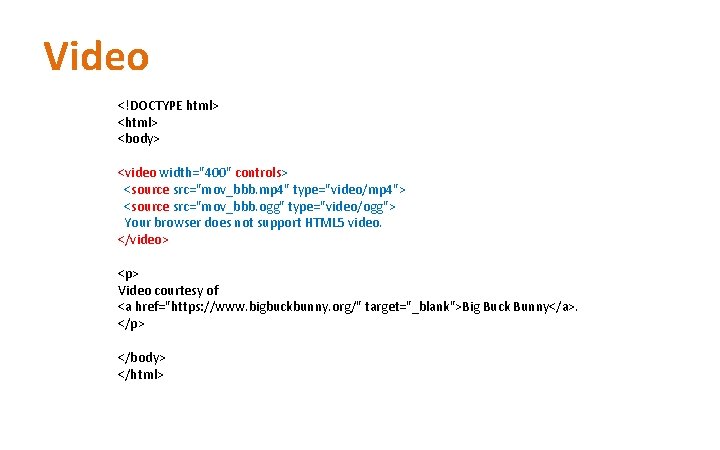
Video <!DOCTYPE html> <body> <video width="400" controls> <source src="mov_bbb. mp 4" type="video/mp 4"> <source src="mov_bbb. ogg" type="video/ogg"> Your browser does not support HTML 5 video. </video> <p> Video courtesy of <a href="https: //www. bigbuckbunny. org/" target="_blank">Big Buck Bunny</a>. </p> </body> </html>

Audio <audio controls> <source src="horse. ogg" type="audio/ogg"> <source src="horse. mp 3" type="audio/mpeg"> Your browser does not support the audio element. </audio>
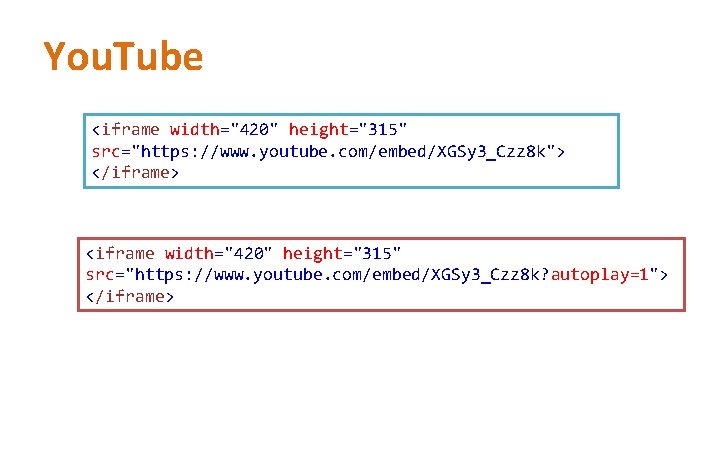
You. Tube <iframe width="420" height="315" src="https: //www. youtube. com/embed/XGSy 3_Czz 8 k"> </iframe> <iframe width="420" height="315" src="https: //www. youtube. com/embed/XGSy 3_Czz 8 k? autoplay=1"> </iframe>
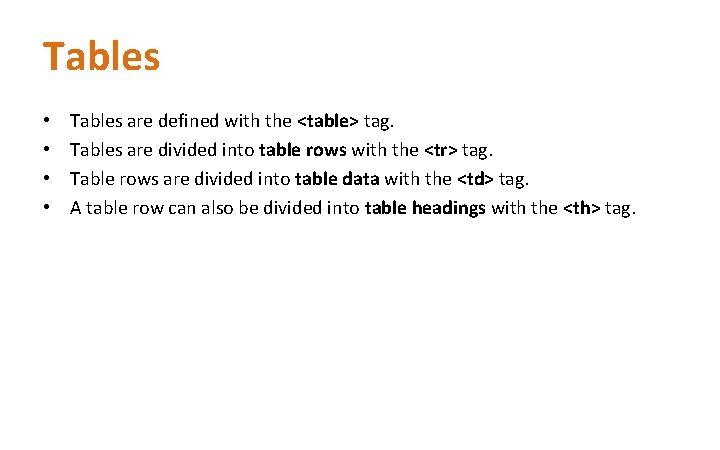
Tables • • Tables are defined with the <table> tag. Tables are divided into table rows with the <tr> tag. Table rows are divided into table data with the <td> tag. A table row can also be divided into table headings with the <th> tag.
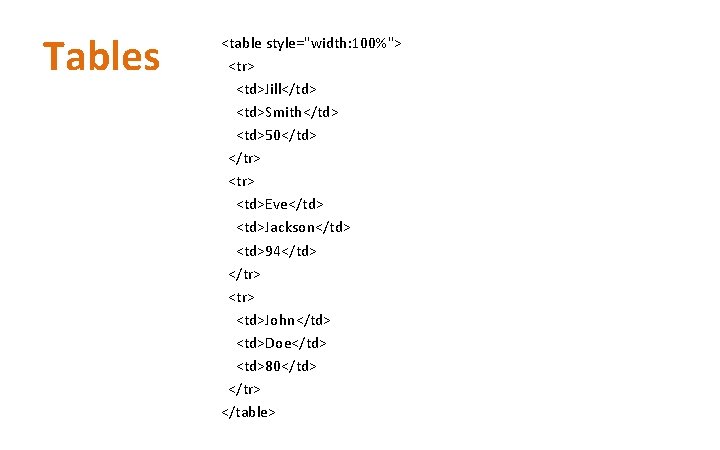
Tables <table style="width: 100%"> <tr> <td>Jill</td> <td>Smith</td> <td>50</td> </tr> <tr> <td>Eve</td> <td>Jackson</td> <td>94</td> </tr> <tr> <td>John</td> <td>Doe</td> <td>80</td> </tr> </table>
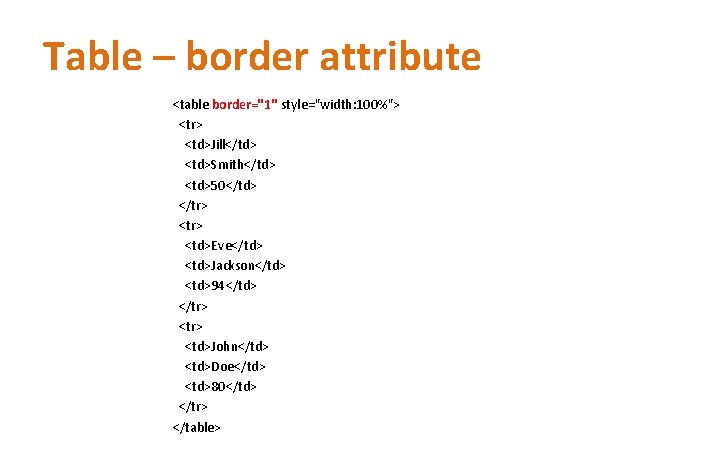
Table – border attribute <table border="1" style="width: 100%"> <tr> <td>Jill</td> <td>Smith</td> <td>50</td> </tr> <tr> <td>Eve</td> <td>Jackson</td> <td>94</td> </tr> <tr> <td>John</td> <td>Doe</td> <td>80</td> </tr> </table>
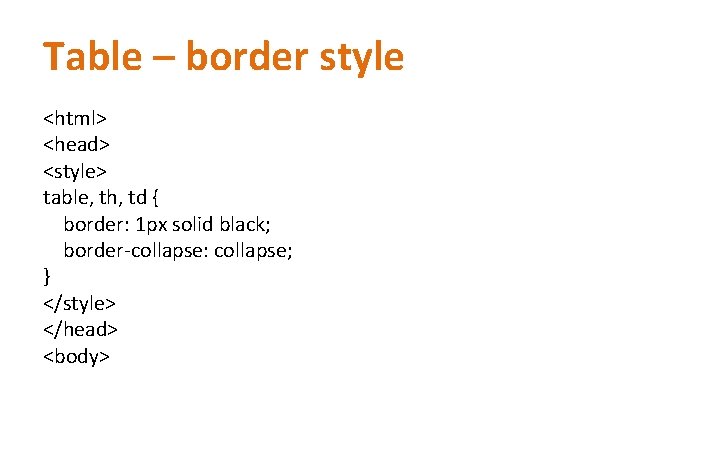
Table – border style <html> <head> <style> table, th, td { border: 1 px solid black; border-collapse: collapse; } </style> </head> <body>
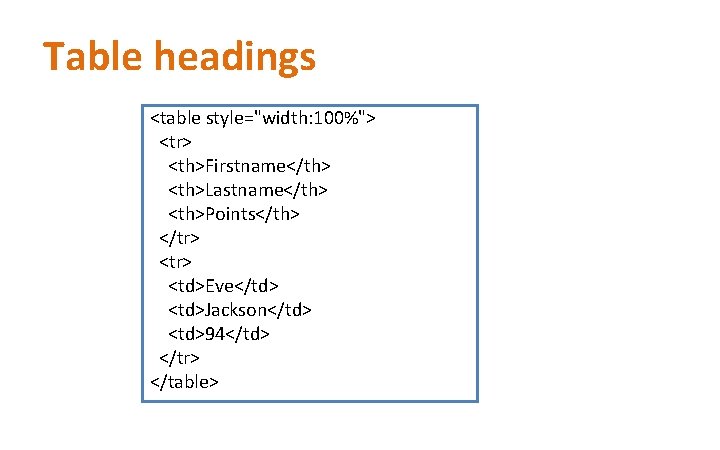
Table headings <table style="width: 100%"> <tr> <th>Firstname</th> <th>Lastname</th> <th>Points</th> </tr> <tr> <td>Eve</td> <td>Jackson</td> <td>94</td> </tr> </table>
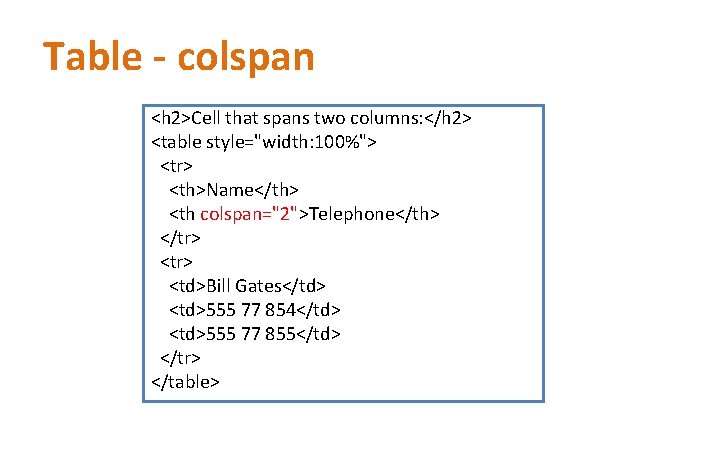
Table - colspan <h 2>Cell that spans two columns: </h 2> <table style="width: 100%"> <tr> <th>Name</th> <th colspan="2">Telephone</th> </tr> <tr> <td>Bill Gates</td> <td>555 77 854</td> <td>555 77 855</td> </tr> </table>
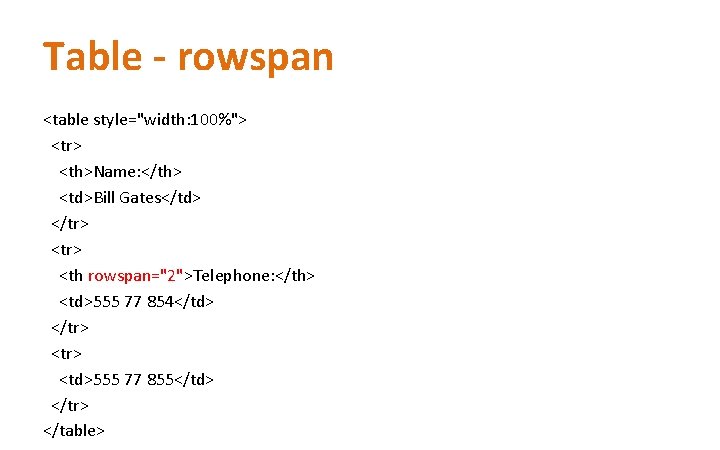
Table - rowspan <table style="width: 100%"> <tr> <th>Name: </th> <td>Bill Gates</td> </tr> <tr> <th rowspan="2">Telephone: </th> <td>555 77 854</td> </tr> <tr> <td>555 77 855</td> </tr> </table>
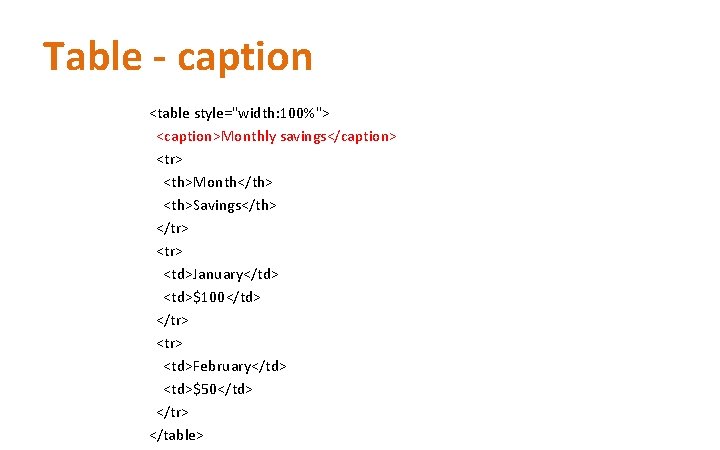
Table - caption <table style="width: 100%"> <caption>Monthly savings</caption> <tr> <th>Month</th> <th>Savings</th> </tr> <tr> <td>January</td> <td>$100</td> </tr> <tr> <td>February</td> <td>$50</td> </tr> </table>
Links • HTML links are hyperlinks. • A hyperlink is a text or an image you can click on, and jump to another document.
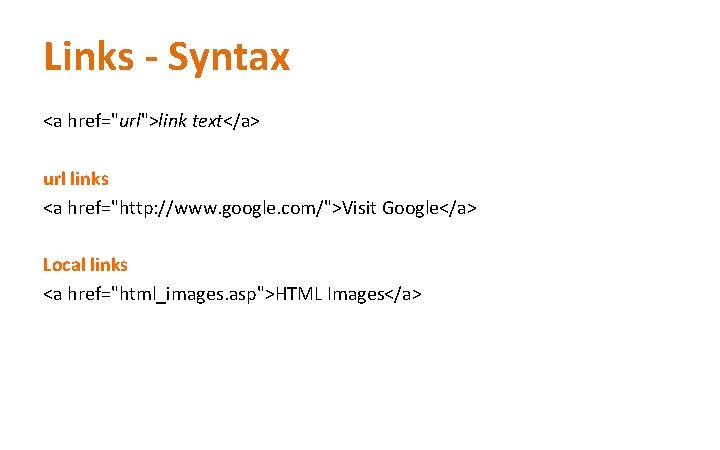
Links - Syntax <a href="url">link text</a> url links <a href="http: //www. google. com/">Visit Google</a> Local links <a href="html_images. asp">HTML Images</a>
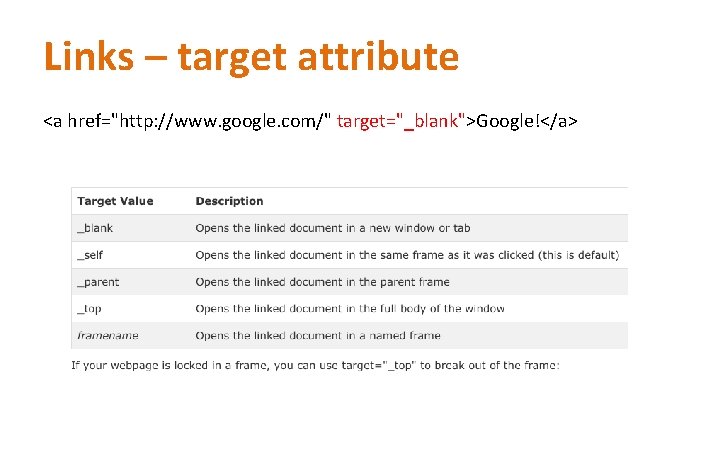
Links – target attribute <a href="http: //www. google. com/" target="_blank">Google!</a>
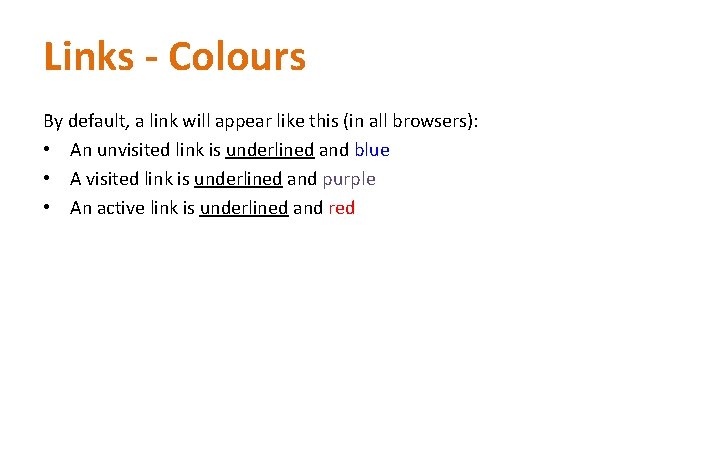
Links - Colours By default, a link will appear like this (in all browsers): • An unvisited link is underlined and blue • A visited link is underlined and purple • An active link is underlined and red
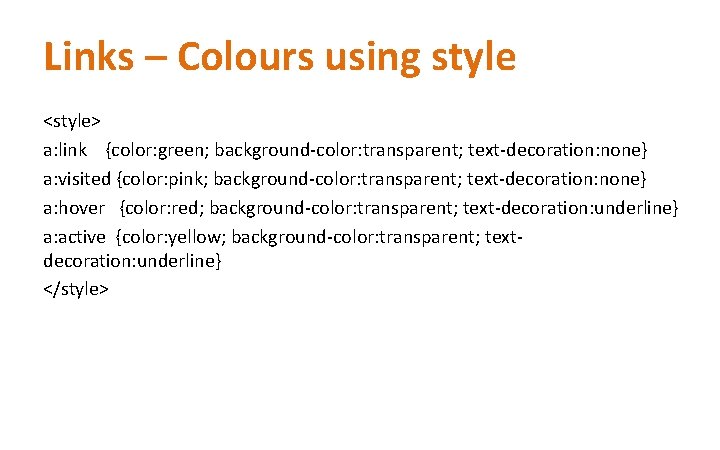
Links – Colours using style <style> a: link {color: green; background-color: transparent; text-decoration: none} a: visited {color: pink; background-color: transparent; text-decoration: none} a: hover {color: red; background-color: transparent; text-decoration: underline} a: active {color: yellow; background-color: transparent; textdecoration: underline} </style>
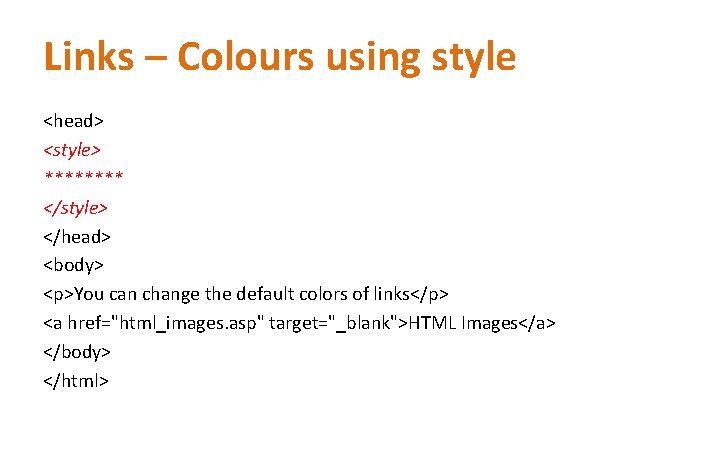
Links – Colours using style <head> <style> **** </style> </head> <body> <p>You can change the default colors of links</p> <a href="html_images. asp" target="_blank">HTML Images</a> </body> </html>
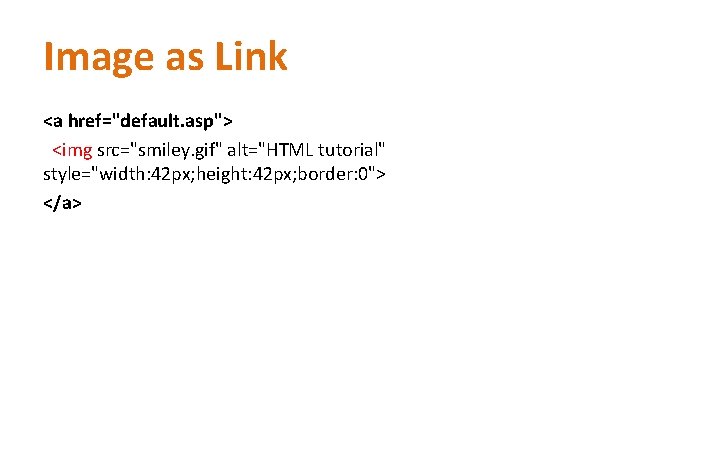
Image as Link <a href="default. asp"> <img src="smiley. gif" alt="HTML tutorial" style="width: 42 px; height: 42 px; border: 0"> </a>
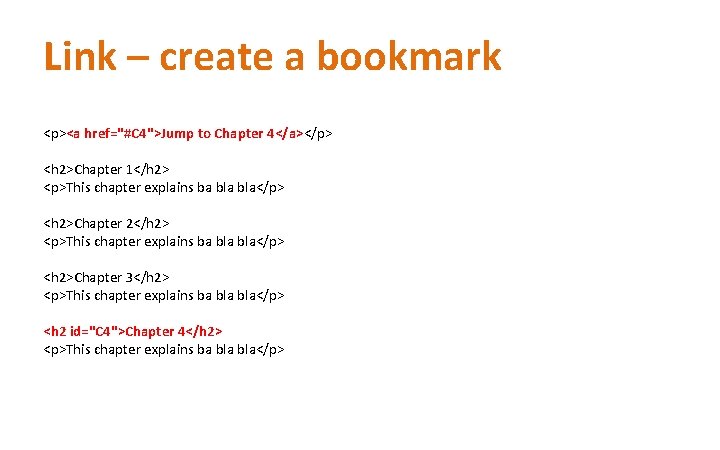
Link – create a bookmark <p><a href="#C 4">Jump to Chapter 4</a></p> <h 2>Chapter 1</h 2> <p>This chapter explains ba bla</p> <h 2>Chapter 2</h 2> <p>This chapter explains ba bla</p> <h 2>Chapter 3</h 2> <p>This chapter explains ba bla</p> <h 2 id="C 4">Chapter 4</h 2> <p>This chapter explains ba bla</p>
- Slides: 41