
Linux System Administration and Configuration Module Name Configuring
- Slides: 35
Linux System Administration and Configuration Module Name: Configuring Local Storage and File System
Configuring Local Storage and File System AIM 1 To equip students with fundamentals and characteristics of the local storage and file system of Linux. 2
Configuring Local Storage and File System Objectives The Objectives of this module are: P Explain the key concepts of Partitions. P Explain the concept of LVM (Logical Volume Manager). P Describe the comparison between ext 2, ext 3, ext 4 file systems and their creations. P Explain the evolution of LUKS and its concept. P Explain about access control list. 3
Configuring Local Storage and File System Outcome At the end of this module, you are expected to learn: P Use the partitions based on their types. P Explain the various file systems used. P How to deal with partitions using LVM. P Use Access Control List to set permission for users. 4
Configuring Local Storage and File System Content 1. Partitions 2. Logical Volume Manager 3. Linux File Systems 4. LUKS-encrypted File Systems 5. Access Control List 5
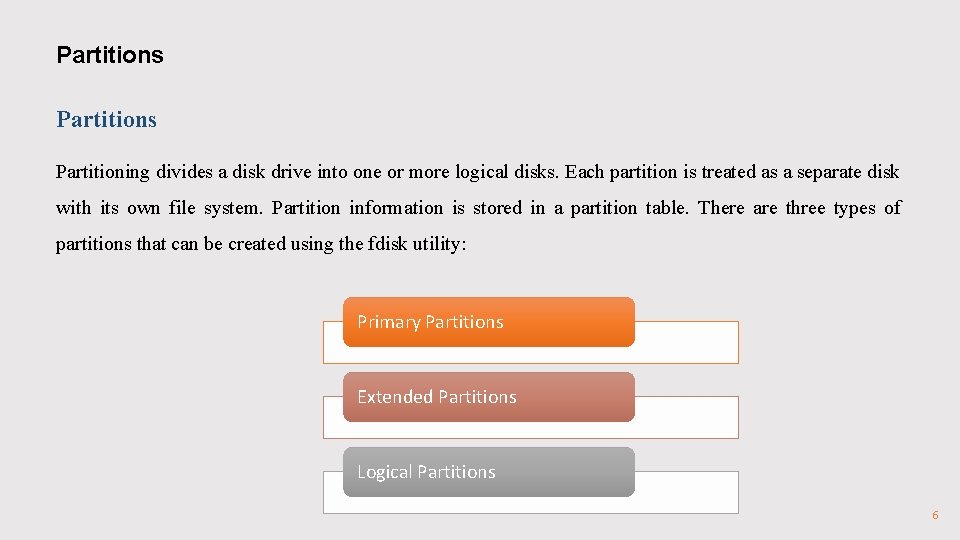
Partitions Partitioning divides a disk drive into one or more logical disks. Each partition is treated as a separate disk with its own file system. Partition information is stored in a partition table. There are three types of partitions that can be created using the fdisk utility: Primary Partitions Extended Partitions Logical Partitions 6
Partitions Ø A primary partition is any of the four possible first-level partitions into which a hard disk drive (HDD) on an IBM-compatible personal computer can be divided. Ø A partition is a logically independent division on a HDD. An entire operating system can be installed on a single, unpartitioned HDD. Ø Although there can only be four primary partitions, it is possible to create numerous additional partitions. Ø This is accomplished by dividing one of the primary partitions into sub-partitions, called logical partitions. The partition which is divided up is referred to as the extended partition. 7
Partitions Ø Only a primary partition, and only one that is not used as the extended partition, can be designated as the active partition. Ø An active partition is one that contains the operating system that a computer attempts to load into memory by default when it is started or restarted. Ø A partition table is a 64 -byte segment of data located in the first sector (i. e. , the first 512 bytes) of the HDD that provides basic information about the primary partitions for the computer's BIOS in order to facilitate the boot sequence. 8
Partitions Ø Disks are generally called Ø /dev/sda, /dev/sdb, etc, in physical servers (s for scsi even though they have got IDE, SATA or SAS interfaces). Ø /dev/vda, /dev/vdb, etc, in virtual machines. Ø Partitions get their names from the disk name itself and add a number starting at 1 (/dev/sda 1, /dev/sda 2, etc or /dev/vda 1, /dev/vda 2, etc). Ø A partition table is a special structure containing partitions organization. Ø Recent disks use 4096 -byte sectors and the GPT partition table (GPT stands for GUID – Globally Unique IDentifier – Partition Table). 9
Partitions Ø Historically, two commands exist to manipulate disks and partitions: fdisk and parted. Ø It is not advisable to use fdisk command anymore as it does not handle GPT partition tables. Ø Recently, a new tool called gdisk has been created to deal with GPT partition tables, offering an alternative to the parted command. 10
Partitions Ø With the parted utility, you can • View the existing partition table. • Change the size of existing partitions. • Add partitions from free space or additional hard drives. Ø The parted package is installed by default on Red Hat Enterprise Linux 7. Ø To start parted, log in as root and enter the parted /dev/sda command at a shell prompt, where /dev/sda is the device name for the drive to configure. 11
Partitions Manipulating Partitions on Devices in Use Ø For a device to not be in use, none of the partitions on the device can be mounted, and no swap space on the device can be enabled. Ø If you want to remove or resize a partition, the device on which that partition resides must not be in use. Ø Creating a new partition on a device that is in use is possible, but not recommended. 12
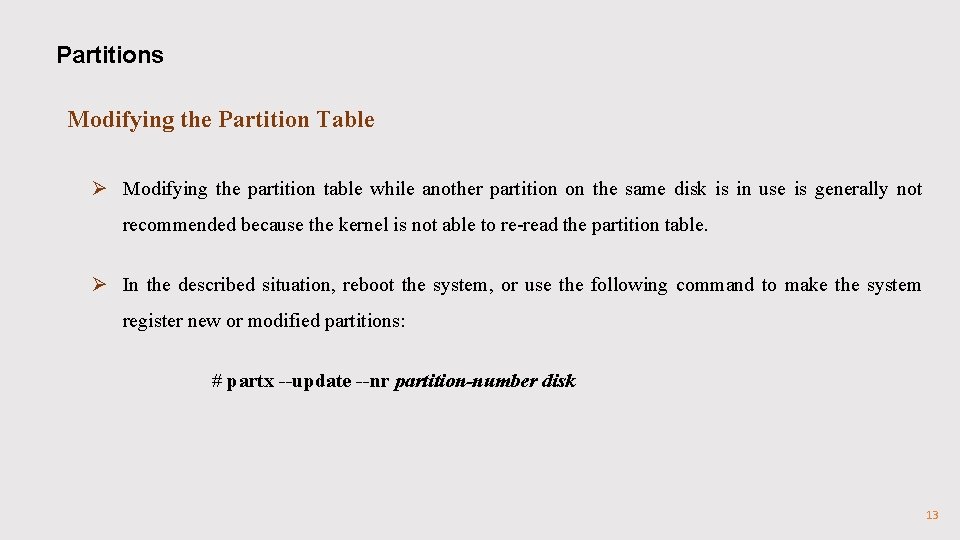
Partitions Modifying the Partition Table Ø Modifying the partition table while another partition on the same disk is in use is generally not recommended because the kernel is not able to re-read the partition table. Ø In the described situation, reboot the system, or use the following command to make the system register new or modified partitions: # partx --update --nr partition-number disk 13
Partitions Ø The easiest way to modify disks that are currently in use is to boot the system in rescue mode if the partitions on the disk are impossible to unmount. Ø For example in the case of a system disk. When prompted to mount the file system, select Skip. Ø If the drive does not contain any partitions in use, you can unmount the partitions with the unmount command turn off all the swap space on the hard drive with the swapoff command. 14
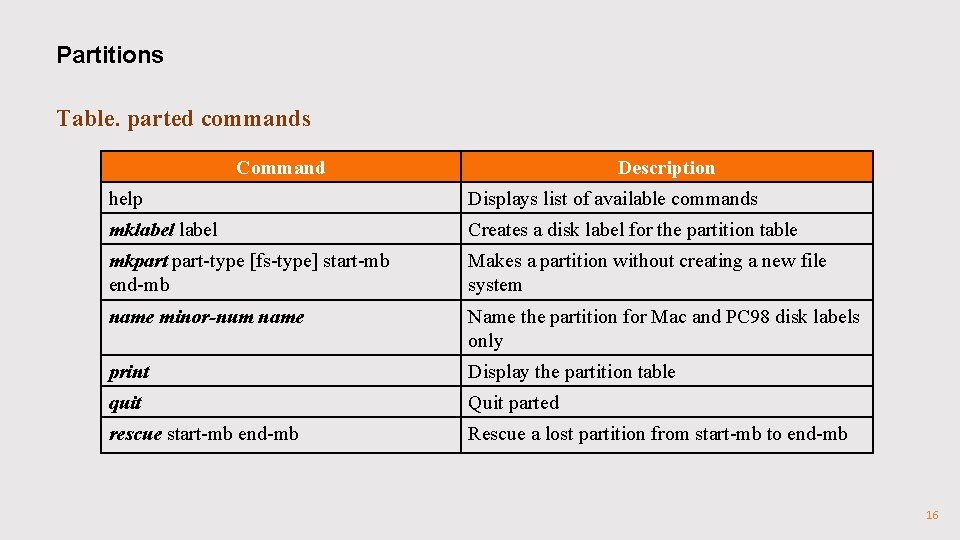
Partitions The table “Parted Commands” given below contains a list of commonly used parted commands. The following section explains some of these commands and arguments in more detail. Important Do not use the parted utility to create file systems. Use the mkfs tool instead. 15
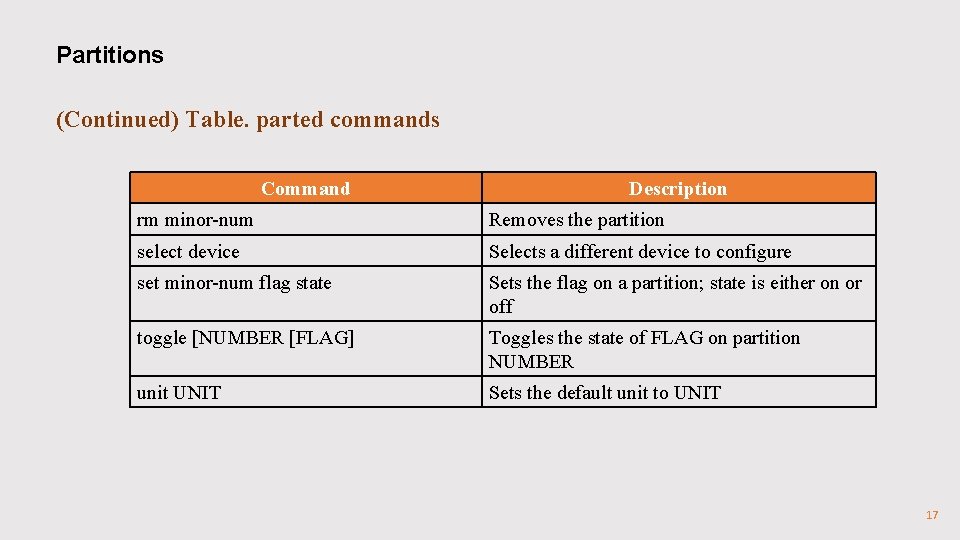
Partitions Table. parted commands Command Description help Displays list of available commands mklabel Creates a disk label for the partition table mkpart-type [fs-type] start-mb end-mb Makes a partition without creating a new file system name minor-num name Name the partition for Mac and PC 98 disk labels only print Display the partition table quit Quit parted rescue start-mb end-mb Rescue a lost partition from start-mb to end-mb 16
Partitions (Continued) Table. parted commands Command Description rm minor-num Removes the partition select device Selects a different device to configure set minor-num flag state Sets the flag on a partition; state is either on or off toggle [NUMBER [FLAG] Toggles the state of FLAG on partition NUMBER unit UNIT Sets the default unit to UNIT 17
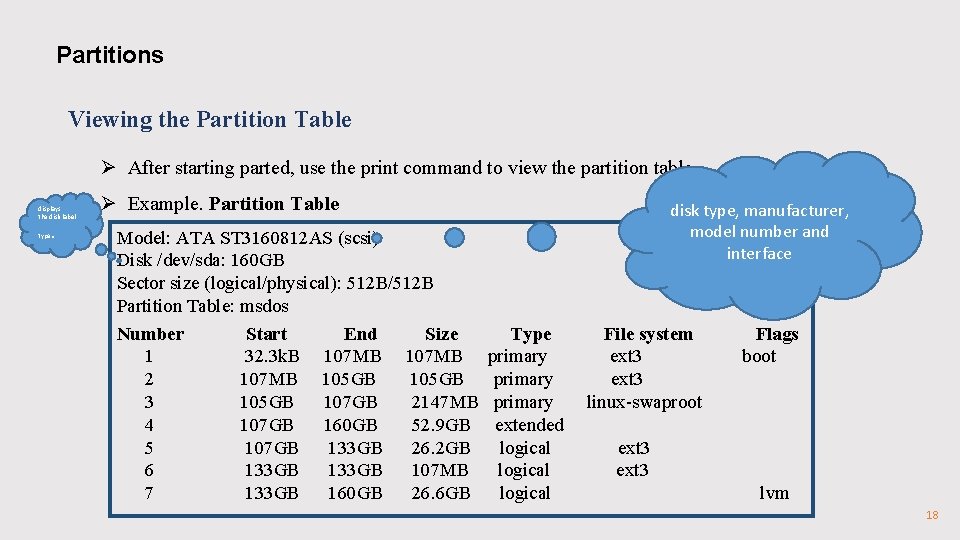
Partitions Viewing the Partition Table Ø After starting parted, use the print command to view the partition table. displays the disk label . type Ø Example. Partition Table disk type, manufacturer, model number and interface Model: ATA ST 3160812 AS (scsi) Disk /dev/sda: 160 GB Sector size (logical/physical): 512 B/512 B Partition Table: msdos Number Start End Size Type File system Flags 1 32. 3 k. B 107 MB primary ext 3 boot 2 107 MB 105 GB primary ext 3 3 105 GB 107 GB 2147 MB primary linux-swaproot 4 107 GB 160 GB 52. 9 GB extended 5 107 GB 133 GB 26. 2 GB logical ext 3 6 133 GB 107 MB logical ext 3 7 133 GB 160 GB 26. 6 GB logical lvm 18
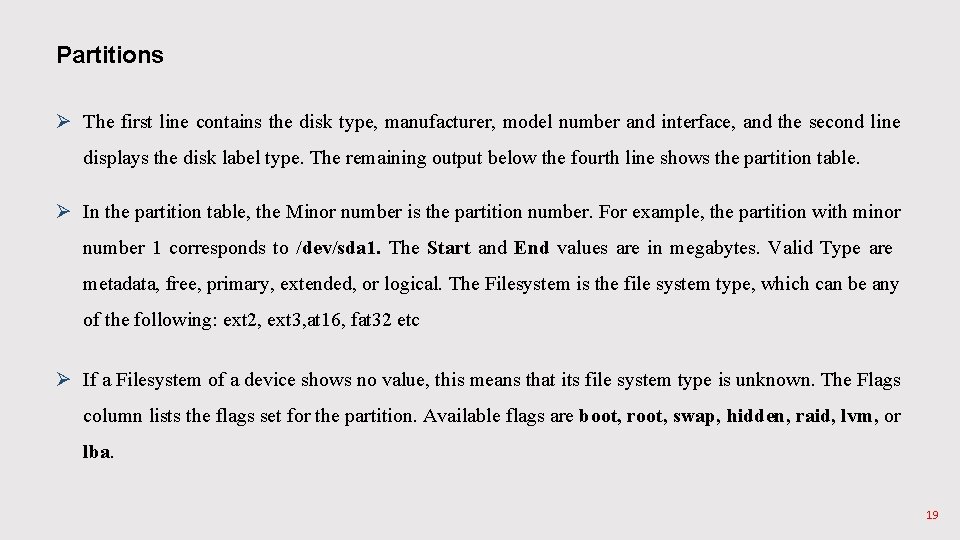
Partitions Ø The first line contains the disk type, manufacturer, model number and interface, and the second line displays the disk label type. The remaining output below the fourth line shows the partition table. Ø In the partition table, the Minor number is the partition number. For example, the partition with minor number 1 corresponds to /dev/sda 1. The Start and End values are in megabytes. Valid Type are metadata, free, primary, extended, or logical. The Filesystem is the file system type, which can be any of the following: ext 2, ext 3, at 16, fat 32 etc Ø If a Filesystem of a device shows no value, this means that its file system type is unknown. The Flags column lists the flags set for the partition. Available flags are boot, root, swap, hidden, raid, lvm, or lba. 19
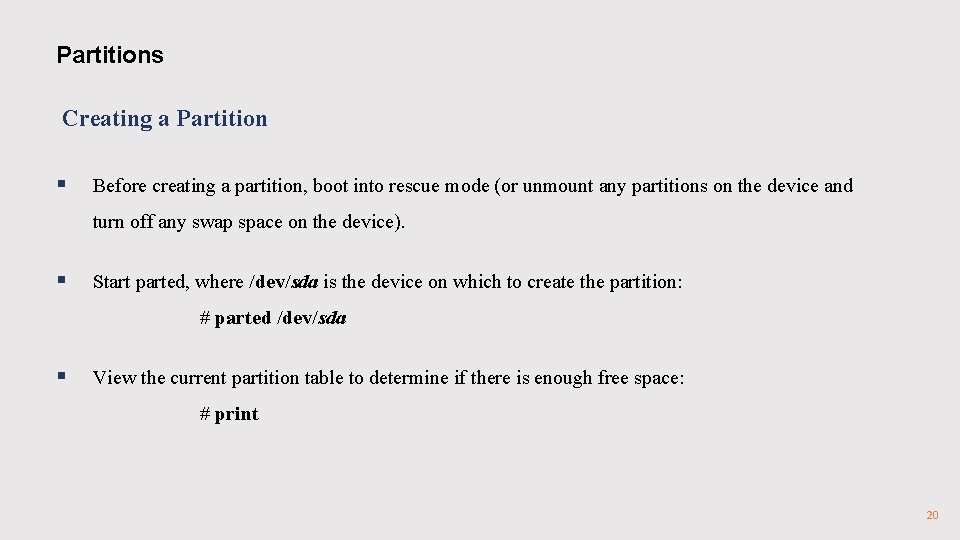
Partitions Creating a Partition § Before creating a partition, boot into rescue mode (or unmount any partitions on the device and turn off any swap space on the device). § Start parted, where /dev/sda is the device on which to create the partition: # parted /dev/sda § View the current partition table to determine if there is enough free space: # print 20
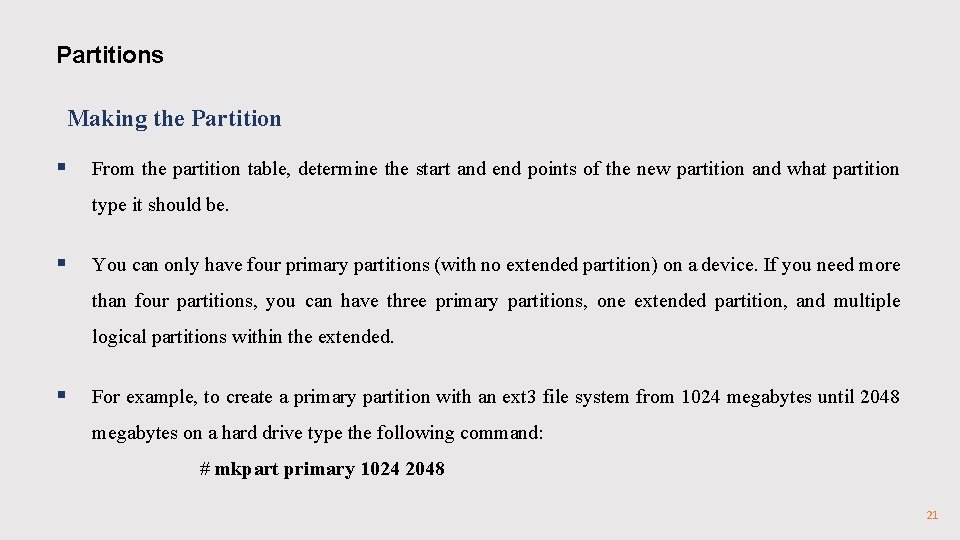
Partitions Making the Partition § From the partition table, determine the start and end points of the new partition and what partition type it should be. § You can only have four primary partitions (with no extended partition) on a device. If you need more than four partitions, you can have three primary partitions, one extended partition, and multiple logical partitions within the extended. § For example, to create a primary partition with an ext 3 file system from 1024 megabytes until 2048 megabytes on a hard drive type the following command: # mkpart primary 1024 2048 21
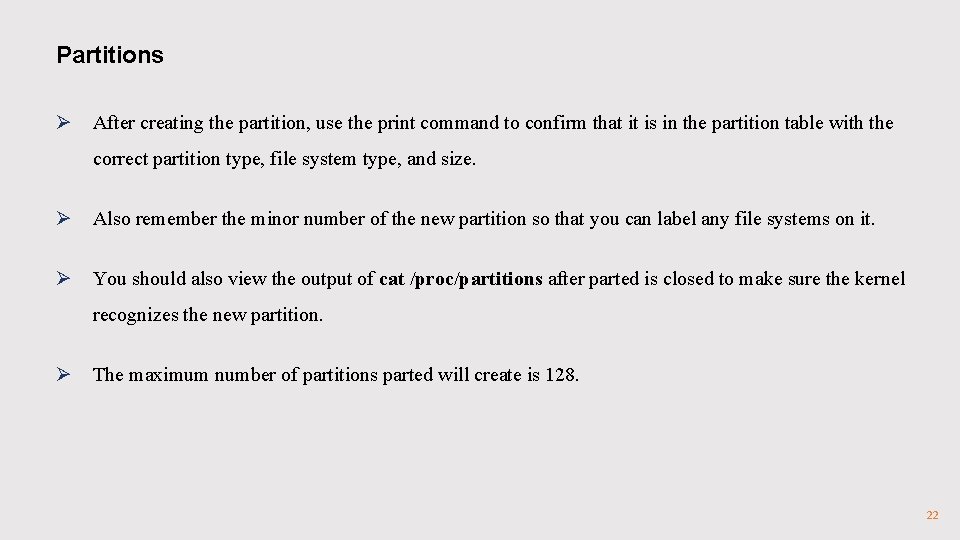
Partitions Ø After creating the partition, use the print command to confirm that it is in the partition table with the correct partition type, file system type, and size. Ø Also remember the minor number of the new partition so that you can label any file systems on it. Ø You should also view the output of cat /proc/partitions after parted is closed to make sure the kernel recognizes the new partition. Ø The maximum number of partitions parted will create is 128. 22
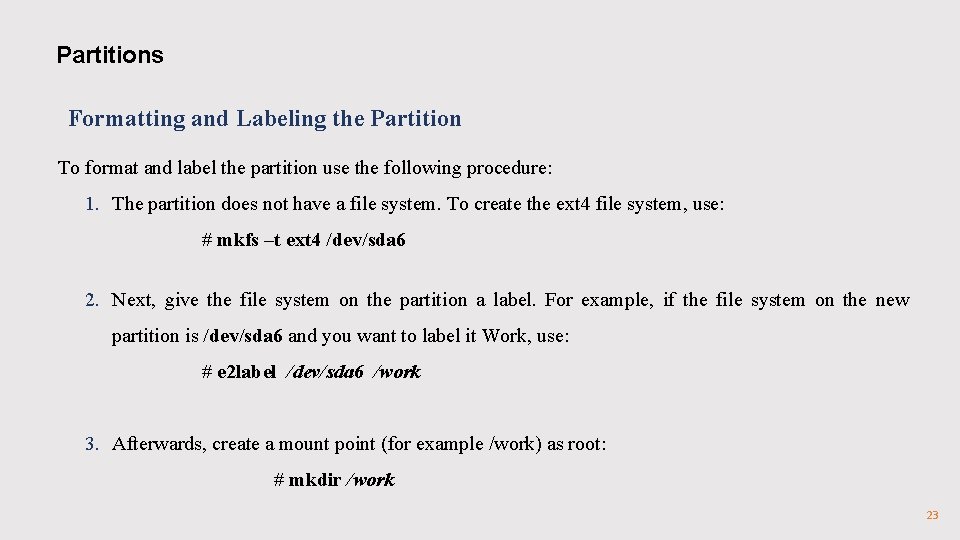
Partitions Formatting and Labeling the Partition To format and label the partition use the following procedure: 1. The partition does not have a file system. To create the ext 4 file system, use: # mkfs –t ext 4 /dev/sda 6 2. Next, give the file system on the partition a label. For example, if the file system on the new partition is /dev/sda 6 and you want to label it Work, use: # e 2 label /dev/sda 6 /work 3. Afterwards, create a mount point (for example /work) as root: # mkdir /work 23
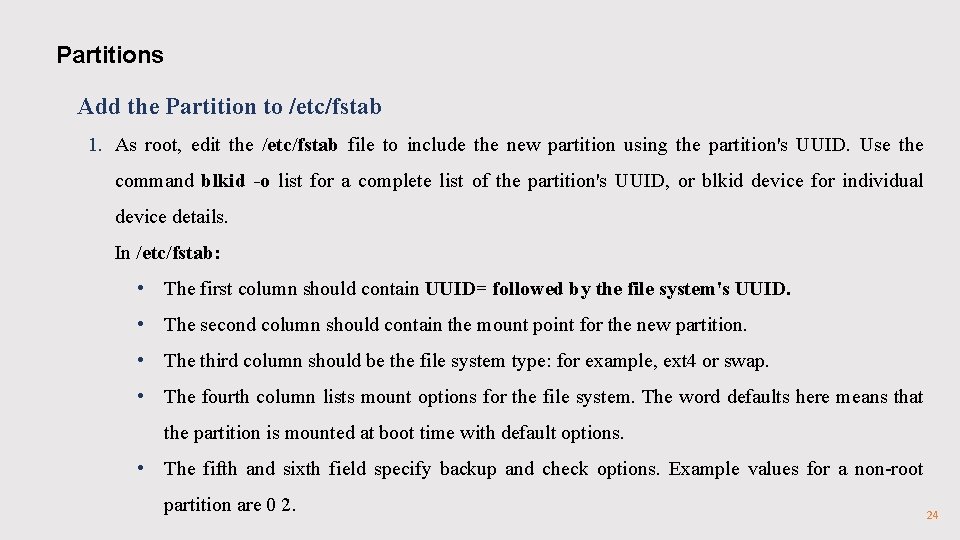
Partitions Add the Partition to /etc/fstab 1. As root, edit the /etc/fstab file to include the new partition using the partition's UUID. Use the command blkid -o list for a complete list of the partition's UUID, or blkid device for individual device details. In /etc/fstab: • The first column should contain UUID= followed by the file system's UUID. • The second column should contain the mount point for the new partition. • The third column should be the file system type: for example, ext 4 or swap. • The fourth column lists mount options for the file system. The word defaults here means that the partition is mounted at boot time with default options. • The fifth and sixth field specify backup and check options. Example values for a non-root partition are 0 2. 24
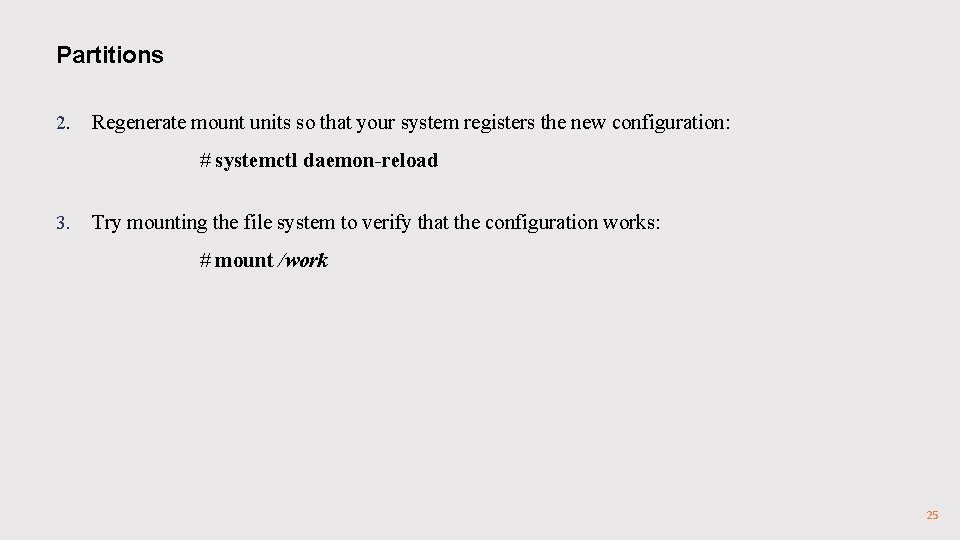
Partitions 2. Regenerate mount units so that your system registers the new configuration: # systemctl daemon-reload 3. Try mounting the file system to verify that the configuration works: # mount /work 25
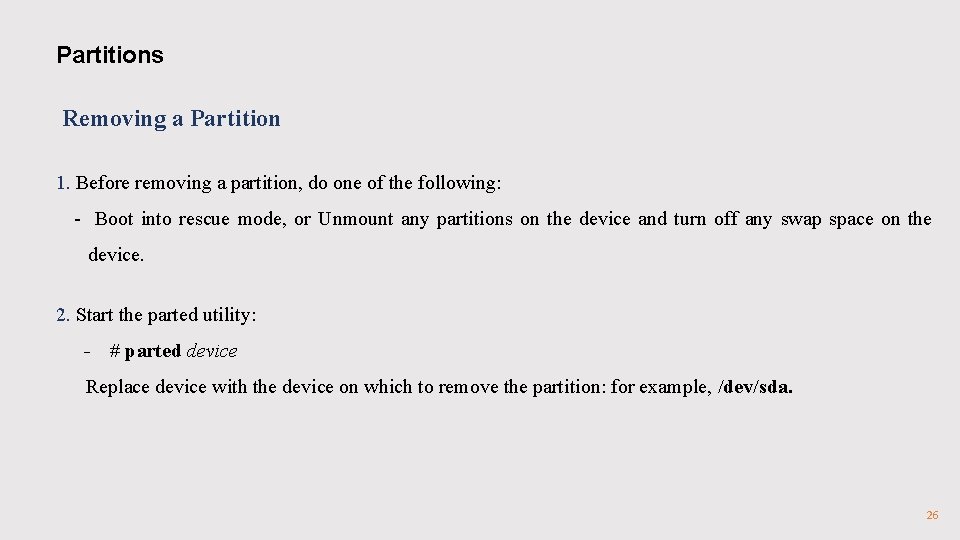
Partitions Removing a Partition 1. Before removing a partition, do one of the following: - Boot into rescue mode, or Unmount any partitions on the device and turn off any swap space on the device. 2. Start the parted utility: - # parted device Replace device with the device on which to remove the partition: for example, /dev/sda. 26
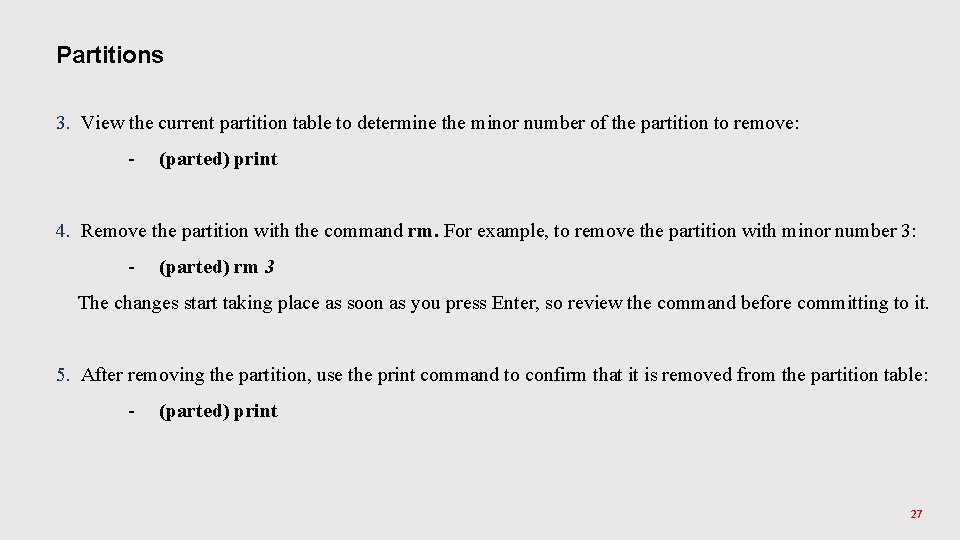
Partitions 3. View the current partition table to determine the minor number of the partition to remove: - (parted) print 4. Remove the partition with the command rm. For example, to remove the partition with minor number 3: - (parted) rm 3 The changes start taking place as soon as you press Enter, so review the command before committing to it. 5. After removing the partition, use the print command to confirm that it is removed from the partition table: - (parted) print 27
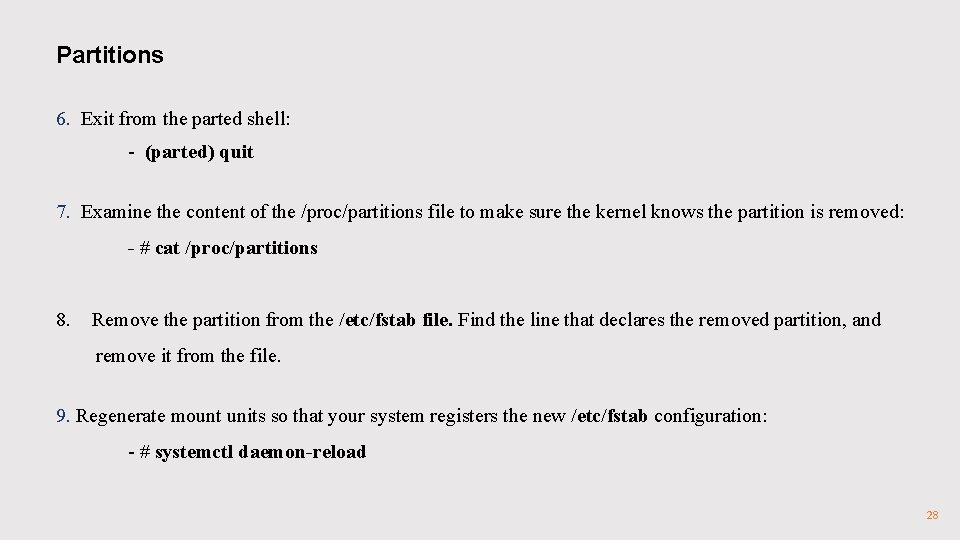
Partitions 6. Exit from the parted shell: - (parted) quit 7. Examine the content of the /proc/partitions file to make sure the kernel knows the partition is removed: - # cat /proc/partitions 8. Remove the partition from the /etc/fstab file. Find the line that declares the removed partition, and remove it from the file. 9. Regenerate mount units so that your system registers the new /etc/fstab configuration: - # systemctl daemon-reload 28
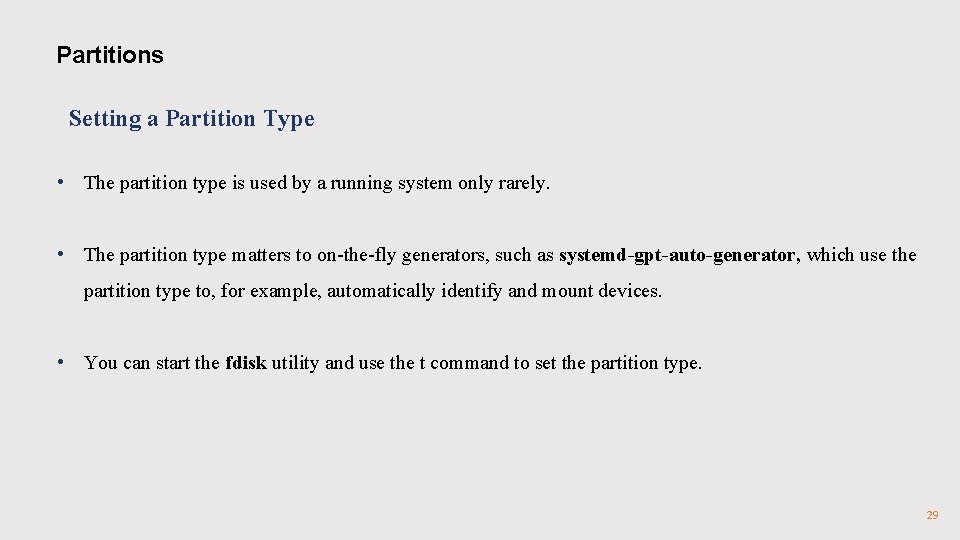
Partitions Setting a Partition Type • The partition type is used by a running system only rarely. • The partition type matters to on-the-fly generators, such as systemd-gpt-auto-generator, which use the partition type to, for example, automatically identify and mount devices. • You can start the fdisk utility and use the t command to set the partition type. 29
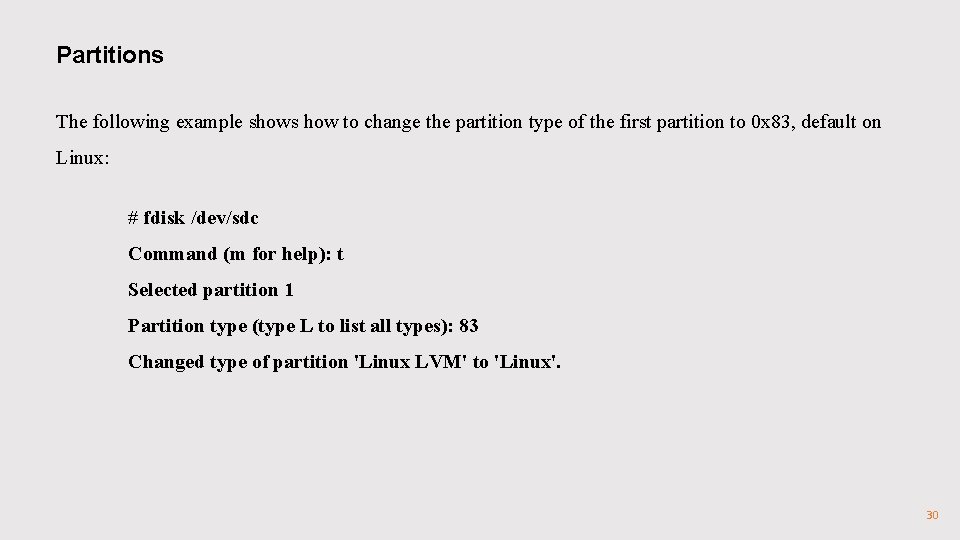
Partitions The following example shows how to change the partition type of the first partition to 0 x 83, default on Linux: # fdisk /dev/sdc Command (m for help): t Selected partition 1 Partition type (type L to list all types): 83 Changed type of partition 'Linux LVM' to 'Linux'. 30
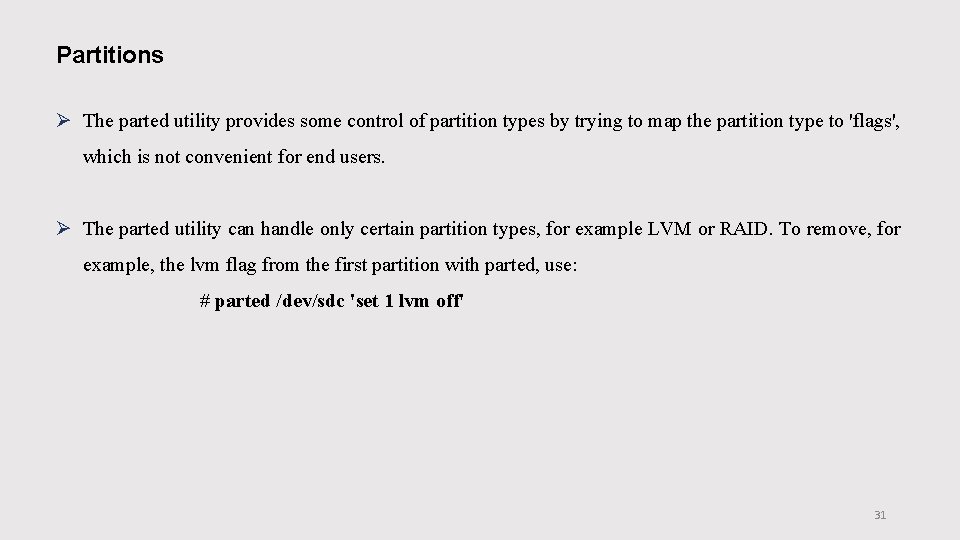
Partitions Ø The parted utility provides some control of partition types by trying to map the partition type to 'flags', which is not convenient for end users. Ø The parted utility can handle only certain partition types, for example LVM or RAID. To remove, for example, the lvm flag from the first partition with parted, use: # parted /dev/sdc 'set 1 lvm off' 31
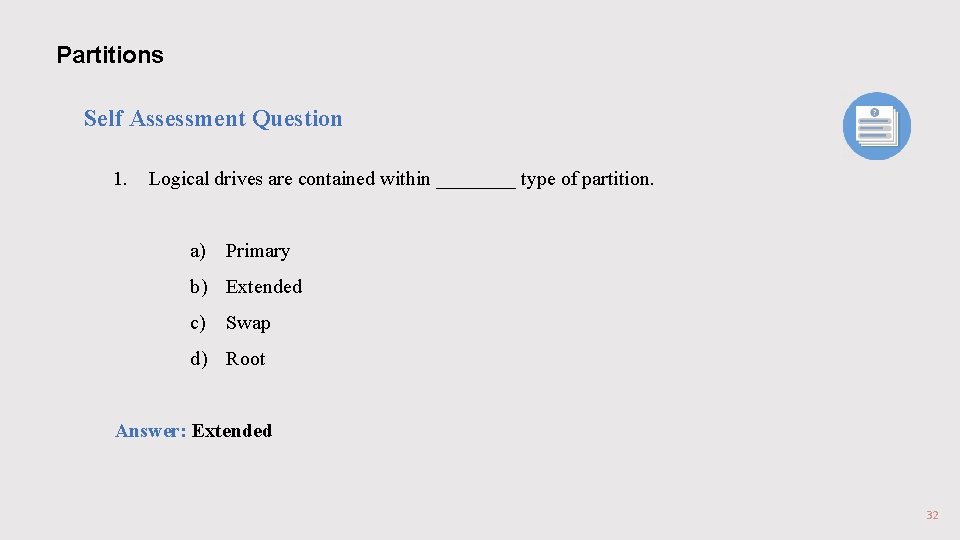
Partitions Self Assessment Question 1. Logical drives are contained within ____ type of partition. a) Primary b) Extended c) Swap d) Root Answer: Extended 32
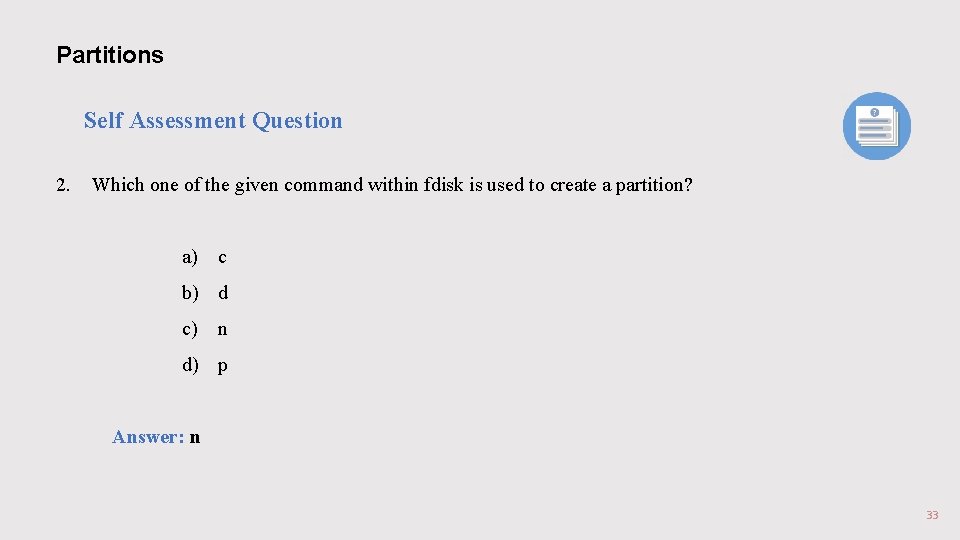
Partitions Self Assessment Question 2. Which one of the given command within fdisk is used to create a partition? a) c b) d c) n d) p Answer: n 33
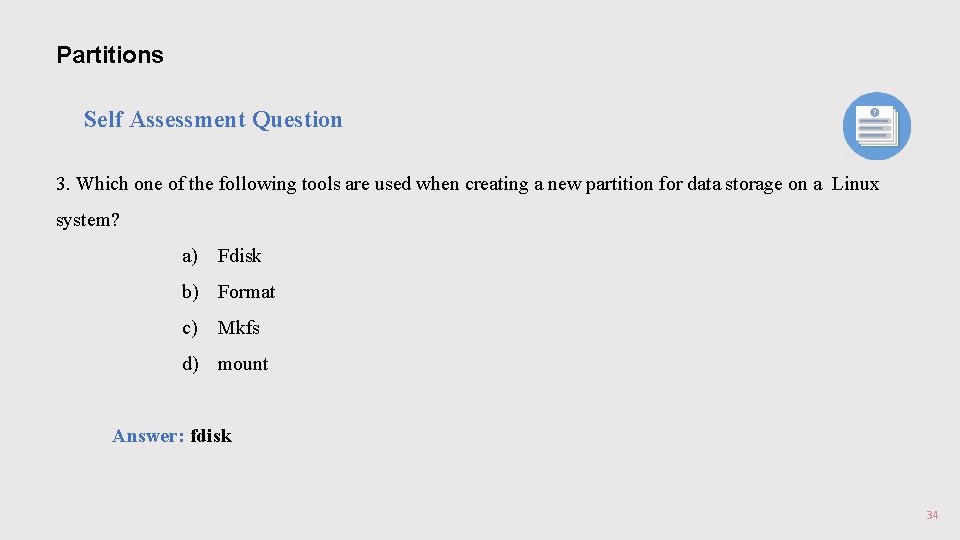
Partitions Self Assessment Question 3. Which one of the following tools are used when creating a new partition for data storage on a Linux system? a) Fdisk b) Format c) Mkfs d) mount Answer: fdisk 34
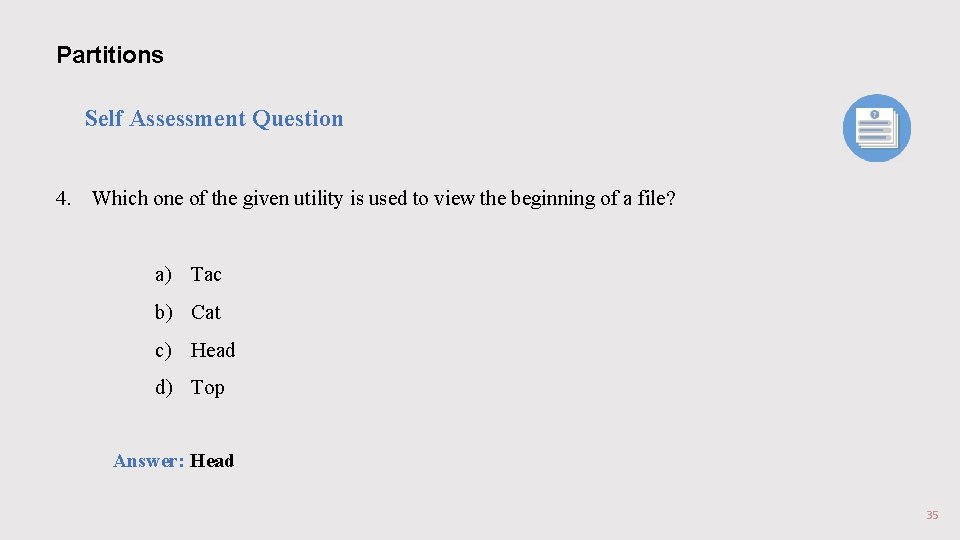
Partitions Self Assessment Question 4. Which one of the given utility is used to view the beginning of a file? a) Tac b) Cat c) Head d) Top Answer: Head 35