
Linux System Administration and Configuration Module Name Configuring


- Slides: 37
Linux System Administration and Configuration Module Name: Configuring Local Storage and File System
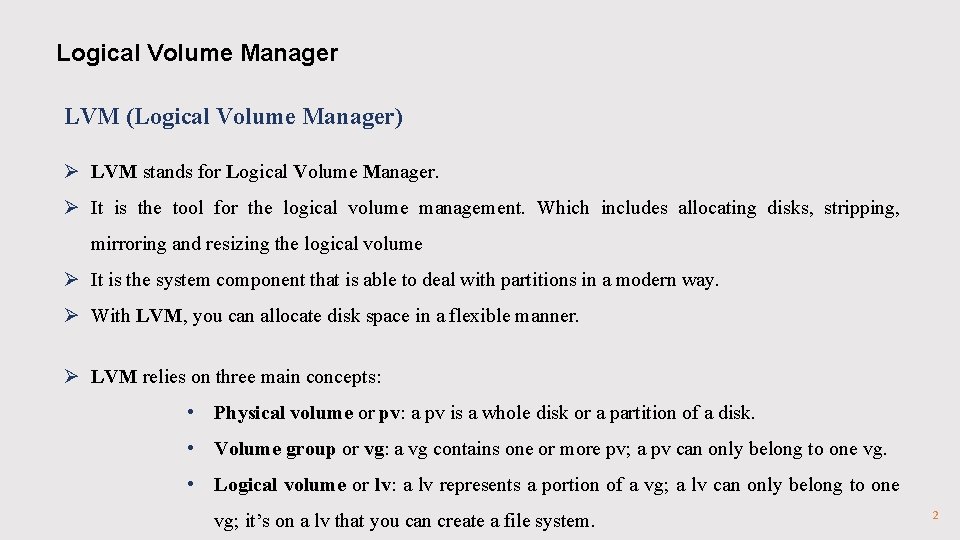
Logical Volume Manager LVM (Logical Volume Manager) Ø LVM stands for Logical Volume Manager. Ø It is the tool for the logical volume management. Which includes allocating disks, stripping, mirroring and resizing the logical volume Ø It is the system component that is able to deal with partitions in a modern way. Ø With LVM, you can allocate disk space in a flexible manner. Ø LVM relies on three main concepts: • Physical volume or pv: a pv is a whole disk or a partition of a disk. • Volume group or vg: a vg contains one or more pv; a pv can only belong to one vg. • Logical volume or lv: a lv represents a portion of a vg; a lv can only belong to one vg; it’s on a lv that you can create a file system. 2
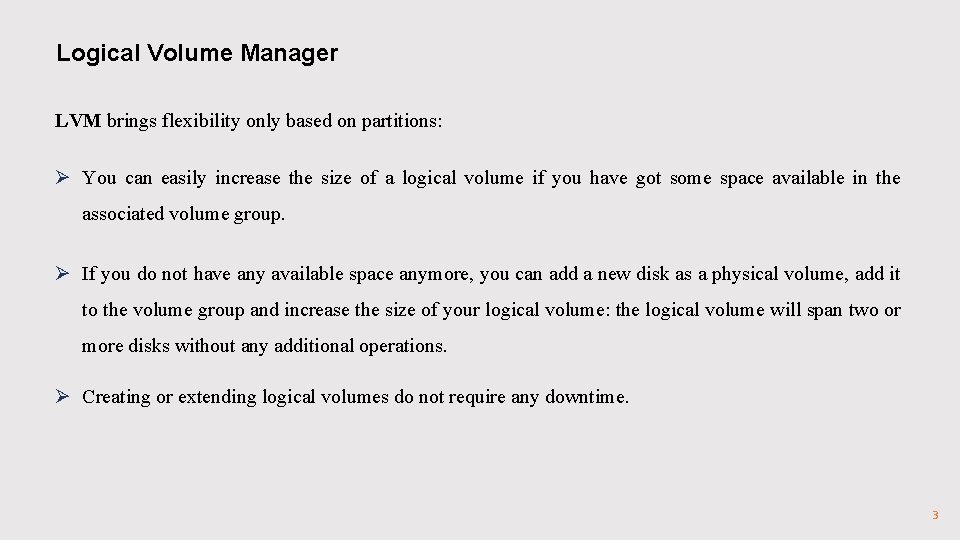
Logical Volume Manager LVM brings flexibility only based on partitions: Ø You can easily increase the size of a logical volume if you have got some space available in the associated volume group. Ø If you do not have any available space anymore, you can add a new disk as a physical volume, add it to the volume group and increase the size of your logical volume: the logical volume will span two or more disks without any additional operations. Ø Creating or extending logical volumes do not require any downtime. 3
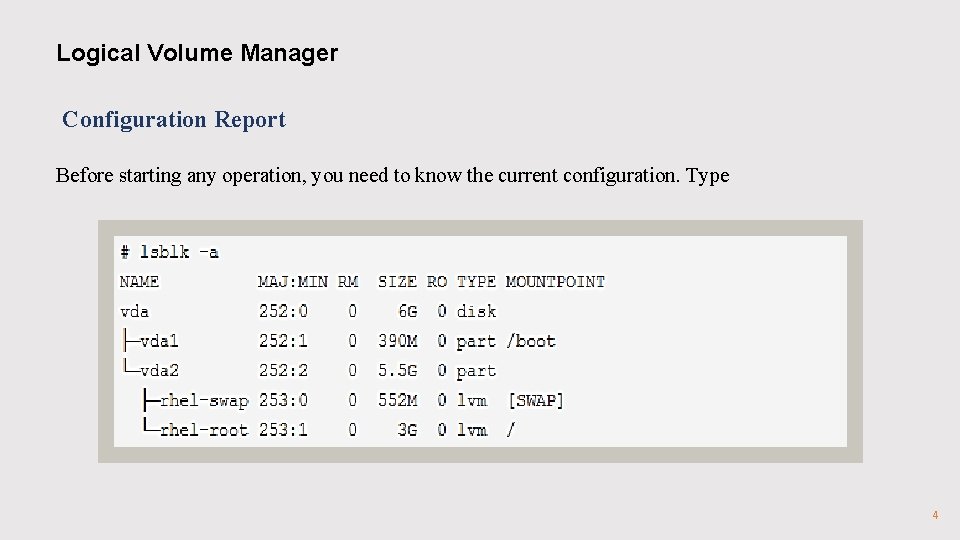
Logical Volume Manager Configuration Report Before starting any operation, you need to know the current configuration. Type 4
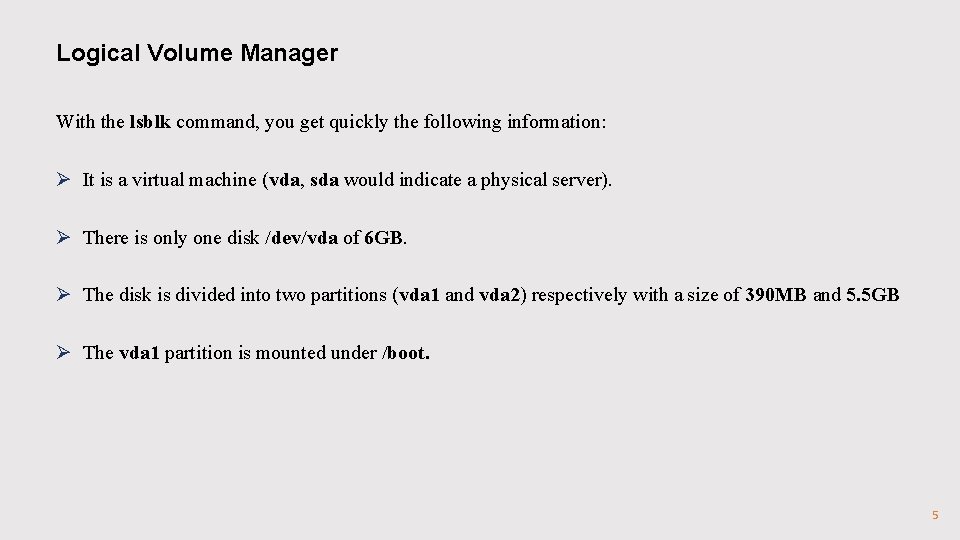
Logical Volume Manager With the lsblk command, you get quickly the following information: Ø It is a virtual machine (vda, sda would indicate a physical server). Ø There is only one disk /dev/vda of 6 GB. Ø The disk is divided into two partitions (vda 1 and vda 2) respectively with a size of 390 MB and 5. 5 GB Ø The vda 1 partition is mounted under /boot. 5
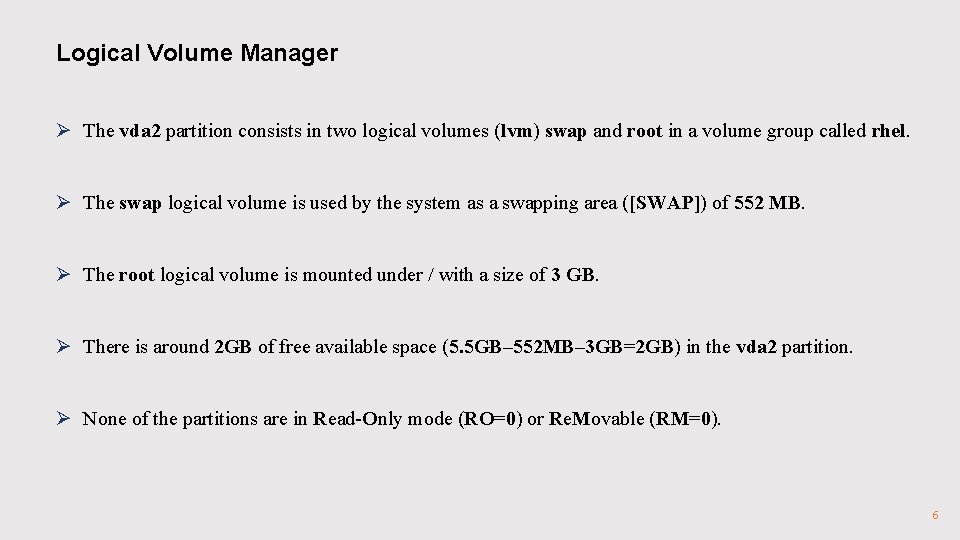
Logical Volume Manager Ø The vda 2 partition consists in two logical volumes (lvm) swap and root in a volume group called rhel. Ø The swap logical volume is used by the system as a swapping area ([SWAP]) of 552 MB. Ø The root logical volume is mounted under / with a size of 3 GB. Ø There is around 2 GB of free available space (5. 5 GB– 552 MB– 3 GB=2 GB) in the vda 2 partition. Ø None of the partitions are in Read-Only mode (RO=0) or Re. Movable (RM=0). 6
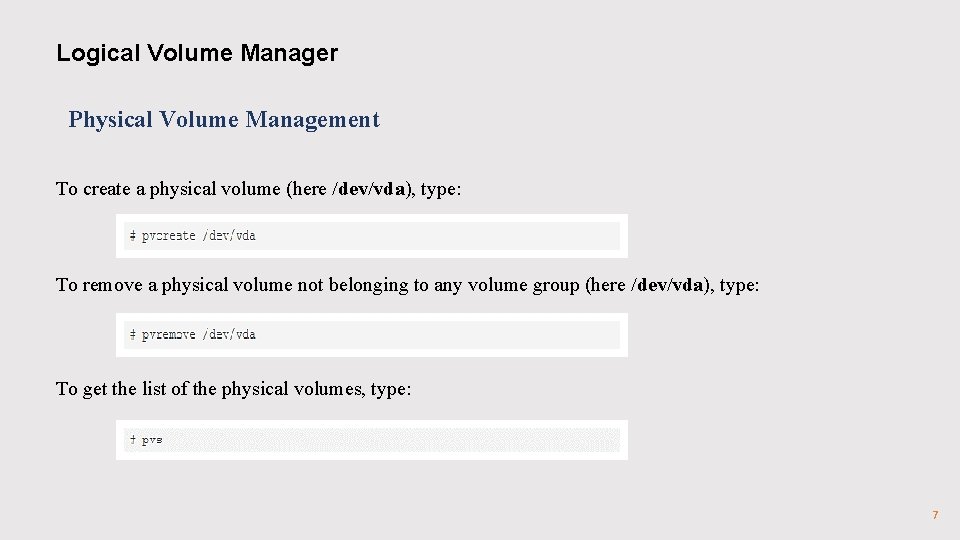
Logical Volume Manager Physical Volume Management To create a physical volume (here /dev/vda), type: To remove a physical volume not belonging to any volume group (here /dev/vda), type: To get the list of the physical volumes, type: 7
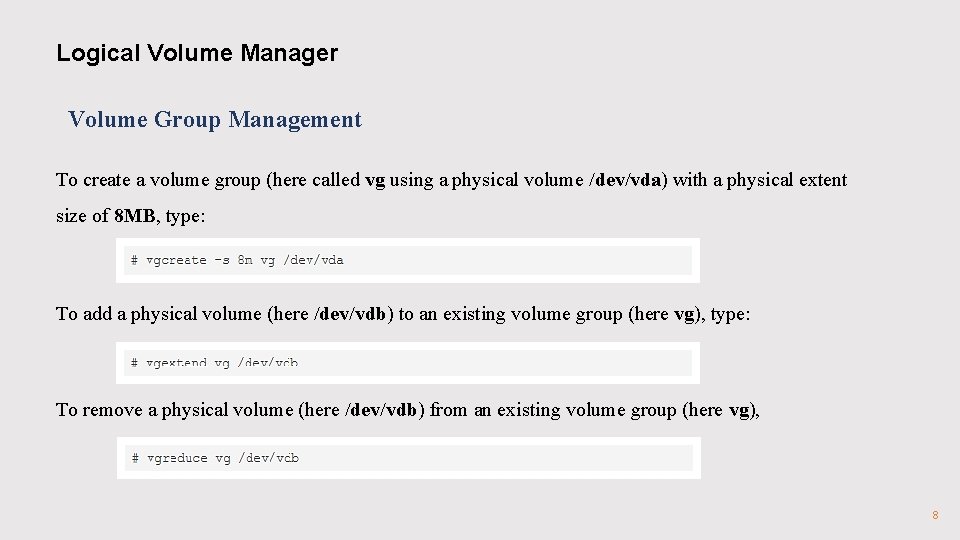
Logical Volume Manager Volume Group Management To create a volume group (here called vg using a physical volume /dev/vda) with a physical extent size of 8 MB, type: To add a physical volume (here /dev/vdb) to an existing volume group (here vg), type: To remove a physical volume (here /dev/vdb) from an existing volume group (here vg), 8
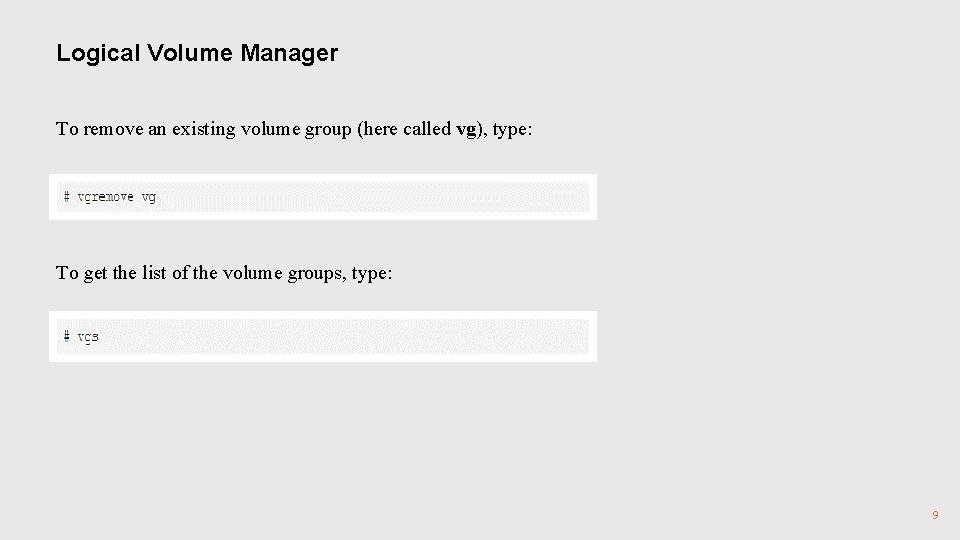
Logical Volume Manager To remove an existing volume group (here called vg), type: To get the list of the volume groups, type: 9
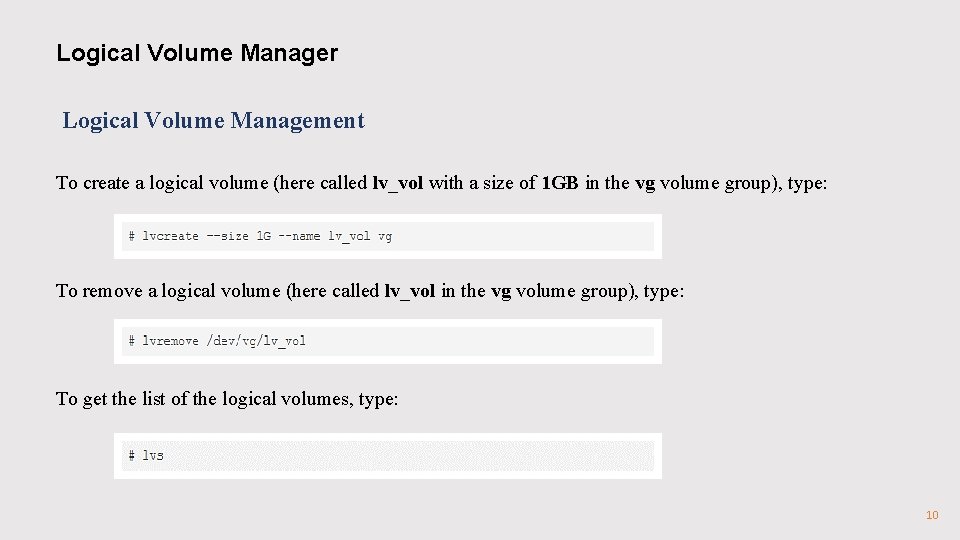
Logical Volume Manager Logical Volume Management To create a logical volume (here called lv_vol with a size of 1 GB in the vg volume group), type: To remove a logical volume (here called lv_vol in the vg volume group), type: To get the list of the logical volumes, type: 10
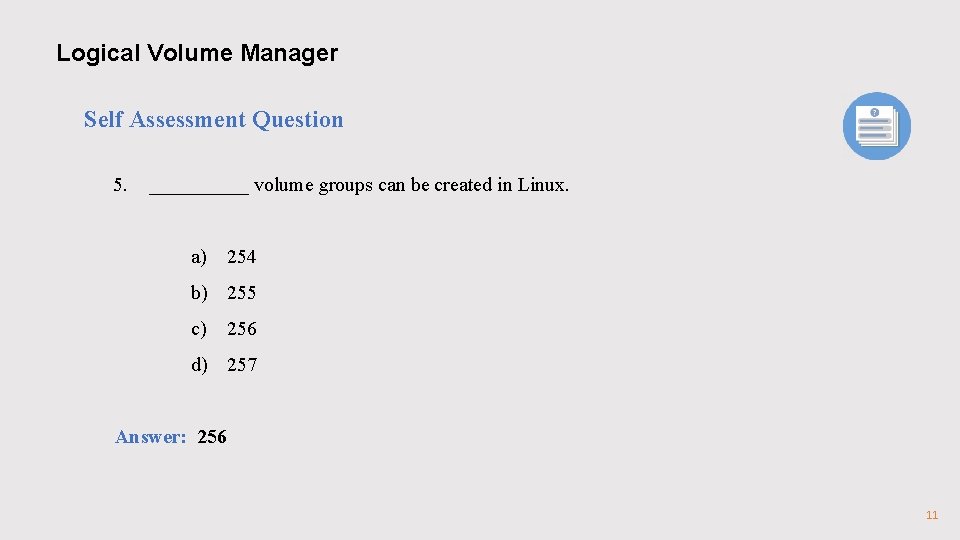
Logical Volume Manager Self Assessment Question 5. _____ volume groups can be created in Linux. a) 254 b) 255 c) 256 d) 257 Answer: 256 11
Logical Volume Manager Self Assessment Question 6. It is possible to increase the logical volume on fly. State whether True or False. a) True b) False Answer: True 12
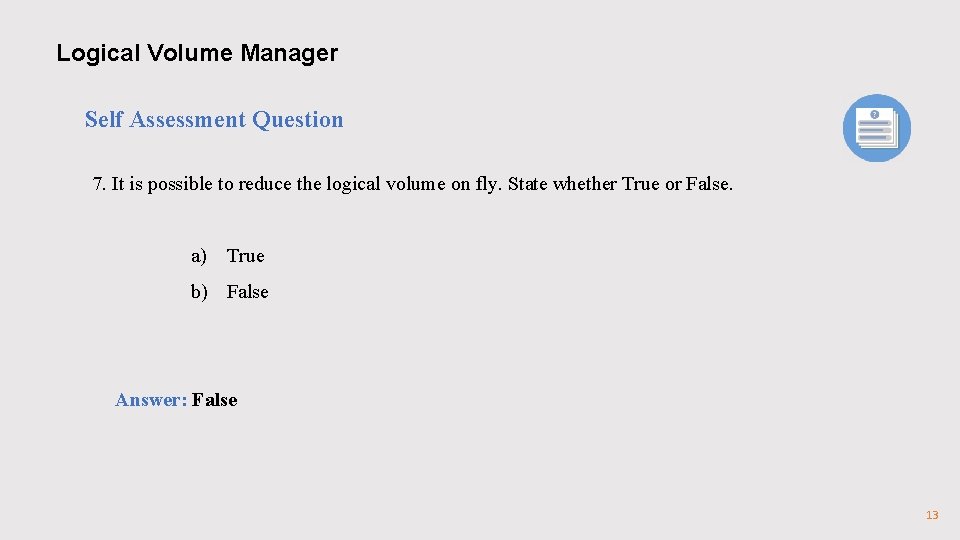
Logical Volume Manager Self Assessment Question 7. It is possible to reduce the logical volume on fly. State whether True or False. a) True b) False Answer: False 13
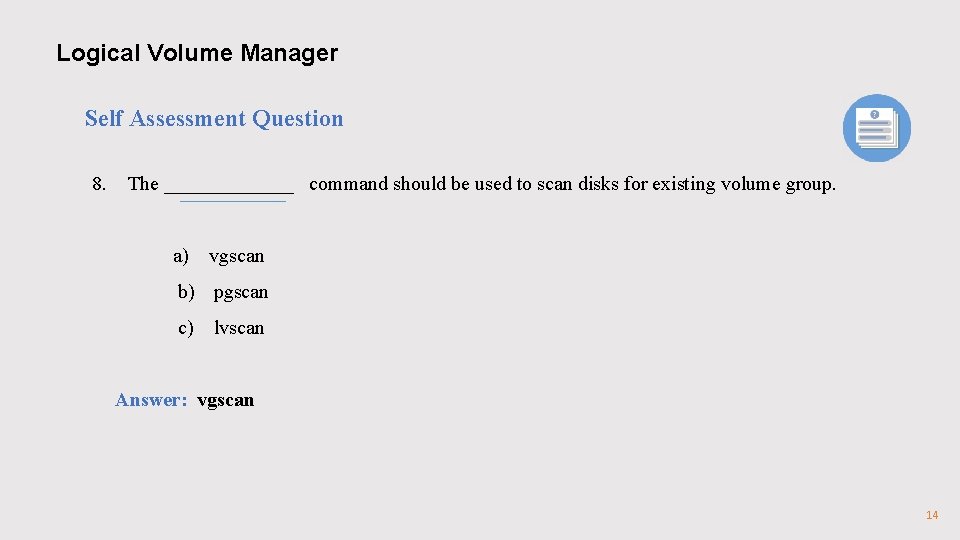
Logical Volume Manager Self Assessment Question 8. The _______ command should be used to scan disks for existing volume group. a) vgscan b) pgscan c) lvscan Answer: vgscan 14
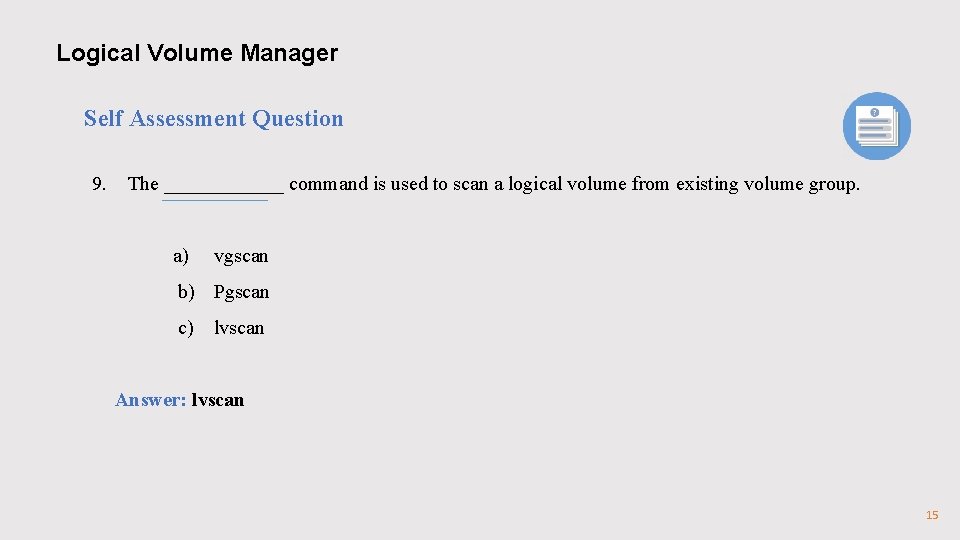
Logical Volume Manager Self Assessment Question 9. The ______ command is used to scan a logical volume from existing volume group. a) vgscan b) Pgscan c) lvscan Answer: lvscan 15
Logical Volume Manager Linux File Systems: ext 2 vs ext 3 vs ext 4 ext 2, ext 3 and ext 4 are all filesystems created for Linux. This article explains the following: Ø High level difference between these file sssystems. Ø How to create these file systems. Ø ss Ø How to convert from one file system type to another. 16
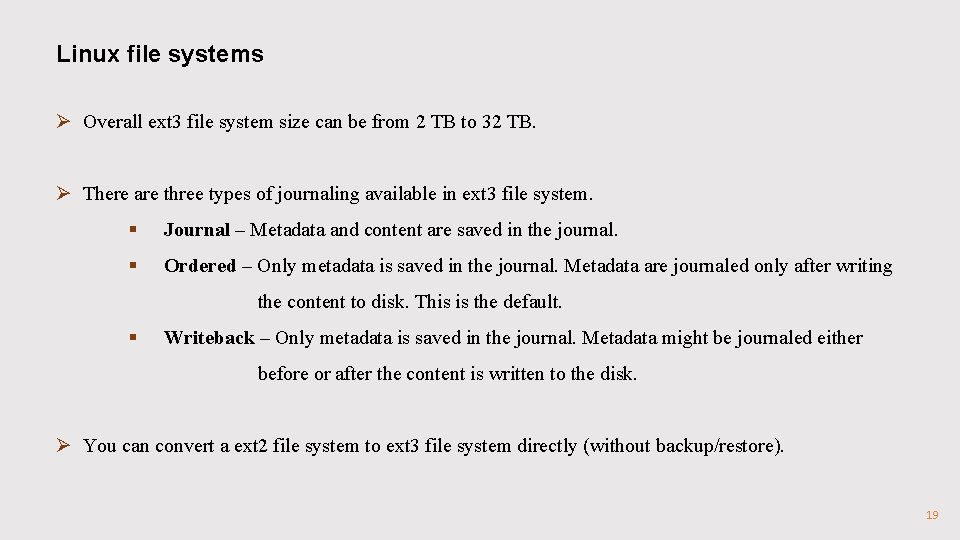
Linux file systems ext 2 Ø ext 2 stands for second extended file system. Ø It was introduced in 1993 and Developed by Rémy Card. Ø This was developed to overcome the limitation of the original ext file system. Ø ext 2 does not have journaling feature. Ø On flash drives, usb drives, ext 2 is recommended, as it does not need to do the over head of journaling. Ø Maximum individual file size can be from 16 GB to 2 TB. Ø Overall ext 2 file system size can be from 2 TB to 32 TB. 17
Linux file systems ext 3 Ø ext 3 stands for third extended file system. Ø It was introduced in 2001 and developed by Stephen Tweedie. Ø Starting from Linux Kernel 2. 4. 15 ext 3 was available. Ø The main benefit of ext 3 is that it allows journaling. Ø Journaling has a dedicated area in the file system, where all the changes are tracked. When the system crashes, the possibility of file system corruption is less because of journaling. Ø Maximum individual file size can be from 16 GB to 2 TB 18
Linux file systems Ø Overall ext 3 file system size can be from 2 TB to 32 TB. Ø There are three types of journaling available in ext 3 file system. § Journal – Metadata and content are saved in the journal. § Ordered – Only metadata is saved in the journal. Metadata are journaled only after writing the content to disk. This is the default. § Writeback – Only metadata is saved in the journal. Metadata might be journaled either before or after the content is written to the disk. Ø You can convert a ext 2 file system to ext 3 file system directly (without backup/restore). 19
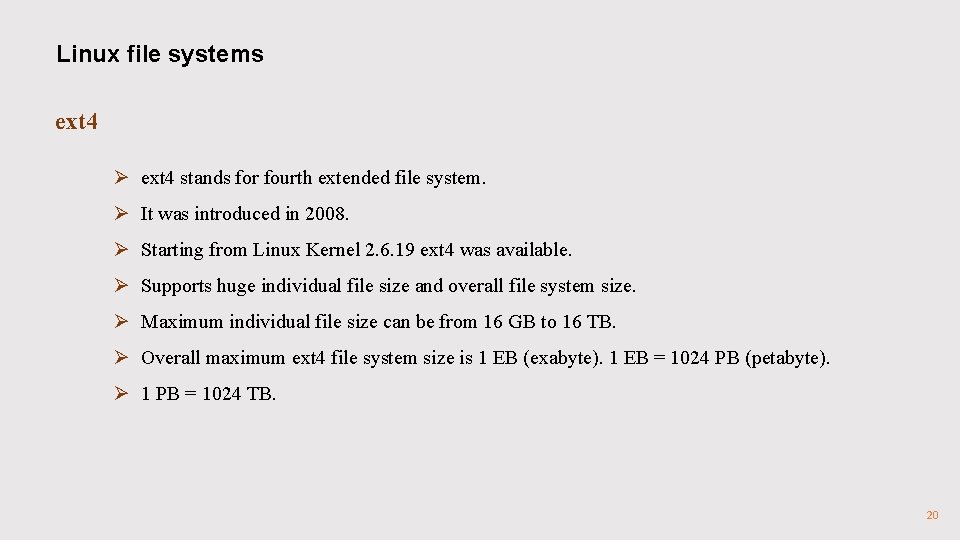
Linux file systems ext 4 Ø ext 4 stands for fourth extended file system. Ø It was introduced in 2008. Ø Starting from Linux Kernel 2. 6. 19 ext 4 was available. Ø Supports huge individual file size and overall file system size. Ø Maximum individual file size can be from 16 GB to 16 TB. Ø Overall maximum ext 4 file system size is 1 EB (exabyte). 1 EB = 1024 PB (petabyte). Ø 1 PB = 1024 TB. 20
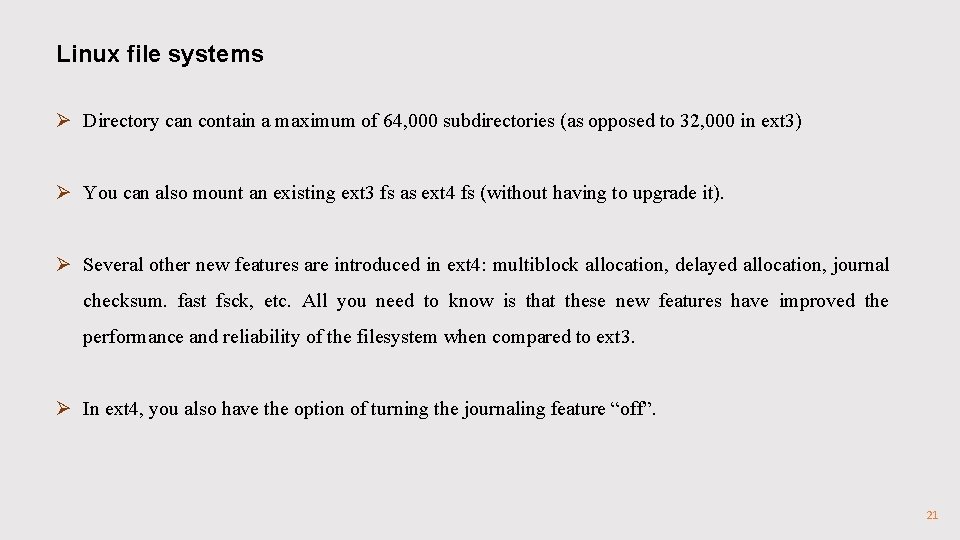
Linux file systems Ø Directory can contain a maximum of 64, 000 subdirectories (as opposed to 32, 000 in ext 3) Ø You can also mount an existing ext 3 fs as ext 4 fs (without having to upgrade it). Ø Several other new features are introduced in ext 4: multiblock allocation, delayed allocation, journal checksum. fast fsck, etc. All you need to know is that these new features have improved the performance and reliability of the filesystem when compared to ext 3. Ø In ext 4, you also have the option of turning the journaling feature “off”. 21
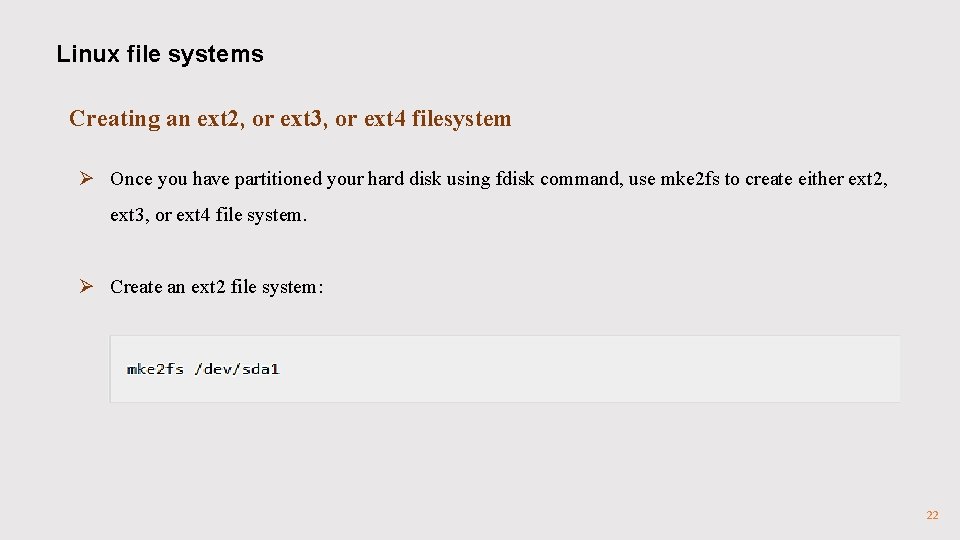
Linux file systems Creating an ext 2, or ext 3, or ext 4 filesystem Ø Once you have partitioned your hard disk using fdisk command, use mke 2 fs to create either ext 2, ext 3, or ext 4 file system. Ø Create an ext 2 file system: 22
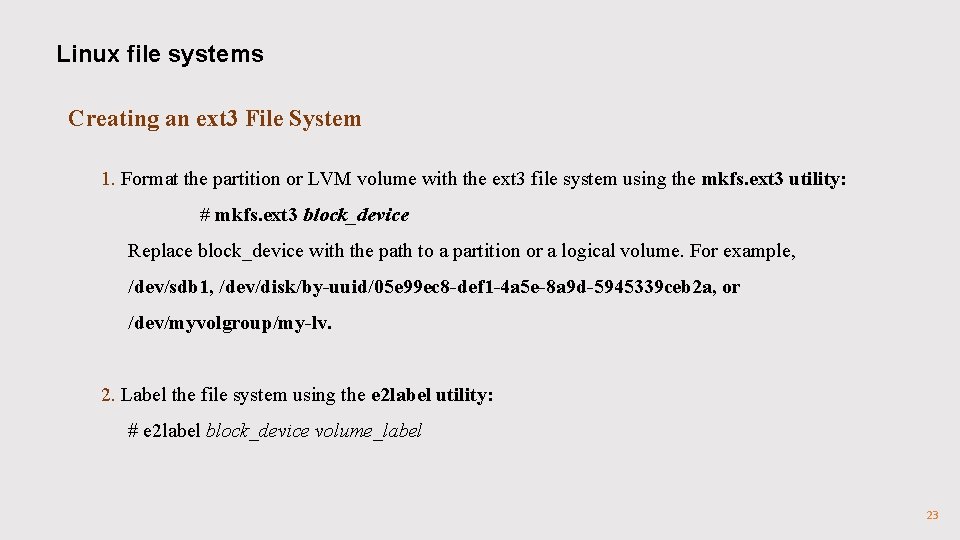
Linux file systems Creating an ext 3 File System 1. Format the partition or LVM volume with the ext 3 file system using the mkfs. ext 3 utility: # mkfs. ext 3 block_device Replace block_device with the path to a partition or a logical volume. For example, /dev/sdb 1, /dev/disk/by-uuid/05 e 99 ec 8 -def 1 -4 a 5 e-8 a 9 d-5945339 ceb 2 a, or /dev/myvolgroup/my-lv. 2. Label the file system using the e 2 label utility: # e 2 label block_device volume_label 23
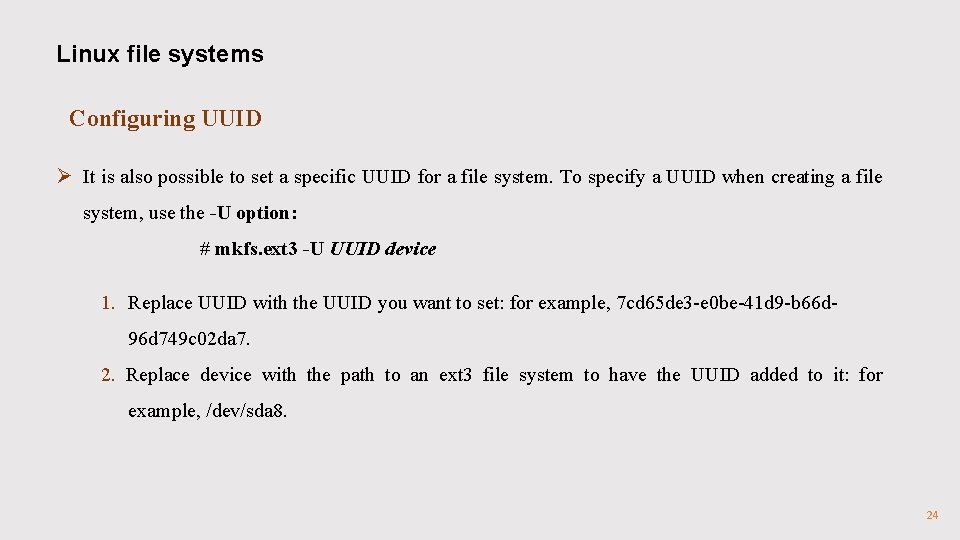
Linux file systems Configuring UUID Ø It is also possible to set a specific UUID for a file system. To specify a UUID when creating a file system, use the -U option: # mkfs. ext 3 -U UUID device 1. Replace UUID with the UUID you want to set: for example, 7 cd 65 de 3 -e 0 be-41 d 9 -b 66 d 96 d 749 c 02 da 7. 2. Replace device with the path to an ext 3 file system to have the UUID added to it: for example, /dev/sda 8. 24
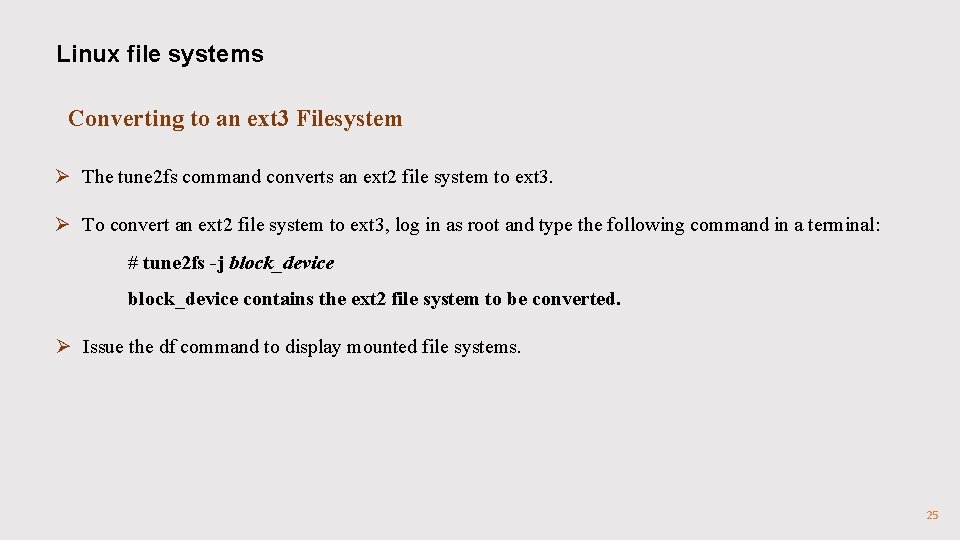
Linux file systems Converting to an ext 3 Filesystem Ø The tune 2 fs command converts an ext 2 file system to ext 3. Ø To convert an ext 2 file system to ext 3, log in as root and type the following command in a terminal: # tune 2 fs -j block_device contains the ext 2 file system to be converted. Ø Issue the df command to display mounted file systems. 25
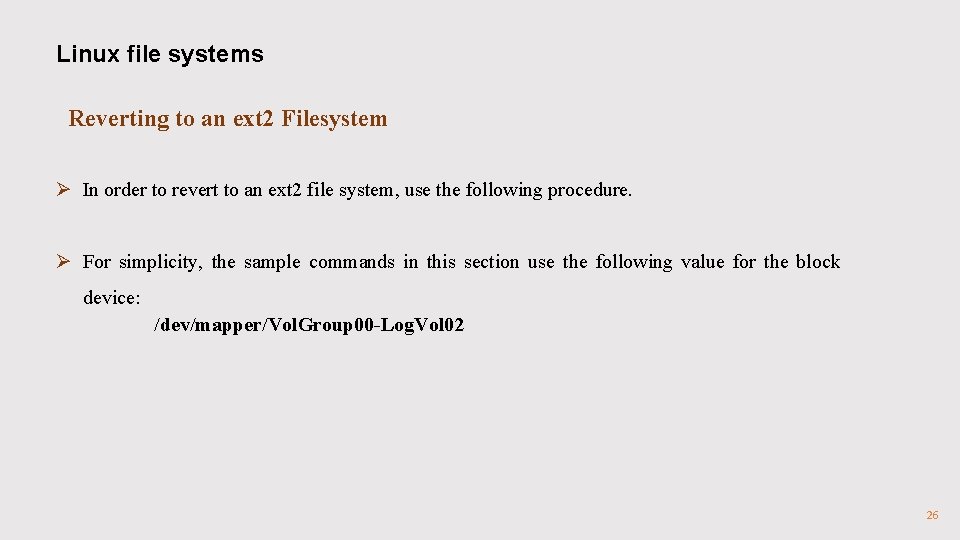
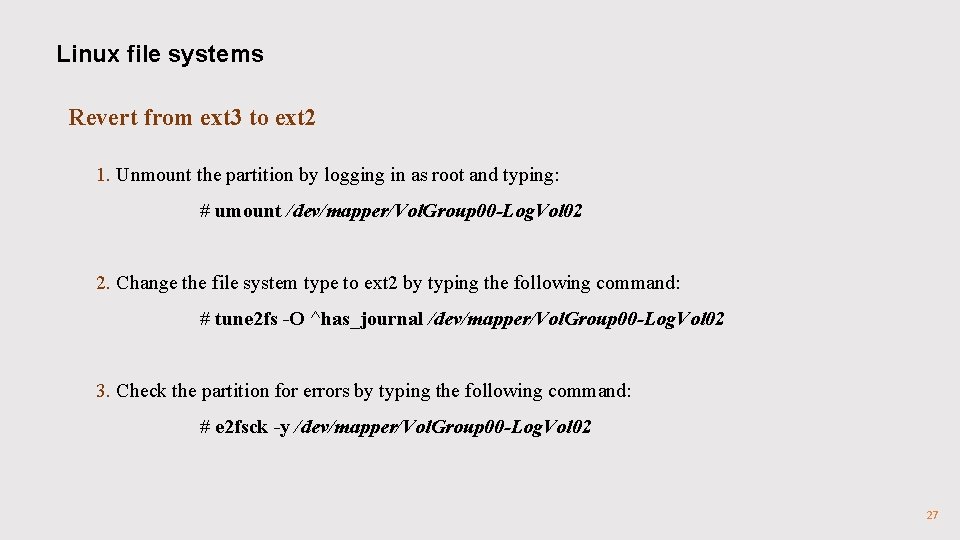
Linux file systems Reverting to an ext 2 Filesystem Ø In order to revert to an ext 2 file system, use the following procedure. Ø For simplicity, the sample commands in this section use the following value for the block device: /dev/mapper/Vol. Group 00 -Log. Vol 02 26
Linux file systems Revert from ext 3 to ext 2 1. Unmount the partition by logging in as root and typing: # umount /dev/mapper/Vol. Group 00 -Log. Vol 02 2. Change the file system type to ext 2 by typing the following command: # tune 2 fs -O ^has_journal /dev/mapper/Vol. Group 00 -Log. Vol 02 3. Check the partition for errors by typing the following command: # e 2 fsck -y /dev/mapper/Vol. Group 00 -Log. Vol 02 27
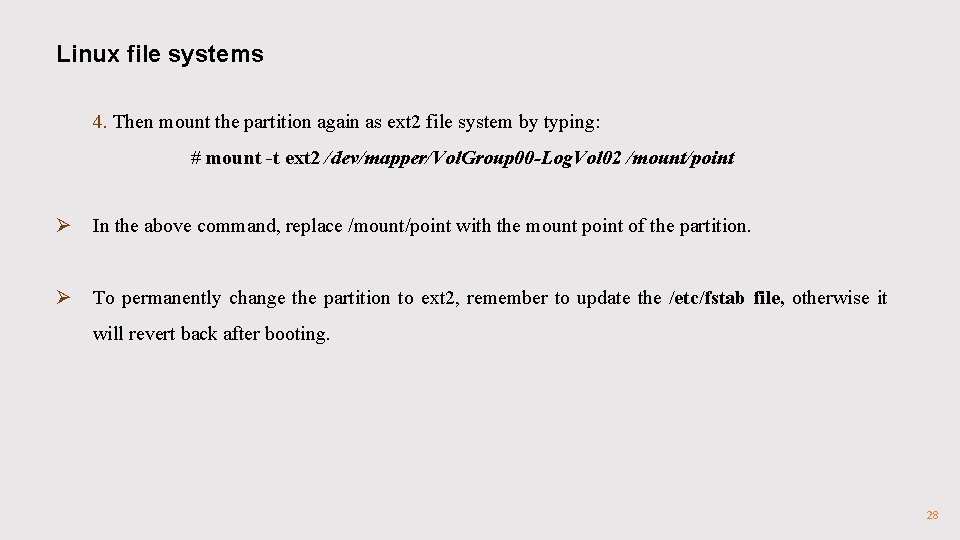
Linux file systems 4. Then mount the partition again as ext 2 file system by typing: # mount -t ext 2 /dev/mapper/Vol. Group 00 -Log. Vol 02 /mount/point Ø In the above command, replace /mount/point with the mount point of the partition. Ø To permanently change the partition to ext 2, remember to update the /etc/fstab file, otherwise it will revert back after booting. 28
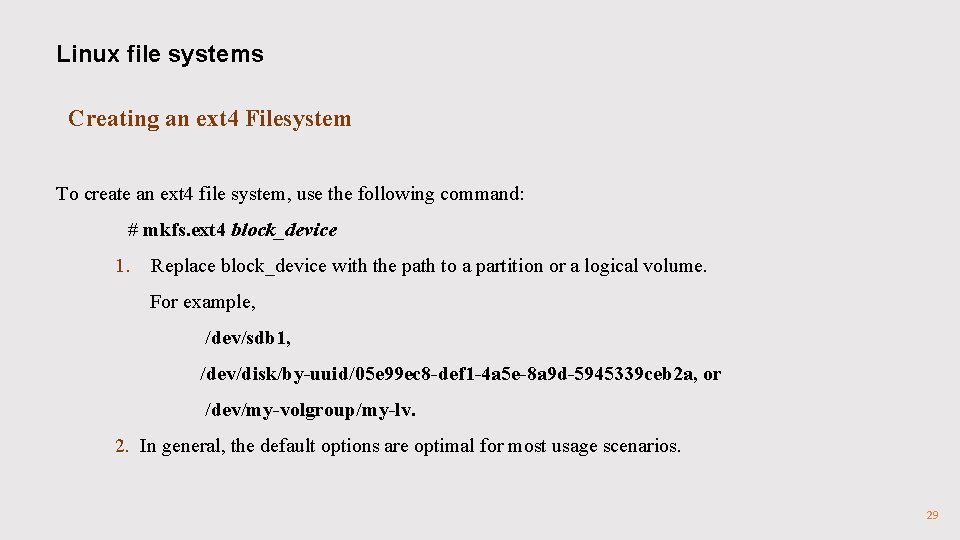
Linux file systems Creating an ext 4 Filesystem To create an ext 4 file system, use the following command: # mkfs. ext 4 block_device 1. Replace block_device with the path to a partition or a logical volume. For example, /dev/sdb 1, /dev/disk/by-uuid/05 e 99 ec 8 -def 1 -4 a 5 e-8 a 9 d-5945339 ceb 2 a, or /dev/my-volgroup/my-lv. 2. In general, the default options are optimal for most usage scenarios. 29
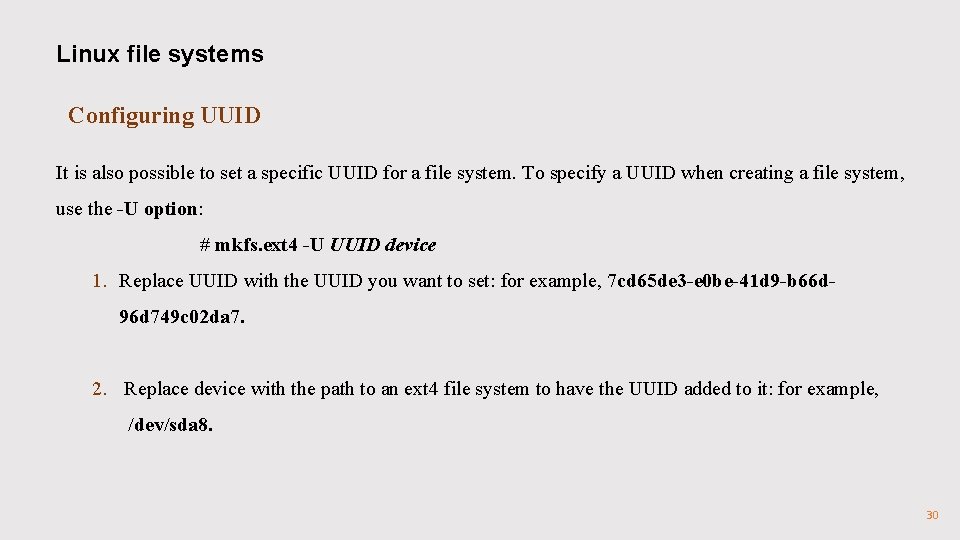
Linux file systems Configuring UUID It is also possible to set a specific UUID for a file system. To specify a UUID when creating a file system, use the -U option: # mkfs. ext 4 -U UUID device 1. Replace UUID with the UUID you want to set: for example, 7 cd 65 de 3 -e 0 be-41 d 9 -b 66 d 96 d 749 c 02 da 7. 2. Replace device with the path to an ext 4 file system to have the UUID added to it: for example, /dev/sda 8. 30
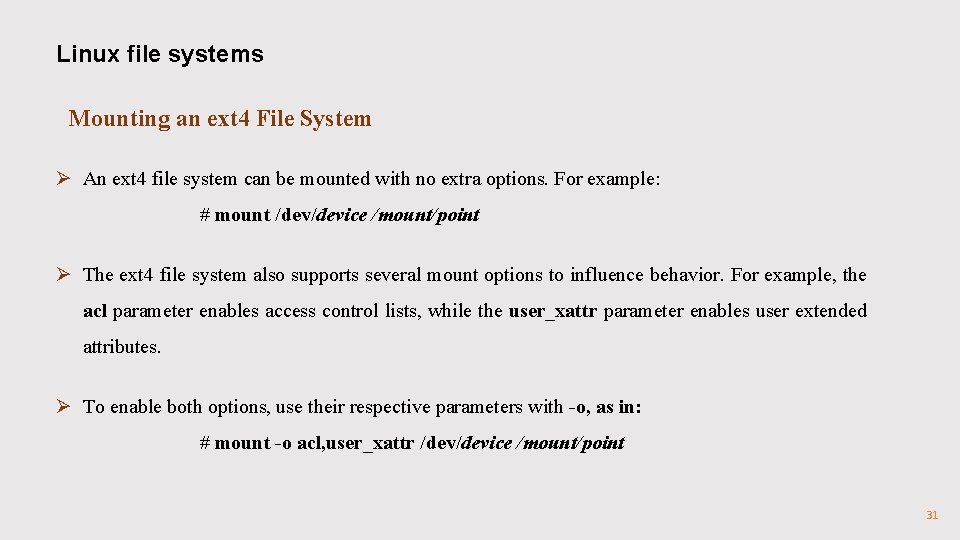
Linux file systems Mounting an ext 4 File System Ø An ext 4 file system can be mounted with no extra options. For example: # mount /device /mount/point Ø The ext 4 file system also supports several mount options to influence behavior. For example, the acl parameter enables access control lists, while the user_xattr parameter enables user extended attributes. Ø To enable both options, use their respective parameters with -o, as in: # mount -o acl, user_xattr /device /mount/point 31
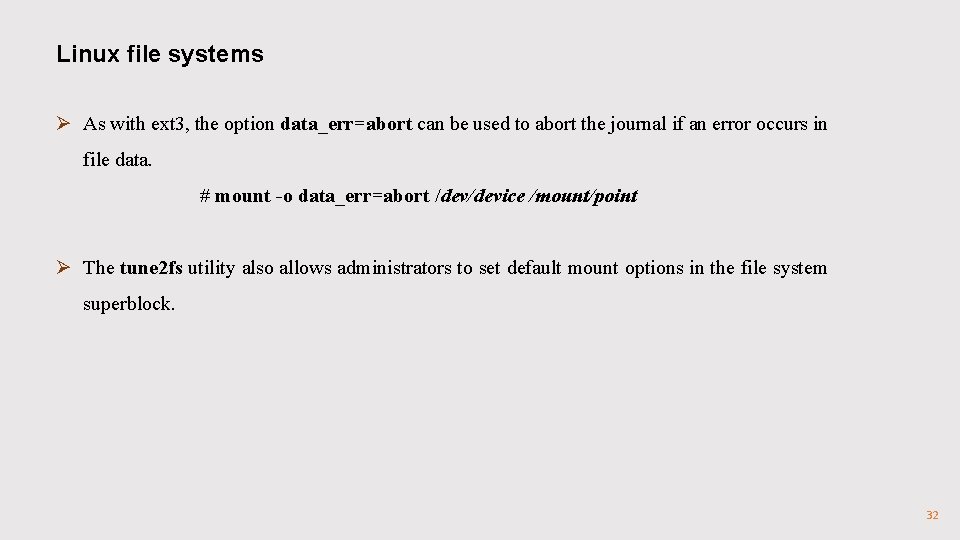
Linux file systems Ø As with ext 3, the option data_err=abort can be used to abort the journal if an error occurs in file data. # mount -o data_err=abort /device /mount/point Ø The tune 2 fs utility also allows administrators to set default mount options in the file system superblock. 32
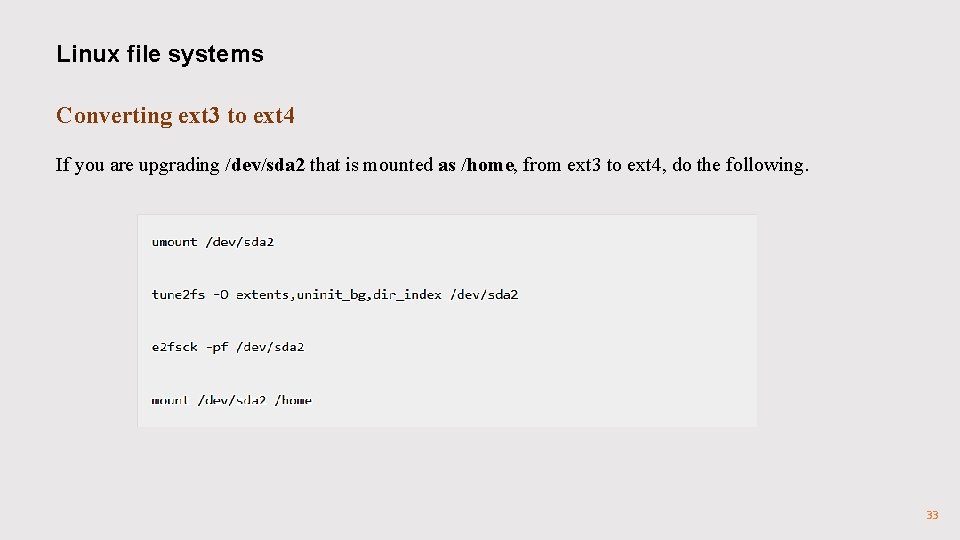
Linux file systems Converting ext 3 to ext 4 If you are upgrading /dev/sda 2 that is mounted as /home, from ext 3 to ext 4, do the following. 33
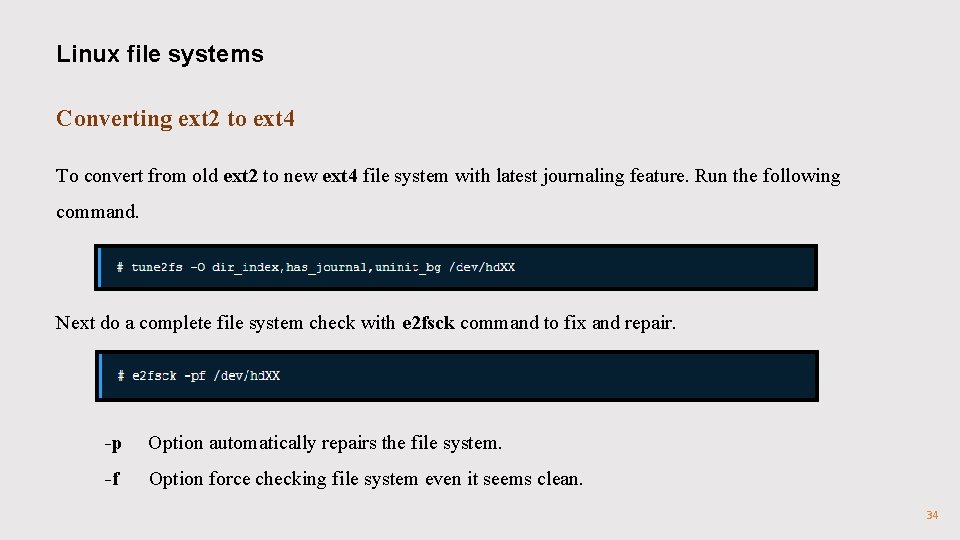
Linux file systems Converting ext 2 to ext 4 To convert from old ext 2 to new ext 4 file system with latest journaling feature. Run the following command. Next do a complete file system check with e 2 fsck command to fix and repair. -p Option automatically repairs the file system. -f Option force checking file system even it seems clean. 34
Linux file systems Self Assessment Question 10. Which one of the given type of file system is used for Linux systems? a) ext 2 b) hpfs c) swap d) nfs Answer: ext 2 35
Linux file systems Self Assessment Question 11. _____ is the example of Journaling filesystem. a) Ext 2 b) Ext 3 c) UFS d) JFS 5 Answer: JFS 5 36
Linux file systems Self Assessment Question 12. Which one of the given files contains information on currently mounted file systems? a) /etc/mtab b) /etc/fstab c) /proc d) /dev Answer: /etc/mtab 37