
Linux Shell Scripts Hasna Hena Assistant Professor Dept
![Conditional Statement If-Else if [ conditiong 1 ]; then statement 1 elif [ condition](https://slidetodoc.com/presentation_image_h2/10e4e0f911fe6f9fc0f1aa2b90fbed09/image-14.jpg "Conditional Statement If-Else if [ conditiong 1 ]; then statement 1 elif [ condition")
![For [1] #!/bin/bash for i in `ls` do echo $i done [2] #!/bin/bash for((](https://slidetodoc.com/presentation_image_h2/10e4e0f911fe6f9fc0f1aa2b90fbed09/image-22.jpg "For [1] #!/bin/bash for i in `ls` do echo $i done [2] #!/bin/bash for((")
![Until condition do statements done #!/bin/bash i=1 until [ $i –gt 10 ] do](https://slidetodoc.com/presentation_image_h2/10e4e0f911fe6f9fc0f1aa2b90fbed09/image-24.jpg "Until condition do statements done #!/bin/bash i=1 until [ $i –gt 10 ] do")

- Slides: 28
Linux Shell Scripts Hasna Hena Assistant Professor Dept. of CSE, DIU
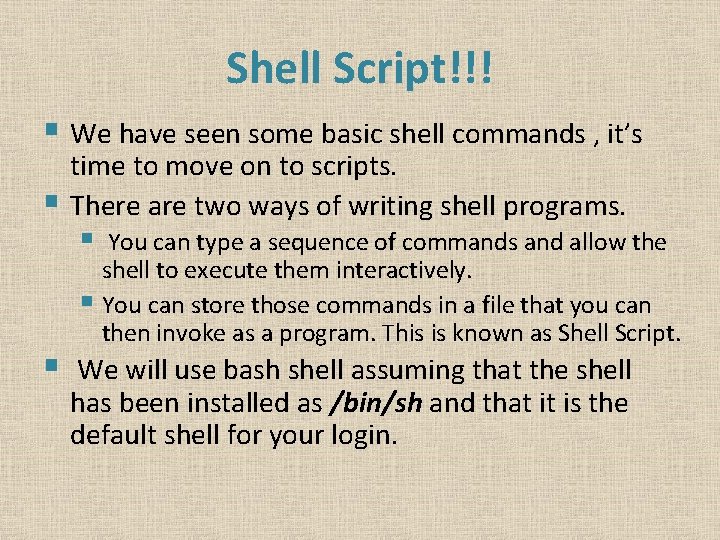
Shell Script!!! § We have seen some basic shell commands , it’s time to move on to scripts. § There are two ways of writing shell programs. § § You can type a sequence of commands and allow the shell to execute them interactively. § You can store those commands in a file that you can then invoke as a program. This is known as Shell Script. We will use bash shell assuming that the shell has been installed as /bin/sh and that it is the default shell for your login.
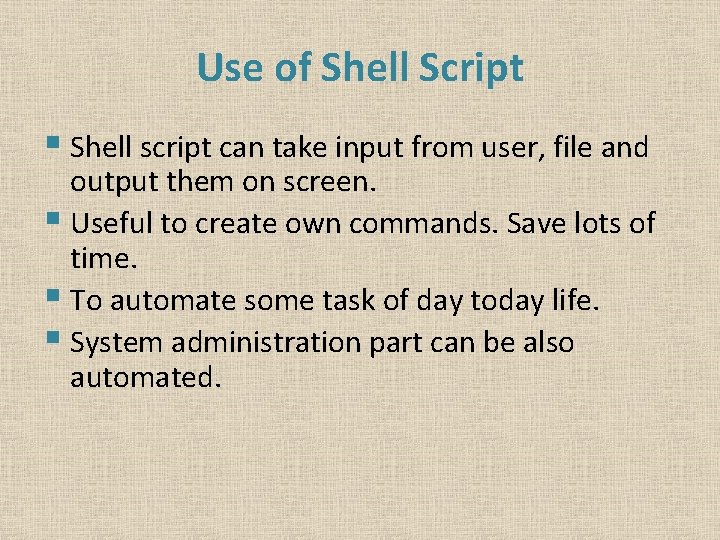
Use of Shell Script § Shell script can take input from user, file and output them on screen. § Useful to create own commands. Save lots of time. § To automate some task of day today life. § System administration part can be also automated.
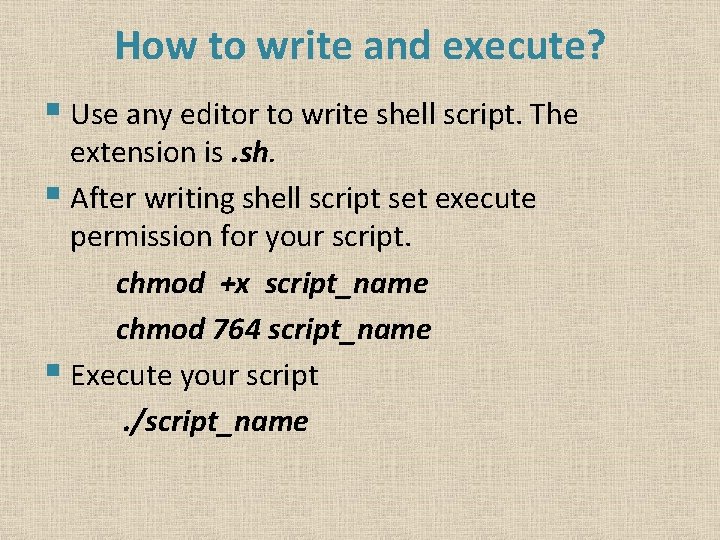
How to write and execute? § Use any editor to write shell script. The extension is. sh. § After writing shell script set execute permission for your script. chmod +x script_name chmod 764 script_name § Execute your script. /script_name
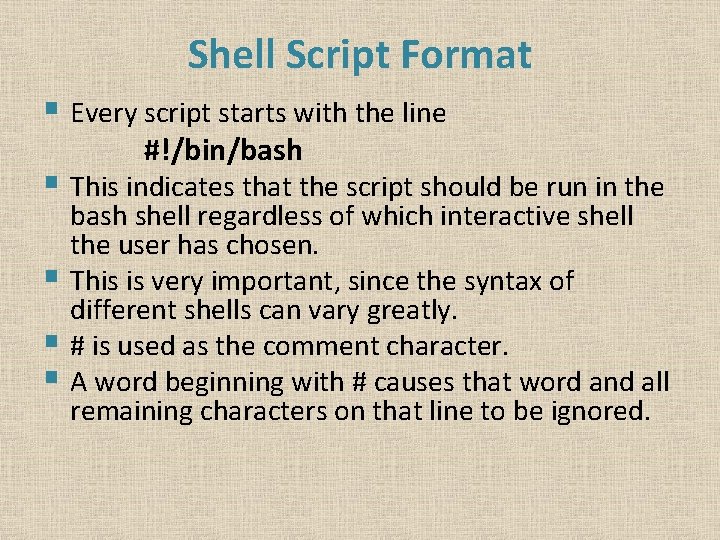
Shell Script Format § Every script starts with the line #!/bin/bash § This indicates that the script should be run in the bash shell regardless of which interactive shell the user has chosen. § This is very important, since the syntax of different shells can vary greatly. § # is used as the comment character. § A word beginning with # causes that word and all remaining characters on that line to be ignored.
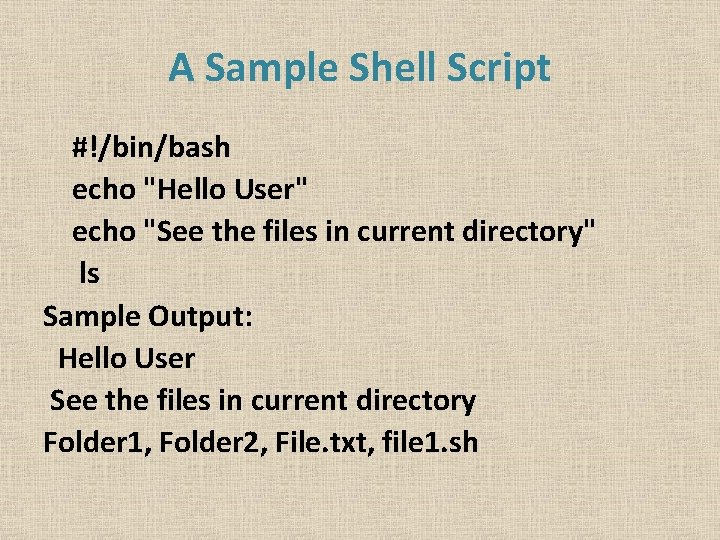
A Sample Shell Script #!/bin/bash echo "Hello User" echo "See the files in current directory" ls Sample Output: Hello User See the files in current directory Folder 1, Folder 2, File. txt, file 1. sh
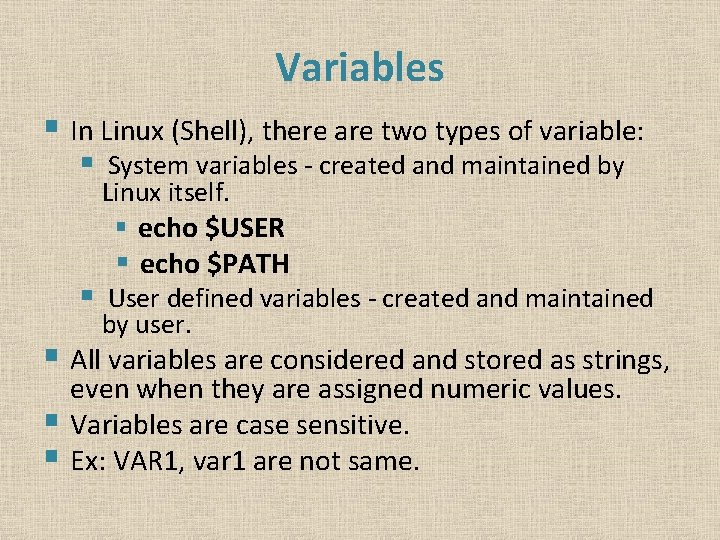
Variables § In Linux (Shell), there are two types of variable: § System variables ‐ created and maintained by Linux itself. § echo $USER § echo $PATH § User defined variables ‐ created and maintained by user. § All variables are considered and stored as strings, even when they are assigned numeric values. § Variables are case sensitive. § Ex: VAR 1, var 1 are not same.
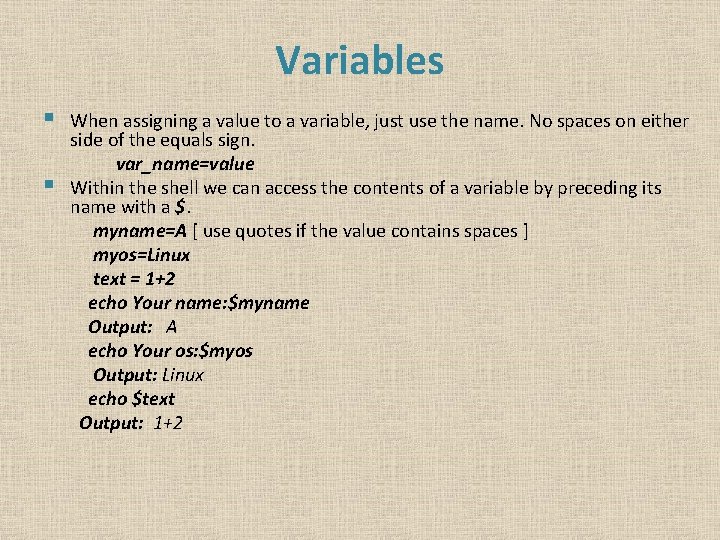
Variables § § When assigning a value to a variable, just use the name. No spaces on either side of the equals sign. var_name=value Within the shell we can access the contents of a variable by preceding its name with a $. myname=A [ use quotes if the value contains spaces ] myos=Linux text = 1+2 echo Your name: $myname Output: A echo Your os: $myos Output: Linux echo $text Output: 1+2
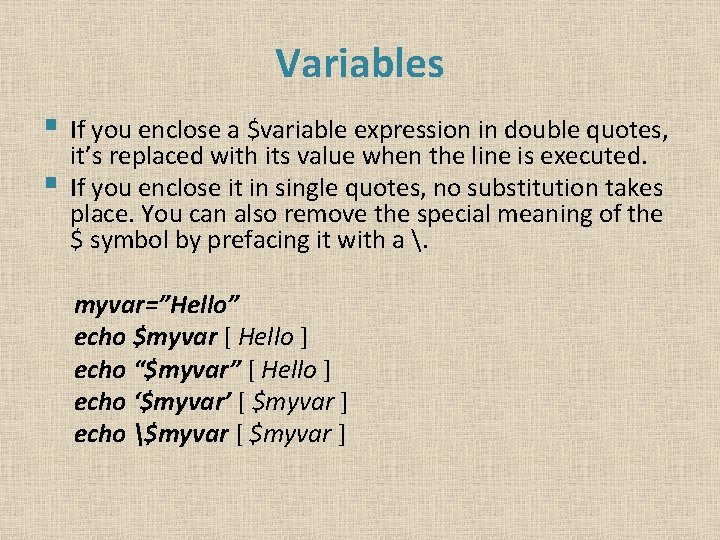
Variables § § If you enclose a $variable expression in double quotes, it’s replaced with its value when the line is executed. If you enclose it in single quotes, no substitution takes place. You can also remove the special meaning of the $ symbol by prefacing it with a . myvar=”Hello” echo $myvar [ Hello ] echo “$myvar” [ Hello ] echo ‘$myvar’ [ $myvar ] echo $myvar [ $myvar ]
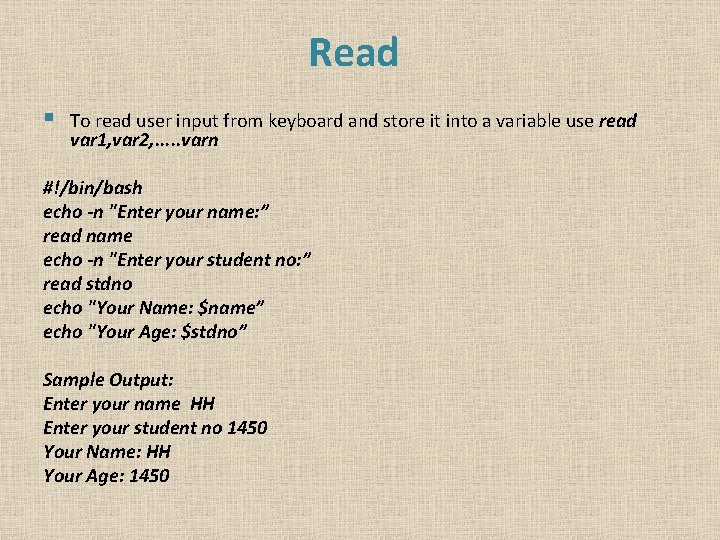
Read § To read user input from keyboard and store it into a variable use read var 1, var 2, . . . varn #!/bin/bash echo ‐n "Enter your name: ” read name echo ‐n "Enter your student no: ” read stdno echo "Your Name: $name” echo "Your Age: $stdno” Sample Output: Enter your name HH Enter your student no 1450 Your Name: HH Your Age: 1450
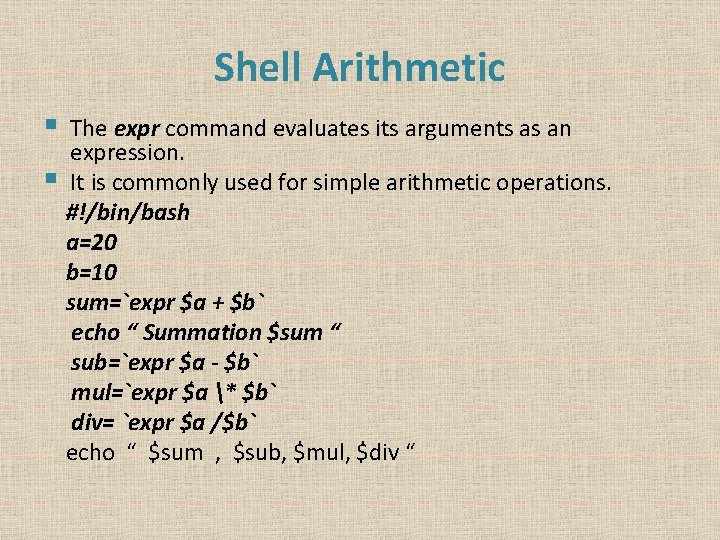
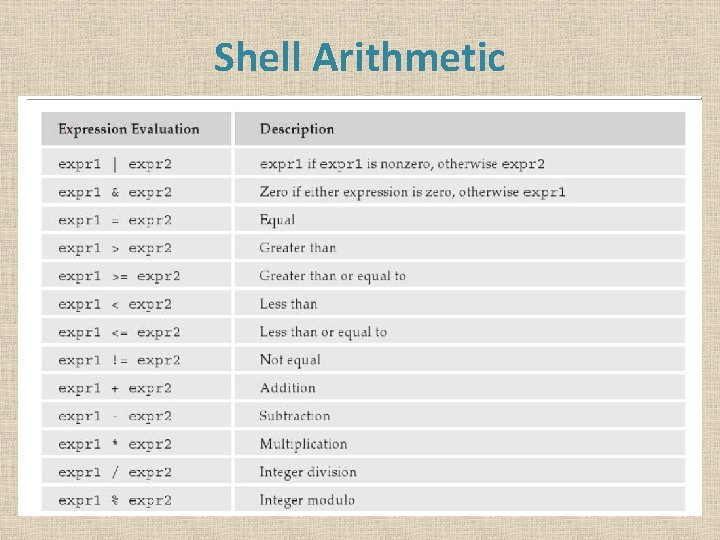
Shell Arithmetic § § The expr command evaluates its arguments as an expression. It is commonly used for simple arithmetic operations. #!/bin/bash a=20 b=10 sum=`expr $a + $b` echo “ Summation $sum “ sub=`expr $a ‐ $b` mul=`expr $a * $b` div= `expr $a /$b` echo “ $sum , $sub, $mul, $div “
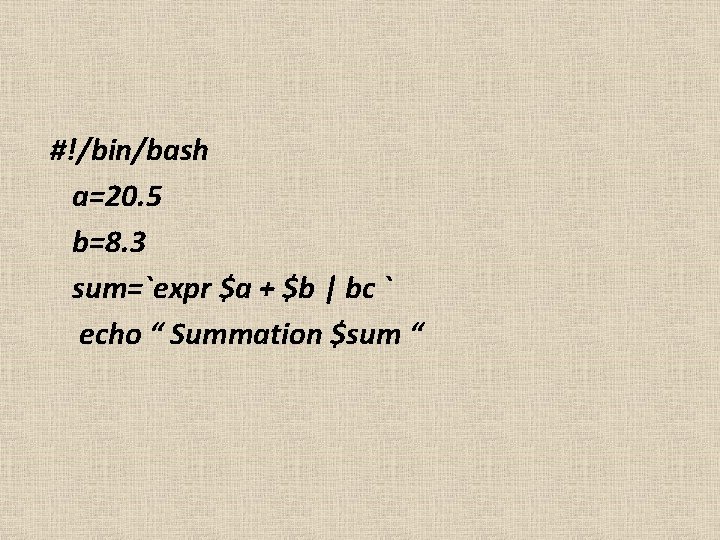
#!/bin/bash a=20. 5 b=8. 3 sum=`expr $a + $b | bc ` echo “ Summation $sum “
Shell Arithmetic
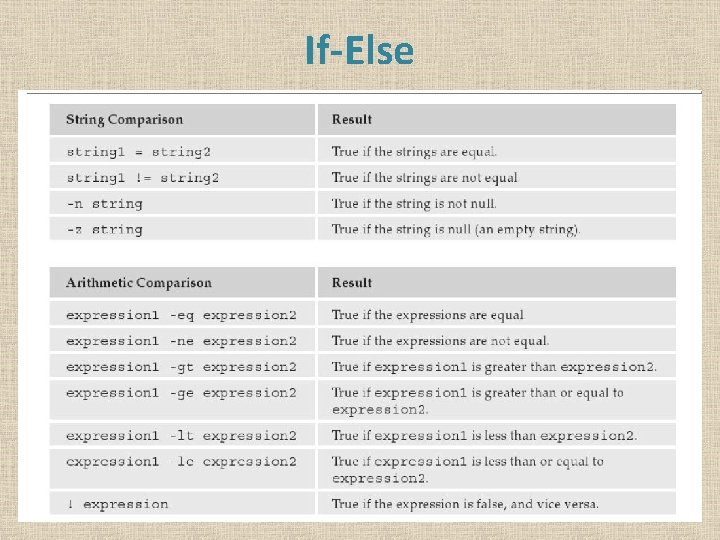
Conditional Statement If-Else if [ conditiong 1 ]; then statement 1 elif [ condition 2 ]; then statement 2 else statement 3 fi § § It is must to put spaces between the [ braces and the condition being checked. If you prefer putting then on the same line as if, you must add a semicolon to separate the test from then.
If-Else
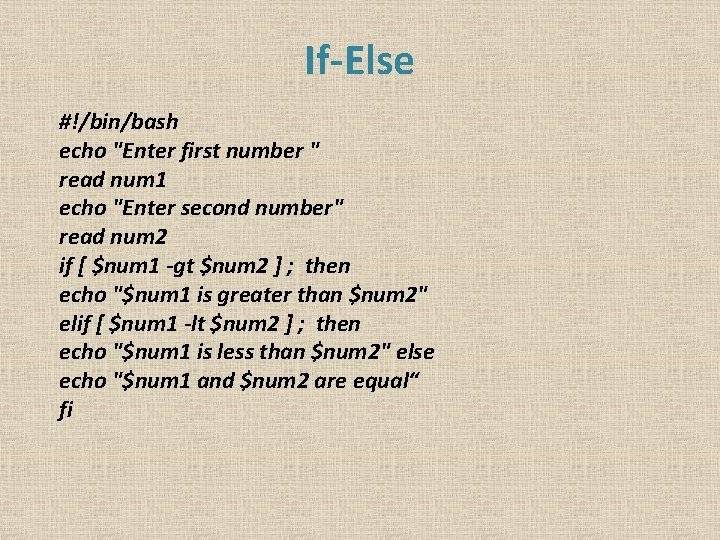
If-Else #!/bin/bash echo "Enter first number " read num 1 echo "Enter second number" read num 2 if [ $num 1 ‐gt $num 2 ] ; then echo "$num 1 is greater than $num 2" elif [ $num 1 ‐lt $num 2 ] ; then echo "$num 1 is less than $num 2" else echo "$num 1 and $num 2 are equal“ fi
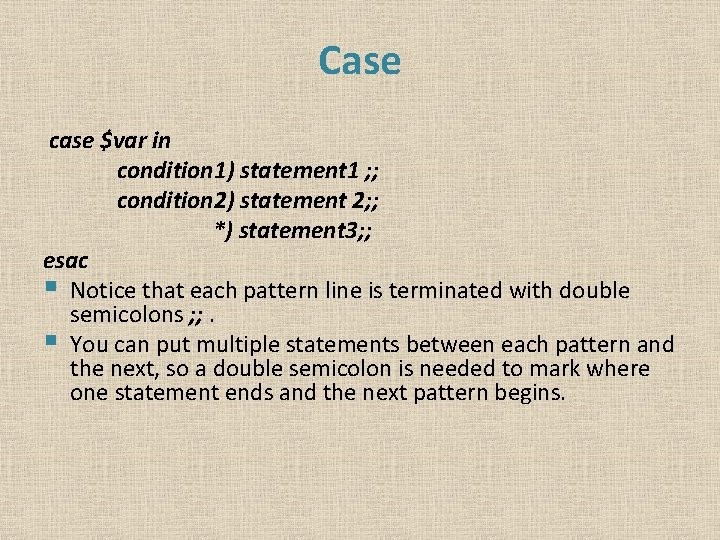
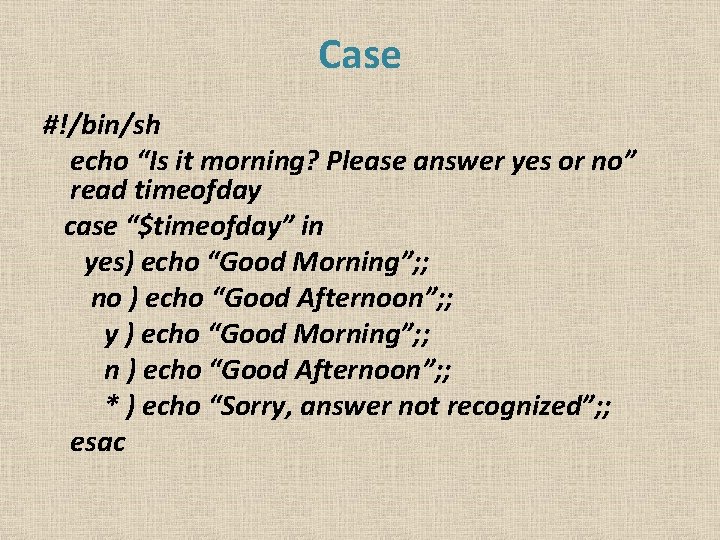
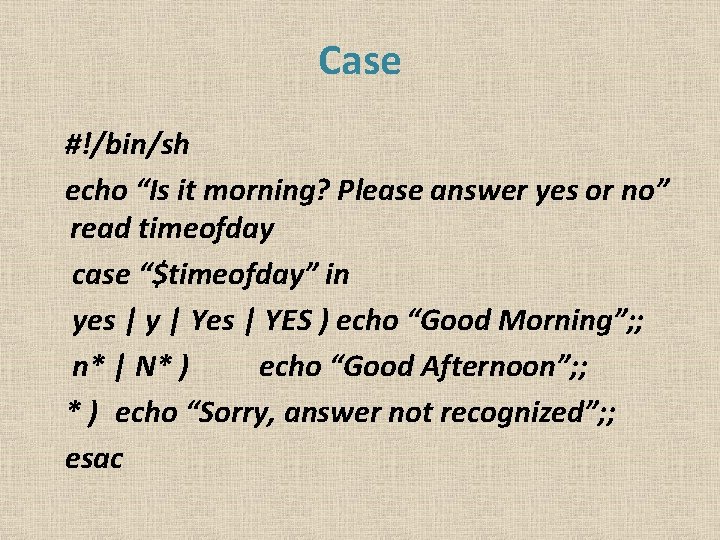
Case case $var in condition 1) statement 1 ; ; condition 2) statement 2; ; *) statement 3; ; esac § Notice that each pattern line is terminated with double semicolons ; ; . § You can put multiple statements between each pattern and the next, so a double semicolon is needed to mark where one statement ends and the next pattern begins.
Case #!/bin/sh echo “Is it morning? Please answer yes or no” read timeofday case “$timeofday” in yes) echo “Good Morning”; ; no ) echo “Good Afternoon”; ; y ) echo “Good Morning”; ; n ) echo “Good Afternoon”; ; * ) echo “Sorry, answer not recognized”; ; esac
Case #!/bin/sh echo “Is it morning? Please answer yes or no” read timeofday case “$timeofday” in yes | y | Yes | YES ) echo “Good Morning”; ; n* | N* ) echo “Good Afternoon”; ; * ) echo “Sorry, answer not recognized”; ; esac
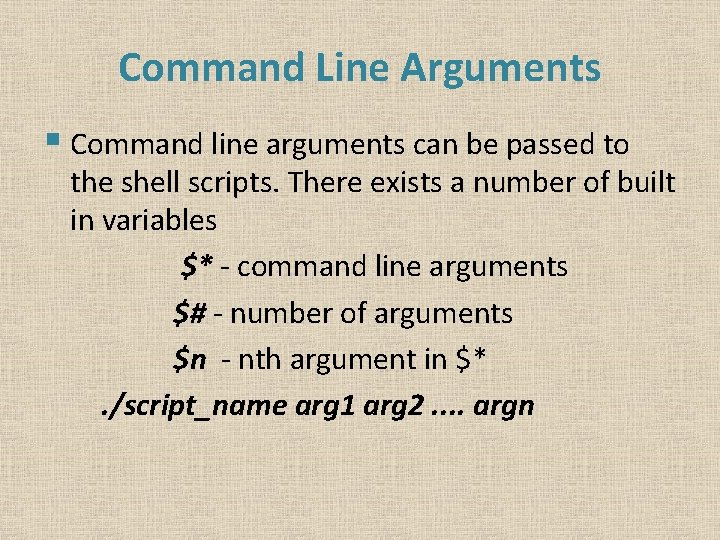
Command Line Arguments § Command line arguments can be passed to the shell scripts. There exists a number of built in variables $* ‐ command line arguments $# ‐ number of arguments $n ‐ nth argument in $*. /script_name arg 1 arg 2. . argn
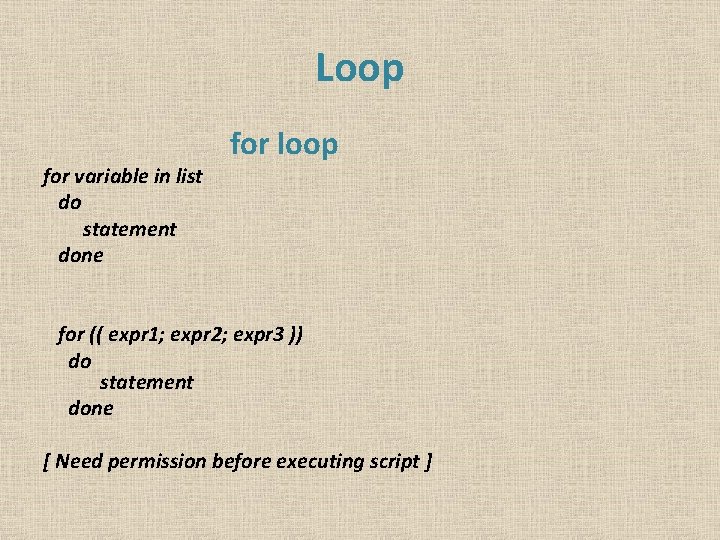
Loop for variable in list do statement done for loop for (( expr 1; expr 2; expr 3 )) do statement done [ Need permission before executing script ]
For [1] #!/bin/bash for i in `ls` do echo $i done [2] #!/bin/bash for(( i=0; i<=10; i++)) do echo $i done
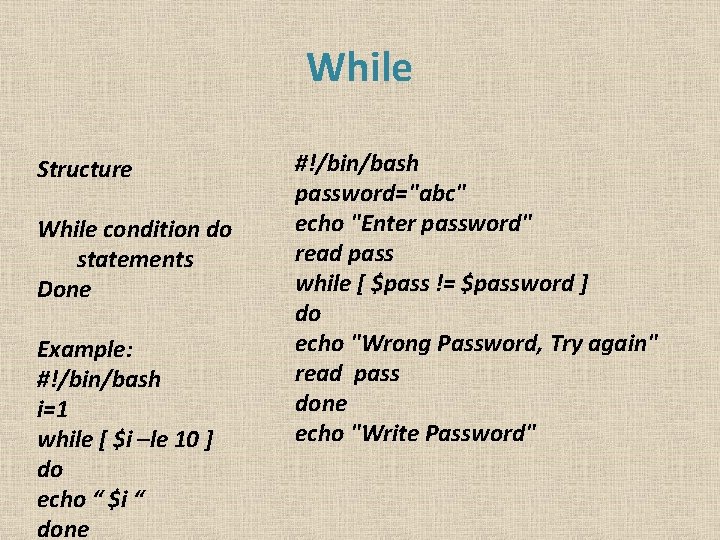
While Structure While condition do statements Done Example: #!/bin/bash i=1 while [ $i –le 10 ] do echo “ $i “ done #!/bin/bash password="abc" echo "Enter password" read pass while [ $pass != $password ] do echo "Wrong Password, Try again" read pass done echo "Write Password"
Until condition do statements done #!/bin/bash i=1 until [ $i –gt 10 ] do echo “ $i “ done #!/bin/bash password="abc" echo "Enter password" read pass until [ $pass != $password ] do echo "Wrong Password, Try again" read pass done echo "Write Password"
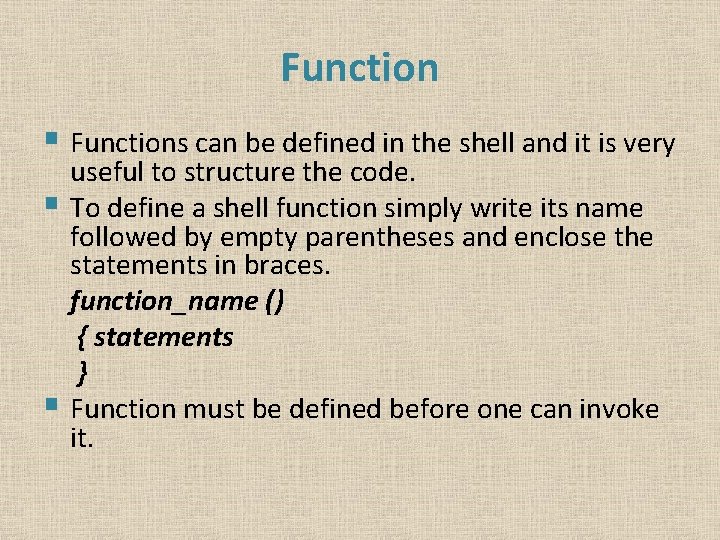
Function § Functions can be defined in the shell and it is very useful to structure the code. § To define a shell function simply write its name followed by empty parentheses and enclose the statements in braces. function_name () { statements } § Function must be defined before one can invoke it.
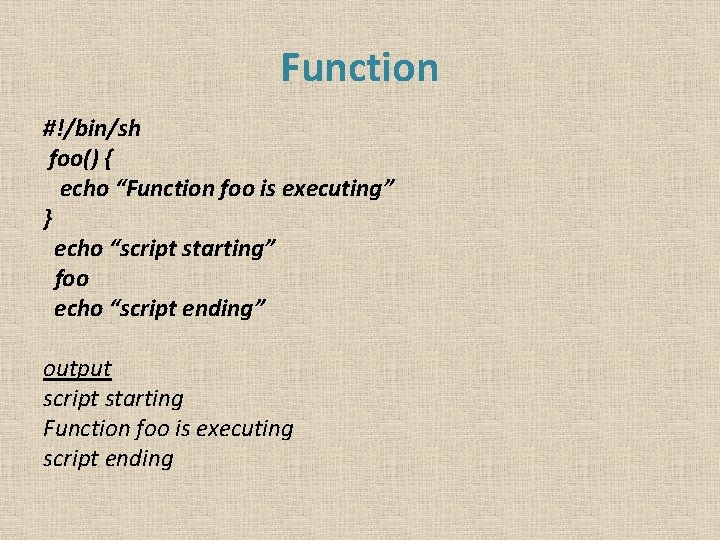
Function #!/bin/sh foo() { echo “Function foo is executing” } echo “script starting” foo echo “script ending” output script starting Function foo is executing script ending
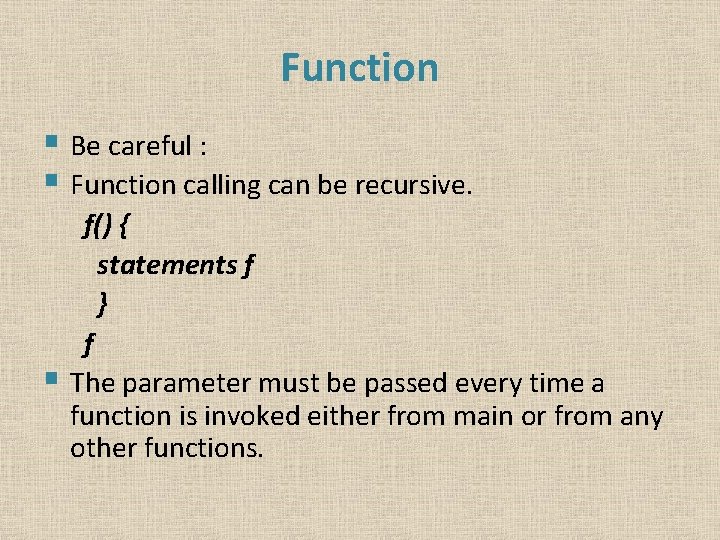
Function § Be careful : § Function calling can be recursive. f() { statements f } f § The parameter must be passed every time a function is invoked either from main or from any other functions.
Thanks!!!!!