
Linux OSPart Basics Co Sharif University of Technology
Linux OS(Part І: Basics) Co. Sharif University of Technology mputer Workshop 88 -89 1
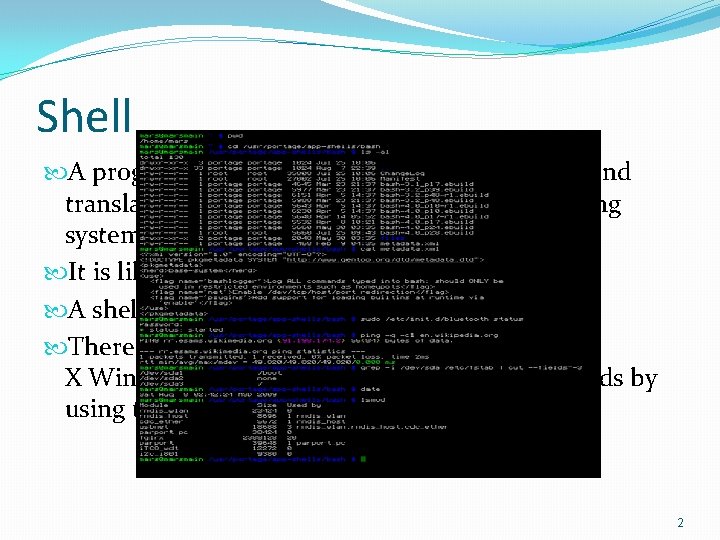
Shell A program that takes the commands you type and translates them into instructions to the operating system. It is like Command Prompt in windows. A shell is just one interface to Linux. There are many possible interfaces--like the X Window System, which lets you run commands by using the mouse and keyboard. 2

Shell or Kernel? The shell manages the technical details of the operating system kernel interface, which is to the lowest-level, or 'inner-most' component of an operating system. The program is called a "shell" because it hides the details of the underlying operating system behind the shell's interface 3
http: //www. chiark. greenend. org. uk/~sgtatham/putty/download. html SSH Secure Shell or SSH is a network protocol that allows data to be exchanged using a secure channel between two networked devices. Used primarily on Linux and Unix based systems to access shell accounts. SSH was designed as a replacement for Telnet and other insecure remote shells. Telnet is a protocol that allows you to connect to remote computers (called hosts) over a TCP/IP network (such as the Internet). You use software called a telnet client on your computer to make a connection to a telnet server (i. e. , the remote host). 4
Get Started 1 Getting familiar with current directory Using Tab and Arrow keys. Everything is a files are case sensitive. bookstobuy. txt Books. To. Buy. txt Bo. Ok. St. Ob. Uy. txt Maximum filename length is 256 char. Files are identified by their file names. Directory is a file, tooa special kind of file that contains information about other files. 5
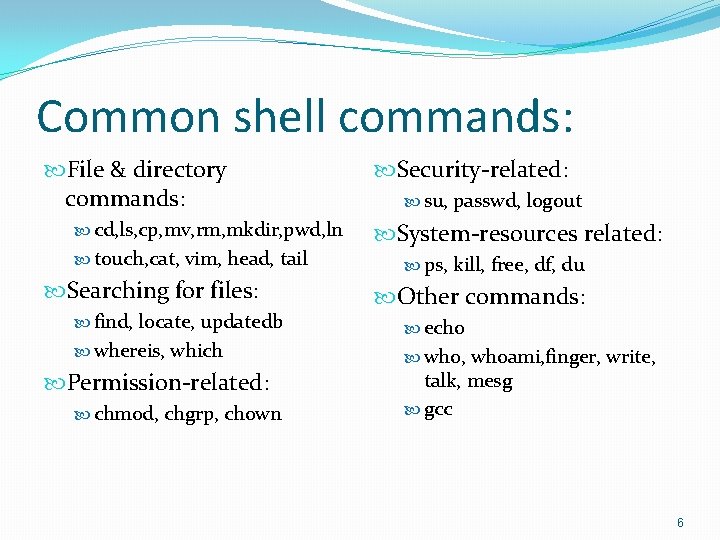
Common shell commands: File & directory commands: cd, ls, cp, mv, rm, mkdir, pwd, ln touch, cat, vim, head, tail Searching for files: find, locate, updatedb whereis, which Permission-related: chmod, chgrp, chown Security-related: su, passwd, logout System-resources related: ps, kill, free, df, du Other commands: echo who, whoami, finger, write, talk, mesg gcc 6
![Commands � cd: change directory � cd [with no arguments] ---> change to user](http://slidetodoc.com/presentation_image/e56e8a80857e1c7ed3b06578f688809f/image-7.jpg "Commands � cd: change directory � cd [with no arguments] ---> change to user")
Commands � cd: change directory � cd [with no arguments] ---> change to user home directory � cd / ---> root directory � Cd ~ home directory � cd - (back) � ls: list directory contents � � -a : all, -A, -d -l : long listing format(All infos) -n : numeric uid/gid (this way, students can find others' STUDENT IDs) -F, --classify Append indicator (one of */=@|) to entries � cp: copy, mv: move (can be used to rename files, too) � � -r : recursive -v : verbose -I (warn you about overwriting) -R (for copying directories) 7
Commands 8
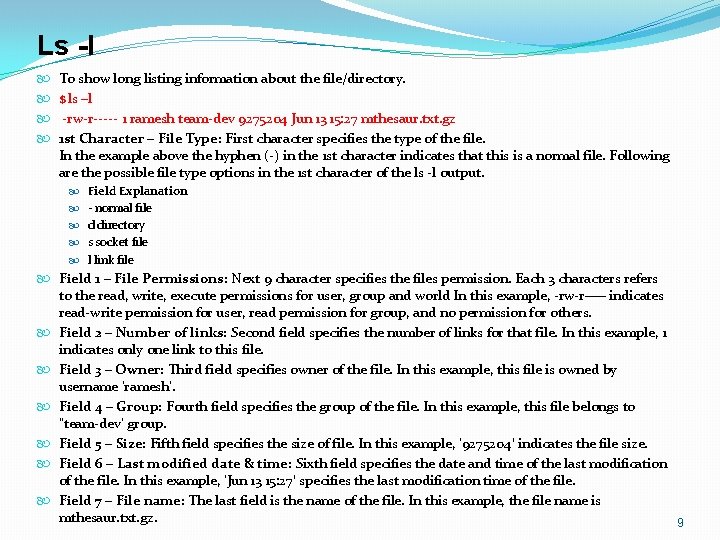
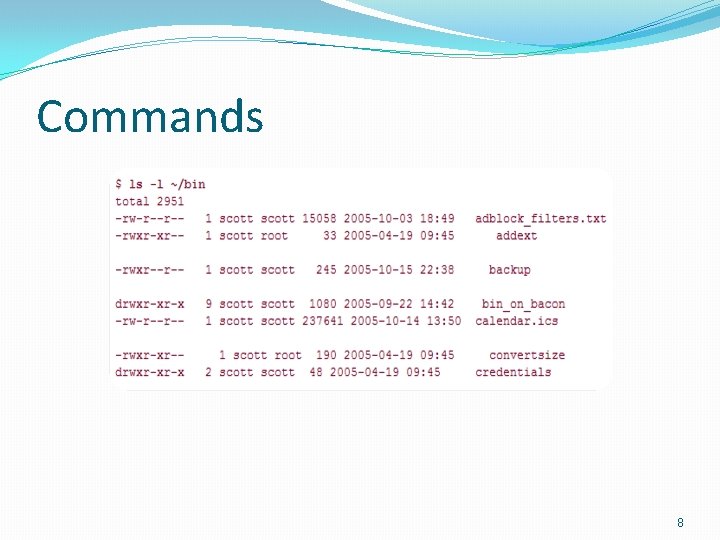
Ls -l To show long listing information about the file/directory. $ ls –l -rw-r----- 1 ramesh team-dev 9275204 Jun 13 15: 27 mthesaur. txt. gz 1 st Character – File Type: First character specifies the type of the file. In the example above the hyphen (-) in the 1 st character indicates that this is a normal file. Following are the possible file type options in the 1 st character of the ls -l output. Field Explanation - normal file d directory s socket file l link file Field 1 – File Permissions: Next 9 character specifies the files permission. Each 3 characters refers to the read, write, execute permissions for user, group and world In this example, -rw-r—– indicates read-write permission for user, read permission for group, and no permission for others. Field 2 – Number of links: Second field specifies the number of links for that file. In this example, 1 indicates only one link to this file. Field 3 – Owner: Third field specifies owner of the file. In this example, this file is owned by username ‘ramesh’. Field 4 – Group: Fourth field specifies the group of the file. In this example, this file belongs to ”team-dev’ group. Field 5 – Size: Fifth field specifies the size of file. In this example, ‘ 9275204′ indicates the file size. Field 6 – Last modified date & time: Sixth field specifies the date and time of the last modification of the file. In this example, ‘Jun 13 15: 27′ specifies the last modification time of the file. Field 7 – File name: The last field is the name of the file. In this example, the file name is mthesaur. txt. gz. 9
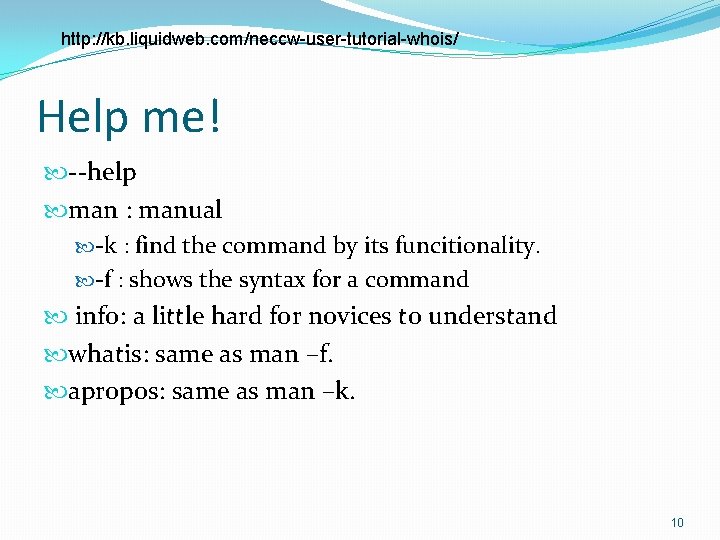
http: //kb. liquidweb. com/neccw-user-tutorial-whois/ Help me! --help man : manual -k : find the command by its funcitionality. -f : shows the syntax for a command info: a little hard for novices to understand whatis: same as man –f. apropos: same as man –k. 10
Commands chgrp: change the group owning files. Make Oracle the owner of the database directory $chgrp oracle /usr/database chown: change the owner of a file. chown : change owner 11
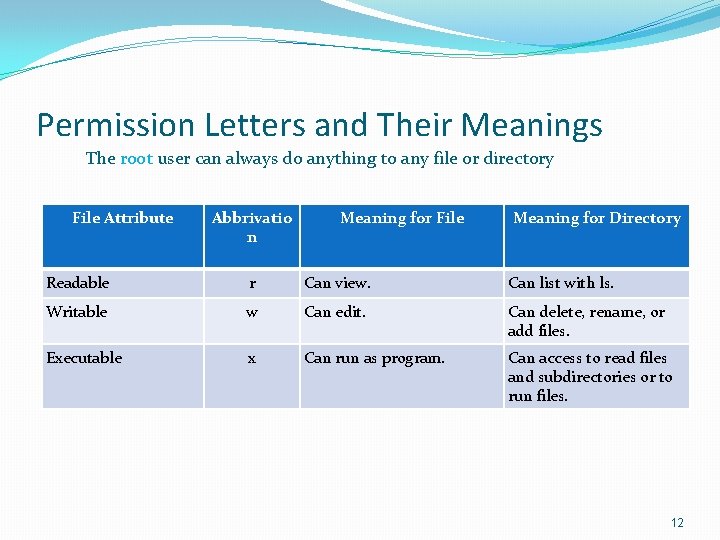
Permission Letters and Their Meanings The root user can always do anything to any file or directory File Attribute Abbrivatio n Meaning for File Meaning for Directory Readable r Can view. Can list with ls. Writable w Can edit. Can delete, rename, or add files. Executable x Can run as program. Can access to read files and subdirectories or to run files. 12
![Change Permissions on Files chmod: Alphabetic: chmod [ugo][+-=][rwx] Example: chmod go+w sample. txt Make](http://slidetodoc.com/presentation_image/e56e8a80857e1c7ed3b06578f688809f/image-13.jpg "Change Permissions on Files chmod: Alphabetic: chmod [ugo][+-=][rwx] Example: chmod go+w sample. txt Make")
Change Permissions on Files chmod: Alphabetic: chmod [ugo][+-=][rwx] Example: chmod go+w sample. txt Make a file readable and writable by the group and others: chmod go+rw file Numeric: chmod [0 -7][0 -7] Example: chmod 664 sample. txt Owner Group World r; w; x Numeric 4; 2; 1 representatio n 4; 2; 1 Permissions 13
Commands Rm, rmdir: remove empty directory -d : directory -f : force -r : recursive mkdir: make directory -p (make n-level directory and subdirectory) pwd: print working directory ln: make links between files -s : make symbolic links instead of hard links 14
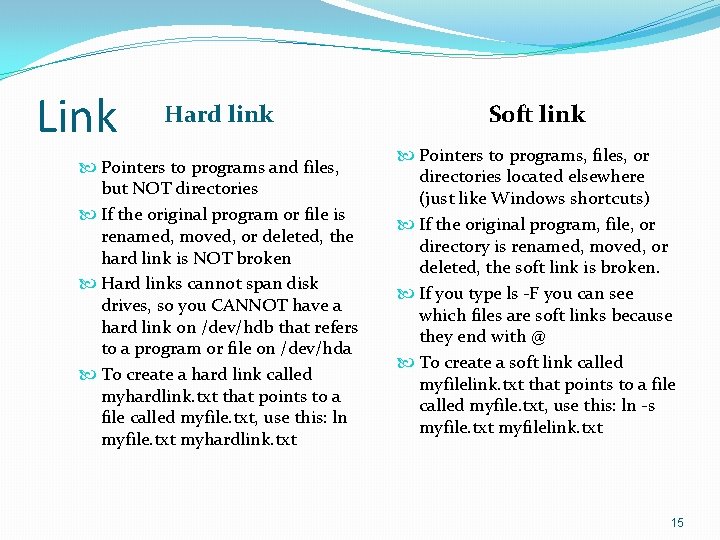
Link Hard link Pointers to programs and files, but NOT directories If the original program or file is renamed, moved, or deleted, the hard link is NOT broken Hard links cannot span disk drives, so you CANNOT have a hard link on /dev/hdb that refers to a program or file on /dev/hda To create a hard link called myhardlink. txt that points to a file called myfile. txt, use this: ln myfile. txt myhardlink. txt Soft link Pointers to programs, files, or directories located elsewhere (just like Windows shortcuts) If the original program, file, or directory is renamed, moved, or deleted, the soft link is broken. If you type ls -F you can see which files are soft links because they end with @ To create a soft link called myfilelink. txt that points to a file called myfile. txt, use this: ln -s myfile. txt myfilelink. txt 15
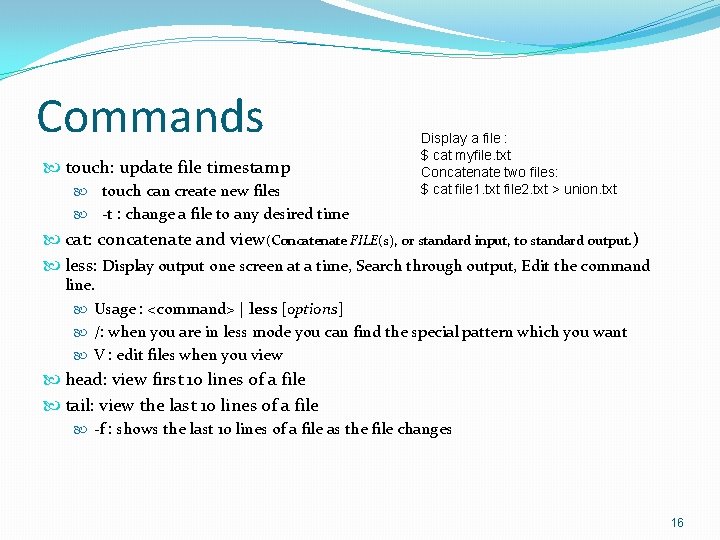
Commands touch: update file timestamp touch can create new files Display a file : $ cat myfile. txt Concatenate two files: $ cat file 1. txt file 2. txt > union. txt -t : change a file to any desired time cat: concatenate and view(Concatenate FILE(s), or standard input, to standard output. ) less: Display output one screen at a time, Search through output, Edit the command line. Usage : <command> | less [options] /: when you are in less mode you can find the special pattern which you want V : edit files when you view head: view first 10 lines of a file tail: view the last 10 lines of a file -f : shows the last 10 lines of a file as the file changes 16
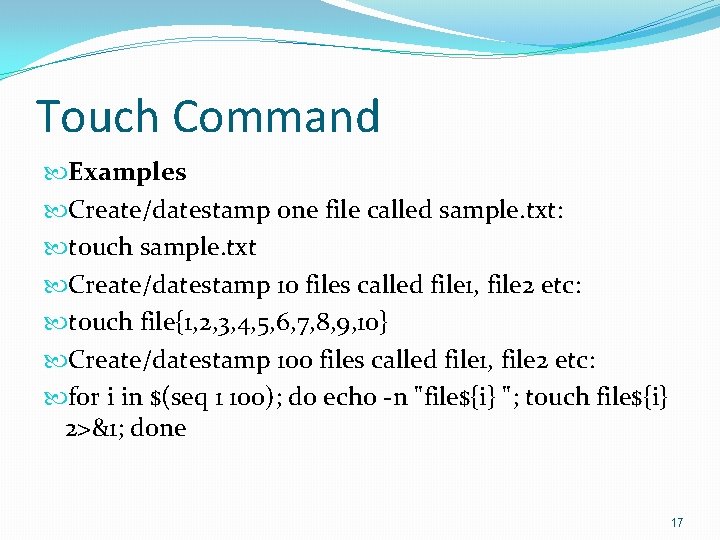
Touch Command Examples Create/datestamp one file called sample. txt: touch sample. txt Create/datestamp 10 files called file 1, file 2 etc: touch file{1, 2, 3, 4, 5, 6, 7, 8, 9, 10} Create/datestamp 100 files called file 1, file 2 etc: for i in $(seq 1 100); do echo -n "file${i} "; touch file${i} 2>&1; done 17
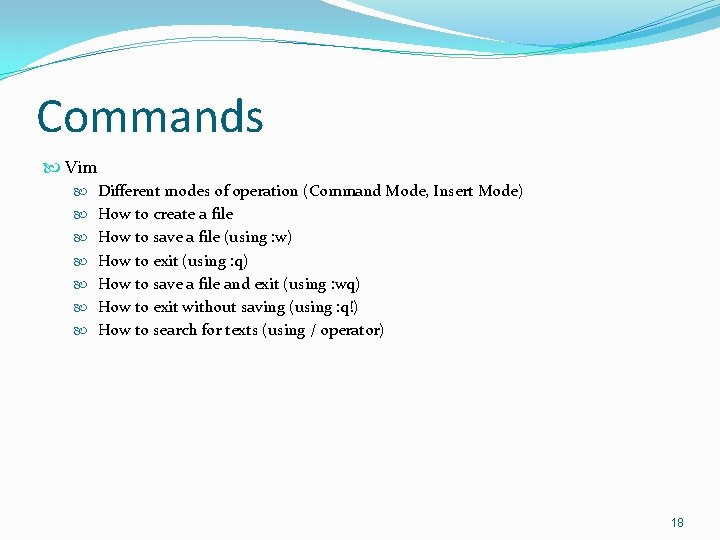
Commands Vim Different modes of operation (Command Mode, Insert Mode) How to create a file How to save a file (using : w) How to exit (using : q) How to save a file and exit (using : wq) How to exit without saving (using : q!) How to search for texts (using / operator) 18
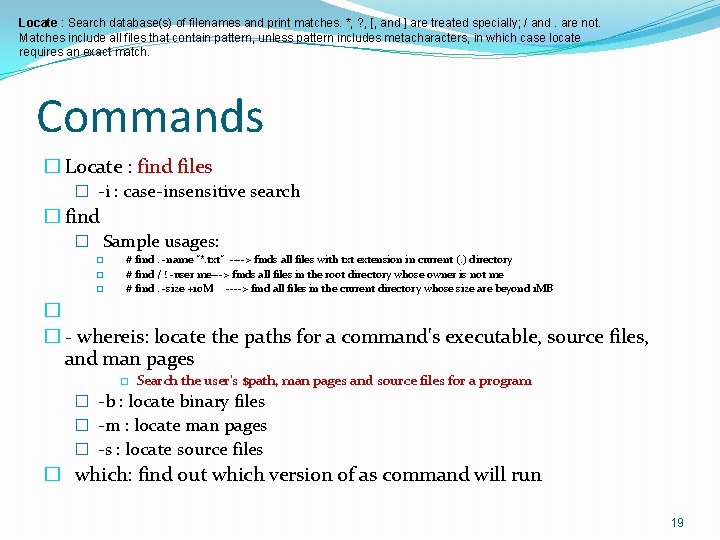
Locate : Search database(s) of filenames and print matches. *, ? , [, and ] are treated specially; / and. are not. Matches include all files that contain pattern, unless pattern includes metacharacters, in which case locate requires an exact match. Commands � Locate : find files � -i : case-insensitive search � find � Sample usages: � � � # find. -name "*. txt" ----> finds all files with txt extension in current (. ) directory # find / ! -user me---> finds all files in the root directory whose owner is not me # find. -size +10 M ----> find all files in the current directory whose size are beyond 1 MB � � - whereis: locate the paths for a command's executable, source files, and man pages � Search the user's $path, man pages and source files for a program � -b : locate binary files � -m : locate man pages � -s : locate source files � which: find out which version of as command will run 19
Commands �ps: report process status � Common usages: � � ps aux ------> view all currently running processes ps auxf ------> view a process tree �df, du � Usage : with/without argument � -k : in kilobytes � -h : print file sizes in human-readable format (using K, M, G, etc for KB, MB, GB, etc) �who: print who is currently logged in � -a : all (detailed) �whoami , su �Echo : print out s. th 20
Vim 6. 2. 2. Basic commands 6. 2. 2. 1. Moving through the text is usually possible with the arrow keys. If not, try: h to move the cursor to the left l to move it to the right k to move up j to move down SHIFT-G will put the prompt at the end of the document. 6. 2. 2. 2. Basic operations n dd will delete n lines starting from the current cursor position. n dw will delete n words at the right side of the cursor. x will delete the character on which the cursor is positioned : n moves to line n of the file. : w will save (write) the file : q will exit the editor. : q! forces the exit when you want to quit a file containing unsaved changes. : wq will save and exit : w newfile will save the text to newfile. : wq! overrides read-only permission (if you have the permission to override permissions, for instance when you are using the root account. /astring will search the string in the file and position the cursor on the first match below its position. / will perform the same search again, moving the cursor to the next match. : 1, $s/word/anotherword/g will replace word with anotherword throughout the file. yy will copy a block of text. n p will paste it n times. : recover will recover a file after an unexpected interruption. 6. 2. 2. 3. Commands that switch the editor to insert mode a will append: it moves the cursor one position to the right before switching to insert mode i will insert o will insert a blank line under the current cursor position and move the cursor to that line. Pressing the Esc key switches back to command mode. If you're not sure what mode you're in because you use a really old version of vi that doesn't display an 21
Find Command � Examples � List all filenames ending in. mp 3, searching in the current folder and all subfolders: $ find. -name "*. mp 3" � List all filenames ending in. mp 3, searching in the music folder and subfolders: $ find. /music -name "*. mp 3" � List files with the exact name: Sales_document. doc in. /work and subfolders: $ find. /work -name Sales_document. doc � List all files that belong to the user Maude: $ find. -user Maude � List all the directory and sub-directory names: $ find. -type d � List all files in those sub-directories (but not the directory names) $ find. -type f � List all the file links: $ find. -type l � List all files (and subdirectories) in your home directory: $ find $HOME � Find files that are over a gigabyte in size: $ find ~/Movies -size +1024 M � Find files have been modified within the last day: $ find ~/Movies -mtime -1 � Find files have been modified within the last 30 minutes: $ find ~/Movies -mmin -30 � Find. doc files that also start with 'questionnaire' (AND) $ find. -name '*. doc' -name questionnaire* � List all files beginning with 'memo' and owned by Maude (AND) $ find. -name 'memo*' -user Maude � Find. doc files that do NOT start with 'Accounts' (NOT) $ find. -name '*. doc' ! -name Accounts* 22
Common techniques The meaninig of tilde (~): home directory Running several commands using semicolon ; : for do some commands sequentially && : run commands only if the perevious ones succeed || : run a command only if the perevious one fails ampersand Running commands in the background using & Syntax: bg [PID. . . ] example: bg %1 Using backslash () for commands that span more than one line 23
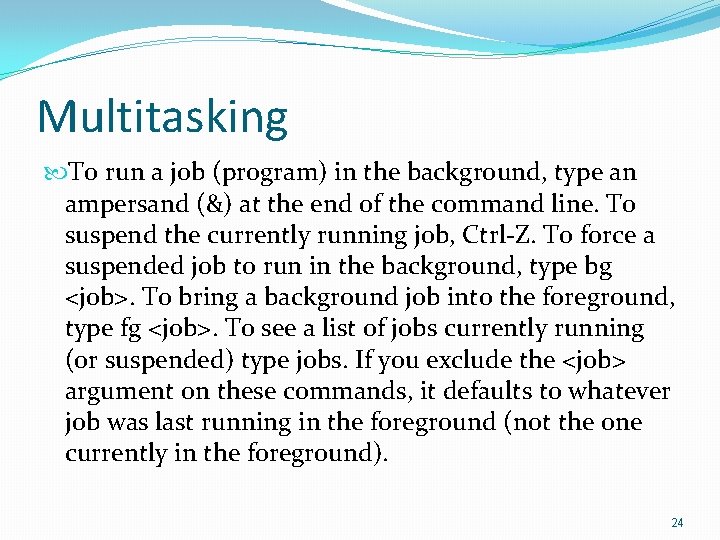
Multitasking To run a job (program) in the background, type an ampersand (&) at the end of the command line. To suspend the currently running job, Ctrl-Z. To force a suspended job to run in the background, type bg <job>. To bring a background job into the foreground, type fg <job>. To see a list of jobs currently running (or suspended) type jobs. If you exclude the <job> argument on these commands, it defaults to whatever job was last running in the foreground (not the one currently in the foreground). 24
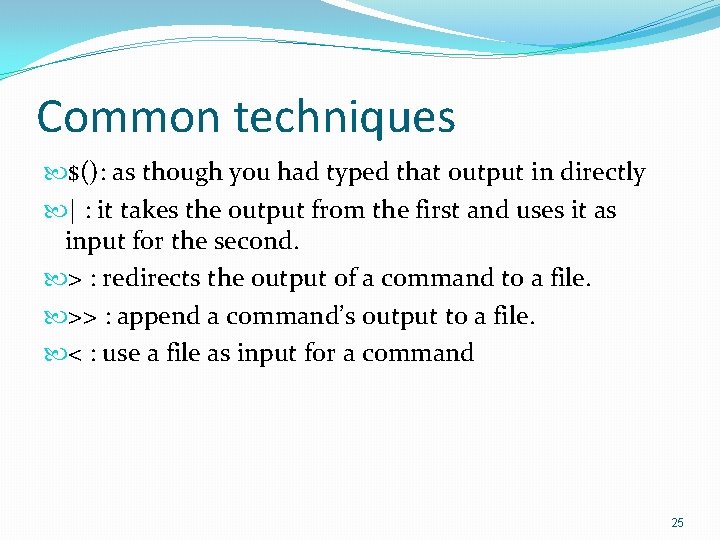
Common techniques $(): as though you had typed that output in directly | : it takes the output from the first and uses it as input for the second. > : redirects the output of a command to a file. >> : append a command’s output to a file. < : use a file as input for a command 25
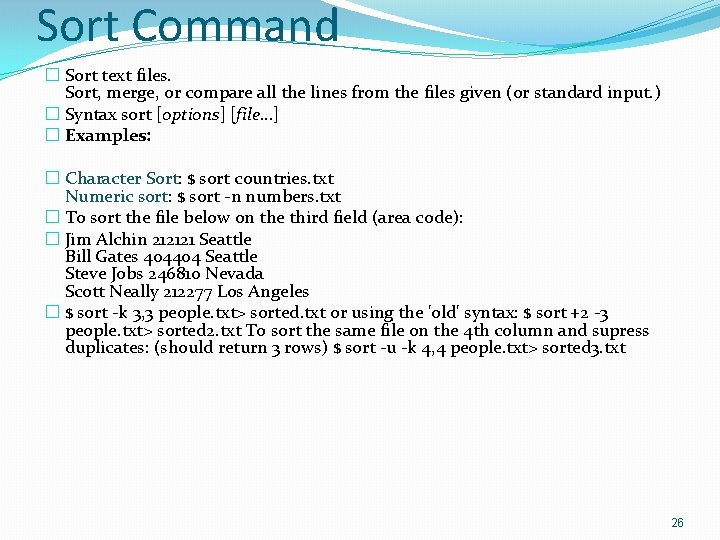
Sort Command � Sort text files. Sort, merge, or compare all the lines from the files given (or standard input. ) � Syntax sort [options] [file. . . ] � Examples: � Character Sort: $ sort countries. txt Numeric sort: $ sort -n numbers. txt � To sort the file below on the third field (area code): � Jim Alchin 212121 Seattle Bill Gates 404404 Seattle Steve Jobs 246810 Nevada Scott Neally 212277 Los Angeles � $ sort -k 3, 3 people. txt> sorted. txt or using the 'old' syntax: $ sort +2 -3 people. txt> sorted 2. txt To sort the same file on the 4 th column and supress duplicates: (should return 3 rows) $ sort -u -k 4, 4 people. txt> sorted 3. txt 26
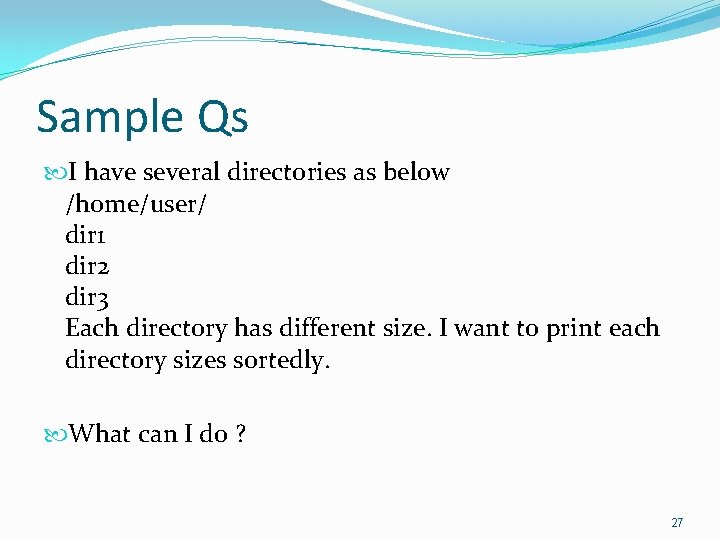
Sample Qs I have several directories as below /home/user/ dir 1 dir 2 dir 3 Each directory has different size. I want to print each directory sizes sortedly. What can I do ? 27
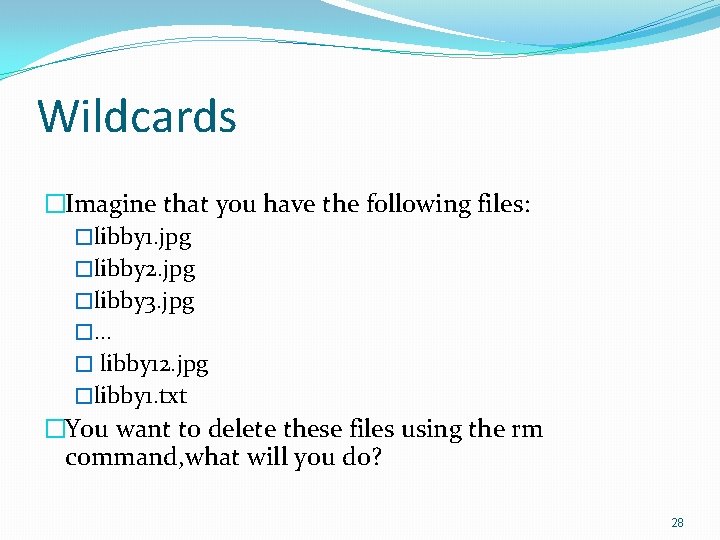
Wildcards �Imagine that you have the following files: �libby 1. jpg �libby 2. jpg �libby 3. jpg �… � libby 12. jpg �libby 1. txt �You want to delete these files using the rm command, what will you do? 28
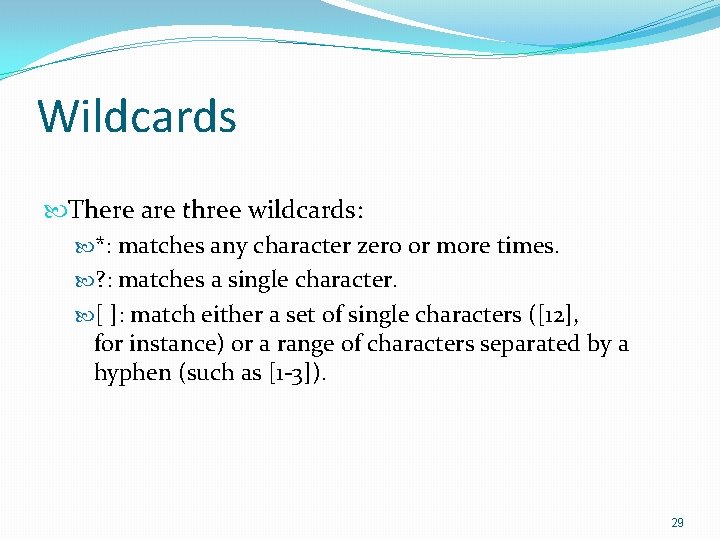
Wildcards There are three wildcards: *: matches any character zero or more times. ? : matches a single character. [ ]: match either a set of single characters ([12], for instance) or a range of characters separated by a hyphen (such as [1 -3]). 29
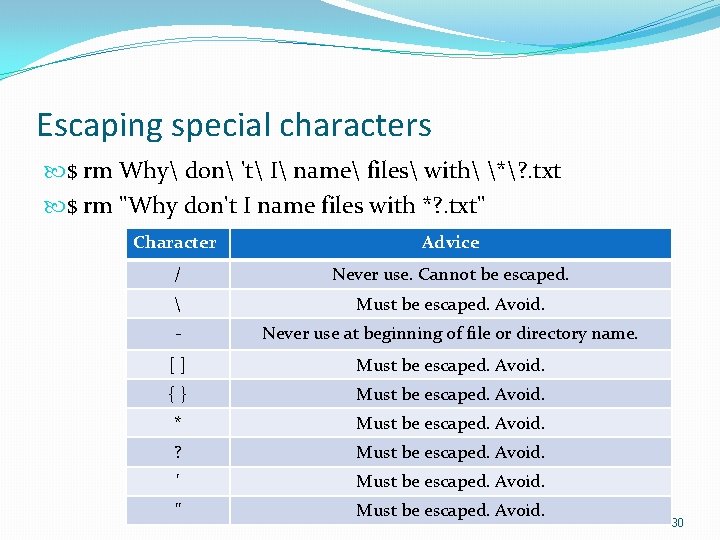
Escaping special characters $ rm Why don 't I name files with *? . txt $ rm "Why don't I name files with *? . txt" Character Advice / Never use. Cannot be escaped. Must be escaped. Avoid. - Never use at beginning of file or directory name. [ ] Must be escaped. Avoid. { } Must be escaped. Avoid. * Must be escaped. Avoid. ? Must be escaped. Avoid. ' Must be escaped. Avoid. " Must be escaped. Avoid. 30
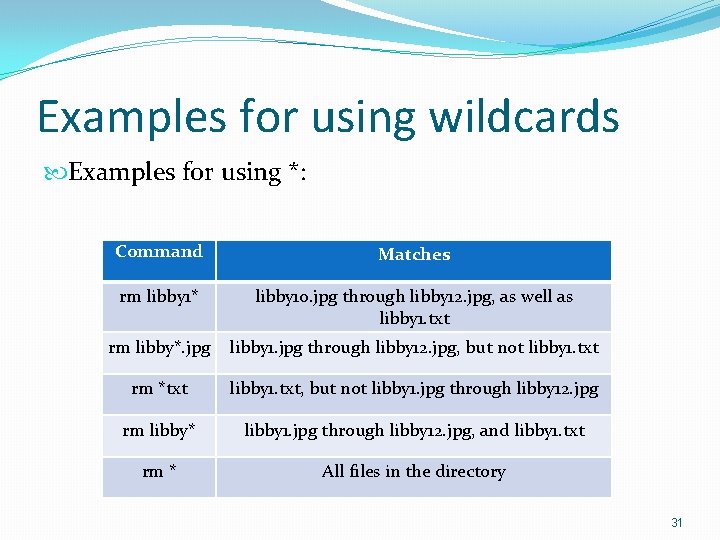
Examples for using wildcards Examples for using *: Command Matches rm libby 1* libby 10. jpg through libby 12. jpg, as well as libby 1. txt rm libby*. jpg libby 1. jpg through libby 12. jpg, but not libby 1. txt rm *txt libby 1. txt, but not libby 1. jpg through libby 12. jpg rm libby* libby 1. jpg through libby 12. jpg, and libby 1. txt rm * All files in the directory 31
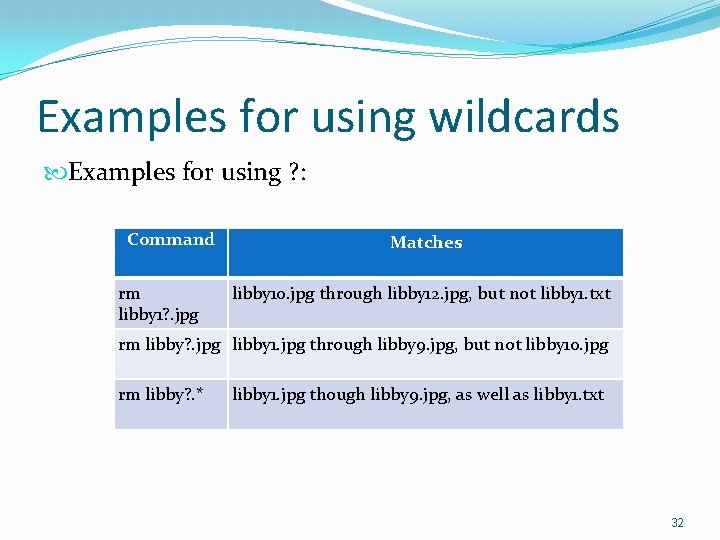
Examples for using wildcards Examples for using ? : Command rm libby 1? . jpg Matches libby 10. jpg through libby 12. jpg, but not libby 1. txt rm libby? . jpg libby 1. jpg through libby 9. jpg, but not libby 10. jpg rm libby? . * libby 1. jpg though libby 9. jpg, as well as libby 1. txt 32
![Examples for using wildcards Examples for using [ ]: Command Matches rm libby 1[12].](http://slidetodoc.com/presentation_image/e56e8a80857e1c7ed3b06578f688809f/image-33.jpg "Examples for using wildcards Examples for using [ ]: Command Matches rm libby 1[12].")
Examples for using wildcards Examples for using [ ]: Command Matches rm libby 1[12]. jpg libby 11. jpg and libby 12. jpg, but not libby 10. jpg rm libby 1[0 -2]. jpg libby 10. jpg through libby 12. jpg, but not libby 1. jpg rm libby[6 -8]. jpg libby 6. jpg through libby 8. jpg, but nothing else 33

$ Clear 34

Any Question? 35
- Slides: 35