
Lightweight Directory Access Protocol Objectives Install dan menggunakan
Lightweight Directory Access Protocol • Objectives – Install dan menggunakan LDAP • Contents – – – Struktur database LDAP Scenario Konfigurasi LDAP server Konfigurasi LDAP client Administrative task LDAP • Practical – Start ldap server & client – Login and out – Common tasks
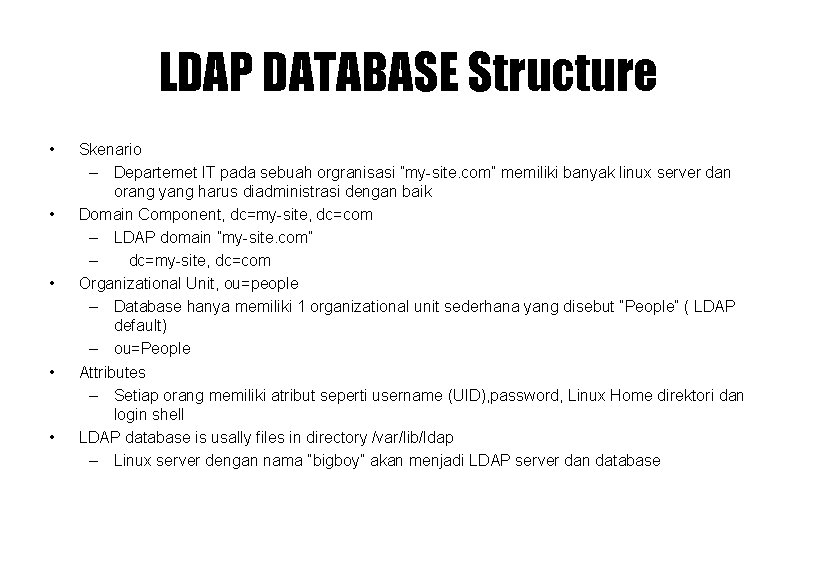
LDAP DATABASE Structure • • • Skenario – Departemet IT pada sebuah orgranisasi ”my-site. com” memiliki banyak linux server dan orang yang harus diadministrasi dengan baik Domain Component, dc=my-site, dc=com – LDAP domain ”my-site. com” – dc=my-site, dc=com Organizational Unit, ou=people – Database hanya memiliki 1 organizational unit sederhana yang disebut ”People” ( LDAP default) – ou=People Attributes – Setiap orang memiliki atribut seperti username (UID), password, Linux Home direktori dan login shell LDAP database is usally files in directory /var/lib/ldap – Linux server dengan nama ”bigboy” akan menjadi LDAP server dan database
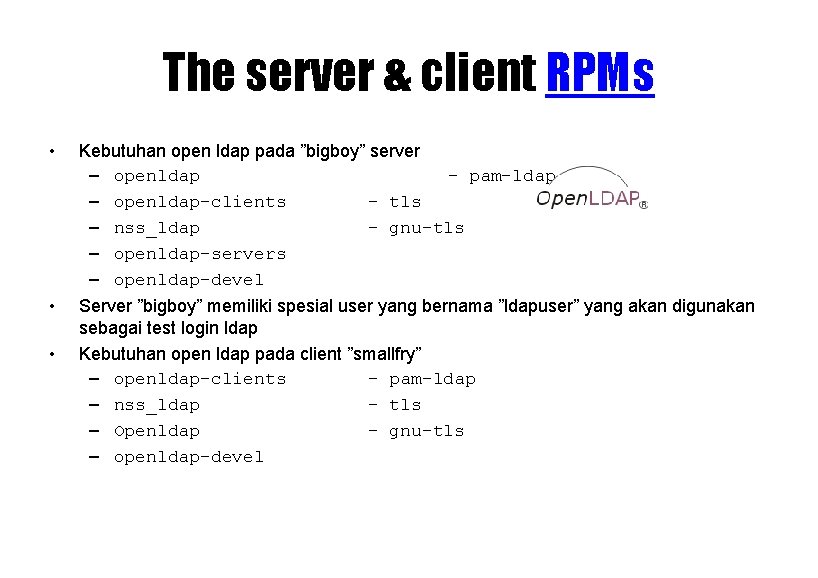
The server & client RPMs • Kebutuhan open ldap pada ”bigboy” server – openldap - pam-ldap – openldap-clients - tls – nss_ldap - gnu-tls – openldap-servers – openldap-devel • Server ”bigboy” memiliki spesial user yang bernama ”ldapuser” yang akan digunakan sebagai test login ldap Kebutuhan open ldap pada client ”smallfry” – openldap-clients - pam-ldap – nss_ldap - tls – Openldap - gnu-tls – openldap-devel •
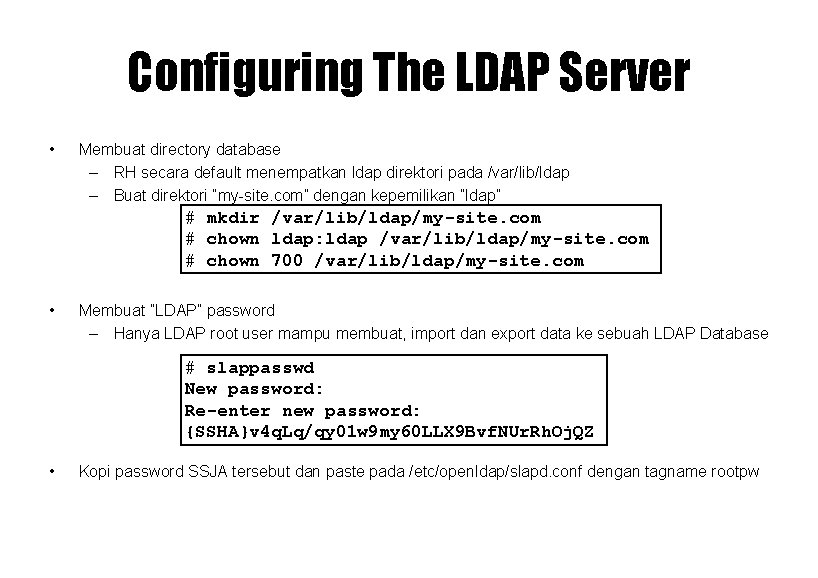
Configuring The LDAP Server • Membuat directory database – RH secara default menempatkan ldap direktori pada /var/lib/ldap – Buat direktori ”my-site. com” dengan kepemilikan ”ldap” # mkdir /var/lib/ldap/my-site. com # chown ldap: ldap /var/lib/ldap/my-site. com # chown 700 /var/lib/ldap/my-site. com • Membuat ”LDAP” password – Hanya LDAP root user mampu membuat, import dan export data ke sebuah LDAP Database # slappasswd New password: Re-enter new password: {SSHA}v 4 q. Lq/qy 01 w 9 my 60 LLX 9 Bvf. NUr. Rh. Oj. QZ • Kopi password SSJA tersebut dan paste pada /etc/openldap/slapd. conf dengan tagname rootpw
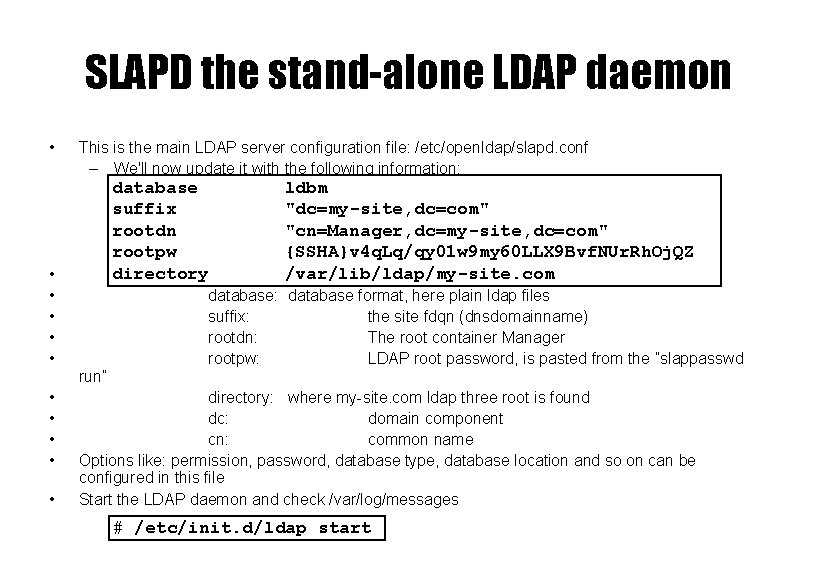
SLAPD the stand-alone LDAP daemon • • • This is the main LDAP server configuration file: /etc/openldap/slapd. conf – We'll now update it with the following information: database suffix rootdn rootpw directory run” ldbm "dc=my-site, dc=com" "cn=Manager, dc=my-site, dc=com" {SSHA}v 4 q. Lq/qy 01 w 9 my 60 LLX 9 Bvf. NUr. Rh. Oj. QZ /var/lib/ldap/my-site. com database: database format, here plain ldap files suffix: the site fdqn (dnsdomainname) rootdn: The root container Manager rootpw: LDAP root password, is pasted from the ”slappasswd directory: where my-site. com ldap three root is found dc: domain component cn: common name Options like: permission, password, database type, database location and so on can be configured in this file Start the LDAP daemon and check /var/log/messages # /etc/init. d/ldap start
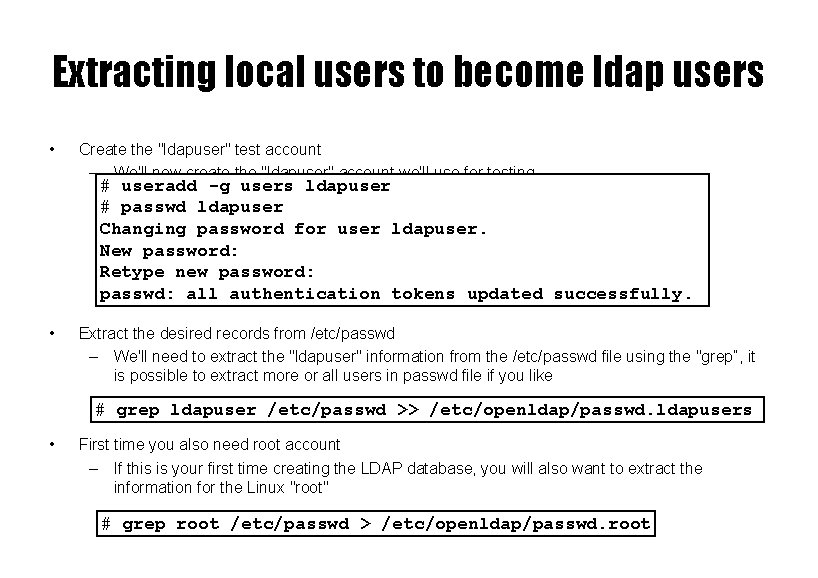
Extracting local users to become ldap users • Create the "ldapuser" test account – We'll now create the "ldapuser" account we'll use for testing. # useradd -g users ldapuser # passwd ldapuser Changing password for user ldapuser. New password: Retype new password: passwd: all authentication tokens updated successfully. • Extract the desired records from /etc/passwd – We'll need to extract the "ldapuser" information from the /etc/passwd file using the "grep”, it is possible to extract more or all users in passwd file if you like # grep ldapuser /etc/passwd >> /etc/openldap/passwd. ldapusers • First time you also need root account – If this is your first time creating the LDAP database, you will also want to extract the information for the Linux "root" # grep root /etc/passwd > /etc/openldap/passwd. root
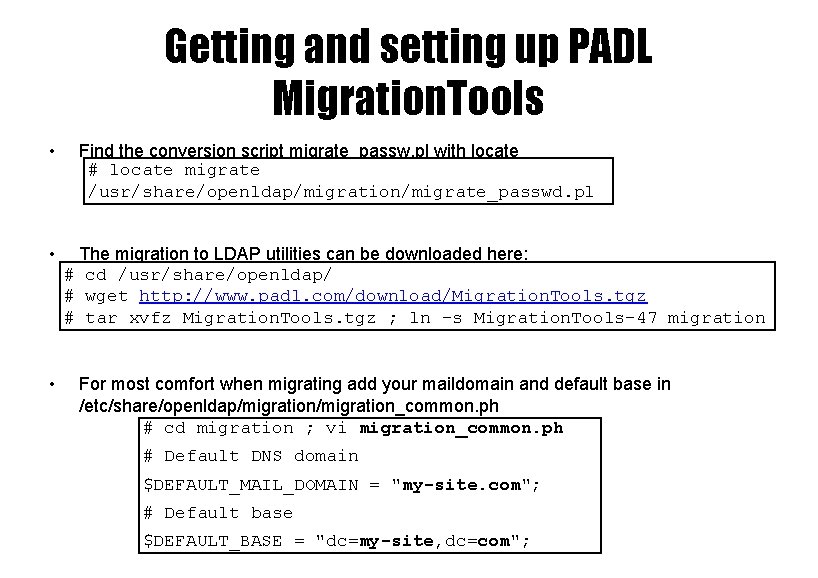
Getting and setting up PADL Migration. Tools • • • Find the conversion script migrate_passw. pl with locate # locate migrate /usr/share/openldap/migration/migrate_passwd. pl The migration to LDAP utilities can be downloaded here: # cd /usr/share/openldap/ – Su. SE and some other unixes is missing the Migration. Tools # wget http: //www. padl. com/download/Migration. Tools. tgz # tar xvfz Migration. Tools. tgz ; ln -s Migration. Tools-47 migration For most comfort when migrating add your maildomain and default base in /etc/share/openldap/migration_common. ph # cd migration ; vi migration_common. ph # Default DNS domain $DEFAULT_MAIL_DOMAIN = "my-site. com"; # Default base $DEFAULT_BASE = "dc=my-site, dc=com";
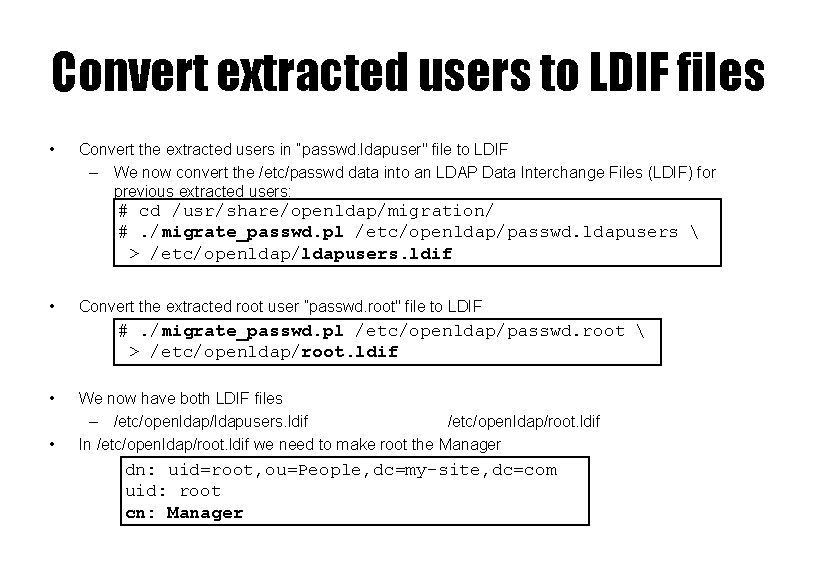
Convert extracted users to LDIF files • Convert the extracted users in ”passwd. ldapuser" file to LDIF – We now convert the /etc/passwd data into an LDAP Data Interchange Files (LDIF) for previous extracted users: # cd /usr/share/openldap/migration/ #. /migrate_passwd. pl /etc/openldap/passwd. ldapusers > /etc/openldap/ldapusers. ldif • Convert the extracted root user ”passwd. root" file to LDIF #. /migrate_passwd. pl /etc/openldap/passwd. root > /etc/openldap/root. ldif • • We now have both LDIF files – /etc/openldap/ldapusers. ldif /etc/openldap/root. ldif In /etc/openldap/root. ldif we need to make root the Manager dn: uid=root, ou=People, dc=my-site, dc=com uid: root cn: Manager
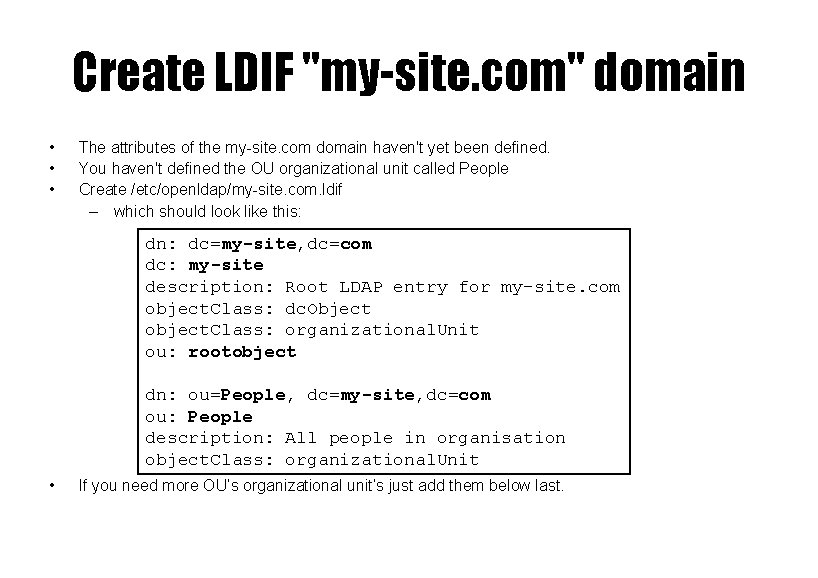
Create LDIF "my-site. com" domain • • • The attributes of the my-site. com domain haven't yet been defined. You haven't defined the OU organizational unit called People Create /etc/openldap/my-site. com. ldif – which should look like this: dn: dc=my-site, dc=com dc: my-site description: Root LDAP entry for my-site. com object. Class: dc. Object object. Class: organizational. Unit ou: rootobject dn: ou=People, dc=my-site, dc=com ou: People description: All people in organisation object. Class: organizational. Unit • If you need more OU’s organizational unit’s just add them below last.
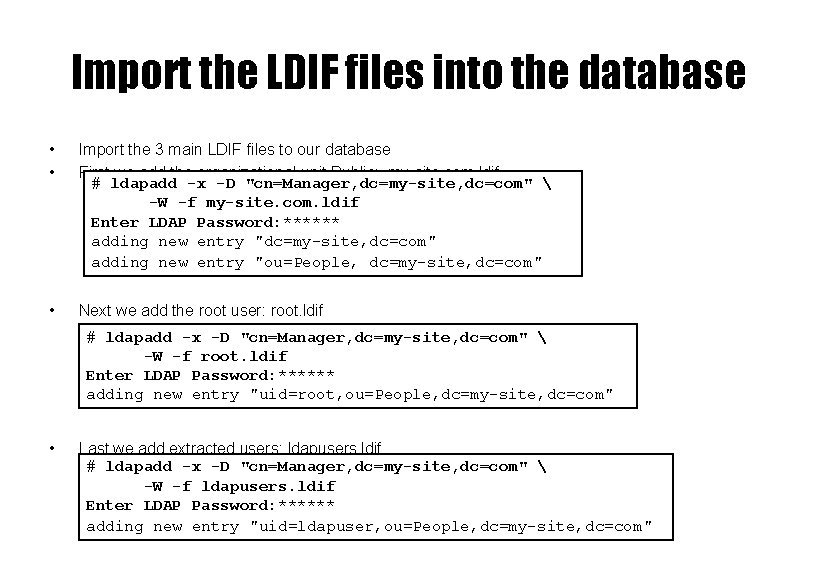
Import the LDIF files into the database • • Import the 3 main LDIF files to our database First we add the organizational unit Public: my-site. com. ldif # ldapadd -x -D "cn=Manager, dc=my-site, dc=com" -W -f my-site. com. ldif Enter LDAP Password: ****** adding new entry "dc=my-site, dc=com" adding new entry "ou=People, dc=my-site, dc=com" • Next we add the root user: root. ldif # ldapadd -x -D "cn=Manager, dc=my-site, dc=com" -W -f root. ldif Enter LDAP Password: ****** adding new entry "uid=root, ou=People, dc=my-site, dc=com" • Last we add extracted users: ldapusers. ldif # ldapadd -x -D "cn=Manager, dc=my-site, dc=com" -W -f ldapusers. ldif Enter LDAP Password: ****** adding new entry "uid=ldapuser, ou=People, dc=my-site, dc=com"
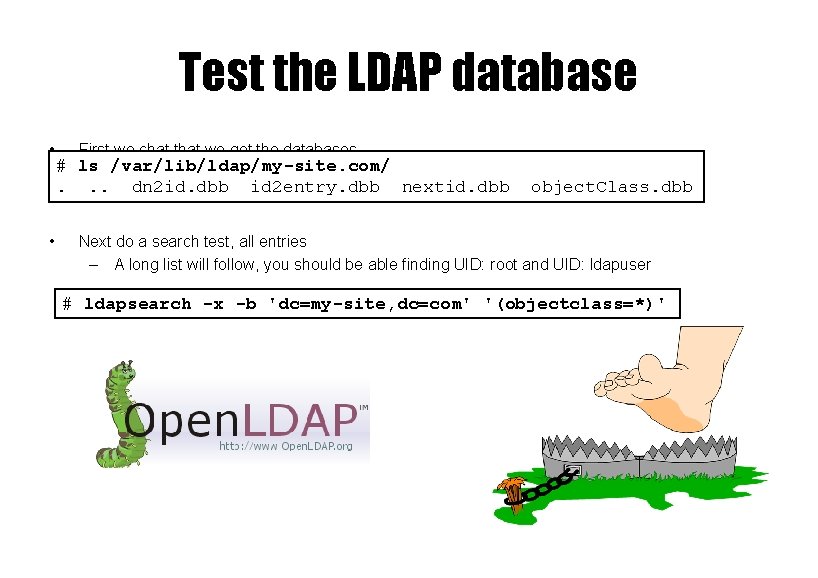
Test the LDAP database • • First we chat that we got the databases # ls /var/lib/ldap/my-site. com/. . . dn 2 id. dbb id 2 entry. dbb nextid. dbb object. Class. dbb Next do a search test, all entries – A long list will follow, you should be able finding UID: root and UID: ldapuser # ldapsearch -x -b 'dc=my-site, dc=com' '(objectclass=*)'
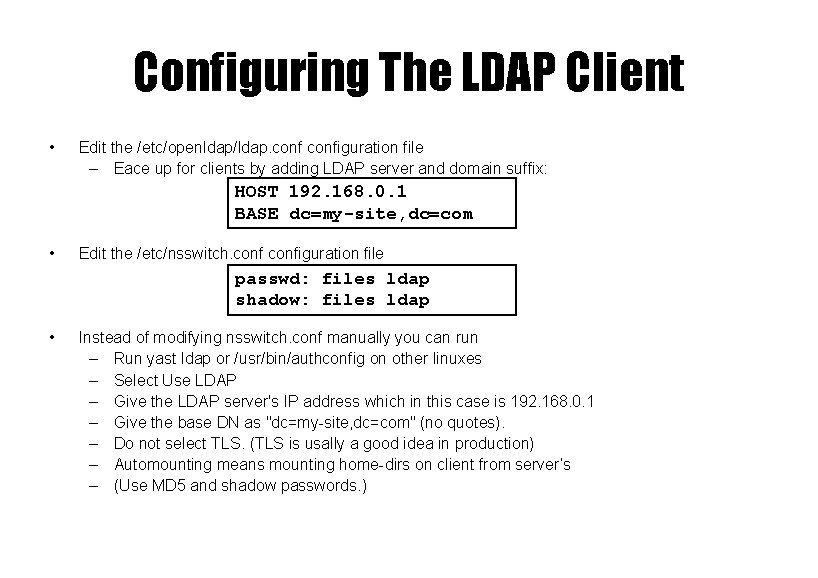
Configuring The LDAP Client • Edit the /etc/openldap/ldap. configuration file – Eace up for clients by adding LDAP server and domain suffix: HOST 192. 168. 0. 1 BASE dc=my-site, dc=com • Edit the /etc/nsswitch. configuration file passwd: files ldap shadow: files ldap • Instead of modifying nsswitch. conf manually you can run – Run yast ldap or /usr/bin/authconfig on other linuxes – Select Use LDAP – Give the LDAP server's IP address which in this case is 192. 168. 0. 1 – Give the base DN as "dc=my-site, dc=com" (no quotes). – Do not select TLS. (TLS is usally a good idea in production) – Automounting means mounting home-dirs on client from server’s – (Use MD 5 and shadow passwords. )
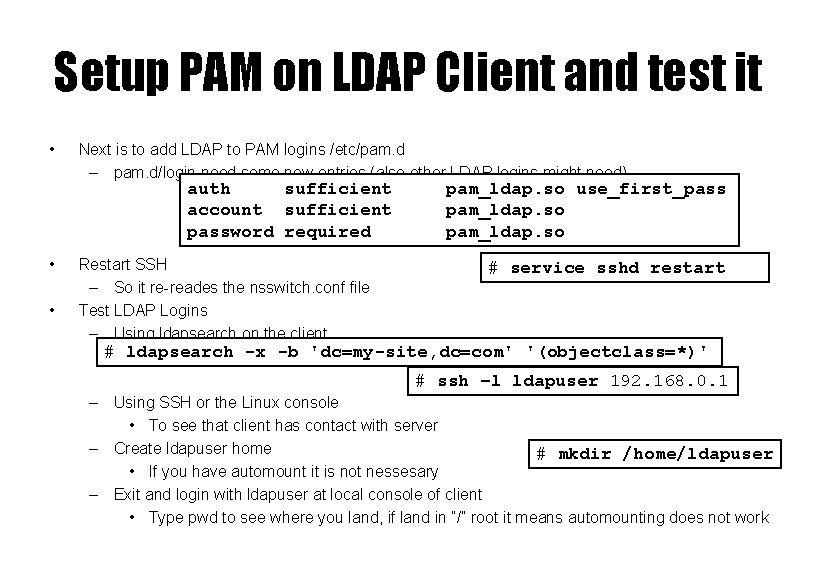
Setup PAM on LDAP Client and test it • Next is to add LDAP to PAM logins /etc/pam. d – pam. d/login need some new entries (also other LDAP logins might need) auth sufficient account sufficient password required • • Restart SSH – So it re-reades the nsswitch. conf file Test LDAP Logins – Using ldapsearch on the client pam_ldap. so use_first_pass pam_ldap. so # service sshd restart # ldapsearch -x -b 'dc=my-site, dc=com' '(objectclass=*)' # ssh –l ldapuser 192. 168. 0. 1 – Using SSH or the Linux console • To see that client has contact with server – Create ldapuser home # mkdir /home/ldapuser • If you have automount it is not nessesary – Exit and login with ldapuser at local console of client • Type pwd to see where you land, if land in ”/” root it means automounting does not work
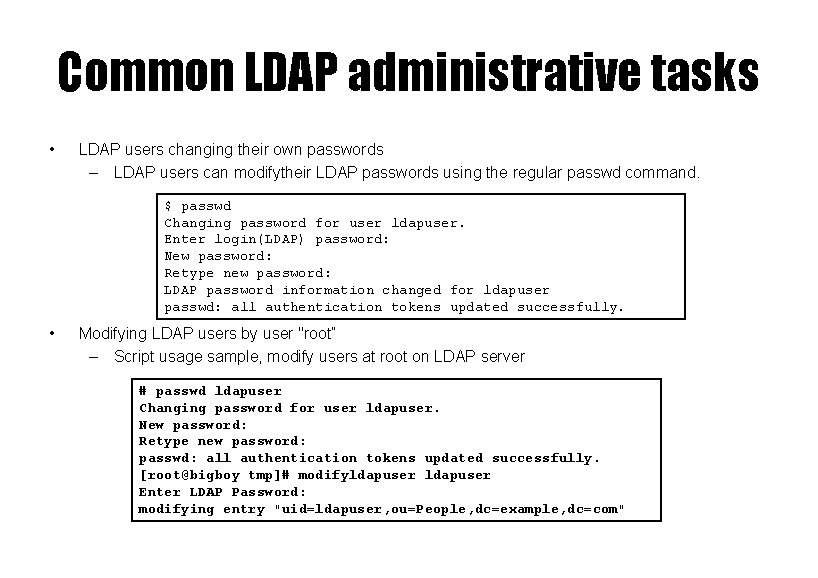
Common LDAP administrative tasks • LDAP users changing their own passwords – LDAP users can modifytheir LDAP passwords using the regular passwd command. $ passwd Changing password for user ldapuser. Enter login(LDAP) password: New password: Retype new password: LDAP password information changed for ldapuser passwd: all authentication tokens updated successfully. • Modifying LDAP users by user "root” – Script usage sample, modify users at root on LDAP server # passwd ldapuser Changing password for user ldapuser. New password: Retype new password: passwd: all authentication tokens updated successfully. [root@bigboy tmp]# modifyldapuser Enter LDAP Password: modifying entry "uid=ldapuser, ou=People, dc=example, dc=com"
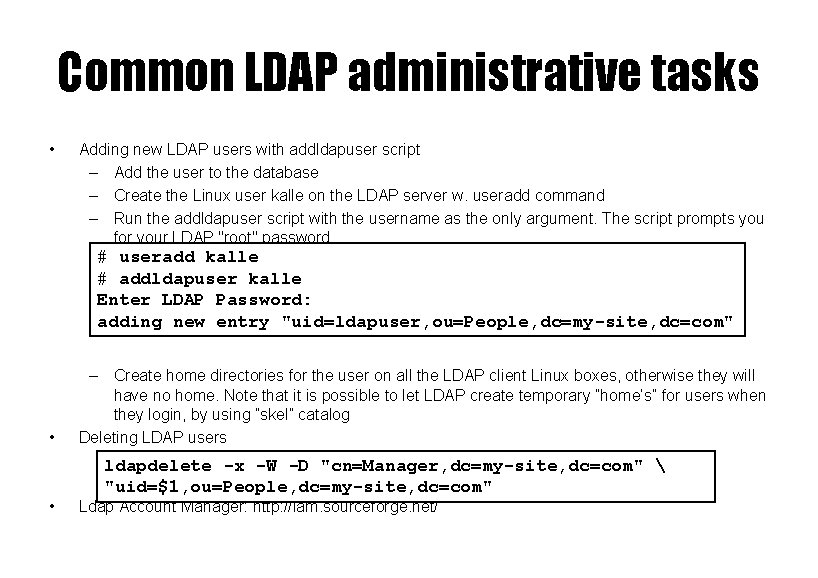
Common LDAP administrative tasks • Adding new LDAP users with addldapuser script – Add the user to the database – Create the Linux user kalle on the LDAP server w. useradd command – Run the addldapuser script with the username as the only argument. The script prompts you for your LDAP "root" password. # useradd kalle # addldapuser kalle Enter LDAP Password: adding new entry "uid=ldapuser, ou=People, dc=my-site, dc=com" • • – Create home directories for the user on all the LDAP client Linux boxes, otherwise they will have no home. Note that it is possible to let LDAP create temporary ”home’s” for users when they login, by using ”skel” catalog Deleting LDAP users ldapdelete -x -W -D "cn=Manager, dc=my-site, dc=com" "uid=$1, ou=People, dc=my-site, dc=com" Ldap Account Manager: http: //lam. sourceforge. net/
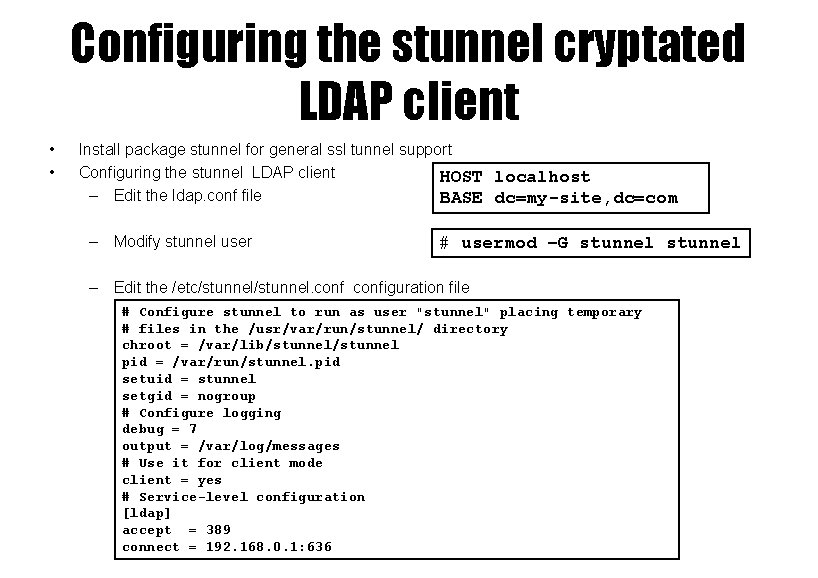
Configuring the stunnel cryptated LDAP client • • Install package stunnel for general ssl tunnel support Configuring the stunnel LDAP client HOST localhost – Edit the ldap. conf file BASE dc=my-site, dc=com – Modify stunnel user # usermod –G stunnel – Edit the /etc/stunnel. configuration file # Configure stunnel to run as user "stunnel" placing temporary # files in the /usr/var/run/stunnel/ directory chroot = /var/lib/stunnel pid = /var/run/stunnel. pid setuid = stunnel setgid = nogroup # Configure logging debug = 7 output = /var/log/messages # Use it for client mode client = yes # Service-level configuration [ldap] accept = 389 connect = 192. 168. 0. 1: 636
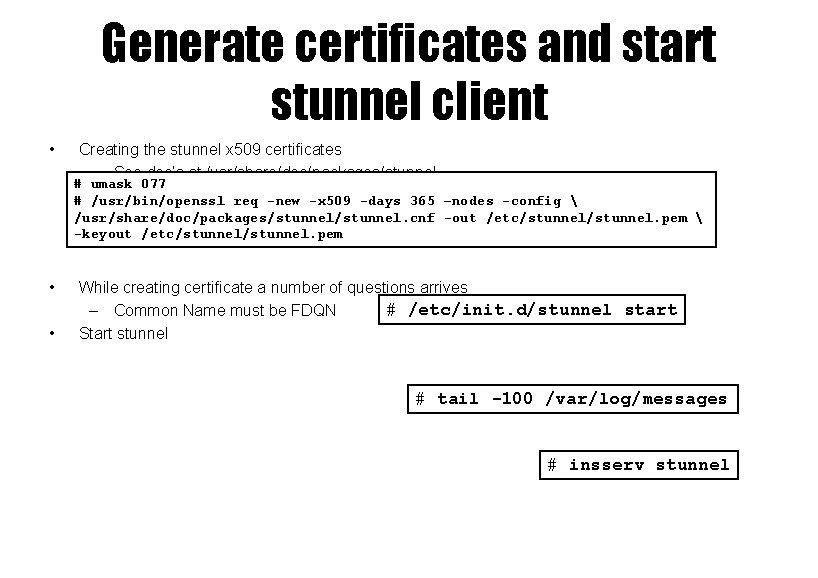
Generate certificates and start stunnel client • Creating the stunnel x 509 certificates – See doc’s at /usr/share/doc/packages/stunnel # umask 077 # /usr/bin/openssl req -new -x 509 -days 365 –nodes -config /usr/share/doc/packages/stunnel. cnf -out /etc/stunnel. pem -keyout /etc/stunnel. pem • • While creating certificate a number of questions arrives # /etc/init. d/stunnel start – Common Name must be FDQN Start stunnel # tail -100 /var/log/messages # insserv stunnel
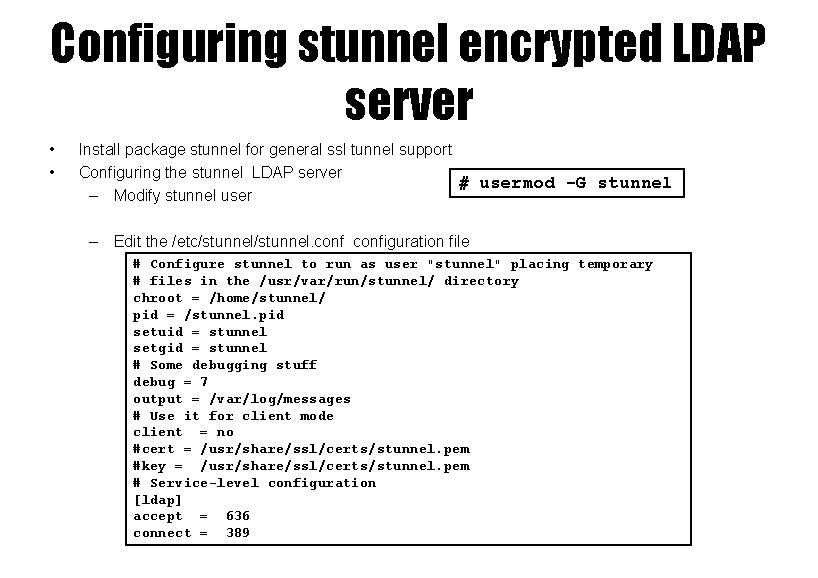
Configuring stunnel encrypted LDAP server • • Install package stunnel for general ssl tunnel support Configuring the stunnel LDAP server # usermod -G stunnel – Modify stunnel user – Edit the /etc/stunnel. configuration file # Configure stunnel to run as user "stunnel" placing temporary # files in the /usr/var/run/stunnel/ directory chroot = /home/stunnel/ pid = /stunnel. pid setuid = stunnel setgid = stunnel # Some debugging stuff debug = 7 output = /var/log/messages # Use it for client mode client = no #cert = /usr/share/ssl/certs/stunnel. pem #key = /usr/share/ssl/certs/stunnel. pem # Service-level configuration [ldap] accept = 636 connect = 389
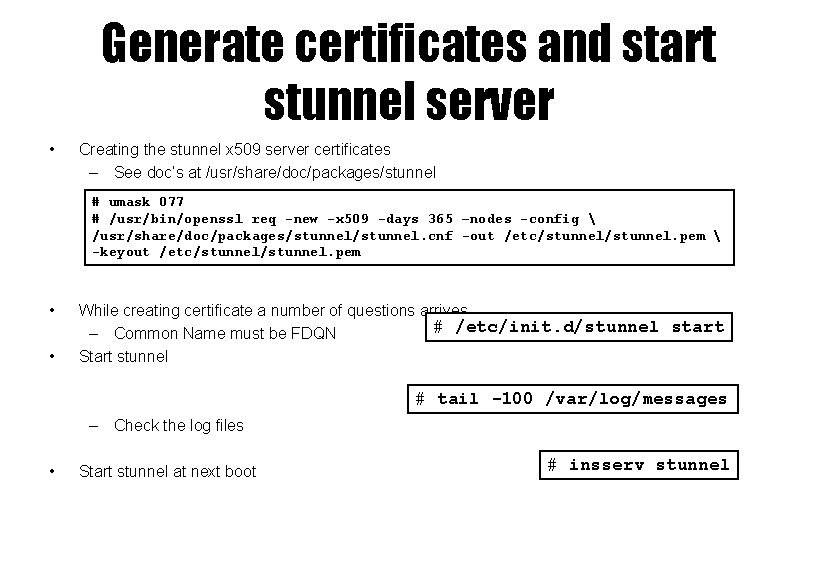
Generate certificates and start stunnel server • Creating the stunnel x 509 server certificates – See doc’s at /usr/share/doc/packages/stunnel # umask 077 # /usr/bin/openssl req -new -x 509 -days 365 –nodes -config /usr/share/doc/packages/stunnel. cnf -out /etc/stunnel. pem -keyout /etc/stunnel. pem • • While creating certificate a number of questions arrives # /etc/init. d/stunnel start – Common Name must be FDQN Start stunnel # tail -100 /var/log/messages – Check the log files • Start stunnel at next boot # insserv stunnel
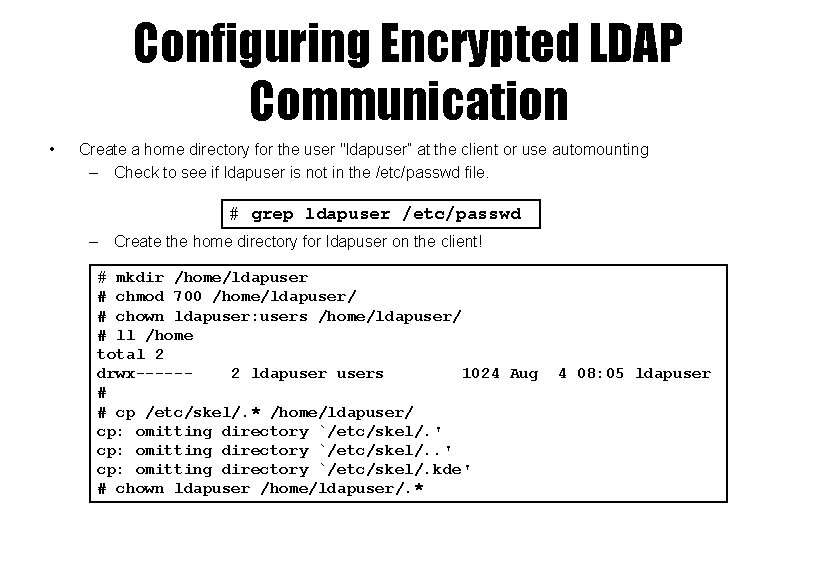
Configuring Encrypted LDAP Communication • Create a home directory for the user "ldapuser” at the client or use automounting – Check to see if ldapuser is not in the /etc/passwd file. # grep ldapuser /etc/passwd – Create the home directory for ldapuser on the client! # mkdir /home/ldapuser # chmod 700 /home/ldapuser/ # chown ldapuser: users /home/ldapuser/ # ll /home total 2 drwx-----2 ldapusers 1024 Aug # # cp /etc/skel/. * /home/ldapuser/ cp: omitting directory `/etc/skel/. ' cp: omitting directory `/etc/skel/. kde' # chown ldapuser /home/ldapuser/. * 4 08: 05 ldapuser
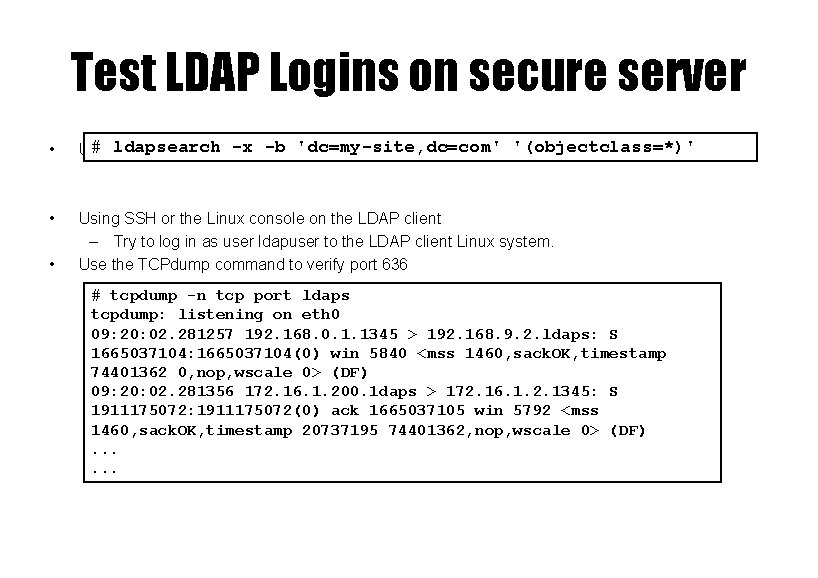
Test LDAP Logins on secure server • # ldapsearch -x LDAP -b 'dc=my-site, dc=com' '(objectclass=*)' Using ldapsearch on the client • Using SSH or the Linux console on the LDAP client – Try to log in as user ldapuser to the LDAP client Linux system. Use the TCPdump command to verify port 636 • # tcpdump -n tcp port ldaps tcpdump: listening on eth 0 09: 20: 02. 281257 192. 168. 0. 1. 1345 > 192. 168. 9. 2. ldaps: S 1665037104: 1665037104(0) win 5840 <mss 1460, sack. OK, timestamp 74401362 0, nop, wscale 0> (DF) 09: 20: 02. 281356 172. 16. 1. 200. 1 daps > 172. 16. 1. 2. 1345: S 1911175072: 1911175072(0) ack 1665037105 win 5792 <mss 1460, sack. OK, timestamp 20737195 74401362, nop, wscale 0> (DF). . .
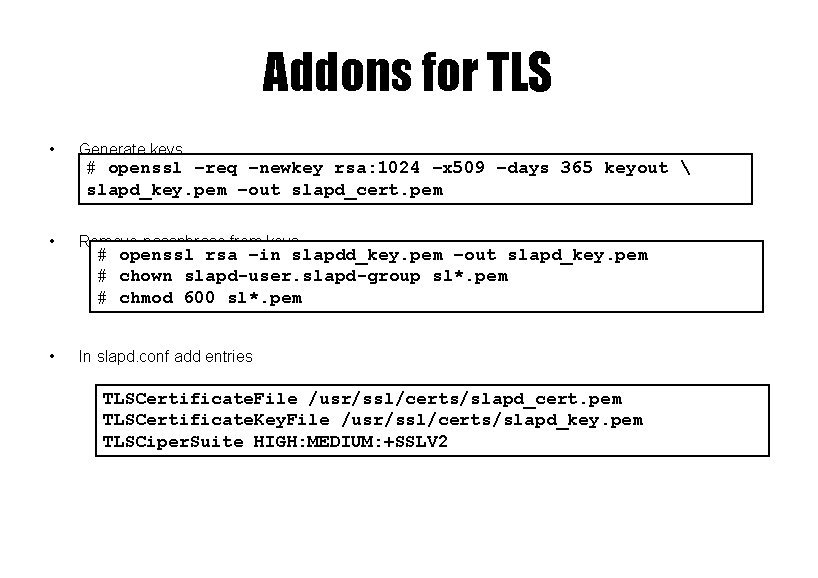
Addons for TLS • Generate keys # openssl –req –newkey rsa: 1024 –x 509 –days 365 keyout slapd_key. pem –out slapd_cert. pem • Remove passphrase from keys • In slapd. conf add entries # openssl rsa –in slapdd_key. pem –out slapd_key. pem # chown slapd-user. slapd-group sl*. pem # chmod 600 sl*. pem TLSCertificate. File /usr/ssl/certs/slapd_cert. pem TLSCertificate. Key. File /usr/ssl/certs/slapd_key. pem TLSCiper. Suite HIGH: MEDIUM: +SSLV 2
- Slides: 22