
Lights Depth Buffers Textures Open GL lighting material
Lights, Depth Buffers, & Textures Open. GL lighting & material properties n Depth Buffering n What is texture mapping? n Math behind texture mapping n Very simple Open. GL texture mapping (more later) n
Open. GL Shading n Up to eight light sources, e. g. , GLfloat my. Light. Position[] = {3. 0, 6. 0, 5. 0, 1. 0}; gl. Lightfv(GL_LIGHT 0, GL_POSITION, my. Light. Position); gl. Enable(GL_LIGHTING); gl. Enable(GL_LIGHT 0); // enable this particular source for "in scene". n For infinitely remote, use a vector: GLfloat my. Light. Position[] = {3. 0, 6. 0, 5. 0, 0. 0}; n Colors for a light source: ambient, diffuse, specular Spotlights have a cutoff angle Attenuation of light with distance – specify with gl. Lightf(…) parameters – Pg 427 Working with material properties in Open. GL n n n – Set various reflection coefficients Plate 26, Fig 8. 17 Pg 423
Shading Model n Flat shading – Use the same color for every pixel in the face – gl. Shade. Model(GL_FLAT); n Smooth shading – De-emphasize edges. Open. GL uses Gouraud – gl. Shade. Model(GL_SMOOTH); – Color at each vertex Color at each edge pixel by linear interpolation from vertices Color along scan line by linear interpolation from edges – Why do edges disappear?

Hidden Surface Elimination Depth-Buffering (Z-buffer) n n Concept: While rendering, keep track of the object nearest to the eye for each pixel Z-Buffer has memory corresponding to each pixel location. Usually ≈16 to 32 bits/location. Initialize: Each z-buffer location <- Max z value Each frame buffer location <- background color For each polygon: Compute z(x, y), polygon depth at the pixel (x, y) If z(x, y) > z buffer value at pixel (x, y) then z buffer(x, y) <- z(x, y) pixel(x, y) <- color of polygon at (x, y)
z-Buffer pros and cons n Disadvantages – Lots of extra memory – Modifications needed to implement antialiasing, transparency, translucency effects – Problems with precision n Advantages – Linear performance – Polygons may be processed in any order – Commonly implemented in firmware/hardware so very fast.
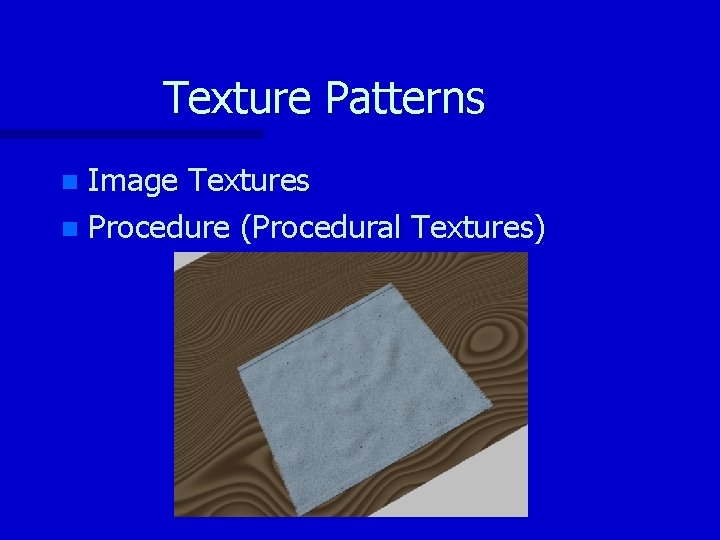
Texture Patterns Image Textures n Procedure (Procedural Textures) n
![Texture Space n s s = [0… 1] t](http://slidetodoc.com/presentation_image_h2/41d3c3bbd190d7c250cd3b0ae40d2feb/image-7.jpg "Texture Space n s s = [0… 1] t")
Texture Space n s s = [0… 1] t
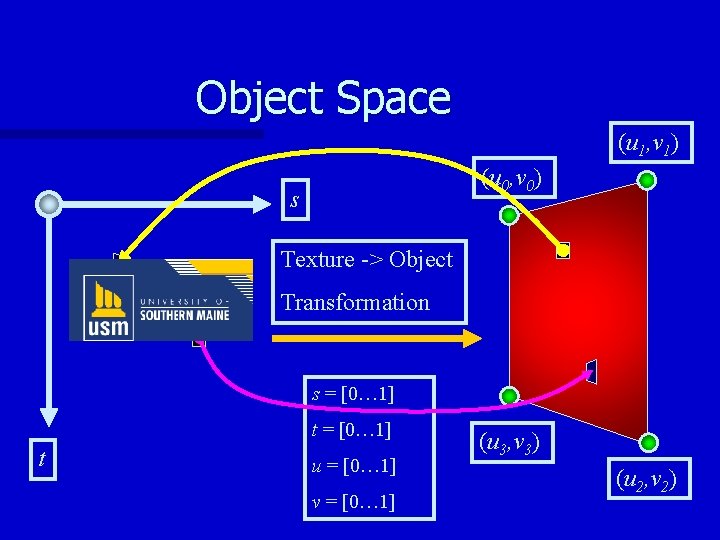
Object Space (u 1, v 1) (u 0, v 0) s Texture -> Object Transformation s = [0… 1] t u = [0… 1] v = [0… 1] (u 3, v 3) (u 2, v 2)
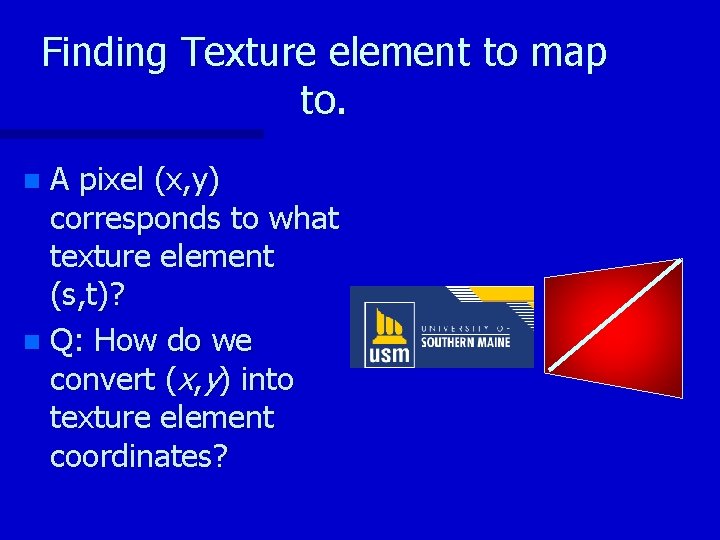
Finding Texture element to map to. A pixel (x, y) corresponds to what texture element (s, t)? n Q: How do we convert (x, y) into texture element coordinates? n
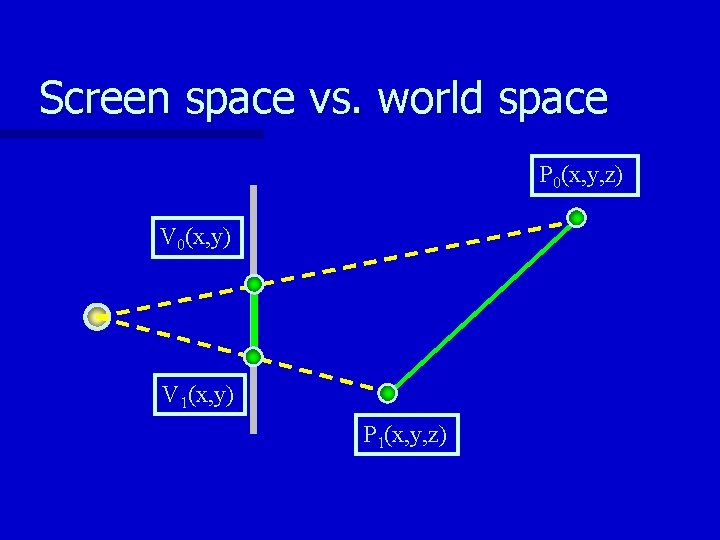
Screen space vs. world space P 0(x, y, z) V 0(x, y) V 1(x, y) P 1(x, y, z)
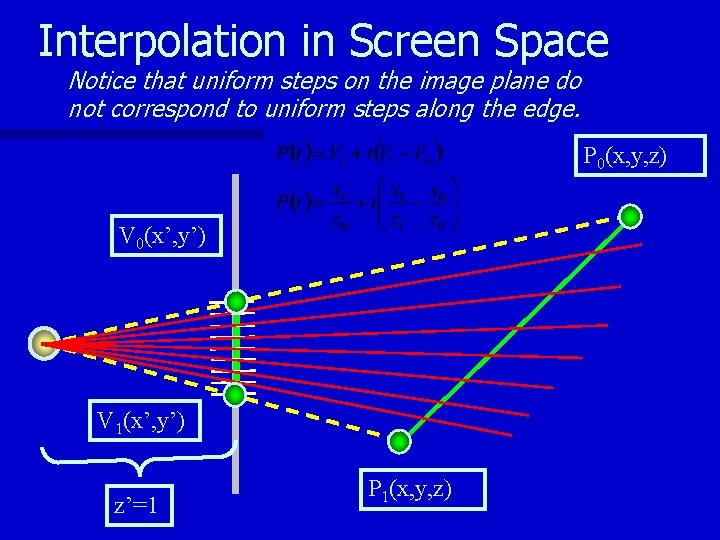
Interpolation in Screen Space Notice that uniform steps on the image plane do not correspond to uniform steps along the edge. P 0(x, y, z) V 0(x’, y’) V 1(x’, y’) z’=1 P 1(x, y, z)
Adjustment for Perspective Viewing Which 3 d point corresponds to given point in screen coordinates n No adjustment – Fig. 8. 42, Pg 446 n Eq 8. 17, Pg 447 in text n
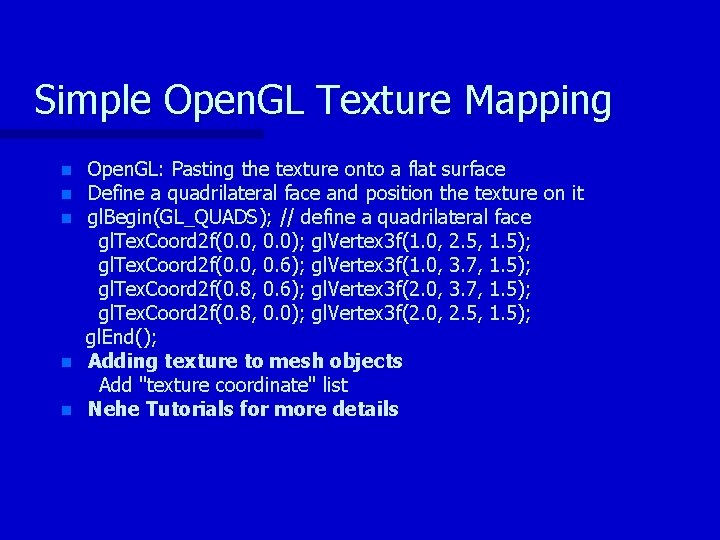
Simple Open. GL Texture Mapping n n n Open. GL: Pasting the texture onto a flat surface Define a quadrilateral face and position the texture on it gl. Begin(GL_QUADS); // define a quadrilateral face gl. Tex. Coord 2 f(0. 0, 0. 0); gl. Vertex 3 f(1. 0, 2. 5, 1. 5); gl. Tex. Coord 2 f(0. 0, 0. 6); gl. Vertex 3 f(1. 0, 3. 7, 1. 5); gl. Tex. Coord 2 f(0. 8, 0. 6); gl. Vertex 3 f(2. 0, 3. 7, 1. 5); gl. Tex. Coord 2 f(0. 8, 0. 0); gl. Vertex 3 f(2. 0, 2. 5, 1. 5); gl. End(); Adding texture to mesh objects Add "texture coordinate" list Nehe Tutorials for more details
Combining Lighting + Texturing If you notice there is no lighting involved with texture mapping! n They are independent operations, which MAY (you decide) be combined n It all depends on how you “apply” the texture to the underlying triangle n
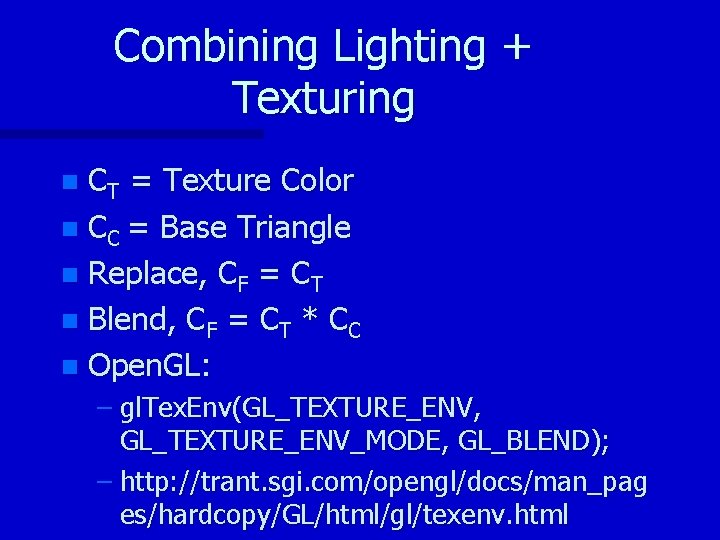
Combining Lighting + Texturing CT = Texture Color n CC = Base Triangle n Replace, CF = CT n Blend, CF = CT * CC n Open. GL: n – gl. Tex. Env(GL_TEXTURE_ENV, GL_TEXTURE_ENV_MODE, GL_BLEND); – http: //trant. sgi. com/opengl/docs/man_pag es/hardcopy/GL/html/gl/texenv. html
- Slides: 15