
Lifelong Learning with Bookshare Professional Development Workshop Workshop
Lifelong Learning with Bookshare Professional Development Workshop
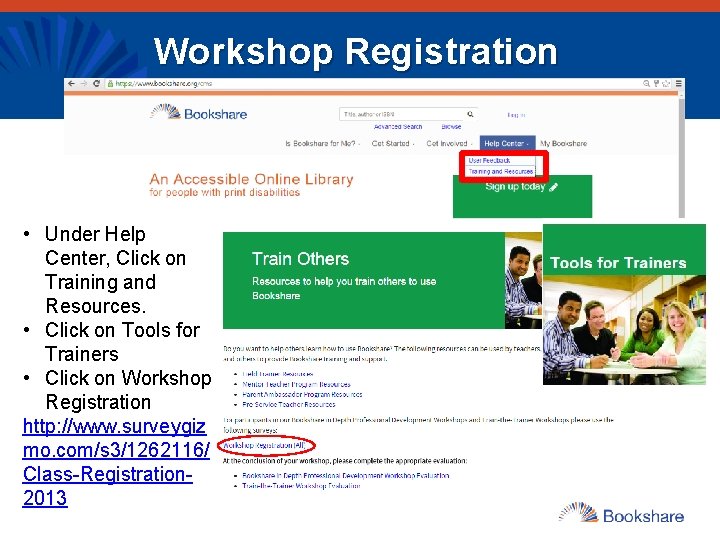
Workshop Registration • Under Help Center, Click on Training and Resources. • Click on Tools for Trainers • Click on Workshop Registration http: //www. surveygiz mo. com/s 3/1262116/ Class-Registration 2013
Welcome and Introductions What best describes how familiar you are with Bookshare. 1. Little familiarity with Bookshare 2. Some familiarity with Bookshare 3. Strong familiarity with Bookshare 3
Personal Journaling Opportunity • What are your goals for the training? • What questions do you have? 4
Workshop Outcomes • Understand Bookshare and its eligibility criteria and membership options • Use the Bookshare online tools to manage your account and reading lists • Search and request books from the Bookshare online library • Download digitally accessible materials and find the right tools for your students • Prepare students for transition Bookshare is a project of Benetech - www. benetech. org Benetech’s nonprofit motto: Technology Serving Humanity 5
Four Part Training Modules • What is Bookshare and how to get your students access? • How to find the books your students need? • How to find the right tools for your students? • How to support students transitioning to other schools or college and career? 6
Module 1: What is Bookshare and how to get your students access? 7
WHAT IS BOOKSHARE 8
What are Accessible Educational Materials (AEM)? • AEM are specialized formats of core instructional materials that can be used by and with students with print disabilities. • IDEA 2004 requires that all students with disabilities who need AEM should be provided with the instructional materials they need, in formats they need, at the time materials are needed. Some additional students served under Chapter 15 of the Rehabilitation Act of 1973 may also qualify as persons with print disabilities and need AEM. • Bookshare is an example of AEM. • Important: Just because a student has an IEP or 504, does not mean they are eligible for Bookshare. 9
What is Bookshare®? • Online library of accessible educational materials for readers with print disabilities • 12 -year initiative of Benetech – More than 335, 000 Student Members – More than 15, 000 schools and other organizations – More than 315, 000 titles – More than 1, 000 new books added every month 10
Bookshare’s Mission • Bookshare's goal is to raise the floor of access so that people with print disabilities can obtain a broad spectrum of print materials at the same time as everyone else. • Bookshare provides a large quantity of books and newspapers in accessible formats and in a timely manner • Bookshare’s vision encompasses new technological developments as well as new applications of widely available technologies to stretch the power of technology for increased access to content. 11
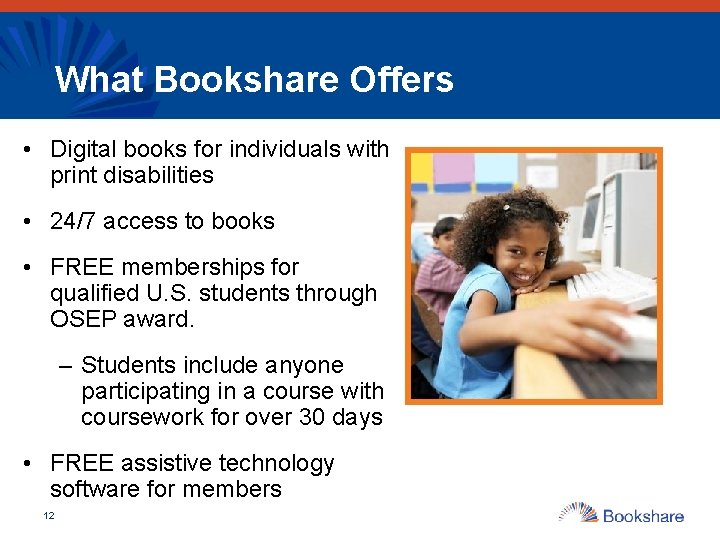
What Bookshare Offers • Digital books for individuals with print disabilities • 24/7 access to books • FREE memberships for qualified U. S. students through OSEP award. – Students include anyone participating in a course with coursework for over 30 days • FREE assistive technology software for members 12
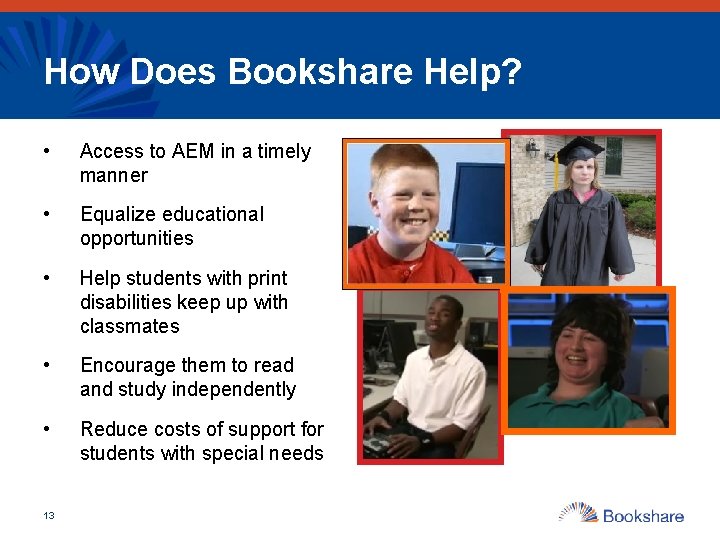
How Does Bookshare Help? • Access to AEM in a timely manner • Equalize educational opportunities • Help students with print disabilities keep up with classmates • Encourage them to read and study independently • Reduce costs of support for students with special needs 13
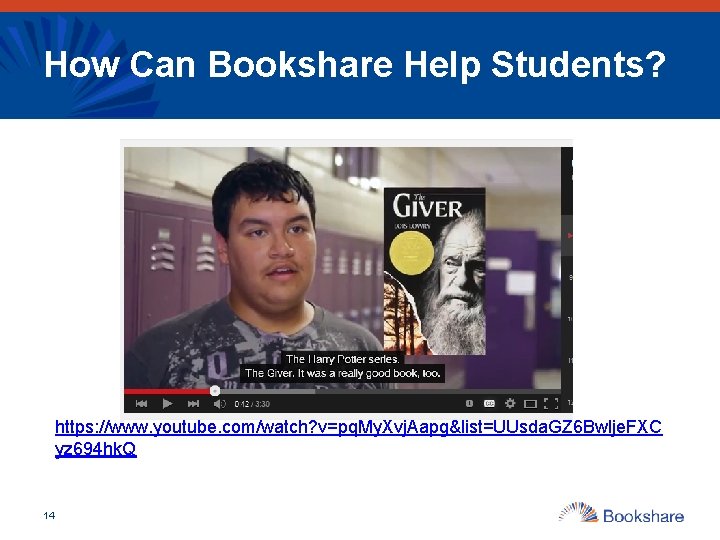
How Can Bookshare Help Students? https: //www. youtube. com/watch? v=pq. My. Xvj. Aapg&list=UUsda. GZ 6 Bwlje. FXC yz 694 hk. Q 14
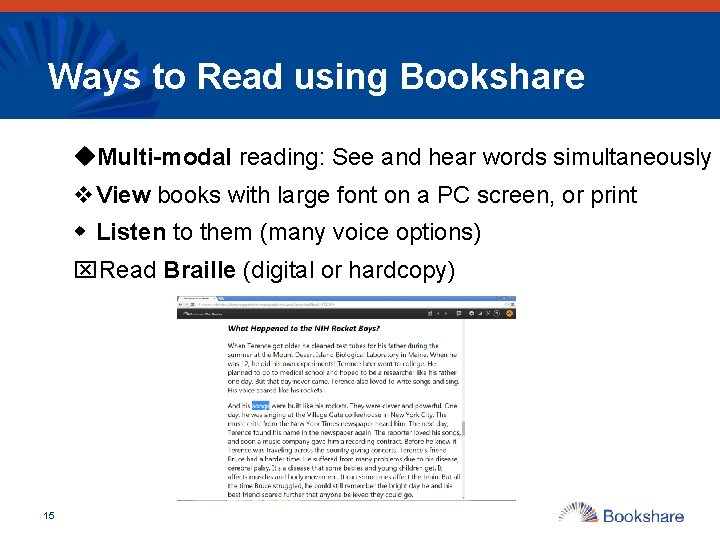
Ways to Read using Bookshare u. Multi-modal reading: See and hear words simultaneously v. View books with large font on a PC screen, or print w Listen to them (many voice options) x. Read Braille (digital or hardcopy) 15
Available Bookshare Formats • Bookshare offers text-based access for NONcopyrighted books to anyone • Bookshare formats available to individuals with qualifying print disabilities (copyrighted materials) § DAISY-3 (Digital Accessible Information System) • global digital talking book format § MP 3 and Daisy Audio • digital audio § BRF (Braille Ready Format) • digital braille 16
Bookshare Format Options: DAISY • Digital Accessible Information System § Standard for producing and reading accessible and navigable multimedia publications • Bookshare produces DAISY digital text – With images (larger file) – Without images 17
Features of DAISY Applications • Support for table of contents and index • Navigate forward and backward by word, paragraph, page, section header, or chapter • Searchable • Place bookmarks in the text • Make notes in the text • Increase and decrease the rate of speech • May display images and descriptions if available 18
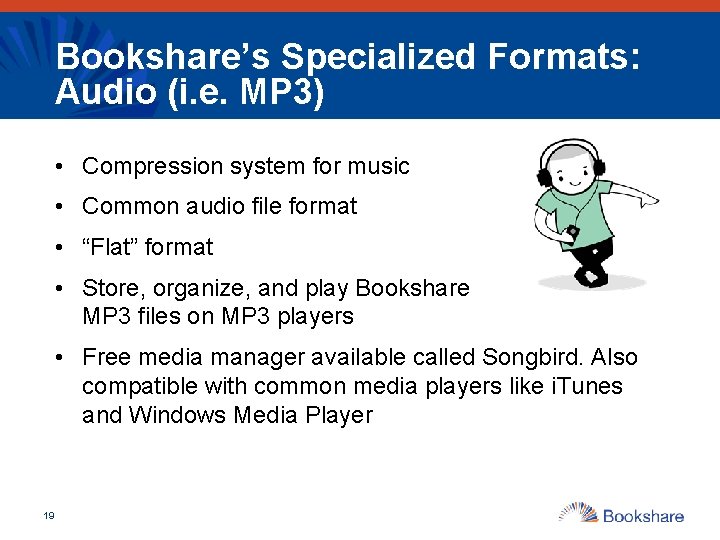
Bookshare’s Specialized Formats: Audio (i. e. MP 3) • Compression system for music • Common audio file format • “Flat” format • Store, organize, and play Bookshare MP 3 files on MP 3 players • Free media manager available called Songbird. Also compatible with common media players like i. Tunes and Windows Media Player 19
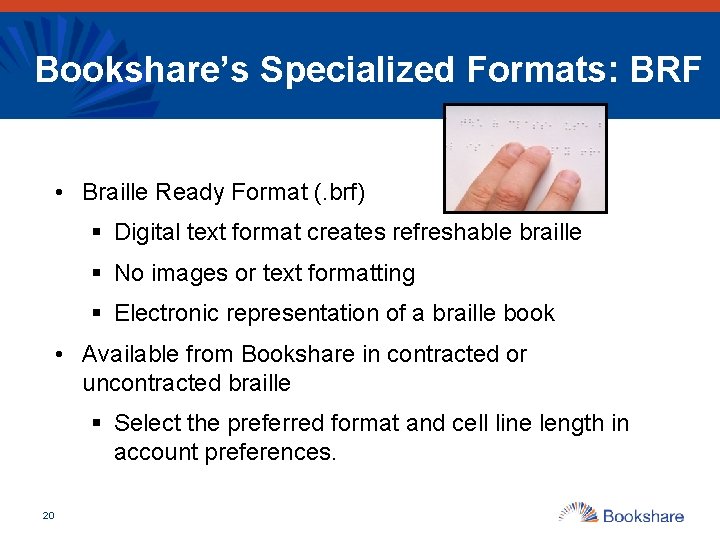
Bookshare’s Specialized Formats: BRF • Braille Ready Format (. brf) § Digital text format creates refreshable braille § No images or text formatting § Electronic representation of a braille book • Available from Bookshare in contracted or uncontracted braille § Select the preferred format and cell line length in account preferences. 20
ELIGIBILITY 21
Bookshare Eligibility Pre-Quiz: True or False • In order to be eligible for Bookshare a student must have a documented print disability. • All students with IEPs are eligible for Bookshare. • Bookshare can help to support all beginning readers. • A student with documented ADHD who has difficulty staying focused during reading is eligible to receive Bookshare services. 22
How does Bookshare have access to books and why is eligibility so important? • Bookshare operates under an exception to U. S. copyright law which allows copyrighted digital books to be made available to people with qualifying disabilities. • The exemption is referred to as the Chafee Amendment • The law states that it is not an infringement of copyright for an authorized entity (Bookshare is an authorized entity) to reproduce or to distribute copies of materials if they are reproduced or distributed in specialized formats exclusively for use by blind or other persons with disabilities. 23
What is a Print Disability? • A print disability is a physically-based disability that makes it very difficult or impossible to read standard print. • These include: – blindness or low vision, – a physical disability in which an individual cannot hold a book or turn the pages of a book, or – A documented learning or reading disability 24
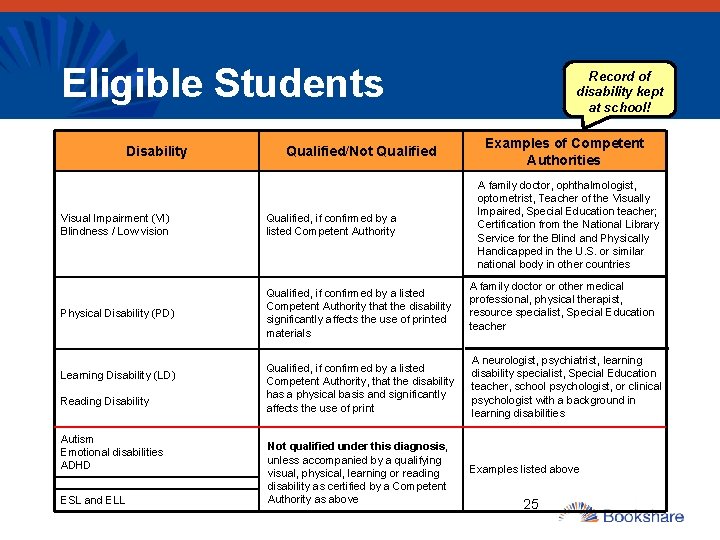
Eligible Students Disability Qualified/Not Qualified Visual Impairment (VI) Blindness / Low vision Qualified, if confirmed by a listed Competent Authority Physical Disability (PD) Qualified, if confirmed by a listed Competent Authority that the disability significantly affects the use of printed materials Learning Disability (LD) Reading Disability Autism Emotional disabilities ADHD ESL and ELL Record of disability kept at school! Examples of Competent Authorities A family doctor, ophthalmologist, optometrist, Teacher of the Visually Impaired, Special Education teacher; Certification from the National Library Service for the Blind and Physically Handicapped in the U. S. or similar national body in other countries A family doctor or other medical professional, physical therapist, resource specialist, Special Education teacher Qualified, if confirmed by a listed Competent Authority, that the disability has a physical basis and significantly affects the use of print A neurologist, psychiatrist, learning disability specialist, Special Education teacher, school psychologist, or clinical psychologist with a background in learning disabilities Not qualified under this diagnosis, unless accompanied by a qualifying visual, physical, learning or reading disability as certified by a Competent Authority as above Examples listed above 25
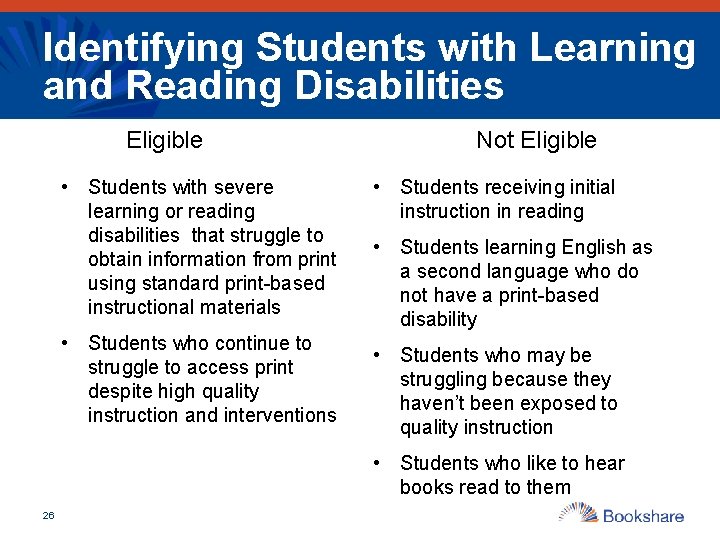
Identifying Students with Learning and Reading Disabilities Eligible • Students with severe learning or reading disabilities that struggle to obtain information from print using standard print-based instructional materials • Students who continue to struggle to access print despite high quality instruction and interventions Not Eligible • Students receiving initial instruction in reading • Students learning English as a second language who do not have a print-based disability • Students who may be struggling because they haven’t been exposed to quality instruction • Students who like to hear books read to them 26
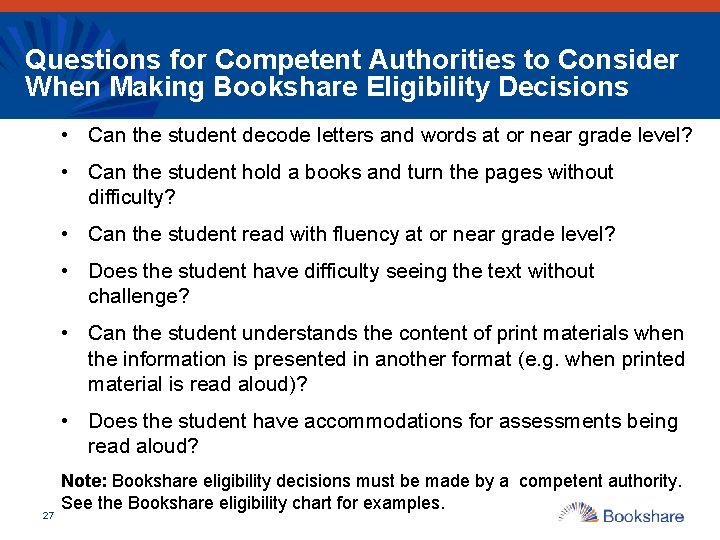
Questions for Competent Authorities to Consider When Making Bookshare Eligibility Decisions • Can the student decode letters and words at or near grade level? • Can the student hold a books and turn the pages without difficulty? • Can the student read with fluency at or near grade level? • Does the student have difficulty seeing the text without challenge? • Can the student understands the content of print materials when the information is presented in another format (e. g. when printed material is read aloud)? • Does the student have accommodations for assessments being read aloud? 27 Note: Bookshare eligibility decisions must be made by a competent authority. See the Bookshare eligibility chart for examples.
Think-Pair-Share • Think about a student you know who could benefit from Bookshare • Pair up with someone next to you and Share your thoughts 28
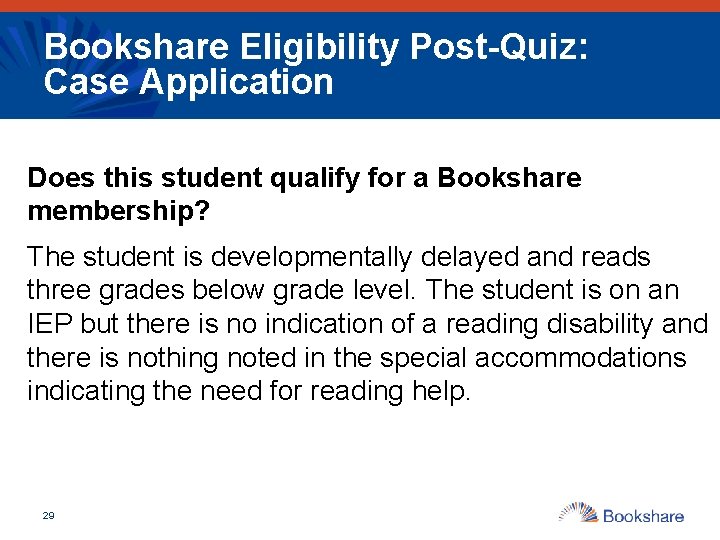
Bookshare Eligibility Post-Quiz: Case Application Does this student qualify for a Bookshare membership? The student is developmentally delayed and reads three grades below grade level. The student is on an IEP but there is no indication of a reading disability and there is nothing noted in the special accommodations indicating the need for reading help. 29
ORGANIZATIONAL MEMBERSHIPS 30
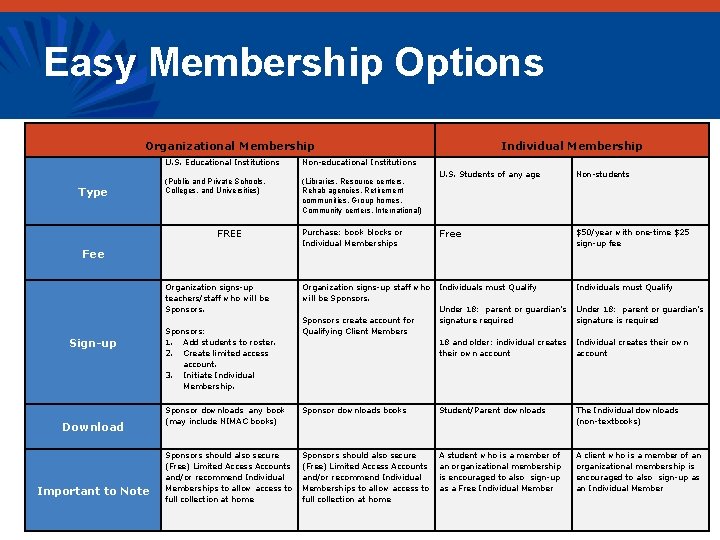
Easy Membership Options Organizational Membership Type U. S. Educational Institutions Non-educational Institutions (Public and Private Schools, Colleges, and Universities) (Libraries, Resource centers, Rehab agencies, Retirement communities, Group homes, Community centers, International) Purchase: book blocks or Individual Memberships FREE Fee Sign-up Download Important to Note 31 Individual Membership U. S. Students of any age Non-students Free $50/year with one-time $25 sign-up fee Organization signs-up teachers/staff who will be Sponsors: 1. Add students to roster. 2. Create limited access account. 3. Initiate Individual Membership. Organization signs-up staff who will be Sponsors create account for Qualifying Client Members Individuals must Qualify Under 18: parent or guardian’s signature required 18 and older: individual creates their own account Individuals must Qualify Under 18: parent or guardian’s signature is required Individual creates their own account Sponsor downloads any book (may include NIMAC books) Sponsor downloads books Student/Parent downloads The Individual downloads (non-textbooks) Sponsors should also secure (Free) Limited Access Accounts and/or recommend Individual Memberships to allow access to full collection at home A student who is a member of an organizational membership is encouraged to also sign-up as a Free Individual Member A client who is a member of an organizational membership is encouraged to also sign-up as an Individual Member
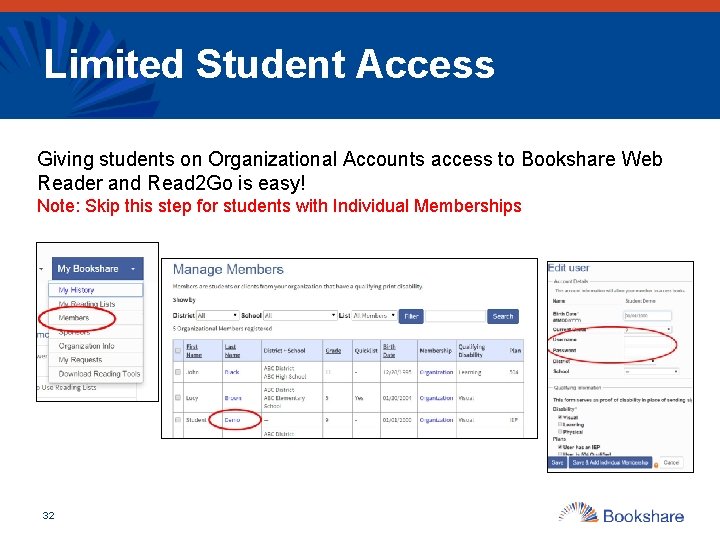
Limited Student Access Giving students on Organizational Accounts access to Bookshare Web Reader and Read 2 Go is easy! Note: Skip this step for students with Individual Memberships 32
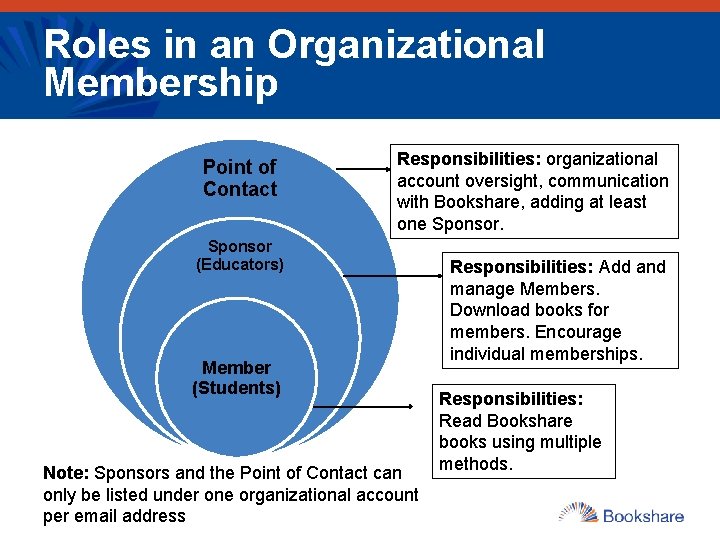
Roles in an Organizational Membership Point of Contact Responsibilities: organizational account oversight, communication with Bookshare, adding at least one Sponsor (Educators) Member (Students) Note: Sponsors and the Point of Contact can only be listed under one organizational account per email address Responsibilities: Add and manage Members. Download books for members. Encourage individual memberships. Responsibilities: Read Bookshare books using multiple methods.
Considerations for Setting up an Organizational Account • Are there any active Bookshare accounts within our school or district already? • Should we set up the account at the district or school level? • Who will oversee and manage the account (point of contact)? How frequently do they review the membership list • Will we create any additional restrictions/regulations outside of those Bookshare mandates for use of account? • Do we need to use a confidentiality rider? • How will we share Bookshare with staff and families? 34
Sharing Bookshare with Families • Things to emphasize: – The Bookshare basics (what it is, why their child is eligible) – The benefits of Bookshare for their child – Ease of signing up through school – Free access while a student – Something they can transition with through life • Additional resources: – Handouts and letters home to share with families 35
Value-Add Option for Members Individual Membership Benefits: • Students can take school work home and study • Install free reading tools on home computer • Download own books, including fun, leisure books • Build reading skills and independence year-round • Can easily transition to postsecondary education and adulthood • Easy to sign-up or connect an existing membership. • FREE for all students who qualify at school, sign them up today! 36
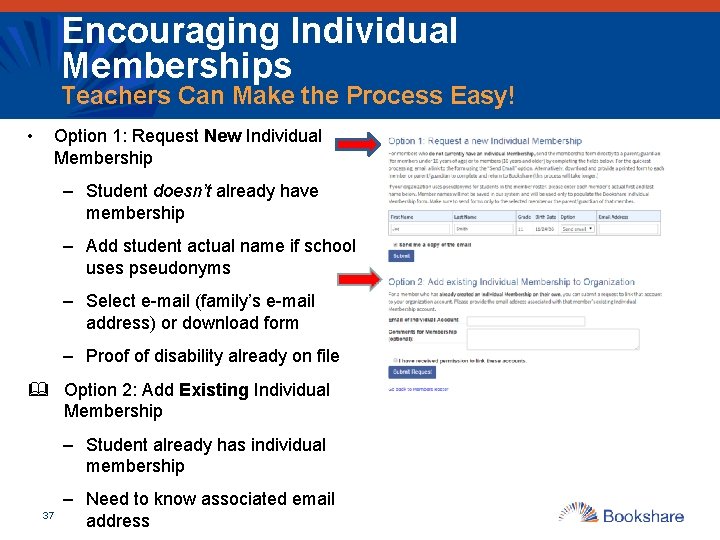
Encouraging Individual Memberships Teachers Can Make the Process Easy! • Option 1: Request New Individual Membership – Student doesn’t already have membership – Add student actual name if school uses pseudonyms – Select e-mail (family’s e-mail address) or download form – Proof of disability already on file & Option 2: Add Existing Individual Membership – Student already has individual membership 37 – Need to know associated email address
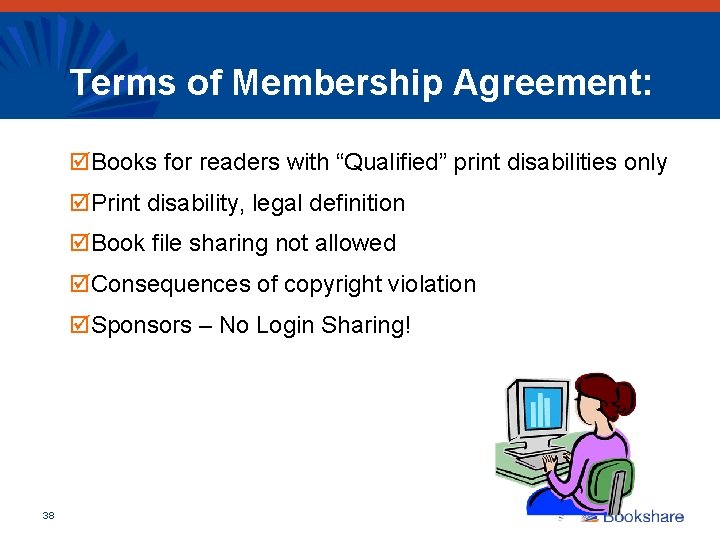
Terms of Membership Agreement: þBooks for readers with “Qualified” print disabilities only þPrint disability, legal definition þBook file sharing not allowed þConsequences of copyright violation þSponsors – No Login Sharing! 38
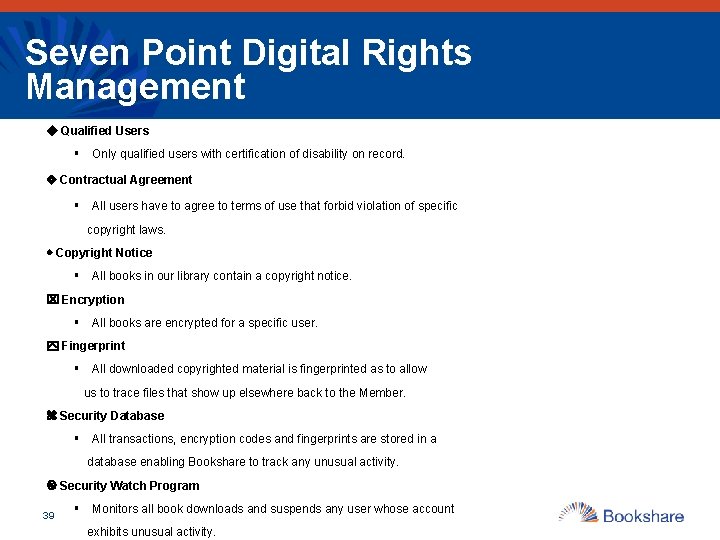
Seven Point Digital Rights Management Qualified Users § Only qualified users with certification of disability on record. Contractual Agreement § All users have to agree to terms of use that forbid violation of specific copyright laws. Copyright Notice § All books in our library contain a copyright notice. Encryption § All books are encrypted for a specific user. Fingerprint § All downloaded copyrighted material is fingerprinted as to allow us to trace files that show up elsewhere back to the Member. Security Database § All transactions, encryption codes and fingerprints are stored in a database enabling Bookshare to track any unusual activity. Security Watch Program 39 § Monitors all book downloads and suspends any user whose account exhibits unusual activity.
QUESTIONS? 40
BOOKSHARE WEBSITE 41
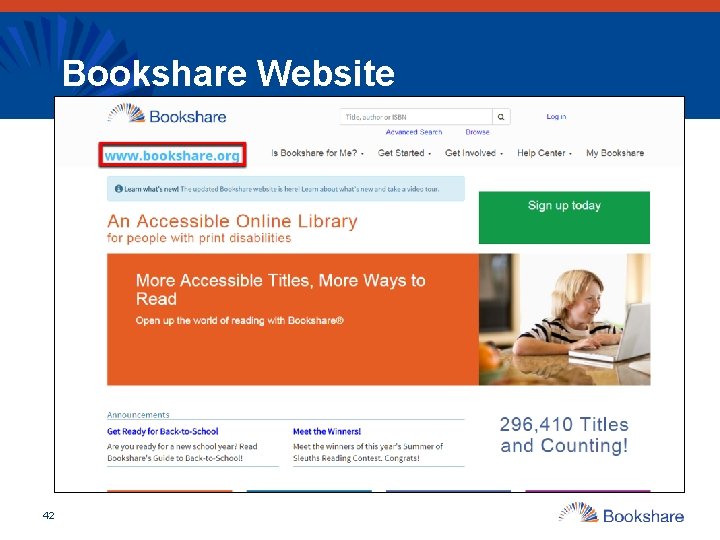
Bookshare Website 42
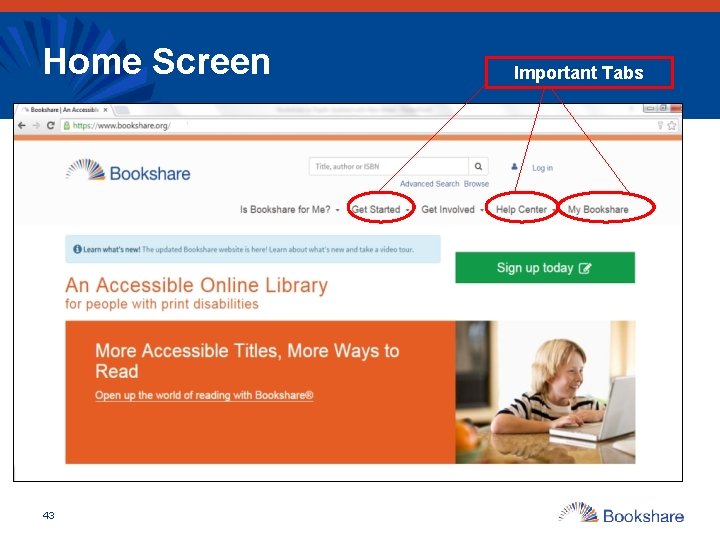
Home Screen 43 Important Tabs
Is Bookshare for Me? • Learn more about Bookshare • Learn about who qualifies for Bookshare • Learn about membership options, costs, and international partners. • Sign-up for an individual membership or organizational membership account. 44
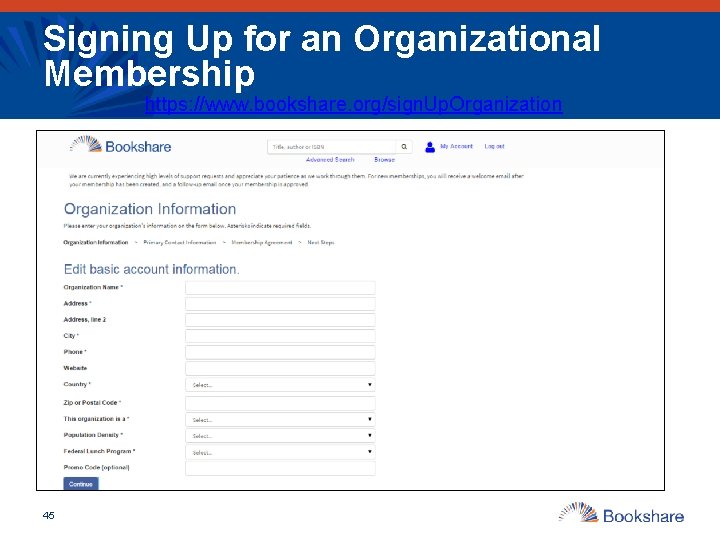
Signing Up for an Organizational Membership https: //www. bookshare. org/sign. Up. Organization 45
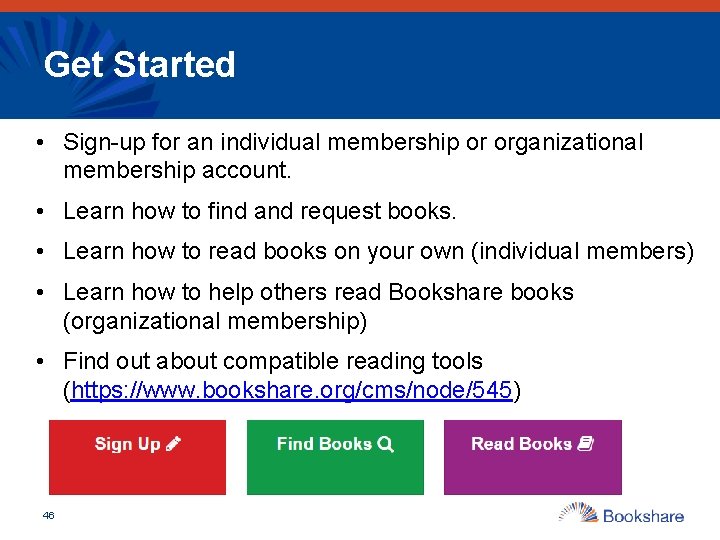
Get Started • Sign-up for an individual membership or organizational membership account. • Learn how to find and request books. • Learn how to read books on your own (individual members) • Learn how to help others read Bookshare books (organizational membership) • Find out about compatible reading tools (https: //www. bookshare. org/cms/node/545) 46
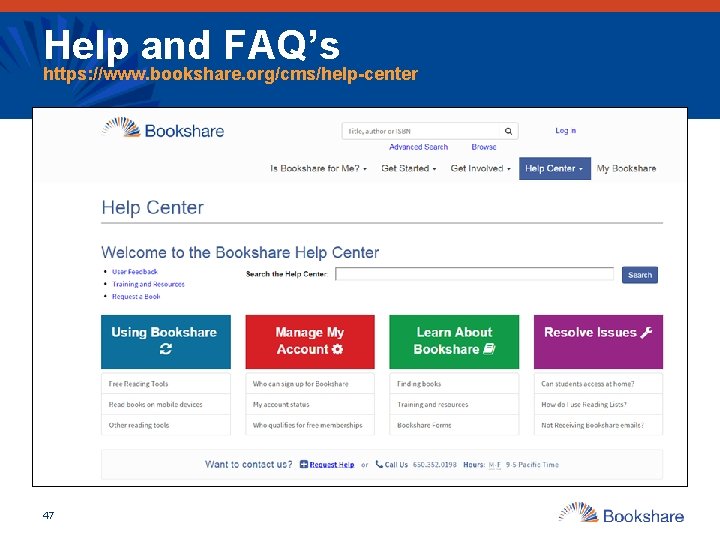
Help and FAQ’s https: //www. bookshare. org/cms/help-center 47
The Help Center • Find answers to your questions. • Search by topic area. • Fill out request or call Bookshare with a question. • Request a book. • Find training and learning resources (Bookshare Academy) • Submit product feedback. 48
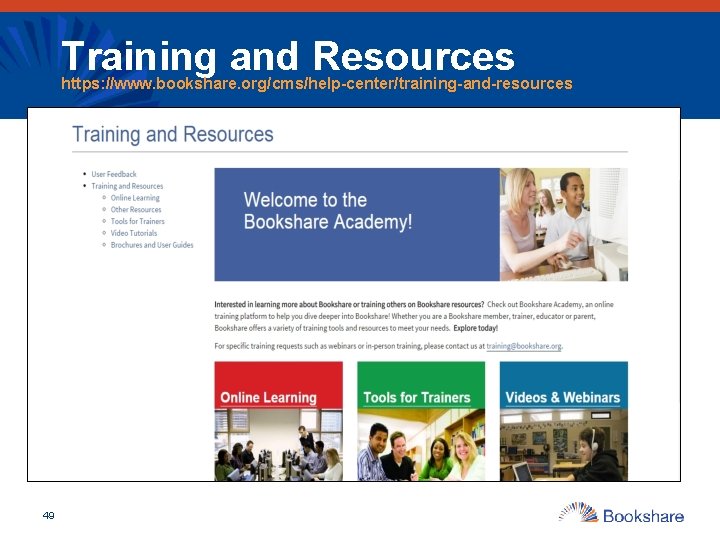
Training and Resources https: //www. bookshare. org/cms/help-center/training-and-resources 49
Bookshare Academy: The New Home for Training Resources • Find online courses and partner resources • View videos and webinars • Access Tools for Trainers – Field Trainer Resources – Mentor Teacher Program Resources – Parent Ambassador Program Resources – Pre-Service Teacher Resources 50
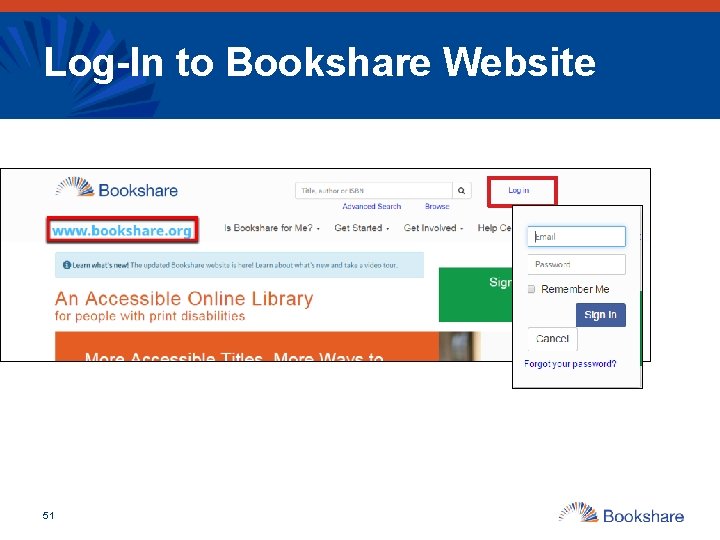
Log-In to Bookshare Website 51
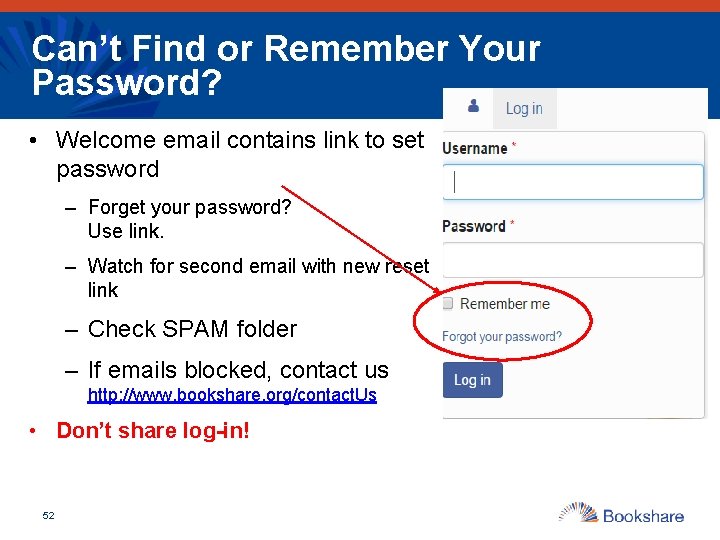
Can’t Find or Remember Your Password? • Welcome email contains link to set password – Forget your password? Use link. – Watch for second email with new reset link – Check SPAM folder – If emails blocked, contact us http: //www. bookshare. org/contact. Us • Don’t share log-in! 52
Using the Demo Account • Log in - orgdemo@bookshare. org • Password - demo 480 53
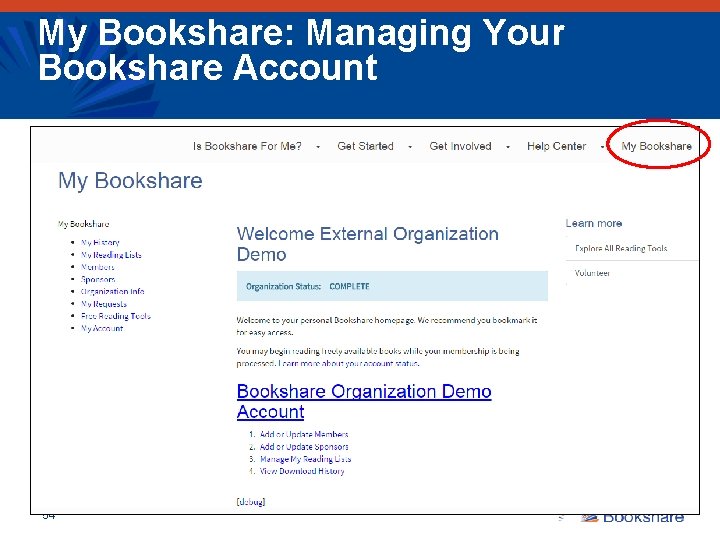
My Bookshare: Managing Your Bookshare Account 54
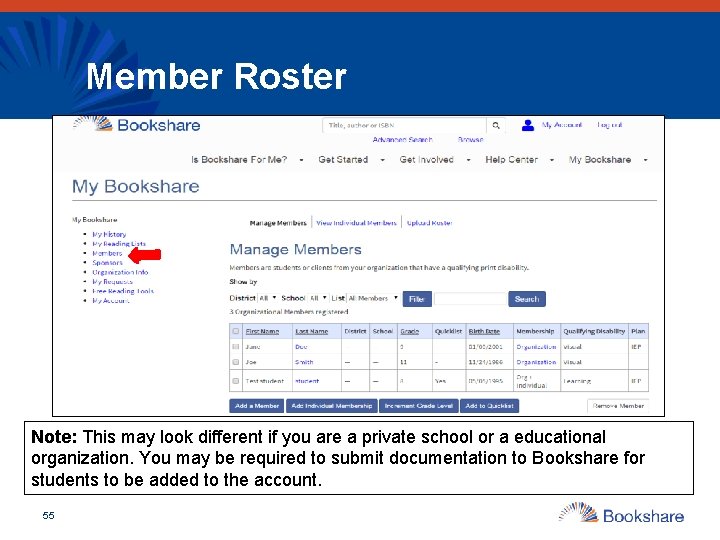
Member Roster Note: This may look different if you are a private school or a educational organization. You may be required to submit documentation to Bookshare for students to be added to the account. 55
Practice • View your account information and make any necessary updates • Add members to your organizational account – If using the demo account use fake information – If your students information is already in there confirm that it is correct • Add students you work with to your Quicklist • If Using Demo Account: o Log in - orgdemo@bookshare. org o Password - demo 480 56
Module 2: How to find the books your students need? 57
What is available in the Bookshare library? • Textbooks § More than 5, 000 NIMAC textbooks with images § More than 8, 000 non-NIMAC textbooks § Contributions from universities and schools • Teacher-Recommended Reading • Special Collections § New York Times Best Sellers § Newbery Winners § Caldecott Winners § Young Reader’s Choice § Spanish books • Newspapers and magazines § Available through partnership with NFB Newsline 58 § 270 national and regional newspapers and magazines Bookshare is committed to high-quality books. Please report any quality issues on the book download page.
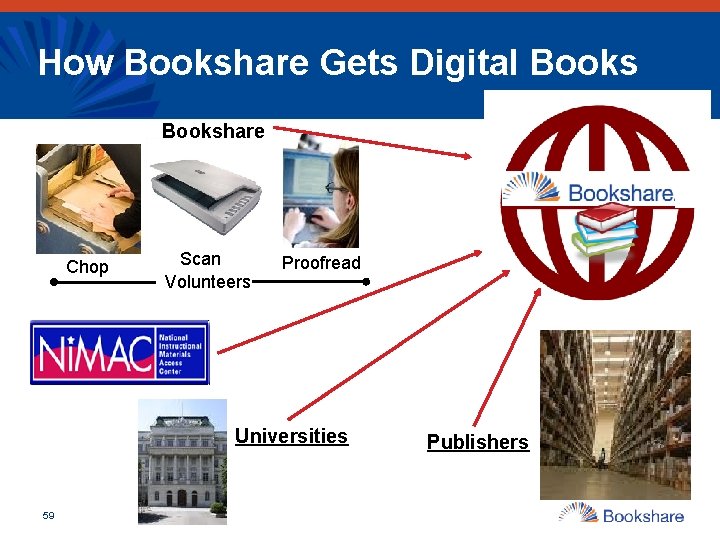
How Bookshare Gets Digital Bookshare Chop Scan Volunteers Proofread Universities 59 Publishers
The NIMAC • Central repository to store digital textbooks from publishers: the National Instructional Materials Access Center (NIMAC) http: //nimac. us • Established under IDEA 2004 at the American Printing House for the Blind, Inc. (APH) with support from the U. S. Department of Education • Only U. S. K-12 students with an IEP and a print disability are eligible for using NIMAC books in Bookshare • Only educators can download NIMAC books for these students 60
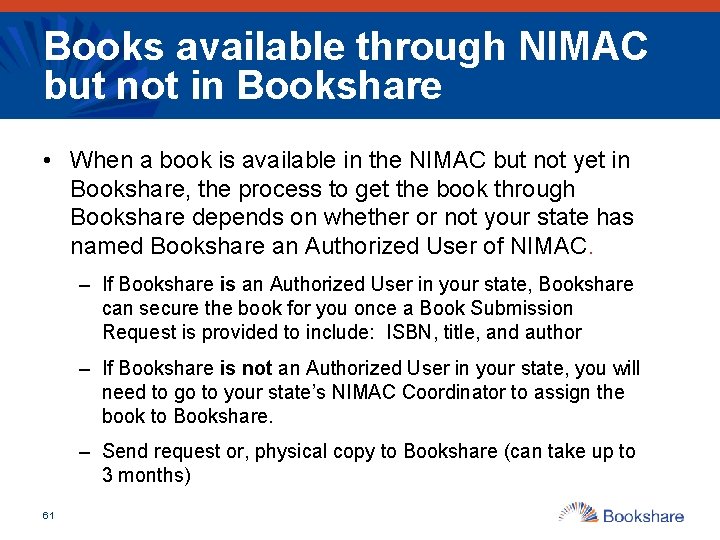
Books available through NIMAC but not in Bookshare • When a book is available in the NIMAC but not yet in Bookshare, the process to get the book through Bookshare depends on whether or not your state has named Bookshare an Authorized User of NIMAC. – If Bookshare is an Authorized User in your state, Bookshare can secure the book for you once a Book Submission Request is provided to include: ISBN, title, and author – If Bookshare is not an Authorized User in your state, you will need to go to your state’s NIMAC Coordinator to assign the book to Bookshare. – Send request or, physical copy to Bookshare (can take up to 3 months) 61
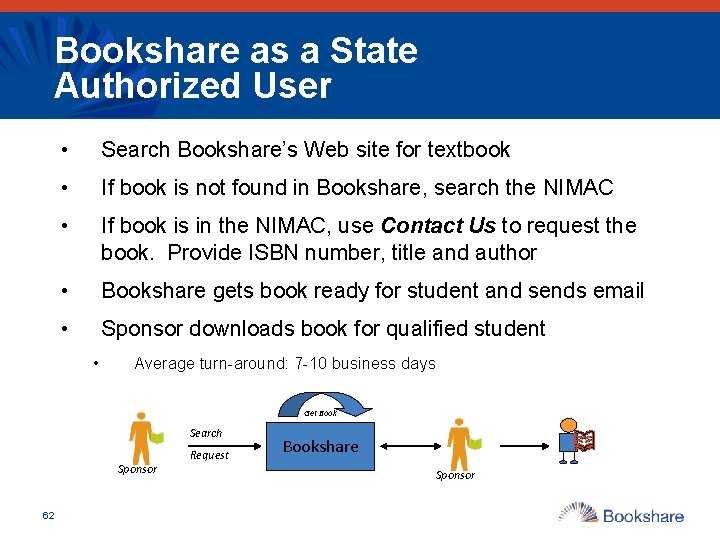
Bookshare as a State Authorized User • Search Bookshare’s Web site for textbook • If book is not found in Bookshare, search the NIMAC • If book is in the NIMAC, use Contact Us to request the book. Provide ISBN number, title and author • Bookshare gets book ready for student and sends email • Sponsor downloads book for qualified student • Average turn-around: 7 -10 business days Get Book Search Sponsor 62 Request Bookshare Sponsor
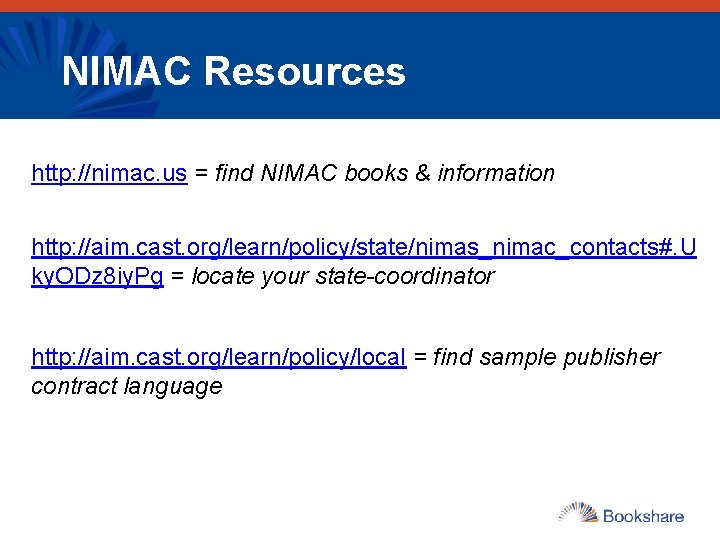
NIMAC Resources http: //nimac. us = find NIMAC books & information http: //aim. cast. org/learn/policy/state/nimas_nimac_contacts#. U ky. ODz 8 iy. Pg = locate your state-coordinator http: //aim. cast. org/learn/policy/local = find sample publisher contract language
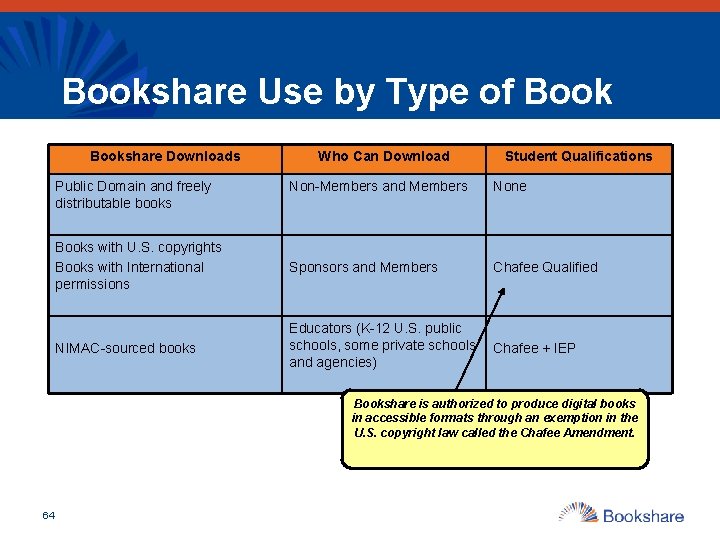
Bookshare Use by Type of Bookshare Downloads Public Domain and freely distributable books Who Can Download Student Qualifications Non-Members and Members None Books with U. S. copyrights Books with International permissions Sponsors and Members Chafee Qualified NIMAC-sourced books Educators (K-12 U. S. public schools, some private schools Chafee + IEP and agencies) Bookshare is authorized to produce digital books in accessible formats through an exemption in the U. S. copyright law called the Chafee Amendment. 64
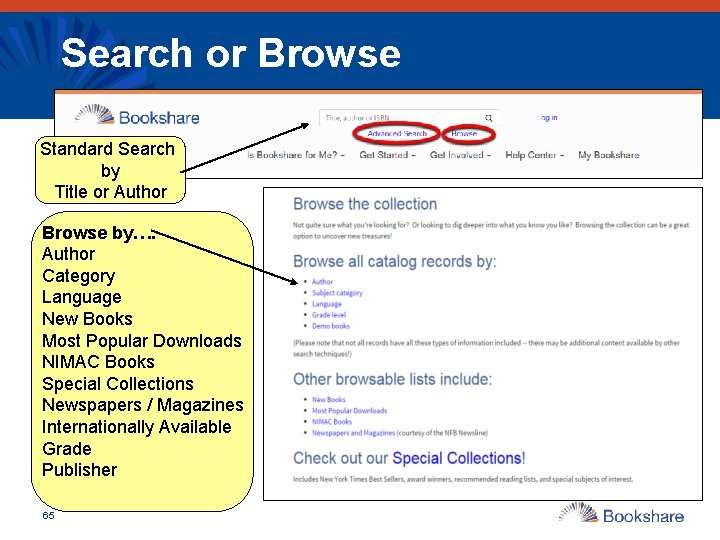
Search or Browse Standard Search by Title or Author Browse by…. Author Category Language New Books Most Popular Downloads NIMAC Books Special Collections Newspapers / Magazines Internationally Available Grade Publisher 65
Louis Plus • The Louis Plus search in the Louis Database locates accessible instructional materials in Louis, NIMAC, and Bookshare - http: //louis. aph. org/custom/Search. Results_Unified. Se arch. aspx • The Louis Database has information on over 405, 000 accessible print materials including braille, large print, sound recording , and electronic files from more than 160 organizations. 66
Practice • Explore our collections o What did you find? o Did you notice you can do related searches or report a book quality issue? • If Using Demo Account: o Log in - orgdemo@bookshare. org Password - demo 480 o Go to Browse & select Demo books o Within Advanced search select Freely Available Books from Books to Search 67
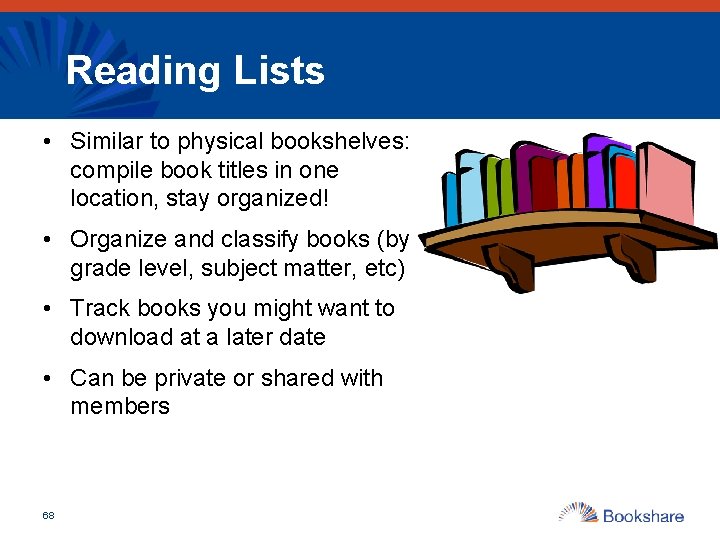
Reading Lists • Similar to physical bookshelves: compile book titles in one location, stay organized! • Organize and classify books (by grade level, subject matter, etc) • Track books you might want to download at a later date • Can be private or shared with members 68
Reading Lists: Sharing with Members • Educators can create reading lists and easily share with students so they can read or download books on their own – including NIMAC books! o NIMAC textbooks are available to K-12 students who qualify for Bookshare and have IEPs • Create a "syllabus" to assign to one or more of your members allowing students • Students can read books on reading lists anywhere they have internet access • Track student activity on assigned books 69
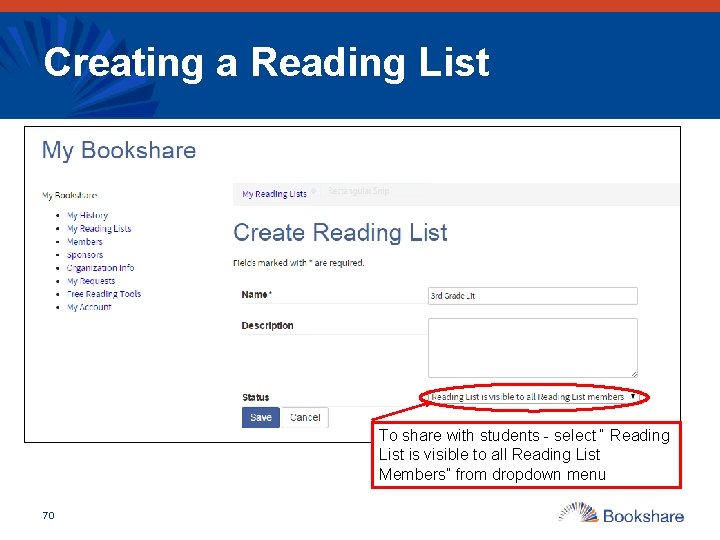
Creating a Reading List To share with students - select “ Reading List is visible to all Reading List Members” from dropdown menu 70
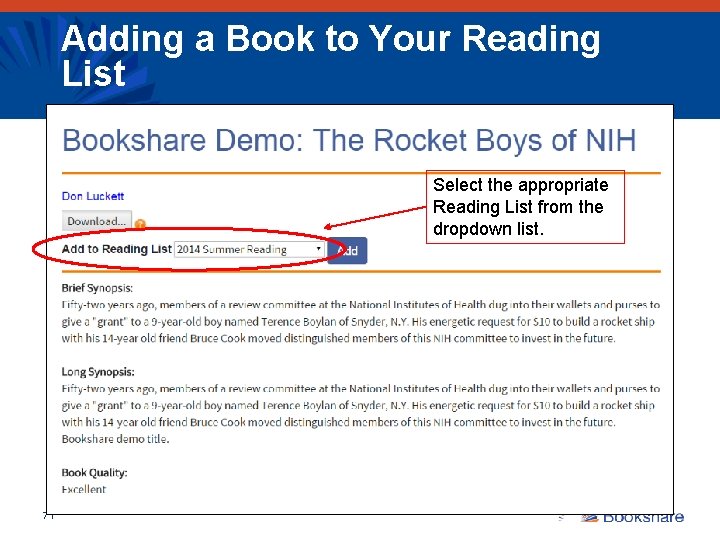
Adding a Book to Your Reading List Select the appropriate Reading List from the dropdown list. 71
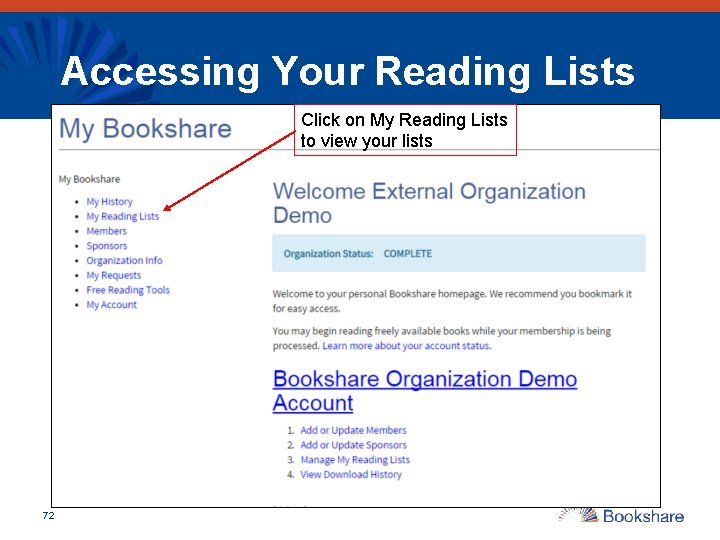
Accessing Your Reading Lists Click on My Reading Lists to view your lists 72
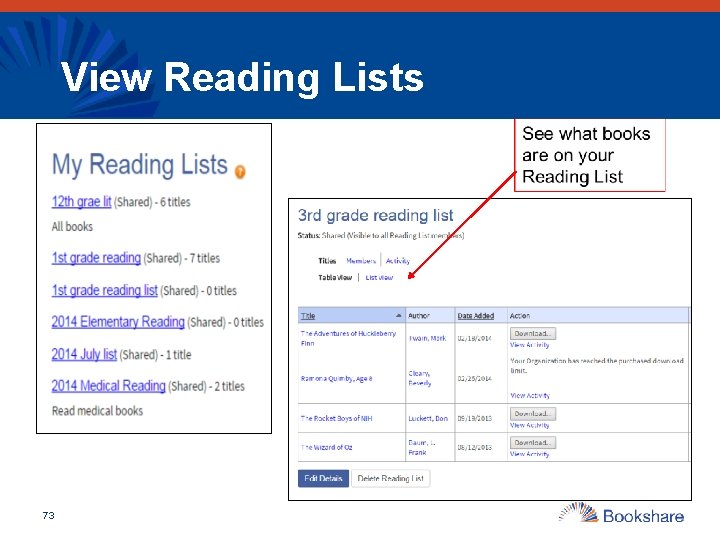
View Reading Lists 73
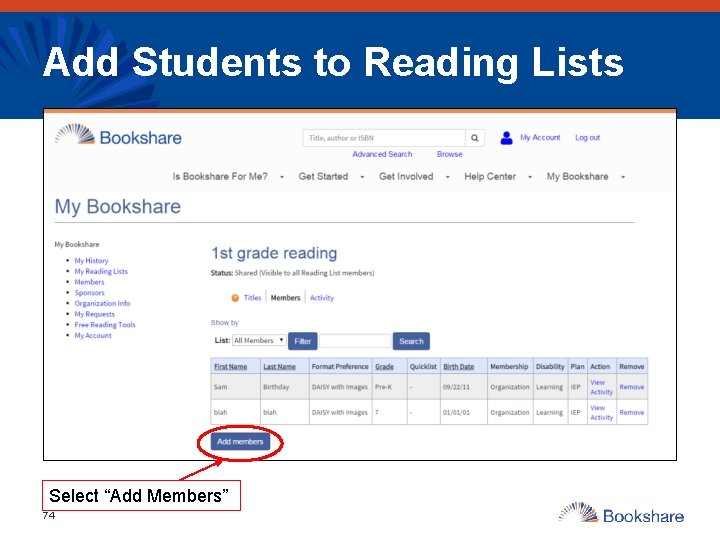
Add Students to Reading Lists Select “Add Members” 74
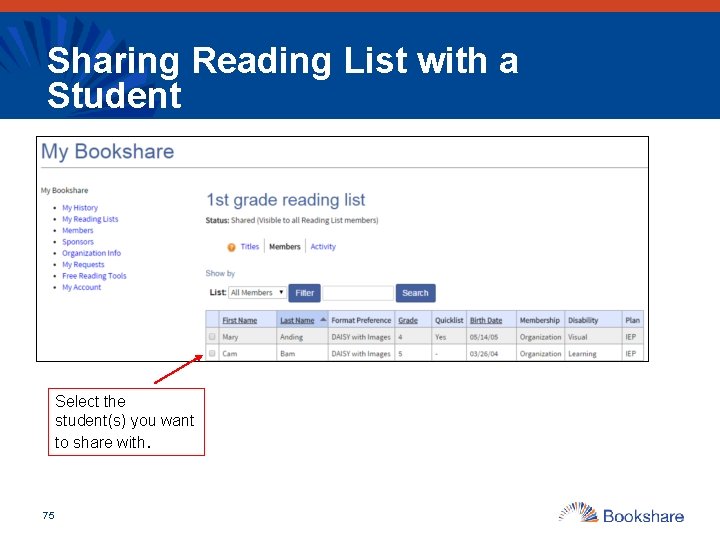
Sharing Reading List with a Student Select the student(s) you want to share with. 75
Practice & Set up a Reading List for your students • If Using Demo Account: o Log in - orgdemo@bookshare. org Password - demo 480 o Go to Browse & select Demo books o Within Advance search select Freely Available Books from Books to Search 76
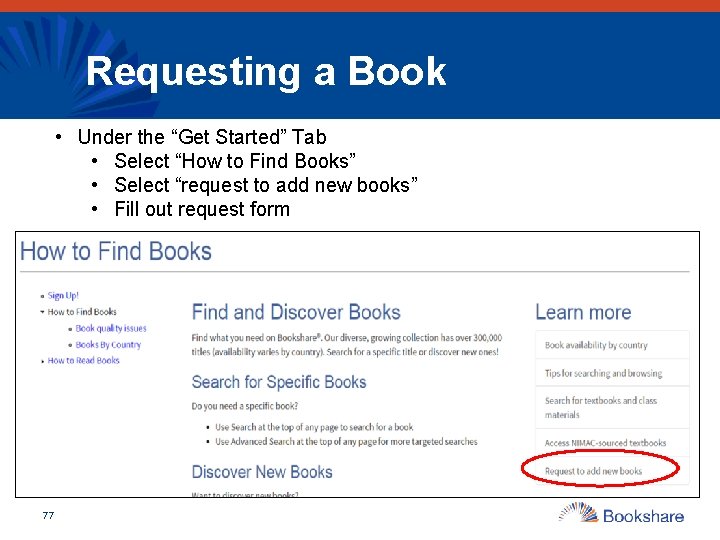
Requesting a Book • Under the “Get Started” Tab • Select “How to Find Books” • Select “request to add new books” • Fill out request form 77
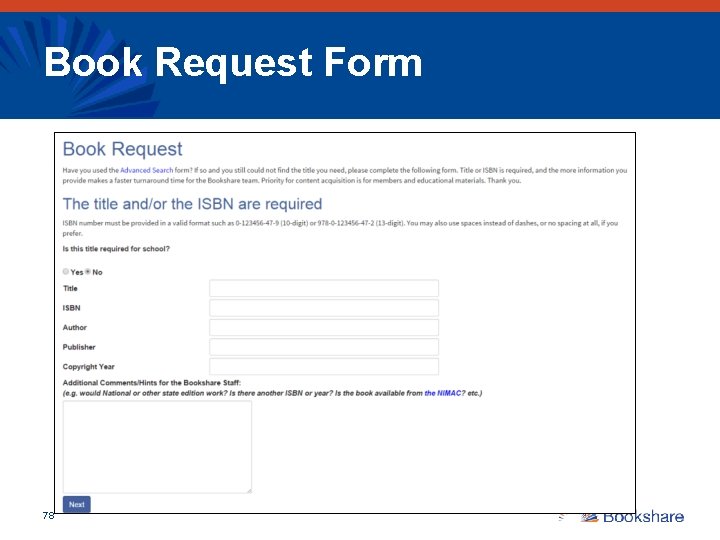
Book Request Form 78
Module 3: How to find the right tools for your students? 79
Reading Technology Partners • Kurzweil - www. cambiumlearningtechnologies. com • Text. Help Read&Write Gold - www. texthelp. com • Human. Ware – www. humanware. com • HIMS Book. Sense - www. hims-inc. com • APH Book Port DT - www. aph. org • Freedom Scientific - www. freedomscientific. com • Dolphin – www. yourdolphin. com • Dynavox - www. dynavoxtech. com • Voice Dream - www. voicedream. com • Access. Text Network - www. accesstext. org
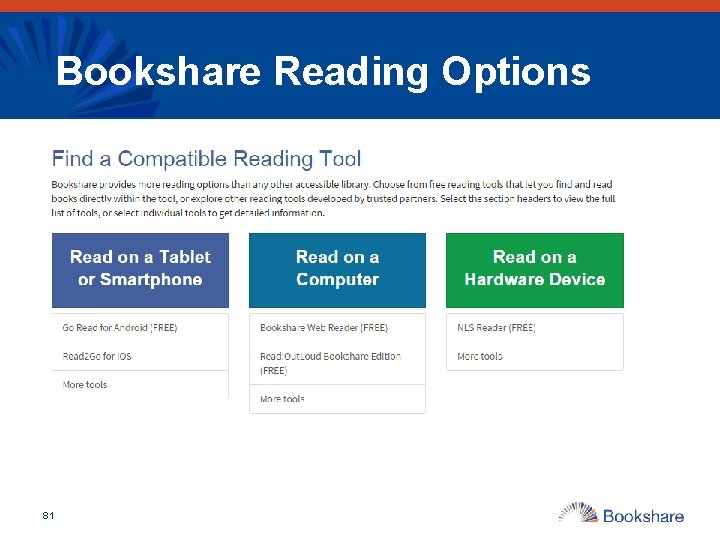
Bookshare Reading Options 81
READ ON THE COMPUTER 82
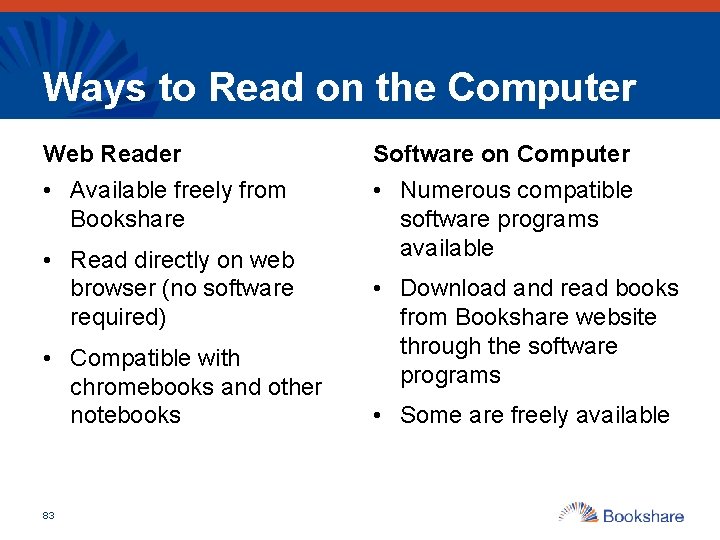
Ways to Read on the Computer Web Reader Software on Computer • Available freely from Bookshare • Numerous compatible software programs available • Read directly on web browser (no software required) • Compatible with chromebooks and other notebooks 83 • Download and read books from Bookshare website through the software programs • Some are freely available
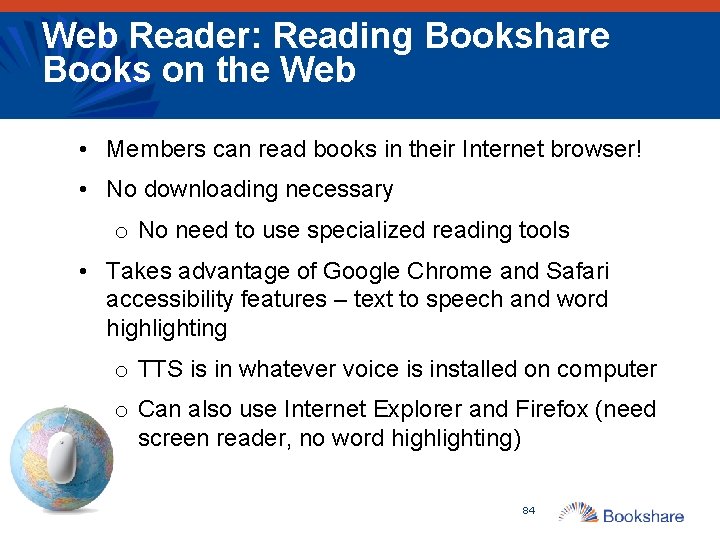
Web Reader: Reading Bookshare Books on the Web • Members can read books in their Internet browser! • No downloading necessary o No need to use specialized reading tools • Takes advantage of Google Chrome and Safari accessibility features – text to speech and word highlighting o TTS is in whatever voice is installed on computer o Can also use Internet Explorer and Firefox (need screen reader, no word highlighting) 84
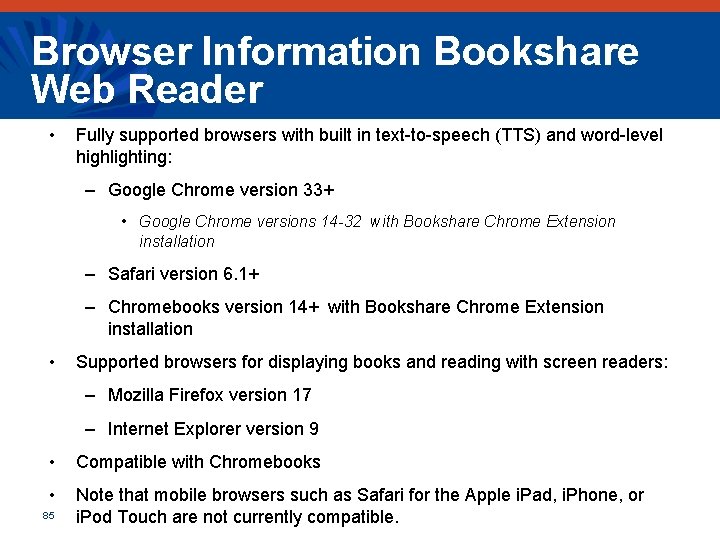
Browser Information Bookshare Web Reader • Fully supported browsers with built in text-to-speech (TTS) and word-level highlighting: – Google Chrome version 33+ • Google Chrome versions 14 -32 with Bookshare Chrome Extension installation – Safari version 6. 1+ – Chromebooks version 14+ with Bookshare Chrome Extension installation • Supported browsers for displaying books and reading with screen readers: – Mozilla Firefox version 17 – Internet Explorer version 9 • Compatible with Chromebooks • Note that mobile browsers such as Safari for the Apple i. Pad, i. Phone, or i. Pod Touch are not currently compatible. 85
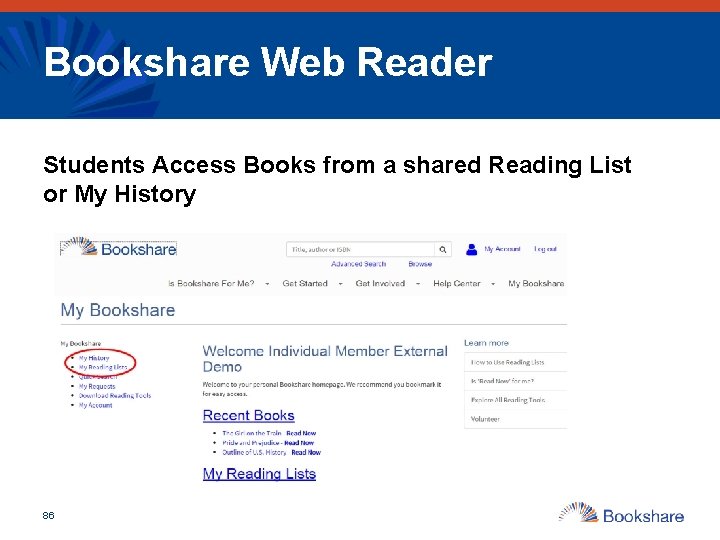
Bookshare Web Reader Students Access Books from a shared Reading List or My History 86
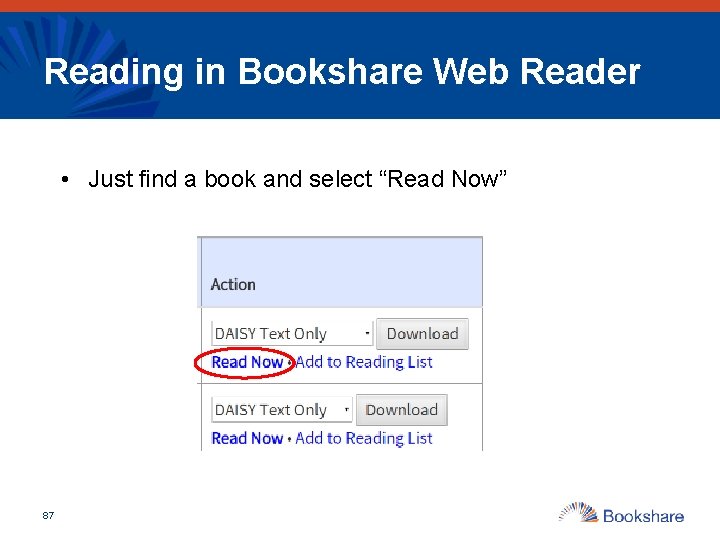
Reading in Bookshare Web Reader • Just find a book and select “Read Now” 87
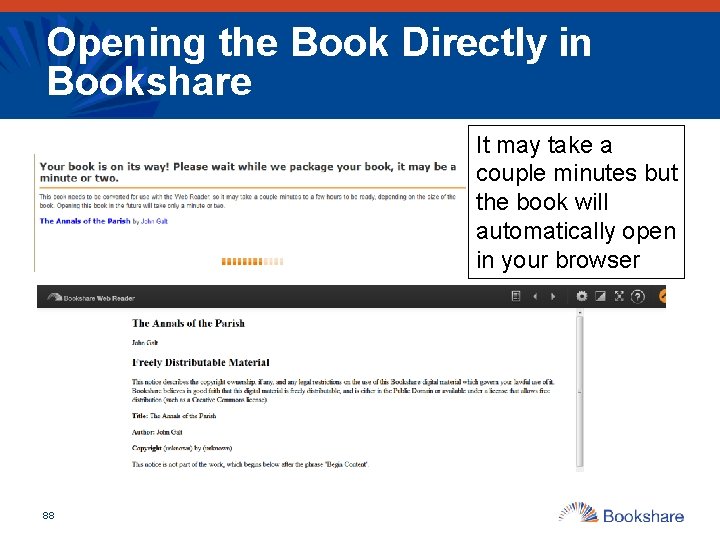
Opening the Book Directly in Bookshare It may take a couple minutes but the book will automatically open in your browser 88
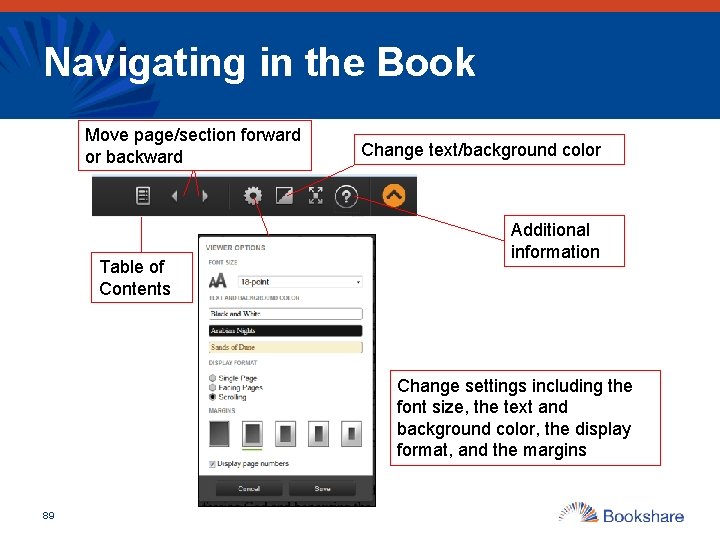
Navigating in the Book Move page/section forward or backward Table of Contents Change text/background color Additional information Change settings including the font size, the text and background color, the display format, and the margins 89
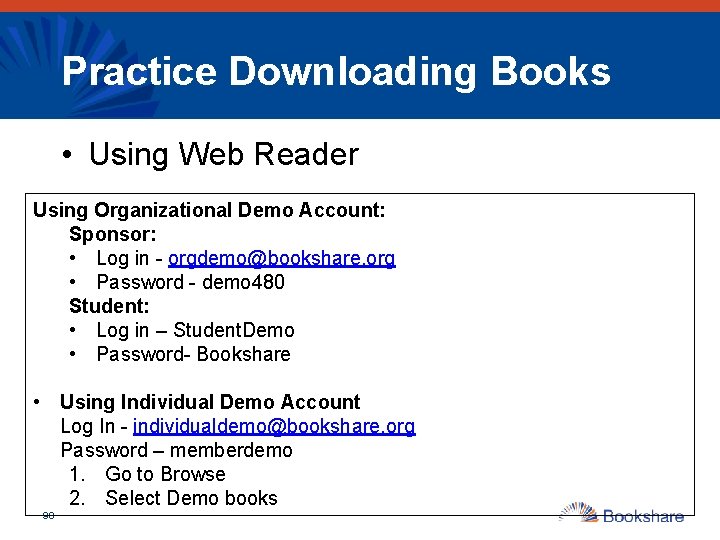
Practice Downloading Books • Using Web Reader Using Organizational Demo Account: Sponsor: • Log in - orgdemo@bookshare. org • Password - demo 480 Student: • Log in – Student. Demo • Password- Bookshare • Using Individual Demo Account Log In - individualdemo@bookshare. org Password – memberdemo 1. Go to Browse 2. Select Demo books 90
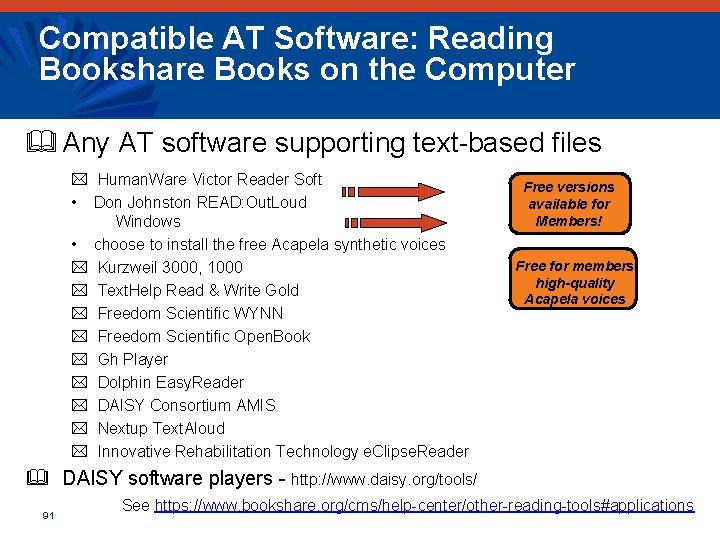
Compatible AT Software: Reading Bookshare Books on the Computer & Any AT software supporting text-based files * Human. Ware Victor Reader Soft • Don Johnston READ: Out. Loud Windows • choose to install the free Acapela synthetic voices * Kurzweil 3000, 1000 * Text. Help Read & Write Gold * Freedom Scientific WYNN * Freedom Scientific Open. Book * Gh Player * Dolphin Easy. Reader * DAISY Consortium AMIS * Nextup Text. Aloud * Innovative Rehabilitation Technology e. Clipse. Reader Free versions available for Members! Free for members high-quality Acapela voices & DAISY software players - http: //www. daisy. org/tools/ 91 See https: //www. bookshare. org/cms/help-center/other-reading-tools#applications
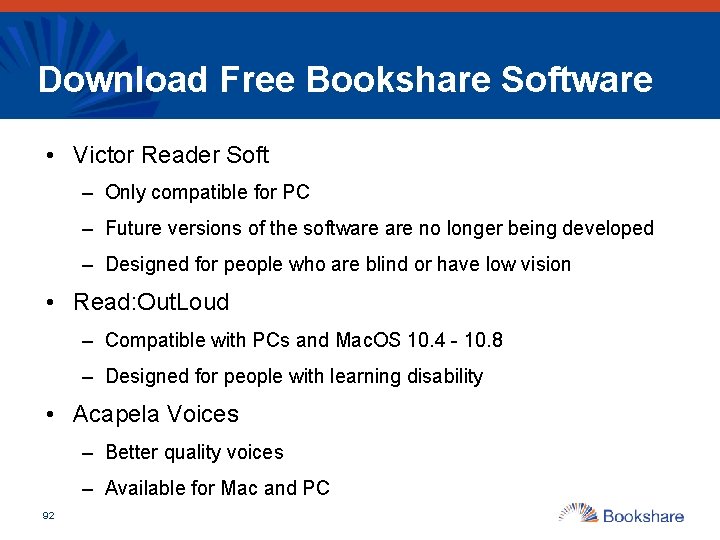
Download Free Bookshare Software • Victor Reader Soft – Only compatible for PC – Future versions of the software no longer being developed – Designed for people who are blind or have low vision • Read: Out. Loud – Compatible with PCs and Mac. OS 10. 4 - 10. 8 – Designed for people with learning disability • Acapela Voices – Better quality voices – Available for Mac and PC 92
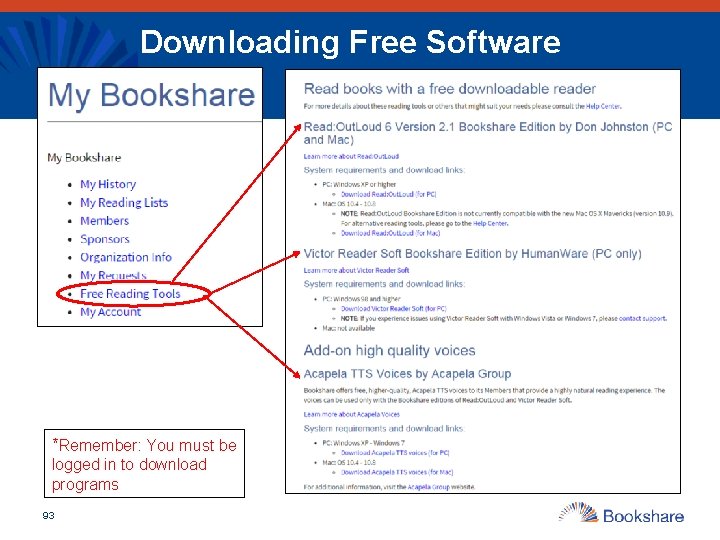
Downloading Free Software *Remember: You must be logged in to download programs 93
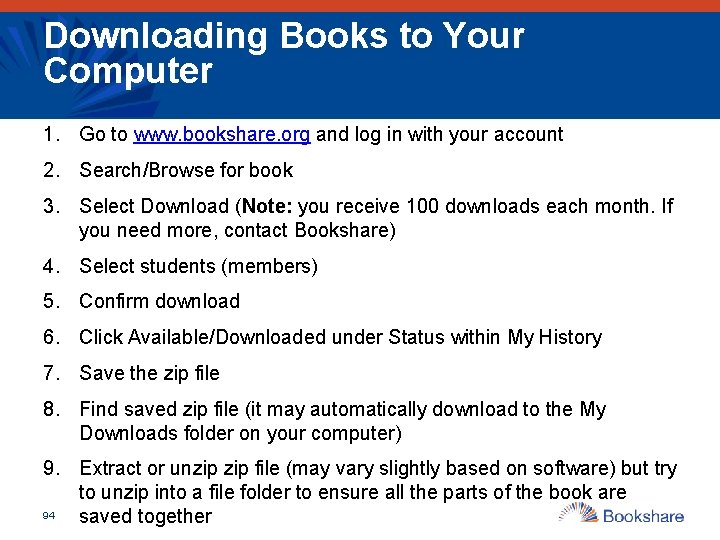
Downloading Books to Your Computer 1. Go to www. bookshare. org and log in with your account 2. Search/Browse for book 3. Select Download (Note: you receive 100 downloads each month. If you need more, contact Bookshare) 4. Select students (members) 5. Confirm download 6. Click Available/Downloaded under Status within My History 7. Save the zip file 8. Find saved zip file (it may automatically download to the My Downloads folder on your computer) 9. Extract or unzip file (may vary slightly based on software) but try to unzip into a file folder to ensure all the parts of the book are 94 saved together
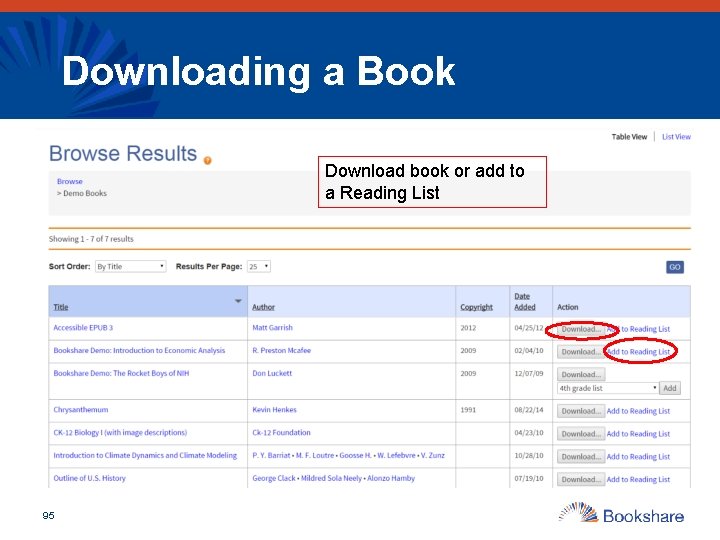
Downloading a Book Download book or add to a Reading List 95
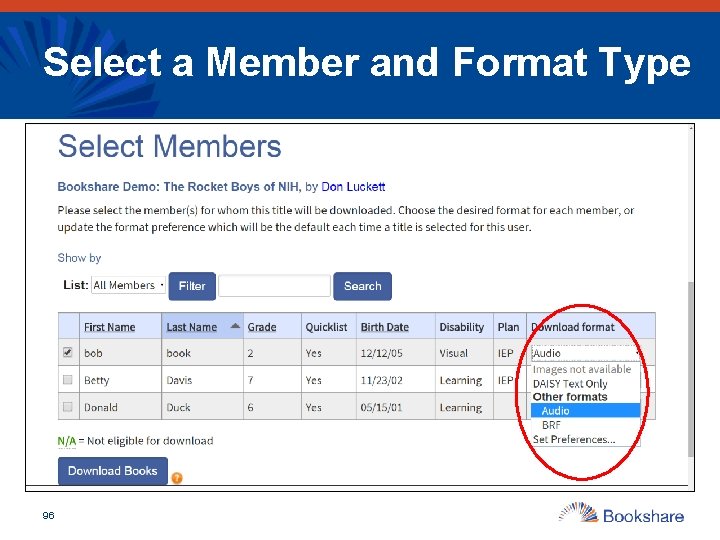
Select a Member and Format Type 96
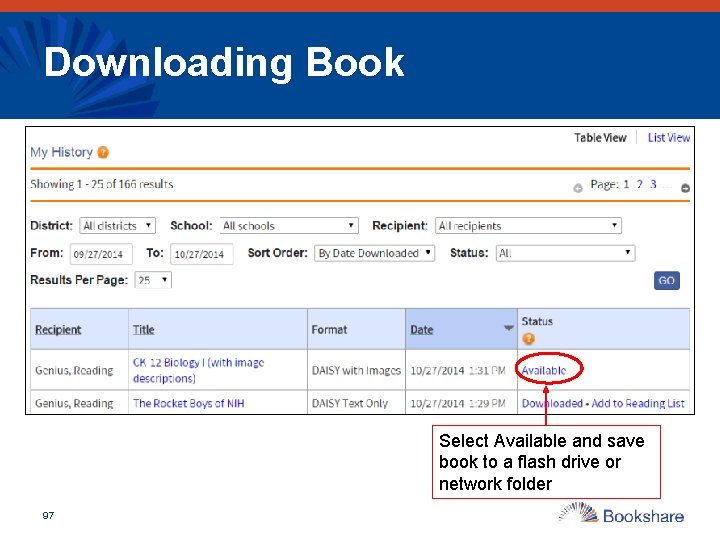
Downloading Book Select Available and save book to a flash drive or network folder 97
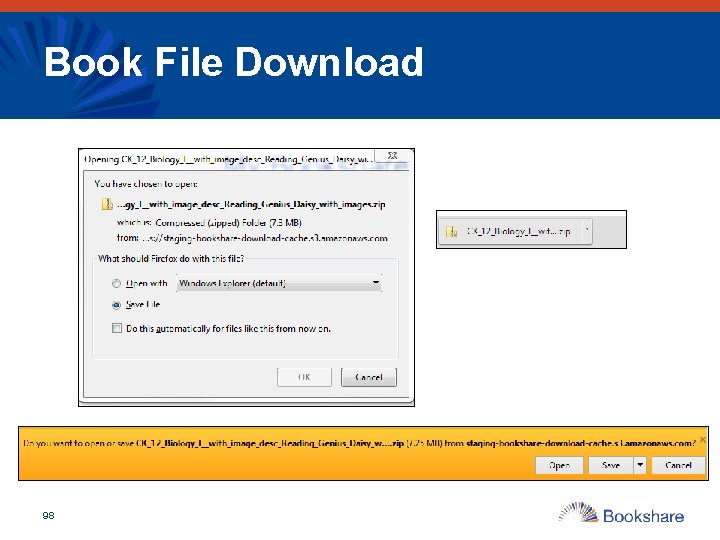
Book File Download 98
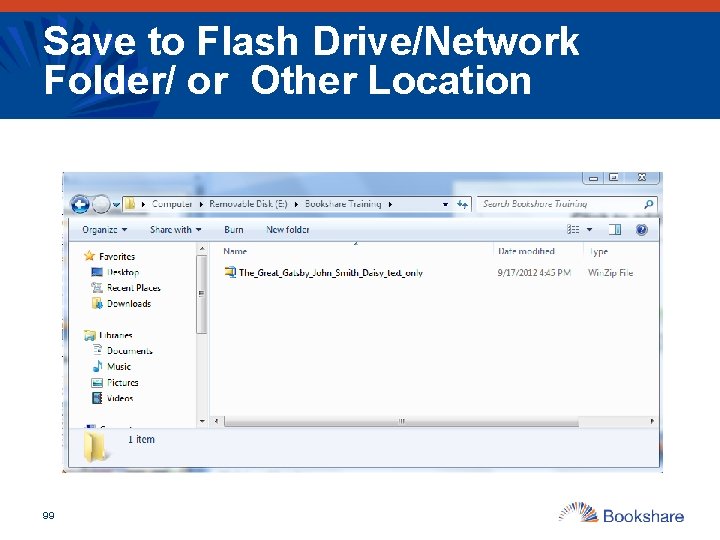
Save to Flash Drive/Network Folder/ or Other Location 99
Extract File • In order to open a book in the software program you must extract it (should not say zip or compressed file anymore) • For a PC: – Right click when book is highlighted and click on extract all, or – Click into file folder and press extract all on the top bar – May look different based on your extraction software & You can close the folder once you have extracted (don’t worry about all the components of the folder but do not delete
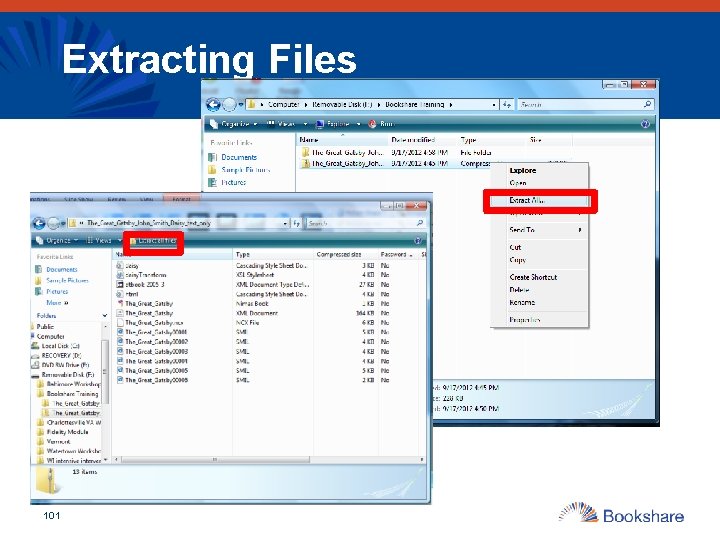
Extracting Files 101
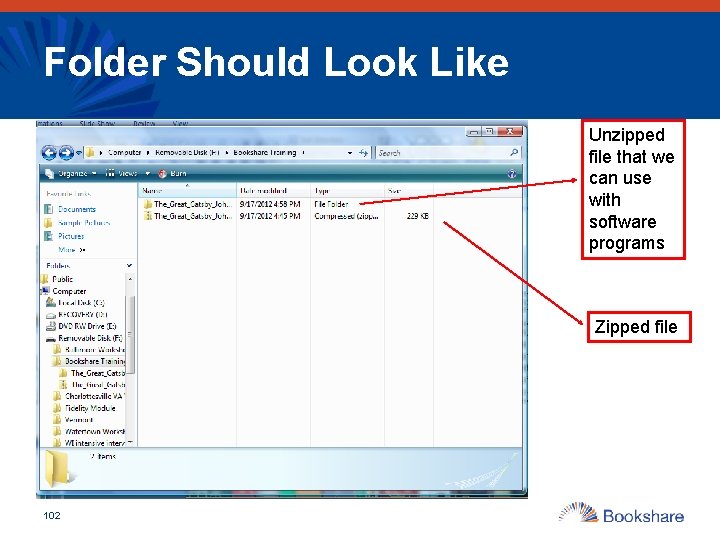
Folder Should Look Like Unzipped file that we can use with software programs Zipped file 102
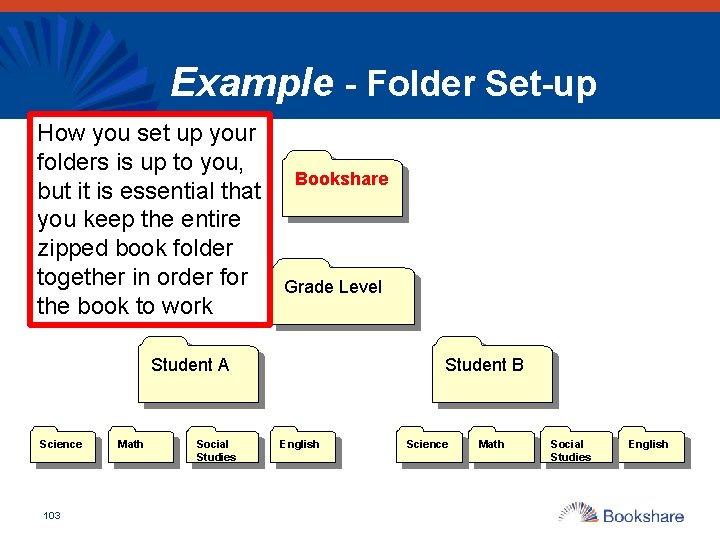
Example - Folder Set-up How you set up your folders is up to you, but it is essential that you keep the entire zipped book folder together in order for the book to work Bookshare Grade Level Student A Science 103 Math Social Studies Student B English Science Math Social Studies English
Practice Searching for and Downloading Books • Set up a folder system • Search for books • Set student preferences • Download books • If Using Demo Account: o Log in - orgdemo@bookshare. org Password - demo 480 o Go to Browse & select Demo books o Within Advance search select Freely Available Books from Books to Search 104
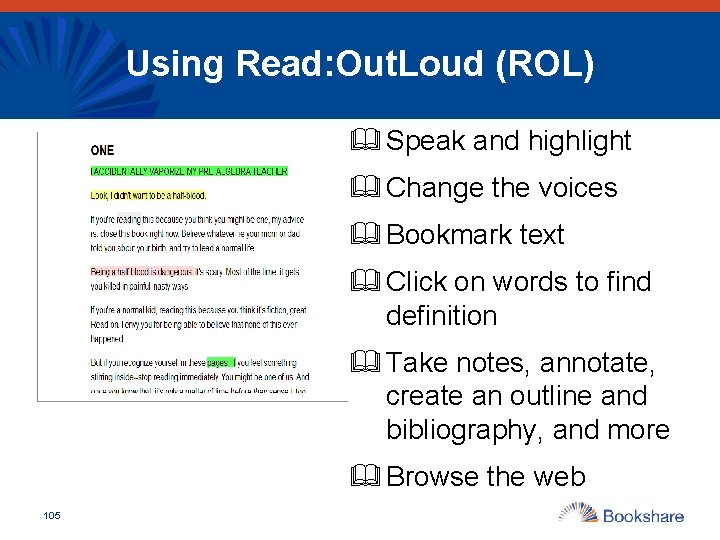
Using Read: Out. Loud (ROL) & Speak and highlight & Change the voices & Bookmark text & Click on words to find definition & Take notes, annotate, create an outline and bibliography, and more & Browse the web 105
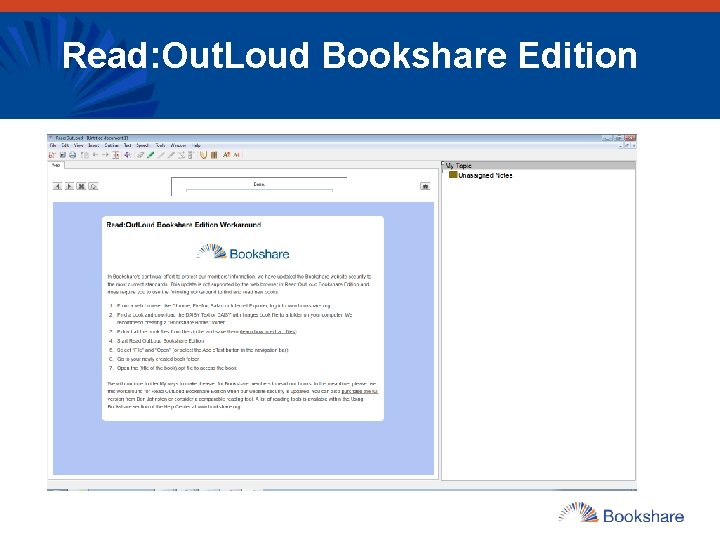
Read: Out. Loud Bookshare Edition
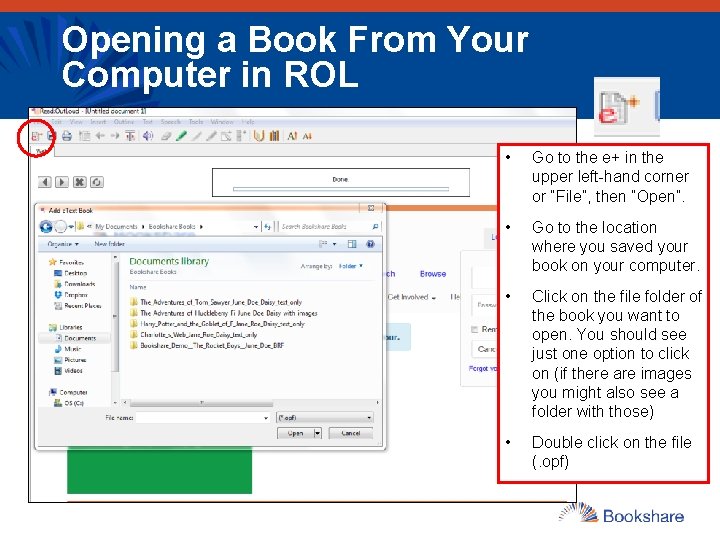
Opening a Book From Your Computer in ROL • Go to the e+ in the upper left-hand corner or “File”, then “Open”. • Go to the location where you saved your book on your computer. • Click on the file folder of the book you want to open. You should see just one option to click on (if there are images you might also see a folder with those) • Double click on the file (. opf)
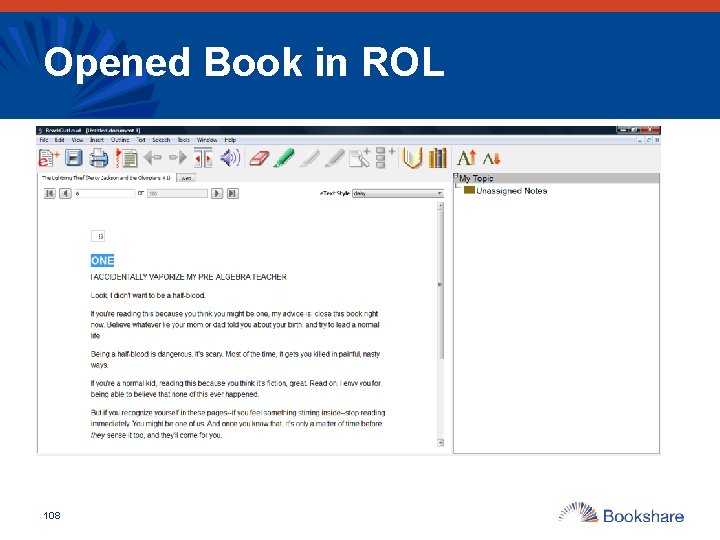
Opened Book in ROL 108
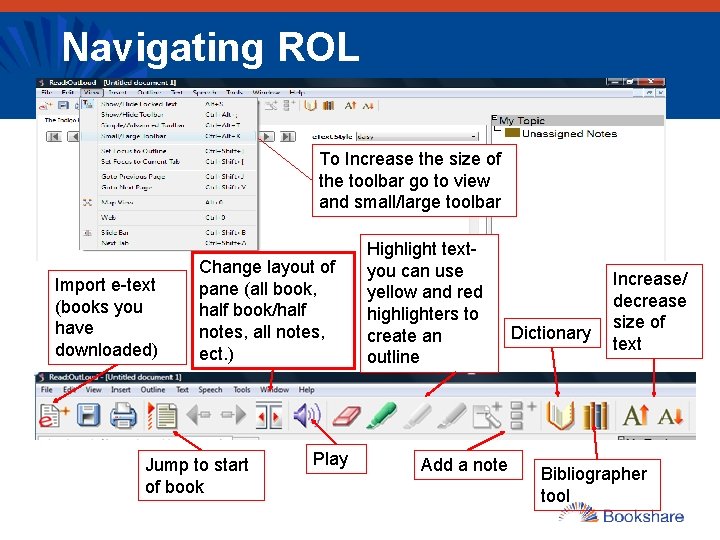
Navigating ROL To Increase the size of the toolbar go to view and small/large toolbar Import e-text (books you have downloaded) Change layout of pane (all book, half book/half notes, all notes, ect. ) Jump to start of book Play Highlight textyou can use yellow and red highlighters to create an outline Add a note Increase/ decrease size of Dictionary text Bibliographer tool
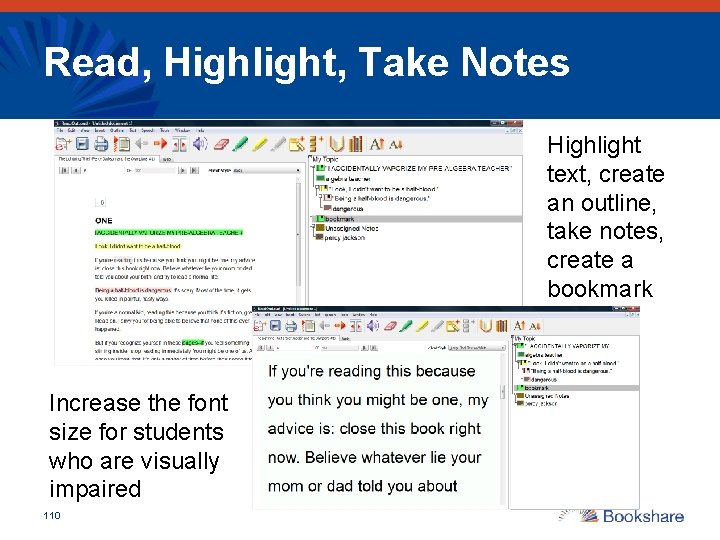
Read, Highlight, Take Notes Highlight text, create an outline, take notes, create a bookmark Increase the font size for students who are visually impaired 110
Practice Using the Software to Read Books • Use Read: Out. Loud to open books • Search for a book through Read: Out. Loud • Read and follow along • Bookmark and take notes • Save and reopen file If Using Demo Account: o Log in - orgdemo@bookshare. org Password - demo 480 o Go to Browse & select Demo books o Within Advance search select Freely Available Books from Books to Search 111
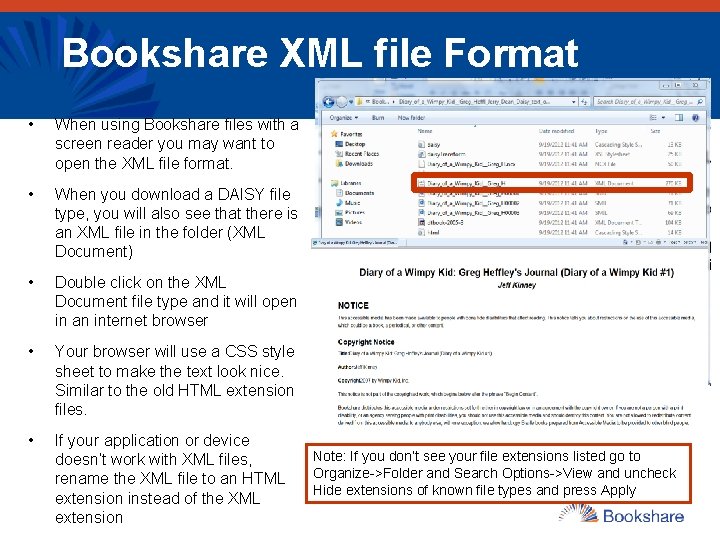
Bookshare XML file Format • When using Bookshare files with a screen reader you may want to open the XML file format. • When you download a DAISY file type, you will also see that there is an XML file in the folder (XML Document) • Double click on the XML Document file type and it will open in an internet browser • Your browser will use a CSS style sheet to make the text look nice. Similar to the old HTML extension files. • If your application or device doesn’t work with XML files, rename the XML file to an HTML extension instead of the XML extension Note: If you don’t see your file extensions listed go to Organize->Folder and Search Options->View and uncheck Hide extensions of known file types and press Apply
READ ON HARDWARE DEVICES 113
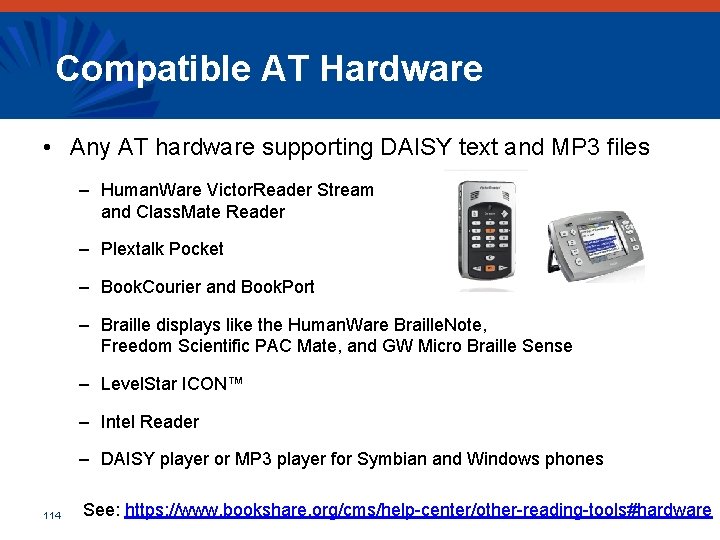
Compatible AT Hardware • Any AT hardware supporting DAISY text and MP 3 files – Human. Ware Victor. Reader Stream and Class. Mate Reader – Plextalk Pocket – Book. Courier and Book. Port – Braille displays like the Human. Ware Braille. Note, Freedom Scientific PAC Mate, and GW Micro Braille Sense – Level. Star ICON™ – Intel Reader – DAISY player or MP 3 player for Symbian and Windows phones 114 See: https: //www. bookshare. org/cms/help-center/other-reading-tools#hardware
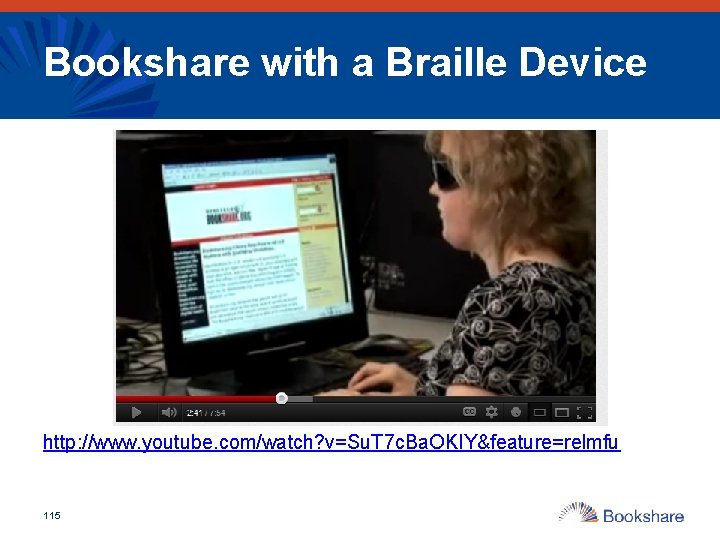
Bookshare with a Braille Device http: //www. youtube. com/watch? v=Su. T 7 c. Ba. OKIY&feature=relmfu 115
READ ON A TABLET OR SMARTPHONE 116
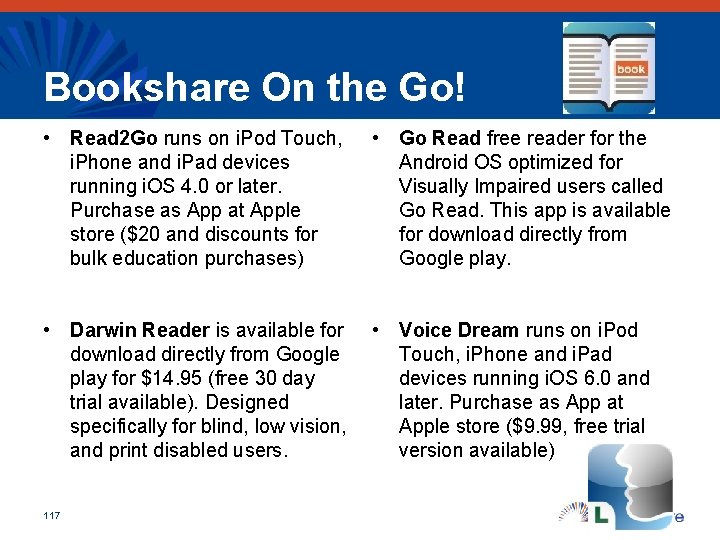
Bookshare On the Go! • Read 2 Go runs on i. Pod Touch, i. Phone and i. Pad devices running i. OS 4. 0 or later. Purchase as App at Apple store ($20 and discounts for bulk education purchases) • Go Read free reader for the Android OS optimized for Visually Impaired users called Go Read. This app is available for download directly from Google play. • Darwin Reader is available for • Voice Dream runs on i. Pod download directly from Google Touch, i. Phone and i. Pad play for $14. 95 (free 30 day devices running i. OS 6. 0 and trial available). Designed later. Purchase as App at specifically for blind, low vision, Apple store ($9. 99, free trial and print disabled users. version available) 117
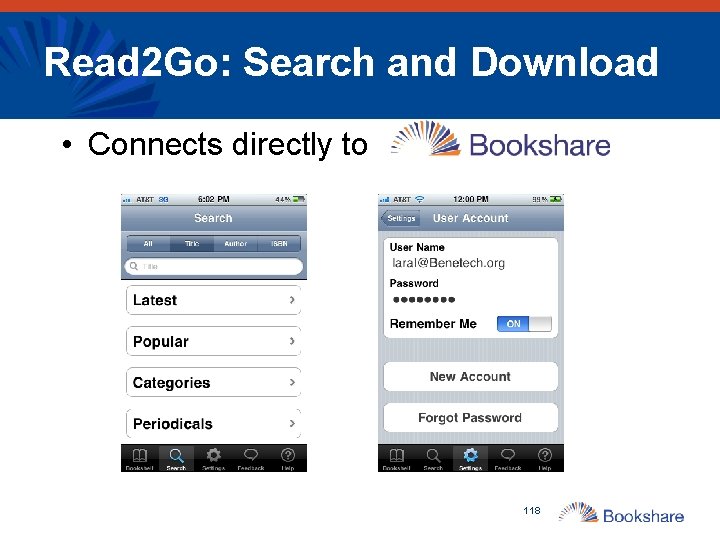
Read 2 Go: Search and Download • Connects directly to 118
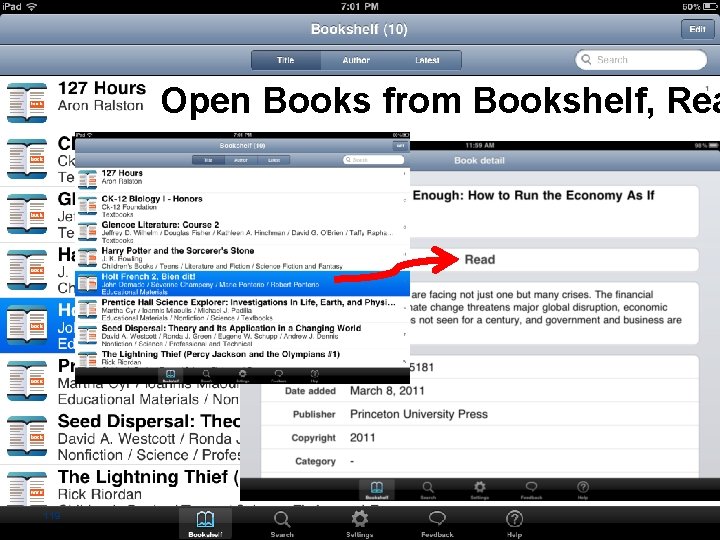
Open Books from Bookshelf, Rea 119
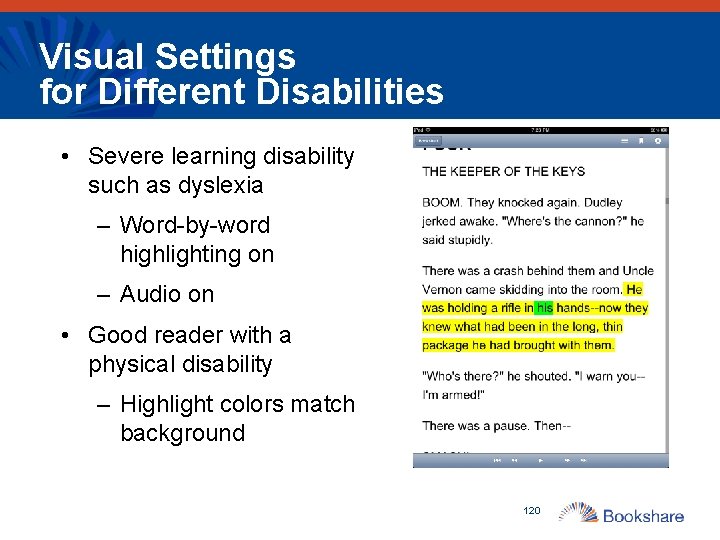
Visual Settings for Different Disabilities • Severe learning disability such as dyslexia – Word-by-word highlighting on – Audio on • Good reader with a physical disability – Highlight colors match background 120
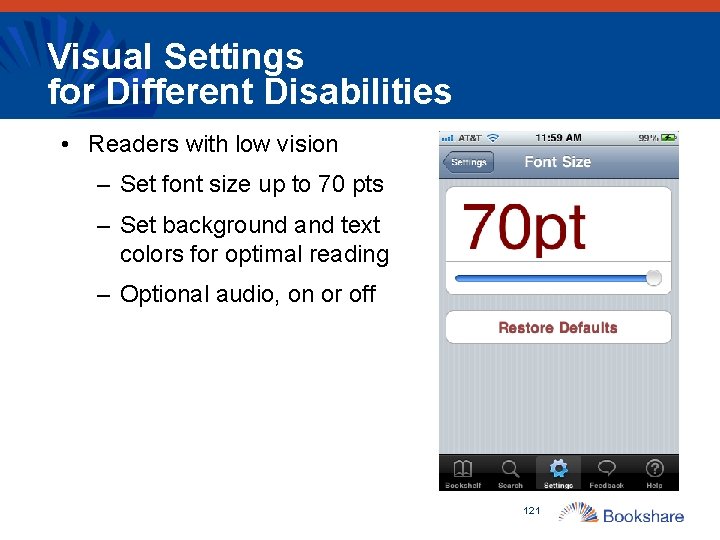
Visual Settings for Different Disabilities • Readers with low vision – Set font size up to 70 pts – Set background and text colors for optimal reading – Optional audio, on or off 121
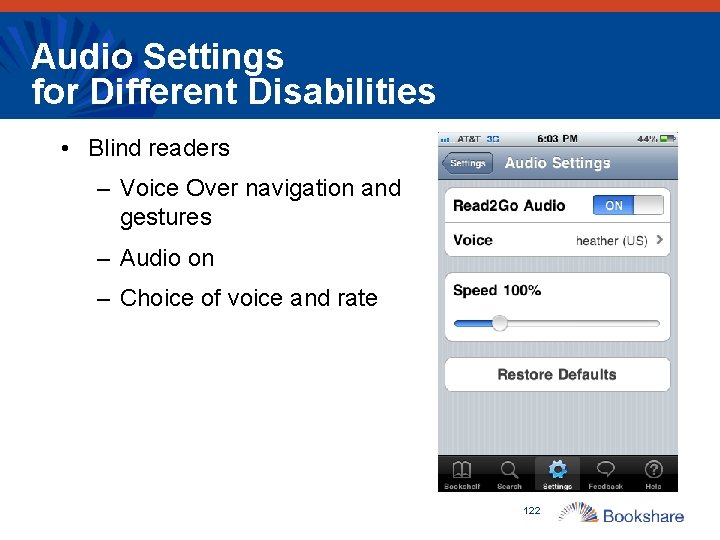
Audio Settings for Different Disabilities • Blind readers – Voice Over navigation and gestures – Audio on – Choice of voice and rate 122
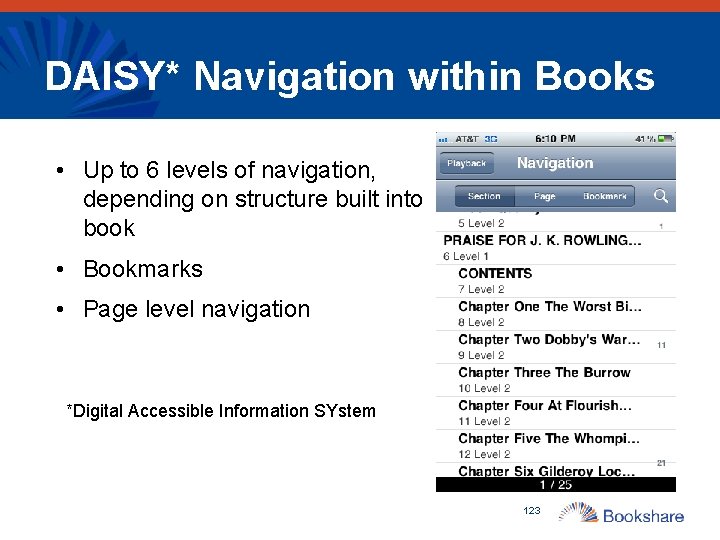
DAISY* Navigation within Books • Up to 6 levels of navigation, depending on structure built into book • Bookmarks • Page level navigation *Digital Accessible Information SYstem 123
Synching DAISY Books to i. Pad to get Books with Images • Ensure Read 2 Go is updated to version 1. 0. 3. 10 • Ensure images are turned on • Go to Bookshare. org in Safari • Search and download book • Use “Open In” function and select Read 2 Go 124
Voice Dream • Free trial version. Full version $9. 99 • Integrated with Bookshare • Access to other web content • Reads PDF files, plain text, MS Word, MS Power. Point, Apple Pages, RTF and HTML files and more 125
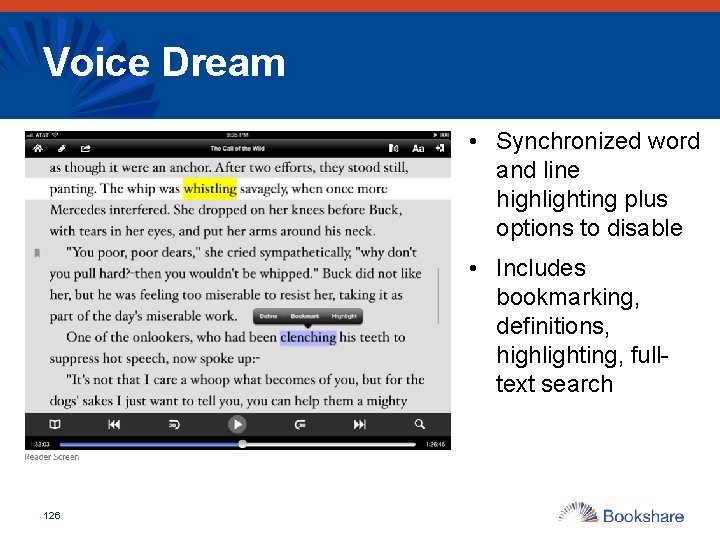
Voice Dream • Synchronized word and line highlighting plus options to disable • Includes bookmarking, definitions, highlighting, fulltext search 126
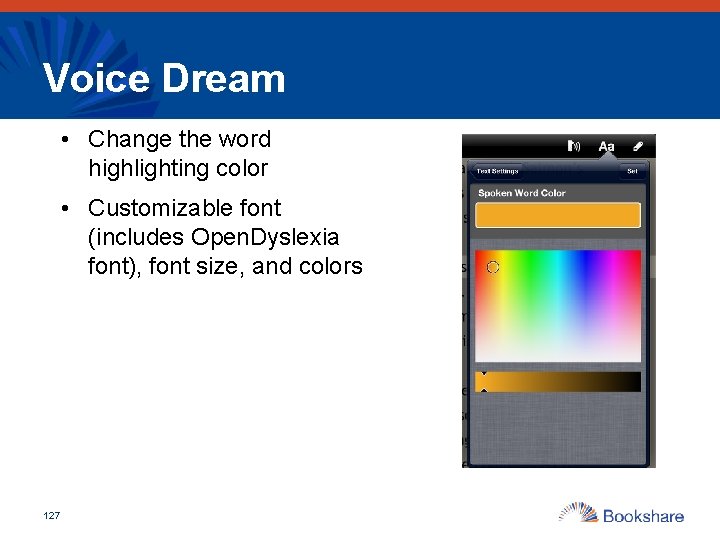
Voice Dream • Change the word highlighting color • Customizable font (includes Open. Dyslexia font), font size, and colors 127
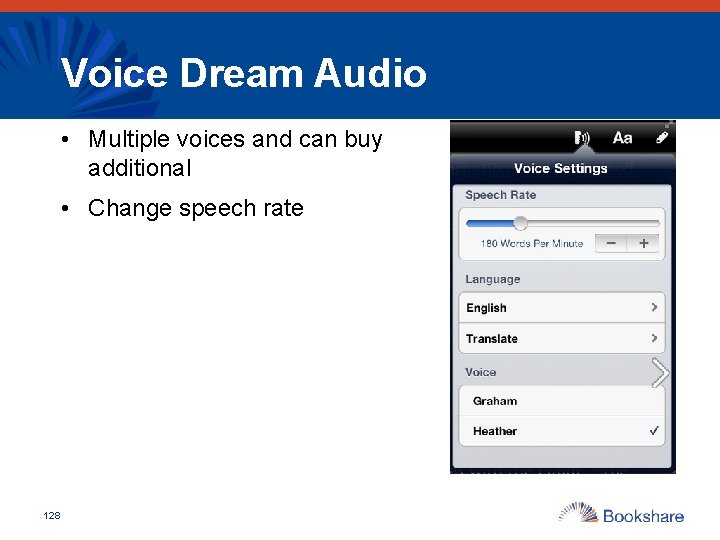
Voice Dream Audio • Multiple voices and can buy additional • Change speech rate 128
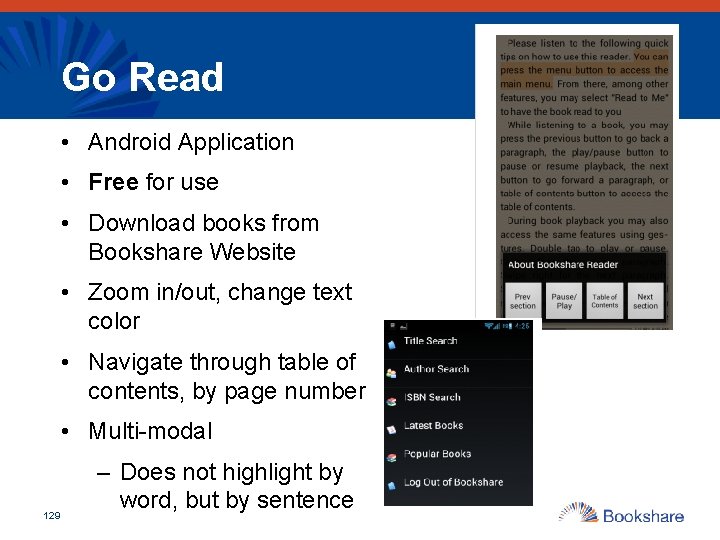
Go Read • Android Application • Free for use • Download books from Bookshare Website • Zoom in/out, change text color • Navigate through table of contents, by page number • Multi-modal 129 – Does not highlight by word, but by sentence
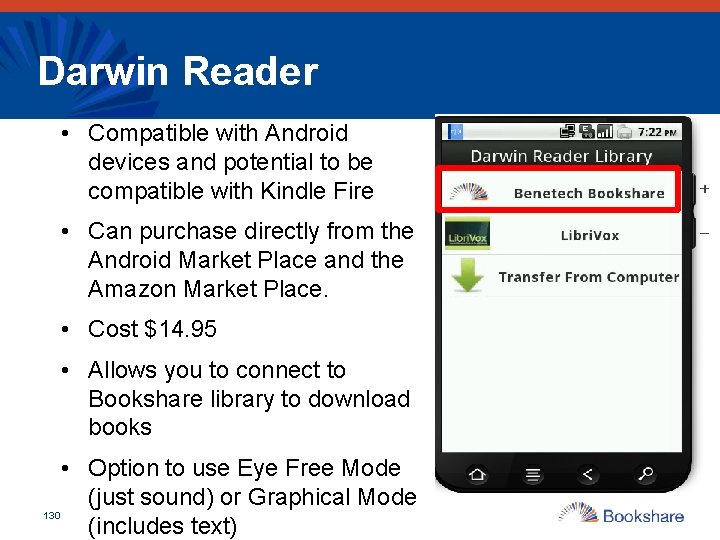
Darwin Reader • Compatible with Android devices and potential to be compatible with Kindle Fire • Can purchase directly from the Android Market Place and the Amazon Market Place. • Cost $14. 95 • Allows you to connect to Bookshare library to download books • Option to use Eye Free Mode (just sound) or Graphical Mode 130 (includes text)
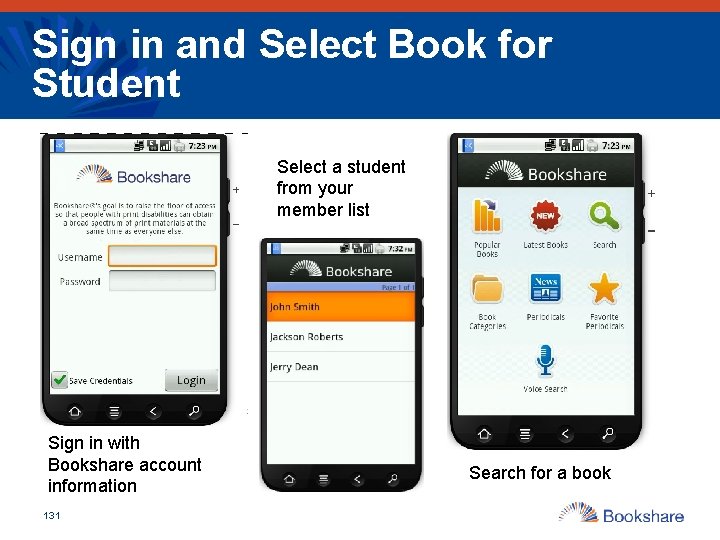
Sign in and Select Book for Student Select a student from your member list Sign in with Bookshare account information 131 Search for a book
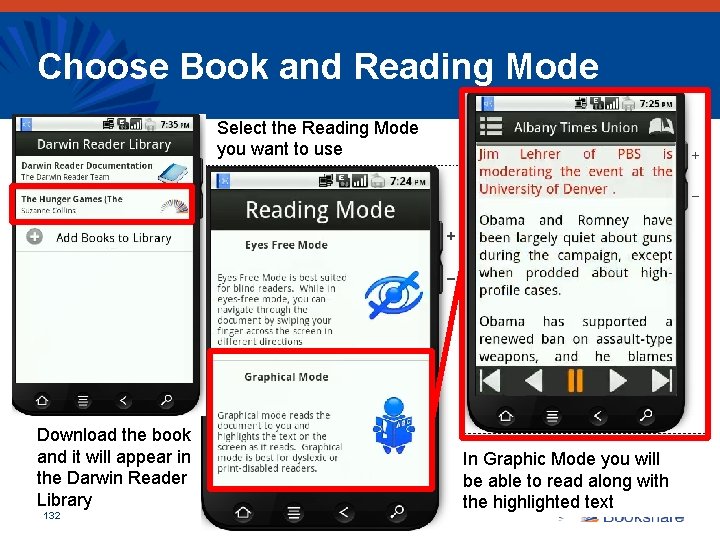
Choose Book and Reading Mode Select the Reading Mode you want to use Download the book and it will appear in the Darwin Reader Library 132 In Graphic Mode you will be able to read along with the highlighted text
Kindle/Nook/E-Readers • To comply with copyright law, Bookshare books must be provided in a specialized format (DAISY, BRF, MP 3) • If you use a device, such as a Kindle or Nook, that requires books to be in ASCII text format, you can convert either the Grade 2 Contracted Braille files (BRF format) or the DAISY files into plain text. See handout “Mobile Reading Instructions” to See 2 Options for converting Books • You can change the format for your own use, but Bookshare’s fingerprinting and watermarking technology remain in place even if a file is converted to plain text. STILL NO SHARING 133
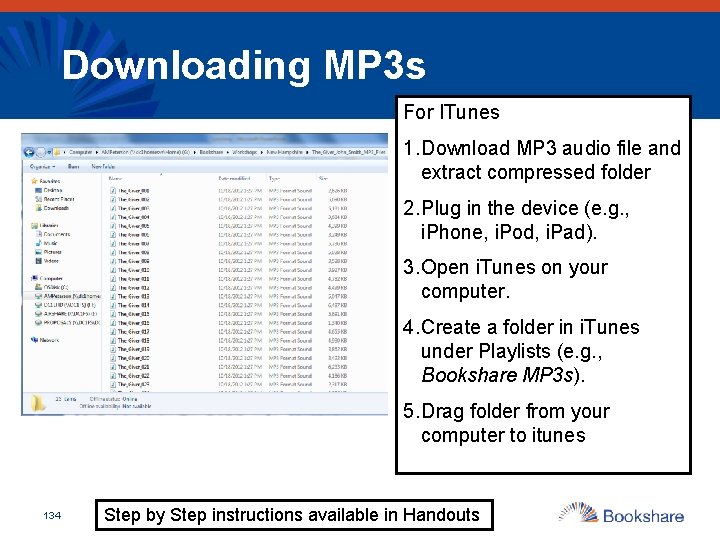
Downloading MP 3 s For ITunes 1. Download MP 3 audio file and extract compressed folder 2. Plug in the device (e. g. , i. Phone, i. Pod, i. Pad). 3. Open i. Tunes on your computer. 4. Create a folder in i. Tunes under Playlists (e. g. , Bookshare MP 3 s). 5. Drag folder from your computer to itunes 134 Step by Step instructions available in Handouts
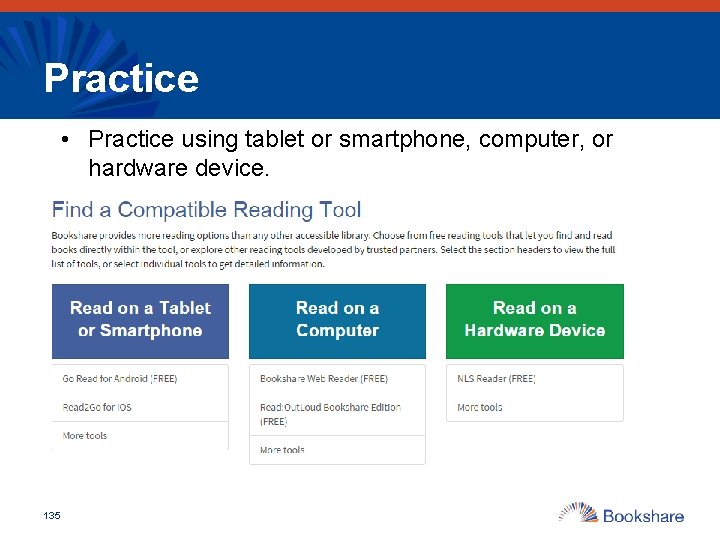
Practice • Practice using tablet or smartphone, computer, or hardware device. 135
QUESTIONS? 136
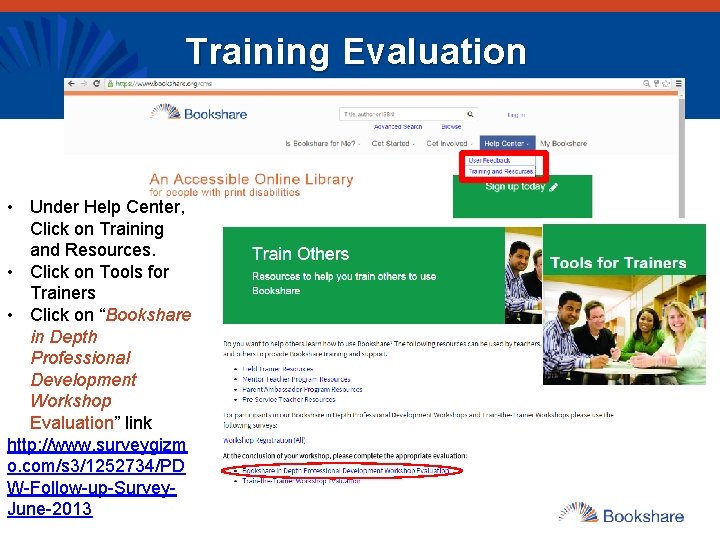
Training Evaluation • Under Help Center, Click on Training and Resources. • Click on Tools for Trainers • Click on “Bookshare in Depth Professional Development Workshop Evaluation” link http: //www. surveygizm o. com/s 3/1252734/PD W-Follow-up-Survey. June-2013
Module 4: How to support students transitioning to other schools or college and career? 138
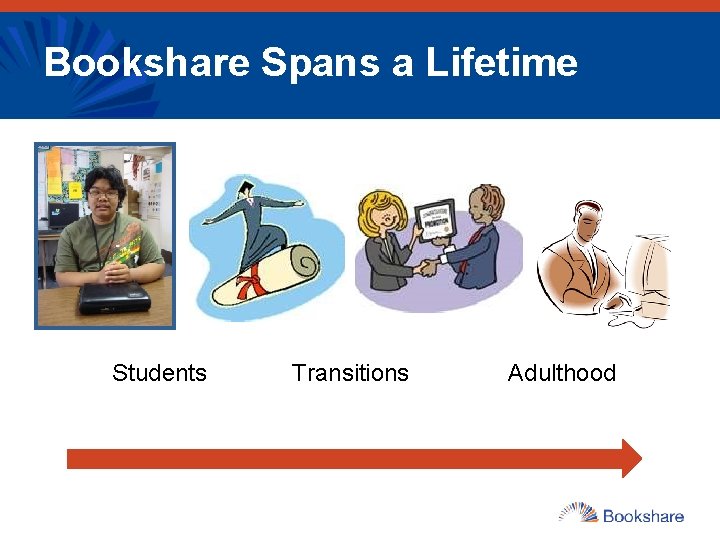
Bookshare Spans a Lifetime Students Transitions Adulthood
Student Transitioning to New School or District • Put Bookshare in their backpack & keep student status current • Make sure new school has student on their Bookshare roster • Determine the best tools for your student for smooth transition • Inform parents on how to use Bookshare • Request books now! 140
College Bound? “If I am continuing on with postsecondary education, how do I maintain my Bookshare membership? ” – Use the summer months to prepare for your new school. – You will want to have an Individual Membership: You can sign yourself up (students under 18 need a parent or guardian’s permission) or your school can help you get an Individual membership. Your new college or vocational school might have an organizational membership; you can also be added to that. – Keep student status current with school information
Taking a Break? If a student is not continuing on for post-secondary education, they can still maintain Bookshare membership. – Student has 6 weeks to access Bookshare. – Student should notify Bookshare membership • Contact us at: www. bookshare. org/contact. Us (select “Membership and Registration”) • $75 Qualified non-Student - first year Breakdown: $25 one time set up fee for qualified non student +$50 yearly membership (students need not pay the $25) • Once a student again, membership is FREE!
Reading Success in College • Explore our Student Resources collection: – https: //www. bookshare. org/browse/collection/38/Stu dent – Not all DSS offices are the same. Learn more from the AHEAD site: – http: //www. ahead. org/students-parents • Understand what services are available and look for other programs like TRIO 143
Reading Success in College • Try different AT – find what works • Advocate and take full advantage of services available • Communicate your needs from the start, get to know your professors • Be sure to have your Bookshare membership and make book requests in advance 144
NEXT STEPS 145
Personal Journaling • Review what you had noted during the personal journaling time at the beginning of the session. – Were your questions answered? – Did the training meet your objective or goals? • Discuss with partner/team 146
Action Plan • Think about how you might implement Bookshare in your classroom or with students • Use the Action Plan Template to frame your conversations • Be prepared to share out with the group 147
Become a Mentor Teacher • Access Training Materials • Network with over 500 other educators • Share best practices • Learn about special promotions • Receive a chance to win technology for your school • Find more information: https: //www. bookshare. org/cms/getinvolved/connect/mentor-teachers-program 148
Become a Parent Ambassador • Connect with other parents of Bookshare members • Be the first to know about and try new Bookshare tools • Get access to Bookshare training materials and brochures for parents • Meet with other parents in your area • Enter to win technology prizes • Find more information: https: //www. bookshare. org/cms/getinvolved/connect/parent-ambassador-program 149
Connect with Bookshare • Visit - https: //www. bookshare. org/cms/get-involved • Sign-up for our Newsletter (My Bookshare → My Account → Preferences) • Read our blog • Follow us on social media: http: //www. facebook. com/bookshare Stay ed ! t c e t Con http: //twitter. com/bookshare https: //www. youtube. com/user/Bookshare. T eam https: //www. pinterest. com/bookshare/ 150
Bookshare Follow-up Support • The Help Center - https: //www. bookshare. org/cms/help-center • Bookshare Academy - https: //www. bookshare. org/cms/help-center/trainingand-resources – Learn it Now Videos – Live and archived webinars – Online courses for credit • Training requests and support training@bookshare. org 151
Contact Bookshare! Tech Support: Support@bookshare. org Membership: Membership@bookshare. org Training: Training@bookshare. org 152
QUESTIONS 153
Thank you. 154
- Slides: 154