
LIFE INSURANCE MANUAL Please log on Intra rathi

- Slides: 59
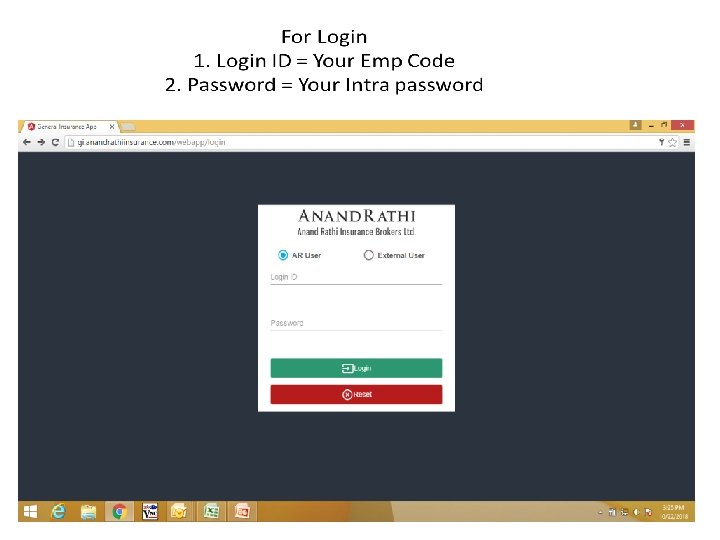
LIFE INSURANCE MANUAL Please log on Intra. rathi. com Enter Login ID & Password Main Index column reflects on left side
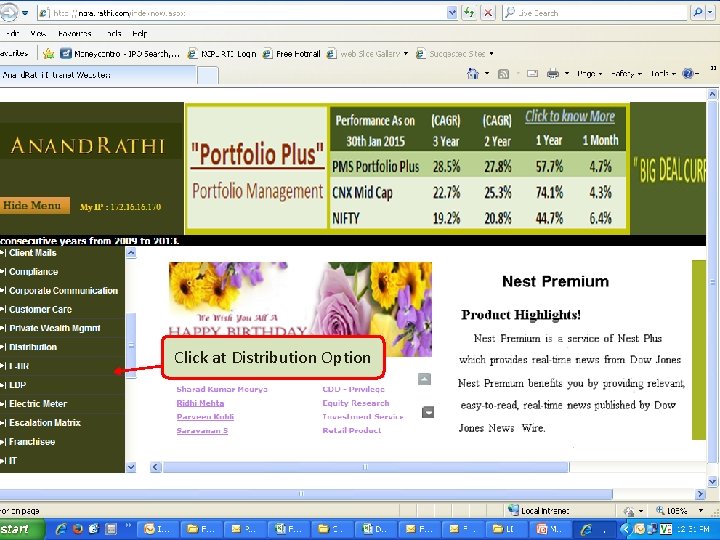
Click at Distribution Option
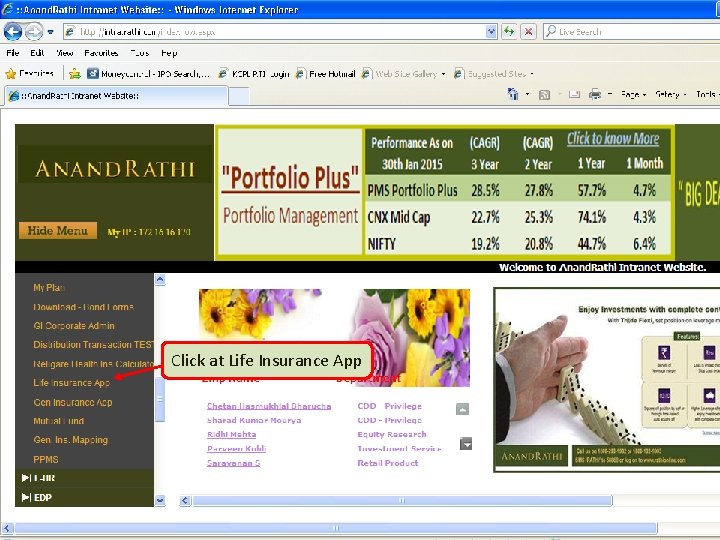
Click at Life Insurance App
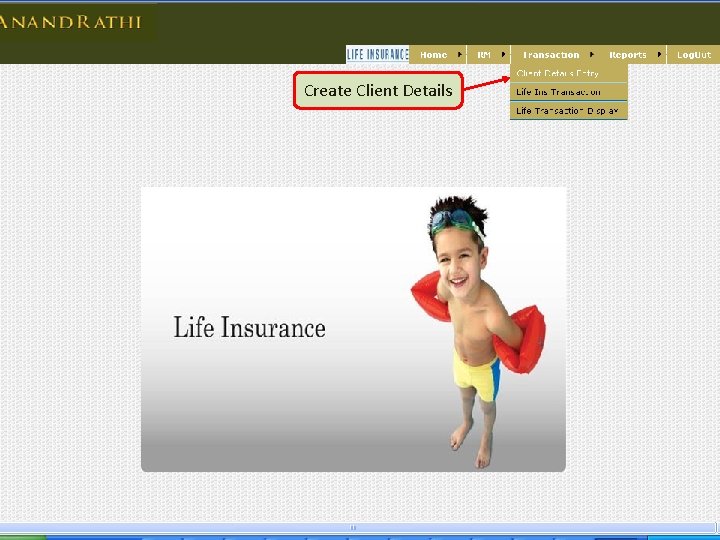
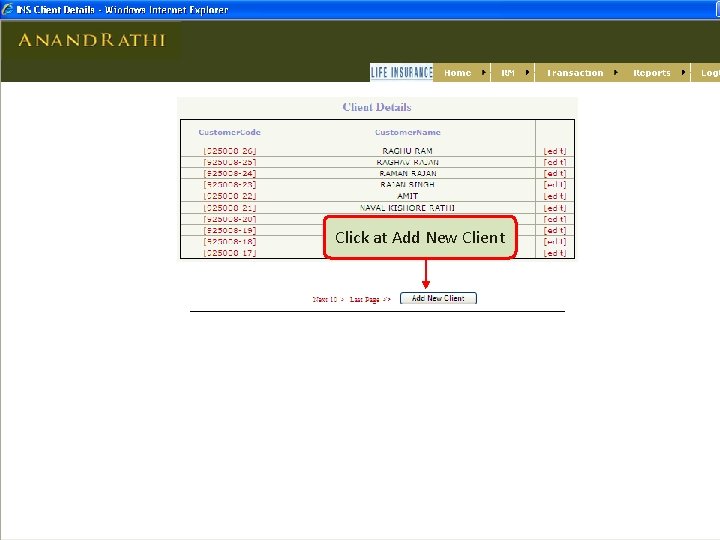
Create Client Details
Click at Add New Client
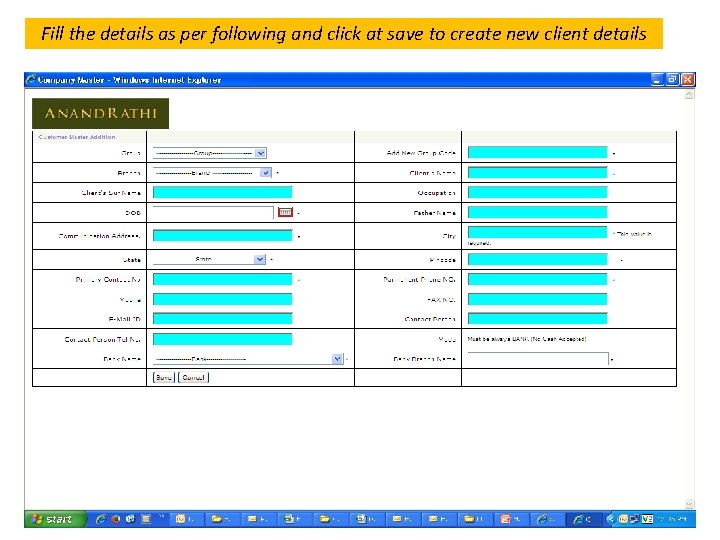
Fill the details as per following and click at save to create new client details
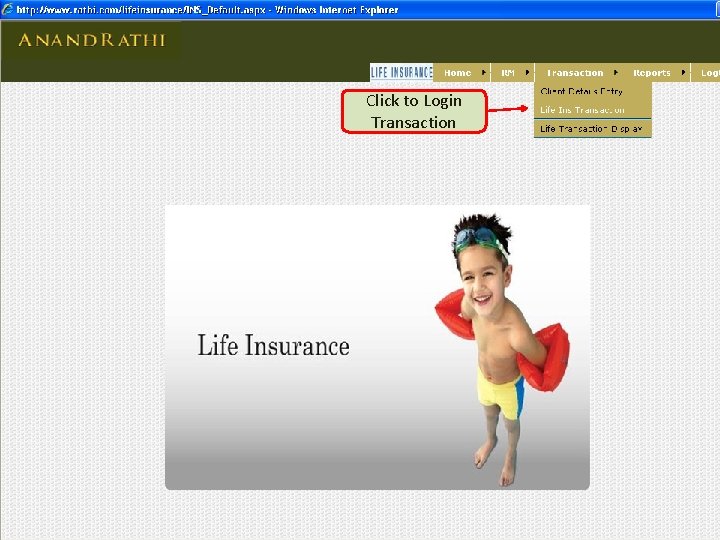
Click to Login Transaction
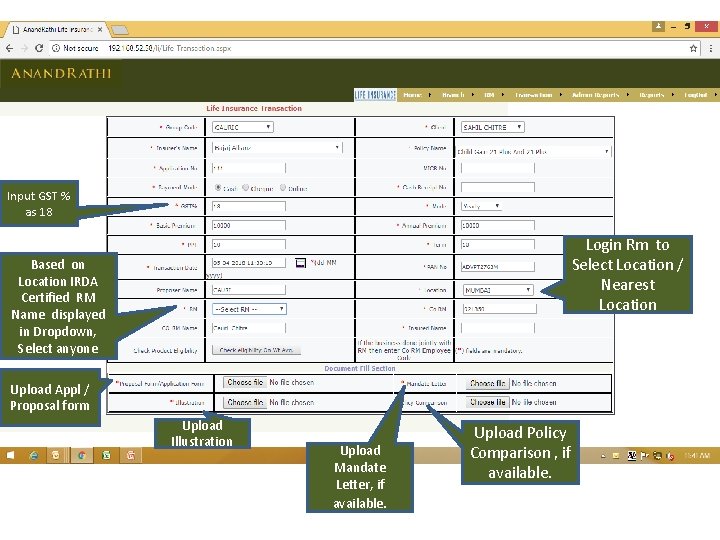
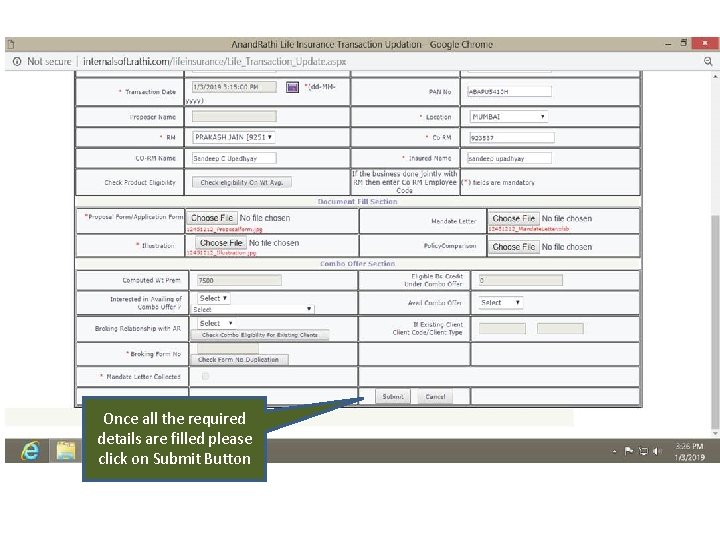
Input GST % as 18 Login Rm to Select Location / Nearest Location Based on Location IRDA Certified RM Name displayed in Dropdown, Select anyone Upload Appl / Proposal form Upload Illustration Upload Mandate Letter, if available. Upload Policy Comparison , if available.
Once all the required details are filled please click on Submit Button
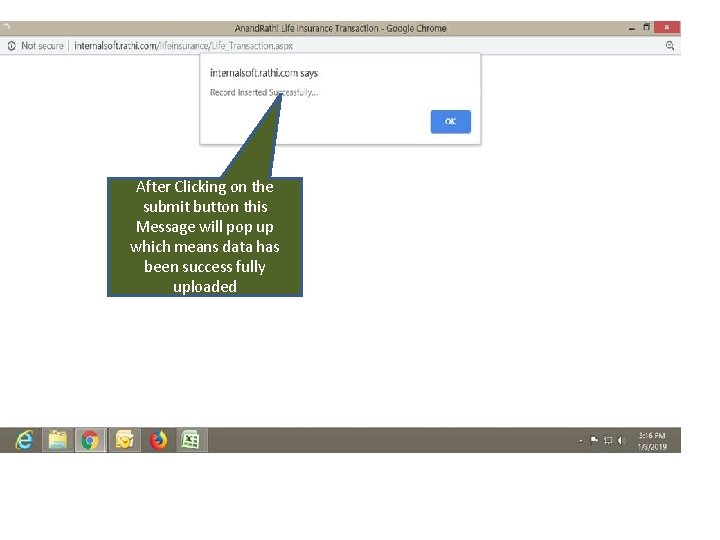
After Clicking on the submit button this Message will pop up which means data has been success fully uploaded
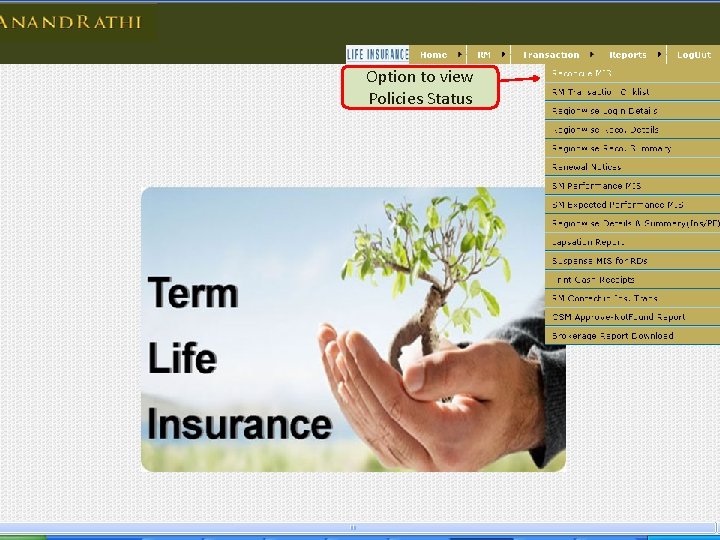
Option to view Policies Status
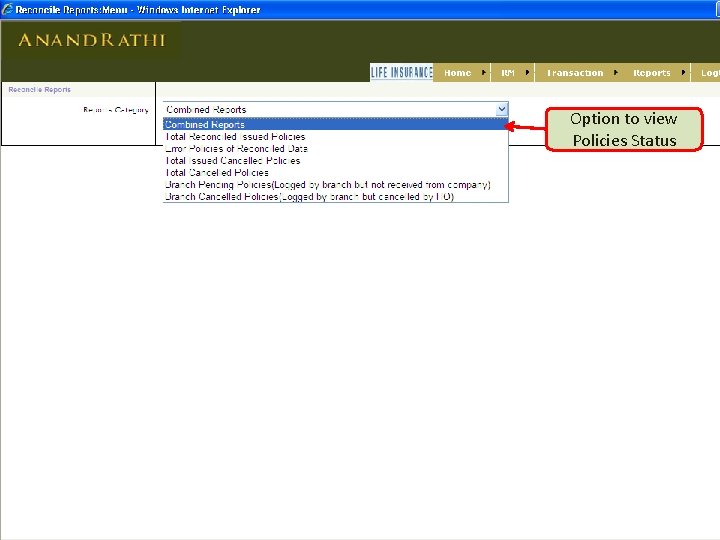
Option to view Policies Status
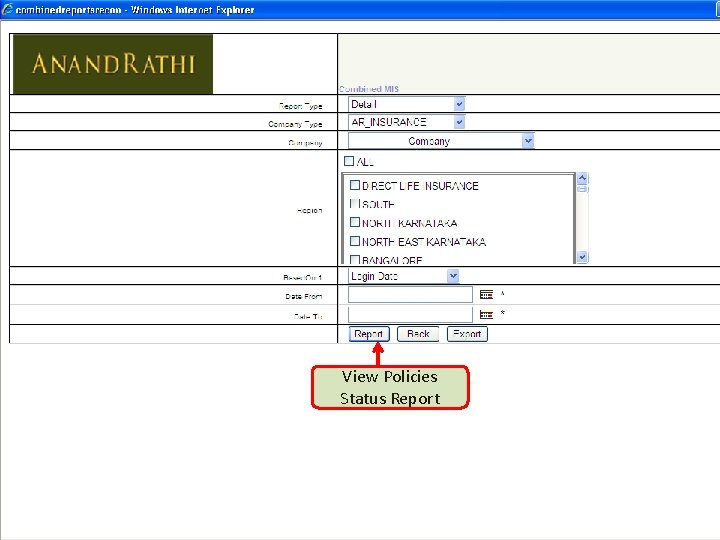
View Policies Status Report
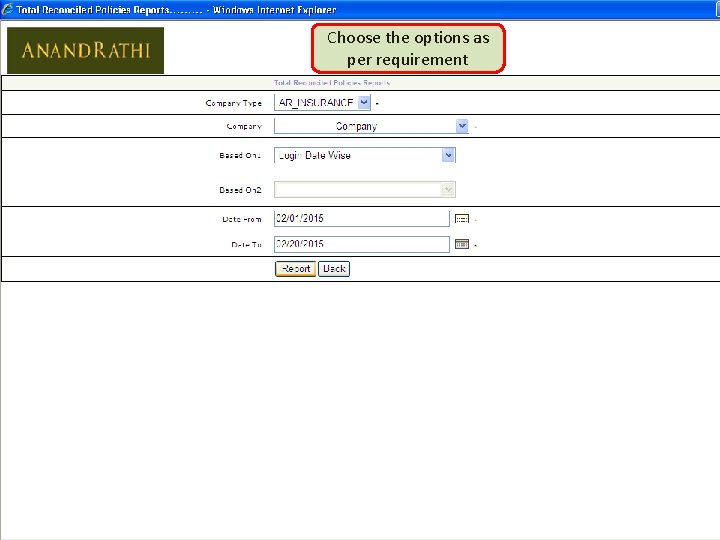
Choose the options as per requirement
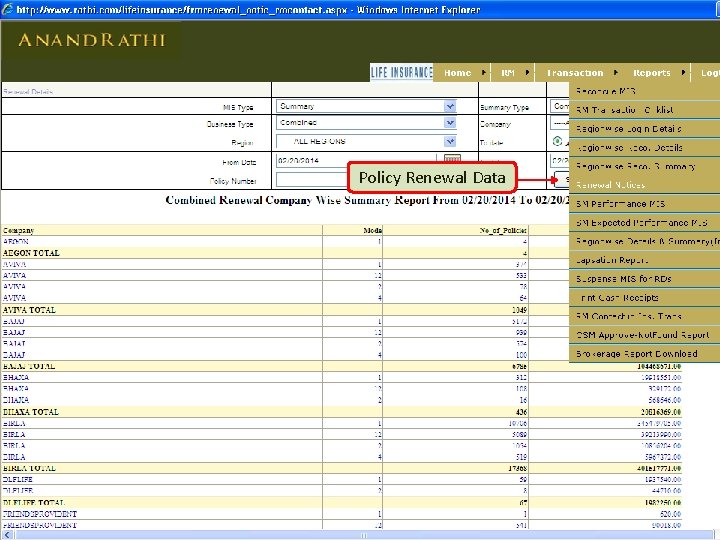
Policy Renewal Data
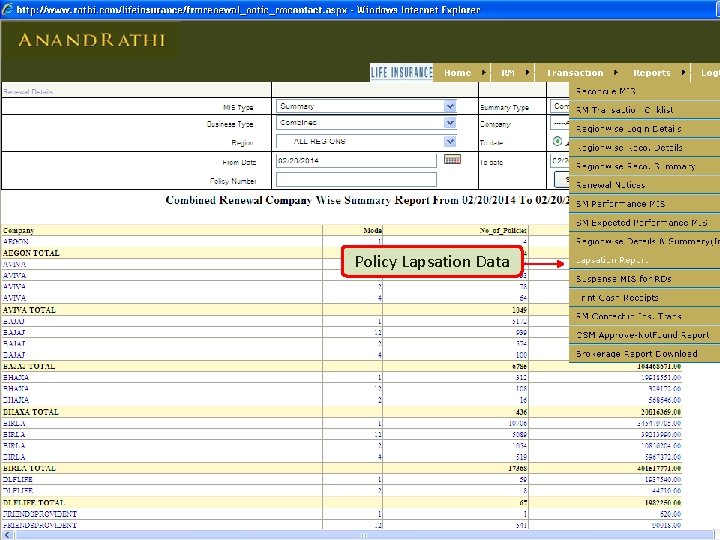
Policy Lapsation Data
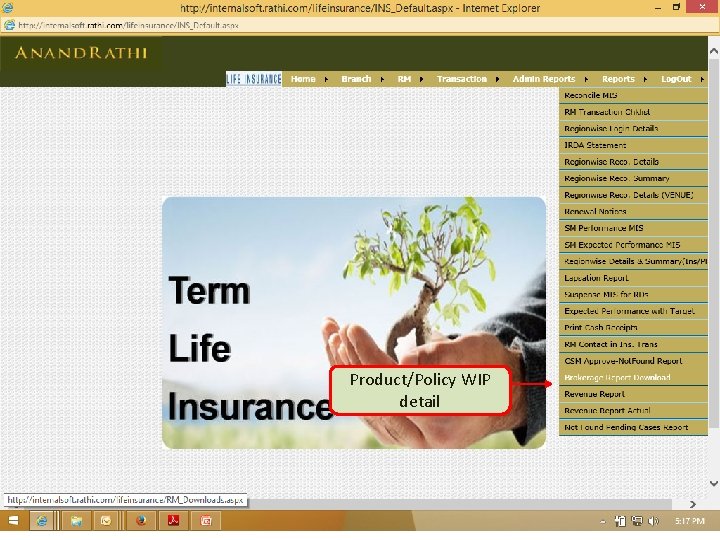
Product/Policy WIP detail
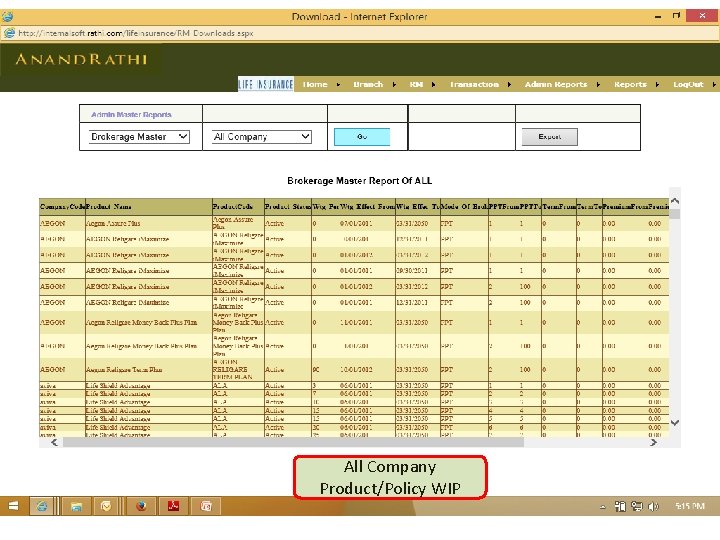
All Company Product/Policy WIP
Fixed Deposits/ Bonds Manual Please log on Intra. rathi. com Enter Login ID & Password Main Index column reflects on left side
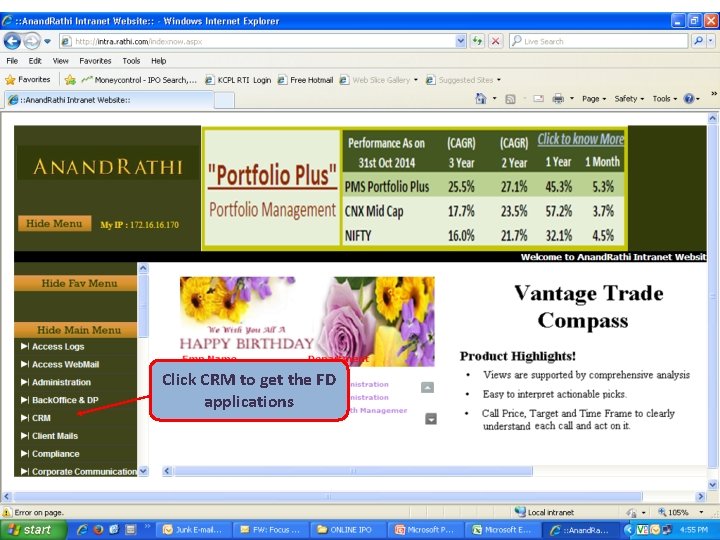
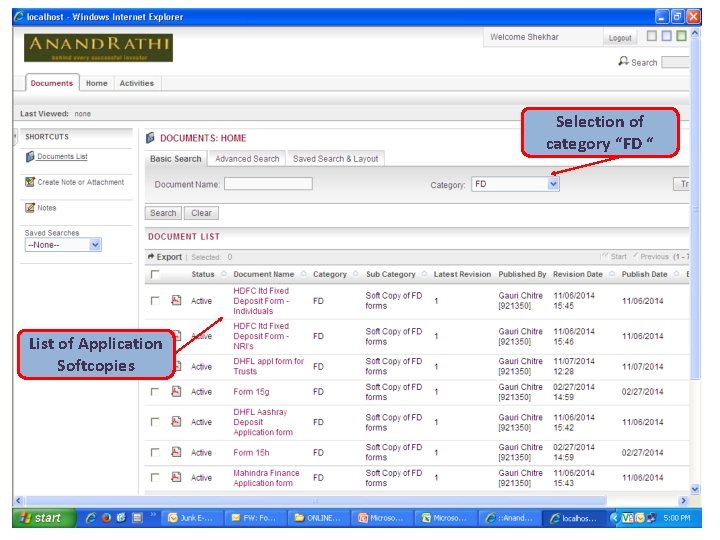
Click CRM to get the FD applications
Selection of category “FD “ List of Application Softcopies
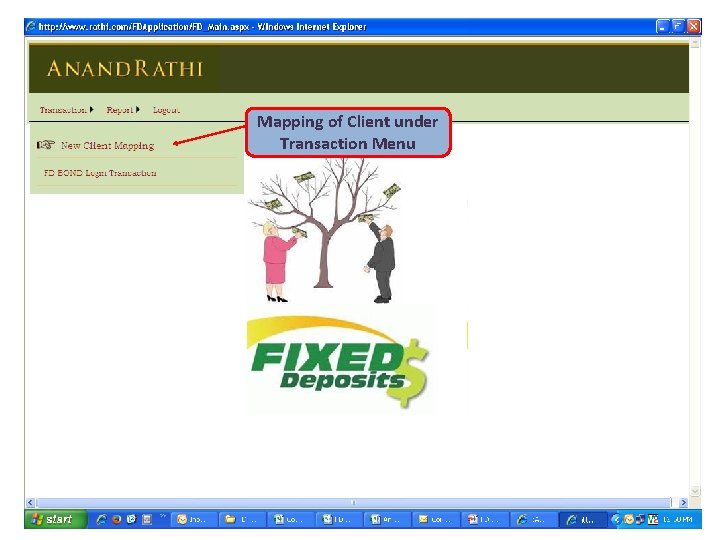
Mapping of Client under Transaction Menu
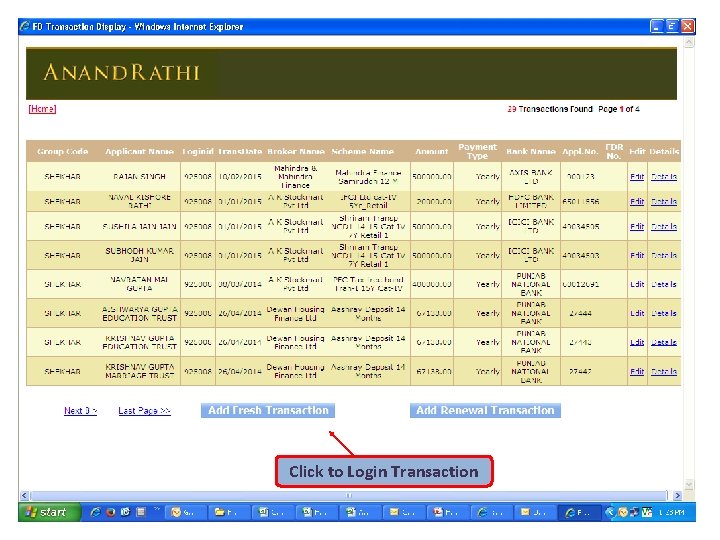
Click to Login Transaction
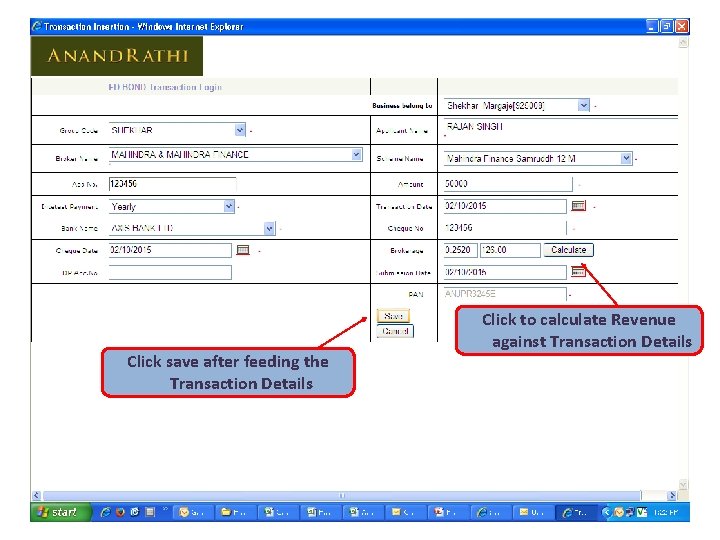
Click save after feeding the Transaction Details Click to calculate Revenue against Transaction Details
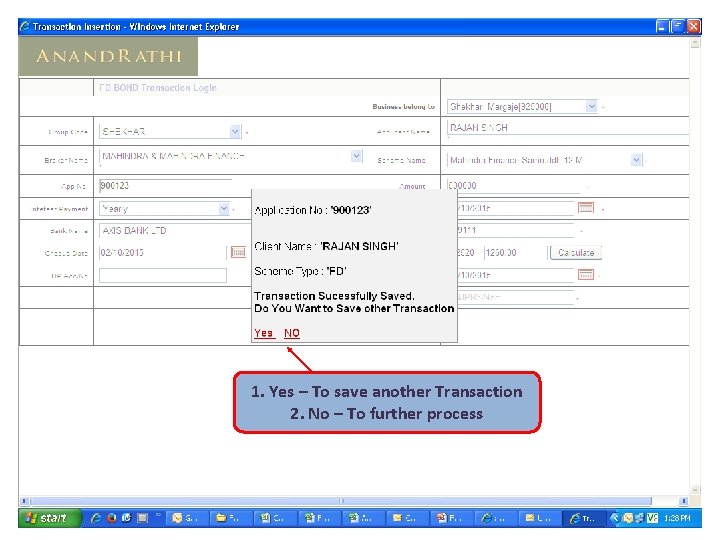
1. Yes – To save another Transaction 2. No – To further process
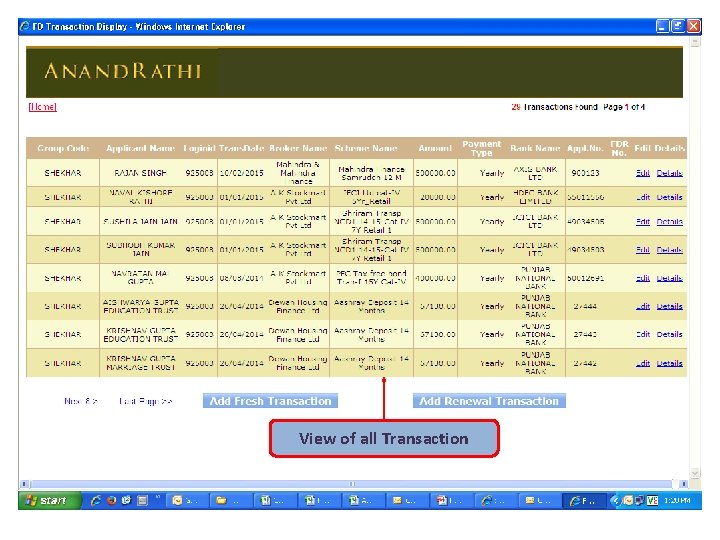
View of all Transaction
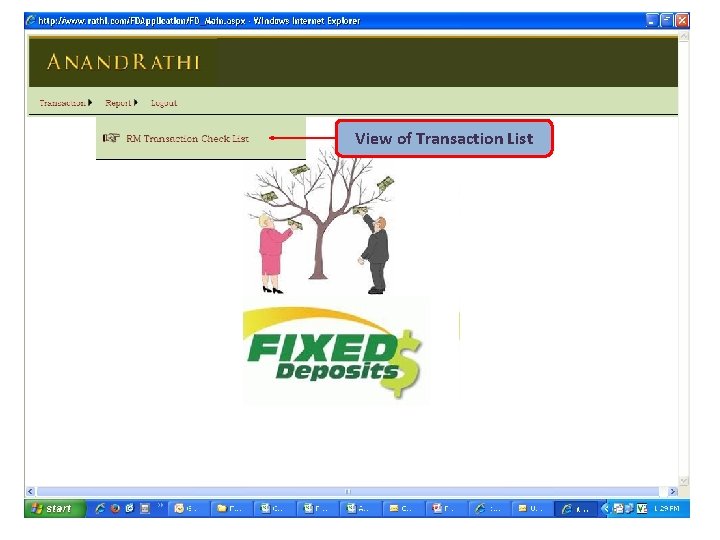
View of Transaction List
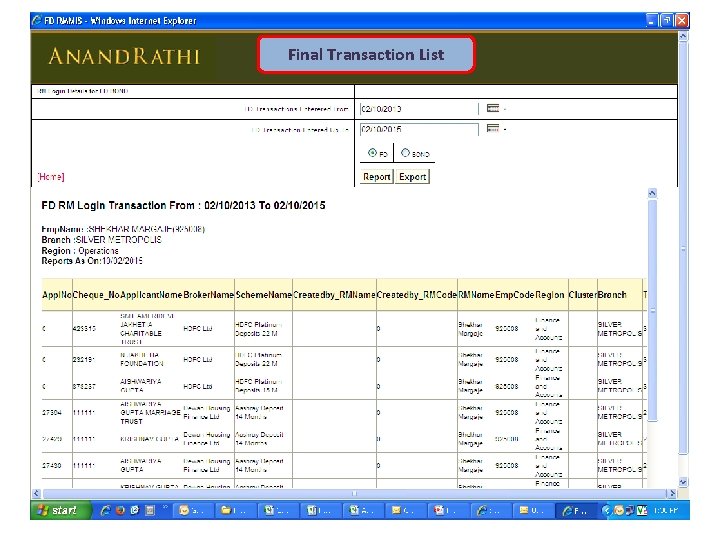
Final Transaction List
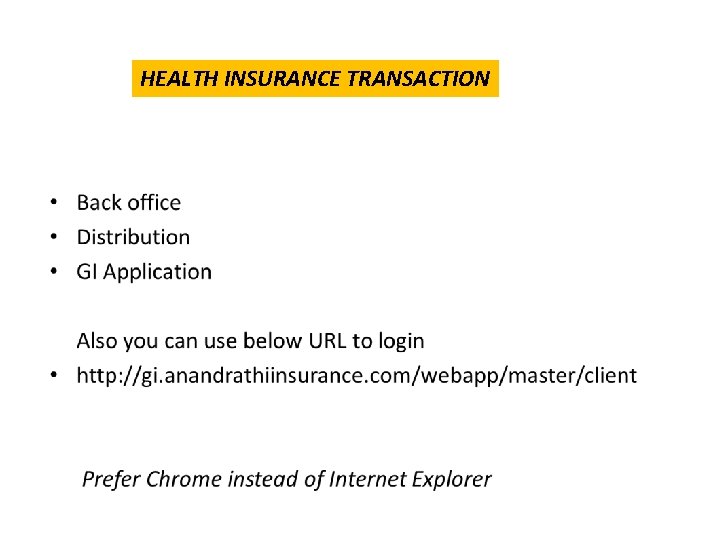
HEALTH INSURANCE TRANSACTION
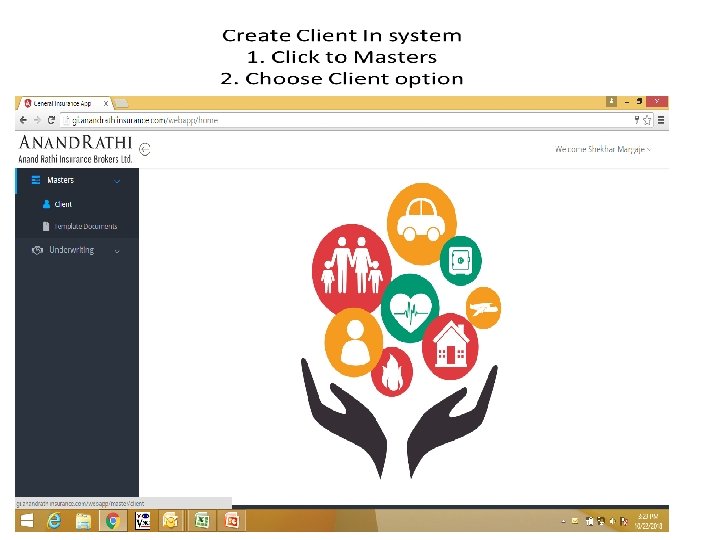
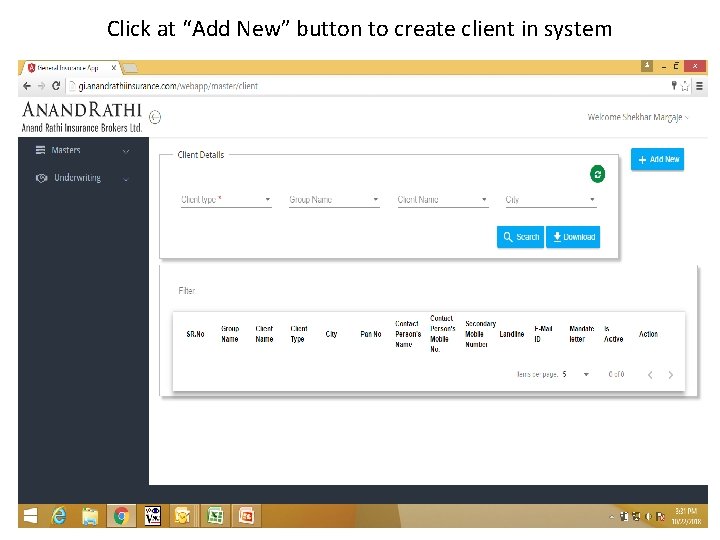
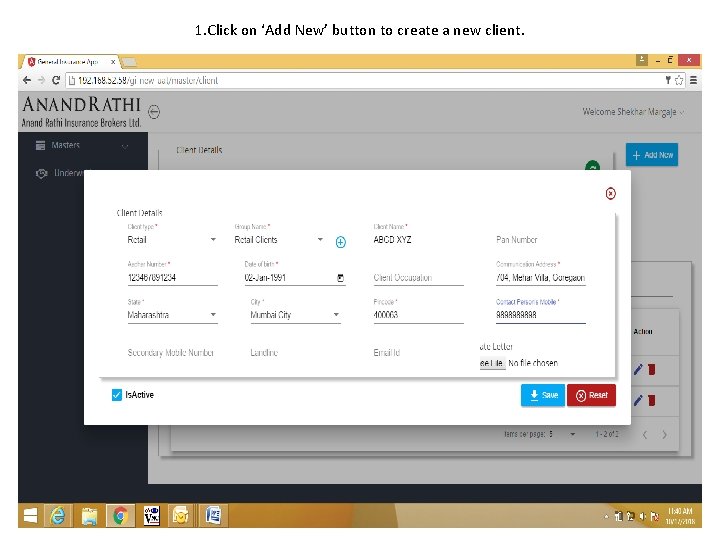
Click at “Add New” button to create client in system
1. Click on ‘Add New’ button to create a new client.
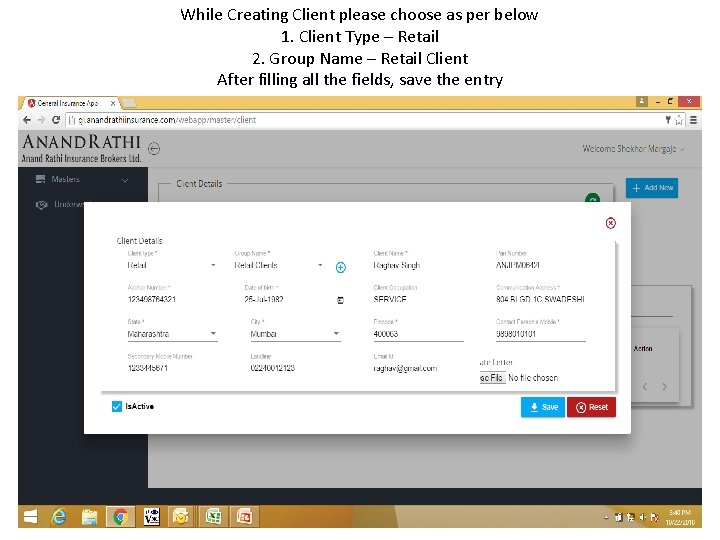
While Creating Client please choose as per below 1. Client Type – Retail 2. Group Name – Retail Client After filling all the fields, save the entry
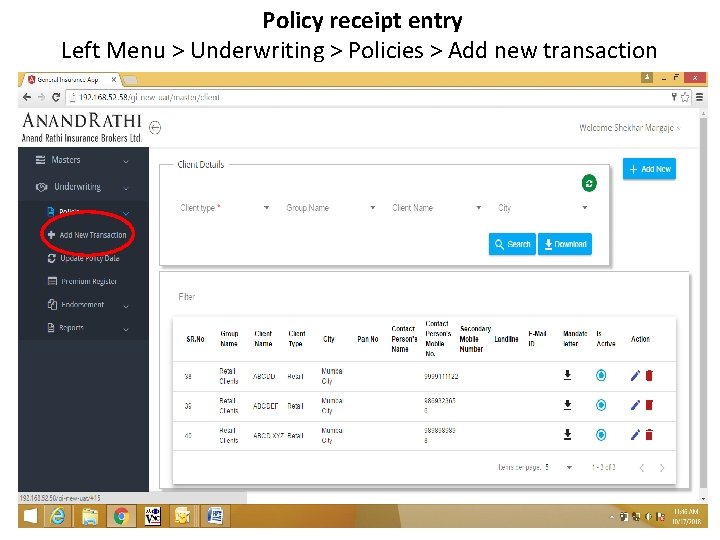
Policy receipt entry Left Menu > Underwriting > Policies > Add new transaction
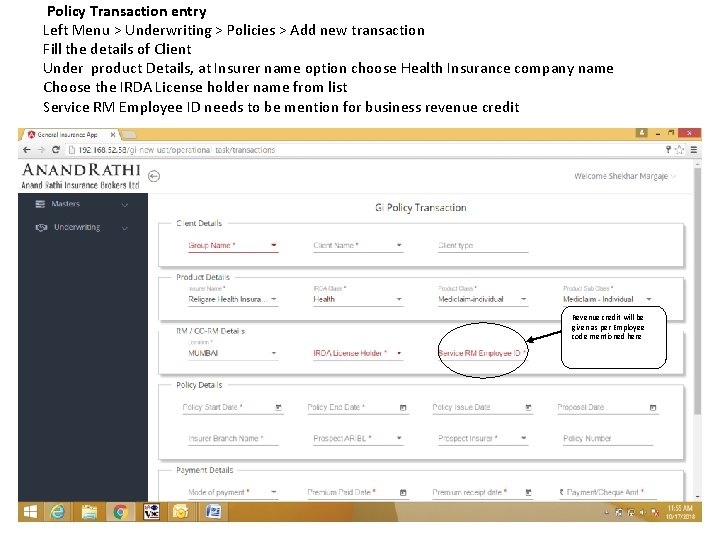
Policy Transaction entry Left Menu > Underwriting > Policies > Add new transaction Fill the details of Client Under product Details, at Insurer name option choose Health Insurance company name Choose the IRDA License holder name from list Service RM Employee ID needs to be mention for business revenue credit Revenue credit will be given as per Employee code mentioned here
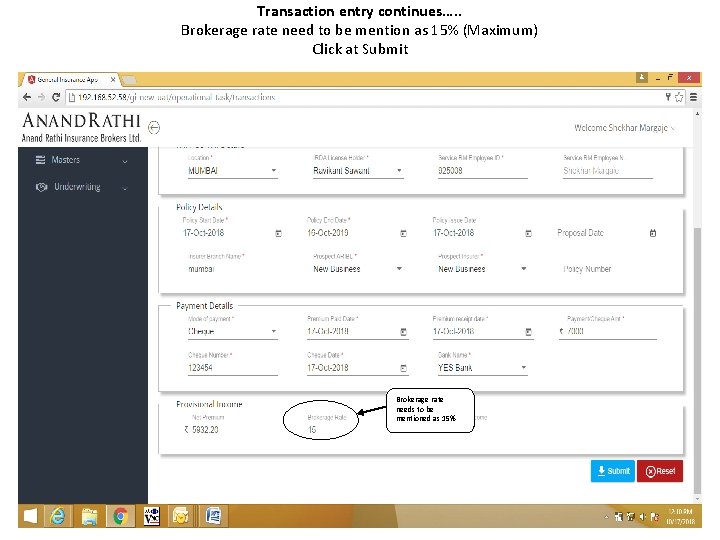
Transaction entry continues…. . Brokerage rate need to be mention as 15% (Maximum) Click at Submit Brokerage rate needs to be mentioned as 15%
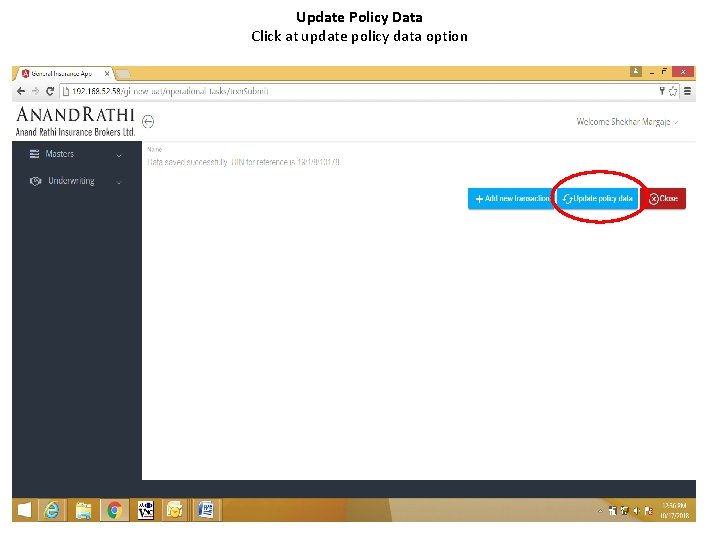
Update Policy Data Click at update policy data option
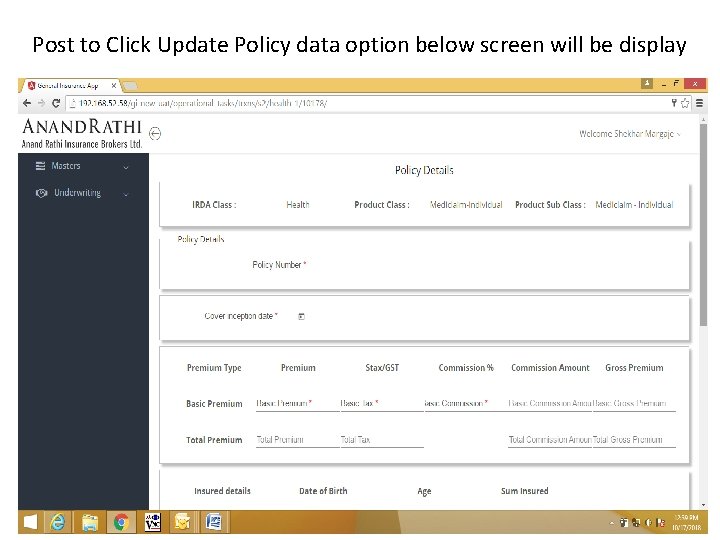
Post to Click Update Policy data option below screen will be display
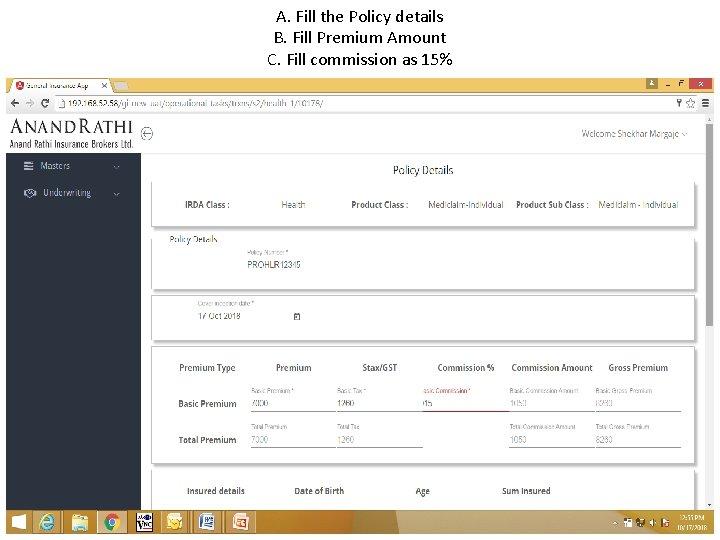
A. Fill the Policy details B. Fill Premium Amount C. Fill commission as 15%
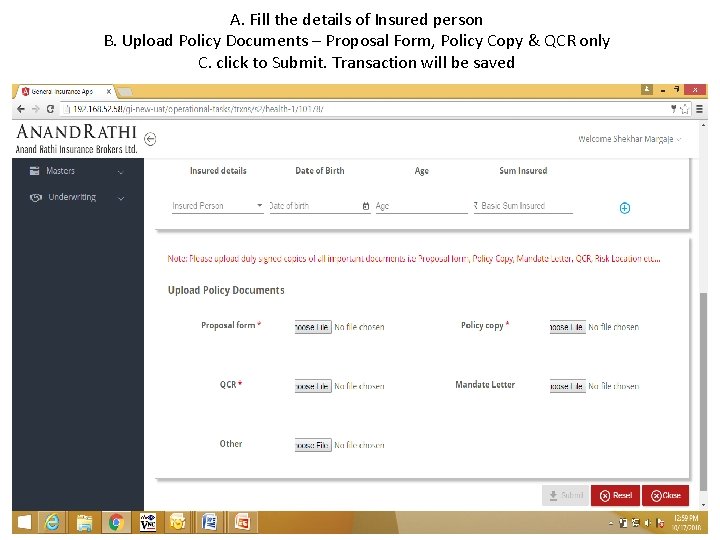
A. Fill the details of Insured person B. Upload Policy Documents – Proposal Form, Policy Copy & QCR only C. click to Submit. Transaction will be saved
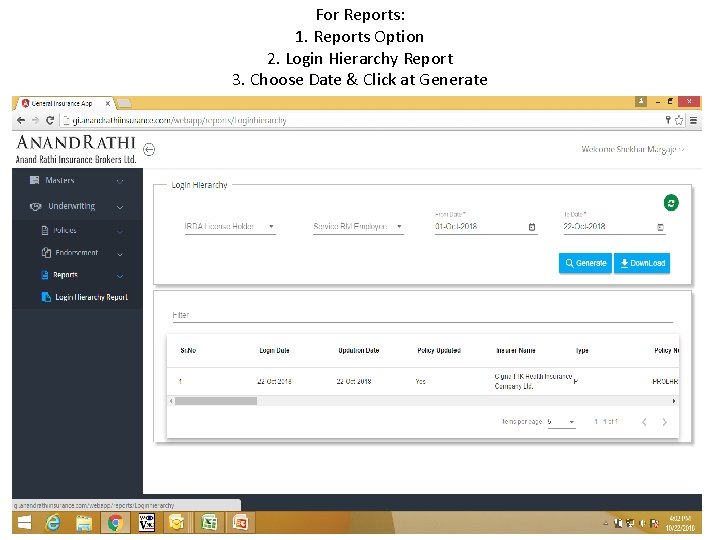
For Reports: 1. Reports Option 2. Login Hierarchy Report 3. Choose Date & Click at Generate
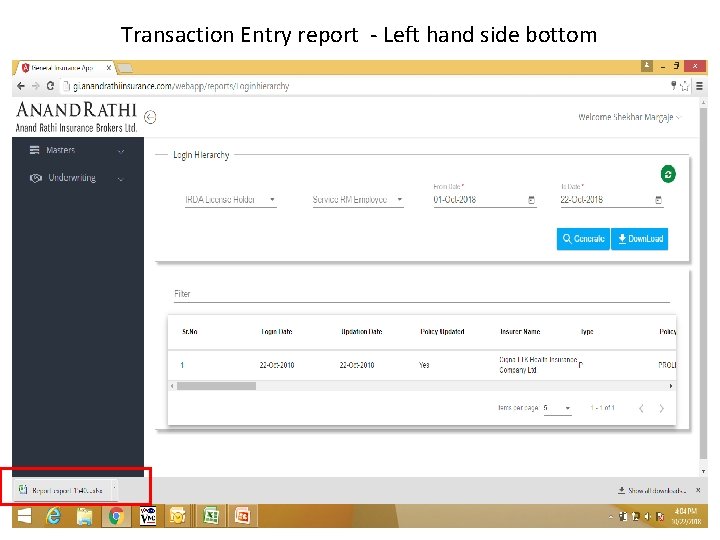
Transaction Entry report - Left hand side bottom
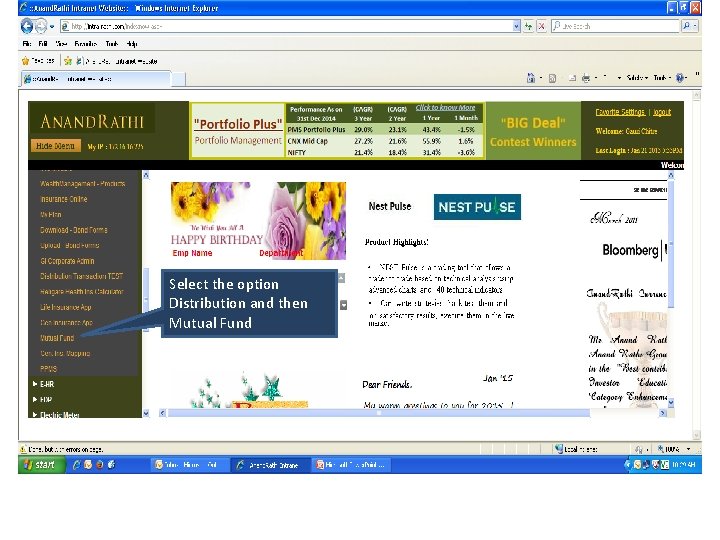
MUTUAL FUND ENTRY IN INTRA RATHI • • • Please log on Intra. rathi. com Enter Login ID & Password Main Menu column reflects on left side
Select the option Distribution and then Mutual Fund
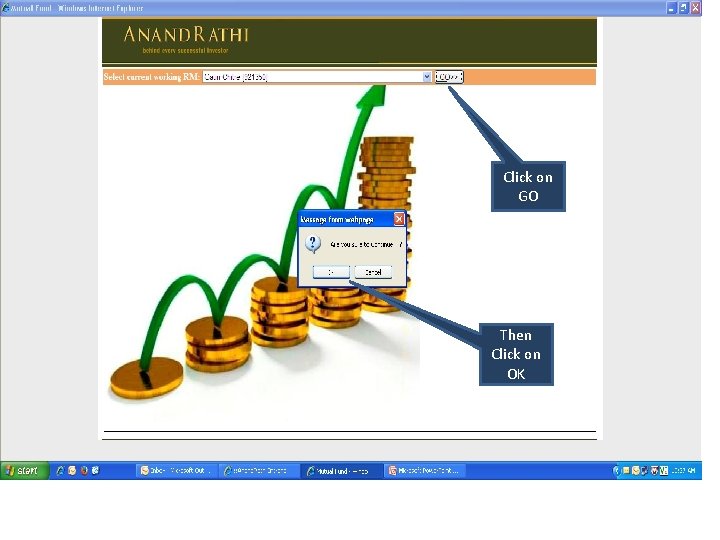
Click on GO Click on go Then Click on OK
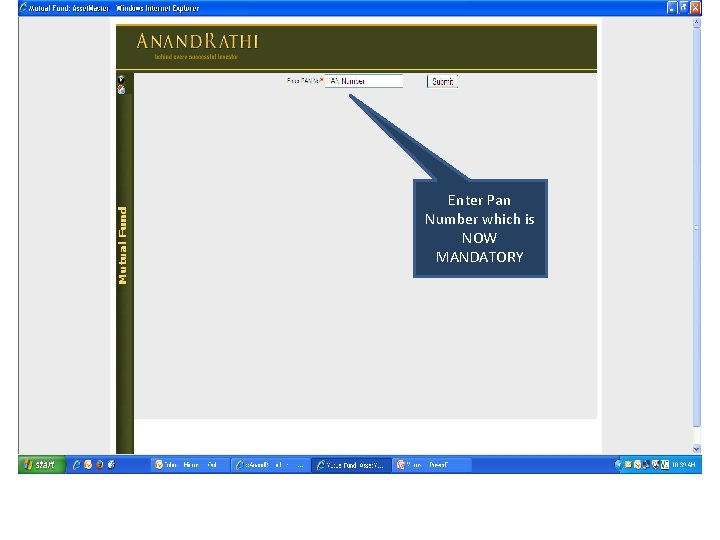
Enter Pan Number which is NOW MANDATORY
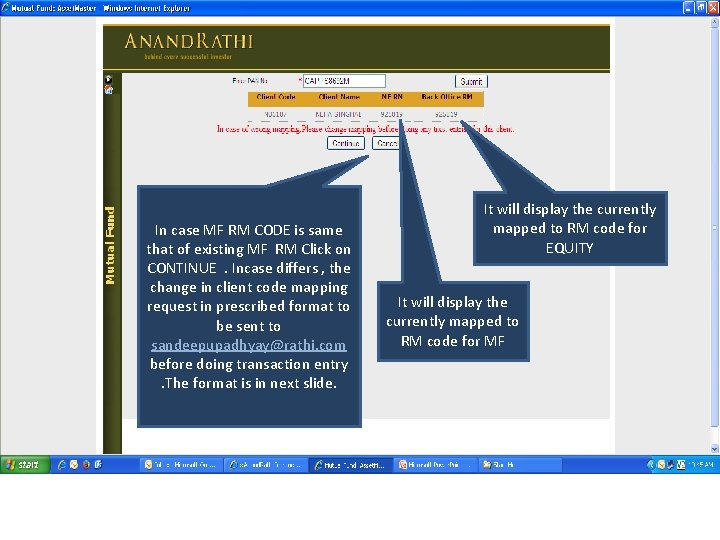
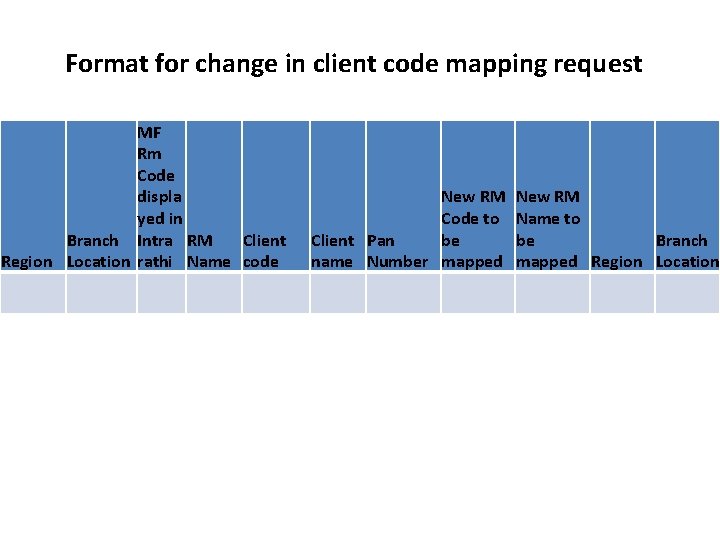
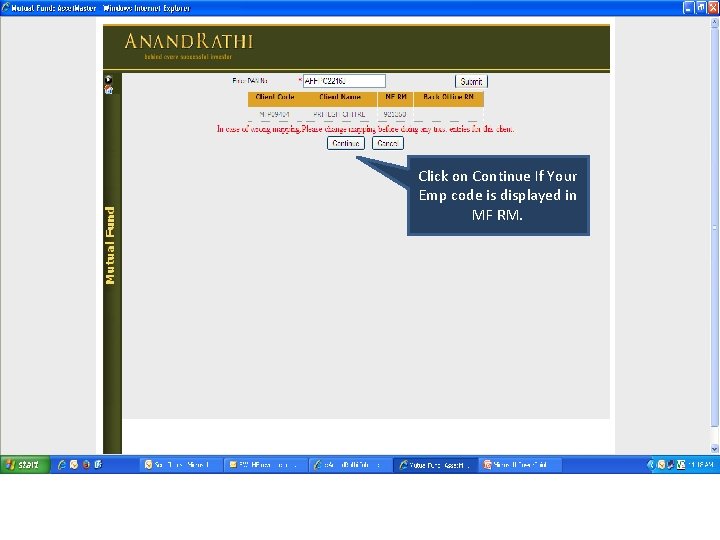
In case MF RM CODE is same that of existing MF RM Click on CONTINUE. Incase differs , the change in client code mapping request in prescribed format to be sent to sandeepupadhyay@rathi. com before doing transaction entry. The format is in next slide. It will display the currently mapped to RM code for EQUITY It will display the currently mapped to RM code for MF
Format for change in client code mapping request MF Rm Code displa yed in Branch Intra RM Client Region Location rathi Name code New RM Code to Client Pan be name Number mapped New RM Name to be Branch mapped Region Location
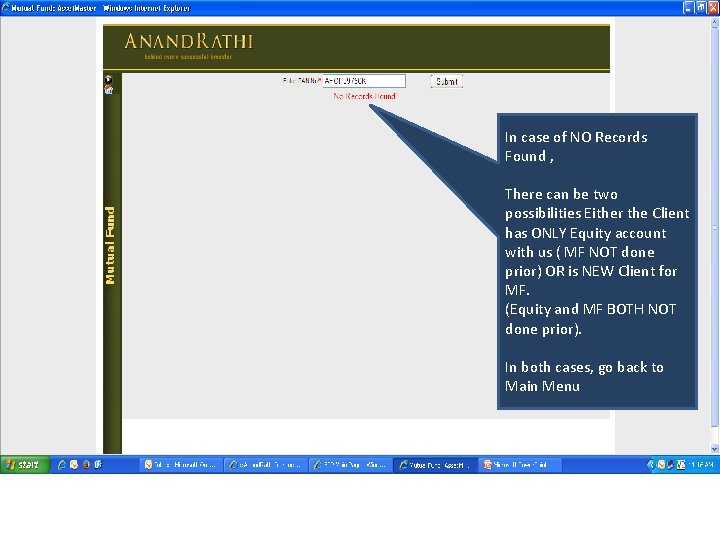
In case of NO Records Found , There can be two possibilities Either the Client has ONLY Equity account with us ( MF NOT done prior) OR is NEW Client for MF. (Equity and MF BOTH NOT done prior). In both cases, go back to Main Menu
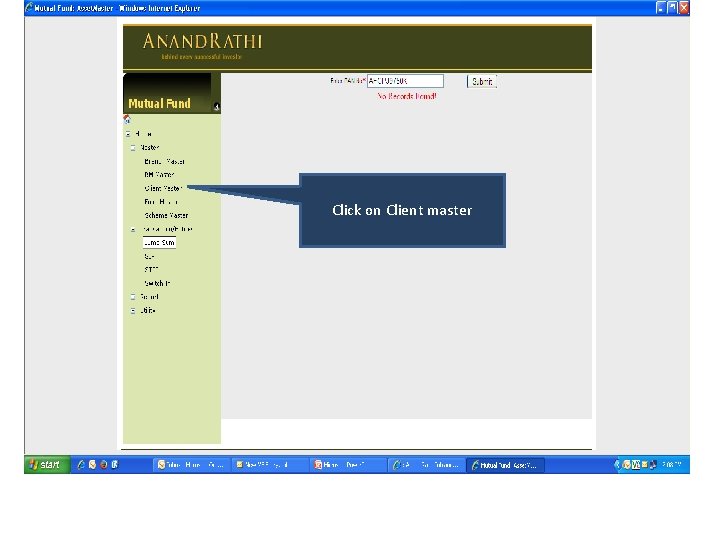
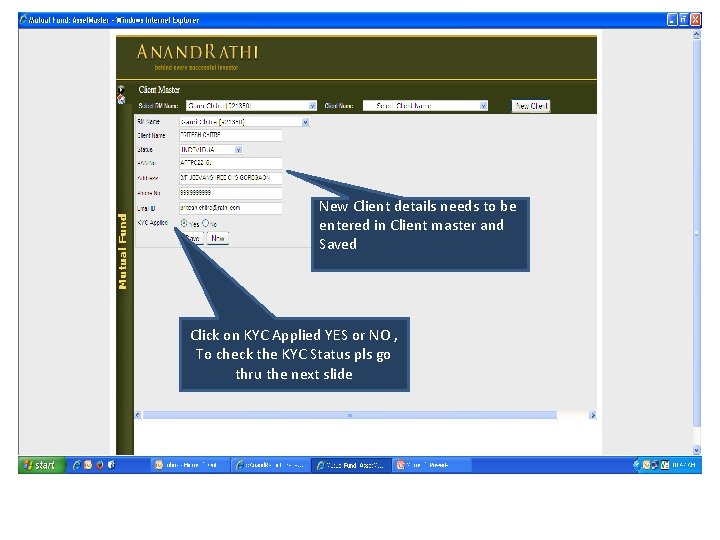
Click on Client master
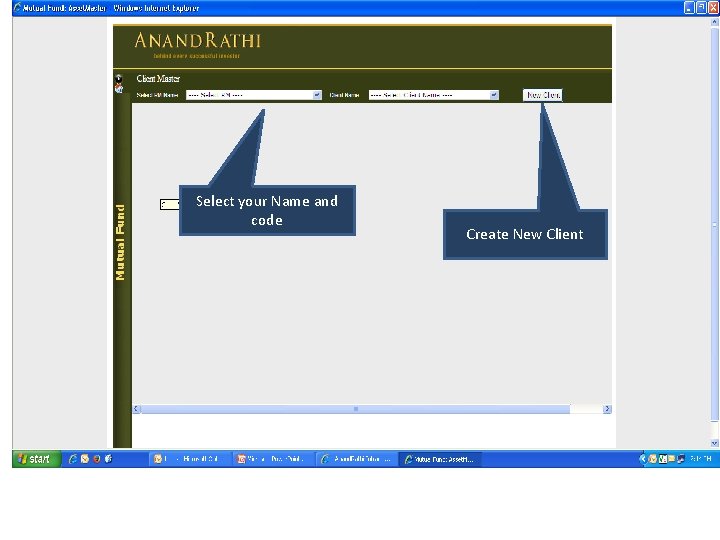
Select your Name and code Create New Client
New Client details needs to be entered in Client master and Saved Click on KYC Applied YES or NO , To check the KYC Status pls go thru the next slide
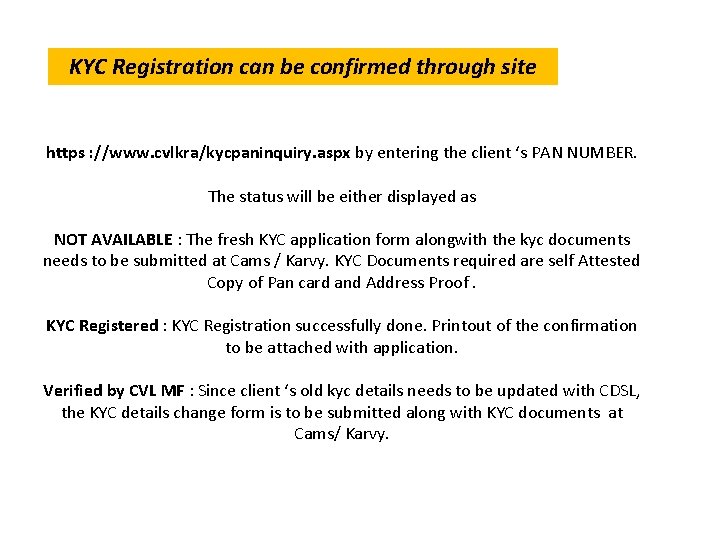
KYC Registration can be confirmed through site https : //www. cvlkra/kycpaninquiry. aspx by entering the client ‘s PAN NUMBER. The status will be either displayed as NOT AVAILABLE : The fresh KYC application form alongwith the kyc documents needs to be submitted at Cams / Karvy. KYC Documents required are self Attested Copy of Pan card and Address Proof. KYC Registered : KYC Registration successfully done. Printout of the confirmation to be attached with application. Verified by CVL MF : Since client ‘s old kyc details needs to be updated with CDSL, the KYC details change form is to be submitted along with KYC documents at Cams/ Karvy.
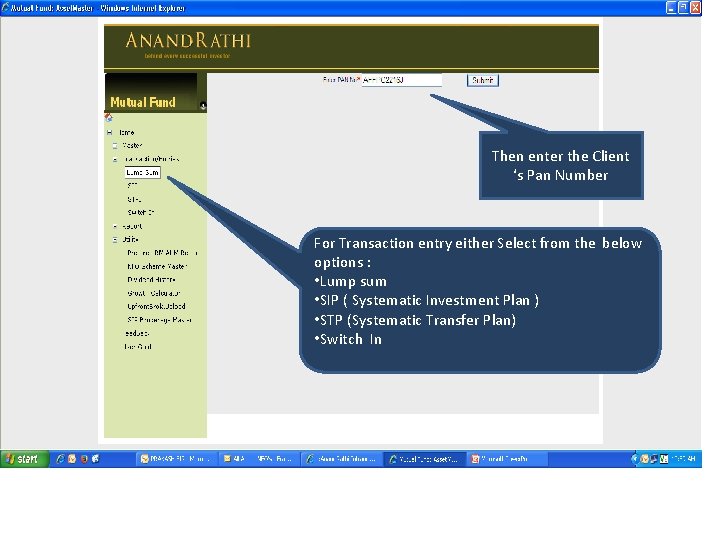
Then enter the Client ‘s Pan Number For Transaction entry either Select from the below options : • Lump sum • SIP ( Systematic Investment Plan ) • STP (Systematic Transfer Plan) • Switch In
Click on Continue If Your Emp code is displayed in MF RM.
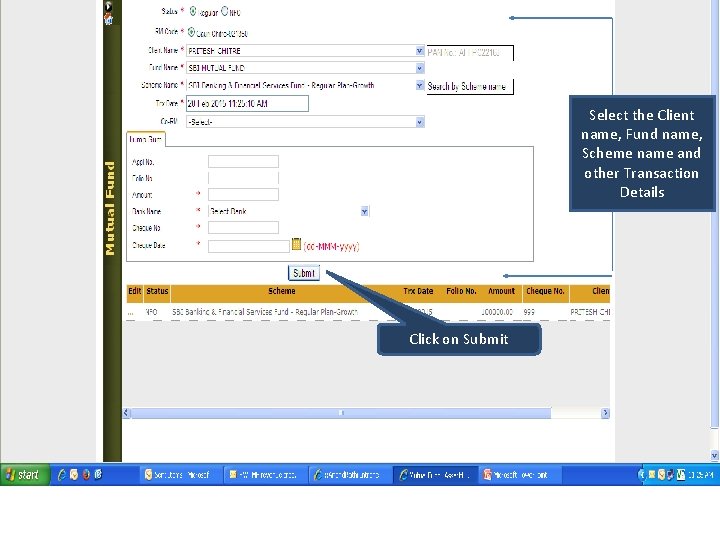
Select the Client name, Fund name, Scheme name and other Transaction Details Click on Submit
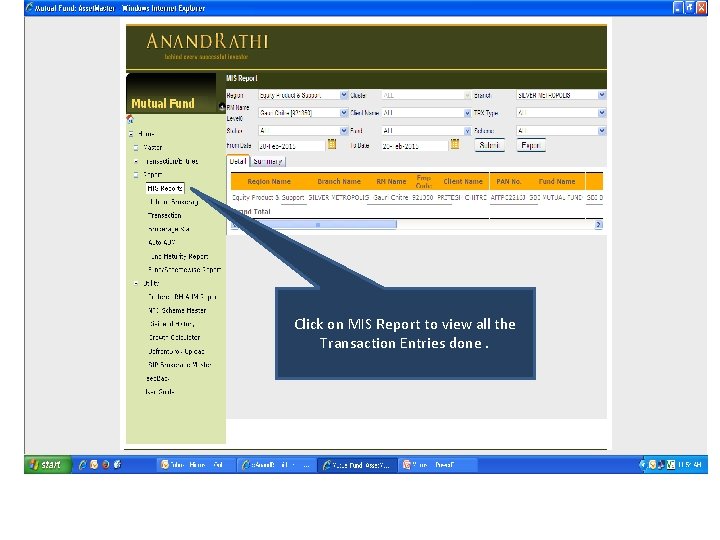
Click on MIS Report to view all the Transaction Entries done.
Thank you! Disclaimer In the preparation of the material contained in this document, Anand Rathi Group (ARG), has used information that is publicly available, including information developed in-house. Some of the material used in the document may have been obtained from members/persons other than the ARG and/or its affiliates and which may have been made available to ARG and/or its affiliates. Information gathered & material used in this document is believed to be from reliable sources. ARG however does not warrant the accuracy, reasonableness and/or completeness of any information. For data reference to any third party in this material no such party will assume any liability for the same. ARG and/or any affiliate of ARG does not in any way through this material solicit any offer for purchase, sale or any financial transaction/commodities/products of any financial instrument dealt in this material. All recipients of this material should before dealing and or transacting in any of the products referred to in this material make their own investigation, seek appropriate professional advice. ARG (including its affiliates) and any of its officers directors, personnel and employees, shall not liable for any loss, damage of any nature, including but not limited to direct, indirect, punitive, special, exemplary, consequential, as also any loss of profit in any way arising from the use of this material in any manner. The recipient alone shall be fully responsible/ are liable for any decision taken on the basis of this material. All recipients of this material should before dealing and/or transacting in any of the products referred to in this material make their own investigation, seek appropriate professional advice. The investments discussed in this material may not be suitable for all investors as certain services and investment products are subject to legal restrictions and cannot be offered worldwide on an unrestricted basis. Any person subscribing to or investigating in any product/financial instruments should do so on the basis of and after verifying the terms attached to such product/financial instrument. Financial products and instruments are subject to market risks and yields may fluctuate depending on various factors affecting capital/debt/commodity/real estate markets. Please note that past performance of the financial products and instruments does not necessarily indicate the future prospects and performance thereof. Such past performance mayor may not be sustained in future.