
Life In the FAST Lane Navigation in FAST

- Slides: 37
Life In the FAST Lane Navigation in FAST 1
Fast Financials of the University of South Florida • Fast uses Oracle/People. Soft Financials • People. Soft is a multi-purpose product – Designed to serve education and manufacturing – Has features in addition to those USF needs – Has features we haven’t explored yet • View FAST through Internet Explorer • All you need is the web site – https: //fastmail. usf. edu/psp/fastpro/? cmd=login 2
Screen Sizing • FAST is menu driven • Navigate with mouse clicks • To hide the tool bar and make the screen bigger – Tap F 11 • To return the screen to normal size – Tap F 11 again 3
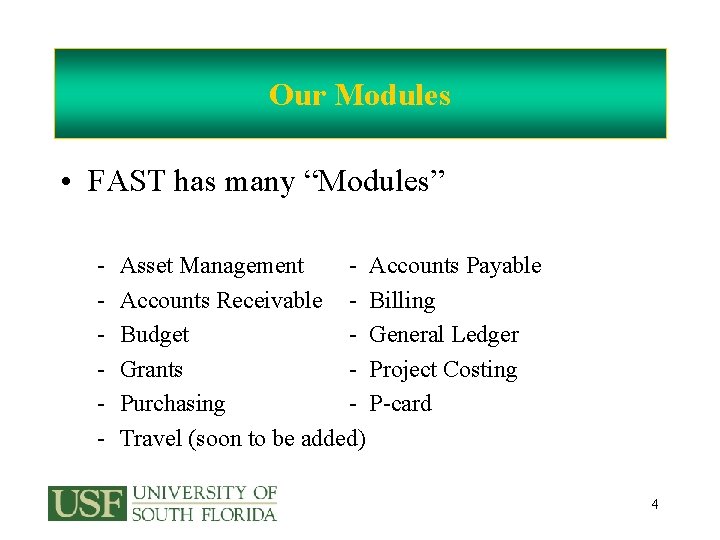
Our Modules • FAST has many “Modules” - Asset Management - Accounts Payable Accounts Receivable - Billing Budget - General Ledger Grants - Project Costing Purchasing - P-card Travel (soon to be added) 4
More on Modules • These modules are designed for specific business processes • Each module has at least one “SME” or subject matter expert • Some of these modules feed data to other modules • All data eventually ends up in the General Ledger and Commitment Control 5
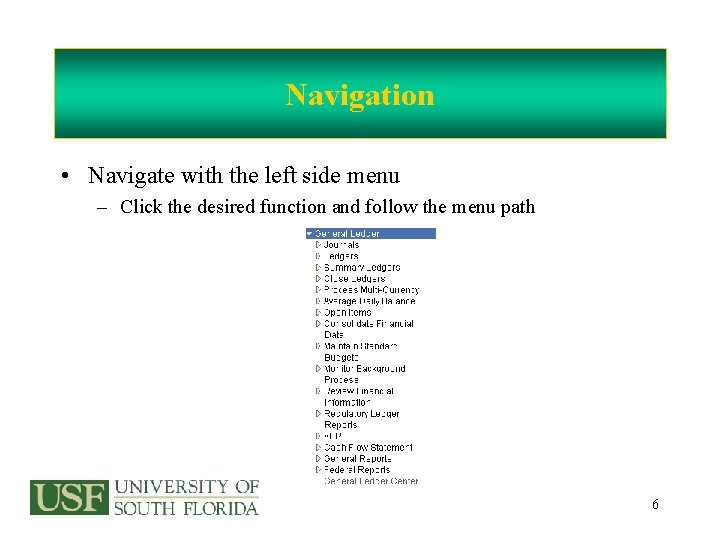
Navigation • Navigate with the left side menu – Click the desired function and follow the menu path 6
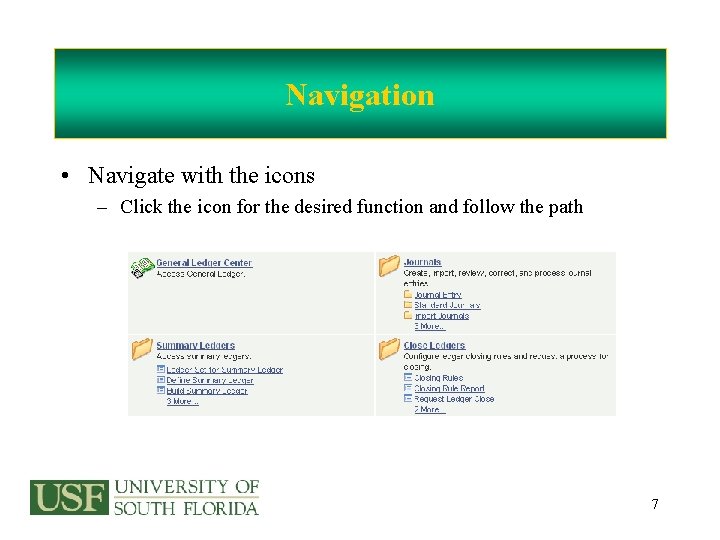
Navigation • Navigate with the icons – Click the icon for the desired function and follow the path 7
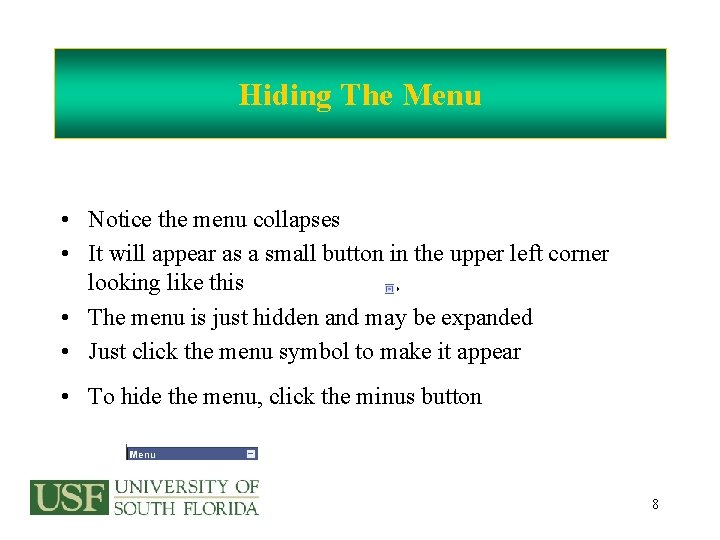
Hiding The Menu • Notice the menu collapses • It will appear as a small button in the upper left corner looking like this • The menu is just hidden and may be expanded • Just click the menu symbol to make it appear • To hide the menu, click the minus button 8
Using Favorites • Give your fingers a rest • Use Favorites • After you navigate to the desired page – Click – Name it whatever you like – Click • One click moves you to the specific page 9
Opening Multiple Windows • You don’t have to log in multiple times • Just open multiple windows – Just click • A new window will open – It will display the same page as the original window – Then click the menu button – And navigate to whatever page you like 10
The BACK Button and The Mouse Roller • • • Be careful to NOT use the BACK button Sometimes it works Sometimes it locks up your screen Watch out for the roller bar on your mouse You might think you are scrolling down a page but are really changing a field value 11
Sending Messages With Notify • • • FAST has a quick way to send a message Use the Notify button Click “Lookup Recipient” Type in the name; then click “Search” Check the “To”, “CC”, or “BCC” boxes Click “Add To Recipient List” Click “OK” Type your message in the text box Click “OK” to send the message 12
Finding Information • There are many ways to find information in FAST • Two general methods of search are – Inquiry pages – Reports 13
Inquiry Pages • Be careful how you search on inquiry pages • Sometimes the fewer search criteria, the better the results • Search pages often require an Inquiry Name – – – – This is just a name It belongs to you and you only It is a way to save the search criteria that you build Next time you search, less typing Give it a name that you will recognize It should be just one word If multiple words, they must be connected with an underscore 14
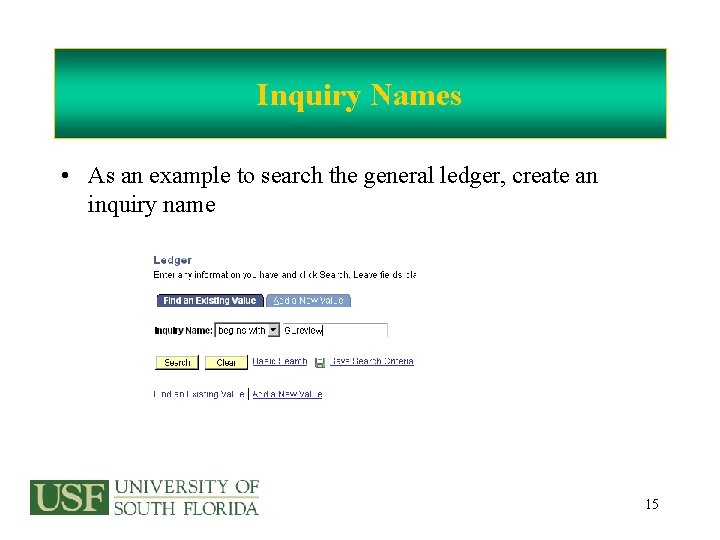
Inquiry Names • As an example to search the general ledger, create an inquiry name 15
Building Search Criteria • When building an inquiry or a report, you will need to select search criteria • You may type the specific criteria • You may search for criteria by clicking the • This will produce a list of valid choices • Click the appropriate/desired choice 16
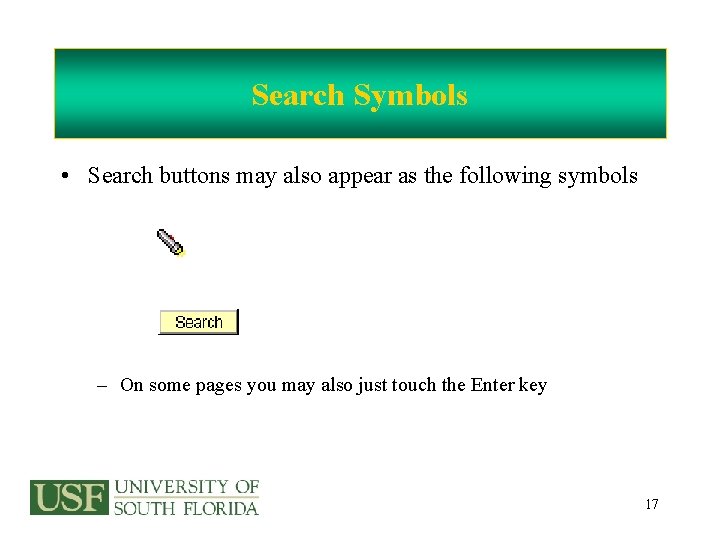
Search Symbols • Search buttons may also appear as the following symbols – On some pages you may also just touch the Enter key 17
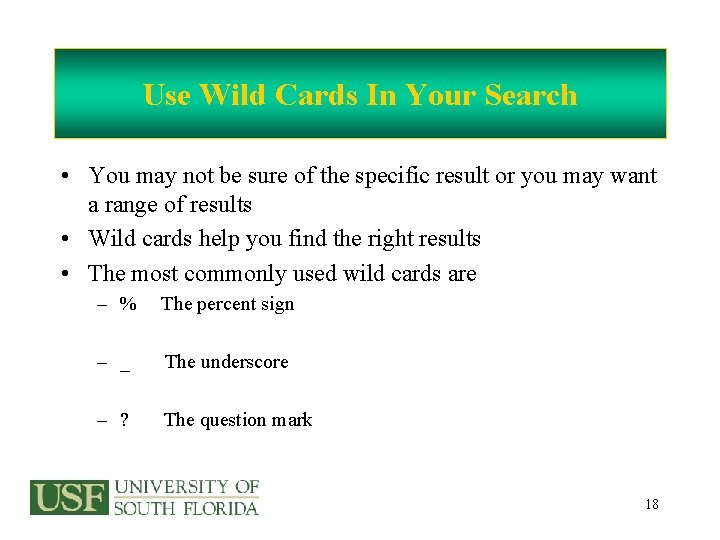
Use Wild Cards In Your Search • You may not be sure of the specific result or you may want a range of results • Wild cards help you find the right results • The most commonly used wild cards are – % The percent sign – _ The underscore – ? The question mark 18
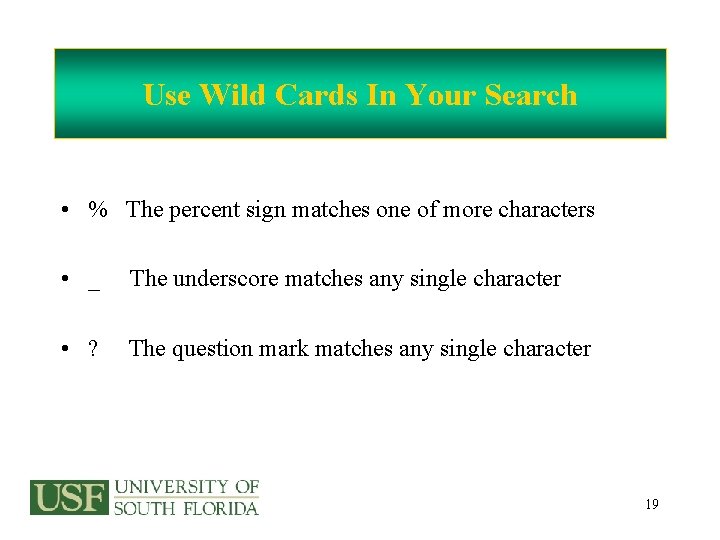
Use Wild Cards In Your Search • % The percent sign matches one of more characters • _ The underscore matches any single character • ? The question mark matches any single character 19
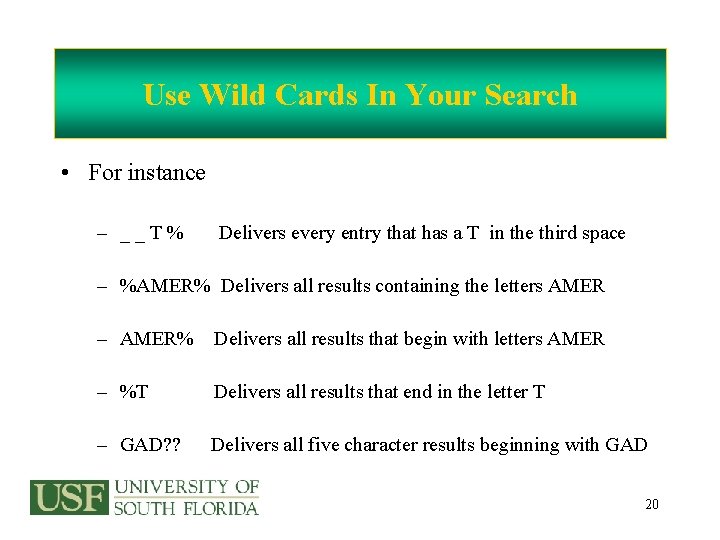
Use Wild Cards In Your Search • For instance – __T% Delivers every entry that has a T in the third space – %AMER% Delivers all results containing the letters AMER – AMER% Delivers all results that begin with letters AMER – %T Delivers all results that end in the letter T – GAD? ? Delivers all five character results beginning with GAD 20
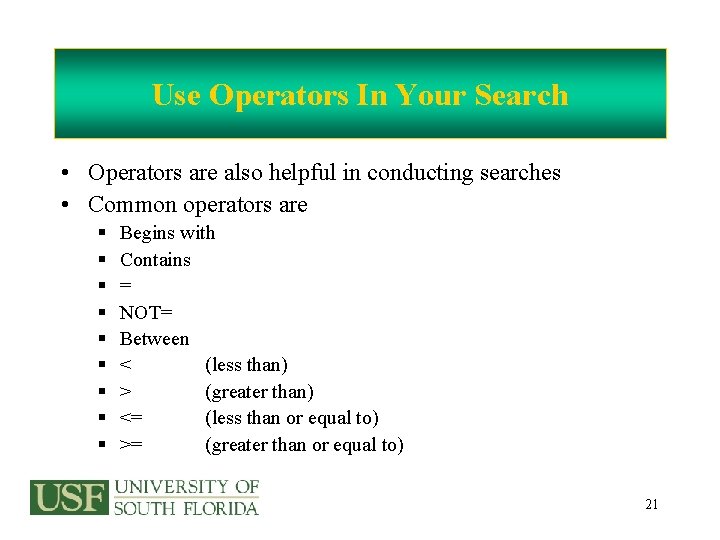
Use Operators In Your Search • Operators are also helpful in conducting searches • Common operators are § § § § § Begins with Contains = NOT= Between < (less than) > (greater than) <= (less than or equal to) >= (greater than or equal to) 21
Examples of Searches With Operators • Use “Begins With” when you know the first character or first few characters • Use “Contains” when you know specific characters but don’t know where they are in the value • Use = when you know the exact spelling of the value • Use “Between” when you want a range of values (this is especially helpful when searching date values • Use <, >, <=, or >= when searching for numeric values 22
Managing The Data • With inquiries, remember that – Some allow you to change the number of delivered rows – You can download results to an Excel spreadsheet; look for this symbol – Click the column headings to sort the data – Look for how many rows appear on the screen – Remember the “View All” button – Some inquiries allow you to step through the results one at a time • Use Next In List or Previous In List 23
Reports And Run Controls • • Reports normally require a Run Control This is just a name It belongs to you and you only It is a way to save the report criteria that you build Next time you run the report, less typing Give it a name you will recognize It must be one word or several words connected by an underscore 24
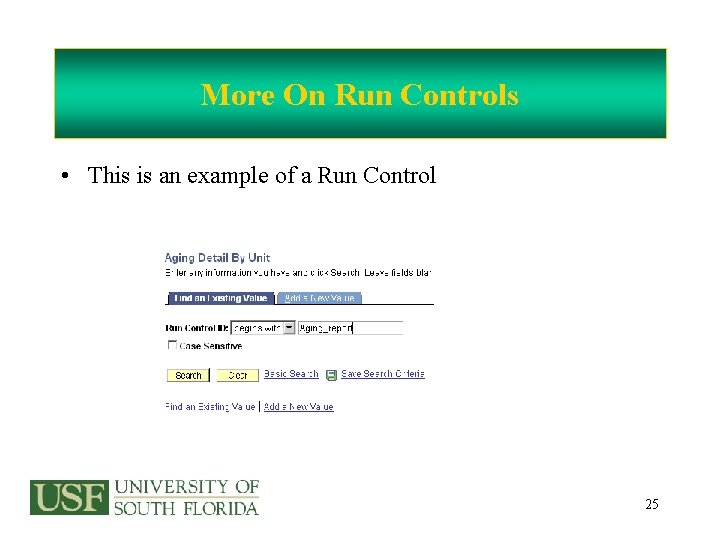
More On Run Controls • This is an example of a Run Control 25
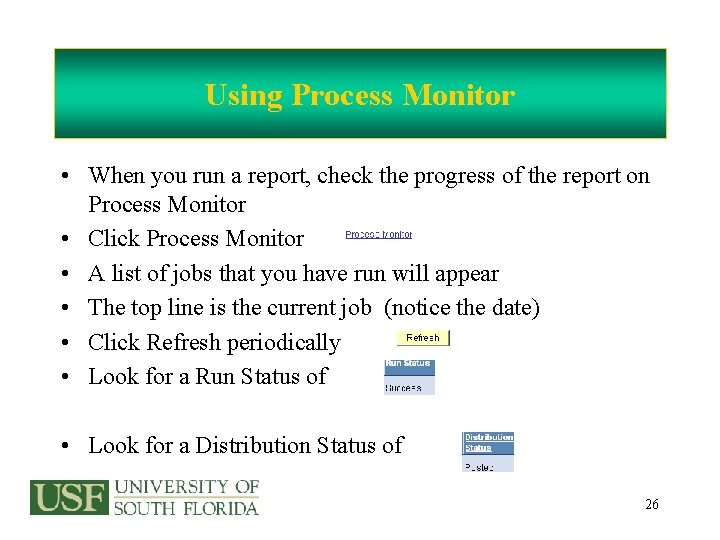
Using Process Monitor • When you run a report, check the progress of the report on Process Monitor • Click Process Monitor • A list of jobs that you have run will appear • The top line is the current job (notice the date) • Click Refresh periodically • Look for a Run Status of • Look for a Distribution Status of 26
Report Output • Reports are often delivered in pdf format • You may save the pdf file to your computer • You may also view and print the pdf file 27
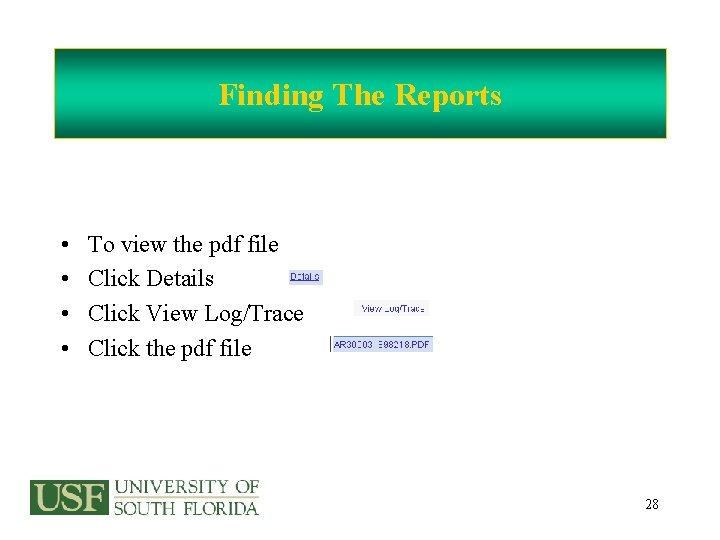
Finding The Reports • • To view the pdf file Click Details Click View Log/Trace Click the pdf file 28
Security Roles • Everyone has the INQUIRY role • INQUIRY allows users to view all pages but make no changes • Other security roles exist – – Assigned based on your job duties Define pages that are open to you for data entry Roles are related to specific modules in FAST Combinations of roles is a concern 29
Security Roles • Examples of security roles – Purchasing • • P-card actions Receiving Requisition initiator Requisition approver – Accounts Payable – Billing • Creating billings • Processing billings 30
Requesting Security Roles • How do you apply for FAST access and security roles? • Go to the FAST web page – Navigate through Forms, Forms Alphabetical – Look for Security/FAST Access Form • Download the Security Access Request • Follow instructions; complete all required information • Send to AOC 0200 Attn: Nancy Dellaporte 31
Getting On-line Help • If you have questions about the page you are viewing – Click the – Find it in the upper right corner of the screen – It will open People. Books to documentation describing the page you were viewing – It will appear as a new window – Close the window when you are done reading 32
Toss Your Cookies • • Remember to clean up your internet files This should be a daily chore It takes just a minute or so On your desktop – – – – Right click the Internet Explorer icon Click Properties Click Delete Cookies Click Delete Files Check the box described “Delete All Offline Content” Click OK again 33
Great Resources • Helpful Resources – The FAST web site (news, training link, documentation, contacts) – www. usf. edu/fast – Compass for USF business procedures • On the FAST web site look under “Useful Links” – Meta. Mart which contains a glossary of terms • On the FAST web site look under “Useful Links” 34
Great Resources • Helpful Resources – Sign up on the FAST List Serve for important announcements and training information – Sign up for FAST training on the GEMS Self-Service site https: //eusf. admin. usf. edu 35
Great Resources • And if you have questions, call or email: – Mark De Vore – Lisa Corley 974. 2286 mdevore@admin. usf. edu lcorley@admin. usf. edu 36
Fast Financials of the University of South Florida • That’s All ! Have fun with FAST ! 37