
LFD Training Course University of Jordan Index I
- Slides: 43
LFD Training Course University of Jordan
Index I- AV & Data Cables II- LFD Control & Installation III- Data & Video Looping V- Samsung Smart Signage Platform SSSP
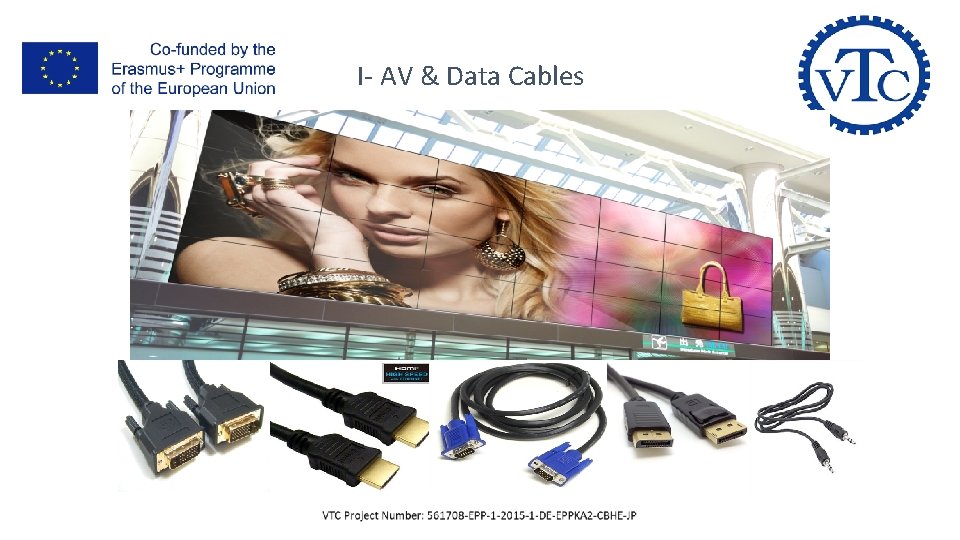
I- AV & Data Cables
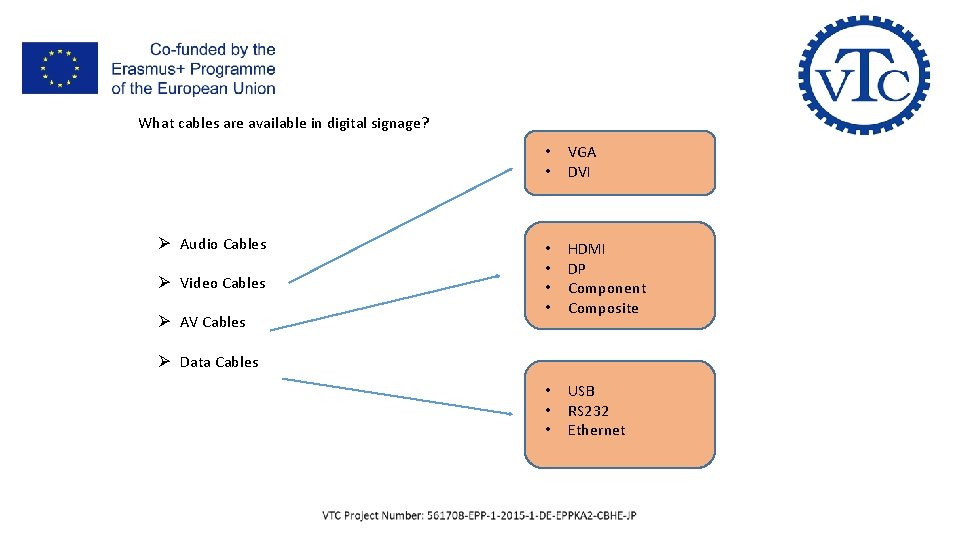
I- AV & Data Cables What cables are available in digital signage? Ø Audio Cables Ø Video Cables Ø AV Cables • • VGA DVI • • HDMI DP Component Composite • • • USB RS 232 Ethernet Ø Data Cables
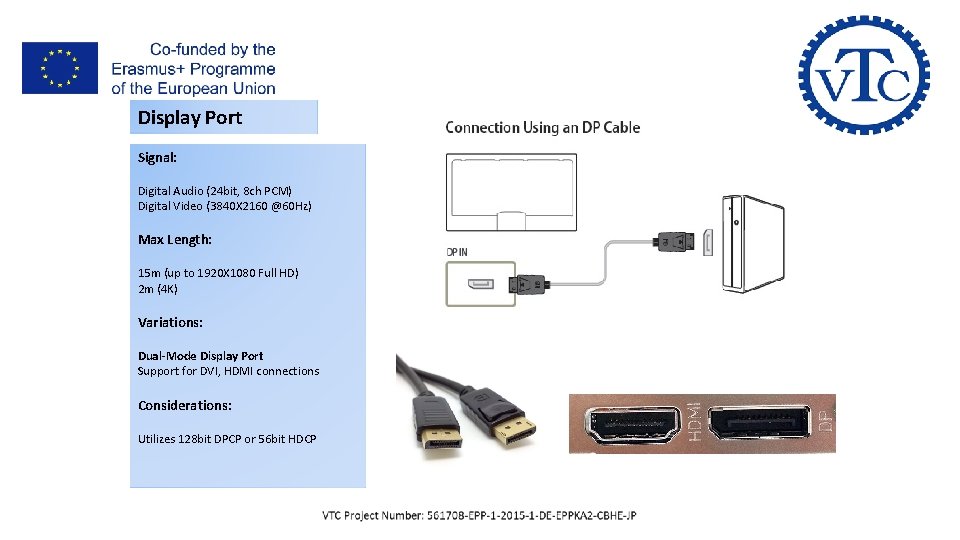
I- AV & Data Cables Display Port Signal: Digital Audio (24 bit, 8 ch PCM) Digital Video (3840 X 2160 @60 Hz) Max Length: 15 m (up to 1920 X 1080 Full HD) 2 m (4 K) Variations: Dual-Mode Display Port Support for DVI, HDMI connections Considerations: Utilizes 128 bit DPCP or 56 bit HDCP
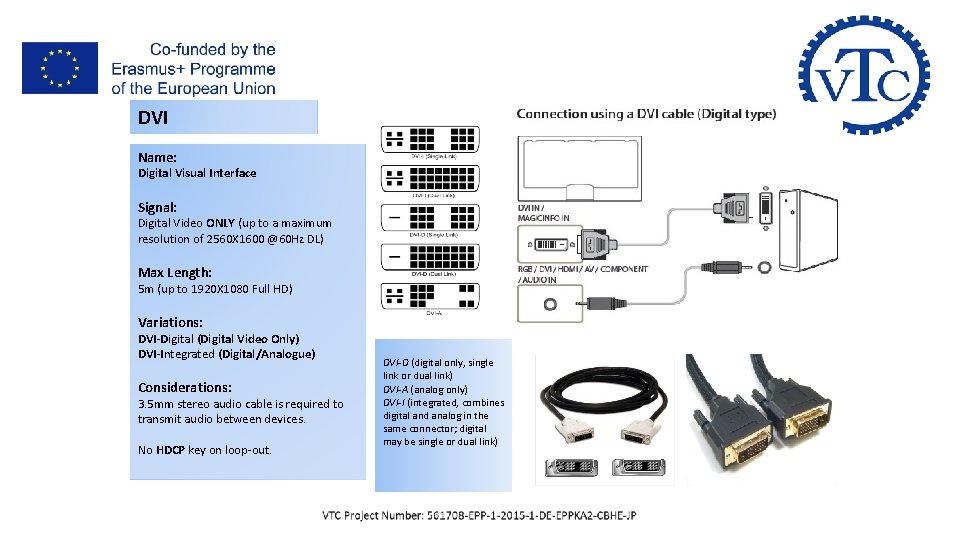
I- AV & Data Cables DVI Name: Digital Visual Interface Signal: Digital Video ONLY (up to a maximum resolution of 2560 X 1600 @60 Hz DL) Max Length: 5 m (up to 1920 X 1080 Full HD) Variations: DVI-Digital (Digital Video Only) DVI-Integrated (Digital/Analogue) Considerations: 3. 5 mm stereo audio cable is required to transmit audio between devices. No HDCP key on loop-out. DVI-D (digital only, single link or dual link) DVI-A (analog only) DVI-I (integrated, combines digital and analog in the same connector; digital may be single or dual link)
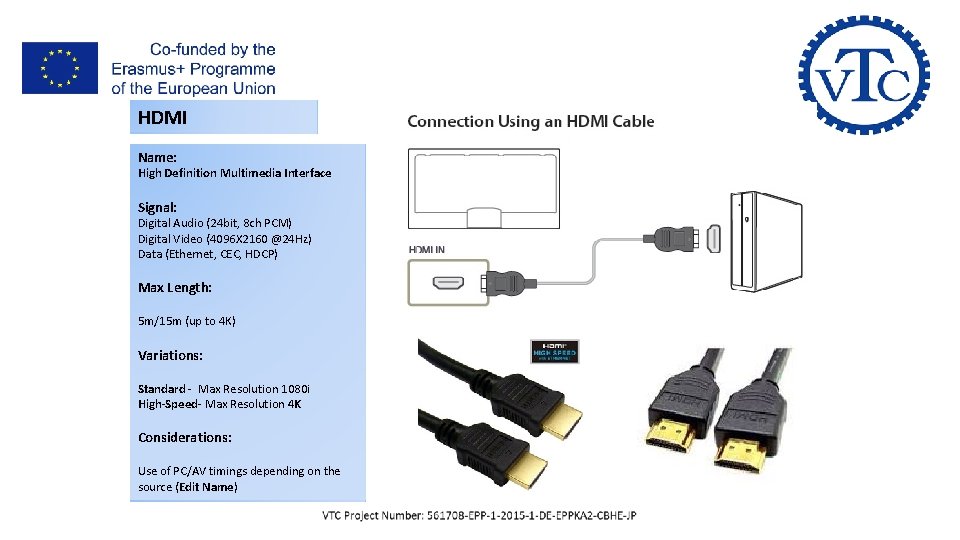
I- AV & Data Cables HDMI Name: High Definition Multimedia Interface Signal: Digital Audio (24 bit, 8 ch PCM) Digital Video (4096 X 2160 @24 Hz) Data (Ethernet, CEC, HDCP) Max Length: 5 m/15 m (up to 4 K) Variations: Standard - Max Resolution 1080 i High-Speed- Max Resolution 4 K Considerations: Use of PC/AV timings depending on the source (Edit Name)
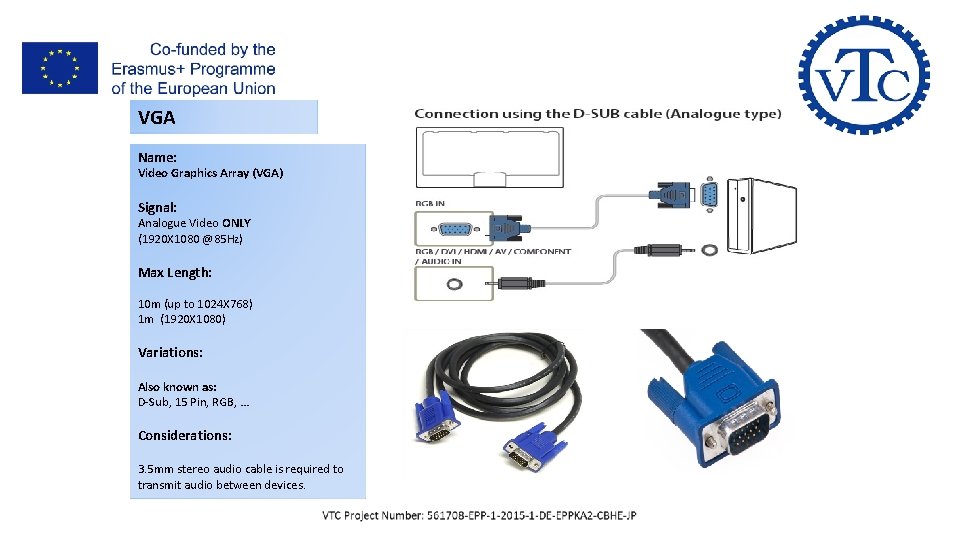
I- AV & Data Cables VGA Name: Video Graphics Array (VGA) Signal: Analogue Video ONLY (1920 X 1080 @85 Hz) Max Length: 10 m (up to 1024 X 768) 1 m (1920 X 1080) Variations: Also known as: D-Sub, 15 Pin, RGB, … Considerations: 3. 5 mm stereo audio cable is required to transmit audio between devices.
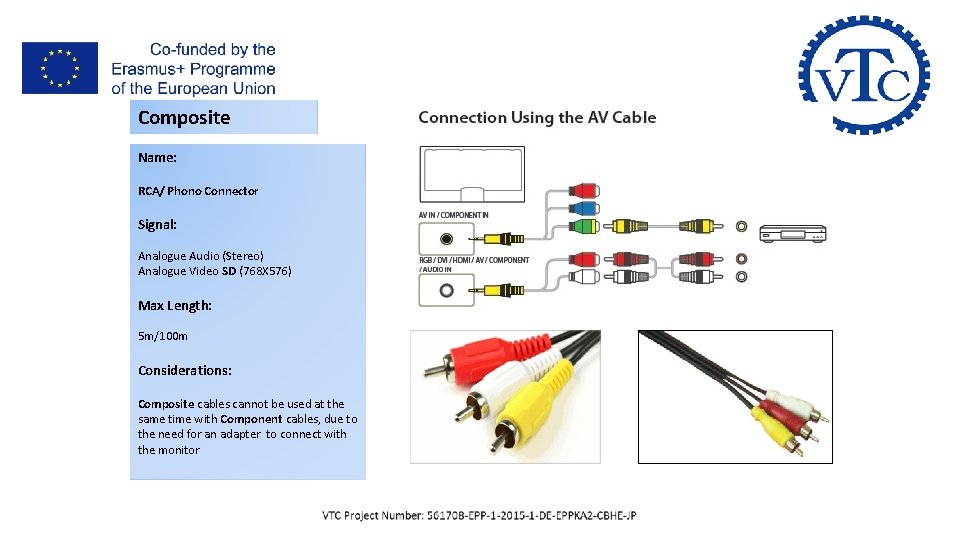
I- AV & Data Cables Composite Name: RCA/ Phono Connector Signal: Analogue Audio (Stereo) Analogue Video SD (768 X 576) Max Length: 5 m/100 m Considerations: Composite cables cannot be used at the same time with Component cables, due to the need for an adapter to connect with the monitor
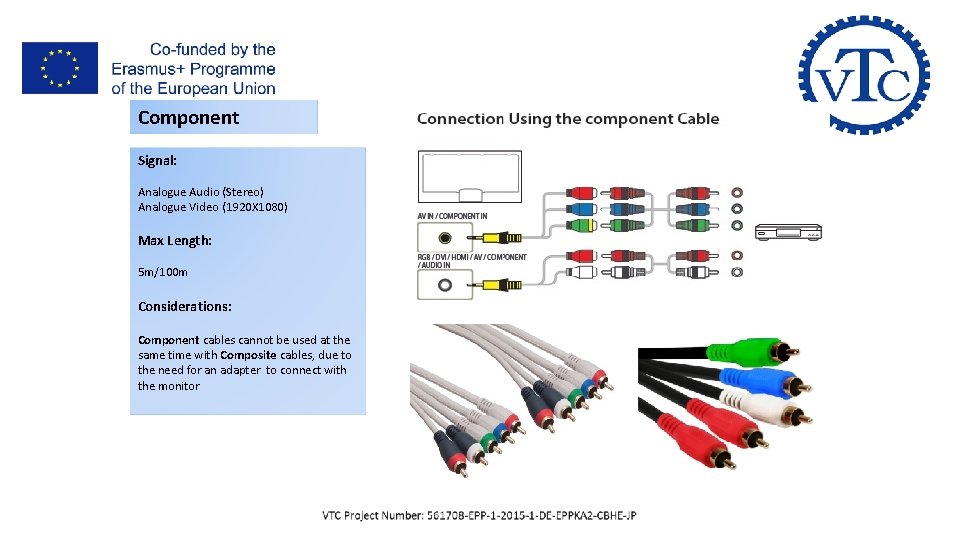
I- AV & Data Cables Component Signal: Analogue Audio (Stereo) Analogue Video (1920 X 1080) Max Length: 5 m/100 m Considerations: Component cables cannot be used at the same time with Composite cables, due to the need for an adapter to connect with the monitor
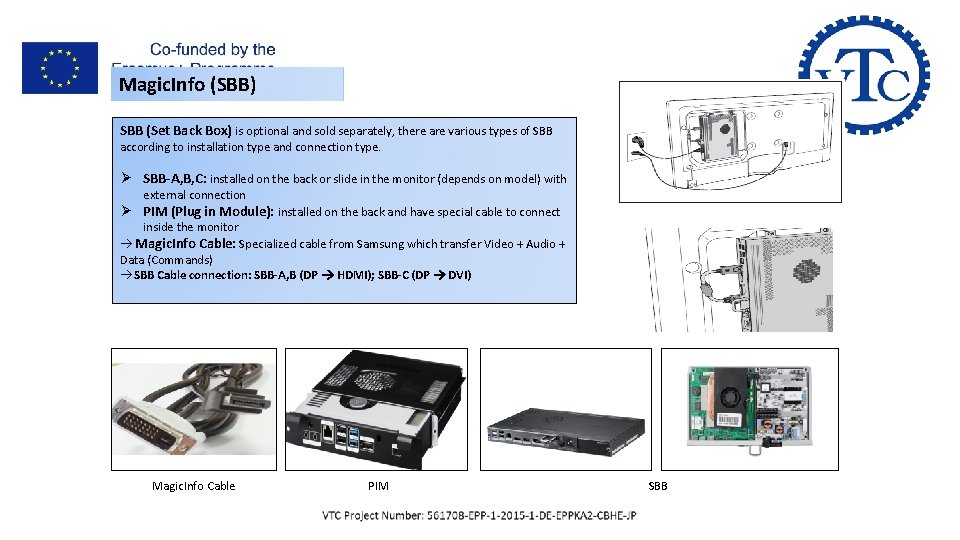
I- AV & Data Cables Magic. Info (SBB) SBB (Set Back Box) is optional and sold separately, there are various types of SBB according to installation type and connection type. Ø SBB-A, B, C: installed on the back or slide in the monitor (depends on model) with external connection Ø PIM (Plug in Module): installed on the back and have special cable to connect inside the monitor Magic. Info Cable: Specialized cable from Samsung which transfer Video + Audio + Data (Commands) SBB Cable connection: SBB-A, B (DP HDMI); SBB-C (DP DVI) Magic. Info Cable PIM SBB
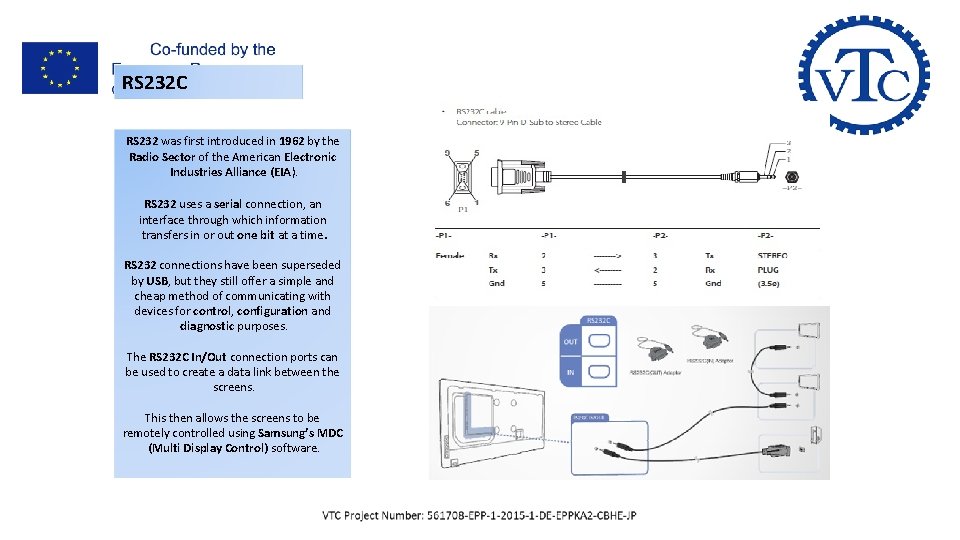
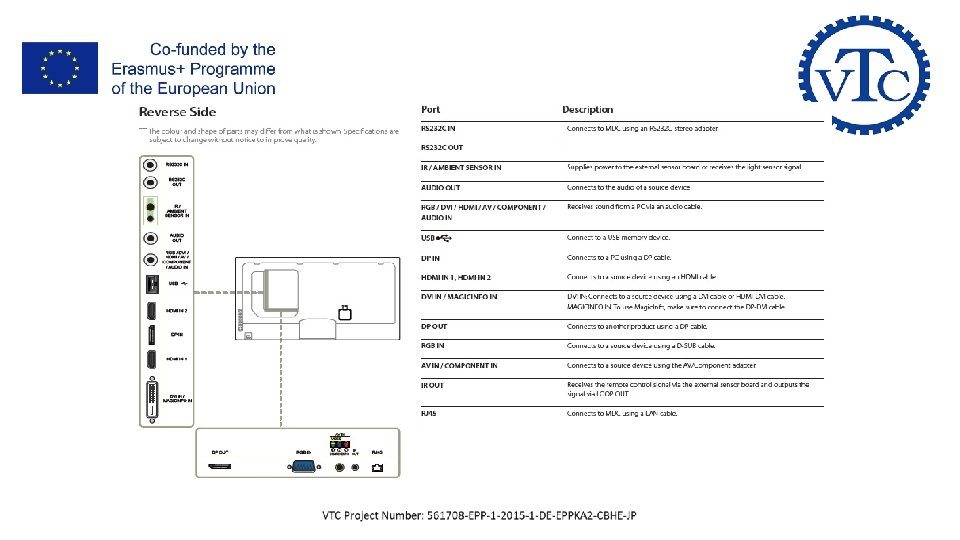
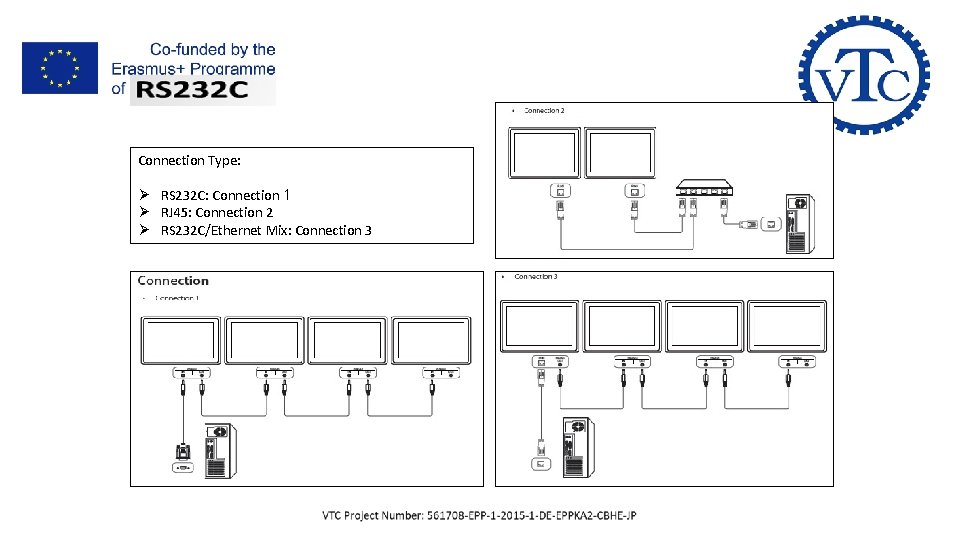
I- AV & Data Cables RS 232 C RS 232 was first introduced in 1962 by the Radio Sector of the American Electronic Industries Alliance (EIA). RS 232 uses a serial connection, an interface through which information transfers in or out one bit at a time. RS 232 connections have been superseded by USB, but they still offer a simple and cheap method of communicating with devices for control, configuration and diagnostic purposes. The RS 232 C In/Out connection ports can be used to create a data link between the screens. This then allows the screens to be remotely controlled using Samsung’s MDC (Multi Display Control) software.
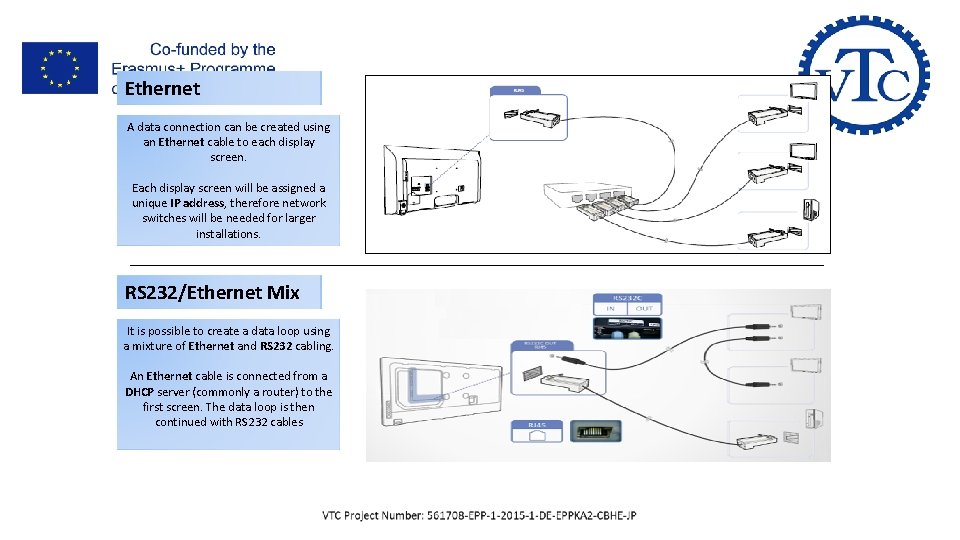
I- AV & Data Cables Ethernet A data connection can be created using an Ethernet cable to each display screen. Each display screen will be assigned a unique IP address, therefore network switches will be needed for larger installations. RS 232/Ethernet Mix It is possible to create a data loop using a mixture of Ethernet and RS 232 cabling. An Ethernet cable is connected from a DHCP server (commonly a router) to the first screen. The data loop is then continued with RS 232 cables
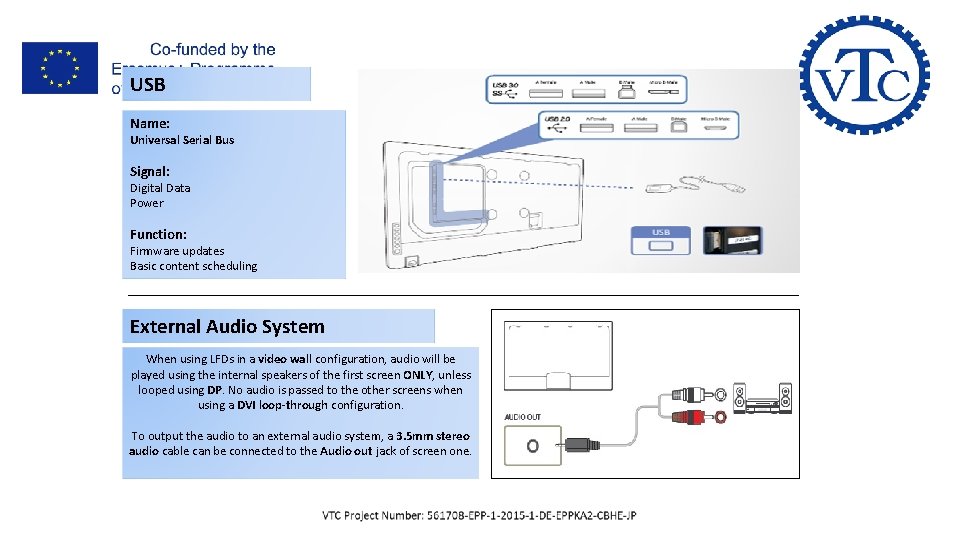
I- AV & Data Cables USB Name: Universal Serial Bus Signal: Digital Data Power Function: Firmware updates Basic content scheduling External Audio System When using LFDs in a video wall configuration, audio will be played using the internal speakers of the first screen ONLY, unless looped using DP. No audio is passed to the other screens when using a DVI loop-through configuration. To output the audio to an external audio system, a 3. 5 mm stereo audio cable can be connected to the Audio out jack of screen one.
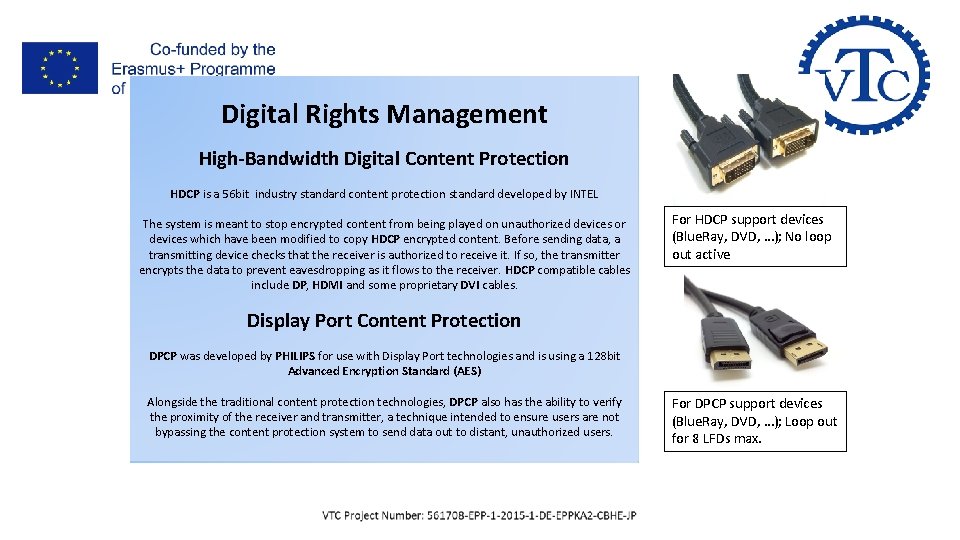
I- AV & Data Cables Digital Rights Management High-Bandwidth Digital Content Protection HDCP is a 56 bit industry standard content protection standard developed by INTEL The system is meant to stop encrypted content from being played on unauthorized devices or devices which have been modified to copy HDCP encrypted content. Before sending data, a transmitting device checks that the receiver is authorized to receive it. If so, the transmitter encrypts the data to prevent eavesdropping as it flows to the receiver. HDCP compatible cables include DP, HDMI and some proprietary DVI cables. For HDCP support devices (Blue. Ray, DVD, …); No loop out active Display Port Content Protection DPCP was developed by PHILIPS for use with Display Port technologies and is using a 128 bit Advanced Encryption Standard (AES) Alongside the traditional content protection technologies, DPCP also has the ability to verify the proximity of the receiver and transmitter, a technique intended to ensure users are not bypassing the content protection system to send data out to distant, unauthorized users. For DPCP support devices (Blue. Ray, DVD, …); Loop out for 8 LFDs max.
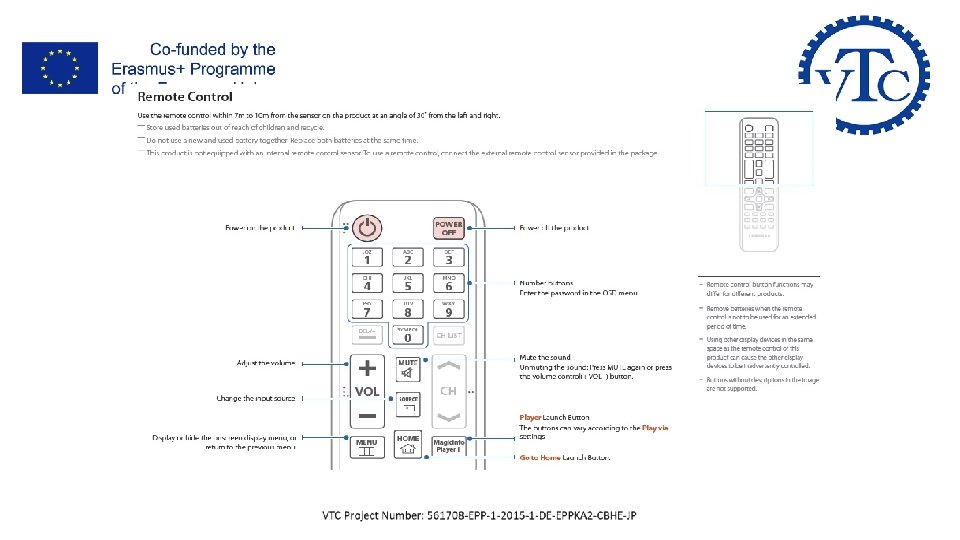
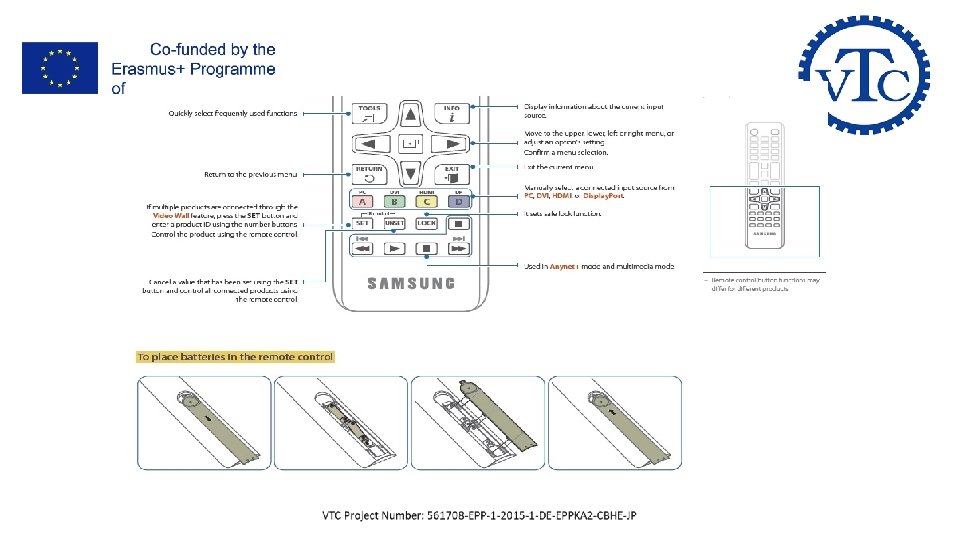
II- LFD Control & Installation
II- LFD Control & Installation
II- LFD Control & Installation
II- LFD Control & Installation
II- LFD Control & Installation
II- LFD Control & Installation
II- LFD Control & Installation
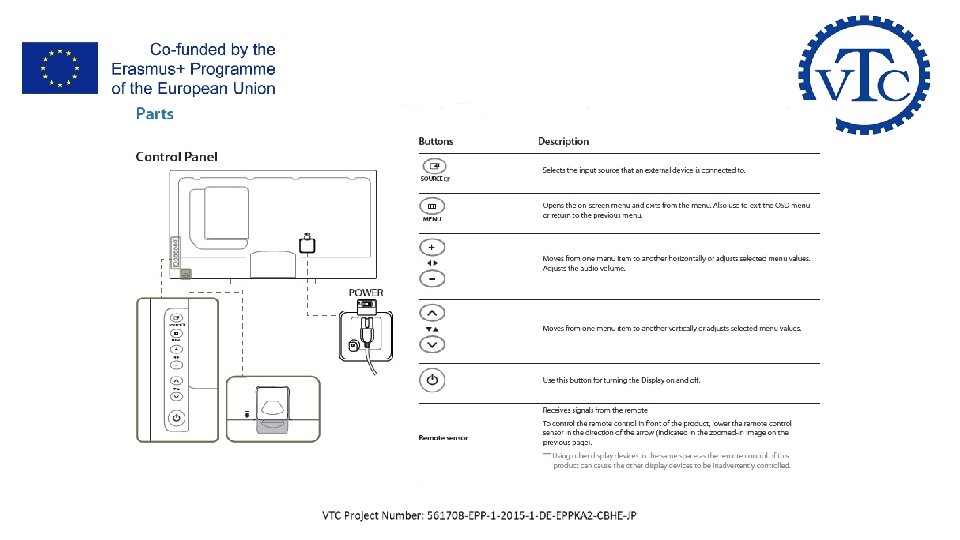
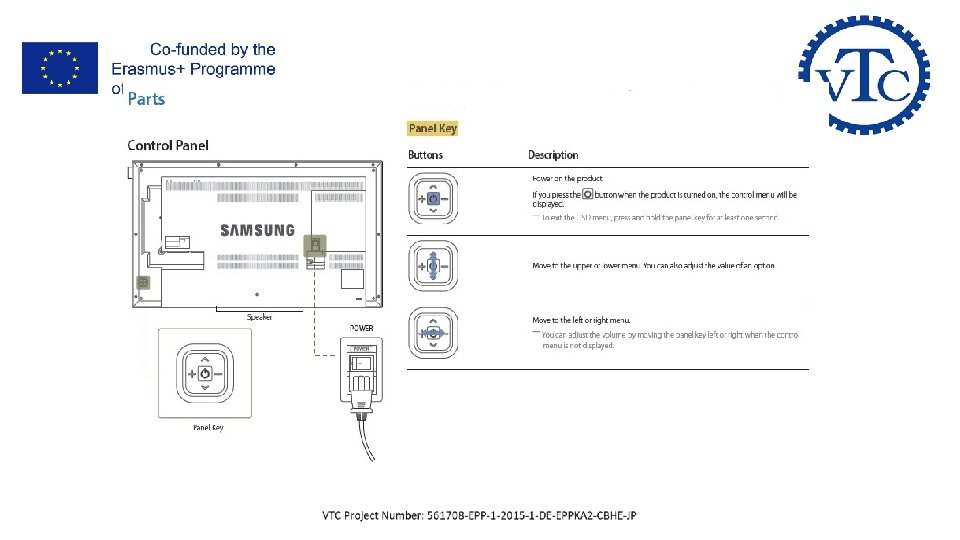
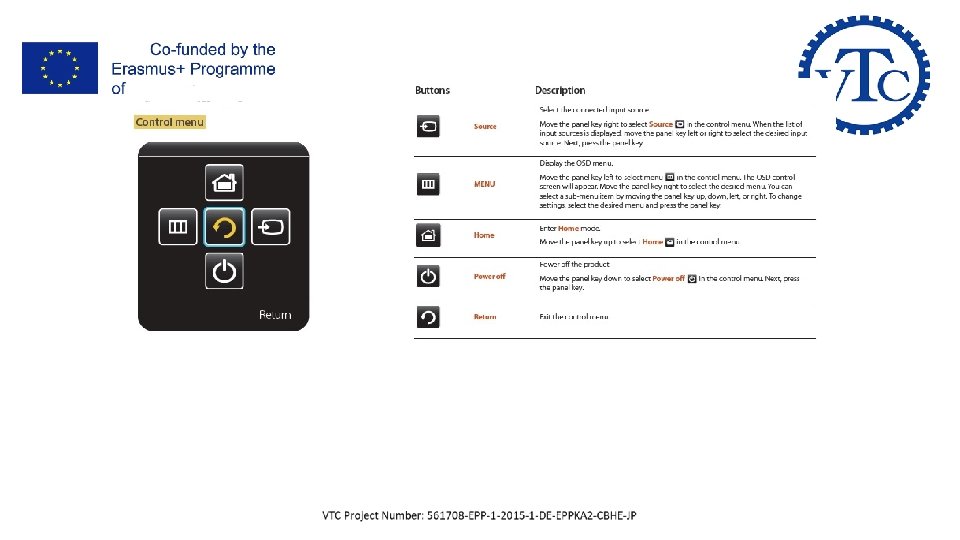
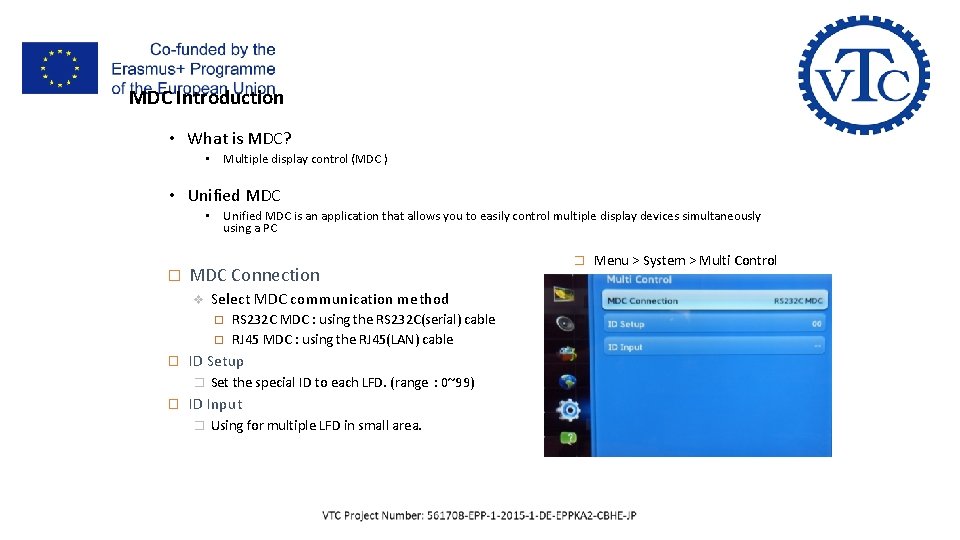
II- LFD Control & Installation MDC Introduction • What is MDC? • Multiple display control (MDC ) • Unified MDC is an application that allows you to easily control multiple display devices simultaneously using a PC � MDC Connection v Select MDC communication method � ID Setup � � RS 232 C MDC : using the RS 232 C(serial) cable RJ 45 MDC : using the RJ 45(LAN) cable Set the special ID to each LFD. (range : 0~99) ID Input � Using for multiple LFD in small area. � Menu > System > Multi Control
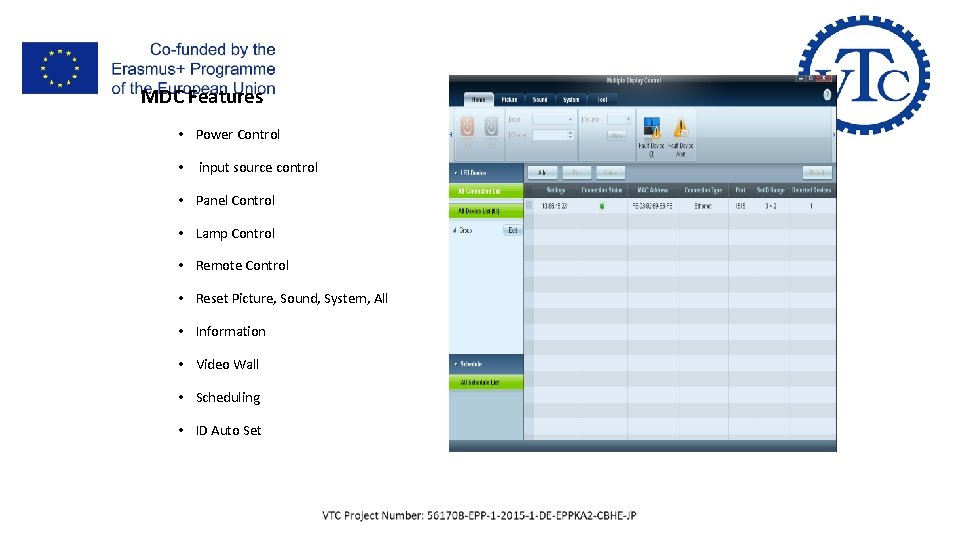
II- LFD Control & Installation MDC Features • Power Control • input source control • Panel Control • Lamp Control • Remote Control • Reset Picture, Sound, System, All • Information • Video Wall • Scheduling • ID Auto Set
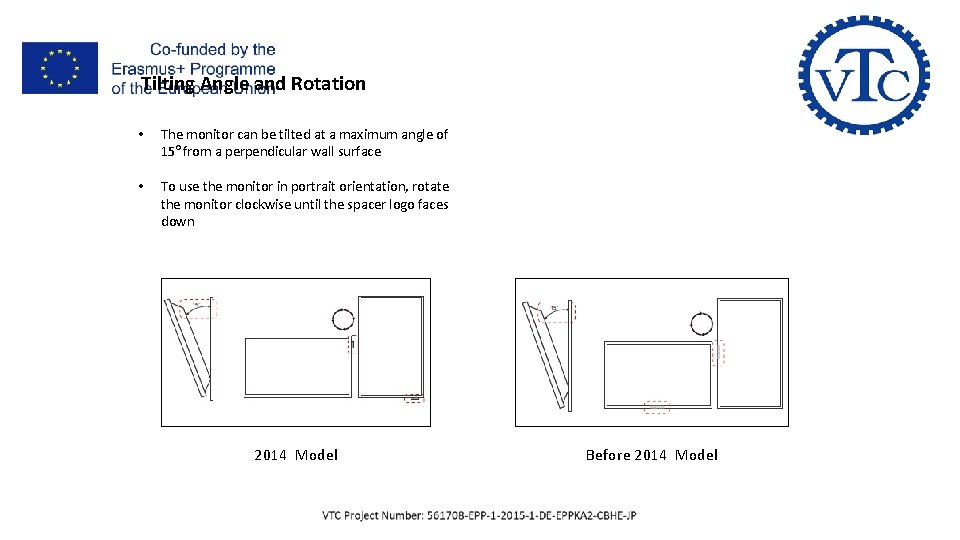
II- LFD Control & Installation Tilting Angle and Rotation • The monitor can be tilted at a maximum angle of 15 o from a perpendicular wall surface • To use the monitor in portrait orientation, rotate the monitor clockwise until the spacer logo faces down 2014 Model Before 2014 Model
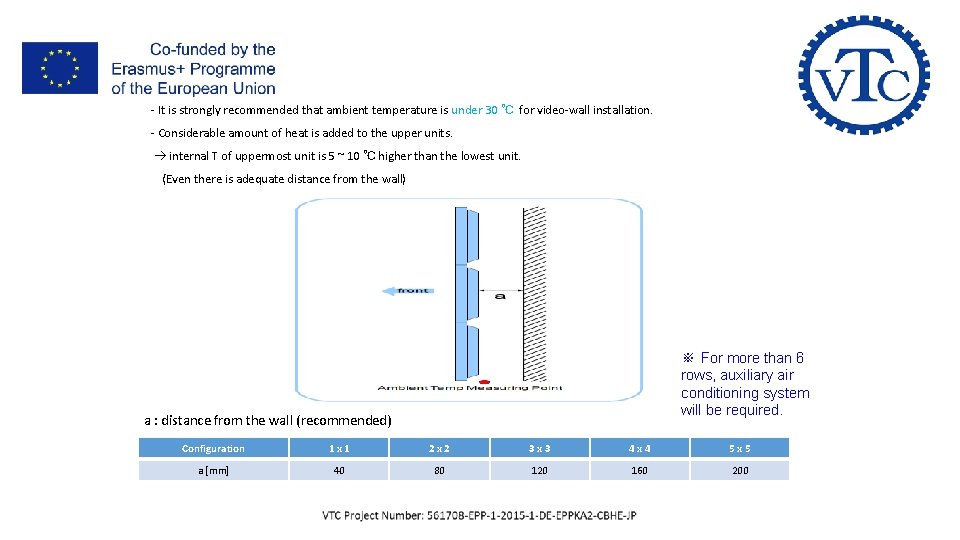
II- LFD Control & Installation - It is strongly recommended that ambient temperature is under 30 ℃ for video-wall installation. - Considerable amount of heat is added to the upper units. internal T of uppermost unit is 5 ~ 10 ℃ higher than the lowest unit. (Even there is adequate distance from the wall) ※ For more than 6 rows, auxiliary air conditioning system will be required. a : distance from the wall (recommended) Configuration 1 x 1 2 x 2 3 x 3 4 x 4 5 x 5 a [mm] 40 80 120 160 200
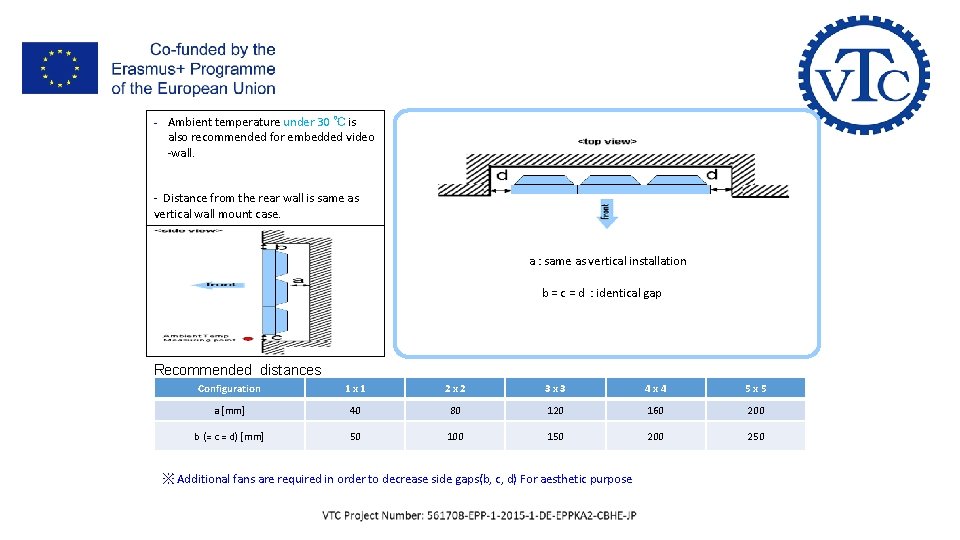
II- LFD Control & Installation - Ambient temperature under 30 ℃ is also recommended for embedded video -wall. - Distance from the rear wall is same as vertical wall mount case. a : same as vertical installation b = c = d : identical gap Recommended distances Configuration 1 x 1 2 x 2 3 x 3 4 x 4 5 x 5 a [mm] 40 80 120 160 200 b (= c = d) [mm] 50 100 150 200 250 ※ Additional fans are required in order to decrease side gaps(b, c, d) For aesthetic purpose
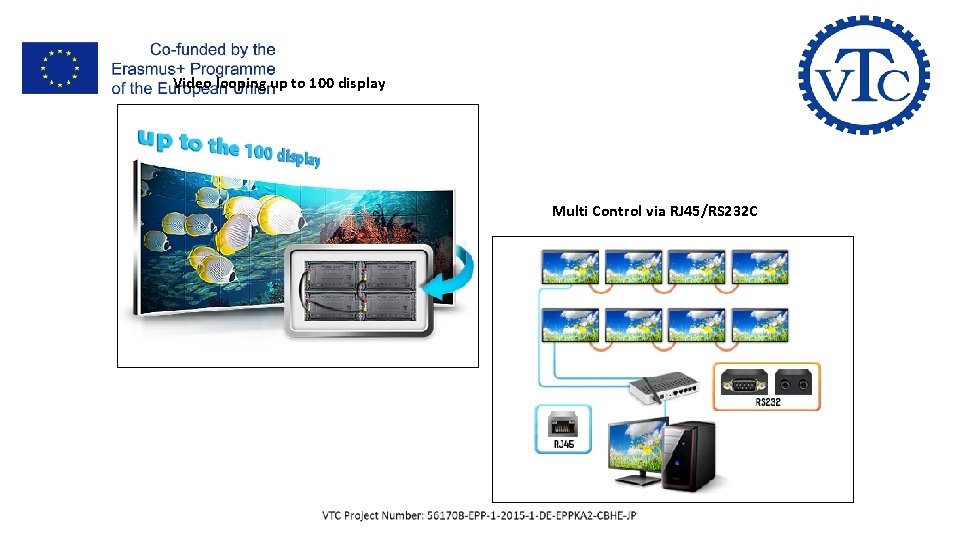
III- Data & Video Looping Video looping up to 100 display Multi Control via RJ 45/RS 232 C
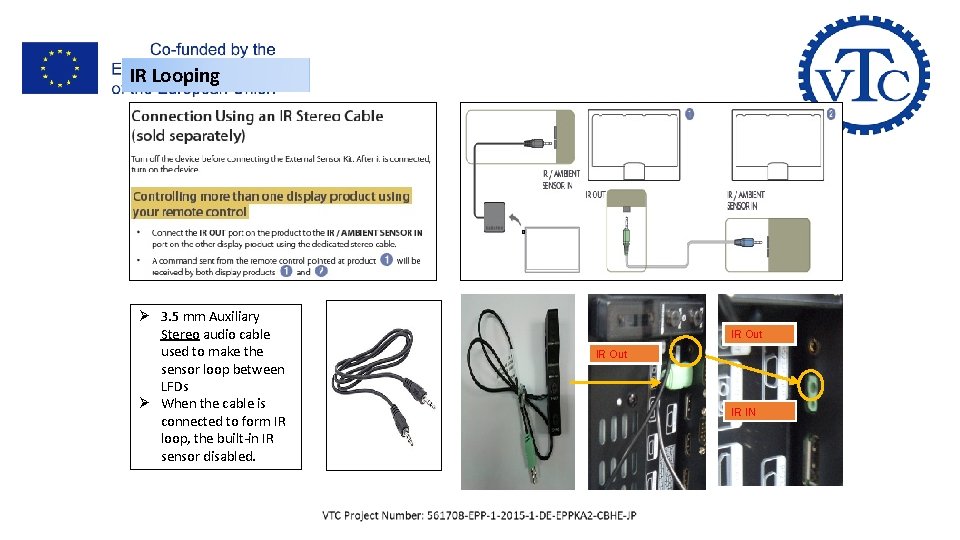
III- Data & Video Looping IR Looping Ø 3. 5 mm Auxiliary Stereo audio cable used to make the sensor loop between LFDs Ø When the cable is connected to form IR loop, the built-in IR sensor disabled. IR Out IR IN
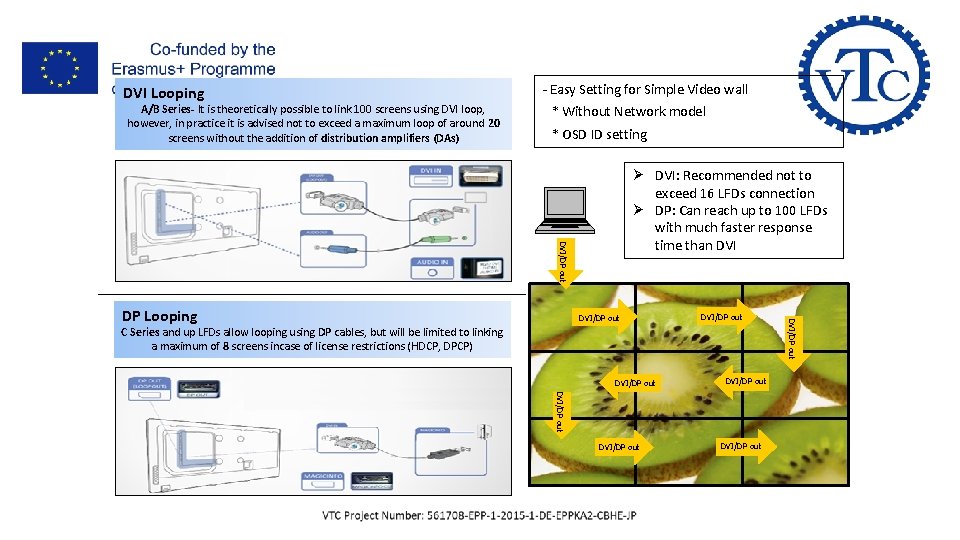
III- Data & Video Looping DVI Looping A/B Series- It is theoretically possible to link 100 screens using DVI loop, however, in practice it is advised not to exceed a maximum loop of around 20 screens without the addition of distribution amplifiers (DAs) - Easy Setting for Simple Video wall * Without Network model * OSD ID setting DVI/DP out Ø DVI: Recommended not to exceed 16 LFDs connection Ø DP: Can reach up to 100 LFDs with much faster response time than DVI/DP out C Series and up LFDs allow looping using DP cables, but will be limited to linking a maximum of 8 screens incase of license restrictions (HDCP, DPCP) DVI/DP out DVI/DP out DP Looping
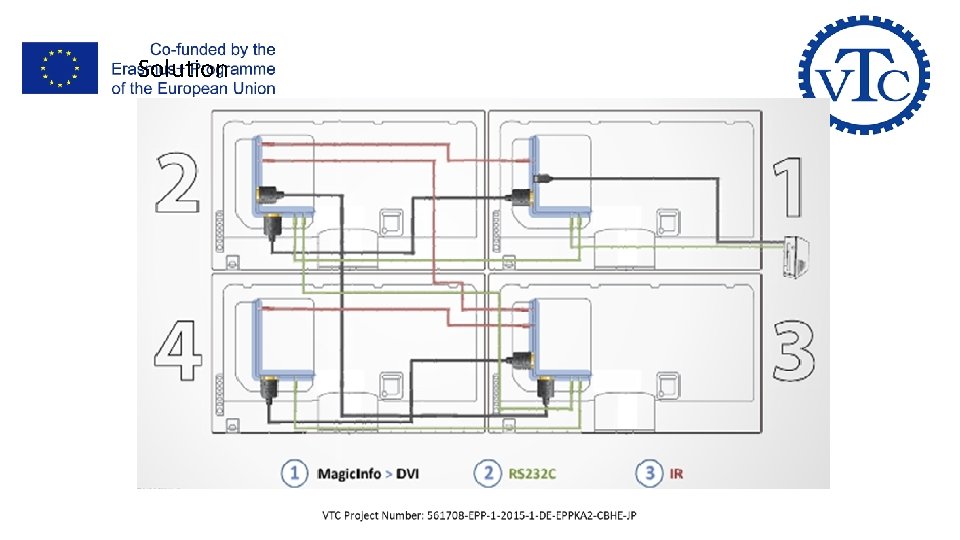
III- Data & Video Looping Connection Type: Ø RS 232 C: Connection 1 Ø RJ 45: Connection 2 Ø RS 232 C/Ethernet Mix: Connection 3
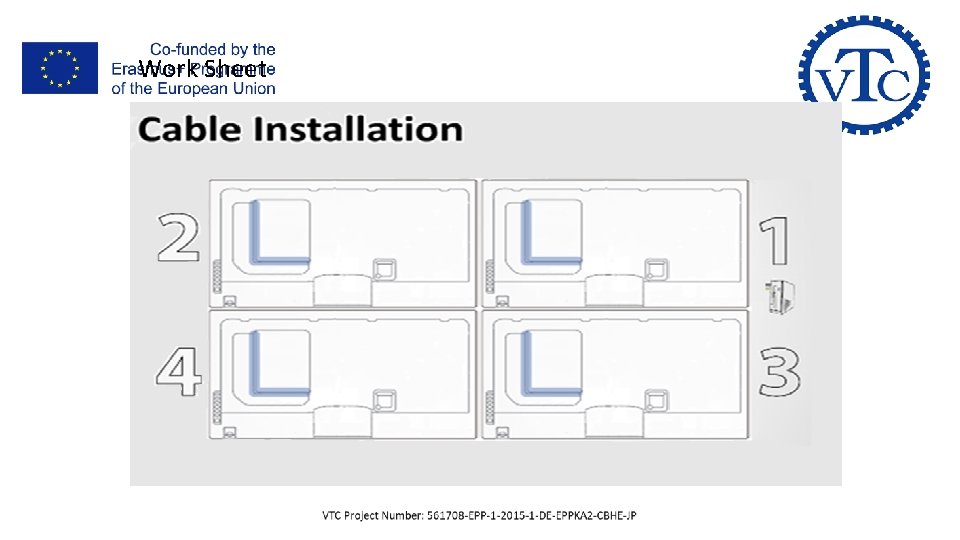
III- Data & Video Looping Work Sheet
III- Data & Video Looping Solution
V- Samsung Smart Signage Platform SSSP Contents management solution for Modern Digital Signage Visual Display Solutions
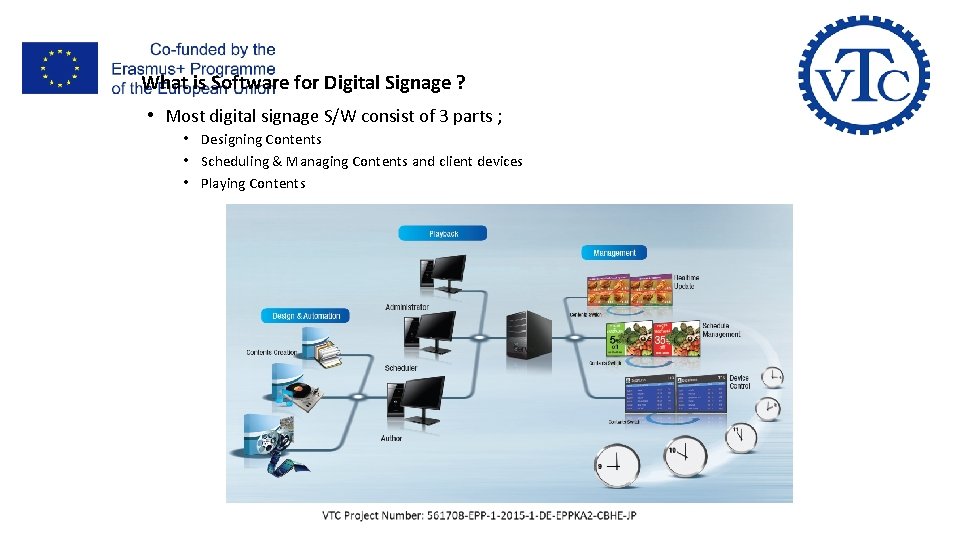
V- Samsung Smart Signage Platform SSSP What is Software for Digital Signage ? • Most digital signage S/W consist of 3 parts ; • Designing Contents • Scheduling & Managing Contents and client devices • Playing Contents
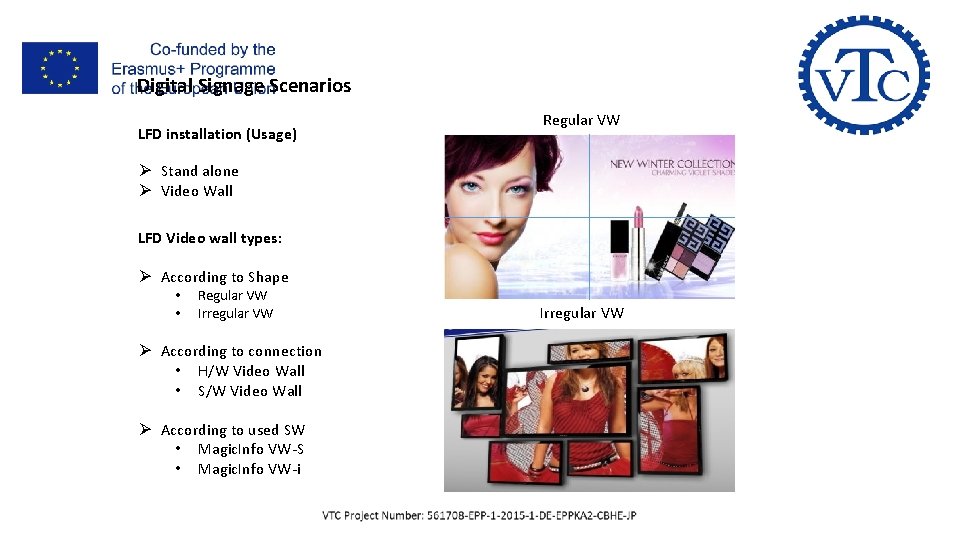
V- Samsung Smart Signage Platform SSSP Digital Signage Scenarios LFD installation (Usage) Regular VW Ø Stand alone Ø Video Wall LFD Video wall types: Ø According to Shape • • Regular VW Irregular VW Ø According to connection • H/W Video Wall • S/W Video Wall Ø According to used SW • Magic. Info VW-S • Magic. Info VW-i Irregular VW
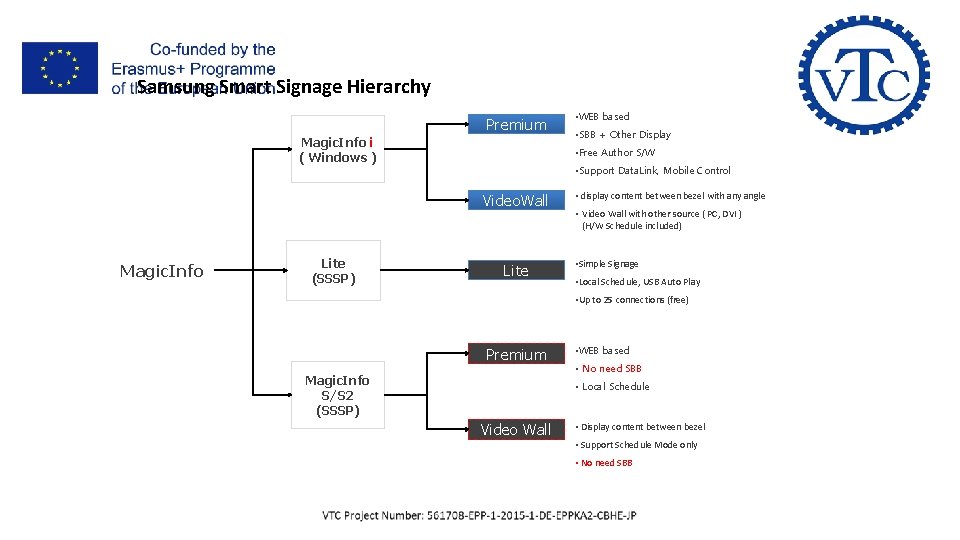
V- Samsung Smart Signage Platform SSSP Samsung Smart Signage Hierarchy Premium Magic. Info i ( Windows ) Lite (SSSP) • SBB + Other Display • Free Author S/W • Support Data. Link, Mobile Control Video. Wall Magic. Info • WEB based Lite • display content between bezel with any angle • Video Wall with other source ( PC, DVI ) (H/W Schedule included) • Simple Signage • Local Schedule, USB Auto Play • Up to 25 connections (free) Premium Magic. Info S/S 2 (SSSP) • WEB based • No need SBB • Local Schedule Video Wall • Display content between bezel • Support Schedule Mode only • No need SBB
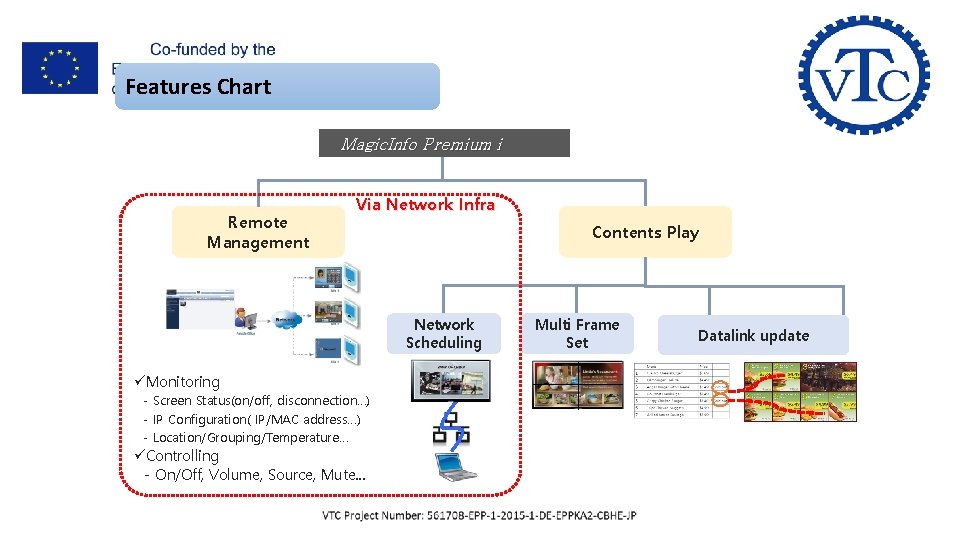
V- Samsung Smart Signage Platform SSSP Features Chart Magic. Info Premium i Remote Management Via Network Infra Contents Play Network Scheduling üMonitoring - Screen Status(on/off, disconnection…) - IP Configuration( IP/MAC address…) - Location/Grouping/Temperature… üControlling - On/Off, Volume, Source, Mute… Multi Frame Set Datalink update
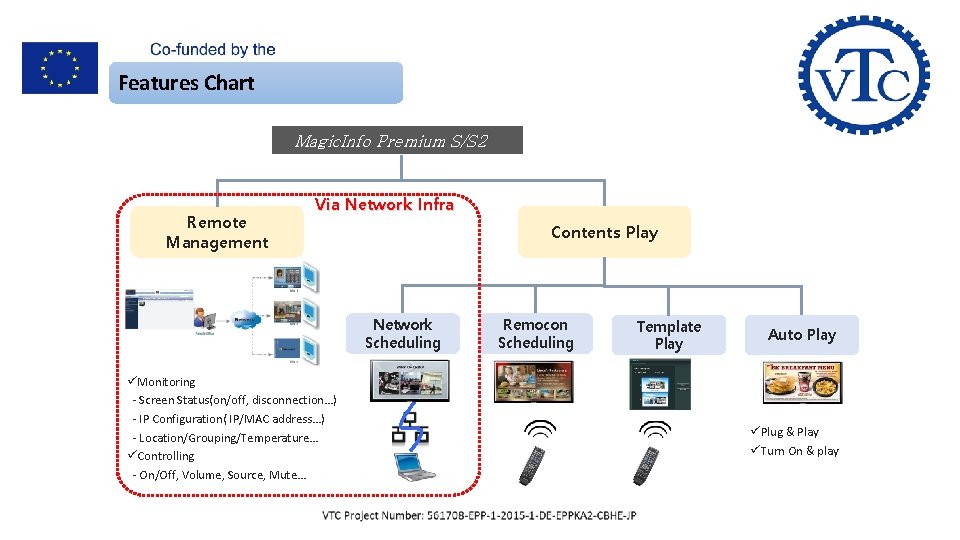
V- Samsung Smart Signage Platform SSSP Features Chart Magic. Info Premium S/S 2 Remote Management Via Network Infra Contents Play Network Scheduling üMonitoring - Screen Status(on/off, disconnection…) - IP Configuration( IP/MAC address…) - Location/Grouping/Temperature… üControlling - On/Off, Volume, Source, Mute… Remocon Scheduling Template Play Auto Play üPlug & Play üTurn On & play
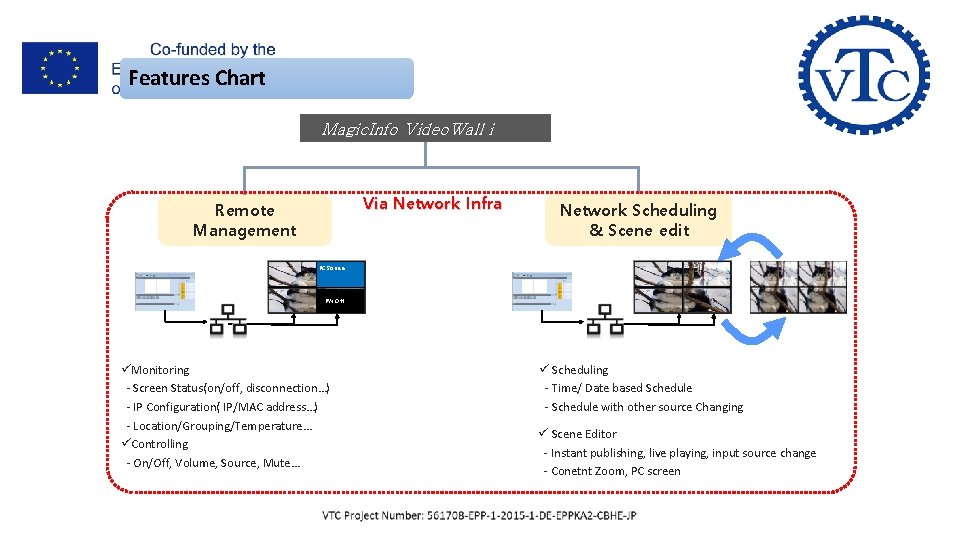
V- Samsung Smart Signage Platform SSSP Features Chart Magic. Info Video. Wall i Via Network Infra Remote Management Network Scheduling & Scene edit PC Source PW Off üMonitoring - Screen Status(on/off, disconnection…) - IP Configuration( IP/MAC address…) - Location/Grouping/Temperature… üControlling - On/Off, Volume, Source, Mute… ü Scheduling - Time/ Date based Schedule - Schedule with other source Changing ü Scene Editor - Instant publishing, live playing, input source change - Conetnt Zoom, PC screen
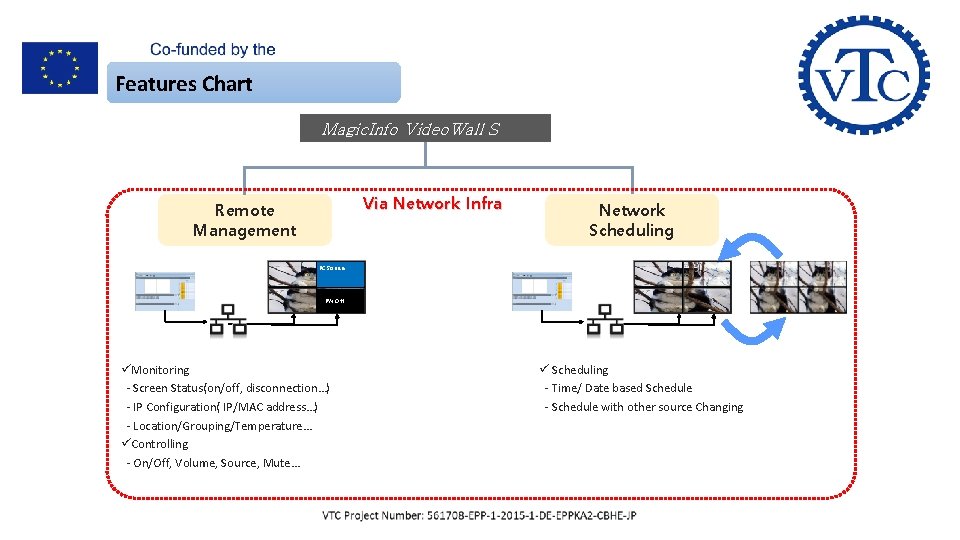
V- Samsung Smart Signage Platform SSSP Features Chart Magic. Info Video. Wall S Via Network Infra Remote Management Network Scheduling PC Source PW Off üMonitoring - Screen Status(on/off, disconnection…) - IP Configuration( IP/MAC address…) - Location/Grouping/Temperature… üControlling - On/Off, Volume, Source, Mute… ü Scheduling - Time/ Date based Schedule - Schedule with other source Changing
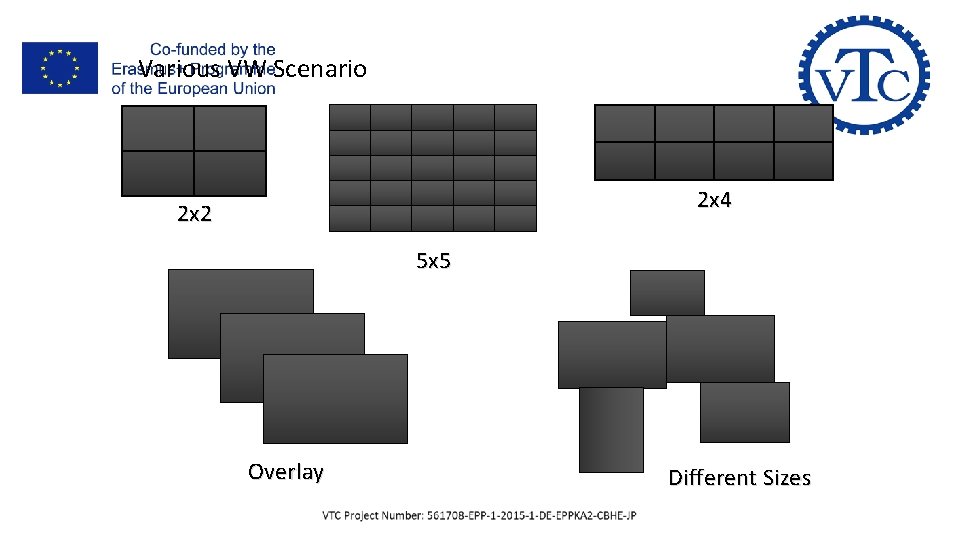
V- Samsung Smart Signage Platform SSSP Various VW Scenario 2 x 4 2 x 2 5 x 5 Overlay Different Sizes
V- Samsung Smart Signage Platform SSSP