
Level 0 102017 Revised Student Information Repository System
- Slides: 28
Level 0 – 10/2017 Revised
Student Information Repository System (SIRS) LEVELS � Level 0: is housed here at Nassau BOCES. � It is used by all schools to enter and verify student data. � Data at this level needs to be error free to be pushed up to Level 1. 2
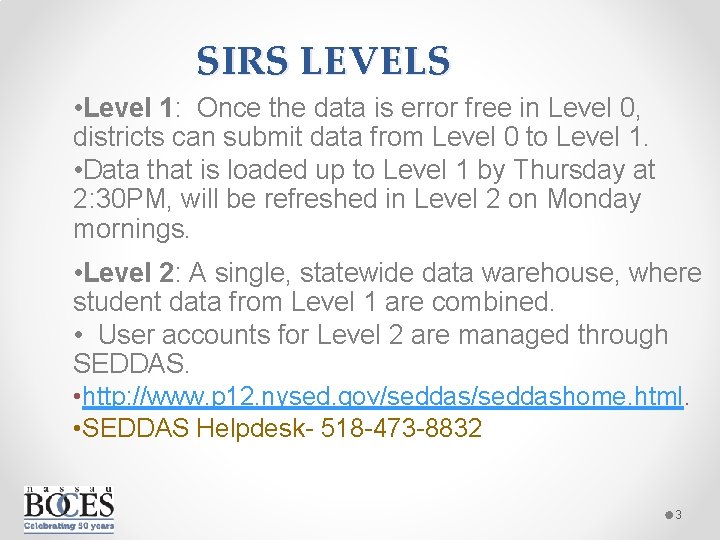
SIRS LEVELS • Level 1: Once the data is error free in Level 0, districts can submit data from Level 0 to Level 1. • Data that is loaded up to Level 1 by Thursday at 2: 30 PM, will be refreshed in Level 2 on Monday mornings. • Level 2: A single, statewide data warehouse, where student data from Level 1 are combined. • User accounts for Level 2 are managed through SEDDAS. • http: //www. p 12. nysed. gov/seddashome. html. • SEDDAS Helpdesk- 518 -473 -8832 3
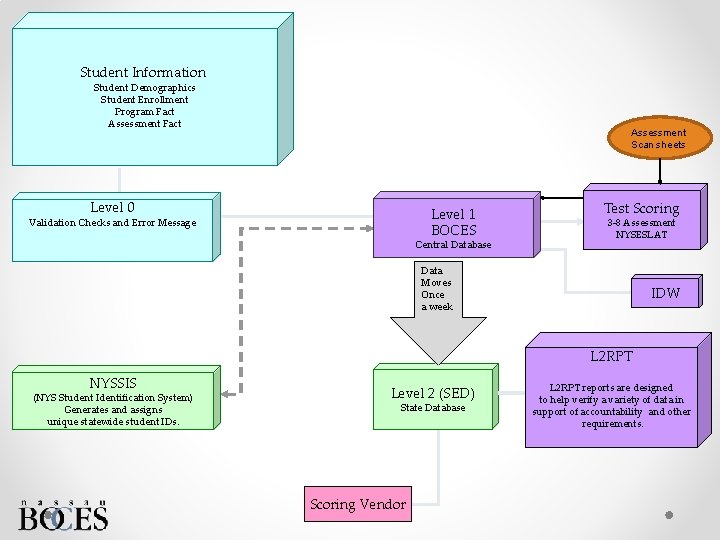
Student Information Student Demographics Student Enrollment Program Fact Assessment Scan sheets Level 0 Level 1 BOCES Validation Checks and Error Message Central Database Test Scoring 3 -8 Assessment NYSESLAT Data Moves Once a week IDW L 2 RPT NYSSIS (NYS Student Identification System) Generates and assigns unique statewide student IDs. Level 2 (SED) State Database Scoring Vendor L 2 RPT reports are designed to help verify a variety of data in support of accountability and other requirements.
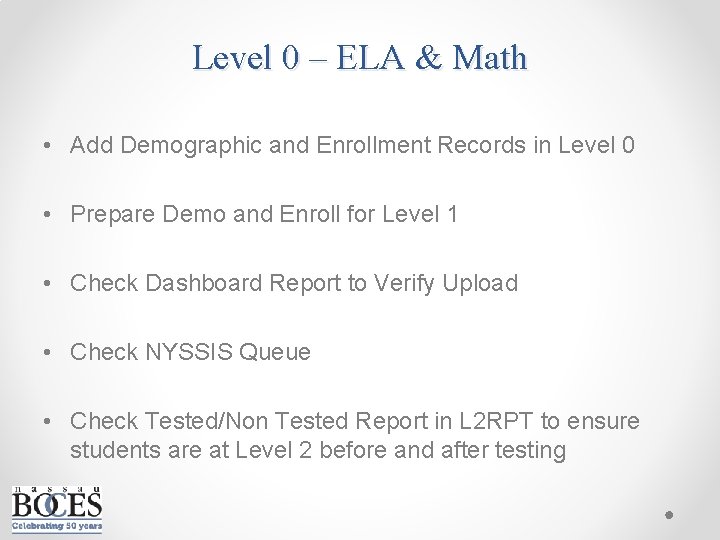
Level 0 – ELA & Math • Add Demographic and Enrollment Records in Level 0 • Prepare Demo and Enroll for Level 1 • Check Dashboard Report to Verify Upload • Check NYSSIS Queue • Check Tested/Non Tested Report in L 2 RPT to ensure students are at Level 2 before and after testing
Manual Input of Demographic/Enrollment/Assessment Fact Records
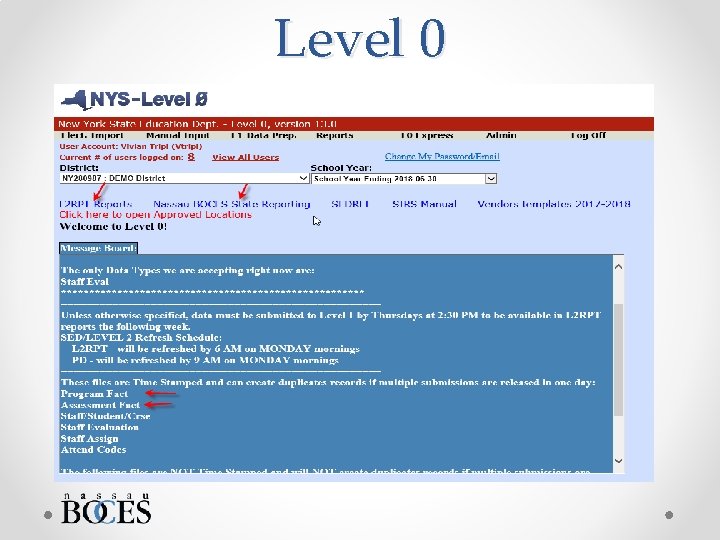
Level 0
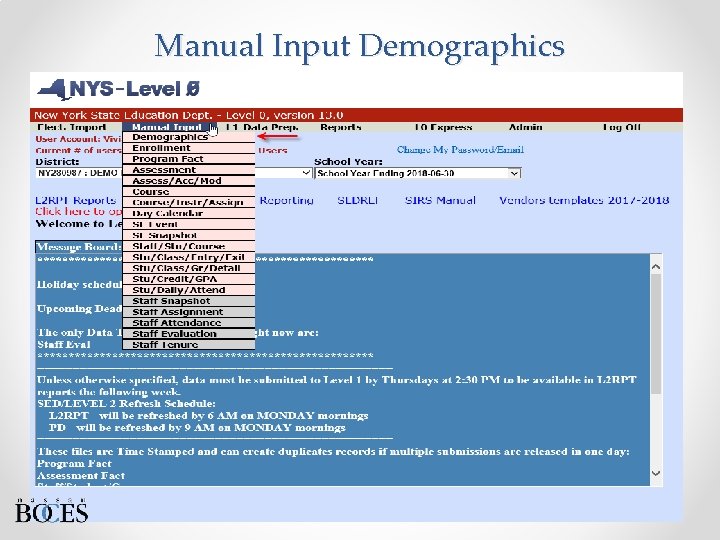
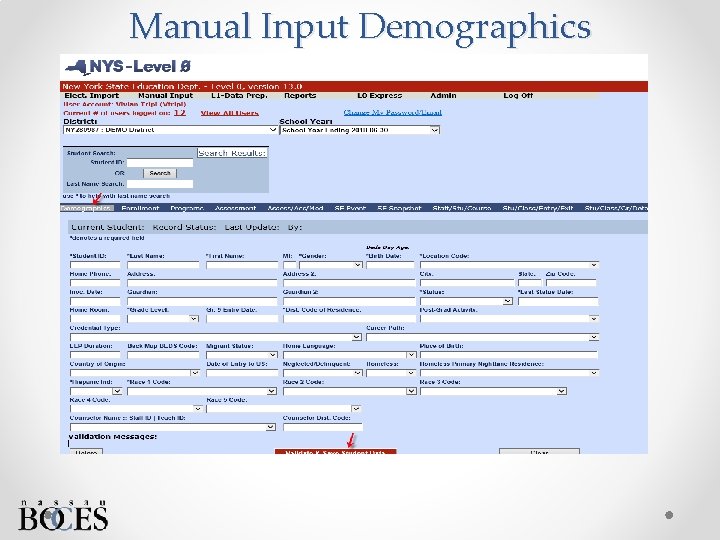
Manual Input Demographics
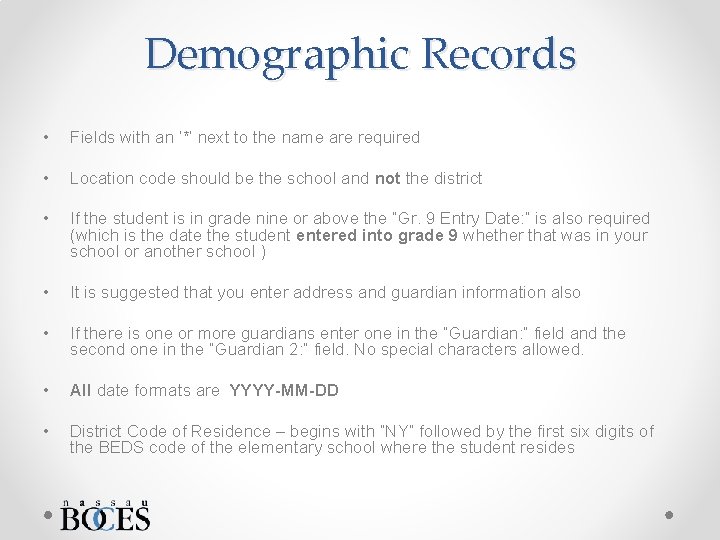
Demographic Records • Fields with an ‘*’ next to the name are required • Location code should be the school and not the district • If the student is in grade nine or above the “Gr. 9 Entry Date: ” is also required (which is the date the student entered into grade 9 whether that was in your school or another school ) • It is suggested that you enter address and guardian information also • If there is one or more guardians enter one in the “Guardian: ” field and the second one in the “Guardian 2: ” field. No special characters allowed. • All date formats are YYYY-MM-DD • District Code of Residence – begins with “NY” followed by the first six digits of the BEDS code of the elementary school where the student resides
Manual Input Demographics
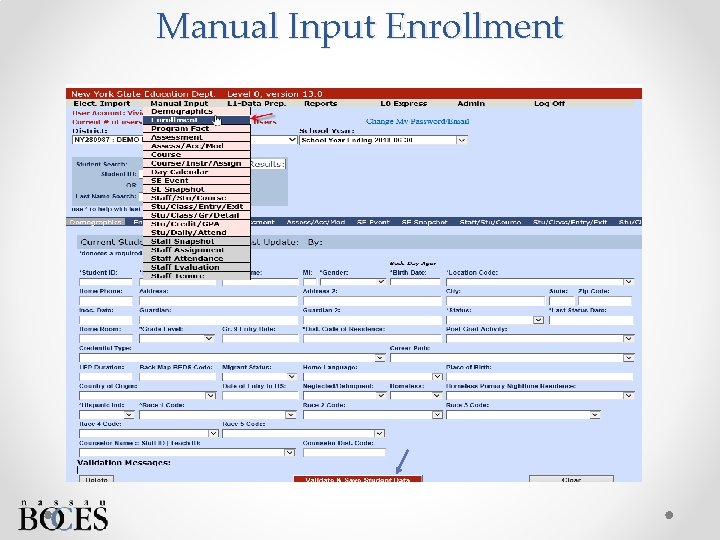
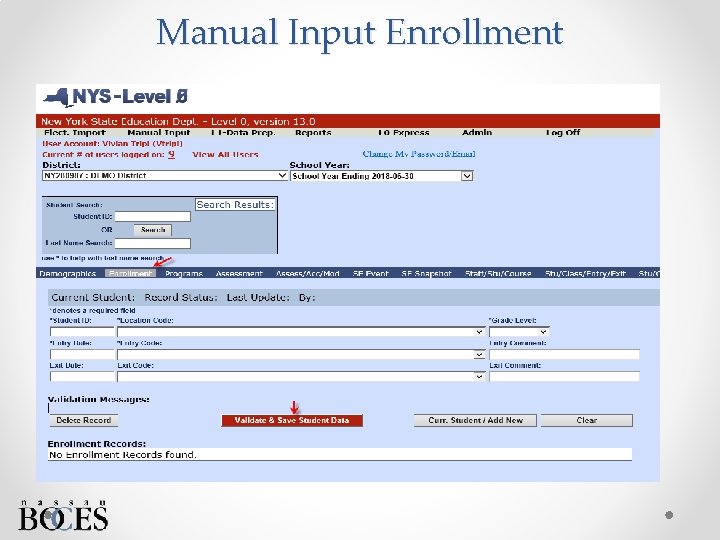
Manual Input Enrollment
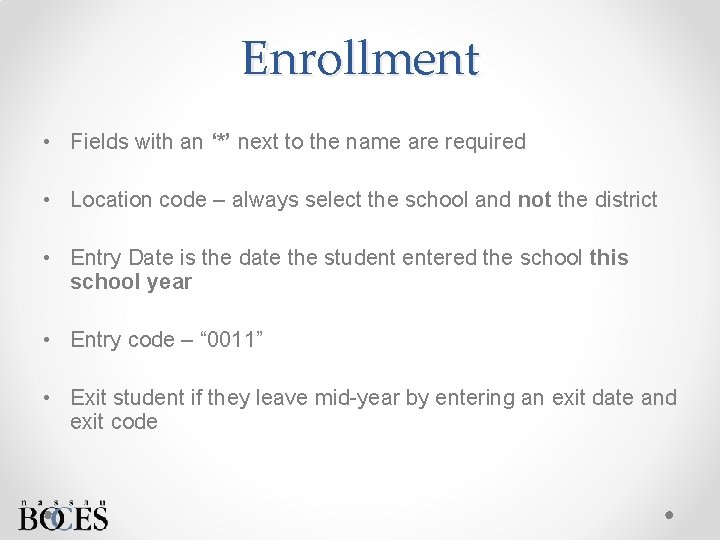
Enrollment • Fields with an ‘*’ next to the name are required • Location code – always select the school and not the district • Entry Date is the date the student entered the school this school year • Entry code – “ 0011” • Exit student if they leave mid-year by entering an exit date and exit code
Manual Input Enrollment
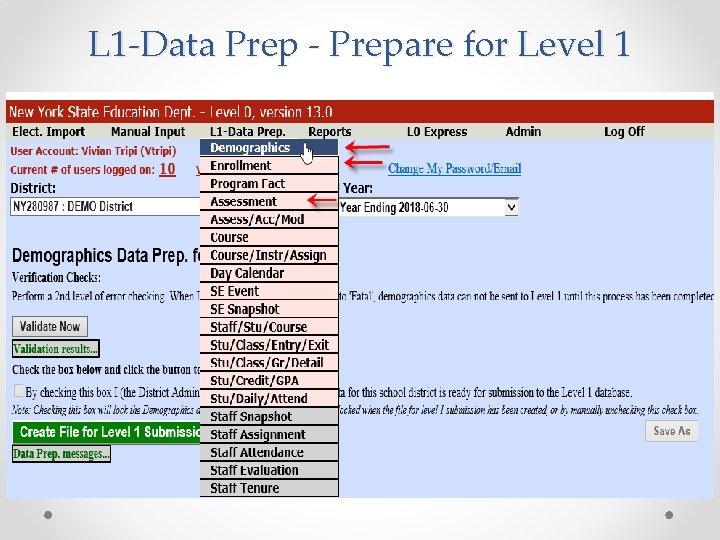
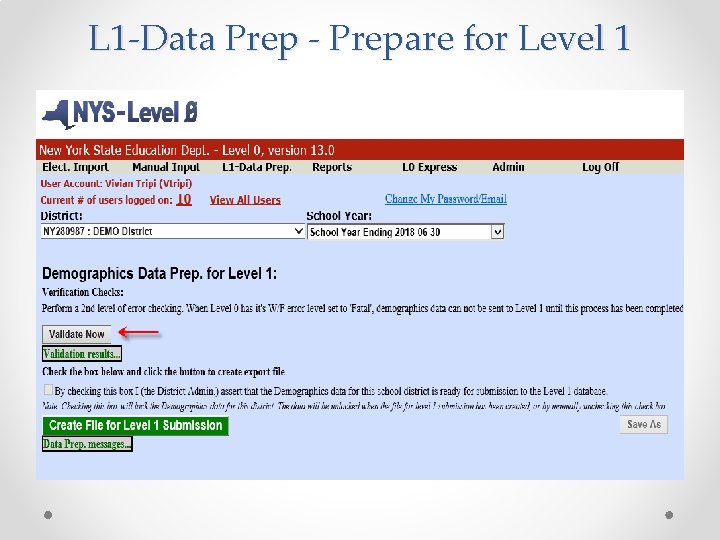
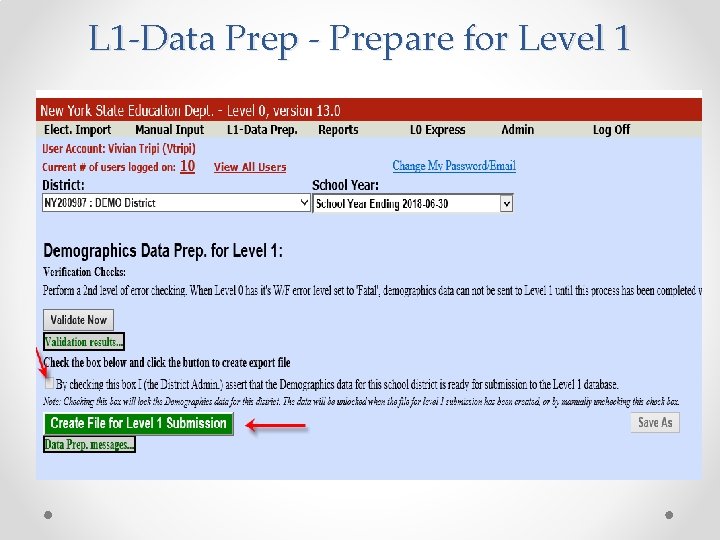
L 1 -Data Prep - Prepare for Level 1
L 1 -Data Prep - Prepare for Level 1
L 1 -Data Prep - Prepare for Level 1
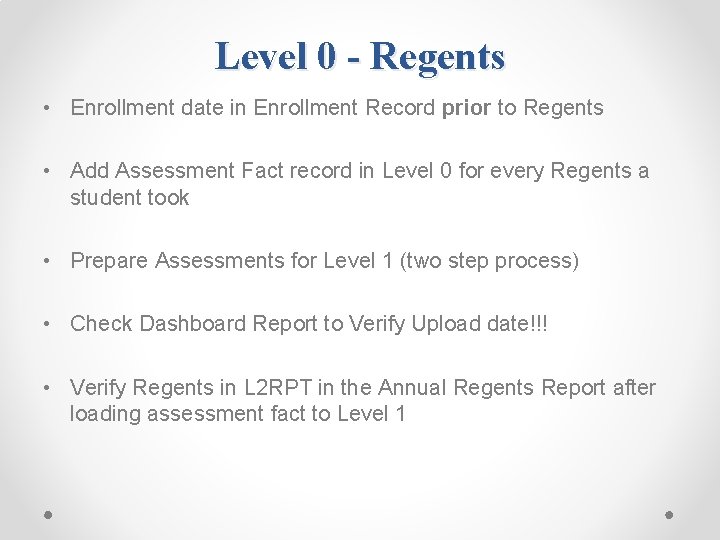
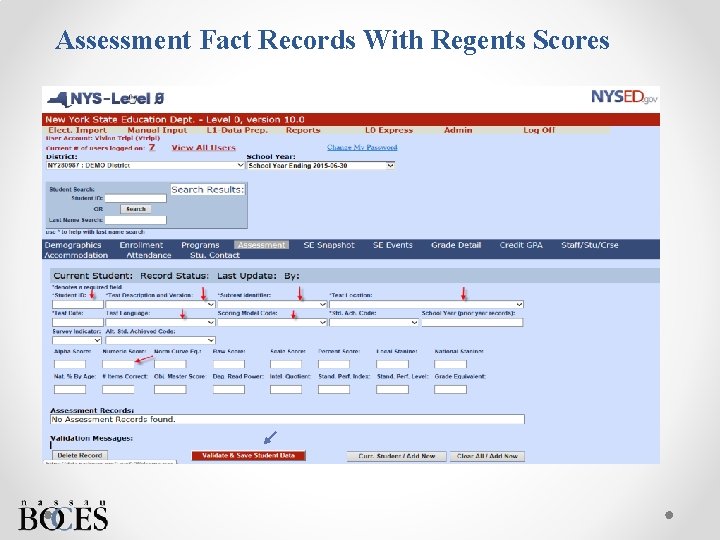
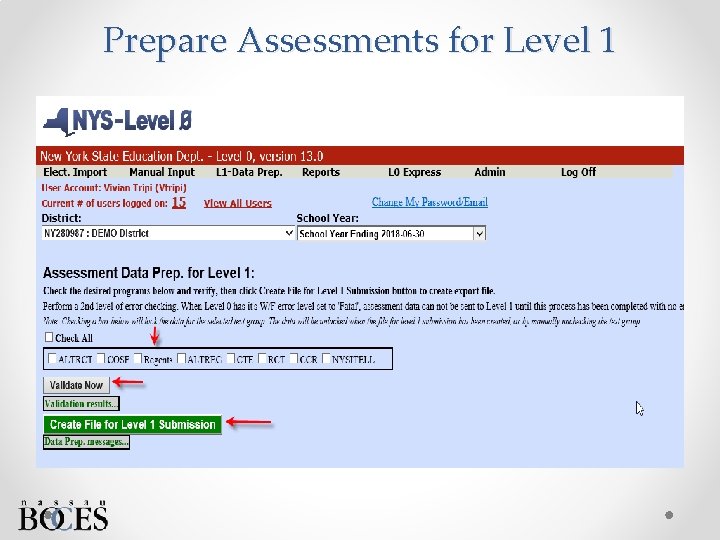
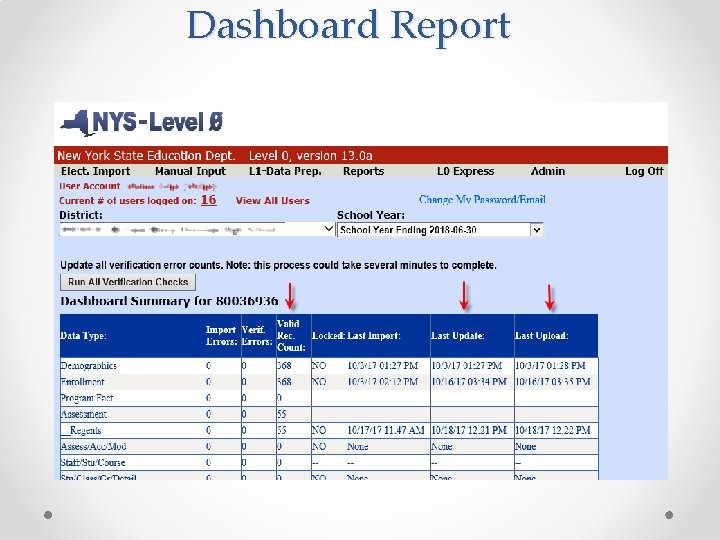
Level 0 - Regents • Enrollment date in Enrollment Record prior to Regents • Add Assessment Fact record in Level 0 for every Regents a student took • Prepare Assessments for Level 1 (two step process) • Check Dashboard Report to Verify Upload date!!! • Verify Regents in L 2 RPT in the Annual Regents Report after loading assessment fact to Level 1
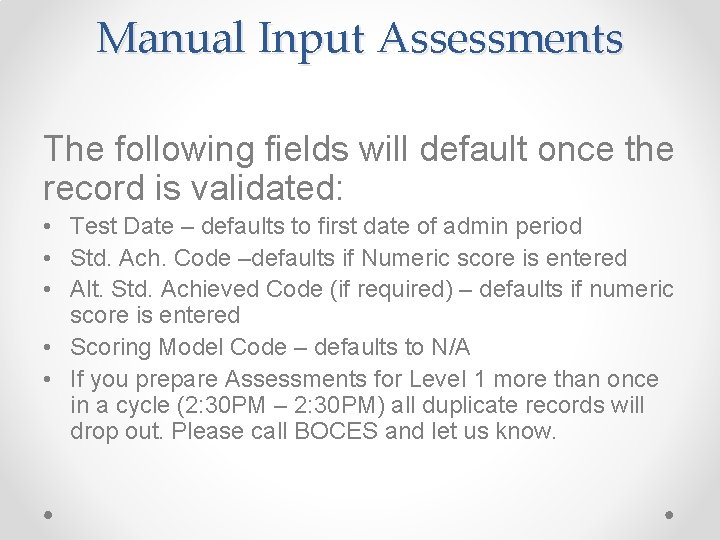
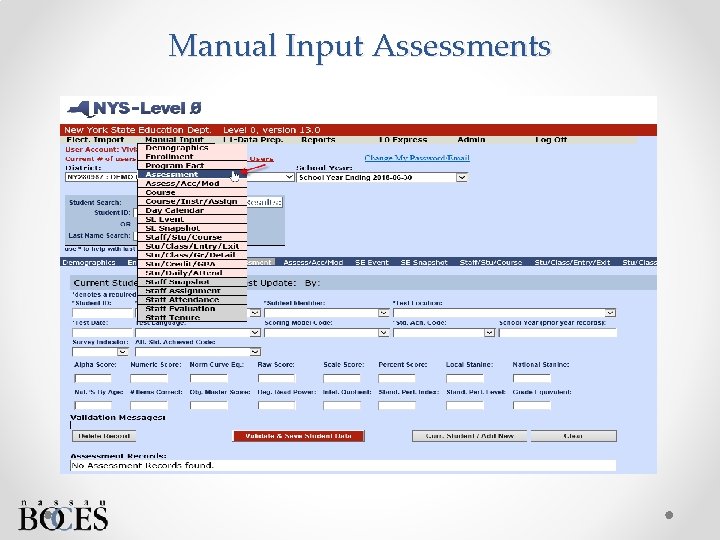
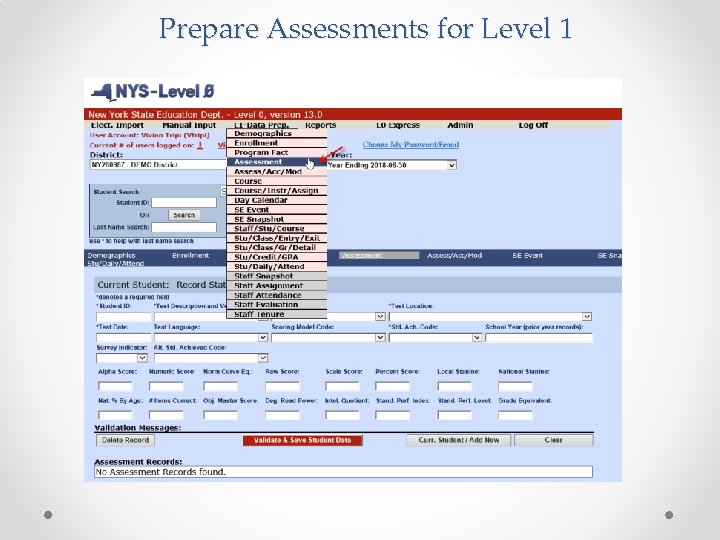
Manual Input Assessments The following fields will default once the record is validated: • Test Date – defaults to first date of admin period • Std. Ach. Code –defaults if Numeric score is entered • Alt. Std. Achieved Code (if required) – defaults if numeric score is entered • Scoring Model Code – defaults to N/A • If you prepare Assessments for Level 1 more than once in a cycle (2: 30 PM – 2: 30 PM) all duplicate records will drop out. Please call BOCES and let us know.
Manual Input Assessments
Assessment Fact Records With Regents Scores
Prepare Assessments for Level 1
Prepare Assessments for Level 1
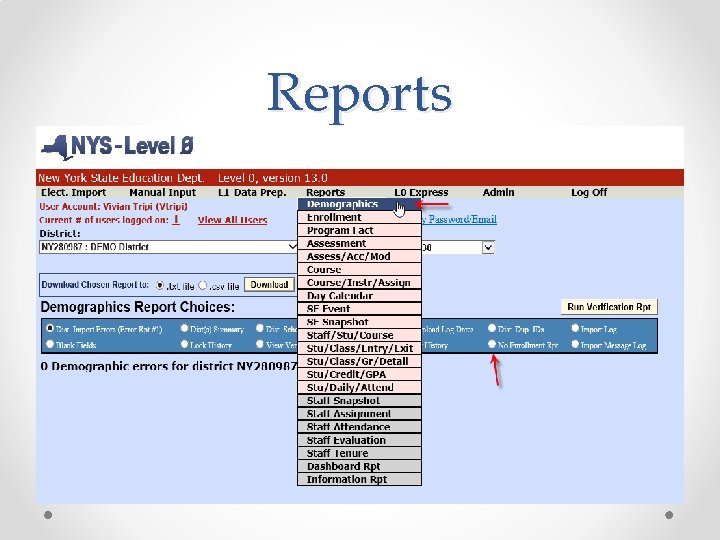
Reports
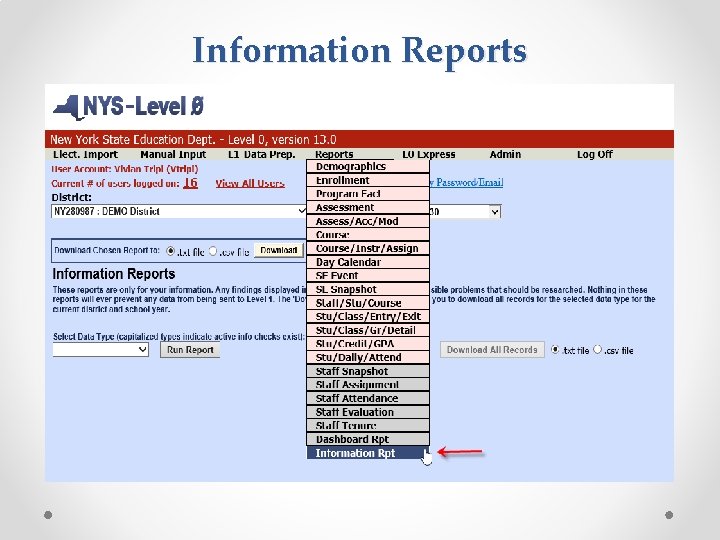
Information Reports
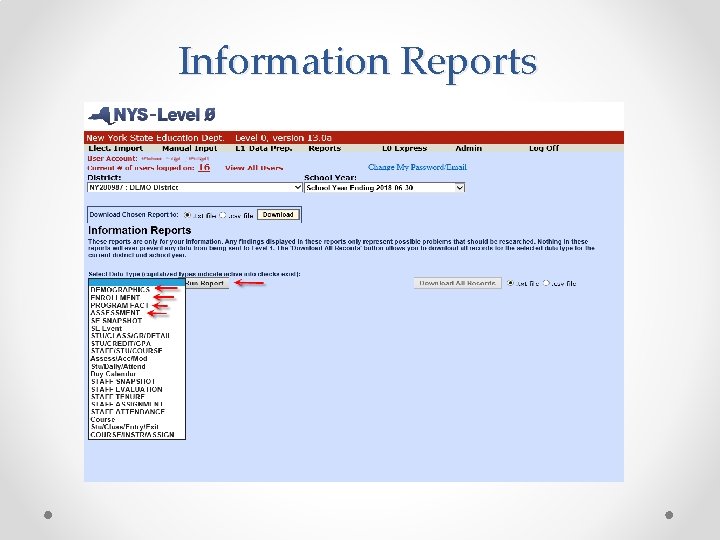
Information Reports
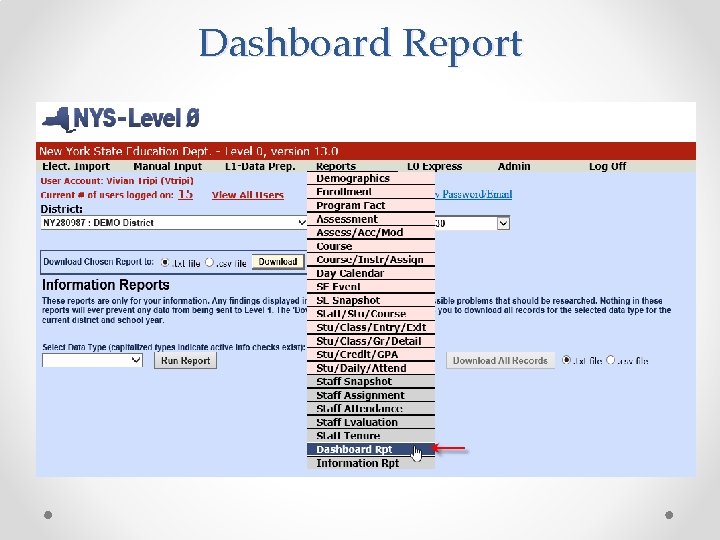
Dashboard Report
Dashboard Report