
Let me guide you through how to use



- Slides: 28
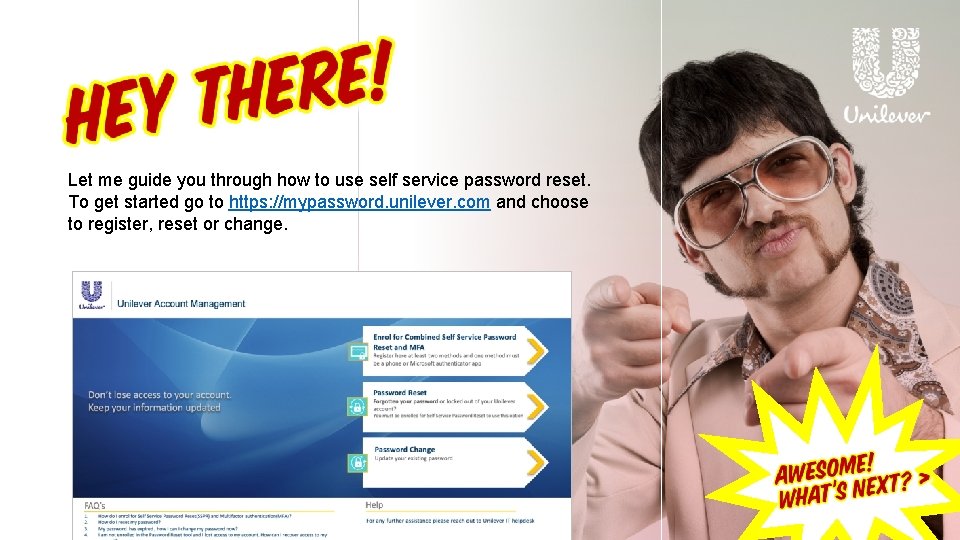
Let me guide you through how to use self service password reset. To get started go to https: //mypassword. unilever. com and choose to register, reset or change.
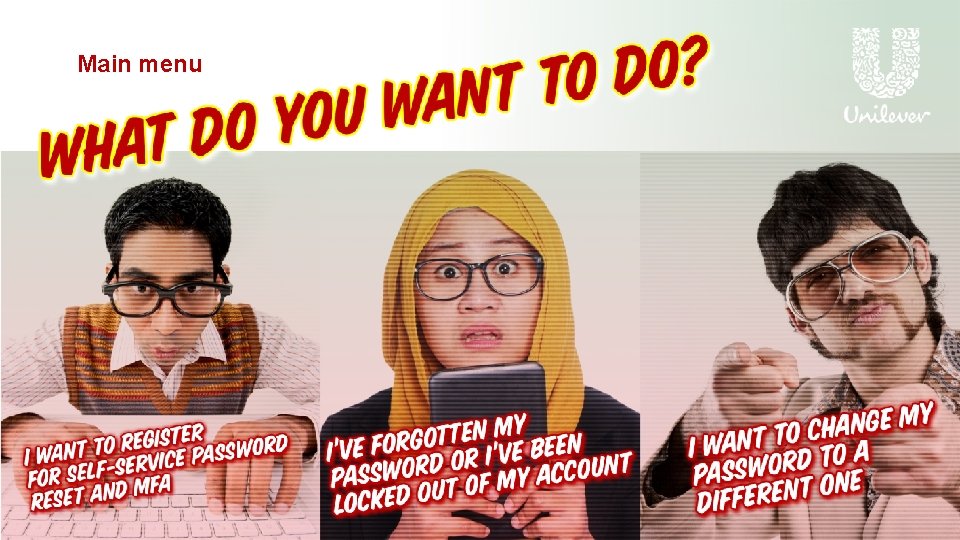
Main menu
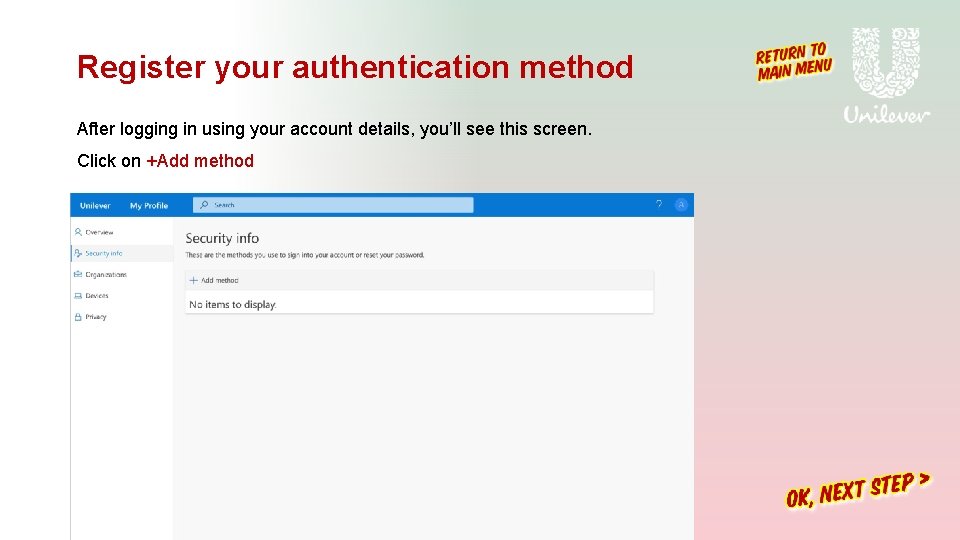
Register your authentication method After logging in using your account details, you’ll see this screen. Click on +Add method
Register your authentication method You’ll see 4 verification methods in the dropdown list. Authenticator App or Phone has to be 1 of these methods.
Register your authentication method Authenticator App If you choose Authenticator App from the drop-down list, click Add
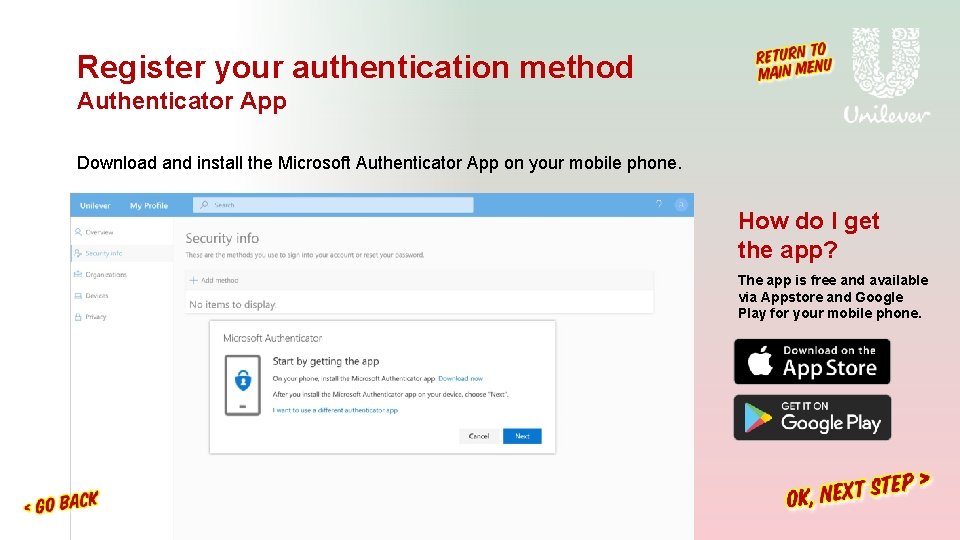
Register your authentication method Authenticator App Download and install the Microsoft Authenticator App on your mobile phone. How do I get the app? The app is free and available via Appstore and Google Play for your mobile phone.
Register your authentication method Authenticator App Follow the instructions to allow notifications on your phone.
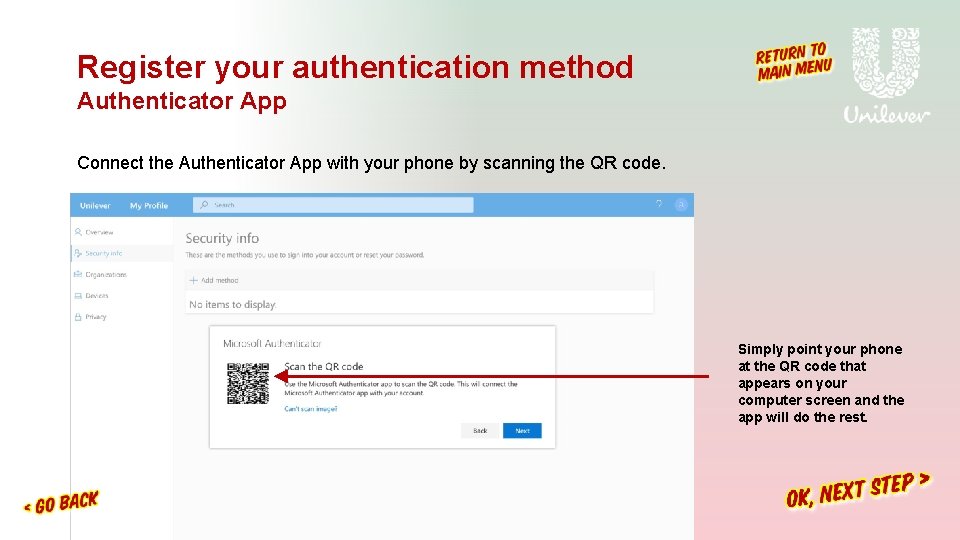
Register your authentication method Authenticator App Connect the Authenticator App with your phone by scanning the QR code. Simply point your phone at the QR code that appears on your computer screen and the app will do the rest.
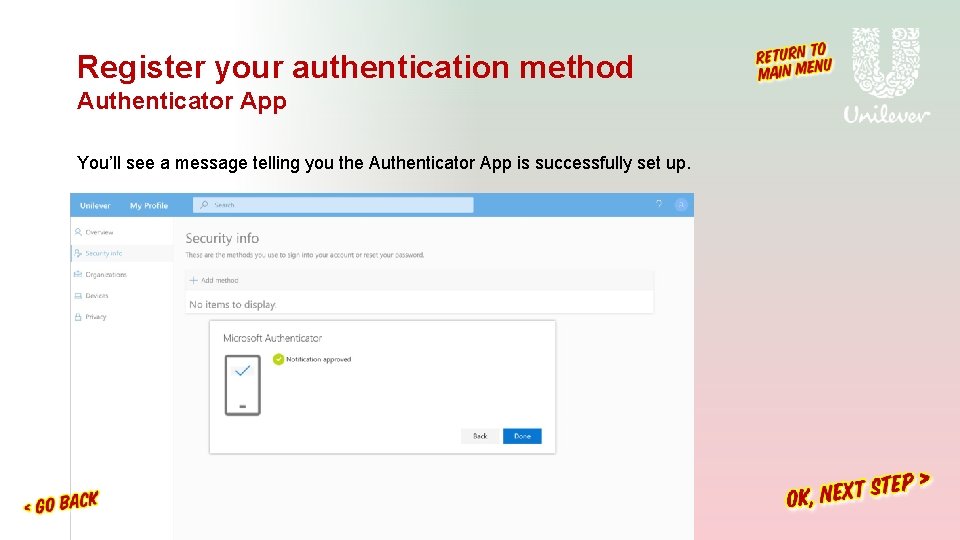
Register your authentication method Authenticator App You’ll see a message telling you the Authenticator App is successfully set up.
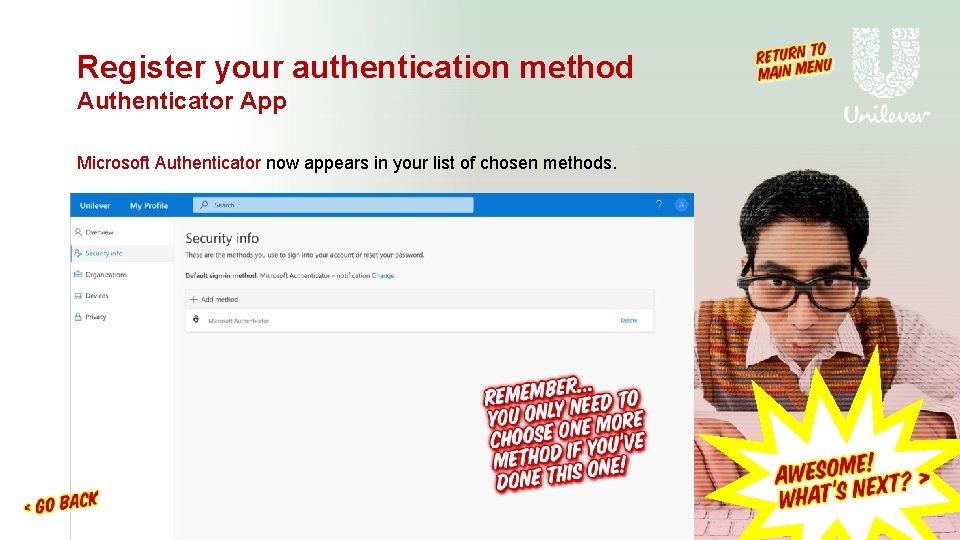
Register your authentication method Authenticator App Microsoft Authenticator now appears in your list of chosen methods.
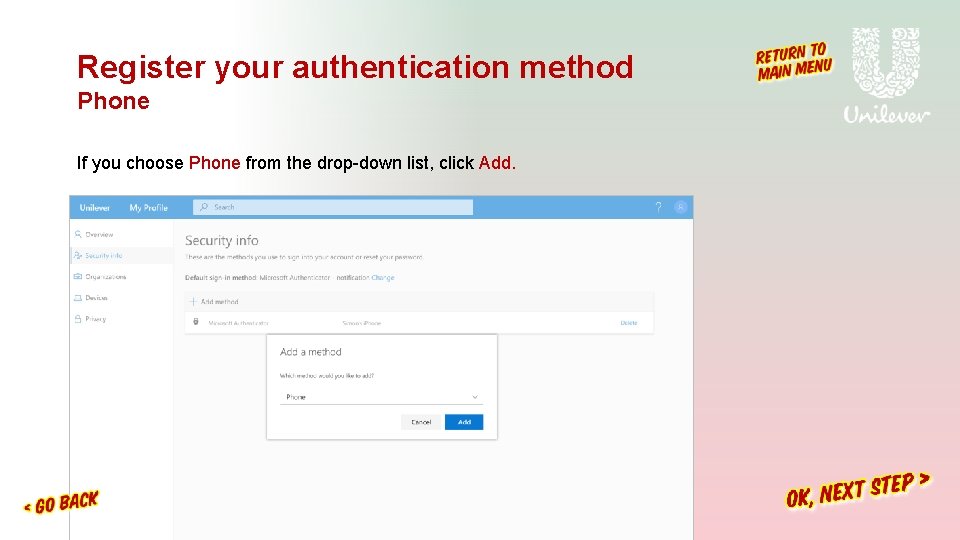
Register your authentication method Phone If you choose Phone from the drop-down list, click Add.
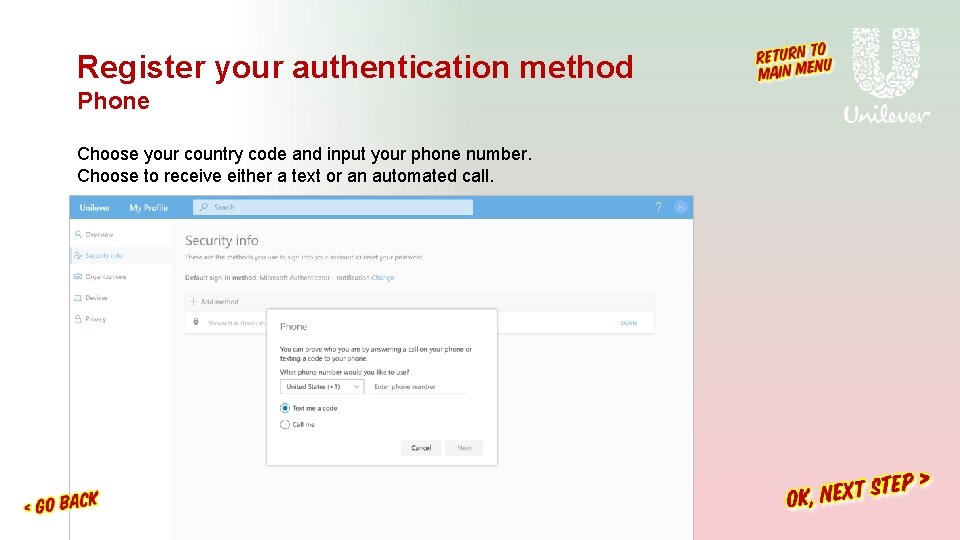
Register your authentication method Phone Choose your country code and input your phone number. Choose to receive either a text or an automated call.
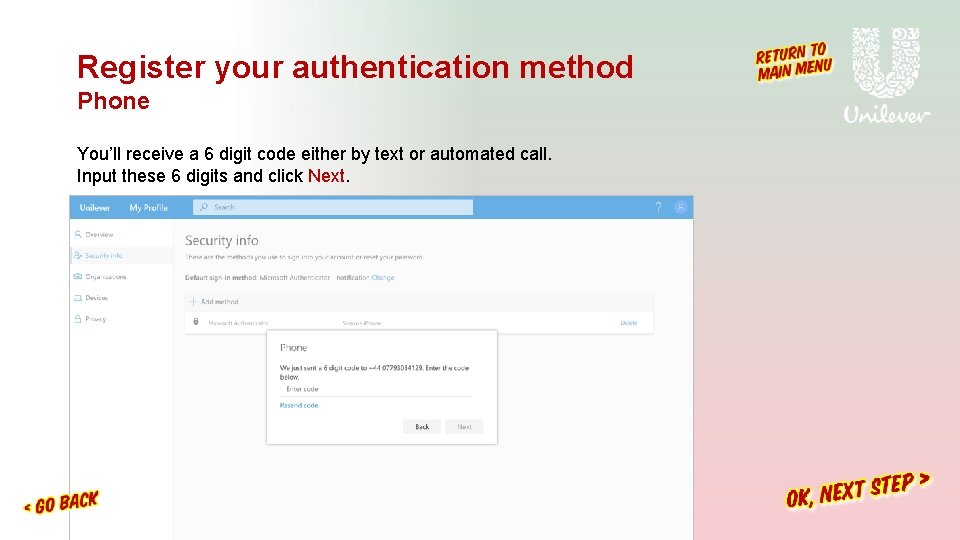
Register your authentication method Phone You’ll receive a 6 digit code either by text or automated call. Input these 6 digits and click Next.
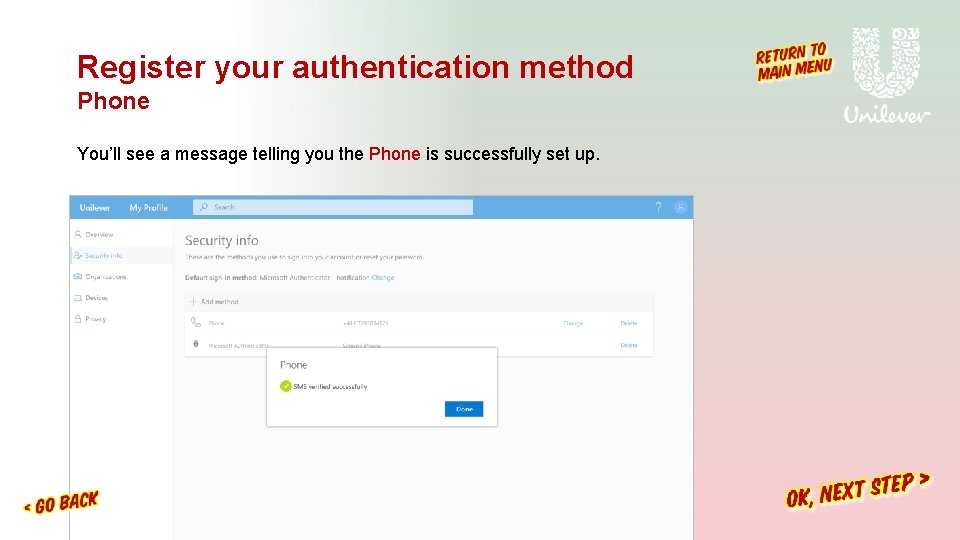
Register your authentication method Phone You’ll see a message telling you the Phone is successfully set up.
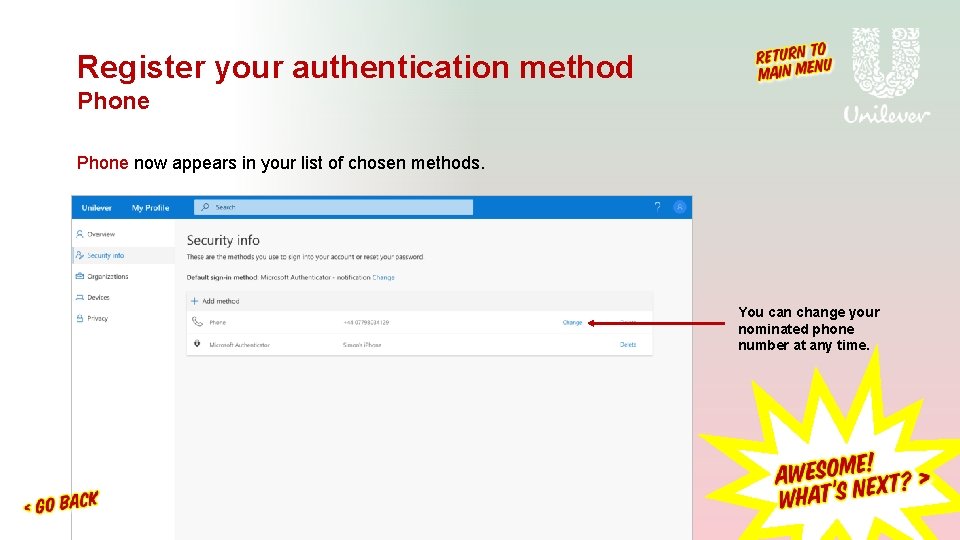
Register your authentication method Phone now appears in your list of chosen methods. You can change your nominated phone number at any time.
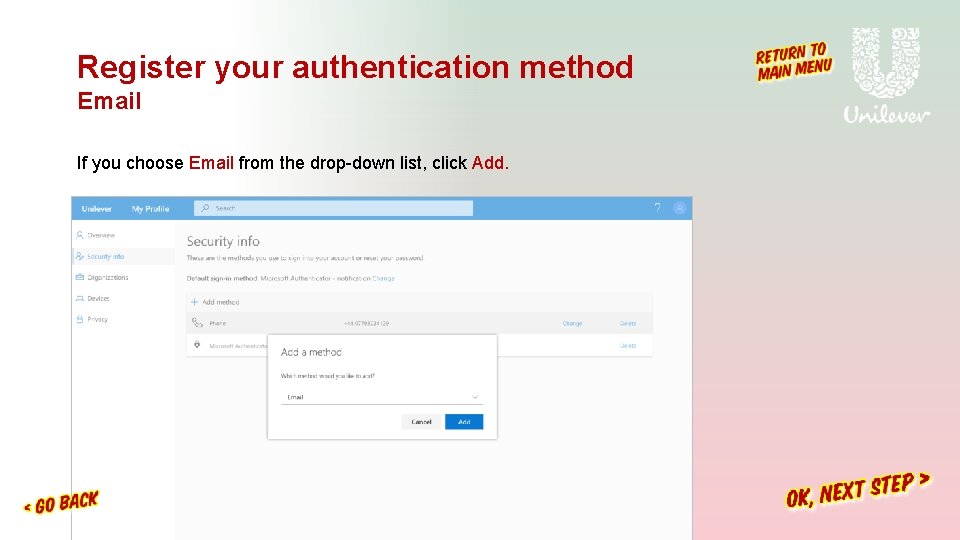
Register your authentication method Email If you choose Email from the drop-down list, click Add.
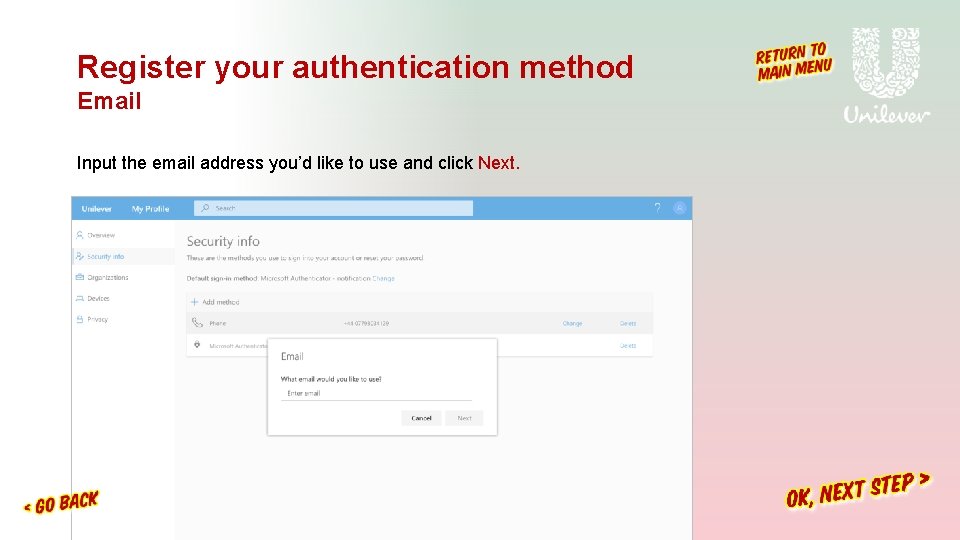
Register your authentication method Email Input the email address you’d like to use and click Next.
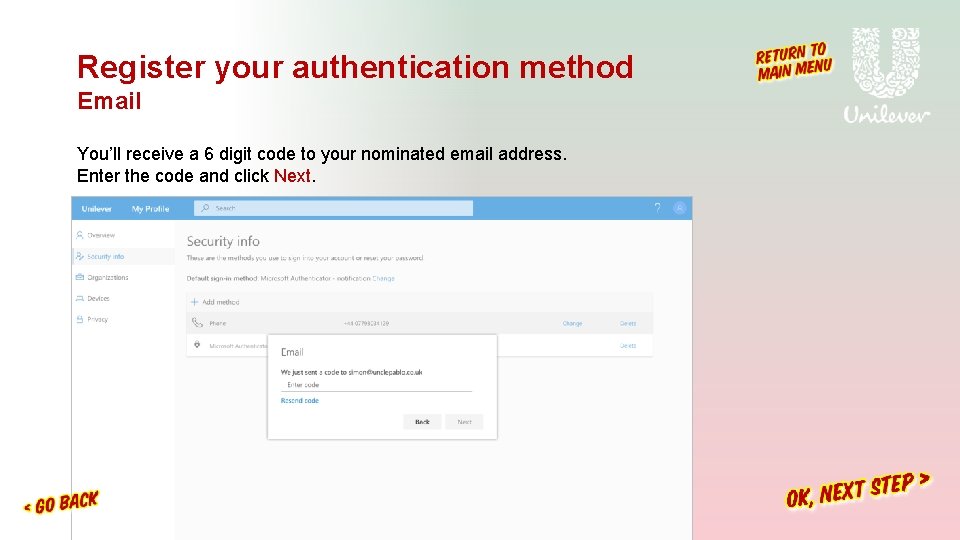
Register your authentication method Email You’ll receive a 6 digit code to your nominated email address. Enter the code and click Next.
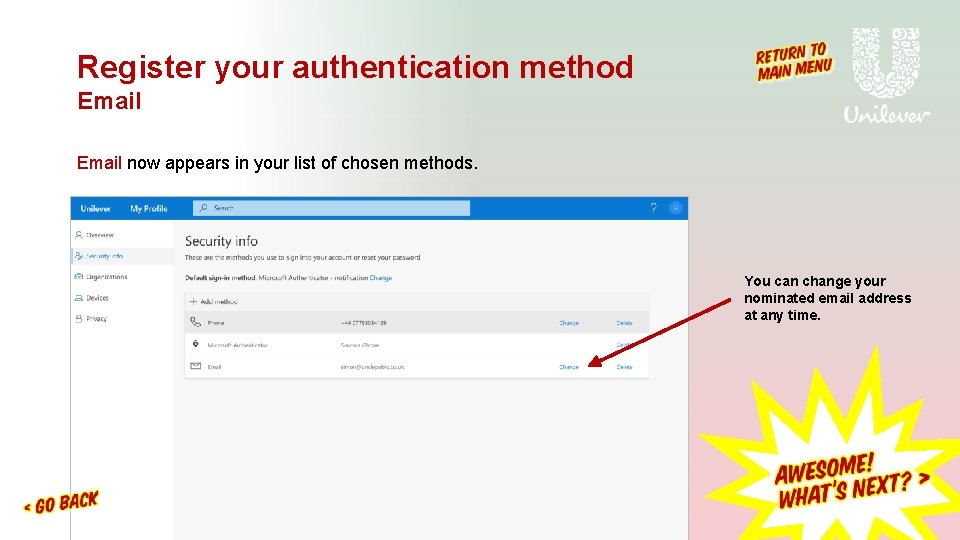
Register your authentication method Email now appears in your list of chosen methods. You can change your nominated email address at any time.
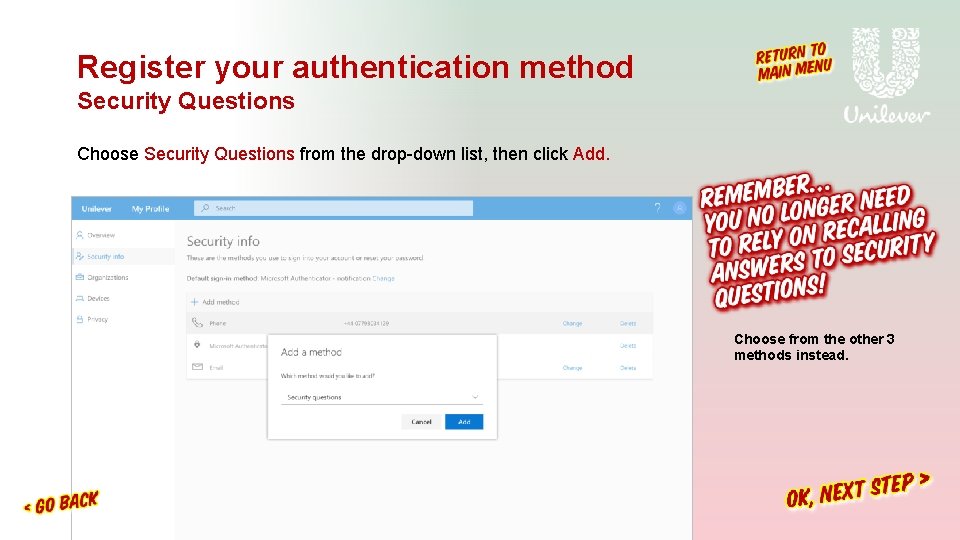
Register your authentication method Security Questions Choose Security Questions from the drop-down list, then click Add. Choose from the other 3 methods instead.
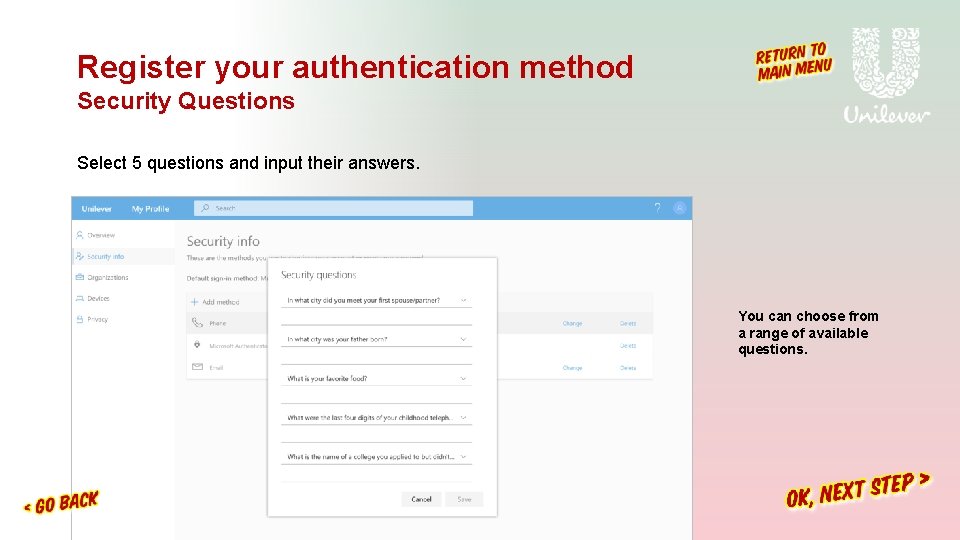
Register your authentication method Security Questions Select 5 questions and input their answers. You can choose from a range of available questions.
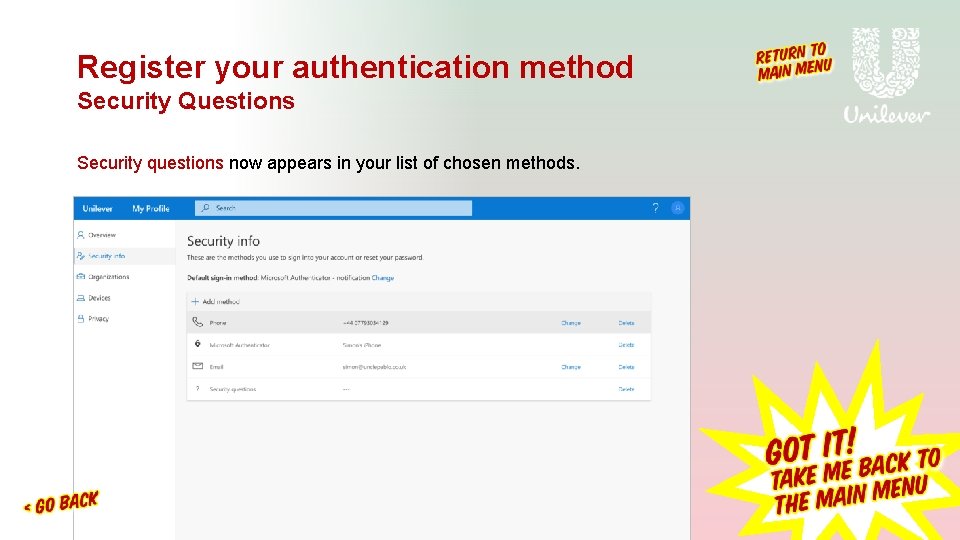
Register your authentication method Security Questions Security questions now appears in your list of chosen methods.
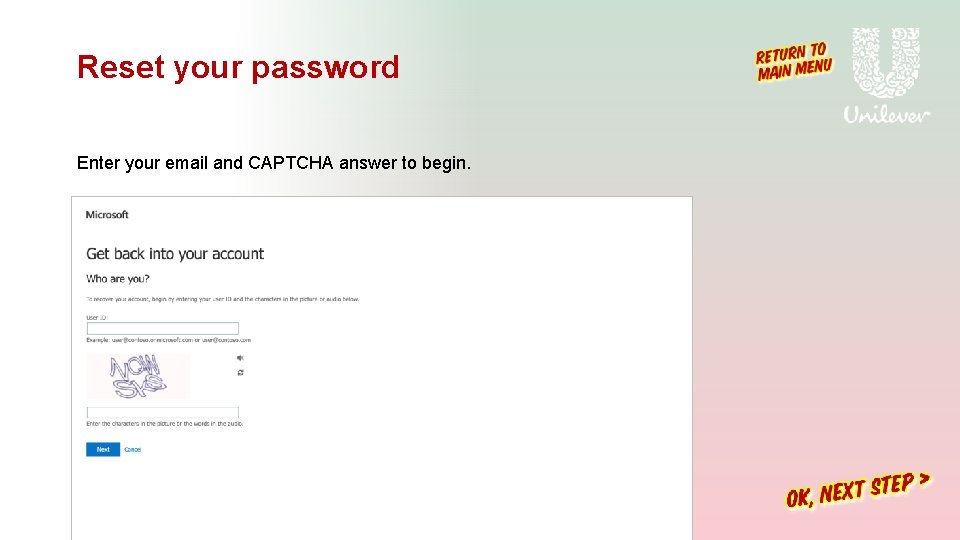
Reset your password Enter your email and CAPTCHA answer to begin.
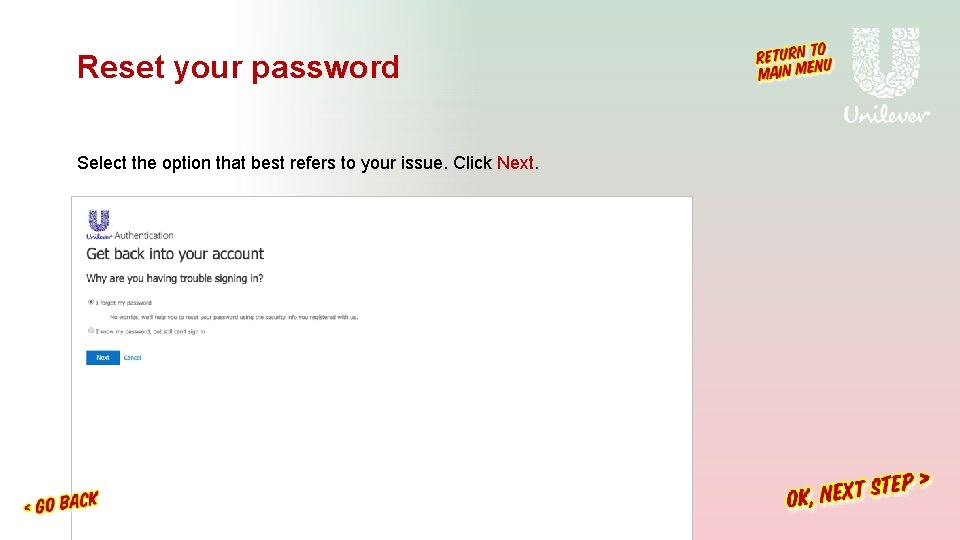
Reset your password Select the option that best refers to your issue. Click Next.
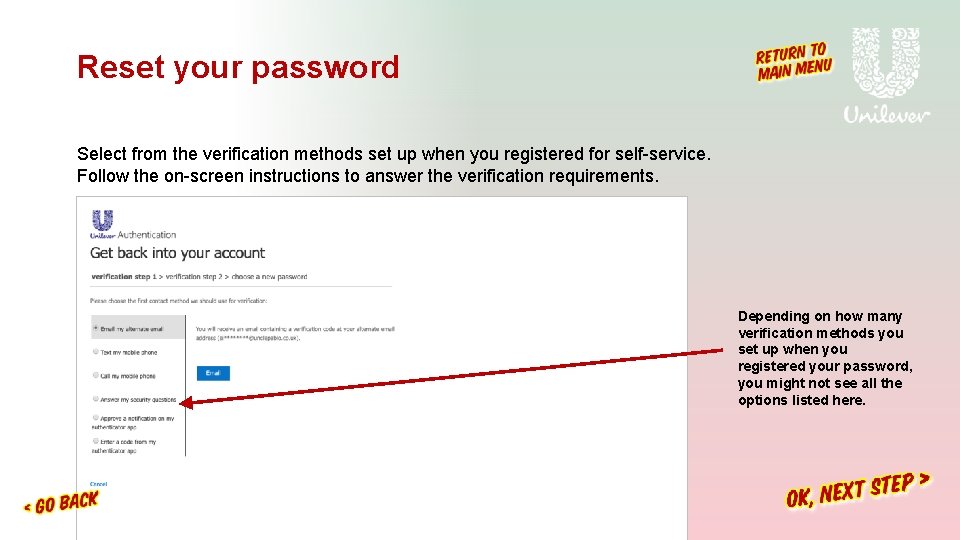
Reset your password Select from the verification methods set up when you registered for self-service. Follow the on-screen instructions to answer the verification requirements. Depending on how many verification methods you set up when you registered your password, you might not see all the options listed here.
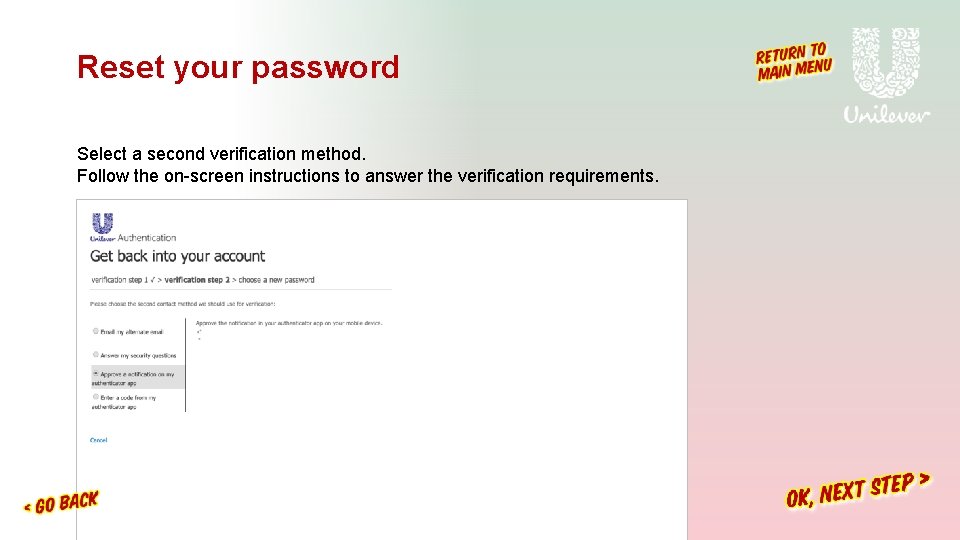
Reset your password Select a second verification method. Follow the on-screen instructions to answer the verification requirements.
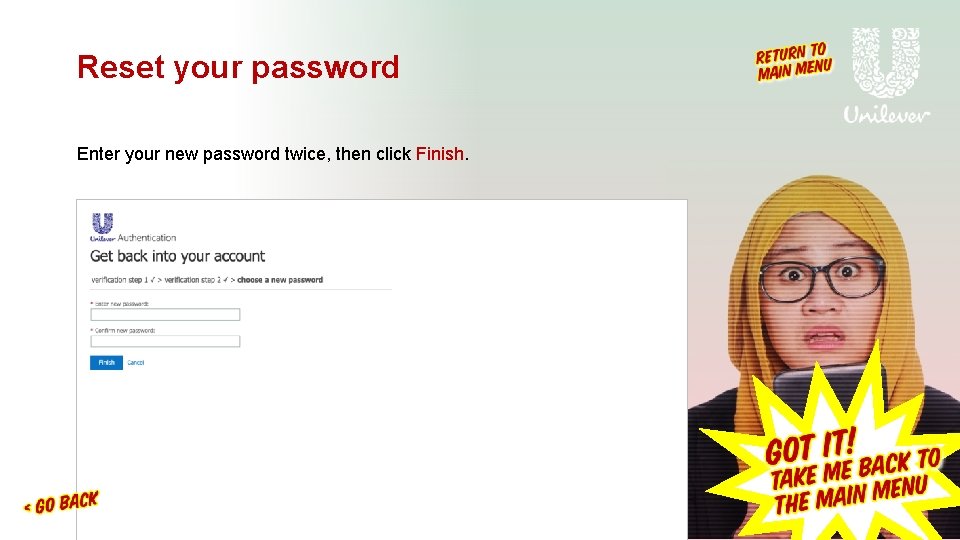
Reset your password Enter your new password twice, then click Finish.
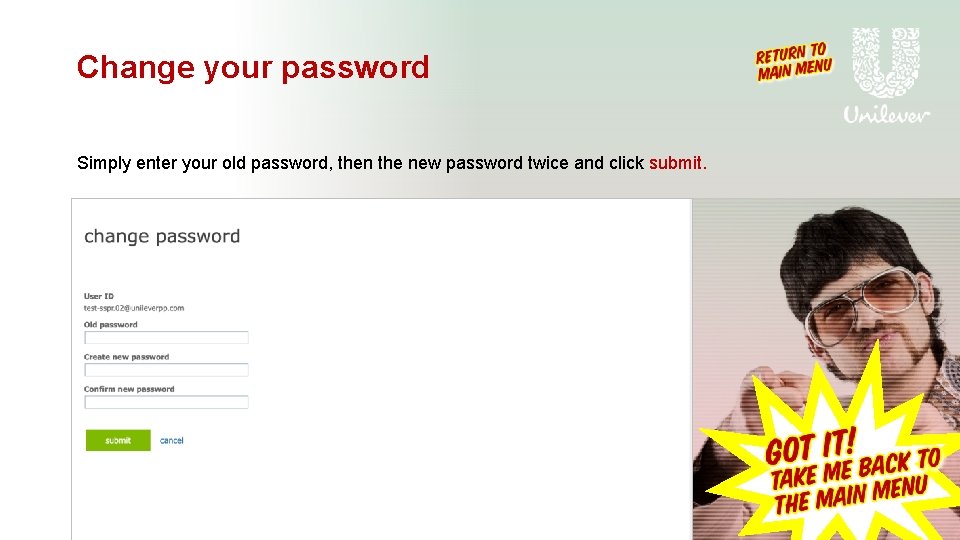
Change your password Simply enter your old password, then the new password twice and click submit.