
Lesson Learning objectives Learning objective 1 Test Learn
Lesson & Learning objectives Learning objective 1 _- Test Learn the meaning of the key_ _ _ds Learning objective 2 To understand the 6 R’S Learning objective 3 What should be presented on a final design sheet Learning objective 4 Learn how to use Google s_ _ _ Up
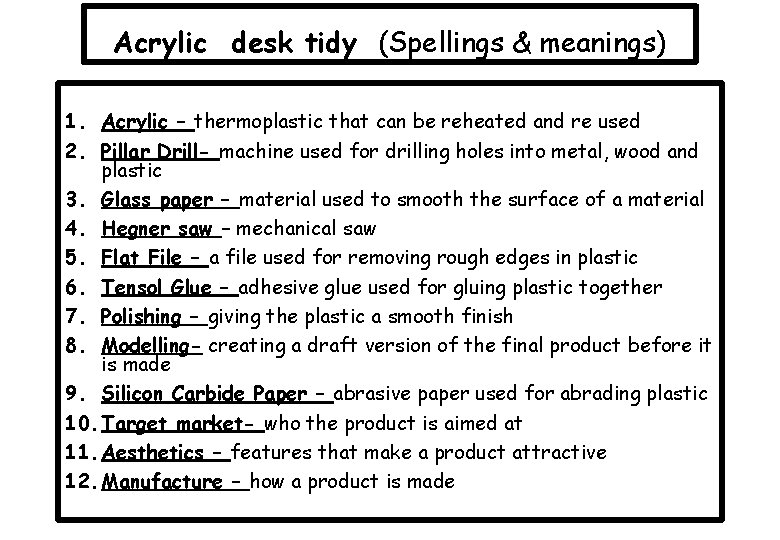
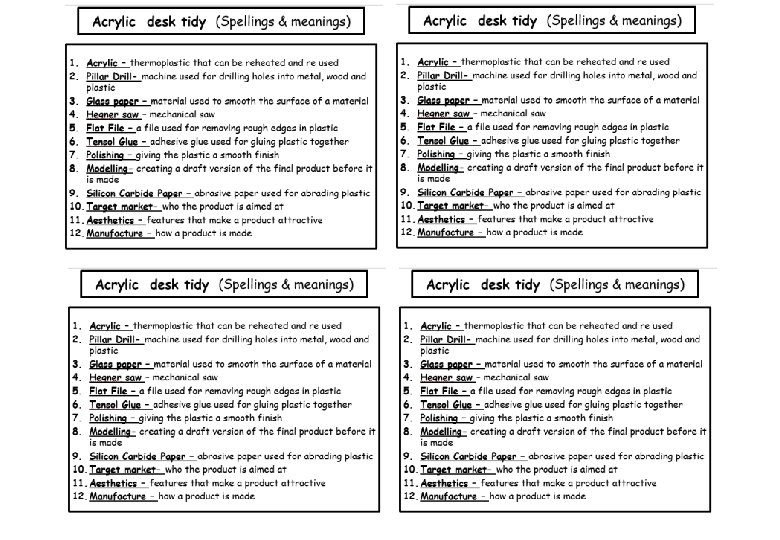
Acrylic desk tidy (Spellings & meanings) 1. Acrylic – thermoplastic that can be reheated and re used 2. Pillar Drill- machine used for drilling holes into metal, wood and plastic 3. Glass paper – material used to smooth the surface of a material 4. Hegner saw – mechanical saw 5. Flat File – a file used for removing rough edges in plastic 6. Tensol Glue – adhesive glue used for gluing plastic together 7. Polishing – giving the plastic a smooth finish 8. Modelling- creating a draft version of the final product before it is made 9. Silicon Carbide Paper – abrasive paper used for abrading plastic 10. Target market- who the product is aimed at 11. Aesthetics – features that make a product attractive 12. Manufacture – how a product is made
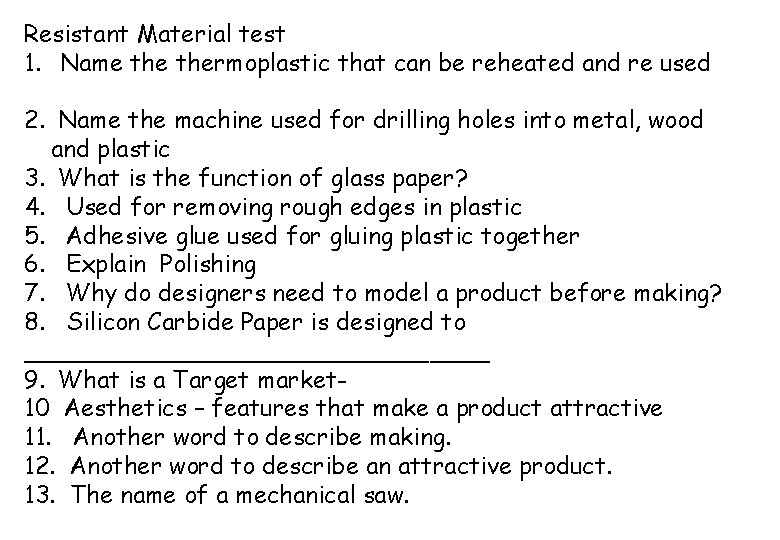
Resistant Material test 1. Name thermoplastic that can be reheated and re used 2. Name the machine used for drilling holes into metal, wood and plastic 3. What is the function of glass paper? 4. Used for removing rough edges in plastic 5. Adhesive glue used for gluing plastic together 6. Explain Polishing 7. Why do designers need to model a product before making? 8. Silicon Carbide Paper is designed to ________________ 9. What is a Target market 10 Aesthetics – features that make a product attractive 11. Another word to describe making. 12. Another word to describe an attractive product. 13. The name of a mechanical saw.
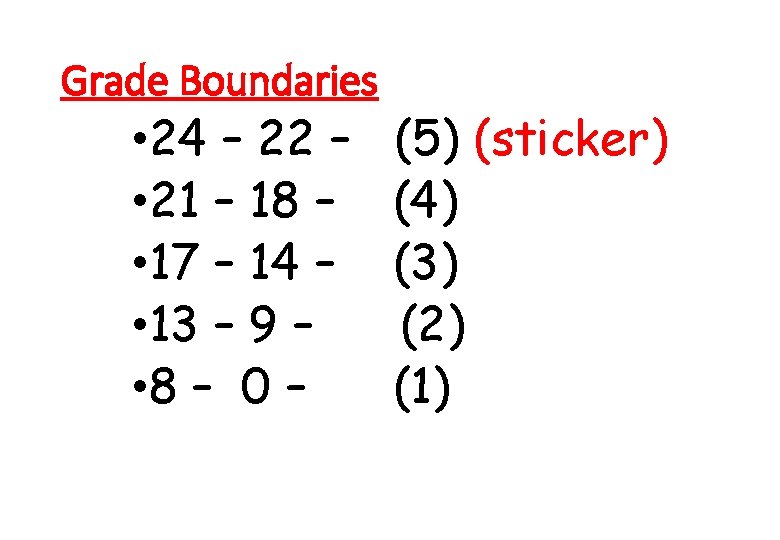
Grade Boundaries • 24 – 22 – • 21 – 18 – • 17 – 14 – • 13 – 9 – • 8 – 0 – (5) (sticker) (4) (3) (2) (1)
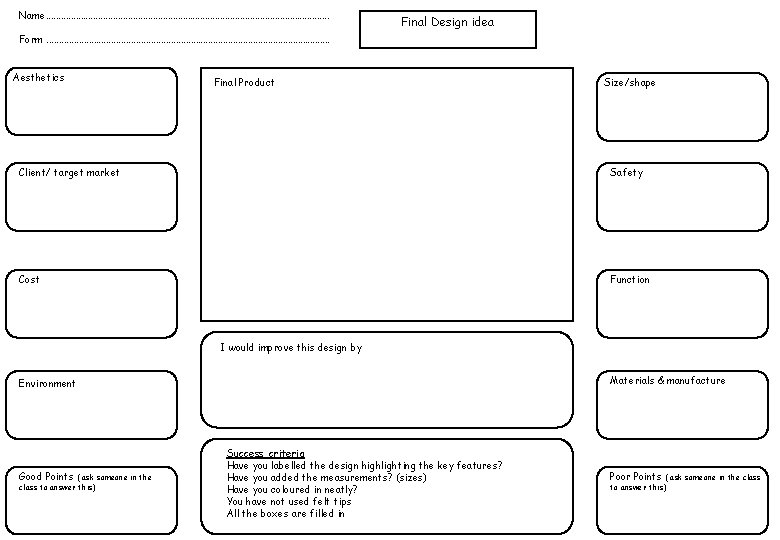
Name. . . . . . . Final Design idea Form. . . . . . . Aesthetics Final Product Size/shape Client/ target market Safety Cost Function I would improve this design by Materials & manufacture Environment Good Points ( ask someone in the class to answer this) Success criteria Have you labelled the design highlighting the key features? Have you added the measurements? (sizes) Have you coloured in neatly? You have not used felt tips All the boxes are filled in Poor Points ( ask someone in the class to answer this)
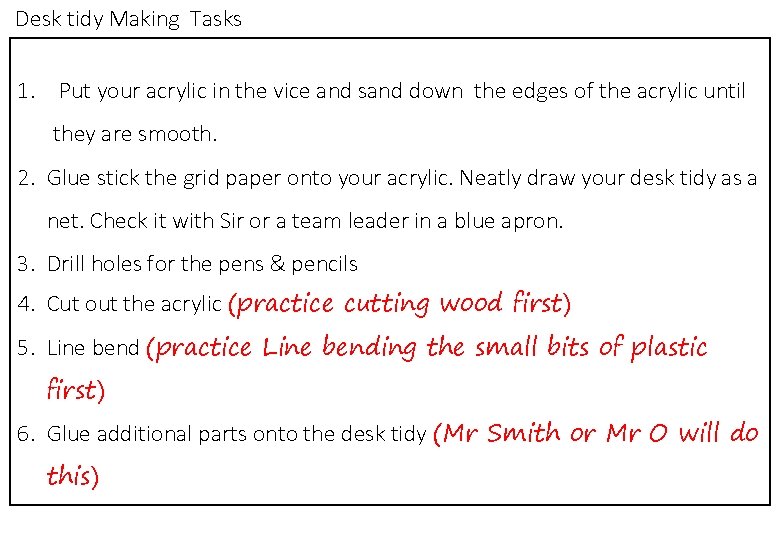
Desk tidy Making Tasks 1. Put your acrylic in the vice and sand down the edges of the acrylic until they are smooth. 2. Glue stick the grid paper onto your acrylic. Neatly draw your desk tidy as a net. Check it with Sir or a team leader in a blue apron. 3. Drill holes for the pens & pencils 4. Cut out the acrylic (practice cutting wood first) 5. Line bend (practice Line bending the small bits of plastic first) 6. Glue additional parts onto the desk tidy (Mr Smith or Mr O will do this)
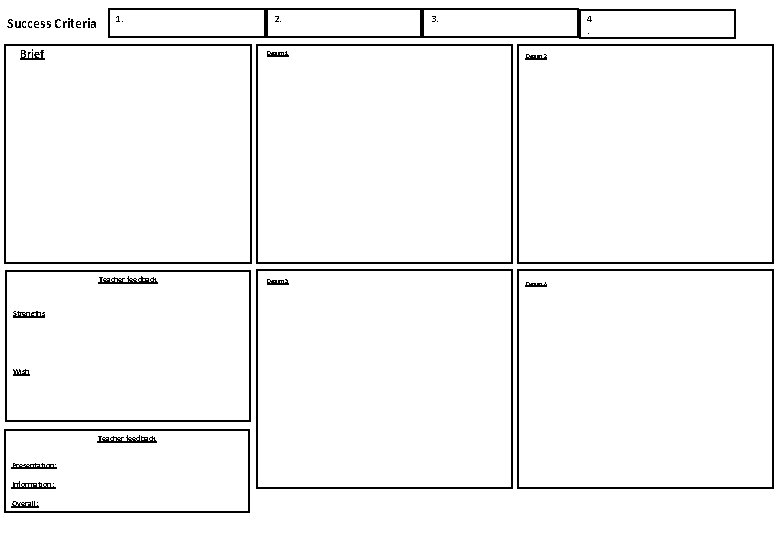
Success Criteria 1. Brief Teacher feedback Strengths Wish Teacher feedback Presentation: Information: Overall: 2. 3. 4. Design 1 Design 2 Design 3 Design 4
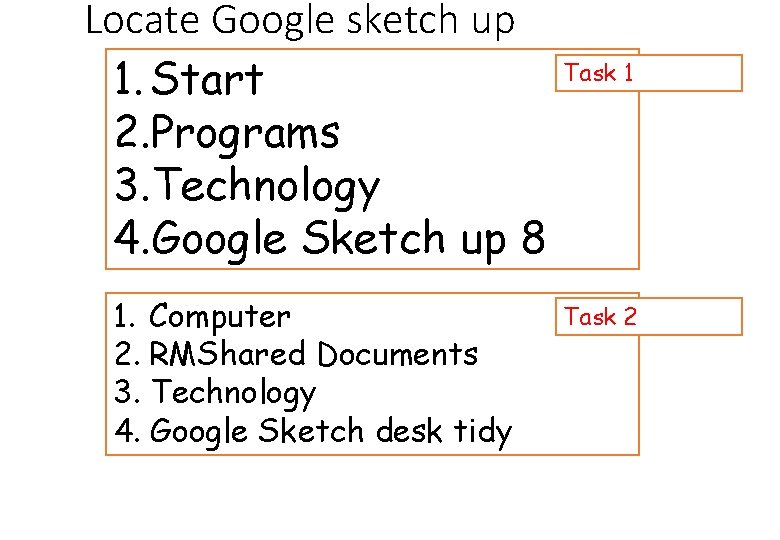
Locate Google sketch up 1. Start 2. Programs 3. Technology 4. Google Sketch up 8 1. Computer 2. RMShared Documents 3. Technology 4. Google Sketch desk tidy Task 1 Task 2
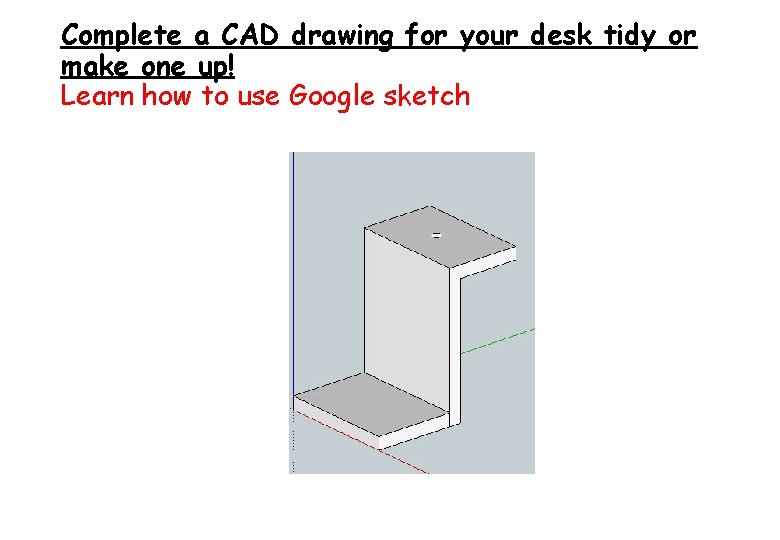
Complete a CAD drawing for your desk tidy or make one up! Learn how to use Google sketch
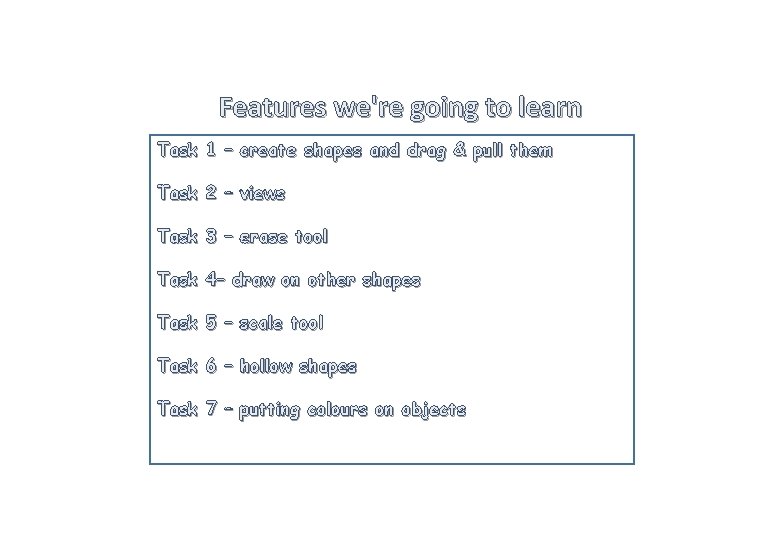
Features we're going to learn Task 1 – create shapes and drag & pull them Task 2 – views Task 3 – erase tool Task 4– draw on other shapes Task 5 – scale tool Task 6 – hollow shapes Task 7 – putting colours on objects
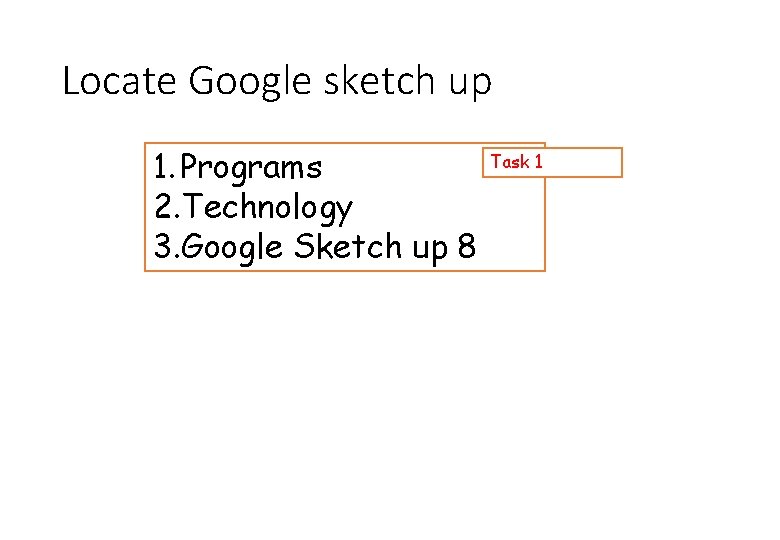
Locate Google sketch up 1. Programs 2. Technology 3. Google Sketch up 8 Task 1
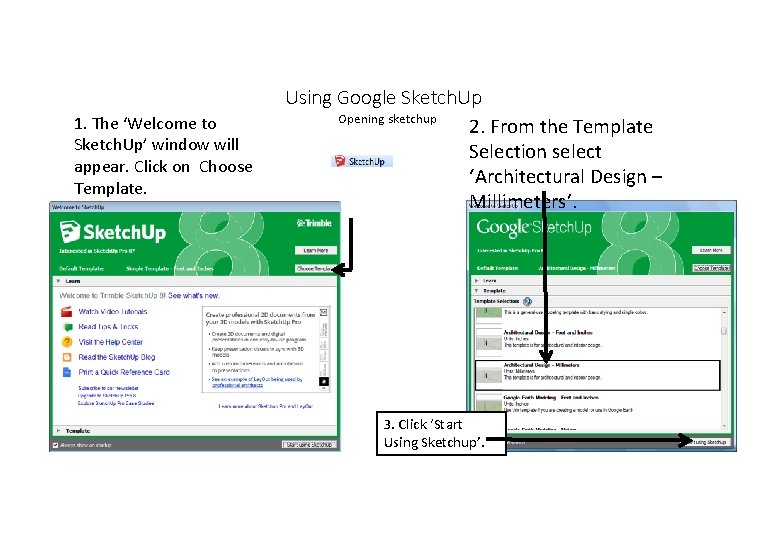
1. The ‘Welcome to Sketch. Up’ window will appear. Click on Choose Template. Using Google Sketch. Up Opening sketchup 2. From the Template Selection select ‘Architectural Design – Millimeters’. 3. Click ‘Start Using Sketchup’.
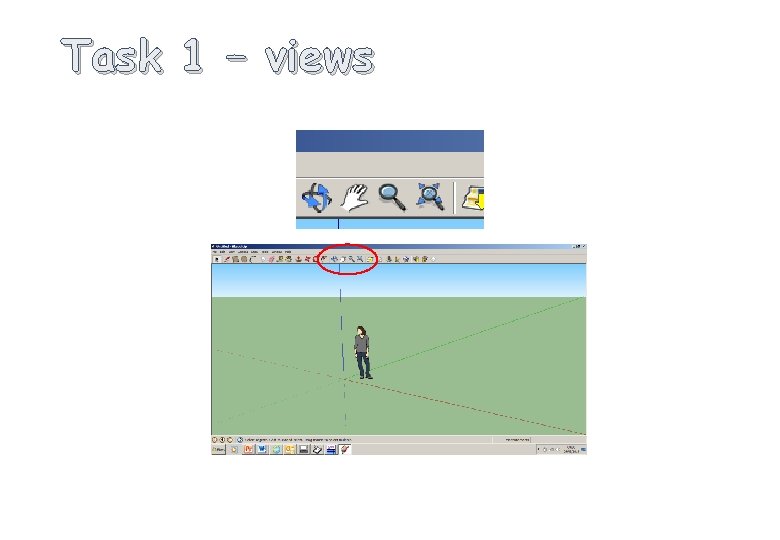
Task 1 – views
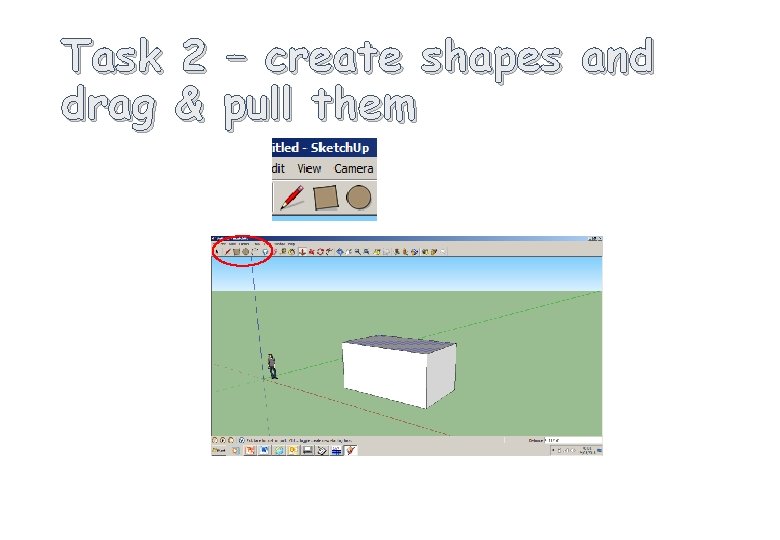
Task 2 drag & – create shapes and pull them
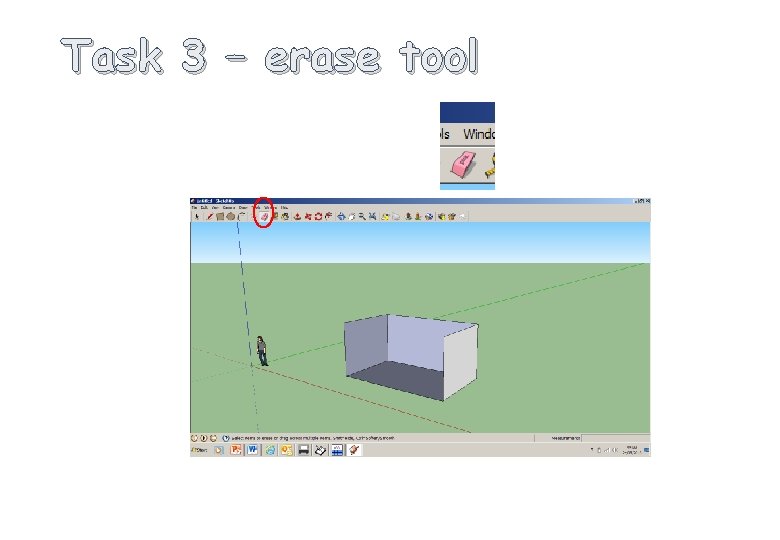
Task 3 – erase tool
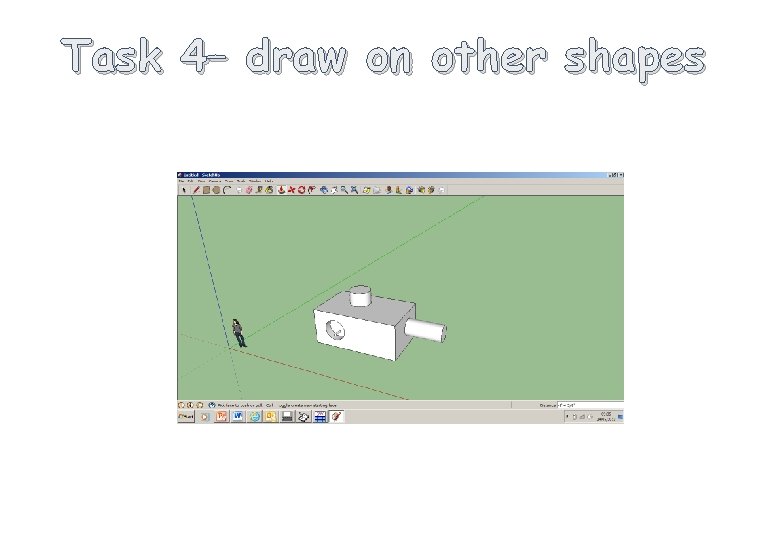
Task 4– draw on other shapes
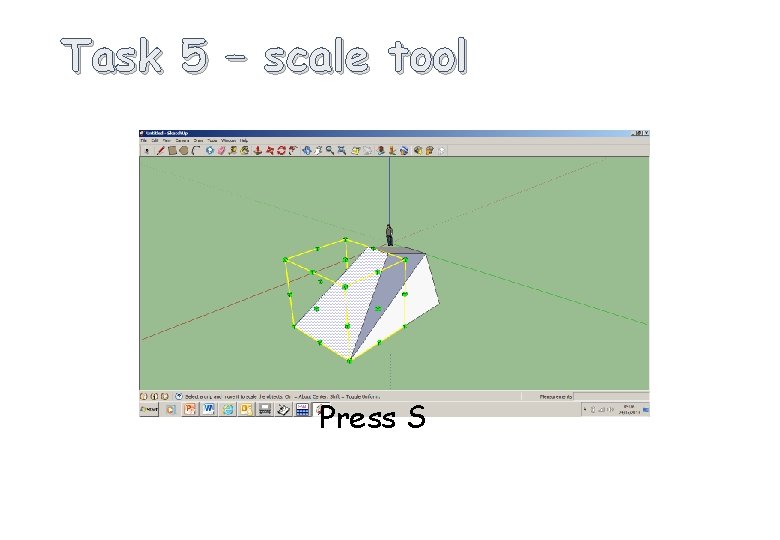
Task 5 – scale tool Press S
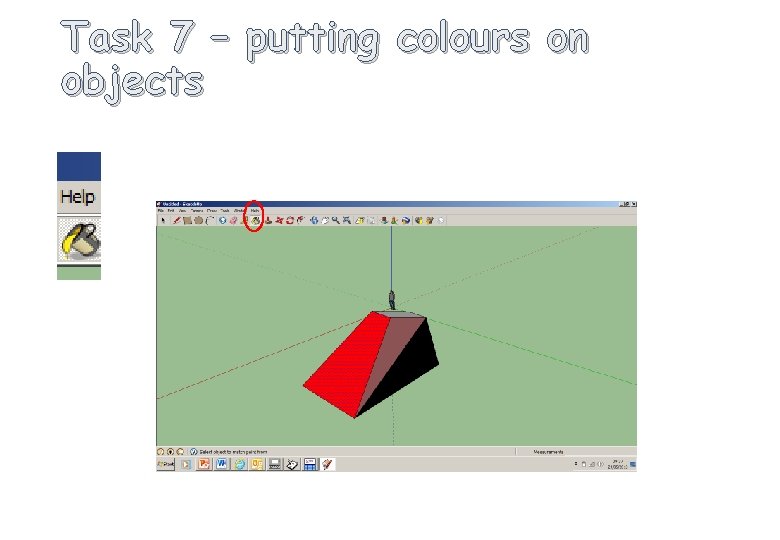
Task 7 – putting colours on objects
STOP! • What have we learnt?
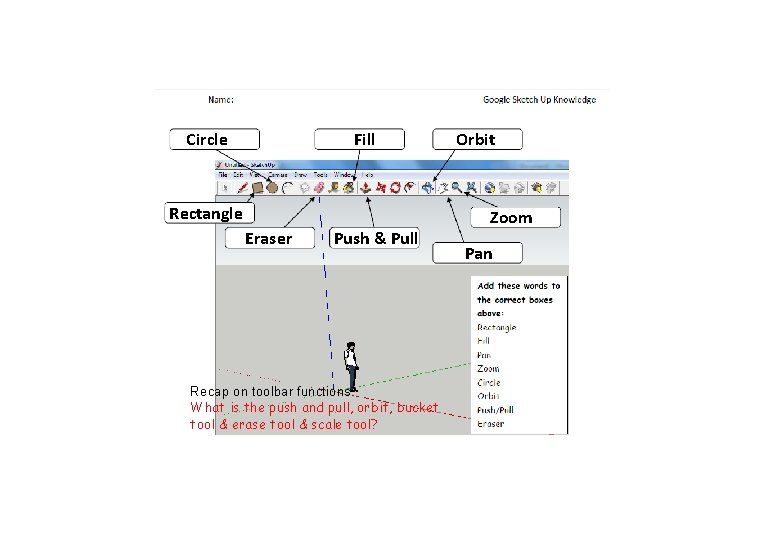
Circle Fill Rectangle Eraser Push & Pull Recap on toolbar functions What is the push and pull, orbit, bucket tool & erase tool & scale tool? Orbit Zoom Pan
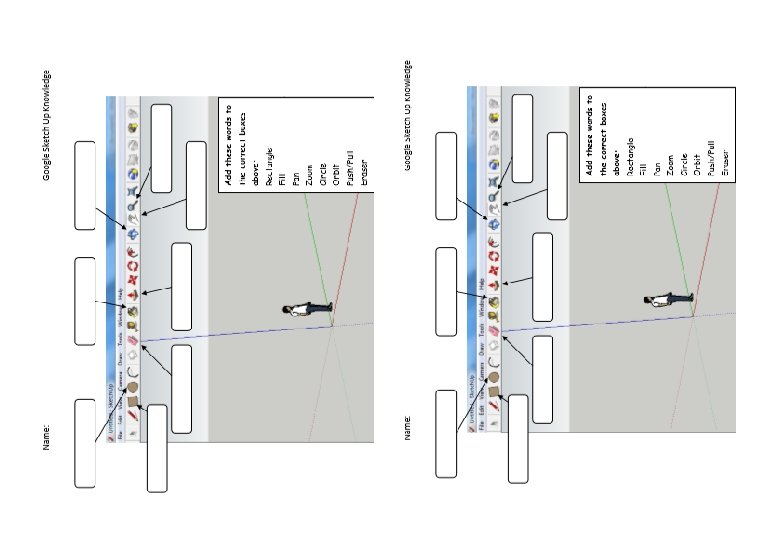
- Slides: 23