
Lesson 7 Transfer Equipment 1 Training Objectives u
Lesson 7: Transfer Equipment 1
Training Objectives u At the conclusion of this lesson, PCMS LFPCs and AFHCs will be able to: n 2 Query and transfer equipment records
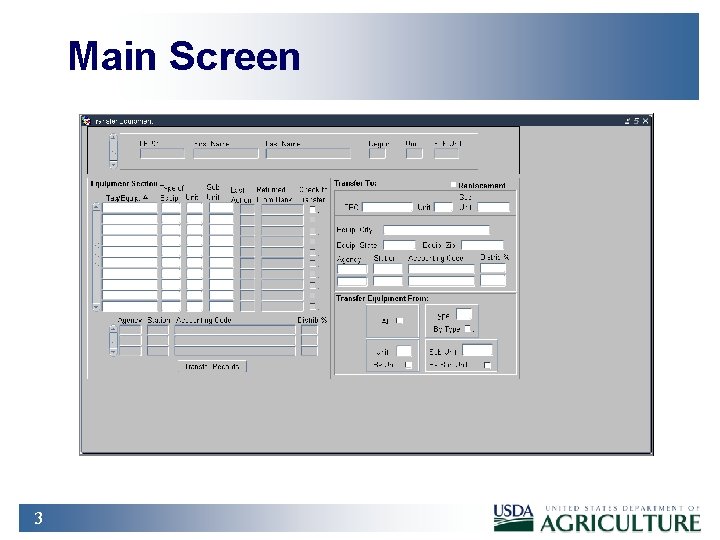
Main Screen 3
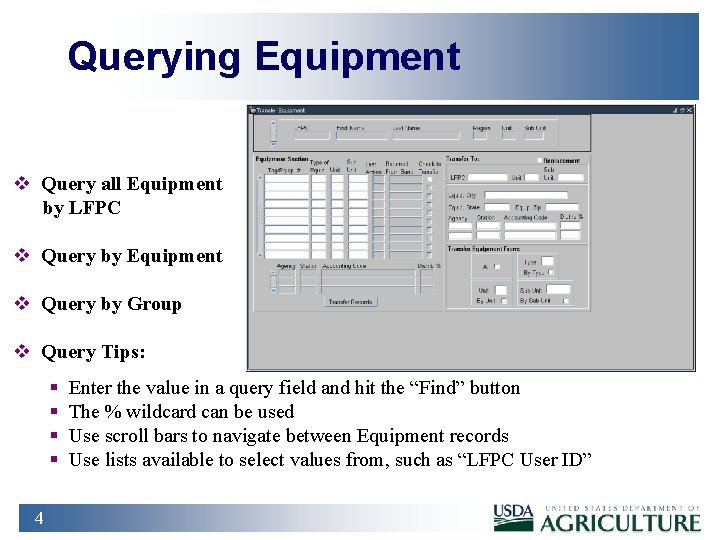
Querying Equipment v Query all Equipment by LFPC v Query by Equipment v Query by Group v Query Tips: § § 4 Enter the value in a query field and hit the “Find” button The % wildcard can be used Use scroll bars to navigate between Equipment records Use lists available to select values from, such as “LFPC User ID”
Practical Exercise 1. Query all vehicleequipment records attached to the LFPC User. ID you logged on with. 2. Query all vehicleequipment records in the Region “ 01”. 5
Rules for Transferring Equipment 6 1. The AFHCLFPC can only transfer equipment that is within their SAC scope of authority. 2. A transfer is when the fleet equipment is moved to a new LFPC, new unit, or sub-unit. 3. If an LFPC is being replaced, check the “Replacement” box and enter the User. ID of the LFPC that the equipment is being transferred to, and ALL equipment records will automatically be marked for transfer. 4. Equipment records that do not have “Returned Fm Bank” dates cannot be transferred and the system will issue a User Message. 5. Changes to the accounting on a piece of equipment, need to be changed before they are transferred.
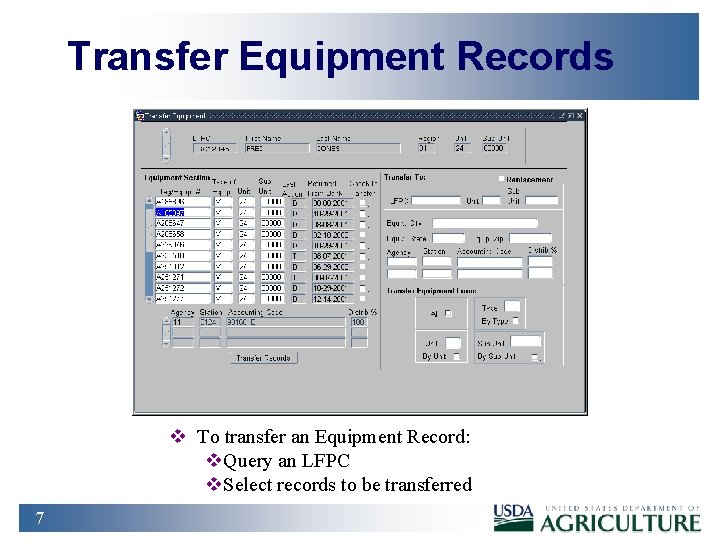
Transfer Equipment Records v To transfer an Equipment Record: v. Query an LFPC v. Select records to be transferred 7
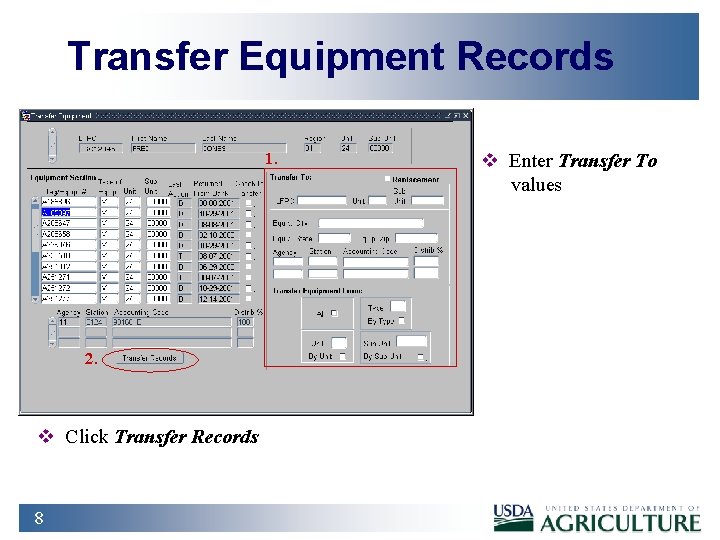
Transfer Equipment Records 1. 2. v Click Transfer Records 8 v Enter Transfer To values
Practical Exercise 1. From the Transfer Equipment screen query the LFPC you logged on with 2. Select all records with a Type V and transfer them to the trainee LFPC sitting to your right 3. Query your LFPC again 4. Transfer ALL records to a replacement LFPC, the trainee LFPC to your left 9
Summary and Review 10 1. What are the steps an LFPC takes to transfer equipment? 2. What would prevent a transfer from being completed? 3. What is the Replacement check box for? When would it be used? 4. How do you transfer equipment by groups?
Lesson 8 - SAMS 11
Training Objectives u At the Conclusion of this Lesson, You Will Be Able To: n n 12 Add or Drop Users Insert or Remove Security Access Code (SAC) Information n Modify Data n Change Passwords
What Is SAMS? u Security Access Management System (SAMS) u Web-based u Used application to Enter Security Access Requests Online 13

SAMS Logon 14
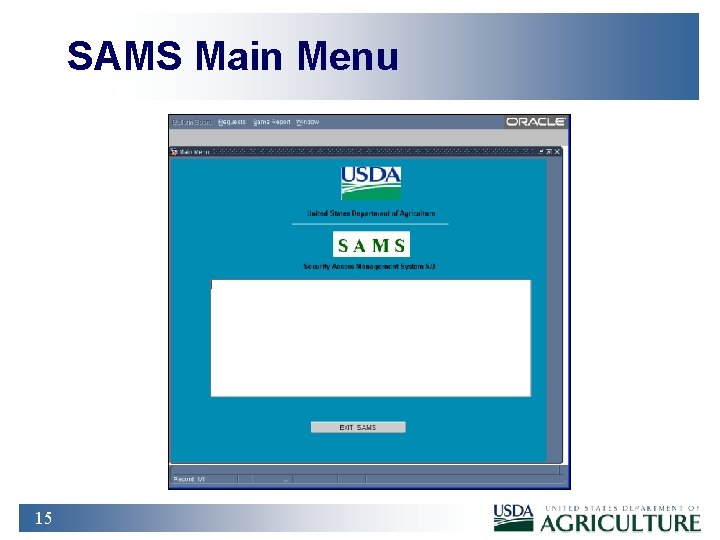
SAMS Main Menu 15
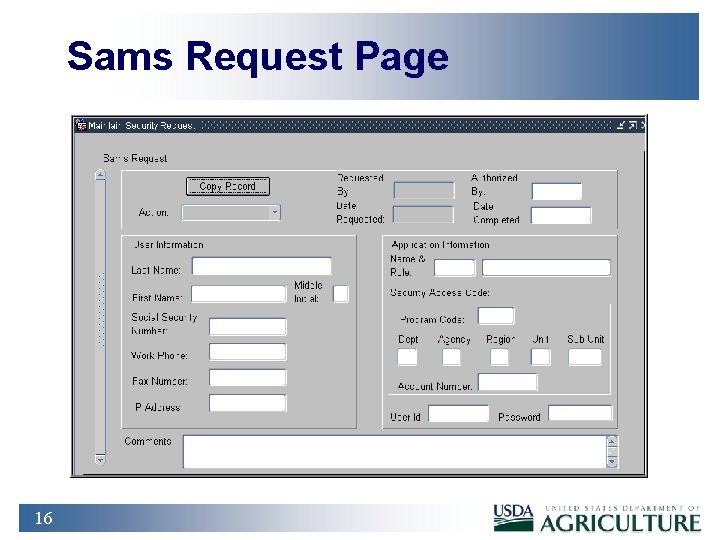
Sams Request Page 16
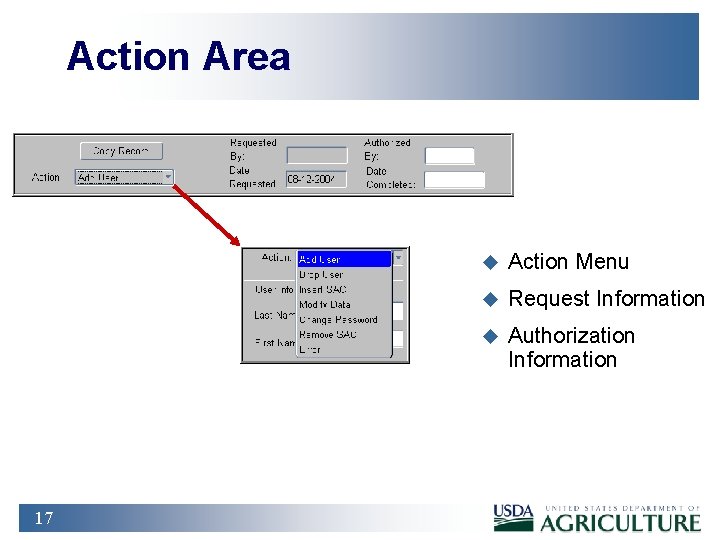
Action Area 17 u Action Menu u Request Information u Authorization Information
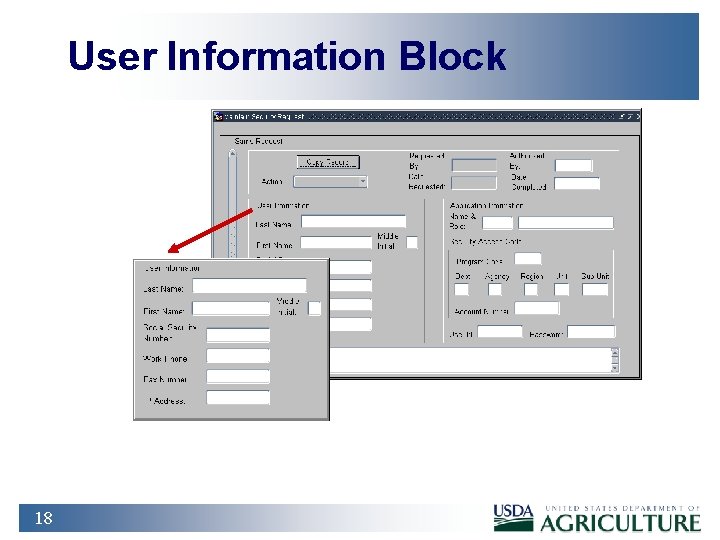
User Information Block 18
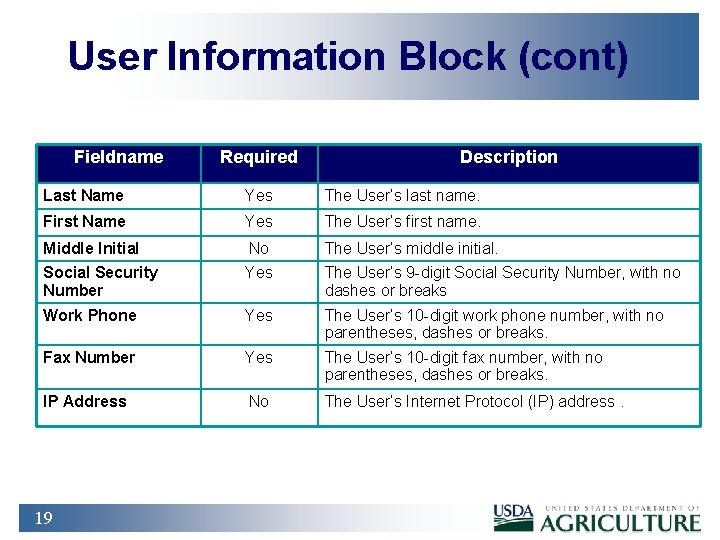
User Information Block (cont) Fieldname Required Description Last Name Yes The User’s last name. First Name Yes The User’s first name. Middle Initial No The User’s middle initial. Social Security Number Yes The User’s 9 -digit Social Security Number, with no dashes or breaks Work Phone Yes The User’s 10 -digit work phone number, with no parentheses, dashes or breaks. Fax Number Yes The User’s 10 -digit fax number, with no parentheses, dashes or breaks. IP Address No The User’s Internet Protocol (IP) address. 19
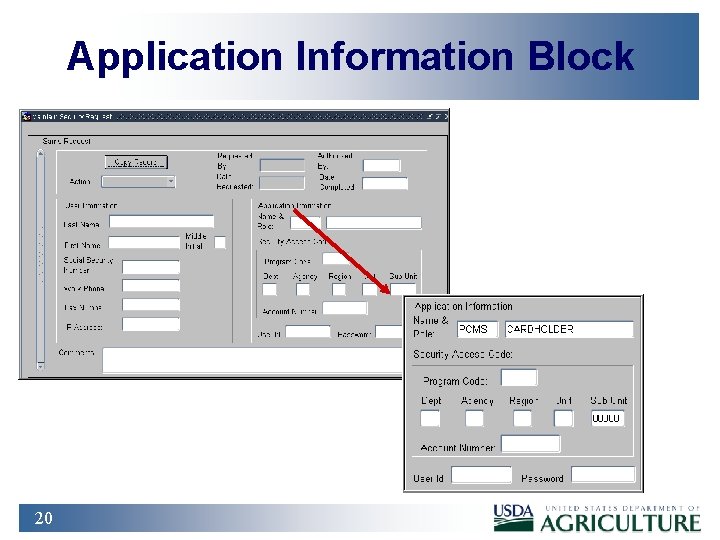
Application Information Block 20
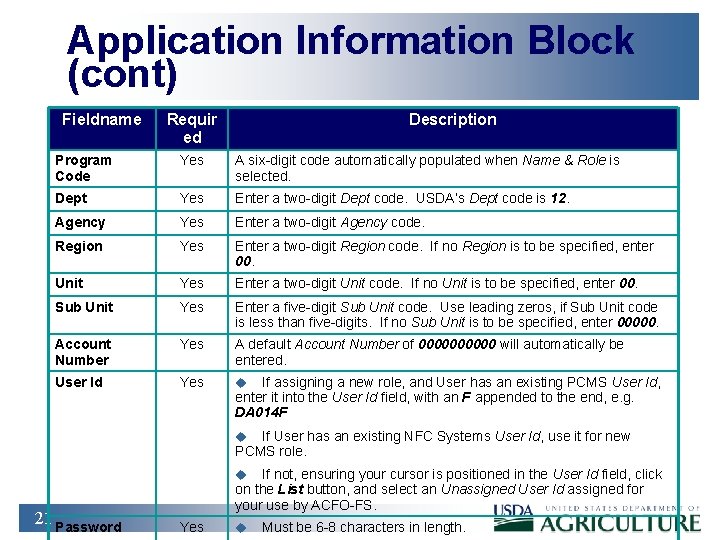
Application Information Block (cont) Fieldname Requir ed Description Program Code Yes A six-digit code automatically populated when Name & Role is selected. Dept Yes Enter a two-digit Dept code. USDA’s Dept code is 12. Agency Yes Enter a two-digit Agency code. Region Yes Enter a two-digit Region code. If no Region is to be specified, enter 00. Unit Yes Enter a two-digit Unit code. If no Unit is to be specified, enter 00. Sub Unit Yes Enter a five-digit Sub Unit code. Use leading zeros, if Sub Unit code is less than five-digits. If no Sub Unit is to be specified, enter 00000. Account Number Yes A default Account Number of 00000 will automatically be entered. User Id Yes u If assigning a new role, and User has an existing PCMS User Id, enter it into the User Id field, with an F appended to the end, e. g. DA 014 F If User has an existing NFC Systems User Id, use it for new PCMS role. u If not, ensuring your cursor is positioned in the User Id field, click on the List button, and select an Unassigned User Id assigned for your use by ACFO-FS. u 21 Password Yes u Must be 6 -8 characters in length.
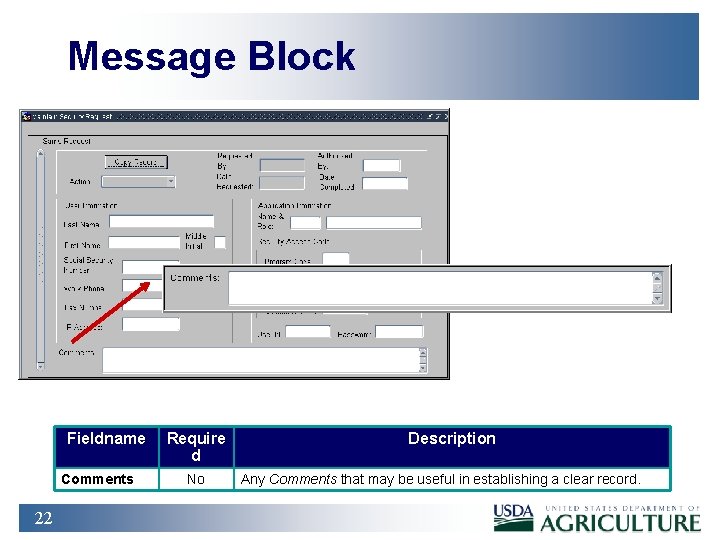
Message Block Fieldname Comments 22 Require d No Description Any Comments that may be useful in establishing a clear record.
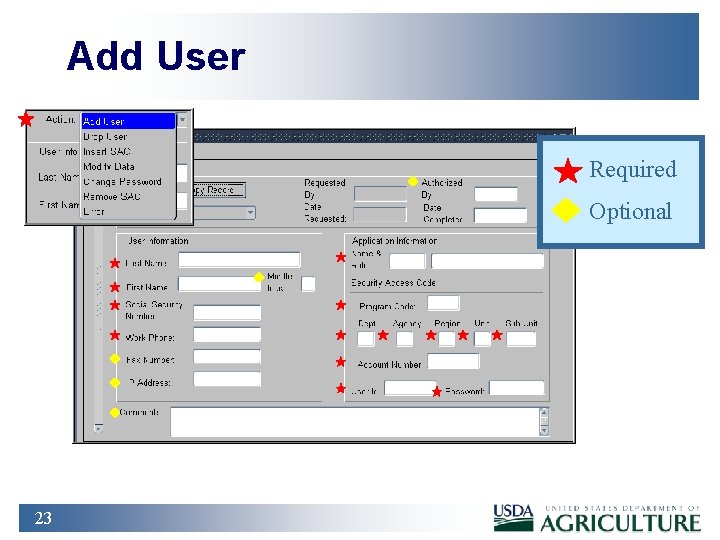
Add User Required Optional 23
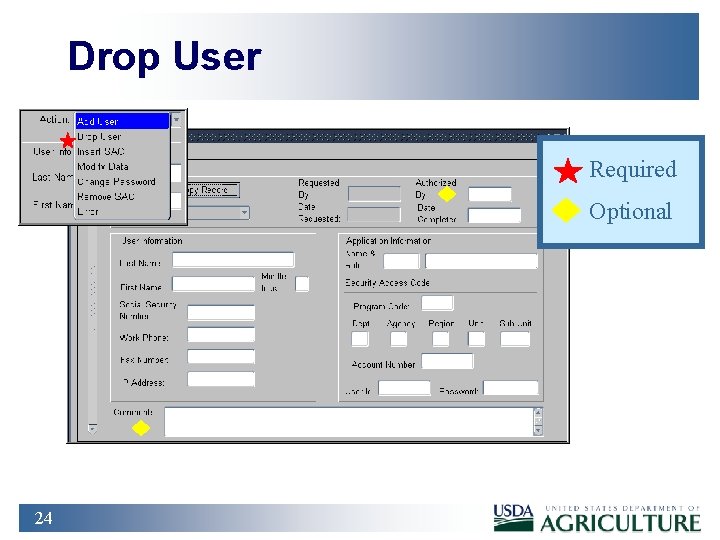
Drop User Required Optional 24
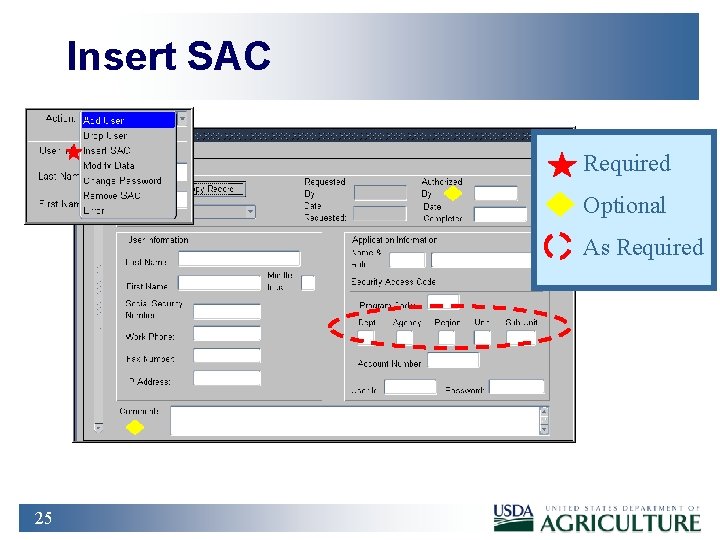
Insert SAC Required Optional As Required 25
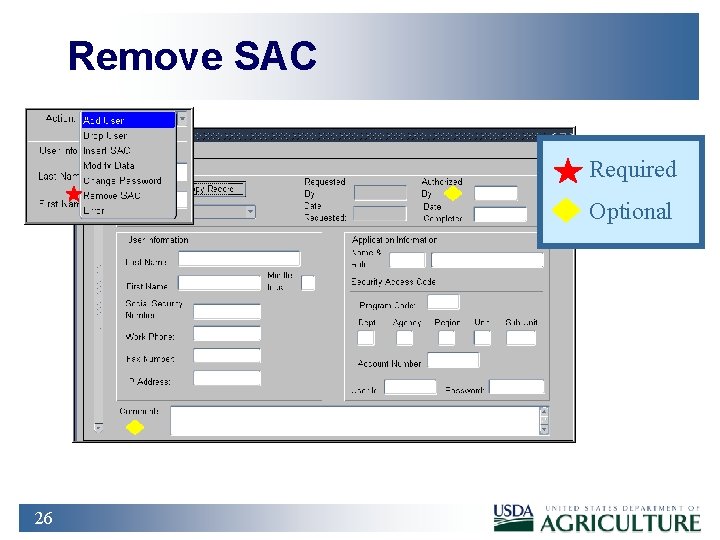
Remove SAC Required Optional 26
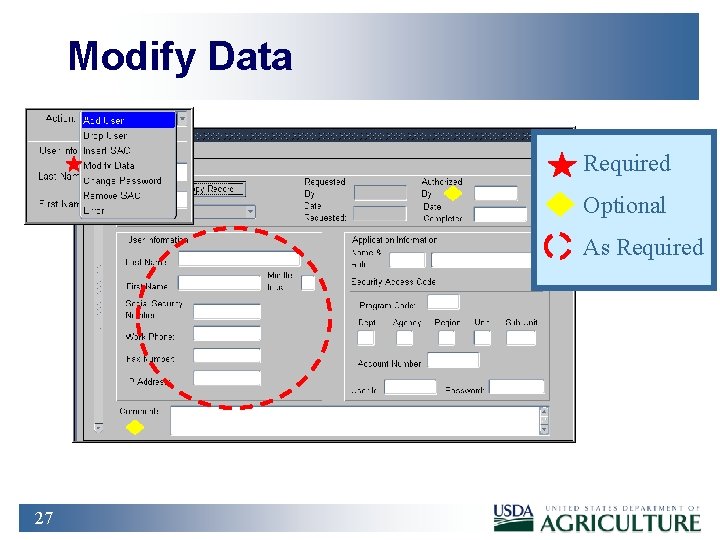
Modify Data Required Optional As Required 27
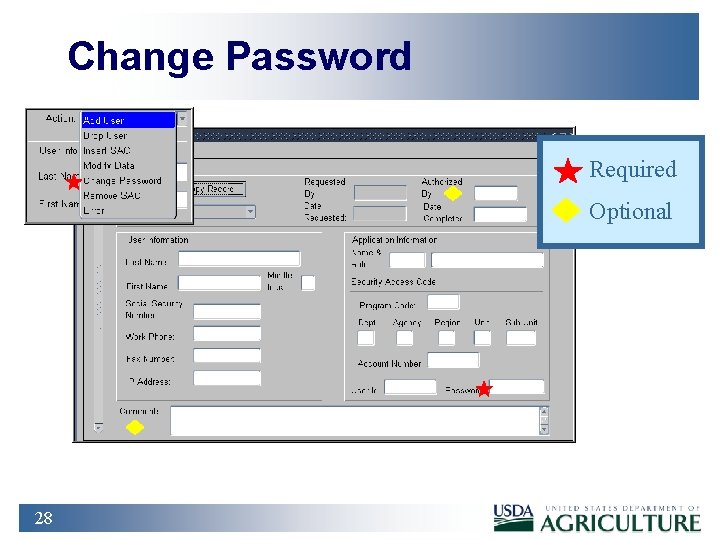
Change Password Required Optional 28
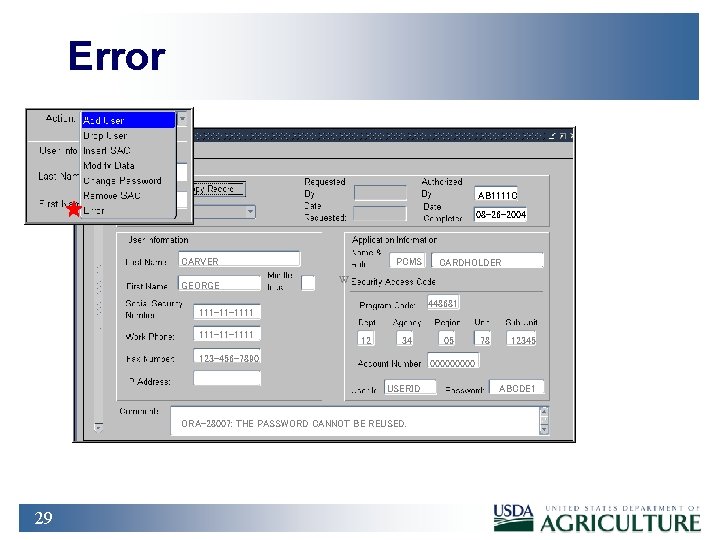
Error AB 1111 C 08 -26 -2004 CARVER GEORGE PCMS W 448681 111 -11 -1111 12 34 123 -456 -7890 05 78 12345 00000 USERID ORA-28007: THE PASSWORD CANNOT BE REUSED. 29 CARDHOLDER ABCDE 1
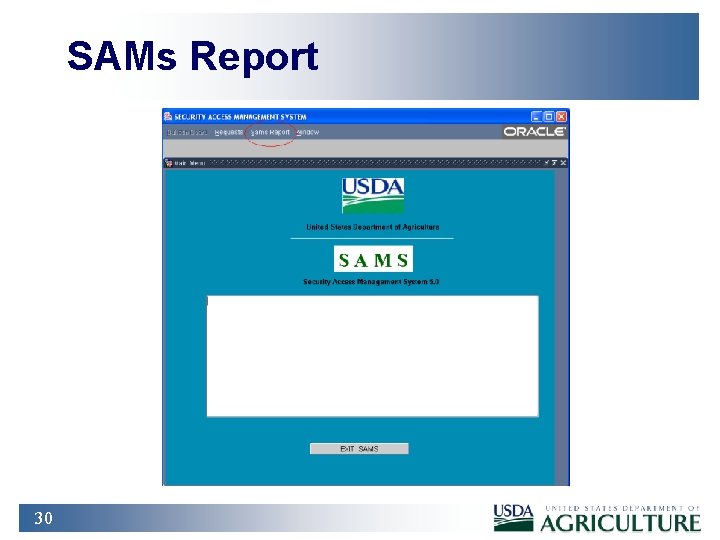
SAMs Report 30
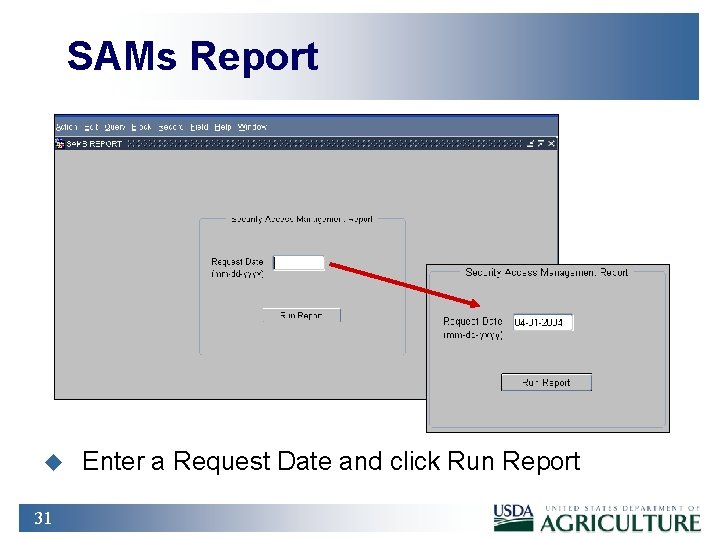
SAMs Report u 31 Enter a Request Date and click Run Report
Practical Exercise 1. Logon to SAMS using your Username and Password. Note any messages on the Main Menu Bulletin Board. 2. Open the SAMS Requests module. Search for and locate the record of an individual under your cognizance, using Last Name (at a minimum) as the search criteria. 3. Return to the Main Menu, and exit SAMS. 32
Summary & Review 1. What are the main functions the AFHC performs using SAMS? 2. What are the steps for an AFHC when setting up a new LFPC account? 3. If a LFPC loses his/her Password, how would the AFHC provide a new one? 33
- Slides: 33