
Lesson 7 Deploying Your Application TOPICS A Introduction
- Slides: 43
Lesson 7 Deploying Your Application TOPICS A. Introduction to Deployment B. Creating a Build Specification C. Communicating with Deployed Applications D. System Replication ni. com/training
A. Introduction to Deployment • Creating a stand-alone application (executable) of a Lab. VIEW Real-Time Module application using the Lab. VIEW Application Builder • Benefits of deploying your RT Application: − Embed executable in permanent memory on the target − Launch executable automatically when target boots ni. com/training
Preparing Your Application for Deployment Review the code for unsupported functions • Functions that modify front panel objects • Functions that use technologies specific to other operating systems ni. com/training
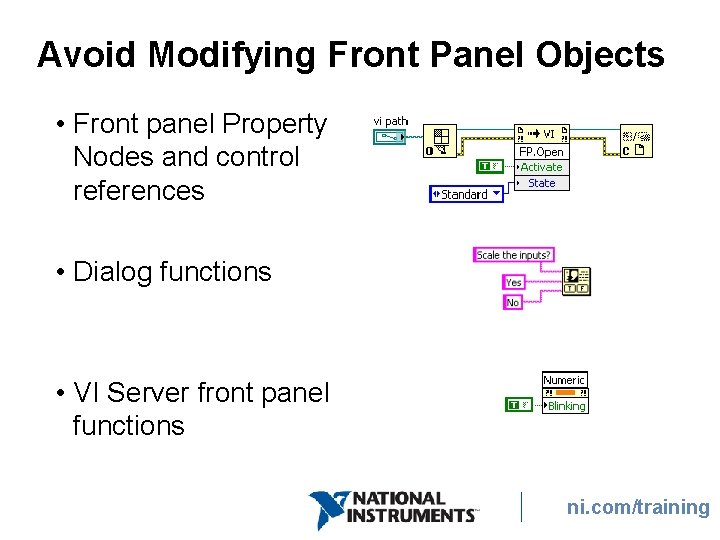
Avoid Modifying Front Panel Objects • Front panel Property Nodes and control references • Dialog functions • VI Server front panel functions ni. com/training
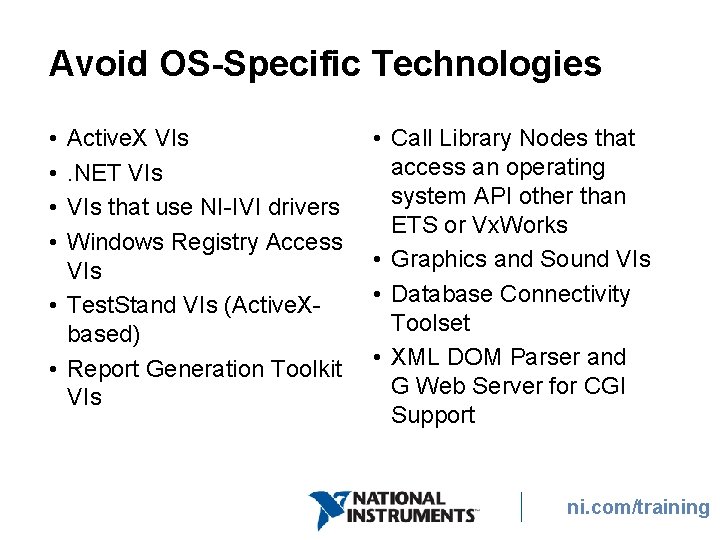
Avoid OS-Specific Technologies • • Active. X VIs. NET VIs that use NI-IVI drivers Windows Registry Access VIs • Test. Stand VIs (Active. Xbased) • Report Generation Toolkit VIs • Call Library Nodes that access an operating system API other than ETS or Vx. Works • Graphics and Sound VIs • Database Connectivity Toolset • XML DOM Parser and G Web Server for CGI Support ni. com/training
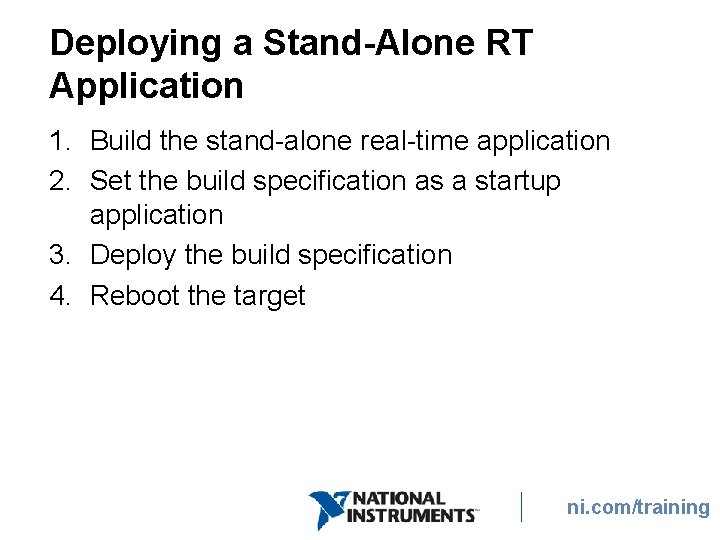
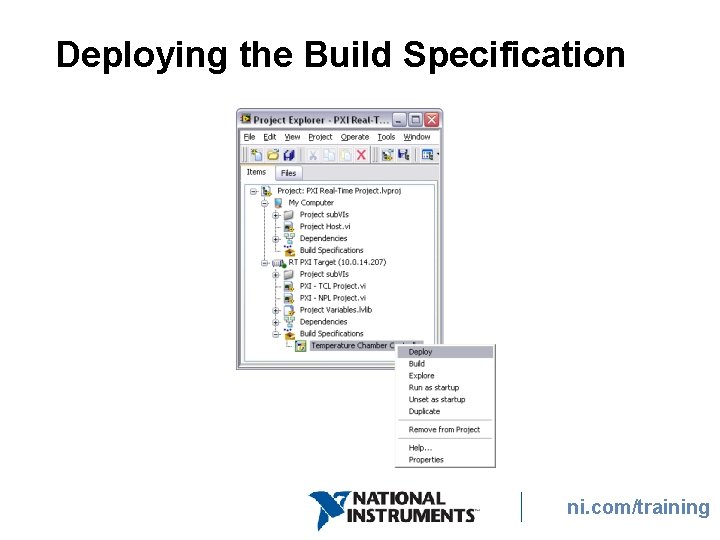
Deploying a Stand-Alone RT Application 1. Build the stand-alone real-time application 2. Set the build specification as a startup application 3. Deploy the build specification 4. Reboot the target ni. com/training
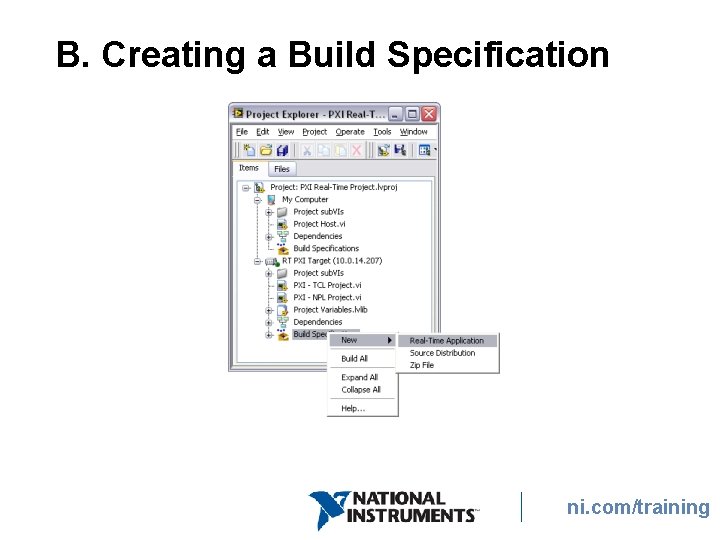
B. Creating a Build Specification ni. com/training
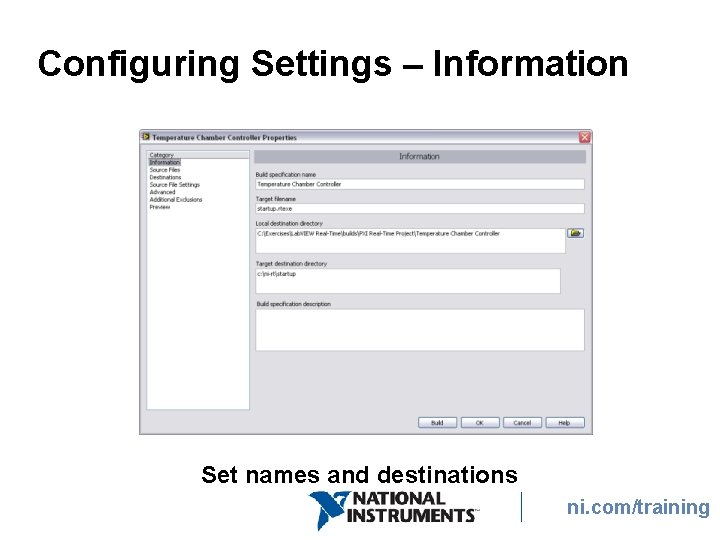
Configuring Settings – Information Set names and destinations ni. com/training
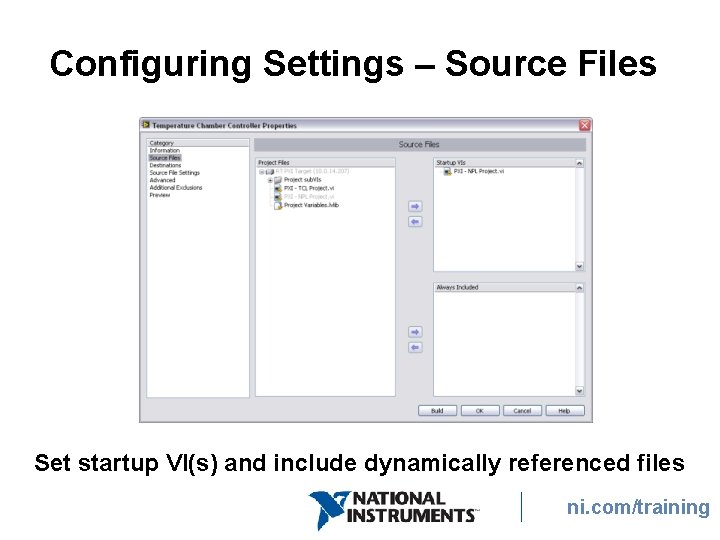
Configuring Settings – Source Files Set startup VI(s) and include dynamically referenced files ni. com/training
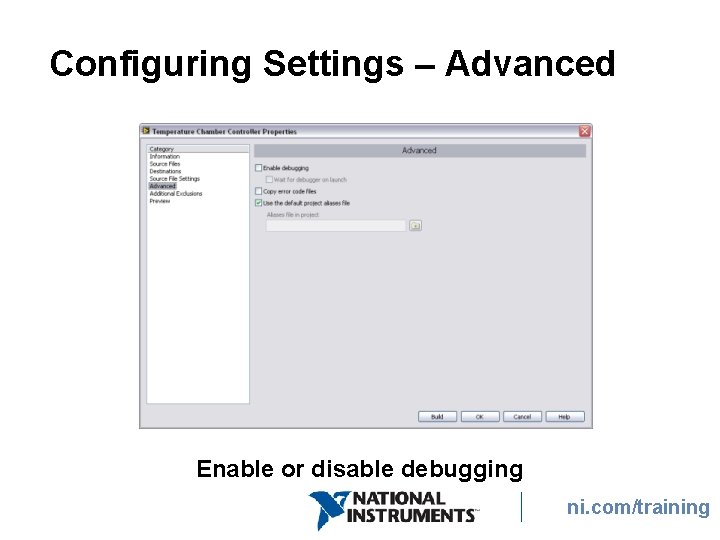
Configuring Settings – Advanced Enable or disable debugging ni. com/training
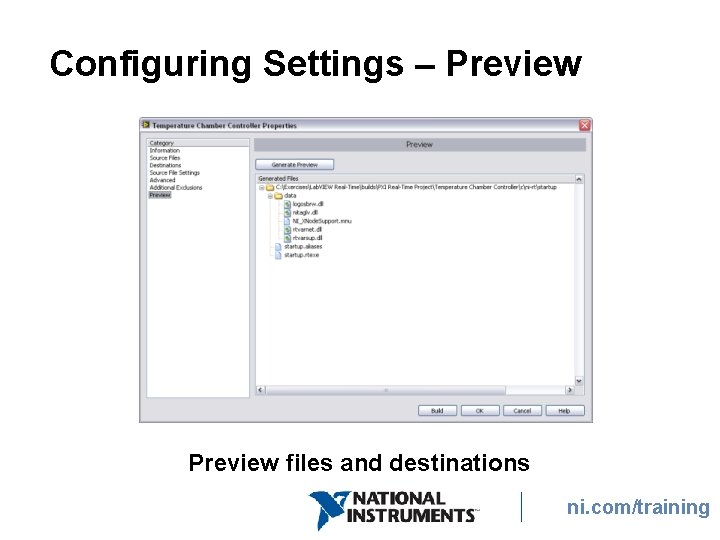
Configuring Settings – Preview files and destinations ni. com/training
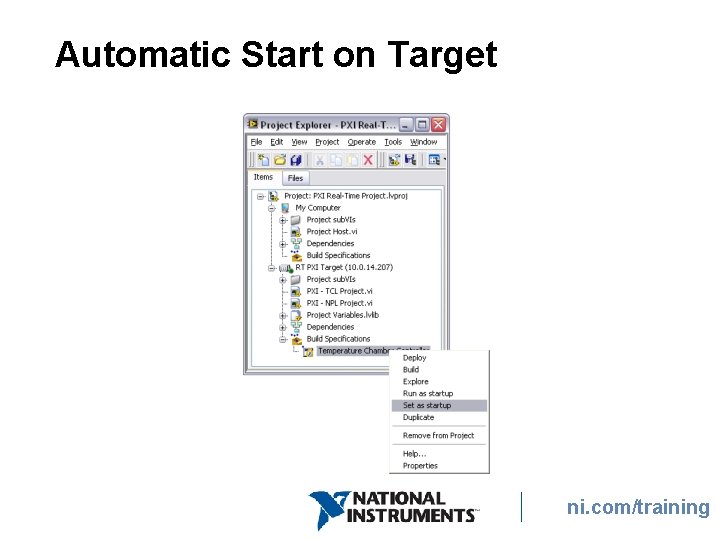
Automatic Start on Target ni. com/training
Deploying the Build Specification ni. com/training
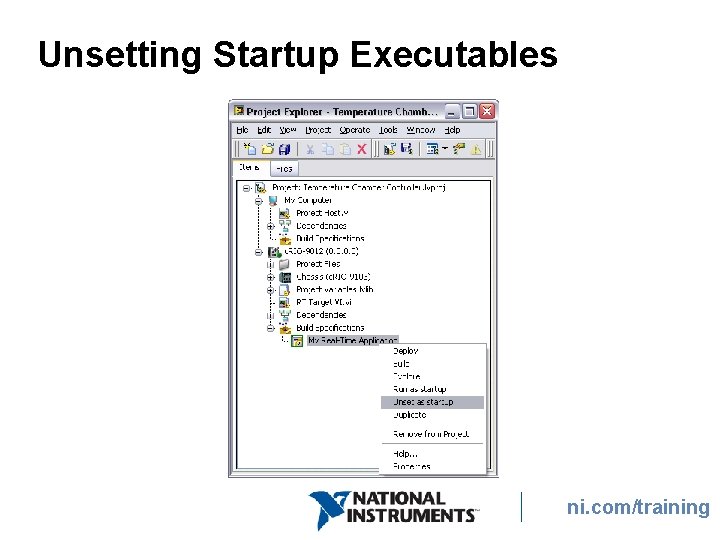
Unsetting Startup Executables ni. com/training
GOAL Exercise 7 -1: Deploy Project Prepare the project for deployment and create an executable. ni. com/training
C. Communicating with Deployed Applications You cannot open a front panel connection to a stand-alone application running on an RT target • Create communication VIs to communicate with the time-critical VI as shown in Lesson 5, Communication • Debug the executable using normal debugging functions • Use remote front panels to connect to the application ni. com/training
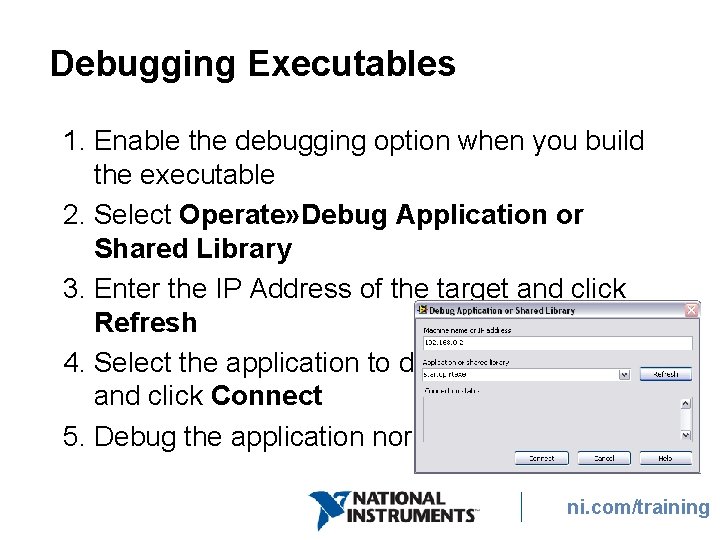
Debugging Executables 1. Enable the debugging option when you build the executable 2. Select Operate» Debug Application or Shared Library 3. Enter the IP Address of the target and click Refresh 4. Select the application to debug and click Connect 5. Debug the application normally ni. com/training
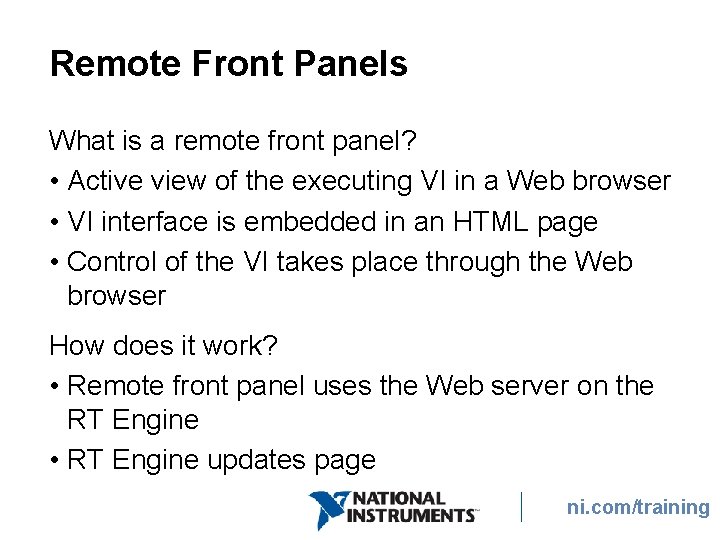
Remote Front Panels What is a remote front panel? • Active view of the executing VI in a Web browser • VI interface is embedded in an HTML page • Control of the VI takes place through the Web browser How does it work? • Remote front panel uses the Web server on the RT Engine • RT Engine updates page ni. com/training
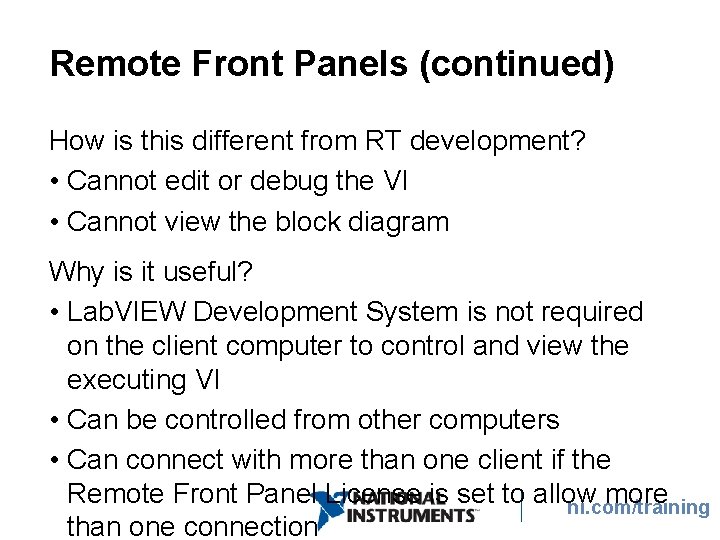
Remote Front Panels (continued) How is this different from RT development? • Cannot edit or debug the VI • Cannot view the block diagram Why is it useful? • Lab. VIEW Development System is not required on the client computer to control and view the executing VI • Can be controlled from other computers • Can connect with more than one client if the Remote Front Panel License is set to allow more ni. com/training than one connection
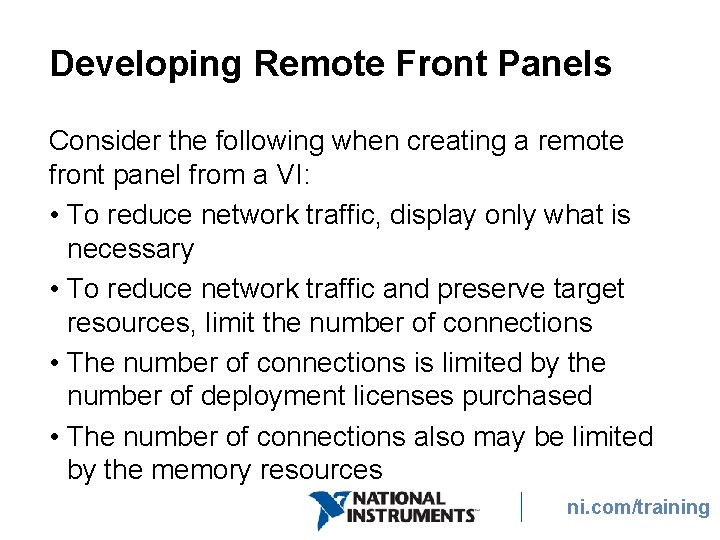
Developing Remote Front Panels Consider the following when creating a remote front panel from a VI: • To reduce network traffic, display only what is necessary • To reduce network traffic and preserve target resources, limit the number of connections • The number of connections is limited by the number of deployment licenses purchased • The number of connections also may be limited by the memory resources ni. com/training
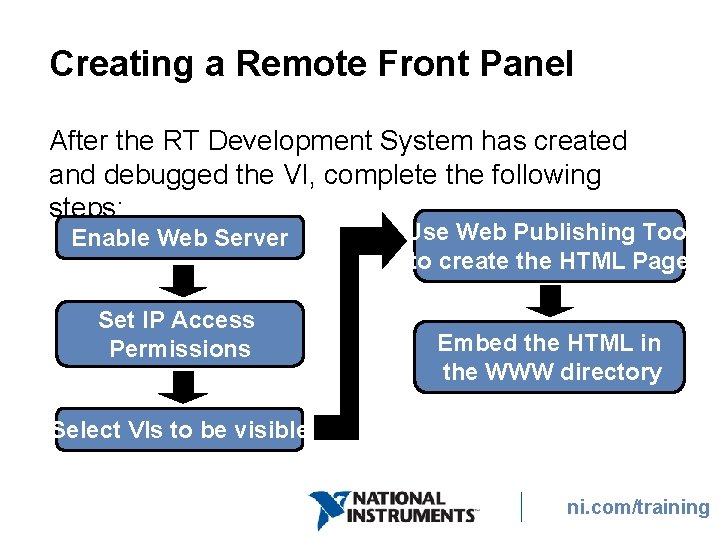
Creating a Remote Front Panel After the RT Development System has created and debugged the VI, complete the following steps: Enable Web Server Set IP Access Permissions Use Web Publishing Tool to create the HTML Page Embed the HTML in the WWW directory Select VIs to be visible ni. com/training
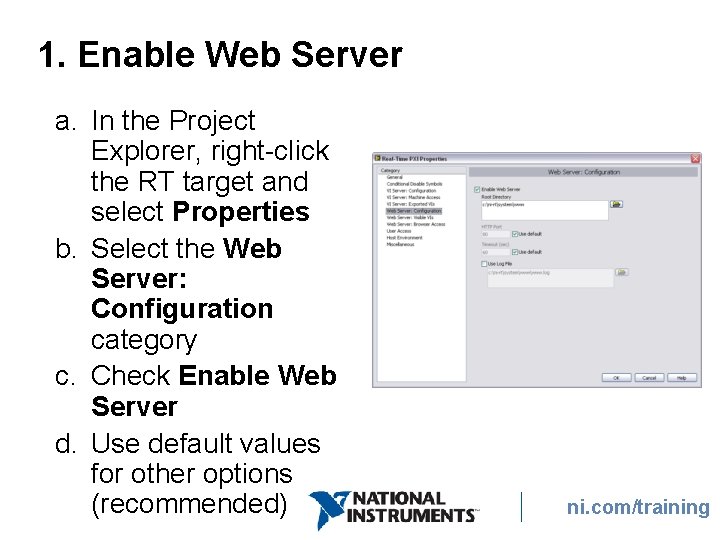
1. Enable Web Server a. In the Project Explorer, right-click the RT target and select Properties b. Select the Web Server: Configuration category c. Check Enable Web Server d. Use default values for other options (recommended) ni. com/training
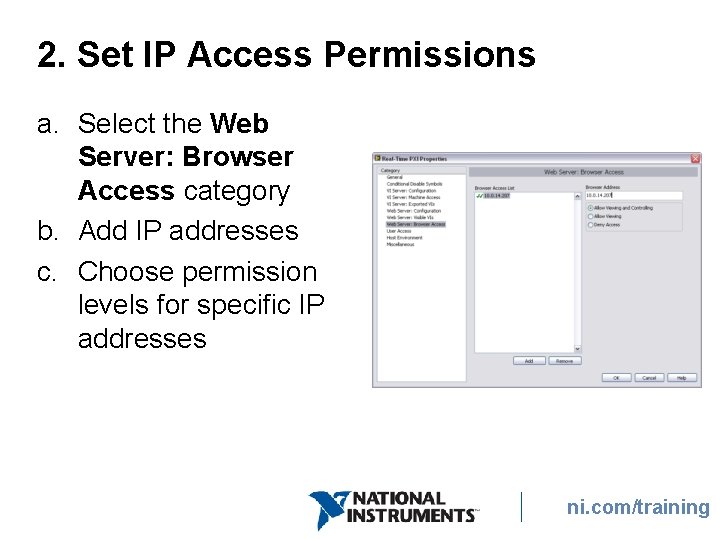
2. Set IP Access Permissions a. Select the Web Server: Browser Access category b. Add IP addresses c. Choose permission levels for specific IP addresses ni. com/training
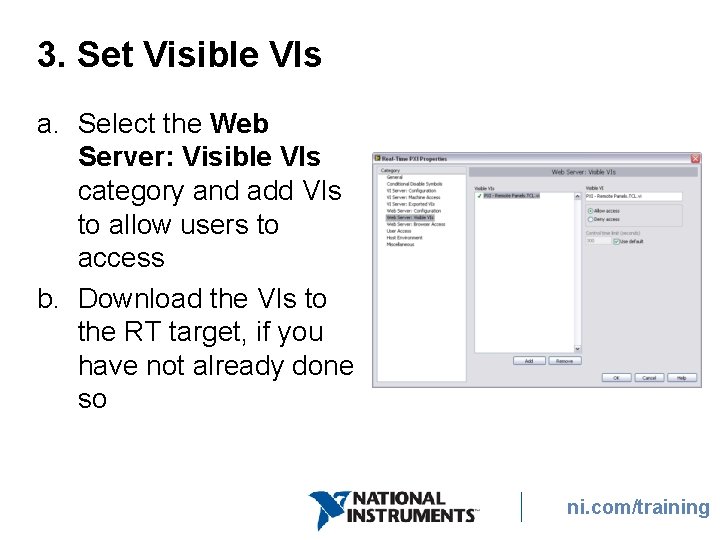
3. Set Visible VIs a. Select the Web Server: Visible VIs category and add VIs to allow users to access b. Download the VIs to the RT target, if you have not already done so ni. com/training
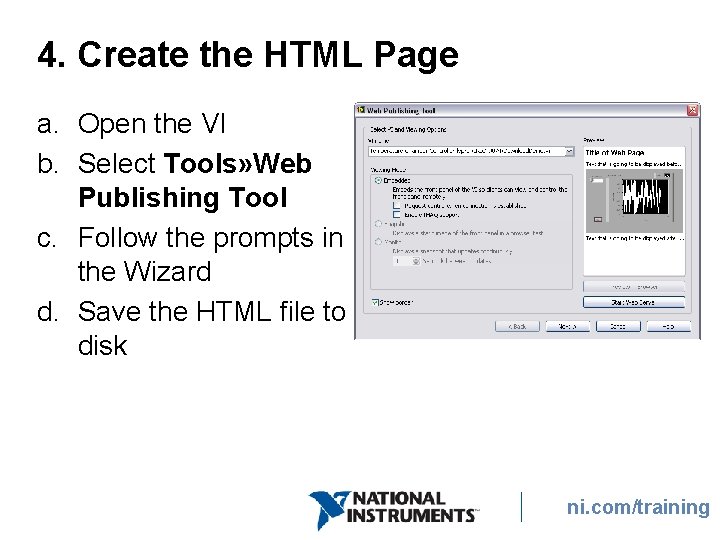
4. Create the HTML Page a. Open the VI b. Select Tools» Web Publishing Tool c. Follow the prompts in the Wizard d. Save the HTML file to disk ni. com/training
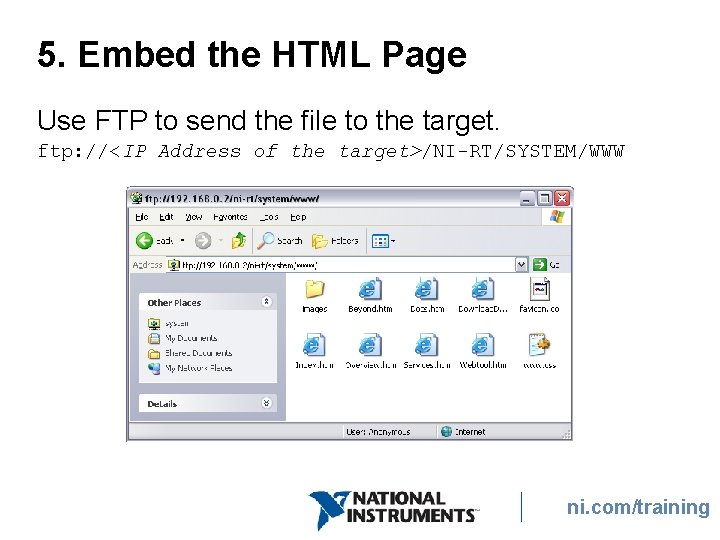
5. Embed the HTML Page Use FTP to send the file to the target. ftp: //<IP Address of the target>/NI-RT/SYSTEM/WWW ni. com/training
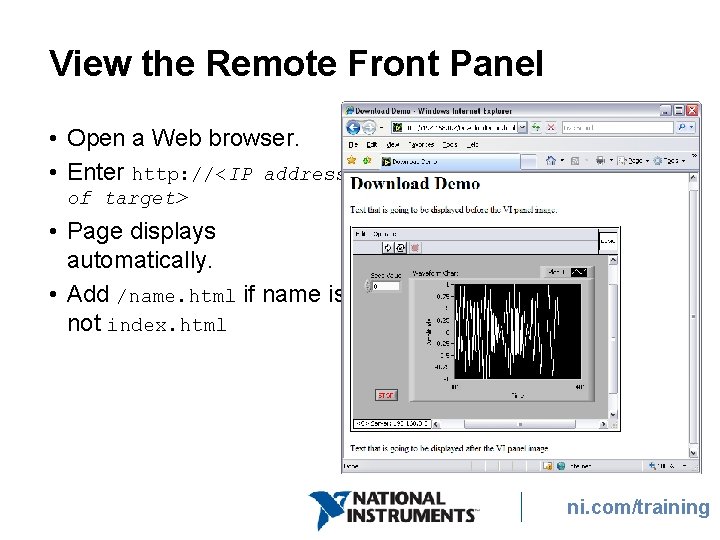
View the Remote Front Panel • Open a Web browser. • Enter http: //<IP address of target> • Page displays automatically. • Add /name. html if name is not index. html ni. com/training
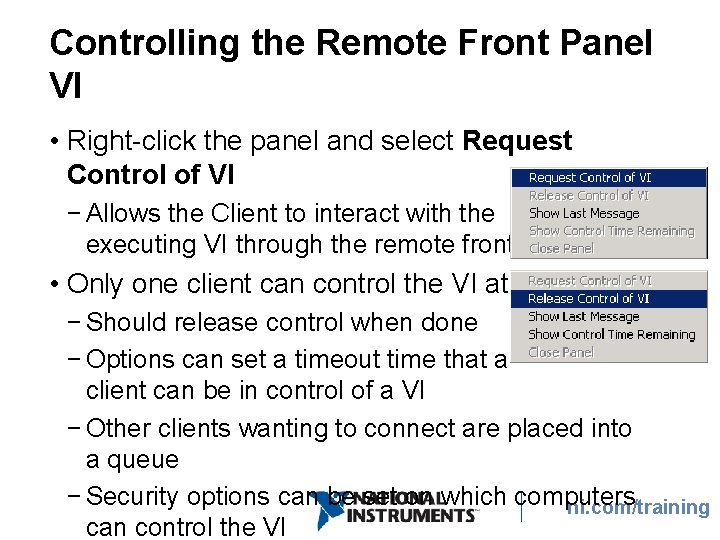
Controlling the Remote Front Panel VI • Right-click the panel and select Request Control of VI − Allows the Client to interact with the executing VI through the remote front panel • Only one client can control the VI at a time − Should release control when done − Options can set a timeout time that a client can be in control of a VI − Other clients wanting to connect are placed into a queue − Security options can be set on which computers ni. com/training can control the VI
Remote Front Panel Licenses • Allow multiple Web clients to access the embedded program • By default, an RT Target has one connection license—you can purchase additional licenses • Number of concurrent client connections is limited by memory resources as well ni. com/training
GOAL Exercise 7 -2: Remote Front Panels Communicate with a deployed application, similar to the course project, using remote front panels. ni. com/training
D. System Replication Replicate one Real-Time target into a copy of itself • Use cases − Store a backup image of your RT target − Deploy an image to multiple identical RT targets − Replicate one RT target onto multiple identical RT targets • Caveat - Images can only be deployed to identical systems ni. com/training
System Replication - Manual method Use MAX and an FTP client to copy necessary files to and from RT targets and install software ni. com/training
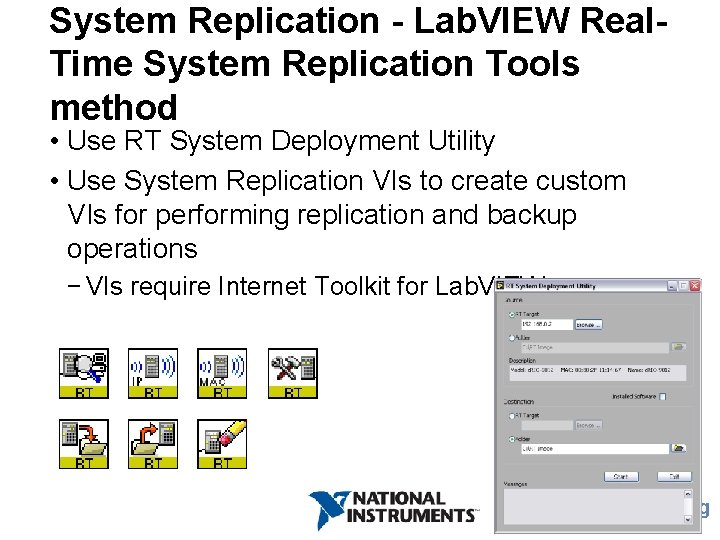
System Replication - Lab. VIEW Real. Time System Replication Tools method • Use RT System Deployment Utility • Use System Replication VIs to create custom VIs for performing replication and backup operations − VIs require Internet Toolkit for Lab. VIEW ni. com/training
Summary – Quiz 1. True or False? Front panel property nodes are supported in a stand-alone real-time application. ni. com/training
Summary – Quiz Answer 1. True or False? Front panel property nodes are supported in a stand-alone real-time application. False ni. com/training
Summary – Quiz 2. Which of the following are advantages of using a VI on the host computer to communicate with a stand-alone RT application? a. Able to edit the host VI b. Able to debug the host VI c. Does not use web server resources on the RT target d. All of the above ni. com/training
Summary – Quiz Answer 2. Which of the following are advantages of using a VI on the host computer to communicate with a stand-alone RT application? a. Able to edit the host VI b. Able to debug the host VI c. Does not use web server resources on the RT target d. All of the above ni. com/training
Summary – Quiz 3. Which of the following are advantages of using a remote panel to communicate with a standalone RT application? a. Able to be controlled by multiple computers b. Able to be simultaneously viewed by multiple clients c. Client can view the remote panel VI block diagram d. Does not require Lab. VIEW Development System to be installed on the client computer ni. com/training
Summary – Quiz Answers 3. Which of the following are advantages of using a remote panel to communicate with a standalone RT application? a. Able to be controlled by multiple computers b. Able to be simultaneously viewed by multiple clients c. Client can view the remote panel VI block diagram d. Does not require Lab. VIEW Development System to be installed on the client ni. com/training
Continuing Your Lab. VIEW Education Instructor Led Training • Lab. VIEW Intermediate I: Learn about developing large projects and event programming • Hardware courses such as Data Acquisition and Signal Processing and Compact. RIO • Online courses such as Machine Vision • Self-Paced: a variety of instructional packages and tools designed to educate you at your own pace ni. com/training
Continuing Your Lab. VIEW Education • Training and Certification Membership upgrade − 30 days from the end of this class to apply what you have spent on this course to the cost of a 1 year Membership − Includes access to all our regional and online classes plus all certifications from 1 year of purchase − Please contact Customer Education at (866) 3375918 to receive a quote for Membership ni. com/training
Continue Your Learning • ni. com/support − On Demand training modules: ni. com/src − Access product manuals, Knowledge. Base, example code, tutorials, application notes, and discussion forums • Info-Lab. VIEW: www. info-labview. org • Alliance Program: ni. com/alliance • Publications: ni. com/reference/books/ • Practice! ni. com/training
Please complete the course survey and retrieve your course CD. THANK YOU! ni. com/training