
Lesson 7 Business EMail and Personal Information Management
Lesson 7: Business E-Mail and Personal Information Management
Lesson 7 Objectives » Explain the way that electronic mail (e-mail) works » Configure an e-mail client » Identify e-mail message components » Create and send e-mail messages » Receive and view e-mail messages » Identify ways to use e-mail effectively in the workplace » Identify e-mail problems and solutions » Identify the functions of personal information management (PIM) software

How E-Mail Works » To send and receive e-mail you need: ˃ A unique IP address ˃ An account name ˃ A password » Your service provider
E‑Mail Protocols » Outgoing mail protocol ˃ Simple Mail Transfer Protocol (SMTP) » Incoming mail protocols ˃ Post Office Protocol version 3 (POP 3) ˃ Internet Message Access Protocol (IMAP)

E‑Mail Addresses » E‑mail addresses use the following format: username@domain » The part of the address before the @ identifies the user within a domain » The part of the address after the @ is the domain name of the organization or company that issues the e‑mail account
E-Mail Services and Programs » E-mail client – independent of any specific Web browser » Browser e-mail – program that comes bundled with a Web browser » Web-based e-mail – free service from a Webbased provider
MIME, S/MIME, PGP and GPG » Multipurpose Internet Mail Extensions (MIME) – enables operating systems to map file name extensions to corresponding applications » Secure MIME (S/MIME) – secure version of MIME that adds encryption to MIME data » Pretty Good Privacy (PGP) – a method of encrypting and decrypting e‑mail messages » GNU Privacy Guard (GPG) – an open-source version of PGP
E-Mail Configuration Requirements » » » E-mail address Name of the outgoing (SMTP) mail server Name of the incoming (POP 3) mail server POP 3 account name (user name) POP 3 account password
E-Mail Message Components » E-mail message header ˃ ˃ ˃ To field Cc field Bcc field Subject field Attachment field » Message (body of the message) » Signature (lines of text at the end of the message)
Creating and Sending E-Mail Messages » Click the command to create a new message » Enter at least one address in the To field » Enter additional addresses in the Cc and/or Bcc field (optional) » Enter a subject in the Subject field » Type the message » Attach any necessary files (optional) » Click the command to send the message
E-Mail Signatures » An e-mail signature displays at the bottom of an e-mail message » An e-mail signature usually identifies the sender and provides contact information » Some companies require that signatures follow specific guideline for content and structure » Signatures can be added automatically to outgoing messages » You may create several signatures, but only one can be the default signature at any given time
Address Books » Address books store names and contact information for your e-mail contacts » Most clients allow you to import address books from other applications » Using an address book to insert e-mail addresses is fast, convenient and accurate » Most company systems include a global address book that contains the e-mail addressees of all company employees
E-Mail Attachments » You can attach almost any kind of file to an e-mail message » The ability to send e-mail attachments makes e-mail a powerful tool for sharing files and documents » E-mail clients use MIME to identify attached files by their file type » Most company servers scan e-mail attachments » Some company servers may block certain types of attachments, or all attachments, depending on the company security policy
Receiving and Renewing E-Mail Messages » The e‑mail client's folder structure provides tools for viewing, storing and organizing items » Most e‑mail programs include: ˃ ˃ ˃ An Inbox folder A folder for sent messages A folder for deleted items A folder for drafts An Outbox folder
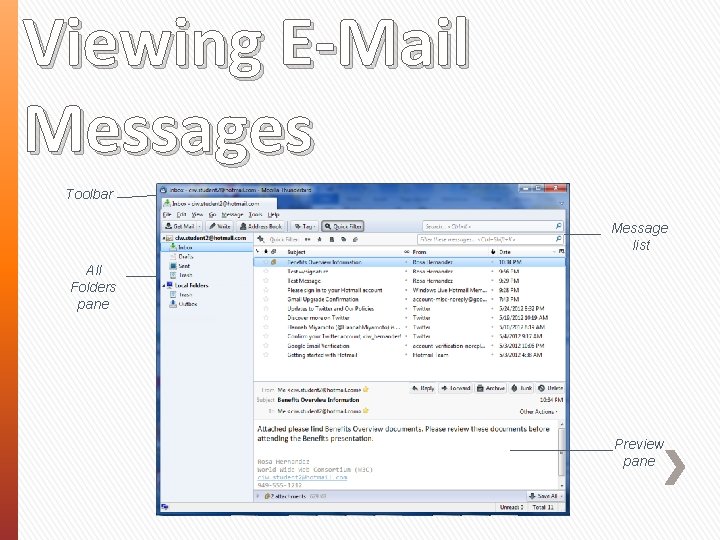
Viewing E-Mail Messages Toolbar Message list All Folders pane Preview pane
E-Mail in the Workplace » Response commands ˃ Reply All ˃ Forward » Professional communication ˃ Respond within 24 hours ˃ Keep messages clear and concise ˃ Ensure that tone is respectful and restrained » Can e-mail messages be recalled? » E-mail is permanent » Should e-mail threads be included? » Reply vs. Reply All » Is e-mail private? » Out-of-office messages
E-Mail Problems and Solutions » » » Sexual harassment Offensive language Disclosure of confidential information Live communication better in some situations Spam ˃ Spam filters ˃ CAPTCHA » Storing e-mail messages ˃ Make local copies ˃ Remove messages from the server
Personal Information Management (PIM) Keep track of appointments Store contact information Provide e-mail capabilities (some programs) Provide a centralized electronic calendar (some programs) » Set reminders and alarms » Many packages available for smartphones » Synchronize data between smartphone and desktop computer » »
Lesson 7 Summary ü Explain the way that electronic mail (e-mail) works ü Configure an e-mail client ü Identify e-mail message components ü Create and send e-mail messages ü Receive and view e-mail messages ü Identify ways to use e-mail effectively in the workplace ü Identify e-mail problems and solutions ü Identify the functions of personal information management (PIM) software
- Slides: 19