
LESSON 7 1 07 WORKING WITH THEMES STYLE

- Slides: 18
LESSON 7 #1. 07 WORKING WITH THEMES, STYLE SETS, BACKGROUNDS, QUICK PARTS, AND TEXT BOXES
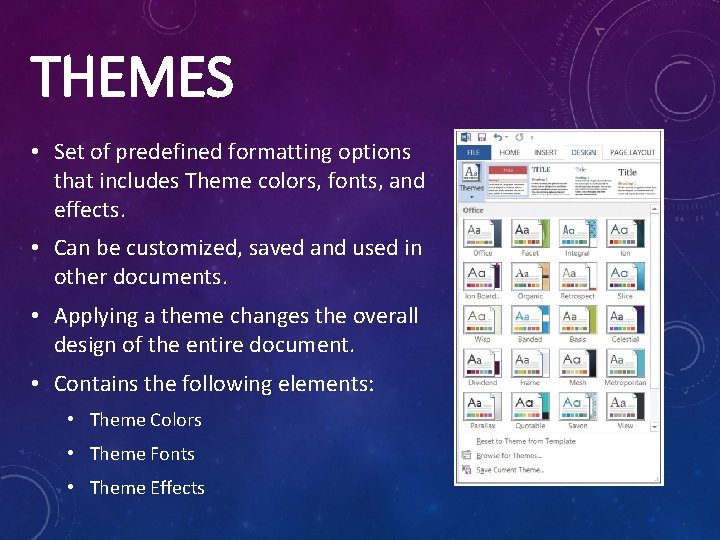
THEMES • Set of predefined formatting options that includes Theme colors, fonts, and effects. • Can be customized, saved and used in other documents. • Applying a theme changes the overall design of the entire document. • Contains the following elements: • Theme Colors • Theme Fonts • Theme Effects
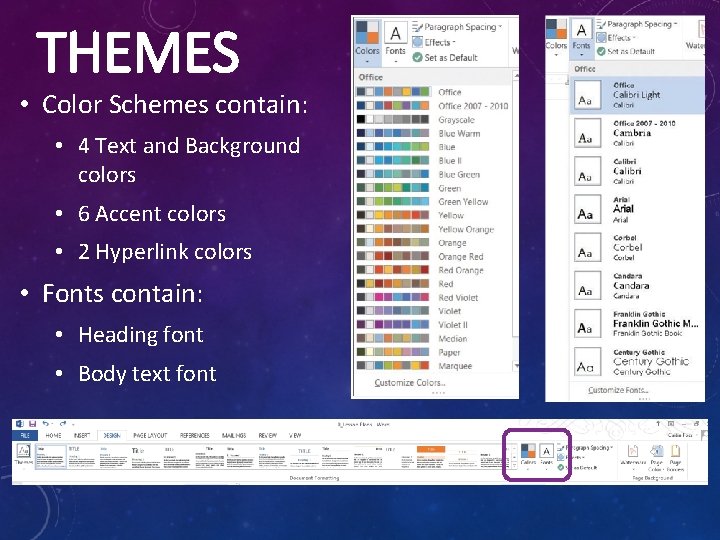
THEMES • Color Schemes contain: • 4 Text and Background colors • 6 Accent colors • 2 Hyperlink colors • Fonts contain: • Heading font • Body text font
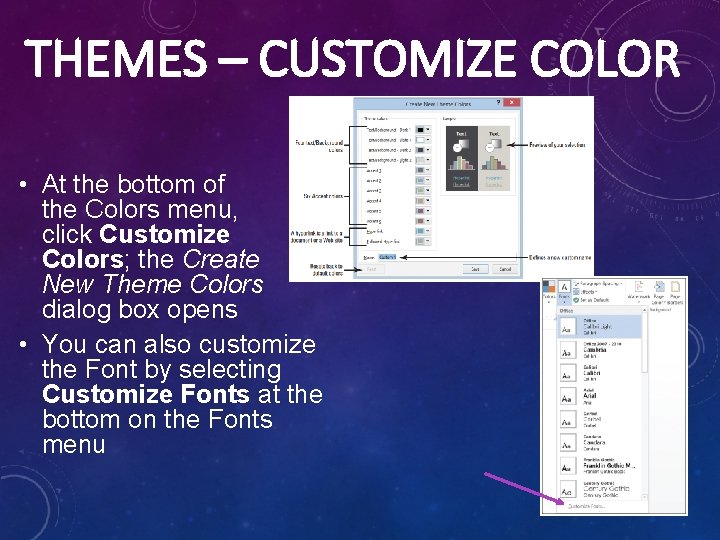
THEMES – CUSTOMIZE COLOR • At the bottom of the Colors menu, click Customize Colors; the Create New Theme Colors dialog box opens • You can also customize the Font by selecting Customize Fonts at the bottom on the Fonts menu
THEMES – CUSTOMIZE DOCUMENT EFFECTS • Theme Effects are sets of lines and fill effects. • Quickly changes the general look of objects on your document. • Each option uses various borders and visual effects, such as shading and shadow, to give your objects a different look. • The shapes will display based on the effect you selected.
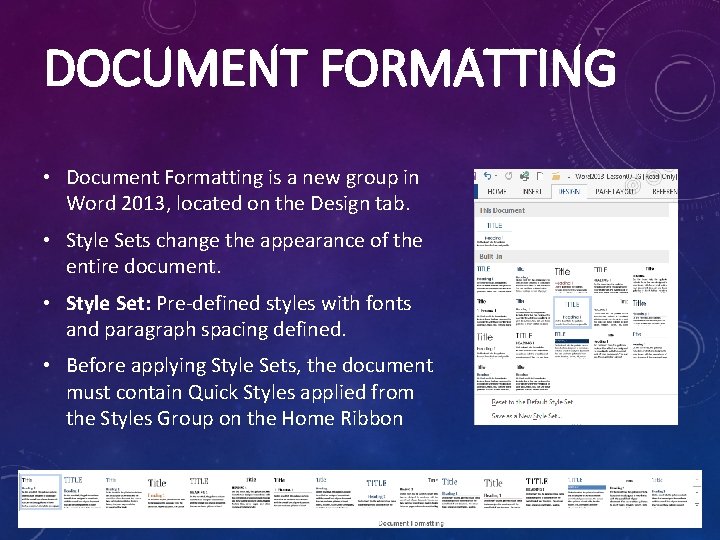
DOCUMENT FORMATTING • Document Formatting is a new group in Word 2013, located on the Design tab. • Style Sets change the appearance of the entire document. • Style Set: Pre-defined styles with fonts and paragraph spacing defined. • Before applying Style Sets, the document must contain Quick Styles applied from the Styles Group on the Home Ribbon
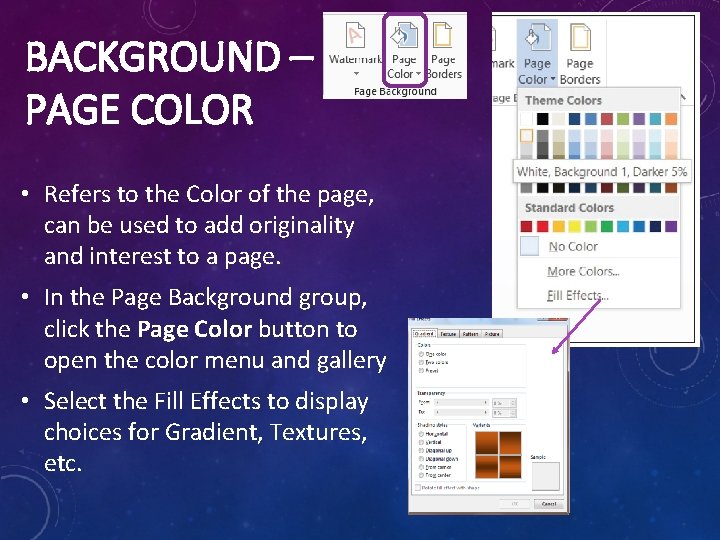
BACKGROUND – PAGE COLOR • Refers to the Color of the page, can be used to add originality and interest to a page. • In the Page Background group, click the Page Color button to open the color menu and gallery • Select the Fill Effects to display choices for Gradient, Textures, etc.
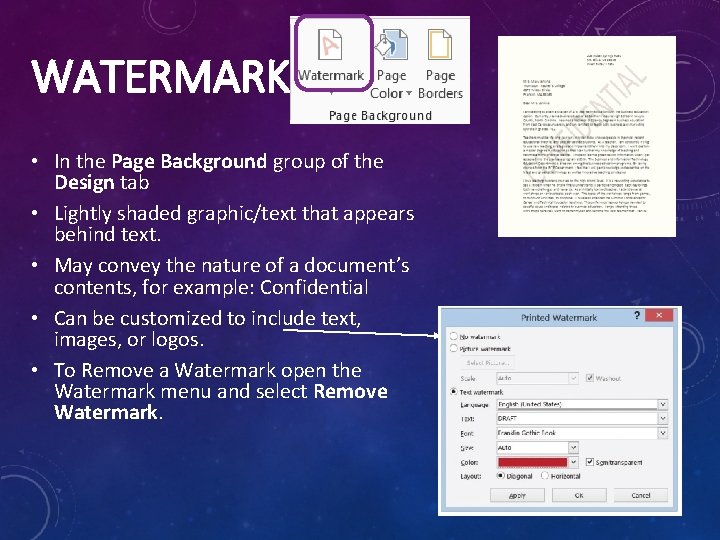
WATERMARK • In the Page Background group of the Design tab • Lightly shaded graphic/text that appears behind text. • May convey the nature of a document’s contents, for example: Confidential • Can be customized to include text, images, or logos. • To Remove a Watermark open the Watermark menu and select Remove Watermark.
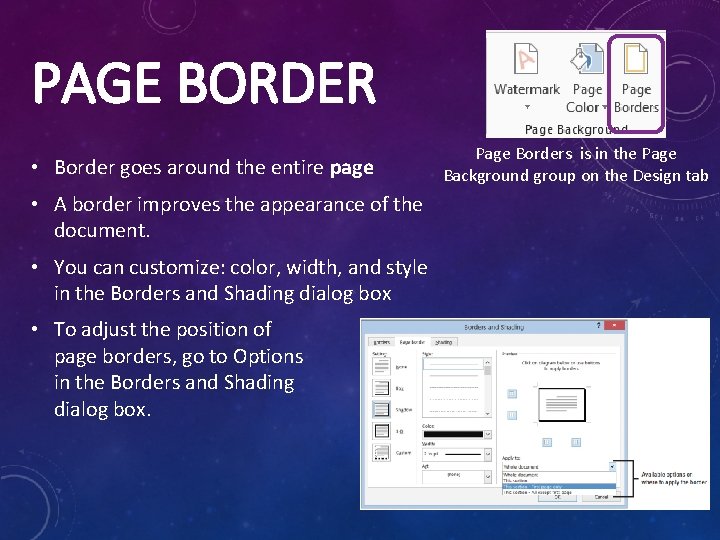
PAGE BORDER • Border goes around the entire page • A border improves the appearance of the document. • You can customize: color, width, and style in the Borders and Shading dialog box • To adjust the position of page borders, go to Options in the Borders and Shading dialog box. Page Borders is in the Page Background group on the Design tab
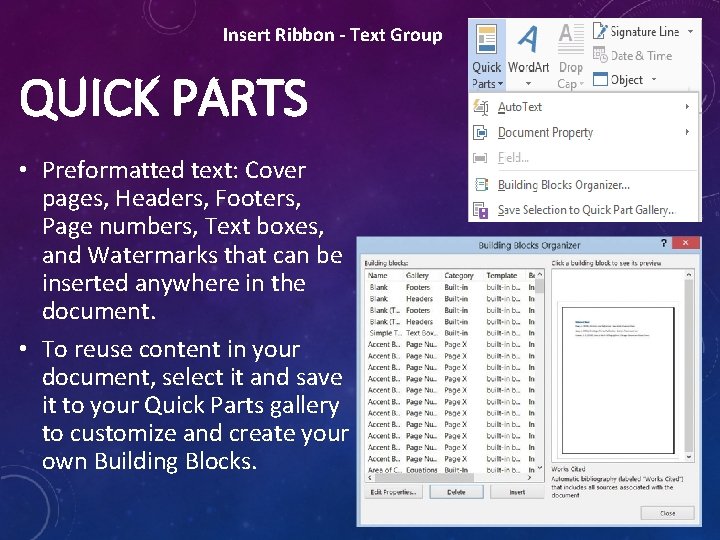
Insert Ribbon - Text Group QUICK PARTS • Preformatted text: Cover pages, Headers, Footers, Page numbers, Text boxes, and Watermarks that can be inserted anywhere in the document. • To reuse content in your document, select it and save it to your Quick Parts gallery to customize and create your own Building Blocks.
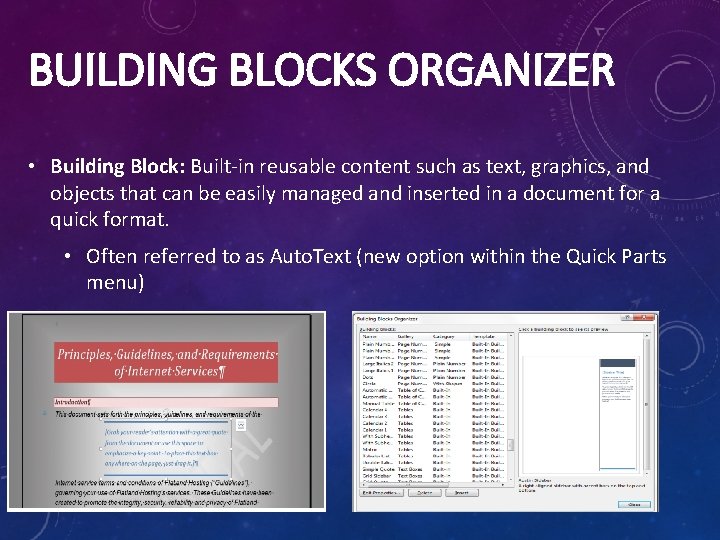
BUILDING BLOCKS ORGANIZER • Building Block: Built-in reusable content such as text, graphics, and objects that can be easily managed and inserted in a document for a quick format. • Often referred to as Auto. Text (new option within the Quick Parts menu)
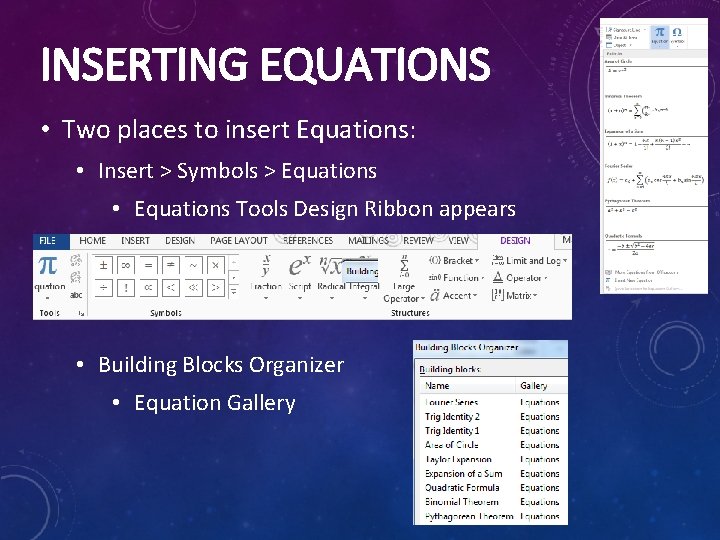
INSERTING EQUATIONS • Two places to insert Equations: • Insert > Symbols > Equations • Equations Tools Design Ribbon appears • Building Blocks Organizer • Equation Gallery
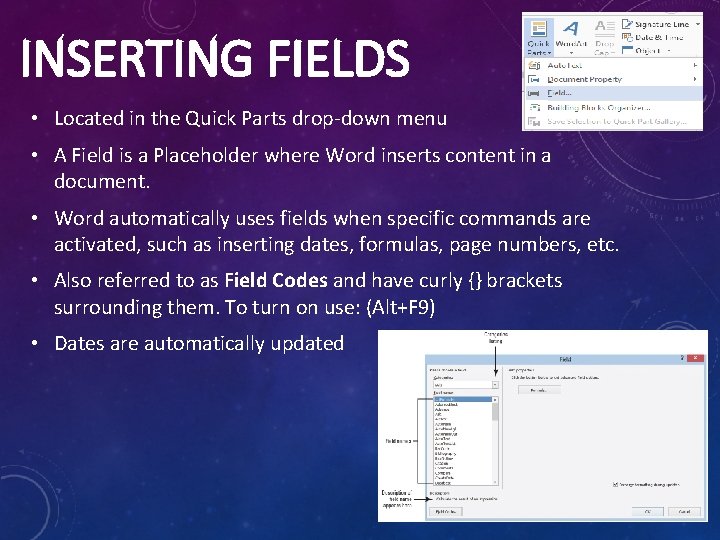
INSERTING FIELDS • Located in the Quick Parts drop-down menu • A Field is a Placeholder where Word inserts content in a document. • Word automatically uses fields when specific commands are activated, such as inserting dates, formulas, page numbers, etc. • Also referred to as Field Codes and have curly {} brackets surrounding them. To turn on use: (Alt+F 9) • Dates are automatically updated
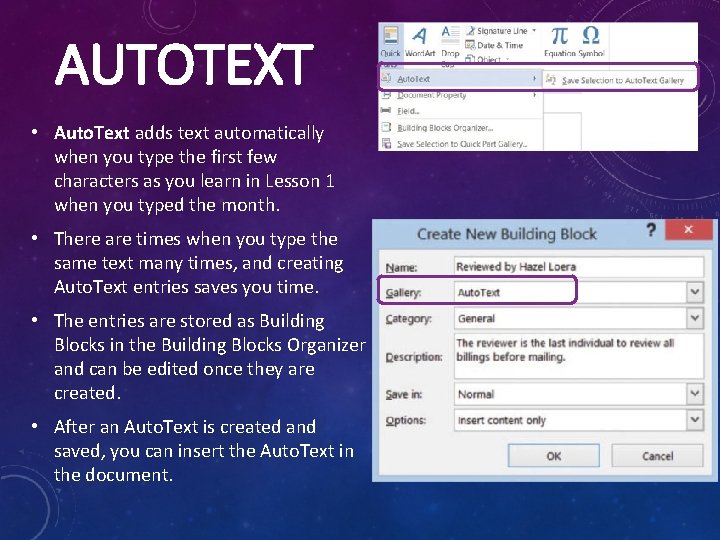
AUTOTEXT • Auto. Text adds text automatically when you type the first few characters as you learn in Lesson 1 when you typed the month. • There are times when you type the same text many times, and creating Auto. Text entries saves you time. • The entries are stored as Building Blocks in the Building Blocks Organizer and can be edited once they are created. • After an Auto. Text is created and saved, you can insert the Auto. Text in the document.
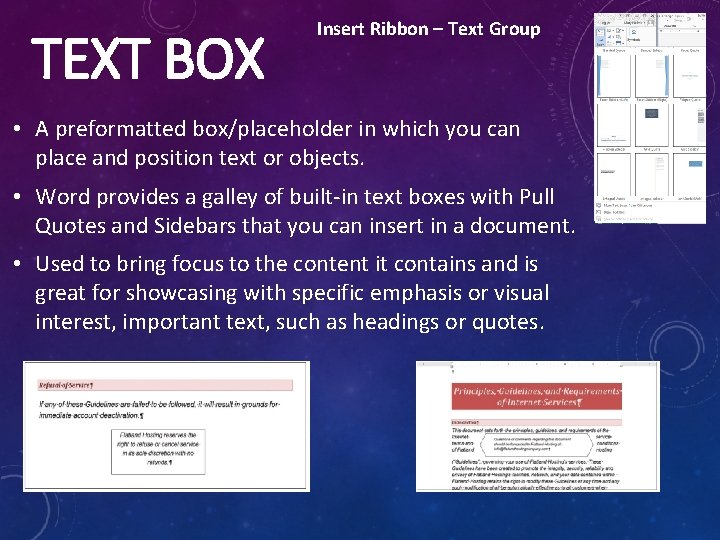
TEXT BOX Insert Ribbon – Text Group • A preformatted box/placeholder in which you can place and position text or objects. • Word provides a galley of built-in text boxes with Pull Quotes and Sidebars that you can insert in a document. • Used to bring focus to the content it contains and is great for showcasing with specific emphasis or visual interest, important text, such as headings or quotes.
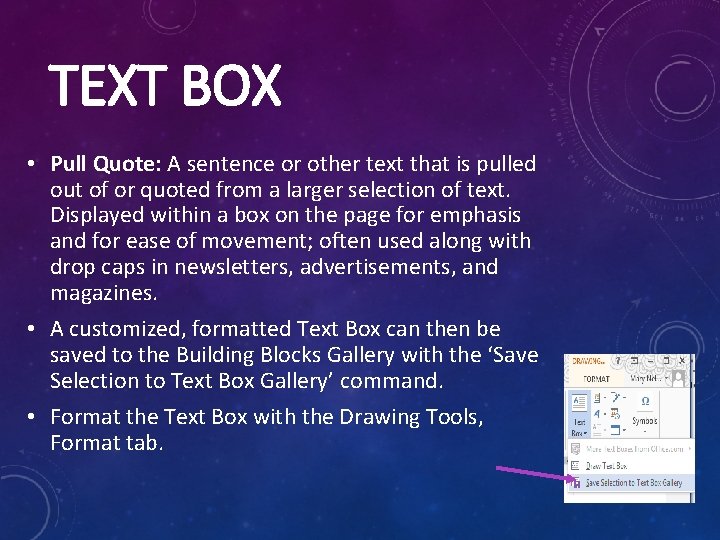
TEXT BOX • Pull Quote: A sentence or other text that is pulled out of or quoted from a larger selection of text. Displayed within a box on the page for emphasis and for ease of movement; often used along with drop caps in newsletters, advertisements, and magazines. • A customized, formatted Text Box can then be saved to the Building Blocks Gallery with the ‘Save Selection to Text Box Gallery’ command. • Format the Text Box with the Drawing Tools, Format tab.
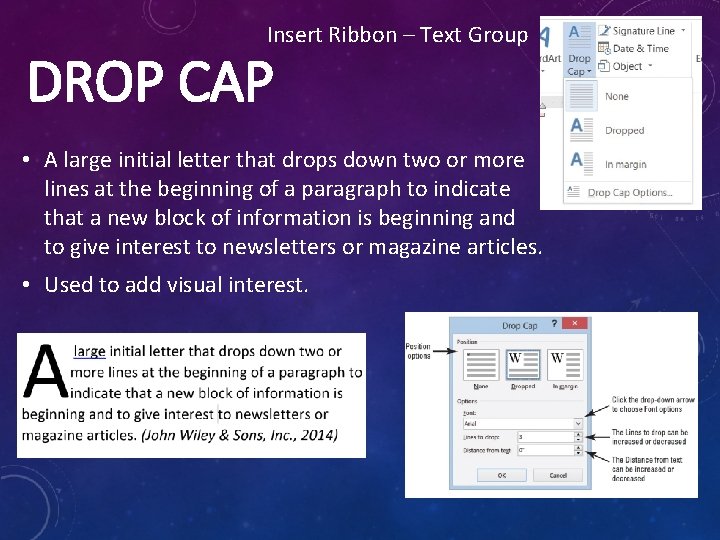
Insert Ribbon – Text Group DROP CAP • A large initial letter that drops down two or more lines at the beginning of a paragraph to indicate that a new block of information is beginning and to give interest to newsletters or magazine articles. • Used to add visual interest.
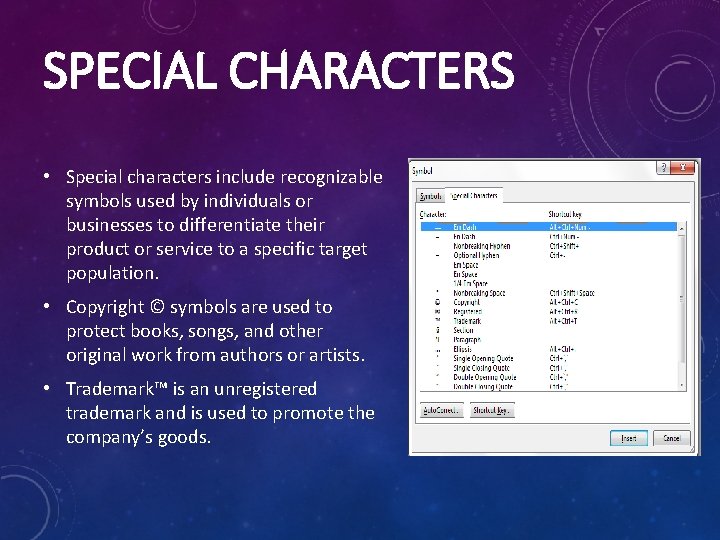
SPECIAL CHARACTERS • Special characters include recognizable symbols used by individuals or businesses to differentiate their product or service to a specific target population. • Copyright © symbols are used to protect books, songs, and other original work from authors or artists. • Trademark™ is an unregistered trademark and is used to promote the company’s goods.