
Lesson 6 Imaging and Designing for Online Environment
- Slides: 17
Lesson 6: Imaging and Designing for Online Environment
Basic Principles of Graphics and Layout 1. Balance 2. Emphasis 3. Movement 4. Pattern, Repetition and Rhythm 5. Proportion 6. Variety
INFORMATION GRAPHICS Or infographics are used to present information, statistical data, or knowledge in a graphical manner usually done in a creative way to attract the viewer’s attention.
PIKTOCHART Piktochart is an easy infographic design app that requires very little effort to produce beautiful, high quality graphics. An important feature of Piktochart is its HTML Publishing capability, which generates infographics that are viewable online with multiple clickable elements for users. Additionally, the program provides tools to add interactive maps, charts, videos and hyperlinks.
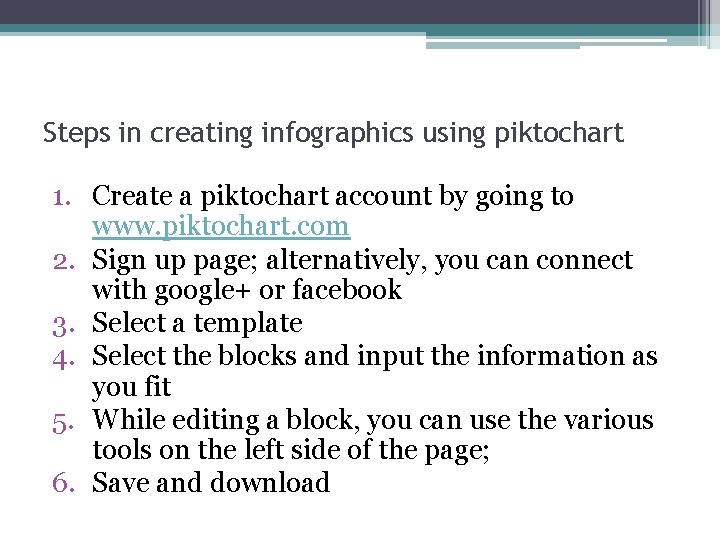
Steps in creating infographics using piktochart 1. Create a piktochart account by going to www. piktochart. com 2. Sign up page; alternatively, you can connect with google+ or facebook 3. Select a template 4. Select the blocks and input the information as you fit 5. While editing a block, you can use the various tools on the left side of the page; 6. Save and download
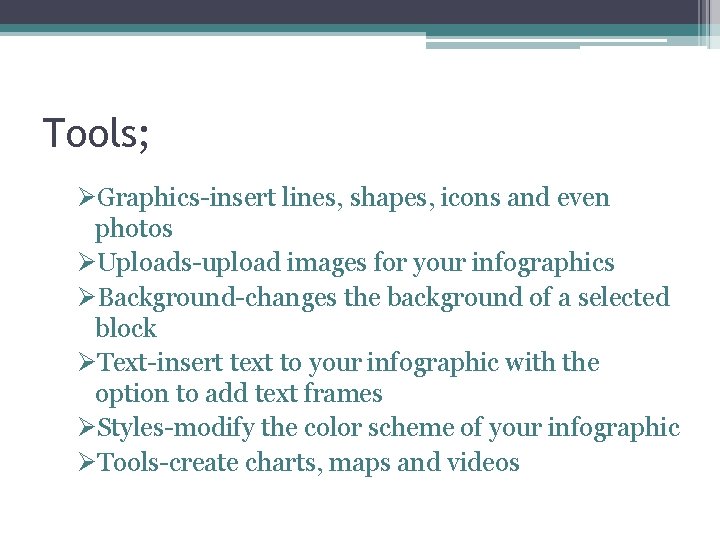
Tools; ØGraphics-insert lines, shapes, icons and even photos ØUploads-upload images for your infographics ØBackground-changes the background of a selected block ØText-insert text to your infographic with the option to add text frames ØStyles-modify the color scheme of your infographic ØTools-create charts, maps and videos
Creating and Manipulating Images using Photo. Scape is a fun and easy photo editing software that enables you to fix and enhance photos.
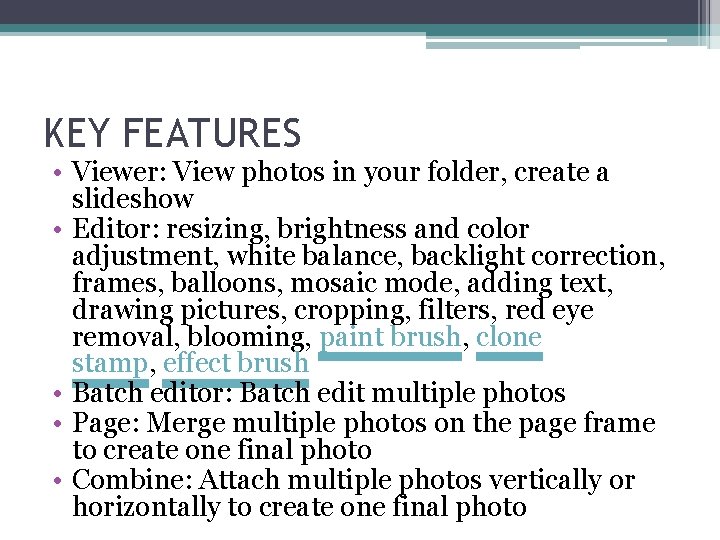
KEY FEATURES • Viewer: View photos in your folder, create a slideshow • Editor: resizing, brightness and color adjustment, white balance, backlight correction, frames, balloons, mosaic mode, adding text, drawing pictures, cropping, filters, red eye removal, blooming, paint brush, clone stamp, effect brush • Batch editor: Batch edit multiple photos • Page: Merge multiple photos on the page frame to create one final photo • Combine: Attach multiple photos vertically or horizontally to create one final photo
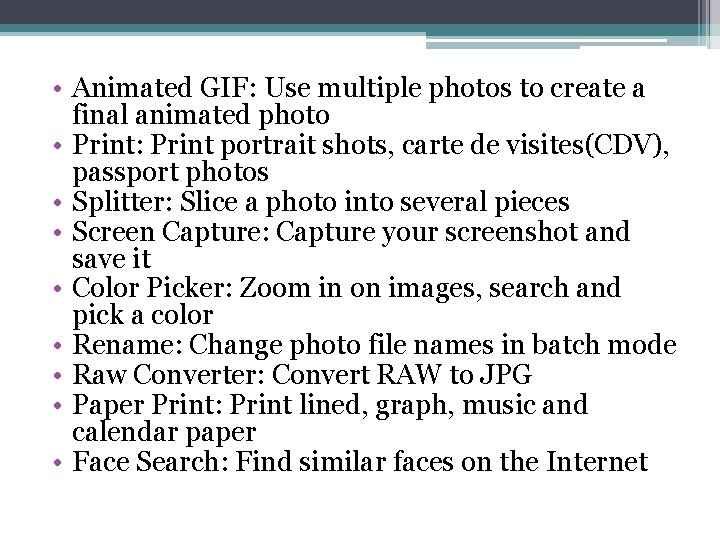
• Animated GIF: Use multiple photos to create a final animated photo • Print: Print portrait shots, carte de visites(CDV), passport photos • Splitter: Slice a photo into several pieces • Screen Capture: Capture your screenshot and save it • Color Picker: Zoom in on images, search and pick a color • Rename: Change photo file names in batch mode • Raw Converter: Convert RAW to JPG • Paper Print: Print lined, graph, music and calendar paper • Face Search: Find similar faces on the Internet
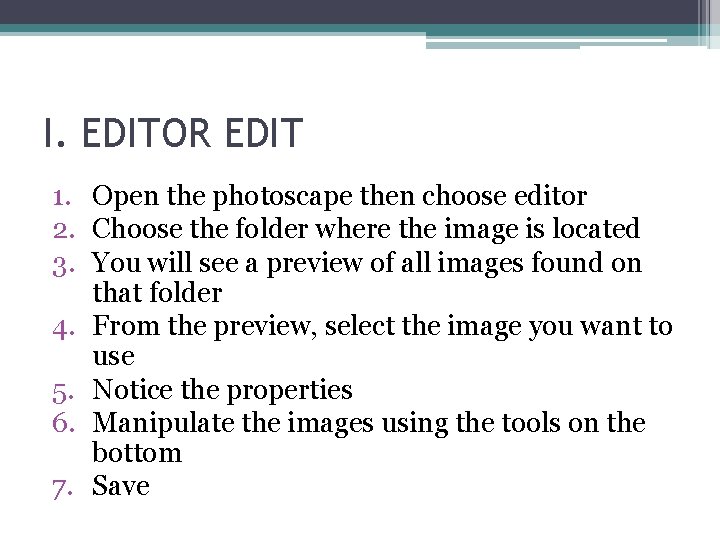
I. EDITOR EDIT 1. Open the photoscape then choose editor 2. Choose the folder where the image is located 3. You will see a preview of all images found on that folder 4. From the preview, select the image you want to use 5. Notice the properties 6. Manipulate the images using the tools on the bottom 7. Save
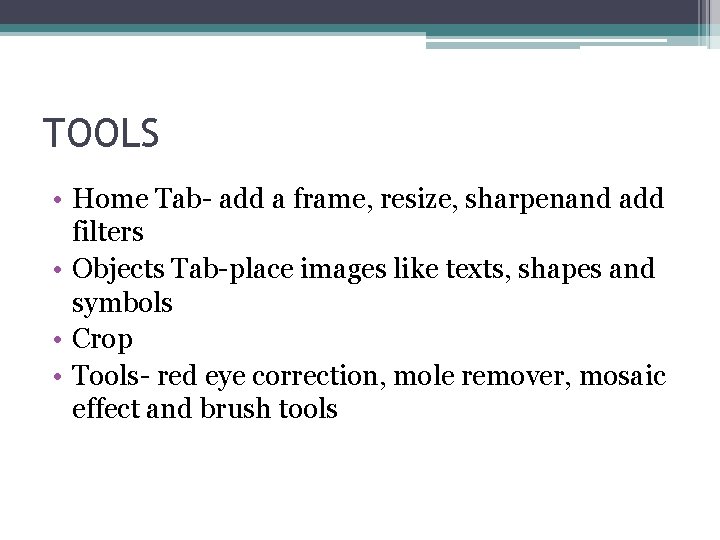
TOOLS • Home Tab- add a frame, resize, sharpenand add filters • Objects Tab-place images like texts, shapes and symbols • Crop • Tools- red eye correction, mole remover, mosaic effect and brush tools
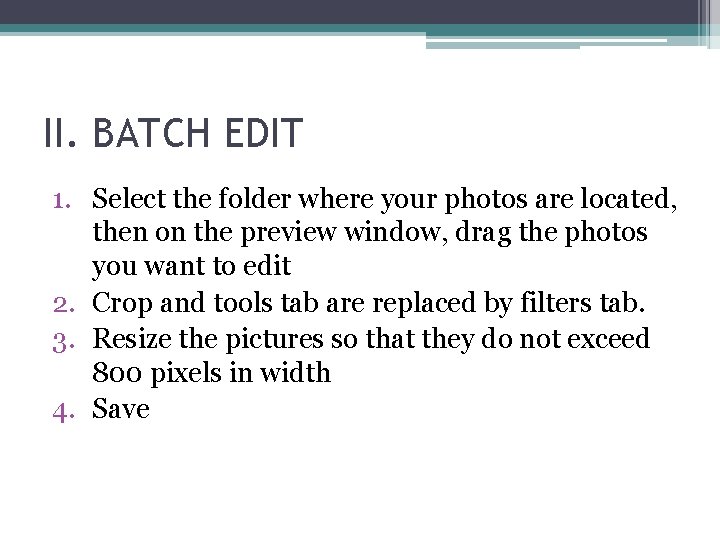
II. BATCH EDIT 1. Select the folder where your photos are located, then on the preview window, drag the photos you want to edit 2. Crop and tools tab are replaced by filters tab. 3. Resize the pictures so that they do not exceed 800 pixels in width 4. Save
PHOTOBUCKET Photobucket is an American image hosting and video hosting website, web services suite, and online community. Photobucket hosts more than 10 billion images from 100 million registered members, who upload more than four million images and videos per day from the Web and connected digital devices.
Sharing photos with photobucket 1. Sign up for a photobucket account 2. Click the start uploading 3. A new page will load allowing you to drag and drop your photos or to choose them manually or upload the entire folder 4. A progress bar will appear indicating that the images are uploading 5. Once you are done, you will see these indicators:
• View Uploads- grants you the options to share and edit them individually • Share Album-shares everything you jus uploaded • Edit Photos-uses photobucket’s editing tools to manipulate your image
6. View Uploads 7. You will see following options; a. Shares your photo directly to social media and blogging platforms; Facbook, Twitter, Google+, Tumblr, Pinterest b. Gives you variety of link codes for HTML, Forums, Emails, Instant Messaging and a direct link c. Shares your image via email d. Allows you to download your image e. Share your image to social media sites with the option to add a caption 8. Log off and close the browser
BANDWIDTH It has generally referred to the volume of information per unit of time that a transmission medium (like an internet connection) can handle. An internet connection with a larger bandwidth can move a set amount of data (say, a video file) much faster than an internet connection with a lower bandwidth. Bandwidth is typically expressed in bits per second, like 60 Mbps or 60 Mb/s to explain a data transfer rate of 60 million bits (megabits) every second.