
Lesson 5 Follow creating and editing video files

- Slides: 12
Lesson 5 Follow creating and editing video files
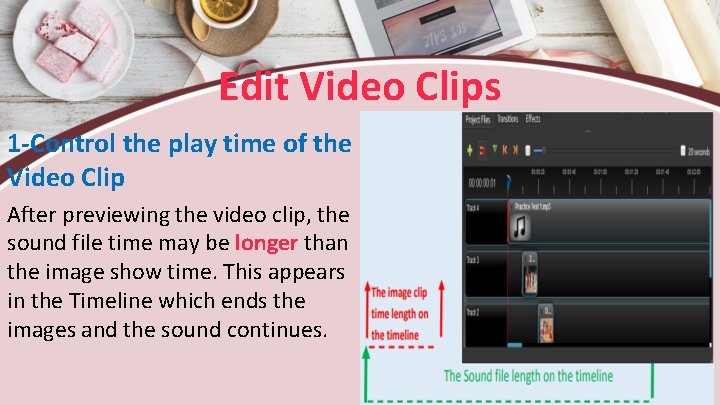
Edit Video Clips 1 -Control the play time of the Video Clip After previewing the video clip, the sound file time may be longer than the image show time. This appears in the Timeline which ends the images and the sound continues.
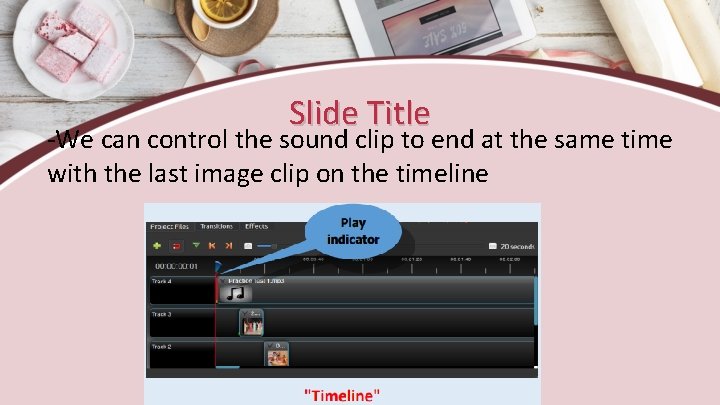
Slide Title -We can control the sound clip to end at the same time with the last image clip on the timeline
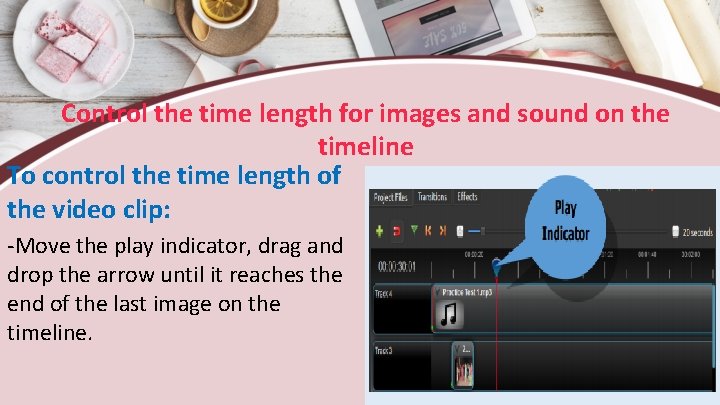
Control the time length for images and sound on the timeline To control the time length of the video clip: -Move the play indicator, drag and drop the arrow until it reaches the end of the last image on the timeline.
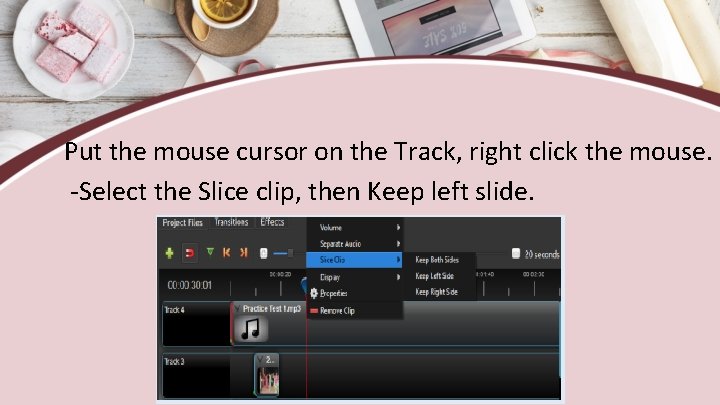
Put the mouse cursor on the Track, right click the mouse. -Select the Slice clip, then Keep left slide.
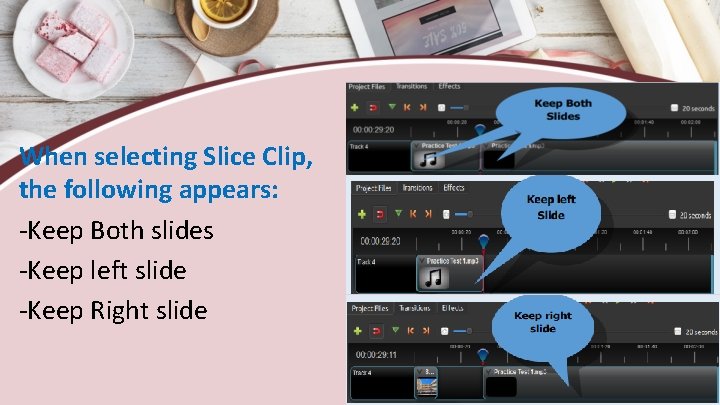
When selecting Slice Clip, the following appears: -Keep Both slides -Keep left slide -Keep Right slide
Slice Clip -Selecting Keep Both Slides, the clip splits into two slides and keep them both. -When selecting Keep left Slide, the clip splits into two slides and keep the left slide only. -When selecting Keep right Slide, the clip splits into two slides and keep the right slide only.
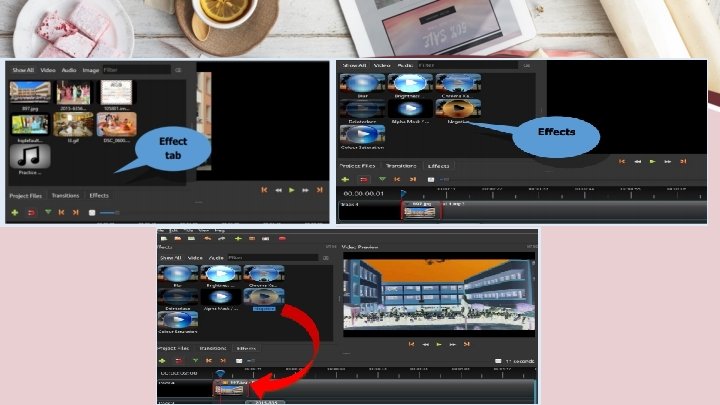
Add Effects to a Video Clip Add “Effects” to the video clip and control the time of this effect to show the clip in a certain way. -Click “Effects” tab. -Some effects appear. -Choose an effect. -Drag and drop the effect to add it to the clip. - Preview the video
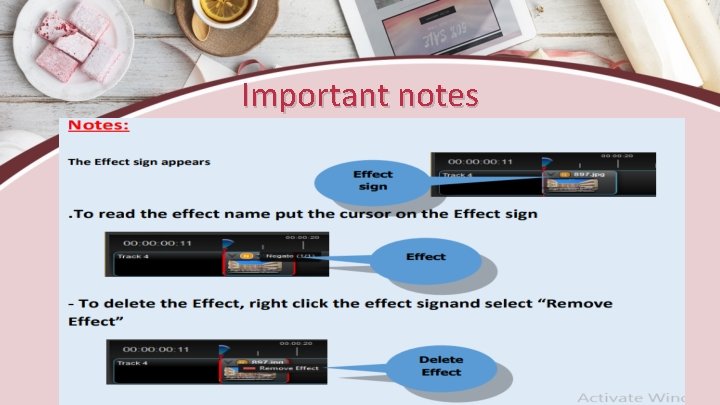
Important notes
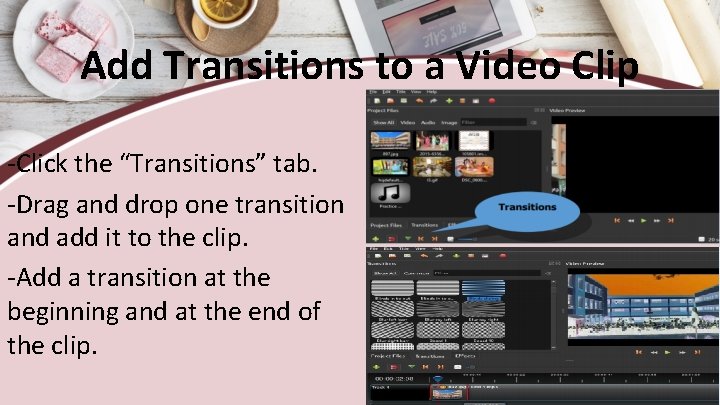
Add Transitions to a Video Clip -Click the “Transitions” tab. -Drag and drop one transition and add it to the clip. -Add a transition at the beginning and at the end of the clip.
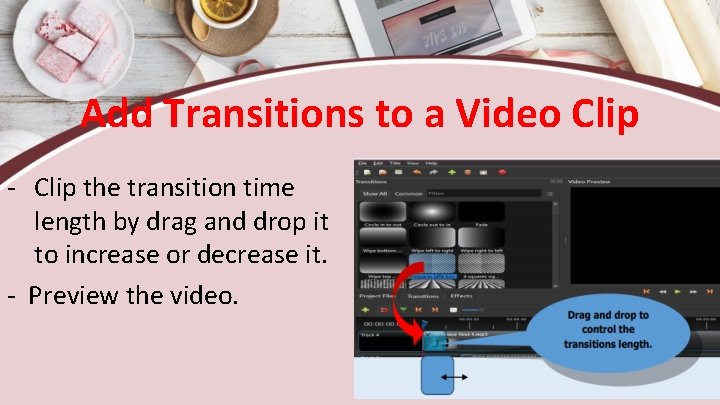
Add Transitions to a Video Clip - Clip the transition time length by drag and drop it to increase or decrease it. - Preview the video.