
Lesson 4 Working with a Presentation Outline 1102022
- Slides: 13
Lesson 4 Working with a Presentation Outline 1/10/2022 1
Students will be able to do the following on completion of this lesson. 1 • Create a Blank Presentation 2 • View and enter Text in an outline 3 • Insert an outline from Microsoft Word 4 • Change the view of an outline 5 • Select text and delete slides in the outline • Rearrange slides, paragraphs, and text • Format text in an outline • Send an outline or slides to Word • Save a presentation as an outline 1/10/2022 2
� One way to create a presentation is to concentrate first on the content of the presentation � The content of the presentation is the most important aspect and should be focused on during creation � Open a new presentation using the New button under the File tab or by double-clicking on the presentation file icon located in the storage folder 1/10/2022 3
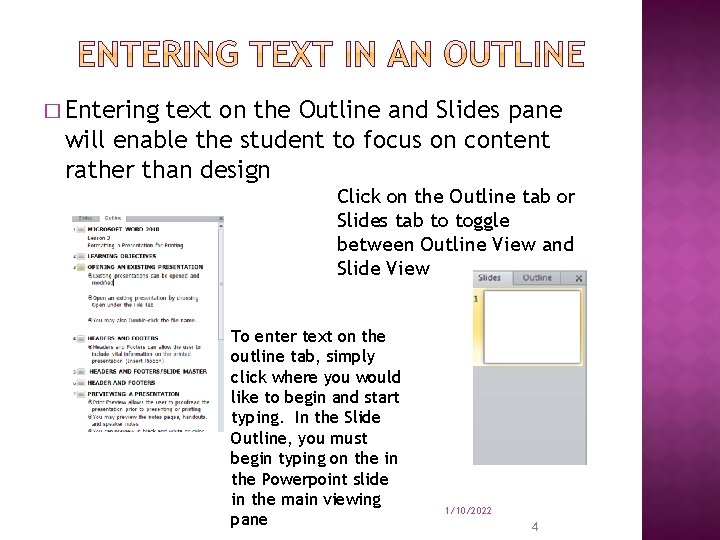
� Entering text on the Outline and Slides pane will enable the student to focus on content rather than design Click on the Outline tab or Slides tab to toggle between Outline View and Slide View To enter text on the outline tab, simply click where you would like to begin and start typing. In the Slide Outline, you must begin typing on the in the Powerpoint slide in the main viewing pane 1/10/2022 4
� An outline that is created as a Word format (. docx), rich text format (. rtf), or plain text format (. txt) document can be imported into a presentation in Power. Point � The Insert Outline command saves time in creating a presentation if the content is already available in a document. � The outline levels can be altered after the content is inserted into Power. Point 1/10/2022 5
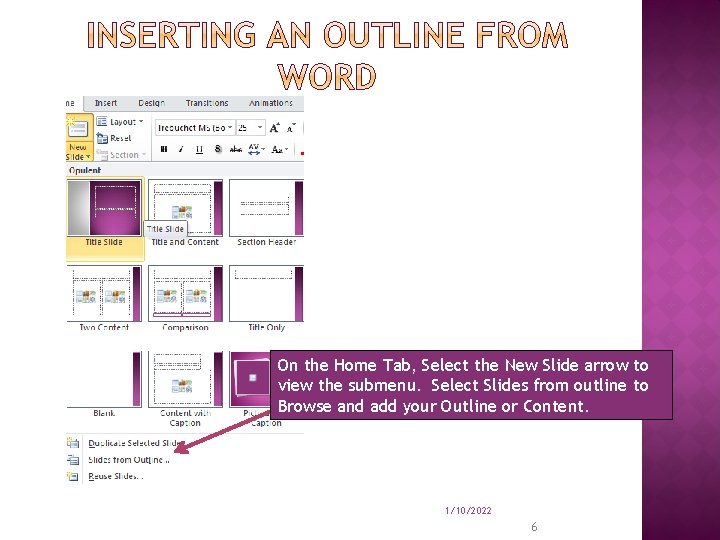
On the Home Tab, Select the New Slide arrow to view the submenu. Select Slides from outline to Browse and add your Outline or Content. 1/10/2022 6
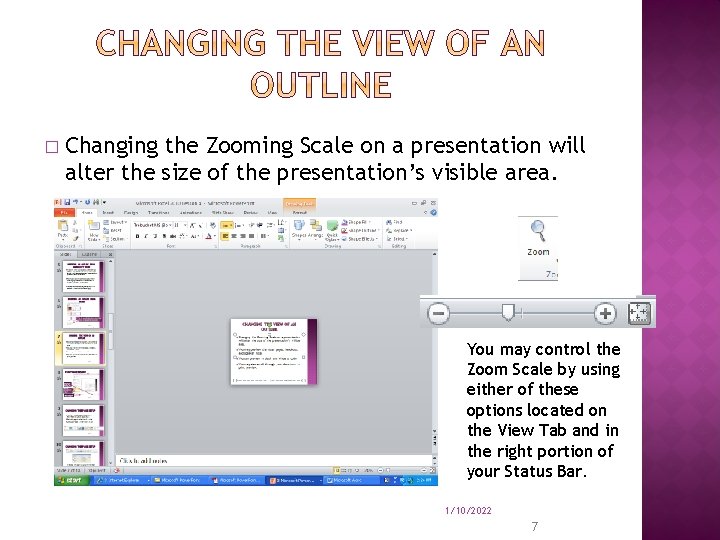
� Changing the Zooming Scale on a presentation will alter the size of the presentation’s visible area. You may control the Zoom Scale by using either of these options located on the View Tab and in the right portion of your Status Bar. 1/10/2022 7
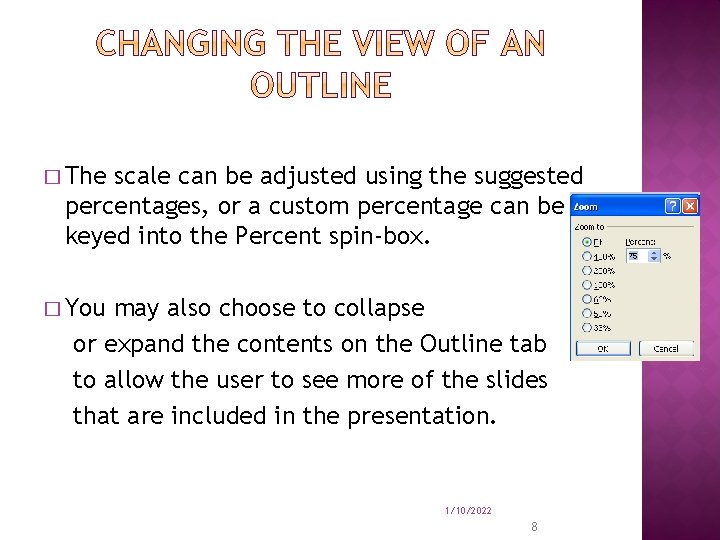
� The scale can be adjusted using the suggested percentages, or a custom percentage can be keyed into the Percent spin-box. � You may also choose to collapse or expand the contents on the Outline tab to allow the user to see more of the slides that are included in the presentation. 1/10/2022 8
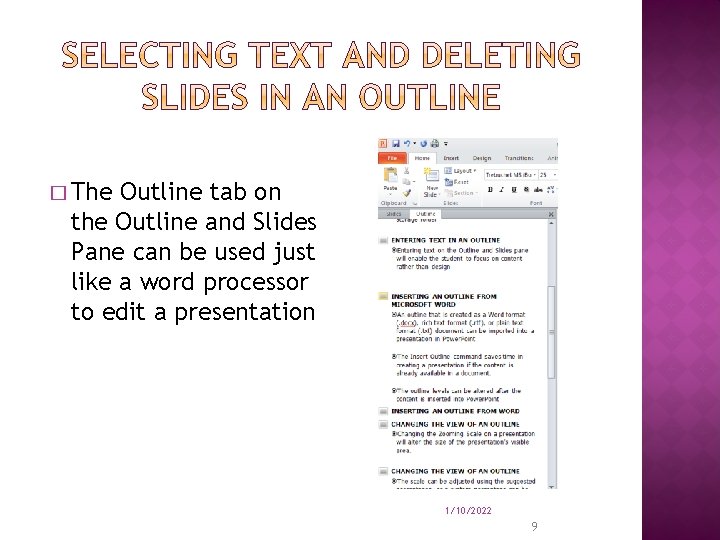
� The Outline tab on the Outline and Slides Pane can be used just like a word processor to edit a presentation 1/10/2022 9
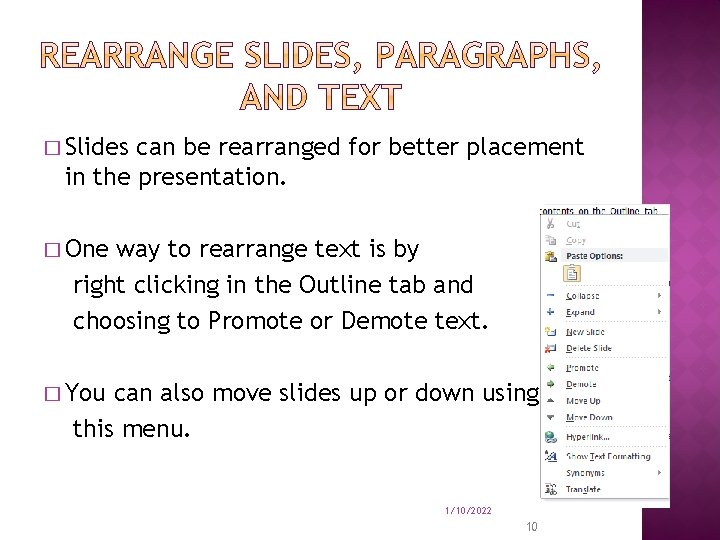
� Slides can be rearranged for better placement in the presentation. � One way to rearrange text is by right clicking in the Outline tab and choosing to Promote or Demote text. � You can also move slides up or down using this menu. 1/10/2022 10
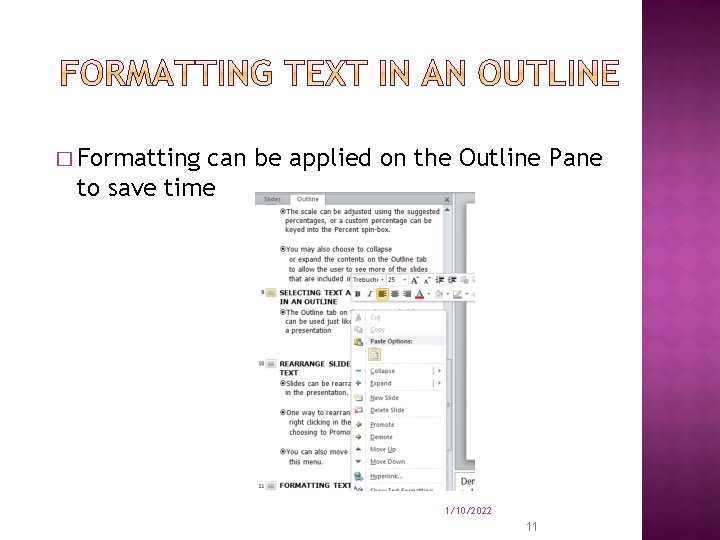
� Formatting can be applied on the Outline Pane to save time 1/10/2022 11
� Outlines or slides can be exported to Microsoft Word, and text formatting can be applied in Word. � Microsoft Word is required on the user’s computer in order to export an outline or slide as a document. � The feature can also be used if the outline or slide is saved as a rich text format. The file can then be opened in Microsoft Word pad. 1/10/2022 12
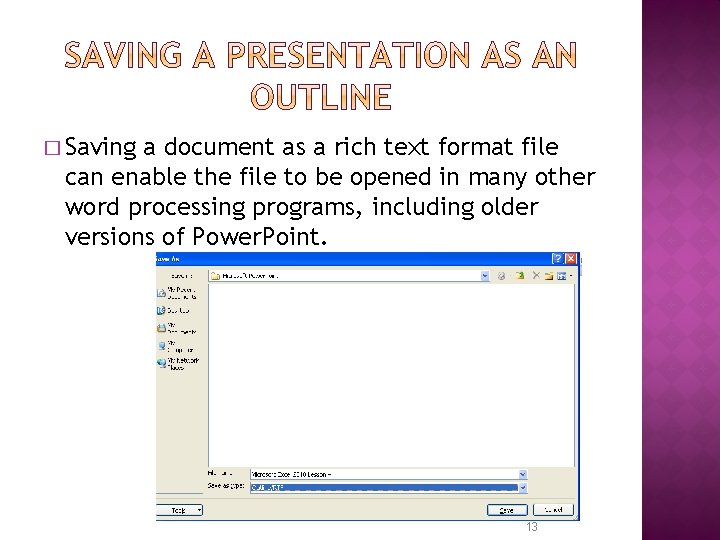
� Saving a document as a rich text format file can enable the file to be opened in many other word processing programs, including older versions of Power. Point. 1/10/2022 13