
Lesson 4 Reconciling Transactions 1 Training Objectives u
Lesson 4: Reconciling Transactions 1
Training Objectives u 2 At the conclusion of this lesson, PCMS Cardholders will be able to: n Query a cardholder account. n View, dispute and reconcile transactions. -
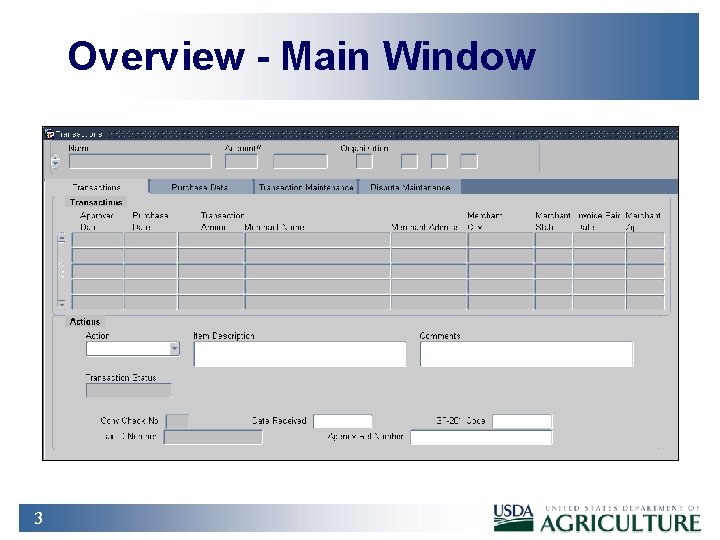
Overview - Main Window 3
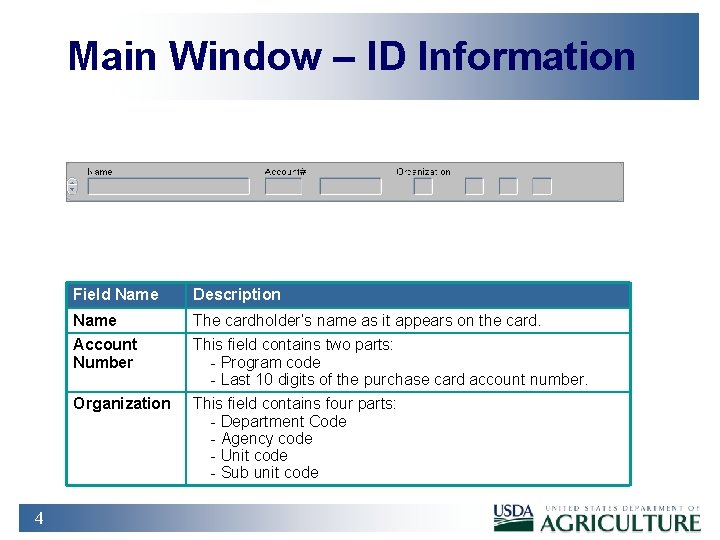
Main Window – ID Information 4 Field Name Description Name The cardholder’s name as it appears on the card. Account Number This field contains two parts: - Program code - Last 10 digits of the purchase card account number. Organization This field contains four parts: - Department Code - Agency code - Unit code - Sub unit code
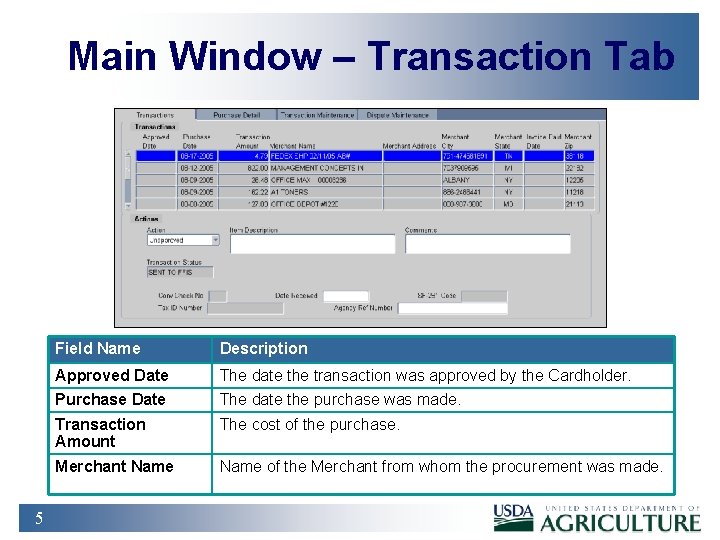
Main Window – Transaction Tab 5 Field Name Description Approved Date The date the transaction was approved by the Cardholder. Purchase Date The date the purchase was made. Transaction Amount The cost of the purchase. Merchant Name of the Merchant from whom the procurement was made.
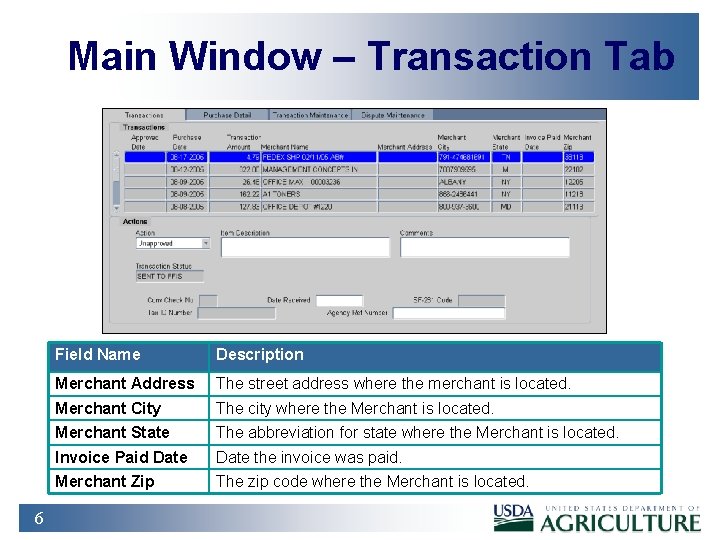
Main Window – Transaction Tab 6 Field Name Description Merchant Address The street address where the merchant is located. Merchant City The city where the Merchant is located. Merchant State The abbreviation for state where the Merchant is located. Invoice Paid Date the invoice was paid. Merchant Zip The zip code where the Merchant is located.

Main Window – Transaction Tab Field Name Description Action Code The current action on the transaction: A = Approved D = Disputed R = Resolved (Dropdown menu) 7 Q = Questionable U = Unapproved
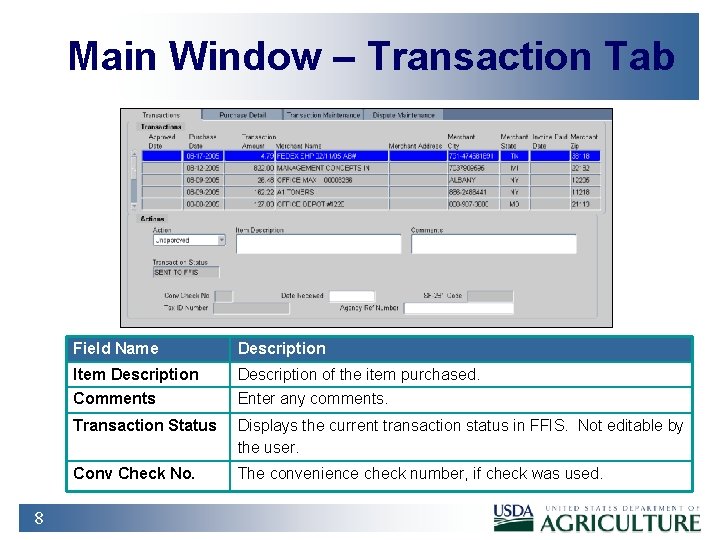
Main Window – Transaction Tab 8 Field Name Description Item Description of the item purchased. Comments Enter any comments. Transaction Status Displays the current transaction status in FFIS. Not editable by the user. Conv Check No. The convenience check number, if check was used.
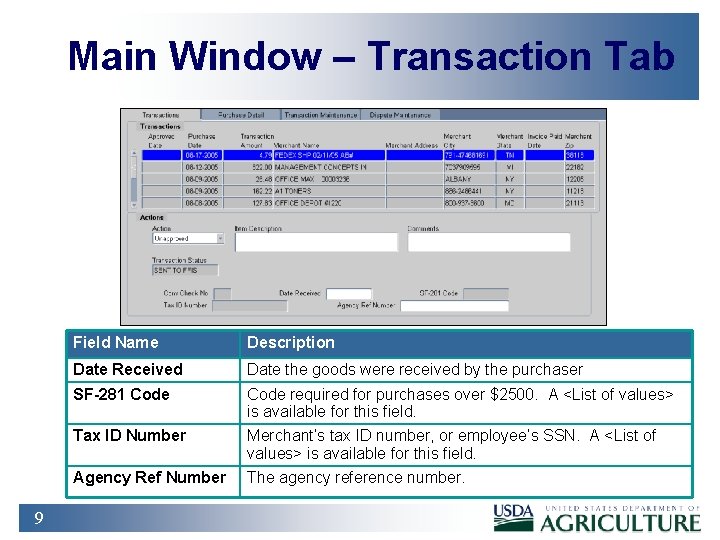
Main Window – Transaction Tab 9 Field Name Description Date Received Date the goods were received by the purchaser SF-281 Code required for purchases over $2500. A <List of values> is available for this field. Tax ID Number Merchant’s tax ID number, or employee’s SSN. A <List of values> is available for this field. Agency Ref Number The agency reference number.
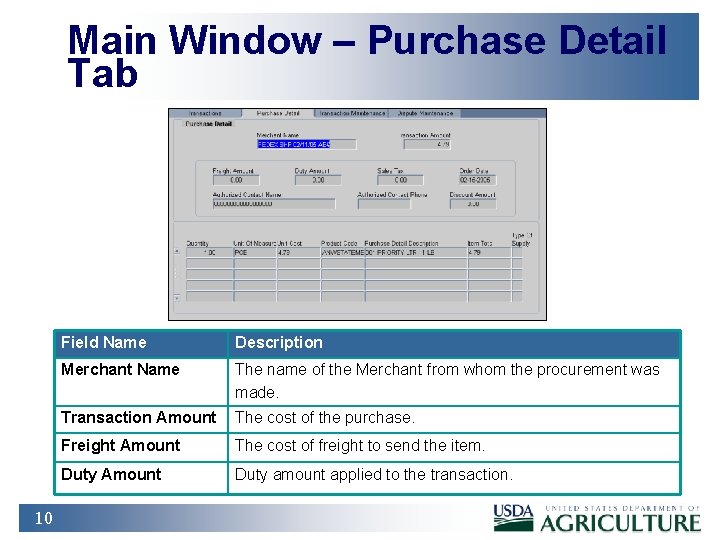
Main Window – Purchase Detail Tab 10 Field Name Description Merchant Name The name of the Merchant from whom the procurement was made. Transaction Amount The cost of the purchase. Freight Amount The cost of freight to send the item. Duty Amount Duty amount applied to the transaction.
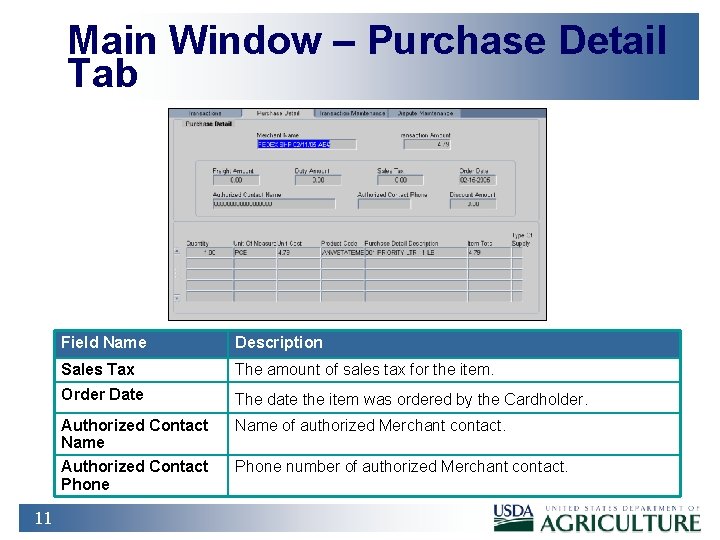
Main Window – Purchase Detail Tab 11 Field Name Description Sales Tax The amount of sales tax for the item. Order Date The date the item was ordered by the Cardholder. Authorized Contact Name of authorized Merchant contact. Authorized Contact Phone number of authorized Merchant contact.
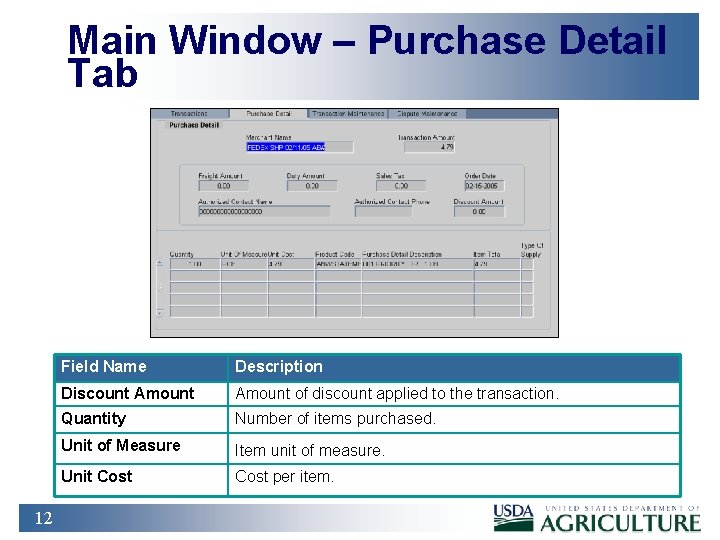
Main Window – Purchase Detail Tab 12 Field Name Description Discount Amount of discount applied to the transaction. Quantity Number of items purchased. Unit of Measure Item unit of measure. Unit Cost per item.
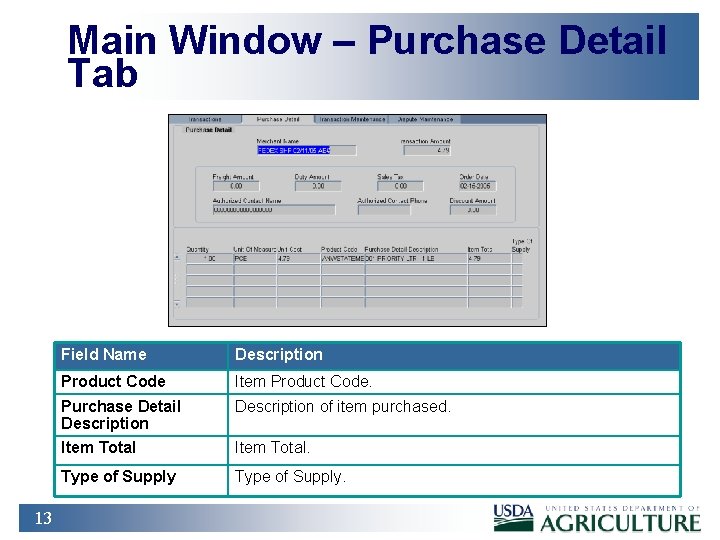
Main Window – Purchase Detail Tab 13 Field Name Description Product Code Item Product Code. Purchase Detail Description of item purchased. Item Total. Type of Supply.
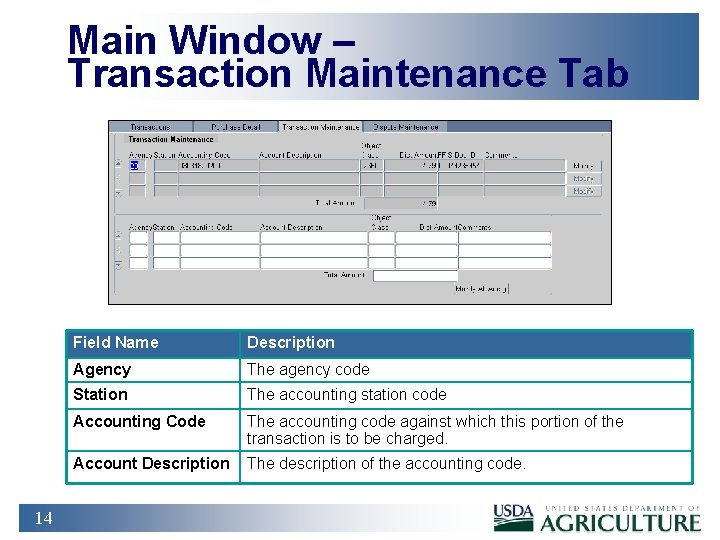
Main Window – Transaction Maintenance Tab 14 Field Name Description Agency The agency code Station The accounting station code Accounting Code The accounting code against which this portion of the transaction is to be charged. Account Description The description of the accounting code.
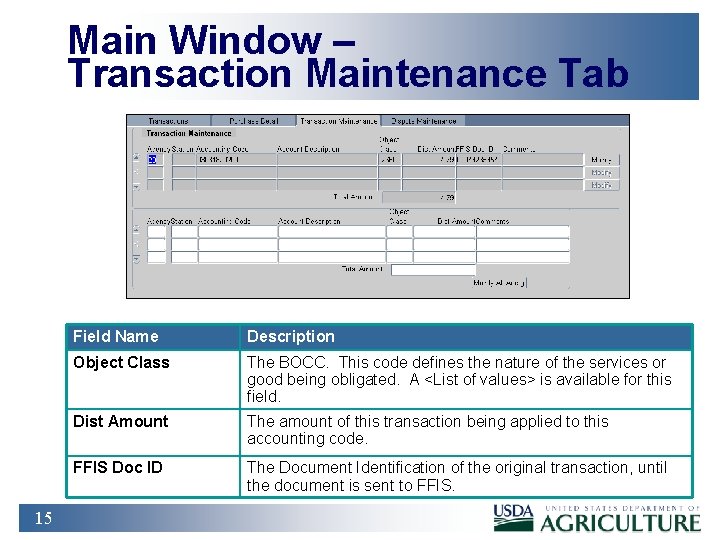
Main Window – Transaction Maintenance Tab 15 Field Name Description Object Class The BOCC. This code defines the nature of the services or good being obligated. A <List of values> is available for this field. Dist Amount The amount of this transaction being applied to this accounting code. FFIS Doc ID The Document Identification of the original transaction, until the document is sent to FFIS.
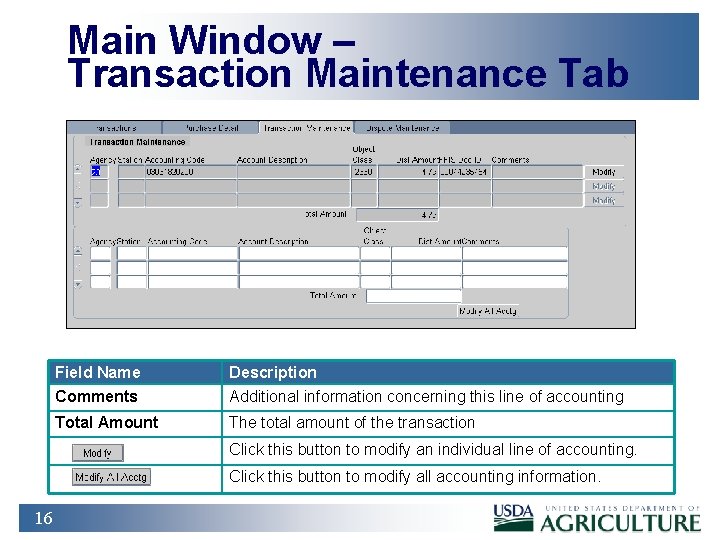
Main Window – Transaction Maintenance Tab Field Name Description Comments Additional information concerning this line of accounting Total Amount The total amount of the transaction Click this button to modify an individual line of accounting. Click this button to modify all accounting information. 16
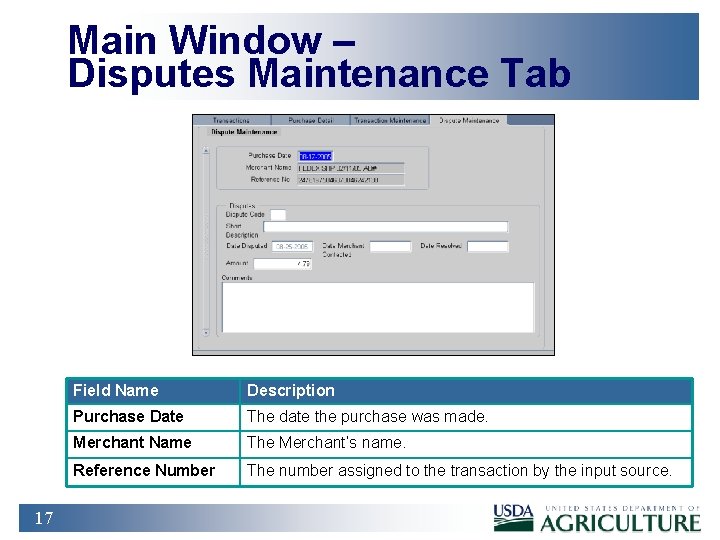
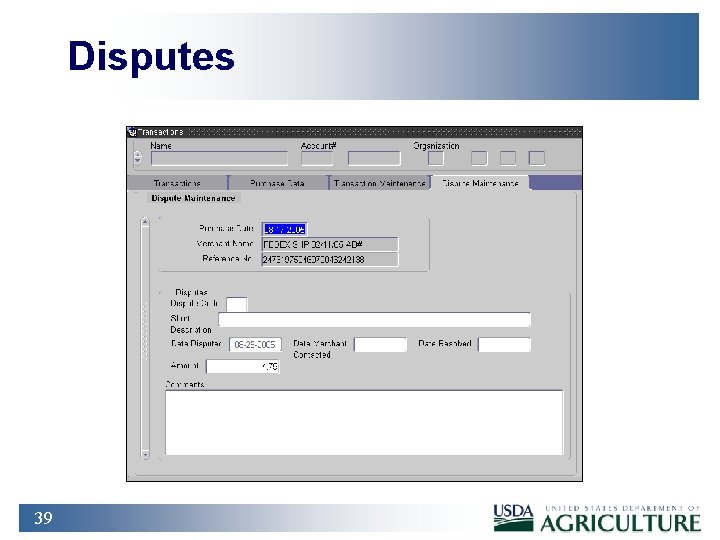
Main Window – Disputes Maintenance Tab 17 Field Name Description Purchase Date The date the purchase was made. Merchant Name The Merchant’s name. Reference Number The number assigned to the transaction by the input source.
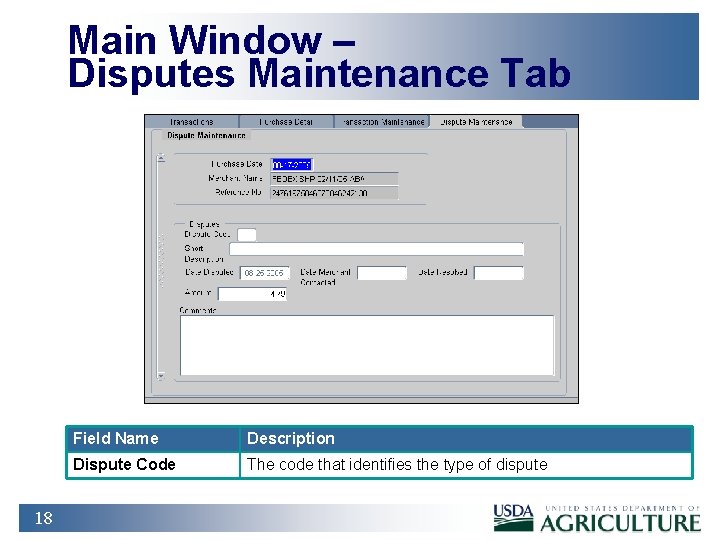
Main Window – Disputes Maintenance Tab 18 Field Name Description Dispute Code The code that identifies the type of dispute
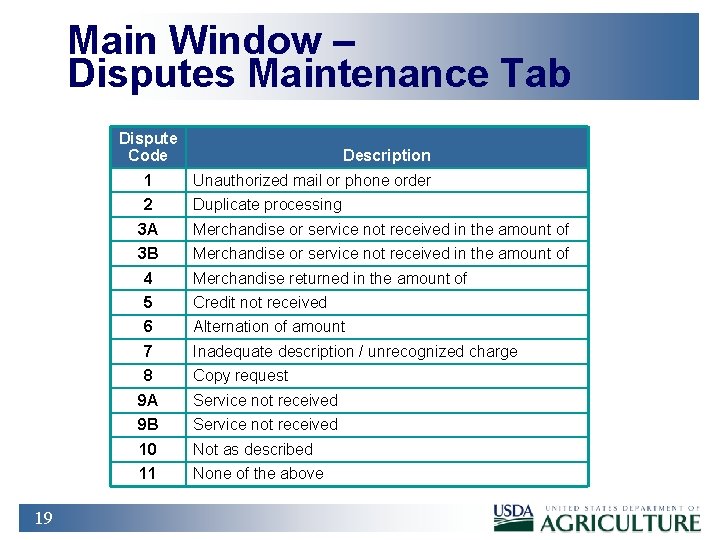
Main Window – Disputes Maintenance Tab Dispute Code 19 Description 1 Unauthorized mail or phone order 2 Duplicate processing 3 A Merchandise or service not received in the amount of 3 B Merchandise or service not received in the amount of 4 Merchandise returned in the amount of 5 Credit not received 6 Alternation of amount 7 Inadequate description / unrecognized charge 8 Copy request 9 A Service not received 9 B Service not received 10 Not as described 11 None of the above
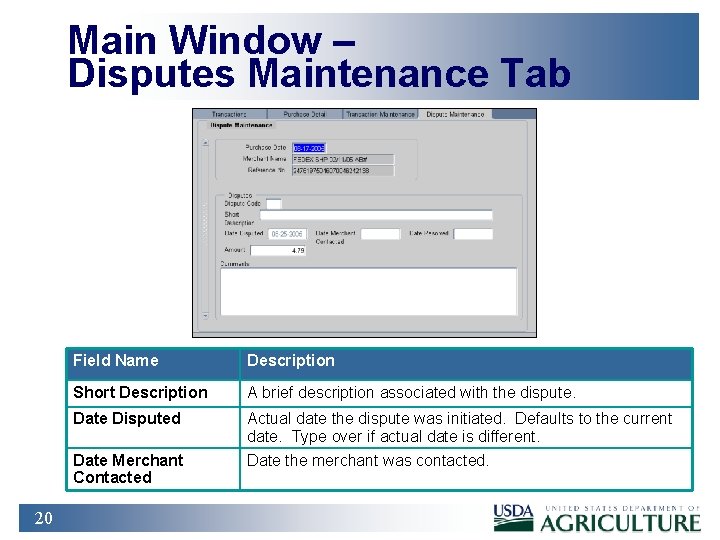
Main Window – Disputes Maintenance Tab 20 Field Name Description Short Description A brief description associated with the dispute. Date Disputed Actual date the dispute was initiated. Defaults to the current date. Type over if actual date is different. Date Merchant Contacted Date the merchant was contacted.
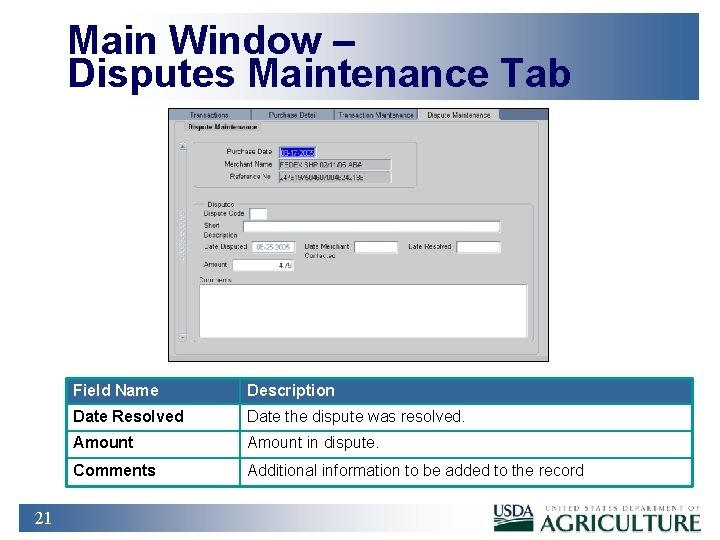
Main Window – Disputes Maintenance Tab 21 Field Name Description Date Resolved Date the dispute was resolved. Amount in dispute. Comments Additional information to be added to the record
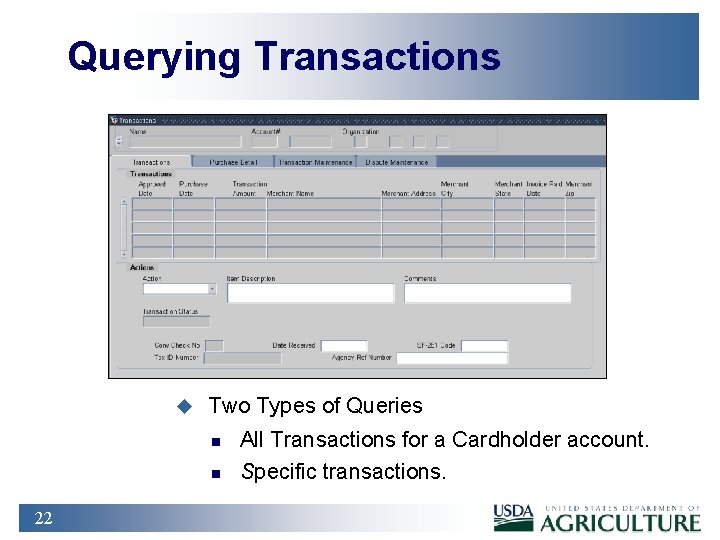
Querying Transactions u Two Types of Queries n n 22 All Transactions for a Cardholder account. Specific transactions.
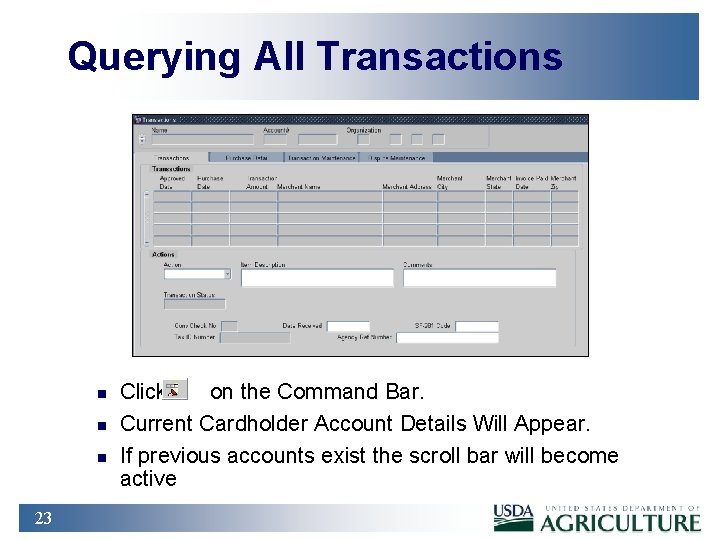
Querying All Transactions n n n 23 Click on the Command Bar. Current Cardholder Account Details Will Appear. If previous accounts exist the scroll bar will become active
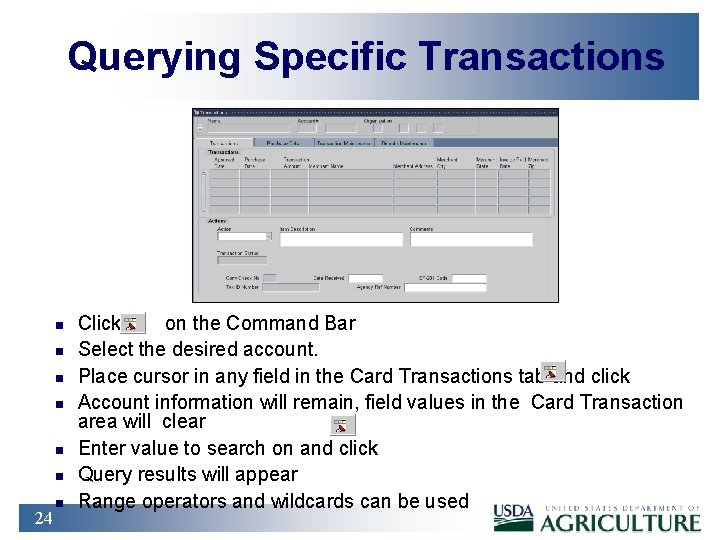
Querying Specific Transactions n n n 24 n Click on the Command Bar Select the desired account. Place cursor in any field in the Card Transactions tab and click Account information will remain, field values in the Card Transaction area will clear Enter value to search on and click Query results will appear Range operators and wildcards can be used
Practical Exercise 25 1. Query all transactions and view the first transaction in the list returned. 2. Execute a specific query to find all transactions where the Merchant is located in California (CA). 3. Query transactions greater than $50. 00. 4. Search for all Merchants containing the word “ACE” in their name. 5. Note the transaction detail information. Can you determine if a Purchase Card or Convenience Check was used to make the purchase?
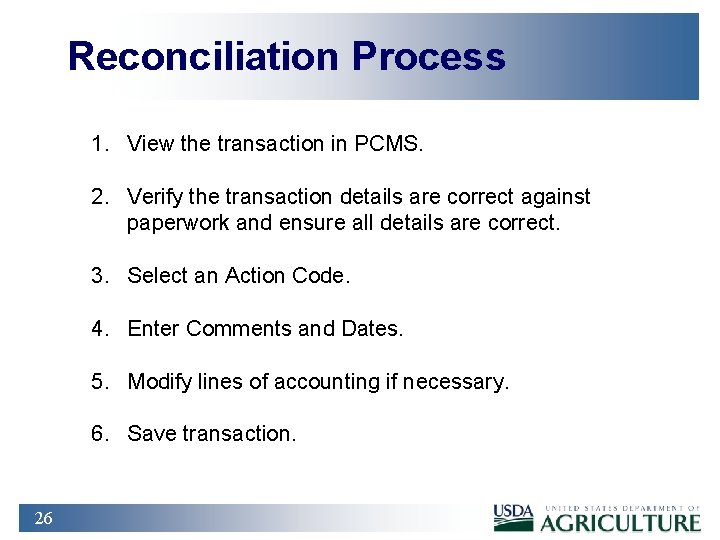
Reconciliation Process 1. View the transaction in PCMS. 2. Verify the transaction details are correct against paperwork and ensure all details are correct. 3. Select an Action Code. 4. Enter Comments and Dates. 5. Modify lines of accounting if necessary. 6. Save transaction. 26
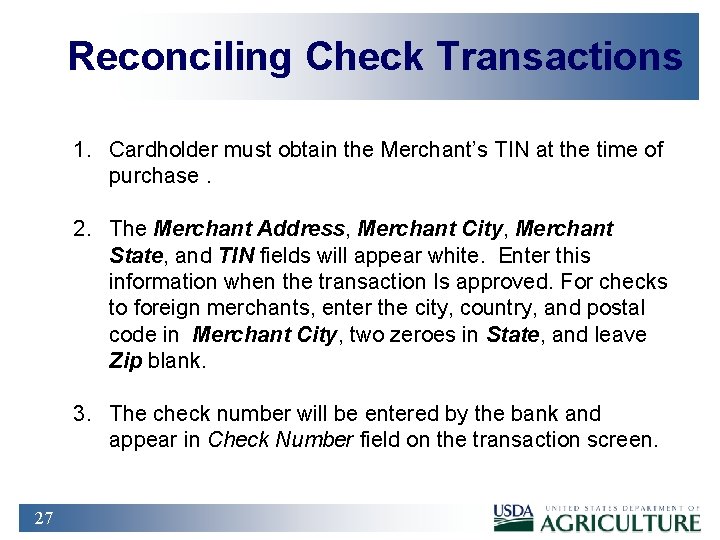
Reconciling Check Transactions 1. Cardholder must obtain the Merchant’s TIN at the time of purchase. 2. The Merchant Address, Merchant City, Merchant State, and TIN fields will appear white. Enter this information when the transaction Is approved. For checks to foreign merchants, enter the city, country, and postal code in Merchant City, two zeroes in State, and leave Zip blank. 3. The check number will be entered by the bank and appear in Check Number field on the transaction screen. 27
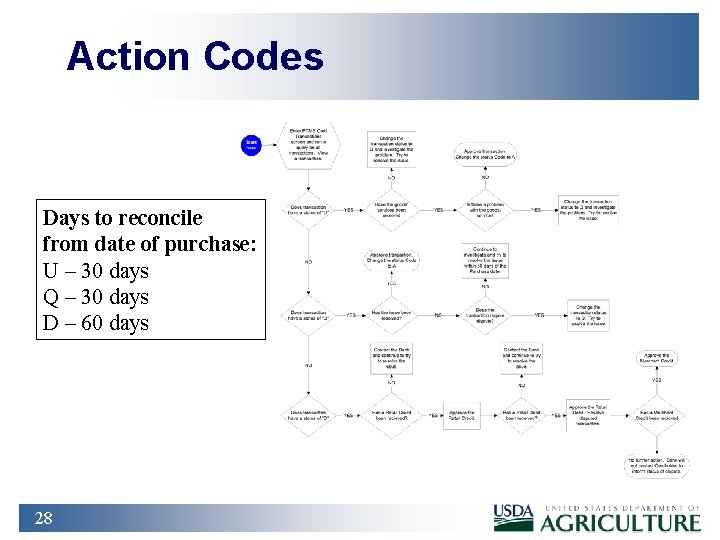
Action Codes Days to reconcile from date of purchase: U – 30 days Q – 30 days D – 60 days 28
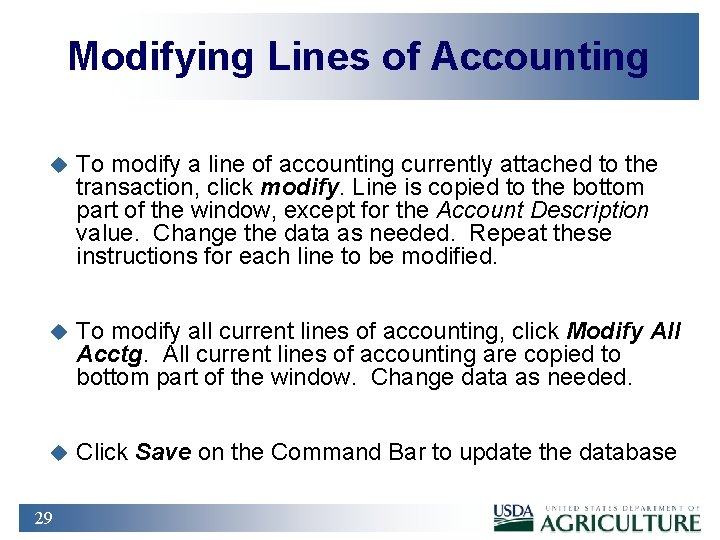
Modifying Lines of Accounting u To modify a line of accounting currently attached to the transaction, click modify. Line is copied to the bottom part of the window, except for the Account Description value. Change the data as needed. Repeat these instructions for each line to be modified. u To modify all current lines of accounting, click Modify All Acctg. All current lines of accounting are copied to bottom part of the window. Change data as needed. u Click Save on the Command Bar to update the database 29
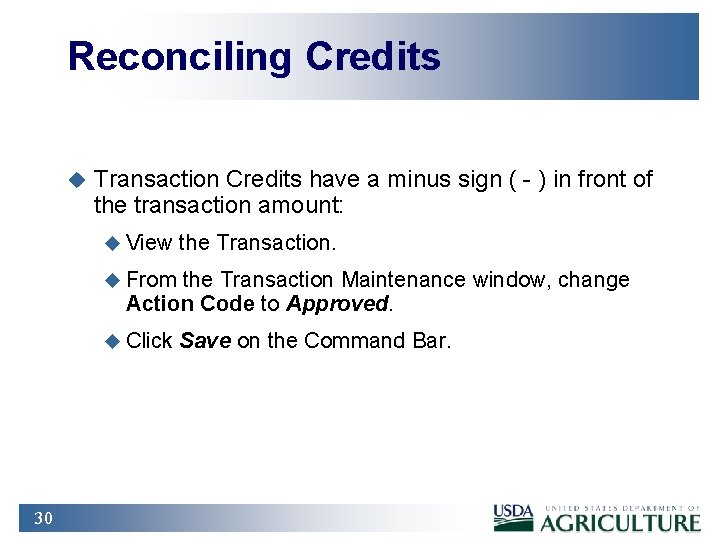
Reconciling Credits u Transaction Credits have a minus sign ( - ) in front of the transaction amount: u View the Transaction. u From the Transaction Maintenance window, change Action Code to Approved. u Click 30 Save on the Command Bar.
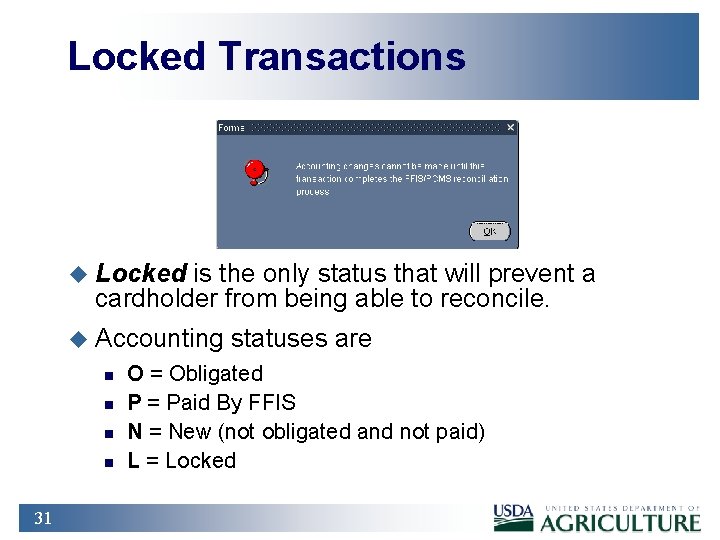
Locked Transactions u Locked is the only status that will prevent a cardholder from being able to reconcile. u Accounting n n 31 statuses are O = Obligated P = Paid By FFIS N = New (not obligated and not paid) L = Locked
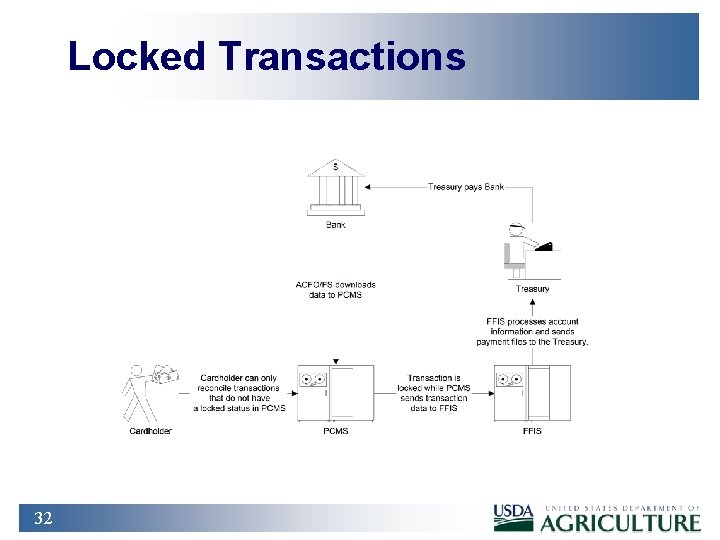
Locked Transactions 32
Practical Exercise 1. Reconcile the transaction to “Sita Business System” in the amount of $172. 00 using the following information: a. Approve the transaction. b. A computer cart costing $172. 00 was due for delivery on July 23 rd 2002. c. The goods were received a day later than expected, due to inclement weather. 33
Practical Exercise 2. Reconcile the transaction to “Standard Copy Products” in the amount of $2, 195. 00 using the following information: a. Approve the transaction. b. Copier materials were shipped same day delivery on July 22 nd 2002. c. Goodsservices were received on the date expected. d. The correct BOCC formation for this transaction is: 2672. 34
Practical Exercise 3. 35 Reconcile the transaction to “Transcender Corporation” in the amount of $2, 644. 00 using the following information : a. Approve the transaction. b. The PC and monitor were received on July 21 st 2002. c. There is currently not a description available for the SF-281 code. d. The accounting information needs to be distributed across the following accounting codes and BOCCs: Ø Accounting Code _____, BOCC _____, Distribution Percent 50% Ø Accounting Code _____, BOCC _____,
Practical Exercise 4. Reconcile the check transaction to “Wilson Carpet Service” in the amount of $1, 000. 00 using the following information : a. b. c. d. e. 36 Approve the transaction. Check no: 001009. Merchant location: Alexandria, VA. Tax ID no: 52 -7600000. Purchase date was July 22 nd 2002 and goodsservices were received one week after purchase date. f. Bank fee should be calculated at 1. 5% of the check amount. g. Approve the bank fee associated with this check transaction.
Practical Exercise 5. Reconcile the transaction to “Nyma Inc. ” In the amount of $59. 00 using the following information: a. Only 5 of the 10 glass beakers were received on 07/30/02, due to low stock supplies. The remaining 5 beakers will be shipped on 08/07/02 (next day delivery). b. Unit price is $5. 50, shipping and handling is $4. 00. c. Invoice number: 56084. d. Order number: w 58625 -hav. 37
Practical Exercise 6. Reconcile the transaction to “Corvision Media, Inc. ” In the amount of $705. 00 using the following information: a. The goodsservices were received on the date expected, July 21 st 2002. b. Order was for cable cutter (hydraulic) $678. 60; twist drills ¼” diameter, 6 -1/8” overall length $26. 40. c. The twist drills you received were 12” diameter. 38
Disputes 39
When to File Transaction Disputes u Filing n n 40 Transaction Disputes Before lodging a dispute in PCMS the Cardholder should investigate the problem and try to resolve it File a dispute when the invoice amount or goodsservices received are not in keeping with what the Cardholder purchased Cardholders have 60 days from the date of purchase to dispute and resolve a transaction A dispute cannot be filed for a transaction made using a Convenience Check or for Convenience Check fees
How to Dispute a Transaction 1. On the Card Transactions tab, select the transaction by placing the cursor in one of the fields on that line. 2. If the dispute is over merchandise not received, leave Date Received blank until the merchandise is actually received. 3. Go to the Transaction Maintenance tab and provide the appropriate reconciliation information. 4. Go to details of the dispute on the Disputes Maintenance tab. Ø PCMS will populate Purchase Date, Merchant Name, and Reference Number based on the existing transaction information. 5. Enter details of the dispute 41 6. Click the Save button on the command bar.
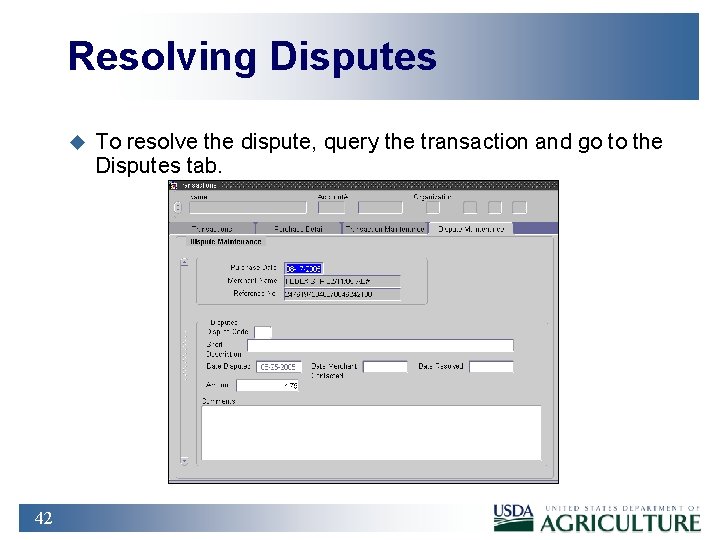
Resolving Disputes u 42 To resolve the dispute, query the transaction and go to the Disputes tab.
Resolving Disputes n n 43 Enter Date Resolved Go to the Transaction Maintenance tab and update accounting information, if necessary. Go to the Transactions tab and change the Action Code to Resolved. Click Save on the Command Bar
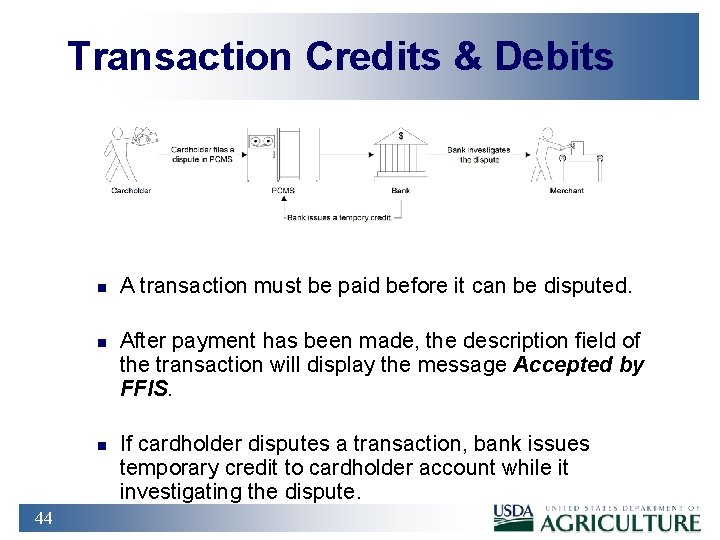
Transaction Credits & Debits n n n 44 A transaction must be paid before it can be disputed. After payment has been made, the description field of the transaction will display the message Accepted by FFIS. If cardholder disputes a transaction, bank issues temporary credit to cardholder account while it investigating the dispute.
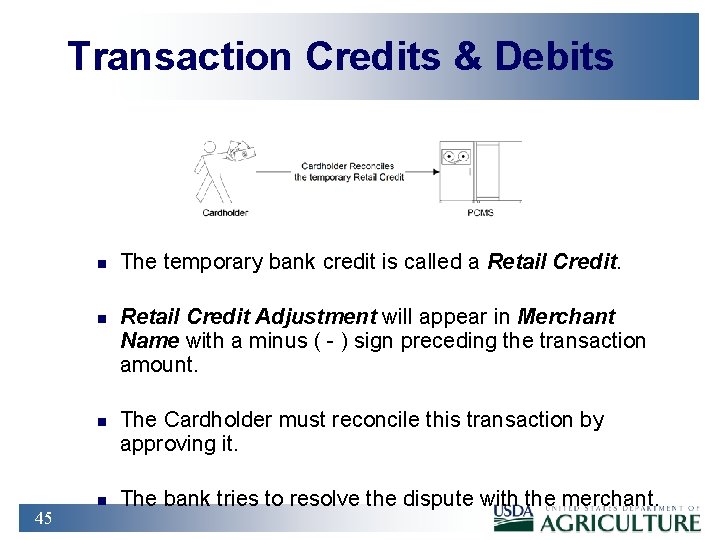
Transaction Credits & Debits n n n 45 n The temporary bank credit is called a Retail Credit Adjustment will appear in Merchant Name with a minus ( - ) sign preceding the transaction amount. The Cardholder must reconcile this transaction by approving it. The bank tries to resolve the dispute with the merchant.
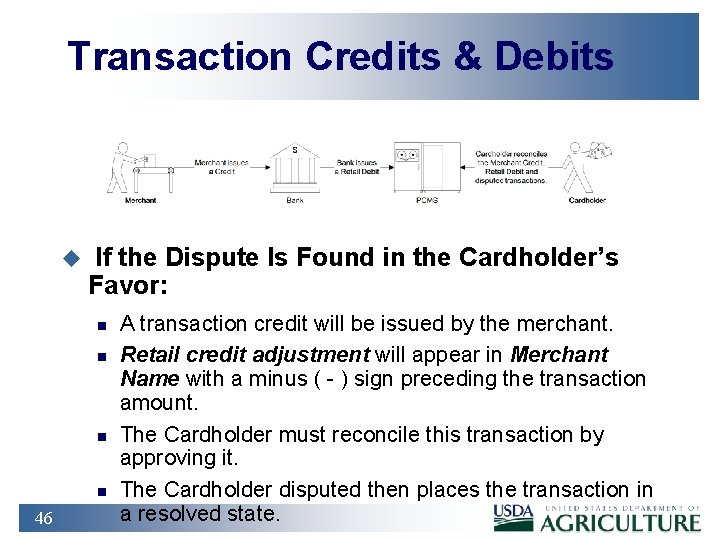
Transaction Credits & Debits u If the Dispute Is Found in the Cardholder’s Favor: n n 46 A transaction credit will be issued by the merchant. Retail credit adjustment will appear in Merchant Name with a minus ( - ) sign preceding the transaction amount. The Cardholder must reconcile this transaction by approving it. The Cardholder disputed then places the transaction in a resolved state.
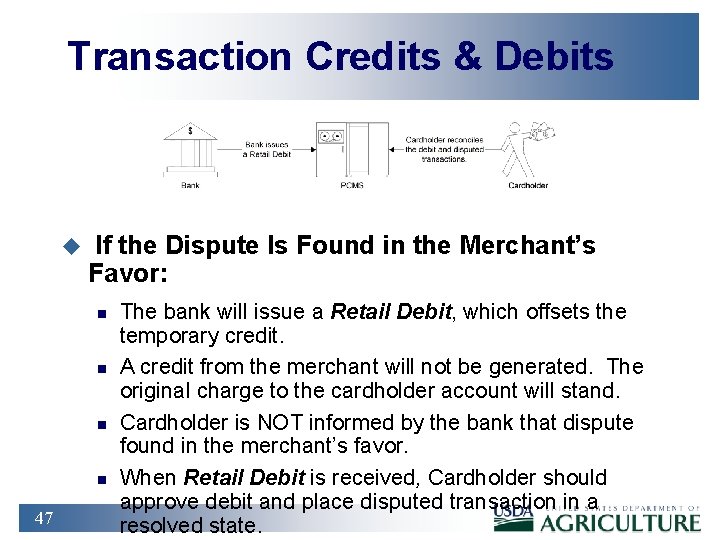
Transaction Credits & Debits u If the Dispute Is Found in the Merchant’s Favor: n n 47 The bank will issue a Retail Debit, which offsets the temporary credit. A credit from the merchant will not be generated. The original charge to the cardholder account will stand. Cardholder is NOT informed by the bank that dispute found in the merchant’s favor. When Retail Debit is received, Cardholder should approve debit and place disputed transaction in a resolved state.
Practical Exercise 1. Reconcile the Transaction to “Sita Business System” in the Amount of $432. 50 Using the Following Information: a. Goodsservices were received on the date expected, July 18 th 2002. b. Invoice states order placed was: Ø 2 x black briefcases (unit price $43. 55) Ø 1 x audio visual cart 27” (unit price $320. 45) Ø shipping and handling was $24. 95. 48 c. The amount charged on the invoice for the AV cart was not the amount quoted at the time of purchase, which was $220. 45.
Summary and Review 1. What are the differences between reconciling transactions made with Purchase Cards and transaction made with checks? 2. How do you query transactions valued greater than $200? 3. How do you navigate between transactions without returning to the query screen? 4. What is the process you follow if you find a discrepancy between the cost of the item on the invoice and the transaction value in PCMS? 5. If you order a set of 10 items and only 5 are in stock and shipped to you, what is the reconciliation process you would follow in PCMS? 6. What is the process for disputing a transaction? 49 7. What is the process for resolving a disputed
Lesson 5 - Reporting 50
Training Objectives u At the conclusion of this lesson, PCMS Cardholders will be able to: n 51 - Generate a Cardholder Report based on date ranges.
Cardholder Reports 52 u Reports Menu is Located on Main PCMS Window u Generates the Cardholder Report u Report Generates All Transactions for a specific Cardholder Account
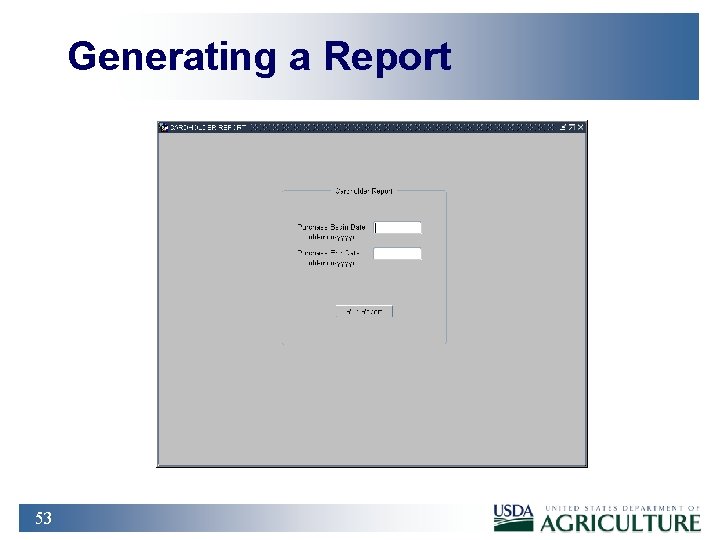
Generating a Report 53
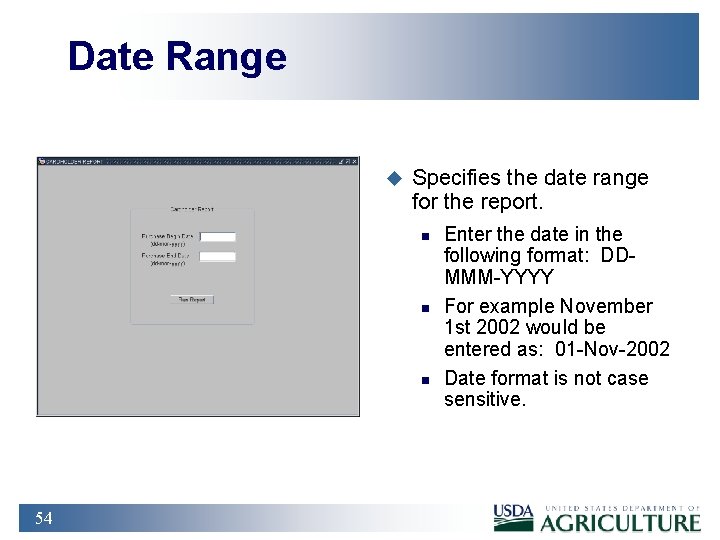
Date Range u Specifies the date range for the report. n n n 54 Enter the date in the following format: DDMMM-YYYY For example November 1 st 2002 would be entered as: 01 -Nov-2002 Date format is not case sensitive.
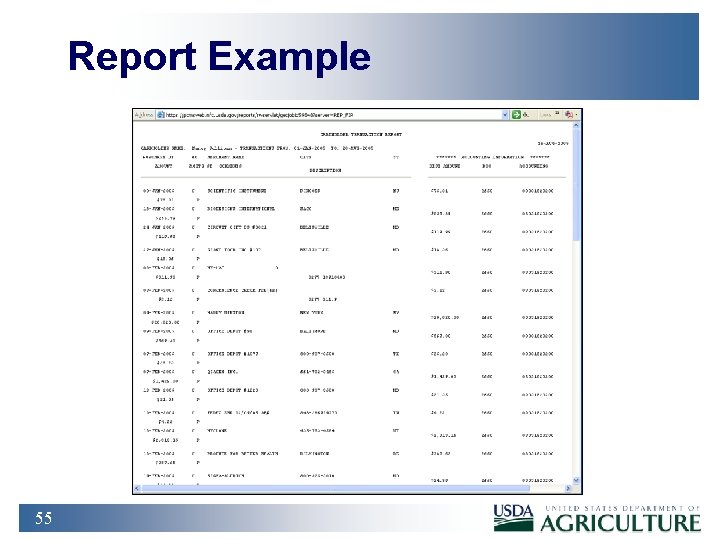
Report Example 55
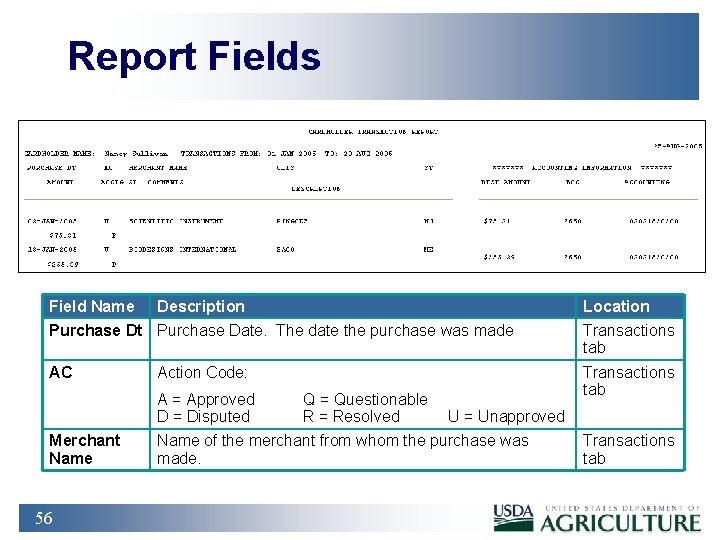
Report Fields Field Name Description Location Purchase Dt Purchase Date. The date the purchase was made Transactions tab AC Transactions tab Action Code: A = Approved D = Disputed Merchant Name 56 Q = Questionable R = Resolved U = Unapproved Name of the merchant from whom the purchase was made. Transactions tab
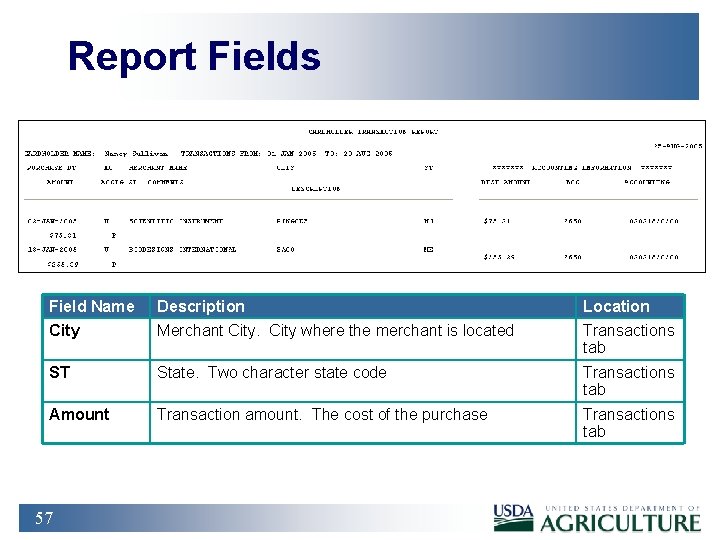
Report Fields Field Name Description Location City Merchant City where the merchant is located Transactions tab ST State. Two character state code Transactions tab Amount Transaction amount. The cost of the purchase Transactions tab 57
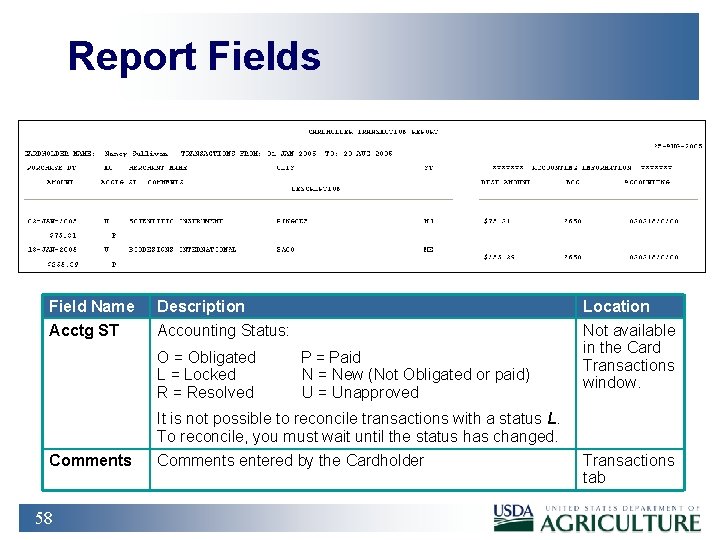
Report Fields Field Name Description Location Acctg ST Accounting Status: Not available in the Card Transactions window. O = Obligated L = Locked R = Resolved P = Paid N = New (Not Obligated or paid) U = Unapproved It is not possible to reconcile transactions with a status L. To reconcile, you must wait until the status has changed. Comments 58 Comments entered by the Cardholder Transactions tab
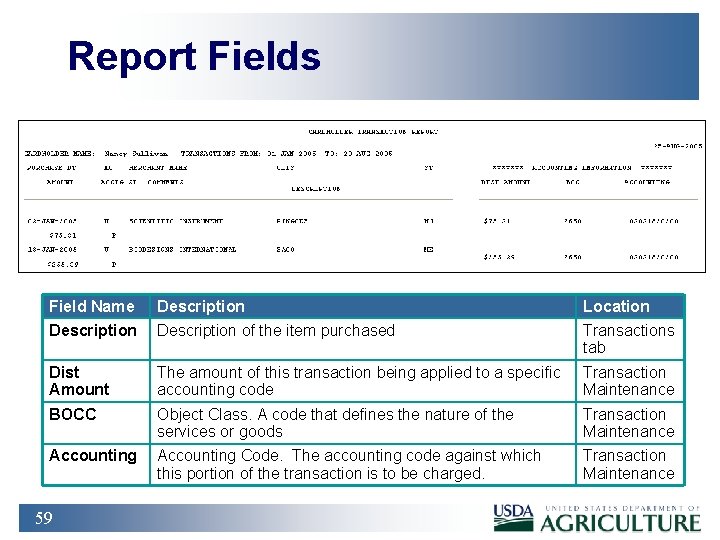
Report Fields Field Name Description Location Description of the item purchased Transactions tab Dist Amount The amount of this transaction being applied to a specific accounting code Transaction Maintenance BOCC Object Class. A code that defines the nature of the services or goods Transaction Maintenance Accounting Code. The accounting code against which this portion of the transaction is to be charged. Transaction Maintenance 59
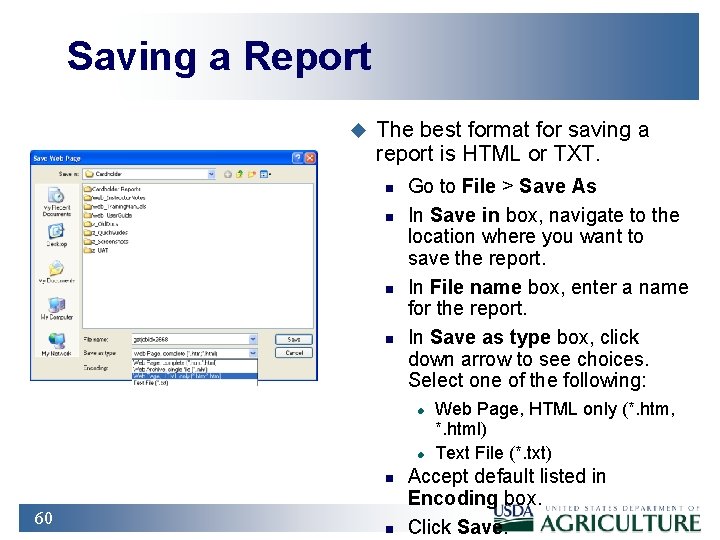
Saving a Report u The best format for saving a report is HTML or TXT. n n Go to File > Save As In Save in box, navigate to the location where you want to save the report. In File name box, enter a name for the report. In Save as type box, click down arrow to see choices. Select one of the following: l l n 60 n Web Page, HTML only (*. htm, *. html) Text File (*. txt) Accept default listed in Encoding box. Click Save.
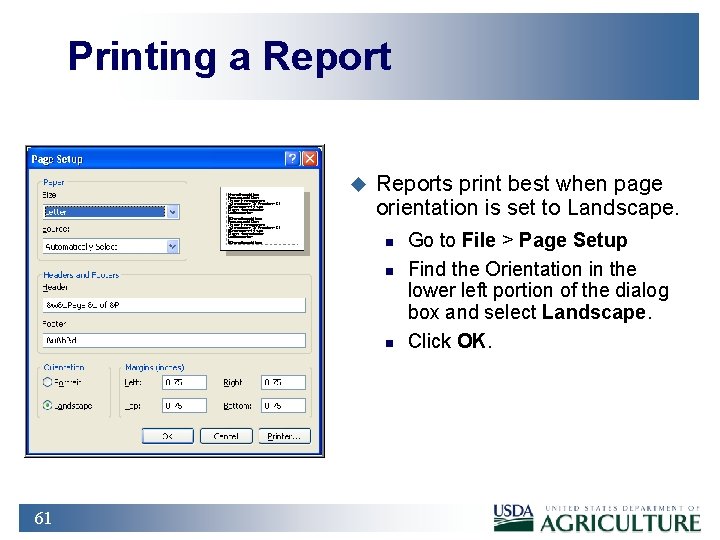
Printing a Report u Reports print best when page orientation is set to Landscape. n n n 61 Go to File > Page Setup Find the Orientation in the lower left portion of the dialog box and select Landscape. Click OK.
Practical Exercise 1. Generate a Cardholder Report 2. The report range should be for the entire last month 3. Save the report to an html file on your c: drive called “myreport. html” 62
Summary and Review 1. What is the date format the report feature uses? 2. How do you generate a report that will display on the screen? 3. Why would you generate a report? 63
- Slides: 63