
Lesson 4 Public and Home Internet Access In
Lesson 4 Public and Home Internet Access
In this lesson, you are going to: • Learn about accessing the Internet using local, public, and private networks. • Define the pros, cons, and risks of using private home networks and public Wi-Fi. • And understand the precautions to use when using private home networks and public Wi-Fi. Complete LESSON 4 Public and Home Internet Access
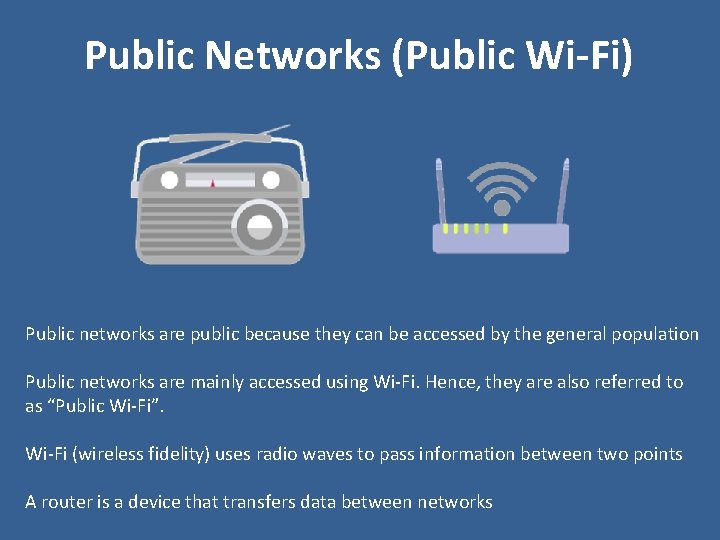
Public Networks (Public Wi-Fi) Public networks are public because they can be accessed by the general population Public networks are mainly accessed using Wi-Fi. Hence, they are also referred to as “Public Wi-Fi”. Wi-Fi (wireless fidelity) uses radio waves to pass information between two points A router is a device that transfers data between networks
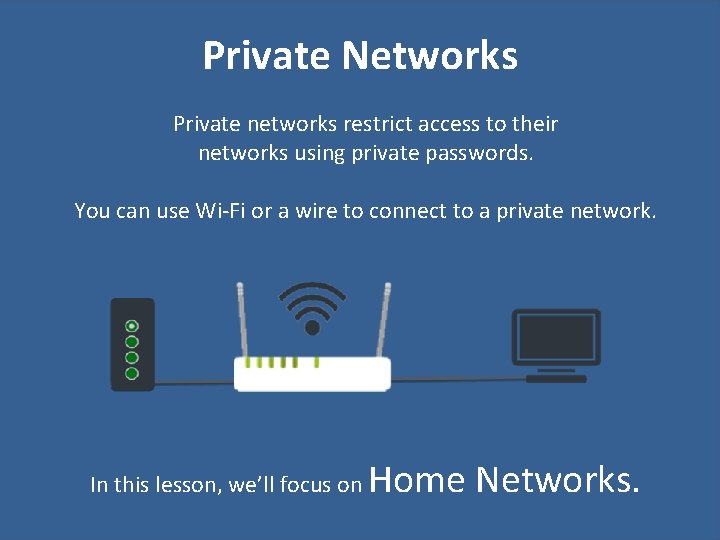
Private Networks Private networks restrict access to their networks using private passwords. You can use Wi-Fi or a wire to connect to a private network. In this lesson, we’ll focus on Home Networks.
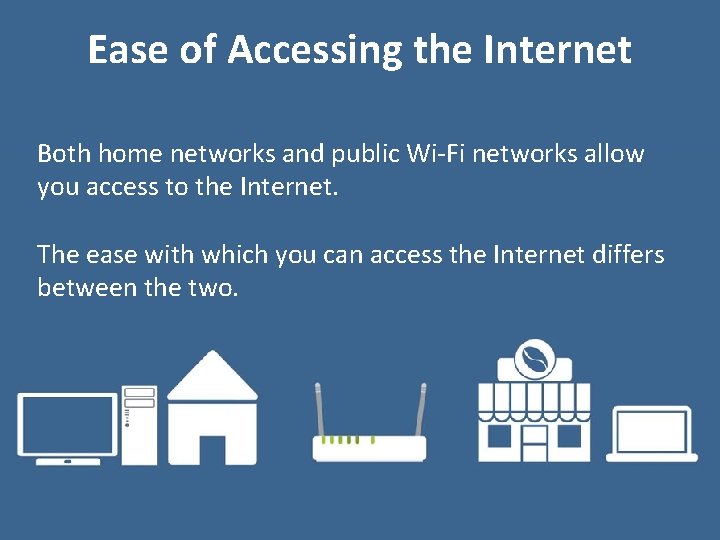
Ease of Accessing the Internet Both home networks and public Wi-Fi networks allow you access to the Internet. The ease with which you can access the Internet differs between the two.

Accessing via Home Network An Internet Service Provider (ISP) is a company that offers services for accessing and using the Internet. Modem (modulator-demodulator) is a device that transmits digital data over analog utility lines. Modems link with your ISP. Digital: A device or system that uses discrete values to transmit data. Analog: A device or system that uses a continuous signal to transmit data.
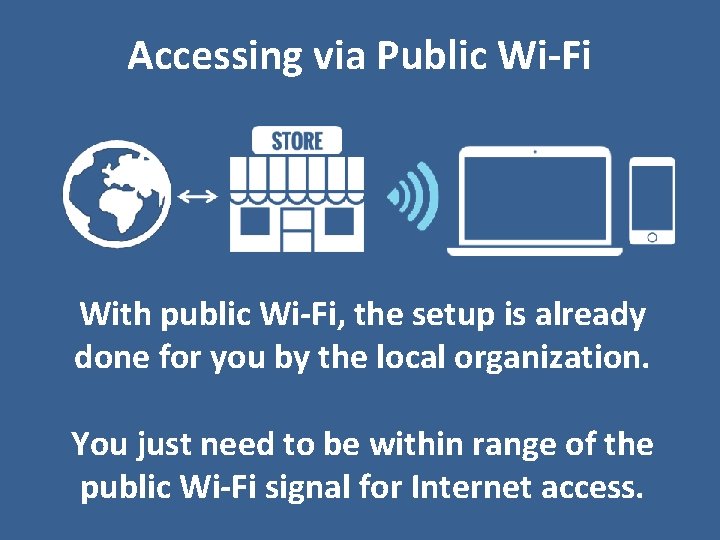
Accessing via Public Wi-Fi With public Wi-Fi, the setup is already done for you by the local organization. You just need to be within range of the public Wi-Fi signal for Internet access.
Pros of Home Networks 1. Better security because you can set up tight security on the router. 2. More reliable because access is restricted to a few people. 3. You can purchase an Internet speed to meet your needs.
Cons of Home Networks 1. Home networks are not as convenient as public Wi-Fi. 2. The costs associated with connecting to the Internet.
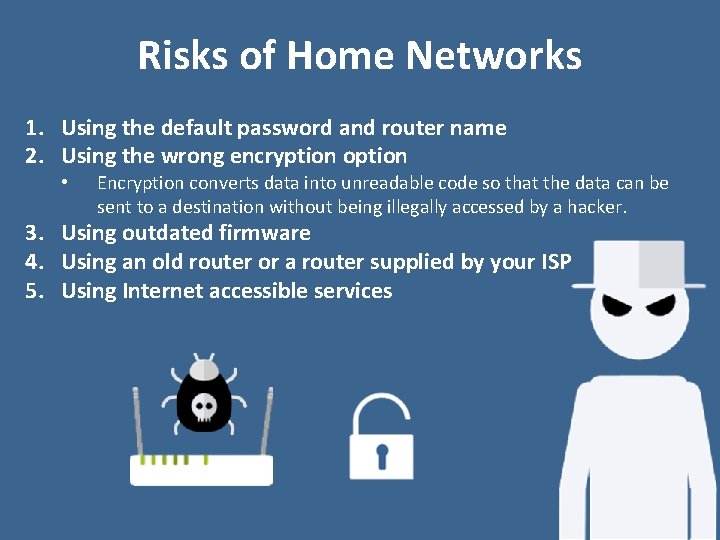
Risks of Home Networks 1. Using the default password and router name 2. Using the wrong encryption option • Encryption converts data into unreadable code so that the data can be sent to a destination without being illegally accessed by a hacker. 3. Using outdated firmware 4. Using an old router or a router supplied by your ISP 5. Using Internet accessible services
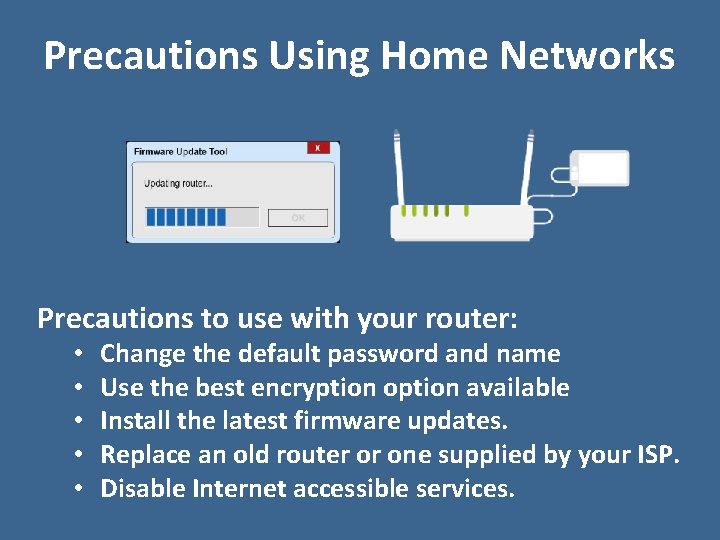
Precautions Using Home Networks Precautions to use with your router: • • • Change the default password and name Use the best encryption option available Install the latest firmware updates. Replace an old router or one supplied by your ISP. Disable Internet accessible services.
Pros of Public Wi-Fi 1. Convenient when not at home. 2. Free access
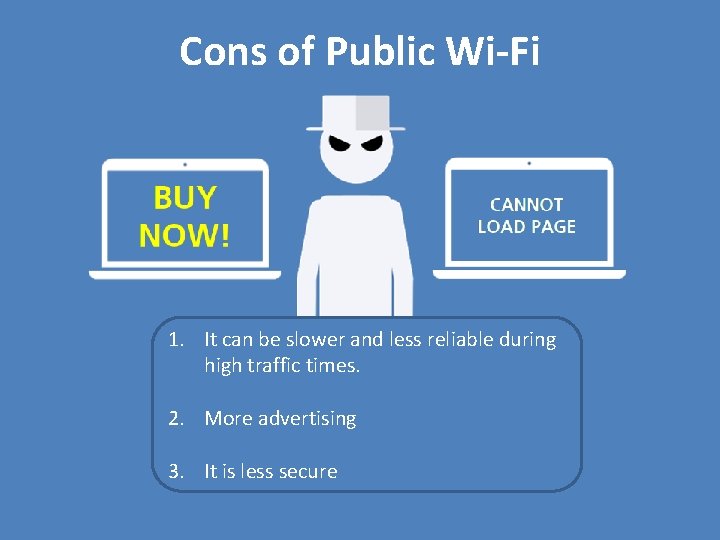
Cons of Public Wi-Fi 1. It can be slower and less reliable during high traffic times. 2. More advertising 3. It is less secure
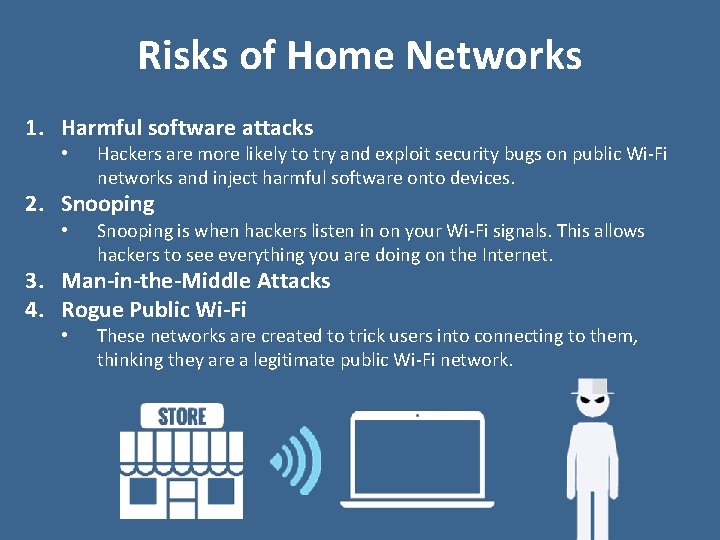
Risks of Home Networks 1. Harmful software attacks • Hackers are more likely to try and exploit security bugs on public Wi-Fi networks and inject harmful software onto devices. 2. Snooping • Snooping is when hackers listen in on your Wi-Fi signals. This allows hackers to see everything you are doing on the Internet. 3. Man-in-the-Middle Attacks 4. Rogue Public Wi-Fi • These networks are created to trick users into connecting to them, thinking they are a legitimate public Wi-Fi network.
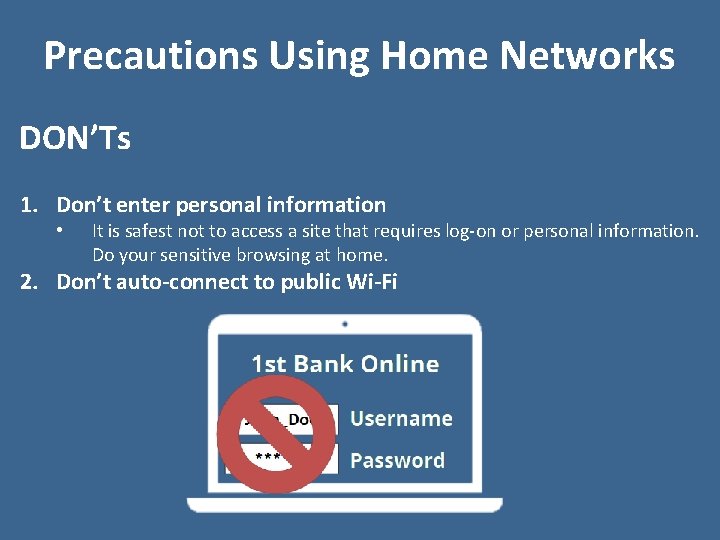
Precautions Using Home Networks DON’Ts 1. Don’t enter personal information • It is safest not to access a site that requires log-on or personal information. Do your sensitive browsing at home. 2. Don’t auto-connect to public Wi-Fi
Precautions Using Home Networks DOs 1. Only visit encrypted sites • Encryption scrambles the information you send over the Internet to keep your information hidden from others. “HTTPS” in the beginning of the website’s URL indicates the page is using encryption. Many mobile apps don’t properly encrypt data. So, be careful when using a mobile app. 2. Sign off when done • Always sign off your accounts when you’re done. 3. Install the latest software updates 4. Use a firewall • A computer firewall is security software that protects your computer from hackers. Enable your computer’s firewall. 5. Turn off file and printer sharing • Allows one computer to share its files and printer with another computer. This is a helpful feature for home networks. Turn off your computer’s file and printer sharing when on public Wi-Fi.
In this lesson, you learned the following about home networks and public Wi-Fi: • How to access the Internet using these networks. • The pros, cons and risks of using these networks. • Precautions to take when using these networks.
- Slides: 17