
Lesson 4 Epic Quick Appointment Scheduling This material

- Slides: 10
Lesson 4: Epic Quick Appointment Scheduling This material contains confidential and copyrighted information of Epic Systems Corporation © Epic Systems Corporation – Confidential
Epic Quick Appointment Scheduling In this lesson you will learn to: ─ Make a Quick Appointment
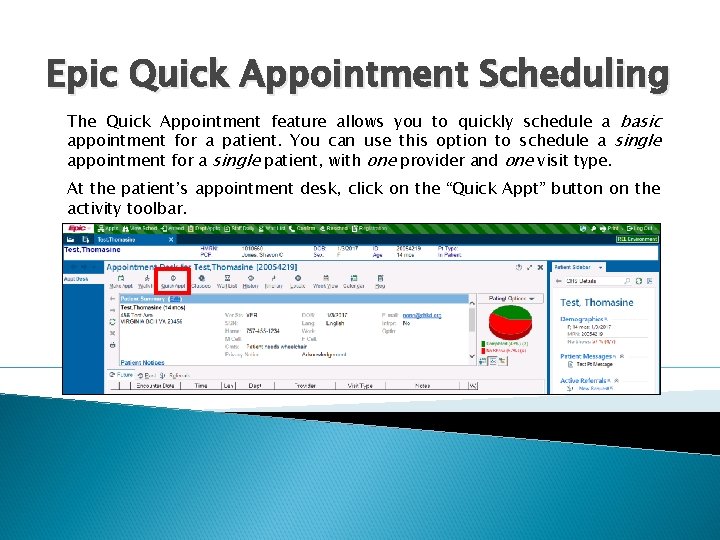
Epic Quick Appointment Scheduling The Quick Appointment feature allows you to quickly schedule a basic appointment for a patient. You can use this option to schedule a single appointment for a single patient, with one provider and one visit type. At the patient’s appointment desk, click on the “Quick Appt” button on the activity toolbar.
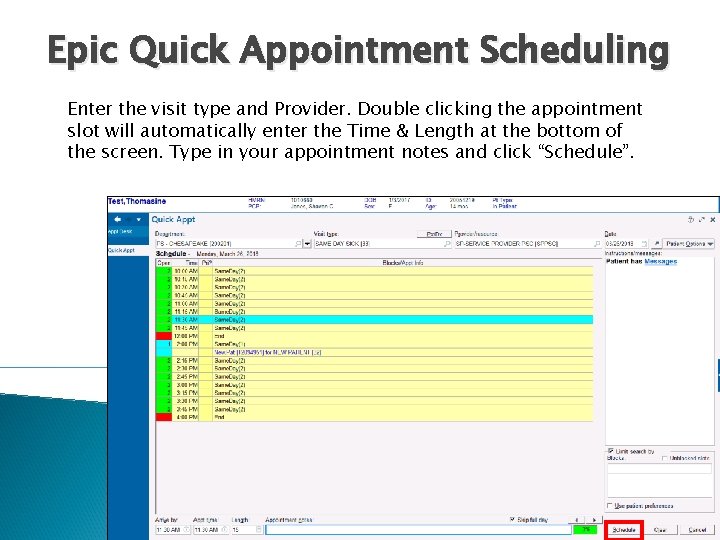
Epic Quick Appointment Scheduling Enter the visit type and Provider. Double clicking the appointment slot will automatically enter the Time & Length at the bottom of the screen. Type in your appointment notes and click “Schedule”.
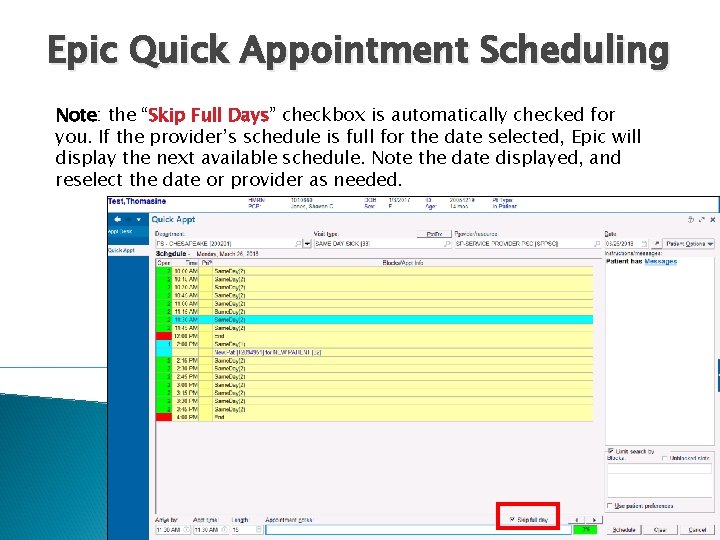
Epic Quick Appointment Scheduling Note: the “Skip Full Days” Days checkbox is automatically checked for you. If the provider’s schedule is full for the date selected, Epic will display the next available schedule. Note the date displayed, and reselect the date or provider as needed.
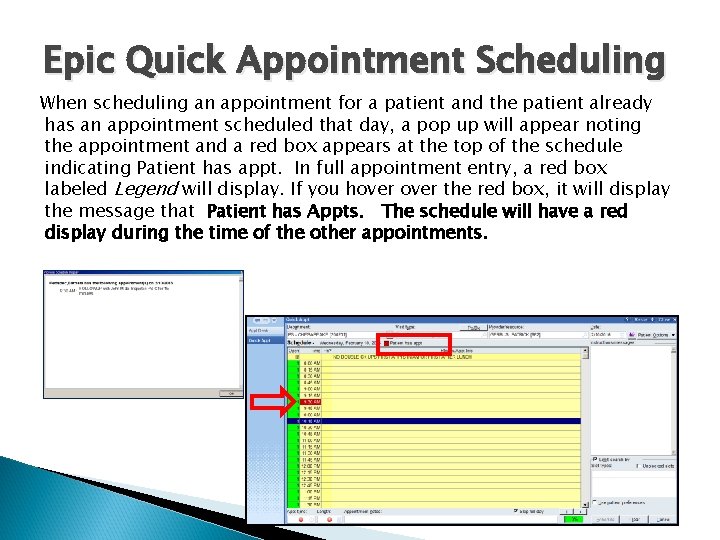
Epic Quick Appointment Scheduling When scheduling an appointment for a patient and the patient already has an appointment scheduled that day, a pop up will appear noting the appointment and a red box appears at the top of the schedule indicating Patient has appt. In full appointment entry, a red box labeled Legend will display. If you hover the red box, it will display the message that Patient has Appts. The schedule will have a red display during the time of the other appointments.
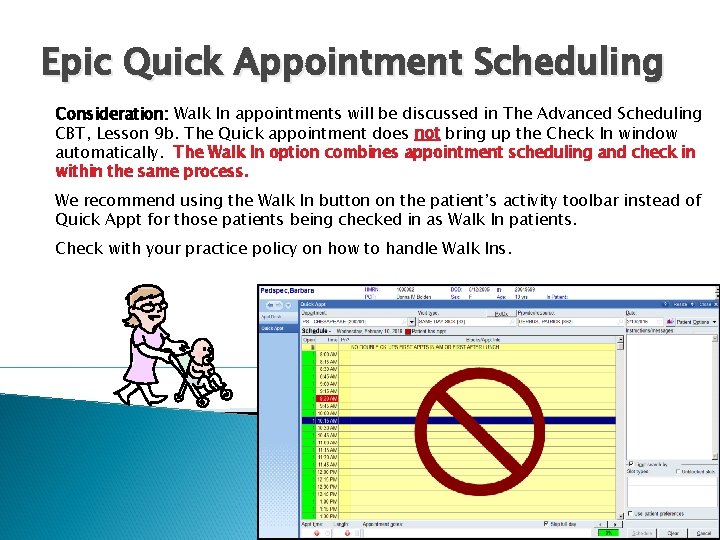
Epic Quick Appointment Scheduling Consideration: Walk In appointments will be discussed in The Advanced Scheduling CBT, Lesson 9 b. The Quick appointment does not bring up the Check In window automatically. The Walk In option combines appointment scheduling and check in within the same process. We recommend using the Walk In button on the patient’s activity toolbar instead of Quick Appt for those patients being checked in as Walk In patients. Check with your practice policy on how to handle Walk Ins.
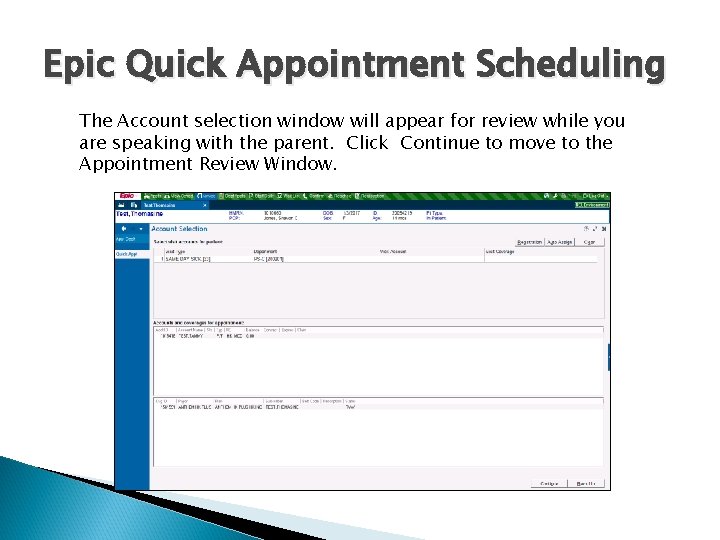
Epic Quick Appointment Scheduling The Account selection window will appear for review while you are speaking with the parent. Click Continue to move to the Appointment Review Window.
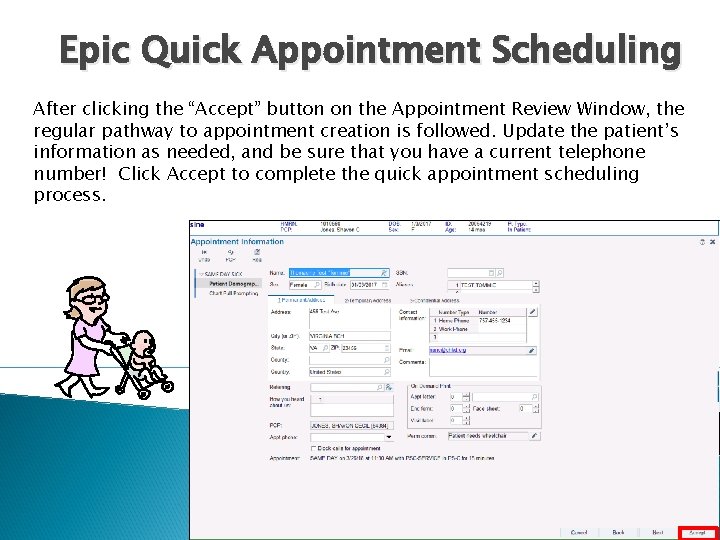
Epic Quick Appointment Scheduling After clicking the “Accept” button on the Appointment Review Window, the regular pathway to appointment creation is followed. Update the patient’s information as needed, and be sure that you have a current telephone number! Click Accept to complete the quick appointment scheduling process.
End of Lesson 4 Click on the displayed mouse to advance to Lesson 5.