
Lesson 3 Formatting a Presentation for Printing PPT
- Slides: 18
Lesson 3 Formatting a Presentation for Printing PPT Lesson 3 Power. Point prepared by Crystal Smith – Riverside High School, Durham, NC. Content from Microsoft Office PPT 2010 Lesson Plans provided by Microsoft.
1 Students will be able to do the following on completion of this lesson. 2 3 4 5 • Open an existing presentation • Add a header or footer • Preview a presentation • Change the page setup • Choose a printer • Print slides, audience handouts, and speaker notes PPT Lesson 3 Power. Point prepared by Crystal Smith – Riverside High School, Durham, NC. Content from Microsoft Office PPT 2010 Lesson Plans provided by Microsoft.
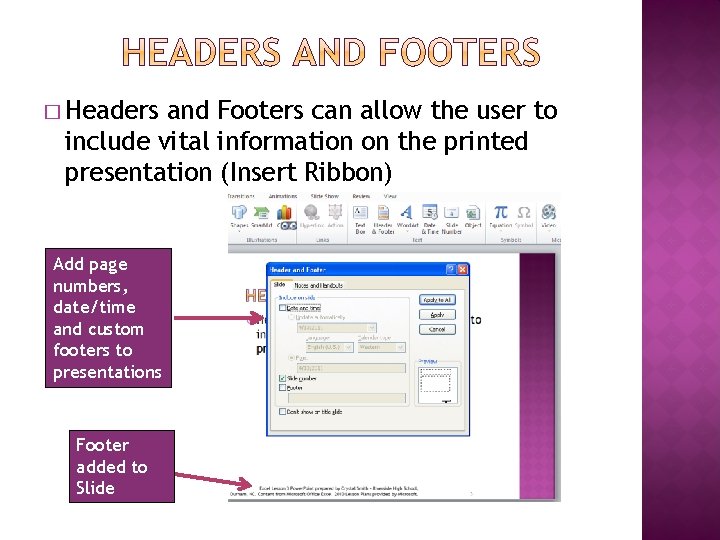
� Headers and Footers can allow the user to include vital information on the printed presentation (Insert Ribbon) Add page numbers, date/time and custom footers to presentations Footer added to Slide
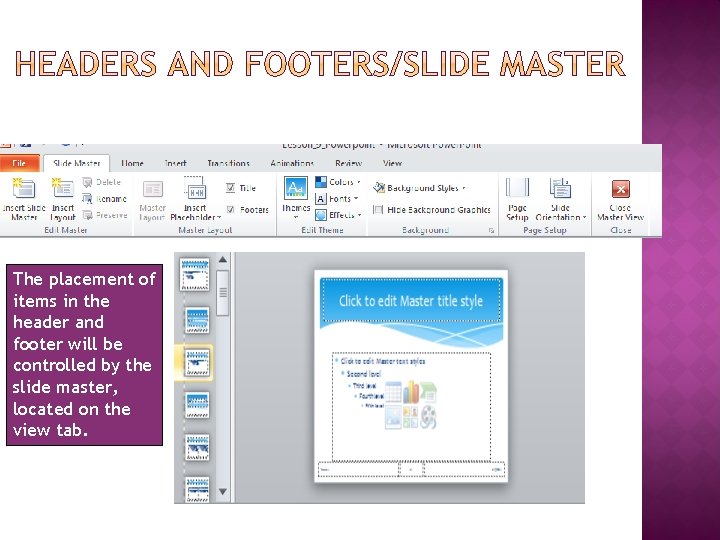
The placement of items in the header and footer will be controlled by the slide master, located on the view tab.
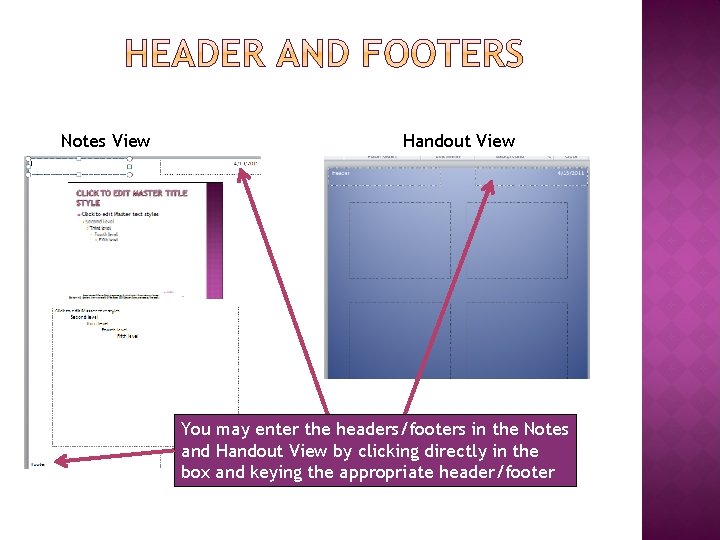
Notes View Handout View You may enter the headers/footers in the Notes and Handout View by clicking directly in the box and keying the appropriate header/footer
� Print Preview allows the user to proofread the presentation prior to presenting or printing � You may preview the notes pages, handouts, and speaker notes � You can preview in black and white or color may also scroll through your document in print preview.
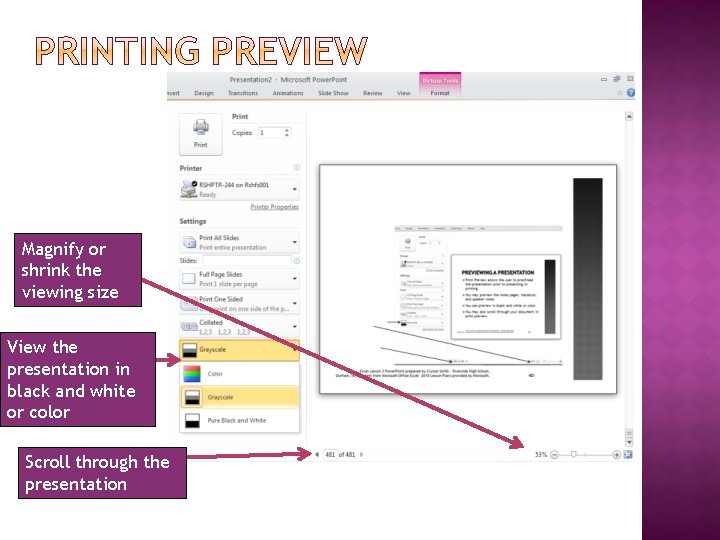
Magnify or shrink the viewing size View the presentation in black and white or color Scroll through the presentation
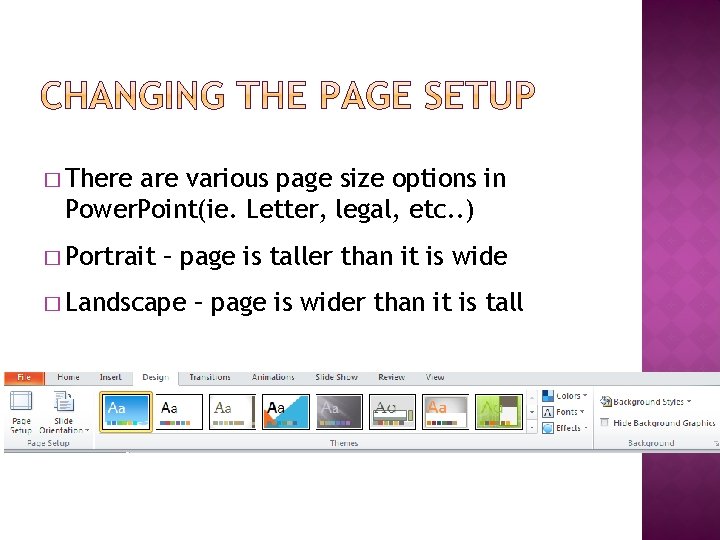
� There are various page size options in Power. Point(ie. Letter, legal, etc. . ) � Portrait – page is taller than it is wide � Landscape – page is wider than it is tall
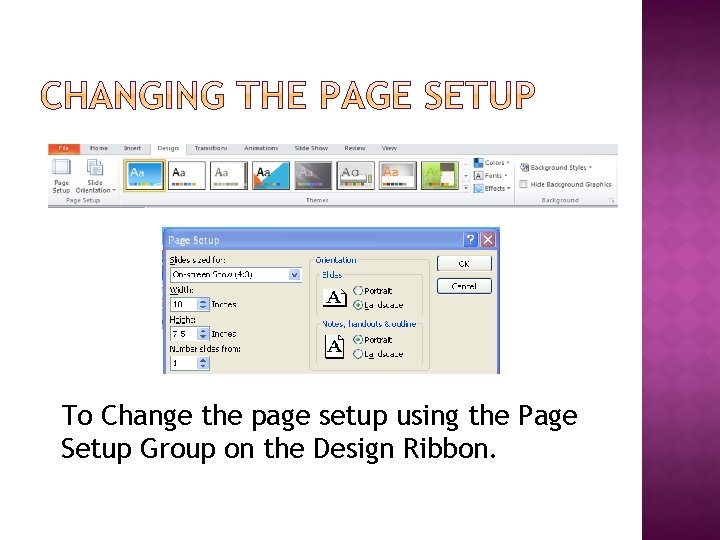
To Change the page setup using the Page Setup Group on the Design Ribbon.
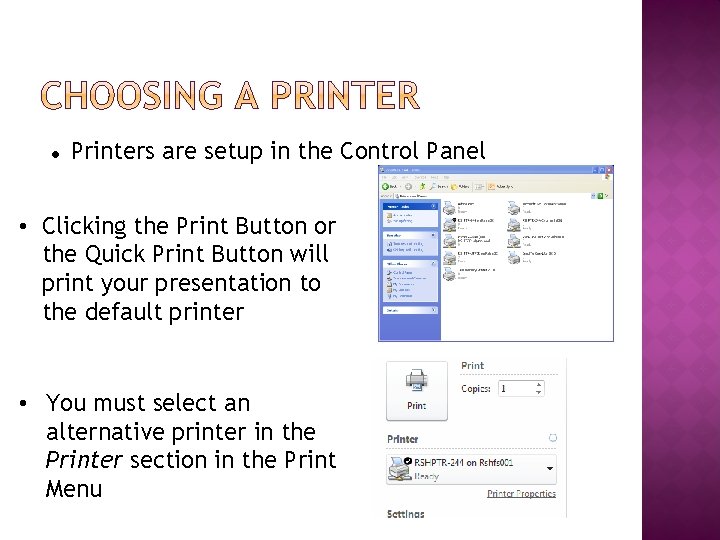
● Printers are setup in the Control Panel • Clicking the Print Button or the Quick Print Button will print your presentation to the default printer • You must select an alternative printer in the Printer section in the Print Menu
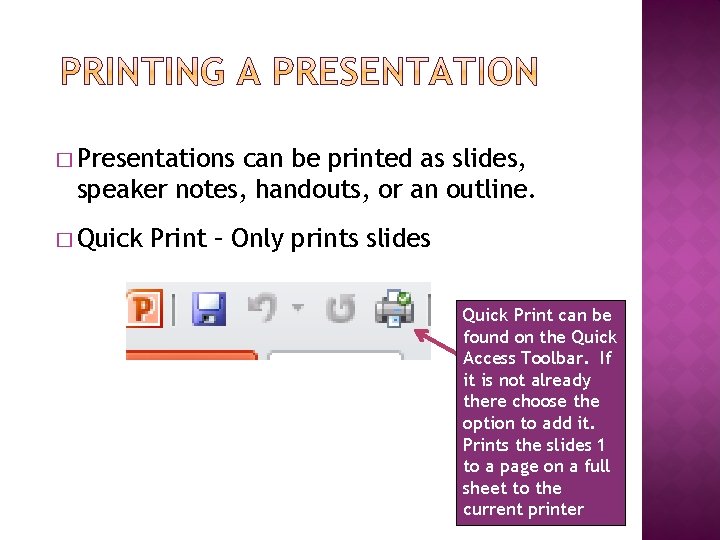
� Presentations can be printed as slides, speaker notes, handouts, or an outline. � Quick Print – Only prints slides Quick Print can be found on the Quick Access Toolbar. If it is not already there choose the option to add it. Prints the slides 1 to a page on a full sheet to the current printer
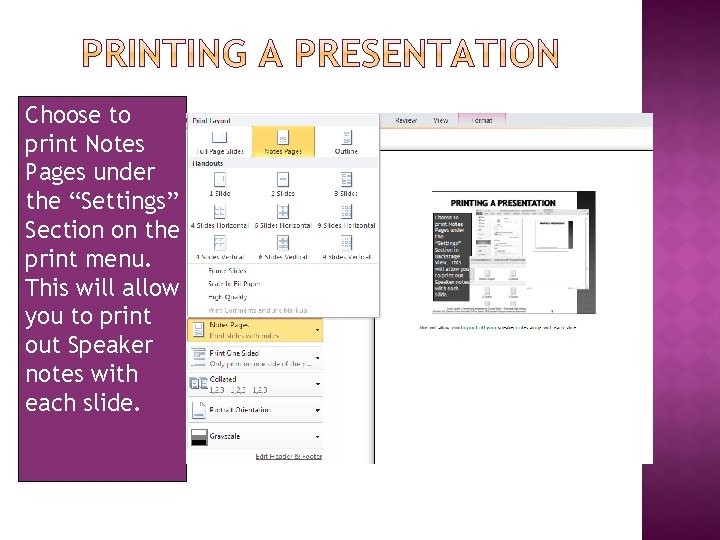
Choose to print Notes Pages under the “Settings” Section on the print menu. This will allow you to print out Speaker notes with each slide.
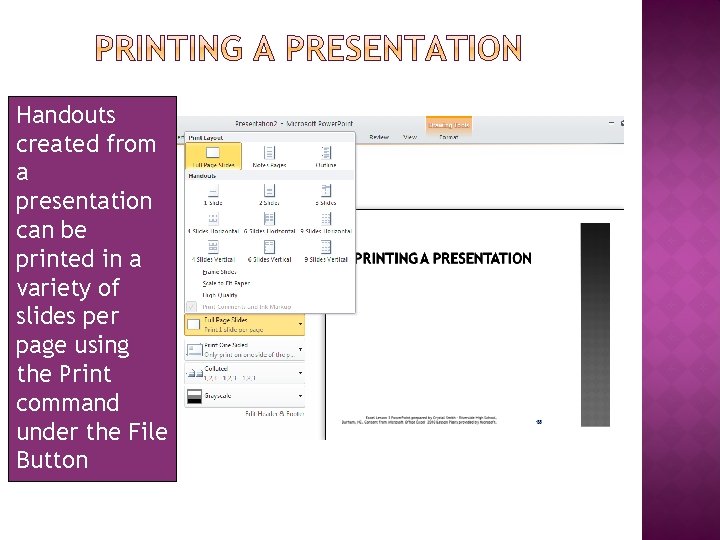
Handouts created from a presentation can be printed in a variety of slides per page using the Print command under the File Button
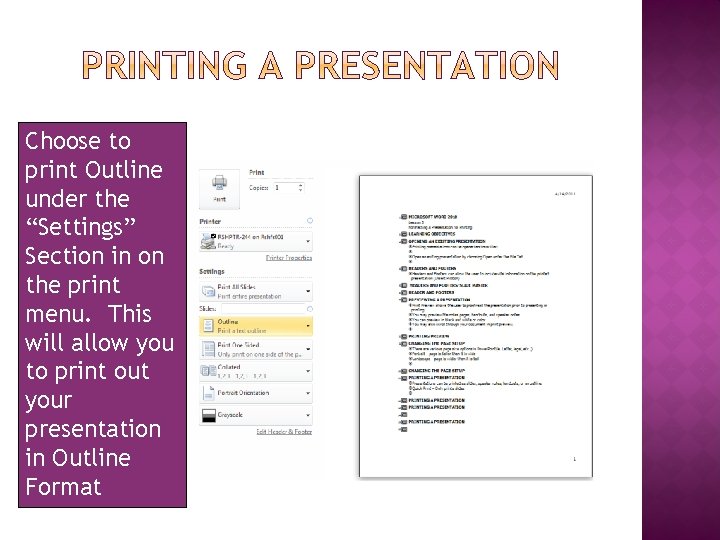
Choose to print Outline under the “Settings” Section in on the print menu. This will allow you to print out your presentation in Outline Format
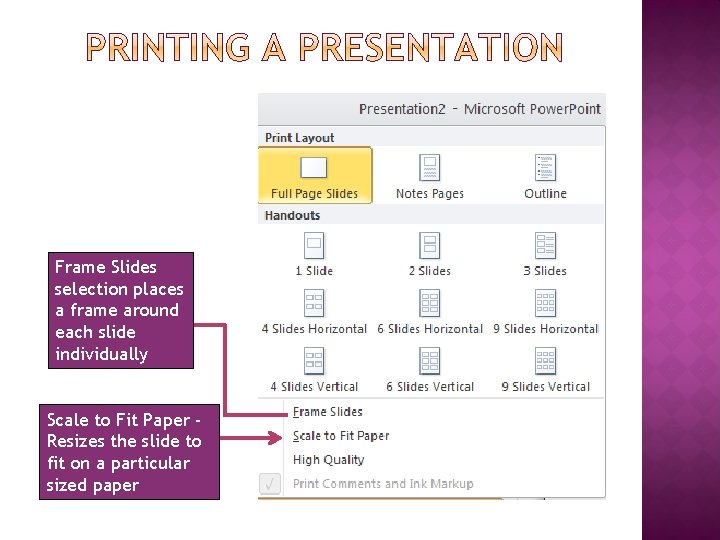
Frame Slides selection places a frame around each slide individually Scale to Fit Paper Resizes the slide to fit on a particular sized paper
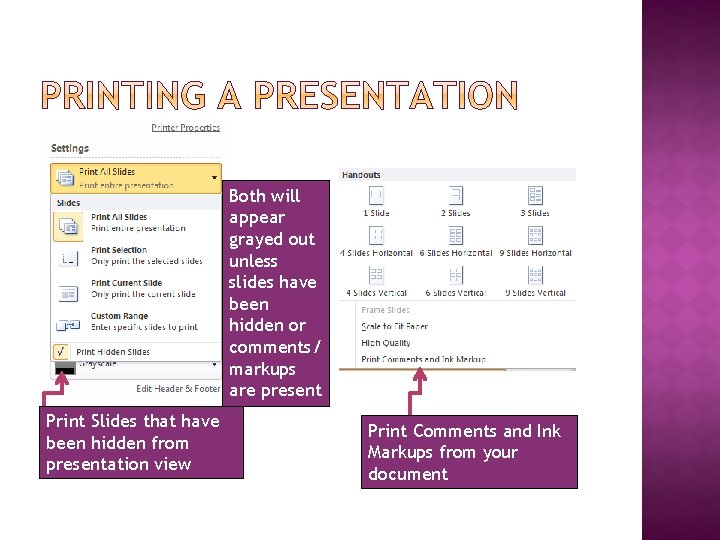
Both will appear grayed out unless slides have been hidden or comments/ markups are present Print Slides that have been hidden from presentation view Print Comments and Ink Markups from your document
� Complete Lesson 3 Exercise 1 � Complete Lesson 3 Project 1 � Complete Follow-up Lesson 3 Follow-up Quiz