
Lesson 3 1 Workspace Photoshop CC 2018 See


- Slides: 14
Lesson #3 -1: Workspace Photoshop CC (2018+)
See the Textbook for the IL (Interactive)
Goals in this domain 3. 1 Identify elements of the Photoshop CC user interface and demonstrate knowledge of their functions. 3. 2 Identify and define the functions of commonly used Panels, including the Properties, Layers, Brushes, Adjustments, and Type panels. 3. 3 Define the functions of commonly used tools, including selection, drawing, painting, type, and vector shape tools. 3. 4 Navigate, organize, and customize the workspace. 3. 5 Use non-printing design tools in the interface, such as rulers and guides. 3. 6 Demonstrate knowledge of layers and masks. 3. 7 Manage colors, swatches, and gradients. 3. 8 Manage brushes, symbols, graphic styles, and patterns.
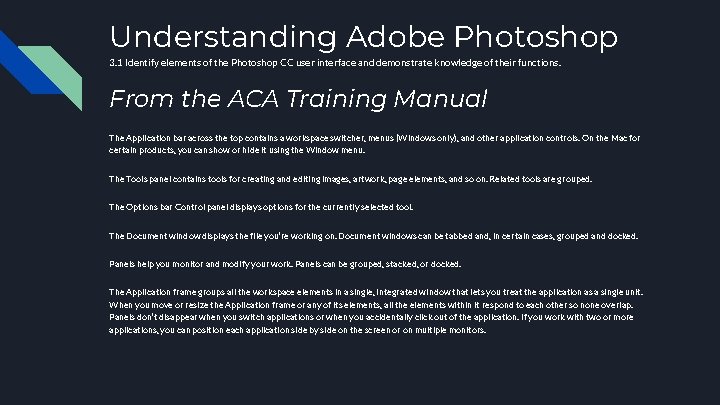
Understanding Adobe Photoshop 3. 1 Identify elements of the Photoshop CC user interface and demonstrate knowledge of their functions. From the ACA Training Manual The Application bar across the top contains a workspace switcher, menus (Windows only), and other application controls. On the Mac for certain products, you can show or hide it using the Window menu. The Tools panel contains tools for creating and editing images, artwork, page elements, and so on. Related tools are grouped. The Options bar Control panel displays options for the currently selected tool. The Document window displays the file you’re working on. Document windows can be tabbed and, in certain cases, grouped and docked. Panels help you monitor and modify your work. Panels can be grouped, stacked, or docked. The Application frame groups all the workspace elements in a single, integrated window that lets you treat the application as a single unit. When you move or resize the Application frame or any of its elements, all the elements within it respond to each other so none overlap. Panels don’t disappear when you switch applications or when you accidentally click out of the application. If you work with two or more applications, you can position each application side by side on the screen or on multiple monitors.
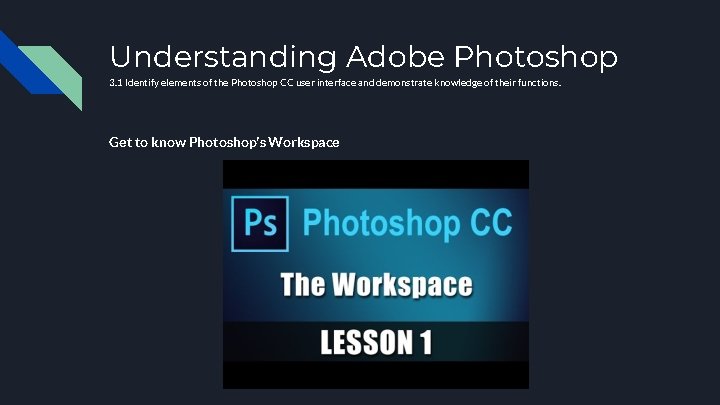
Understanding Adobe Photoshop 3. 1 Identify elements of the Photoshop CC user interface and demonstrate knowledge of their functions. Get to know Photoshop’s Workspace
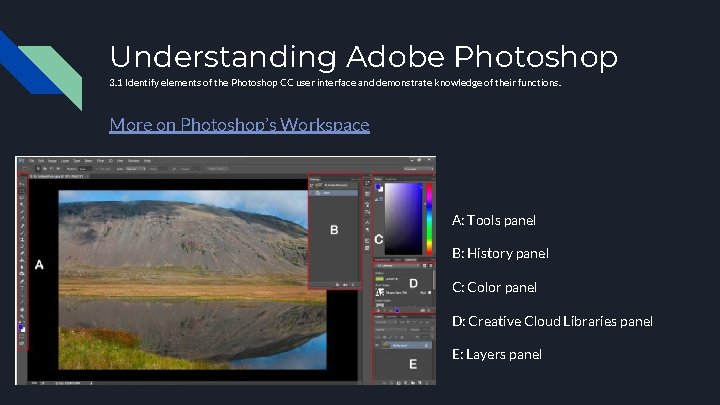
Understanding Adobe Photoshop 3. 1 Identify elements of the Photoshop CC user interface and demonstrate knowledge of their functions. More on Photoshop’s Workspace A: Tools panel B: History panel C: Color panel D: Creative Cloud Libraries panel E: Layers panel
Understanding Adobe Photoshop 3. 1 Identify elements of the Photoshop CC user interface and demonstrate knowledge of their functions. Opening a Workspace Opening a. psd or image file When you create a document in Photoshop, instead of beginning with a blank canvas, you can choose from a wide variety of templates from Adobe Stock. Templates include assets and illustrations that you can build on to complete your project. When you open a template in Photoshop, you can work with it just as you would work with any other Photoshop document (. psd). -ACA Training Manual YOU NEED TO KNOW THE DIMENSIONS THAT YOU'RE WORKING WITH!
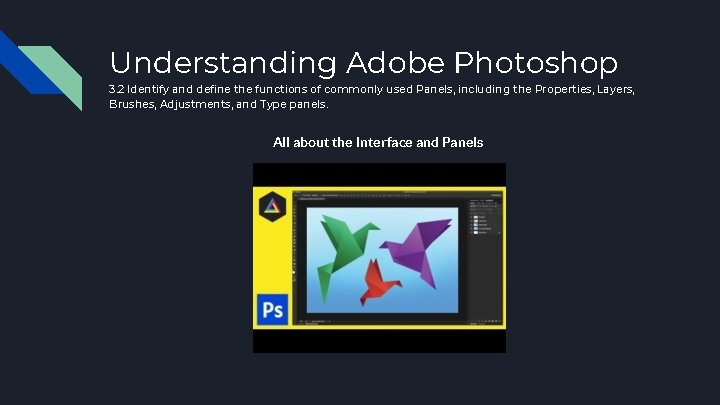
Understanding Adobe Photoshop 3. 2 Identify and define the functions of commonly used Panels, including the Properties, Layers, Brushes, Adjustments, and Type panels. All about the Interface and Panels
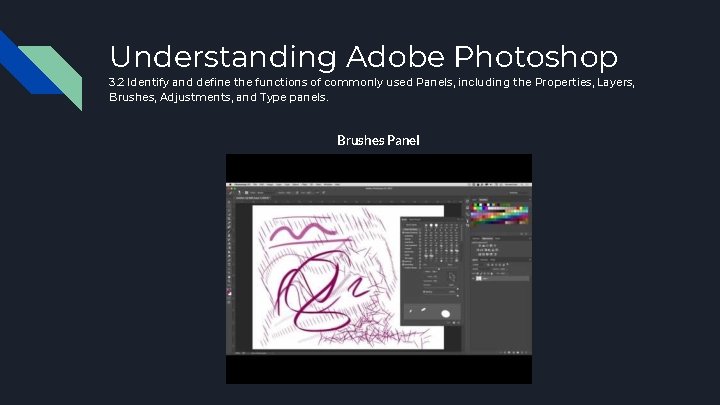
Understanding Adobe Photoshop 3. 2 Identify and define the functions of commonly used Panels, including the Properties, Layers, Brushes, Adjustments, and Type panels. Brushes Panel
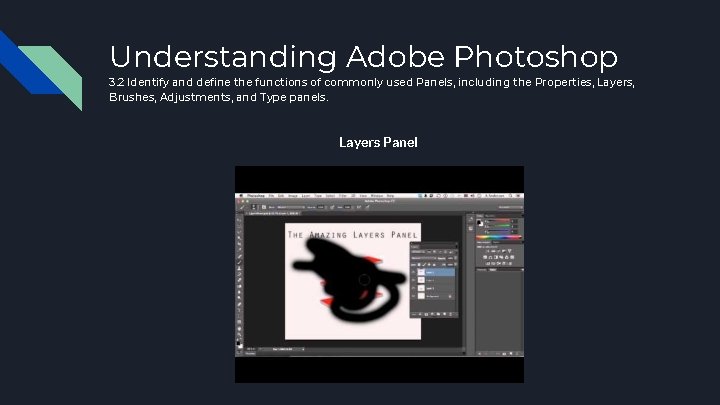
Understanding Adobe Photoshop 3. 2 Identify and define the functions of commonly used Panels, including the Properties, Layers, Brushes, Adjustments, and Type panels. Layers Panel
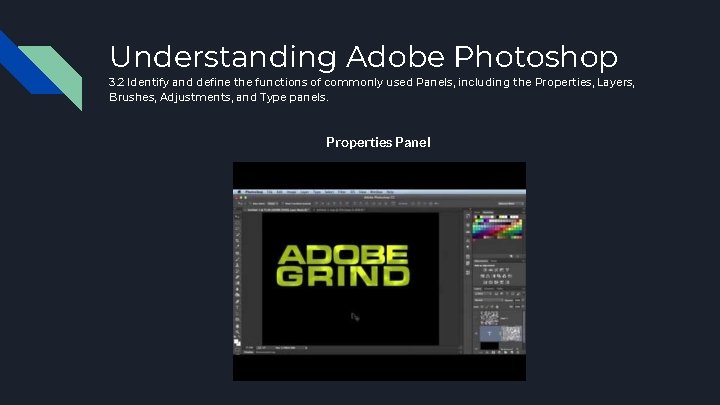
Understanding Adobe Photoshop 3. 2 Identify and define the functions of commonly used Panels, including the Properties, Layers, Brushes, Adjustments, and Type panels. Properties Panel
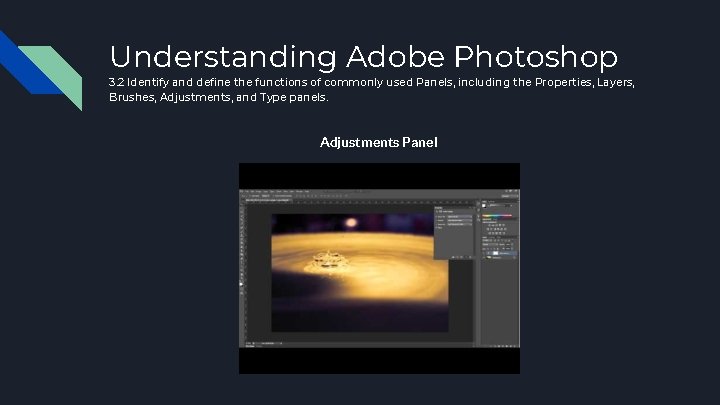
Understanding Adobe Photoshop 3. 2 Identify and define the functions of commonly used Panels, including the Properties, Layers, Brushes, Adjustments, and Type panels. Adjustments Panel
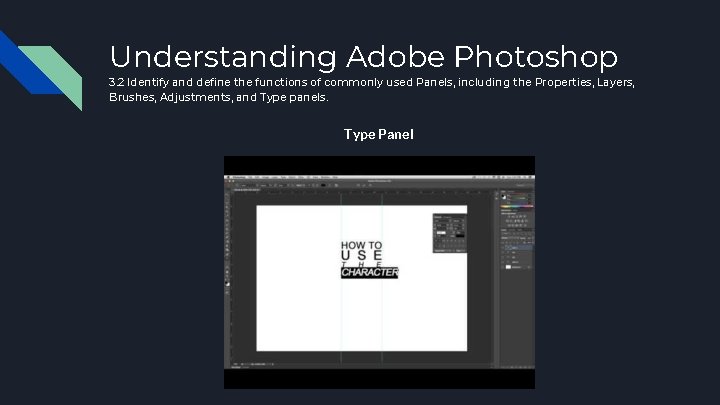
Understanding Adobe Photoshop 3. 2 Identify and define the functions of commonly used Panels, including the Properties, Layers, Brushes, Adjustments, and Type panels. Type Panel
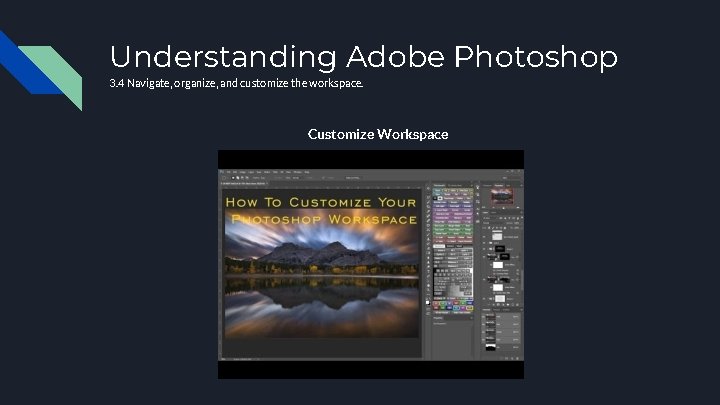
Understanding Adobe Photoshop 3. 4 Navigate, organize, and customize the workspace. Customize Workspace