
Lesson 21 Getting Started with Power Point Essentials
- Slides: 27
Lesson 21 Getting Started with Power. Point Essentials Computer Literacy BASICS: A Comprehensive Guide to IC 3, 5 th Edition Morrison / Wells / Ruffolo
Objectives l l Lesson 21 l 2 l l Identify the parts of the Power. Point screen and navigate through a presentation. Change the slide view and magnification. Manage slides by adding, deleting, duplicating, and reordering them. Create a new presentation with effective planning. Apply a theme for consistent formatting and styles. Morrison / Wells / Ruffolo CLB: A Comp Guide to IC 3 5 E
Objectives (continued) l Lesson 21 l 3 l l Edit slide content by moving text and modifying placeholders. Work with a Slide Master to add universal elements for all slides in the presentation. Preview a presentation using Slide Show view. Hide slides and create custom slide shows. Morrison / Wells / Ruffolo CLB: A Comp Guide to IC 3 5 E
Words to Know l l Lesson 21 l 4 l l Outline tab presentation slide layout Slide Master Slide pane Slides tab Morrison / Wells / Ruffolo CLB: A Comp Guide to IC 3 5 E
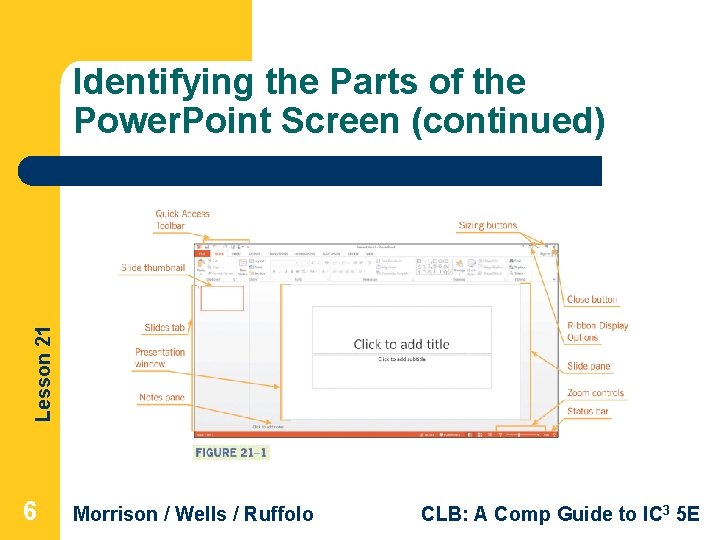
Identifying the Parts of the Power. Point Screen l Lesson 21 l 5 l l l In Power. Point, the document file is called a presentation. A presentation is a collection of individual slides for an onscreen display of information and graphics. A slide is a single page of a presentation. The Slides tab shows a thumbnail for each slide in the presentation file. The slide pane in the presentation window contains the slide content. Morrison / Wells / Ruffolo CLB: A Comp Guide to IC 3 5 E
Lesson 21 Identifying the Parts of the Power. Point Screen (continued) 6 Morrison / Wells / Ruffolo CLB: A Comp Guide to IC 3 5 E
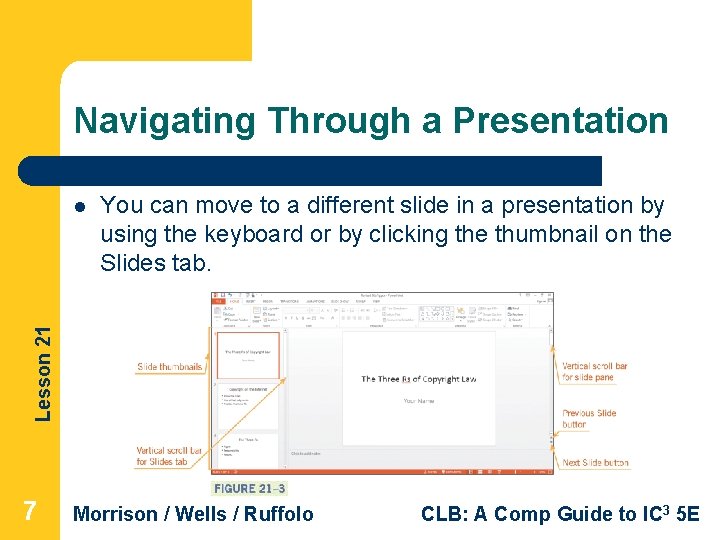
Navigating Through a Presentation You can move to a different slide in a presentation by using the keyboard or by clicking the thumbnail on the Slides tab. Lesson 21 l 7 Morrison / Wells / Ruffolo CLB: A Comp Guide to IC 3 5 E
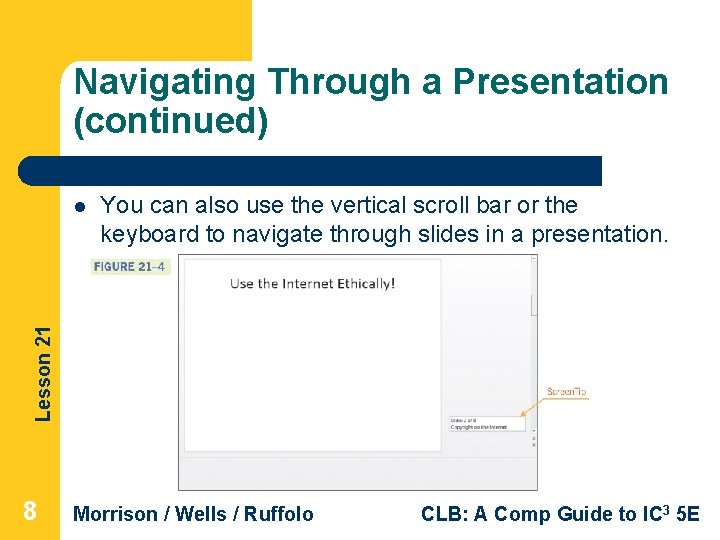
Navigating Through a Presentation (continued) You can also use the vertical scroll bar or the keyboard to navigate through slides in a presentation. Lesson 21 l 8 Morrison / Wells / Ruffolo CLB: A Comp Guide to IC 3 5 E
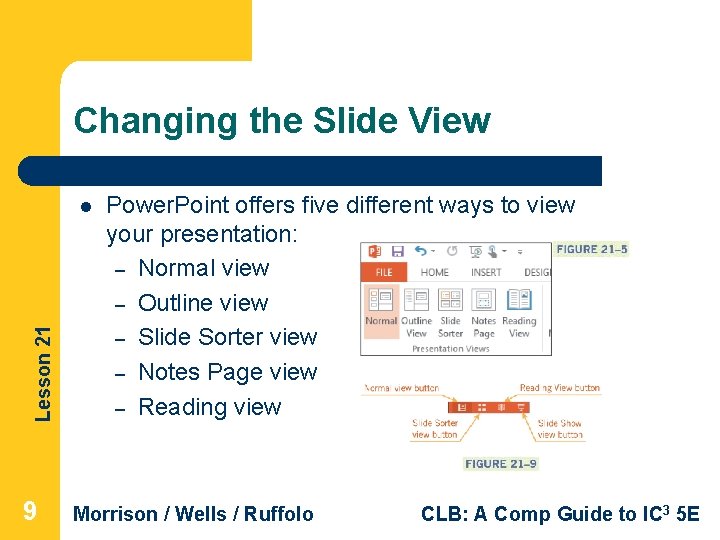
Changing the Slide View Lesson 21 l 9 Power. Point offers five different ways to view your presentation: – Normal view – Outline view – Slide Sorter view – Notes Page view – Reading view Morrison / Wells / Ruffolo CLB: A Comp Guide to IC 3 5 E
Managing Slides l Lesson 21 l 10 l You can easily manage slides in Normal view and in Slide Sorter view. You can use the Cut, Copy, and Paste commands to copy or move slides. You can change the order of slides by using drag-and-drop editing as well as by using the cut-and-paste method. Morrison / Wells / Ruffolo CLB: A Comp Guide to IC 3 5 E
Creating a New Presentation l Lesson 21 l 11 l You can create a new, blank presentation and apply preformatted colors, styles, and layouts. Power. Point provides several presentation templates that already contain formatted content that you can modify to customize the presentation. You can also open an existing presentation, save it with a new filename, and then add and delete slides and edit the existing slides. Morrison / Wells / Ruffolo CLB: A Comp Guide to IC 3 5 E
Creating a New Presentation (continued) Lesson 21 l 12 Keep in mind a few basic principles for effective design: – Do not overload a slide with too much content. – Select only one or two fonts that are easy to read. – Use numbered lists to show the steps in a process or to show data that should be examined in order. – Use bullets to present lists of information. Morrison / Wells / Ruffolo CLB: A Comp Guide to IC 3 5 E
Creating a New Presentation (continued) – Lesson 21 – 13 – – Limit the number of special features on a single slide. Use graphics or charts only to highlight relevant information. Keep charts and tables simple and easy to read. Add elements such as a company name for consistency from slide to slide. Morrison / Wells / Ruffolo CLB: A Comp Guide to IC 3 5 E
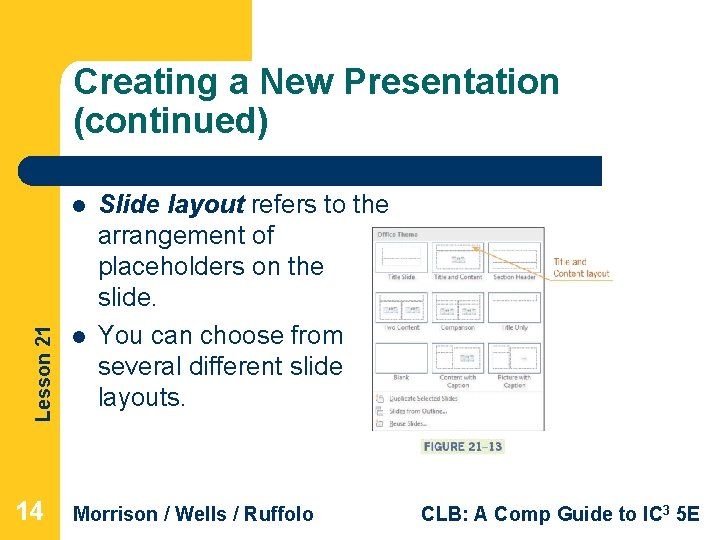
Creating a New Presentation (continued) Lesson 21 l 14 l Slide layout refers to the arrangement of placeholders on the slide. You can choose from several different slide layouts. Morrison / Wells / Ruffolo CLB: A Comp Guide to IC 3 5 E
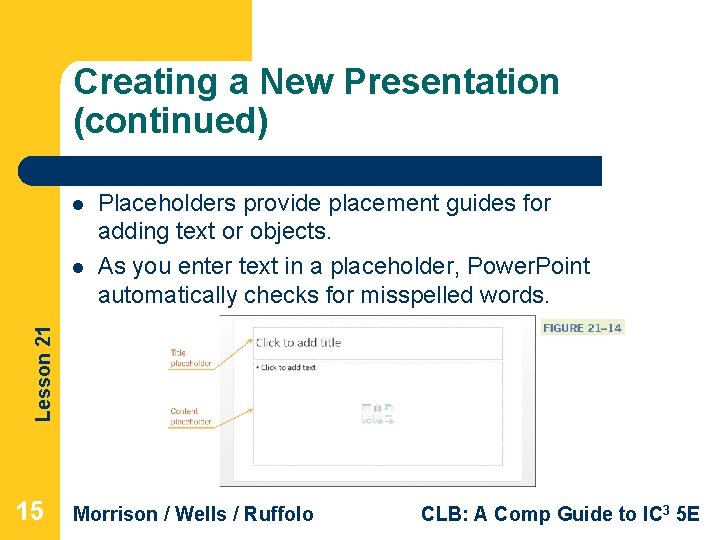
Creating a New Presentation (continued) l Lesson 21 l Placeholders provide placement guides for adding text or objects. As you enter text in a placeholder, Power. Point automatically checks for misspelled words. 15 Morrison / Wells / Ruffolo CLB: A Comp Guide to IC 3 5 E
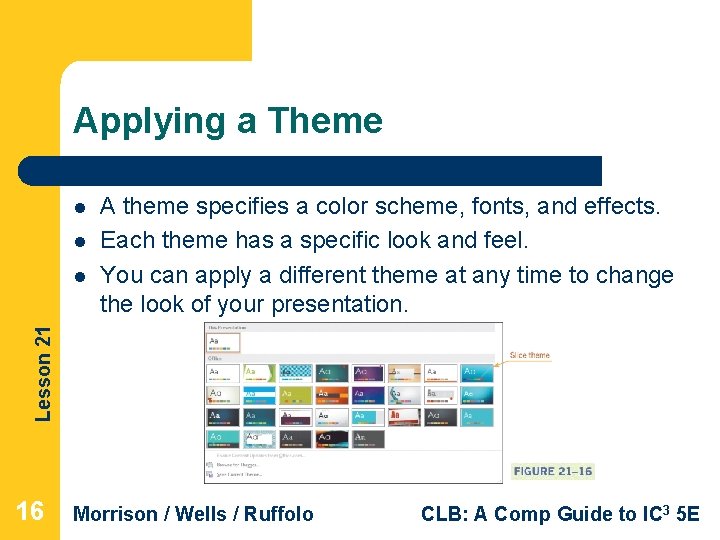
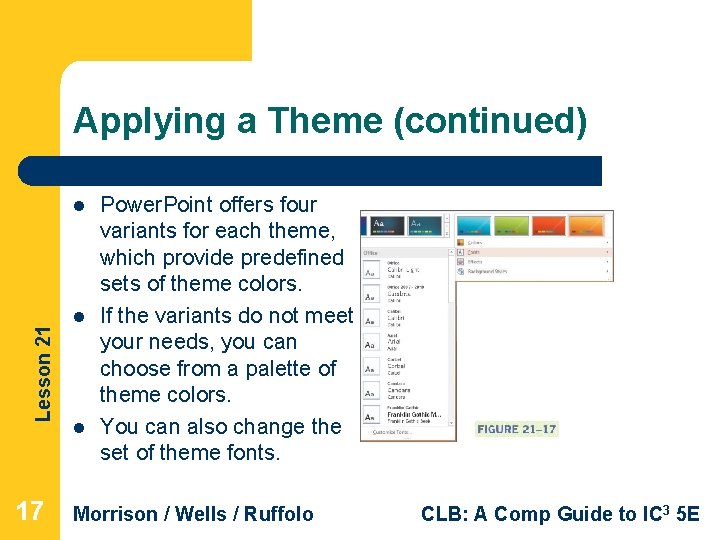
Applying a Theme l l Lesson 21 l A theme specifies a color scheme, fonts, and effects. Each theme has a specific look and feel. You can apply a different theme at any time to change the look of your presentation. 16 Morrison / Wells / Ruffolo CLB: A Comp Guide to IC 3 5 E
Applying a Theme (continued) Lesson 21 l 17 l l Power. Point offers four variants for each theme, which provide predefined sets of theme colors. If the variants do not meet your needs, you can choose from a palette of theme colors. You can also change the set of theme fonts. Morrison / Wells / Ruffolo CLB: A Comp Guide to IC 3 5 E
Editing Slides l Lesson 21 l 18 l l When you add and edit text, the contents that are displayed on the Outline tab are automatically updated. You can change the slide layout to accommodate the text you want to add. You can move any placeholder and rearrange the elements of a slide. Changing the color of the text or changing the font style can add emphasis to the slide content. Morrison / Wells / Ruffolo CLB: A Comp Guide to IC 3 5 E
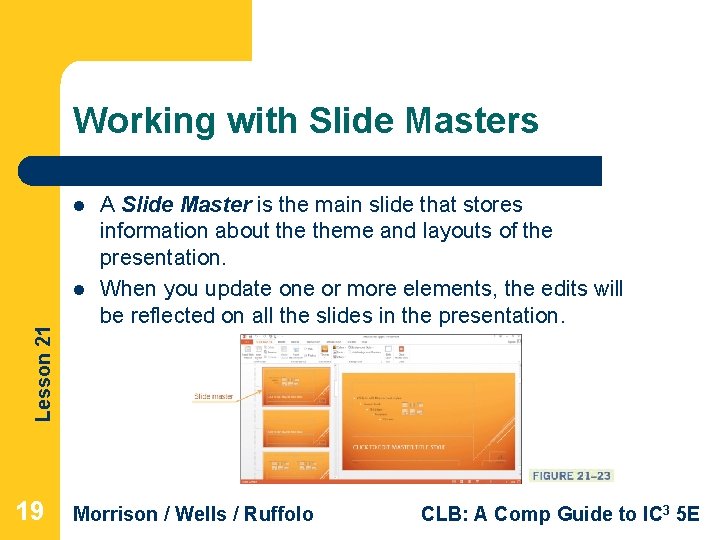
Working with Slide Masters l Lesson 21 l 19 A Slide Master is the main slide that stores information about theme and layouts of the presentation. When you update one or more elements, the edits will be reflected on all the slides in the presentation. Morrison / Wells / Ruffolo CLB: A Comp Guide to IC 3 5 E
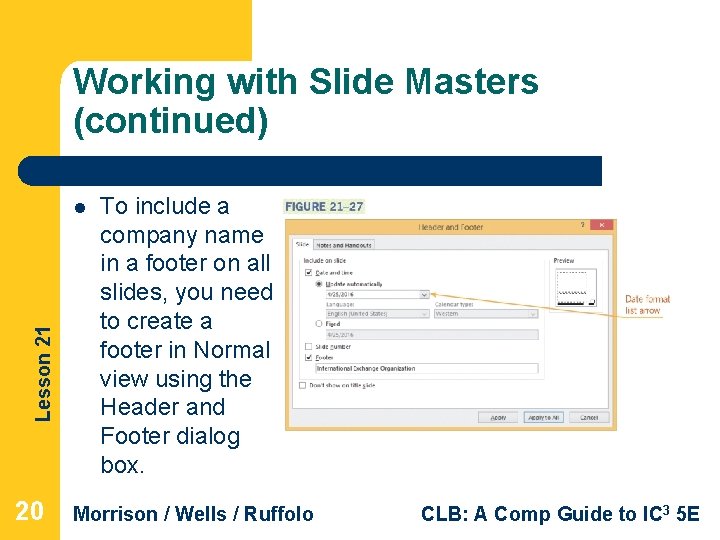
Working with Slide Masters (continued) Lesson 21 l 20 To include a company name in a footer on all slides, you need to create a footer in Normal view using the Header and Footer dialog box. Morrison / Wells / Ruffolo CLB: A Comp Guide to IC 3 5 E
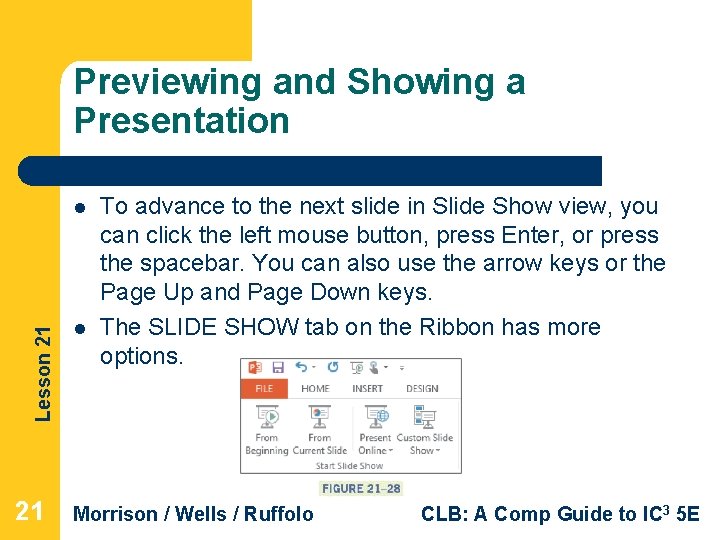
Previewing and Showing a Presentation Lesson 21 l To advance to the next slide in Slide Show view, you can click the left mouse button, press Enter, or press the spacebar. You can also use the arrow keys or the Page Up and Page Down keys. The SLIDE SHOW tab on the Ribbon has more options. Morrison / Wells / Ruffolo CLB: A Comp Guide to IC 3 5 E
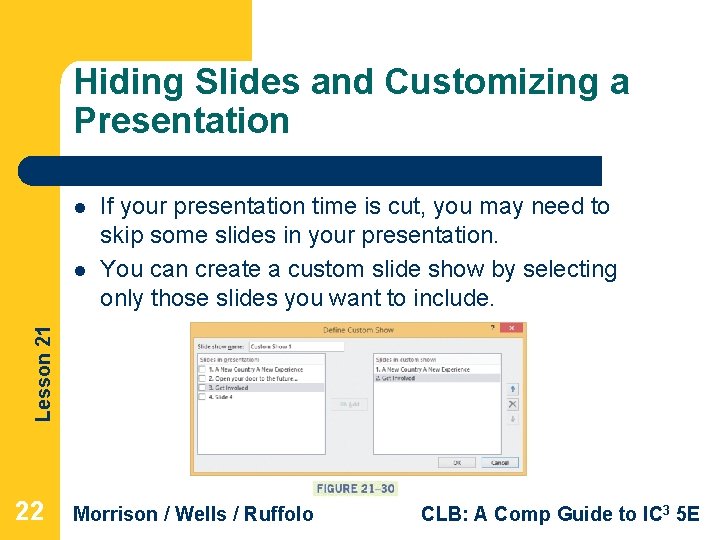
Hiding Slides and Customizing a Presentation l Lesson 21 l If your presentation time is cut, you may need to skip some slides in your presentation. You can create a custom slide show by selecting only those slides you want to include. 22 Morrison / Wells / Ruffolo CLB: A Comp Guide to IC 3 5 E
Summary In this lesson, you learned: Lesson 21 l 23 l In addition to using the Slides and Outline tabs to move to a different slide, you can use the scroll bar, mouse, or keyboard to navigate through a presentation in Normal view. You work in either Normal view or Slide Sorter view as you create and edit your presentation. You use Slide Show view when you present the show to an audience. Morrison / Wells / Ruffolo CLB: A Comp Guide to IC 3 5 E
Summary (continued) Lesson 21 l 24 l You can use the Cut, Copy, and Paste commands to delete, move, or copy slides in a presentation. You can also easily rearrange the order of slides using drag-and-drop editing. To create an effective presentation, the design features for layouts and formats should emphasize the content without overwhelming it. For example, use the same fonts for the same features in all slides for a consistent appearance, and limit the number of special features on a single slide. Morrison / Wells / Ruffolo CLB: A Comp Guide to IC 3 5 E
Summary (continued) Lesson 21 l 25 l The slide theme automatically formats slides with color schemes, font styles, and effects. A theme ensures that all slides in a presentation have a consistent look. You can apply a theme at any time without affecting the underlying content of the slides. You can change the slide layout even when the slide contains content, and you can modify the slide layout by resizing and repositioning the placeholders. Morrison / Wells / Ruffolo CLB: A Comp Guide to IC 3 5 E
Summary (continued) Lesson 21 l 26 l You can add elements such as a company logo to the Slide Master so the elements appear consistently on all slides. You can create a footer to display a company name or date on one or all slides in the presentation. In Slide Show view, the slides are displayed full screen, and you can move through the presentation using the mouse or keyboard. Morrison / Wells / Ruffolo CLB: A Comp Guide to IC 3 5 E
Summary (continued) l Lesson 21 l You can add annotations to slides and highlight text when showing slides in Slide Show view. You can create a custom slide show so that only designated slides are displayed in Slide Show view. 27 Morrison / Wells / Ruffolo CLB: A Comp Guide to IC 3 5 E