
Lesson 2 Working with Windows Programs Introducing Windows
- Slides: 23
Lesson 2: Working with Windows Programs
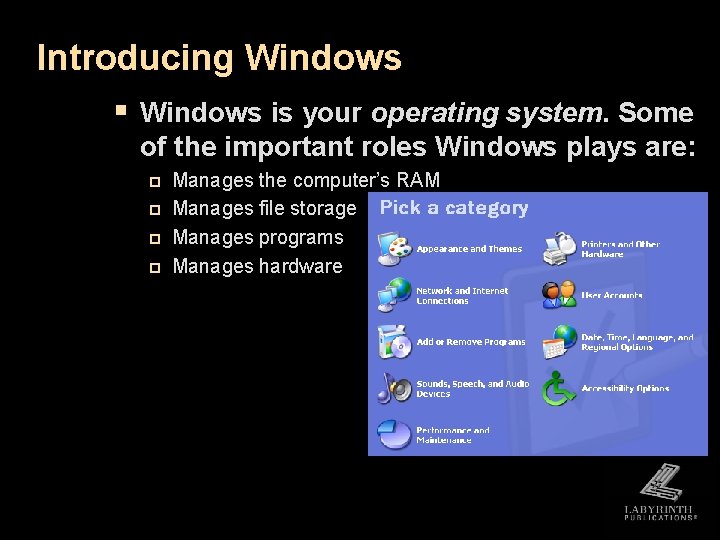
Introducing Windows § Windows is your operating system. Some of the important roles Windows plays are: p p Manages the computer’s RAM Manages file storage Manages programs Manages hardware
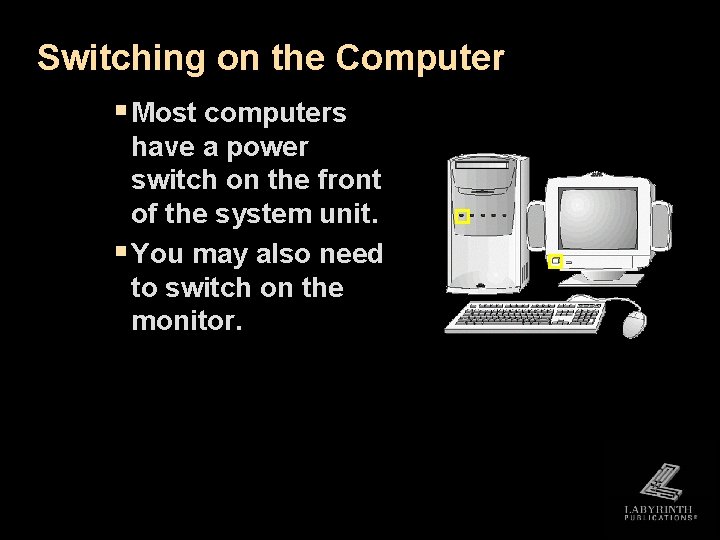
Switching on the Computer § Most computers have a power switch on the front of the system unit. § You may also need to switch on the monitor.
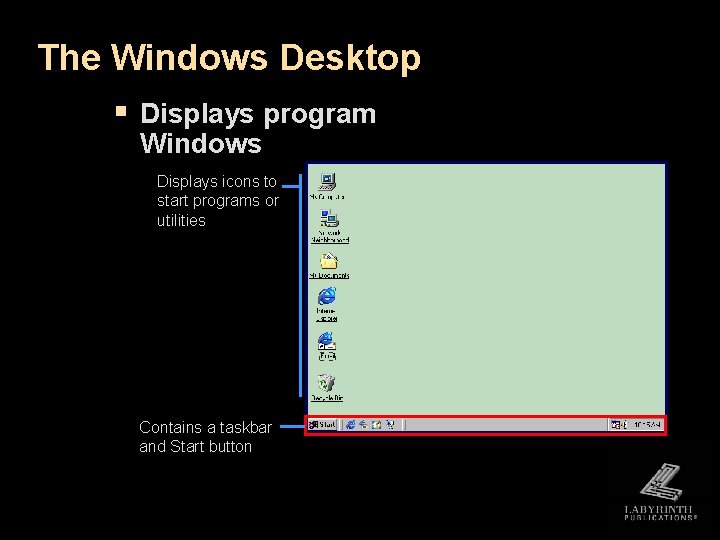
The Windows Desktop § Displays program Windows Displays icons to start programs or utilities Contains a taskbar and Start button
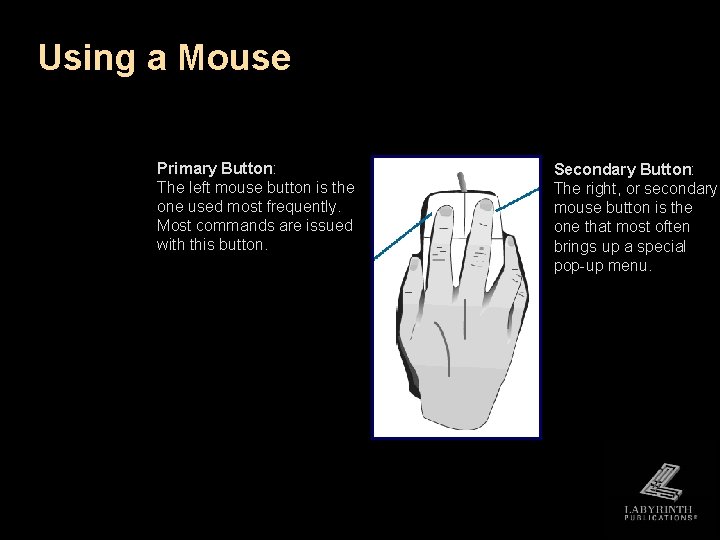
Using a Mouse Primary Button: The left mouse button is the one used most frequently. Most commands are issued with this button. Secondary Button: The right, or secondary mouse button is the one that most often brings up a special pop-up menu.
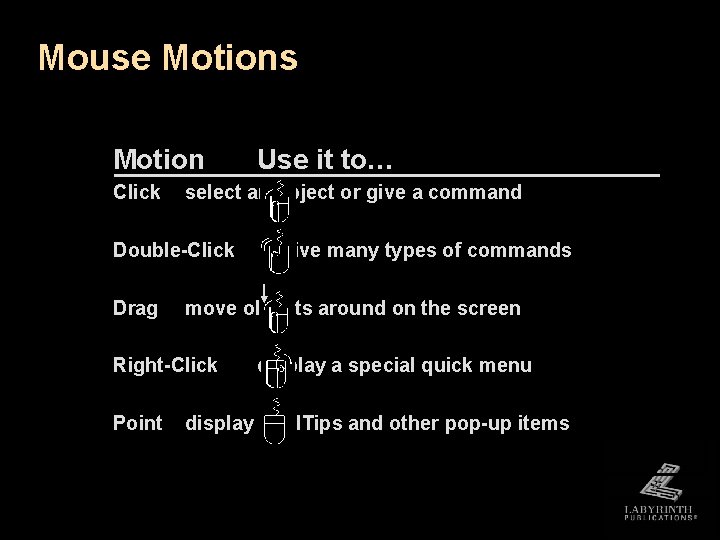
Mouse Motions Motion Click select an object or give a command Double-Click Drag to give many types of commands move objects around on the screen Right-Click Point Use it to… display a special quick menu display Tool. Tips and other pop-up items
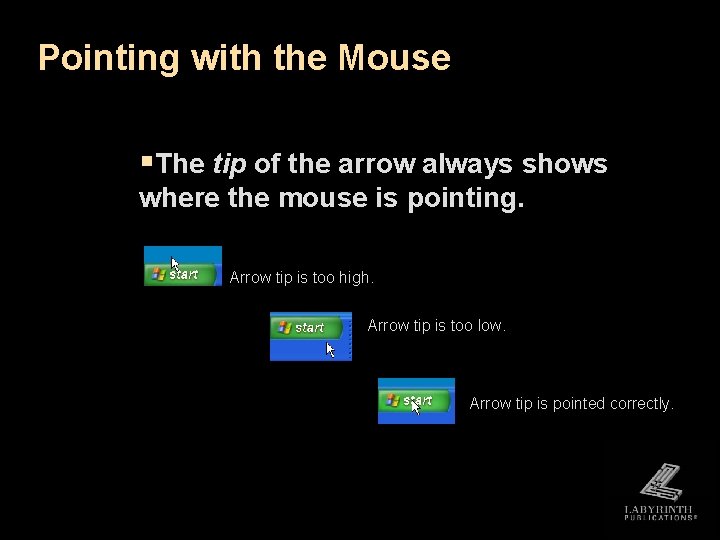
Pointing with the Mouse §The tip of the arrow always shows where the mouse is pointing. Arrow tip is too high. Arrow tip is too low. Arrow tip is pointed correctly.
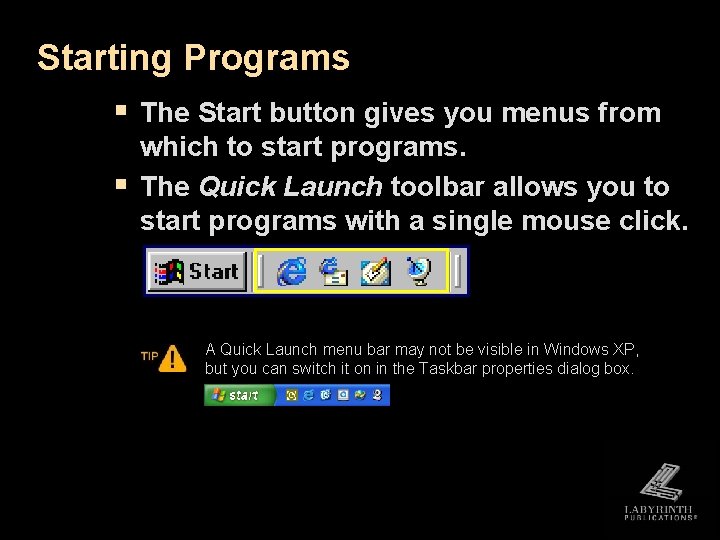
Starting Programs § The Start button gives you menus from § which to start programs. The Quick Launch toolbar allows you to start programs with a single mouse click. A Quick Launch menu bar may not be visible in Windows XP, but you can switch it on in the Taskbar properties dialog box.
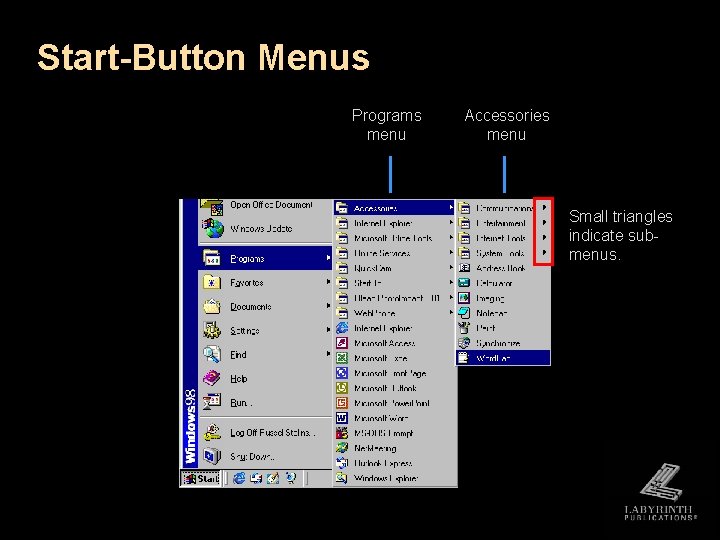
Start-Button Menus Programs menu Accessories menu Small triangles indicate submenus.
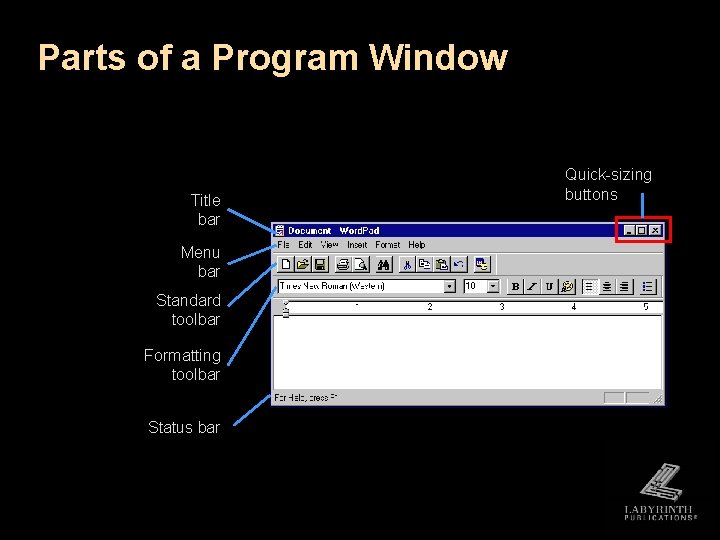
Parts of a Program Window Title bar Menu bar Standard toolbar Formatting toolbar Status bar Quick-sizing buttons
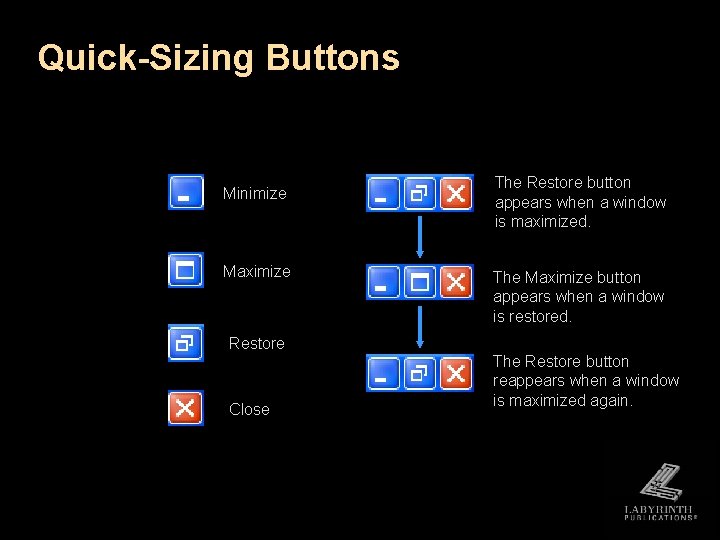
Quick-Sizing Buttons Minimize Maximize The Restore button appears when a window is maximized. The Maximize button appears when a window is restored. Restore Close The Restore button reappears when a window is maximized again.
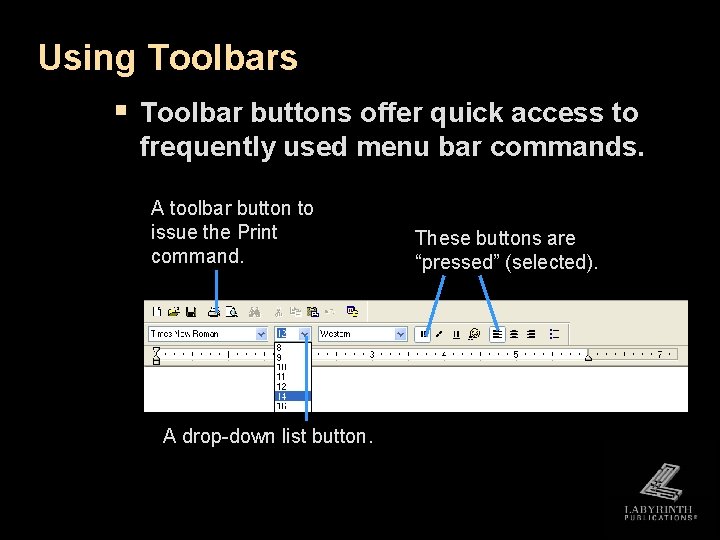
Using Toolbars § Toolbar buttons offer quick access to frequently used menu bar commands. A toolbar button to issue the Print command. A drop-down list button. These buttons are “pressed” (selected).
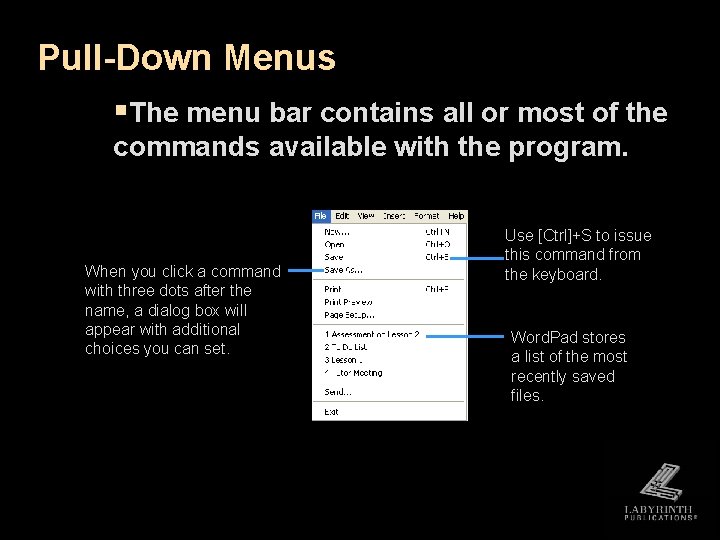
Pull-Down Menus §The menu bar contains all or most of the commands available with the program. When you click a command with three dots after the name, a dialog box will appear with additional choices you can set. Use [Ctrl]+S to issue this command from the keyboard. Word. Pad stores a list of the most recently saved files.
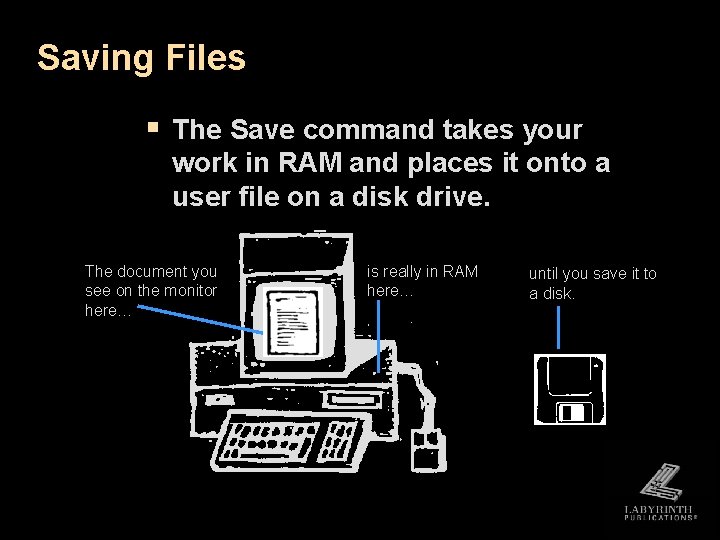
Saving Files § The Save command takes your work in RAM and places it onto a user file on a disk drive. The document you see on the monitor here… is really in RAM here… until you save it to a disk.
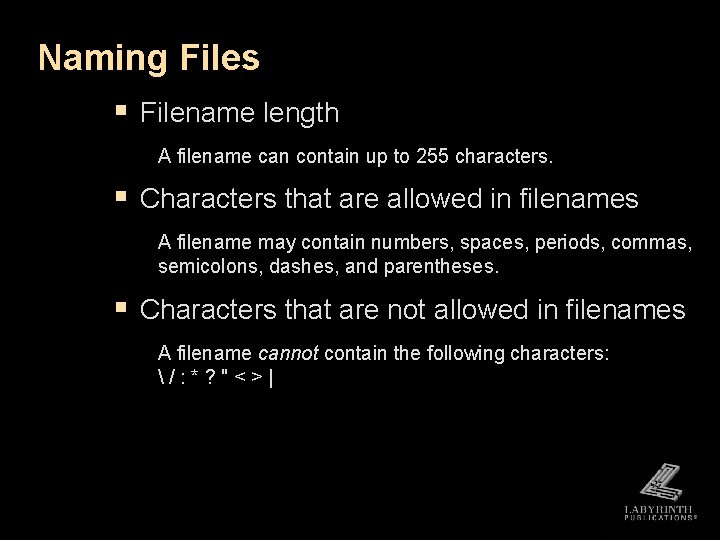
Naming Files § Filename length A filename can contain up to 255 characters. § Characters that are allowed in filenames A filename may contain numbers, spaces, periods, commas, semicolons, dashes, and parentheses. § Characters that are not allowed in filenames A filename cannot contain the following characters: /: *? "<>|
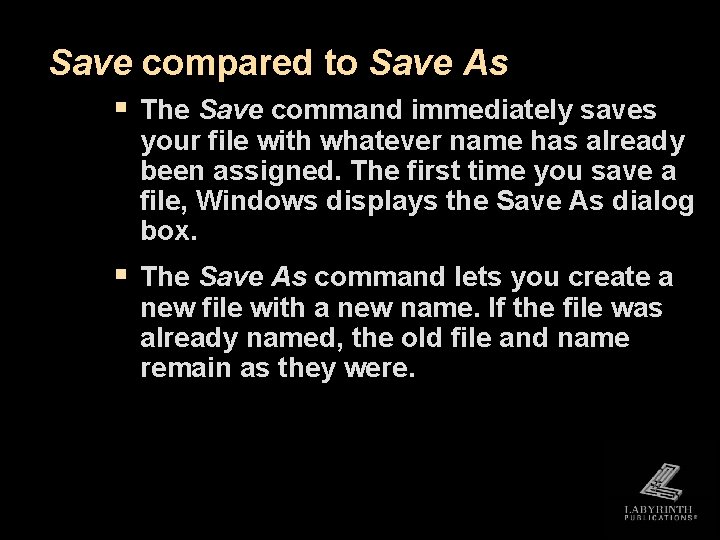
Save compared to Save As § The Save command immediately saves your file with whatever name has already been assigned. The first time you save a file, Windows displays the Save As dialog box. § The Save As command lets you create a new file with a new name. If the file was already named, the old file and name remain as they were.
Multitasking § The process of running more than one program at the same time § You can run as many programs as your computer has sufficient RAM to manage. § Advanced computer users often run several programs at once so that they can switch quickly without starting and restarting the programs each time they are needed.
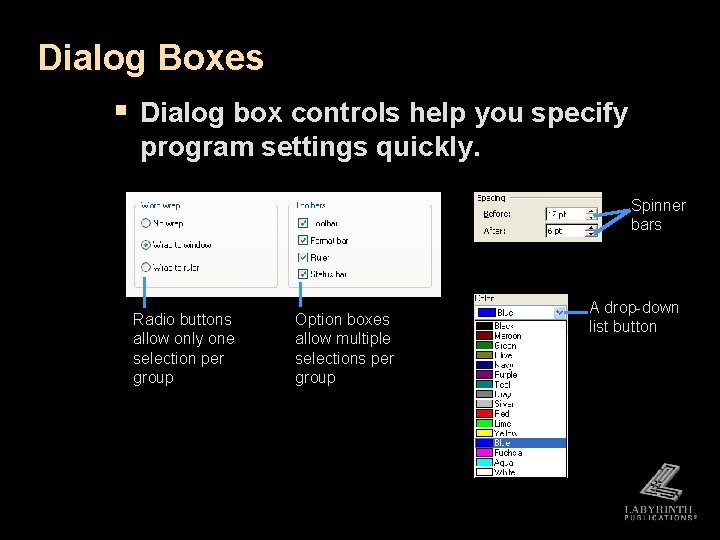
Dialog Boxes § Dialog box controls help you specify program settings quickly. Spinner bars Radio buttons allow only one selection per group Option boxes allow multiple selections per group A drop-down list button
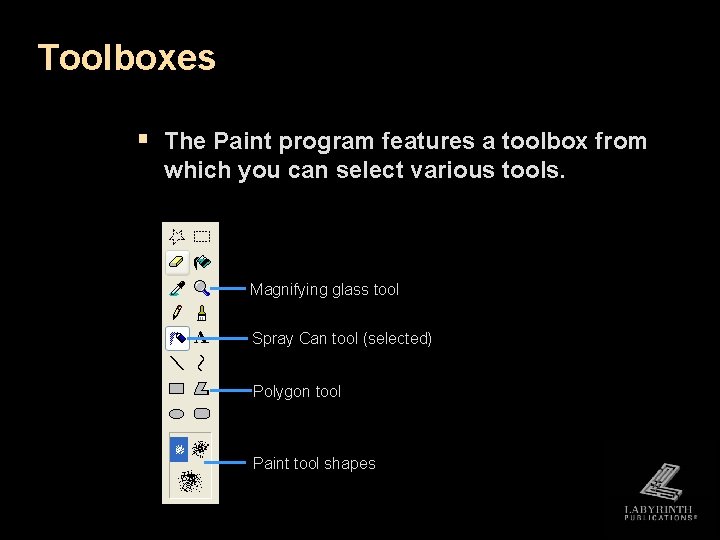
Toolboxes § The Paint program features a toolbox from which you can select various tools. Magnifying glass tool Spray Can tool (selected) Polygon tool Paint tool shapes
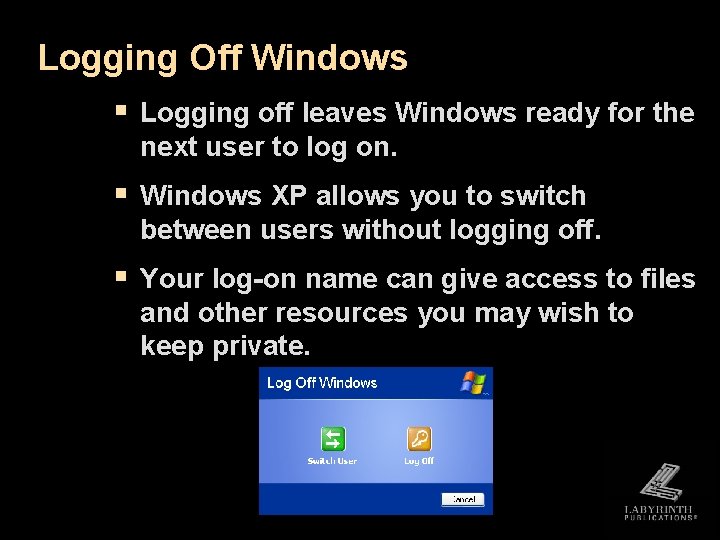
Logging Off Windows § Logging off leaves Windows ready for the next user to log on. § Windows XP allows you to switch between users without logging off. § Your log-on name can give access to files and other resources you may wish to keep private.
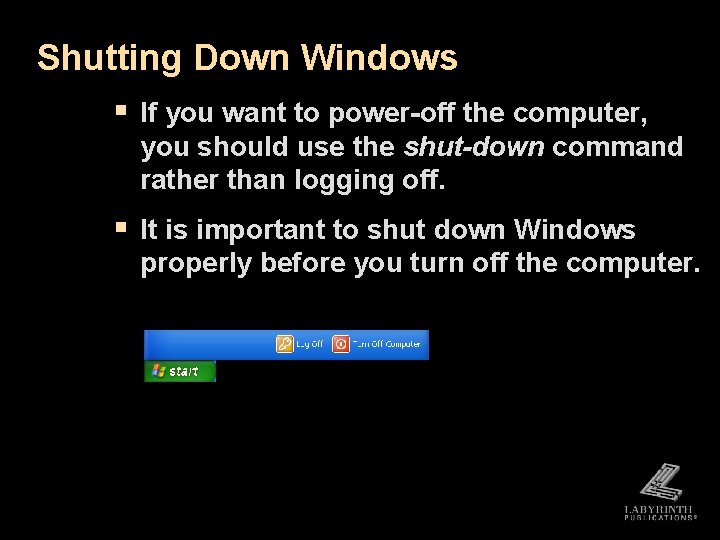
Shutting Down Windows § If you want to power-off the computer, you should use the shut-down command rather than logging off. § It is important to shut down Windows properly before you turn off the computer.
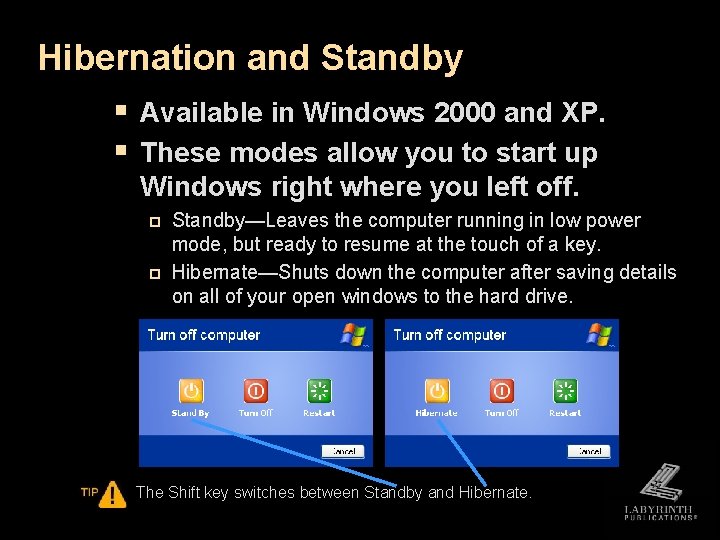
Hibernation and Standby § Available in Windows 2000 and XP. § These modes allow you to start up Windows right where you left off. p p Standby—Leaves the computer running in low power mode, but ready to resume at the touch of a key. Hibernate—Shuts down the computer after saving details on all of your open windows to the hard drive. The Shift key switches between Standby and Hibernate.
Lesson 2: Working with Windows Programs