
Lesson 14 Sharing Documents Computer Literacy BASICS A
Lesson 14 Sharing Documents Computer Literacy BASICS: A Comprehensive Guide to IC 3, 5 th Edition Morrison / Wells / Ruffolo
Objectives l Lesson 14 l l l 2 Track changes and add comments. Show and hide markup and accept and reject changes. Customize print settings and properties, and pause and cancel print jobs. Troubleshoot printing problems. Prepare documents for electronic distribution. Save documents in PDF or XPS format. Morrison / Wells / Ruffolo CLB: A Comp Guide to IC 3 5 E
Objectives (continued) l Lesson 14 l Share documents. Protect documents by restricting access, formatting, and edits. 3 Morrison / Wells / Ruffolo CLB: A Comp Guide to IC 3 5 E
Words to Know l l Lesson 14 l l l 4 blog case sensitive Cloud collating comment duplex printing encryption hard copy Morrison / Wells / Ruffolo l l l markup metadata Portable Document Format (PDF) print queue read-only document reverse printing CLB: A Comp Guide to IC 3 5 E
Words to Know (continued) l l Lesson 14 l Sky. Drive soft copy XML Paper Specification (XPS) 5 Morrison / Wells / Ruffolo CLB: A Comp Guide to IC 3 5 E
Revising Documents l Lesson 14 l 6 l Tracking changes with revision marks makes it easy to find and identify the source of the edits. Adding comments is another feature that allows reviewers to provide feedback. The revision marks and annotations that appear in a document are referred to as markup. Morrison / Wells / Ruffolo CLB: A Comp Guide to IC 3 5 E

Revising Documents (continued) l Lesson 14 l Tracking Changes When the Track Changes feature is toggled on, all insertions, deletions, and format changes are indicated with revision marks. 7 Morrison / Wells / Ruffolo CLB: A Comp Guide to IC 3 5 E
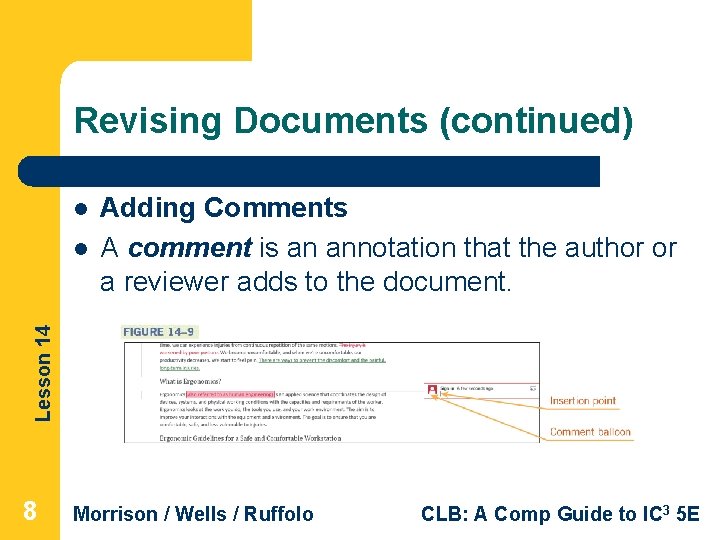
Revising Documents (continued) l Lesson 14 l Adding Comments A comment is an annotation that the author or a reviewer adds to the document. 8 Morrison / Wells / Ruffolo CLB: A Comp Guide to IC 3 5 E
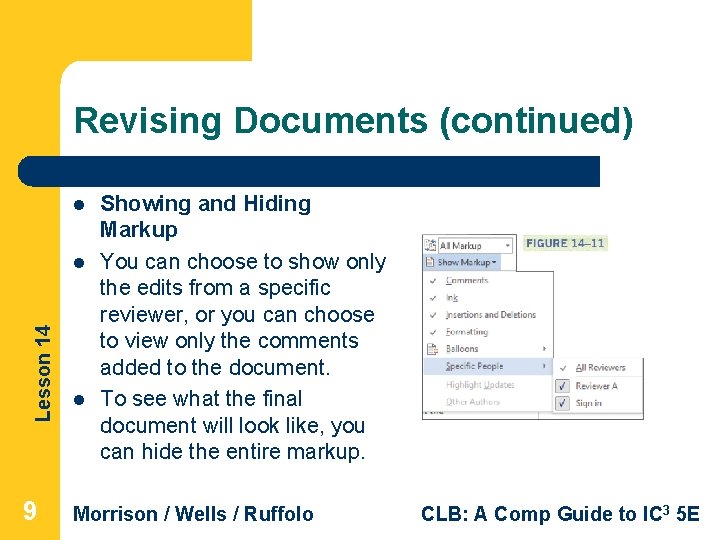
Revising Documents (continued) l Lesson 14 l 9 l Showing and Hiding Markup You can choose to show only the edits from a specific reviewer, or you can choose to view only the comments added to the document. To see what the final document will look like, you can hide the entire markup. Morrison / Wells / Ruffolo CLB: A Comp Guide to IC 3 5 E

Revising Documents (continued) l Lesson 14 l 10 l l Accepting and Rejecting Changes and Responding to Comments An edited document is usually passed on to another person to make a decision about the revisions and comments. That person can decide whether to accept or reject the changes. When edits are complete, you can apply a Marked as Final status, and the file becomes a read-only document. Morrison / Wells / Ruffolo CLB: A Comp Guide to IC 3 5 E
Preparing a Document for Printing l Lesson 14 l 11 l After the document is finalized, you can prepare a hard copy—a printed copy—of the document to share the information. Your system may have two or more printers available, including inkjet printers, laser printers, and fax programs. The benefit of having more than one printer to choose from is that different printers offer different features. Morrison / Wells / Ruffolo CLB: A Comp Guide to IC 3 5 E
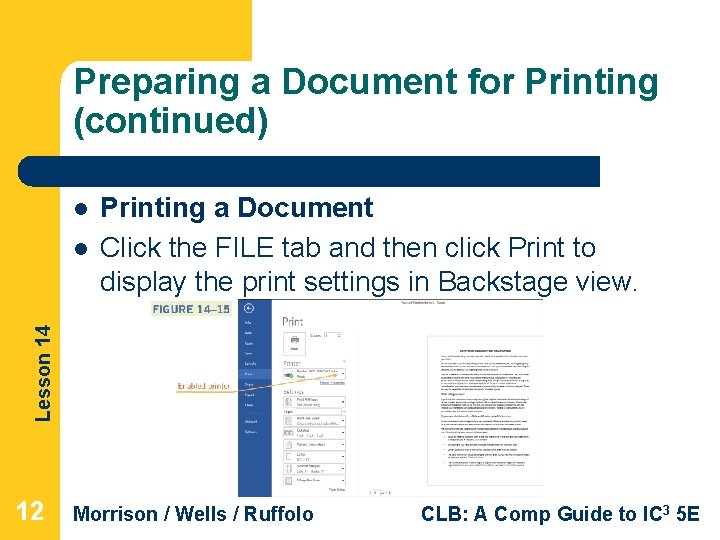
Preparing a Document for Printing (continued) l Lesson 14 l Printing a Document Click the FILE tab and then click Print to display the print settings in Backstage view. 12 Morrison / Wells / Ruffolo CLB: A Comp Guide to IC 3 5 E
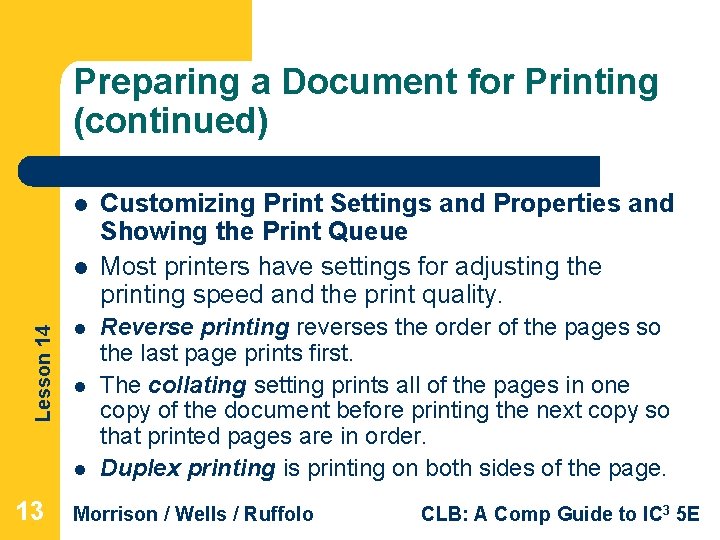
Preparing a Document for Printing (continued) l Lesson 14 l l 13 Customizing Print Settings and Properties and Showing the Print Queue Most printers have settings for adjusting the printing speed and the print quality. Reverse printing reverses the order of the pages so the last page prints first. The collating setting prints all of the pages in one copy of the document before printing the next copy so that printed pages are in order. Duplex printing is printing on both sides of the page. Morrison / Wells / Ruffolo CLB: A Comp Guide to IC 3 5 E
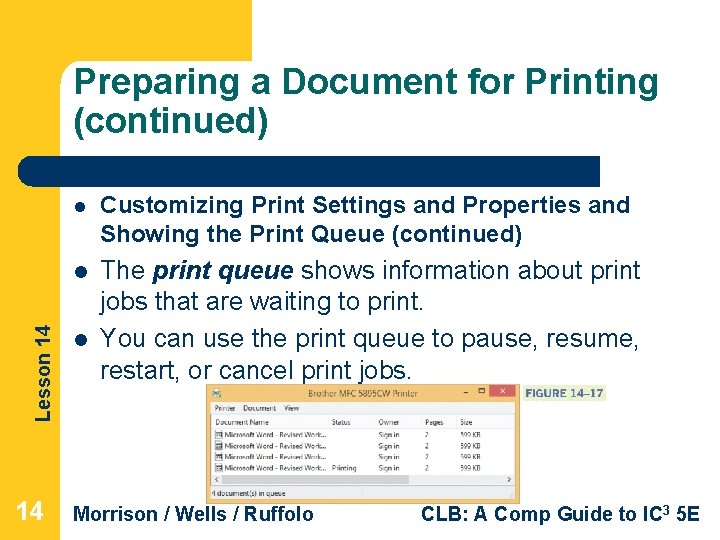
Lesson 14 Preparing a Document for Printing (continued) 14 l Customizing Print Settings and Properties and Showing the Print Queue (continued) l The print queue shows information about print jobs that are waiting to print. You can use the print queue to pause, resume, restart, or cancel print jobs. l Morrison / Wells / Ruffolo CLB: A Comp Guide to IC 3 5 E
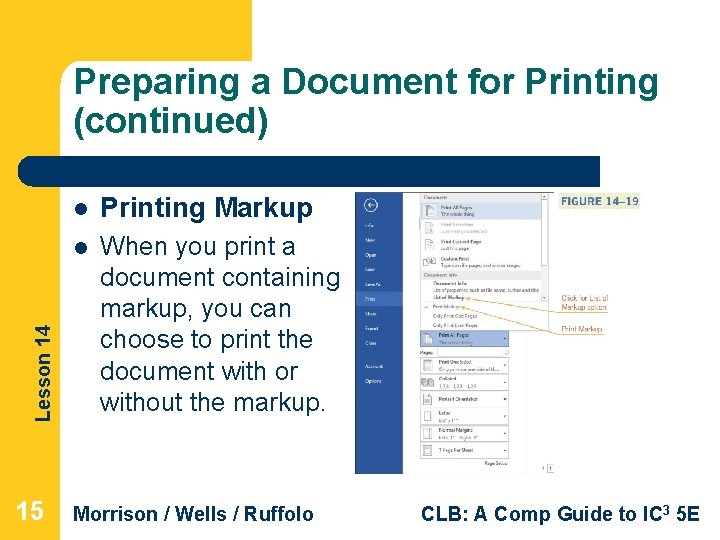
Lesson 14 Preparing a Document for Printing (continued) 15 l Printing Markup l When you print a document containing markup, you can choose to print the document with or without the markup. Morrison / Wells / Ruffolo CLB: A Comp Guide to IC 3 5 E
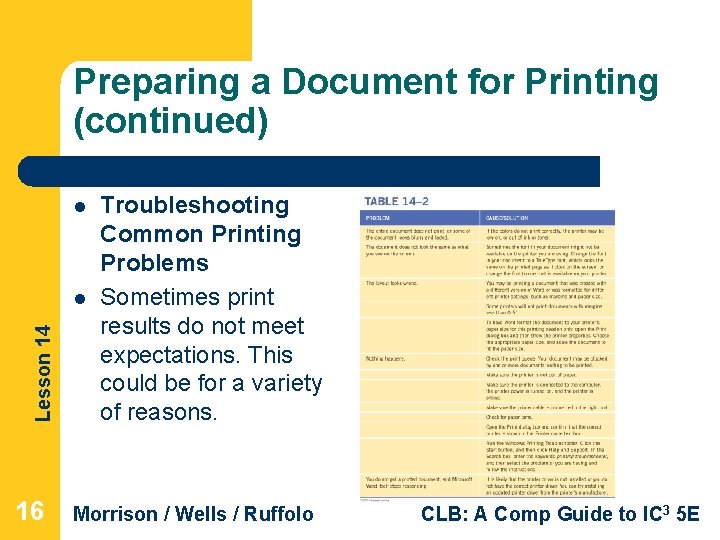
Preparing a Document for Printing (continued) l Lesson 14 l 16 Troubleshooting Common Printing Problems Sometimes print results do not meet expectations. This could be for a variety of reasons. Morrison / Wells / Ruffolo CLB: A Comp Guide to IC 3 5 E
Sharing Documents l Lesson 14 l 17 l The majority of the information we work with is now generated by e-mail and electronic files. Instead of producing a hard copy of a document, it is now common practice to share a soft copy. A soft copy is a digital copy of data, such as a file viewed on a computer’s display or shared via an e-mail attachment. Morrison / Wells / Ruffolo CLB: A Comp Guide to IC 3 5 E
Sharing Documents (continued) l Lesson 14 l 18 l l Preparing Documents for Electronic Distribution You may want to control what others can see in the document. For example, you may not want them to see the author of the document or the date the document was created. Information like this is referred to as metadata— data that describes other data. Morrison / Wells / Ruffolo CLB: A Comp Guide to IC 3 5 E
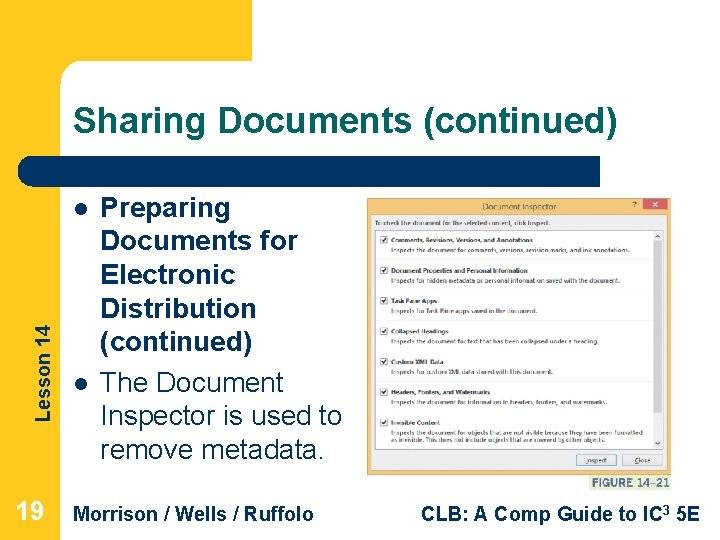
Sharing Documents (continued) Lesson 14 l 19 l Preparing Documents for Electronic Distribution (continued) The Document Inspector is used to remove metadata. Morrison / Wells / Ruffolo CLB: A Comp Guide to IC 3 5 E
Sharing Documents (continued) l Lesson 14 l 20 l l Saving the Document in a PDF or XPS Format Before distributing the soft copy of a document, you may need to save it in a format that enables those working with different applications, platforms, and operating systems to access the file. The Portable Document Format (PDF), created by Adobe Systems in 1993, is commonly used. To open files in PDF format, Adobe Reader software must be installed on the computer. Morrison / Wells / Ruffolo CLB: A Comp Guide to IC 3 5 E
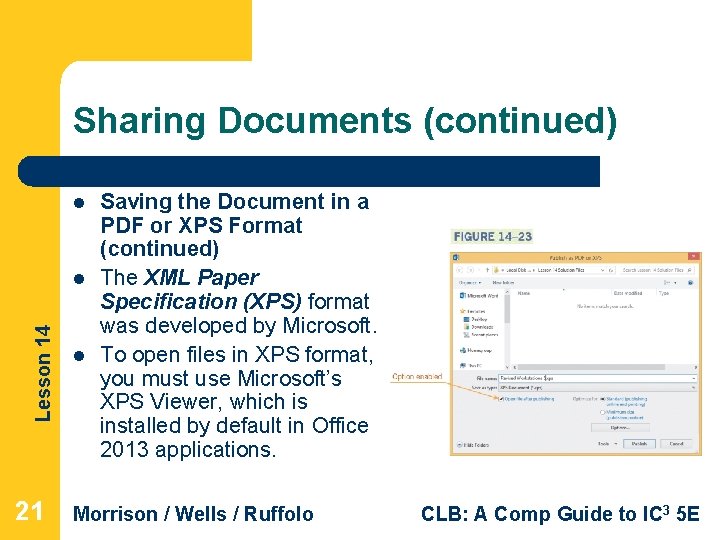
Sharing Documents (continued) l Lesson 14 l 21 l Saving the Document in a PDF or XPS Format (continued) The XML Paper Specification (XPS) format was developed by Microsoft. To open files in XPS format, you must use Microsoft’s XPS Viewer, which is installed by default in Office 2013 applications. Morrison / Wells / Ruffolo CLB: A Comp Guide to IC 3 5 E
Sharing Documents (continued) l Lesson 14 l 22 l l Open and Edit a PDF Document in Word You can open a PDF file in Word and edit the contents. When Word converts the PDF file, the results may not look exactly like the original PDF document. After editing the contents, you can re-save the file in PDF format by using the Export command. Morrison / Wells / Ruffolo CLB: A Comp Guide to IC 3 5 E
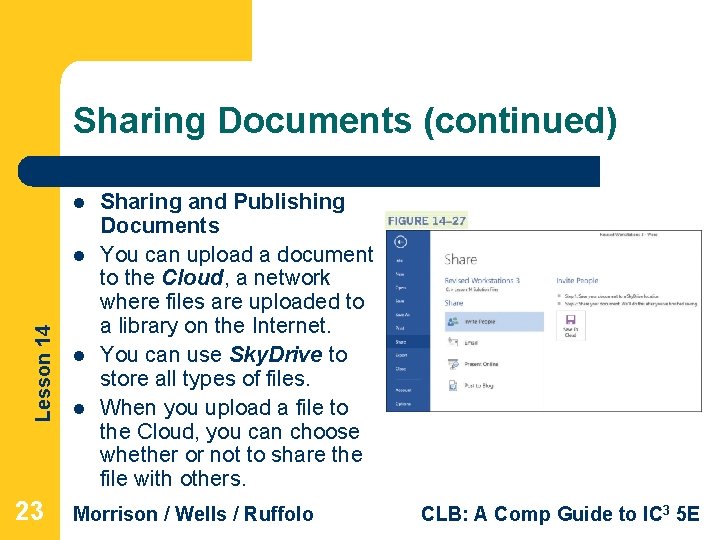
Sharing Documents (continued) l Lesson 14 l 23 l l Sharing and Publishing Documents You can upload a document to the Cloud, a network where files are uploaded to a library on the Internet. You can use Sky. Drive to store all types of files. When you upload a file to the Cloud, you can choose whether or not to share the file with others. Morrison / Wells / Ruffolo CLB: A Comp Guide to IC 3 5 E
Sharing Documents (continued) l Lesson 14 l 24 l Sharing and Publishing Documents (continued) You can e-mail the file, create a link to the file in a text message, post the file on a social network or a Web page, or publish the file to a blog. If you have a fax service provider, you can send the document as an Internet fax without using a fax machine. Morrison / Wells / Ruffolo CLB: A Comp Guide to IC 3 5 E
Protecting Documents l Lesson 14 l 25 l l If a document contains important or confidential information, you need secure ways to share the information. Restricting Access Encryption, a standard method for encoding data, is the most secure option and creates a password all users must enter to open the document. To permit some users to modify the encrypted document, you create a second password to allow them to edit and save changes to the document. Morrison / Wells / Ruffolo CLB: A Comp Guide to IC 3 5 E
Protecting Documents (continued) l Lesson 14 l 26 l Restricting Access (continued) Passwords should include a combination of text, numbers, and symbols, and be at least eight characters in length. Passwords are case sensitive, which means when entering a password, the upper- and lowercasing of the letters must be identical to the casing of the letters in the assigned password. Morrison / Wells / Ruffolo CLB: A Comp Guide to IC 3 5 E
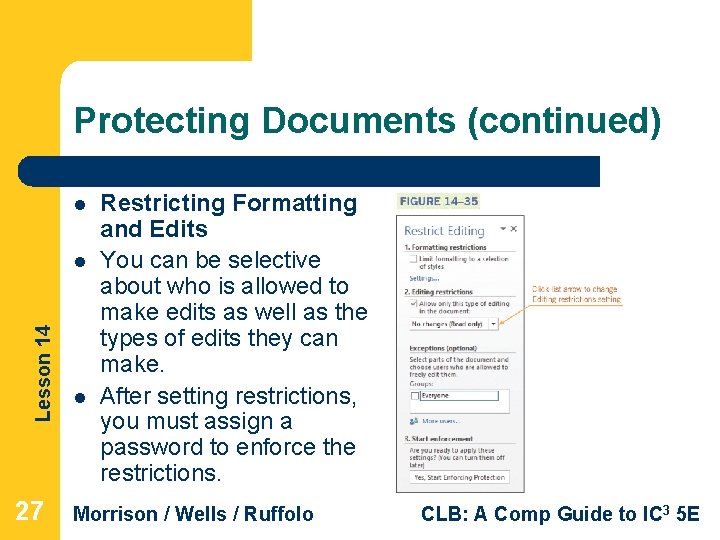
Protecting Documents (continued) l Lesson 14 l 27 l Restricting Formatting and Edits You can be selective about who is allowed to make edits as well as the types of edits they can make. After setting restrictions, you must assign a password to enforce the restrictions. Morrison / Wells / Ruffolo CLB: A Comp Guide to IC 3 5 E
Summary In this lesson, you learned: Lesson 14 l 28 l l Tracking changes with revision marks makes it easy to identify who made the changes and when the changes were made. You can choose the markup that you want to appear on the screen and when the document is printed. Revisions can be accepted or rejected, marked as done, or easily removed from the document. Morrison / Wells / Ruffolo CLB: A Comp Guide to IC 3 5 E
Summary (continued) l l Lesson 14 l 29 l Printers provide a variety of settings and options for managing print jobs. You can view, pause, and cancel print jobs. There are numerous issues to consider when troubleshooting printing problems. When preparing documents for electronic distribution, you must choose an appropriate format and you may want to remove metadata. Morrison / Wells / Ruffolo CLB: A Comp Guide to IC 3 5 E
Summary (continued) l Lesson 14 l Word provides several options for sharing documents. You can protect documents by restricting access, and by restricting formatting and editing. 30 Morrison / Wells / Ruffolo CLB: A Comp Guide to IC 3 5 E
- Slides: 30