
Lesson 11 Exploring Microsoft Office 2013 Computer Literacy




- Slides: 37
Lesson 11 Exploring Microsoft Office 2013 Computer Literacy BASICS: A Comprehensive Guide to IC 3, 5 th Edition Morrison / Wells / Ruffolo
Objectives l l Lesson 11 l l 2 Start Microsoft Office 2013 applications. Switch between application windows. Close applications. Navigate and identify the common elements in application windows. Identify the elements in the new Office 2013 user interface. Customize the Quick Access Toolbar. Morrison / Wells / Ruffolo CLB: A Comp Guide to IC 3 5 E
Objectives (continued) l Lesson 11 l Open, save, and close documents. Use online Help features. 3 Morrison / Wells / Ruffolo CLB: A Comp Guide to IC 3 5 E
Words to Know l l Lesson 11 l l l 4 application window Backstage view cursor document window file compatibility file extension folder Morrison / Wells / Ruffolo l l l l I-beam insertion point Jump List minimized open path Ribbon save CLB: A Comp Guide to IC 3 5 E
Words to Know (continued) l l Lesson 11 l 5 l l l Screen. Tip scroll shortcut menu subfolders template Morrison / Wells / Ruffolo CLB: A Comp Guide to IC 3 5 E
Starting and Closing Applications Lesson 11 Microsoft Office 2013 is an integrated software package that enables you to share information between several applications. 6 Morrison / Wells / Ruffolo CLB: A Comp Guide to IC 3 5 E
Starting and Closing Applications (continued) Lesson 11 l Starting Applications and Switching Between Applications (continued) When you select an application, you can choose to open an existing file or a template, or you can create a new file. 7 Morrison / Wells / Ruffolo CLB: A Comp Guide to IC 3 5 E
Starting and Closing Applications (continued) Starting Applications and Switching Between Applications (continued) l The application window serves as the primary interface Lesson 11 between the user and the application. 8 Morrison / Wells / Ruffolo CLB: A Comp Guide to IC 3 5 E
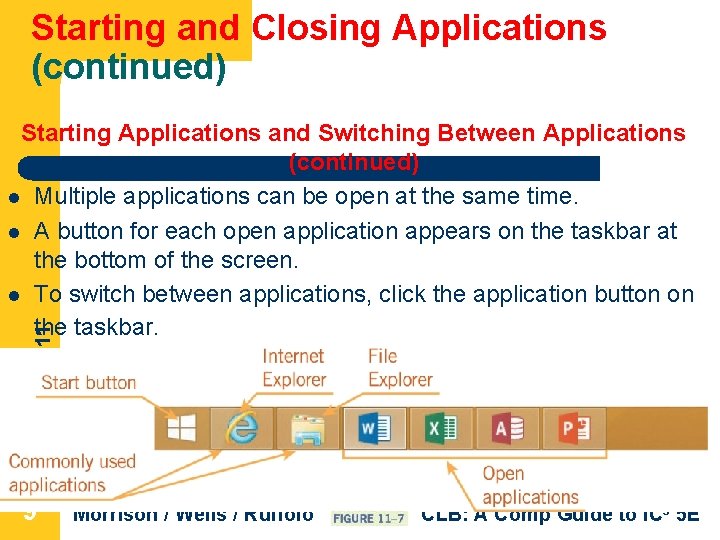
Starting and Closing Applications (continued) Lesson 11 Starting Applications and Switching Between Applications (continued) l Multiple applications can be open at the same time. l A button for each open application appears on the taskbar at the bottom of the screen. l To switch between applications, click the application button on the taskbar. 9 Morrison / Wells / Ruffolo CLB: A Comp Guide to IC 3 5 E
Starting and Closing Applications (continued) Lesson 11 Starting Applications and Switching Between Applications (continued) l You can view multiple application windows at the same time by right-clicking the taskbar and selecting a display option from the shortcut menu, such as Cascade windows. 10 Morrison / Wells / Ruffolo CLB: A Comp Guide to IC 3 5 E
Starting and Closing Applications (continued) Lesson 11 l Exiting Applications To close a file - click the Close button in the upper-right corner of the screen; or click the application button in the upper-left corner of the screen, and then in the menu, click Close. If only one document is open, the file will close and the application will also close. Morrison / Wells / Ruffolo CLB: A Comp Guide to IC 3 5 E
Navigating Application Windows The application window includes many of the elements of all Windows screens, including the title bar, scroll bars, and the status bar. Lesson 11 l 12 Morrison / Wells / Ruffolo CLB: A Comp Guide to IC 3 5 E
Using the Office User Interface Using the Office Ribbon l Lesson 11 l The Ribbon is the blue banner that stretches across the top of the screen, just below the title bar. The Ribbon makes it easy to find commands because related commands and options are organized in groups on each tab. 13 Morrison / Wells / Ruffolo CLB: A Comp Guide to IC 3 5 E
Using the Office User Interface Lesson 11 (continued) 14 l Using the Office Ribbon (continued) l If you do not know the function of a button, position the mouse pointer over the button, but do not click. In a second or two, the name and description of the command are displayed in a window called a Screen. Tip. l Morrison / Wells / Ruffolo CLB: A Comp Guide to IC 3 5 E
Using the Office User Interface (continued) Customizing the Quick Access Toolbar Lesson 11 l 15 The Quick Access Toolbar is positioned above the Ribbon in the upper-left corner of the application window and makes it easy to access commands you use frequently. Morrison / Wells / Ruffolo CLB: A Comp Guide to IC 3 5 E
Using the Office User Interface (continued) Customizing the Quick Access Toolbar (continued) Lesson 11 l 16 You can customize the toolbar to include the commands you use most often. Morrison / Wells / Ruffolo CLB: A Comp Guide to IC 3 5 E
Opening, Saving, and Closing Documents l Lesson 11 l 17 l l You use similar steps to open and save documents in all Office applications. To open a document means to load a file into an application. A file is a collection of information saved as a unit and identified by a filename. The terms document and file are used interchangeably. Morrison / Wells / Ruffolo CLB: A Comp Guide to IC 3 5 E
Opening, Saving, and Closing Documents (continued) Lesson 11 l 18 l l Opening a Document The Open command in Backstage view, which is accessed using the FILE tab, enables you to open a file from any available disk and folder. You can also open a document by navigating to the document on the desktop, or by using File Explorer and double-clicking on the filename. Your computer will start the associated application and open the file. Morrison / Wells / Ruffolo CLB: A Comp Guide to IC 3 5 E
Opening, Saving, and Closing Documents (continued) Opening a Document (continued) l Lesson 11 l 19 l A file extension - identifies the type of file and the application that created it. A period separates the filename and the three to four characters of the extension. For example: Word -. docx Power. Point -. pptx Excel -. xlsx Morrison / Wells / Ruffolo CLB: A Comp Guide to IC 3 5 E
Opening, Saving, and Closing Documents (continued) Lesson 11 l 20 l Opening a Document (continued) The x in the extension indicates the XML format. Documents created in Office versions prior to Office 2007 can be quickly identified because they do not include the x in the file extension : . doc, . ppt, and. xls. Morrison / Wells / Ruffolo CLB: A Comp Guide to IC 3 5 E
Opening, Saving, and Closing Documents (continued) l Opening a Document (continued) A folder is a means for organizing files into manageable groups Lesson 11 – 21 l l All computer files are saved in folders. Subfolders, which are folders within folders, can also be created. The path is the route the operating system uses to locate a document. Morrison / Wells / Ruffolo CLB: A Comp Guide to IC 3 5 E
Opening, Saving, and Closing Documents (continued) Opening a Document (continued) The path indicates the disk and any folders relative to the location of the document. Lesson 11 l 22 Morrison / Wells / Ruffolo CLB: A Comp Guide to IC 3 5 E
Opening, Saving, and Closing Documents (continued) Opening a Document (continued) l Lesson 11 l 23 l You can open multiple documents within each application. When multiple documents are open within one application, the taskbar displays the documents stacked behind the application button. When you right-click the application on the taskbar, a Jump List is displayed above the button. Morrison / Wells / Ruffolo CLB: A Comp Guide to IC 3 5 E
Opening, Saving, and Closing Documents (continued) Opening a Document (continued) l Lesson 11 l 24 Jump List - a collection of links that provides quick access to files and data. The links displayed in a Jump List vary depending on the application. Morrison / Wells / Ruffolo CLB: A Comp Guide to IC 3 5 E
Opening, Saving, and Closing Documents (continued) l l Solving Problems with Opening Documents File compatibility refers to the ability to open and work with files without a format conflict. Lesson 11 – 25 – Files created in an older version of an application can usually be opened with a newer version. Files created in a newer version may not be backwards compatible, meaning they cannot be opened by the older version. Morrison / Wells / Ruffolo CLB: A Comp Guide to IC 3 5 E
Opening, Saving, and Closing Documents (continued) Solving Problems with Opening Documents (continued) Files created in one operating system (such as Macintosh) may not open in another operating system (such as Windows). – Files created by one application (such as Access) will not open in another application (such as Word). Lesson 11 – 26 Morrison / Wells / Ruffolo CLB: A Comp Guide to IC 3 5 E
Opening, Saving, and Closing Documents (continued) Solving Problems with Opening Documents (continued) Lesson 11 l 27 When you use the Open command from the FILE tab, if you do not see the file you are looking for, you should take the following actions: – Verify the document was saved before it was closed. – Verify you are looking at the correct disk and folder. – If you are unsure of the location, you can use the Search command to find the file. Morrison / Wells / Ruffolo CLB: A Comp Guide to IC 3 5 E
Opening, Saving, and Closing Documents (continued) Solving Problems with Opening Documents (continued) Lesson 11 l 28 If a file will not open, it may be corrupted. – You may see an error message as you try to open the file. – A virus may be stopping you from opening the file. – Try to open the file on a different computer to verify the file is corrupted and it is not a problem with your computer. Morrison / Wells / Ruffolo CLB: A Comp Guide to IC 3 5 E
Saving a Document l Lesson 11 l 29 l To save a document means to store it on a disk or other storage medium. To make it easier to find documents, choose filenames with words that help describe the document. When you click the Save button on the Quick Access Toolbar, the document is saved with the same filename and in the same location. Morrison / Wells / Ruffolo CLB: A Comp Guide to IC 3 5 E
Saving a Document (continued) When you use the Save As command, you have the opportunity to change the document filename, location, and format. Lesson 11 l 30 Morrison / Wells / Ruffolo CLB: A Comp Guide to IC 3 5 E
Saving a Document (continued) l There are several options for closing a document: Lesson 11 – 31 – – In Backstage view, you can access the Close command, which will close the active document. You can also close a document by clicking the Close button on the document thumbnail. With either method, when you close the last open document, the application closes, too. Morrison / Wells / Ruffolo CLB: A Comp Guide to IC 3 5 E
Getting Help l Lesson 11 l 32 l l Whenever you encounter a problem, your first source of help should be the Help features in each Office application. The Help button looks like a question mark. Navigating the Help screens is much like navigating a Web page, and you can also type keywords in the Search box. If your computer is connected to the Internet, you will also have access to all the current Help information available from the Microsoft Office. com Web site. Morrison / Wells / Ruffolo CLB: A Comp Guide to IC 3 5 E
Lesson 11 Getting Help (continued) 33 l At the Office. com Web site, you will find a variety of resources including tours, slide shows, tutorials, training videos, articles, product user groups, blogs, and the opportunity to chat online with Microsoft support personnel. l Other sources for help include assistance from others such as classmates, instructors, coworkers, and help desks. Morrison / Wells / Ruffolo CLB: A Comp Guide to IC 3 5 E
Lesson 11 Summary 34 In this lesson, you learned: l You can start an Office application by clicking the Start screen, using a shortcut button on the desktop, or opening a file through File Explorer. l Common elements found in Office application windows include the taskbar, title bar, scroll bars, and status bar. l You can maximize the space for the document window by minimizing the Ribbon. Morrison / Wells / Ruffolo CLB: A Comp Guide to IC 3 5 E
Summary (continued) l Lesson 11 l 35 l You can customize the Quick Access Toolbar by adding or removing command buttons. Backstage view provides quick access to common tasks for managing documents, such as opening, closing, saving, and printing. The Open dialog box enables you to open a file from any available disk and folder. Morrison / Wells / Ruffolo CLB: A Comp Guide to IC 3 5 E
Summary (continued) Lesson 11 l 36 l Problems opening files can involve corrupted data or file compatibility issues, such as trying to open a file in a different application, in an earlier version of an application, or in an operating system other than that used to create it. When saving a document, you can choose the location where the files will be saved, assign a new filename, and choose a file format. Morrison / Wells / Ruffolo CLB: A Comp Guide to IC 3 5 E
Summary (continued) Lesson 11 l 37 l There are multiple ways to close a document and an application. Sometimes, when only one document is open in an application, the application closes when you close the document. Several sources of help are available including application Help features, assistance from others, books and manuals, and online support. Morrison / Wells / Ruffolo CLB: A Comp Guide to IC 3 5 E