
Lesson 1 Introduction 1 Training Objectives u At
Lesson 1 - Introduction 1
Training Objectives u At the Conclusion of this Lesson, You Will Be Able To: n n 2 Describe how cardholder responsibilities contribute to the Purchase Card Management workflow. State the consequences of misuse of the card. List proper and improper use of Purchase Cards and Convenience Checks. Identify where self-help information is located.
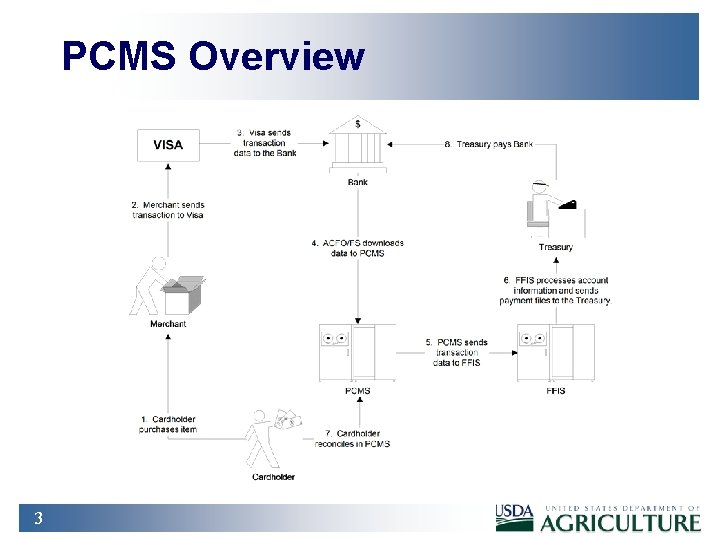
PCMS Overview 3
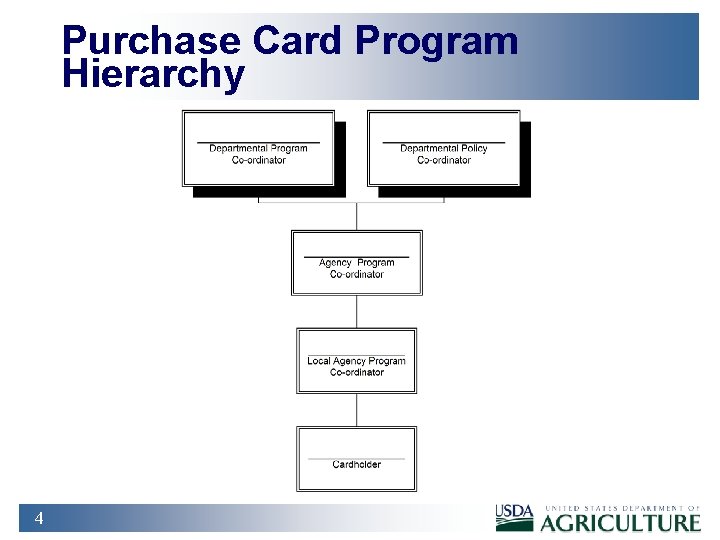
Purchase Card Program Hierarchy 4
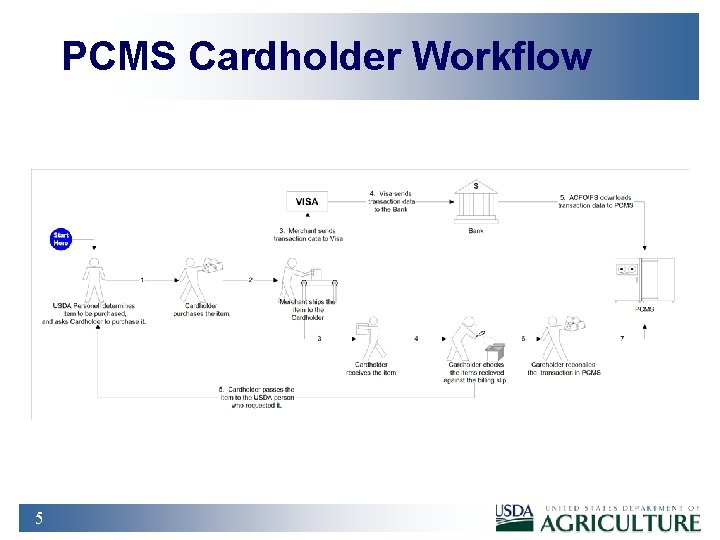
PCMS Cardholder Workflow 5
Do’s u Purchases - Official Purposes Only!!! u Keep Your Card, Checks and PCMS Password SECURE!!! u Reconcile Transactions Frequently. u Pay Sales Tax If Requested by Merchant. u u u 6 If Using Convenience Check, Obtain the Vendor’s TIN or SSN. For a Micro-Purchase, Purchase Card Is First Choice. If Purchase Card Lost or Stolen, Immediately Notify Bank!!!
Don’t 7 u Exceed Single or Monthly Purchase Limits. u Split Transactions. u Make Personal Purchases. u Provide Salary Payments. u Make Cash andor Travel Advances. u Make Cash Awards.
Information Sources 8 u User Manual u Micro-Purchase Guide u Quick Guides u FAQs u DR 5013 -6 u LAPC
Summary & Review 9 1. Describe How Cardholder Responsibilities Contribute to the Purchase Card Management Workflow. 2. State the Consequences of Misuse of the Card. 3. List Proper and Improper Use of Purchase Cards and Convenience Checks. 4. Identify Where Self-help Information Is Located.
Lesson 2: Accessing and Navigating Web PCMS 10
Training Objectives u At the conclusion of this lesson, PCMS Cardholders will be able to: n n 11 Demonstrate accessing PCMS and maintaining passwords. Navigate PCMS using menus and tools.
Logging On Off PCMS u Opening the PCMS Application n u Log onto PCMS to access the PCMS Database Server. If you cannot open the application: u n n 12 open an Internet Explorer browser and access the USDA PCMS web page at http: //www. nfc. usda. gov/corporate/PCMS. htm Click the active PCMS Application Login link at the bottom of the page. Click OK on the Security message Contact the PCMS helpdesk. Notify your LAPC.
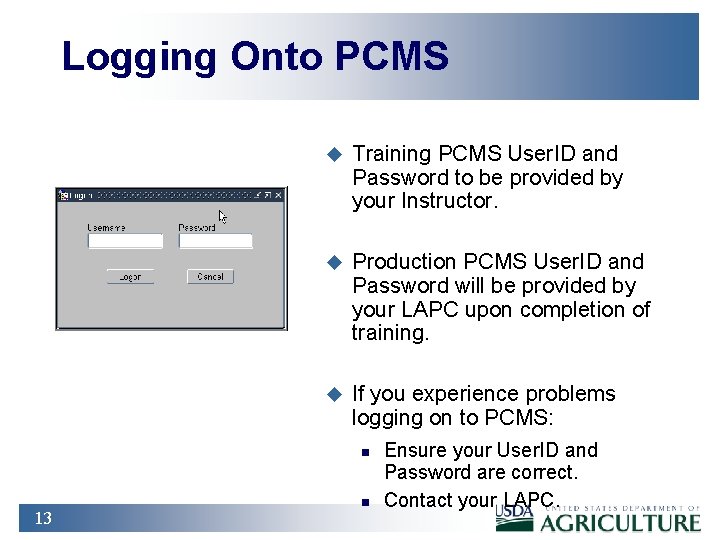
Logging Onto PCMS u Training PCMS User. ID and Password to be provided by your Instructor. u Production PCMS User. ID and Password will be provided by your LAPC upon completion of training. u If you experience problems logging on to PCMS: n 13 n Ensure your User. ID and Password are correct. Contact your LAPC.
![Logging Off PCMS u To exit PCMS, from the Main Menu, press [Exit PCMS].](http://slidetodoc.com/presentation_image_h2/027b95c7344d26c06674f5f66f17d3f2/image-14.jpg "Logging Off PCMS u To exit PCMS, from the Main Menu, press [Exit PCMS].")
Logging Off PCMS u To exit PCMS, from the Main Menu, press [Exit PCMS]. - OR - u 14 Click the ‘X’ in the top right-hand corner of the window.
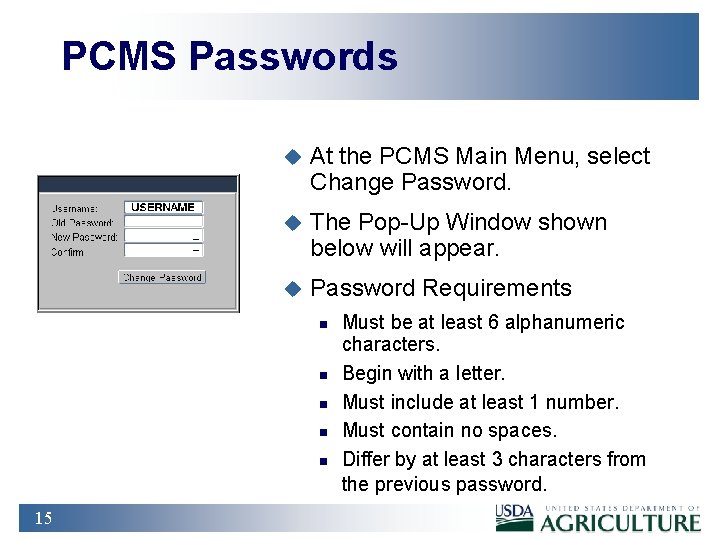
PCMS Passwords u At the PCMS Main Menu, select Change Password. u The Pop-Up Window shown below will appear. u Password Requirements n n n 15 Must be at least 6 alphanumeric characters. Begin with a letter. Must include at least 1 number. Must contain no spaces. Differ by at least 3 characters from the previous password.
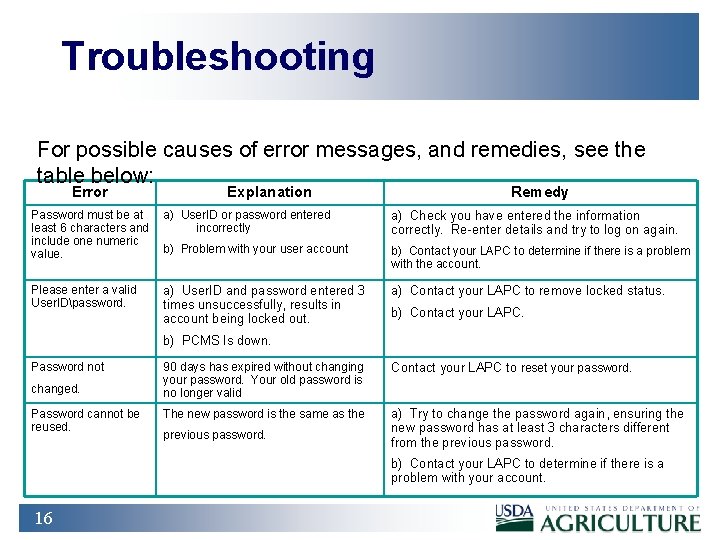
Troubleshooting For possible causes of error messages, and remedies, see the table below: Error Explanation Remedy Password must be at least 6 characters and include one numeric value. a) User. ID or password entered incorrectly a) Check you have entered the information correctly. Re-enter details and try to log on again. b) Problem with your user account b) Contact your LAPC to determine if there is a problem with the account. Please enter a valid User. IDpassword. a) User. ID and password entered 3 times unsuccessfully, results in account being locked out. a) Contact your LAPC to remove locked status. b) Contact your LAPC. b) PCMS Is down. Password not changed. Password cannot be reused. 90 days has expired without changing your password. Your old password is no longer valid Contact your LAPC to reset your password. The new password is the same as the a) Try to change the password again, ensuring the new password has at least 3 characters different from the previous password. b) Contact your LAPC to determine if there is a problem with your account. 16
Password Security u u 17 Select a Password You Will Remember and Keep It Secure. Do Not Give Your PCMS Password to Any Other Person. u If You Suspect Someone May Have Access to Your Password Then Change It. u Account Lockouts Occur to Prevent People From Trying to Guess Your Password. u Unique Passwords Are Required to Keep Your Password More Secure.
Practical Exercise 18 1. Log on to PCMS Training Database Using the Trainee User ID and Password Provided to You by Your Instructor. 2. After Logging Change Your Password To: Trainee 3. Log Out of PCMS. 4. Log on to PCMS Again Using Your New Password.
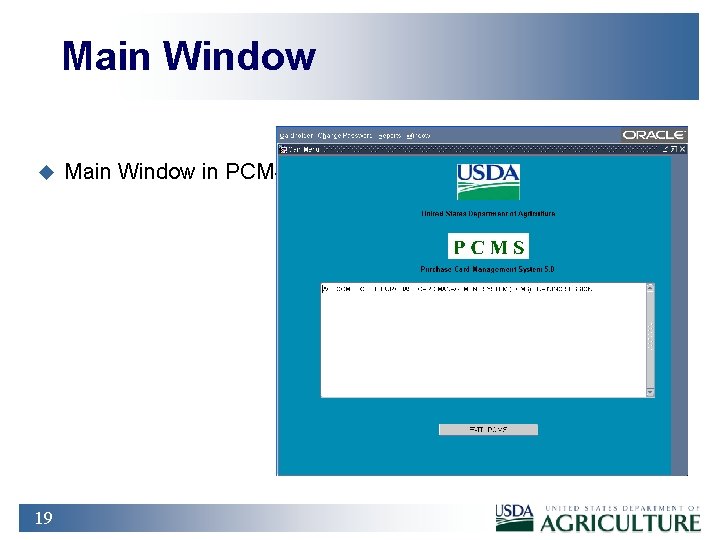
Main Window u 19 Main Window in PCMS.
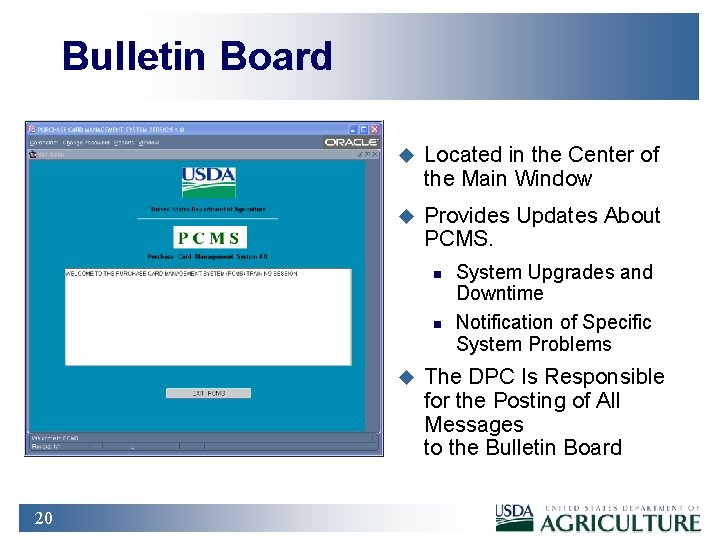
Bulletin Board u Located in the Center of the Main Window u Provides Updates About PCMS. n n u 20 System Upgrades and Downtime Notification of Specific System Problems The DPC Is Responsible for the Posting of All Messages to the Bulletin Board
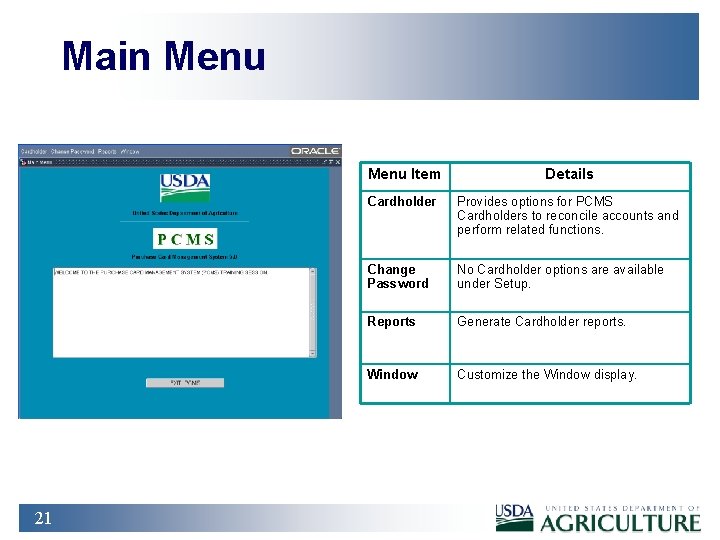
Main Menu 21 Menu Item Details Cardholder Provides options for PCMS Cardholders to reconcile accounts and perform related functions. Change Password No Cardholder options are available under Setup. Reports Generate Cardholder reports. Window Customize the Window display.
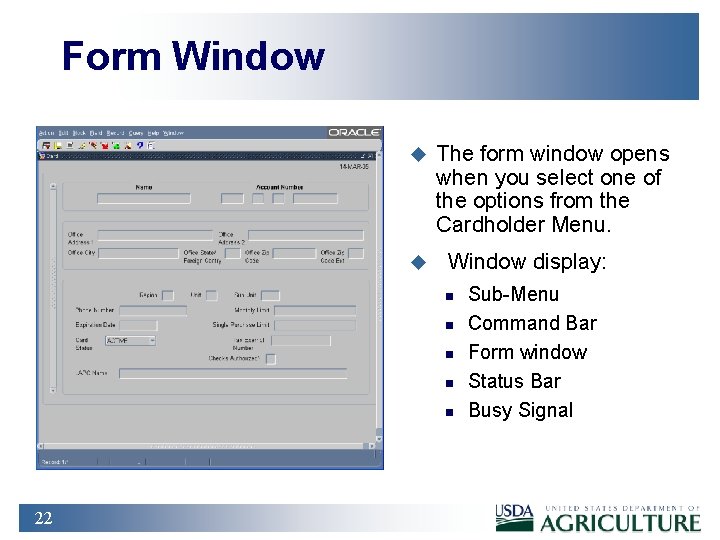
Form Window u u The form window opens when you select one of the options from the Cardholder Menu. Window display: n n n 22 Sub-Menu Command Bar Form window Status Bar Busy Signal
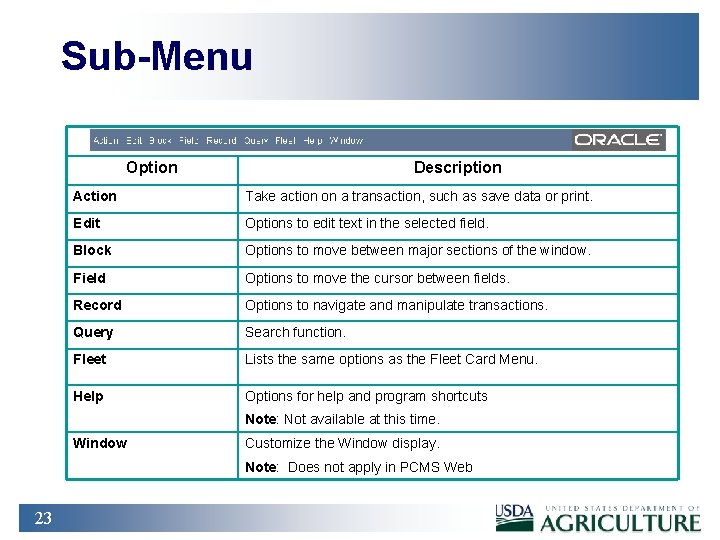
Sub-Menu Option Description Action Take action on a transaction, such as save data or print. Edit Options to edit text in the selected field. Block Options to move between major sections of the window. Field Options to move the cursor between fields. Record Options to navigate and manipulate transactions. Query Search function. Fleet Lists the same options as the Fleet Card Menu. Help Options for help and program shortcuts Note: Not available at this time. Window Customize the Window display. Note: Does not apply in PCMS Web 23
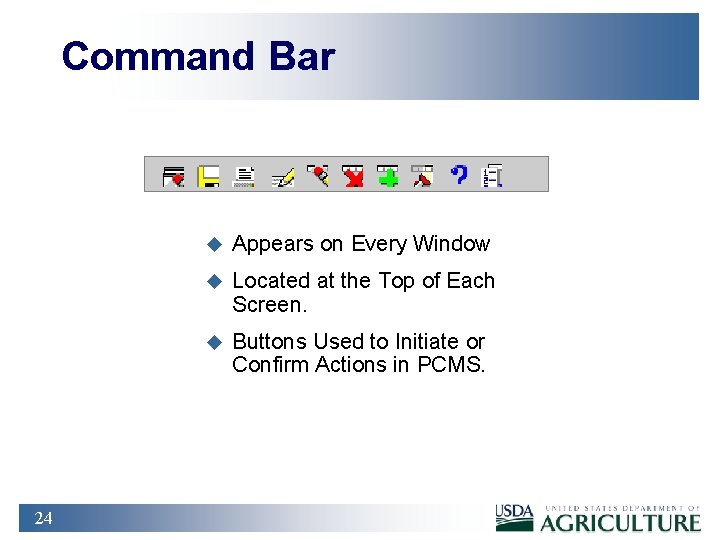
Command Bar 24 u Appears on Every Window u Located at the Top of Each Screen. u Buttons Used to Initiate or Confirm Actions in PCMS.
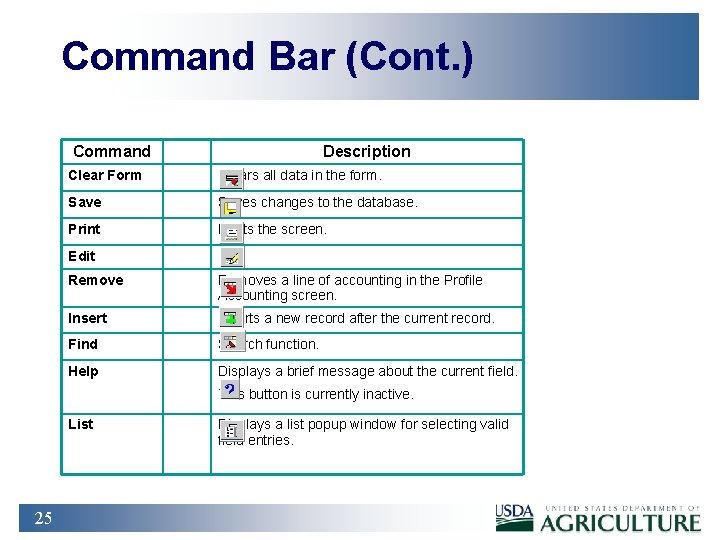
Command Bar (Cont. ) Command Description Clear Form Clears all data in the form. Saves changes to the database. Prints the screen. Edit Removes a line of accounting in the Profile Accounting screen. Inserts a new record after the current record. Find Search function. Help Displays a brief message about the current field. This button is currently inactive. List 25 Displays a list popup window for selecting valid field entries.
Navigation u Moving n n Use Record from the menu and select Next or Previous. Use the Scroll Bar on Left Side of window. u Moving n n n 26 From Record to Record From Field to Field Use Field on the menu and select Next or Previous. Use the tab key. Click in the field using mouse.
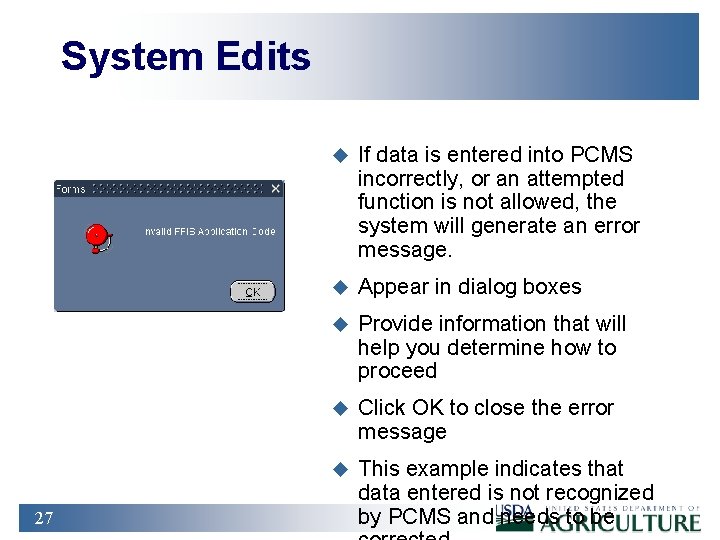
System Edits 27 u If data is entered into PCMS incorrectly, or an attempted function is not allowed, the system will generate an error message. u Appear in dialog boxes u Provide information that will help you determine how to proceed u Click OK to close the error message u This example indicates that data entered is not recognized by PCMS and needs to be
Executing a Query u Retrieving Information From the Database Is Called Executing a Query. u Retrieving All Records n u Retrieving Specific Records n n u Click Find on the command bar once. Enter the value(s) you want to match in the appropriate fields, and click Find again. Wildcard (%) n n 28 Click Find on the command bar twice to query all records. Allows you to search for a partial value. Window will populate with all records matching your search criteria.
Lists u Some fields in the PCMS windows have lists. u <List of Values> will displayed in the status bar in the lower left corner of the window. u To access the list, click List on the Command Bar. u. A list popup window opens displaying all appropriate choices for the specific field. u Scroll to highlight the item you want to select and click OK. u The 29 value appears in the applicable field.
Summary and Review u Which menu bar item is used to be able to customize the window display? u What are the steps to changing a password? u Which menu takes you from the main screen of PCMS to be able to query card transactions? u Where are print options located if I want to print a screen? u You receive an error message when reconciling a transaction: n u 30 What is the likely cause of the problem and what steps do you need to take to resolve it? (Walk the instructor through the steps) How does the DPC distribute system information, such as system upgrades, to the cardholders?
Lesson 3: Accounts and Profile Accounting 31
Training Objectives u At the Conclusion of This Lesson, PCMS Cardholders Will Be Able To: 32 n Review Purchase Card Details. n Modify Profile Accounting Information.
Purchase Card Account 33
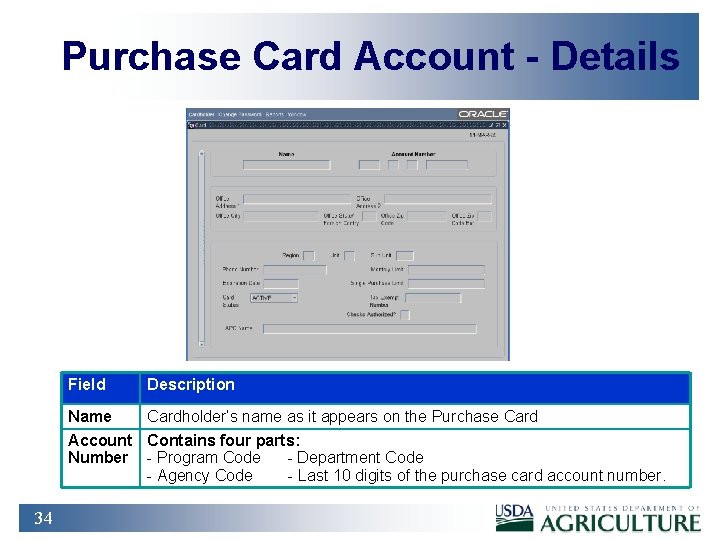
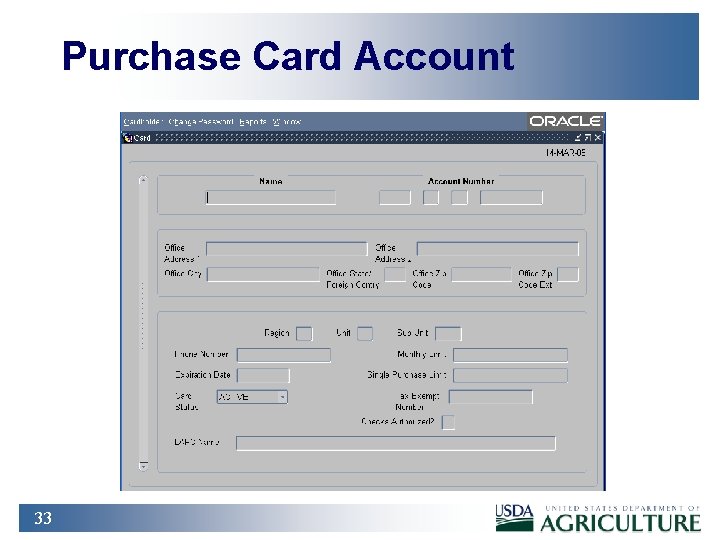
Purchase Card Account - Details Field Description Name Cardholder’s name as it appears on the Purchase Card Account Contains four parts: Number - Program Code - Department Code - Agency Code - Last 10 digits of the purchase card account number. 34
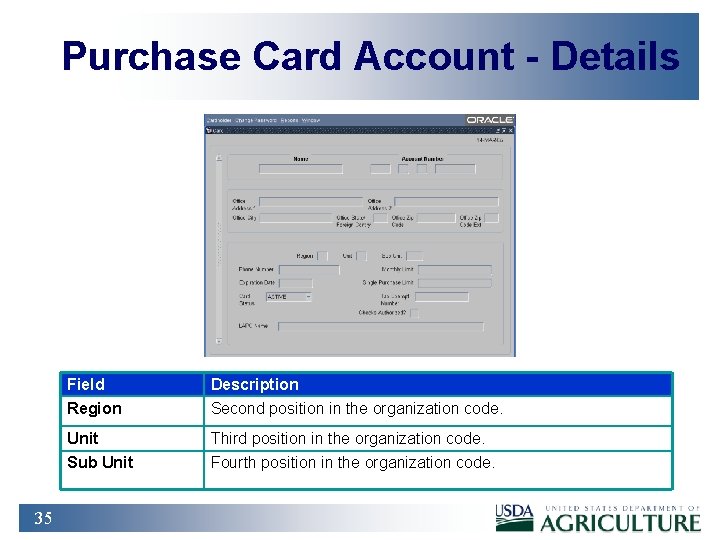
Purchase Card Account - Details 35 Field Description Region Second position in the organization code. Unit Third position in the organization code. Sub Unit Fourth position in the organization code.
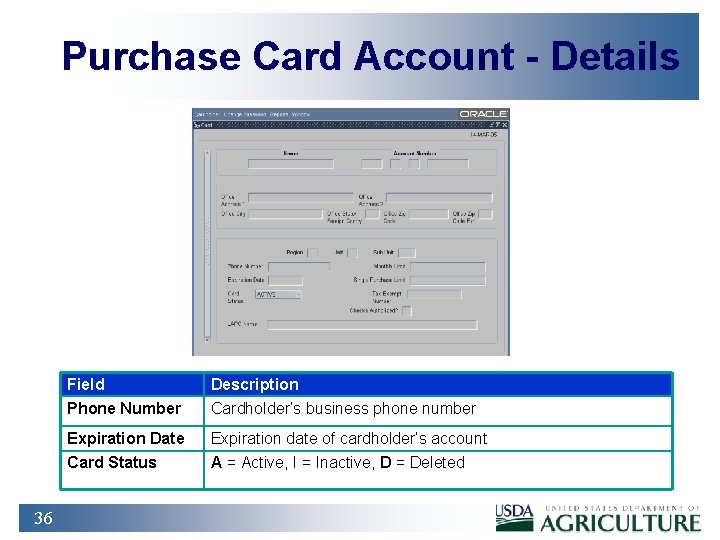
Purchase Card Account - Details 36 Field Description Phone Number Cardholder’s business phone number Expiration Date Expiration date of cardholder’s account Card Status A = Active, I = Inactive, D = Deleted
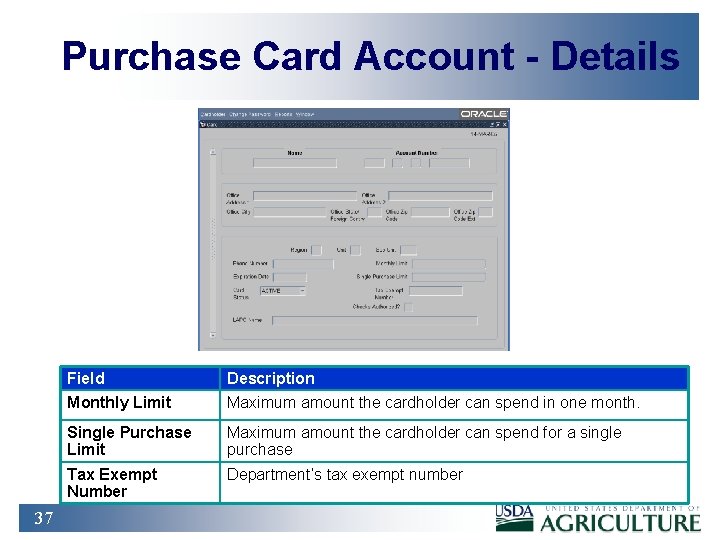
Purchase Card Account - Details 37 Field Description Monthly Limit Maximum amount the cardholder can spend in one month. Single Purchase Limit Maximum amount the cardholder can spend for a single purchase Tax Exempt Number Department’s tax exempt number
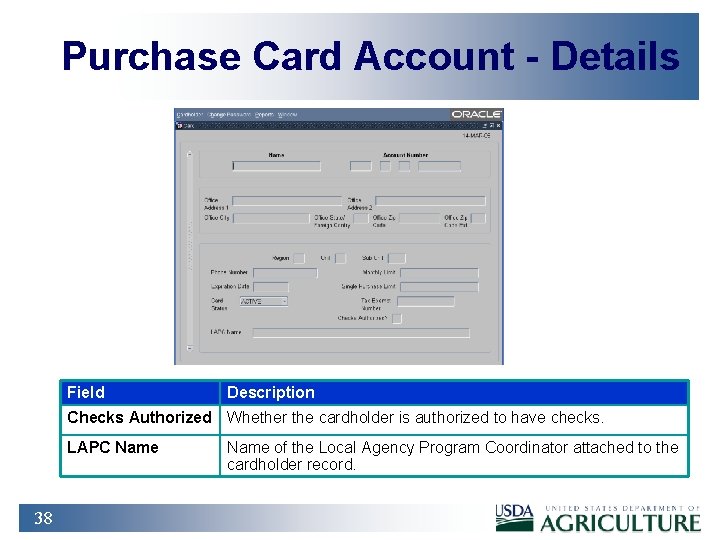
Purchase Card Account - Details Field Description Checks Authorized Whether the cardholder is authorized to have checks. LAPC Name 38 Name of the Local Agency Program Coordinator attached to the cardholder record.
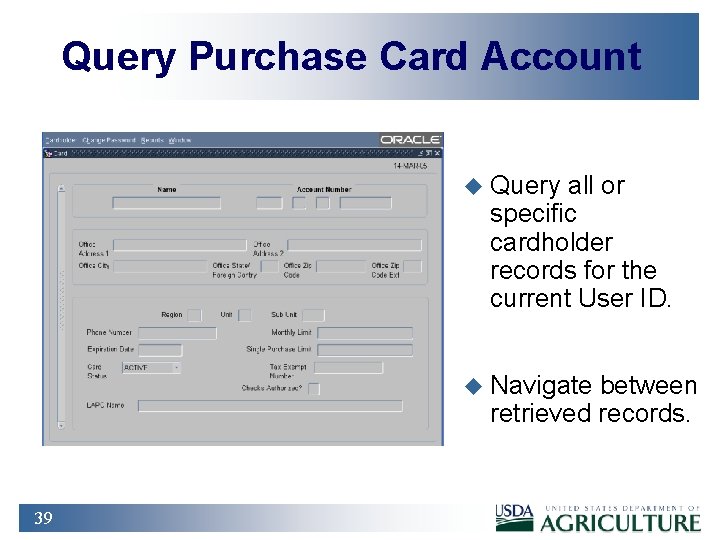
Query Purchase Card Account u Query all or specific cardholder records for the current User ID. u Navigate between retrieved records. 39
Practical Exercise u 40 Review Purchase Card details of your trainee account.
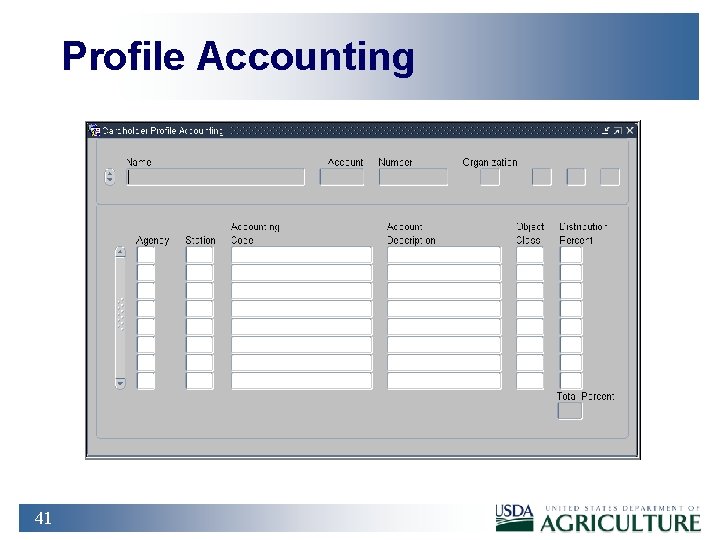
Profile Accounting 41
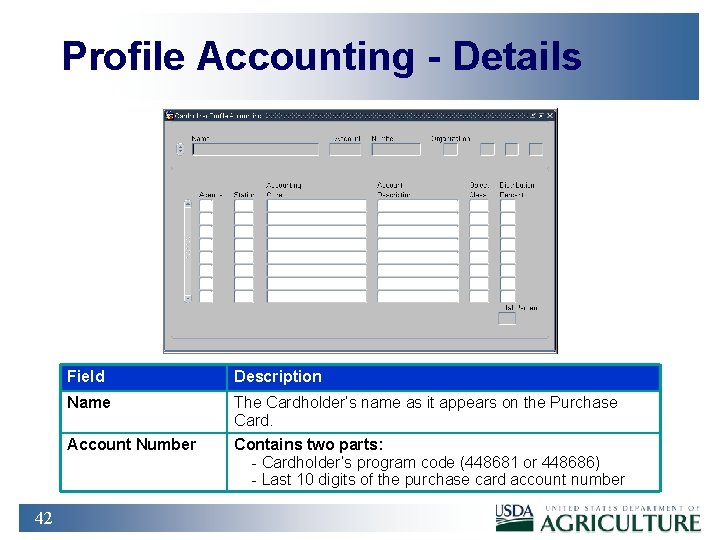
Profile Accounting - Details 42 Field Description Name The Cardholder’s name as it appears on the Purchase Card. Account Number Contains two parts: - Cardholder’s program code (448681 or 448686) - Last 10 digits of the purchase card account number
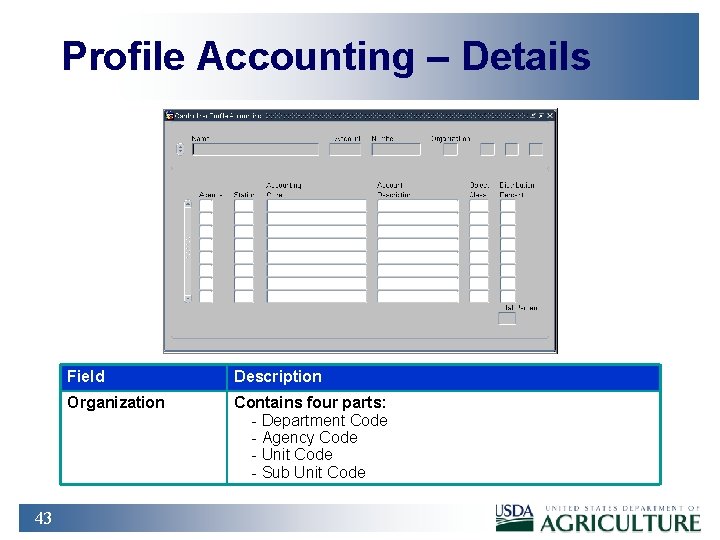
Profile Accounting – Details 43 Field Description Organization Contains four parts: - Department Code - Agency Code - Unit Code - Sub Unit Code
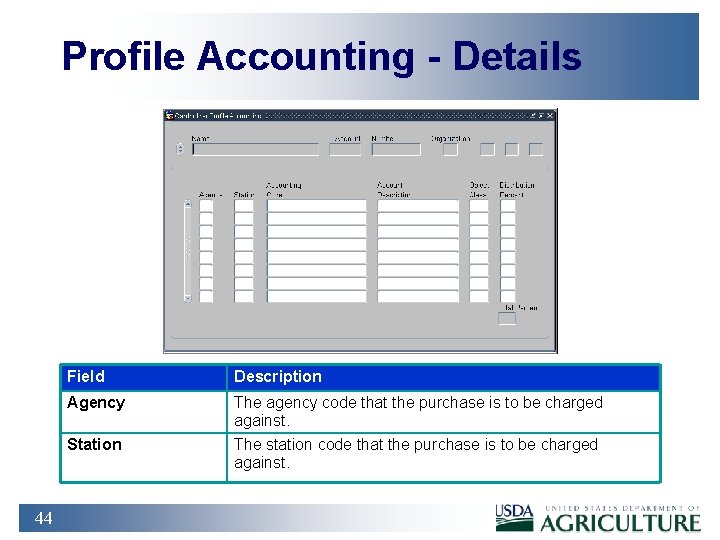
Profile Accounting - Details 44 Field Description Agency The agency code that the purchase is to be charged against. Station The station code that the purchase is to be charged against.
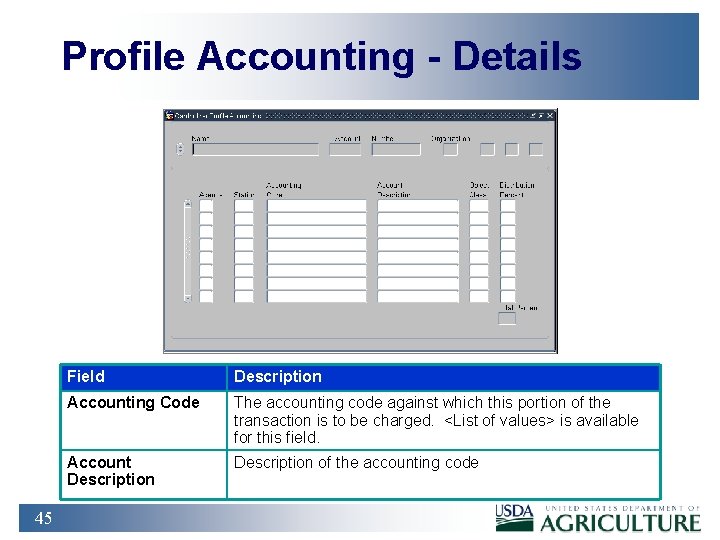
Profile Accounting - Details 45 Field Description Accounting Code The accounting code against which this portion of the transaction is to be charged. <List of values> is available for this field. Account Description of the accounting code
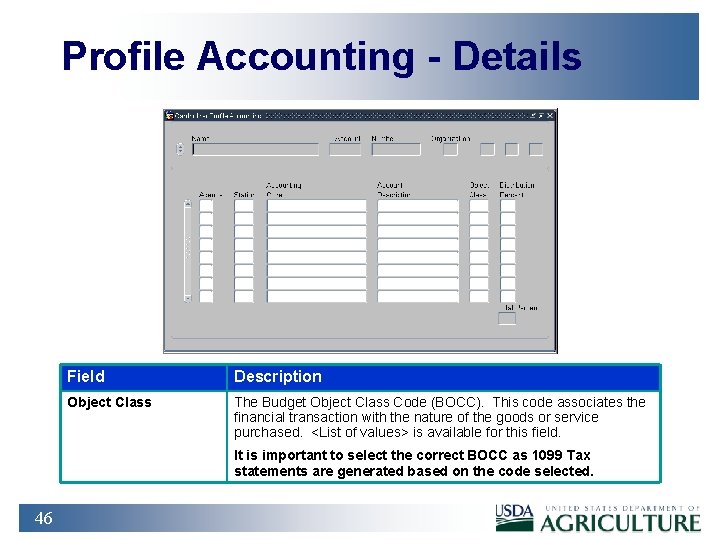
Profile Accounting - Details Field Description Object Class The Budget Object Class Code (BOCC). This code associates the financial transaction with the nature of the goods or service purchased. <List of values> is available for this field. It is important to select the correct BOCC as 1099 Tax statements are generated based on the code selected. 46
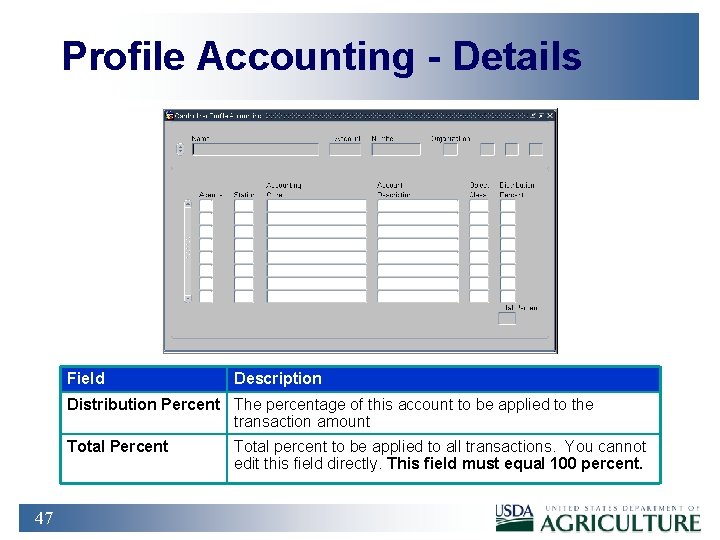
Profile Accounting - Details Field Description Distribution Percent The percentage of this account to be applied to the transaction amount Total Percent 47 Total percent to be applied to all transactions. You cannot edit this field directly. This field must equal 100 percent.
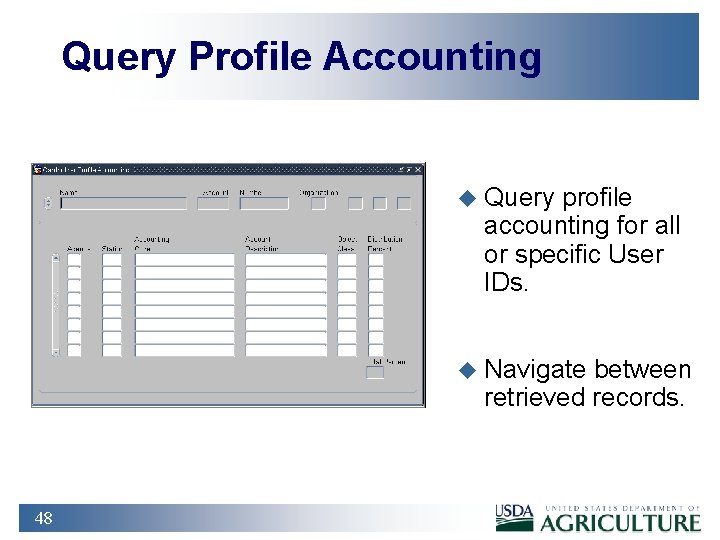
Query Profile Accounting u Query profile accounting for all or specific User IDs. u Navigate between retrieved records. 48
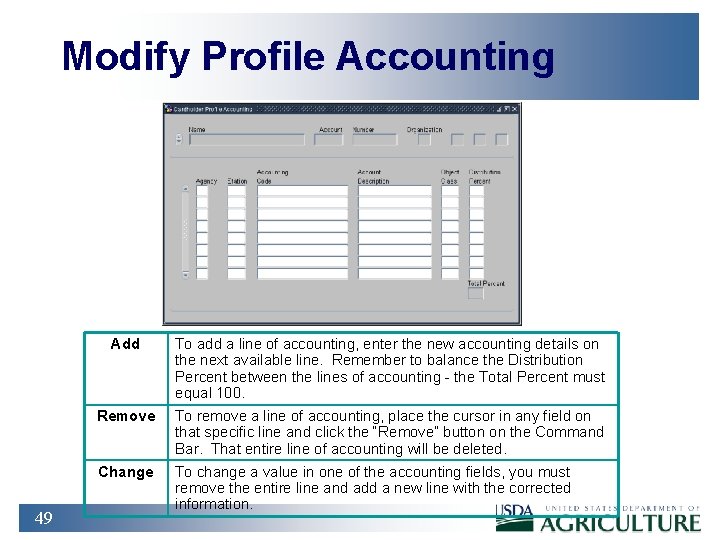
Modify Profile Accounting 49 Add To add a line of accounting, enter the new accounting details on the next available line. Remember to balance the Distribution Percent between the lines of accounting - the Total Percent must equal 100. Remove To remove a line of accounting, place the cursor in any field on that specific line and click the “Remove” button on the Command Bar. That entire line of accounting will be deleted. Change To change a value in one of the accounting fields, you must remove the entire line and add a new line with the corrected information.
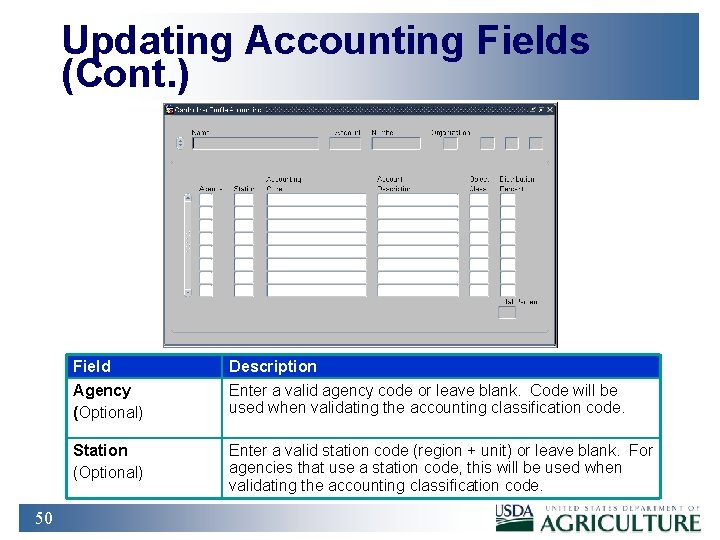
Updating Accounting Fields (Cont. ) 50 Field Description Agency (Optional) Enter a valid agency code or leave blank. Code will be used when validating the accounting classification code. Station (Optional) Enter a valid station code (region + unit) or leave blank. For agencies that use a station code, this will be used when validating the accounting classification code.
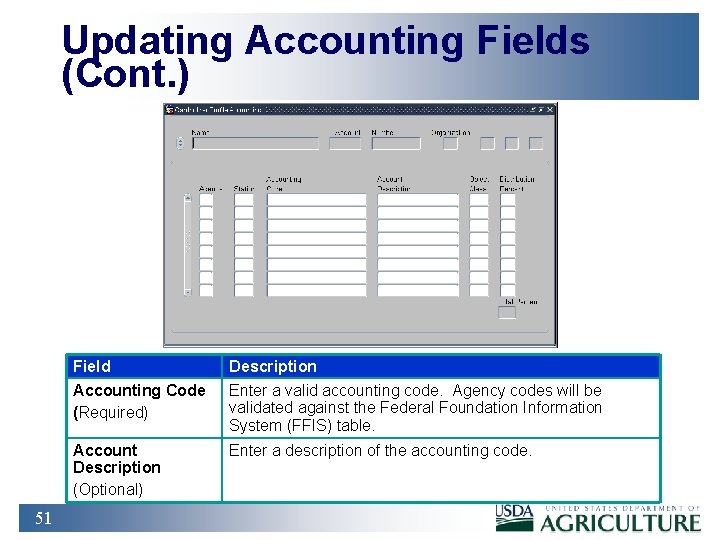
Updating Accounting Fields (Cont. ) 51 Field Description Accounting Code (Required) Enter a valid accounting code. Agency codes will be validated against the Federal Foundation Information System (FFIS) table. Account Description (Optional) Enter a description of the accounting code.
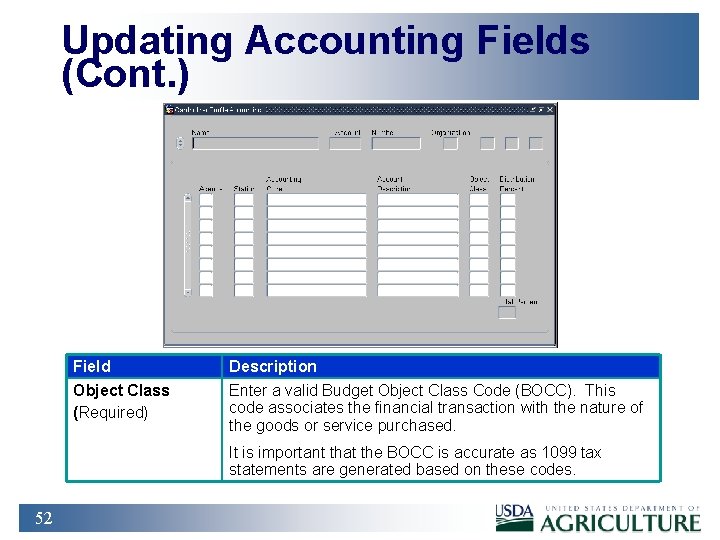
Updating Accounting Fields (Cont. ) Field Description Object Class (Required) Enter a valid Budget Object Class Code (BOCC). This code associates the financial transaction with the nature of the goods or service purchased. It is important that the BOCC is accurate as 1099 tax statements are generated based on these codes. 52
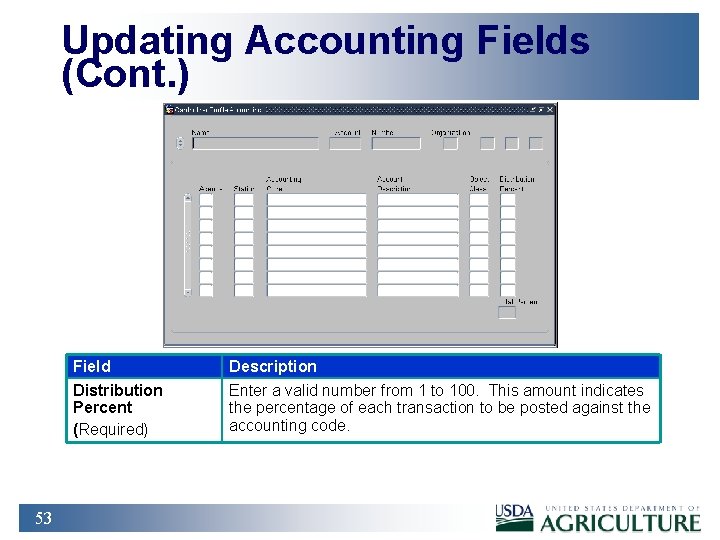
Updating Accounting Fields (Cont. ) 53 Field Description Distribution Percent (Required) Enter a valid number from 1 to 100. This amount indicates the percentage of each transaction to be posted against the accounting code.
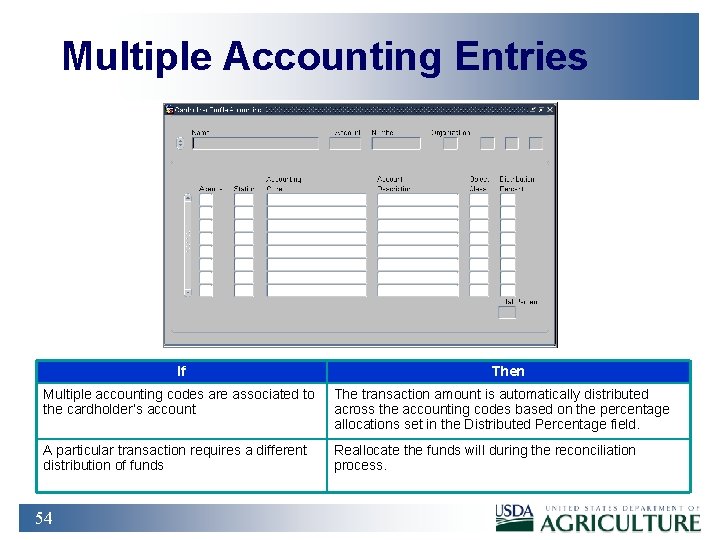
Multiple Accounting Entries If Then Multiple accounting codes are associated to the cardholder’s account The transaction amount is automatically distributed across the accounting codes based on the percentage allocations set in the Distributed Percentage field. A particular transaction requires a different distribution of funds Reallocate the funds will during the reconciliation process. 54
Practical Exercise 55 1. Add a Second Accounting Code: 7010000000 to Your Profile Account Information. 2. Add the BOCC for “Supplies and Materials. ” 3. Set Distribution for this Accounting Code to 25%. (Remember the Total Percentage must equal 100%). 4. Save changes and exit the Profile Accounting window.
Summary and Review 1. What is the purpose of the Purchase Card screen? 2. What do you use the Profile Accounting screen for? 3. Which fields on the Profile Accounting window require a value to be entered? 4. Why would you have multiple Accounting Codes associated to your Purchase Card? 5. How can you remove Profile Accounting details? 6. How do you add Profile Accounting details? 56
- Slides: 56