
Lesson 1 Computer Operations Introduction to Technology Mr

- Slides: 53
Lesson #1: Computer Operations Introduction to Technology Mr. Inniss; Fall 2018
Part One Operating Systems
Part One Lesson Objectives: The function of an Operating System Using the taskbar Popular desktop operating systems Accessing the Settings app User accounts and profiles Accessing the Control Panel Power on and power off procedures Customizing the Windows Desktop Power options Using the start button Navigating the Windows Desktop
What is an Operating System? The Operating System (OS) is a program that controls the computer. A program is a sequence of instructions that guides the computer through the performance of specific task or sequence of tasks. The individual lines of instruction are referred to as code. The term software refers to any program that makes a computer run including operating systems and application programs. Note: Software developers write source code for their programs in a humanreadable format. In order to prepare a program to be installed and used on a computer, the source code is converted into and executable format through a process called compiling. Compiling changes source code into machine code.
What is an Operating System? Application programs use the Operating System to control the hardware functions of the computer. The Operating System Manages hardware devices Controls communication among hardware devices Controls commination between application programs and hardware devices Manages the files stored on the computer
What is an Operating System? Evolution of the modern OS interface: An interface is a point where two systems meet and exchange information. A GUI lets you use menus and clickable buttons or icons to start programs, move files, or perform other tasks. Proprietary and Open-Source Operating Systems: Proprietary Software. Open-Source Software.
Desktop Operating Systems Versions and Editions. Popular Desktop Operating Systems. Windows Mac OS X Linux UNIX
Common Operating System Features User Accounts A special are on the computer where you can work and keep your files. Account Types: Administrator account Standard user account Computers you use in school, library, or workplace are usually part of a computer domain. A domain is a network of computer systems that are controlled by a network administrator. Your ability to perform certain tasks on a domain system can be tightly controlled by the administrator, regardless of your account type. Account Options: Lock Sign Out Shut Down
Common Operating System Features User Profiles A profile is a collection of settings that make the computer look and function in a particular manner. Built-In Power Off Procedures Powering on and powering off a computer are two different processes. Starting a Windows Computer Powering Off a Windows Computer. The computer performs a start-up test and then loads the operating system files into memory. This process is also referred to as booting.
Windows Power Options Sleep Hibernate Shut Down Restart
Exercise 1 -1: On, In, Out, and Off
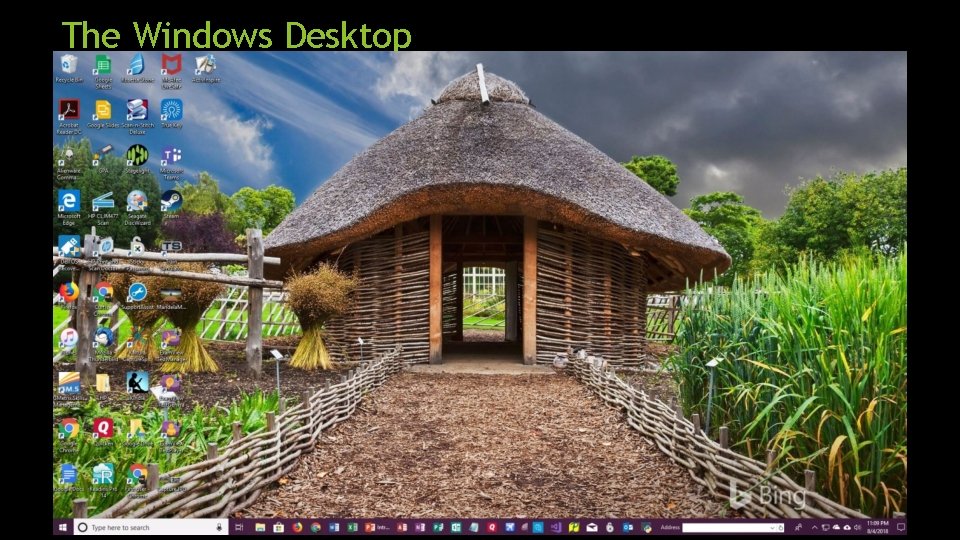
The Windows Desktop
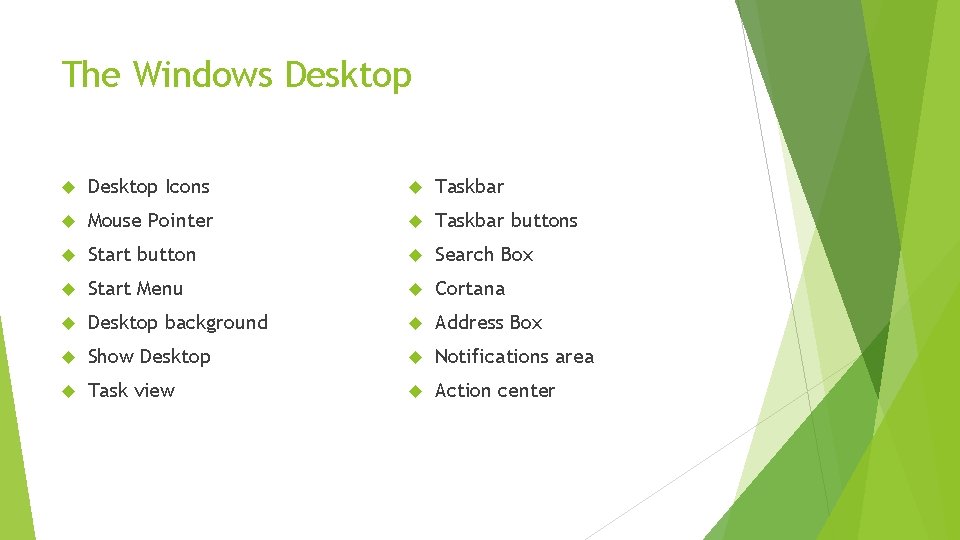
The Windows Desktop Icons Taskbar Mouse Pointer Taskbar buttons Start button Search Box Start Menu Cortana Desktop background Address Box Show Desktop Notifications area Task view Action center
Exercise 1 -2: Exploring the Start Menu and Taskbar
Exercise 1 -4: Customizing the Desktop
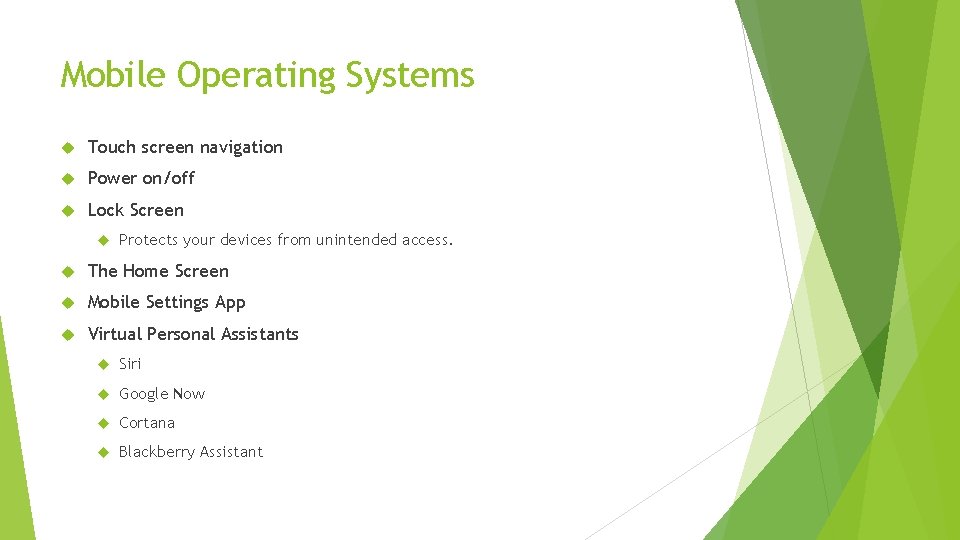
Mobile Operating Systems Touch screen navigation Power on/off Lock Screen Protects your devices from unintended access. The Home Screen Mobile Settings App Virtual Personal Assistants Siri Google Now Cortana Blackberry Assistant
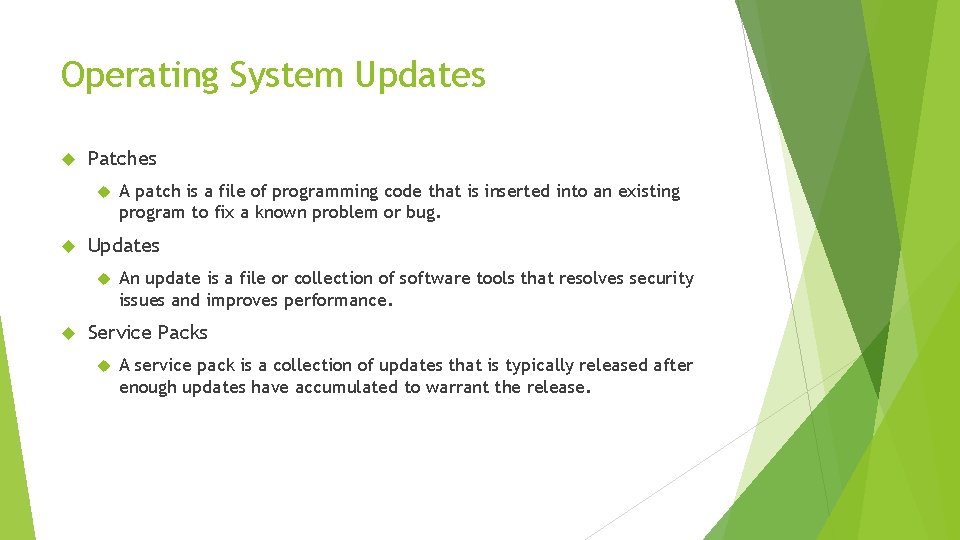
Operating System Updates Patches Updates A patch is a file of programming code that is inserted into an existing program to fix a known problem or bug. An update is a file or collection of software tools that resolves security issues and improves performance. Service Packs A service pack is a collection of updates that is typically released after enough updates have accumulated to warrant the release.
Automatic Updating Update Categories: Important Recommended Optional Automatic Updating Manual Updating
Exercise 1 -5: Checking your update status
Review Quiz for Part One
Part Two: Hardware
Part Two Lesson Objectives: The relationship among hardware device drivers, firmware, and platforms Common measurements used in computing Standard internal computer components Memory and storage Identifying different types of computers Keyboards, microphones, and touch screens Typical smart phone hardware Windows power plans Connecting peripheral devices Wireless connection technologies
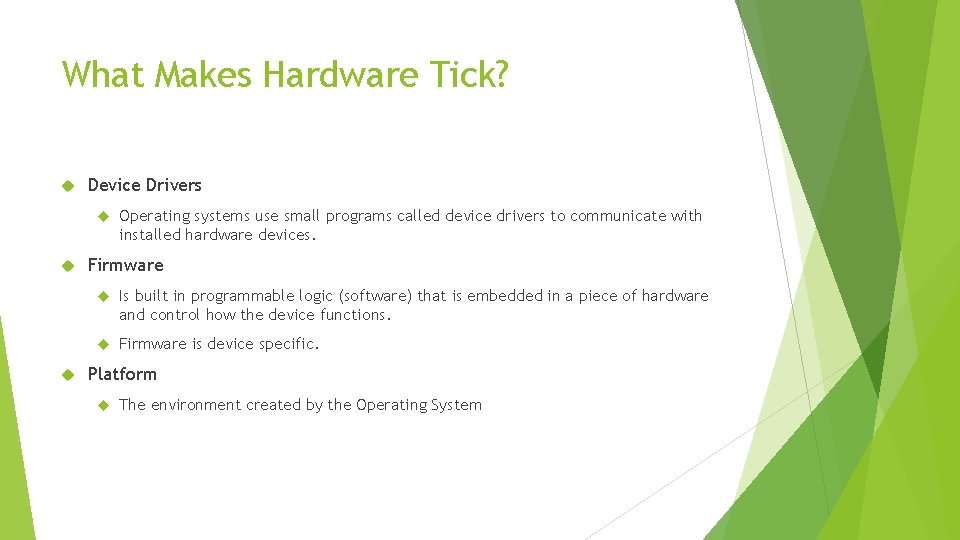
What Makes Hardware Tick? Device Drivers Operating systems use small programs called device drivers to communicate with installed hardware devices. Firmware Is built in programmable logic (software) that is embedded in a piece of hardware and control how the device functions. Firmware is device specific. Platform The environment created by the Operating System
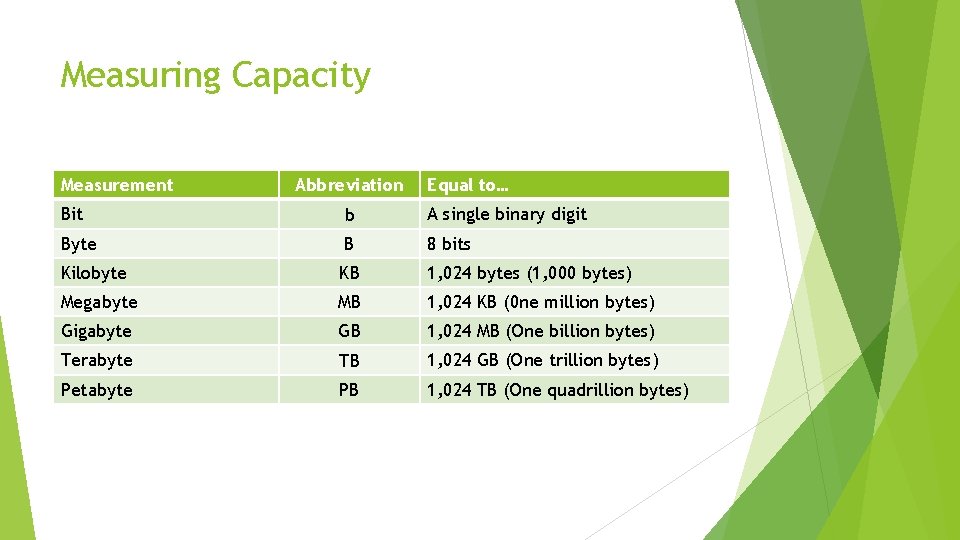
Measuring Capacity Measurement Abbreviation Equal to… Bit b A single binary digit Byte B 8 bits Kilobyte KB 1, 024 bytes (1, 000 bytes) Megabyte MB 1, 024 KB (0 ne million bytes) Gigabyte GB 1, 024 MB (One billion bytes) Terabyte TB 1, 024 GB (One trillion bytes) Petabyte PB 1, 024 TB (One quadrillion bytes)
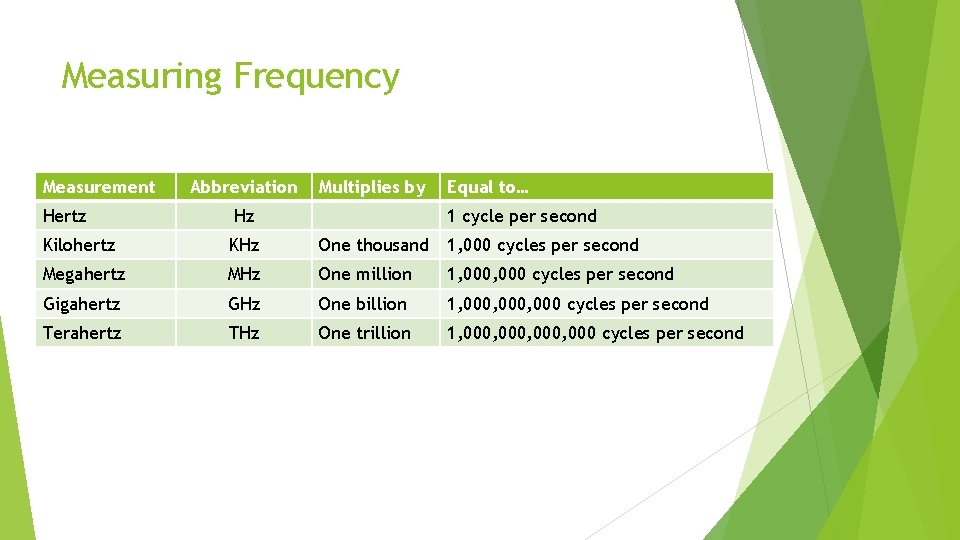
Measuring Frequency Measurement Abbreviation Multiplies by Equal to… Hertz Hz 1 cycle per second Kilohertz KHz One thousand 1, 000 cycles per second Megahertz MHz One million 1, 000 cycles per second Gigahertz GHz One billion 1, 000, 000 cycles per second Terahertz THz One trillion 1, 000, 000 cycles per second
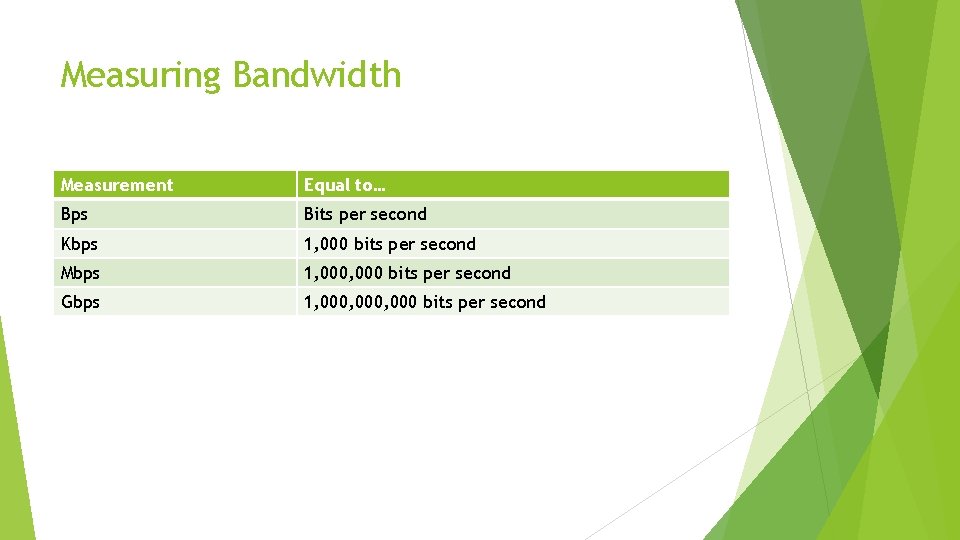
Measuring Bandwidth Measurement Equal to… Bps Bits per second Kbps 1, 000 bits per second Mbps 1, 000 bits per second Gbps 1, 000, 000 bits per second
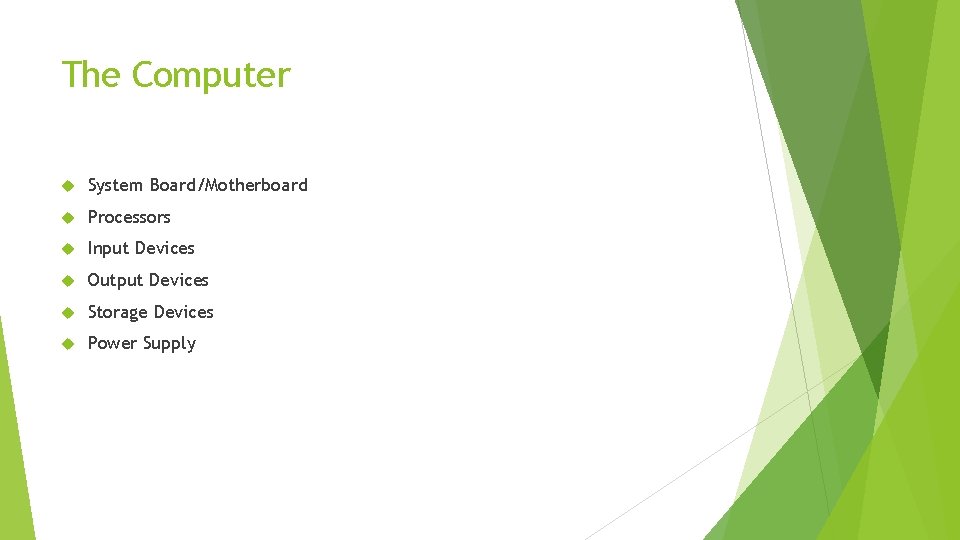
The Computer System Board/Motherboard Processors Input Devices Output Devices Storage Devices Power Supply
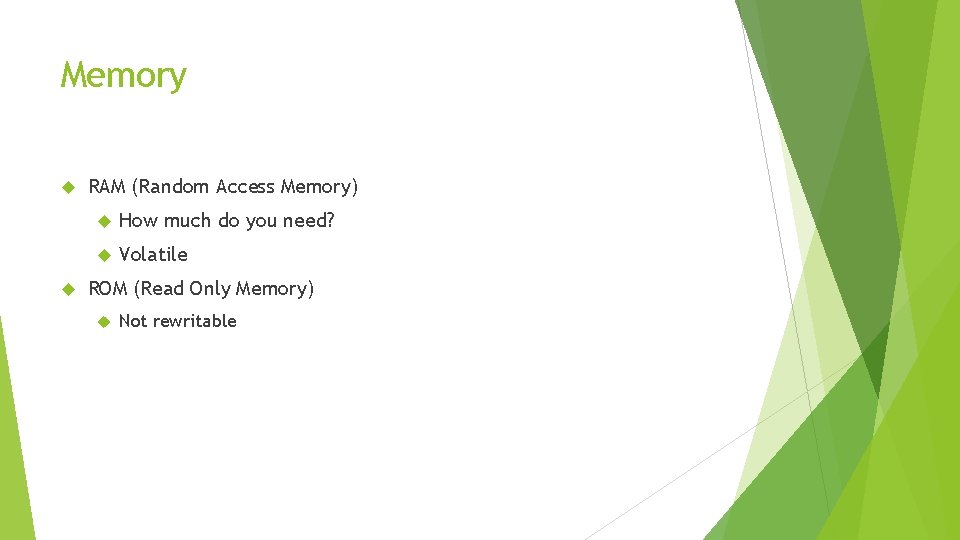
Memory RAM (Random Access Memory) How much do you need? Volatile ROM (Read Only Memory) Not rewritable
Storage Local and Remote Common Storage Devices Internal Hard Disk Drives (HDD or SSD) External Drives (HDD or SSD) Flash Memory Flash Drives Secure Digital Cards Optical Disks and Drives
Types of Computers Desktop Computers (PC) Macs PCs Laptops and Tablets Notebooks Netbooks Chromebooks Servers Tower Servers Have individual monitors, keyboards, and mouse Rack Servers Blade Servers Smart Phones
Exercise 2 -1: Selecting the right device For each scenario described below, select the most practical device to use from the options given. 1. 2. Dan is in line at the airport waiting to go through Customs. He has three suitcases with him. Which device would he most likely use to check his email while he is standing in line? a) Desktop b) Laptop c) Smartphone Jamey has to edit three large video files. Which device will she use? a) Server b) Desktop c) Tablet
Exercise 2 -1: Selecting the right device 3. 4. Mr. Inniss needs to make 127 ebooks available for download to students at his school. What will he use? a) Server b) Laptop c) Smartphone Iain and his six-year-old sister are waiting for their mom at the dentist’s office. Which device did he bring with him so that his sister could watch a movie? a) Server b) Laptop c) Tablet
Exercise 2 -2: Examining power plan settings
Connecting Peripherals Video ports Video Graphics Adapter (VGA) Digital Video Interface (DVI) High-Definition Multimedia Interface (HDMI) Network ports RJ-45 Ethernet port Audio ports Universal Serial Bus (USB) Monitors Printers Digital Cameras
Exercise 2 -3: Viewing installed printers
Wireless Connection Technologies Bluetooth Infrared
Review Quiz for Part Two
Part Three Software
Part Three Lesson Objectives: Describe the benefits of software Install, uninstall, repair, and update apps and applications Set software preferences Work with Windows apps Use messaging applications
Why Use Software? Software enable us to produce documents and charts; solve complex equations; calculate rocket trajectories; make online purchases, etc. Locally Installed Software installed on a device and runs directly on that device Cloud Based Software Runs on a dedicated server and is designed to be accessed over the internet
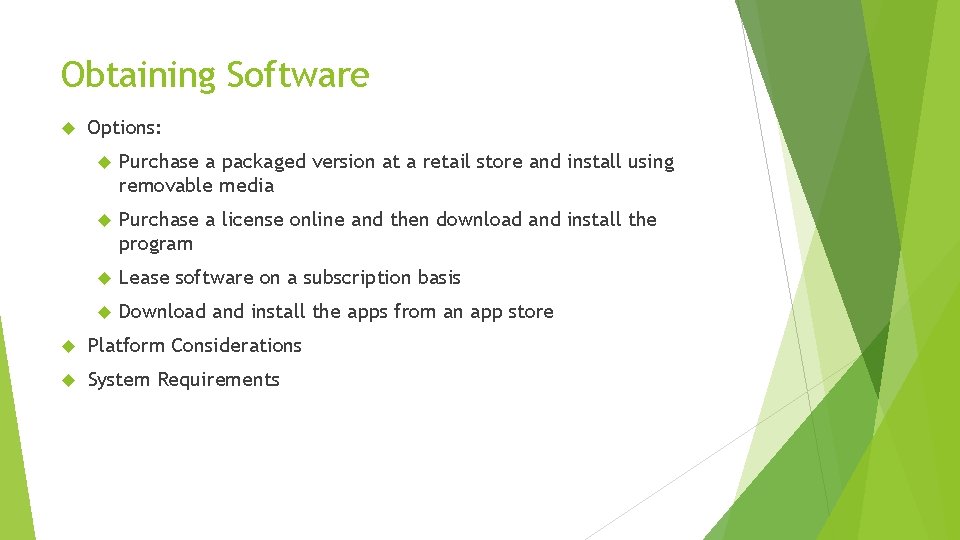
Obtaining Software Options: Purchase a packaged version at a retail store and install using removable media Purchase a license online and then download and install the program Lease software on a subscription basis Download and install the apps from an app store Platform Considerations System Requirements
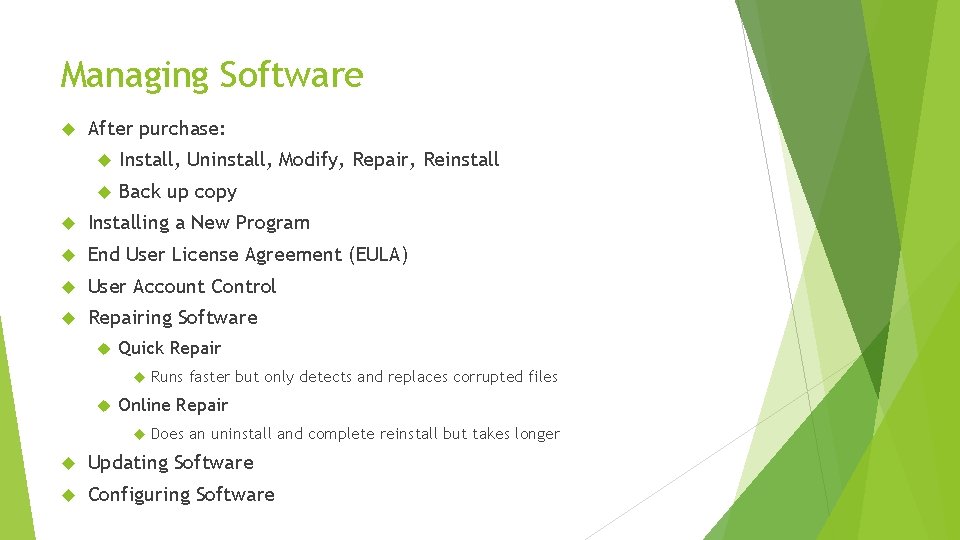
Managing Software After purchase: Install, Uninstall, Modify, Repair, Reinstall Back up copy Installing a New Program End User License Agreement (EULA) User Account Control Repairing Software Quick Repair Runs faster but only detects and replaces corrupted files Online Repair Does an uninstall and complete reinstall but takes longer Updating Software Configuring Software
Exercise 5 -1: Installing Software
Exercise 5 -2: Uninstalling Software
Exercise 5 -3: Setting software preferences
Working with Windows Apps Operating System App Stores Windows Store Microsoft Account A Microsoft account is an ID composed of an email and password
Exercise 5 -5: Signing into the Store App
Exercise 5 -6: Obtaining Windows Apps
Exercise 5 -7: Removing Windows Apps
Messaging Apps Text Messaging Non-SMS Messaging Apps: 160 character limit originally. Now up to 200 characters depending on the provider Whats. App Viber Facebook Messenger Chat Gmail Chat
Exercise 5 -8: Using Gmail Chat
Instant Messaging Skype ICQ Yahoo! Messenger
Quiz for Part Three