
Leica Cyclone Server Installation Guide Version 2020 1

- Slides: 10
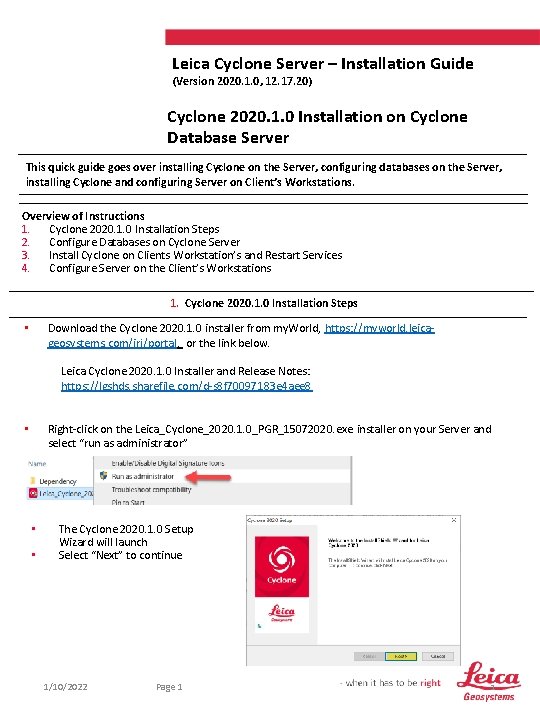
Leica Cyclone Server – Installation Guide (Version 2020. 1. 0, 12. 17. 20) Cyclone 2020. 1. 0 Installation on Cyclone Database Server This quick guide goes over installing Cyclone on the Server, configuring databases on the Server, installing Cyclone and configuring Server on Client’s Workstations. Overview of Instructions 1. Cyclone 2020. 1. 0 Installation Steps 2. Configure Databases on Cyclone Server 3. Install Cyclone on Clients Workstation’s and Restart Services 4. Configure Server on the Client’s Workstations 1. Cyclone 2020. 1. 0 Installation Steps Download the Cyclone 2020. 1. 0 installer from my. World, https: //myworld. leicageosystems. com/irj/portal, or the link below. • Leica Cyclone 2020. 1. 0 Installer and Release Notes: https: //lgshds. sharefile. com/d-s 8 f 70097183 e 4 aee 8 Right-click on the Leica_Cyclone_2020. 1. 0_PGR_15072020. exe installer on your Server and select “run as administrator” • • • The Cyclone 2020. 1. 0 Setup Wizard will launch Select “Next” to continue 1/10/2022 Page 1 1
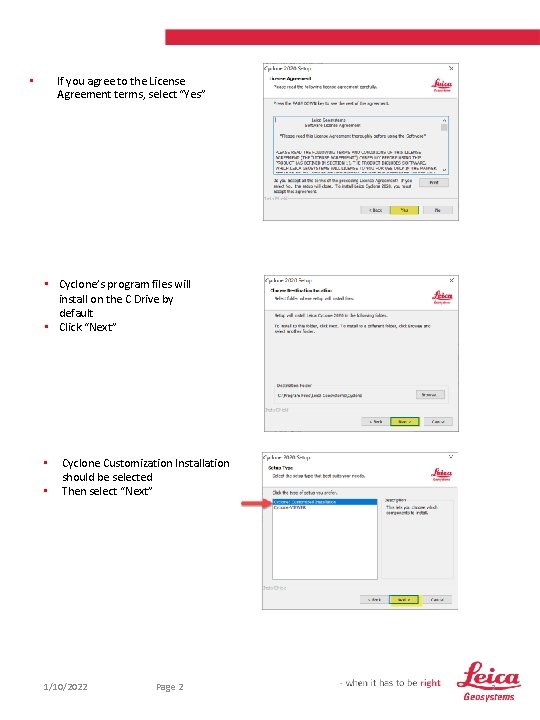
If you agree to the License Agreement terms, select “Yes” • • Cyclone’s program files will install on the C Drive by default • Click “Next” • • Cyclone Customization Installation should be selected Then select “Next” 1/10/2022 Page 2 2
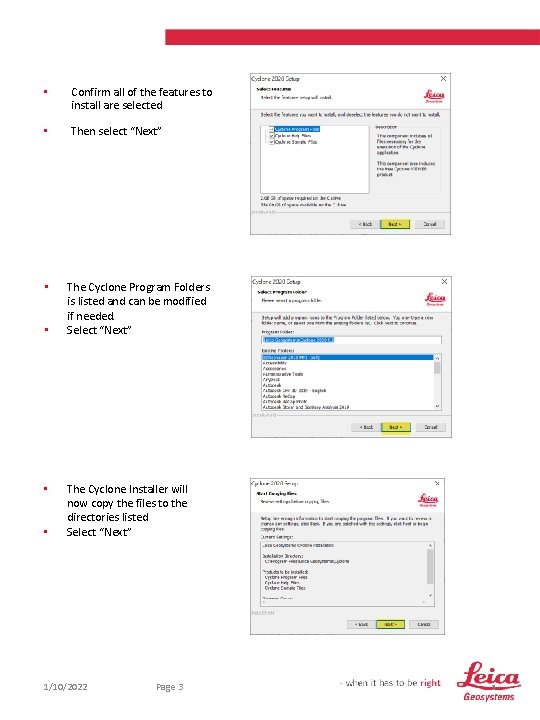
• Confirm all of the features to install are selected • Then select “Next” • • The Cyclone Program Folders is listed and can be modified if needed. Select “Next” The Cyclone Installer will now copy the files to the directories listed Select “Next” 1/10/2022 Page 3 3
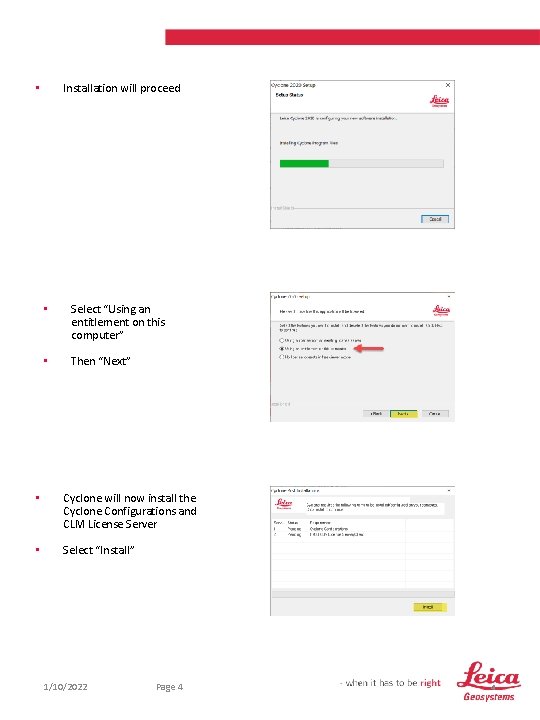
Installation will proceed • • Select “Using an entitlement on this computer” • Then “Next” • Cyclone will now install the Cyclone Configurations and CLM License Server • Select “Install” 1/10/2022 Page 4 4
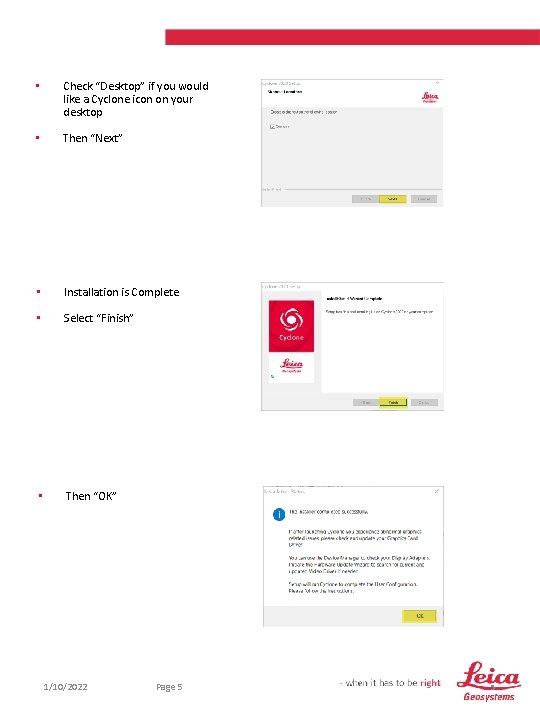
• Check “Desktop” if you would like a Cyclone icon on your desktop • Then “Next” • Installation is Complete • Select “Finish” • Then “OK” 1/10/2022 Page 5 5
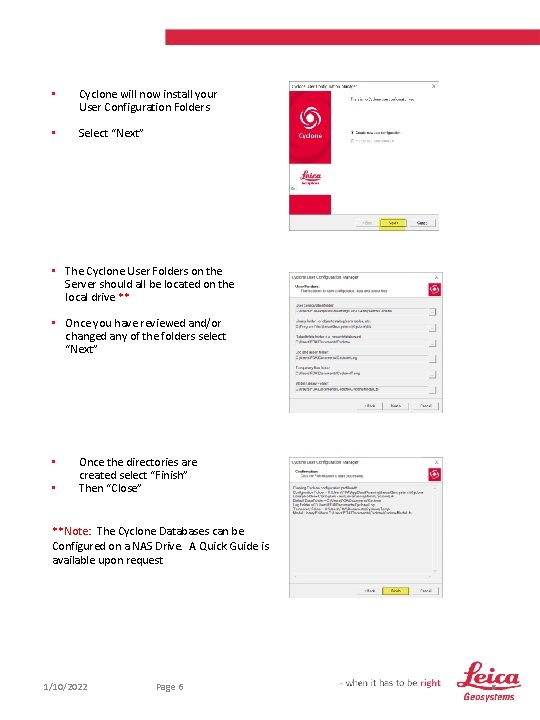
• Cyclone will now install your User Configuration Folders • Select “Next” • The Cyclone User Folders on the Server should all be located on the local drive ** • Once you have reviewed and/or changed any of the folders select “Next” • • Once the directories are created select “Finish” Then “Close” **Note: The Cyclone Databases can be Configured on a NAS Drive. A Quick Guide is available upon request 1/10/2022 Page 6 6
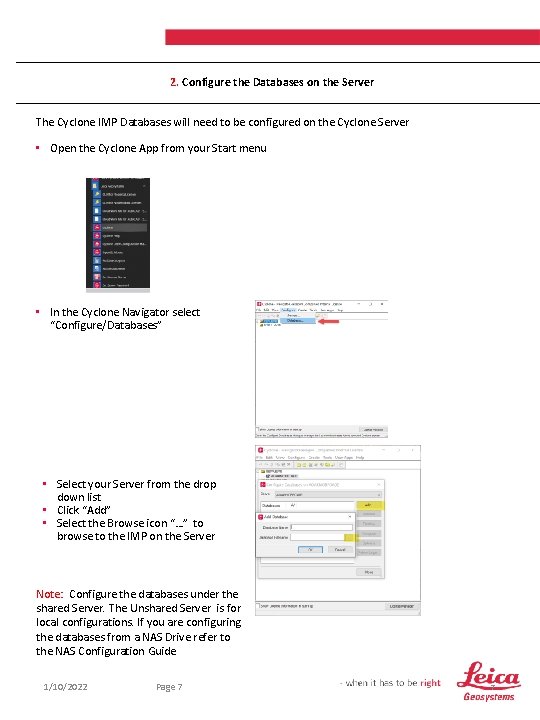
2. Configure the Databases on the Server The Cyclone IMP Databases will need to be configured on the Cyclone Server • Open the Cyclone App from your Start menu • In the Cyclone Navigator select “Configure/Databases” • Select your Server from the drop down list • Click “Add” • Select the Browse icon “…” to browse to the IMP on the Server Note: Configure the databases under the shared Server. The Unshared Server is for local configurations. If you are configuring the databases from a NAS Drive refer to the NAS Configuration Guide 1/10/2022 Page 7 7
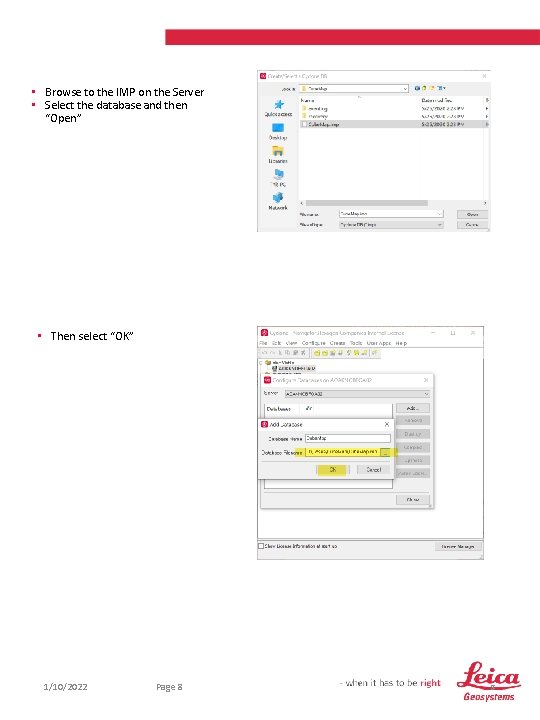
• Browse to the IMP on the Server • Select the database and then “Open” • Then select “OK” 1/10/2022 Page 8 8
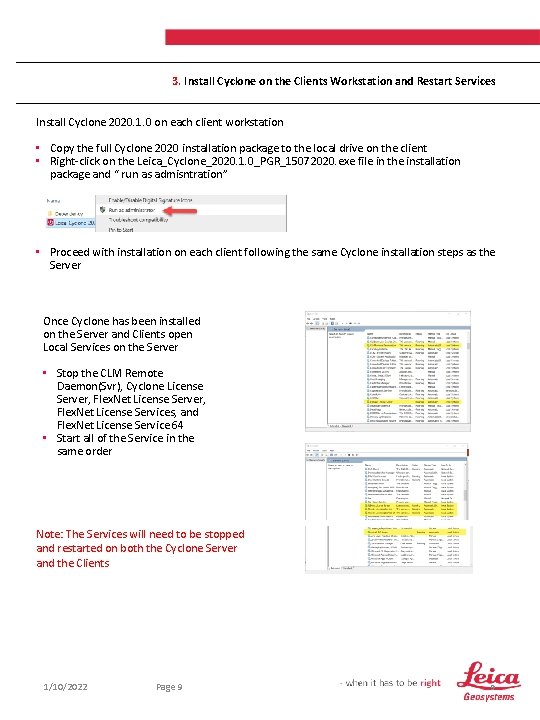
3. Install Cyclone on the Clients Workstation and Restart Services Install Cyclone 2020. 1. 0 on each client workstation • Copy the full Cyclone 2020 installation package to the local drive on the client • Right-click on the Leica_Cyclone_2020. 1. 0_PGR_15072020. exe file in the installation package and “ run as admisntration” • Proceed with installation on each client following the same Cyclone installation steps as the Server Once Cyclone has been installed on the Server and Clients open Local Services on the Server • Stop the CLM Remote Daemon(Svr), Cyclone License Server, Flex. Net License Services, and Flex. Net License Service 64 • Start all of the Service in the same order Note: The Services will need to be stopped and restarted on both the Cyclone Server and the Clients 1/10/2022 Page 9 9
4. Configure the Server on the Client’s Workstations The Server will now need to be configured on the Clients to access the Cyclone IMP Databases • Open the Cyclone App on the Client • Select “Configure Server” • Select “Add” • Enter the Cyclone Server’s name • Click “OK” The Cyclone Server is now configured. All the databases that were configured on the Server are listed and available for the Clients use Note: Importing raw data is only supported locally. Import data locally and after the import process is complete, move the database to the Server and configure it for use over the network. 1/10/2022 Page 10 10