
Lecture No 11 Storage Devices Storage Involves Two
- Slides: 38
Lecture No 11 Storage Devices
Storage Involves Two Processes Ø Writing data Ø Reading data
Storage Media Ø The materials on which data is stored. Ø The physical material on which data is stored is called a storage medium. Ø E. g. Diskette is a storage medium.
Storage Devices Ø The hardware that writes data to or reads data from a storage medium is called a storage device. Ø E. g. A floppy disk drive is a storage device.
Two Categories of Storage Technology Ø Magnetic storage Ø Optical storage
Magnetic Storage Ø Diskettes Ø Hard disks Ø High-capacity floppy disks Ø Magnetic tape
Optical Storage Ø Compact Disk Read-Only Memory (CD-ROM) Ø CD-Recordable (CD-R) CD-Rewritable (CD-RW) Ø Digital Video Disk Read-Only Memory (DVDROM) Ø DVD Recordable (DVD-R/DVD), DVD Rewritable (DVD-RW) Ø Photo CD
Magnetism Allows Data Storage Hard disks, diskettes, high-capacity floppy disks and tapes have a magnetic coating on their surface that enables each medium to store data.
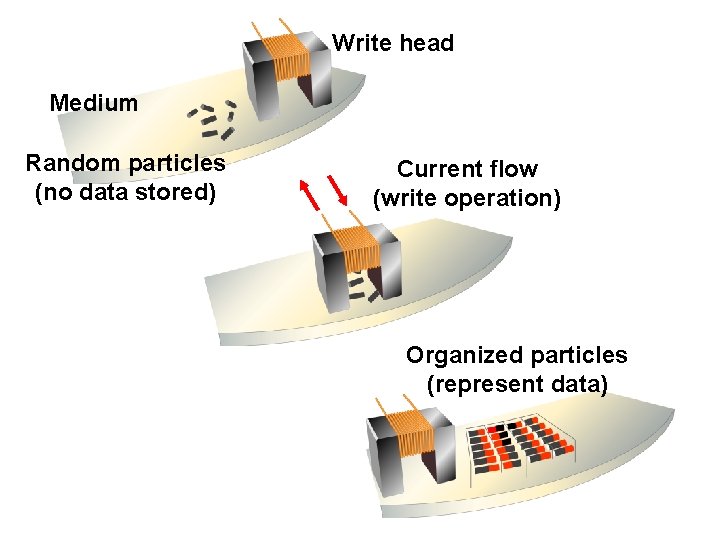
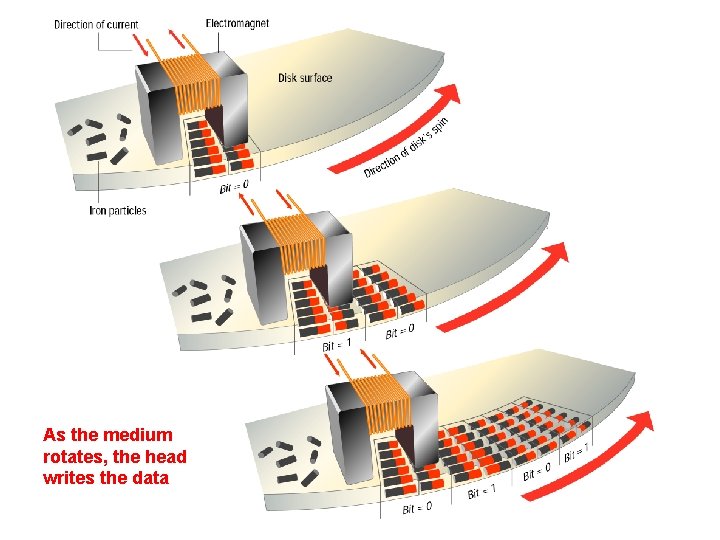
Magnetic Storage Devices How Magnetic Storage Works Ø A magnetic disk's medium contains iron particles, which can be polarized when given a magnetic charge in one of two directions. Ø Each particle's direction represents a 1 (on) or 0 (off), representing each bit of data that the CPU can recognize. Ø A disk drive uses read/write heads containing electromagnets to create magnetic charges on the medium.
Write head Medium Random particles (no data stored) Current flow (write operation) Organized particles (represent data)
As the medium rotates, the head writes the data
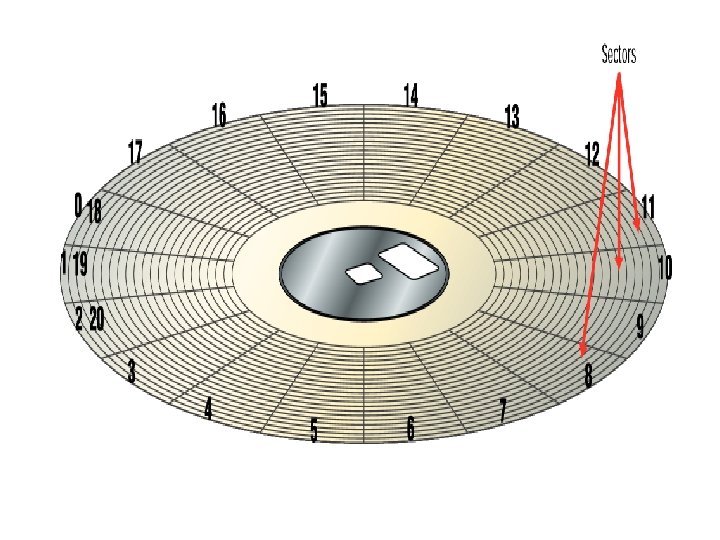
Preparing Disks for Storage Ø Before a magnetic disk can be used, it must be formatted—a process that maps the disk's surface and determines how data will be stored. Ø During formatting, the drive creates circular tracks around the disk's surface, then divides each track into sectors.
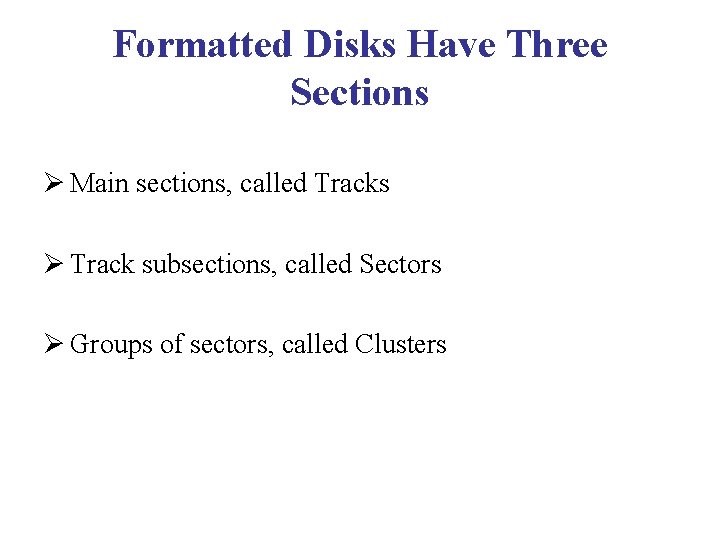
Formatted Disks Have Three Sections Ø Main sections, called Tracks Ø Track subsections, called Sectors Ø Groups of sectors, called Clusters
Logical Format A logical format is the labeling of tracks and sectors.
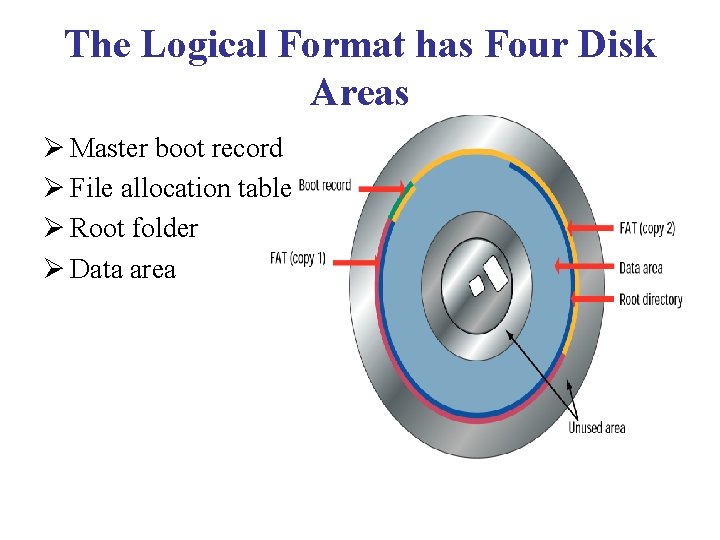
The Logical Format has Four Disk Areas Ø Master boot record Ø File allocation table Ø Root folder Ø Data area
Master Boot Record (MBR) Ø This program determines whether the disk contains the basic components of an operating system necessary to run successfully. Boot sector: Ø It stores the master boot record (MBR), a small program that runs when you first start (boot) the computer.
File Allocation Table (FAT) A log created during the logical formatting process that records the location of each file and status of each sector on the disk.
Root Folder Ø The top folder or directory in the disk’s folder hierarchy. Ø Enables the user to store data on the disk in a logical way.
Data Area Place where data or program files are actually stored.
3. 5 -inch Diskettes (Floppy Disks) Ø Diskettes are used to transfer files between computers as a backup medium. Ø Spin rate: 300 revolutions per minute (rpm) Ø Disk Density=Total no of Sectors * Total no of bytes that each sector can hold. Ø Storage Capacity of HD disks is 1. 44 MB
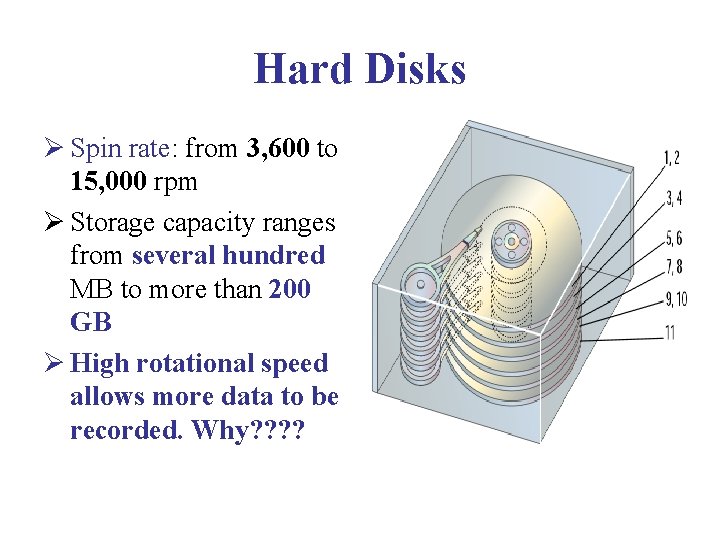
Hard Disks Ø Spin rate: from 3, 600 to 15, 000 rpm Ø Storage capacity ranges from several hundred MB to more than 200 GB Ø High rotational speed allows more data to be recorded. Why? ?
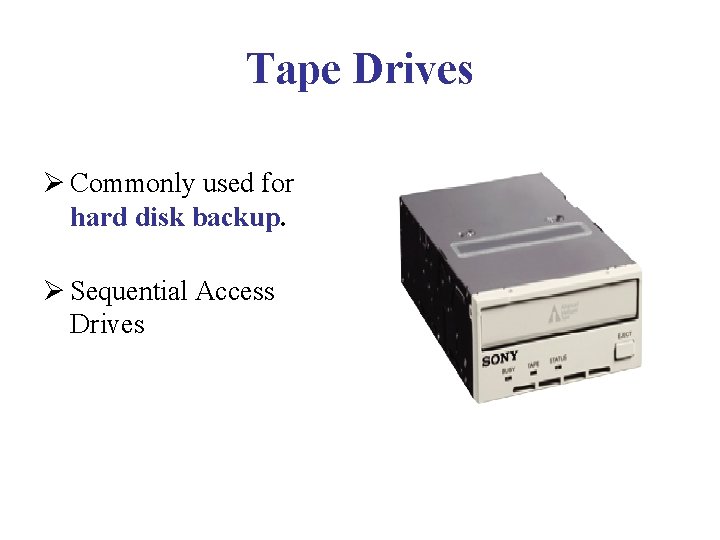
Tape Drives Ø Commonly used for hard disk backup. Ø Sequential Access Drives
PC Cards Ø Used to connect new components like memory and expanding storage capacity to a computer. Ø Up to 512 MB memory.
Two Ways to Measure Storage Device Performance Ø Average Access Time Ø Data Transfer Rate
Average Access Time Ø Amount of time the device takes to move its read/write heads to any spot on the medium. Ø Measurement should be an Average Time. Ø Important measure of performance for storage devices and memory.
Access Time Measured in Two Ways Ø Storage devices: milliseconds (ms) Ø Memory devices: nanoseconds (ns)
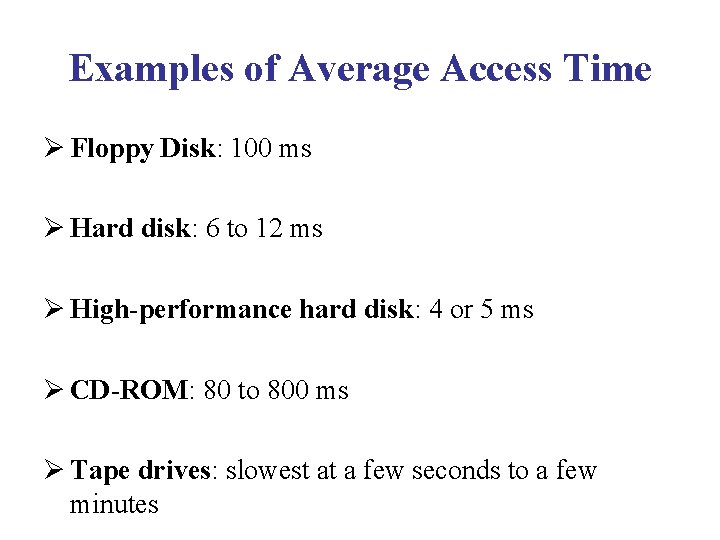
Examples of Average Access Time Ø Floppy Disk: 100 ms Ø Hard disk: 6 to 12 ms Ø High-performance hard disk: 4 or 5 ms Ø CD-ROM: 80 to 800 ms Ø Tape drives: slowest at a few seconds to a few minutes
Data Transfer Rate Ø Amount of time it takes for one device to transfer data to another device. Ø Measured in units of data per second Ø Note: MBps= Megabytes/sec, Mbps =megabits/sec 8 bits = 1 byte Hard drives are the fastest CD-ROM’s, slow Floppies, the slowest
Optimizing Disk Performance When the PC’s performance slows down, disk maintenance, or disk optimization, can speed things up again
File or Data Compression Ø Technology for making files smaller to free up storage space. Ø File compression enables to store more data on a disk effectively increasing the disk’s capacity. Ø File Compression is performed by a software. Ø Utilities such as Windows' Drive. Space enable you to compress the entire contents of your hard disk.
File Compression Software Ø PKZIP and Win. Zip: Windows-based PC’s Ø Stuff. IT: Macintosh
Ways to Optimize Disk Performance Ø Delete temporary files Ø Uninstall little-used software programs Ø Run a disk scanner to look for and fix errors Ø Defragment the disk.
Drive-Interface Standards Ø Another factor to determine how quickly a drive can read and write data is the Type Of Controller that driver uses. Ø Storage Devices need a controller to act as an interface between the Drive and CPU. Ø Personal Computers use one of two drive-interface standards for built-in disk drives: EIDE or SCSI. Ø Other type of interface (USB & Fire. Wire) to attach additional disk drives and other devices to a computer.
Drive-Interface Standards Ø EIDE -- Enhanced Integrated Drive Electronics Ø SCSI – Small Computer System Interface Ø USB – Universal Serial Bus Ø Fire. Wire – IEEE 1394
EIDE Ø Most new computer systems use EIDE driveinterface standard. Ø Latest version supports data transfer rates of 66 MBps. Ø Variants: Fast IDE, ATA, Fast ATA, Ultra-ATA, ATA 66 etc.
SCSI Ø Earlier developed to connect third-party peripheral devices to mainframe computers. Ø Allows high data transfer rates than EIDE. Ø Supports 80 MBps. Ø Normally found in Servers, Workstations etc.
USB & Fire. Wire Ø All sort of peripheral devices can be attached to a computer through USB or Fire. Wire port. Ø Support High Data transfer rates.