
Lecture 5 Housekeeping Exercise 1 Emails with score
- Slides: 37
Lecture 5 Housekeeping – Exercise 1 – Emails with score & feedback Make use of option to improve score – Exercise 2 category about YOU Example … see also other examples of previous students work in Lecture 1 Meaning – Visual Storytelling and Colors Food for Eyes Mechanics – Fireworks – – – Create smaller image to reduce file size Save to Web Crop Tool Selection Tools Text Tool Animated GIF © Anselm Spoerri
Food for Eyes Visual Storytelling Colors Magazine : Select “Archive” Initial Designer: Tibor Kalman Select and explore #25: Fat #26: Time #28: Touch #31: Water #35: Mamma #47: Madness © Anselm Spoerri
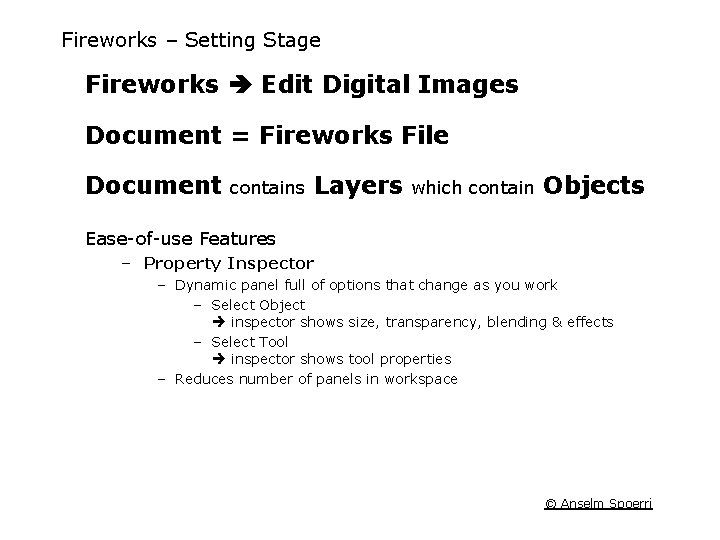
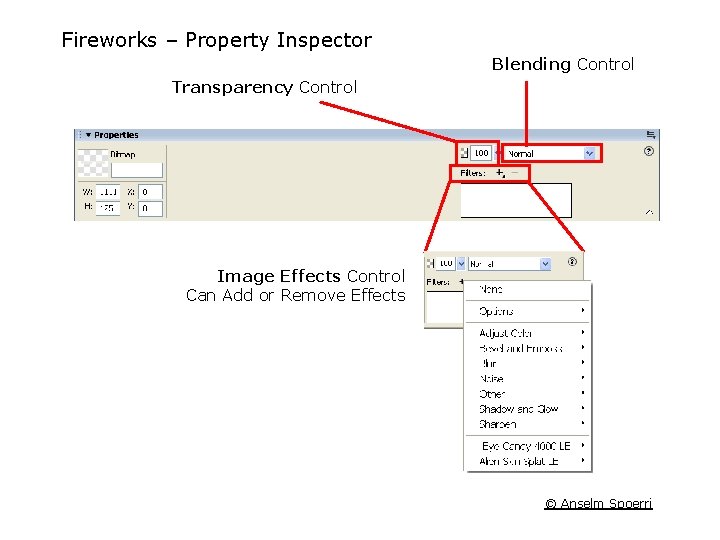
Fireworks – Setting Stage Fireworks Edit Digital Images Document = Fireworks File Document contains Layers which contain Objects Ease of use Features – Property Inspector – Dynamic panel full of options that change as you work – Select Object inspector shows size, transparency, blending & effects – Select Tool inspector shows tool properties – Reduces number of panels in workspace © Anselm Spoerri
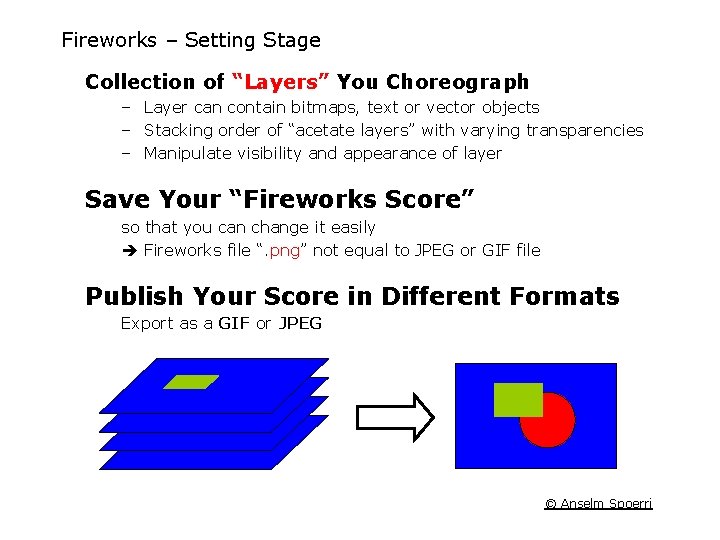
Fireworks – Setting Stage Collection of “Layers” You Choreograph – Layer can contain bitmaps, text or vector objects – Stacking order of “acetate layers” with varying transparencies – Manipulate visibility and appearance of layer Save Your “Fireworks Score” so that you can change it easily Fireworks file “. png” not equal to JPEG or GIF file Publish Your Score in Different Formats Export as a GIF or JPEG © Anselm Spoerri
Fireworks – Property Inspector Blending Control Transparency Control Image Effects Control Can Add or Remove Effects © Anselm Spoerri
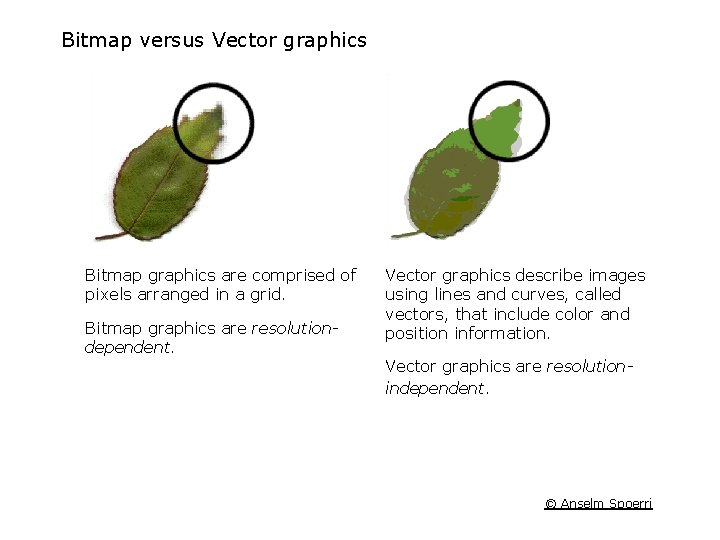
Bitmap versus Vector graphics Bitmap graphics are comprised of pixels arranged in a grid. Bitmap graphics are resolutiondependent. Vector graphics describe images using lines and curves, called vectors, that include color and position information. Vector graphics are resolutionindependent. © Anselm Spoerri
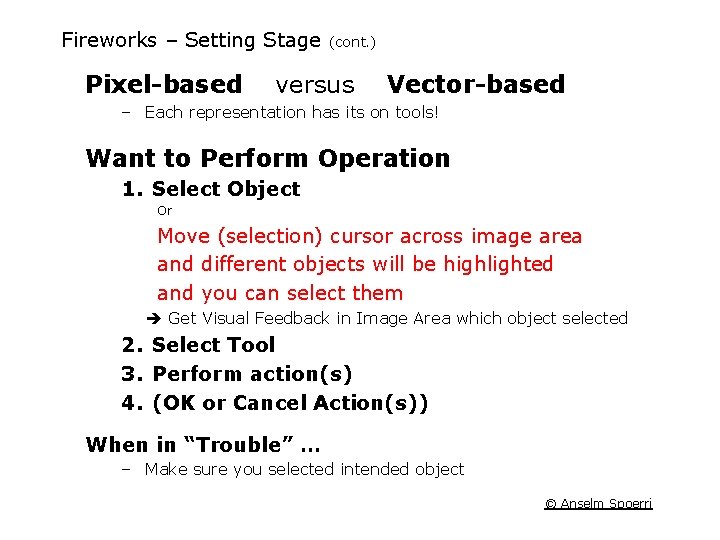
Fireworks – Setting Stage (cont. ) Pixel-based versus Vector-based – Each representation has its on tools! Want to Perform Operation 1. Select Object Or Move (selection) cursor across image area and different objects will be highlighted and you can select them Get Visual Feedback in Image Area which object selected 2. Select Tool 3. Perform action(s) 4. (OK or Cancel Action(s)) When in “Trouble” … – Make sure you selected intended object © Anselm Spoerri
Fireworks Panel Management Panels = floating controls to edit aspects of a selected object – – Layers & Frames Optimize Color Mixer History Panel draggable group panels together – Drag panel gripper on the upper left corner of panel window – Drag panel gripper onto panel docking area Applies to all Macromedia Studio Applications © Anselm Spoerri
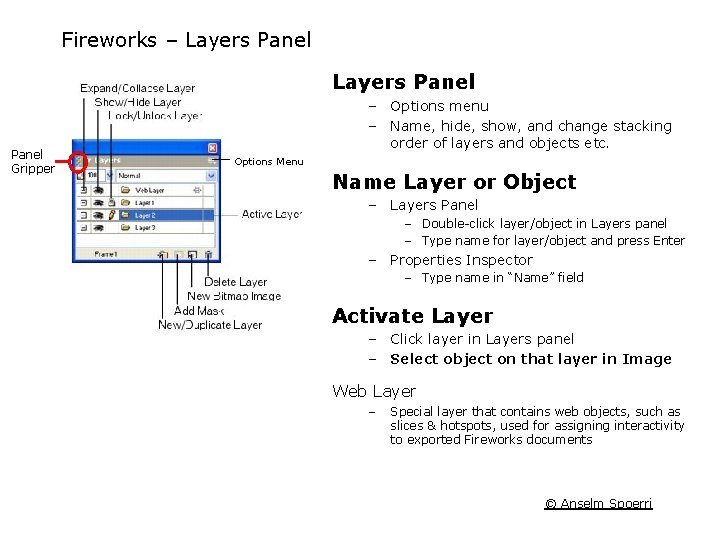
Fireworks – Layers Panel Gripper – Options menu – Name, hide, show, and change stacking order of layers and objects etc. Options Menu Name Layer or Object – Layers Panel – Double click layer/object in Layers panel – Type name for layer/object and press Enter – Properties Inspector – Type name in “Name” field Activate Layer – Click layer in Layers panel – Select object on that layer in Image Web Layer – Special layer that contains web objects, such as slices & hotspots, used for assigning interactivity to exported Fireworks documents © Anselm Spoerri
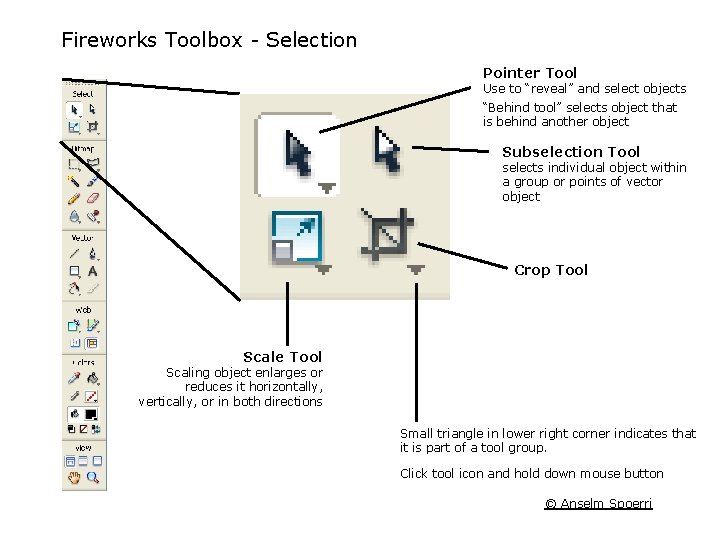
Fireworks Toolbox Selection Pointer Tool Use to “reveal” and select objects “Behind tool” selects object that is behind another object Subselection Tool selects individual object within a group or points of vector object Crop Tool Scale Tool Scaling object enlarges or reduces it horizontally, vertically, or in both directions Small triangle in lower right corner indicates that it is part of a tool group. Click tool icon and hold down mouse button © Anselm Spoerri
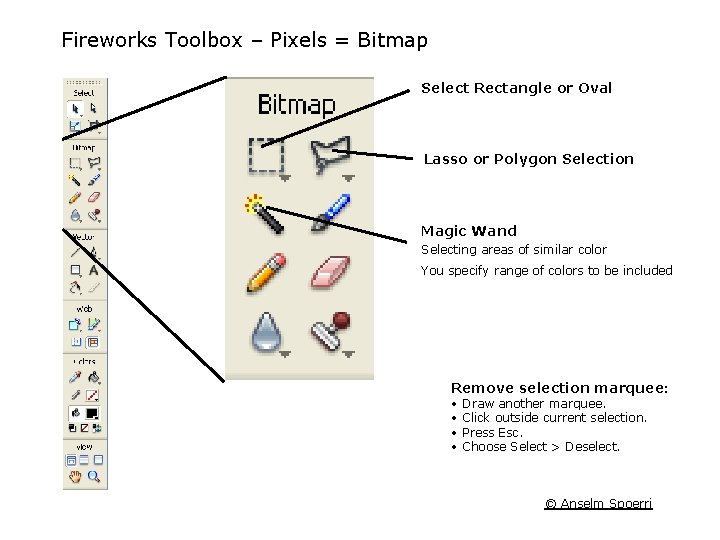
Fireworks Toolbox – Pixels = Bitmap Select Rectangle or Oval Lasso or Polygon Selection Magic Wand Selecting areas of similar color You specify range of colors to be included Remove selection marquee: • Draw another marquee. • Click outside current selection. • Press Esc. • Choose Select > Deselect. © Anselm Spoerri
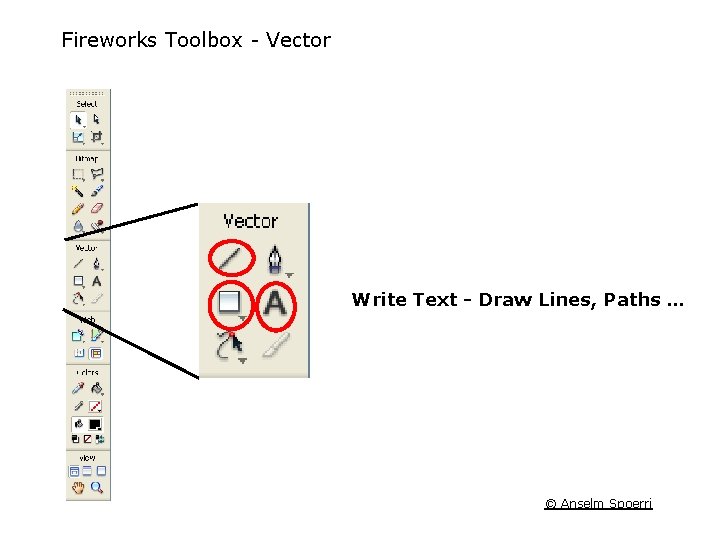
Fireworks Toolbox Vector Write Text - Draw Lines, Paths … © Anselm Spoerri
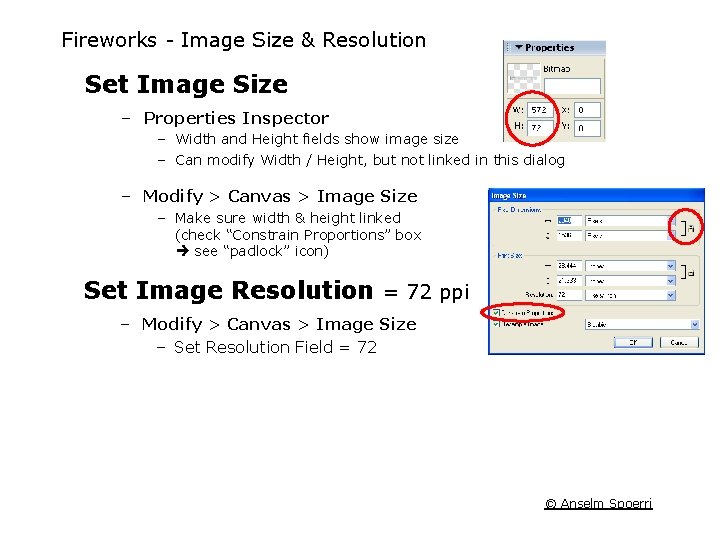
Fireworks Image Size & Resolution Set Image Size – Properties Inspector – Width and Height fields show image size – Can modify Width / Height, but not linked in this dialog – Modify > Canvas > Image Size – Make sure width & height linked (check “Constrain Proportions” box see “padlock” icon) Set Image Resolution = 72 ppi – Modify > Canvas > Image Size – Set Resolution Field = 72 © Anselm Spoerri
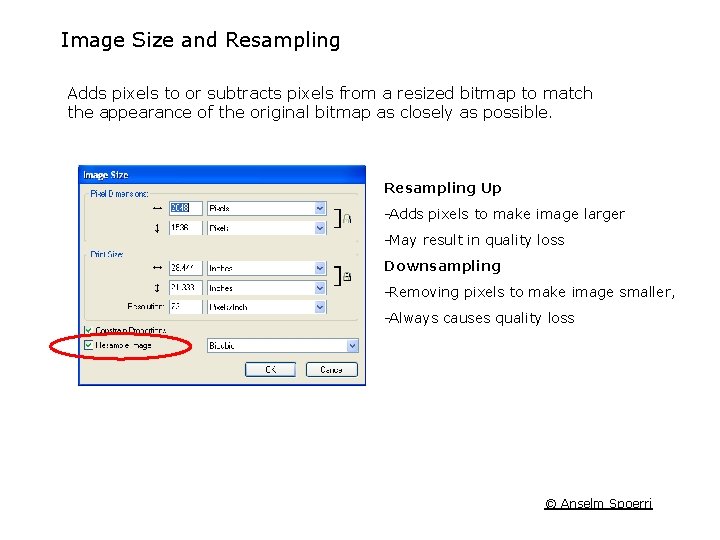
Image Size and Resampling Adds pixels to or subtracts pixels from a resized bitmap to match the appearance of the original bitmap as closely as possible. Resampling Up Adds pixels to make image larger May result in quality loss Downsampling Removing pixels to make image smaller, Always causes quality loss © Anselm Spoerri
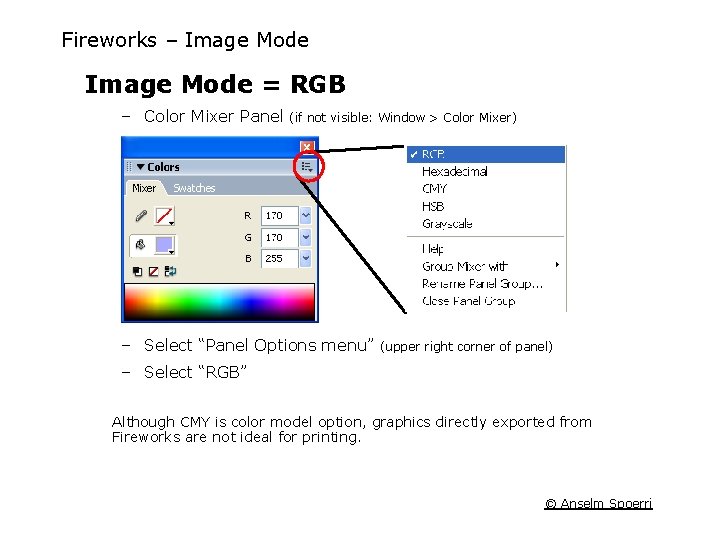
Fireworks – Image Mode = RGB – Color Mixer Panel (if not visible: Window > Color Mixer) – Select “Panel Options menu” (upper right corner of panel) – Select “RGB” Although CMY is color model option, graphics directly exported from Fireworks are not ideal for printing. © Anselm Spoerri
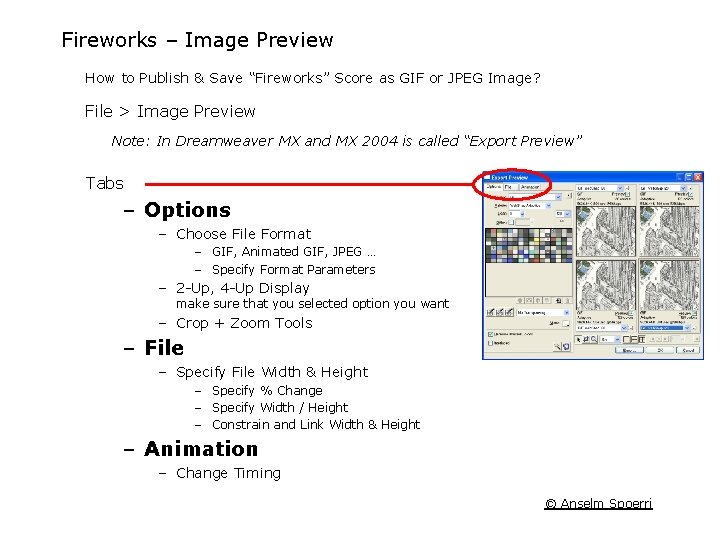
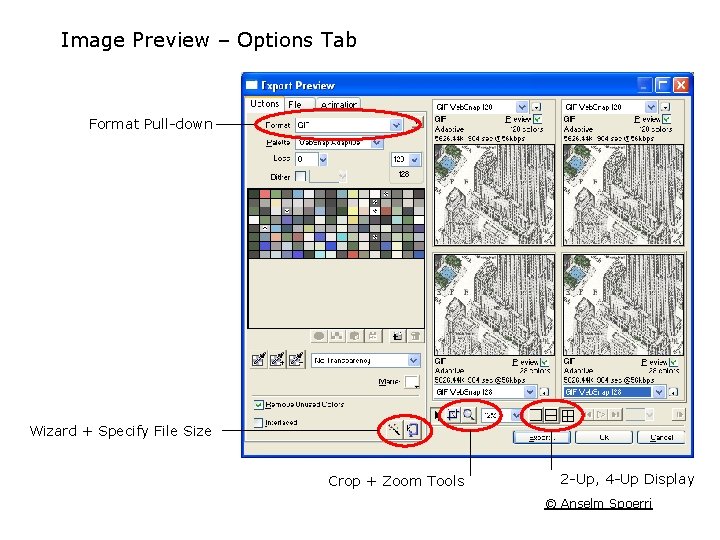
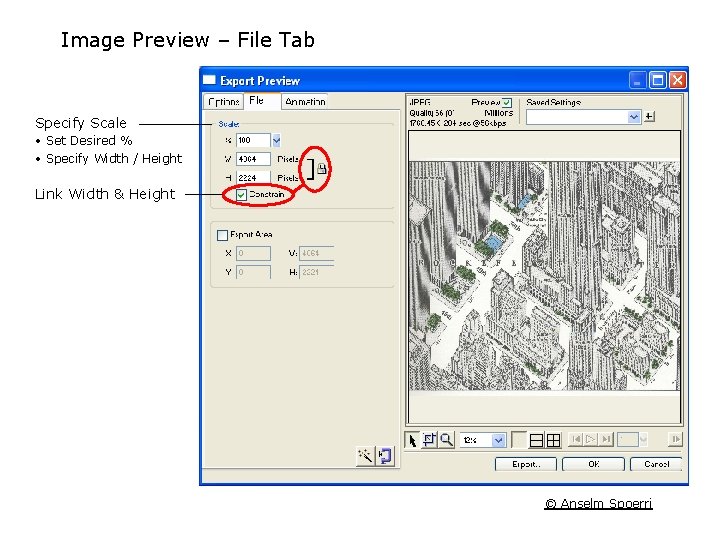
Fireworks – Image Preview How to Publish & Save “Fireworks” Score as GIF or JPEG Image? File > Image Preview Note: In Dreamweaver MX and MX 2004 is called “Export Preview” Tabs – Options – Choose File Format – GIF, Animated GIF, JPEG … – Specify Format Parameters – 2 Up, 4 Up Display make sure that you selected option you want – Crop + Zoom Tools – File – Specify File Width & Height – Specify % Change – Specify Width / Height – Constrain and Link Width & Height – Animation – Change Timing © Anselm Spoerri
Image Preview – Options Tab Format Pull down Wizard + Specify File Size Crop + Zoom Tools 2 Up, 4 Up Display © Anselm Spoerri
Image Preview – File Tab Specify Scale • Set Desired % • Specify Width / Height Link Width & Height © Anselm Spoerri
Fireworks Step–by–Step Crop Tool | Selection Tools | Text Tool | Animated GIF © Anselm Spoerri
Step 0 – Download files and Initialize Create folder “mplec 5” in “My Documents” folder Download Files and Images http: //www. scils. rutgers. edu/~aspoerri/Teaching/MPOnline/Lectures/Lecture 5/stepbystep/ – Select ZIP file = “stepbystep 5. zip” – File Download Dialog: select “Open” – Extract into “My Documents/mplec 4” and make sure to extract all files. (Being able to use Win. Zip is prerequisite for this course) © Anselm Spoerri
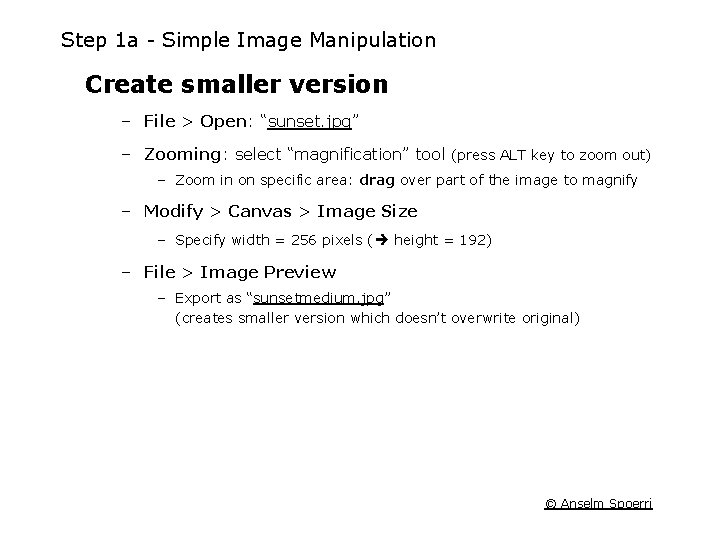
Step 1 a Simple Image Manipulation Create smaller version – File > Open: “sunset. jpg” – Zooming: select “magnification” tool (press ALT key to zoom out) – Zoom in on specific area: drag over part of the image to magnify – Modify > Canvas > Image Size – Specify width = 256 pixels ( height = 192) – File > Image Preview – Export as “sunsetmedium. jpg” (creates smaller version which doesn’t overwrite original) © Anselm Spoerri
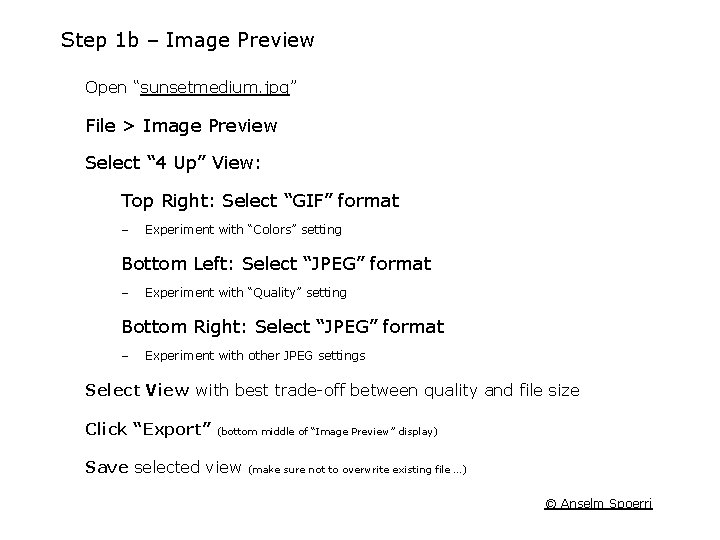
Step 1 b – Image Preview Open “sunsetmedium. jpg” File > Image Preview Select “ 4 Up” View: Top Right: Select “GIF” format – Experiment with “Colors” setting Bottom Left: Select “JPEG” format – Experiment with “Quality” setting Bottom Right: Select “JPEG” format – Experiment with other JPEG settings Select View with best trade off between quality and file size Click “Export” (bottom middle of “Image Preview” display) Save selected view (make sure not to overwrite existing file …) © Anselm Spoerri
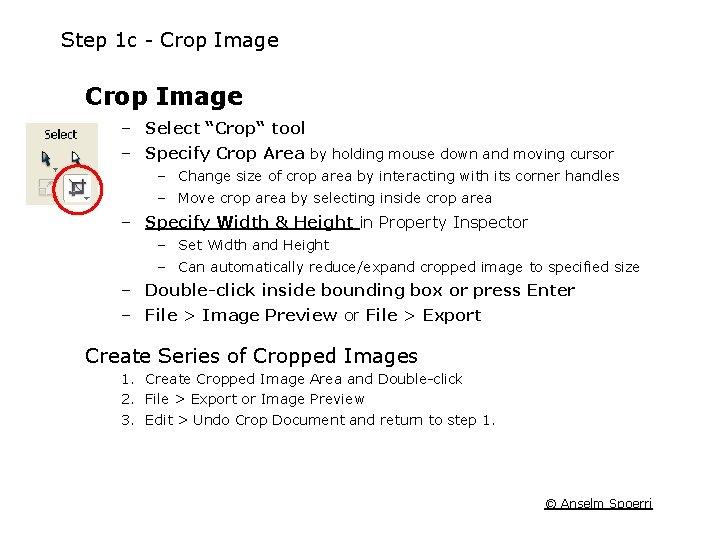
Step 1 c Crop Image – Select “Crop“ tool – Specify Crop Area by holding mouse down and moving cursor – Change size of crop area by interacting with its corner handles – Move crop area by selecting inside crop area – Specify Width & Height in Property Inspector – Set Width and Height – Can automatically reduce/expand cropped image to specified size – Double-click inside bounding box or press Enter – File > Image Preview or File > Export Create Series of Cropped Images 1. Create Cropped Image Area and Double click 2. File > Export or Image Preview 3. Edit > Undo Crop Document and return to step 1. © Anselm Spoerri
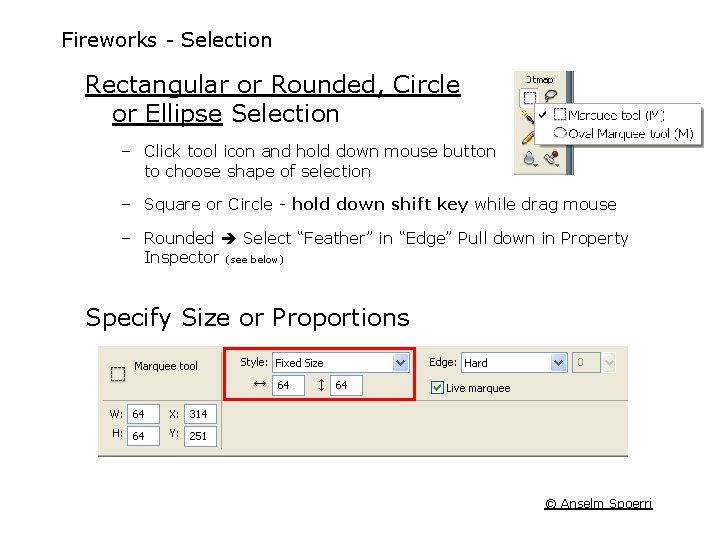
Fireworks Selection Rectangular or Rounded, Circle or Ellipse Selection – Click tool icon and hold down mouse button to choose shape of selection – Square or Circle hold down shift key while drag mouse – Rounded Select “Feather” in “Edge” Pull down in Property Inspector (see below) Specify Size or Proportions © Anselm Spoerri
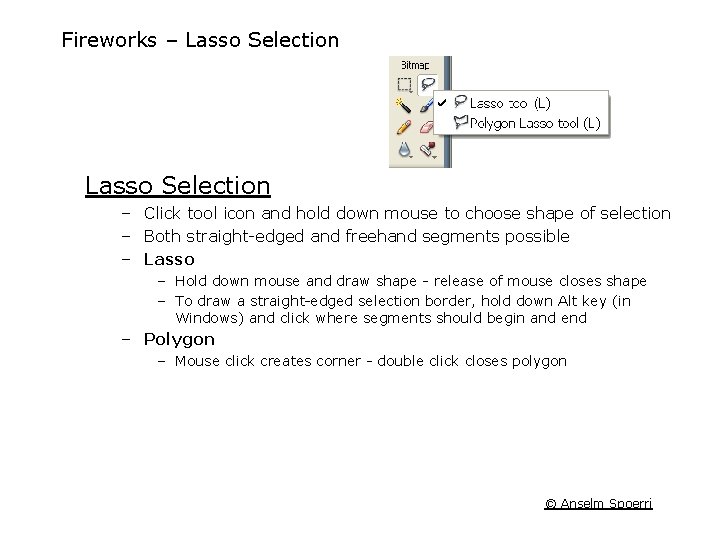
Fireworks – Lasso Selection – Click tool icon and hold down mouse to choose shape of selection – Both straight edged and freehand segments possible – Lasso – Hold down mouse and draw shape release of mouse closes shape – To draw a straight edged selection border, hold down Alt key (in Windows) and click where segments should begin and end – Polygon – Mouse click creates corner double click closes polygon © Anselm Spoerri
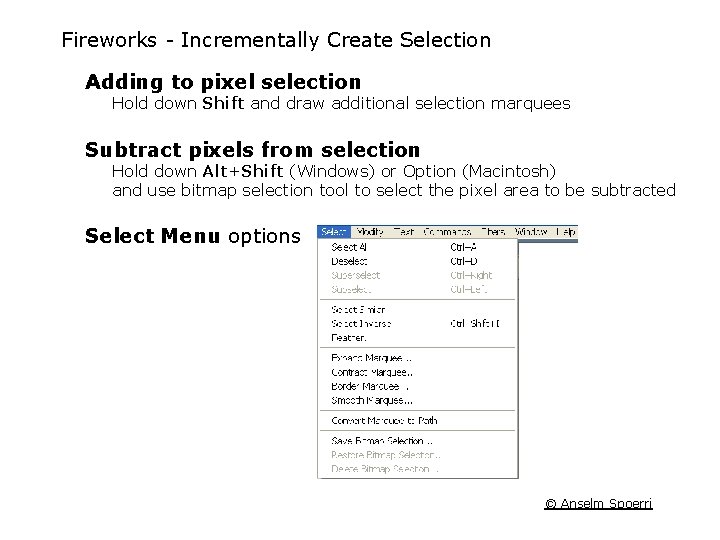
Fireworks Incrementally Create Selection Adding to pixel selection Hold down Shift and draw additional selection marquees Subtract pixels from selection Hold down Alt+Shift (Windows) or Option (Macintosh) and use bitmap selection tool to select the pixel area to be subtracted Select Menu options © Anselm Spoerri
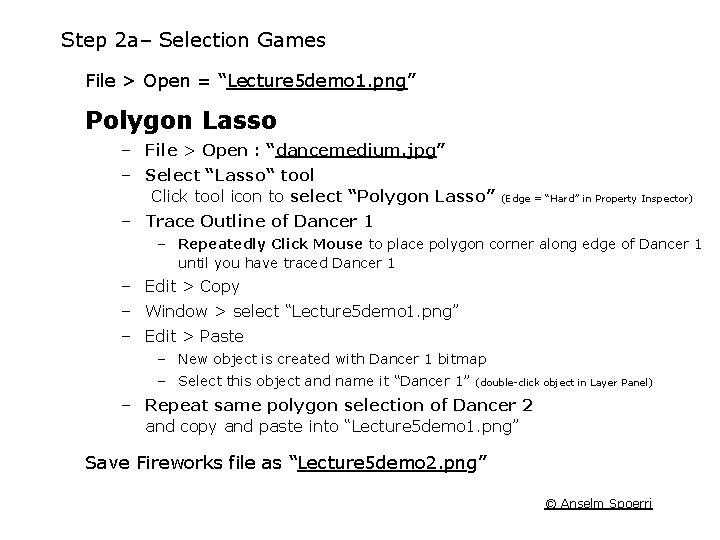
Step 2 a– Selection Games File > Open = “Lecture 5 demo 1. png” Polygon Lasso – File > Open : “dancemedium. jpg” – Select “Lasso“ tool Click tool icon to select “Polygon Lasso” (Edge = “Hard” in Property Inspector) – Trace Outline of Dancer 1 – Repeatedly Click Mouse to place polygon corner along edge of Dancer 1 until you have traced Dancer 1 – Edit > Copy – Window > select “Lecture 5 demo 1. png” – Edit > Paste – New object is created with Dancer 1 bitmap – Select this object and name it “Dancer 1” (double click object in Layer Panel) – Repeat same polygon selection of Dancer 2 and copy and paste into “Lecture 5 demo 1. png” Save Fireworks file as “Lecture 5 demo 2. png” © Anselm Spoerri
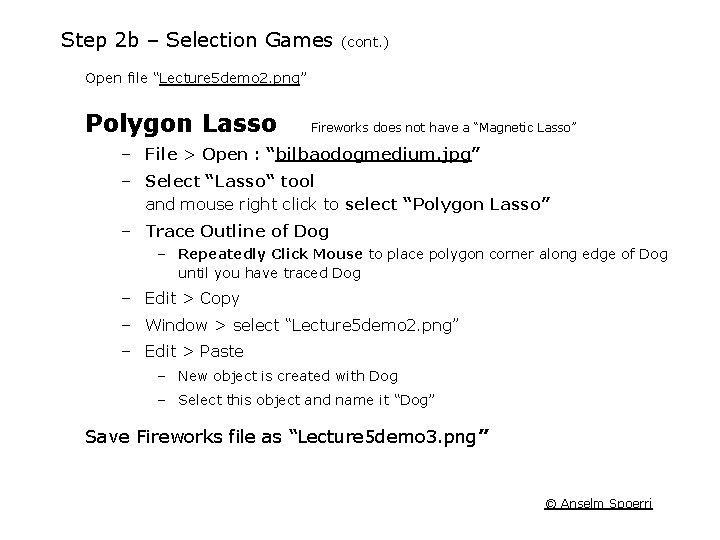
Step 2 b – Selection Games (cont. ) Open file “Lecture 5 demo 2. png” Polygon Lasso Fireworks does not have a “Magnetic Lasso” – File > Open : “bilbaodogmedium. jpg” – Select “Lasso“ tool and mouse right click to select “Polygon Lasso” – Trace Outline of Dog – Repeatedly Click Mouse to place polygon corner along edge of Dog until you have traced Dog – Edit > Copy – Window > select “Lecture 5 demo 2. png” – Edit > Paste – New object is created with Dog – Select this object and name it “Dog” Save Fireworks file as “Lecture 5 demo 3. png” © Anselm Spoerri
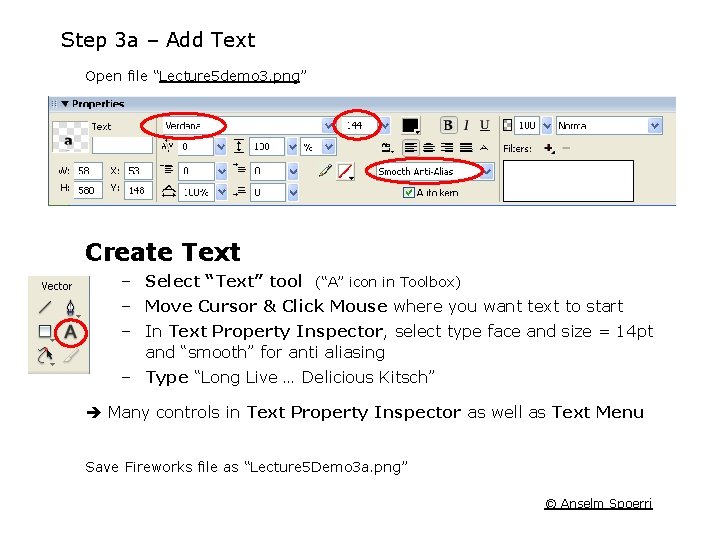
Step 3 a – Add Text Open file “Lecture 5 demo 3. png” Create Text – Select “Text” tool (“A” icon in Toolbox) – Move Cursor & Click Mouse where you want text to start – In Text Property Inspector, select type face and size = 14 pt and “smooth” for anti aliasing – Type “Long Live … Delicious Kitsch” Many controls in Text Property Inspector as well as Text Menu Save Fireworks file as “Lecture 5 Demo 3 a. png” © Anselm Spoerri
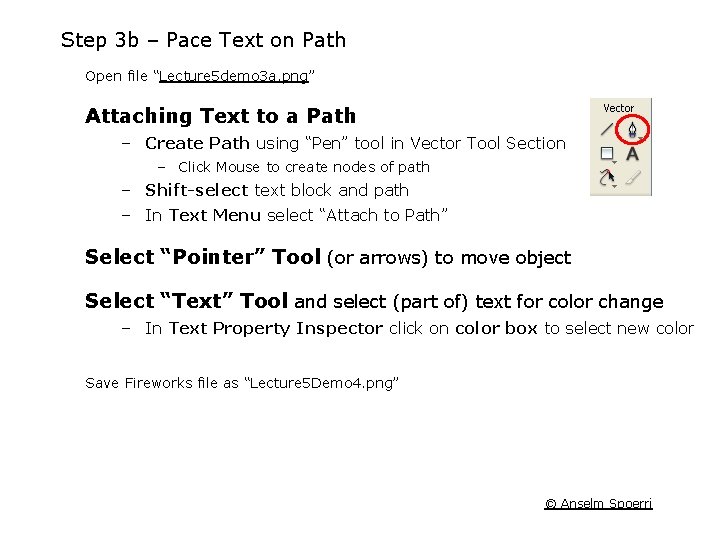
Step 3 b – Pace Text on Path Open file “Lecture 5 demo 3 a. png” Attaching Text to a Path – Create Path using “Pen” tool in Vector Tool Section – Click Mouse to create nodes of path – Shift-select text block and path – In Text Menu select “Attach to Path” Select “Pointer” Tool (or arrows) to move object Select “Text” Tool and select (part of) text for color change – In Text Property Inspector click on color box to select new color Save Fireworks file as “Lecture 5 Demo 4. png” © Anselm Spoerri
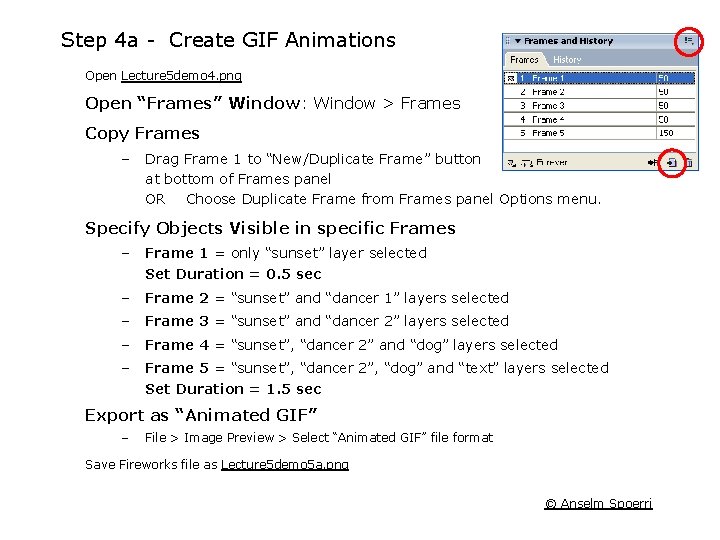
Step 4 a Create GIF Animations Open Lecture 5 demo 4. png Open “Frames” Window: Window > Frames Copy Frames – Drag Frame 1 to “New/Duplicate Frame” button at bottom of Frames panel OR Choose Duplicate Frame from Frames panel Options menu. Specify Objects Visible in specific Frames – Frame 1 = only “sunset” layer selected Set Duration = 0. 5 sec – Frame 2 = “sunset” and “dancer 1” layers selected – Frame 3 = “sunset” and “dancer 2” layers selected – Frame 4 = “sunset”, “dancer 2” and “dog” layers selected – Frame 5 = “sunset”, “dancer 2”, “dog” and “text” layers selected Set Duration = 1. 5 sec Export as “Animated GIF” – File > Image Preview > Select “Animated GIF” file format Save Fireworks file as Lecture 5 demo 5 a. png © Anselm Spoerri
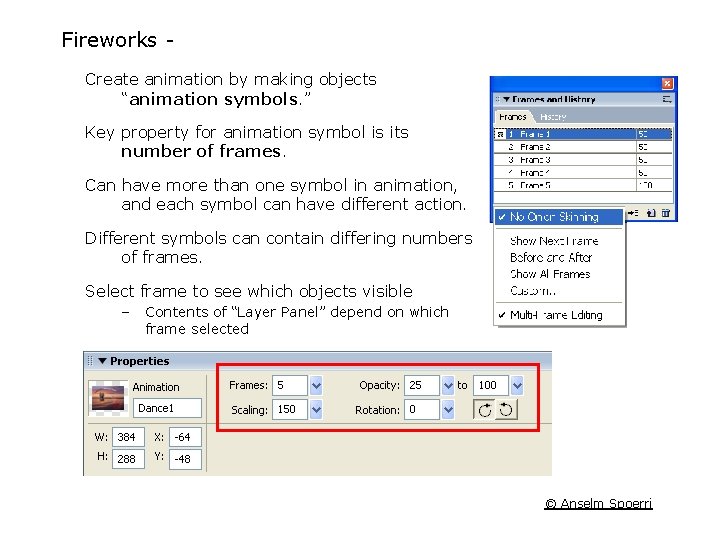
Fireworks Animation Create animation by making objects “animation symbols. ” Key property for animation symbol is its number of frames. Can have more than one symbol in animation, and each symbol can have different action. Different symbols can contain differing numbers of frames. Select frame to see which objects visible – Contents of “Layer Panel” depend on which frame selected © Anselm Spoerri
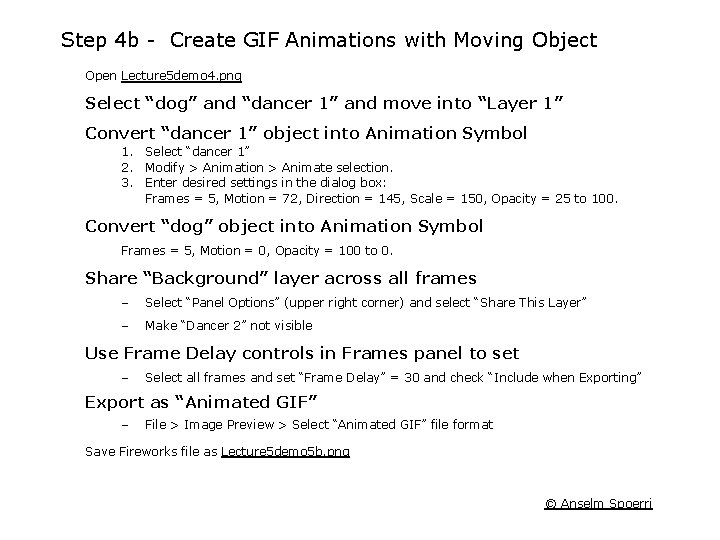
Step 4 b Create GIF Animations with Moving Object Open Lecture 5 demo 4. png Select “dog” and “dancer 1” and move into “Layer 1” Convert “dancer 1” object into Animation Symbol 1. Select “dancer 1” 2. Modify > Animation > Animate selection. 3. Enter desired settings in the dialog box: Frames = 5, Motion = 72, Direction = 145, Scale = 150, Opacity = 25 to 100. Convert “dog” object into Animation Symbol Frames = 5, Motion = 0, Opacity = 100 to 0. Share “Background” layer across all frames – Select “Panel Options” (upper right corner) and select “Share This Layer” – Make “Dancer 2” not visible Use Frame Delay controls in Frames panel to set animation speed – Select all frames and set “Frame Delay” = 30 and check “Include when Exporting” Export as “Animated GIF” – File > Image Preview > Select “Animated GIF” file format Save Fireworks file as Lecture 5 demo 5 b. png © Anselm Spoerri
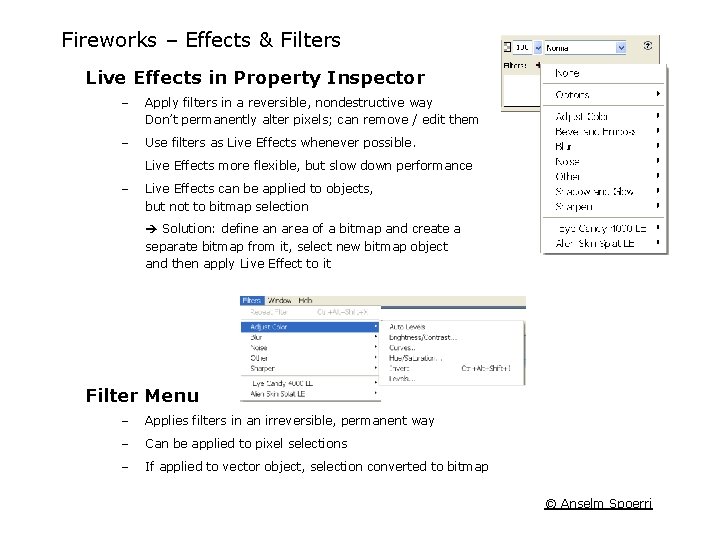
Fireworks – Effects & Filters Live Effects in Property Inspector – Apply filters in a reversible, nondestructive way Don’t permanently alter pixels; can remove / edit them – Use filters as Live Effects whenever possible. Live Effects more flexible, but slow down performance – Live Effects can be applied to objects, but not to bitmap selection Solution: define an area of a bitmap and create a separate bitmap from it, select new bitmap object and then apply Live Effect to it Filter Menu – Applies filters in an irreversible, permanent way – Can be applied to pixel selections – If applied to vector object, selection converted to bitmap © Anselm Spoerri
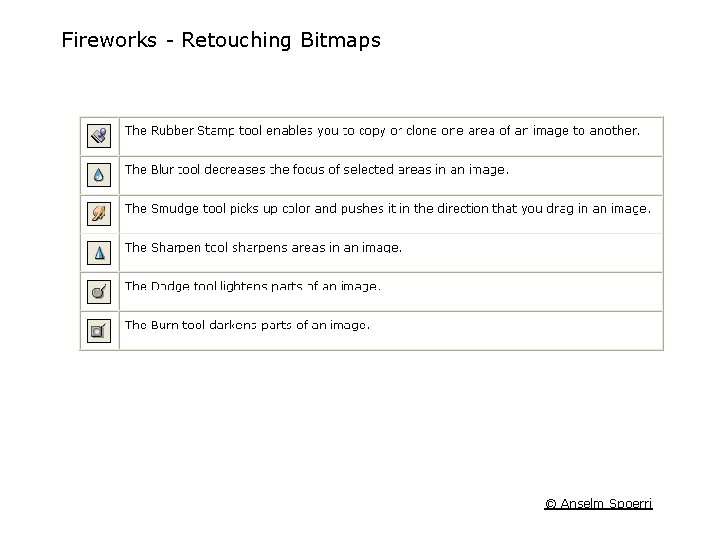
Fireworks Retouching Bitmaps © Anselm Spoerri
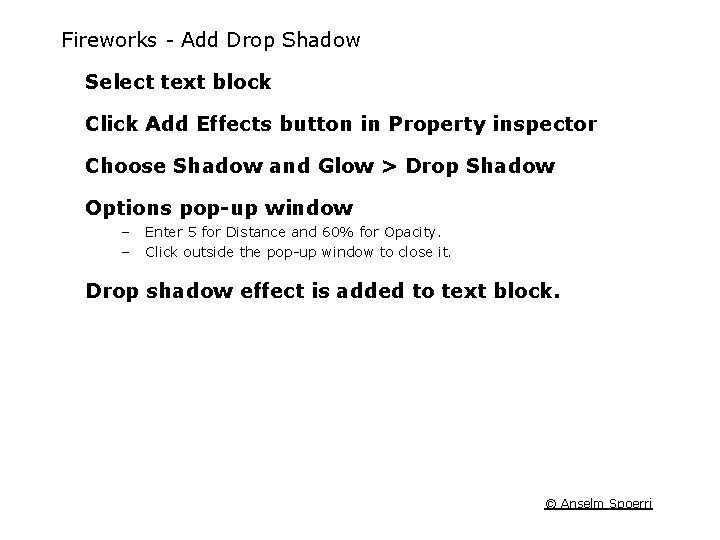
Fireworks Add Drop Shadow Select text block Click Add Effects button in Property inspector Choose Shadow and Glow > Drop Shadow Options pop-up window – – Enter 5 for Distance and 60% for Opacity. Click outside the pop up window to close it. Drop shadow effect is added to text block. © Anselm Spoerri
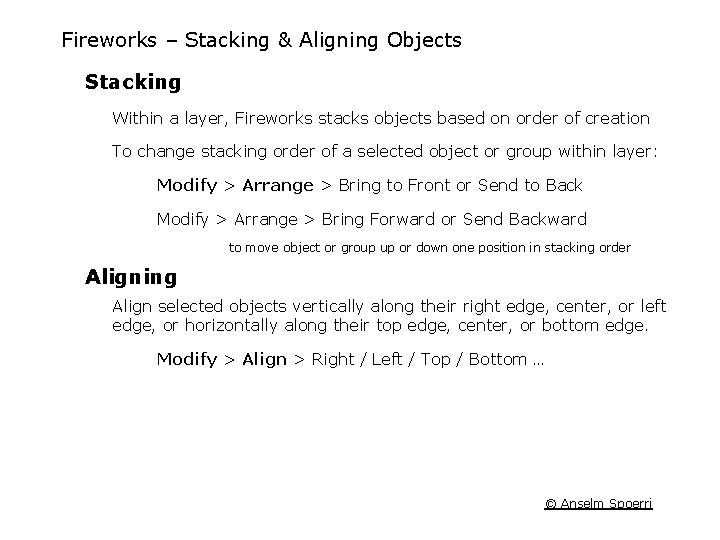
Fireworks – Stacking & Aligning Objects Stacking Within a layer, Fireworks stacks objects based on order of creation To change stacking order of a selected object or group within layer: Modify > Arrange > Bring to Front or Send to Back Modify > Arrange > Bring Forward or Send Backward to move object or group up or down one position in stacking order Aligning Align selected objects vertically along their right edge, center, or left edge, or horizontally along their top edge, center, or bottom edge. Modify > Align > Right / Left / Top / Bottom … © Anselm Spoerri