
Lecture 12 Flash Done So Far and Build
Lecture 12 Flash – – – Done So Far and Build Upon It Create Function Create “Button” using Action. Script Name Keyframes Create “Disjointed Rollover” using Action. Script © Anselm Spoerri
Done So Far – Create Flash Website with Animated Buttons 1. Import Images 2. Convert Images to Graphic Symbols • “Insert > Convert to Symbol” 3. Create Movie Clip using “Insert > New Symbol” 4. Insert Graphic Symbol and Animate 5. Create Buttons 6. Insert Movie Clip in “Over” State 7. Create “UP” and “DOWN” Buttons 8. Create Navigation Bar in “Scene 1” and add Action. Script 9. Create Scene for Each Category and “Swap In” “Down” Button 10. This Week – Create Secondary Navigation and “Disjointed Rollover” using Action. Script © Anselm Spoerri
Attach Action. Script • Frame stop (); Function definitions Variables • Button • Movie Clip Actions panel allows you to select, drag and drop, rearrange, and delete actions Reference panel to view detailed descriptions of actions Window > Reference Flash can detect what action you are entering and display code hint Scripts attached to a frame execute when playhead enters frame. – first frame in a movie is rendered incrementally Scripts attached to movie clips / buttons execute when event occurs © Anselm Spoerri
Action. Script Terminology Objects are collections of properties and methods Methods are functions assigned to an object Instances are objects that belong to a certain class Instance names are unique names that allow you to target movie clip instances in scripts è Use Property inspector to assign instance names to instances on Stage. è “this” to movie clips Target Paths = Hierarchical Addresses movie clip instance names, variables, objects in movie – Use target path to direct action at a movie clip or to get or set variable value _root. stereo. Control. volume © Anselm Spoerri

Dot Syntax “. ” Indicate the properties or methods related to an object or movie clip Used to identify target path to a movie clip, variable, function, or object movie. Clip. _x movie. Clip. _alpha movie. Clip. _xscale movie. Clip. _visible = true; _parent. movie. Clip. play (); © Anselm Spoerri
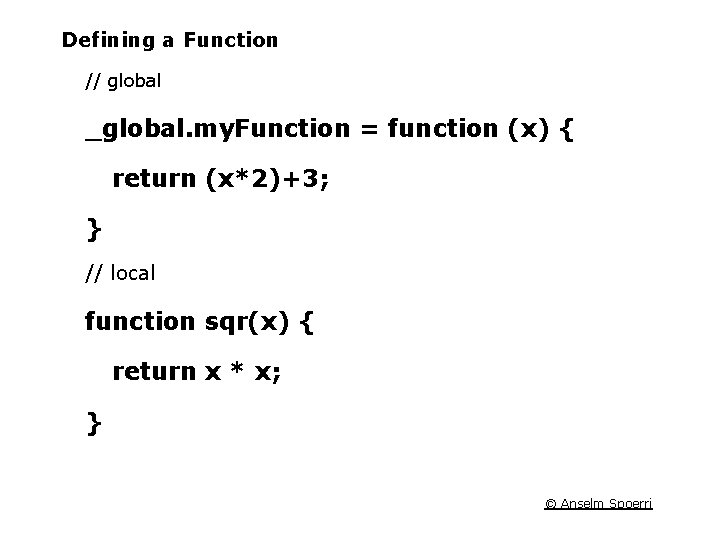
Defining a Function // global _global. my. Function = function (x) { return (x*2)+3; } // local function sqr(x) { return x * x; } © Anselm Spoerri
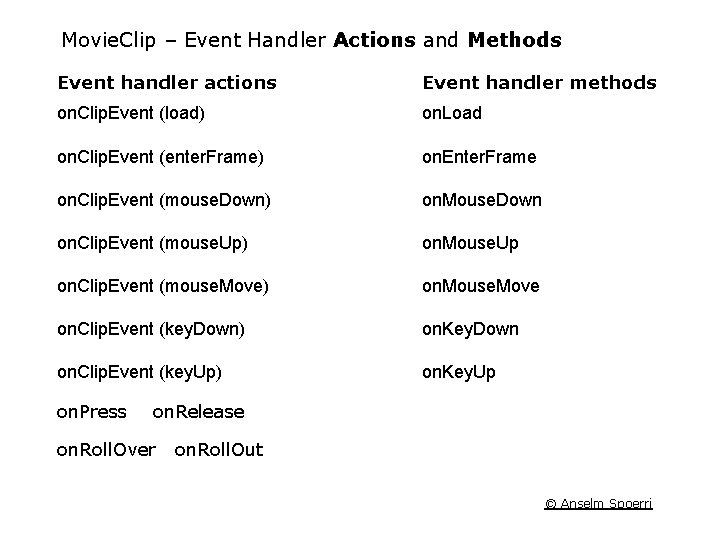
Movie. Clip – Event Handler Actions and Methods Event handler actions Event handler methods on. Clip. Event (load) on. Load on. Clip. Event (enter. Frame) on. Enter. Frame on. Clip. Event (mouse. Down) on. Mouse. Down on. Clip. Event (mouse. Up) on. Mouse. Up on. Clip. Event (mouse. Move) on. Mouse. Move on. Clip. Event (key. Down) on. Key. Down on. Clip. Event (key. Up) on. Key. Up on. Press on. Release on. Roll. Over on. Roll. Out © Anselm Spoerri
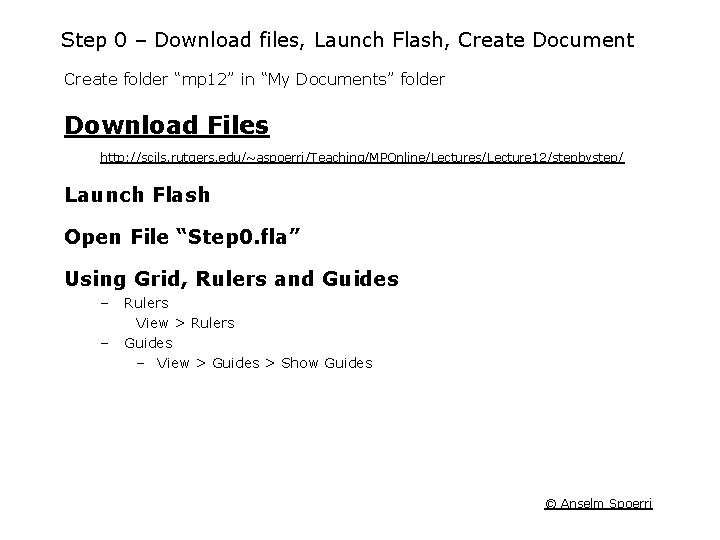
Step 0 – Download files, Launch Flash, Create Document Create folder “mp 12” in “My Documents” folder Download Files http: //scils. rutgers. edu/~aspoerri/Teaching/MPOnline/Lectures/Lecture 12/stepbystep/ Launch Flash Open File “Step 0. fla” Using Grid, Rulers and Guides – – Rulers View > Rulers Guides – View > Guides > Show Guides © Anselm Spoerri
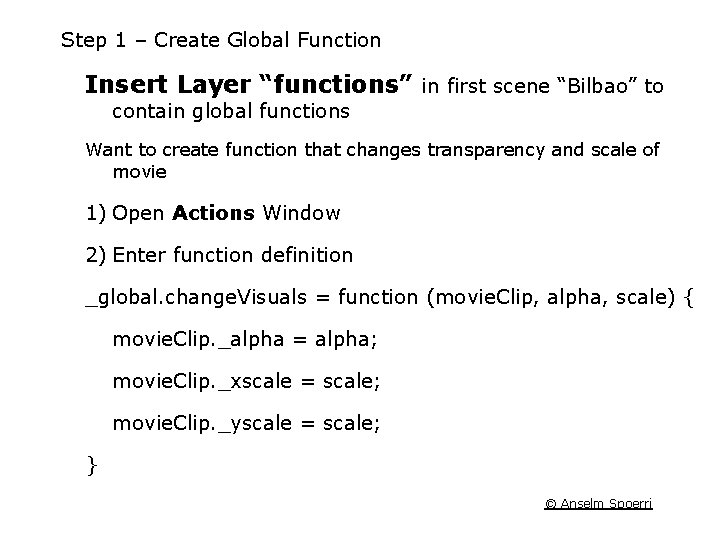
Step 1 – Create Global Function Insert Layer “functions” in first scene “Bilbao” to contain global functions Want to create function that changes transparency and scale of movie 1) Open Actions Window 2) Enter function definition _global. change. Visuals = function (movie. Clip, alpha, scale) { movie. Clip. _alpha = alpha; movie. Clip. _xscale = scale; movie. Clip. _yscale = scale; } © Anselm Spoerri
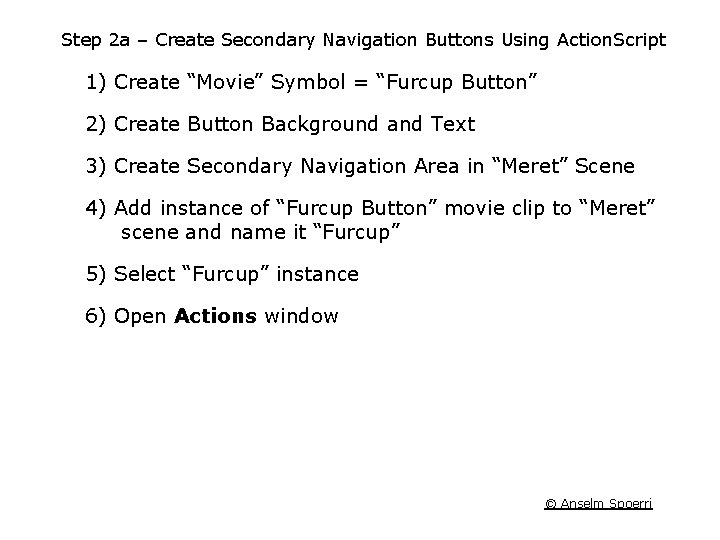
Step 2 a – Create Secondary Navigation Buttons Using Action. Script 1) Create “Movie” Symbol = “Furcup Button” 2) Create Button Background and Text 3) Create Secondary Navigation Area in “Meret” Scene 4) Add instance of “Furcup Button” movie clip to “Meret” scene and name it “Furcup” 5) Select “Furcup” instance 6) Open Actions window © Anselm Spoerri
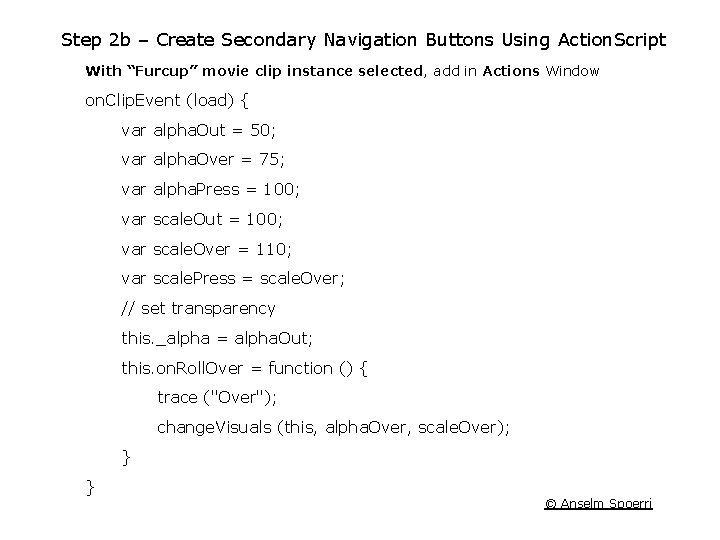
Step 2 b – Create Secondary Navigation Buttons Using Action. Script With “Furcup” movie clip instance selected, add in Actions Window on. Clip. Event (load) { var alpha. Out = 50; var alpha. Over = 75; var alpha. Press = 100; var scale. Out = 100; var scale. Over = 110; var scale. Press = scale. Over; // set transparency this. _alpha = alpha. Out; this. on. Roll. Over = function () { trace ("Over"); change. Visuals (this, alpha. Over, scale. Over); } } © Anselm Spoerri
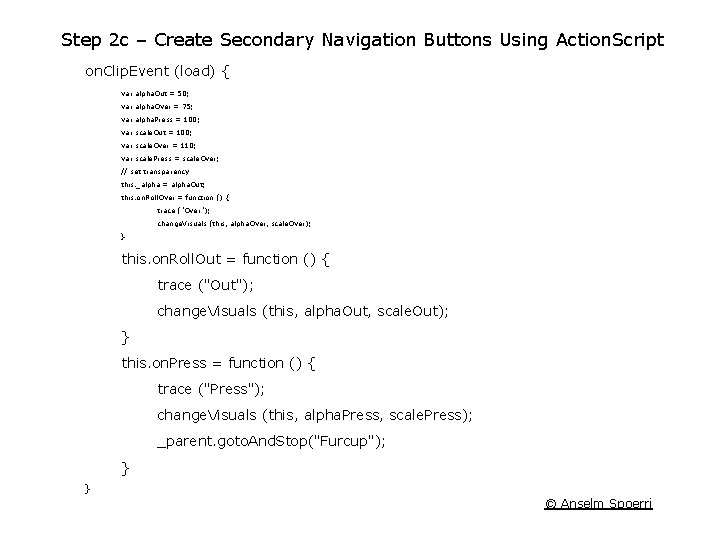
Step 2 c – Create Secondary Navigation Buttons Using Action. Script on. Clip. Event (load) { var alpha. Out = 50; var alpha. Over = 75; var alpha. Press = 100; var scale. Out = 100; var scale. Over = 110; var scale. Press = scale. Over; // set transparency this. _alpha = alpha. Out; this. on. Roll. Over = function () { trace ("Over"); change. Visuals (this, alpha. Over, scale. Over); } this. on. Roll. Out = function () { trace ("Out"); change. Visuals (this, alpha. Out, scale. Out); } this. on. Press = function () { trace ("Press"); change. Visuals (this, alpha. Press, scale. Press); _parent. goto. And. Stop("Furcup"); } } © Anselm Spoerri
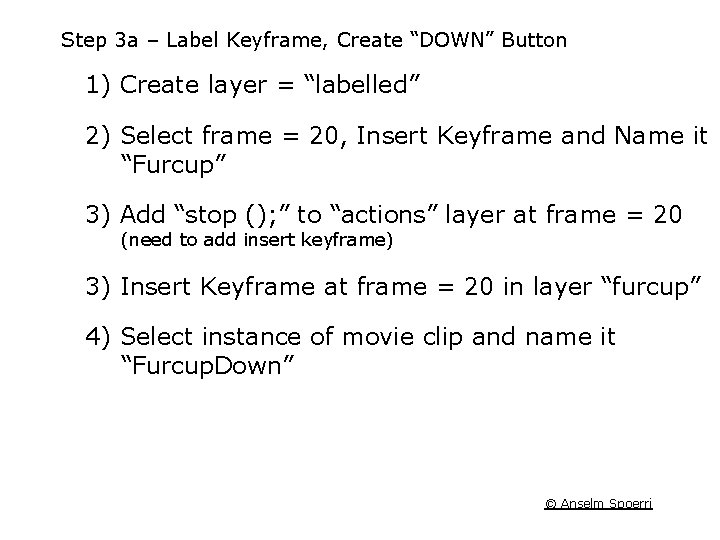
Step 3 a – Label Keyframe, Create “DOWN” Button 1) Create layer = “labelled” 2) Select frame = 20, Insert Keyframe and Name it “Furcup” 3) Add “stop (); ” to “actions” layer at frame = 20 (need to add insert keyframe) 3) Insert Keyframe at frame = 20 in layer “furcup” 4) Select instance of movie clip and name it “Furcup. Down” © Anselm Spoerri
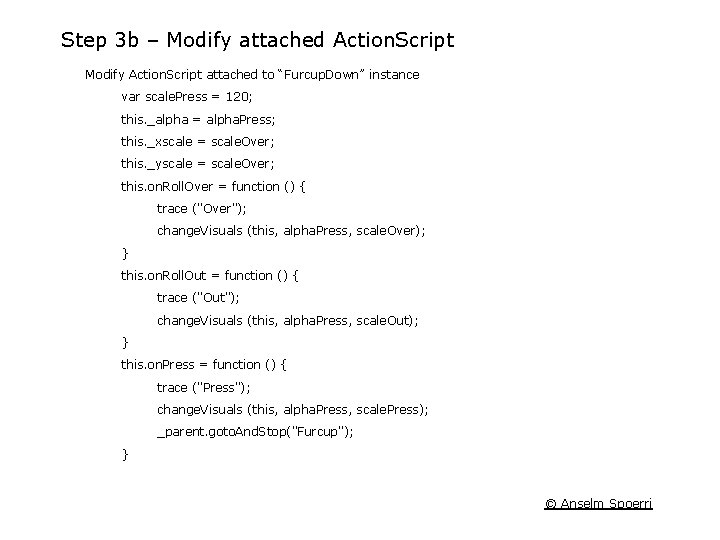
Step 3 b – Modify attached Action. Script Modify Action. Script attached to “Furcup. Down” instance var scale. Press = 120; this. _alpha = alpha. Press; this. _xscale = scale. Over; this. _yscale = scale. Over; this. on. Roll. Over = function () { trace ("Over"); change. Visuals (this, alpha. Press, scale. Over); } this. on. Roll. Out = function () { trace ("Out"); change. Visuals (this, alpha. Press, scale. Out); } this. on. Press = function () { trace ("Press"); change. Visuals (this, alpha. Press, scale. Press); _parent. goto. And. Stop("Furcup"); } © Anselm Spoerri
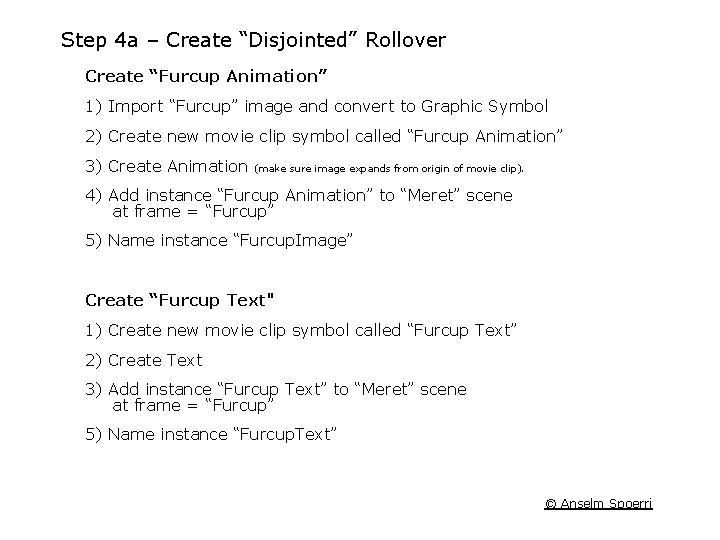
Step 4 a – Create “Disjointed” Rollover Create “Furcup Animation” 1) Import “Furcup” image and convert to Graphic Symbol 2) Create new movie clip symbol called “Furcup Animation” 3) Create Animation (make sure image expands from origin of movie clip). 4) Add instance “Furcup Animation” to “Meret” scene at frame = “Furcup” 5) Name instance “Furcup. Image” Create “Furcup Text" 1) Create new movie clip symbol called “Furcup Text” 2) Create Text 3) Add instance “Furcup Text” to “Meret” scene at frame = “Furcup” 5) Name instance “Furcup. Text” © Anselm Spoerri
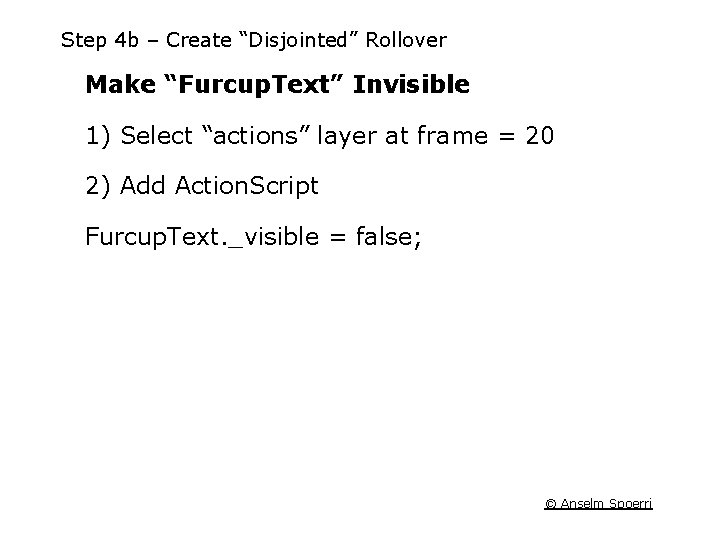
Step 4 b – Create “Disjointed” Rollover Make “Furcup. Text” Invisible 1) Select “actions” layer at frame = 20 2) Add Action. Script Furcup. Text. _visible = false; © Anselm Spoerri
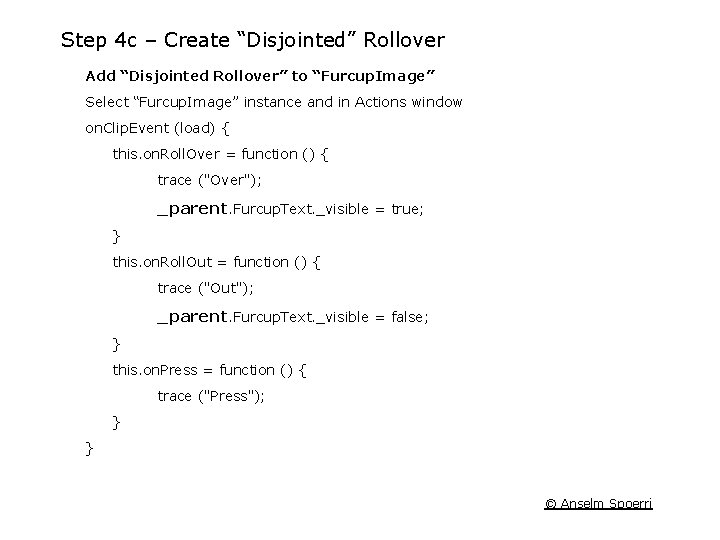
Step 4 c – Create “Disjointed” Rollover Add “Disjointed Rollover” to “Furcup. Image” Select “Furcup. Image” instance and in Actions window on. Clip. Event (load) { this. on. Roll. Over = function () { trace ("Over"); _parent. Furcup. Text. _visible = true; } this. on. Roll. Out = function () { trace ("Out"); _parent. Furcup. Text. _visible = false; } this. on. Press = function () { trace ("Press"); } } © Anselm Spoerri
- Slides: 17