
Lecture 11 Operating System Extending the Processors Power

- Slides: 68
Lecture # 11
Operating System
Extending the Processor’s Power to Other Devices • All the components of the computer are tied into CPU by BUS. • Plug the devices into existing Sockets or Ports. • Two types of Ports: ØParallel Ports ØSerial Ports
Extending the Processor’s Power to Other Devices Serial Ports: Ø 9 pins Ø Bits are transmitted one at a time. Parallel Ports: Ø 25 holes Ø Transfers 8 bits at a time. Ø Makes Data transfer several times faster than serial ports. Ø Monitor is connected to the system through Parallel port.
Extending the Processor’s Power to Other Devices UART: It converts parallel data from the bus into serial data that flows through serial ports. Specialized Expansion Ports: Extends the computer bus to establish links with peripheral devices.
Examples of Specialized Expansion Ports SCSI: 1 card, daisy chain the devices and Fast. USB: Connect up to 127 devices, 2 or 4 USB ports. IEEE 1394 (Fire. Wire): 1 port. Used as standard for plugging video and High data throughput devices. Musical Instrument Digital Interface (MIDI): Plug in musical instruments. For recording, writing and performing. Lighting, drum machines, synthesizers.
System Expansion When a user wants to have more of memory than the normally used memory or more sound, graphics capabilities than the normal ones, then that can be possible through Add-in Boards or PC cards.
Add-in Boards
Add-in Boards Ø Used to expand the functions of the system. Ø Card-Like pieces of circuitry that plug into Expansion Slots within the system. Ø Enable the users to add specific types of peripheral devices or expand the capabilities of the system. Ø E. g. Accelerator Board, FaxModem Board, Sound Board etc
Plug & Play
Plug and Play Ø It makes it easier to install hardware via an existing port or expansion slot. Ø Plug in the hardware, OS detects a new components automatically, checks the correct drivers and load the required necessary files.
PC Card
PC Card Ø Another type of expansion card, almost the size of a credit card. Ø A PC card fits into a slot on the back or side of the notebook computer to provide new functions. Ø It is used for variety of purposes, can house Disk drives, network cards, memory. Three types: Ø Type I ( To add Memory) Ø Type II ( To add Networking or sound capability) Ø Type III ( Removable Hard drives)
The Operating System (OS) The Operating system (OS) is software that controls the interaction between hardware and user software.
User Interface
User Interface The items we see on the computer screen are the user interface.
The User Interface Ø Graphical User Interfaces (GUIs) Ø GUI Tools Ø Applications and the Interface Ø Menus Ø Dialog Boxes Ø Command-Line Interfaces
Graphical User Interface (GUI) A GUI is a user interface that is made up of graphic objects instead of text commands.
The User Interface Graphical User Interfaces (GUIs) Ø Most modern operating systems, like Windows and the Macintosh OS, provide a graphical user interface (GUI). Ø A GUI lets you control the system by using a mouse to click graphical objects on screen. Ø A GUI is based on the desktop metaphor. Graphical objects appear on a background (the desktop), representing resources you can use.
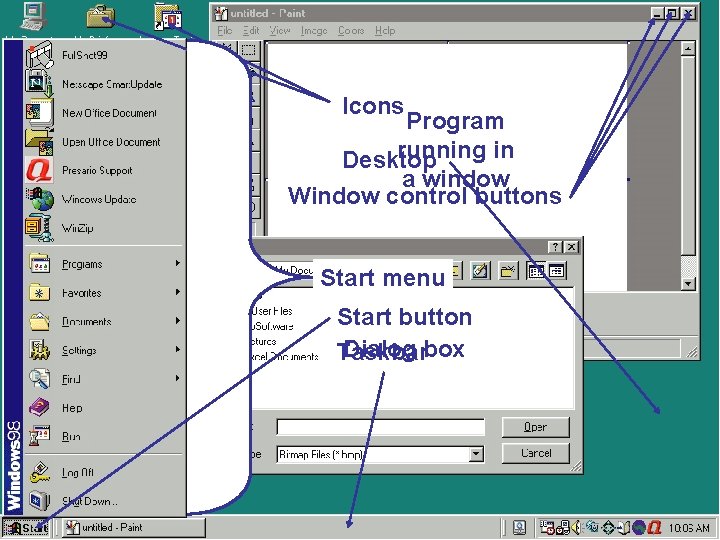
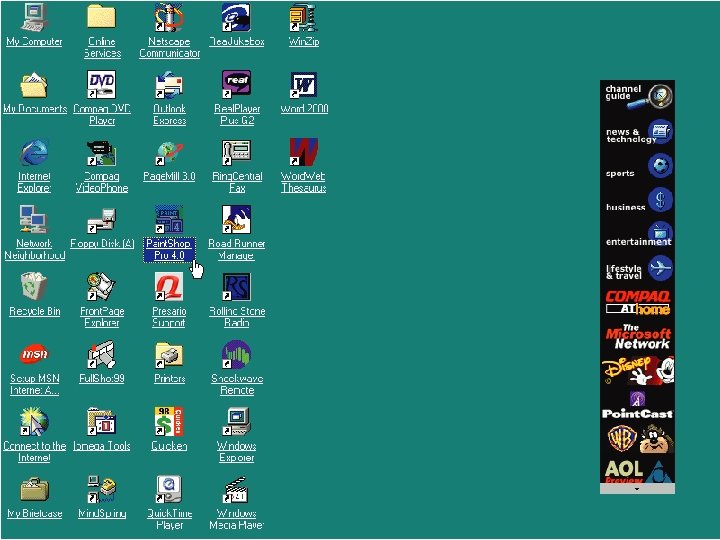
Desktop The computer’s main interface Icons The graphic objects that we see on the desktop are called icons
Taskbar The taskbar appears at the bottom of the Windows desktop and launches and manages software programs.
Start Button and Start Menu Click the Start button to open the Start menu, which provides access to software programs
Icons Program running in Desktop a window Window control buttons Start menu Start button Dialog box Taskbar
Shortcut or Context Menu Right-click on an object to access a shortcut or context menu that has the object’s most-used commands
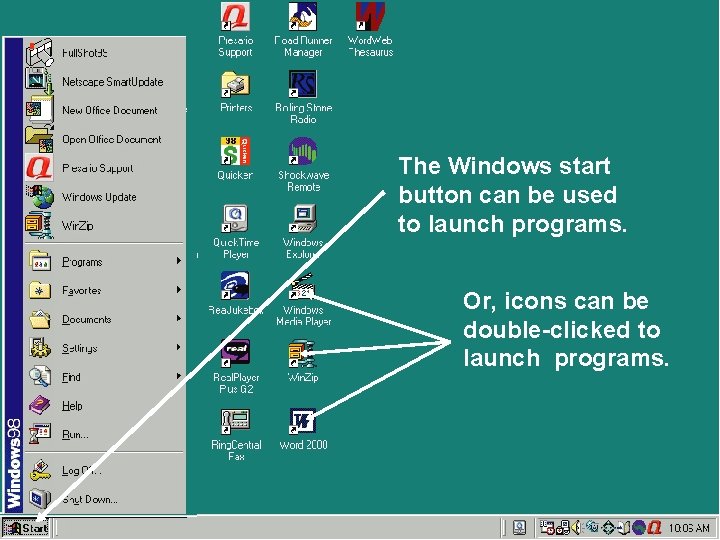
The Windows start button can be used to launch programs. Or, icons can be double-clicked to launch programs.
Window When a software program runs, it appears in a rectangular frame, called a window.
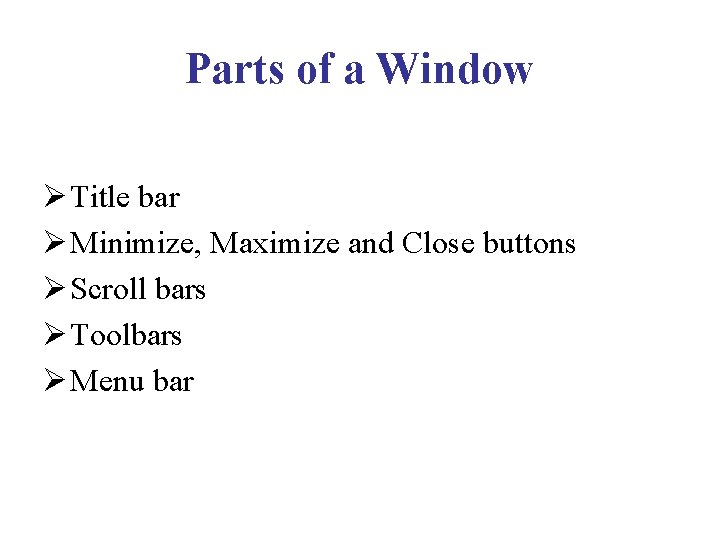
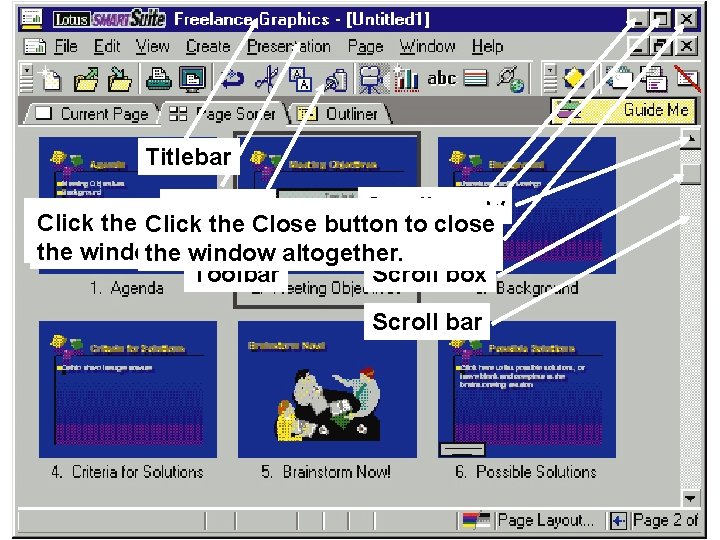
Parts of a Window Ø Title bar Ø Minimize, Maximize and Close buttons Ø Scroll bars Ø Toolbars Ø Menu bar
Titlebar Scroll arrow Menubar Click the Minimize button to reduce Click the Maximize button to restore Click the Close to close the to a button on theprogram window its previous size. taskbar. theto window altogether. Toolbar Scroll box Scroll bar
Active Window The window that is currently in use Ø Applications designed to run under one operating system use similar interface elements. Ø Under an OS such as Windows, we see a familiar interface no matter what programs you use. Ø In a GUI, you can run multiple programs at once, each in a separate window. The application in use is said to be the active window.
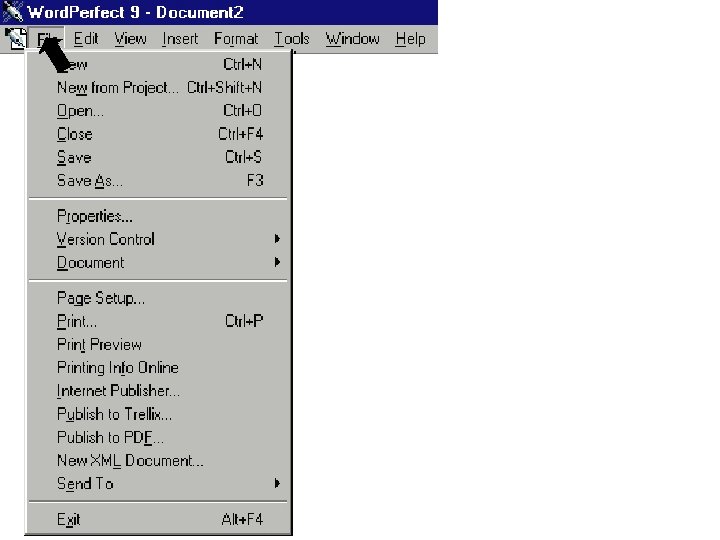
Menus and the Menu Bar We can choose some tasks from commands in lists called menus, accessed from the menu bar
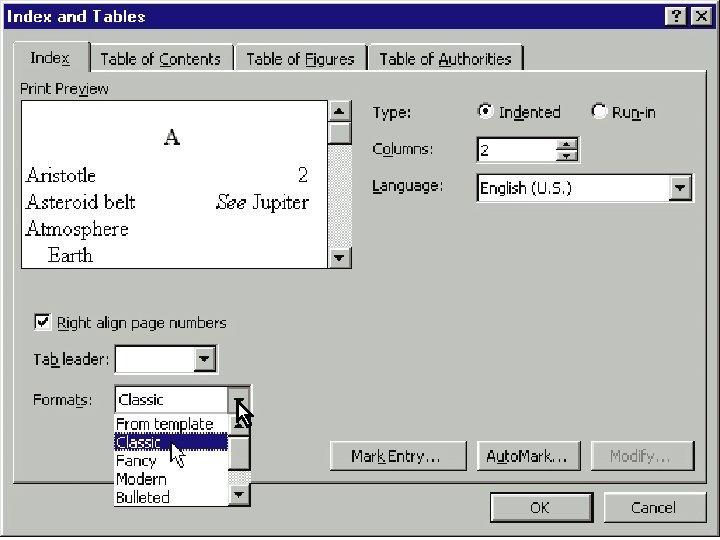
Dialog Box Ø A dialog box is a special window that appears when a program or the OS needs more information before completing a task. Ø Dialog boxes are so named because they conduct a dialog with the user, asking the user to make choices.
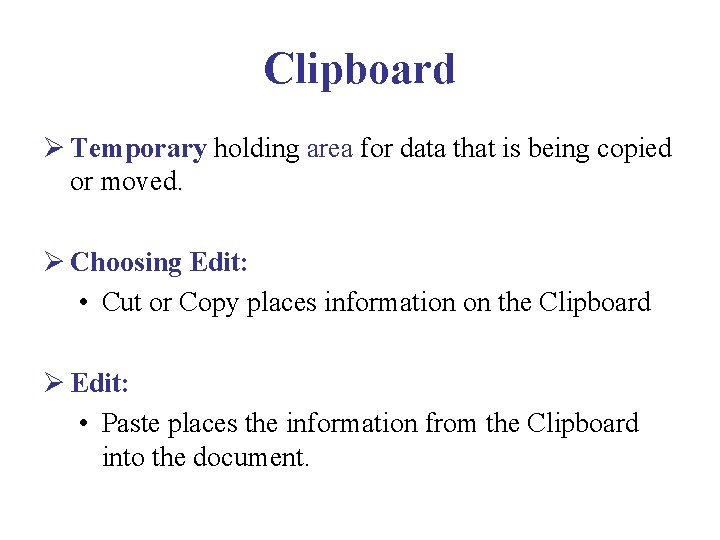
Clipboard Ø Temporary holding area for data that is being copied or moved. Ø Choosing Edit: • Cut or Copy places information on the Clipboard Ø Edit: • Paste places the information from the Clipboard into the document.
Multitasking The computer’s ability to perform two or more procedures simultaneously.
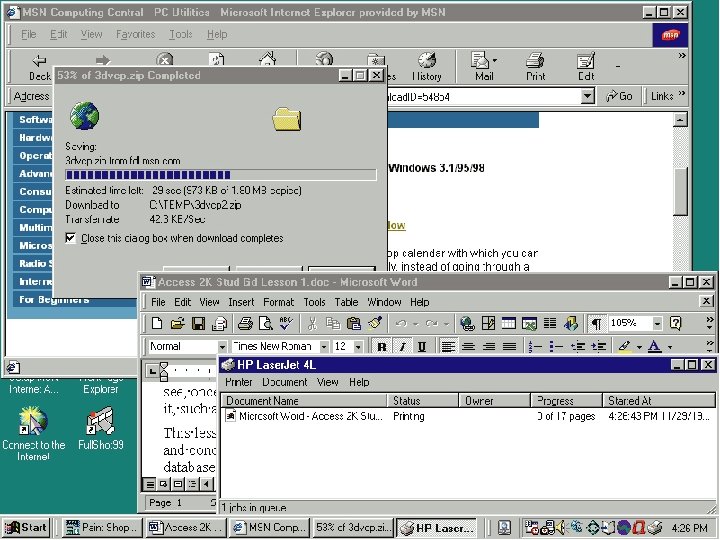
Running Programs - Multitasking Ø Multitasking is the capability of running multiple processes simultaneously. Ø Through multitasking, we can do several chores at one time, such as printing a document while downloading a file from the Internet. Ø Two types of multitasking: 1. Co-operative 2. Pre-emptive.
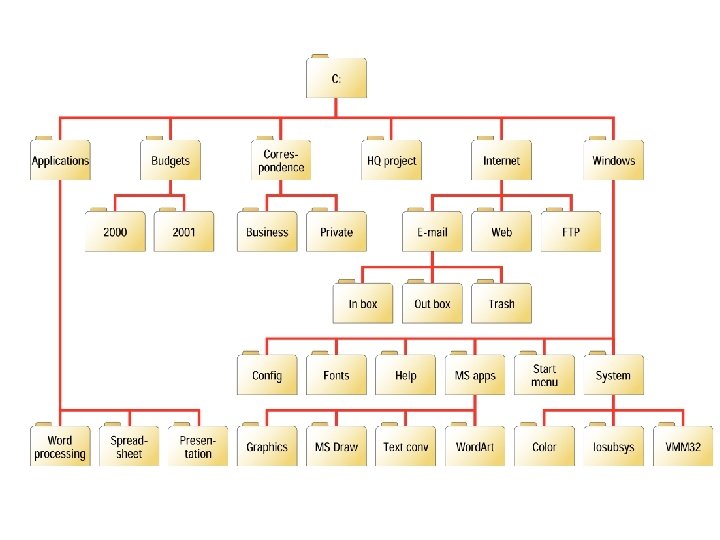
File Management Ø Manage files by saving them in folders in a hierarchical file system. Ø Users can make file management easier by creating a hierarchical file system that includes folders and subfolders arranged in a logical order.
Running Programs Ø Basic Services Ø Sharing Information Ø Multitasking
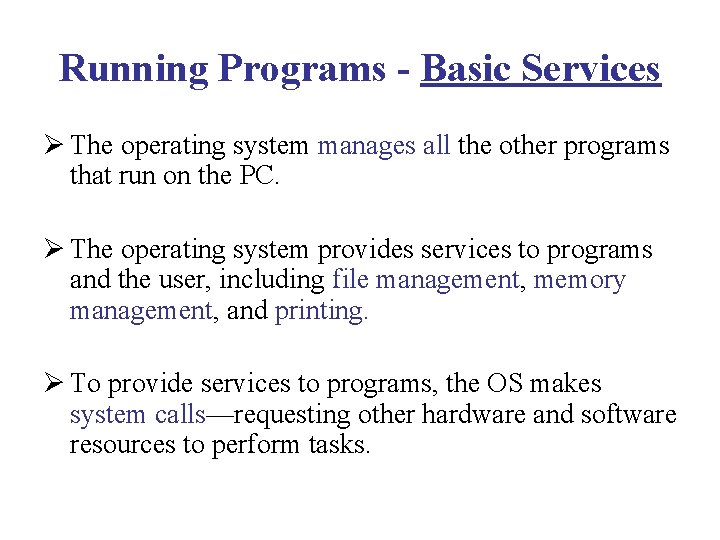
Running Programs - Basic Services Ø The operating system manages all the other programs that run on the PC. Ø The operating system provides services to programs and the user, including file management, memory management, and printing. Ø To provide services to programs, the OS makes system calls—requesting other hardware and software resources to perform tasks.
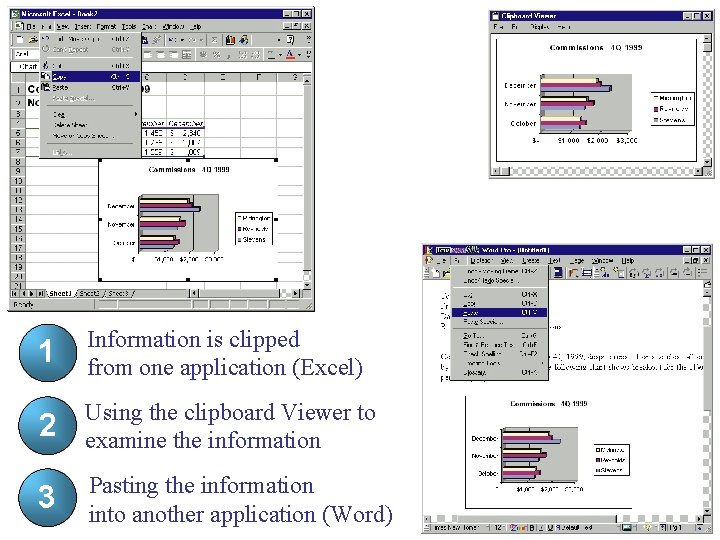
Running Programs - Sharing Information Ø Some operating systems, such as Windows, enable programs to share information. Ø We can create data in one program and use it again in other programs without re-creating it. Ø Windows provides the Clipboard, a special area that stores data cut or copied from one document, so you can re-use it elsewhere.
1 Information is clipped from one application (Excel) 2 Using the clipboard Viewer to examine the information 3 Pasting the information into another application (Word)
Utility A utility is a software program that enhances or extends the operating system’s capabilities
Kinds of Utilities Ø Disk defragmenter Ø Data compression Ø Backup Ø Disk management Ø Screen savers Ø Antivirus
PC Operating Systems Ø UNIX Ø MS-DOS Ø The Macintosh Operating System Ø Windows 3. X Ø OS/2 Warp Ø Windows NT Ø Windows 9 X Ø LINUX Ø Windows 2000 Ø Windows XP
UNIX Ø Oldest operating system, developed by Bell Labs in the 1970 s Ø Still used today in insurance, medicine, banking, manufacturing and Web servers Ø UNIX was the first multi-user, multiprocessor, multitasking operating system available for use on PCs.
MS-DOS Ø Most popular PC operating system during the 1980 s and early 1990 s, now obsolete – sort of. Ø Command-line interface
DOS Ø DOS is a single-user OS that supports only 640 KB of memory. Ø IBM Compatible. Ø No support for multitasking or multiprocessing. Ø 8 -bit and 16 -bit applications Ø Hardware is difficult to install.
Macintosh Ø Offered first truly graphical user interface beginning in the mid-1980 s Ø Still popular with publishers, multimedia developers, publishers, music production, graphic artists and schools.
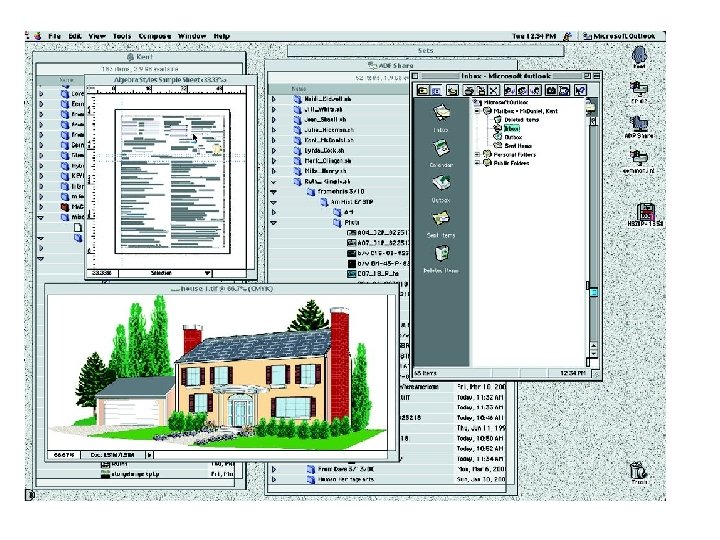
The Macintosh Operating System Ø The Macintosh OS supports the graphical nature of the Macintosh computer. Ø The Mac OS also brought interface conformity to the desktop. Ø Network support, P&P etc.
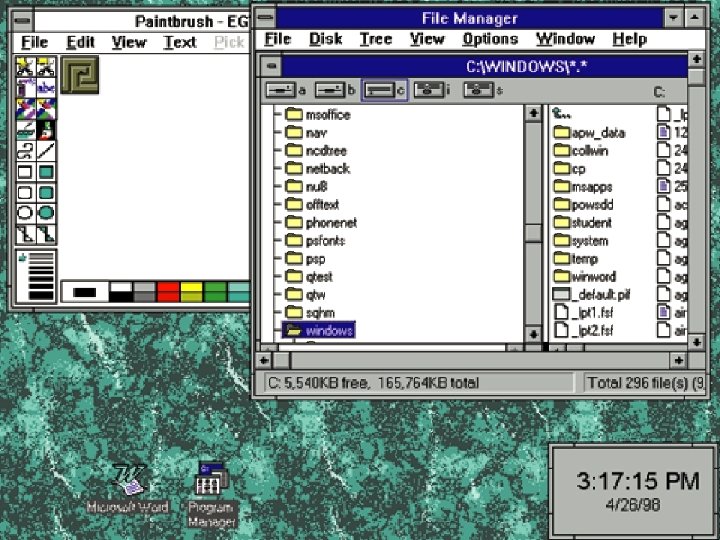
Windows 3. X Ø Windows was Microsoft’s first graphical user interface, introduced in the mid-1980 s Ø Operating environment, not operating system, that ran on top of DOS Ø Still have to deal with memory restrictions and P&P Ø Windows 3. 0 introduced in 1990 was Microsoft’s first successful version of Windows Ø Windows 3. x refers to more than one member of the Windows 3 family, now considered obsolete. 3. 0, 3. 11
OS/2 Warp Ø Graphical user interface developed in 1982 jointly by IBM and Microsoft for Intel microprocessors Ø Now obsolete
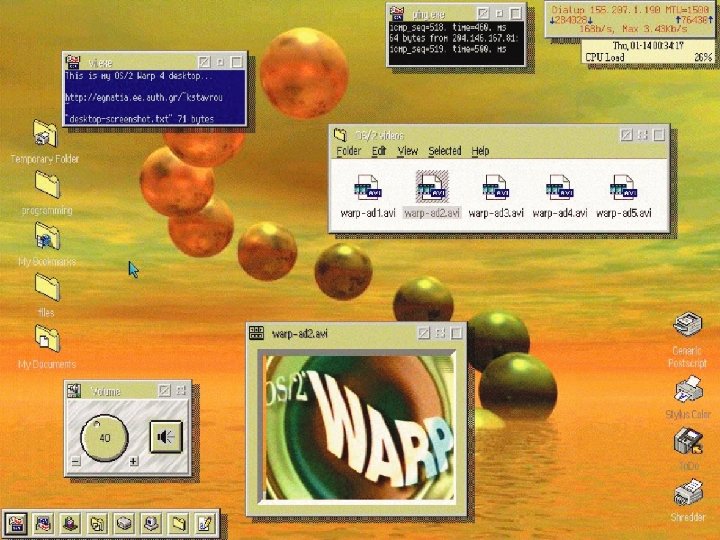
OS/2 Warp Ø OS/2 Warp was the first true GUI-based operating system for Intel-based PCs. Ø Developed by IBM. Ø OS/2 is a multitasking OS that provides support for networking and multiple users. Ø It was the first PC OS to feature built-in speech recognition capabilities.
Windows NT Ø Introduced in 1993 Ø Windows NT Workstation still used in architectural firms, audio and video production studios and graphics studios Ø Microsoft stopped supporting Windows NT in 2001
Windows NT (NT = New technology) Ø Microsoft's Windows NT was meant as a replacement for DOS, but was too resource-intensive to work on most PCs at the time of its release. Ø Microsoft issued two versions of Windows NT— Windows NT Workstation and Windows NT Server. Ø NT is a very powerful and robust OS, resistant to system crashes. Ø 32 bit. Not built on DOS. Networking support. Superceded by Windows 2000 and XP
Windows 9 X Ø Released in 1995, Windows 95 was the first member of the Windows 9 x family Ø Windows 98 considered to be an upgrade of Windows 95 Ø Released in 2000, Windows ME was the last member of the Windows 9 x family, still widely used, but considered by experts to be obsolete
Windows 95 and 98 Ø Windows 95 was Microsoft's first true GUI-based, 32 bit operating system for Intel PCs. Ø Windows 95 supports multitasking and can run older DOS and Windows 3. x programs. Ø Preemptive multitasking, improved GUI, start menu. Ø Windows 98's features include advanced Internet capabilities, an improved user interface, and enhanced file system performance.
LINUX Ø Released in late 1990 s Ø New version of UNIX Ø Distributed for free
Linux Ø Linux is a recently developed version of UNIX, which is available for free or at a very low cost from various sources. Ø Linux is a very powerful 32 -bit OS that supports multitasking, multiple users, networking, and virtually any application. Ø Because of its power and openness, Linux is attracting many users, including students, teachers, Internet service providers, and others. Ø Most popular version: Red Hat
Windows 2000 Ø Released in 2000 Ø Combined the features of Windows 98 and Windows NT
Windows 2000 Ø Several versions of Windows 2000 are available, each targeting a specific user or computing environment, from home PCs to large enterprise networks. • Professional • Server • Advanced server • Data Center server
Windows XP • Released in 2001 • Available in two editions: • Home • Professional
Windows. Net Ø Latest addition to the server-based Windows OS family Ø. Net designed to support Web-based applications, ecommerce servers, Exchange Server (taking care of email). Ø SQL and large databases Ø Portal Servers – maintenance of Internet sites.