
Lecture 1 The Basics of Using STATA By
Lecture 1: The Basics of Using STATA By: Kevin Baier 1 S
Lecture Summary 2 S
Topics Covered S Exploring Data/Help Files S Programming Vs. “Menu-ing” S Using Do Files and Log Files S Opening Data S Commands: S Describe S Codebook 3
Exploring Data/Help Files 4 S
The Look And Feel of STATA S STATA consists of 5 major windows inside the program S Review S Variables S Output S Command S Properties 5
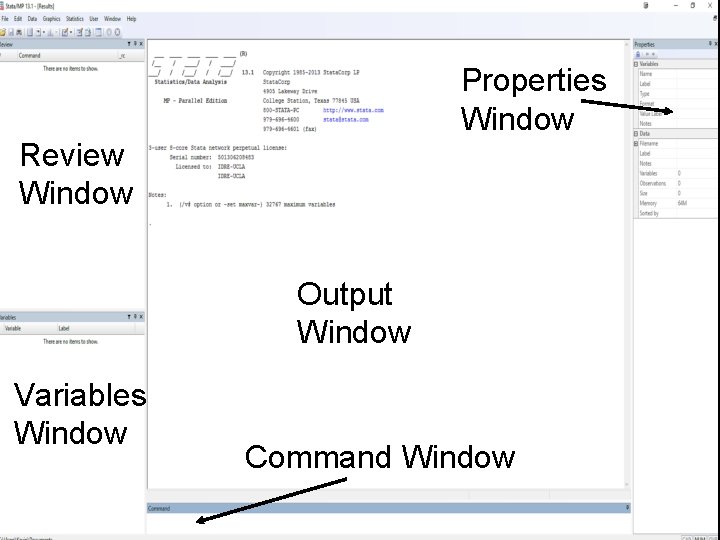
Properties Window Review Window Output Window Variables Window Command Window 6
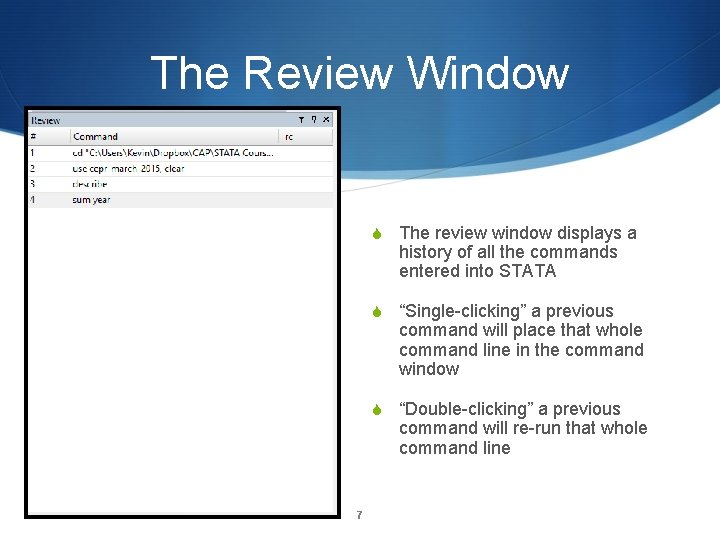
The Review Window S The review window displays a history of all the commands entered into STATA S “Single-clicking” a previous command will place that whole command line in the command window S “Double-clicking” a previous command will re-run that whole command line 7
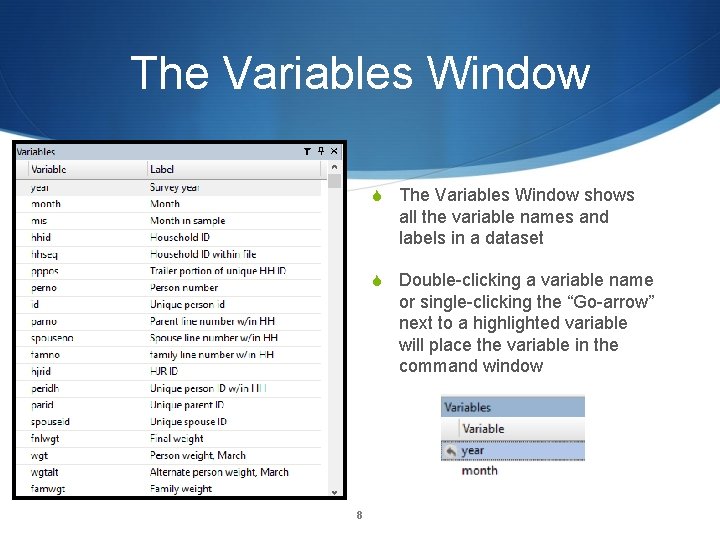
The Variables Window S The Variables Window shows all the variable names and labels in a dataset S Double-clicking a variable name or single-clicking the “Go-arrow” next to a highlighted variable will place the variable in the command window 8
The Variables Window, cont. S PROGRAMMING NOTE: placing a “-” between two variable names tells STATA to execute a command over all variables between (and the bookends too) of the two listed variables S Example: variable_x-variable_y 9
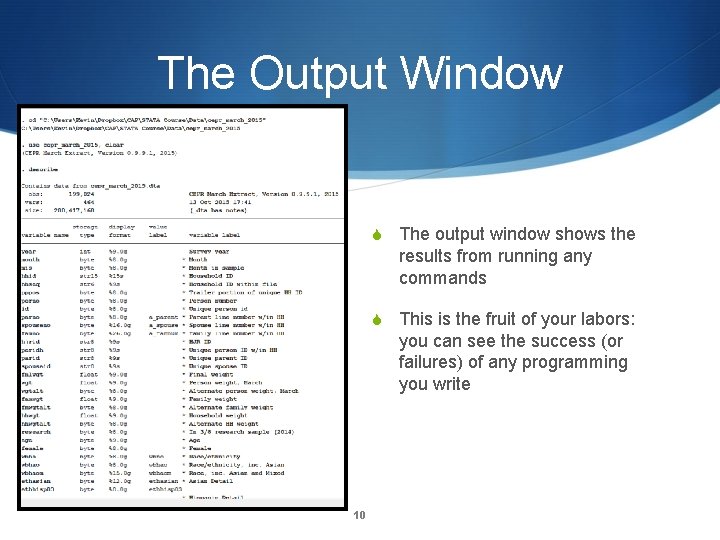
The Output Window S The output window shows the results from running any commands S This is the fruit of your labors: you can see the success (or failures) of any programming you write 10
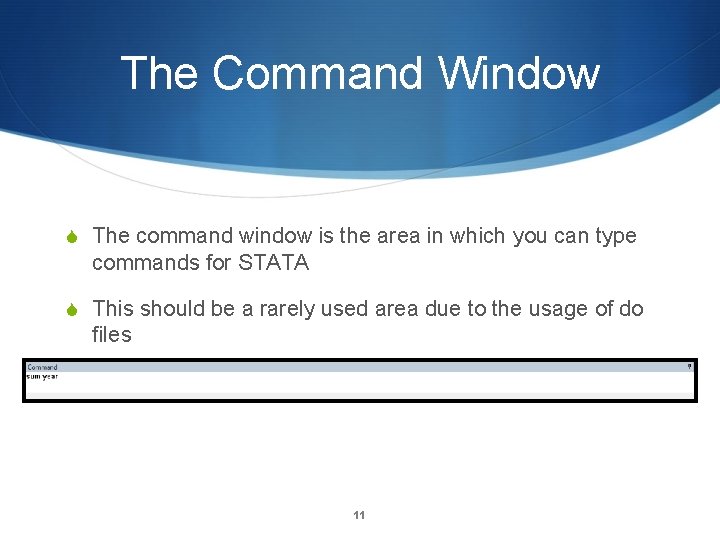
The Command Window S The command window is the area in which you can type commands for STATA S This should be a rarely used area due to the usage of do files 11
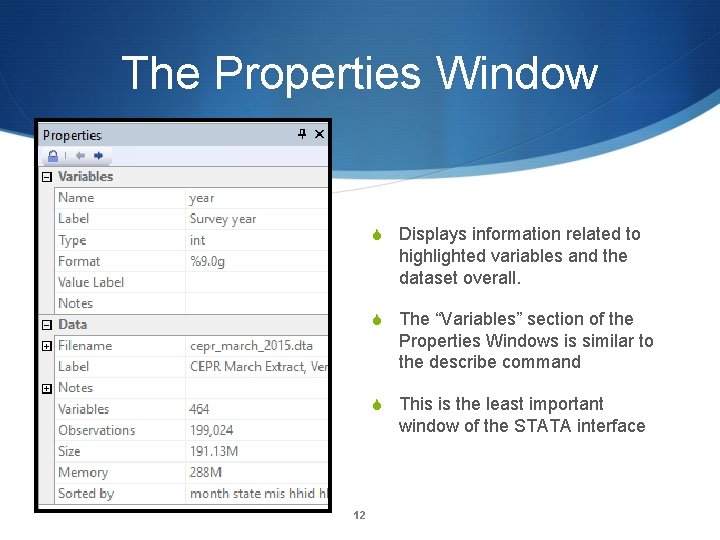
The Properties Window S Displays information related to highlighted variables and the dataset overall. S The “Variables” section of the Properties Windows is similar to the describe command S This is the least important window of the STATA interface 12
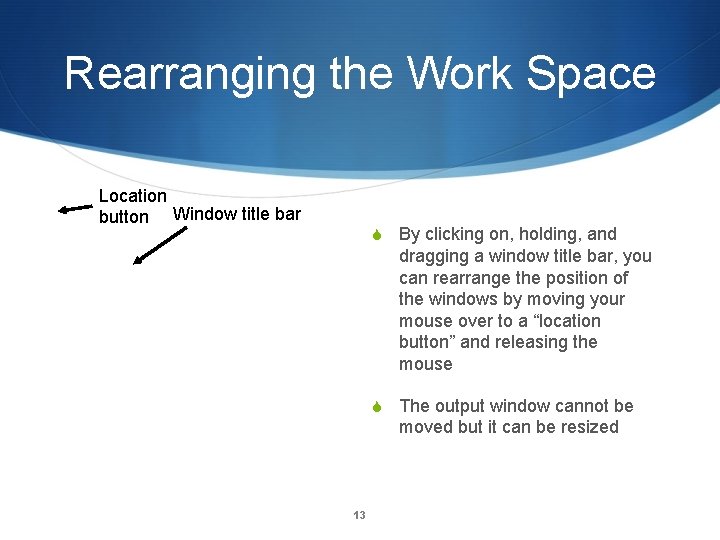
Rearranging the Work Space Location button Window title bar S By clicking on, holding, and dragging a window title bar, you can rearrange the position of the windows by moving your mouse over to a “location button” and releasing the mouse S The output window cannot be moved but it can be resized 13
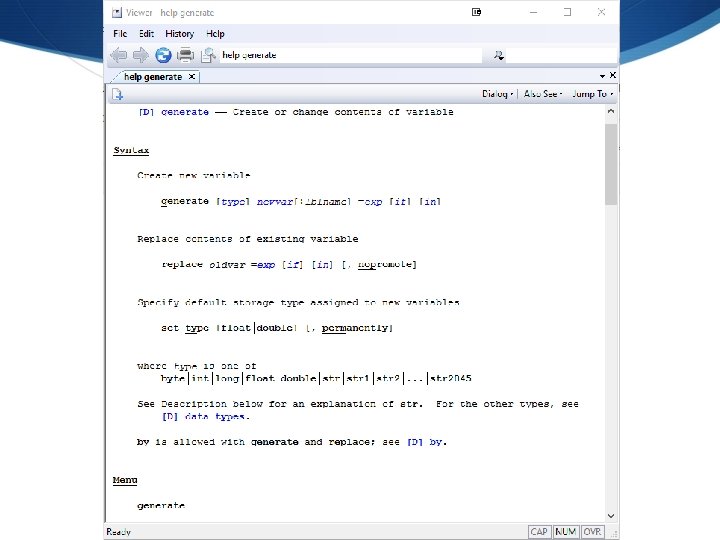
The Help Files S Typing “help command” brings up the in-STATA help file S Example: help generate S Notes for programming syntax in help files: S Things in italics are the part unique to your own program S Things in brackets “[ ]” are optional S The abbreviation “var” refers to variable S A comma “, ” indicates the end of the main command the start of specified options S An underline “___” underneath something implies that in programming that particular thing can be abbreviated up to the underlined portion S Example: “generate” can be abbreviated to simply “g” 14
15
Programming vs. “Menu -ing” Why “menu-ing” is good and programming can be better 16 S
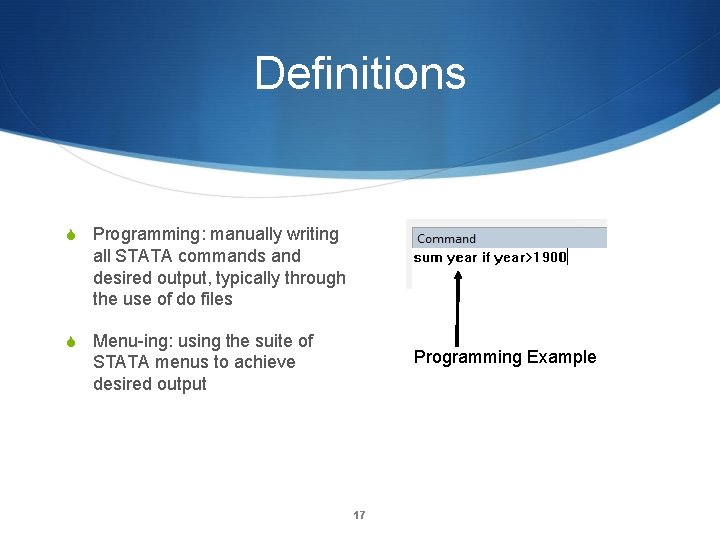
Definitions S Programming: manually writing all STATA commands and desired output, typically through the use of do files S Menu-ing: using the suite of Programming Example STATA menus to achieve desired output 17
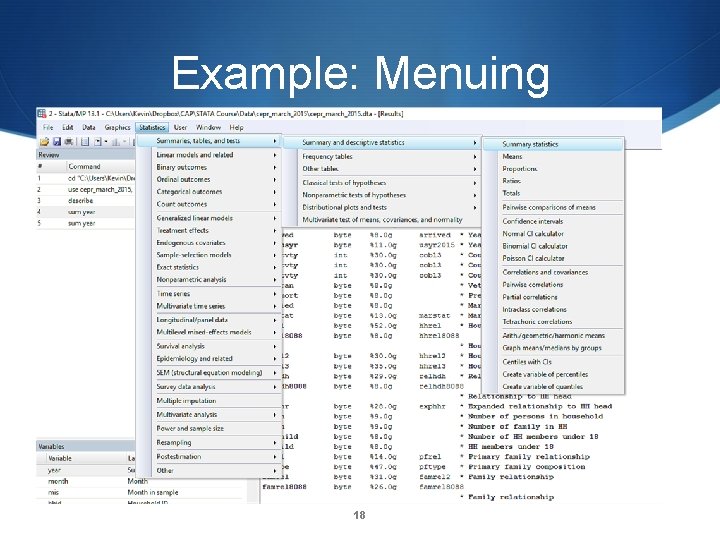
Example: Menuing 18
Advantages & Disadvantages S Menu-ing is good in that it works and has a lower learning curve S However, it can be slow and inefficient S Programming is better in that: S there is more available to do in programming versus menuing (e. g. user-created add-ons) S You can store, edit easily, and repeat your own programming S You gain a better understanding of the software and it is more efficient 19
Bottom-line S Your first instinct should always be to program as it creates records and promotes better comprehension S Menu-ing should be used to illustrate quickly an example command of doing something that can be otherwise programmed but otherwise should rarely be used 20
Using Do Files & Log Files Creating a history of your work 21 S
What are they? S Do-files are interactive text editors that house STATA commands which can be “run” in STATA S STATA-native file extension (. do) S Log files are text records of commands and results generated in the output window S Use. log or. smcl file extensions 22
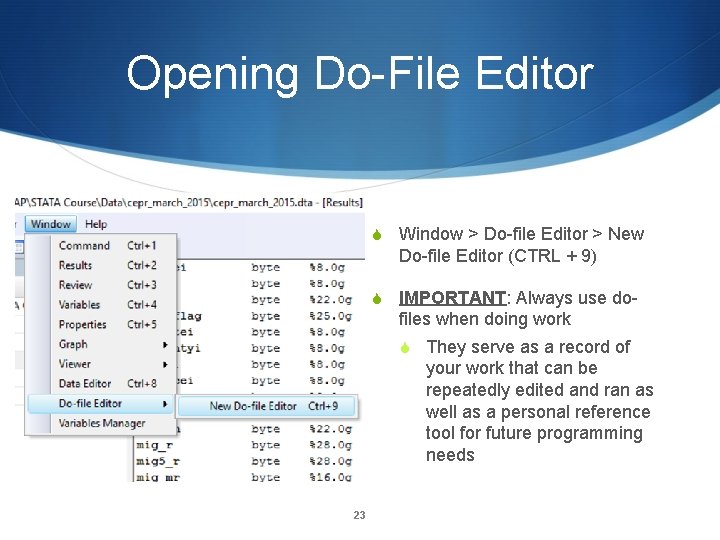
Opening Do-File Editor S Window > Do-file Editor > New Do-file Editor (CTRL + 9) S IMPORTANT: Always use do- files when doing work S They serve as a record of your work that can be repeatedly edited and ran as well as a personal reference tool for future programming needs 23
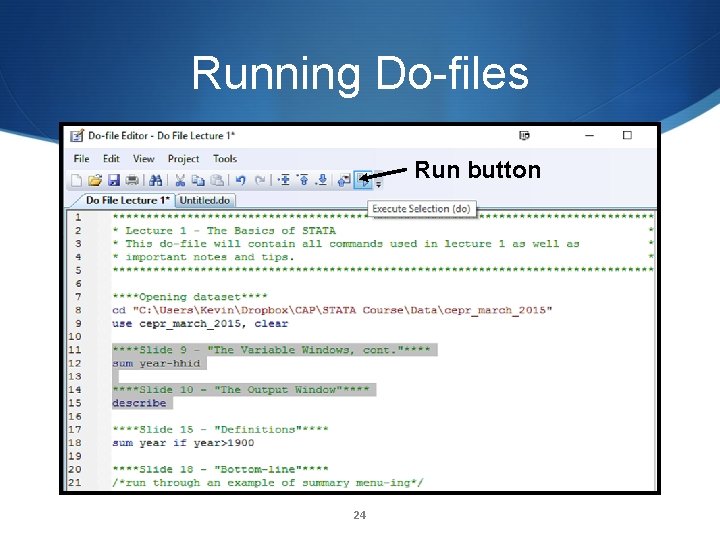
Running Do-files Run button 24
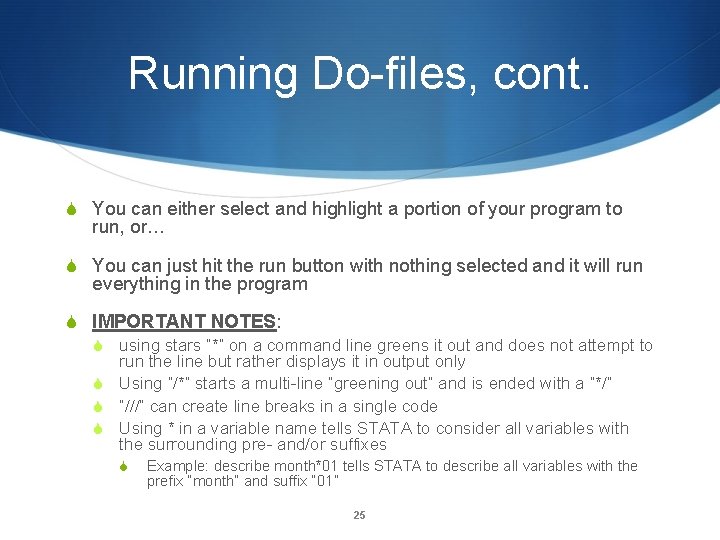
Running Do-files, cont. S You can either select and highlight a portion of your program to run, or… S You can just hit the run button with nothing selected and it will run everything in the program S IMPORTANT NOTES: S using stars “*” on a command line greens it out and does not attempt to run the line but rather displays it in output only S Using “/*” starts a multi-line “greening out” and is ended with a “*/” S “///” can create line breaks in a single code S Using * in a variable name tells STATA to consider all variables with the surrounding pre- and/or suffixes S Example: describe month*01 tells STATA to describe all variables with the prefix “month” and suffix “ 01” 25
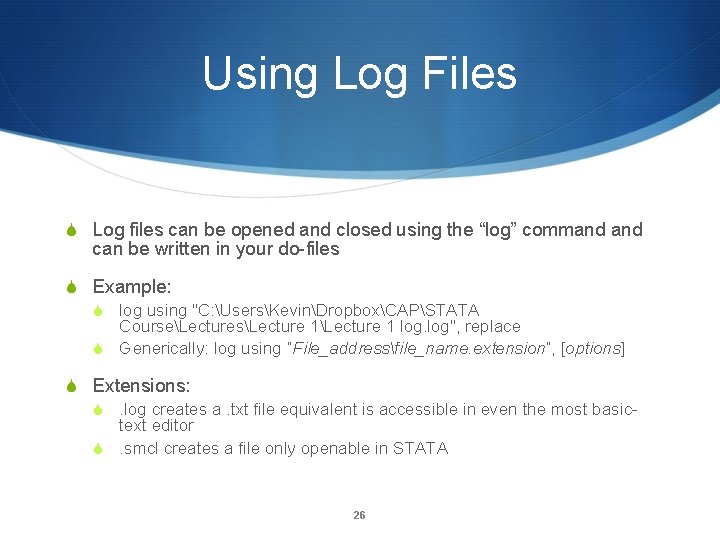
Using Log Files S Log files can be opened and closed using the “log” command can be written in your do-files S Example: S log using "C: UsersKevinDropboxCAPSTATA CourseLecturesLecture 1 log", replace S Generically: log using “File_addressfile_name. extension”, [options] S Extensions: S. log creates a. txt file equivalent is accessible in even the most basictext editor S. smcl creates a file only openable in STATA 26
Opening Data 27 S
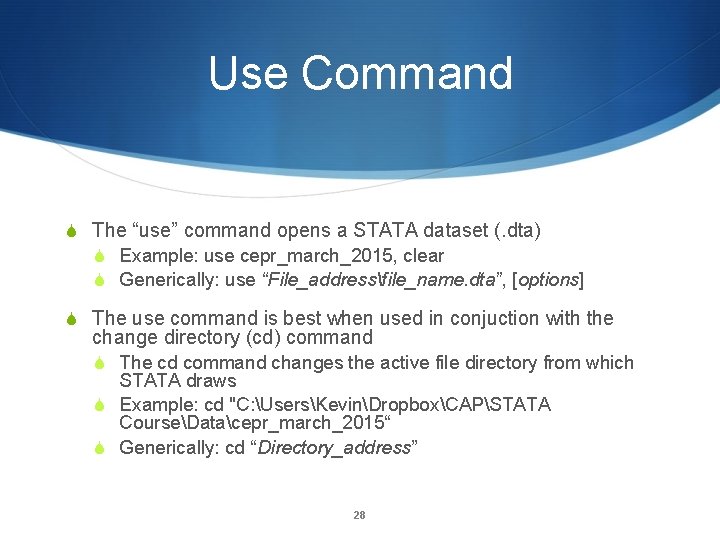
Use Command S The “use” command opens a STATA dataset (. dta) S Example: use cepr_march_2015, clear S Generically: use “File_addressfile_name. dta”, [options] S The use command is best when used in conjuction with the change directory (cd) command S The cd command changes the active file directory from which STATA draws S Example: cd "C: UsersKevinDropboxCAPSTATA CourseDatacepr_march_2015“ S Generically: cd “Directory_address” 28
Use Command, cont. S IMPORTANT NOTES: S Without the cd command prior to a use command, a use command must specify the full file address in addition to the file name S Example: use "C: UsersKevinDropboxCAPSTATA CourseDatacepr_march_2015. dta”, clear S Use commands used after a cd command can specify a dataset name without double quotes if and only if the dataset name is one string S Example: use cepr_march_2015, clear S use cepr march 2015, clear would produce an error 29
Import Excel S A lot of times datasets may be provided in Excel format which can imported into STATA S Use the “import excel” command S Example: import excel using “C: UsersKevinDropboxCAPSTATA CourseLecturesLecture 1test. xlsx”, firstrow clear S Generic: import excel [using] filename [, import_excel_options] 30
Describe and Codebook Commands Creating an overview of your data 31 S
The Describe Command S The “describe” command provides an overview of variables including their name, type, format, value label, and name label S S Example: describe S S Describes entire dataset Example: describe year month S S Generic: describe [varlist] [, memory_options] Describes variables year month Example: describe, replace S Creates a dataset of describe command which can be exported to excel to serve as a databook 32
The Codebook Command S The “codebook” command is similar to the describe command but provides more detail S Example: codebook year month, all mv S Generic: codebook [varlist] [if] [in] [, options] 33

34
- Slides: 34