
Lecture 1 Introduction to Visual Basic Net Object
Lecture 1 Introduction to Visual Basic. Net
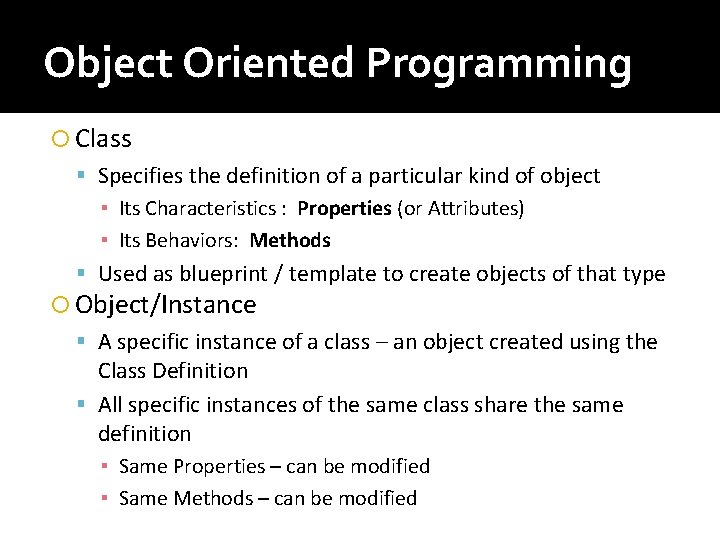
Object Oriented Programming Class Specifies the definition of a particular kind of object ▪ Its Characteristics : Properties (or Attributes) ▪ Its Behaviors: Methods Used as blueprint / template to create objects of that type Object/Instance A specific instance of a class – an object created using the Class Definition All specific instances of the same class share the same definition ▪ Same Properties – can be modified ▪ Same Methods – can be modified
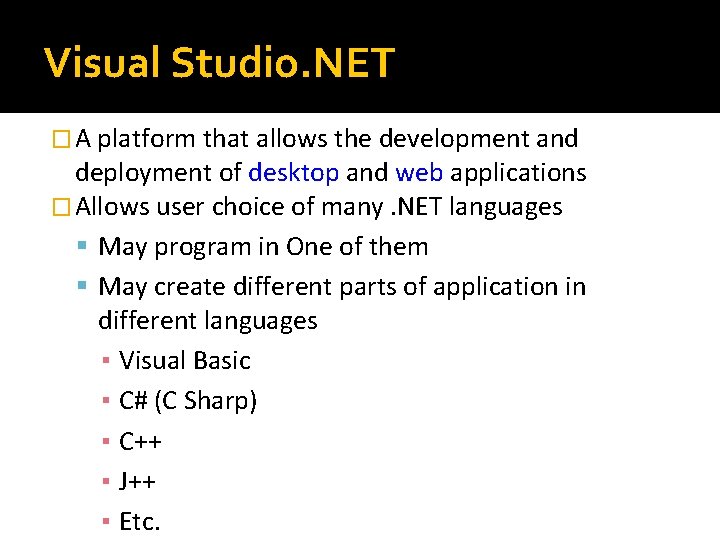
Visual Studio. NET � A platform that allows the development and deployment of desktop and web applications � Allows user choice of many. NET languages May program in One of them May create different parts of application in different languages ▪ Visual Basic ▪ C# (C Sharp) ▪ C++ ▪ J++ ▪ Etc.
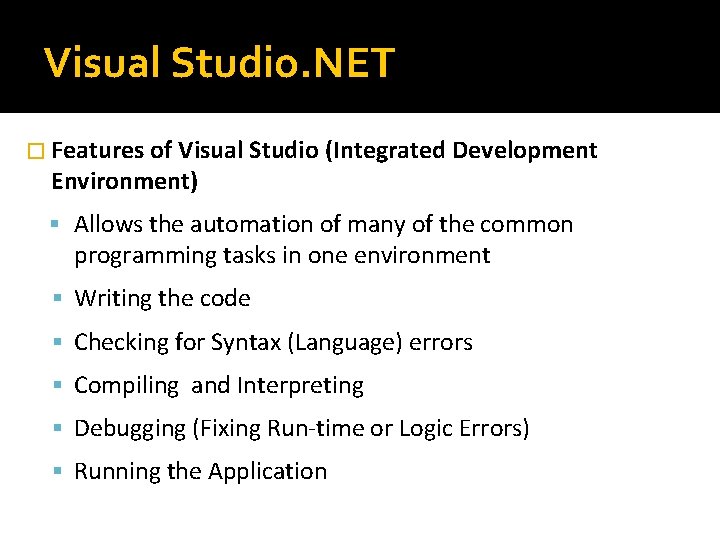
Visual Studio. NET � Features of Visual Studio (Integrated Development Environment) Allows the automation of many of the common programming tasks in one environment Writing the code Checking for Syntax (Language) errors Compiling and Interpreting Debugging (Fixing Run-time or Logic Errors) Running the Application
What is Visual Basic. Net � Based on BASIC language Beginners All-Purpose Symbolic Instructional Code � Most widely used tool for developing Windows Applications Graphical User Interface (GUI) Menus, Buttons, Icons to help the user � Full Object-Oriented Programming Language
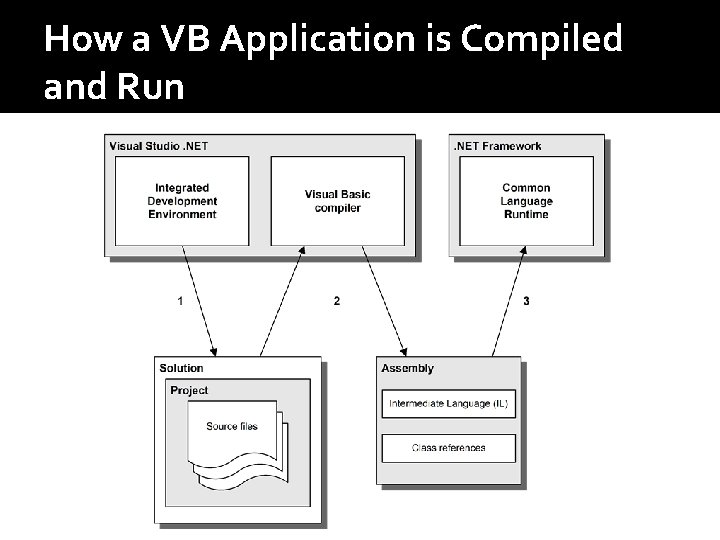
How a VB Application is Compiled and Run
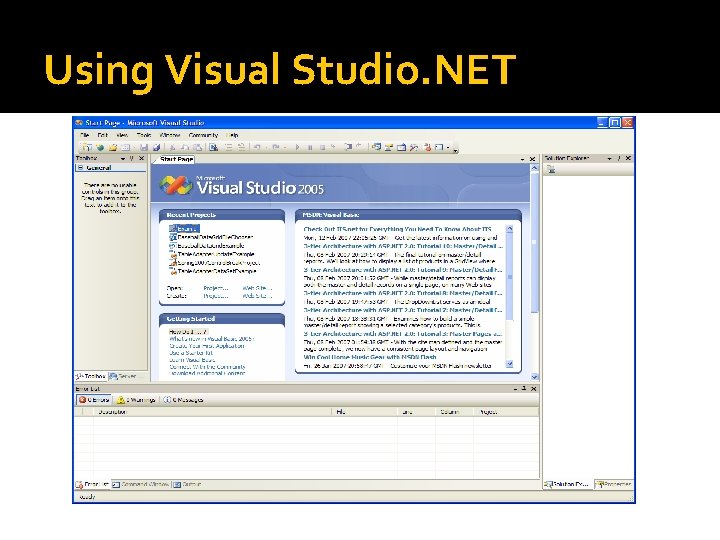
Using Visual Studio. NET
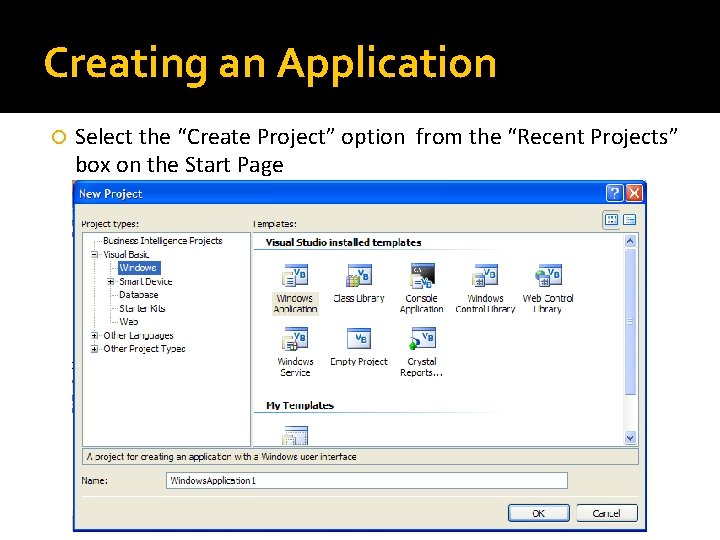
Creating an Application Select the “Create Project” option from the “Recent Projects” box on the Start Page
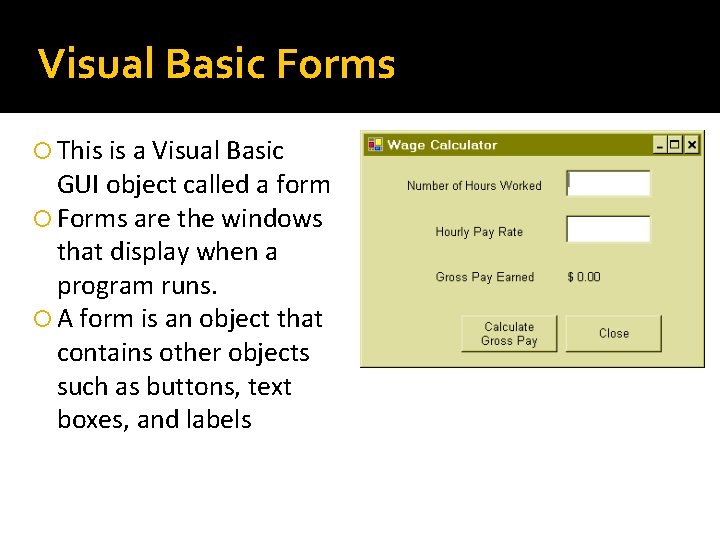
Visual Basic Forms This is a Visual Basic GUI object called a form Forms are the windows that display when a program runs. A form is an object that contains other objects such as buttons, text boxes, and labels
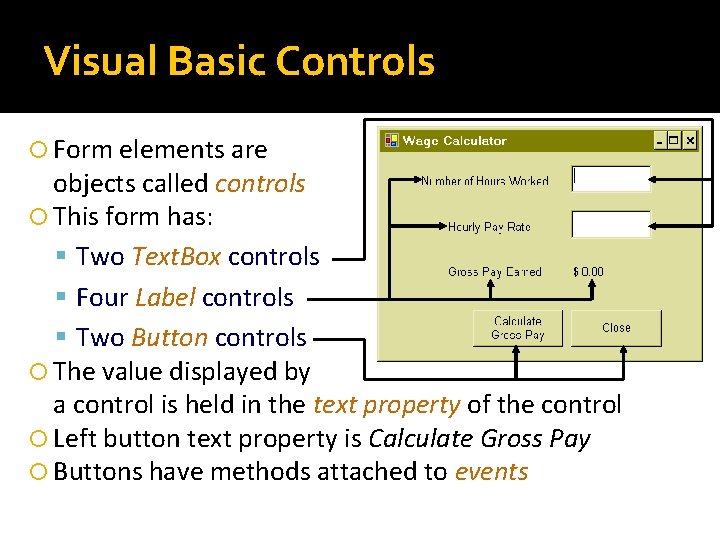
Visual Basic Controls Form elements are objects called controls This form has: Two Text. Box controls Four Label controls Two Button controls The value displayed by a control is held in the text property of the control Left button text property is Calculate Gross Pay Buttons have methods attached to events
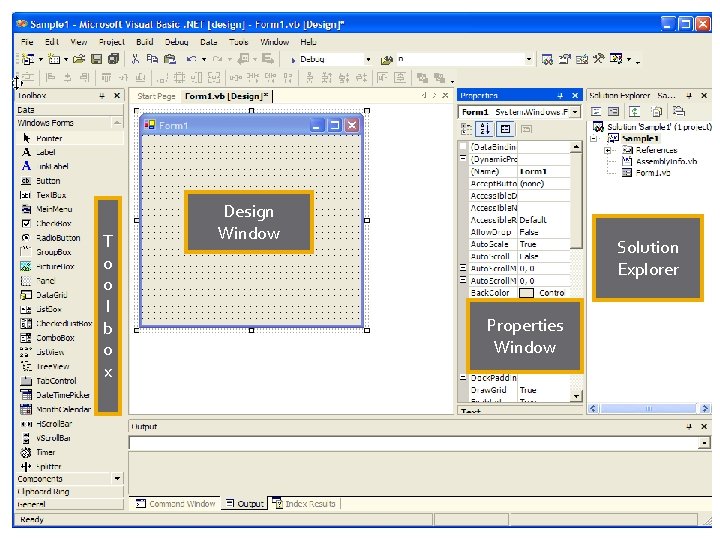
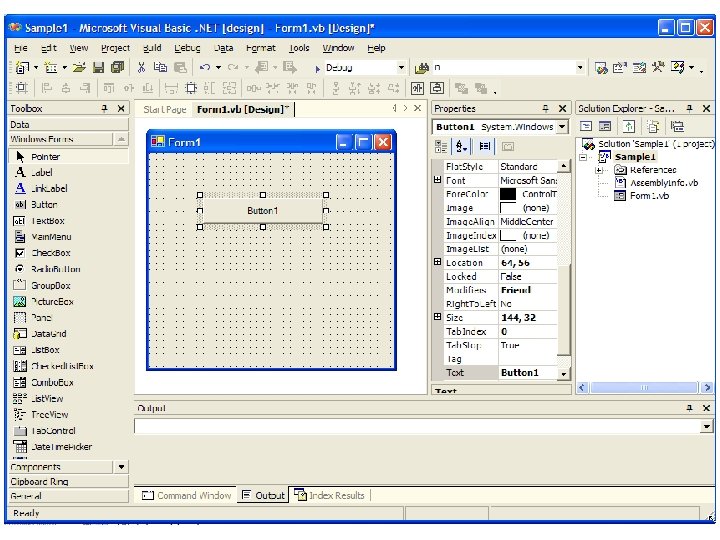
T o o l b o x Design Window Solution Explorer Properties Window
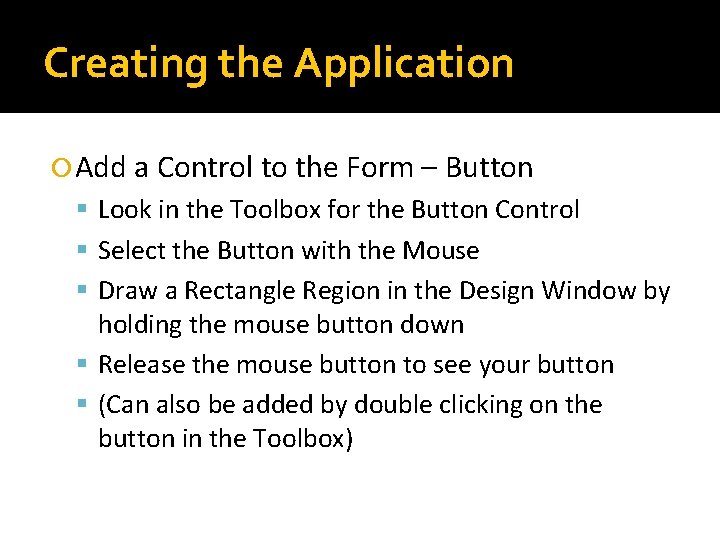
Creating the Application Add a Control to the Form – Button Look in the Toolbox for the Button Control Select the Button with the Mouse Draw a Rectangle Region in the Design Window by holding the mouse button down Release the mouse button to see your button (Can also be added by double clicking on the button in the Toolbox)
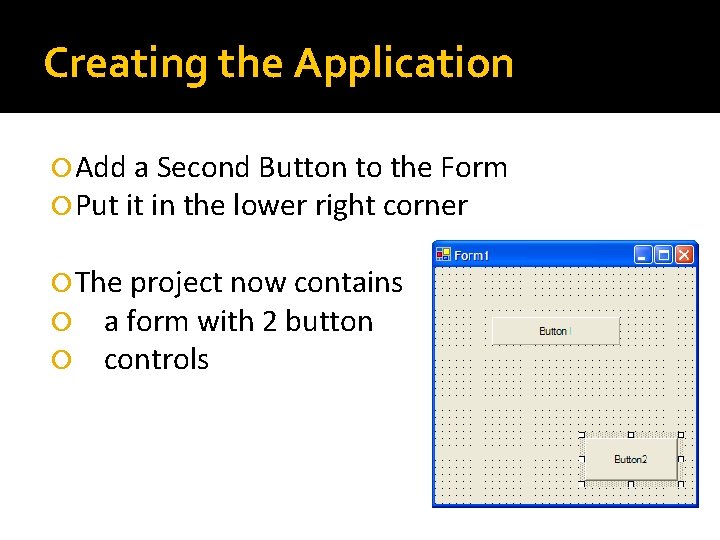
Creating the Application Add a Second Button to the Form Put it in the lower right corner The project now contains a form with 2 button controls
Control Properties All controls have properties Each property has a value (or values) Determine the Look and Feel (and sometimes behavior) of a Control Set initially through the Properties Window Properties Set for this Application Name Text
Name Property The name property establishes a means for the program to refer to that control Controls are assigned relatively meaningless names when created Change these names to something more meaningful Control names must start with a letter Remaining characters may be letters, digits, or underscore
Control Naming Conventions Should be meaningful 1 st 3 lowercase letters indicate the type of control txt… for Text Boxes lbl… for Labels btn… for Buttons After that, capitalize the first letter of each word txt. Hours. Worked is clearer than txthoursworked Change the name property Set the name of button 1 to btn. Welcome Set the name of button 2 to btn. Exit
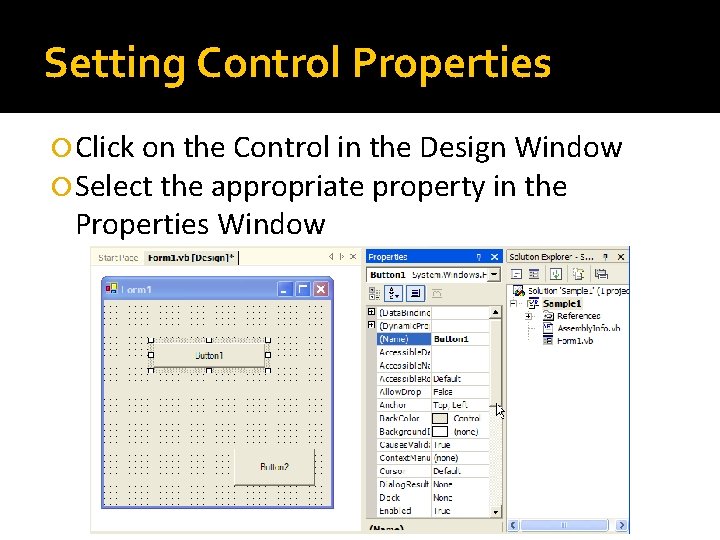
Setting Control Properties Click on the Control in the Design Window Select the appropriate property in the Properties Window
Event Driven Programming The GUI environment is event-driven An event is an action that takes place within a program Clicking a button (a Click event) Keying in a Text. Box (a Text. Changed event) Visual Basic controls are capable of detecting many, many events A program can respond to an event if the programmer writes an event procedure
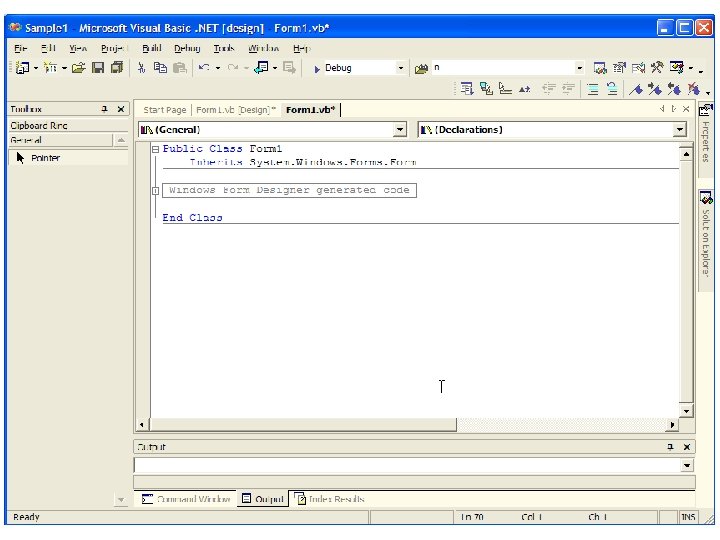
Event Procedures An Event Procedure is a block of code that executes only when particular event occurs Writing an Event Procedure Create the event procedure stub ▪ Double click on control from Design Window – for default event for that control OR ▪ Open the Code Editor (F 7 or View Menu/Code option) ▪ Select Control & Select Event from drop down windows in Code Editor Add the event code to the event procedure stub
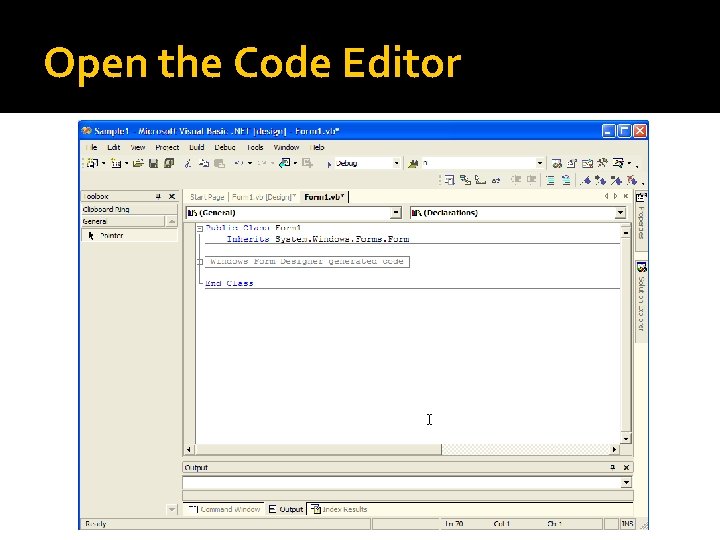
Open the Code Editor
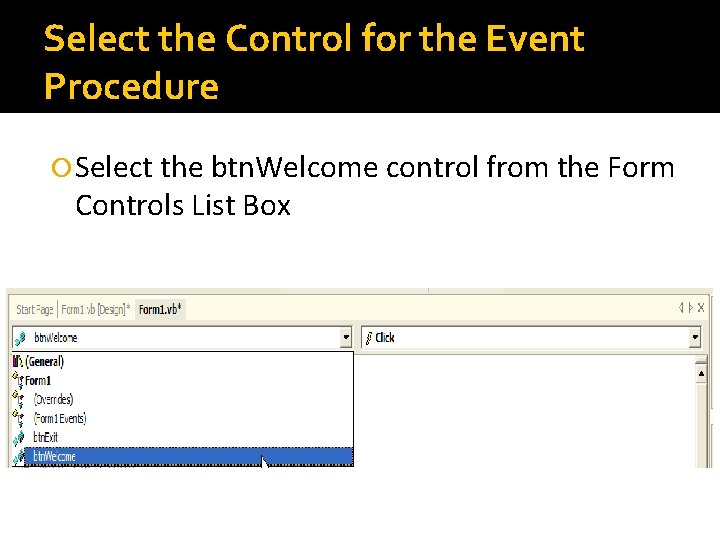
Select the Control for the Event Procedure Select the btn. Welcome control from the Form Controls List Box
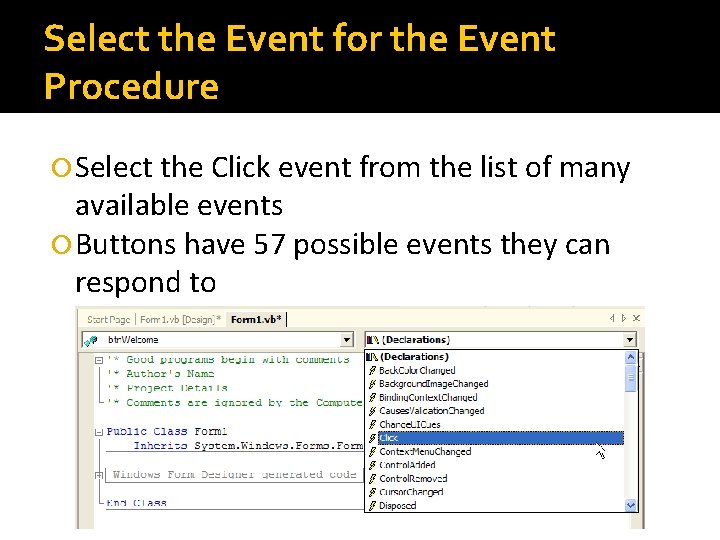
Select the Event for the Event Procedure Select the Click event from the list of many available events Buttons have 57 possible events they can respond to
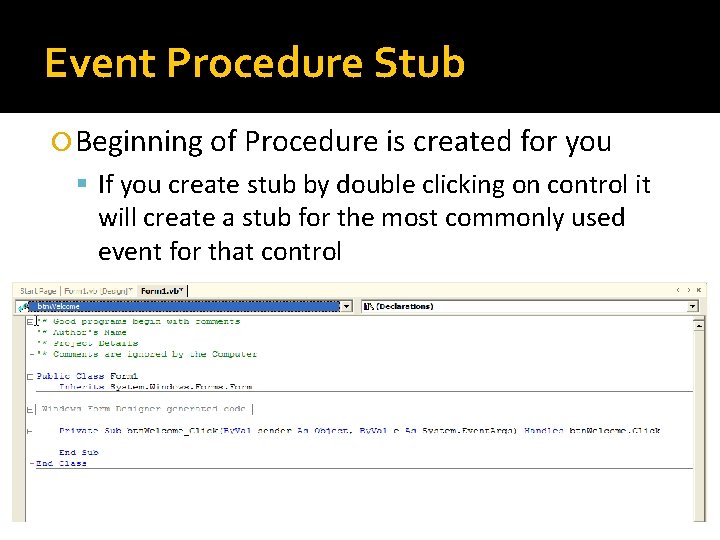
Event Procedure Stub Beginning of Procedure is created for you If you create stub by double clicking on control it will create a stub for the most commonly used event for that control
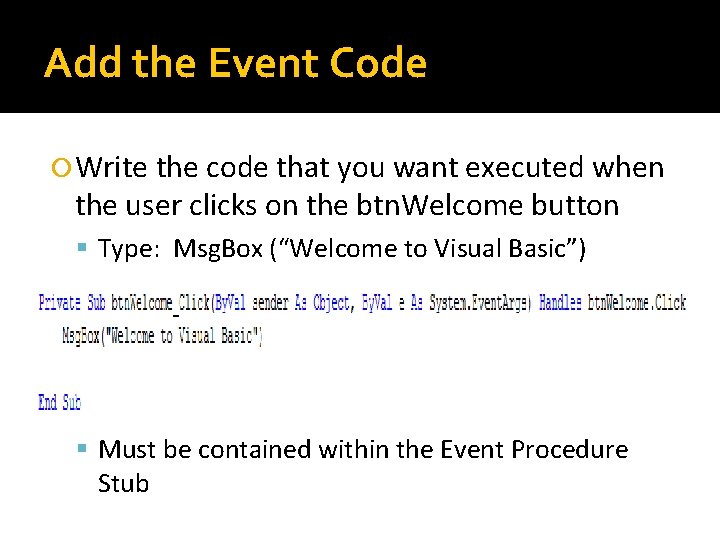
Add the Event Code Write the code that you want executed when the user clicks on the btn. Welcome button Type: Msg. Box (“Welcome to Visual Basic”) Must be contained within the Event Procedure Stub
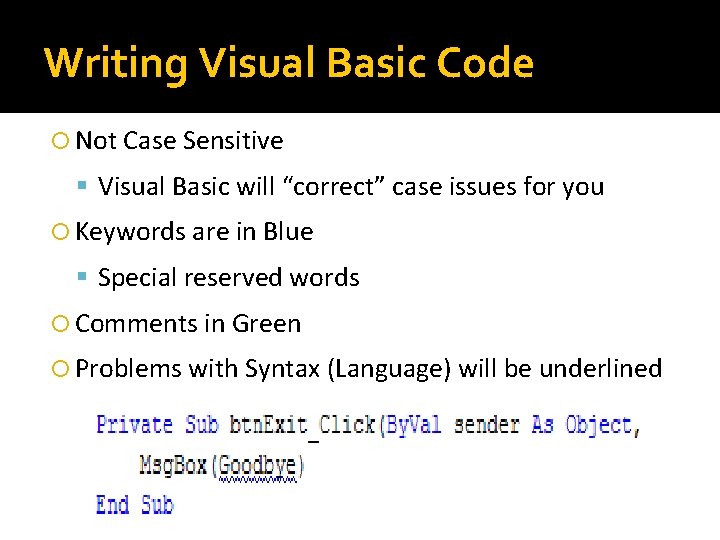
Writing Visual Basic Code Not Case Sensitive Visual Basic will “correct” case issues for you Keywords are in Blue Special reserved words Comments in Green Problems with Syntax (Language) will be underlined in blue
Coding Conventions Rules Use spaces to separate the words and operators Indentation and capitalization have no effect Recommendations Use indentation and extra spaces for alignment Use blank lines before and after groups of related statements Code all variable declarations at the start of the procedure Group related declarations
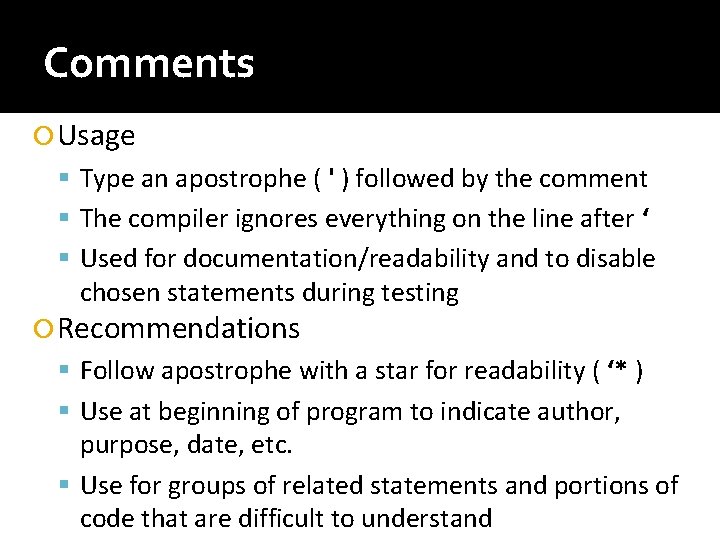
Comments Usage Type an apostrophe ( ' ) followed by the comment The compiler ignores everything on the line after ‘ Used for documentation/readability and to disable chosen statements during testing Recommendations Follow apostrophe with a star for readability ( ‘* ) Use at beginning of program to indicate author, purpose, date, etc. Use for groups of related statements and portions of code that are difficult to understand
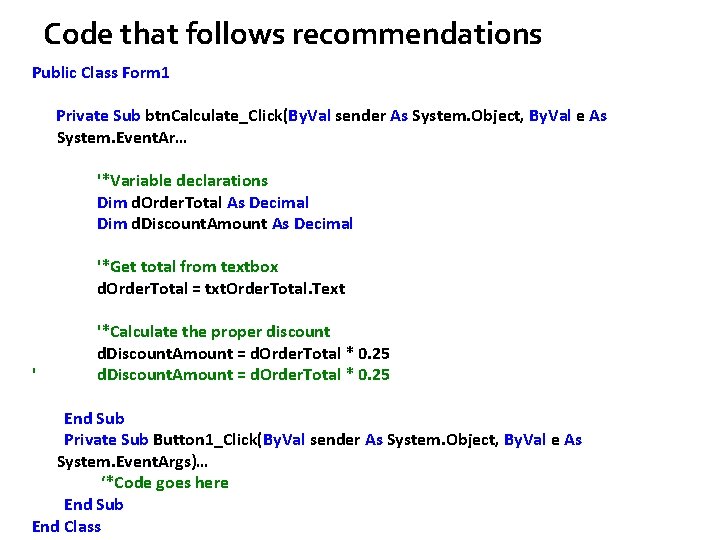
Code that follows recommendations Public Class Form 1 Private Sub btn. Calculate_Click(By. Val sender As System. Object, By. Val e As System. Event. Ar… '*Variable declarations Dim d. Order. Total As Decimal Dim d. Discount. Amount As Decimal '*Get total from textbox d. Order. Total = txt. Order. Total. Text ' '*Calculate the proper discount d. Discount. Amount = d. Order. Total * 0. 25 End Sub Private Sub Button 1_Click(By. Val sender As System. Object, By. Val e As System. Event. Args)… ‘*Code goes here End Sub End Class
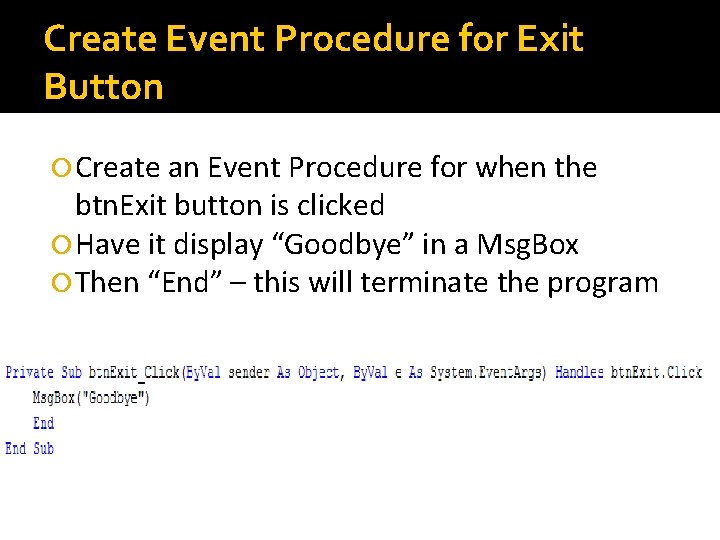
Create Event Procedure for Exit Button Create an Event Procedure for when the btn. Exit button is clicked Have it display “Goodbye” in a Msg. Box Then “End” – this will terminate the program
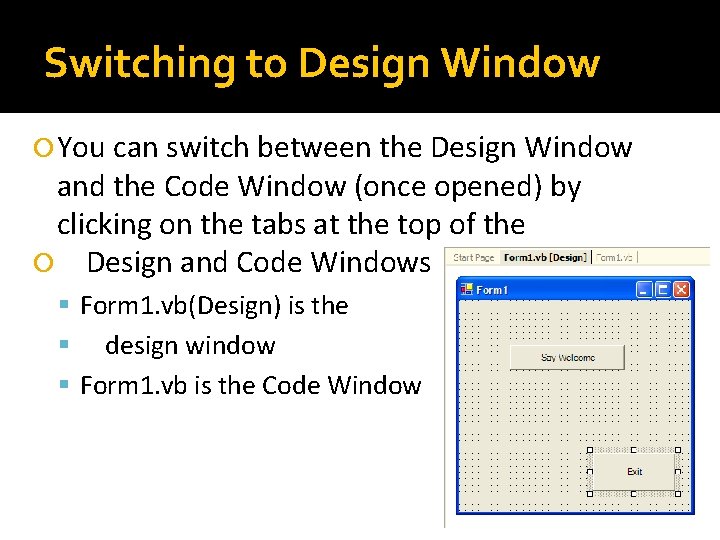
Switching to Design Window You can switch between the Design Window and the Code Window (once opened) by clicking on the tabs at the top of the Design and Code Windows Form 1. vb(Design) is the design window Form 1. vb is the Code Window
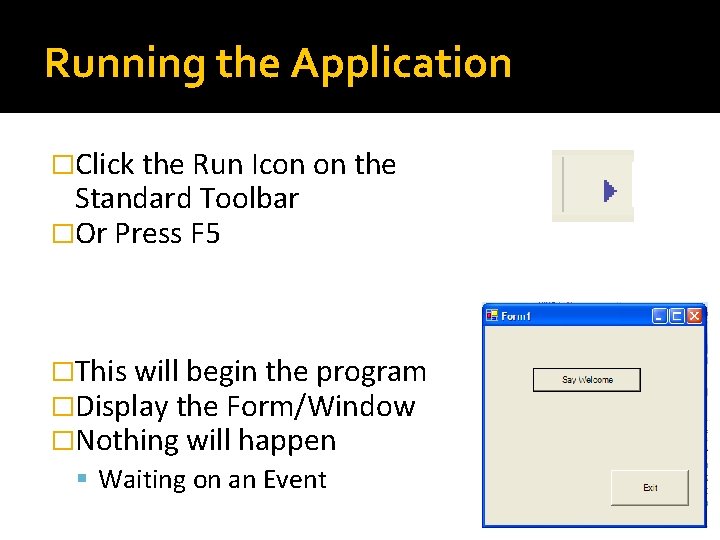
Running the Application �Click the Run Icon on the Standard Toolbar �Or Press F 5 �This will begin the program �Display the Form/Window �Nothing will happen Waiting on an Event
Test the Events Click on the “Say Welcome” button The message box should display Click on the “Exit” button The message box should display The application should terminate
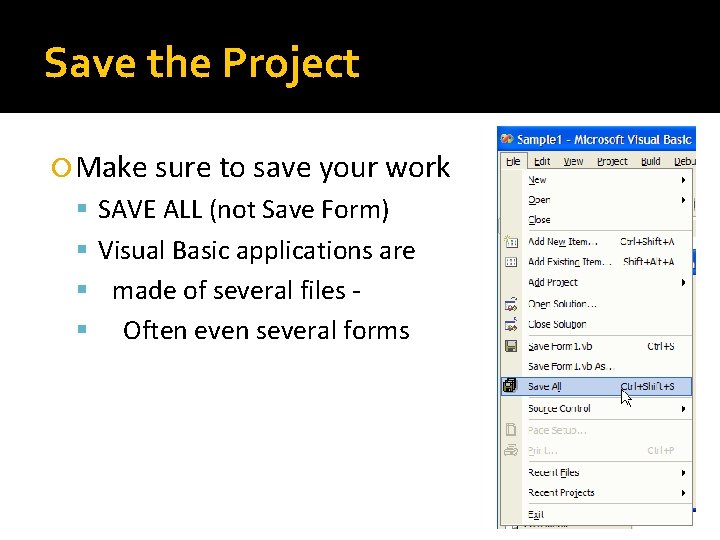
Save the Project Make sure to save your work SAVE ALL (not Save Form) Visual Basic applications are made of several files Often even several forms
Select Startup Form Bydefault startup form is form 1, it may be changed by following steps: Project Windows. Application 1 Properties Select the Application Tab Select your form from the dropdown under 'startup form'
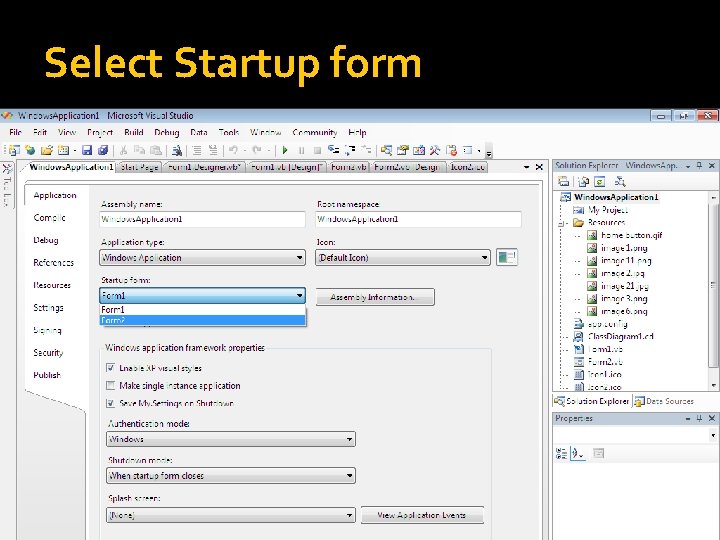
Select Startup form
- Slides: 37