
LearnOregon State Student Registration Guide Turning Technologies Clicker

- Slides: 10
Learn@Oregon. State Student Registration Guide Turning Technologies Clicker & Response. Ware University Information & Technology • Academic Technology • Learning Platform Services https: //learn. oregonstate. edu/classroom-response classroom. response@oregonstate. edu
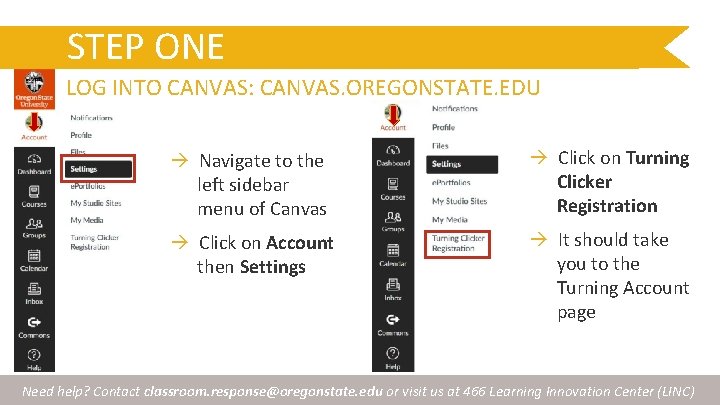
STEP ONE LOG INTO CANVAS: CANVAS. OREGONSTATE. EDU Navigate to the left sidebar menu of Canvas Click on Turning Clicker Registration Click on Account then Settings It should take you to the Turning Account page Need help? Contact classroom. response@oregonstate. edu or visit us at 466 Learning Innovation Center (LINC)
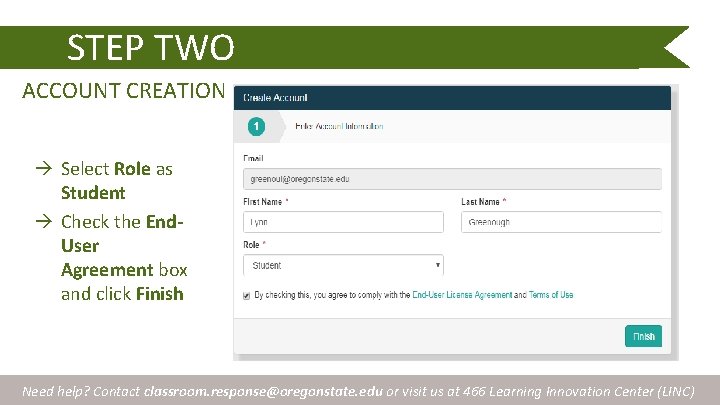
STEP TWO ACCOUNT CREATION Select Role as Student Check the End. User Agreement box and click Finish Need help? Contact classroom. response@oregonstate. edu or visit us at 466 Learning Innovation Center (LINC)
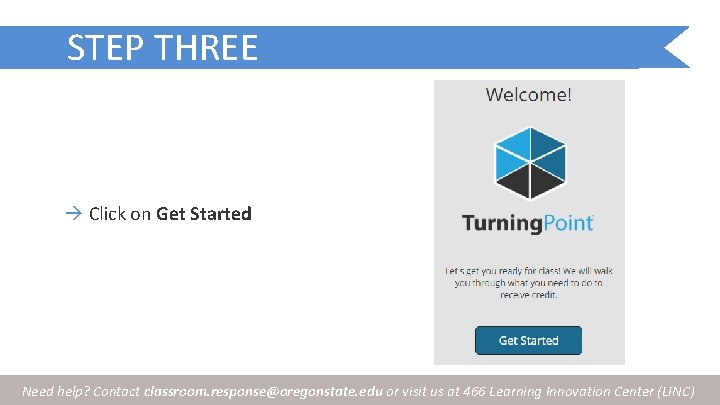
STEP THREE Click on Get Started Need help? Contact classroom. response@oregonstate. edu or visit us at 466 Learning Innovation Center (LINC)
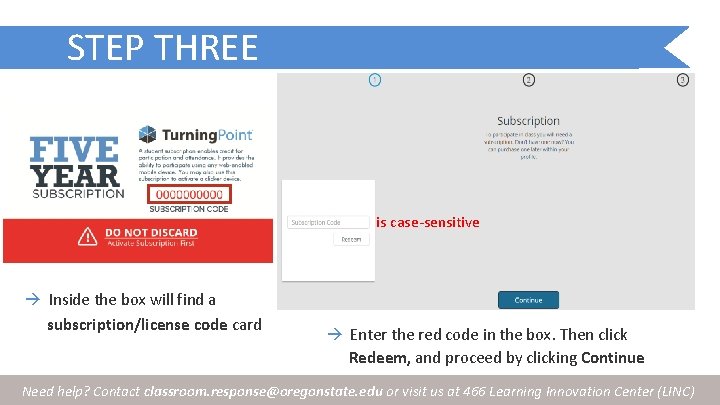
STEP THREE is case-sensitive Inside the box will find a subscription/license code card Enter the red code in the box. Then click Redeem, and proceed by clicking Continue Need help? Contact classroom. response@oregonstate. edu or visit us at 466 Learning Innovation Center (LINC)
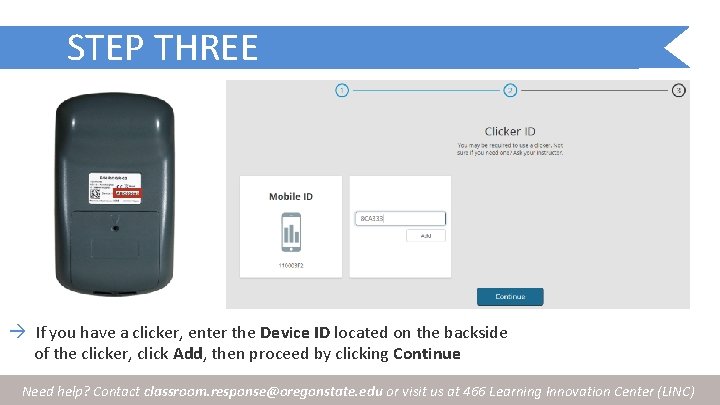
STEP THREE If you have a clicker, enter the Device ID located on the backside of the clicker, click Add, then proceed by clicking Continue Need help? Contact classroom. response@oregonstate. edu or visit us at 466 Learning Innovation Center (LINC)
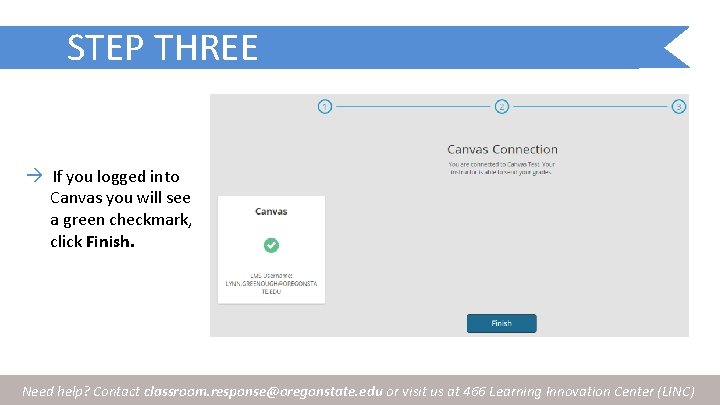
STEP THREE If you logged into Canvas you will see a green checkmark, click Finish. Need help? Contact classroom. response@oregonstate. edu or visit us at 466 Learning Innovation Center (LINC)
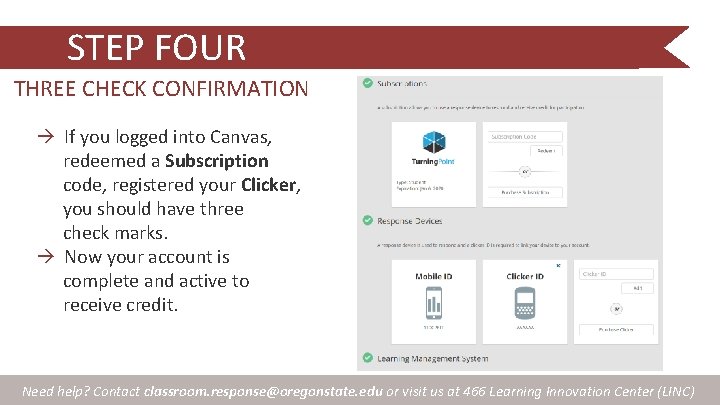
STEP FOUR THREE CHECK CONFIRMATION If you logged into Canvas, redeemed a Subscription code, registered your Clicker, you should have three check marks. Now your account is complete and active to receive credit. Need help? Contact classroom. response@oregonstate. edu or visit us at 466 Learning Innovation Center (LINC)
MOBILE & TABLETS To respond using your tablet or mobile device, download the Turning. Point app from the Apple Store or Google Play Store. 1. Enter your OSU email address, click Sign In 2. Use your ONID username and password 3. Enter your instructor’s Session ID, e. g. stat 314, then click Join Session Need help? Contact classroom. response@oregonstate. edu or visit us at 466 Learning Innovation Center (LINC)
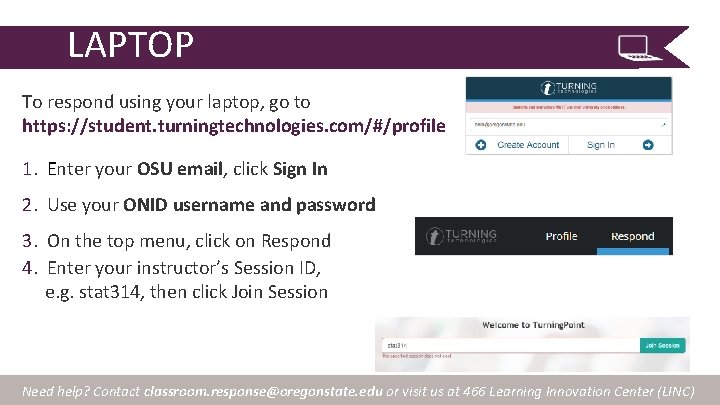
LAPTOP To respond using your laptop, go to https: //student. turningtechnologies. com/#/profile 1. Enter your OSU email, click Sign In 2. Use your ONID username and password 3. On the top menu, click on Respond 4. Enter your instructor’s Session ID, e. g. stat 314, then click Join Session Need help? Contact classroom. response@oregonstate. edu or visit us at 466 Learning Innovation Center (LINC)